

Page 1

Sengled Smart LED Starter Kits
• Soft White A19 Starter Kit
• Multicolor A19 Starter Kit
USER GUIDE
Page 2

Introduction:
Sengled Smart LED bulbs oer an easy solution to having appcontrollable smart lighting in your home. These bulbs enable you to
control your lights in multiple ways—on/o, dimming, schedules, etc.—
through the Sengled Home app on your phones or through partner
programs like Amazon Alexa or Google Assistant.
Note: A hub is required to control these bulbs.
Important Safety Information:
Before installing this Sengled Smart LED Starter Kit, please read and
follow all precautions, including:
• Before replacing your current bulbs, please turn o the power and
let cool to avoid electrical shocks and burns.
• Risk of electric shock. Do not attempt to disassemble bulb.
• Not suitable for use with standard wall dimmers.
• Not suitable for completely enclosed fixtures.
• Suitable for use in operating environment between
-4°F and 104°F (-20°C and 40°C).
• Not for use in emergency lighting.
• Indoor use only.
Page 3

Installation Instructions:
The following instructions are for installing your Sengled Smart LED
Starter Kit. Please do not power on your bulbs until told to do so
within the app. Also, ensure you are connected to a 2.4 GHz network
before beginning installation. For more information, please reference
your router's user manual.
Download the latest version of the Sengled
1
Home App from the Apple App Store or
Google Play Store.
Register and sign in to your Sengled account in the app.
2
Open the Sengled Home App. Go to
3
Devices, select the + sign, and choose
Starter Kit.
The 2.4 GHz Wi-Fi on your mobile device
needs to be On and please make sure
your mobile device is connected to the
same 2.4 GHz Wi-Fi network that your
hub is connecting to during the
installation process.
This method will walk you through adding the Hub first, then the
individual pre-paired smart bulbs will show up under the Devices
tab and Room assignment pages.
Follow in-app instructions to finish installation.
Ensure your Sengled Home app can discover the bulbs. If
4
the app unsuccessfully discovers the bulbs, please refer to
the next section "Reset Instructions" for how to reset your
bulb before attempting to add it back in.
Congratulations on successfully installing your smart bulbs!
Page 4
Installation Instructions Using Third-Party Integration:
If you would like to set up your Smart LED bulbs with a third-party
integrator, such as Amazon Alexa or Google Home, please refer to
support.sengled.com or your "Settings" tab in your Sengled Home app.
Reset Instructions:
For the Hub:
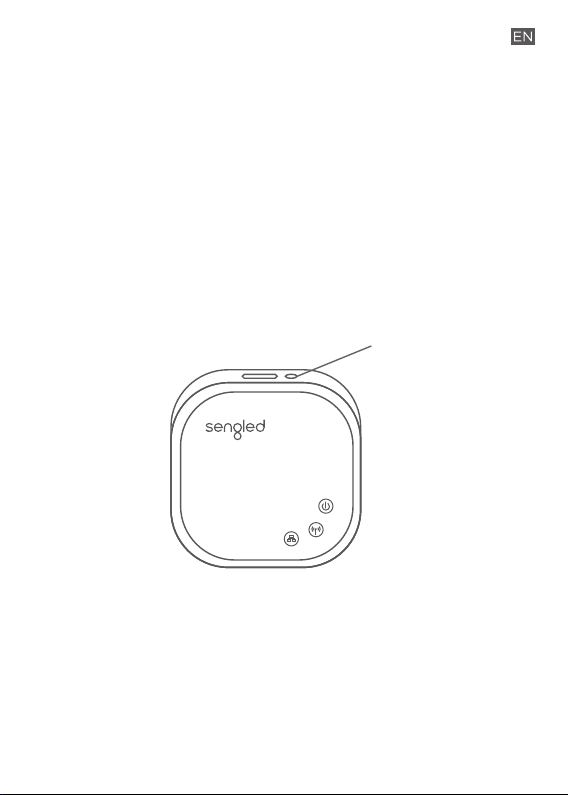
Locate the reset button on the side of the hub. Press and hold the button
for 8 seconds, then release. If the reset is successful, the middle LED will
flash 8 times. At this time, please re-attempt adding your hub with the
Sengled Home App.
Reset Button
For the Bulbs:
To reset your Smart LED bulb, ensure that the bulb is on and then quickly
turn the bulb o and on at least 10 times (using a light switch or power bar
works best). If the reset is successful, the bulb will flash five times. If it does
not flash five times, you will have to try again. Once successfully reset,
please try to pair it in your Sengled Home app again.
Page 5

Operation:
The following section outlines some of the popular operational
modes of the Sengled Smart LED bulbs.
Applicable to all Sengled Smart LED bulbs:
Turning the bulb(s) on and o
A
Smart LED bulbs can be controlled through a variety of means:
• Manually via a wall switch
• Through Sengled Home App
• Through partner programs like Alexa,
Google Assistant, IFTTT, etc.
Dimming
B
Smart LED bulbs can be dimmed through the Sengled Home
app, through partner programs such as Amazon Alexa, Google
Assistant, IFTTT, etc., or the Sengled Smart Switch. Manual
dimming via wall dimmers is not supported.
Scheduling
C
Schedules can be created with the Sengled Home App.
Page 6

Check the in-app how-to pages through "Settings" for the following
two operations.
Voice Control
D
• Set up Amazon Alexa by adding Sengled Home
Skill. (Check the in-app how-to page)
• Set up Google Assistant by adding Sengled Home
Skill. (Check the in-app how-to page)
Third Party Control
E
Utilize a third-party program (like IFTTT ) to control your
lights. (Check the in-app how-to page)
If you have Sengled Smart LED Multicolor bulbs, the following
operations are also available:
Tuning Whites
F
Adjust whites via the white palette in the Sengled Home
app, or with voice control and third parties.
Changing Colors
G
Change between 16 million colors using the color palette in
the Sengled Home app, or with voice control and third
parties.
Page 7
Frequently Asked Questions:
1. What can be used to dim these lights?
We recommend using the Sengled Home app or a compatible
smart device to dim or brighten your Sengled Smart LED. If
the Sengled Smart LED bulb is installed on a wall dimmer, the
dimmer must be set at 100% at all times. Manual dimming
through the wall dimmer is not supported.
2. What should I do if the Sengled Smart Hub cannot be found
or set up using the Sengled Home app?
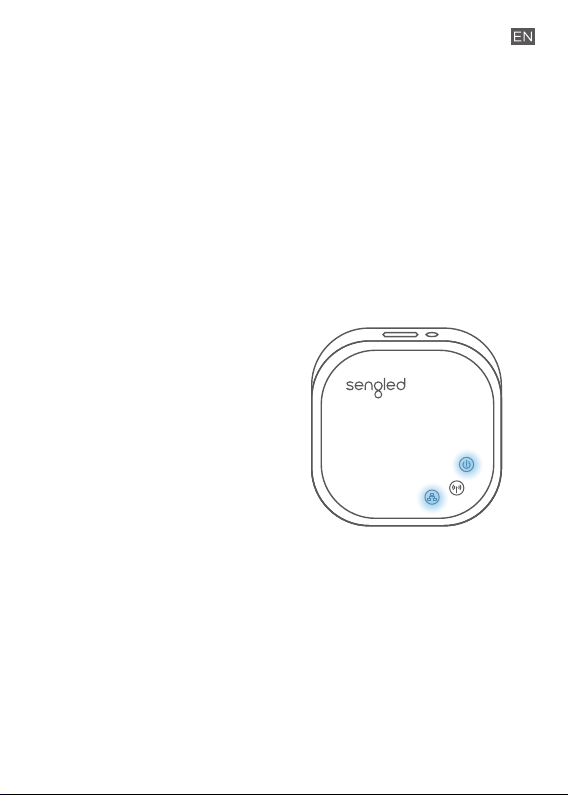
Make sure your hub is
connected to the Wi-Fi router
directly with an Ethernet cable,
and has power. After powering
on the hub, the indicator lights
will turn on (represented in
blue in the diagram).
If the lights do not turn on,
please reset your hub. If the
lights do not turn on after a
reset, please contact Sengled
Support via the info on the
last page.
3. Can dierent types of Sengled Smart devices be used
simultaneously?
Yes, a single Sengled hub can support up to 64 Sengled smart
devices, including smart LED bulbs, smart plugs, smart
sensors, etc. For the latest selection, please check out
sengled.com.
Page 8
Specifications:
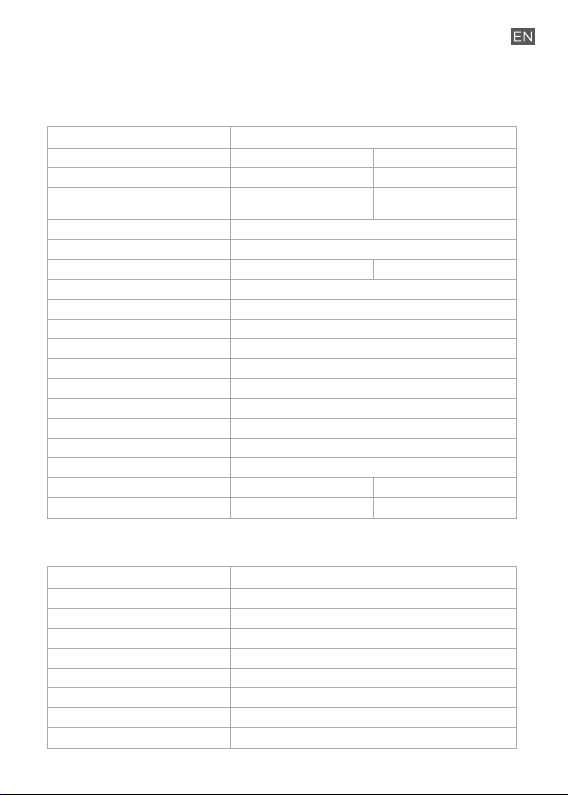
Bulb
Lamp Type
Light Color
Model Number
Color
Socket
Brightness (Lumens)
Power Consumption (rated)
Replacement power
Dimmer Switch Compatible
Lifetime (hours)
Color Rendering Index (CRI)
Beam Angle
Warranty
Voltage
Operation temperature
Operation humidity
Diameter
Height
Weight
Hub
Hub Model Number
Warranty
Hub Input Voltage
Operation Temperature
Operation Humidity
Length
Width
Height
Weight
Soft White
4.5 in (114 mm)
2.9 oz (83 g)
A19 2-Pack Kit
E11-G13
E26
800 lm
60 W
No
25,000
90
240 degrees
3 years
100-130 Vac
-4~104°F
0–95%
Z02-hub
2 years
5 Vdc
-4~104°F
0–95%
16 Million Colors
(2000K – 6500K)
2700K
9 W 8.6 W
2.4 in (61 mm)
3.07 in (78 mm)
3.07 in (78 mm)
1.02 in (26 mm)
2.68 oz (76 g)
Multicolor
E11-N1EA
4.4 in (112 mm)
4.2 oz (118 g)
Page 9

Limited Warranty:
3-year limited warranty from original purchase date. To learn
more about the Limited Warranty for Sengled products, please
visit www.sengled.com/warranty.
Support:
If you encounter any issues, please reach out to your local
Sengled Support team.
Visit the following website for web support:
https://support.sengled.com/
Send emails to:
[email protected] (USA)
[email protected] (CA)
Dial Customer Support Line 1-877-401-5990
10:00am-8:00 pm CST on Mon-fri
11:00am-8:00 pm CST on Sat
1503260397/V1.0
 Loading...