

Page 1
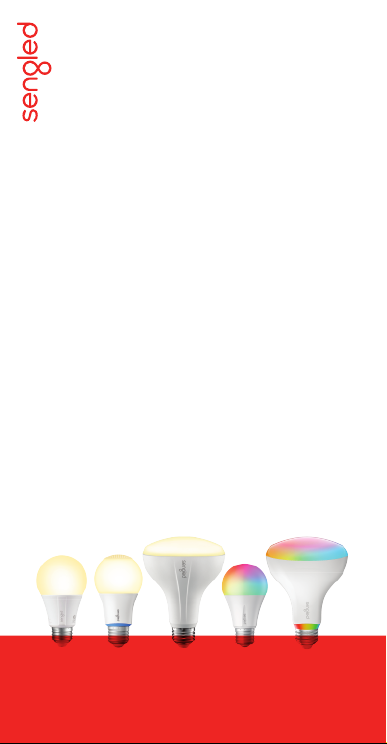
Sengled Smart LED
• Soft White A19 Bulbs
• Daylight A19 Bulbs
• Extra Bright Soft White A19 Bulbs
• Extra Bright Daylight A19 Bulbs
• Soft White BR30 Bulbs
• Multicolor A19 Bulbs
• Multicolor BR30 Bulbs
USER GUIDE
Page 2

Introduction:
Sengled Smart LED bulbs oer an easy solution to having
app-controllable smart lighting in your home. These bulbs
enable you to control your lights in multiple ways—on/o,
dimming, schedules, etc.— through the Sengled Home app
on your phones or through partner programs like Amazon
Alexa or Google Assistant.
Note: A hub is required to control these bulbs.
Important Safety Information:
Before installing the Sengled Smart LED bulbs,
please read and follow all precautions, including:
• Turn o power before installation or removal. Discontinue
use if damaged.
• Warning: risk of electric shock . Do not at tempt to
disassemble bulb.
• Not suitable for use with wall dimmers.
• Suitable for use in operating environment between
- 4°F and 104° F (-20°C and 4 0°C).
• Not for use in emergency lighting.
• Indoor use only.
1
Page 3
Installation Instructions:
The following instructions are applicable to adding your
Smart LED bulb to a Sengled hub. If you have a
third-par ty hub, such as SmartThings or Amazon Echo
Plus, or would like to find our latest list of supported
third party hubs, please refer to suppor t.sengled.com.
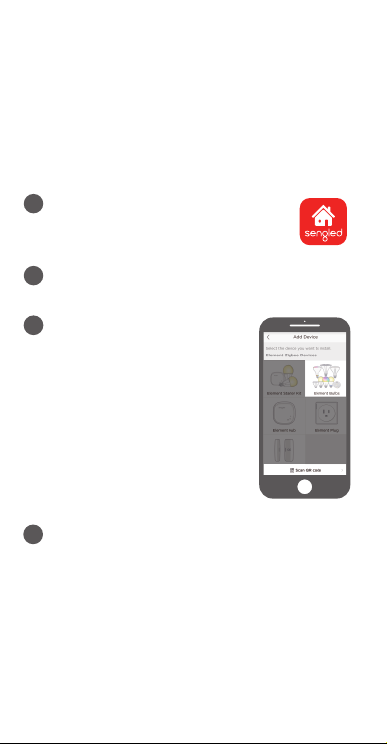
Download the latest version of the
1
Sengled Home App from the Apple
App Store or Google Play Store.
Register and sign in to your Sengled account in
2
the app.
Open the Sengled Home App.
3
Go to Devices, select the +
sign, and choose Bulbs.
Follow in-app instruc tions to
finish installation.
Ensure your Sengled Home app can discover the
4
bulbs. If the app unsuccessfully discovers the
bulbs, please refer to the next section " Reset
Instructions" for how to reset your bulb before
attempting to add it back in.
Congratulations on successfully installing your
smart bulbs!
2
Page 4

Reset Instructions:
To reset your Smar t LED bulb, ensure that the bulb is on
and then quick ly turn the bulb o and on 10 times (using
a light switch or power bar works best). If the reset is
successful, the bulb will flash five times. If it does not
flash five times, you will have to try again. Once
successfully reset, please try to pair it in your Sengled
Home app again.
Operation:
The following section outlines some of the popular
operational modes of the Sengled Smart LED bulbs.
Applicable to all smart bulbs:
A
Turning the bulbs on and o
Smart LED bulbs can be controlled through a variety
of means:
• Manually via a wall switch
• Through Sengled Home App
• Through partner programs like Alexa,
Google Assistant, IFT TT, etc.
B
Dimming
Smart LED bulbs can be dimmed through the
Sengled Home app, through partner programs such
as Amazon Alexa, Google Assistant, IF TTT, etc., or
the Sengled Smart Switch. Manual dimming via wall
dimmers is not supported.
Scheduling
C
Schedules can be created with Sengled Home App.
3
Page 5

Check the in-app how-to pages through "Settings" for
the following two operations.
Voice Control
D
• Set up Amazon Alexa by adding
Sengled Home Skill. (Check the in-app
how-to page)
• Set up Google Assistant by adding
Sengled Home Ser vice. (Check the in-app
how-to page)
Third Party Control
E
Utilize a third-part y program (like IFT TT ) to control
your lights. (Check the in-app how-to page)
If you have Sengled Smart LED Multicolor bulbs, the
following operations are also available:
Tuning Whites
F
Adjust whites via the white palette in the Sengled
Home app, or with voice control and third parties .
G
Changing Colors
Change between 16 million colors using the color
palette in the Sengled Home app, or with voice
control and third parties.
4
Page 6

Frequently Asked Questions:
1. What can be used to dim these lights?
We recommend using the Sengled Home app or
a compatible smart device to dim or brighten your
Sengled Smart LED bulb. If the Sengled Smar t LED
bulb is installed on a wall dimmer, the dimmer must
be set at 10 0% at all times. Manual dimming through
the wall dimmer is not suppor ted.
2. Sengled Smart LED bulbs appears oline or
unresponsive, what should I do?
a) Please check the light switch and make sure that
it’s switched to “On”.
b) Refresh the status of your hub, navigate to the
Home tab, swipe down and then release.
c) Try moving the bulbs closer to the hub.
Additionally, check to make sure that your internet
connection is working properly. Try turning the
bulbs o and on. If that does not work, try turning
the hub o and on. If all else fails, try restarting
your router.
3. Can dierent types of Sengled smart bulbs be
used simultaneously?
Yes, a single Sengled Hub can support up to 64
devices from the Sengled Smart LED family
(formerly Element Classic, Element Plus,
Element Color Plus, PAR38, 100W and
Element Smart Plug).
5
Page 7

Limited Warranty:
3-year limited warranty from original purchase date. To
learn more about the Limited Warranty for Sengled
products, please visit www.sengled.com/warranty.
Support:
If you encounter any issues, please reach out to your
local Sengled Support team.
Visit the following website for web support:
https://support.sengled.com/
Send emails to:
[email protected] (USA)
[email protected] (CA)
Dial Customer Suppor t Line 1- 877-401-5990
10:00am-8:00 pm CST on Mon-Fri
11:00am-8:00 pm CST on Sat
Closed on Sunday
6
1503260357/v1.2
 Loading...