

Page 1

NB100U Portable Encoder
User’s Manual
V1.00-N
Page 2

1
Preface
About This Manual
This manual provides introductions to users about how to operate the device correctly. The
content includes introduction to product installation, product characteristics and product settings,
etc.
It is highly suggested users to go through this document before actually operating the device.
Intended Readers
This manual is suggested to be studied by the following readers:
Technical Service Engineer
Maintenance Engineer
Test Engineer
Sales Engineer
Page 3
2
Important
Avoid personal injury and product damage! Do not proceed bey ond any symbol until
you fully understand the i ndicated conditions.
You may find this symbol in the
document that accompanies this product. This symbol indi ca t es i m por tant operating
or maintenance instructio ns.
Please use the cable of good qual it y and make sure the connector is in good
condition.
Please do not use the power supply that doesn’t match the requirement.
Please do not open the machine cover.
Specif ications and functions may be changed for impr ovement without notice in
advance.
Page 4

3
Notices
T rademark A cknowledgments
All trademarks shown in this ma nual are trademarks of their respective ow ners.
Publication Disclaimer
Our company assumes no responsibility for errors or omissions that may appear in this
publication. We reser ve the right t o change th is publi cation at any time without notice. This
document is not to be construed as conferring by implication, estoppel, or otherwise any
license or right under any copyr ight or patent, whether or not the use of any in f or m at ion in
this document employs an inv ent ion claimed in any existing or later issued patent.
Copyright
Information in this publication is subject to change without notice. No part of this
publication may be reproduced or transmitted in any form, by photocopy, microfilm,
xerography, or any other means, or incorporated into any information retrieval system,
electronic or mechanical, for any purpose, without the express permission of our
company.
Page 5
4
Safety Instructions
This warning symbol means danger. You are in a situation that could cause bodily
injury. Before you work on any equipment, be aware of the hazards involved with
electrical circuitry and be familiar with standard practices for prev enting accidents.
Electric Shock Hazard
This equipment meet s ap plicab le saf ety st andards. Re fer to t his equ ip ment's I dent ificat ion
label or contact factory for details about regulatory compliance approvals.
WARNING:
To reduce risk of electric shock, perform only the instructions that are included in
the operating instructions. Refer all servicing and installation to qualified service
personnel only.
Electric shock can cause personal injury or even death. Avoid direct contact with
dangerous voltages at all times. The protective ground connection, where provided, is
essential to safe operation and m ust be verified before connecting the power supply.
Know the following safety warnings and guidelines:
- Only trained and qualified personnel should be allowed to install, replace, or service this
equipment.
- Only qualified service personnel are allowed to remove chassis covers and access any
of the components ins ide the chassis.
- No user-serviceable p ar ts inside. Do not open.
Page 6

5
Important Safety Instructions
Read these instructions.
Keep these instructions.
Heed all warnings.
Follow all instructions.
Do not use this apparatus near water.
Clean only with dry cloth.
Do not block any ventilation openings. Install in accordance with the manufacturer's
instructions.
Do not install near any heat source s such as r adiato rs, heat register s, stov es, or ot her
apparatus (including amplifiers) that produce heat.
Protect the power cord from be in g walked on or pinched particularly at plugs,
convenience receptacles, and the point where they exit from the apparatus.
Only use attachments/accessories specified by the manufacturer.
Use only with the cart, st and, t r ipod, br acket, or table specified by the man uf acturer,
or sold with the apparatus. When a cart is used, use caution when moving t he
cart/apparatus com bination to avoid injury from tip-over.
Unplug this apparatus during lightning storms or when unused f or lon g periods of
time.
Refer all servicing to qualified service personnel. Ser vicing is required when the
apparatus has been da ma ged in any way, such as power-supply cord or plug is
damaged, liquid has been spil led or objects have fallen into the apparatus, the
apparatus has been exp osed to rain or moisture, does not operate normally, or has
been dropped.
Page 7

6
WARNING:
To reduce the risk of fire or electric shock, do not expose this apparatus to rain or
moisture. The apparatus shall not be exposed to dripping or splashing and no
objects fi lled with liquids, such as vases, shall be pl aced on the apparatus.
Revision History
Date Version Description Author
11/22/2017 1.00 First Draft Zita
Page 8

7
Contents
1 CHAPTER1 OVERVIEW .................................................................................................................... 9
1.1 Introduction .................................................................................................................. 9
1.2 Architecture................................................................................................................... 9
Front Panel ................................................................................................................................ 9
Rear Panel ............................................................................................................................... 10
2 CHAPTER2 INSTALLATION ............................................................................................................. 10
2.1 Installation Procedure ....................................................................................................... 10
2.2 Preparation before Installation ......................................................................................... 11
2.3 Equipment Wiring and Connection ................................................................................... 11
2.3.1 Power Connection .......................................................................................................... 11
2.3.2 DC Power Connection .................................................................................................... 11
2.3. 3 Connection Setup for Web Management...................................................................... 11
2.3.4 Connection Setup for HDMI/CVBS/SDI signal input ....................................................... 12
3 CHAPTER3 OPERATION GUIDE ..................................................................................................... 12
3.1 Operating the Front Panel Interface .................................................................................. 12
3.1.1 Powering Up and Initialization ............................................................................... 12
3.1.2Front Panel Menu Structure .................................................................................... 13
3.2 Operating the WEB Interface ............................................................................................ 14
3.2.1 Access Interface ...................................................................................................... 14
Page 9

8
3.2.2 Main Interface ........................................................................................................ 15
3.2.3 Live Mode ............................................................................................................... 16
3.2.4 Playback mode ....................................................................................................... 24
3.2.5 Recording Mode ..................................................................................................... 27
3.2.6 System .................................................................................................................... 29
Page 10
9
1 CHAPTER1 OVERVIEW
1.1 Introduction
StreamCast NB100U is a highly effective encoder for video and audio processing which supports
HDMI/SDI/CVBS standard input source and output as RTSP/HLS/UDP/RTP/RTMP Ethernet
protocol. The NB100U supports one channel HD/SD live encoding, playback, recording and IP
streaming out or modulating out. It also supports Closed Caption.
1.2 Architecture
Front Panel
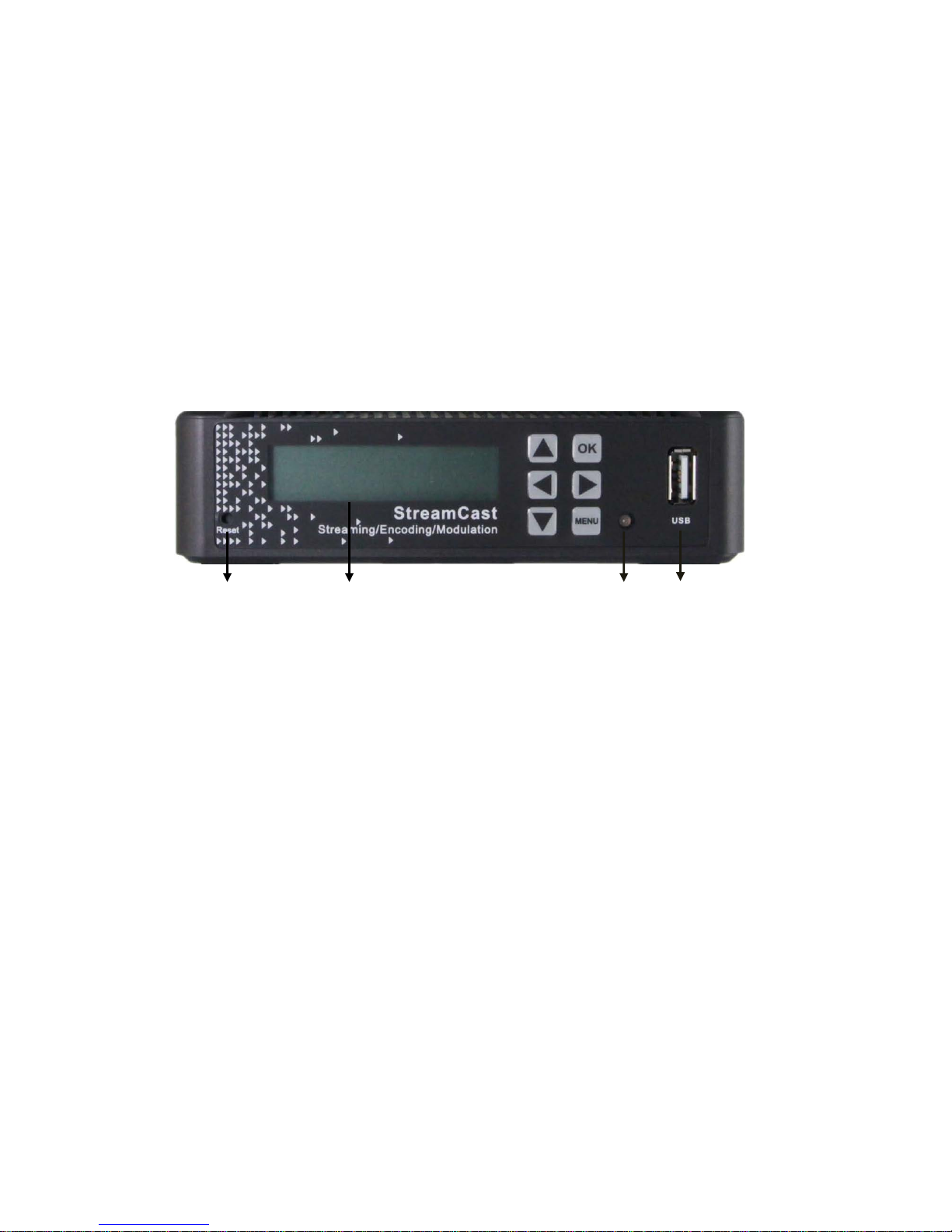
3 2 1 4
1. Power status indicator: This LED light is turned on when the StreamCast is power on.
(Signal) Lock status indicator: This LED light is turns to green when a channel is locked.
Otherwise the light turns to red.
2. Display screen: This LCD screen can show the management IP address, work mode,
Input stream standard, output protocol, running status and etc.
3. Reset: This button is for defaulting factory setting.
4. USB port: This port is used for disk inserting under Playback and Recording mode
Page 11
10
Rear Panel
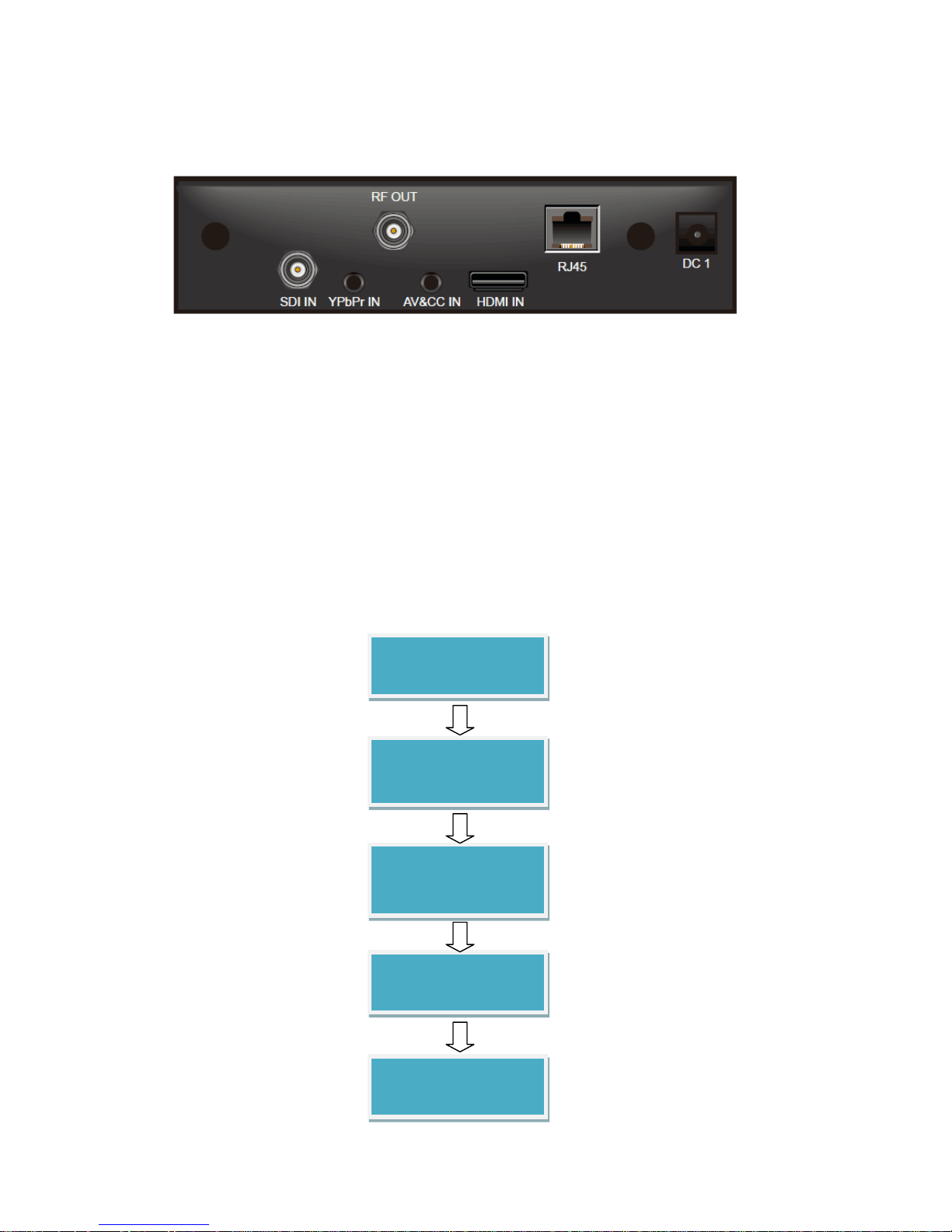
1. HDMI /AV / YPbPr / SDI IN port
2. RF OUT port
3. RJ45-- management connection port
4. DC —DC Power connection
2 CHAPTER2 INSTALLATION
2.1 Installation Procedure
Preparation before
Installation
Setup Connection
(signals, wiring)
Parameters
Configuration
System Debug
Finish
Page 12

11
2.2 Preparation before Installation
Before installation, the installation personnel should read through and confirm the followings:
• Go through this user manual.
• Has the knowledge of digital television system.
• Has defined the sources, racks allocation, and set-up plan system wiring.
• Knows how to operate this unit and parameters configuration.
• Go through related engineer ing design documents about the syst em.
2.3 Equipment Wiring and Connection
To avoid electric shock and damage to the equipment, before setting up the wiring connection,
please power off the equipment and all other connected external devices. Powering on the
equipment only after all the wiring connection is completed.
2.3.1 Power Connection
Use the proper power connections is vital to the safe operation of the portable encoder. Only use
the supplied power connector or one with equal specifications. Never use the power connector
whose specification is different from we supplied. This could cause damage to the Portable
Encoder.
2.3.2 DC Power Connection
The DC power supply option allows the NB100U to be powered by a separate supply to supply
5V/2A power to the DC port. To hook up the power use the following steps:
1. Locate the DC power cord which is included with the NB100U.
2. Plug the female end of the power cord (end with no prongs) into the back of the unit.
3. Connect the power cord to the power supply or power band to get the 5V/2A electricity.
2.3. 3 Connection Setup for Web Management
Connect to NB100U Management port with a network cable and set up a management network
with the management PC.
Page 13

12
2.3.4 Connection Setup f or HDMI/CVBS/SDI signal input
Connect HDMI/CVBS/SDI signal to NB100U “HDMI IN”/”AV IN”/ “YPbPr IN”/”SDI IN” port with a
HDMI /AV/YPbPr/SDI cable.
3 CHAPTER3 OPERATION GUIDE
3.1 Operating the Front Panel Interface
3.1.1 Powering Up and Initialization
Before powering-up the device, make sure that all cabling is correctly connected (refer to
chapter 2.3 of this manual). The device is correctly connected to the power inlet.
Connect the Power port and the unit is powered up and starts the initialization.
The LCD screen is lighted up, and display information as following:
There will be 3 seconds leaving for you to choose which mode you’ll start. After 3 seconds the
portable encoder will start the last mode automatically.
If you press OK button in the front panel, and display information as following:
Press arrow Up or Down in the front panel to choose start mode.
The initialization takes about 30 seconds to complete, and then the LCD screen display as
following:
Note: If the unit fails to initialize and hangs at the “booting” stage, switching off the device and
then powering up again may help. If the device still fails to initialize, please contact your service
representative for help.
Up Enter BackUp
Dn Enter Normal
Press OK Button To Choose Mode.
Page 14

13
3.1.2Front Panel Menu Structure
1
st
Layer 2nd Layer 3rd Layer 4th Layer
Status
Live Playing/
Paused
Playback
Playing/Paused
Record Playing/
Paused
Setting
Work
Mode
live
Input
Auto/
HDMI/YPbPr/
AV/SDI
Output
UDP/RTP/RTSP/
HLS Live/RTMP
IP x.x.x.x
Port xxxxx
Playback
Mode
Sequence
Clrole Single
Clrole List
Clrole Random
IP x.x.x.x
Port xxxxx
Recorded
Recording
Input
Auto/
HDMI/YPbPr/
AV/SDI
System
Network
Mode
DHCP
Enable/Disable
DNS
Static/ Dynamic
Host
IP/Gateway/
Mask/DNS
x.x.x.x
AP
Wi-Fi
ON/OFF
Version
SW/FW/HW
version
Page 15

14
Recovery Yes/NO
Reboot Yes/NO
Press OK to apply, press MENU to back to upper layer, press direction arrows to move to other
items.
3.2 Operating the WEB Interface
3.2.1 Access Interface
PC Web-GUI
NB100U can be accessed and configured via web GUI. The accessing instruction is as the
followings:
1. Connect the “RJ45” port of the NB100U to the management PC/server directly or via a
network switch.
2. The
NB100U default IP address is 192.168.1.106. Please modify the management
server’s IP address or NB100U IP address to be in the same IP segment. To ensure that
the equipment is smoothly connected to the network.
3. Open any web browser (e.g. Mozilla v30 or above, IE8.0 or above, safari, chrome v42 or
above and etc.), input the equipment’s IP address in format: http://xxx.xxx.xxx.xxx
(xxx.xxx.xxx.xxx refers to NB100U’s IP address) and press ENTER button to confirm. The
browser will attempt to connect to the device. If succeed, a login page will appear. (see
PIC-3.2.1)
Page 16

15
Pic-3.2.1
The default login info shows as below. Click Sign in button after input the correct user name and
password.
User Name: admin
Password: admin.
Wireless connection to device
Please refer to 3.3.6 System Wi-Fi Hotspot.
3.2.2 Main Interface
NB100U provides 3 working modes: Live, Playback and Recording. Click to enter desire working
mode. (PIC-3.2.2)
Live Mode: to encode a live channel via HDMI/SDI/CVBS input and IP output.
Playback Mode: to play the recorded TS from external USB disk.
Recording Mode: to record the encoded TS and store it to the external USB disk
Page 17

16
Pic-3.2.2
3.2.3 Live Mode
To set the parameters for HD/SD channels encoding, as well as the broadcasting mode and
parameters.
Basic Setting
Pic-3.2.3-1
This interface provides the main parameters of encoding and broadcasting. Please check and set
the parameter according to the following items:
Input: HDMI/SDI/YPbPr/AV/Auto source can be selected
Page 18

17
Output: support UDP/RTSP/HLS/RTP/RTMP/Modulation protocol
IP/Port: you can configure the IP streaming output address
UDP Setting
User can set IP/Port parameter.
Pic-3.2.3-2
RTSP Setting
User can view RTSP URL (Ethernet)/RTSP URL (Wireless) parameter.
Pic-3.2.3-3
HLS Setting
User can view HLS URL (Ethernet)/ HLS URL (Wireless) parameter.
Pic-3.2.3-4
Page 19

18
RTP Setting
User can set RTP IP/Port parameter.
Pic-3.2.3-5
RTMP Setting
User can set RTMP FMS URL/Stream/Port/Encryt parameter.
Pic-3.2.3-6
Modulation Setting
QAM Modulation is custom-made feature with additional hardware.
Pic-3.2.3-7
Page 20

19
User can set Frequency from 66000 to 858000 KHz.
Symbol Rate is fixed in 5057(in 64QAM Mode) and 5360(in 256QAM Mode) KBaud.
Pic-3.2.2.1-7
QAM Mode support 64 / 256QAM output.
Pic-3.2.3-8
The output power Level Range is from 90 to 116 dBu.
Pic-3.2.3-9
The Interleave mode can be set as these parameters below:
Page 21

20
Pic-3.2.3-10
Interleave mode
I=128, J=1
I=128,J=2
I=64,J=2
I=128,J=3
I=32,J=4
I=128,J=4
I=16,J=8
I=8,J=16
Advanced Setting
To configure the advanced setting for encoding and streaming, please click the Advance Settings
chars in blue. It will reflect to the new page to set the detailed parameters for Live Mode. It
contains three parts of configuration: Stream info, V ideo info and Audio info (Dolby D St
Creator)
Pic-3.2.3-11
Stream info: In this page, you can configure the Output Standard, Program Number, Stream
ID, PMT PID, PCR PID and etc.(Pic-3.2.3-11)
Output Standard: MPEG/DVB/ATSC
Page 22

21
Program Number: ranging from 1 – 65535
Stream ID: ranging from 0 – 65535
PMT/PCR PID: ranging from 32 – 8190
Program/Provider Name: length must be less 20
Pic-3.2.3-12
Video Info (refer to Pic-3.2.3-12)
Video Source: base on the source you selected in basic setting page
Video PID: ranging from 32 - 8190
Video Encoding Mode: H.264/MPEG2
Video Resolution: Auto/User can choose certain output resolution
( Resolution Supported:
HD: 1920 x 1080@24p/25p/30p/50i/60i, 1280 x 720@50p/60p/25p/30p
SD: 720 x 576@50i, 720 x 480@60i)
Aspect Ratio: Auto/ 16x9_Letter Box / 16x9_Cutoff / 4x3_Pillar Box / 4x3_Cutoff
Video Bitrate Mode: CBR /VBR
Page 23

22
Video Bitrate: ranging from 800 to 14000Kpbs(MPEG2/H.264)
Video Profile: Baseline/High/Main
Video Level: H.264 1b/ H.264 1.0 - 4.2
GOP Structure: IBBP, IPPP,IBP,IBBBP
GOP Close: Enable/Disable
Close Caption: Enable/Disable
Note: When input signal is detected and the preset output signal is of the allowed ones (see
mapping table below), the preset will be remained, otherwise the output resolution will changed
to Auto automatically.
input signal preset output signal
1920x1080_30p 1920x1080_30p
1280x720_30p
720x480_60i
1920x1080_60i 1920x1080_30p
1920x1080_60i
1280x720_30p
720x480_60i
1920x1080_24p 1920x1080_24p
1920x1080_50i:/ 1920x1080_25p
1920x1080_50i
1280x720_25p
720x576_50i
1280x720_60p: 1280x720_60p
1280x720_30p
720x480_60i
Page 24

23
1280x720_50p 1280x720_50p
1280x720_25p
720x576_50i
720x480_60i: 720x480_60i
720x576_50i 720x576_50i
Audio Info(Dolby D St Creator)
Pic-3.2.3-13
Audio Source: Audio HDMI/Audio MIC could be selected
Audio PID: ranging from 32-8190
Audio Encoding Mode: AC3/MPEG1 Layer2/MPEG2 AAC-LC/MPEG4 AAC-LC
Audio Bitrate: 128K/160K/192K/224K/256K/320K/384K/448K
AC3 AC mode: 1+1(L,R), 1/0(C), 2/0(L,R)
Audio Volume: -12 - 12
Audio Sampling Rate: 48K is fixed output audio sampling rate
Click Apply button to make the new configuration into effect when finishing the setting.
Click Start icon on the left-bottom to make the encoding into effect;
Note: When you apply the new configuration the status should be paused, which means the
button in blue bar below displayed Start.
Page 25

24
Live Status
Pic-3.2.3-14
Click the Status icon on the right-bottom to get reflect to the live status page. The page displays
and updates the real-time status of encoding and streaming.
3.2.4 Playback mode
Basic Setting
1. Plug one USB disk to USB port on the front panel of the NB100U to play the TS from the disk.
2. Click the Playback icon to get the playback page, which will list all the available TS from the
USB disk.
3. Click the required TS to play the TS.
Page 26

25
Pic-3.2.4-1
Note: The Playback interface will save and display the TS list from memory of the last USB disk. If
there is no disk connected.
: to add new Play list. The default play list is named “default”.
: to delete the existing Play list.
: to modify the play list name.
: to change the play mode, including single cycle, listing loop, random, order playback.
: to add new TS to the play list.
Page 27

26
Advanced Setting
Pic-3.2.4-2
UDP mode is like Pic-3.2.4-2
Output: UDP/Modulation
IP: The destination IP address for IP streaming.
Port: The destination IP port for IP streaming.
Daily play plan: To set the play plan.
Pic-3.2.4-3
In Modulation mode (Pic-3.2.4-3), you can configure Frequency, Symbol Rate, Mode, Level,
Interleave mode. The setting parameter range is same as Modulation mode of Live mode.
Playback Status
This page displays the status of Playback.
Page 28

27
Pic-3.2.4-4
3.2.5 Recording Mode
Basic Setting
1. Connect the USB disk to the NB100U. Click Recording icon to get the recording page
(Pic-3.2.5-1).
2. Set the encoding parameter, and click the Start icon to start the recording or Pause to stop
the recording.
3. Click the Status icon to reflect to the Status page.
Pic-3.2.5-1
Note: If the USB disk is not connected or the there is not enough space on the disk, it is not able
to start the recording. The minimum available free space is 10MB. The NB100U will overwrite the
first file it created when the free space is not enough, all those files which are not created by
NB100U will not be affected.
For Recording mode, there are Loop (Pic-3.2.5-1), Size (Pic-3.2.5-2), Time (Pic-3.2.5-3) to be
choose.
Page 29

28
Pic-3.2.5-2
Pic-3.2.5-3
Advance setting
For advance setting, please refer to 3.2.3 Live Encoding Advance setting.
Recording Status
This page offers the status of the recording and the storage of the connected USB disk.
Pic-3.2.5-4
Page 30

29
3.2.6 System
Click the icon to get the System page. The System page provides the Network Status,
Ethernet, Wifi Hotspot, W ifi, Language, Time, Upgrade, Development and Contact us these
items. (Pic-3.2.6-1)
Pic-3.2.6-1
Network Status: This page shows status of network related info:
Pic-3.2.6-2
Ethernet: to set up equipment management access IP address, Subnet Mask, Gateway and
etc (Pic3.2.6-3). The NB100U can be configured to use DHCP to obtain an IP address/Subnet
Mask/Gateway. To obtain an IP address may require up to one minute.
Page 31

30
Pic-3.2.6-3
Wi-Fi Hotspot:
This page shows how to set a Wi-Fi Hotspot which enable PC, Hand phone or Tablet to log in
via wireless connection to the device.
Pic-3.2.6-4
Wi-Fi
Enable NB100U Wi-Fi function to connect to a wireless LAN.
Pic-3.2.6-5
Note: Wi-Fi hotspot and Wi-Fi reception have the same range. When it is used as a
Page 32

31
hotspot, Wi-Fi reception is disabled automatically, vice versa.
Language: English and Chinese are available to pick.
Pic-3.3.6-6
Time: to configure the system time sync with Manual or Internet time.
Pic-3.2.6-7
Upgrade: to upgrade new version software by select a file and click the Arrow button. It will
take several minutes to finish the upgrading and after that, after upgrading please reboot
the unit (Pic-3.2.3-8).
Pic-3.2.6-8
Development: to export & clear the logs, check the debug info, export configuration, export
& upgrade license, view system information and etc.
Pic-3.2.6-9
Page 33

32
Logs: User can export & clear the logs in this interface.
Pic-3.2.6-10
Debug: User can check the debug info which is usually used for R-D.
Pic-3.2.6-11
Configuration: User can export configuration (including system and service configuration) in
this tab.
Pic-3.2.6-12
License: User can export & upgrade license, please do reboot to active the license.
Page 34

33
Pic-3.2.6-13
System information: User can check system info in this tab.
Pic-3.2.6-14
Contact us
Pic-3.2.6-15
 Loading...