

Page 1

SENA
MOTORCYCLE BLUETOOTH®
COMMUNICATION SYSTEM
Version 1.1.0
USER’S GUIDE
ENGLISH
Page 2

LEGEND:
TAP
1x
ROTATE
L
ROTATE
L
Tap button/Jog Dial the
specified number of times
ROTATE
ROTATE
R
R
ROTATE
ROTATE
Rotate Jog Dial clockwise (right) or
counterclockwise (left).
Rotate while Pressing Jog Dial clockwise (right) or
counterclockwise (left).
“Hello”
HOLD
Press and Hold button/Jog
Dial for the specified amount
10s
of time
Audible prompt
Page 3

TABLE OF CONTENTS
1. ABOUT THE MOTORCYCLE
BLUETOOTH COMMUNICATION SYSTEM 6
1.1 Product Details 6
1.1.1 Headset Main Unit 6
1.1.2 LCD Display 6
1.2 Package Contents 7
2. INSTALLING THE HEADSET ON YOUR HELMET 8
2.1 Helmet Installation 8
2.1.1 Using the Clamp Unit 8
2.1.2 Using the Glued Surface Mounting Plate 9
2.2 Installing the Speakers 9
2.3 Installing the Microphone 10
2.3.1 Installing the Attachable Boom Microphone 10
2.3.2 Installing the Wired Microphone 12
3. GETTING STARTED 14
3.1 Buttons 14
3.2 Downloadable Sena Software 14
3.2.1 Sena Utility App 14
3.2.2 Sena Device Manager 14
3.3 Powering On and Off 15
3.4 Charging 15
3.5 Checking the Battery Level 15
3.6 Volume Adjustment 16
4. PAIRING THE HEADSET WITH OTHER
BLUETOOTH DEVICES 17
4.1 Phone Pairing 17
4.1.1 Initially Pairing the 5S 17
4.1.2 Pairing When the 5S is Turned Off 18
4.1.3 Pairing When the 5S is Turned On 19
Page 4

TABLE OF CONTENTS CONTINUED
4.2 Second Mobile Phone Pairing - Second Mobile
Phone, GPS, and SR10 20
4.3 Advanced Selective Pairing: Hands-Free or
A2DP Stereo 21
4.3.1 Phone Selective Pairing - Hands-Free Profile 21
4.3.2 Media Selective Pairing - A2DP Profile 22
4.4 GPS Pairing 23
5. MOBILE PHONE USAGE 24
5.1 Making and Answering Calls 24
5.2 Speed Dialing 24
5.2.1 Assigning Speed Dial Presets 24
5.2.2 Using Speed Dial Presets 25
6. STEREO MUSIC 27
6.1 Playing Music with Bluetooth Devices 27
6.2 Music Sharing 28
7. BLUETOOTH INTERCOM 29
7.1 Intercom Pairing 29
7.2 Two-Way Intercom 30
7.3 Universal Intercom 31
8. VOICE COMMAND 32
9. FUNCTION PRIORITY AND FIRMWARE
UPGRADES 34
9.1 Function Priority 34
9.2 Firmware Upgrades 34
Page 5

TABLE OF CONTENTS CONTINUED
10. CONFIGURATION SETTING 35
10.1 Headset Configuration Setting 35
10.1.1 Delete All Pairings 35
10.1.2 Remote Control Pairing 36
10.2 Software Configuration Setting 36
10.2.1 Speed Dial 36
10.2.2 Unit Language 36
10.2.3 Audio Equalizer (Default: Off) 36
10.2.4 VOX Phone (Default: Enable) 37
10.2.5 VOX Intercom (Default: Disable) 37
10.2.6 Audio Source Priority (Default: Intercom) 37
10.2.7 Audio Multitasking™ (Default: Disable) 38
10.2.8 Background Volume (Default: Level 5) 39
10.2.9 HD Intercom (Default: Enable) 39
10.2.10 HD Voice (Default: Enable) 39
10.2.11 Sidetone (Default: Disable) 39
10.2.12 Voice Prompt (Default: Enable) 40
10.2.13 Advanced Noise Control™ (Default: Enable) 40
11. TROUBLESHOOTING 41
11.1 Fault Reset 41
11.2 Factory Reset 42
Page 6
1. ABOUT THE MOTORCYCLE
BLUETOOTH COMMUNICATION
SYSTEM
1.1 Product Details
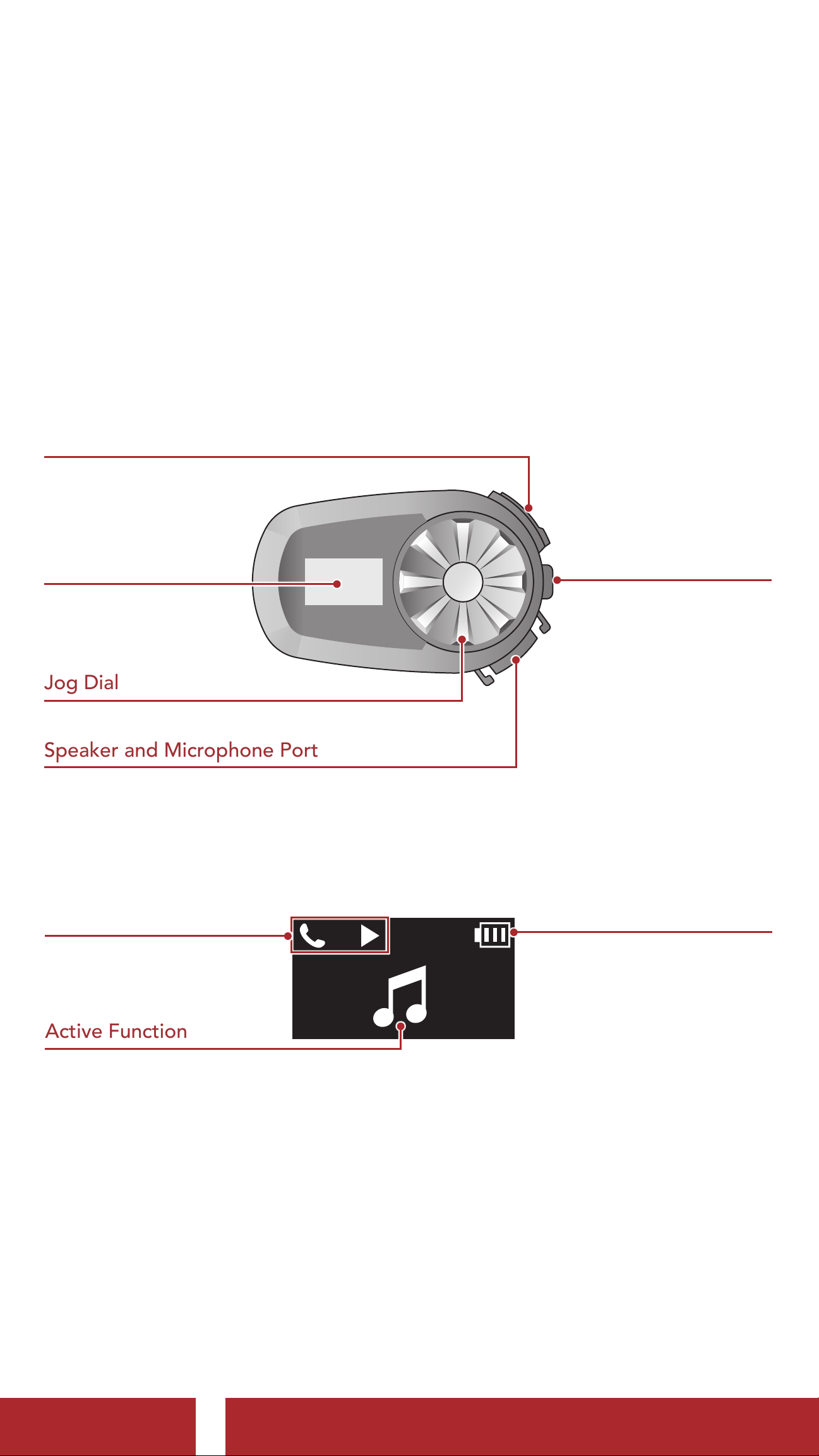
1.1.1 Headset Main Unit
DC Power Charging & Firmware Upgrade Port
LCD Display
Jog Dial
Speaker and Microphone Port
1.1.2 LCD Display
Status
Phone Button
Battery Indicator
Active Function
5S Motorcycle Bluetooth® Communication System | 6
Page 7
1 ABOUT THE MOTORCYCLE BLUETOOTH COMMUNICATION SYSTEM
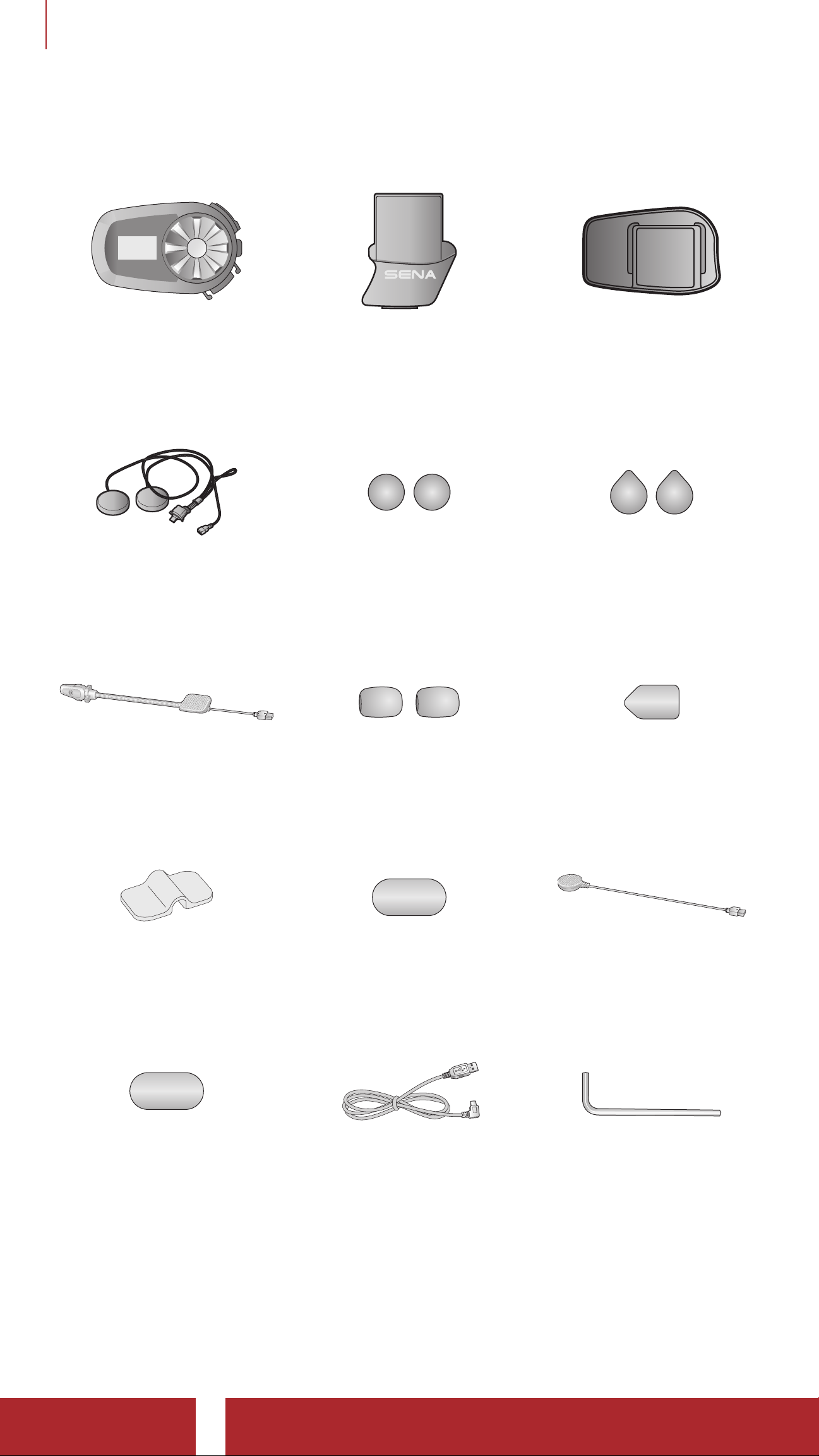
1.2 Package Contents
Headset Main Unit Clamp Unit
Speakers Speaker Pads
Glued Surface
Mounting Plate
Hook and Loop
Fasteners for Speakers
Wired Boom
Microphone
Boom
Microphone Holder
Microphone
Sponges
Hook and Loop
Fastener for Holder
Hook and Loop Fastener
for Boom Microphone
Wired Microphone
Hook and Loop Fastener
for Wired Microphone
USB Power &
Allen Wrench
Data Cable (USB-C)
5S Motorcycle Bluetooth® Communication System | 7
Page 8
2. INSTALLING THE HEADSET ON YOUR
HELMET
2.1 Helmet Installation
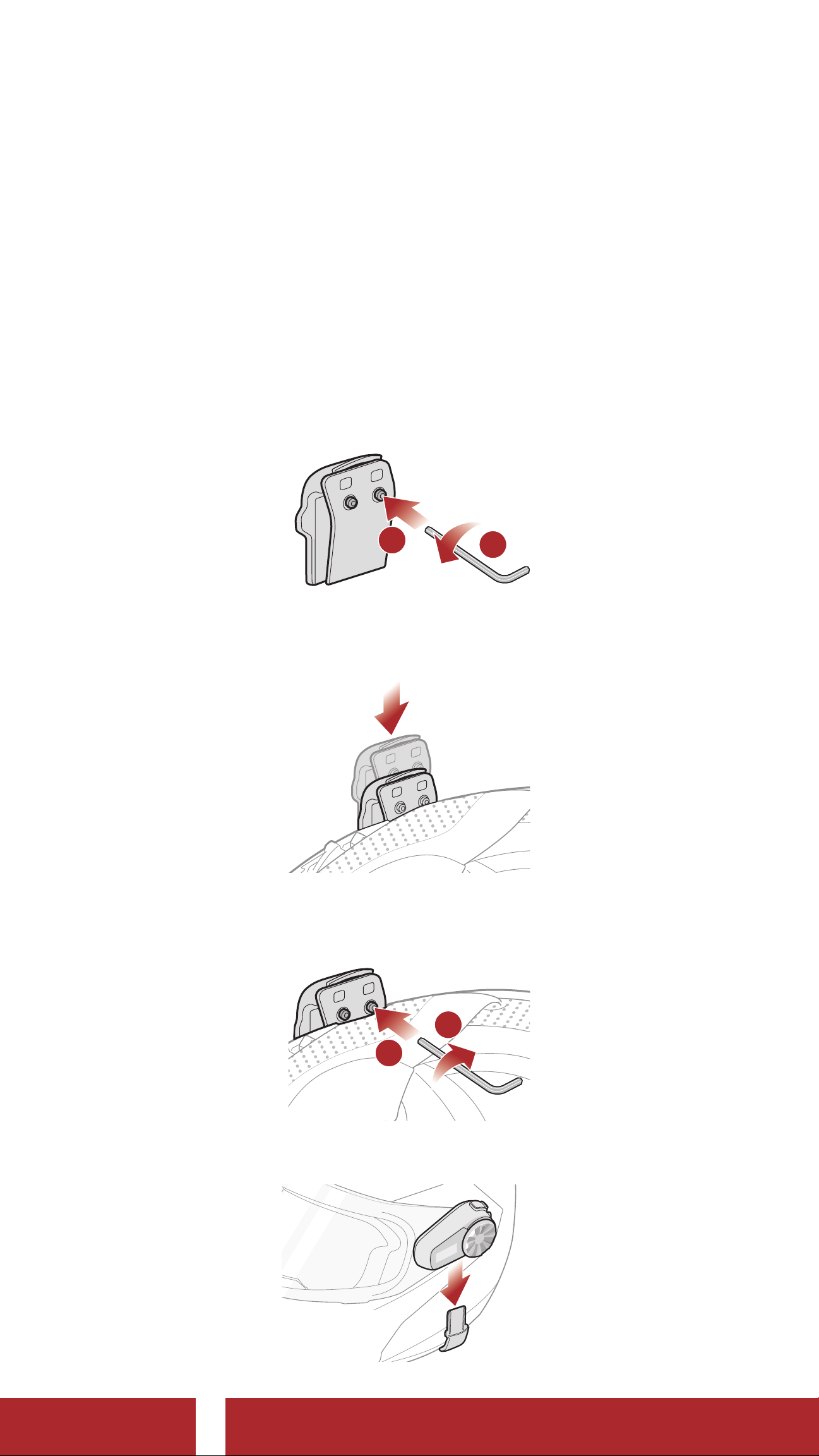
2.1.1 Using the Clamp Unit
1. Loosen the two screws on the back plate of the clamp unit with the
included Allen wrench.
1
2. Insert the back plate of the clamp unit between the internal padding
and external shell of the left side of the helmet.
2
3. Tighten the two screws until the clamp unit is fastened firmly to the
helmet.
2
1
4. Attach the main unit to the clamp unit until you hear a click.
5S Motorcycle Bluetooth® Communication System | 8
Page 9
2 INSTALLING THE HEADSET ON YOUR HELMET
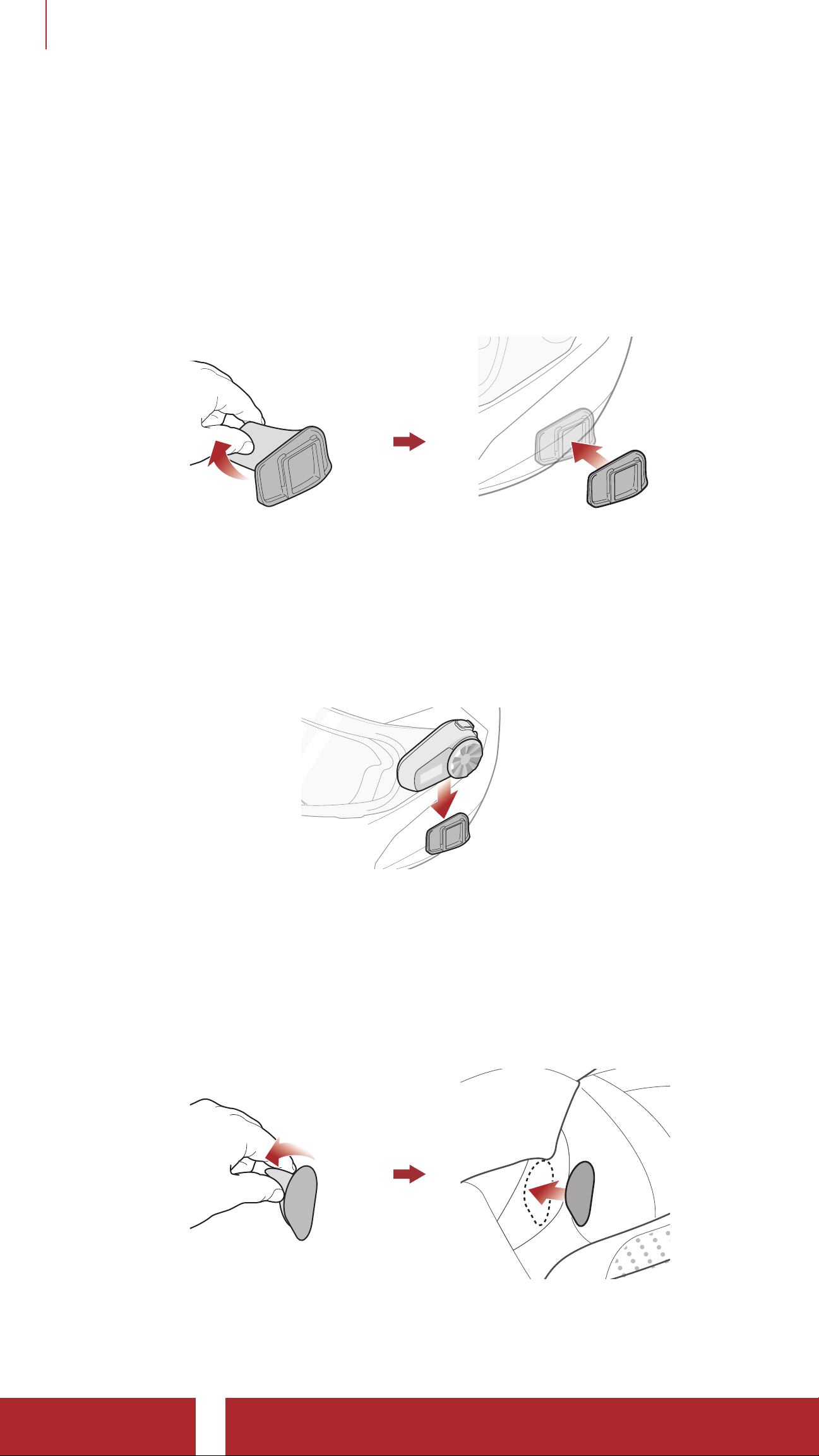
2.1. 2 Using the Glued Surface Mounting Plate
If you cannot install the clamp unit on the helmet, you can use the glued
surface mounting plate to attach the clamp unit to the surface of the
helmet.
1. Attach adhesive tape of the glued surface mounting plate to the
helmet.
2. Make sure that the glued surface mounting plate sticks on the helmet
firmly. Maximum adhesion occurs after 24 hours.
3. Attach the main unit to the glued surface mounting plate until you
hear a click.
2.2 Installing the Speakers
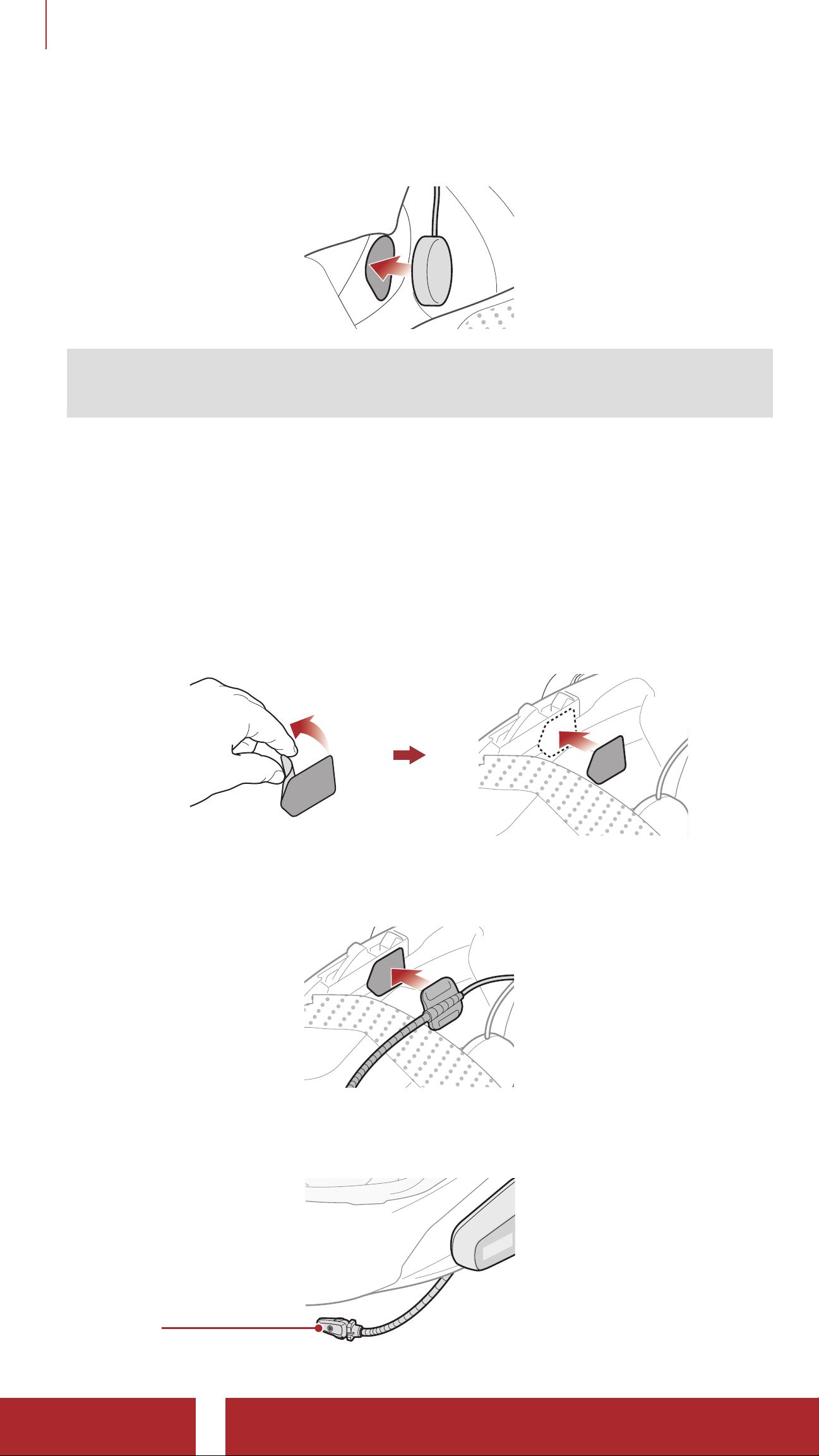
1. Attach the hook and loop fasteners for speakers to ear pockets inside
the helmet.
5S Motorcycle Bluetooth® Communication System | 9
Page 10
2 INSTALLING THE HEADSET ON YOUR HELMET
2. Attach the speakers to the hook and loop fasteners for speakers
inside the helmet.
Note: If the helmet has deep ear pockets, you can use the speaker
pads to bring the speakers closer to your ears.
2.3 Installing the Microphone
2.3.1 Installing the Attachable Boom Microphone
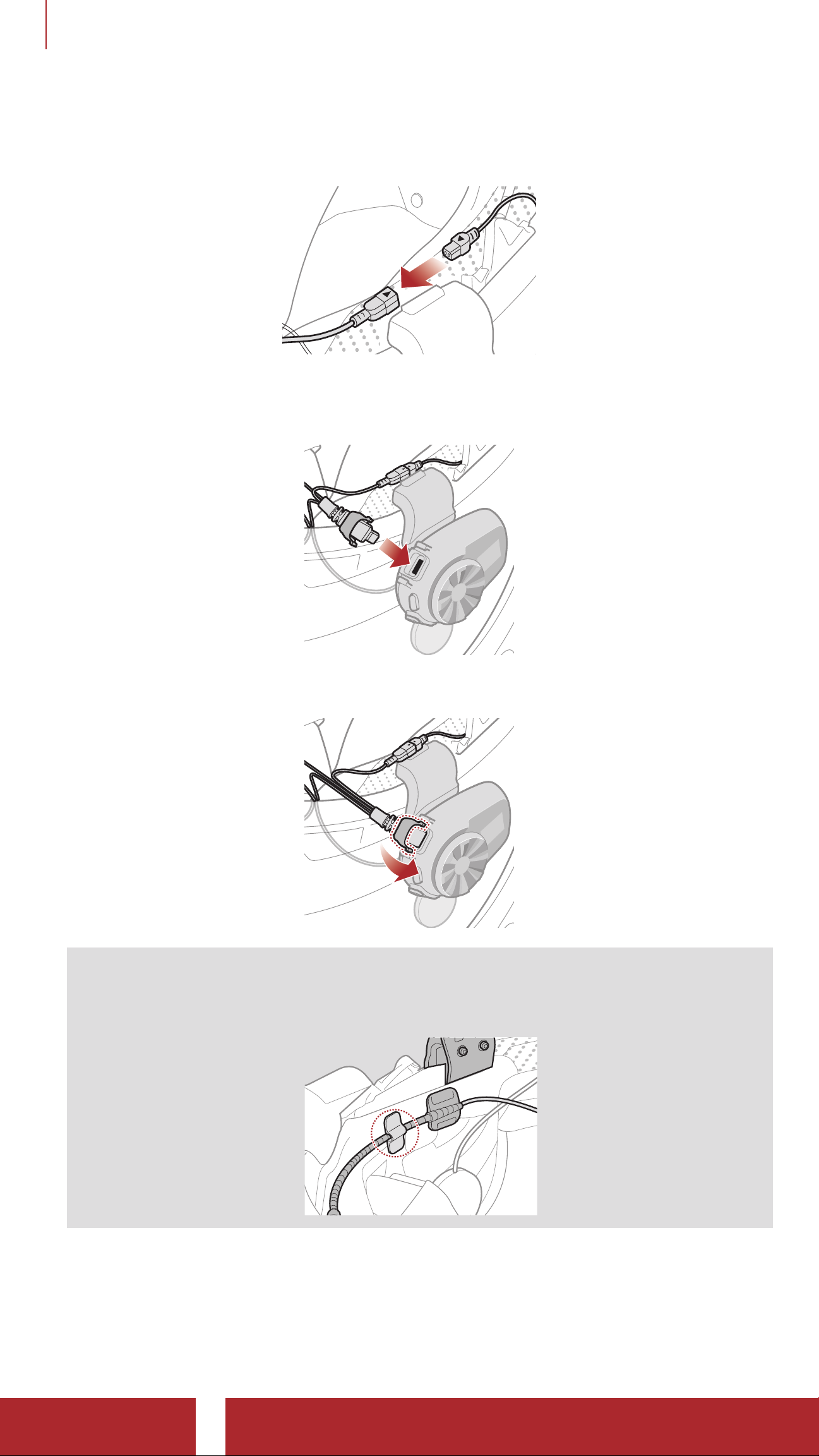
1. Attach the hook and loop fastener for attachable boom microphone
on the inside surface of the left external shell.
2. Attach the attachable boom microphone’s mounting plate to the
hook and loop fastener.
3. Adjust the head of the microphone so that the tab is facing away from
your mouth.
Tab
5S Motorcycle Bluetooth® Communication System | 10
Page 11
2 INSTALLING THE HEADSET ON YOUR HELMET
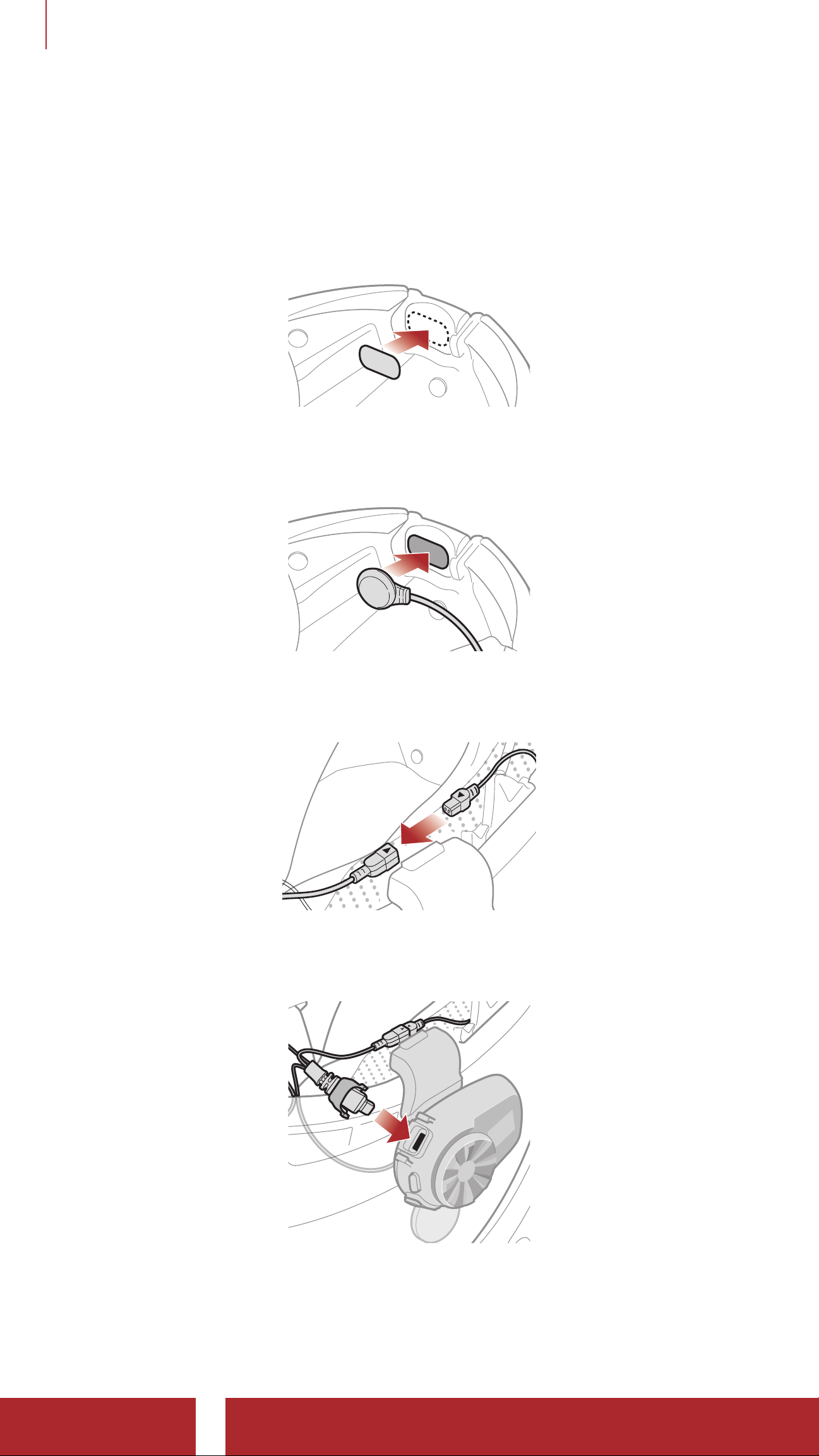
4. Align the arrows on the microphone and speaker cables and insert
the microphone cable into the speaker cable.
5. Insert the speaker connector into the speaker port to connect it to
the main unit.
6. Close the cover of the speaker cable to lock the cable to the port.
Note: You can use the boom microphone holder after attaching
the hook and loop fastener for boom microphone holder on it to
ensure secure installation.
5S Motorcycle Bluetooth® Communication System | 11
Page 12
2 INSTALLING THE HEADSET ON YOUR HELMET
2.3.2 Installing the Wired Microphone
If you have a full face helmet, you can use the wired microphone.
1. Attach the included hook and loop fastener for wired microphone to
the inside of the helmet’s chin guard.
2. Attach the wired microphone to the hook and loop fastener for wired
microphone.
3. Align the arrows on the microphone and speaker cables and insert
the microphone cable into the speaker cable.
4. Insert the speaker connector into the speaker port to connect it to
the main unit.
5S Motorcycle Bluetooth® Communication System | 12
Page 13

2 INSTALLING THE HEADSET ON YOUR HELMET
5. Close the cover of the speaker cable to lock the cable to the port.
5S Motorcycle Bluetooth® Communication System | 13
Page 14
3. GETTING STARTED
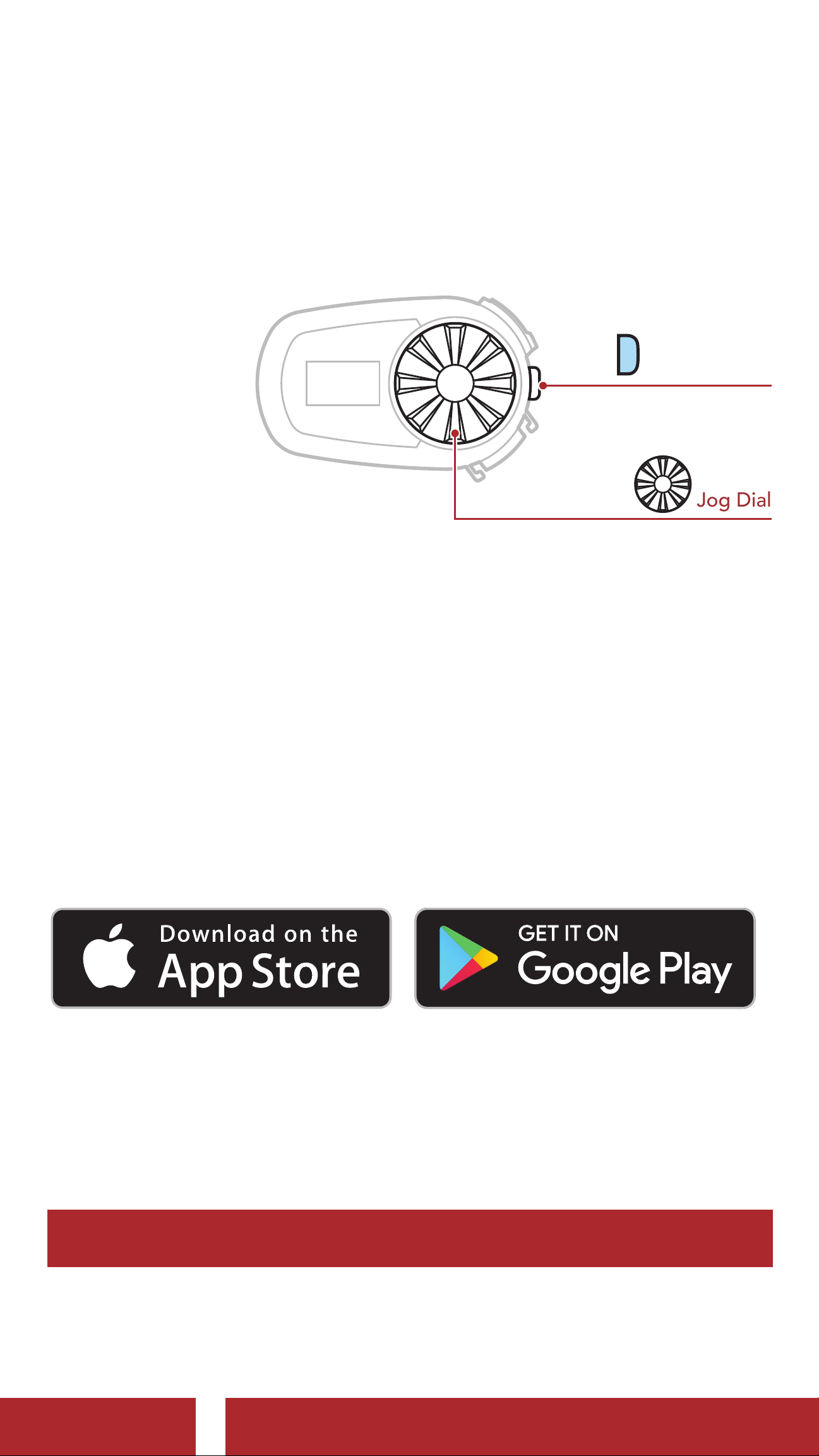
3.1 Buttons
P
Phone Button
Jog Dial
3.2 Downloadable Sena Software
3.2 .1 Sena Utility App
By simply pairing your phone with your headset, you can use the Sena
Utility App for quicker and easier set up and management.
• Download
- Android: Google Play Store > Sena Utility
- iOS: App Store > Sena Utility
3.2.2 Sena Device Manager
The Sena Device Manager allows you to upgrade the firmware
and configure its settings directly from your PC or Apple computer.
Download the Sena Device Manager from sena.com.
Click Here to Visit sena.com
5S Motorcycle Bluetooth® Communication System | 14
Page 15
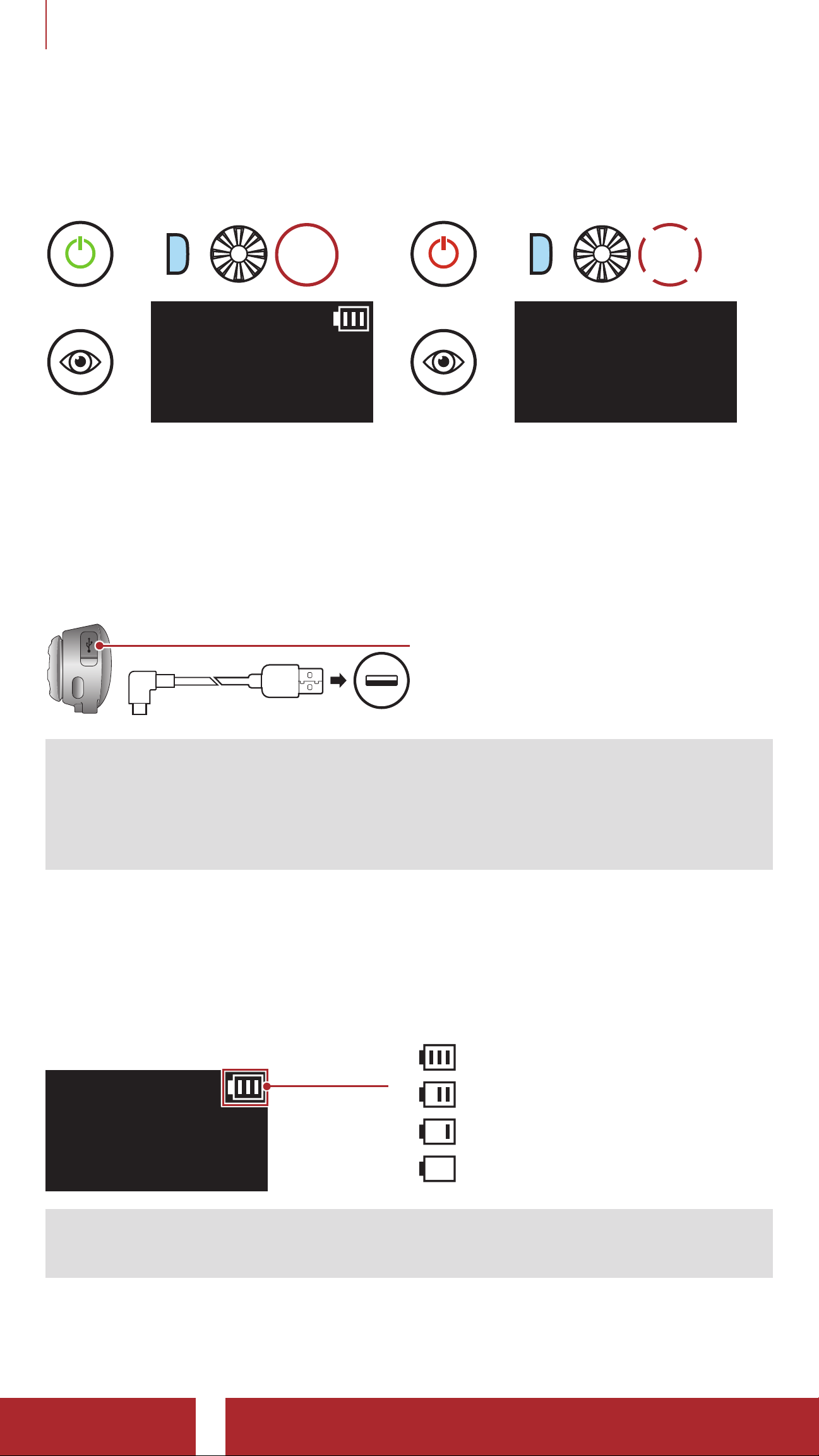
3 GETTING STARTED
3.3 Powering On and Off
Powering On
=
P
=
READY
3.4 Charging
HOLD
1s
Powering Off
=
P
=
TAP
1x
GOOD BYE
Charging the Headset
DC Power Charging &
Firmware Upgrade Port
The headset will be fully
charged in about 1.5 hours.
(The charging time may vary
depending on the charging
method.)
Note:
• Any 3rd party USB charger can be used with Sena products if the
charger is approved by either the FCC, CE, or IC.
• The 5S is compatible with 5 V input USB-charged devices only.
3.5 Checking the Battery Level
LCD Display
Battery
Indicator
READY
Note: When the battery is low while in use, you will hear a voice
prompt saying “Low battery”.
=
High
=
Medium
=
Low
=
Extremely Low
5S Motorcycle Bluetooth® Communication System | 15
Page 16

3 GETTING STARTED
3.6 Volume Adjustment
You can raise or lower the volume by rotating the Jog Dial clockwise
or counterclockwise. Volume is set and maintained independently at
different levels for each audio source (i.e., phone, intercom), even when
the headset is rebooted.
Volume Up
=
=
VOLUME
BAR
ROTATE
R
Volume Down
ROTATE
=
L
5S Motorcycle Bluetooth® Communication System | 16
Page 17

4. PAIRING THE HEADSET WITH OTHER
BLUETOOTH DEVICES
When using the headset with other Bluetooth devices for the first time,
they will need to be “paired.” This enables them to recognize and
communicate with one another whenever they are within range.
The headset can pair with multiple Bluetooth devices such as a mobile
phone, GPS, MP3 player or Sena SR10 Two-Way Radio Adapter via
Mobile Phone Pairing, Second Mobile Phone Pairing and GPS
Pairing. The headset can also be paired with up to three other Sena
headsets.
Pairs with up to Three Sena Headsets
Also Pairs with:
Mobile
Phone
MP3
Player
Devices
4.1 Phone Pairing
There are three ways to pair the phone.
GPS
Sena
SR10
4.1.1 Initially Pairing the 5S
The headset will automatically enter the phone pairing mode when you
initially turn on the headset or in the following situations:
• Rebooting after executing the Factory Reset feature; or
• Rebooting after executing the Delete All Pairings feature.
5S Motorcycle Bluetooth® Communication System | 17
Page 18
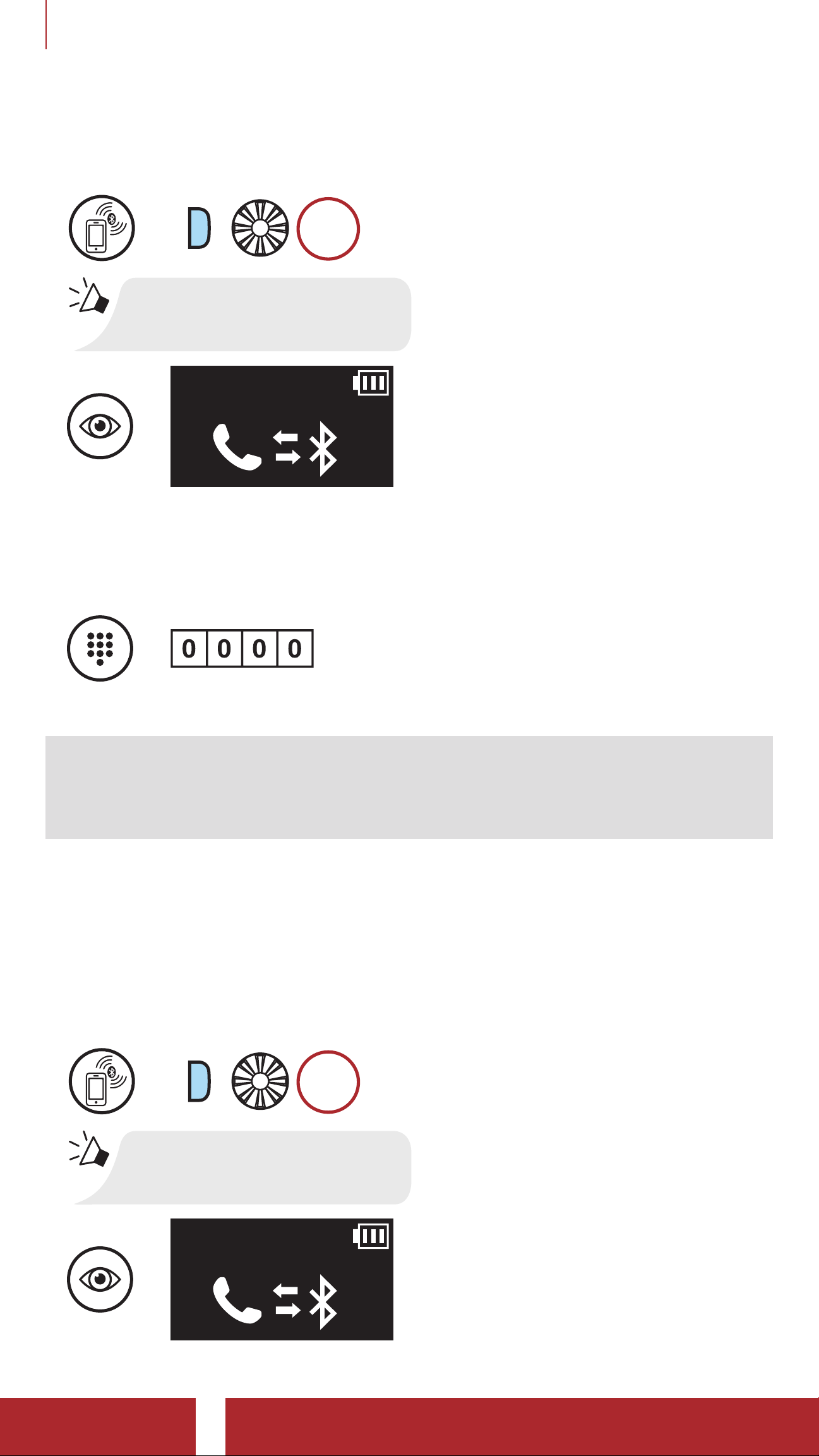
4 PAIRING THE HEADSET WITH OTHER BLUETOOTH DEVICES
1. Press and hold the Phone Button and Jog Dial for 1 second.
Phone Pairing
HOLD
=
P
1s
“Phone Pairing”
=
2. With your mobile phone in Bluetooth-pairing mode, select Sena 5S
in the list of devices detected.
3. If your mobile phone asks for a PIN, enter 0000.
=
PIN
NUMBER
Note:
• The phone pairing mode lasts for 3 minutes.
• To cancel phone pairing, tap the Phone Button or Jog Dial.
4.1.2 Pairing When the 5S is Turned Off
1. Press and hold the Phone Button and Jog Dial for 3 seconds when
the 5S is turned off.
Phone Pairing
HOLD
=
P
3s
“Phone Pairing”
=
5S Motorcycle Bluetooth® Communication System | 18
Page 19
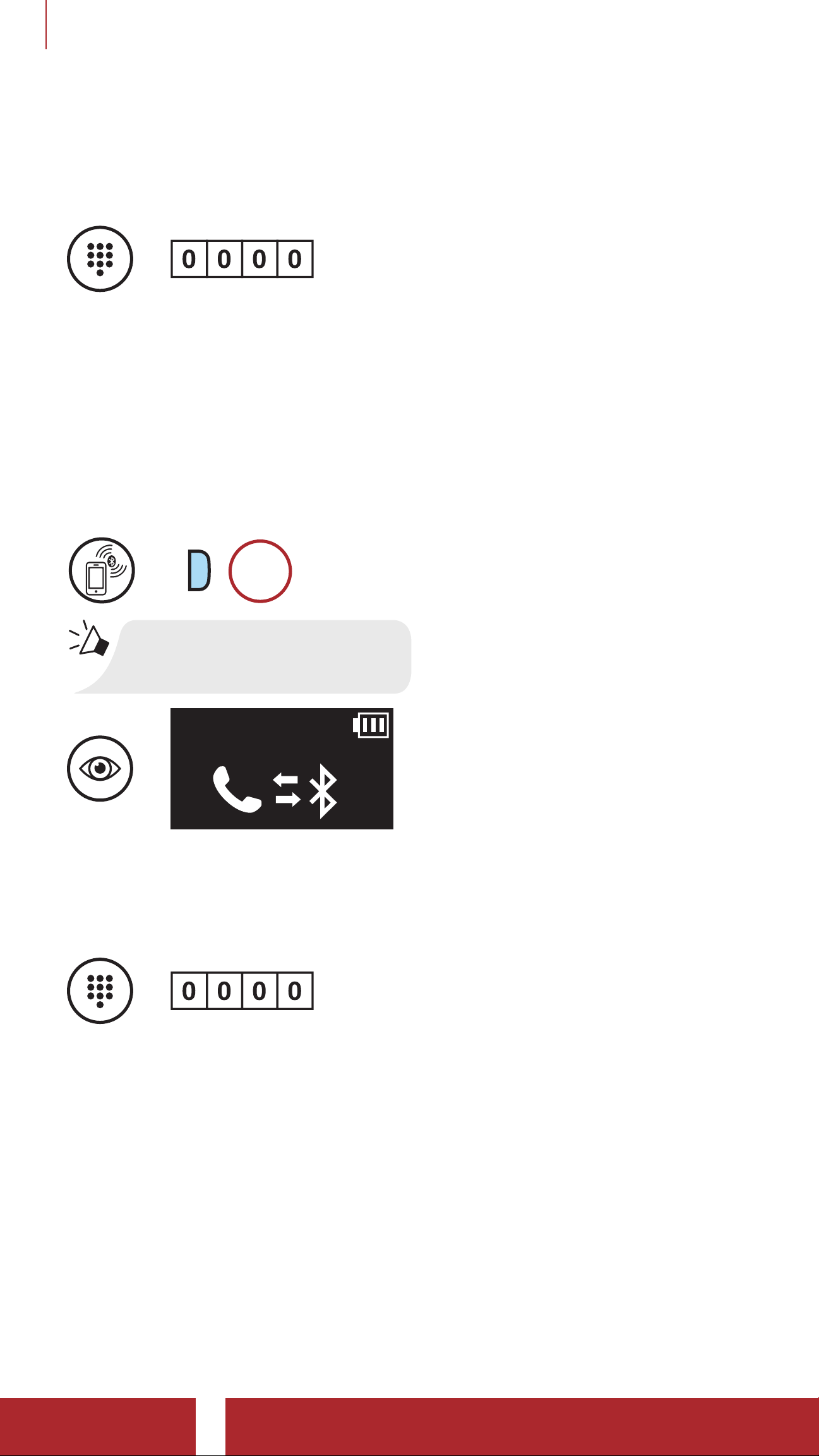
4 PAIRING THE HEADSET WITH OTHER BLUETOOTH DEVICES
2. With your mobile phone in Bluetooth-pairing mode, select Sena 5S
in the list of devices detected.
3. If your mobile phone asks for a PIN, enter 0000.
=
PIN
NUMBER
4.1.3 Pairing When the 5S is Turned On
1. Press and hold the Phone Button for 5 seconds when the 5S is
turned on.
Phone Pairing
HOLD
=
P
5s
“Phone Pairing”
=
2. With your mobile phone in Bluetooth-pairing mode, select Sena 5S
in the list of devices detected.
3. If your mobile phone asks for a PIN, enter 0000.
=
PIN
NUMBER
5S Motorcycle Bluetooth® Communication System | 19
Page 20
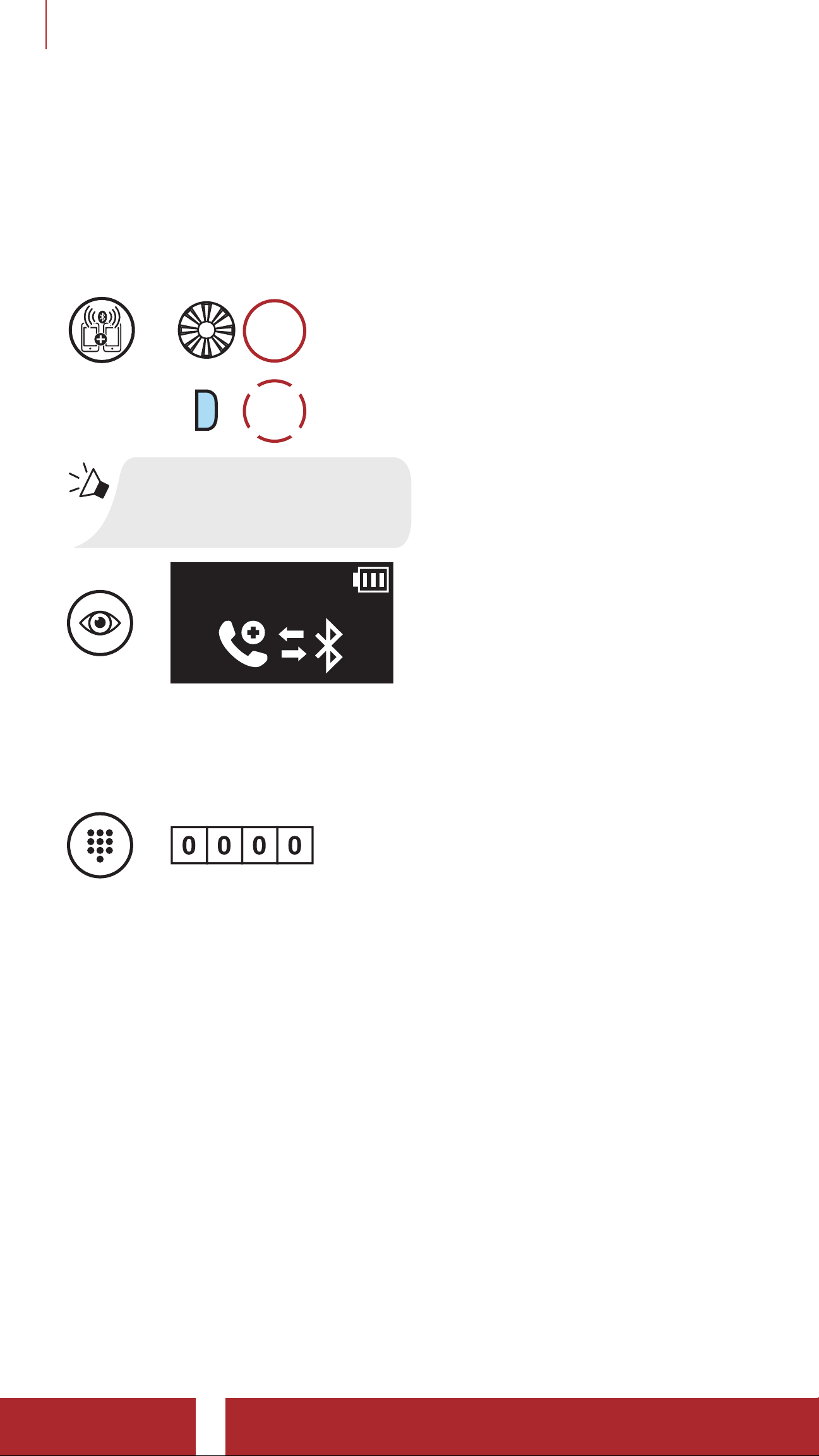
4 PAIRING THE HEADSET WITH OTHER BLUETOOTH DEVICES
4.2 Second Mobile Phone Pairing - Second Mobile
Phone, GPS, and SR10
1. Execute Second Mobile Phone Pairing.
Second Mobile Phone Pairing
HOLD
=
5s
P
TAP
1x
“Second mobile
phone pairing”
=
2. With your mobile phone in Bluetooth-pairing mode, select Sena 5S
in the list of devices detected.
3. If your mobile phone asks for a PIN, enter 0000.
=
PIN
NUMBER
5S Motorcycle Bluetooth® Communication System | 20
Page 21
4 PAIRING THE HEADSET WITH OTHER BLUETOOTH DEVICES
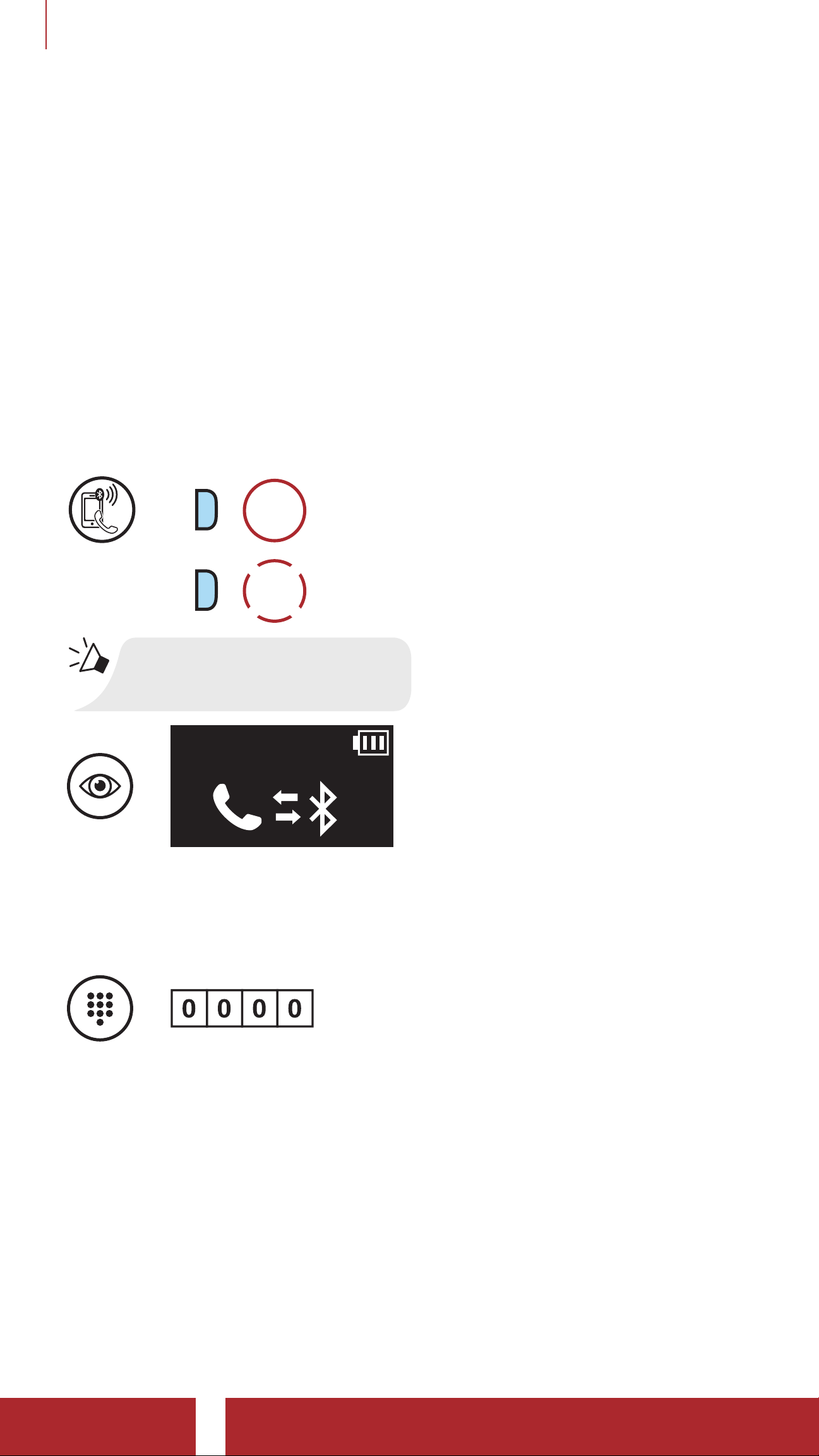
4.3 Advanced Selective Pairing: Hands-Free or A2DP
Stereo
Phone Pairing allows the headset to establish two Bluetooth profiles:
Hands-Free or A2DP Stereo. Advanced Selective Pairing allows the
headset to separate the profiles to enable connection with two devices.
4.3.1 Phone Selective Pairing - Hands-Free Profile
1. Execute Phone Selective Pairing.
Phone Selective Pairing
HOLD
=
P
5s
P
TAP
1x
“Phone selective pairing”
=
2. With your mobile phone in Bluetooth-pairing mode, select Sena 5S
in the list of devices detected.
3. If your mobile phone asks for a PIN, enter 0000.
=
PIN
NUMBER
5S Motorcycle Bluetooth® Communication System | 21
Page 22
4 PAIRING THE HEADSET WITH OTHER BLUETOOTH DEVICES
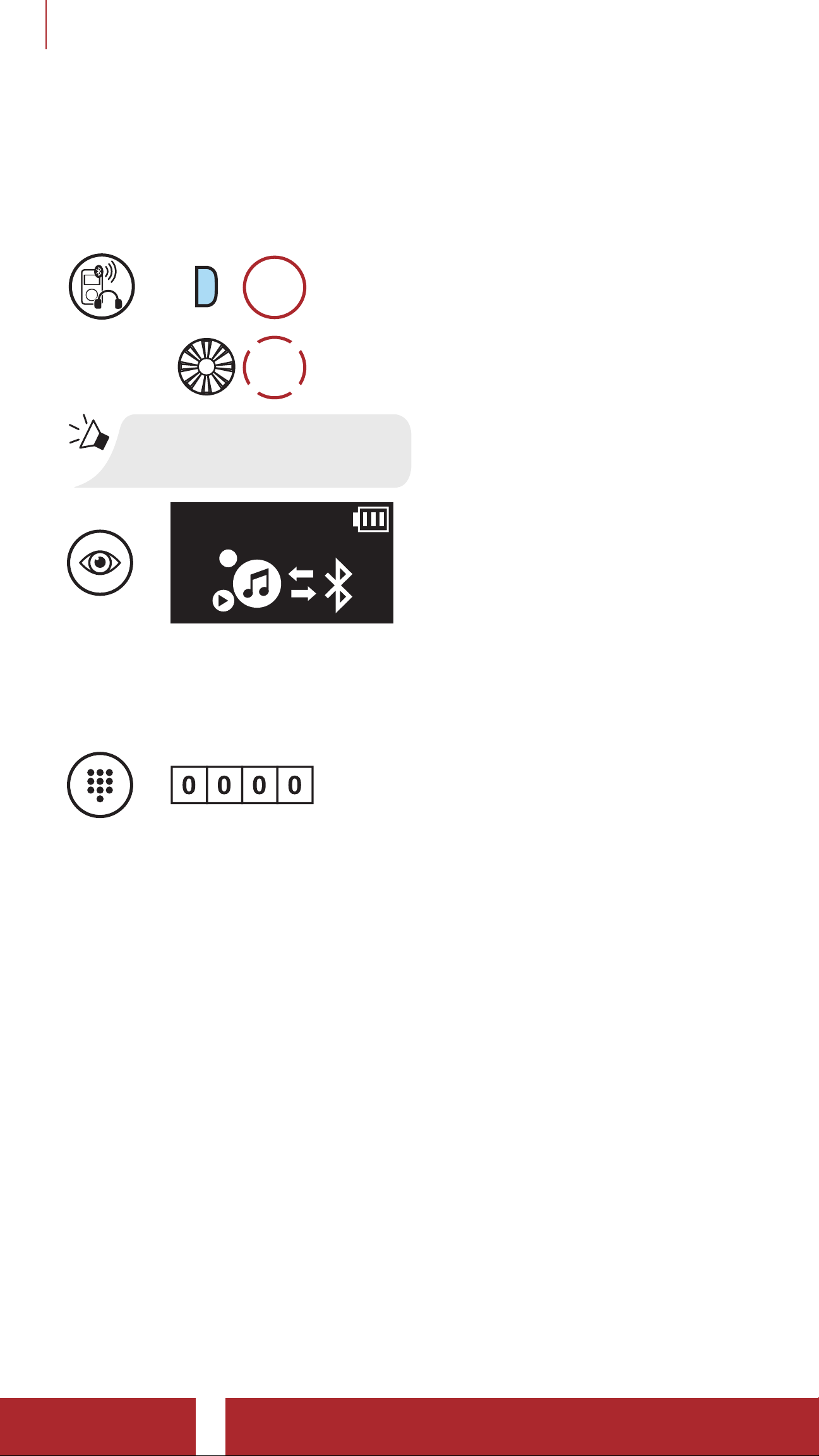
4.3.2 Media Selective Pairing - A2DP Profile
1. Execute Media Selective Pairing.
Media Selective Pairing
HOLD
=
P
5s
TAP
1x
“Media selective pairing”
=
2. With your mobile phone in Bluetooth-pairing mode, select Sena 5S
in the list of devices detected.
3. If your mobile phone asks for a PIN, enter 0000.
=
PIN
NUMBER
5S Motorcycle Bluetooth® Communication System | 22
Page 23
4 PAIRING THE HEADSET WITH OTHER BLUETOOTH DEVICES
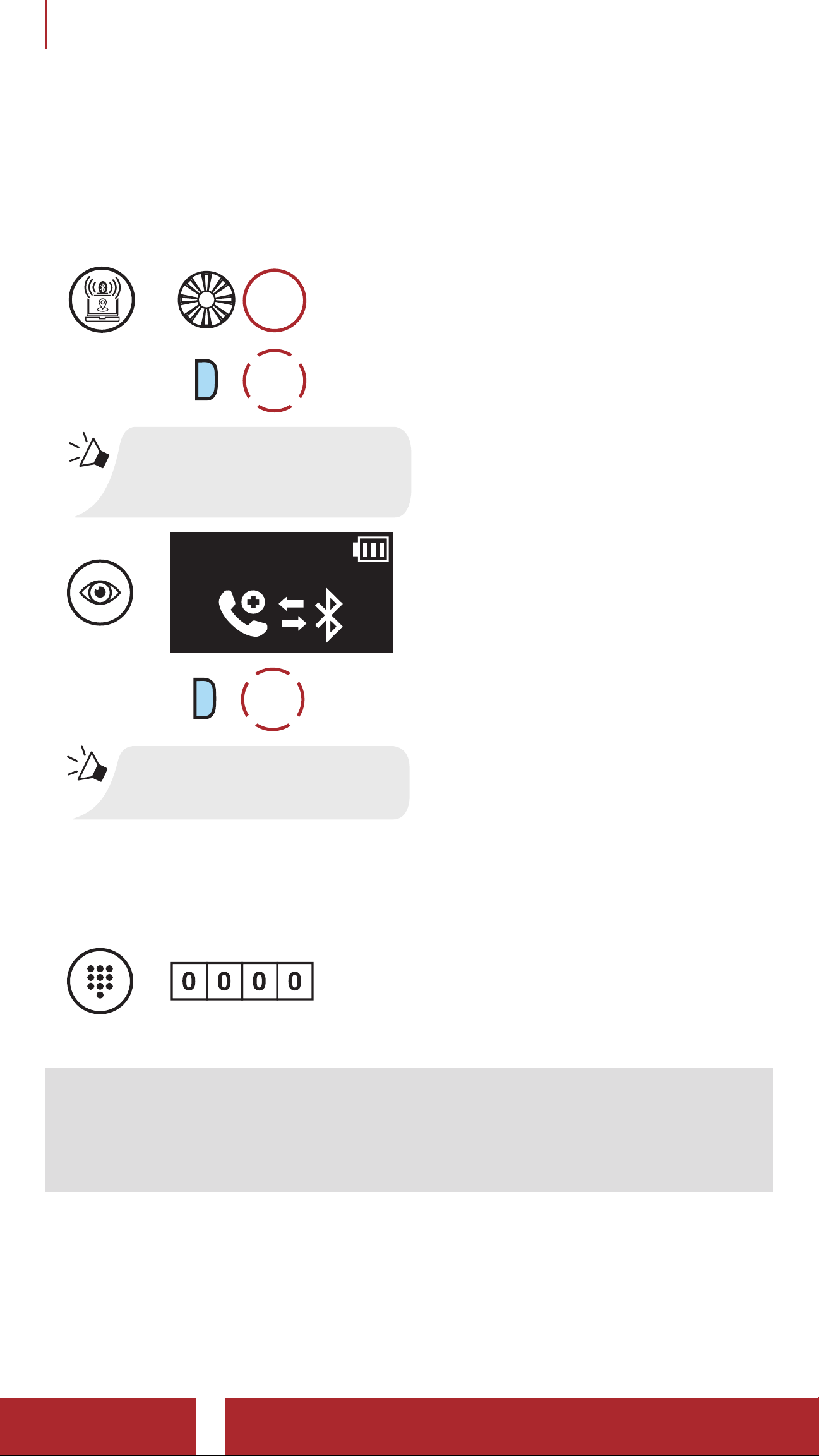
4.4 GPS Pairing
1. Execute GPS Pairing.
GPS Pairing
HOLD
=
5s
=
P
TAP
1x
“Second mobile
phone pairing”
TAP
P
1x
“GPS pairing”
2. With your Bluetooth device on the GPS navigation screen, select
Sena 5S in the list of devices detected.
3. If your Bluetooth device asks for a PIN, enter 0000.
=
PIN
NUMBER
Note: If you pair your GPS device via GPS Pairing, its instruction
will not interrupt your intercom conversations, but overlay with
them. Bluetooth intercom conversations will be interrupted by GPS
instructions.
5S Motorcycle Bluetooth® Communication System | 23
Page 24
5. MOBILE PHONE USAGE
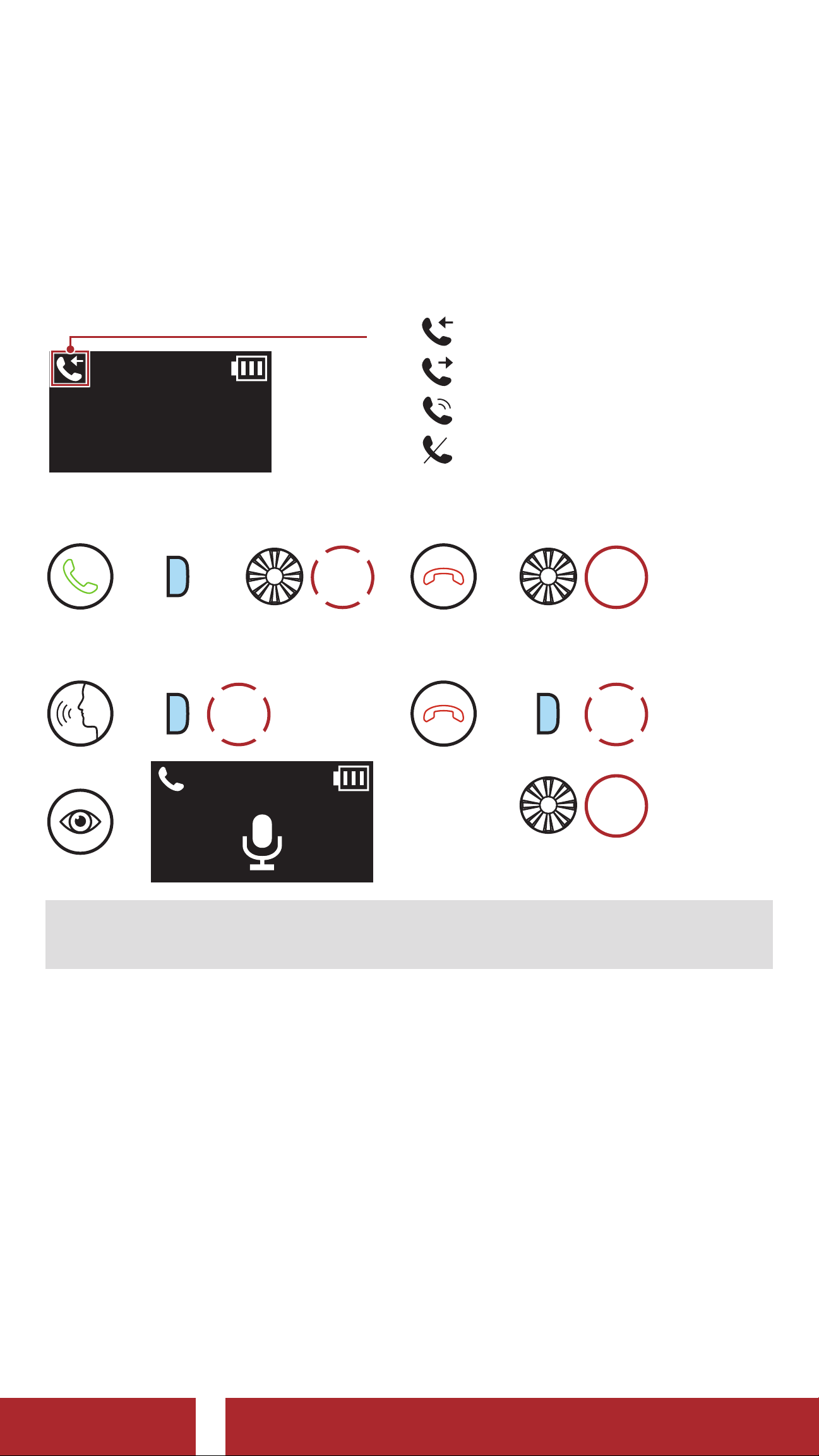
5.1 Making and Answering Calls
LCD Display
Call Status
010 1234 5678
=
Incoming Call
=
Outgoing call
=
On the Phone Call
=
Reject a call
Answer a Call
or
=
P
1x
Make Call with Voice Dialer
TAP
1x
=
P
=
TAP
Reject a Call
=
End a Call
=
HOLD
2s
TAP
P
1x
or
HOLD
2s
Note: If you have a GPS device connected, you will not hear its voice
navigations during a phone call.
5.2 Speed Dialing
5.2 .1 Assigning Speed Dial Presets
Speed Dial Presets could be assigned in the settings menu, accessible
through Sena Device Manager or Sena Utility App.
5S Motorcycle Bluetooth® Communication System | 24
Page 25
5 MOBILE PHONE USAGE
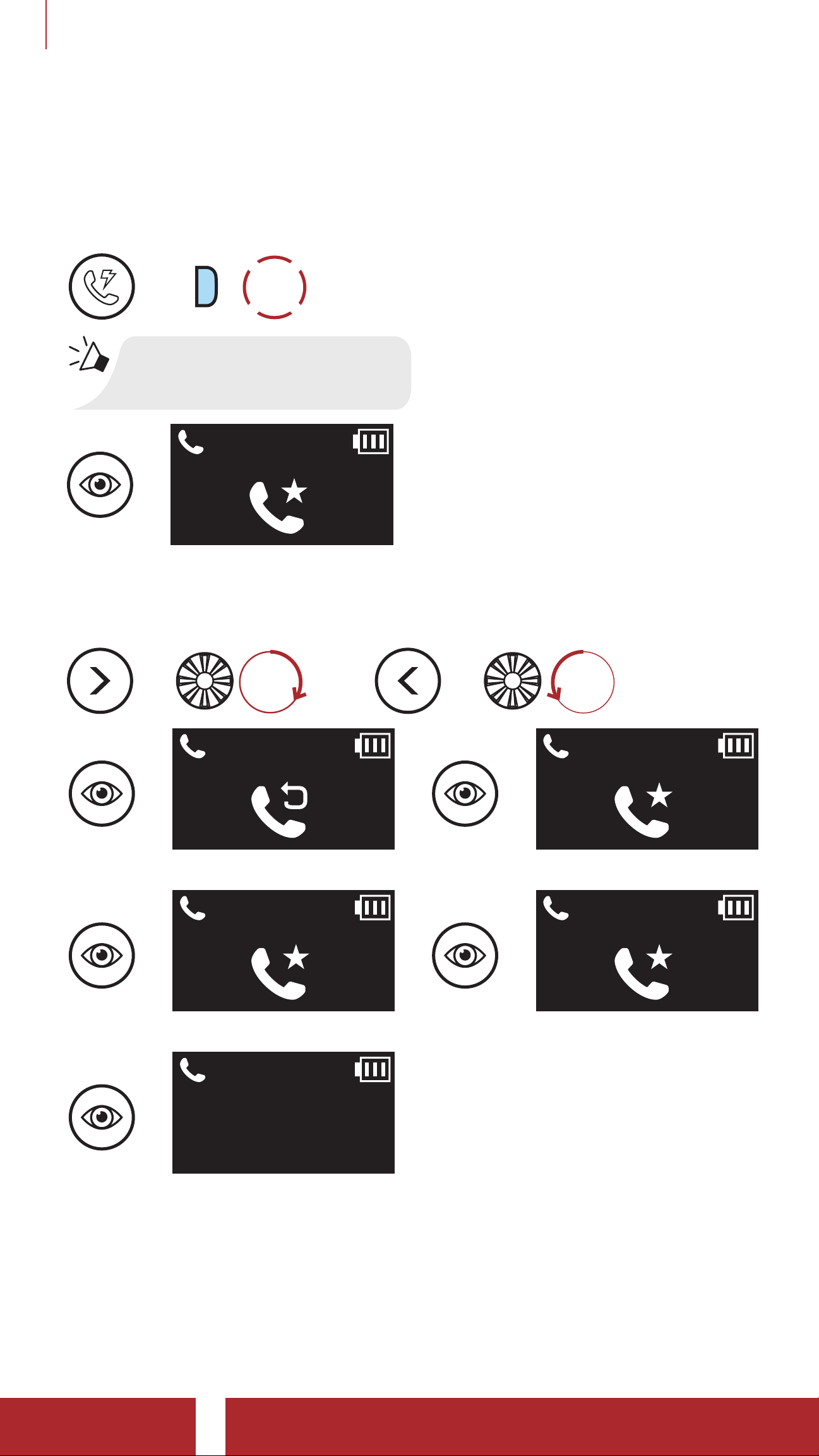
5.2.2 Using Speed Dial Presets
1. Enter into the Speed Dial menu.
Enter Speed Dial Mode
TAP
2x
=
P
“Speed dial”
=
2. Navigate between the Speed Dial Preset.
Navigate Forward or Backward through Speed Dial Preset Numbers
LAST
NUMBER
REDIAL
SPEED
DIAL 2
=
=
=
ROTATE
R
2
or
=
ROTATE
L
=
1
SPEED
DIAL 1
=
3
SPEED
DIAL 3
CANCEL
=
CANCEL
5S Motorcycle Bluetooth® Communication System | 25
Page 26

5 MOBILE PHONE USAGE
3. Call one of your Speed Dial Presets.
Call a Speed Dial Preset Number
TAP
1x
=
P
“Speed dial (#)”
4. Redial the last number called.
Redial Last Number
TAP
1x
=
P
“Last number redial”
5S Motorcycle Bluetooth® Communication System | 26
Page 27
6. STEREO MUSIC
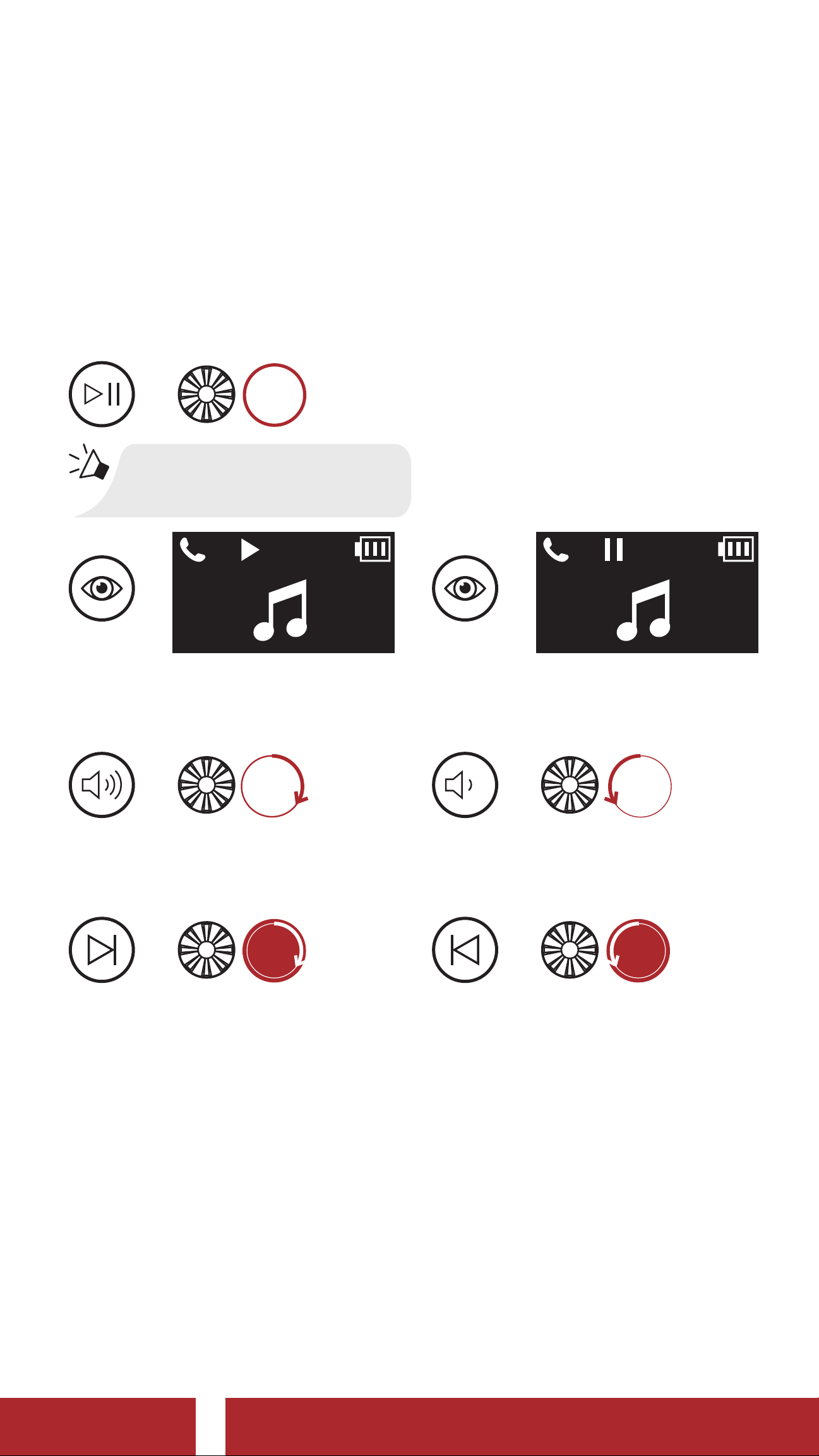
6.1 Playing Music with Bluetooth Devices
1. Play or pause music.
Play/Pause Music
HOLD
=
“[Beep, Beep]”
1s
=
PLAY
2. Adjust the volume.
Volume Up/Down
ROTATE
=
R
3. Track forward or back.
Track Forward/Backward
ROTATE
=
R
or
or
=
PAUSE
ROTATE
=
L
ROTATE
=
L
5S Motorcycle Bluetooth® Communication System | 27
Page 28
6 STEREO MUSIC
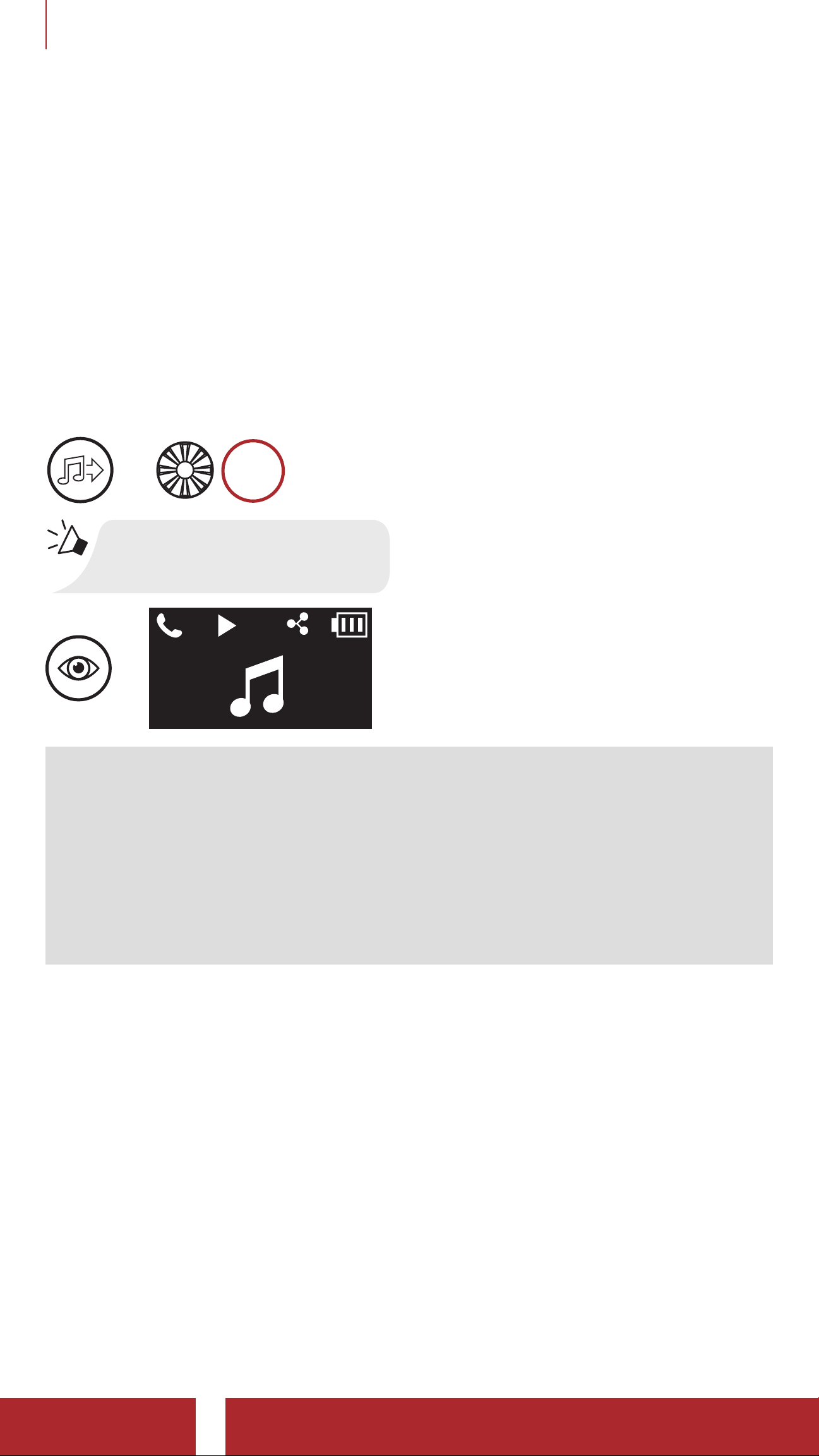
6.2 Music Sharing
You can start sharing music with an intercom friend using Bluetooth
stereo music during a two-way intercom conversation. When you
terminate music sharing, you can go back to the intercom conversation.
To start or terminate sharing music, press the Jog Dial for 1 second
during an intercom conversation until you hear a double beep. To track
forward or track back, rotate while pressing the Jog Dial clockwise or
counterclockwise.
Music Sharing On/Off
HOLD
=
1s
“[Beep, Beep]”
=
Note:
• Both you and your intercom friend can remotely control music
playback such as track forward and track back.
• Music sharing will be paused when you are using your mobile
phone or listening to GPS instructions.
• When Audio Multitasking is enabled, if an intercom call is made
when you are listening to music, music sharing will not work.
5S Motorcycle Bluetooth® Communication System | 28
Page 29
7. BLUETOOTH INTERCOM
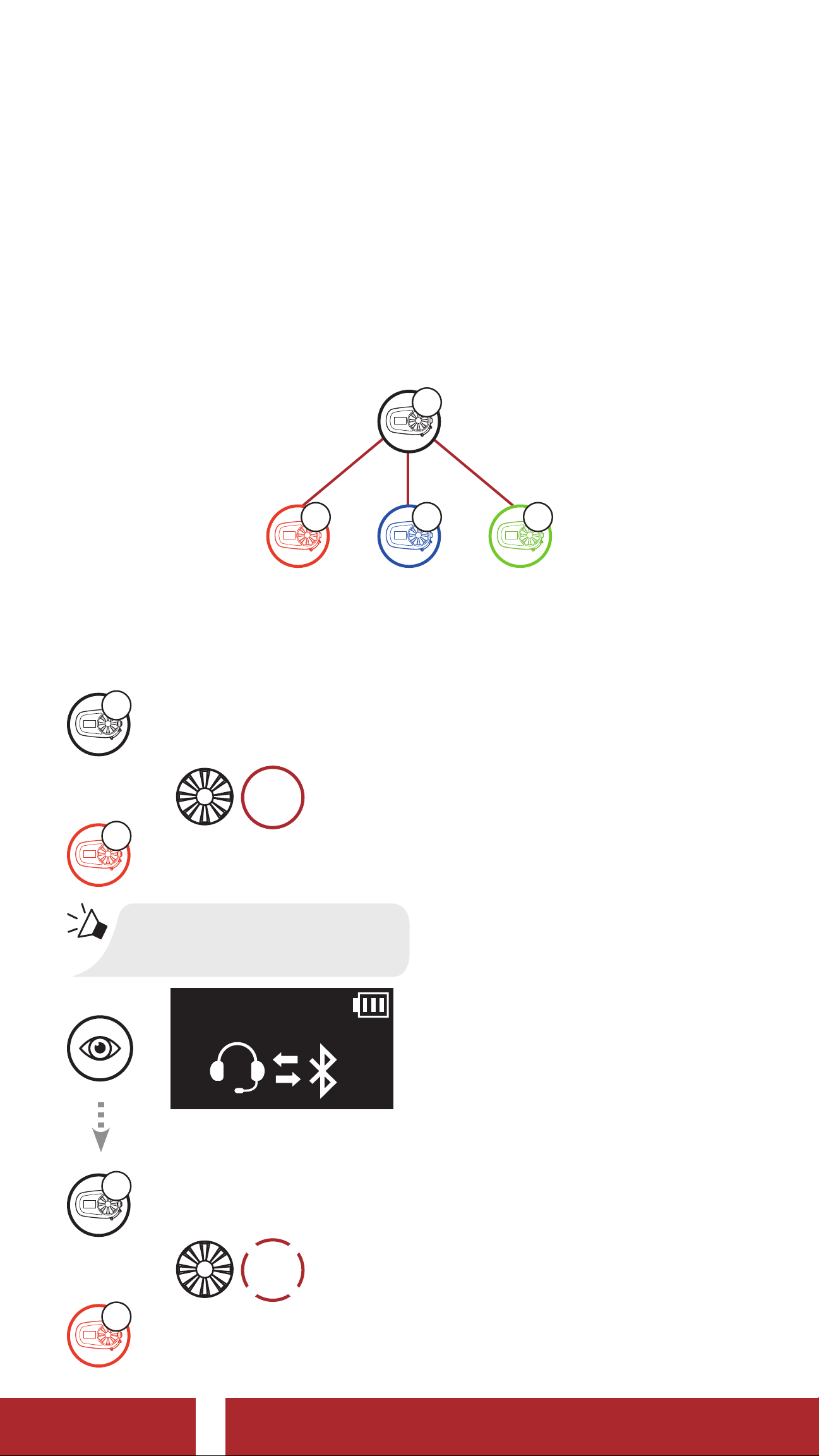
7.1 Intercom Pairing
Up to three people can communicate via intercom with the headset
simply by pairing their headsets.
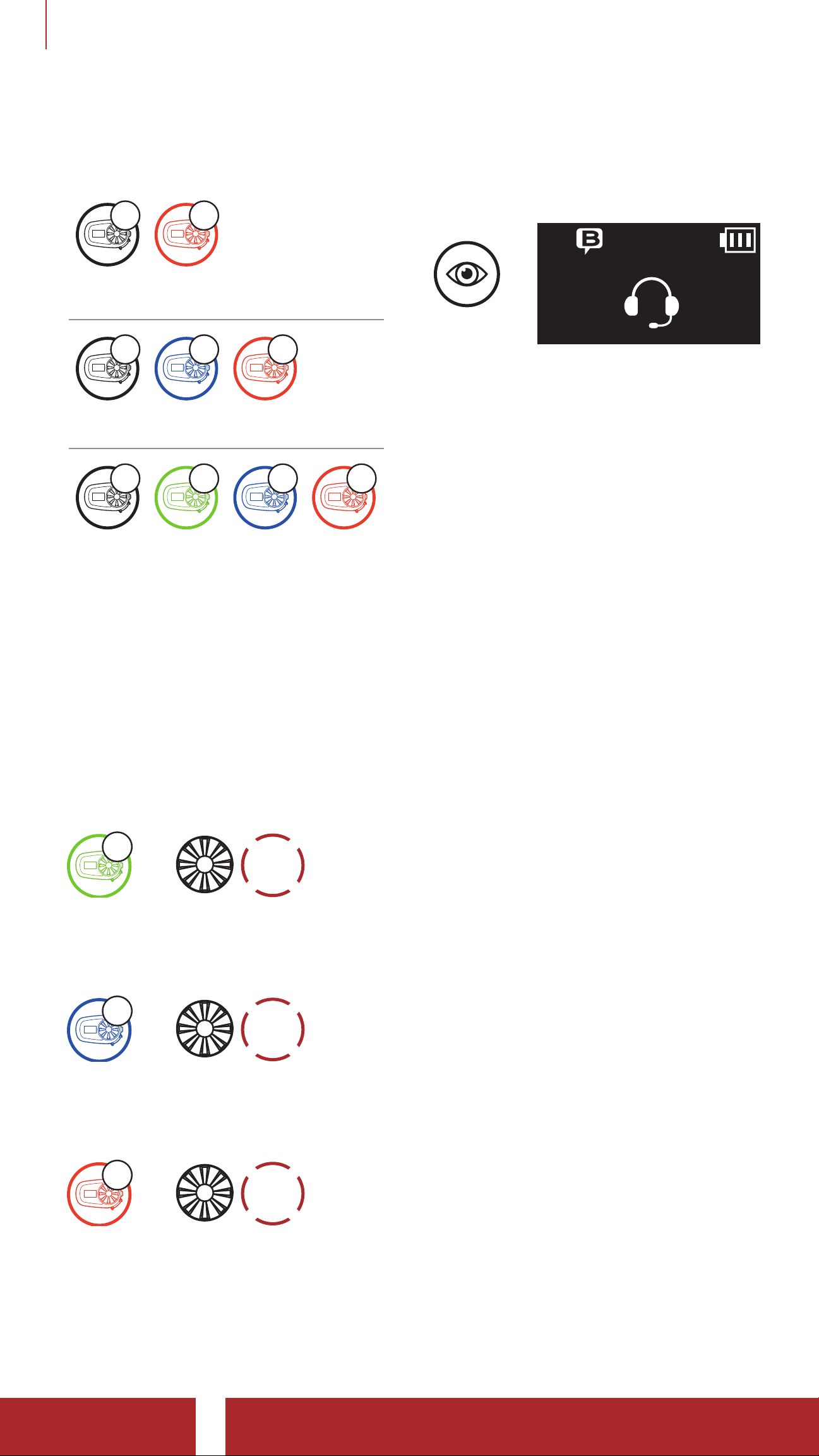
Pairing with Intercom Friends
A
B C
D
1. Press and hold the Jog Dials of two headsets for 5 seconds until you
hear a voice prompt, “Intercom pairing”.
Pairing Headset A with Headset B
A
YOU
HOLD
and
=
B
5s
YOU
or
A
“Intercom pairing”
=
TAP
=
1x
B
5S Motorcycle Bluetooth® Communication System | 29
Page 30
7 BLUETOOTH INTERCOM
2. Repeat step 1 to pair with Intercom Friends C & D.
Last-Come, First-Served
A B
YOU Intercom
Friend 1
A C B
YOU Intercom
Friend 1
A D C B
YOU Intercom
Friend 1
Intercom
Friend 2
Intercom
Friend 2
Intercom Conversation with
Intercom Friend
=
FRIEND B
Intercom
Friend 3
7. 2 Two-Way Intercom
You can start or end an intercom conversation with an Intercom Friend
by tapping the Jog Dial.
1. Tap once for Intercom Friend 1.
Start/End with Intercom Friend 1
D
=
2. Tap twice for Intercom Friend 2.
Start/End with Intercom Friend 2
TAP
1x
C
=
TAP
2x
3. Tap three times for Intercom Friend 3.
Start/End with Intercom Friend 3
B
=
TAP
3x
5S Motorcycle Bluetooth® Communication System | 30
Page 31
7 BLUETOOTH INTERCOM
7.3 Universal Intercom
Universal Intercom allows you to have two-way intercom conversations
with users of non-Sena Bluetooth headsets. You can pair your headset
with only one non-Sena headset at a time. The intercom distance
depends on the performance of the Bluetooth headset to which it is
connected. When a non-Sena Bluetooth headset is paired with the
Sena headset, if another Bluetooth device is paired via Second Mobile
Phone Pairing, it will be disconnected.
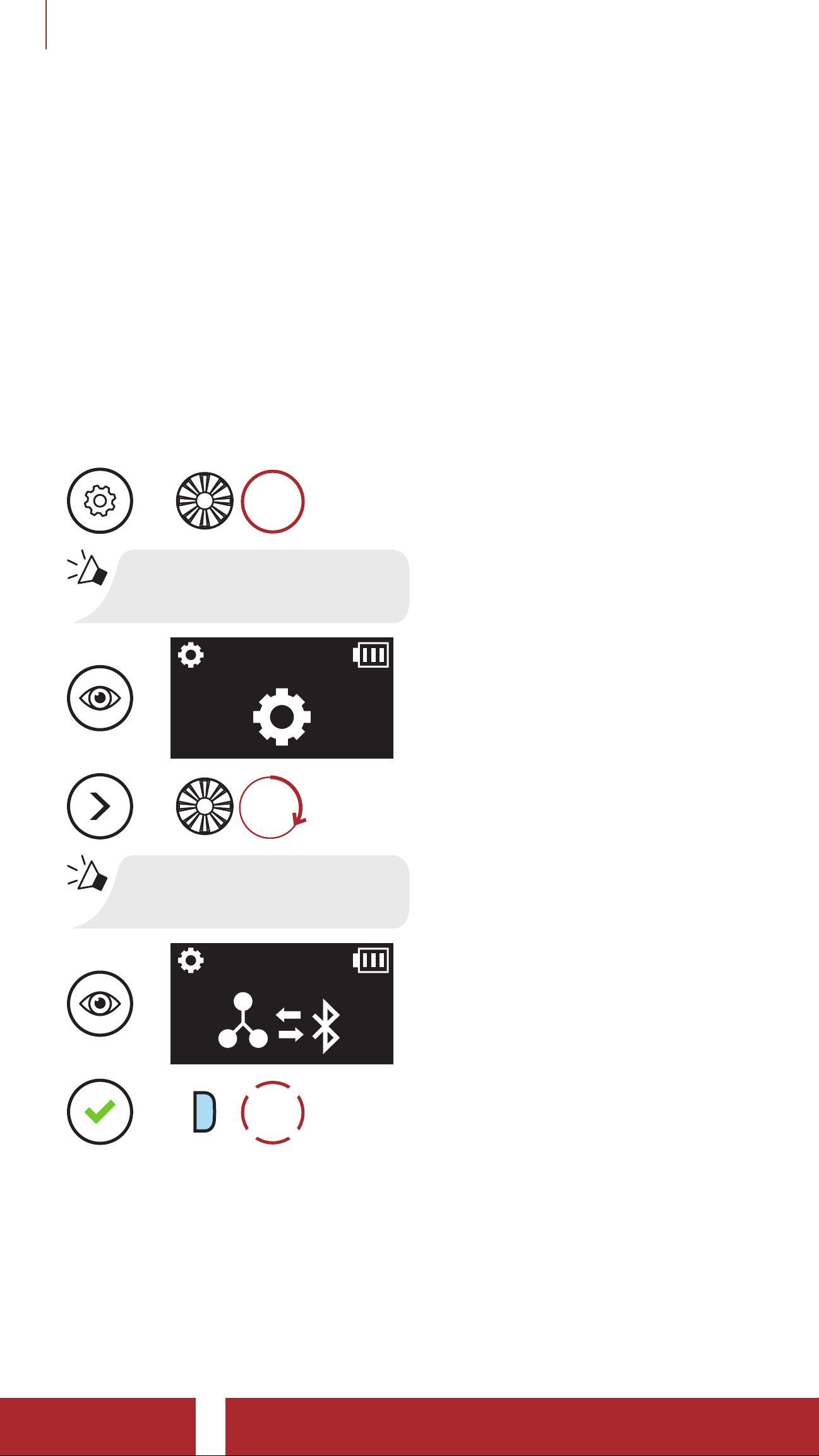
1. Execute Universal Intercom in the Headset Configuration Menu.
Access Universal Intercom in the Configuration Menu
HOLD
=
10s
“Configuration menu”
=
=
ROTATE
R
“Universal intercom pairing”
=
TAP
1x
=
P
2. Put the non-Sena Bluetooth headset in Pairing Mode. The headset
will automatically pair with a non-Sena Bluetooth headset.
5S Motorcycle Bluetooth® Communication System | 31
Page 32

8. VOICE COMMAND
The Voice Command of the headset allows you to operate certain
operations by simply using your voice. You can control the headset
completely hands-free using the voice recognition. Multi-language
Voice Command supports English, French, German, Spanish, Italian,
Chinese, Japanese, and Russian.
Speak a Voice Command List
Mode Status Function Voice Command
Check battery "Hey Sena, Check Battery"
Volume Up “Hey Sena, Volume Up”
Standby/
Bluetooth
Intercom/
Music
Standby/
Bluetooth
Intercom
Music
Volume Down “Hey Sena, Volume Down”
Phone Pairing “Hey Sena, Phone Pairing”
Bluetooth Intercom Pairing “Hey Sena, Pairing Intercom”
Start/End each
Bluetooth Intercom
Play Music “Hey Sena, Play Music”
Next Track “Hey Sena, Next”
Previous Track “Hey Sena, Previous”
“Hey Sena, Intercom
[one, two, three]”
Pause Music “Hey Sena, Stop Music”
Answer an Incoming Call “Answer”
Ignore an Incoming Call “Ignore”
5S Motorcycle Bluetooth® Communication System | 32
Page 33

8 VOICE COMMAND
Note:
• You can set a language to another language by using the Unit
Language feature on the Sena Utility App.
• If you set a language that does not support voice commands, the
voice command will works only with English commands.
• You can see the another language’s voice command list on the
Sena Utility App.
• Voice command performance may vary based on the
environmental conditions including riding speed, helmet type
and ambient noise. To improve the performance, minimize wind
noise on the microphone by using a large microphone sponge and
closing the visor.
5S Motorcycle Bluetooth® Communication System | 33
Page 34

9. FUNCTION PRIORITY AND
FIRMWARE UPGRADES
9.1 Function Priority
The 5S operates in the following order of priority:
(highest) Mobile phone
Intercom
Music sharing via Bluetooth stereo music
(lowest) Bluetooth stereo music
A lower priority function is always interrupted by a higher priority
function.
Note: If you select music as the audio source priority, the order of
priority will change as below:
(highest) Mobile phone
Bluetooth stereo music
Intercom
(lowest) Music sharing via Bluetooth stereo music
9.2 Firmware Upgrades
The headset supports firmware upgrades. You can upgrade the firmware
using the Sena Device Manager. Please visit sena.com to check for the
latest software downloads.
Click Here to Visit sena.com
5S Motorcycle Bluetooth® Communication System | 34
Page 35
10. CONFIGURATION SETTING
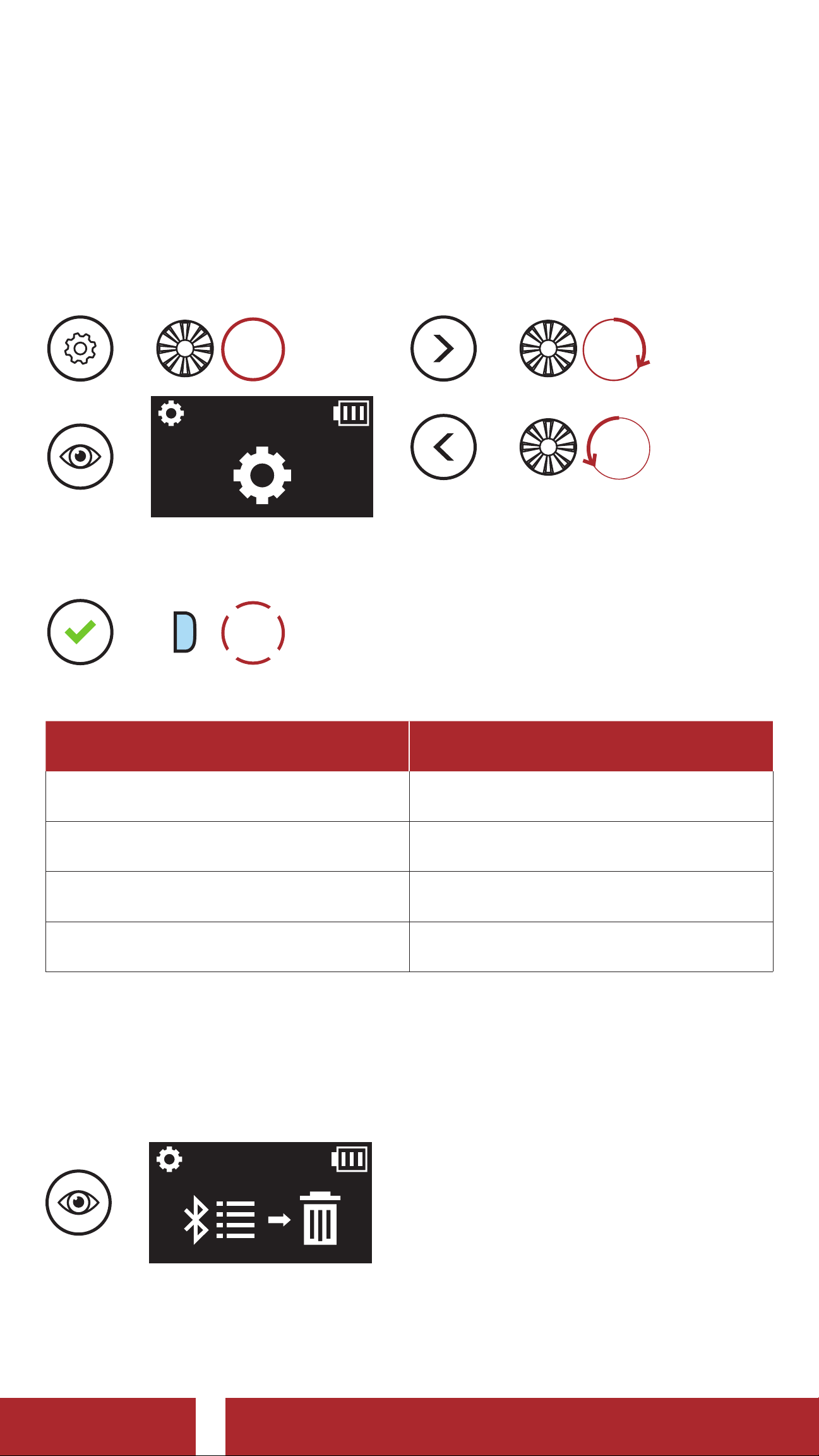
10.1 Headset Configuration Setting
Access the Configuration Menu
HOLD
=
10s
=
Execute Menu Options
TAP
1x
=
P
Navigate Between Menu Options
ROTATE
=
R
ROTATE
=
L
Headset Configuration Menu
Voice Configuration Menu Tap the Phone Button
Delete All Pairings Execute
Remote Control Pairing Execute
Universal Intercom Pairing Execute
Exit Execute
10.1.1 Delete All Pairings
Delete All Bluetooth Pairing Information stored in the Bluetooth
system.
=
5S Motorcycle Bluetooth® Communication System | 35
Page 36

10 CONFIGURATION SETTING
10.1.2 Remote Control Pairing
You can remotely control the headset using Sena Remote Control
devices (sold separately).
1. Turn on the headset and the Remote Control device.
2. Execute Remote Control Pairing.
=
3. Enter pairing mode in the Remote Control device. The headset will
automatically connect with the Remote Control device in pairing
mode.
10.2 Software Configuration Setting
You can change the settings of the headset through the Sena Device
Manager or the Sena Utility App.
10.2.1 Speed Dial
Assign phone numbers for speed dialing to make a phone call quickly.
10.2.2 Unit Language
You can select the device language. The selected language is
maintained even when the headset is rebooted.
10.2.3 Audio Equalizer (Default: Off)
You can use the Audio Equalizer to increase/decrease the decibel level
of different frequency ranges of audio.
Balance will adjust all of the frequency ranges to be the same volume
level (0 dB). Bass Boost will increase the bass range of audio (20 Hz 250 Hz). Mid Boost will increase the mid range of audio (250 Hz - 4 kHz).
Treble Boost will increase the high range of audio (4 kHz - 20 kHz).
5S Motorcycle Bluetooth® Communication System | 36
Page 37

10 CONFIGURATION SETTING
10.2.4 VOX Phone (Default: Enable)
If this feature is enabled, you can answer incoming calls by voice. When
you hear a ringtone for an incoming call, you can answer the phone
by saying a word such as “Hello” loudly or by blowing air into the
microphone. VOX phone is temporarily disabled if you are connected
to intercom. If this feature is disabled, you have to tap the Jog Dial or
the Phone Button to answer an incoming call.
10.2.5 VOX Intercom (Default: Disable)
If VOX Intercom is enabled, you can initiate an intercom conversation
with the last connected intercom friend by voice. When you want
to start intercom, say a word such as “Hello” loudly or blow air into
the microphone. If you start an intercom conversation by voice, the
intercom terminates automatically when you and your intercom friend
remain silent for 20 seconds. However, if you manually start an intercom
conversation by tapping the Jog Dial, you have to terminate the
intercom conversation manually. However, if you start the intercom
by voice and end it manually by tapping the Jog Dial, you will not be
able to start intercom by voice temporarily. In this case, you have to
tap the Jog Dial to restart the intercom. This is to prevent repeated
unintentional intercom connections by strong wind noise. After
rebooting the headset, you can start the intercom by voice again.
10.2.6 Audio Source Priority (Default: Intercom)
Audio Source Priority allows you to select the priority between the
intercom and music (which includes GPS app instructions and message
notifications) from a smartphone. If the intercom is selected as the
audio source priority, your music will be interrupted during an intercom
conversation. If music is selected as the audio source priority, intercom
conversations will be interrupted while your music is heard.
Note: Audio Source Priority is active only when Audio Multitasking
is disabled.
5S Motorcycle Bluetooth® Communication System | 37
Page 38

10 CONFIGURATION SETTING
10.2.7 Audio Multitasking™ (Default: Disable)
Audio Multitasking allows you to hear the audio from two features
simultaneously. When Audio Multitasking is enabled, phone calls,
GPS instructions, and intercom conversations can be overlaid with
audio from the music or GPS app instructions from a smartphone in the
background with reduced volume. Increasing or decreasing the volume
of the audio in the foreground will also increase or decrease the volume
of the overlaid audio in the background. The volume of the foreground
audio can be adjusted using the headset. How much background audio
that is heard can be adjusted using the Sena Device Manager or the
Sena Utility App. HD Intercom, HD Voice, and Audio Source Priority
become disabled temporarily when Audio Multitasking is enabled.
Foreground and Background Combination Table
Foreground* Background**
Model
Phone GPS Intercom Music or Smart Navi
5S
O
A
A
O
O O
O
B
O
B
O O
* Two audio sources in the foreground can be heard simultaneously with
the same volume level.
** Only one background source can be heard at a time while listening to an
audio source in the foreground.
A. GPS instructions can be heard during phone calls and the volume level of
both audio sources can be adjusted using the headset.
B. GPS app directions will be heard in the background during intercom
conversations.
Note:
• Audio Multitasking will be activated during two-way intercom
conversations with a headset that also supports this feature.
• When Audio Multitasking is disabled, the background audio
source will return to its independent volume level.
• Audio Multitasking has limited usage for iOS devices.
• For Audio Multitasking to work properly, you need to power the
headset off and on. Please restart the headset.
• Some GPS devices may not support this feature.
5S Motorcycle Bluetooth® Communication System | 38
Page 39

10 CONFIGURATION SETTING
10.2.8 Background Volume (Default: Level 5)
The Background Volume can be adjustable only when the Audio
Multitasking turns on. Level 9 is the highest volume and 0 is the lowest.
10.2.9 HD Intercom (Default: Enable)
HD Intercom enhances the two-way intercom audio from normal quality
to HD quality. If this feature is disabled, the two-way intercom audio will
change to normal quality.
Note:
• The intercom distance of HD Intercom is relatively shorter than
that of normal intercom.
• HD Intercom will become disabled temporarily when Audio
Multitasking is enabled.
10.2.10 HD Voice (Default: Enable)
HD Voice allows you to communicate in high-definition during phone
calls. This feature increases the quality so that the audio will be crisp
and clear during phone call conversations.
If this feature is enabled, incoming phone calls will interrupt intercom
conversations and audio from the SR10 will not be heard during
intercom conversations.
Note:
• Refer to the manufacturer of your Bluetooth device that will be
connected to the headset to see if it supports HD Voice.
• HD Voice is active only when Audio Multitasking is disabled.
10.2.11 Sidetone (Default: Disable)
Sidetone is audible feedback of your own voice. It helps you to naturally
speak at the correct level according to varying helmet noise conditions.
If this feature is enabled, you can hear what you are speaking during an
intercom conversation or a phone call.
5S Motorcycle Bluetooth® Communication System | 39
Page 40

10 CONFIGURATION SETTING
10.2.12 Voice Prompt (Default: Enable)
You can disable voice prompts by software configuration settings, but
the following voice prompts are always on.
- Headset configuration settings menu, battery level indicator, speed
dial
10.2.13 Advanced Noise Control™ (Default: Enable)
When Advanced Noise Control is enabled, the background noise
is reduced during an intercom conversation. When it is disabled, the
background noise is mixed with your voice during intercom.
5S Motorcycle Bluetooth® Communication System | 40
Page 41
11. TROUBLESHOOTING
Please visit sena.com for answers to frequently asked questions. This
detailed online FAQ section deals with troubleshooting, illustrates case
studies and contains tips on using the headset.
Click Here to Visit sena.com
11.1 Fault Reset
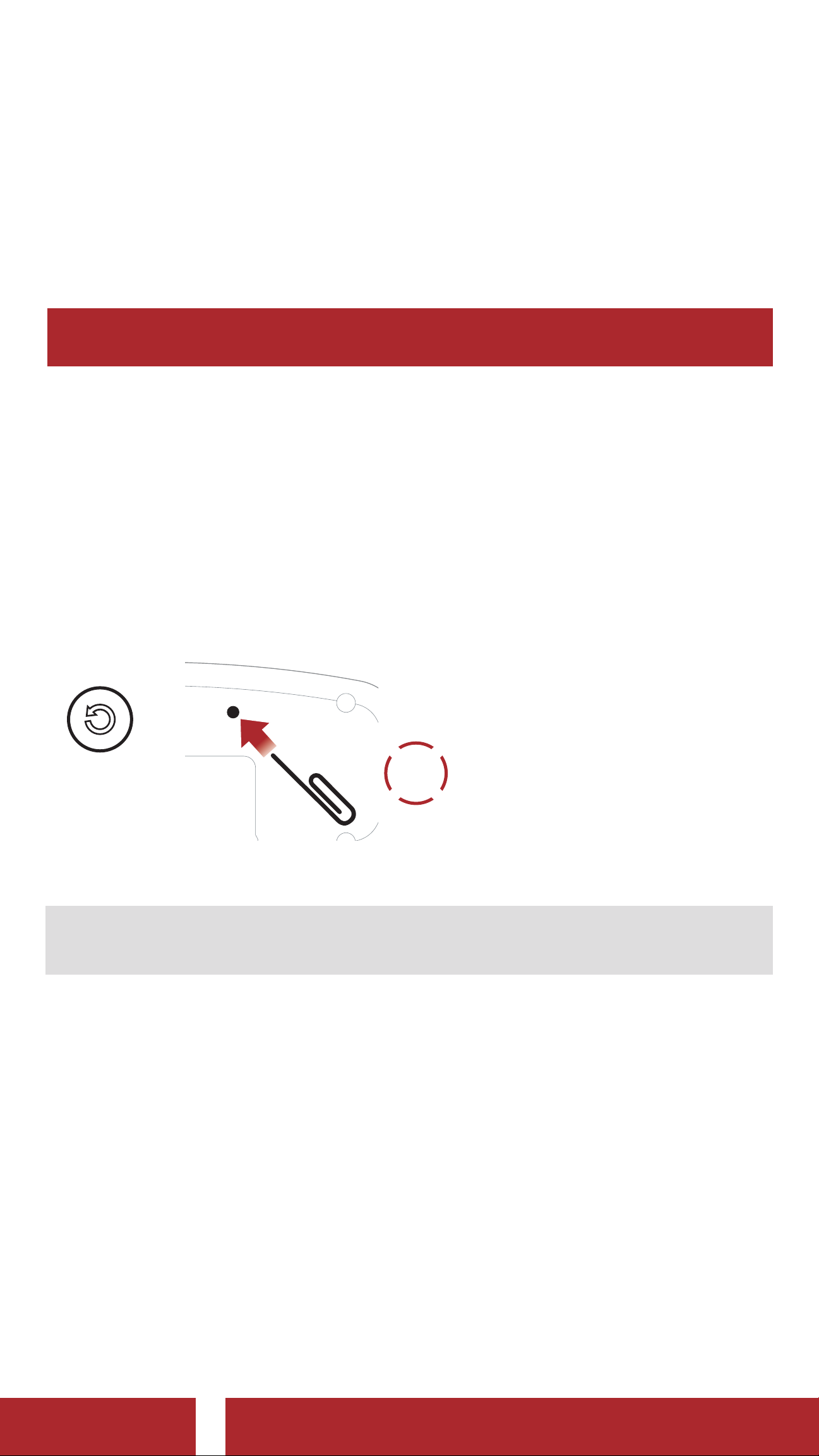
When the headset is not working properly, you can easily reset the unit:
1. Locate the pinhole reset button below on the back of the main unit.
2. Gently insert a paperclip into the hole and tap the Fault Reset
Button with light pressure.
=
FAULT
RESET
3. The headset will shut down.
TAP
1x
Note: Fault Reset will not restore the headset to factory default
settings.
5S Motorcycle Bluetooth® Communication System | 41
Page 42
11 TROUBLESHOOTING
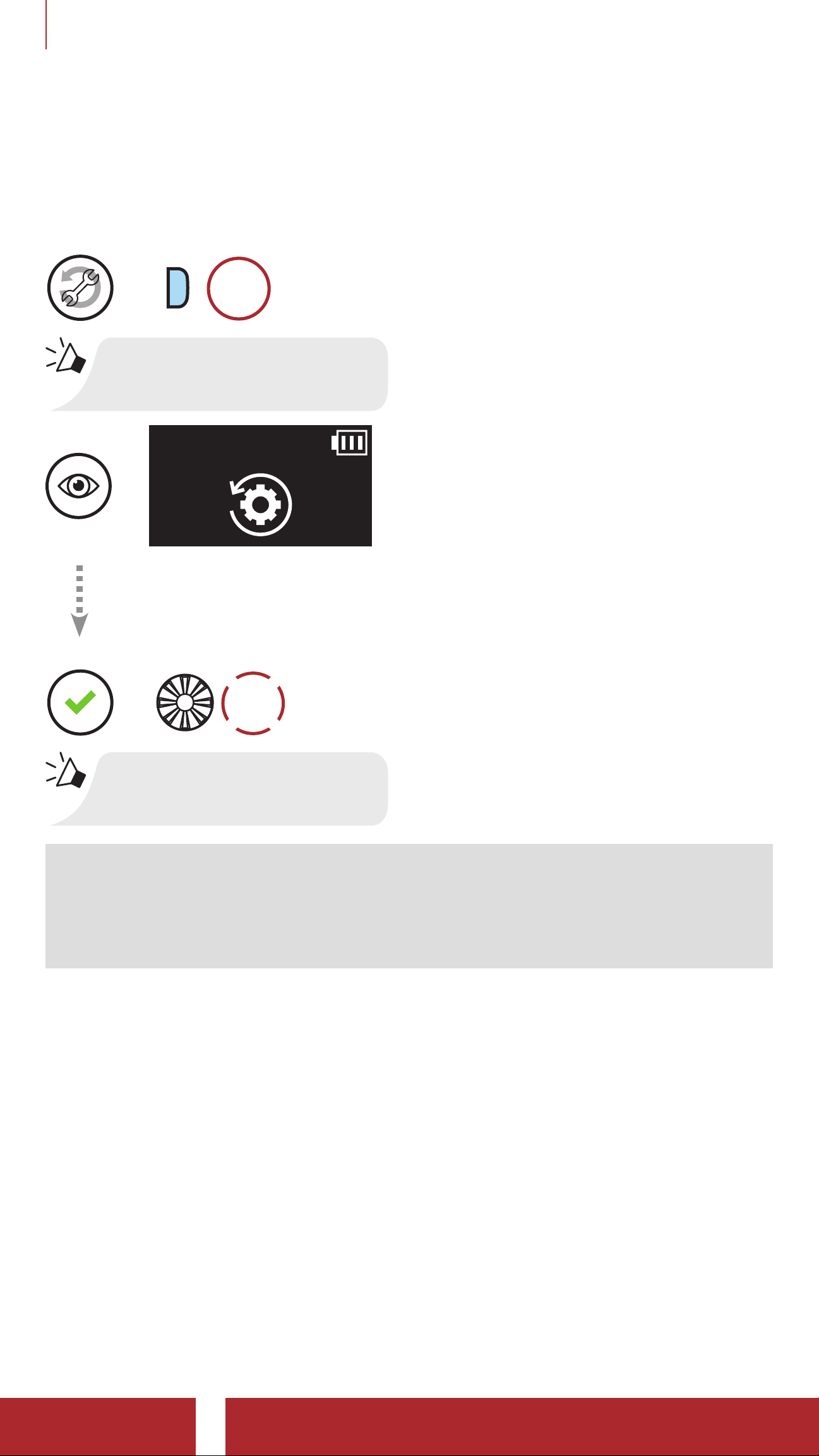
11. 2 Factory Reset
To erase all of your settings and start fresh, the headset can be restored
to factory default settings using the Factory Reset feature.
=
=
P
HOLD
10s
“Factory Reset”
TAP
=
1x
“Headset reset, good-bye”
Note: If you press the Phone Button or do not press the Jog Dial
within 5 seconds, the reset attempt is canceled and the headset
returns to standby mode. You will hear a voice prompt saying
“Canceled”.
5S Motorcycle Bluetooth® Communication System | 42
Page 43

Copyright © 2021 Sena Technologies, Inc.
All rights reserved.
© 1998–2021 Sena Technologies, Inc. All rights reserved.
Sena Technologies, Inc. reserves the right to make any changes
and improvements to its product without providing prior notice.
Sena™ is a trademark of Sena Technologies, Inc. or its
subsidiaries in the USA and other countries. SF1™, SF2™, SF4™,
SFR™, SRL™, Momentum™, Momentum INC™, Momentum
Lite™, Momentum Pro™, Momentum INC Pro™, Momentum
EVO™, Cavalry™, Latitude SR™, Latitude SX™, Latitude S1™,
30K™, 33i™, 50S™, 50R™, 50C™, 5S™, 20S EVO™, 20S™,
10S™, 10C™, 10C PRO™, ProRide EVO™, 10C EVO™, 10U™,
10Upad™, 10R™, ACS10™, 3S™, 3S PLUS™, SMH5™, SMH5FM™, SMH5 MultiCom™, SMH10™, SMH10R™, SPH10™,
SPH10H-FM™, Savage™, Prism Tube WiFi™, Prism™, Bluetooth
Audio Pack for GoPro
®
, Impulse™, R1™, R1 EVO™, R1 EVO
CS™, R2™, R2 EVO™, R2X™, M1™, M1 EVO™, RUMBA™,
RC1™, RC3™, RC4™, Stryker™, Handlebar Remote™,
Wristband Remote™, PowerPro Mount™, Powerbank™,
FreeWire™, WiFi Docking Station™, WiFi Sync Cable™, WiFi
Adapter™, +mesh™, +Mesh Universal™, MeshPort Blue™,
MeshPort Red™, MeshPort Black™, Econo™, OUTRUSH™,
OUTRUSH R™, OUTSTAR™, OUTSTAR S™, OUTFORCE™,
OUTRIDE™, EcoCom™, Parani A10™, Parani A20™, Parani
M10™, pi™, Snowtalk™, Snowtalk2™, SR10™, SR10i™, SM10™,
SPIDER RT1™, SPIDER ST1™, X1™, X1 Pro™, X1S™, Expand™,
Expand Boom™, Bluetooth Mic & Intercom™, Tufftalk™, Tufftalk
Lite™, Tufftalk M™ are trademarks of Sena Technologies, Inc. or
its subsidiaries. These trademarks may not be used without the
express permission of Sena.
GoPro
®
is a registered trademark of Woodman Labs of San
Mateo, California. Sena Technologies, Inc. (“Sena”) is not
affiliated with Woodman Labs, Inc. The Sena Bluetooth Pack
for GoPro® is an aftermarket accessory specially designed and
manufactured by Sena Technologies, Inc. for the GoPro® Hero3
and Hero4 allowing for Bluetooth capabilities.
The Bluetooth
®
word mark and logos are owned by the
Bluetooth SIG, Inc. and any use of such marks by Sena is under
license. iPhone® and iPod® touch are registered trademarks of
Apple Inc.
Address: 152 Technology Drive Irvine, CA 92618
5S Motorcycle Bluetooth® Communication System | 43
 Loading...