

Page 1

SEIKO INSTRUMENTS USA INC.
SMART LABEL PRINTER
ADMINISTRATION NOTES
6.6
DOCUMENTATION
SLP 100/410
SLP 200/420
SLP 240/430
SLP 440
SLP 450
© 2007 Seiko Instruments USA Inc.
Page 2

Table of Contents
Table of Contents................................................................................................................................ 2
About this Document .......................................................................................................................... 3
Fine Print ........................................................................................................................................... 3
Default Paths ...................................................................................................................................... 4
PrivateDocuments ....................................................................................................................................................4
PrivateData ...............................................................................................................................................................4
PublicDocuments .....................................................................................................................................................4
PublicData .................................................................................................................................................................4
ProgramFiles ............................................................................................................................................................4
Notes...........................................................................................................................................................................4
Specifying Alternate Paths.................................................................................................................. 6
Program Configuration Settings......................................................................................................... 6
External Label Processing.................................................................................................................. 7
Remote Desktop Connection............................................................................................................... 8
Smart Label Run-time Diagnostic Logging ........................................................................................ 9
Turn debugging on ..................................................................................................................................................9
Turn driver debugging off......................................................................................................................................9
System Printer Driver Run-time Diagnostic Logging ....................................................................... 10
Turn driver debugging on ....................................................................................................................................10
Turn driver debugging off....................................................................................................................................10
Changing Printer’s Serial Baud Rate Settings ................................................................................. 11
Page 3

About this Document
This document is intended for system administrators and advanced users to customize the Smart Label
Printer to their environment.
Fine Print
This SII software is supplied to you by Seiko Instruments USA Inc. ("SII") in consideration of your
agreement to the following terms, and your use, installation, modification or redistribution of this SII
software constitutes acceptance of these terms. If you do not agree with these terms, please do not use,
install, modify or redistribute this SII software.
In consideration of your agreement to abide by the following terms, and subject to these terms, SII
grants you a personal, non-exclusive license, under SII's copyrights in this original SII software (the
"SII Software"), to use, reproduce, modify and redistribute the SII Software, with or without
modifications, in source and/or binary forms; provided that if you redistribute the SII Software in its
entirety and without modifications, you must retain this notice and the following text and disclaimers
in all such redistributions of the SII Software. Neither the name, trademarks, service marks or logos of
SII may be used to endorse or promote products derived from the SII Software without specific prior
written permission from SII. Except as expressly stated in this notice, no other rights or licenses,
express or implied, are granted by SII herein, including but not limited to any patent rights that may be
infringed by your derivative works or by other works in which the SII Software may be incorporated.
The SII Software is provided by SII on an "AS IS" basis. SII MAKES NO WARRANTIES,
EXPRESS OR IMPLIED, INCLUDING WITHOUT LIMITATION THE IMPLIED WARRANTIES
OF NON-INFRINGEMENT, MERCHANTABILITY AND FITNESS FOR A PARTICULAR
PURPOSE, REGARDING THE SII SOFTWARE OR ITS USE AND OPERATION ALONE OR IN
COMBINATION WITH YOUR PRODUCTS.
IN NO EVENT SHALL SII BE LIABLE FOR ANY SPECIAL, INDIRECT, INCIDENTAL OR
CONSEQUENTIAL DAMAGES (INCLUDING, BUT NOT LIMITED TO, PROCUREMENT OF
SUBSTITUTE GOODS OR SERVICES; LOSS OF USE, DATA, OR PROFITS; OR BUSINESS
INTERRUPTION) ARISING IN ANY WAY OUT OF THE USE, REPRODUCTION,
MODIFICATION AND/OR DISTRIBUTION OF THE SII SOFTWARE, HOWEVER CAUSED
AND WHETHER UNDER THEORY OF CONTRACT, TORT (INCLUDING NEGLIGENCE),
STRICT LIABILITY OR OTHERWISE, EVEN IF SII HAS BEEN ADVISED OF THE
POSSIBILITY OF SUCH DAMAGE.
Page 4
Default Paths
After a normal installation, the Smart Label application program uses the following paths to locate and
save files:
PrivateDocuments
Windows special folder ID: CSIDL_PERSONAL
Typical path: C:\Documents and Settings\UserName\My Documents\
Files:
Smart Label Printer\LABELS.SLL
Label Library (Optional – created by end user)
PrivateData
Windows special folder ID: CSIDL_APPDATA
Typical path: C:\Documents and Settings\UserName\Application Data\
Files:
Smart Label Printer\SlpConfig.xml
Printer and global program settings (primary location)
Smart label Printer\SEIKOSLP.INI
Configuration settings – created by program
Smart Label Printer\SEIKOSLP.SLP
Program default settings – created by program
Smart Label Printer\SLPAdmin.xml
Optional – created by Administrator (see below)
PublicDocuments
Windows special folder ID: CSIDL_COMMON_DOCUMENTS
Typical path: C:\Documents and Settings\All Users\Documents\
Files:
Smart Label Printer\LABELS.SLL
Label Library (data base)
PublicData
Windows special folder ID: CSIDL_COMMON_APPDATA
Typical path: C:\Documents and Settings\All Users\Application Data\
Files:
Smart Label Printer\SlpConfig.xml
Printer and global program settings (secondary location)
Smart Label Printer\SlpLabels.xml
Label type data
Smart Label Printer\*.log
Various log files – created by program
ProgramFiles
Windows special folder ID: CSIDL_PROGRAM_FILES
Typical path: C:\Program Files\Seiko Instruments USA Inc\Smart Label Printer <version>\
Files:
Default Labels.sll
Factory default Label Library (data base)
Notes
1) Files are installed by the Setup program, except as noted (i.e., “created by …” ).
2) If the user does not specify a label library, the application software will look for a file with the
default name (LABELS.SLL) in the PrivateDocuments folder. If not found, the software will then look
in the PublicDocuments folder.
Page 5

3) If the path to the label library is changed, the Smart Label program may still look for the file in the
original location. This is because the path of the current label library is saved in the SlpConfig.xml file.
You may also need to change the path specified in that file.
Page 6

Specifying Alternate Paths
Some installations may require that files are stored at a specific location (e.g., a different drive, file
server, etc.). This may be accomplished by specifying the installation-specific paths in a special file
named SLPAdmin.xml.
During startup, the application looks for this file at PrivateData\Smart Label Printer\SLPAdmin.xml. If
the file is not found there, it will then look at PublicData\Smart Label Printer\SLPAdmin.xml. If the
file is not found in either place, the default paths described above are used.
SLPAdmin.xml is a Unicode file, which can be created using the Windows NotePad utility (be sure to
use “Save As”, instead of “Save”, and set “Encoding” to Unicode). The file has the following format:
<?xml version="1.0"?>
<SLP_Admin version="1.0">
<Paths>
<PrivateDocuments>C:\Documents and Settings\UserName\My Documents</PrivateDocuments>
<PublicDocuments>C:\Documents and Settings\All Users\Documents</PublicDocuments>
<PublicData>C:\Documents and Settings\All Users\Application Data</PublicData>
<PrivateData>C:\Documents and Settings\UserName\Application Data</PrivateData>
</Paths>
</SLP_Admin>
Note that any, or all, of the four paths may be specified in this file. A path specified in this file will
override the corresponding default path. Likewise, any path(s) not defined in this file will assume the
default setting (as described in “Default Paths”, above). Furthermore, an administrator may place this
file in both PrivateData and PublicData folders, so some paths can be specified for individual users,
and others paths specified for all users.
Program Configuration Settings
Printer and SmartCapture settings for the Smart Label program (SLPWIN.EXE) are stored in a file
name SLPConfig.xml. By default, this file is located in PublicData\Smart Label Printer folder (e.g.,
C:\Documents and Settings\All Users\Application Data\Smart Label Printer\SLPConfig.xml).
Some installations may desire to have these settings saved on a per-user basis. This can be
accomplished by copying the SLPConfig.xml file from the PublicData folder to the desired
PrivateData folder (e.g., PrivateData \Smart Label Printer\SLPConfig.xml).
Note that the Smart Label program looks for this file in the PrivateData folder and, if not found there,
in the PublicData folder. Therefore, any users that do not have a private SLPConfig.xml file will use
the “global” settings in the PublicData folder.
Page 7
External Label Processing
The Smart Label program is capable of executing a user-defined program each time a label is printed.
This allows some additional processing to be performed for each printed label (e.g., add to a database,
create a form letter, etc.). This feature is implemented by adding a “RunOnPrint” section to the
SLPAdmin.xml file:
<?xml version="1.0"?>
<SLP_Admin version="1.0">
<RunOnPrint>
<Enable>1</Enable>
<InfoFilePath>C:\Temp</InfoFilePath>
<ExecuteProgram>C:\Windows\Notepad.exe</ExecuteProgram>
<Wait>0</Wait>
</RunOnPrint>
</SLP_Admin>
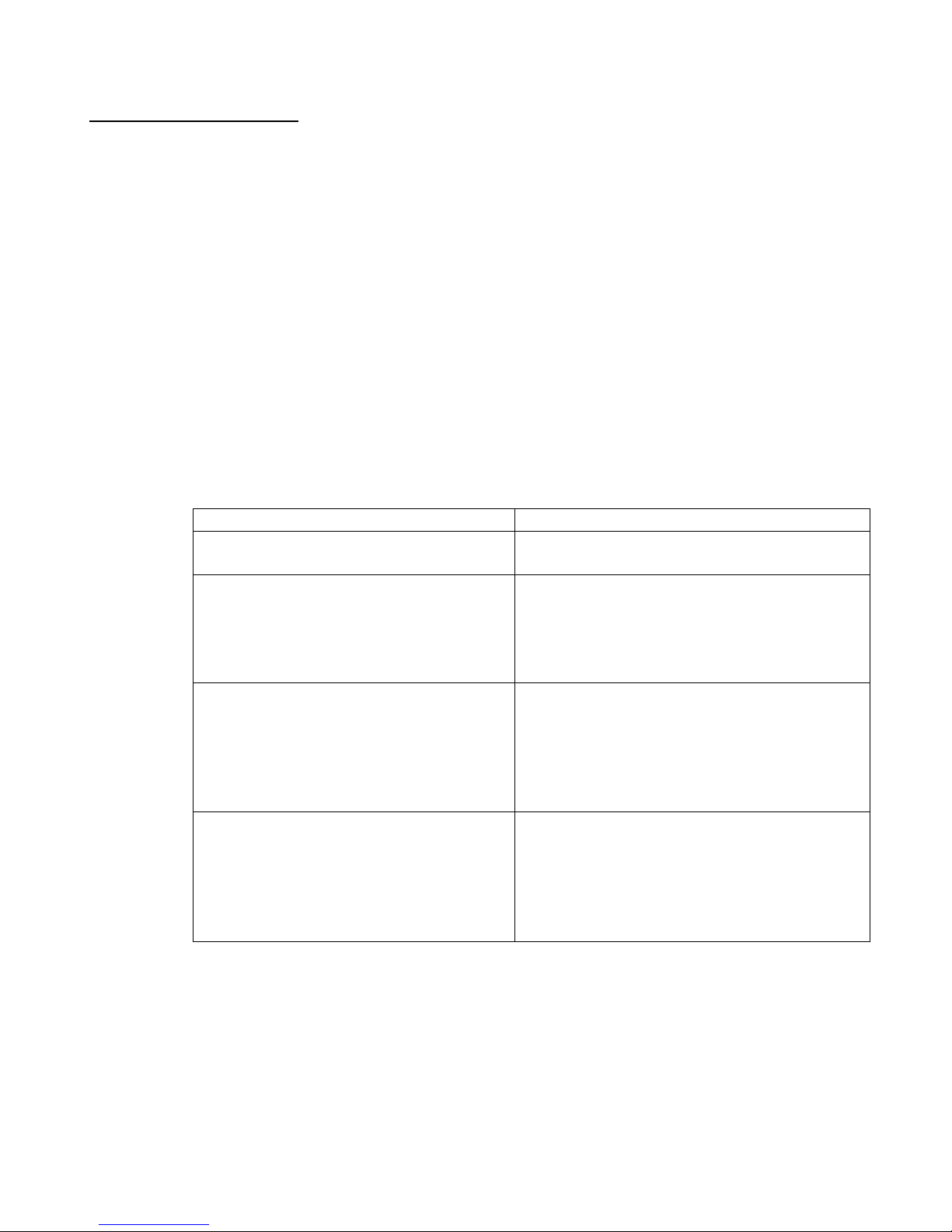
There are four settings for Run-On-Print, defined are follows:
Setting
Description
Enable
Set to 1 to enable, or 0 to disable, the RunOn-Print feature.
InfoFilePath
Path to where the Label Information file will
be stored. The file name is in the format,
“Label_2322022955_0001.xml” and the last
four digits (e.g., “0001”) are incremented for
each label.
ExecuteProgram
Path to the user program to execute. The
program will be executed with a command
line that includes the path of the Label
Information file. For example,
C:\Windows\Notepad.exe
Label_2322022955_0001.xml
Wait
Set to 0 to allow the Smart Label program to
continue while the user program executes.
Set to 1 to have the Smart Label program
wait until the user program terminates before
continuing, effectively preventing multiple
instances of the user program.
When executed, the user program will be passed one parameter, which is the name of the Label
Information file. The file should be deleted after the contents are read, to prevent the accumulation of
obsolete files.
The user program should read the Label Information file, delete the file, process the information, and
exit as fast as possible. If another label is printed while the user program is still executing, a second
instance of the program will be started. This could cause problems.
Page 8

Ideally, the user program should be written so that it detects when a second instance is started, and
handles the situation gracefully. Alternatively, the Smart Label program can wait for the user program
to terminate, by setting Wait to 1. Note that using the wait feature will reduce printer throughput to the
extent determined by the execution time of the user program.
Remote Desktop Connection
If users create a printer connection in a Citrix, shared VNC, or similar environment, the printer name
may be decorated each time a user creates a new session. The decoration is usually a suffix following
the printer name. To delimit the actual printer name from the decoration, SLP will look for a “#”
character between the real name and the suffix. If the SLP software is unable to connect to a printer in
such an environment, try appending a “#” character to the printer name, so it appears between the
printer name and the suffix (e.g., “Smart Label Printer 450# (from P51_MUSTANG) in session 3”).
Administrators should give all label printers unique names on their network so the SLP software can
find the default printer correctly.
Page 9

Smart Label Run-time Diagnostic Logging
The Smart Label software is capable of generating a verbose run-time log file, which may be helpful in
diagnosing certain problems. Diagnostic logging is turned off, by default. There are two registry script
files (located in the same folder as the Smart Label application), which may be executed to enable or
disable Diagnostic logging:
Turn debugging on
Run SLPDebugOn.reg – double click it.
Turn driver debugging off
Run SLPDebugOff.reg – double click it.
The log file is named SlpDebug.log and is located in the Windows CSIDL_COMMON_APPDATA
folder (e.g., C:\Documents and Settings\All Users\Application Data\Smart Label Printer).
Page 10

System Printer Driver Run-time Diagnostic Logging
Driver debug logging should only be used to capture the state of the driver when a failure is expected.
The log file will grow even when the printer is idle, and there is no limit to the size. This will also have
a slight impact on system performance.
You must have administrator privileges to perform the following commands. (On Vista, you will need
to right-click on the Command Prompt icon, and select "Run as administrator" when opening the
prompt to restart the spooler. You will also need to run the .reg files as administrator, which means you
either should run regedit as admin and import the .reg file, or run the .reg files from an elevated
command prompt.)
Values -
Turn driver debugging on
Run SLPDriverDebugOn.reg - either double click, or on Vista, type the name of the file (with path if
necessary) in an elevated command prompt.
Agree to the prompts about changing the registry.
Open a command prompt (or use the current elevated prompt if Vista).
Execute the following 2 lines in the command prompt:
net stop spooler
net start spooler
The debug file will be written to C:\slp.log.
Turn driver debugging off
Run SLPDriverDebugOff.reg - either double click, or on Vista, type the name of the file (with path if
necessary) in an elevated command prompt.
Agree to the prompts about changing the registry.
Open a command prompt (or use the current elevated prompt if Vista).
Execute the following 2 lines in the command prompt:
net stop spooler
net start spooler
Page 11
Changing Printer’s Serial Baud Rate Settings
Some embedded systems have serial ports with slow baud rates. And sometimes these baud rates are
incompatible with the default baud rates of the Smart Label Printers. The 440 and 450 printers have an
EEPROM that can store the default baud rate that the printer should use when it powers up. Within the
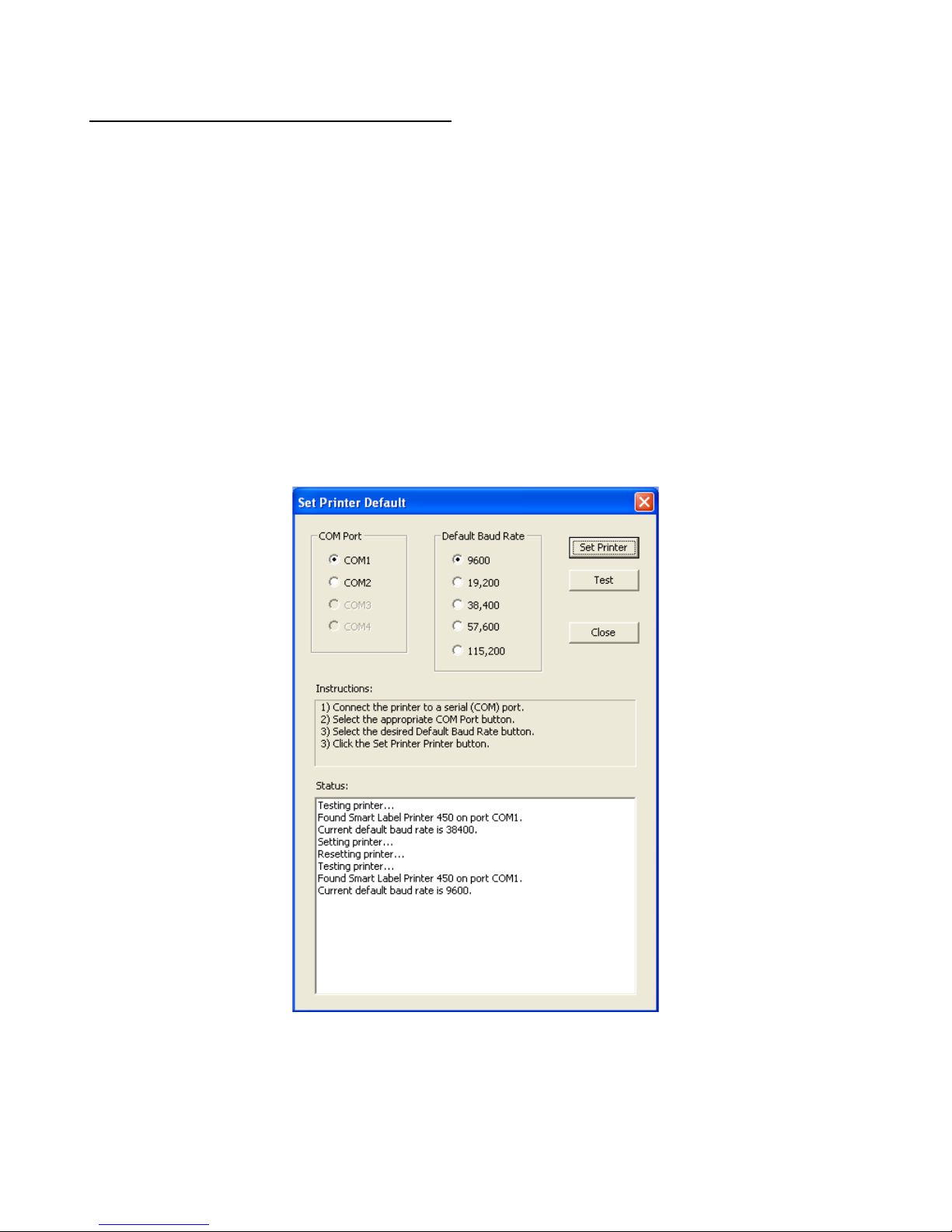
standard application install is a program called “SlpSelect.exe”. Executing SlpSelect.exe as described
below will present a private interface for changing the baud rate of attached printers.
1. Attach an SLP 440 or SLP 450 to the serial port of your computer. (The USB cable should
not be attached.) If your printer did not come with a serial cable please contact support. You
may qualify for a free serial cable from Seiko Instruments USA Inc.
2. Execute SlpSelect.exe /default [port] [baudrate]
a. port is one of COM1, COM2, COM3 or COM4
b. baudrate is 9600, 19200, 38400, 57600, 115200
For example:
> SlpSelect.exe /default COM1 9600
3. Follow the instructions on-screen.
Factory baud rate for the SLP 440 is 115,200. Factory baud rate for early SLP 450 models is 38,400
and 115,200 for later models.
 Loading...