

Page 1
Page 2

Features
2
MP3, WMA , Audio ASF and Ogg Playback
● The player supports playback of MP3, WMA, Audio ASF and Ogg.
Removable Storage Device
● You can easily copy and paste files to the player using Windows Explorer.
Direct MP3 Recording
● You can convert music from CDs, cassettes, and radio into
MP3 files without a PC.
FM Reception
● Listening to an FM program is made easy with Auto Search and
Frequency Memory functions.
Page 3

3
Features
ENG
DNSe Surround Sound
● The 3D surround feature adds spaciousness to the sound.
Voice Recording Function
● You can make high quality voice recordings.
18 Hours Continuous Play
● This player uses one AAA/LR03 alkaline battery. Operation can last up to 18hours.
Actual playing time may vary according to the type and capacity of the battery.
Upgradeable Firmware
● You can upgrade the player's firmware when available.
Please check the home page (www.samsung.com) for upgrades.
Page 4

Contents
4
I Chapter 1 Preparations
Features ...............................................2
Safety Instructions................................6
Components.........................................8
Location of Controls .............................9
Display ...............................................10
I Chapter 2
Connection to Computer
Connecting the player to PC ..............11
● Installing the USB Driver .................12
● Connecting the player to PC with the
USB cable
.....................................14
Manual Installation of USB Driver......16
● If an error occurs during installation
of the USB driver
............................16
● In Windows 98SE ............................18
Transferring Files to your Player........20
● Disconnecting the player .................22
Installing Media Studio.......................23
Using Media Studio............................25
● Downloading Music Files .................25
● Creating a Folder on your Player .....27
● Deleting Files ..................................28
● Formattimg the Player in
Media Studio
...................................29
● Ripping Tracks from an Audio CD ....30
To View Help on Media Studio...........31
I Chapter 3 Using Your Player
Playing Music and Turning Off
the Device ........................................32
● Turning Power On and Off ...............32
● Playing Music..................................32
● Pausing Music ................................32
● Adjusting the Volume.......................32
Hold Function .....................................33
Recording Voice.................................33
Searching for Music/Voice Files.........34
● To search for specific parts
during play
......................................34
● To change tracks during play ...........34
● To change tracks when stopped.......34
Loop Repeating..................................35
● Starting Point ..................................35
● Ending Point ...................................35
Recording MP3s.................................36
MENU Options ...................................37
Using Navigation ................................38
● Changing Mode...............................39
● Playing /Exiting Folder .....................40
Setting Playlist....................................41
● Setting Playlist ................................41
● Playing Playlist ................................41
Page 5
5
Contents
ENG
Listening to FM Radio ........................42
● Manual Search for a Frequency .......42
● Manual Storage of a Frequency .......42
● Automatic Search for a Frequency ...42
● Searching Stored Frequencies .........43
● Deleting Stored Frequencies............43
● Mute Function .................................43
FM Recording.....................................44
Setting the Advanced Functions ........45
Selecting the Playmode .....................46
Setting the EQ mode..........................47
● DNSe .............................................47
● 3D User Setting ..............................48
● User EQ Set ...................................49
Setting the Play Speed ......................49
Display Settings .................................50
● Scroll ..............................................50
● Backlight .........................................51
● Contrast ..........................................51
● Ta g .................................................51
● Bitrate .............................................51
Language Settings .............................52
● Menu ..............................................52
● ID3-Tag...........................................52
Recording Settings .............................53
● Bit Rate ..........................................53
● Auto Sync .......................................53
FM Radio Settings ..............................54
● Auto Preset .....................................54
● FM Region ......................................54
● FM Search Level .............................54
Time Settings......................................55
● Auto Off Time..................................55
● Auto Sleep ......................................55
● Intro Time .......................................55
System Settings..................................56
● Deleting a file ..................................56
● Resume ..........................................56
● Beep ..............................................56
● Skip Interval ....................................57
● Search Speed .................................57
● Default vol ......................................57
● Default Set ......................................58
● User Button Mode ...........................58
● About..............................................58
I Chapter 4 Appendix
MENU Table........................................59
I Chapter 5 Customer Support
Troubleshooting ..................................60
Specifications......................................62
Page 6
Safety Instructions
6
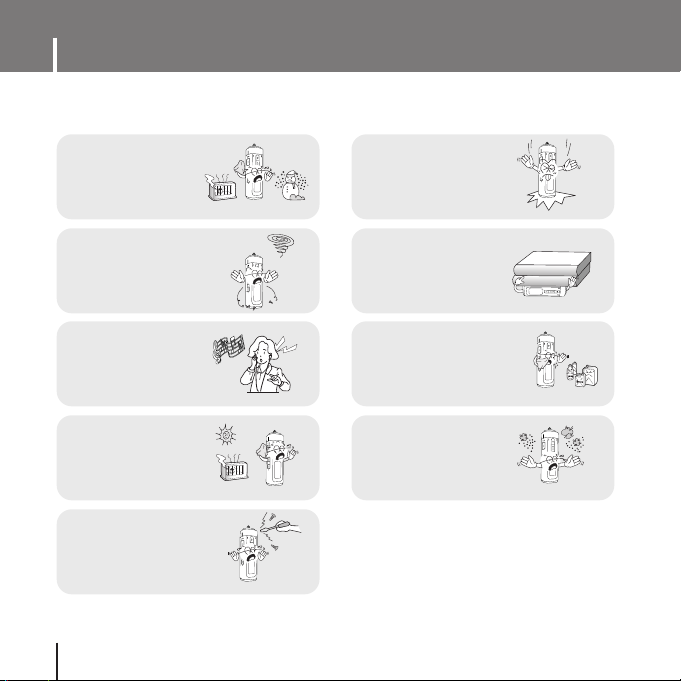
Read and understand all the instructions to avoid injury to yourself and damage to the equipment.
✽
Please be aware that we claim no responsibility
for damage from data loss due to breakdown,
repair or other causes.
Do not expose to
extreme temperatures
(above 95°F or below
23°F). Do not expose to
moisture.
U
S
E
R
Do not apply excessive
pressure on the device.
Do not place heavy objects
on top of the device.
U
S
E
R
Do not let any foreign
matter spill into the device.
U
S
E
R
Be careful not to subject
the player to excessive
pressure when wearing
it round your neck.
U
S
E
R
Do not expose to chemicals
such as benzene and
thinners.
U
S
E
R
Do not expose to
direct sunlight or heat
sources.
Do not store in dusty areas.
U
S
E
R
Do not try to disassemble and
repair the device yourself.
Page 7
7
Safety Instructions
ENG
I Earphones
Follow Traffic Safety Instructions
● Do not use the earphones while driving an automobile or riding a bicycle.
It’s not only dangerous, but also against the law.
● It may cause an accident if you turn up the volume of the earphones while walking.
especially when crossing intersections.
Protect your ears
● Do not turn up the volume too high. Doctors warn against prolonged exposure to high volume.
● Stop using the device or turn the volume down if you have ringing in your ears.
● Take care so that the earphone plug is not caught by your arm or other objects while walking or
exercise.
I Ambient operating conditions
● Ambient temperature : 5°C ~ 35°C (41°F ~ 95°F)
Humidity : 10 ~ 75%
I Environmental Information
● Follow local guidelines for waste disposal when discarding packages, batteries, and old electronic
appliances.
● Your player is packaged with cardboard, polyethylene etc., and does not use any unnecessary materials.
Page 8
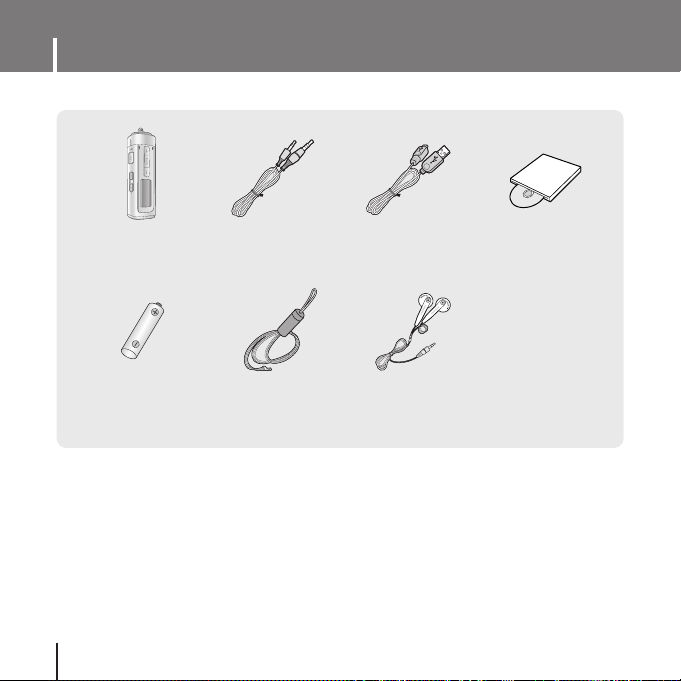
Components
8
● The capacity of the useable built-in memory is less than indicated as the internal firmware
uses a part of the memory as well.
● Design of accessories is subject to change for the purposes of improvement, without notice.
Player
Eaphones
Line In Cable
Installation CD
Alkaline Battery
(1 AAA/LR03 Type)
Neck Strap
USB Cable
USER
Page 9
9
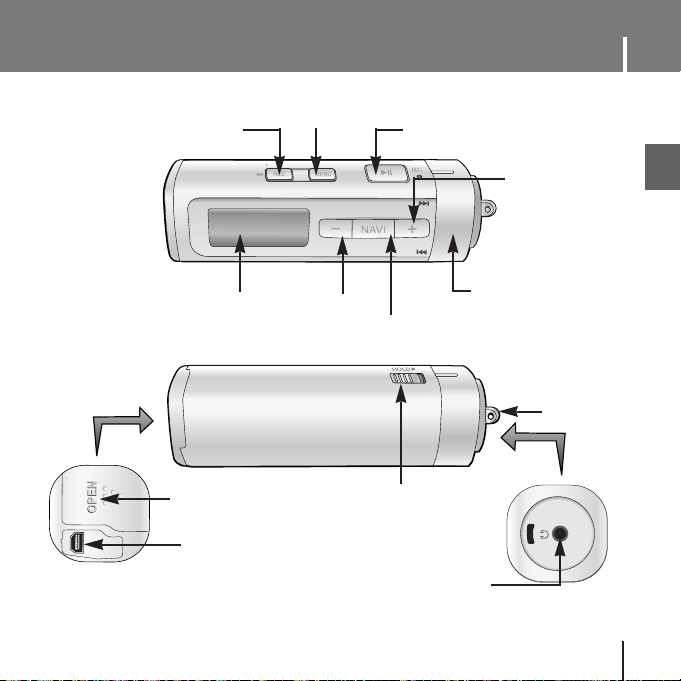
Location of Controls
ENG
USER
Move to Track/Speed Search Lever
Power On/Off
Play/Pause Button
Record / User Button
Navigation button
Display
MENU button
Earphone Jack
Volume Up Button
Volume Down Button
Hold Switch
Battery Cover
ENC/USB Cable Connection Port
Neck strap Hook
Page 10
Location of Controls
10
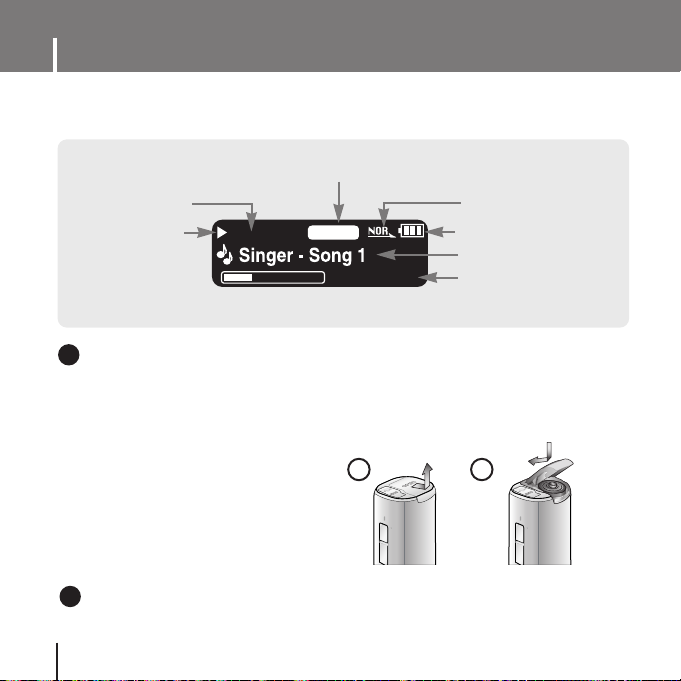
I Display
NOR
001/020
00:01:30
Playtime indicator
EQ/DNSe indicator
Play/Stop/Pause
indicator
Remaining Battery Power
indicator
Play mode indicator
Track Number indicator
Title (track & artist) indicator
I Inserting a Battery
1 Slide the cover in the direction of
the arrow to open.
2 Insert a battery to the right poles
+ , – and push-close the cover in
the direction of the arrow as indicated.
NNNNoooottttee
ee
- Do not place heavy objects on the cover.
✍
REC MENU
U
S
E
R
REC MENU
U
S
E
R
➡
1 2
NNNNoooottttee
ee
- The screen pictures are for illustration purposes only. The actual screen may differ.
✍
Page 11
11
Connecting the player to PC
ENG
The PC system must meet the following specifications:
● Pentium 200MHz or greater ● Windows 98 SE/ME/2000/XP
● 40MB of available hard disk space ● CD-ROM drive (double speed or greater)
● USB port (2.0) supported ● DirectX 8.0 or above
❿❿
System Requirements.
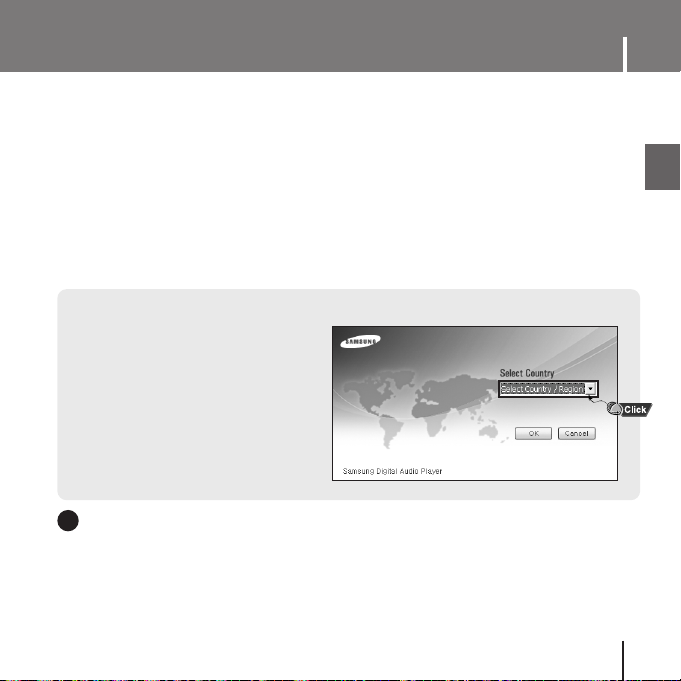
1 Insert the Installation CD into the
CD-ROM drive.
If Select Country screen appears,
select your country.
Be sure to install the USB driver before connecting the play and a PC.
If 'Add Hardware Wizard' appears, click the [Cancel] button and install the USB driver.
NNNNoooottttee
ee
- Install the operating system in Administrator Account (main user) for Windows 2000 or XP.
Otherwise, installation will not be completed.
- Windows ME, 2000 and XP can recognize the driver without installing the provided program.
However, you must install the program in order to format the player and upgrade firmware.
- On Windows98SE, you will not be able to use the player as a removable disk if the USB driver is not
installed. You must install the USB driver file first.
✍
I
Installing the USB Driver
Page 12
Connecting the player to PC
12
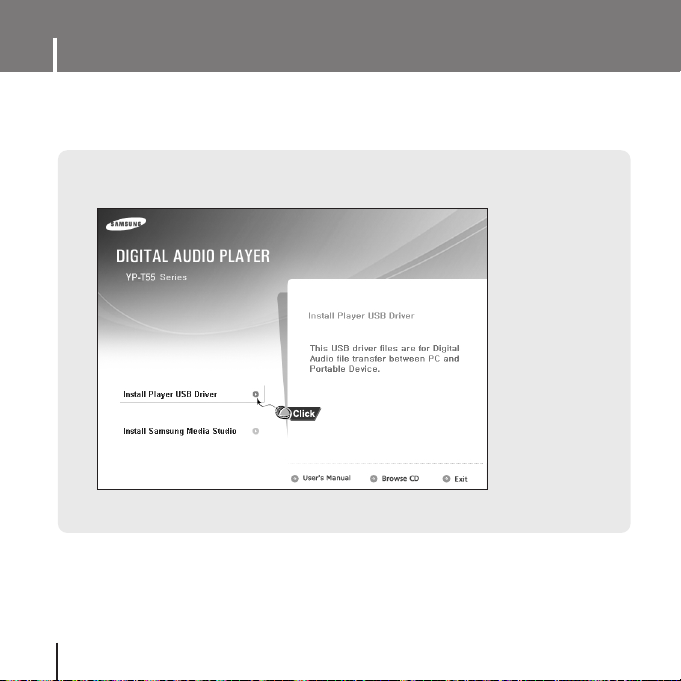
2 Select [Install Player USB Driver].
Page 13
13
Connecting the player to PC
ENG
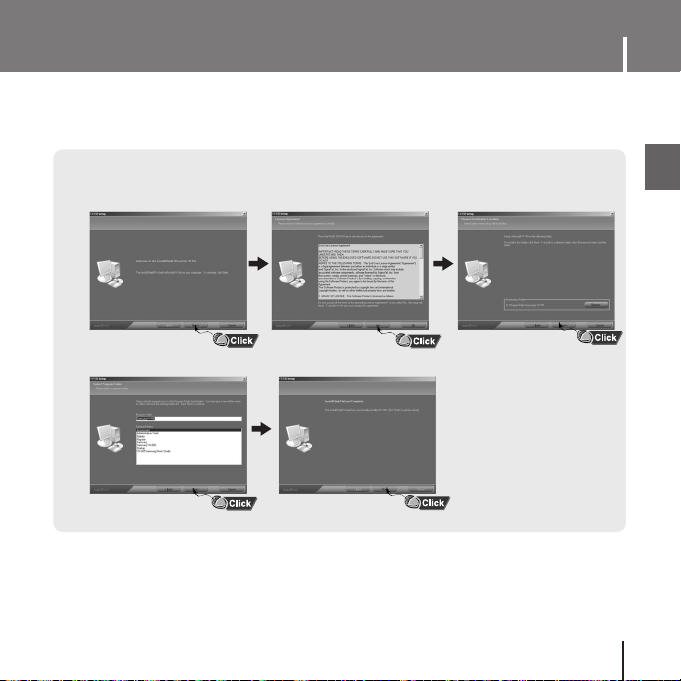
3 Follow the instructions in the window to complete the installation.
Page 14
Connecting the player to PC
14
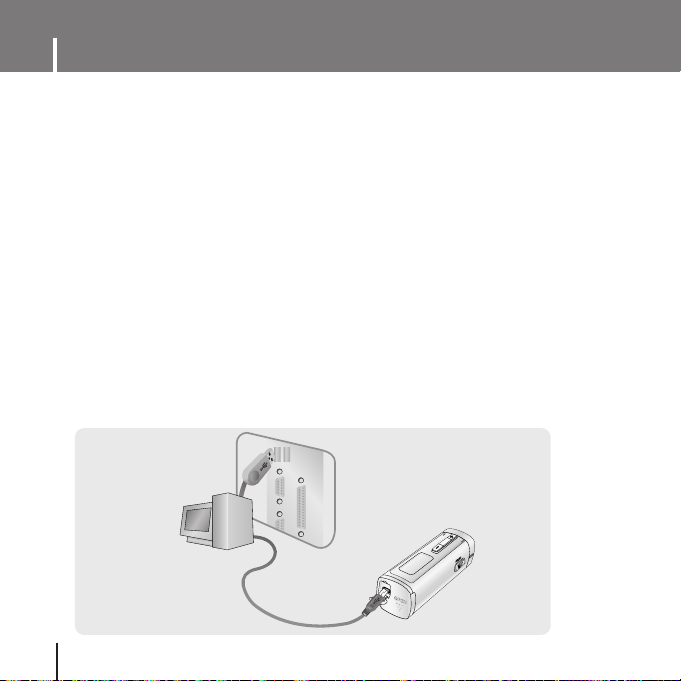
1 Connect the USB cable to the USB port on the computer.
● If you disconnect the USB cable from your PC while implementing a command or
initializing during USB driver installation, your PC may not function correctly.
2 Connect the other end of the USB cable to the USB cable connection port on the
bottom of the player.
● If you disconnect the USB cable from your PC while implementing a command or
initializing during USB driver installation, your PC may not function correctly.
3 The USB driver is installed with a message saying that it is searching for a new
device. You may not see the display screen during installation.
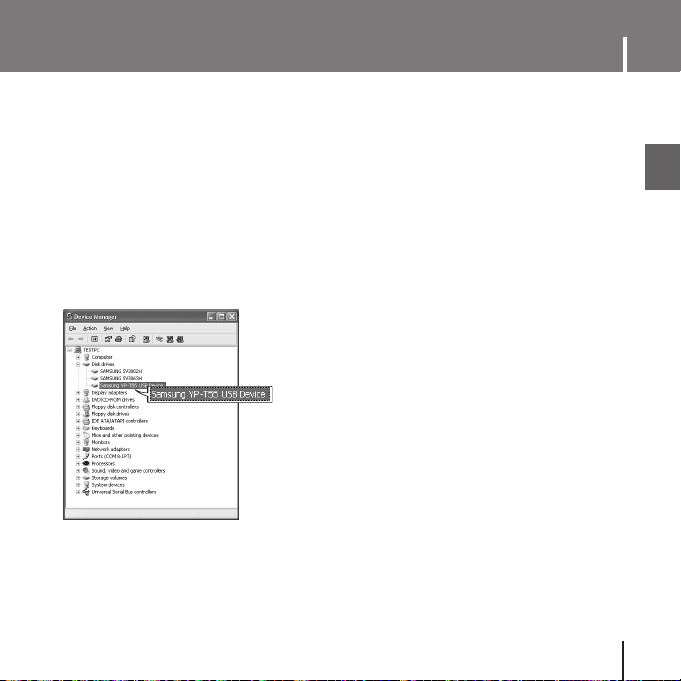
Go to the device manager to check that installation has been successfully
completed.
4 Upon installation of the USB driver "Samsung YP-T55 USB Device" will appear
in the [System Properties] ➝ [Device Manager].
I Connecting the player to PC with the USB cable
NAV
I
VI
Page 15
15
Connecting the player to PC
ENG
How to check if USB driver is properly installed
How to check if USB driver is properly installed
Windows 98:
Control Panel ➝ System ➝ Device Manager ➝ Disk Drives ➝ Samsung YP-T55
Windows 2000:
Control Panel ➝ System ➝ Hardware ➝ Device Manager ➝ Disk Drives ➝
Samsung YP-T55 USB Device
Windows XP:
Control Panel ➝ System ➝ Hardware ➝ Device Manager ➝ Universal Serial Bus controllers ➝
Disk Drives ➝ Samsung YP-T55 USB Device
5 When the USB driver is not installed automatically, refer to the next page.
Page 16
Manual Installation of USB Driver
16
NNNNoooottttee
ee
- If you are using Windows 2000 and your version of Windows does not recognize the USB driver
please download and install the latest service pack from windowsupdate.microsoft.com
- The installation method may vary depending on the type of PC or operating system.
Contact your PC dealer or service center for installation information.
- If errors occur continuously when you install the USB driver, reconnect the USB plug after
rebooting your system.
✍
I
If an error occurs during installation of the USB driver
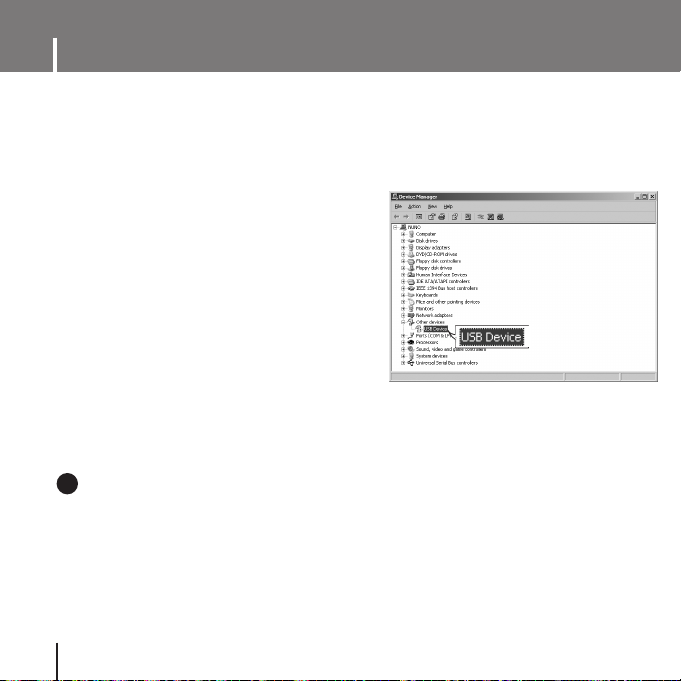
1 Check the device manager.
Windows 98SE/ME:
Control Panel ➝ System ➝ Device Manager
Windows 2000 / XP:
Control Panel ➝ System ➝ Hardware ➝
Device Manager
2 Check if there is a device listed with an
exclamation point or a question mark
(displayed as unknown device or USB device).
3 Double click on the device listed with an
exclamation point or a question mark.
Go to “Transferring Files to your Player” if the USB driver is installed.
Follow these steps if the USB driver is not installed :
Page 17
17
Manual Installation of USB Driver
ENG
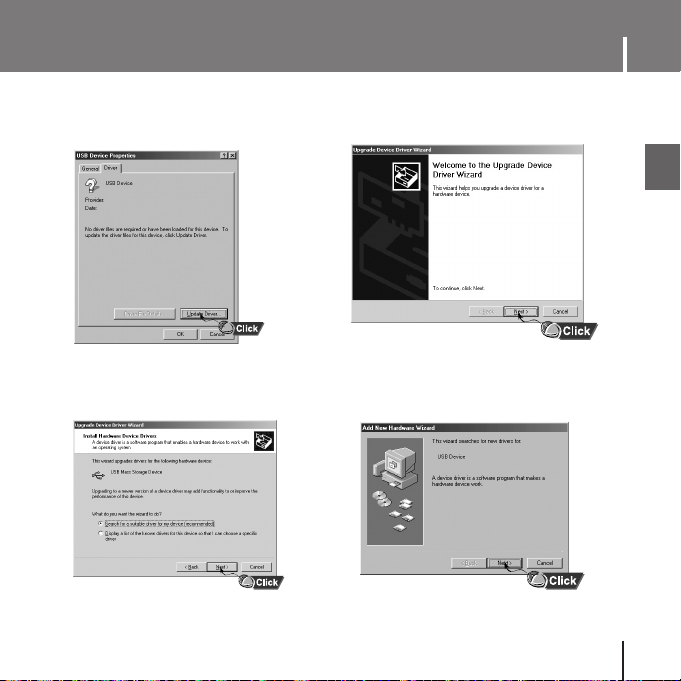
4 After selecting the driver,
click [Update Driver].
5 Click [Next].
6 Select [Search for a suitable driver
for my device] and then click [Next].
7 Click [Next] to finish.
Page 18
Manual Installation of USB Driver
18
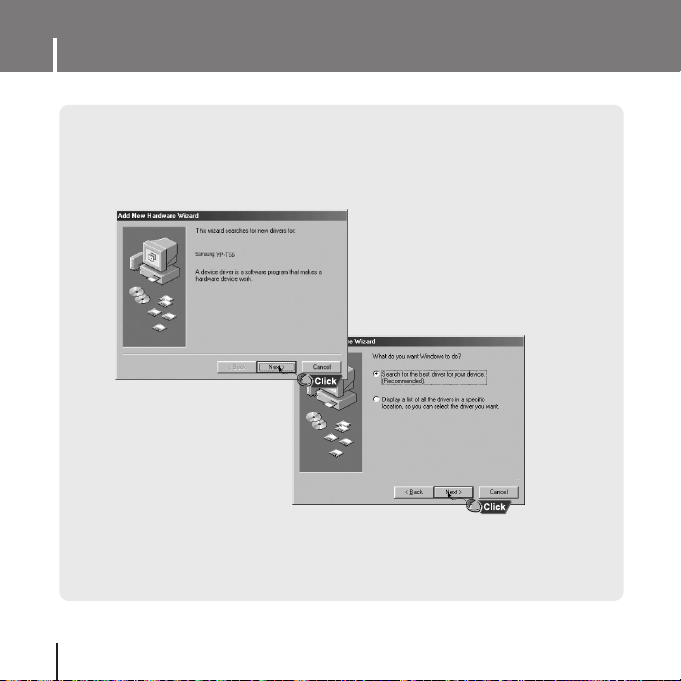
I In Windows 98SE
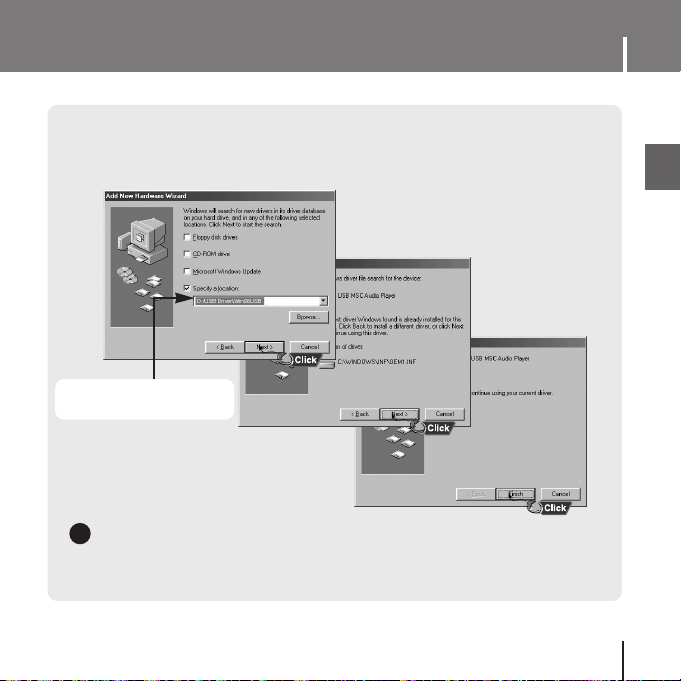
Follow the instructions in the window to complete the installation.
Page 19
19
Manual Installation of USB Driver
ENG
: You must reboot your computer to complete the installation.
NNNNoooottttee
ee
- You cannot use it as a removable disc in Windows 98SE if the YP-T55 program is not installed.
Make sure to install the USB driver file first.
✍
USB driver location
[CD-ROM]\USB Driver\Win98USB
Page 20
Transferring Files to your Player
20
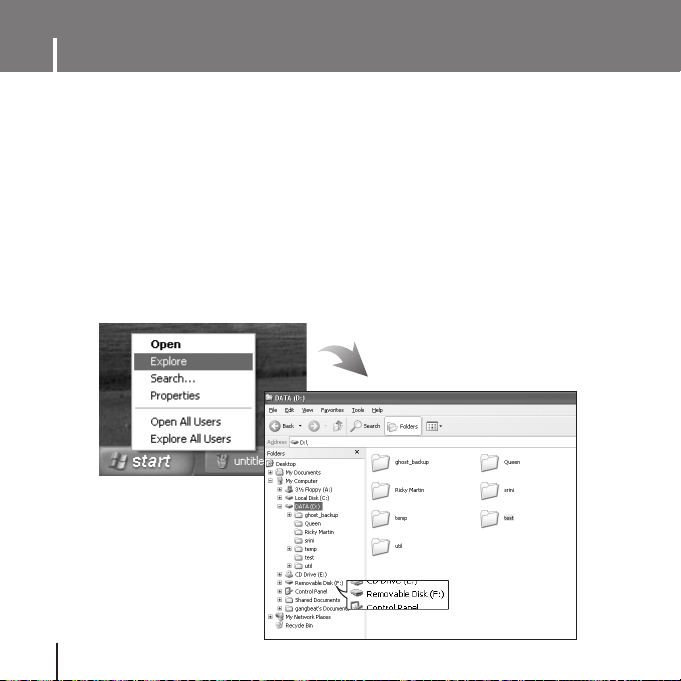
When the MP3 player is connected to your PC, the PC will see it as a removable
disc. Music and other files can then be dragged and dropped into the removable disc
for playback on the MP3 player.
1 Connect the player to PC.
● For information on how to connect it to your PC, refer to Connecting the player to your PC.
(See page 14).
2 Move the mouse over [Start] on the bottom of the screen, and right-click it.
3 Click [Explore] to Open Windows Explorer on PC.
● [Removable Disk] is displayed in Windows Explorer.
Page 21

21
Transferring Files to your Player
ENG
4 Select the file to save and drag-and-drop it into the removable disk icon.
(Files appear on the player in numerical, alphabetical order)
● For example, if you change the name of music files in Windows Explorer to 001***, 002***...,
the files will be played in the numerical order you set.
CCCCaaaauuuuttttiiiioooonn
nn
- During file download or upload, "USB Transferring" message is displayed. Disconnecting the USB
cable while the "USB Transferring" message is displayed may cause the malfunction of the player.
- The music file order displayed in Windows Explorer may differ from the play order on your player.
✍
Page 22

Transferring Files to your Player
22
I Disconnecting the player
1 Double-click on the green arrow in the taskbar
on the bottom right of the window.
After completing the file transfer, you must disconnect the player in the following way:
2 When the [Stop a Hardware device] message appears,
press the [OK] button and disconnect the player.
NNNNoooottttiiiiccccee
ee
- If you disconnect the player improperly, the files on the device may be damaged and will not play.
✍
Page 23

23
Installing Media Studio
ENG
1 Insert the Installation CD into CD-ROM drive.
Select [Install Samsung Media Studio].
Media Studio is the program that enables you to download music files to the player, and
play back music files on your PC.
Page 24

Installing Media Studio
24
2 Follow the instruction in the window to complete the installation.
● Samsung Media Studio icon will be created on the desktop.
Page 25

25
Using Media Studio
ENG
● Double-click the Media Studio icon on the Desktop.
I Downloading Music Files
1
Connect the player to your PC.
● A device connection window will appear on the right side of the screen.
Select [Device] → [Show device Window] at the top of the screen if device connection
window does not automatically appear.
2 Select the folder with the file(s) you want to transfer from the [Library] window.
● The music files within the folder appear in the center of the screen.
Device connection
window
Library
window
Page 26

Using Media Studio
26
3 When music files appear, select the file(s) you want to transfer,
and then press the [Transfer] button.
● The selected file(s) are transferred to the player.
NNNNoooottttee
ee
- Refer to [Help] for more detailed information.
✍
Page 27

27
Using Media Studio
ENG
NNNNoooottttee
ee
- Refer to [Help] for more detailed information.
✍
1
Connect the player to your PC.
2 Press the [Create Folder] button at the bottom of device connection window.
3 Enter the name of the new folder when an input screen appears.
● A new folder is created.
● If you open a new folder and transfer a file, the file is transferred to the newly
created folder.
I Creating a Folder on your Player
● You can create folders on the player to better organize your music.
Page 28

Using Media Studio
28
1 Connect the player to your PC.
2 Press the [Delete] button at the bottom of the connection windows after
selecting required files or folders you want to delete.
3 Press the [Confirm] button when an Confirm Deletion screen appears.
● A selected folder or file is deleted.
I Deleting Files
NNNNoooottttee
ee
- Refer to [Help] for more detailed information.
✍
Page 29

29
Using Media Studio
ENG
1 Connect the player to your PC.
2 Press the [Device] → [Format] at the top of the screen.
3 Press the [Start] button when the Format screen appears.
● The memory of the player is formatted and all the saved files will be deleted.
I Formattimg the Player in Media Studio
NNNNoooottttiiiiccccee
ee
- If you format the player, all the menus you set are initialized.
- Care must be taken as formatted files can not be recovered.
✍
● Formatting deletes all files on the MP3 player so maximum memory is available for new file
storage. It saves you the trouble of deleting unwanted files one at a time.
Page 30

Using Media Studio
30
1 Insert the Audio CD into the CD-ROM drive of your PC.
2 Press the [Search Audio CD] button on the lower part of the screen.
●
The tracks on the CD are displayed.
3 Select tracks to be ripped and press the [Rip a CD] button.
●
The selected file is converted into an MP3 file.
●
Select [Tools] → [Audio Source Format Conversion Settings] on the top of the
screen to change rip settings.
I Ripping Tracks from an Audio CD
NNNNoooottttee
ee
- Refer to [Help] for more detailed information.
✍
Change
format
Save path
● Using the audio format conversion function, you can lip tracks from an audio CD as MP3 files.
Page 31

31
To View Help on Media Studio
ENG
Click on [Help] at the top of Media Studio.
● Help window will appear.
NNNNoooottttee
ee
- Music recognition technology and related data are provided by Gracenote and Gracenote
CDDB
®
Music Recognition ServiceSM.
- CDDB is a registered trademark of Gracenote. The Gracenote logo and logotype, the
Gracenote CDDB logo and logotype, and the "Powered by Gracenote CDDB" logo are
trademarks of Gracenote. Music Recognition Service and MRS are service marks of
Gracenote.
✍
Page 32

Playing Music and Turning Off the Device
32
NNNNoooottttee
ee
- If the file name is not displayed correctly, move to [Settings] ➔ [Language] ➔ [ID3-Tag] and
then change the language setting.
- WMA files can only be played as music files with a compression rate of 48Kbps-192Kbps.
✍
I
Turning Power On and Off
Power On : Press and hold the button to turn on the power.
Power Off : Press and hold the button to turn off the power.
I Adjusting the Volume
Press the , button to adjust the volume from 00 to 30.
I Playing Music
Press the button.
● Playback starts.
I Pausing Music
Press the button to pause playback.
● While in Pause mode, press the button again to resume playback.
● If no buttons are pressed within 10 seconds (changes depending on settings),
the player automatically powers off. You can set power off time by selecting
[Settings]
➔ [Time] ➔ [Auto Off Time].
Make sure the earphones are connected.
Page 33

33
ENG
HOLD Function
In Hold mode, all buttons are disabled. This function is useful when you are walking or jogging.
Slide the switch in the direction of the arrow.
❈ When the button is pressed, the “ Hold” message will appear on the display.
1 Press and hold the REC button to start voice recording.
2 Press the REC button again to stop the recording and save the voice file.
● The files are recorded in the order of V001,V002......, and saved as WAV file in the VOICE
folder after recording.
✽ To move to other modes from the Voice mode,
refer to “Changing Mode”.
00:01:30
00:00:00
NOR
001/001
001/001
VOICE R
32
Kbps
NNNNoooottttee
ee
- If the Memory is full, Voice Recording is stopped automatically.
- Voice recording does not work in FM mode or when the line in cable is connected.
- Beeps are disabled while recording.
- For voice recording, the bit rate is fixed to 32Kbps.
✍
Recording Voice
Page 34

Searching for Music/Voice Files
34
● Turn the , lever up or down during playback to search for the part you want
to listen to.
● Release the lever to resume play normally.
I To search for specific parts during play
● Turn the lever in the direction of during playback to play the next track.
● Turn the lever in the direction of within 5 seconds after playback starts, to
move to and play the previous track. Turn the lever in the direction of after 5
seconds to play the current track from the beginning.
I To change tracks during play
● Turn the , lever up or down in stop mode to move to the previous/next
track.
I To change tracks when stopped
NNNNoooottttee
ee
- VBR(Variable Bit Rate) file: A file that constantly changes the compression rate according
to the type of sounds, such as their pitch, in the file.
- In the case of a VBR file, you cannot move to and play the previous track even if you
press within 5 seconds after playback starts.
- Files that were downloaded in MP2 or MP1 and had their file extension changed to
MP3 may not play.
✍
Page 35

35
Loop Repeating
ENG
While playing music files, press the USER button
briefly at the beginning of the loop you want to set.
● A↔ appears in the display.
I Starting Point
NOR
001/020
00:01:30 00:01:30
NOR
001/020
00:01:30
Press the USER button briefly again to set the
end of the loop.
● A↔B appears in the display.
● The loop is played repeatedly.
Press the USER button briefly to cancel the loop.
I Ending Point
NNNNoooottttee
ee
- Loop Repeat is automatically released if you Speed Search the , lever .
✍
Move to [Settings] → [System] → [User Button Mode] in the menu and select [Repeat AB].
Page 36

Recording MP3s
36
✽ To move to other modes from LINE_ENC mode,
refer to “Changing Mode”.
1 Connect the Audio OUT port
(or Line OUT) on the external audio
source to the ENC port on the device
with the Line in cable.
●
Press the play button on the external device to
play the music to record.
2 Press and hold the REC button to start MP3 recording.
●
If the button is pressed, recording is paused and if the button is pressed again,
the recording resumes.
3 If the REC button is pressed during recording, the recording stops and an MP3
file is created.
●
The files are recorded in the order of L ****001, L ****002.... and saved as MP3 files in the
[LINE_ENC] folder after recording.
NNNNoooottttee
ee
- Bit Rates can be set within the range of 32Kbps~192Kbps.
- Beeps are disabled while recording.
✍
NNNNoooottttiiiiccccee
ee
- Do not disconnect the Line in cable during recording.
- If the battery is not sufficiently charged, the player will not completely record the file.
- Adjust the volume of the external audio source to a suitable level and record it.
If the volume level is too high or low, the sound quality might be poor.
✍
Page 37

37
MENU Options
ENG
Press the MENU button to switch to the Menu Mode.
Move to a menu item by using the , lever and press the NAVI button to
select the menu.
Press the MENU button once again to exit the Menu Mode.
Music Navigation
Settings
Playlist
Exit
FM Radio
NNNNoooottttee
ee
- Menu mode will be cancelled if no buttons are pressed within 25 seconds
- Language in the menu screen can be changed in [Settings] → [Language] → [Menu].
● Music : To view the file currently playing.
● Navigation : To move to Navigation Mode and browse files and folders on the player.
● Playlist : To play back only the files you want
● FM Radio : To listen to FM radio
● Settings : To adjust the settings on the player.
● Exit : To exit MENU
✍
Page 38

Using Navigation
38
NNNNoooottttee
ee
- Press the MENU button in Navigation mode to exit the Navigation mode.
✍
1
Press the NAVI button to enter Navigation mode.
or press and hold the MENU button to move to Menu and then select
Navigation in Menu.
2 Select the file or folder that you want to play.
● : When moving to a higher-level folder.
● : When moving to a lower-level folder.
● , : When moving to a file or folder in the same directory.
●
USER : When there is not a lower folder, the selected file will be designated
as part of the playlist.
3 Press the button.
● The selected file will be played.
NOR
001/020
00:01:30
You can easily search for files or switch modes using the Navigation function.
Page 39

39
Using Navigation
ENG
I Changing Modes
1 Press the NAVI button in the Voice mode.
2 Use the button to move to the upper folder.
You can change the mode in the following method.
Ex) To change from the Voice mode to the Music mode
3 Use the , lever to move to the music file you want and press the button.
● As it is changed to the Music mode, the selected file will be played.
NOR
001/020
00:01:30
NNNNoooottttee
ee
- To change to the FM mode, refer to “Menu Options”.
✍
Page 40

Using Navigation
40
I Playing/Exiting Folder
1 Press the NAVI button to move to the Navigation mode.
2 Use the , lever to move to the folder you want and press the button.
● When " " appears, the selected file will be played.
❿❿
Playing Folder
1 Press the NAVI button during folder playback to move to the Navigation mode.
2 Use the , lever to move to the file you want and press the button.
● After folder play is released, " " mark will appear and the selected file will be played.
❿❿
Exiting Folder Play
NOR
001/020
00:01:30
NOR
001/020
00:01:30
Page 41

41
ENG
Setting Playlist
I Setting Playlist
I Playing Playlist
1 Select Playlist in Menu.
● The playlist you set will be displayed.
2 Move to the file you want to play and press the button.
● “ ” mark appears and the selected file will be played.
- Move to the file you want in Navigation mode and press the USER button.
● The selected file will be marked and added to the playlist.
● To remove the file from the playlist, move to the marked file in Navigation mode and
press the USER button again.
NOR
001/020
00:01:30
Page 42

Listening to FM Radio
42
NNNNoooottttee
ee
- To exit from FM Mode, press the MENU button.
- Mono (MO) or Stereo (ST) is automatically selected.
- To save frequencies automatically, select [Settings] → [FM Radio] → [Auto Preset].
I Manual Search for a Frequency
First, press the MENU button to display the menu screen and select FM Radio.
● Turn the , lever briefly to search manually for the frequency you want.
I Manual Storage of a Frequency
● After searching manually for the frequency you want,
press the USER button to display the save screen.
● Use the , lever to select the number you
want to assign to save the frequency and then
press the USER button.
I Automatic Search for a Frequency
● Turn and hold the , lever to search for and stop at frequencies with reception.
✍
Save?
Page 43

43
Listening to FM Radio
ENG
I Searching Stored Frequencies
I Deleting Stored Frequencies
1 After moving to the PRESET number you want to
delete, press and hold the USER button.
2 After selecting the “Y”, press the NAVI button.
● The saved PRESET number will be deleted.
NNNNoooottttee
ee
- You can store up to 20 frequencies.
- Press the NAVI button in the PRESET screen to exit the PRESET mode.
1 Press the NAVI button in FM Mode.
● PRESET screen will appear.
2 Use the , lever to move to the frequency
you want.
1 Press the button in FM mode.
● “MUTE” is displayed and no sound is heard.
2 Press the button again.
● Mute function is released.
PRESET
PRESET
I Mute Function
✍
Page 44

FM Recording
44
1 Press and hold the REC button during FM reception.
● Recording of the currently transmitted FM broadcast begins.
2 Press the REC button again.
● A file is created and the recording stops.
● Files are recording in the order F001, F002, F003...and saved as MP3 files in [FM_ENC] folder.
● Press and hold the NAVI button while listening to the FM radio to move to the [FM_ENC] folder.
NNNNoooottttee
ee
- Beeps are disabled while recording.
00:01:30
001/001
FM REC
✍
Page 45

45
Setting the Advanced Functions
ENG
1 Select Settings in the MENU. (refer to “MENU Options”)
2 In Settings, use the , lever to move to the function you want and
press the NAVI button to select.
● To move to a previous menu, use or select Return.
Play Mode
Sound Effect
Play Speed
Play Mode
Sound Effect
Play Speed
Play Mode
Sound Effect
Play Speed
Display
Language
Record
FM Radio
Time
System
FM Radio
Time
System
FM Radio
Time
System
Display
Language
Record
Display
Language
Record
Page 46

46
Selecting the Playmode
1 Press the MENU button. Select [Settings] → [Play Mode].
2 In Play mode, use the , lever to move to the mode you want and press
the NAVI button to select.
Normal
Repeat One
Repeat All
Shuffle All
Intro
Return
● Normal : To play all the files in order one time.
● Repeat One : To repeat one file.
● Repeat All : To repeat all files.
● Shuffle All : To play files at random.
● Intro : To play the first few seconds of a music file.
● Return : To move to a previous menu
Page 47

47
ENG
Setting the EQ mode
● Use the , lever to move to the sound mode you want
● 3D-User
→ 3D-Studio → 3D-Stage → 3D-Club → Normal → Rock → House → Jazz
→ Dance → Ballad → R&B → Classical → User EQ
I DNSe
3D-User
3D-Studio
3D-Stage
Normal
3D-Club
Rock
Jazz
House
Dance
R&B
Ballad
Classical
Return
User EQ
Press the MENU button. Select [Settings] → [Sound Effect].
NNNNoooottttee
ee
- DNSe is a sound quality enhancement function for MP3 players developed by Samsung
and provides 3D and Bass Enhance modes. 3D provides stereophonic surround effect and
Bass Enhance reinforces bass sound of music.
✍
Page 48

Setting the EQ mode
48
● Use the , lever to move to the 3D level you
want
● 3D level can be set within the range of off to 5.
[Bass Enhance]
I 3D User Setting
[3D]
● Use the , lever to move to the bass enhance level
you want
● Bass Enhance level can be set within the range of off to 3.
3D User Setting is available only when the DNSe is set to 3D-User.
3D
01
Bass Enhance
03
Page 49

49
Setting the EQ mode
ENG
x 0.7
x 0.8
x 0.9
● Select User EQ in DNSe to set the equalizer to your
preference in the User EQ Set.
● Use the , button to move to left or right and
use the , lever to adjust the level.
Press the NAVI button after completing the setting.
I User EQ Set
Setting the Play Speed
1 Press the MENU button. Select [Settings] → [Play Speed].
2 Use the , lever to move to the desired Play Speed and press the NAVI button.
● The smaller the number is, the slower play speed is, and vice versa. Play speed x1.0 is normal
play speed.
NNNNoooottttee
ee
- If the power is turned off and on, the play speed is reset to the normal (x1.0).
✍
Page 50

50
Display Settings
Press the MENU button. Select [Settings] → [Display].
● Use the , lever to select the scroll type.
● Horizontal : Music title moves horizontally.
● Vertical : Music title moves vertically.
[ Speed ]
I Scroll
[ Type ]
● Use the , lever to set the scroll speed from X1,
X3, X5 to adjust the speed of the track title movement.
Vertical
Return
Horizontal
X1
X3
X5
Page 51

51
ENG
Display Settings
● Use the , lever to set the contrast from 00 to 10 to
adjust the brightness of the screen.
I Backlight
I Contrast
● Use the , lever to set the Backlight-Off time.
● You can set the Backlight Time to 5Sec, 15Sec, 30Sec,
1Min, or Always On.
● When set to Always On, the light stays on continuously.
● Use the , lever to select Tag On or Off.
● On: Display the Tag information if the music file has Tag
information. Display the file name if the music file
has no Tag information.
● Off: Display the name of music file.
● Use the , lever to select Bitrate On or Off.
● On: Bit rate is displayed at the top of the screen.
● Off: The total number of tracks is displayed at the top of
the screen.
I Tag
I Bitrate
Backlight
05 sec
Contrast
05
Tag
On
Off
Bitrate
On
Off
Page 52

52
Language Settings
Press the MENU button. Select [Settings] → [Language].
● Use the , lever to select the language for displaying menu.
● Chinese(S)
→ Chinese(T) → English → French → German → Hungarian → Italian →
Japanese → Korean → Russian → Spanish
● Use the , lever to select the language for displaying Tag information.
● Chinese(S)
→ Chinese(T) → English → French → German → Hungarian → Italian →
Japanese → Korean → Russian → Spanish
NNNNoooottttee
ee
- What is an ID3 Tag ?
This is what is attached to an MP3 to carry information relevant to the file, such as the title,
artist, album, year, genre and a comment field.
- Supported languages can be changed or added.
✍
ID3-Tag
Menu
Return
Chinese(S)
Chinese(T)
English
Return
Menu
ID3-Tag
Chinese(S)
Chinese(T)
English
I Menu
I ID3-Tag
Page 53

● Use the , lever to select the Auto Sync Time from
Off to 5 seconds.
● AutoSync Time is a function for separating and saving
MP3 files when there is no sound for a set time during
MP3 recording.
● In SYNC 1 setting, recording stops when there is no
sound for over 1 second during recording.
● If AutoSync Time is set to Off, recording keeps going even
if there is no sound, and then it is saved as one file.
53
Recording Settings
ENG
Press the MENU button. Select [Settings] → [Record].
Return
● Use the , lever to select the recording bit rate.
● When recording music into an MP3 file, you can select
one of the following bit rates: 32Kbps, 48Kbps, 64Kbps,
96Kbps and 128Kbps.
I Auto Sync
I Bit Rate
NNNNoooottttee
ee
- For voice recording, bit rate is fixed to 32Kbps.
✍
Auto Sync
03 sec
Page 54

AUTO
Worldwide
US
Japan
FM Radio Settings
54
Press the MENU button. Select [Settings] →[FM Radio].
● If you select Auto Preset, frequencies within the range of
87.5MHz to 108.0MHz are automatically selected and
stored.
● Frequencies are automatically stored, starting from 1.
I Auto Preset
Number of frequencies saved.
● Use the , lever to select your FM reception region.
● Worldwide : Search FM frequencies between 87.50MHz to
108.00MHz in increments of 50 kHz.
● US : Search FM frequencies between 87.5MHz to 108.0MHz
in increments of 100 kHz.
● Japan: Search FM frequencies between 76.0MHz to
108.0MHz in increments of 100 kHz.
I FM Region
NNNNoooottttee
ee
- The default FM region setting may vary depending on the target region of the player.
✍
High
Middle
Low
● Use the , lever to select the FM tuner sensitivity.
● The higher the FM search level, the more frequencies can be
received.
● High
→
Middle →Low
I FM Search Level
Page 55

05 sec
Auto Off Time
15 min
Auto Sleep
10 sec
Intro Time
55
Time Settings
ENG
Press the MENU button. Select [Settings] → [Time].
● Use the , lever to set the Power-Off time from off to
5 minutes.
● If no button is pressed after play stops, the player will
automatically turn off after the time you set.
● When set to Off, the function is disabled.
● Use the , lever to set the Sleep time.
● Off, 15, 30, 60, 90 and 120 minutes are available for
sleep time, and it will automatically turn off after the
time you set.
● When set to Off, the function is disabled.
● Use the , lever to set the Intro time to 10, 20, 30, or
60 seconds.
● When you select the Intro function, the beginning of all files
will be played back for the seconds you set.
I Auto Off Time
I Auto Sleep
I Intro Time
Page 56

System
Settings
56
● Use the , lever to select Beep On or Off.
● On : Beep sounds whenever you press the button.
● Off : No beep sounds when you press the button.
I Beep
● Use the , lever to select Resume On or Off.
● On: Play back music from the part of music you listened last
if you play it back again after stopping.
● Off: Play back music from the beginning of music if you play
it back again after stopping.
I Resume
Press the MENU button. Select [Settings] → [System].
1 Select Delete from the System menu.
2 Use the , lever to move to the file you want to
delete and then press the NAVI button.
3 Use the , lever to move to Confirm and then
press the NAVI button.
● The selected file will be deleted.
I Deleting a file
Delete
Confirm
Cancel
Resume
On
Off
Beep
On
Off
NNNNoooottttee
ee
- If the remaining battery charge is not enough, the Resume function will not work.
✍
NNNNoooottttee
ee
- No beep sounds during music playback.
✍
Page 57

57
System
Settings
ENG
Skip Interval
05 sec
Search Speed
10 sec
Default Vol
20
● Use the , lever to set the skip interval from 5sec to 1min.
● If you turn the , lever in music mode, you can
search a track by a set time.
● If you set the Skip Interval to 1 Track, then turn the ,
lever, the previous or next track will be selected.
I Skip Interval
● Use , lever to set the Search Speed from 1sec to 1min.
● When you press and hold , lever to scan a track,
you can adjust the scanning speed.
I Search Speed
● Use the , lever to set the default volume from 0 to
30(Max).
● If the power is turned on again after having adjusted the
volume above the default value, music is played at the
default volume.
● If the power is turned on again after the volume was set to
within the default value, the music is replayed at the previously
played volume.
I Default vol
NNNNoooottttee
ee
- For a VBR or Ogg file, the Skip Interval time may not be exact.
✍
NNNNoooottttee
ee
- For a VBR or Ogg file, the search speed may not be exact.
✍
Page 58

System
Settings
58
● Use the , lever to select Default Set Yes or No.
● Yes : All settings selected will be initialized.
● No : All settings selected will remain as they are.
I Default Set
● Use the , lever to select an item for the USER
button setting.
● Repeat AB: If you press the USER button briefly, you can
set a section to be played repeatedly during music or voice
playback.
● EQ:If you press the USER button, you can select the sound
mode ypu want.
● Play Speed: If you press the USER button, you can adjust
the play speed.
I User Button Mode
I About
● If you select About, you can check version information, total number of tracks and remaining
capacity.
Default Set
Yes
No
Repeat AB
EQ
Play Speed
Page 59

59
ENG
MENU Table
●
Use the , lever and NAVI button to move and select.
MENU
Music
Play Mode
Normal
Repeat One
Repeat All
Shuffle All
Intro
Navigation
Playlist FM Radio Settings Exit
Sound Effect
DNSe
3D User Set
User EQ Set
Play Speed
Display
Scroll
Backlight
Contrast
Tag
Bitrate
Language
Menu
ID3-Tag
Record
Bit Rate
Auto Sync
FM Radio
Auto Preset
Tuner Region
Tuner Level
Time
Auto
Power Off
Auto Sleep
Intro Time
System
Delete
Resume
Beep
Skip Interval
Search Speed
Default Vol
Default Set
About
User Button
Mode
Page 60

60
Troubleshooting
The software doesn’t work
● Refer to the System Requirements
The player does not work and the LCD displays nothing.
● Check the battery capacity
● Connect the player to PC and run YP-T55 Updater in the desktop to update the player.
In PLAY mode, music is not played after pressing the button
● Check to see if MP3 or WMA files are saved in the built-in memory.
● Check to see if the HOLD button is locked.
Files cannot be downloaded.
● Check to see if the driver is installed correctly in the computer.
● Check the connection between the player and PC.
● Operating system limits the number of files you can save.
Please save your music files by creating a subfolder.
● Check if the memory is full.
Backlight does not work.
● Check the backlight setup.
● When the battery power is low, the backlight will go out.
Page 61

61
ENG
Troubleshooting
The player keeps being turned off.
● In Stop mode, the power is automatically turned off after ten seconds
(changes depending on settings).
● Check to see if there are files saved in it.
Something’s wrong with play time displayed during Play mode.
● Check to see if a VBR file is playing.
LCD window is dark
● Check the Contrast setting.
The file name is not displayed correctly.
● Move to [Settings] ➔ [Language] ➔ [ID3-Tag] in the Menu and then change the
language setting.
There is a file saved in the player, but “No File” appears in the screen.
● After checking whether the folder is played, use the Navigation function to change
the folder.
● After connecting it to PC, execute YP-T55 Updater in the desktop to update the product.
I cannot properly connect it to PC.
● Win98SE : Try to connect again after installing the driver.
● WinME : Remove the driver program and the select the Start and then Windows
Update on the Desktop. After selecting important update and service pack,
execute update all.
● Win2000/XP : Try to connect it again after rebooting the computer.
Page 62

Model YP-T55
Voltage 1.5V X 1 (AAA/LR03 size alkaline battery)
Playing time
lasts up to 18hours (MP3 128 Kbps, Volume 15, Normal Sound Mode)
Dimensions/Weight 23 X 70 X 23 mm / 45 g
Case Plastic/Aluminum
Noise Ratio 90dB with A FILTER
Earphones Jack Output Power
15mW/CH (16Ω)
Output Frequency Range 20Hz~20kHz
Operating Temperature Range -5 ~ +35°C(23~95°F)
FM Frequency 87.50 ~ 108.00 MHz
FM Signal to Noise Ratio 60dB
FM T.H.D 1%
FM Useable Sensitiivity 10dBµ
File Support
MPEG1/2/2.5 Layer3(8Kbps ~ 320Kbps, 8KHz ~ 48KHz)
WMA (48Kbps ~ 192Kbps, 8KHz ~ 48KHz),
Audio ASF (8Kbps ~ 192Kbps, 8KHz ~ 48KHz),
Ogg
Supported Number of Files
File: Max. 2000 Folder: Max. 200
and folders
62
Specifications
The product unit accompanying this user manual is licensed under certain
intellectual property rights of certain third parties. This license is limited to
private non-commercial use by end-user consumers for licensed contents.
No rights are granted for commercial use. The license does not cover any
product unit other than this product unit and the license does not extend to any
unlicensed product unit or process conforming to ISO/IEC 11172-3 or ISO/IEC
13818-3 used or sold in combination with this product unit. The license only
covers the use of this product unit to encode and/or decode audio files
conforming to the ISO/IEC 11172-3 or ISO/IEC 13818-3. No rights are granted
under this license for product features or functions that do not conform
to the ISO/IEC 11172-3 or ISO/IEC 13818-3.
Page 63

63
ENG
Specifications
This marking shown on the product or its literature, indicates that it should not
be disposed with other household wastes at the end of its working life.
To prevent possible harm to the environment or human health from uncontrolled
waste disposal, please separate this from other types of wastes and recycle it
responsibly to promote the sustainable reuse of material resources.
Household users should contact either the retailer where they purchased this
product, or their local government office, for details of where and how they
can take this item for environmentally safe recycling.
Business users should contact their supplier and check the terms and conditions of the purchase contract.
This product should not be mixed with other commercial wastes for disposal.
EUROPE ONLY
Page 64

Contact SAMSUNG WORLD WIDE
64
Country Customer Care Center Web Site
CANADA 1-800-SAMSUNG (7267864) www.samsung.ca
MEXICO 01-800-SAMSUNG (7267864) www.samsung.com/mx
U.S.A 1-800-SAMSUNG (7267864) www.samsung.com
ARGENTINE 0800-333-3733 www.samsung.com/ar
BRAZIL 0800-124-421 www.samsung.com/br
CHILE 800-726-7864(SAMSUNG) www.samsung.com/cl
COSTA RICA 0-800-507-7267 www.samsung.com/latin
ECUADOR 1-800-10-7267 www.samsung.com/latin
EL SALVADOR 800-6225 www.samsung.com/latin
GUATEMALA 1-800-299-0013 www.samsung.com/latin
JAMAICA 1-800-234-7267 www.samsung.com/latin
PANAMA 800-7267 www.samsung.com/latin
PUERTO RICO 1-800-682-3180 www.samsung.com/latin
REP. DOMINICA 1-800-751-2676 www.samsung.com/latin
TRINIDAD & TOBAGO 1-800-7267-864 www.samsung.com/latin
VENEZUELA 1-800-100-5303 www.samsung.com/latin
BELGIUM 02 201 2418 www.samsung.com/be
CZECH REPUBLIC 844 000 844 www.samsung.com/cz
DENMARK 38 322 887 www.samsung.com/dk
FINLAND 09 693 79 554 www.samsung.com/fi
FRANCE 08 25 08 65 65 (0,15 /min) www.samsung.fr
GERMANY 01805 - 121213 ( 0,12/Min) www.samsung.de
If you have any questions or comments relating to Samsung products,
please contact the SAMSUNG customer care center.
Page 65

65
Country Customer Care Center Web Site
HUNGARY 06 40 985 985 www.samsung.com/hu
ITALIA 199 153 153 www.samsung.com/it
LUXEMBURG 02 261 03 710 www.samsung.lu
NETHERLANDS 0900 20 200 88 www.samsung.com/nl
NORWAY 231 627 22 www.samsung.com/no
POLAND 0 801 801 881 www.samsung.com/pl
PORTUGAL 808 200 128 www.samsung.com/pt
SLOVAKIA 0850 123 989 www.samsung.com/sk
SPAIN 902 10 11 30 www.samsung.com/es
SWEDEN 08 585 367 87 www.samsung.com/se
U.K 0870 242 0303 www.samsung.co.uk
RUSSIA 8-800-200-0400 www.samsung.ru
UKRAINE 8-800-502-0000 www.samsung.com/ur
AUSTRALIA 1300 362 603 www.samsung.com/au
CHINA 800-810-5858 , 010- 6475 1880 www.samsung.com.cn
HONG KONG 2862 6001 www.samsung.com/hk
INDIA 3030 82821600 1100 11 www.samsung.com/in
INDONESIA 0800-112-8888 www.samsung.com/id
JAPAN 0120-327-527 www.samsung.com/jp
MALAYSIA 1800-88-9999 www.samsung.com/my
PHILIPPINES 1800-10-SAMSUNG (7267864) www.samsung.com/ph
SINGAPORE 1800-SAMSUNG (7267864) www.samsung.com/sg
THAILAND 1800-29-3232 / 02-689-3232 www.samsung.com/th
TAIWAN 0800-329-999 www.samsung.com/tw
VIETNAM 1 800 588 889 www.samsung.com/vn
SOUTH AFRICA 0860 726786 (SAMSUNG) www.samsung.com/za
U.A.E 800SAMSUNG (7267864) www.samsung.com/mea
Page 66

Rev 1.0
 Loading...