

Page 1

1
TABLE OF CONTENTS
YOUR PHONE 3
Front View Features 3
Keypad Features 4
Additional Phone Features 5
Battery Installation/Removal 6
Charging Your Battery 12
Turning Your Phone On or Off 13
PHONE FUNCTIONS 14
Locking/Unlocking Your
Wireless Device 14
Setting Up Voicemail 15
Calling Features 16
Sound Settings 19
Display Settings 22
Contacts 23
Messaging 25
Bluetooth 27
Web Browsing 30
TABLE OF CONTENTS
Page 2

TABLE OF CONTENTS
2
easyedge 31
Your Navigation 33
Camera & Camcorder 34
NOTES 36
Page 3
3
YOUR PHONE
YOUR PHONE
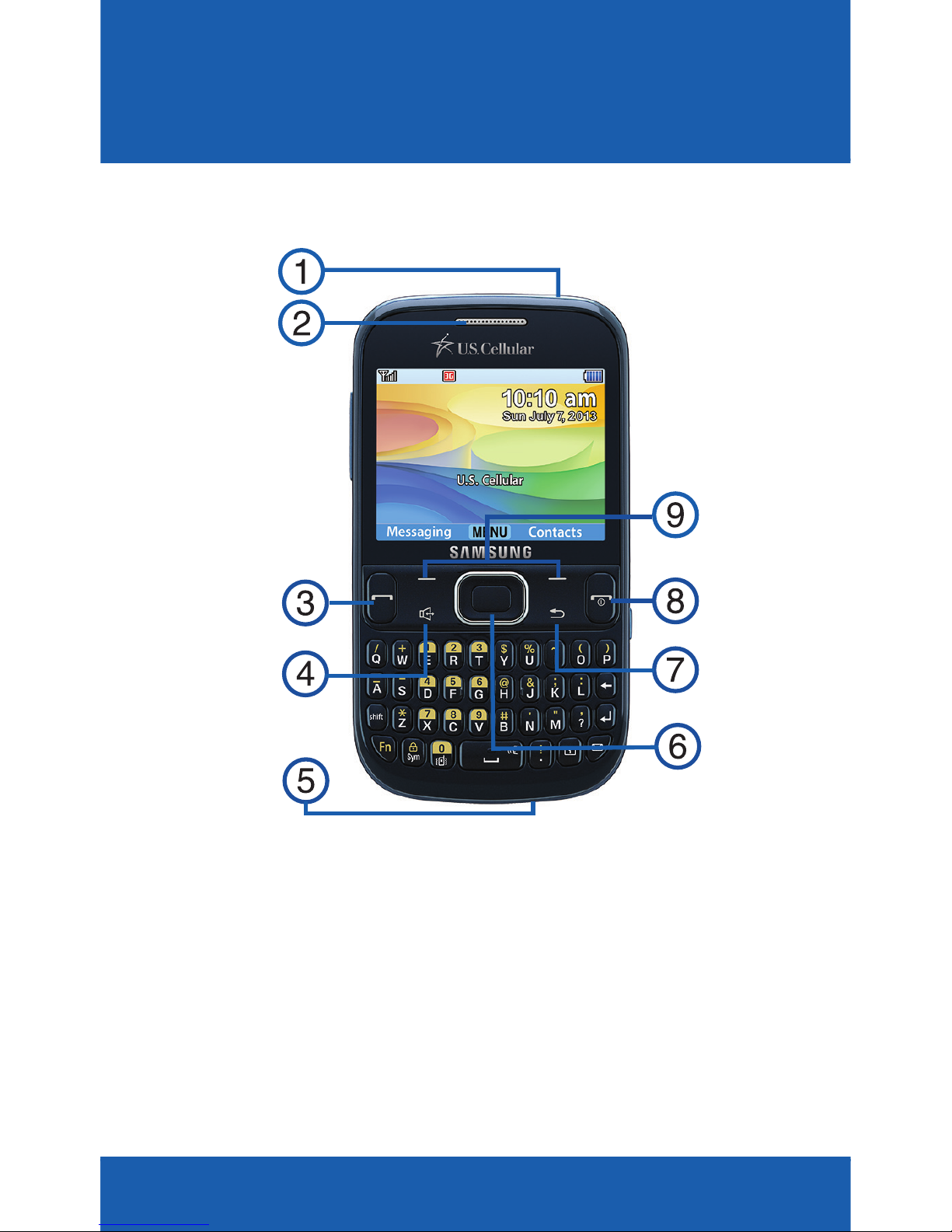
FRONT VIEW FEATURES
1. HEADSET
JACK
2. EARPIECE
3. SEND KEY
4. SPEAKERPHONE
KEY
5. MICROPHONE
6. CENTER
SELECT KEY
7. BACK KEY
8. END/POWER
KEY
9. SOFT KEYS
Page 4
YOUR PHONE
4
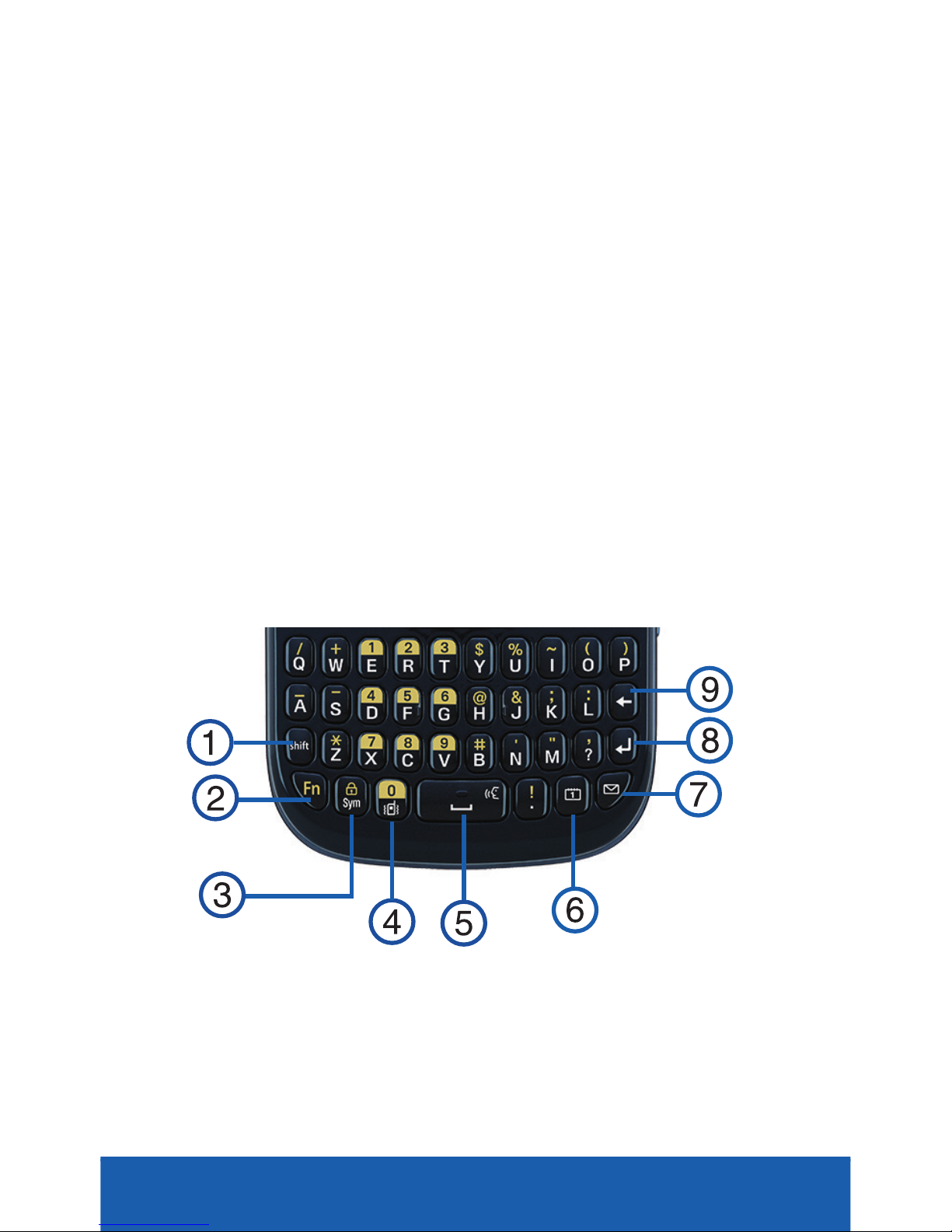
KEYPAD FEATURES
1. SHIFT KEY
2. FN (FUNCTION) KEY
3. LOCK/SYM KEY
4. VIBRATION MODE KEY
5. SPACEBAR/
VOICE COMMANDS
KEY
6. CALENDAR KEY
7. MESSAGE KEY
8. ENTER KEY
9. BACKSPACE KEY
Page 5
5
YOUR PHONE
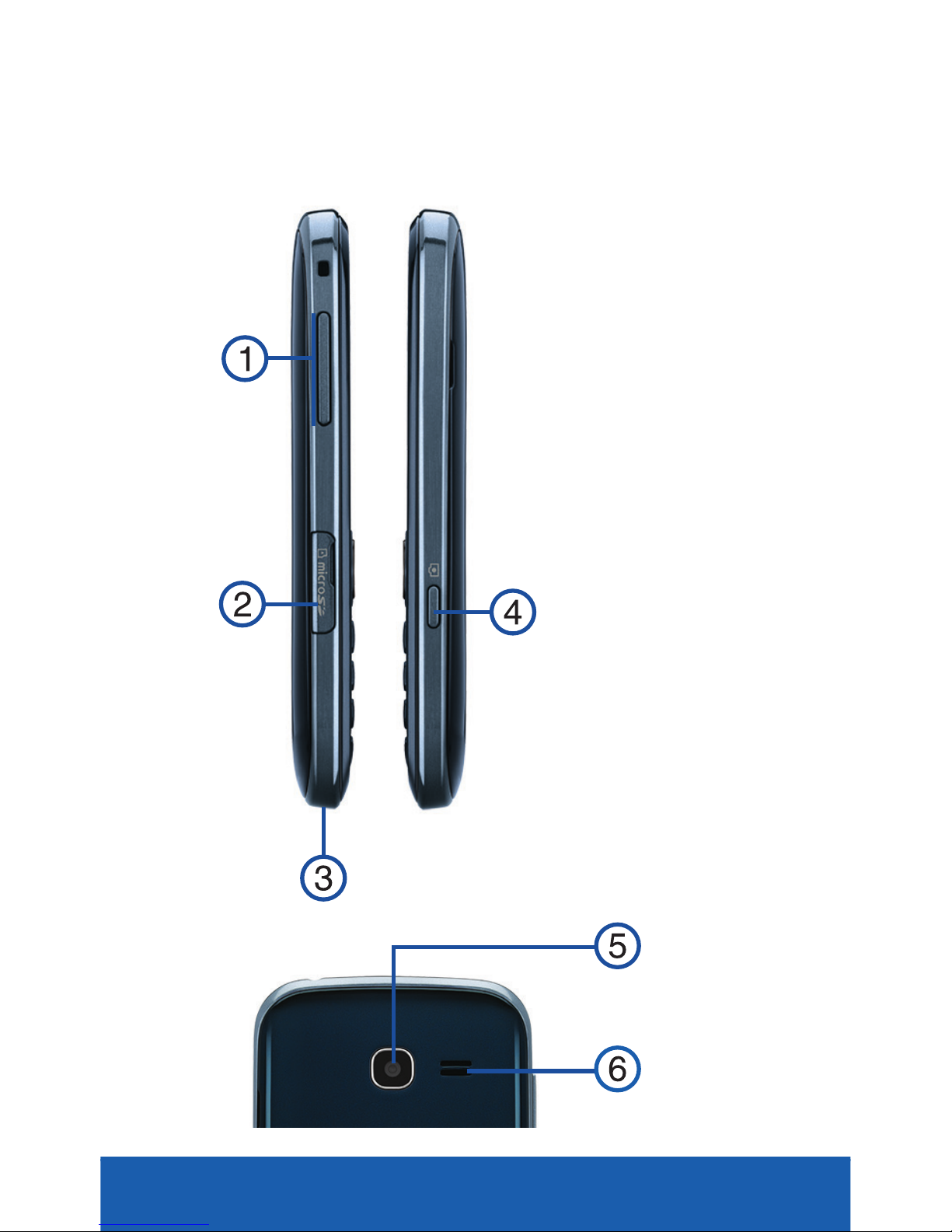
ADDITIONAL PHONE FEATURES
1. VOLUME KEY
2. MEMORY CARD
SLOT
3. POWER/USB
PORT
4. CAMERA KEY
5. CAMERA
6. EXTERNAL
SPEAKER
Page 6

YOUR PHONE
6
BATTERY INSTALLATION/REMOVAL
Your phone is powered by a rechargeable,
standard Li-Ion battery. A charger is
included with the phone, for charging the
battery.
NOTE: Although the battery comes partially charged,
you must fully charge this battery before using
your phone for the first. A fully discharged
battery requires up to 4 hours of charge time.
WARNING: Use only Samsung-approved charging
devices and batteries. Only Samsung
accessories are designed to maximize
battery life. Using other accessories may
invalidate your warranty and may cause
damage.
Page 7
7
YOUR PHONE
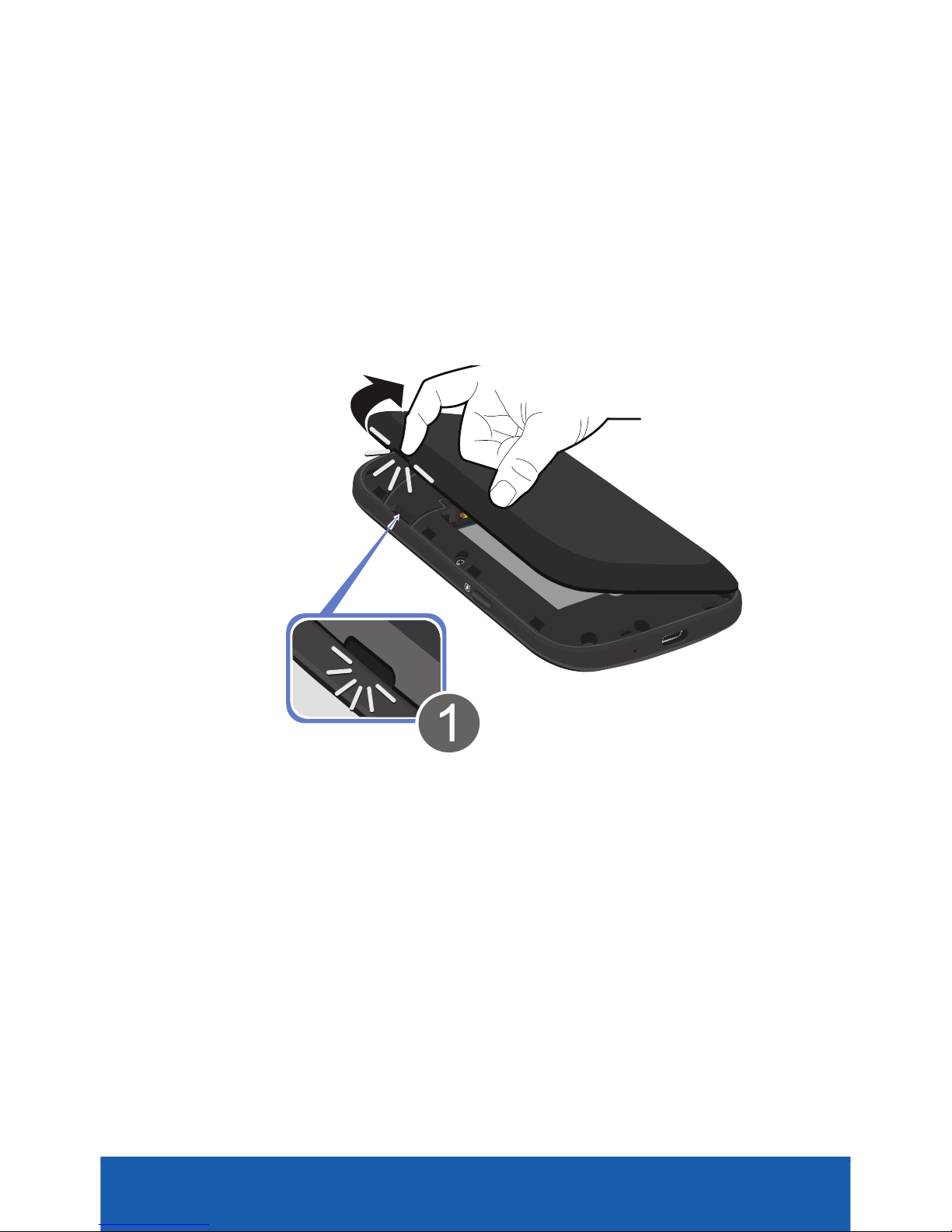
Installing the Battery
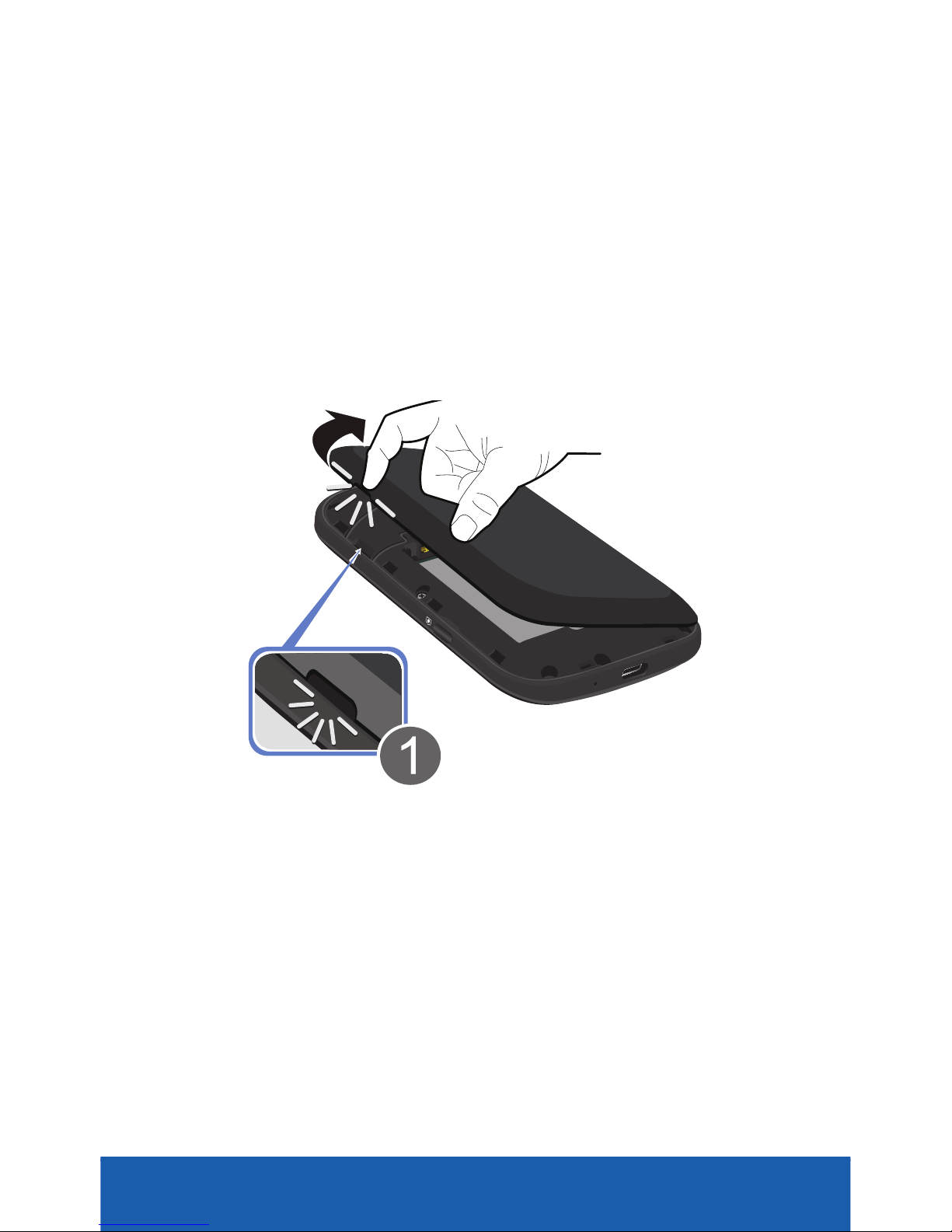
1. Hold the device firmly and locate the
cover release latch.
2. Place your fingernail in the opening
and firmly “pop” the cover off the
device (1).
Page 8
YOUR PHONE
8
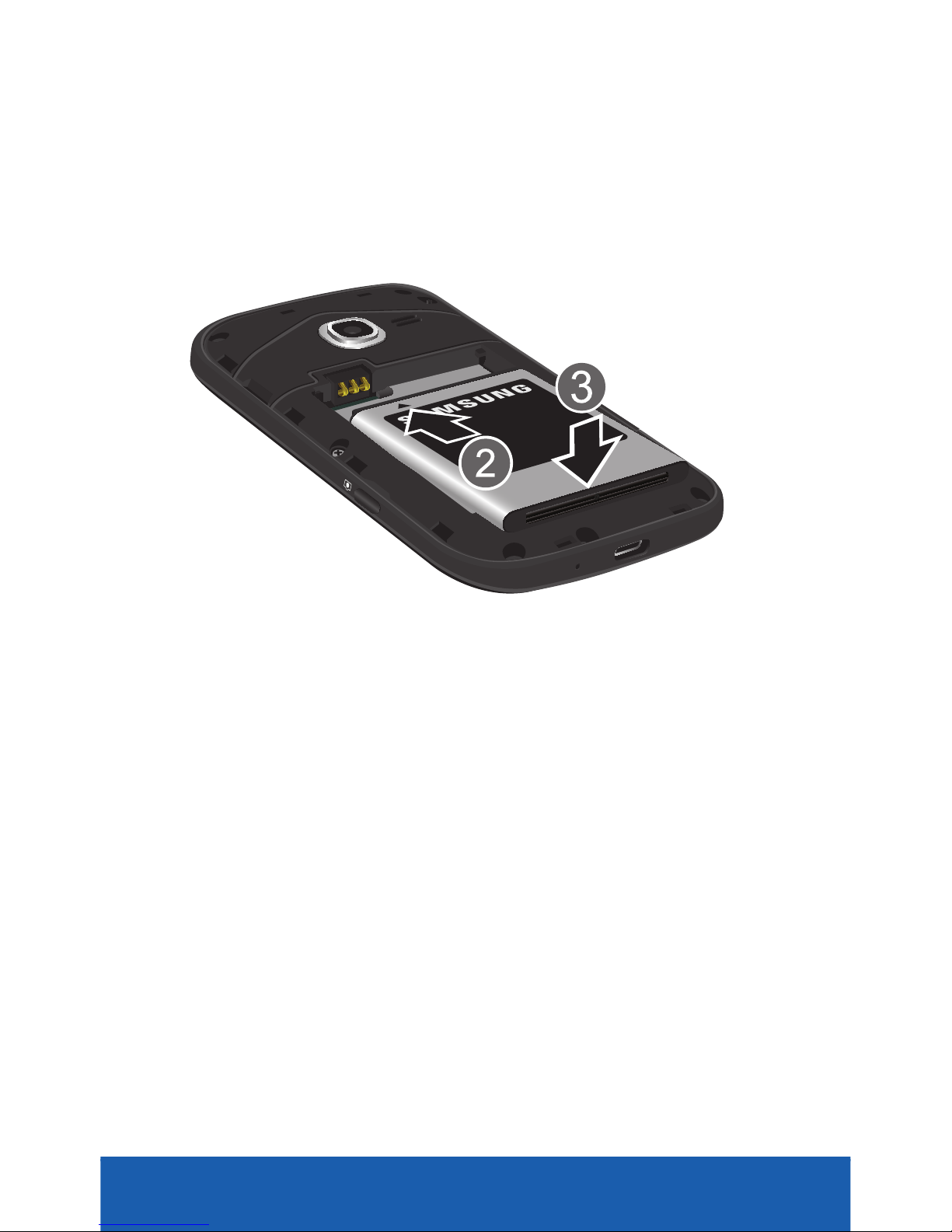
3. Insert the top end of the battery into
the phone housing (2), aligning the
gold contacts on the battery with
those in the battery compartment (3).
4. Push down on the bottom of the
battery down until it snaps into place.
Page 9
9
YOUR PHONE
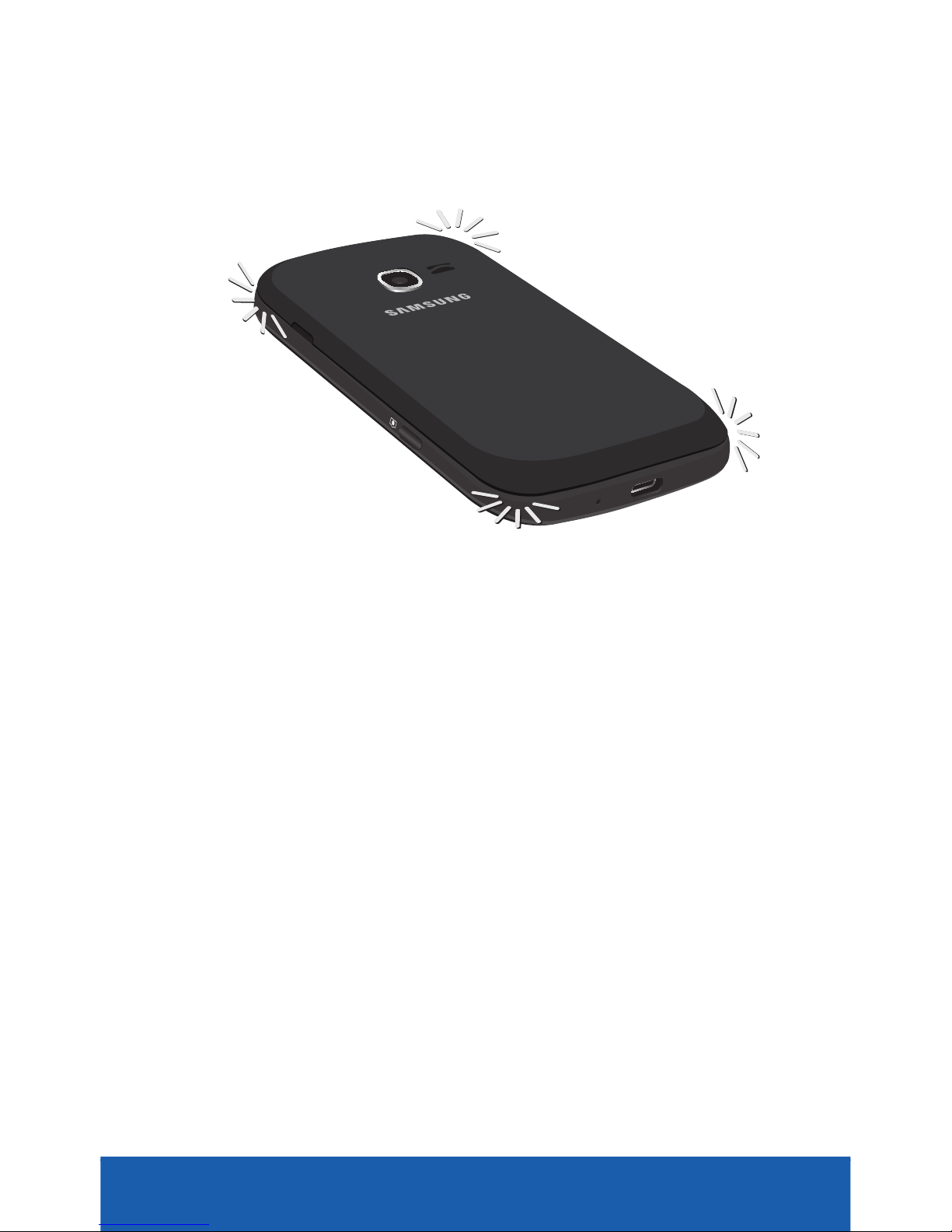
5. Replace the battery cover by sliding it
back into place and snapping the
edges securely at all four corners.
Page 10
YOUR PHONE
10
Removing the Battery
1. Hold the device firmly and locate the
cover release latch.
2. Place your fingernail in the opening
and firmly “pop” the cover off the
device (1).
Page 11
11
YOUR PHONE
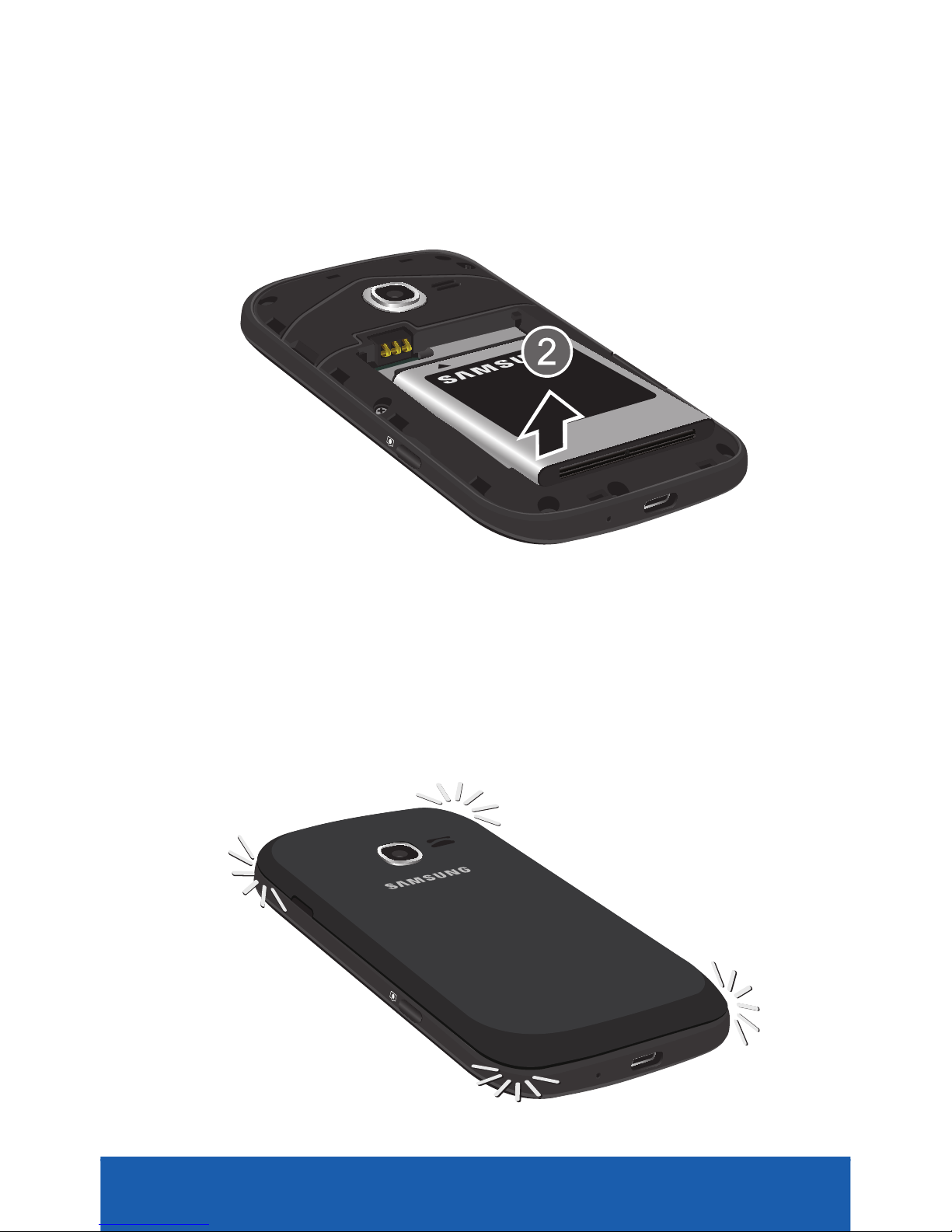
3. Place your finger into the battery
removal slot (2) and lift the battery
out of the compartment.
4. Replace the battery cover by sliding it
back into place and snapping the
edges securely at all four corners.
Page 12
YOUR PHONE
12
CHARGING YOUR BATTERY
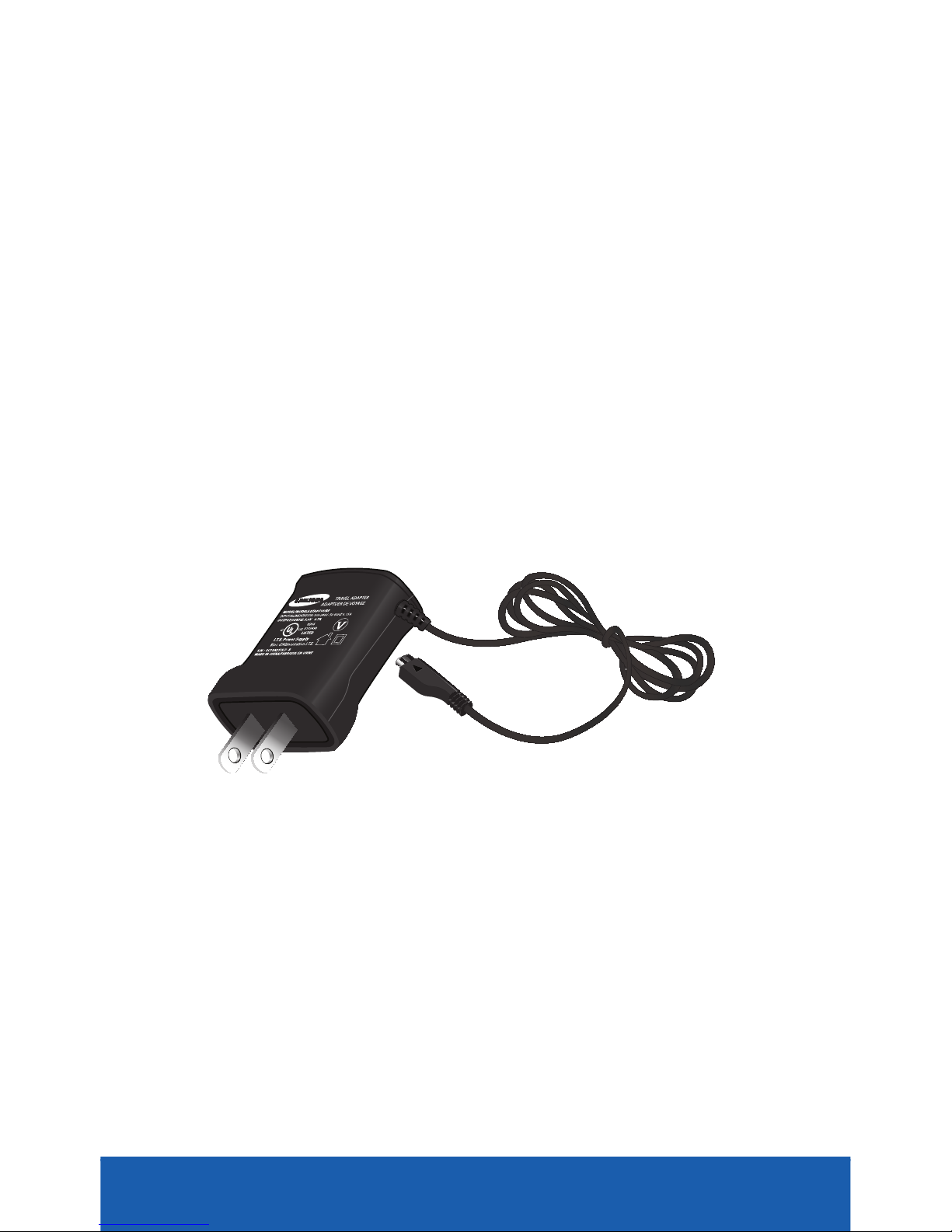
Your phone comes with a travel adapter
to rapidly charge your phone from any
100/240V AC outlet.
NOTE: Although the battery comes partially charged,
you must fully charge this battery before using
your phone for the first.
1. Plug the charging head into a
standard AC power outlet.
Page 13
13
YOUR PHONE
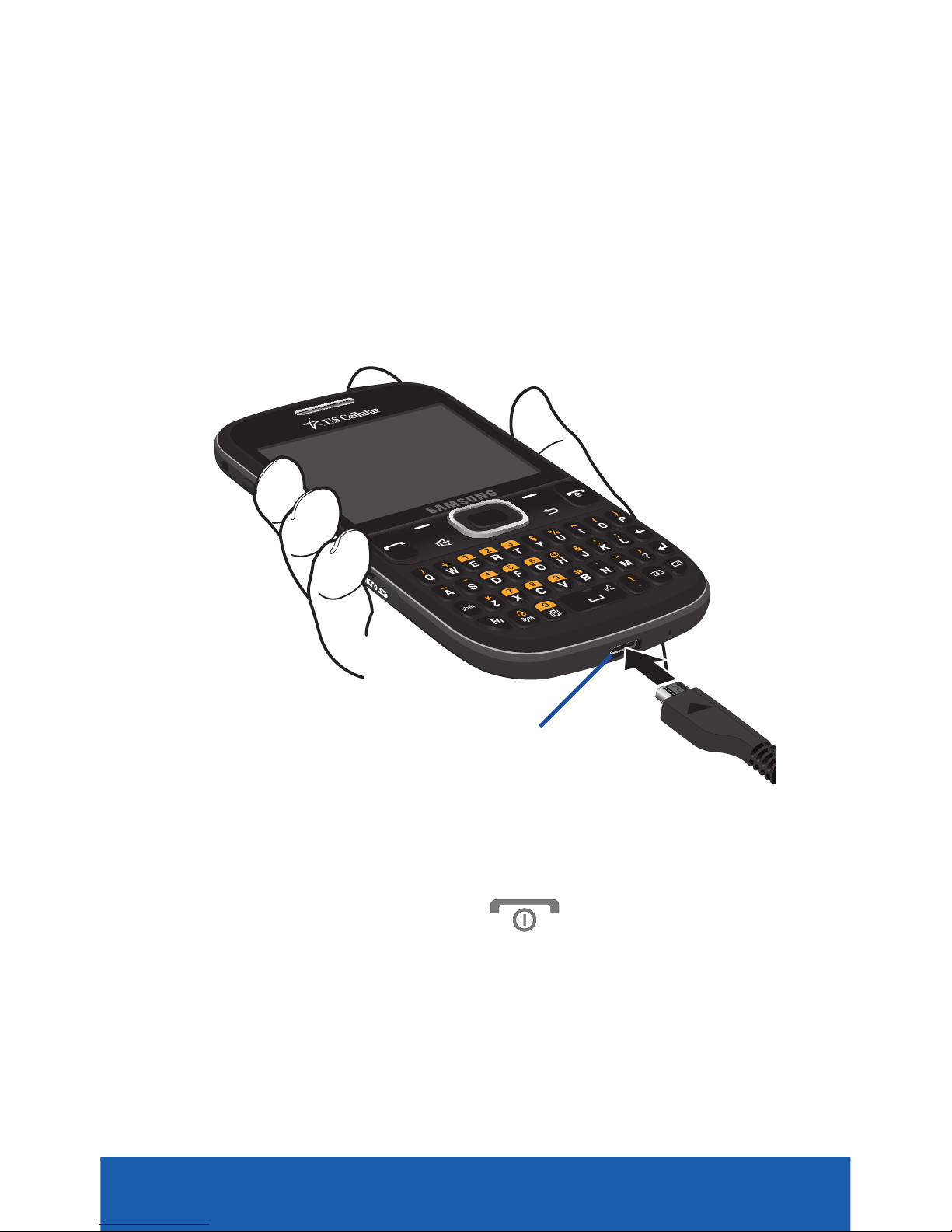
2. Insert the cable into the charging port
at the base of the phone.
3. Once complete, unplug the charging
head from the power outlet and
remove the travel adapter from the
phone.
TURNING YOUR PHONE ON OR OFF
X Press and hold (End/Power)
until the phone turns on or off.
CHARGING PORT
Page 14
PHONE FUNCTIONS
14
LOCKING/UNLOCKING YOUR
WIRELESS DEVICE
1. Press the (End/Power) to wake
the display.
2. Press (Right softkey) g
(Spacebar) to unlock the display.
To lock the display:
X From the Home screen press
(Lock/Sym) to lock the display.
PHONE FUNCTIONS
Page 15

15
PHONE FUNCTIONS
SETTING UP VOICEMAIL
Voicemail allows callers to leave voice
messages, which can be retrieved any
time.
NOTE: Once your Voicemail account has been properly
set up, you can use the Voicemail folder (under
the Messaging menu) to view details for your
current voicemail messages.
1. From the Home screen, press and
hold or dial your own mobile
number to dial Voicemail.
2. Follow the prompts in the new user
tutorial to setup your mail box.
Page 16

PHONE FUNCTIONS
16
Listening to Your Voicemail
1. From the Home screen, press and
hold or dial your own mobile
number to dial Voicemail. After
connection, you will hear your voice
greeting.
2. When prompted, enter your
password.
CALLING FEATURES
Making a Call
1. From the Home screen, press the
digits of the telephone or speed dial
number to call using the keypad and
press (Send).
IMPORTANT: Remember to include necessary long
distance codes.
Page 17

17
PHONE FUNCTIONS
Ending a Call
X Press (End/Power) to end a
call.
Answering a Call
X Press (Send) to answer an
incoming call.
Call Waiting
This feature allows you to receive new
inbound calls while in an active call.
1. Press (Send) to place the
current call on hold and answer the
new call.
2. Press (Send) again to return to
the first call.
Page 18

PHONE FUNCTIONS
18
Making a Three-way Call
Three-way calling is similar to a
conference call with a total of three people
(including yourself). Make a call to two
numbers and connect them together on
your phone using three-way call.
1. From the Home screen, enter the
number for the first caller on your
dialpad, then press (Send).
2. Enter the second party’s phone
number and press (Send).
3. Once the second party answers,
press (Send) to connect all
three parties.
Using the Speakerphone
X During a call, press and hold
(Speakerphone) to switch between
the receiver and the speakerphone.
Page 19
19
PHONE FUNCTIONS
SOUND SETTINGS
The following information describes how
to adjust the volume levels on your phone
and assign a new ringtone.
Adjusting the Volume
1. Press the (End/Power) to wake
the display.
2. Press (Right softkey) g
(Spacebar) to unlock the display.
3. From the Home screen, press the
(Volume key) up or down .
Page 20

PHONE FUNCTIONS
20
Activating/Deactivating Vibrate
Mode
1. Press the Volume key down until
Vibrate Only appears in the display.
2. Press the Volume key up to resume
Normal mode.
– or–
X From the Home screen, press and
hold to activate or deactivate
vibration mode.
Page 21

21
PHONE FUNCTIONS
Assigning Ringtones
1. From the Home screen, press
(MENU) g Settings g Sounds
Settings g Call Sounds g Call
Ringtone.
2. Highlight a ringtone and press
(Left softkey) to play the selected
ringtone. Press again to stop
playback.
3. Press (SET) to set the
highlighted ringtone as your new call
sound.
Page 22

PHONE FUNCTIONS
22
DISPLAY SETTINGS
Changing the Wallpaper
1. From the Home screen, press
(MENU) g Settings g Display
Settings g Wallpaper.
● Home Screen
● Lock Screen
2. Highlight a preloaded wallpaper and
press (SET).
Page 23
23
PHONE FUNCTIONS
CONTACTS
Creating a contact
X From the Home screen, press
(MENU) g (Contacts) g New
Contact g enter your information
and press (SAVE) to save.
Deleting a contact
1. From the Home screen, press
(MENU) g (Contacts) g
Contact List.
2. Highlight the contact you want to
delete and press (Options) g
Erase.
Page 24
PHONE FUNCTIONS
24
My Contacts Backup
My Contacts Backup automatically
protects the contact information stored in
your mobile phone and allows you to easily
transfer mobile contacts to a new phone.
All backup functions occur wirelessly, so
you never need to plug your phone in to
your computer. Best of all, My Contacts
Backup is FREE* for all U.S. Cellular
subscribers.
*easyedgeSM pay-as-you-go users who incur data
access charges for My Contacts Backup while
roaming should dial 611 for a bill credit.
1. From the Home screen, press
(MENU) g (easyedge) g
(My Contacts Backup).
2. After the application is launched g
(Next) g (Yes) to accept
the Terms and Conditions to proceed
to the set up screen.
Page 25
25
PHONE FUNCTIONS
3. Enter your ping (OK) g
(OK).
NOTE: By default, the pin will be the 0000. You can
change your pin later via the Set Up
g
Change Pin.
4. Back up contacts stored on the
device to My Contacts Backup server
by pressing (Yes) g
(OK).
MESSAGING
Accessing Messaging
X From the Home screen, press
(MENU) g (Messaging).
– or–
X In standby mode, press
(Message key).
Page 26
PHONE FUNCTIONS
26
Create and Send a Message
1. From the Home screen, press
(MENU) g (Messaging) g
New Message.
2. Manually enter the destination
address(es). Press (Add) to
select available recipients from
either From Contacts, Recent Calls,
Favorites or Groups.
NOTE: When manually entering a contact, if the contact
is stored in your Contact List, you will see a list of
partially matched names in the drop down box.
3. Scroll to the Text field and enter
your message.
To Add a Multimedia type
4. Press (Options) g Attach g
Select an attachment type.
5. Press (SEND) to send your
completed message.
Page 27

27
PHONE FUNCTIONS
BLUETOOTH
Bluetooth® is a short-range wireless
communications technology capable of
exchanging information over a distance of
about 30 feet without requiring a physical
connection.
Turn Bluetooth On or Off
X From the Home screen, press
(MENU) g Tools g Bluetooth
Menu g (Turn On or Turn
Off).
Page 28

PHONE FUNCTIONS
28
Adding a New Device
1. From the Home screen, press
(MENU) g Tools g Bluetooth
Menu g (Turn On).
2. Highlight Add New Device and press
(OK).
NOTE: If prompted with “Turn bluetooth on?”, select
Yes.
3. Place the new external Bluetooth
device in discovery mode.
4. On your phone, press (OK).
Your phone begins searching for
discoverable and visible devices,
then display them on your screen.
Page 29

29
PHONE FUNCTIONS
5. Select the device you want to pair
with your phone. The phone then
attempts to automatically pair with
the selected device.
● If automatic pairing fails, you are
prompted to enter the passkey or
PIN for the selected device.
(For other wireless handsets,
choose a passkey or PIN and enter
the same one on both devices. For
more information on headsets and
handsfree units, refer to the user
manual for the other device.)
● Except for other wireless handsets,
you are then prompted to confirm
whether you want to connect your
phone with the other device.
6. At the popup highlight Yes and press
(OK).
Page 30
PHONE FUNCTIONS
30
WEB BROWSING
Launching and Exiting the Web
Browser
X From the Home screen, press
(MENU) g (Browser).
To exit browser:
X Press (End/Power) to exit.
Page 31
31
PHONE FUNCTIONS
EASYEDGE
With easyedgeSM, you can download full
featured applications over the air including
games, personalized ring tones, pictures,
and more.
NOTE: easyedgeSM from U.S. Cellular is only available
on approved phones and requires an easyedgeSM
data plan. Visit www.uscellular.com/easyedge
or call U.S. Cellular customer service (by dialing
611 on your phone) and ask about easyedgeSM.
Launching and Exiting
easyedge
X From the Home screen, press
(MENU) g (easyedge).
To exit easyedgeSM:
X Press (End/Power), at the
popup highlight Yes and press
(OK) to exit.
Page 32
PHONE FUNCTIONS
32
Applications
Whether you’re looking for the hottest
ringtone, the latest game, or an awesome
GPS navigation tool, you’ll find it.
1. From the Home screen, press
(MENU) g (easyedge) g
(easyedgeSM).
2. Select a category and follow the
prompts to download and install a
application on your device.
Downloading Mobile Email
1. From the Home screen, press
(MENU) g (easyedge) g
(easyedgeSM).
2. Select Catalog g My Data Apps or
My Data Apps Plus g Free Mobile
Email.
3. Follow the prompts to download and
install the application on your device.
Page 33
33
PHONE FUNCTIONS
YOUR NAVIGATION
With Your Navigator, get all of the features
of an advanced car navigation system on
your mobile phone with voice turn-by-turn
navigation enabled by GPS. Search for
destinations including gas stations, ATMs,
restaurants, and more. Get detailed maps
of any location.
Launching Your Navigator
1. From the Home screen, press
(MENU) g (easyedge) g
(Your Navigator).
2. From the Your Navigator Deluxe
Home screen you can select:
● “Drive To” for turn by turn direction to
an address, airport, contacts addresses
and more
● “Places” to search for nearby
businesses, the cheapest gas prices
and more
● “Maps & Traffic” to see where you
currently are located on a map and what
traffic is in the area
Page 34
PHONE FUNCTIONS
34
CAMERA & CAMCORDER
Use your phone’s built-in Camera to take
pictures and record video.
Camera
1. From the Home screen, press and
hold the (Camera) on the
right side of the phone.
NOTE: You can also activate the camera by pressing
(MENU) g Multimedia g Camera.
2. Using the display as a viewfinder,
point the camera lens at your subject.
3. Press to capture the image.
4. Press (Left softkey) to save
the picture.
Page 35
35
PHONE FUNCTIONS
Camcorder
1. From the Home screen, press and
hold the (Camera) on the
right side of the phone.
2. Press (Options) g highlight
Camcorder and press (OK).
NOTE: You can also activate the camcorder by pressing
(MENU) g Multimedia g Camcorder.
3. Using the display as a viewfinder,
compose your recording by aiming
the lens at the subject.
Press to start recording.
Press again to stop recording.
4. Press (Save) to save the
recording.
Page 36

36
NOTES
 Loading...