

Page 1

* Some of the contents of this manual may differ from your phone,
depending on the software installed or your service provider.
SAMSUNG
ELECTRONICS
SPH-A940
User’s Manual
for Draft Version
World Wide Web
http://www .sam sungmobile.com
Please read this manual before operating your phone,
and keep it for future reference.
Page 2

Table of contents
Important safety precautions .......................7
Unpacking.....................................................9
Your phone .................................................10
Key Description....................................... ........... 10
Display.............................................................. 11
Backlight........................................................... 13
Service light ...................................................... 13
Camera............................................................. 13
Getting started............................................14
Using the battery................................................ 14
Switching on or off the phone............................... 16
Using the soft keys.......................................... ... 16
Your phone’s modes........... ............................ ..... 17
Using the Keypad Lock feature ............................. 18
Call functions ..............................................19
Making a call.......................... ........................... . 19
Ending a call.................................. .................... 19
Emergency dialing.............................................. 19
Making a call from the recent ca ll logs................... 20
Making a call from C ontacts........... ...................... 20
Speed dialing............................. ........................ 20
Pause diali ng .................. .. .. ... .. .... .. .. .. ... .... .. .. .. .. . 21
Voice dialing............... ............................ ........... 22
Adjusting the volume during a call........................ 23
Answerin g a ca ll.............. .. .. ... .. .... .. .. .. ... .... .. .. .. .. . 23
Viewing missed calls ........................................... 24
Options during a call............ ............................ ... 24
Using ca ller ID .................. ............................ ..... 24
Call forwarding............................................ ....... 25
Call waiting......................... ............................... 25
Three-way calling............................................ ... 26
3
Page 3

Table of cont ents
Table of con t ents
Entering text...............................................27
Changing the text input mode................... ........... 28
Using T9 English mode................................... ..... 28
Using Alpha mode............................................... 30
Using 123 mode............................... .................. 31
Using Symbol mode............................................ 31
Using the menus .........................................32
Accessing a menu function by scrolling.................. 32
Using shortcuts.......................... ........................ 33
List of me nu functions......................................... 34
Pictures Video.............................................36
Camera
Camcorder
Biz Card Scan
My Pictures
My Videos
Online Albums
Settings and Info
Pictbridge Print
(Menu 1-1)
(Menu 1-2)
(Menu 1-3)
(Menu 1-4)
(Menu 1-5)
(Menu 1-6)
(Menu 1-8)
............................................. 36
......................................... 36
..................................... 36
........................................ 36
......................................... 36
.................................... 37
(Menu 1-7)
............................... 37
................................... 37
Messaging...................................................38
Send Message
Text Message
Picture Mail
Email
(Menu 2-4)
Instant Message
Voicemail
Settings
(Menu 2-1)
(Menu 2-2)
(Menu 2-3)
............................................... 39
(Menu 2-5)
(Menu 2-6)
(Menu 2-7)
.................................... 38
...................................... 38
........................................ 39
................................. 40
........................................... 40
............................................ 40
Tools...........................................................41
Voice Service
Voice Me mo
G-Fun
Bluetooth
File Viewer
Planner
Memo Pad
World Time
Alarm Cloc k
Calculator
4
(Menu 3-1)
(Menu 3-2)
(Menu 3-3)
(Menu 3-4)
(Menu 3-5)
(Menu 3-6)
(Menu 3-7)
(Menu 3-8)
(Menu 3-9)
(Menu 3-0)
..................................... 41
...................................... 41
............................................... 41
........................................... 41
......................................... 42
............................................. 42
......................................... 43
........................................ 44
...................................... 44
.......................................... 44
Media Player ...............................................45
Call History .................................................46
Outgoing Calls
Incoming Calls
Missed Calls
All Recents
(Menu 5-1)
(Menu 5-2)
(Menu 5-3)
(Menu 5-4)
................................... 46
.................................. 46
...................................... 46
........................................ 47
Web ............................................................48
Settings ......................................................49
Display
Sounds
Sprint PCS Vision
Voice Service
Security
Roaming
Launch Pad
Others
Phone Info
Bluetooth
(Menu 7-1)
(Menu 7-2)
(Menu 7-4)
(Menu 7-5)
(Menu 7-6)
(Menu 7-7)
(Menu 7-8)
(Menu 7-9)
(Menu 7-0)
............................................. 49
............................................. 50
(Menu 7-3)
............................... 52
.................................... 53
............................................ 53
............................................ 56
........................................ 56
............................................... 56
......................................... 57
........................................... 58
Downloads ..................................................60
Contacts......................................................61
Find
(Menu 9-1)
Add New Entry
Speed Dial #s
Group
(Menu 9-4)
My Name Card
Services
Compass Service
.................................................. 61
(Menu 9-2)
(Menu 9-3)
................................... 61
.................................... 62
............................................... 62
(Menu 9-5)
(Menu 9-6)
(Menu 9-7)
................................... 62
............................................ 62
................................ 62
5
Page 4

Table of cont ents
Health and safety information.....................63
Exposure to radio frequency (RF) signals ............... 63
Road safet y................ .. .. .. .. ..... .. .. .. .... ... .. .. .. .... .. . 67
Operating e nv ir on m ent ................... .... ... .. .. .. .... .. . 68
Electronic devices............................................... 68
Potential ly ex pl o si v e en vi ro nment................ .. .. .... . 70
Emergency calls........................................ ......... 71
Other im portant safety information....................... 72
Care and maintenance ........................................ 73
Acknowledging special precautions and the FCC and in-
dustry canada notic e....................... .................... 74
Appendix.....................................................76
Appendix A:CERTIFICATION INFORMATION (SAR) .. 76
Appendix B: GUIDE TO SAFE AND RESPONSIBLE .... 78
Appendix C: Consumer Update on Wireless Phones . 83
Glossary......................................................93
6
Page 5

Important safety
precautions
Read these guidelines before using your wireless
phone. Failure to comply with them may be
dangerous or ille g a l.
Road safety at all times
Do not use a hand-held phone w hile dri ving; park
the vehicle first.
Switching off when refuelling
Do not use the phone at a refuelling po int (service
station) or near fuels or chemicals.
Switching off in an aircraft
Wireless phones can cause interference. Using
them in an aircraft is both illegal and dangerous.
Switching off near all medical equipment
Switch off your phone near medical equipment.
Hospitals or health care facilities may be using
equipment that could be sensitive to external RF
energy. Follow any regula t ions or rules in force.
Interference
All wireless phones may be subject to
interference, whic h could aff ect their perf ormanc e.
Special regulatio ns
Meet any spec ia l re g u lations in force in any area
and always switch off your phone whenev er it is
forbidden to use it, or when it may cause
interference or danger (in a hospital for example).
Water resistance
Your phone is not water-resistant. Keep it dry.
7
Page 6

Important safety precautions
Sensible use
Use only in the normal position (held to the ear).
Avoid unnecessary contact with the antenna when
the phone is switched on.
Emergency call
Key in the emergency number fo r y ou r presen t
location, then press the key. Give all the
necessary information as accurately as possible.
Do not end the call until give n permission to do so.
Keeping small children away from your
phone
Keep the phone and all its part s including
accessories ou t o f the reach of small child ren.
Accessories a nd ba tteries
Use only Samsung-approved accessories. Use of
any unauthorized accessories could damage your
phone and may be dangerous.
Use only Samsung-approved batteries and
recharge your battery only with Samsungapproved c h a rgers.
Unpacking
Yo ur p a ckage contains the f ollowing items.
Handset Battery
Desktop Charger Start Here Guide
Headset CD
Welcome to Sprint Card T erms & Conditions C ard
In addition, you can obtain the following
accessories for your phone from your local
Samsung dealer:
• Headset • Car charger/
adapter
• Standard and Extended
batteries
• Hands-free car kit • Data cable
• Bluetooth heads e t kit • Bluetooth full
• Cigarette lighter
adapter
hands-free kit
Qualified service
Only qualified s ervice personnel ma y repair your
phone.
For more detailed safety information, see “Health
and safety information” on page 63.
CAUTION
RISK OF E XPLOSION IF A BATTER Y IS
REPLACED BY AN INCORRECT TYPE.
DISPOSE USED BATTERIES ACCORDING TO
THE INSTRUCTIONS.
8
9
Page 7

Your phone
Key
(s)
Description
Your phone
(continued)
Key Description
Key
(s)
Description
soft keys
Navigation
keys
OK key
TALK key
END key
BACK key
Numeric
keys
Performs the functions indicated by
the screen text on the bottom line of
the display.
In Standby mode, quickly enters you r
favorite menus.In Menu mode, scrolls
through menu op ti ons.
In Standby mode, enters the Pics.
video menu.
In Menu mode, selec ts th e currently
highlighted menu or option, or
confirms your input.
Makes or answers a call.
In Standby mode, re trieves the most
recent numbers dialed, received, or
missed. Redials the last number when
pressed an d held.
Ends a call. Also switches the phone
on and off when pressed and held.
In Menu mode, cancels your input and
returns to Standby mode.
Deletes characters from the display.
In Menu mode, re turns to the previo us
menu level.
Enters numbers, letters, and some
special cha racters.
In Standby mode, initiates the voice
* key
# key
Camera
key
t
Volume
keys
command feature when pressed an d
held.
In the text entry mode, changes case
of letters.
In Standby mode, quic kly enters or
exits Silent mode when pressed and
held.
In the text entry mode, inserts a
space.
In Standby mode, allows you to
quickly access th e
Also turn on the camera when pres sed
and held.
In Capture mode, takes a photo or
starts recording a video.
(on the left side of the phone)
During a call, adjust the earpiece
volume.
In Standby mode, adjusts the key
tone volume.
In Menu mode, scrolls through menus.
Camera
menu.
Display
Layout
The display h as 3 areas; the top line of icons, the
text and graphics area, and the bottom line of soft
key indicators.
10
11
Page 8
Your phone
Your phone
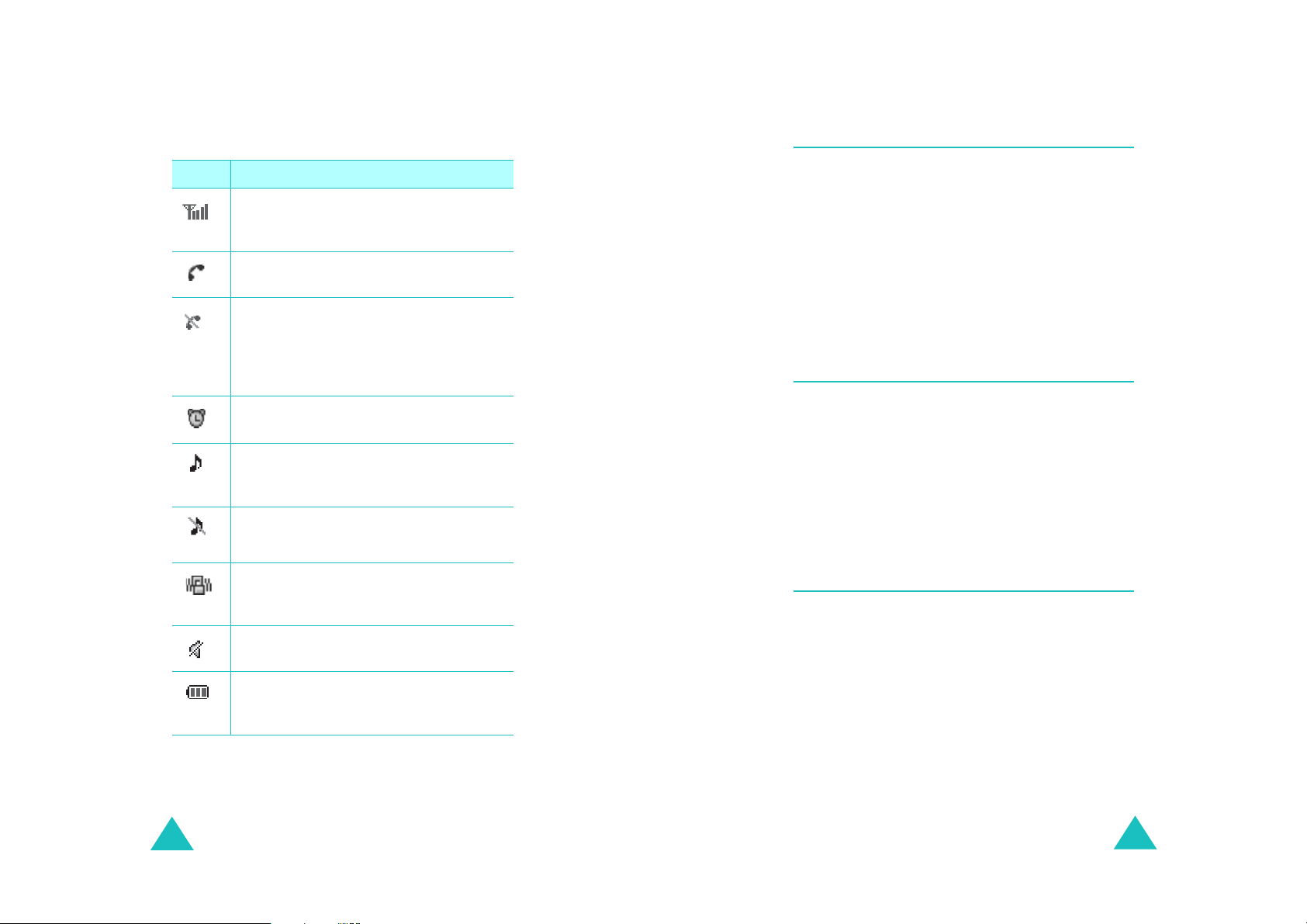
Icons
Icon Description
Signal strength
signal strength. The greater the number
of bars, the better the signal.
Service
progress.
No service
outside a service area. When it displays,
you cannot make or receive calls. Wait a
little while for a better signal or move
into an open area to regain service.
Alarm mode
alarm to ring at a specified time.
Ringer on
ringer volume for calls to one from
~8,
1-Beep
1
Ringer off
volume of the call ringer to
Vibration mode
ringer volu m e for c alls is s et t o
or when your phone is in Silent mode.
Silent mode
is Silent mode .
: Shows the rece i ved
: Appears when a call is in
: Appears when you are
: Appears when you set an
: Appears when you set the
or
Vib+Ring
: Appears when you set th e
: Appears when the
: Appears when the phone
.
Silent
Vibrate
Level
.
Backlight
The backlight illuminates the display and the
keypad. When you pre ss any key or open the
phone, the backlight illuminates. It turns off if no
key has been pressed within a given period of
time, depending on the setting in the
menu
The backlight remains on at all times when the
phone is connected to an optional car kit.
Backlight
Service light
The service light on the bottom tip of the phone
flashes to ind icate an incom ing call, a messa ge, or
an alarm and flashes for a few seconds when you
turn on or off the phone.
It flashes while the battery is charging with the
travel adapter; it turns green when the battery is
fully charged.
Camera
,
The camera embedded in your ph on e allow s you
to take a photo or record a video while on the
move.
12
Battery status
battery . The more bars you see, the
more power you ha ve remaining.
: Shows the level of your
13
Page 9

Getting started
Using the battery
Your phone is powered by a rechargeable Li-ion
battery. Use only approved batteries and
chargers. Ask you r local Samsung dealer for
further details.
Note
: Y ou must fu lly charge the batter y before us ing
your phone for the first time.
Installing the battery
1. Place the battery so that the tabs on the end
align with the slots at the bottom of the phone.
2. Press the battery until it clicks into place. Make
sure that the battery is properly installed
before switching the phone on.
Removing the battery
Getting started
Low battery indicator
When the battery is weak and only a few minutes
of talk tim e re main, a warning tone so unds and a
message repeats at regular intervals on th e
display. In this case, your phone turns off the
backlight to conserve the remaining battery
power.
When the battery level becomes too low, the
phone automatically turns off.
1. If necessary, switch off the phone by pressing
and holding the END key unti l the power-o ff
image displays.
2. Slide the battery lock towards the top of the
phone and lift away the battery, as shown.
1. With the battery in position on the phone, plu g
the connector of the travel adapter into the
jack at the bottom of the phone.
14
15
Page 10

Getting started
Switching on or off the phone
1. Open the phone.
2. Press and hold the END key until the power-on
image displa ys to switch on the phon e .
Getting started
The roles of the soft keys vary depending on the
current function you are using; the labels on th e
bottom line of the display just above each key
indicate their curren t role.
The service light on the phone flashes and an
alert sounds. When the system locates
services, the greeting message displays along
with the time and date. You can now place and
receive calls.
If the phone is out of service, the No Service
icon ( ) appears on the display. In this case,
you cannot place and receive calls. You can try
again later when service is available.
3. When you wish to switch off the phone, press
and hold the END key until the power-off
image displa ys .
WARNING!
Do not switch on the phone when mobile phone
use is prohibited or when it may cause
interference or danger.
Using the soft keys
Your phone offers a set of functions that allows
you to customize and use it. These functions are
arranged in menus and submenus, accessed using
the two so ft keys. Each men u and sub menu al lows
you to view and alter the settings of a particular
function.
Your phone’s modes
Standby mode
Standby is the most basic state of your phone.
The phone goes into Standby mo de after you turn
it on or whenever you briefly press the END k ey.
When your phone is in Standby mode, you will
typically see the greeting message and the curre nt
time and date.
Press the END key at any time to return to
Standby mode. Be careful; if you are on a call
when you press the END key, the call disconnects
and the phone returns to Standby mode.
Talk mode
You can place and answer calls only when your
phone is turned on. During a call, the phone is in
Talk mode.
Lock mode
When you lock your p hone us ing the
menu, you cannot us e t he phone. In Lock mo d e,
you can receive messages and calls, but you
cannot place an outgoing call until you unlock the
phone.
Lock Phone
16
17
Page 11

Getting started
Using the Keypad Lock feature
Call functions
You can open the phone to use the number
keypad and close so that it takes up less space.
When you close the phone, the display turns off
and the phone automatically locks the exposed
function keys so that even if they are pressed
accidentally, nothing will happen.
To unloc k the keypad, press and hold one of the
Volume ke ys, press the
OK
press the
The keypad is activated and you can use the
phone’s functions.
soft key.
Unlock
soft key, and then
Making a call
In Standby mode, enter the area code and phone
number and press the SEND key.
Send
: sends a message to the number.
Save
: saves the number in Contacts.
P Pause
T Pause
: enters a hard pause.
: enters a 2-second pause.
Ending a call
When you want to end your call, press the E ND
key.
The call time, the length of the call, displays along
with the phone number of the called person. If the
number is stored in your Contacts, the name
displays. If there is no match, you can store the
number in Contacts.
Alternatively, simply close the phone to end a call.
18
Emergency dialing
Yo u can place calls to standard emerge nc y
numbers, even if your p hone is lock ed or all of the
outgoing calls are res t ric ted.
19
Page 12

Call functions
Call functions
Making a call from the recent call
logs
The phone stores up the calls you have dialed,
received, or missed chronologically. The last call is
saved in the first position.
To recall any of these numbers:
1. In Standby mode, press the SEND key to access
call logs. The lis t of re c e nt ca lls displays.
2. Press the Navigation keys, or the Volume k eys
on the left side of the phone until you find the
number you wan t .
3. Press the SEND key to dia l the highlig hted
number.
Making a call from Contacts
You ca n s tore th e pho ne numbers you called
regularly in the phone’s memory, wh ich is called
“Contacts ”. Y o u then simply re call the numbe r b y
pressing the OK key and selecting from the
Contacts list.
Pause dialing
When you ca ll an automated sy stem, like a
banking service, you are o ften required to enter a
password or ac coun t nu mber. Ins tea d of manua lly
entering the number s each time, you can store
the numbers in your Contacts, separated by
pauses.
There are 2 kinds of pauses that can be entered
on your phone:
P pause
•
sequence until you press the SEND key .
•
T pause
sequence for two seconds and then
automatically sends the remaining digits.
Storing pauses in a Contacts entry
To store a number in your Contact s t ha t contains
pauses:
1. In Standby mode, enter a phone number you
want to store, such as the bank’s teleservice
phone number.
: A hard pause stops the dialing
: A 2-second pause stops the dialing
Speed dialing
Once you have stored phon e numbers from your
Phonebook list, you can set up speed dial entries
and then dial them easily whenever you want,
simply by pressing the associate d numeric key.
To speed dial, in Standby mode, enter a speed
dialing number you have set and press the SEND
key to dial the number. You can also press the first
digit briefly , then ho ld down the secon d digit of the
speed dialing number.
20
2. Press the
3. Select the required pause type and press the
OK
•
P Pause
that a hard pause will occur at that point in
the dialing sequence.
•
T Pause
that a “2-second” pause will occur at that
point in the dialing sequence.
4. Enter the digits that need to follow the pause,
such as your account number.
Options
soft key .
. The letter “P” displays, meaning
. The letter “T” displays, meaning
soft key.
21
Page 13

Call functions
Call functions
5. Repeat steps 2 thro ugh 4 to add more pauses
and number s, if n e c e ssary.
6. Press the OK key to store the number in your
Contacts as y ou normal ly would wh en storing a
number.
Pause dialing from a Contacts entry
1. Dial the number of the service from Contacts.
For further detail s abou t find ing a numb er, see
page 61.
2. For a hard pause(s), wait for the appropriate
prompt from the number yo u are calling. When
prompted, press the SEND key to send the
DTMF (Dua l tone mult i-frequency) number th at
follows the pause.
For a 2-second pause(s), your phone transmits
the number that follows the “T” pause two
seconds after the connection.
“Sending DTMF” flashes o n the display and the
transm itted tone s ou nds.
Adjusting the volume during a call
During a call, if y o u w ant to adjust the earpiece
volume, use the Vol um e ke ys on the left side of
the phone.
The image on the display shows all 8 levels; the
more bars, the higher level.
In Standby mode, you can also adjust the keypad
tone volume using these keys.
Answering a call
When somebody calls you, the phone alerts you
by ringing and blinking the service light.
If the caller can be identified, the caller’s phone
number, or name if stored in your Contacts,
displays.
There are 2 ways to answer a call depending on
your setting in the
If you select To answer the call,
Call Answer
menu
3. Repeat from step 2, if necessary.
Voice dialing
Once you have stored a phone number in
Contacts, you can dial it simply by saying the
associated name or the number.
Before using the voice dial feature, you first need
to programme your phone to recognize your voice
and pronunciation in the
22
Adapt Digits
menu
TALK Key
Flip Open
Any Key
To end the call, close the phone or press the END
key.
press th e TALK key.
open the phone. If the
phone is already open,
press the SEND key.
press the Any key except
the END key.
23
Page 14

Call functions
Call functions
Viewing missed calls
If you fail to answer a call for any reason, the
phone indicates the missed call by displaying a
text notification on the screen. Additionally , if
caller informa t ion is availa ble, the screen displays
the phone number of the last missed call along
with the time and date the call was made.
When the display informs you of the missed call,
press the SEND key to dial the missed number, or
the END key to clear the message and return to
Standby mo d e .
To view missed calls, access the
Missed
menu.
Options during a call
Your phone pr o vides a number of func tions that
you can use during a call.
Press the
the options.
Options
soft key during a call to access
Using caller ID
This feature tells you who is cal ling you by
displaying the caller’s number when the ph on e
rings. If the name and number are stored in your
Contacts, the corresponding name is also
displayed. If you call someone who has this
feature, your phone number displays on her/his
phone.
Call forwarding
This network feature allows you to forward
incoming calls to another phone number, even
while your phone is turned off . Activating Call
forwarding does not affect outgoing calls made
from your phone.
Note
: Contact your service provider to activate Call
forwarding.
Call waiting
Call waitin g lets you recei ve a seco nd call dur ing a
conversat ion. Your phone notif ies you of a waiting
call by beeping and displaying “Call waiting.”
Your network provides you with the option of
turning the Call waiting feature on and off, if you
have subscribed to the service. Call waiting is on
by default in the phone. If you choose to have a
undisturbed conversation, simply turn off the
feature for the current call.
Note
: If you do not respond to a Call waiting
notification, the ph one will forward the cal l to
voice mail server or another number that you
have specified. Contact you r service provider
for more information.
Note
: Contact your service provider to set up the
Caller line identification service.
24
25
Page 15

Call functions
Three-way calling
This feature enable s you to cond uct conference
calls with 2 separate people at the same time. The
phone records both of them into the Outgoing
calls log and you are billed air time for each of
outgoing calls separately. Contact your service
provider to activate Three-way calling.
To place a Three-way call:
1. During a conversation, press the SEND key .
The phone places the other person on hold.
2. Enter th e p hone number for the th ird person,
and then press the SEND key. The phone dials
the third p e rson.
3. When you are connected to the person, press
the SEND key again to begin your three-way
call.
If one of the callers (not y ou) hangs up, you a nd
remaining caller stay connected. If you initiated
the call and you hang up first, all 3 participants
are disconnected.
Entering text
At many times when using your phone, you will
need to enter text, such as when storing a name
in Contacts, creati ng your personal greeting, or
scheduling ev ents on y our cal endar. You can enter
alphanume ric characters into your phon e using
your phone’s keypad.
Your phone has the following text input modes:
T9 English mode
•
enter words with only one keystroke pe r letter.
Each key on the keypad has more than one
letter; for example, pressing can enter J, K,
or L. However, T9 English mode automatically
compares the series of keystrokes you mak e
with an inte rnal linguistic d ictionary to
determine the most likely word, thus requiring
far fewer keystrokes than the traditional
Alphabet
•
Alpha mode
letters by pressing the key labeled with the
letter you want. Press the k ey once, twice, three
or four times until it display s.
•
123 mode
numbers.
mode.
: This mode allows you to enter
: This mode allows you to
: This mode a llows you to enter
26
•
Symbol mode
various sy mbols and specia l characters.
: This mode allows you to enter
27
Page 16

Entering text
Entering text
Changing the text input mode
When you are in a field that allows characters to
be entered, you will notice the text input mode
indicator on the display.
Using T9 English mode
T9 is a predictive text input mode that allows you
to key in any character using single keystrokes.
This text input mode is based on a built-in
dictionary.
To enter a word in T9 English mode:
1. Press the keys on the phone just onc e per
desired letter. For example, to enter “hello”,
press 4,3 5,5 and 6 key.
2. The word that you are typing appears on the
display. It may change with each key that you
press.
3.
T ype to the end of the word before editing or
deleting any keystrokes.
5. Continue entering the next word.
Note
: To type words not found in T9
you need to chang e the text input mode to
Alpha mode.
English
mode,
Smart punctuation
Periods, hyphens, and apostrophes are available
by pressing the 1 key. T9 English mode applies
rules of gramma r to ins ert th e co rrect
punctuation.
Changing the letter case
To shift the case of the next letter(s) that you
type, press the * key . There are 3 cases:
•Lower Case (
• Initial Ca p ital (
• Capitals Lock (
T9abc
T9Abc
T9ABC
)
)
)
Inserting a space
Press the # key to insert a space between words.
4. Insert a space between each word by
pressing
If the word doesn’t display correctly, press the
0 key repeatedly to display alternative word
choices for the keys that you have pressed.
Example
28
the # key
: Both “of” and “me” use 6 and 3 key.
The phone displays the most
commonly used choice first.
.
Inserting a number
You can insert a number betw een le tters witho ut
exiting T9 English mode. Press and hold the
correspondi ng number key.
Scrolling
To move the cursor to the left or right through
your text, press the Navigation keys.
29
Page 17

Entering text
Entering text
Clearing letters and words
Press the BACK key once or repeatedly to clear
letters one by one to the left. Press and hold the
BACK key to erase all of the letters on the display.
Using Alph a mode
When typing in Alpha mode, you need to press the
keys labeled with the required letter:
- once for the first letter
- twice for the second letter
- and so on
This method is called multi-tap typing.
For example, you press the 2 key 3 times to
display the letter “C” and the 3 key 2 times to
display the letter “K.”
The cursor moves to the right when yo u pres s a
different key . When entering the same letter twice
or a different letter on the same key, just wait for
a few seconds for the cursor to move to the right
automatically, and then enter the next letter.
Inserting a number
You can quickly insert a number between letters.
Press and hold the corresponding numb er key.
Scrolling
To move the cursor through you r text message,
press the Navigat i on keys.
Clearing letters and words
Press the BACK key once or repeatedly to clear
letters one by one to the left. Press and hold the
BACK key to erase all of the letters on the display.
Using 123 mode
Number mode enables you to enter numbers.
Press the keys corresponding to the digits you
want to enter and manually switch back to the
text entry mode of choice.
Changing the letter case
To shift the case of the next letter(s) that you
type, press the * key. There are 3 cases:
Abc
ABC
abc
)
)
)
• Initial Capital (
• Capitals Lock (
•Lower Case (
Inserting a space
Press the # key to insert a space between words.
30
Using Symbol mode
Symbol mode enables you to enter symbols.
Press the Navigation keys to display more symbol
sets.
Press the keys corresponding to the symbol s you
want, then the phone automatically switches back
to the text entry mode used just prior to selecting
Symbol mode.
31
Page 18

Using the menus
This phone offers a r a n g e of fu nc ti ons that allow
you to tailor the phone to your needs. These
functions are arranged in menus and submenus.
They can be accessed by scrolling or by using the
shortcuts.
Using the menus
Using shortcuts
The menu items, such as menus, submenus, and
setting options, are numbered and can be
accessed quickly by using their shortcut numbers.
Note
: The numbers assigned to each menu function
are indicated on the list. See the next page.
Accessing a menu function by
scrolling
1. In Standby mode, press the
access Menu mode.
2. Scroll using the Navigation keys to reach the
main menu, for example,
OK
key to enter the menu.
3. If the menu contains any submenus, for
example,
scrolling using the Navigation keys. Press the
OK
If the menu you have selected contains
submenus, repeat this step.
4. Scroll using Up or Down key to find the setting
of your choice.
5. Press the OK key to confirm the chosen
setting.
Notes
• You can return to the previous menu level by
pressing
• You can exit the menu without changing the menu
settings by pressing
Others
key to enter the submenu.
:
the BACK key
, find the one you want by
.
the END key
Menu
Settings
.
soft key to
. Press the
1. In Standby mode, press the
access Menu mode.
2. Enter the first digit of the shortcut number.
Repeat this for each digit of the shortcut
number.
3. Scroll using the Navigation keys to select the
setting of your choice.
4. Press the OK key to confirm the chosen
setting.
Menu
soft key to
32
33
Page 19

Using the menu s
Using the menus
List of menu functions
The following list shows the menu structure and
indicates the number assigned to each option.
1. Pictures Video
1.1 Camera
1.2 Camcorder
1.3 Biz Card Scan
1.4 My Pictures
1.5 My Videos
1.6 Online Albums
1.7 Setting and Info
1.8 Pictbridge Print
2. Messaging
2.1 Send Message
2.2 Text Message
2.3 Picture Mail
2.4 EmailInstant Msg
2.5 lInstant Message
2.6 Voicemail
2.7 Settings
3. Tools
3.1 Voice Service
3.2 Voice Memo (
3.3 G-FUN
3.4 Bluetooth
3.5 File Viewer
3.6 Planner
3.7 Memo Pad
3.8 World Time
3.9 Alarm Clock
3.0 Claculator
4. Media Player
5. Call History
5.1 Outgoing Calls
5.2 Incoming Calls
5.3 Missed Calls
5.4 All Recent
6. Web
7. Settings
7.1 Display
7.2 Sounds
7.3 Sprint PCS Vision
7.4 Voice Service
7.5 Security
7.6 Roaming
7.7 Launch Pad
7.8 Others
7.9 Phone Info
7.0 Blueto oth
8. Downloads
8.1 Games
8.2 Ringers (
8.3 Screen Savers
8.4 Applications
8.5 Messaging
9. Contacts
9.1 Find
9.2 Add New Entry
9.3 Speed Dial #
9.4 Group
9.5 My Name Card
9.6 Services
9.7 Compass Service
34
35
Page 20

Pictures Video
Online Albums
Pictures Video
(Menu 1-6)
Camera
In this menu, you can take a picture. The camera
produces JPEG pictures.
Camcorder
Your pho ne is capabl e of reco rdin g shor t vi deos
(and audio) of up to a few seconds in length.
Saved videos are stored in the My Videos.
Biz Card Scan
Biz Card Scan allows you to take a picture of a
business card and send the information to your
contacts list .
My Pictures
In this menu option, you can review the pictures
you have taken.
(Menu 1-1)
(Menu 1-2)
(Menu 1-3)
(Menu 1-4)
Using this menu option, you can manage the
pictures uploaded to the wireless web page
assigned to you from the server when you are
subscribed t o t he a ssociated service.
Settings and Info
Using this menu opti on , y ou can change
information about your web page account.
Accessing the Online Albums menu option
connects your phone to the wireless web. On ce
you are connected to the web, the setting options
displays.
Pictbridge Print
Using this menu option, you can select pictures,
adjust print setting and execute print function.
(Menu 1-7)
(Menu 1-8)
My Videos
In this menu option, you can review the videos
you have taken.
36
(Menu 1-5)
37
Page 21

Messaging
Messaging
2. Press OK to view the contents of the message.
Send Message
1. Enter the number or e-mail address of the
recipient and press OK.
2. Enter your message using the keypad. Press
the Option soft key . A pop-u p menu appears in
the displa y.
3. Use the navigation key to select the input
mode (ABC, T9Wo rd, Symbol, or 123). Also
use the navigation key to choose the text
format, or if you wish to Add Media such as a
picture, anim ation, melody, or a canned
message.
4. Once you’re finish ed ente ri ng your message,
press OK.
5. Press the Send soft key. Your message is sent
to the intended recipient.
Text Message
You ca n use following optio ns in t his menu :
(Menu 2-1)
(Menu 2-2)
Inbox
New messages are stored in your inbox.
Outbox
Your ph one stores messages in Outbox, regard less
of whether the message was successfully
transmitted.
Drafts
Draft messages are those that have been
composed but never sent. You can return to the
Draft folder at any time to view, edit, or send a
draft message.
Send Message
Yo u ca n send message from In box.
Picture Mail
Yo u ca n send or receive pictur e m ail in this menu.
Email
With Sprint PCS Vision, you can use popular email
services such as AOL Mail, Yahoo! Mail, MSN
Hotmail and EarthLink to keep in touch, even
while you’re on the go.
(Menu 2-4)
(Menu 2-3)
1. Use the navigation key to highlight the
message you wish to view.
38
39
Page 22

Messaging
Instant Message
Sprint PCS Vi sion als o prov ides you wi th ac cess to
popular instant me ssaging (IM) client s, including
AOL Instant MessengerTM, MSN Messenge r, and
Yahoo! Messenger.
Voicemail
All unanswered calls to your Sprint PCS Phone are
automatically transferred to your voicemail, even
if your phone is in use or turned off. Therefore,
you will want to set up your Sp rint PCS V oicemail
and personal greeting as soon as your phone is
activated.
(Menu 2-6)
(Menu 2-5)
Tools
Voice Service
Yo ur S p ri nt PCS Phone’s Voice Services let you
place calls using your voice . This section includ es
easy-to-f o ll ow instructions on using voiceactivated dialing.
Voice Memo
Yo u ca n use you r p hone’s Voice Services to rec ord
brief memos to remind you of important events,
phone numbers, or grocery list items .
(Menu 3-1)
(Menu 3-2)
Settings
Staying connected to your friends and family has
never been easier. With your phone°Øs advanced
messaging capabilities, you can send and receive
many different kinds of text messages without
placing a voice call. Your phone,s messaging
settings make text messaging even faster and
easier by letting you decide how you would like to
be notified of new messages, create a signature
with each sent message, and create your own
canned messages, to name just a few.
40
(Menu 2-7)
G-Fun
Play exciting games with full-color graphics,
sound, and vibration. Choose from ov er 250
games to play anytime.
Bluetooth
Bluetooth technology enables cost-free
wirelessconnections between electronic devices
within a maximum range of 10 meters. A
Bluetooth connect ion c an be used to send pho tos,
images, videos, phonebook, schedule d items, and
to connect wirelessly to devices using Bluetooth
technology, such as computers. Since Bluetooth
devices communicate using radio waves, your
phone and the other Bluetooth device do not need
to be in line of sight to each other. The 2 devices
only need to be within a maximum of 10 meters of
each other, although the connection can be
(Menu 3-3)
(Menu 3-4)
41
Page 23

Tools
Tools
subjected to interference from obstructions, such
as walls or ot he r electronic devices. In som e
countries, ther e m ay be restrictions on using
Bluetooth devices.Please cont act your service
provider.
Enable/Disable
This feature allows you to activate the Bluetooth
feature. When this option is set to On, the
Bluetoot h icon appears.
Search Device
This feature allows you to search for connectable
Bluetooth devices.
File Viewer
In this option, can view the files of your phone a nd
memory card.
Planner
(Menu 3-5)
(Menu 3-6)
Today
You ca n s chedule for the current da y indicating
each event’s start and end time. You can even
have your phone's calendar alert you before an
event is to s tart. Even ts schedu led for futu re dates
automatically appea r on your Today events
schedule on that day.
Scheduler
This option allows you to view in calendar format
the current month, or a past of futu re m onth. In
this option, the current date is highlighted on the
calendar. Days with the scheduled events are
underlined.with the scheduled even ts are
underlined.
Task List
This feature allows you to draw up a list of tasks to
be done and assign a priority and deadline to each
task.
Countdown
This menu help you know how much time it takes
you to do something, or how many months, days,
hours and minutes until a specific day. You can
create up to 20 Count down timers using this
menu.
Memo Pad
This feature allow s y ou to writ e do wn m emos . You
can enter up to 60 characters for each memo. If
memos are already saved, scroll to the desired
item by pres sing up or down navigat ion key.
The following options available; .
Erase: allows you to erase a selected memo.
Erase All: allows you to erase memos.
(Menu 3-7)
42
43
Page 24

Tools
World Time
This menu a llows you to check the cur rent time fo r
Greenwich Mean Time (GMT) a nd 24 m ajor c ities
around the world: Select the city corresponding to
your time zone by pressing the navi gation keys
one or more times. The local date and time are
displayed.
Alarm Clock
Your phone has an alarm clock function with three
separate alarms.Each alarm can be set to go off
once, or daily at a set programm ed time. Once
you set an alarm, it is e asy to chang e i t’s time or
to turn it off.
(Menu 3-8)
(Menu 3-9)
Media Player
Yo ur Sprin t PCS Visi on Mult imedi a Phone' s built -in
media player gives you the ability to listen to
audio clips and view video clips right from your
phone's display. It's a great way to stay up-todate
with news, weather, and sports information while
also enjoying the latest blockbuster movie trailers
or music videos . anywh ere, anytime on th e Sprint
Nationwide PCS Network. Just access your media
player from your phone's main menu, scroll to
your choice of channel, and select one of the video
or audio clips to play. It's like having a TV in the
palm of your hand .
This section e xplains the featur es and options of
your phone's built-in media player.
Calculator
Using this feature, you can use the phone as a
calculator. The calculator provides the basic
arithmetic functions: addition, subtraction,
multiplication and division.
44
(Menu 3-0)
45
Page 25

Call History
You can us e the Ca ll History menu to:
• .View and dial the missed, outgoing or incoming
numbers.
• Erase the numbers in the Call Log memory.
Outgoing Calls
The phone stores up to 10 outgoing calls you
dialed. When you acce ss this menu, th e list of
outgoing calls is d i sp layed.
(Menu 5-1)
Call History
All Recents
Use All recent to view received, dialed, and m issed
calls for your phone. You can also use All recent to
erase your ca ll history and view C a ll T imers.
While viewin g All recen t, you h ave o ptions s uch as
saving recent call numbers to your Phonebook,
sending mess ages to recent ca ll numbers, and
prepending (editing) numbers before sav in g.
(Menu 5-4)
Incoming Calls
This option lets you view the last 10 calls received.
(if you are subscribed to the caller ID service).
When you access this menu, the la st incoming
calls are displayed.
Missed Calls
This option lets you view the last 10 calls missed.
(if you are subscribed to the caller ID service).
When you access this menu, the last missed calls
are displayed.
46
(Menu 5-2)
(Menu 5-3)
47
Page 26

Web
With Web access on your Sprint PCS Vision Phone,
you can brow se full-color graphic versio ns of your
favorite Web si tes, making it easier than ev er to
stay informed while on the go. Follow sports
scores and breaking news and weather and shop
on your Sprint PCS Vision Phone anywhere on the
Sprint Nationwide PCS Network.
In addition to the features already covered in this
section, the Sprint PCS Vision home page offers
access to thes e colorful, graphically rich Web
categories, in cluding News, Weather,
Entertainment, Sports, Finance, Travel, Shopping,
Tools, and Business Links, as well as useful
management options incl uding My Accoun t a nd
Search. Many sites are available under more than
one menu . choose the one that's most convenient
for you .
Settings
Display
Screen saver
You can select an image to be displayed in idle
mode.
Set foreground
A foreground image can be used to display a
calendar, clock, or other imag es on top of the
background image.
Incomig Call
To display the picture f or a ll incoming calls. You
can select either With Caller ID or No Caller ID
Greeting
The banner option allows you to edit the greeting
displayed on the standby screen. Enter your
greeting using the alphanumeric keys .
(Menu 7-1)
48
Backlight
You have several options for setting how the LCD,
keypad backlight operates. Remember that
backlight use drains your battery faster.
Service Light
This menu allows you to select whether or not the
service light on .
49
Page 27

Settings
Settings
Sounds
(Menu 7-2)
Ringer Volume
This menu option allows you to adjust the ringer
volume.
Calls
: allows you to adjust the ringe r volume for
the incoming calls.
Messages
for the messages.
Alarms
for the alarms.
Press up or down navigation key to adjust the
volume or selec t the type.
Volume Level: adjust the volume level (the more
bars, the louder).
Vibrate: switches the phone to vib ration mode. An
incoming call vibrates the phone.
1 Beep: sounds a beep.
Off: does not sound the ring.
: allows you to a djust the rin ger volume
: allows you to ad j u s t t he ri nger volume
Ringer Type
This option allows you to set a unique ring for
voice calls, messages, data/fax, alarm, and
planner. Select a unique ring tone for each status.
As you change it, it sounds for a few seconds.
Note
: You can download 5 melodys using PC Link.
Voice Calls
incoming voice call.
Messages
for a voice mail, page, text message or browser
message.
Schedule
for a planner alarm.
: allows you to set a unique ring for an
: allows you to have a distinctive ring
: allows you to have a distinct ive ring
Alerts
Minute Beep
the phone sounds an alert 10 seconds before each
elapsed minute to remind you of the length of the
current call.
Service
phone beeps when you exit service area or when
you return to a service area.
Connect
connect tone when your call is connected to the
system.
Sig. Fade Tone
the phone sounds an alert when a dropped call
occurs during conversation in response to a signal
fade.
Power On/Off
phone sounds when you turn on or off the phone.
: With this menu option set to ON,
: With this menu option set to ON, the
: You can set your phone to sound the
: When this option is set to On,
:When this option is set to On, the
Key tone
Using this menu, you can set up the keypad tone
that the phone sounds when you press a key.
50
51
Page 28

Settings
Settings
Tone Length
The tone length setting enables you to select
Short or Long DTMF (dual-tone mu lt i-frequency)
tones. When you use a teleservice (such as yo ur
bank account) andpress the keys to enter
numbers into the teleservice, youare sending
DTMF tones. The system used by the bankor other
service determines if you need short or longDTMF
tones. If the se rvice is digita l (which most
arethese day s) short DTMF w ill a lmost always
work.
However, som e ne w systems and a lm ost all
older(analog) systems require you to use long
DTMF tones.Many home answering machines
require long DTMFtones.
Sprint PCS Vision
T o access detailed instructions on using PCS Vision
services, visit www.sprintpcs.com/manage and
download your phone’s complete User’s Guide.
With PCS Vision, you will have access to
applications that let you stay in touch with family
and friends, have fun, stay informed on the go,
and make your phone unique.
(Menu 7-3)
Voice Service
Your Sprint PCS Phone’s Voice Services let you
place calls using your voice. This section includes
easy-to-fo llow instructions on using voiceactivat ed dialing.
Security
Your phone provides many security options,
including a user-programmable lock code and call
restriction features .
To access the security menu, you must enter a
four-digit lo ck code. The lock code is preset to
0000 at factory.
(Menu 7-5)
(Menu 7-4)
Lock Phone
When the phone is lock ed, you cannot oper ate the
phone until you enter the lock code.
The following options are available:
Unlocked: the phone remains unlocked.
On power up: the phone locks automatically at the
next time your phone turned on.
Features such as Web access, graphically-enriched
games, and sending/receiving digital pictures will
be available on select PCS Phones through the
Sprint Nationwide PCS Network.
52
Lock Now: th e ph one locks immediately.
Lock Pic/Video
When the picture/video is locked, you cannot
enter the camera mode until you enter the lock
code.
53
Page 29

Settings
Settings
Lock Service
This setting all o w s you to lock voice call function s
and Sprint PCS Vision services. When you enable
Lock Services, you are unable to make new calls
(excluding emergency number s) or access the
Sprint PCS Vision services until the lock has been
disabled in the Security menu.
Change Lock
This feature allows you to change your current
lock code to a new one. The lock code is preset to
0000 at factory. Enter a new, four-digit lock code,
then press OK.
Special #
Your phone provides the option of st oring
emergency numbers. All emergen cy numbers can
be manually dialed at any time even when your
phone is locked or all default priority numbers are
depending on your service provider.
To store an emergency number, select a location
using a numeric keys or up or down navigation
key and enter the desired number. Each priority
number can be up to 32 digits long. The number
already stored in t he location is autom atically
deleted when you en ter the n ew n umber. To make
an emergency ca ll in Lock m ode, sim ply en ter the
emergency number, then press the TALK key.
When a confirmation message displays, press OK
to clear the memory.
Erase Downloads
This menu a llows yo u to er ase all th e downl oads in
the memory.
Erase Pic/Video
This menu allows you to erase all the pictures/
videos in my pictures.
Reset Phone
Resetting the phone erases all of your saved
options and returns them to the factory default
settings. Your Phone Book, Call Logs, a nd S MS
messages remain.
The phone reboots (turns itself off then on),
restores the default settings, and then returns to
Standby mo d e .
Reset Pic/Vi de o A ccount
Resetting the Account Info erases all of your saved
options and returns them to the factory default
settings.
Erase Contacts
This menu allow s you to era se a ll t he numbers in
your Contacts and the voice dial.
54
55
Page 30

Settings
Settings
Roaming
Set your phone to sound a uniqu e tone when a call
is received outside a network service area. This
feature is set to Off by default.
Launch Pad
The Navigation Keys can be used as shortcut keys.
In stanby mod e, they allow you to access specific
menu directly.
Others
Abbrev. Dial
off.
Contacts Match
enter the last 3-6 digits of a phone number stored
in the Contacts and press TALK key to dial without
having to enter the remaining digits.
Restriction
making outgoin g ca lls to only those listed in the
phonebook or programmed in special’s.
(Menu 7-6)
(Menu 7-7)
(Menu 7-8)
: Sets the abbreviation dialling on or
: Contac ts Match al lows you to
: Allows you to limit the phone from
Auto Answer
the phone automatically answers calls after
predefined time. This option is useful while
driving, for instance.
Language
menus and key input.
Select the desired language by pressing the
navigation key.
Airplane Mode
many of your phone’s features, such as Games,
Memo Pad, Voice Memos, etc.,
when you are in an airplane or in any other area
where making or re ceiving calls or dat a is
prohibited. Wh en your phone is in Airplane Mode,
it cannot sen d or rece ive an y cal ls or acc ess onli ne
information.
Location
Location feature for use in connection with
location-based services that may be available in
the future.
Plus Code Dialing
United States you can automatically use Plus Code
Dialing to enter 0 11 f or international calls.
: With this menu option activated,
: Sets the language of voice prompts,
: Airplane Mode allows you to use
:You r PCS Phon e is eq uip ped with a
: When plac ing ca ll s w ithin the
Call Answer
action will answer
Flip up or TALK: You can answer by flipping up or
pressing TALK.
Flip up Only: You can answer only when the flip
up.
TALK Onl y: You can answer only when you press
TALK.
56
: Allows yo u to determine what
Phone Info
Allows you to view phone nubmer, icon glossary,
s/w and h/w version and advanced informati on.
(Menu 7-9)
57
Page 31

Settings
Settings
Bluetooth
Bluetooth technology enable s cost-free
wirelessconnections between electronic devices
within a maximum range of 10 meters. A
Bluetooth connect ion can be us ed to sen d pho tos,
images, videos, phonebook, scheduled items, and
to connect wirelessly to devices using Bluetooth
technology, such as computers. Since Bluetooth
devices com m u nicate using r a d io waves, your
phone and the other Bluetooth device do no t need
to be in line of sight to each other. The 2 devices
only need to be within a maximum of 10 meters of
each other, although the connection can be
subjected to interference from obstructions, such
as walls or other electronic dev ic e s. I n some
countries, there may be restrictions on using
Bluetooth dev ices.Please contact your service
provider.
(Menu 7-0)
Enable/Disable
This feature allows you to activate the Bluetooth
feature. When this option is set to Enable, the
Bluetooth icon appe ars.
Security
This feature allows you to sele c t whether or not
the phone asks for your confirmation when other
devices acc e ss your data.
Device Info
of the selecte d d e vice.
: allows you to view the information
Visibility
This feature allows you to set whether or not your
phone is available to other Bluetooth devices.
Device name
This feature allows you to change your phone’s
Bluetooth device name, which is dis p layed on
other devices.
58
59
Page 32

Downloads
Contacts
With Sprint PCS Vision and your new Sprint PCS
Vision Phone, you have access to a dynamic
variety of Premium Service content, such as
downloadable Games, Ringers, Scre e n Savers,
and other applications. (Additional charges may
apply.)
Contacts allows you to store frequently used
phone numbers and the associated names in your
personal directory to make it easy for you to make
a call witho ut having t o r e member or enter the
phone number. You can store up to 500 entries
including E-m ail and URL addre s se s .
Find
This menu allows you to find an entry using a
person’s name, entry number, or group name in
your Contacts.
To change the finding method, press the
navigation keys until the option you want
displays;
Group
Add New Entry
This menu allows you to store a number with a
name in your Pho ne Book. Y ou ca n save a perso n’s
various numbers, such as workplace number,
mobile number and fax number, into one entry.
Using this feature, you can keep someone’s
information together. It also helps you to find
numbers easily in the Phone Book.
(Menu 9-1)
By Name, By Speed Dial
.
(Menu 9-2)
, or
By
60
61
Page 33

Contacts
Speed Dial #s
Speed dialing allows you to press and hold a key
(or keys) to dial the number asso ciated with those
key(s).
There are three types of speed dialing; 1-touc h, 2touch, and 3-touch di al ing.
Group
This menu allows you to change the settings for
the caller groups. Y ou can create groups and edit
the groups. You can also send a message to an
entry(ies) you selected from a group.
(Menu 9-4)
My Name Card
My Name Card allows you to create a virtual
business card. Once completed, you can send the
card to recipi ents as a V-card attachment..
(Menu 9-3)
(Menu 9-5)
Services
Your C on tacts are prep rogrammed with phone
numbers for v a rious Sprint PCS Services.
Compass Service
62
(Menu 9-6)
(Menu 9-7)
Page 34

Health and safety
information
Exposure to radio frequency (RF)
signals
Your wi reles s phone is a radi o transmitter and
receiver. It is designed and manufactured not to
exceed the emission limits for exposure to radio
frequency (RF) energy set by the Federal
Communications Commission (FCC) of the U.S.
Government. These limits are part of
comprehensive guidelines and establish permitted
levels of RF e nergy for the ge neral p opulatio n. The
guidelines are based on the safety standards that
were developed by independent scientific
organizat ions through periodic and thro ugh
evaluation of scientific studies.
The standard s include a su bstantial safet y m argin
designed to assure the safety of all persons,
regardless of age and health.
The exposure standa rd f or wireless phones
employs a unit of measurement known as Specific
Absorption Rate (SAR). The SAR limit set by the
FCC is 1.6W/kg.
*
* In the U.S. and Ca n ad a , the SA R limit fo r mobile
phones used by the public is 1.6 watts/kg (W/kg)
averaged o ver one gram of tissue. The st an d ard
incorporates a sub stantial margin o f safety to give
additional protection for the public and to account
for any variations in measure me n ts.
63
Page 35

Health and safety information
Health and safety information
SAR tests are conducted using standard o per ating
positions specified by the FCC with the phone
transmit ting at its highes t certified power level in
all tested frequency bands. Although the SAR is
determined at t he highest certifie d p ower level,
the actual SAR level of th e p hone while operating
can be well bel ow the maximum value. This is
because the phone is designed to operate at
multiple power levels so as to use only the po w er
required to reach the network. In general, the
closer you are t o a wireless base station antenn a,
the lower the power output of the phone.
Before a new model phone is a vailable for sale to
the public, it must be tested and certified to the
FCC that it does not exceed the limit established
by the government-a do pte d requirement for safe
exposure. The t e st s a re p erformed in positions
and locations (e.g. , at the ear and worn on the
body) as required by the FCC for each model.
While there may be differences between the SAR
levels of variou s ph ones and at various pos itions,
they all meet the government requirement.
The FCC has granted an Equipment Authorization
for this model ph one with all reporte d SAR levels
evaluated as in compliance with the FCC RF
exposure guide l ines. SAR information on this
model phone is on file with the FCC and can be
found under the Displa y Grant section of ht tp ://
www.fcc.gov/oet/fccid after searching on FCC ID
printed in the labe l on the phone.
For body operation
To maintain compliance with FCC RF exposure requirements, use only belt-
clips, holsters or similar accessories that maintain a 1.5
distance between the user's body and the back of the phone, including
the antenna. The use of belt-clips, holsters and similar accessories
should not contain metallic components in its assembly. The use of
accessories that do not satisfy these requirements may not comply
with FCC RF exposure requirements, and should be avoided
The minimum distance for this model phone is
written in the FCC certification information from
the body.
None compliance with th e above condit ions may
violate FCC RF exposure guidelines.
For more Inform a ti on c oncerning exposure to
radio frequency signals, see the following
websites:
Federal Communications Commission (FCC)
http://www.fcc.gov/rfsafety
Cellular Telecommu nications Indust ry Association
(CTIA): http://w w w.wow-com.com
U.S.Food and Drug Administration (FDA)
http://www.fda.gov/cdrh/consumer
World Health Organization (WHO)
http://www.who.int/peh-emf/en
cm. separation
FCC certificat ion information f o r t his model phone
is attached separation paper.
64
65
Page 36

Health and safety information
Health and safety information
Precautions when using batteries
• Never use any charger or battery that is
damaged in any way.
• Use the battery only for its intended purpose.
• If you use the phone near the network’s base
station, it uses less power; talk and standby
time are greatly affected by the signal strength
on the cel lu lar networ k and the parameters set
by the network operator.
• Battery charging time depends on the re maining
battery charge and the type of battery and
charger used. The battery can be charged and
discharged hundreds of times, but it will
gradually wear out. When the operation time
(talk time and standby time) is noticeably
shorter than normal, it is time to buy a new
battery.
• If left unu sed, a fully charged b a t tery will
discharge itself over time.
• Use only Samsung-approved batteries and
recharge your battery only with Samsungapproved chargers. When a charger is not in
use, disconnect it from the power source. Do
not leave the battery connected to a charger for
more than a week, since overcharging may
shorten its life.
• Extreme temperatures will affect the charging
capacity of your battery: it may require cooling
or warming first.
• Do not leave the battery in hot or cold places,
such as in a car in summer or winter conditions,
as you will reduce the capacity and lifetime of
the battery. Alw ay s try to keep the battery at
room temperature. A phone with a hot or cold
battery may temporarily no t work, even when
the battery is fully charged. Li-ion batteries are
particularly affected by temperatures below 0
°C (32 °F).
• Do not short-circuit the battery . Accidental
short- circuiting can occur when a metallic
object (coin, clip or pen) causes a direct
connection between the + and – terminals of
the battery (metal strips on the battery), for
example when you carry a spare battery in a
pocket or bag. Short-circuiting the terminals
may damage the battery or the object causing
the short-circuiting.
• Dispose of used batteries in accordan ce w ith
local regulat ions. Alwa ys recycle. Do not dispos e
of batteries in a fi re .
Road safety
Yo ur wirel ess phone g ive s y ou th e powe rful abi lity
to communicate by voice, almost anywhere,
anytime. B ut an important responsibilit y
accompanies the benefits of wireless pho nes, one
that every user must uphold.
When drivin g a car, driving is you r f irst
responsibility . When using your wireless phone
behind the wheel of a car, make sure that you are
following the specia l regu lation s in a g iven area or
country.
66
67
Page 37

Health and safety information
Health and safety information
Operating envi ronment
Remembe r t o f ollow any special re gulations in
force in any area and always switch your phone off
whenever it is forbidden to use it, or when it may
cause interference or danger.
When connecting the phone or any accessory to
another device, read its user’s guide for detailed
safety instru ct ions. Do not connect incomp a t ib le
products.
As with other mobile radio transmitting
equipment, users are advised that for the
satisfactory operation of the equipment and for
the safety of personnel, it is recommended that
the equipment should only be used in the normal
operating position (held to your ear with the
antenna pointing over y our shoulder).
Electronic devices
Most modern electronic equipment is shielded
from radio frequency (R F ) s ign als. H ow ever,
certain electronic equipment may not be shielded
against the RF signals from your wireless phone.
Consult the manuf ac t urer to discuss alternati ves.
Pacemakers
Pacemaker manufacturers recommend that a
minimum distance of 15 cm (6 inches) be
maintained between a wireless phone and a
pacemaker to avoid potential interference with the
pacemaker. These recommendations are
consistent with the independent research and
recommendations of Wireless Technology
Research.
Persons with p acemakers:
• Should always keep the phone mor e than 15 cm
(6 inches) from their pacemaker when the
phone is switch ed on
• Should not carry the phone in a breast pocket
• Should use the ear opposite the pacemaker to
minimize potential int er fe rence
If you have any reason to suspect that
interference is taking place, switch your phone off
immediately.
Hearing aids
Some digital wireless phones may interfere with
some hearing a id s. In the event of such
interference, you may wish to consult your
hearing aid manufacturer to discuss alternatives.
Other medical devices
If you use any other personal medical devices,
consult the manuf ac t urer of your device to
determine if it is a d eq uately shielded f rom
external RF energy . Your physician may be able to
assist you in obtaining this information. Switch
your phone off in health care facilities when any
regulations po st e d in these areas ins t ruct you to
do so. Hospi ta l s or health care faci lit ie s may be
using equipment that could be sensitive to
external RF energy.
68
69
Page 38

Health and safety information
Health and safety information
Vehicles
RF signals may affect improperly installed or
inadequately shielded electronic systems in m otor
vehicles. Check with the manufacturer or its
representative regarding your vehicle.
You should also con s ult the manufac turer of any
equipment that has been added to your vehicle.
Posted facilities
Switch your phone off in any facility where posted
notices require yo u to do so.
Potentia lly explosive environment
Switch your phone off when in any area with a
potentially explosive atmosphere and obey all
signs and instructions. Sparks in such areas could
cause an ex plosion or fire re sulting in bodily injury
or even death.
Users are advised to switch the phone off while at
a refueling point (service station). Users are
reminded of the need to observe restrictions on
the use of radio equipment in fuel depots (fuel
storage and distribution areas), che mical plants or
where blasting operations are in progress.
Areas with a potentially explosive atmosphere are
often but not always clearly marked. They include
below deck on boats, chemical transfer or storage
facilities, vehicles using liquefied petroleum gas
(such as propane or butane), areas where the air
contains chemicals or particl e s, such as grain,
dust or metal powders, and any other area where
you would normally be advised to turn off your
vehicle engine.
70
Emergency calls
This phone, like any wireless phone, operates
using radi o signals, w ireless and landline n etworks
as well as user-progr am med functions, which
cannot guarantee connection in all conditions.
Therefore, you should never rely solel y on any
wireless phone for essential communications
(medical emergencies, for example).
Remember, to make or receiv e any calls the phone
must be switch e d on and in a service a r ea with
adequate sig na l strength. Eme rgency calls ma y
not be possible on all wireless phone networks or
when certain network services and/or phone
features are in us e . Ch e ck with local service
providers.
To make an emergency call:
1. If the phone is not on, switch it on.
2. Key in the emergency numb er for your present
location. Emergency numbers vary by location.
3. Press the TALK ke y.
If certain features are in use (call barring, for
example), you may first need to deactivate those
features before you can make an emergency call.
Consult this do c ument and you r local cellular
service prov id e r.
When making an emergency call, remember to
give all the necessary information as accurately as
possible. Remember that your phone may be the
only means of communication at the scene of an
accident; d o not cut off the call until giv e n
permission to do so.
71
Page 39

Health and safety information
Health and safety information
Other important safety information
• Only qualified personnel should service the
phone or install the phone in a vehicle. Fa ul ty
installation or s e rv ice may be dange rous and
may invalidate an y warranty applicable to the
device.
• Check regularly that al l wireless phone
equipment in your vehicle is mounted and
operating properly.
• Do not store or carry flamma ble li qui d s , gas e s
or explosive materials in the same compartment
as the phone, its parts or accessories.
• For vehicles equipped with an air bag,
remember that an air bag inflates with great
force. Do not place objects, including both
installed or po rtable wireles s e quipment in the
area over the air bag or in the air bag
deployment area. If wireless equipment is
improperly installed and the air bag inflates,
serious inj ury could result.
• Switch your phone off before boarding an
aircraft. The use of wireless phones in aircraft
may be dangerous to the operation of the
aircraft, and is illegal.
• Failure to observe these in structions may lead
to the suspension or denia l of te lephone
services to the offender, or legal action, or both.
Care and maintenance
Your phone is a product of superior design and
craftsmanship and should be treated with care.
The suggestions below will help you fulfill any
warranty obligations and allow you to enjoy this
product for many years.
• Keep the phone and all its parts and accessories
out of the reach of small children’s.
• Keep the phone dry. Precipitation, humidity and
liquids conta in minerals that will corrode
electronic circuits.
• Do not use the phone with a wet hand. Doing so
may cause an electric shock to you or damage
to the phone.
• Do not use or store the phone in du sty, dirty
areas, as its moving parts may be damaged.
• Do not store the phone in hot areas. High
temperatures can shorten the life of electronic
devices, damage batteries, and warp or melt
certain plastics.
• Do not store the phone in cold areas. When the
phone warms up to its normal operating
temperature, moisture can form inside the
phone, which may damage the phone ’s
electronic circuit boards.
• Do not drop, knock or shake the phone. Rough
handling can break int ernal circuit boards.
• Do not use harsh chemicals, cleaning solvents
or strong detergents to clean the phone. Wipe it
with a soft c lot h slightly dampe ne d in a mild
soap-and-water soluti on.
72
73
Page 40

Health and safety information
Health and safety information
• Do not paint the phone. Paint can clog the
device’s moving parts and prevent proper
operation.
• Do not put the phone in or on heating devices,
such as a microwave oven, a stove or a radiator.
The phone may explode when overheated.
• Use only the supplied or an approved
replacement antenna. Unauthorized antennas or
modified accessories may damage the phone
and violate regulations governing radio devices.
• If the phone, battery, charger or any accessory
is not working p roperly, take it to your nearest
qualified se rvice facilit y . The pe rsonnel the re will
assist you, and if necessary, arrange for service.
Acknowledging special precautions
and the FCC and industry canada
notice
Cautions
Modifications not expressly approved by the party
responsible for compliance could void the user's
authority to operate the equipment.
FCC compliance information
This device complies with Part 15 of FCC Rules.
Operation is subject to th e fo llowing two
conditions:
(2) This device must accept any interference
received. Including interference that may
cause undes ired operation.
Information to user
This equipment has been tested and found to
comply with the limits for a Class B digital device,
pursuant to part 15 of the FCC Rules. These limits
are designed to provide reasonable protection
against harmful inte rference in a residential
installation.
This equipment generates, uses and can radiate
radio frequency energy and, if not installed and
used in accordance with the instructions, may
cause harmful interference to radio
communications. However, there is no guarantee
that interference will not occur in a particular
installation. If th is equipment does cause harmfu l
interference t o rad io or telev ision rece ption, whi ch
can be determined by turning the equipment off
and on, the user is encouraged to try to correct
the interference by one or more of the following
measures:
• Reorient or relocate the receiving antenna.
• Increase the separation between the equipment
and receiver.
• Connect the equipment into an outlet on a
circuit different from that to which the receiver
is connected.
• Consult the dealer or an experienced radio/ TV
technician for help.
(1) This device may not cause harmful
interference.
74
75
Page 41

Appendix
Appendix A:CERTIFICATION
INFORMATION (SAR)
THIS MODEL PHONE MEETS THE GOVERNMENT ’S
REQUIREMENTS FOR EXPOSURE TO RADIO
WAV ES. Your wireless phone is a ra dio tr an smit ter
and receiver. It is designed and manufactured not
to exceed the emission limits for exposure to radio
frequency (RF) energy set by the Federal
Communications Commission of the U.S.
Government. These limits are part of
comprehensive guidelines and e stablish permitted
levels of RF energy for the general population. The
guidelines are based on safety standards that
were developed by independent scientific
organizations through periodic and thorough
evaluation of scientific studies. The standards
include a subst a nt ia l sa f e t y margin designed t o
assure the safet y of all per son s, reg ar dles s of ag e
and health .
The exposure standar d for wireless m obile phones
employs a unit of measurement known as the
Specific Absorption Rate(SAR). The SAR limit set
by the FCC is 1.6 W/kg.SAR Tests are conducted
using standard operating positions accepted by
the FCC with the phone transmitting at its highest
certified pow er level i n all teste d frequ ency ban ds.
Although the SAR is determined at the highest
certified power level, the actual SAR level of the
phone while o pe rating can be w e ll b elow the
maximum value. This is because the phone is
designed to operate at multiple power levels so as
to use only th e power required to reach the
Appendix
network. In general, the closer you are to a
wireless base station antenna, the lower the
power output.
Before a new model phone is available for sale to
the public, it must be tested and certified to the
FCC that it does not exceed the limit established
by the government- adopted requirement for safe
exposure. The tests are performed in positions
and locations (e.g.,at the ear and worn on the
body) as required by the FCC for each model.
The highest SAR values for this model ph on e as
reported to the FCC are Head:0.119W/Kg(CDMA), 0.999W/Kg
(PCS),Body-worn:0.181W/Kg(CDMA),1.120W/Kg(PCS).
Body-worn operations are restricted to Samsung-supplied, e
approved or none Samsung designated accessories that have no
metal and must provide at least 1.5cm separation
between the device, including its antenna wh ether
extended or retracted, and the user’s body. None
compliance to the above restrictions may violate
FCC RF exposure guidelines.
The FCC has granted an Equipment Authorization
for this model phone with all reported SAR levels
evaluated as in compliance with the FCC RF
exposure guide lines. SAR informa tion on this
model phone is on file with the FCC and can be
found under the Display Grant section of http://
www.fcc.gov/oet/fccid after searching on FCC ID
A3LSPHA940.
76
77
Page 42

Appendix
Appendix
Appendix B: GUIDE TO SAFE AND
RESPONSIBLE
WIRELESS PH ONE USE
Cellular Telecommunications & Intern e t
Association
“Safety is the most important call you will ever
make”
A Guide to Safe a nd Responsible Wireless P hone
Use TENS OF MILLIONS OF PEOPLE IN THE U.S.
TODAY TAKE ADVANTAGE OF THE UNIQUE
COMBINATION OF CONVEN IENCE , SA FETY AND
VALUE DELIVERED BY THE WIRELESS
TELEPHONE. QUITE SIMPLY, THE WIRELESS
PHONE GIVES PEOPLE THE POWERFUL ABILITY TO
COMMUNICATE BY VOICE-ALMOST ANYWHERE,
ANYTIME-WITH THE BOSS, WITH A CLIENT , WITH
THE KIDS, WITH EMERGENCY PERSONNEL OR
EVEN WITH THE POLICE. EACH YEAR, AMERICANS
MAKE BILLIONS OF CALLS FROM THEIR
WIRELESS PH ONES, AND TH E N UMBERS ARE
RAPIDLY GROWING.
But an important responsibility accompanies those
benefits, one that every wi reless p hone user mu st
uphold. When driving a car, driving is your first
responsibilit y. A wireless phon e can be an
invaluable tool, but good judgment must be
exercised at all times while driving a motor
vehicle-whether on the phone or not.
The basic lessons are ones we all learned as
teenagers. Driving requires alertness, caution and
courtesy. It requires a heavy dose of basic
common sense-keep your head u p, keep your
eyes on the road, check your mirrors frequently
and watch out for other dr ivers. It requires
obeying all traffic signs and signals and staying
within the speed limit. It means using seatbelts
and requiring other passengers to do the same.
But with wireless phone use, driving safely means
a little more. This bro ch ure is a call to wireless
phone users everywhere to make safety their first
priority whenbehind the wheel of a car. Wireless
telecommunicationsis keeping us in touch,
simplifying ou r lives, protecting usin emergencies
and providing opportunities to help others in need.
When it comes to the use of wireless phones,
safety is your most important call.
Wireless Phone “Safety Tips”
Below are safety tips to follow while driving and
using a wireless phone which should be easy to
remember.
1. Get to know your wireless phone and its
features suchas speed dial and redial. Carefully
read your instructionmanual a nd learn to take
advantage of valuable featuresmost phones offer,
including aut omat ic redia l andm emo ry. Also, work
to memorize the phone keypad so y ou c a n use the
speed dial function without taking yourattention
off the road.
2. When available, use a hands free device. A
number of hands free wir e le ss phone accessorie s
are readily available today. Whether you choose
an installed mounted device fo r your wireless
phone or a speaker phon e acc e ss ory, take
advantage of these devices if available to you.
3. Position y o ur w irele ss ph one wit hin ea sy re ac h.
Make sure you place your wireless phone within
easy reach and where you can grab it without
78
79
Page 43

Appendix
Appendix
removing your eyes from the ro ad. If you get an
incoming call a t a n inconvenient time, if possib le ,
let your voic e m a il answer it for you .
4. Suspend conversations during hazardo us
driving conditions or situations. Let the person you
are speaking with know you are driving; if
necessary, suspend the call in heavy traffic or
hazardous weather conditions. R ain, sl eet , s now
and ice can be hazardous, but so is heavy traffic.
As a driver, your first responsibility is to pay
attention to the road.
5. Do not take notes or look up phone numbers
while driving. If you are reading an address book
or business c a rd, or writing a °× t o do°± list wh ile
driving a car, you are not watching where you are
going. It’s common sense.
Don’t get caught in a dangerous situation because
you are reading or writing and not paying
attention to the road or nearby vehicles.
6. Dial sensibly a n d assess the tra f f ic; if possible,
place calls when you are not moving or before
pulling into traffic. Try to plan your calls before
you begin your trip or attempt to coincide your
calls with tim es you may be stopped at a st op
sign, red light or otherwise stationary.
But if you need to di a l w hile driving, follow this
simple tip-dial only a few numbers, check the road
and your mirrors, then continue.
7. Do not engage in stressful or emotional
conversat ions that ma y be distr acting. S tressful or
emotional con versations and driving do not mixthey are distracting and even dangerous w hen you
are behind the wheel of a car. Make people you
are talking with aware you are driving and if
necessary, suspend conversations which have the
potential to divert your attention from the road.
8. Use your wireless phone to call for help. Your
wireless phone is one of the greatest tools you can
own to protect yourself and your family in
dangerous si tuatio nsw ith y our p hone a t you r sid e,
help is only three numbers away. Dial 9-1-1 or
other local emergency number in the case of fire,
traffic accident, road hazard or medical
emergency. Remember, it is a free call on your
wireless phone!
9. Use your wireless phone to help others in
emergencies. Your wireless phone provides you a
perfect opportunity to be a °×Good Samaritan°±
in your community.
If you see an auto accident, crime in progress or
other serious emergency where lives are in
danger, call 9-1-1 or other local emergency
number, as you would w a nt ot hers to do for you.
10. Call roadsid e as sistance or a special w ireless
nonemergency assistance number when
necessary. Certain situations you enco unter while
driving may require attention, but are not urgent
enough to merit a call for emergency services. But
you still can use your wireless phone to lend a
hand. If you see a bro k en-down vehicle posing no
serious hazard, a broken traffic signal, a minor
traffic accident where no one appears injured or a
vehicle you know to be stolen, call roadside
assistance or other special non-emergency
wireless number.
80
81
Page 44

Appendix
Careless, distracted individuals and people driving
irresponsibly represe nt a ha zard to everyone on
the road. Since 1984, the Cellular
Te lecommunications Industry Association and the
wireless indus t ry have conducted educationa l
outreach to inform wireless phone users of their
responsibilities as safe drivers and good citizens.
As we approach a new century, more and more of
us will take ad vantage of the benefits of wirele ss
telephones.
And, as we take to the roads, we all have a
responsibilit y to drive safely.
“The wireless indust ry reminds you to use your
phone safely when driving.”
Cellular Telecommunications & Intern e t
Association. For more information, please call 1888-901-SAFE.
For updat es: http://www.wowcom. com/
consumer/issues/driving/articles.cfm?ID=85
Appendix
Appendix C: Consumer Update on
Wireless Phones
U.S. Foo d and Drug Administr a t ion
1. What kinds of phones are the subject of this
update?
The term wireless phone refers here to hand-held
wireless phones with built-in antennas, often
called cell, mobile, or PCS phones. These types of
wireless phones can expose the user to
measurable radio frequency energy (RF) because
of the short distance between the phone and the
user s hea d. These RF exposures are limited by
Federal Communications Commission safety
guidelines that were developed with the advice of
FDA and other federal health and safety agencies.
When the phone is located at greater distances
from the user, the exposure to RF is drastically
lower because a person’s RF exposure dec reases
rapidly with increasing distance from the source.
The so-called “cordless phones,” which have a
base unit connected to the telephone wiring in a
house, typically oper ate at far lo we r powe r level s,
and thus produce RF exposures well within the
FCC’s compliance limits.
82
2. Do wireless phones pose a health hazard?
The available scientific evidence does not show
that any health problems are associated with
using wireless phones. There is no proof , how ever,
that wireless phones are absolutely safe. Wireless
phones emit low levels of radio frequency energ y
(RF) in the micro wave range w hile being used.
They also emit very low levels of RF when in the
stand-by mode. Whereas high levels of RF can
produce health effects (by heating tissue),
exposure to low level RF that does not produce
heating effects caus es no known adverse healt h
83
Page 45

Appendix
Appendix
have not found any biological effects. Some
studies have suggested that some biological
effects may occur, but such findings have not been
confirmed by a dd it ional research. I n some cases,
other rese archers have had difficulty in
reproducing those studies, or in determining the
reasons for inconsistent results.
1. What is FDA’s role concerning the safety of
wireless phones?
Under the law, FDA does not review the safety o f
radiation emitting consumer products such as
wireless phones before they can be sold, as it does
with new drugs or medical devices. However, the
agency has authority to take action if wireless
phones are shown to emit radio frequency energy
(RF) at a level that is hazardous to the user. In
such a cas e , F DA could req uire the manufacturers
of wireless phones to notify users of the health
hazard and to repair, replace or recal l the phones
so that the hazard no longer exists.
Although the e xisting scientific data do not justify
FDA regulatory actions, FDA has urged the
wireless phone industry to take a number of steps,
including th e following:
l Support needed research into possible
biological effects of RF of the type emi tted by
wireless phones;
l Design wireless phones in a way t hat minimize s
any RF exposure to the user that is not
necessary for device function; and
l Cooperate in providing users of wireless phones
with the best p ossible informat ion on possible
effects of wireless phone use on human health
FDA belongs to an interagency working group of
the federal agencies that have responsibility for
different aspects of RF s a fety to ensure
coordinated efforts at the federal level. The
following ag e nc ie s belong to this w orking group:
l National Institute for Occupational Safety and
Health
l Environmental Protection Agency Federal
Communications Commission
l Occupational Safety and Health Administration
l National Telecommunications and Information
Administration
l The National Institutes of Health participates in
some interagency working group activities, as
well.
FDA shares regulatory responsibilities for wireless
phones with the Federal Communications
Commissio n (FC C). All p ho nes tha t are sold in th e
United States must comply with FCC safety
guidelines that limit RF exposure. FCC relies on
FDA and other health agencies for safety
questions about wireless phones.
FCC also re g ulates the base stations that the
wireless phone network s rely upon. While these
base stations operate at higher power than do the
wireless phones themselves, the RF exposures
that people get from these base stations are
typically thousands of times lower than those they
can get from wirele s s phones. Base stat ions are
thus not the primary subject of the safety
questions disc ussed in this docum ent.
1. What is FDA doing to find out more about the
possible health effects of wireless phone RF?
84
85
Page 46

Appendix
Appendix
FDA is working with the U.S. National Toxicology
Program and with groups of investigat ors ar ou nd
the world to ensure that high priority animal
studies are conducted to address important
questions about the effects of exposure to radio
frequency energy (RF).
FDA has been a leading participant in the World
Health Organization International Electromagnetic
Fields (EMF) Project since it s inception in 1996. An
influential result of this work has been the
development of a detailed agenda of research
needs that has driven the establishment of new
research programs around the world. T he Proj ect
has also helped develop a series of public
information documents on EMF issues.
FDA and the Cellular Telecommunications &
Internet Association (CTIA) have a formal
Cooperative Research and De velopment
Agreement (CRADA) to do research on wireless
phone safety. FDA provides the scientific
oversight, obtaining input from experts in
government, industry, and academic
organizations. CTIA-funded research is conducted
through contracts to independent investigators.
The initial rese a rch will include both laboratory
studies and studies of wireless phone users. The
CRADA will also include a broad assessment of
additional research needs in the context of the
latest research developments around the world.
1. What steps can I take to reduce my exposure
to radio frequency energy from m y w ireless
phone?
If there is a risk from these products—and at this
point we do not know that there is—it is probably
very small. But if you are concerned about
avoiding even potential risks, you can take a few
simple steps to minimize your exposure to radio
86
frequency energy (RF). Since time is a key factor
in how much exposure a p erson receives, redu cing
the amount of time spent using a wireless phone
will reduce RF exposure.
If you must conduct extended conversations by
wireless phone every day, you could place more
distance between your body an d the sou rce of the
RF, since the e xp osu re lev el drop s off dr a ma ticall y
with distance. For examp le, you could use a
headset and carry the wireless phone away from
your body or use a wireless phone conne cted to a
remote antenna
Again, the scientific data do not demonstrate that
wireless phones are harmful. But if you are
concerned about the RF exposure from these
products, you can use measures like those
described above to reduce your RF exposure from
wireless phone use.
1. What about children using wireless phones?
The scientific evidence does not show a danger to
users of wireless phones, including children and
teenagers. If you want to take steps to lower
exposure to radio frequency en ergy (RF), the
measures described above would apply to children
and teenagers using wireless phones. Redu ci ng
the time of wireless phone use and increasing the
distance between the user and the RF source will
reduce R F exposure.
Some groups sponsored by other national
governments have advised that children be
discouraged from us ing w ireless p hones at all. For
example, the government in the United Kingdom
distributed leaflets containing such a
recommendation in December 2000. They noted
that no evidence exists that using a wireless
87
Page 47

Appendix
Appendix
phone causes brain tumors or other ill effects.
Their recommendation to limit wireless phone use
by children was strictly precautiona ry; it was not
based on scientific evidence that any health
hazard exists.
1. Do hands-free kits for wireless phones reduce
risks from exposure to RF emissions?
Since there are no known risks from exposure to
RF emissions from wireless phones, there is no
reason to believe that hands-free kits reduce
risks. Hands-free kits can be used with wireless
phones for convenience and comfort. These
systems reduce the absorption of RF energy i n the
head because the phone, which is the source of
the RF emissions, will not be placed against the
head. On the other hand, if th e ph on e is mounted
against the waist or other part of the body during
use, then that part of the body will absorb more
RF energy. Wireless phones marketed in the U.S.
are required to meet safety requirements
regardless of whether they are used against the
head or agai nst the body. Either configuration
should result in compliance with the safety limit.
2. Do wireless phone accessories that claim to
shield the head from RF radiation work?
Since there are no known risks from exposure to
RF emissions from wireless phones, there is no
reason to believe that accessories that claim to
shield the head from those emissions reduce risks.
Some products that claim to shield the user from
RF absorption use special phone cases, while
others inv olve nothing more than a metallic
accessory attached to the phone. Studies have
shown that these products generally do not work
as advertised. Unlike “hand-free” kits, these socalled “shields” may interfere with proper
operation of the phone. The phone may be forc ed
88
to boost its pow e r to compensat e , le a d ing to an
increase in RF absorption. In February 2002, the
Federal trade Commi ssion (FTC) charged two
companies that sold devices that claimed to
protect wireless phone users from radiation wi th
making false and unsubstantiated claims.
According to FTC, these defendants lacked a
reasonable basi s to su bs tantiate their claim.
1. What about wireless phone interference with
medical equipment?
Radio frequency energy (RF) from wireless phon es
can interact with some electronic devices. For this
reason, FDA helped develop a detailed test
method to measure electromagnetic interference
(EMI) of implanted ca rdi ac pa cem a k ers and
defibrillators fr om w ireless telephones. This test
method is now part of a standard sponsored by
the Association for the Advancement of Medical
instrumentation (A A MI). The final draf t , a joint
effort by FDA, medical device manufacturers, and
many other groups, wa s c om pl ete d in la t e 2000.
This standard w ill allow manufacturers to ensure
that cardiac pacemakers and defibrillators are safe
from wireless phone EMI.
FDA has tested hearing aids for interference from
handheld wireless pho nes and helped develop a
voluntary standard sponsored by the Institute of
Electrical and Electronic Engineers (IEEE). This
standard specifi e s t e st me thods and performance
requirements for hearing aids and wireless ph ones
so that no interference occurs when a person uses
a compatible phone and a compatible hearing aid
at the same time. This standard was approved by
the IEEE in 2000.
FDA continues to monitor the use of wireless
phones for possible interactions with other
medical device s. Should harm fu l interference be
89
Page 48

Appendix
Appendix
found to oc c u r, FDA will condu ct testing to assess
the interference and work to resolve the problem.
1. What are the results of the research done
already?
The research done thus far has produced
conflicting results, and many studies have
suffered from flaws in their research methods.
Animal experiments investigating the effects of
radio frequency energy (R F) e xpo su res
characteristic of wireless p hones have yielded
conflicting resu lts that often cannot be repea ted in
other laboratories . A few an ima l studies , how ever,
have sugge s ted that low levels of R F c o uld
accelerate the development of cancer in
laboratory animals. However, many of the studies
that showed increased tumor development used
animals that had been genetically engineered or
treated with cancer causing chemicals so as to be
pre-disposed to develop cancer in the absence of
RF exposure. Other studies exposed the animals
to RF for up to 22 hours per day. These conditions
are not similar to the conditions under which
people use wirele s s p h ones, so we don t know
with certaint y w h a t the results of such studies
mean for human health.
Three large epidemiology studies have been
published since December 2000. Between them,
the studies invest ig ated any possible associ ation
between the use of wireless phones and primary
brain cancer, gioma, meningioma, or acoustic
neuroma, tumors of the brain or salivary gland,
leukemia, or other cancers. None of the studies
demonstrated the existence of an y harmful health
effects from wireless phone RF exposures.
However, none of the stud ies ca n a ns w er
questions about long-term exposures, since the
average period of phone use in these studies was
around three years.
1. What research is needed to decide whether RF
exposure from wireless phones poses a health
risk?
A combination of laboratory studies and
epidemiologi ca l studies of people ac t ually using
wireless phones would provide some of the data
that are needed. Lifetime animal exposure studies
could be completed in a few years. However, very
large numbers of animals would be needed to
provide reliable proof of a cancer promotin g effect
if one exists. Ep i d e m iological studie s can provide
data that is directly applicable to human
populations, but 10 or more years follow-up may
be needed to provide answers about some health
effects, such as cancer. This is because the
interval between the time of exposure to a cancercausing agent and the time tumors develop - if
they do - may be many, many years. The
interpretation of epidemiological studies is
hampered by difficulties in measuring actual RF
exposure during day-to-day use of wireles s
phones. Many factors affect this measurement,
such as the angle at which the phone is held, or
which model of phone is used.
2. Which other federal agencies have
responsibilities related to potential RF health
effects?
Additional information on the safety of RF
exposures from various sources can be obtained
from the following organiz ations.
FCC RF Safety Program:
http://www.fcc.gov/oet/rfsafety/
90
91
Page 49

Appendix
Environmental Protection Agency (EP A ):
http://www.epa.gov/radiation/
Occupational Safety and Health Administration’s
(OSHA):
http://www.osha-slc.gov/SLTC/
radiofrequencyradiation/index.htm l
National In stitute for O ccupational Safety a nd
Health (NIOSH):
http://www.cdc.gov/niosh/emfpg.html
World health Organ ization (W HO) :
http://www.who.int/peh-emf/
International C om m ission on Non-Ionizing
Radiation Protection:
http://www.icnirp.de
National Radiation Protection Board (UK):
http://www.nrpb.org.uk
Glossary
Airtime
wireless phone. Most carriers bill customers based
on how many minutes of airtime they use each
month.
Antenna
signals. The size and shape of antennas is
determined, in part, by the frequency of the signal
they receive. Wireless phones and the base
station must have antennas.
Base station
receiver that maintains communications with
mobile radio telephones within a given area.
(Typically called a cell or cell site)
CDMA
spectrum approach to digital transmission. With
CDMA, each conversion is digitized and then
tagged with a code. The mobile phone deciphers
only a particular code to pick the right
conversation off the air. The transmitted signal is
just above no ise level across the availa ble
bandwidth.
- Actual time spent talking on the
- A device for transm it ting or receiving
- The fixed radio transmitter/
- (Code Division Multiple Access) A s p rea d -
Updated 4/3/2002: US Food and Drug Administration http://www.fda.gov/cellphones
92
Channel
paths called channels.
Codec
Deactivation
wireless phone inactive.
DTMF
DTMF signals when you enter num bers by
pressing the digit keys.
- Communications signals transmit along
- Compression & Decompression.
- The process of rendering a
- (Dual-tone Multi- Frequency) You send
93
Page 50

Glossary
EVRC
- (Enhance d V a riable R ate C odec) EVR C is a
new global standard for com pres s ing and
decompressing voice signals. EVRC uses a lower
bit rate (the number of bits sent per second) than
existing CDMA vocoders, while providing
significant im provements in voice quality. This
technology enables your phone to provide superb
voice qualit y w h ile b enefiting from th e ability to
process more cellular voice ca lls using less
bandwidth than the voice codecs in CDMA
networks today.
Frequency
- A measure based on time, as one or
more waves per second, in an electrical or light
wave info rmation signal. A signal’s f re quency is
stated in cycles-per-second or Hertz (Hz).
Hands-free
- A feature that permits a driver to
use a wireless phone without lifting or holding the
handset - an important safety feature for
automobiles, tractors and most other motorized
vehicles.
LCD
- (Liquid Crystal Display) Commonly used to
refer to the screen displa y on the wireless phone.
LED
- (Light Emitting Diode) Commonly used t o
refer to a small lig ht on the wireless phon e or on
the Desktop Charger. The LED lights on the phone
to indicate an incoming call. The lights on the
charger indicate that battery charging is taking
place.
Glossary
Service charge
- The amount paid each month to
receive wireless service.
Soft keys
• varies according to the function that you are
currently using.
• is indicated on the bottom line of the display
just above the corresponding k ey.
Standby time
- The amount of time a fully
charged wireless portable or transportable phone
can be on and idle without being in u se. (See Talk
time.)
Talk time
- The length of time a person can talk
on a portable or transportable wireless phone
without recharging the battery.
Vocoder
- Voice coder. A device used to convert
speech into digital signals.
Wireless
- Radio-based Systems that allow
transmission of telephone or data signals through
the air without a physical connection, su ch as a
metal wire (copper) or fiber o p tic cable.
Prepend
- The addition of a prefix, such as an
area code, to a phone number.
RF
- Radio Frequenc y
Roaming
- The ability to use a wireless ph one to
make and receive calls in places outside of the
home service area.
94
95
 Loading...