

Page 1

User Manual
SM-V310
English (USA). 10/2018. Rev.1.0
www.samsung.com
Page 2

Table of contents
Getting started
3 About the Galaxy Home
4 Read me first
5 Device layout
9 Preparation to use the speaker
Using the speaker
17 Using Bixby
26 Playing music
32 Using the speaker through Bluetooth
Configuring the speaker
33 Viewing product registration
information
34 Bixby settings
35 General settings
Appendix
37 Troubleshooting
40 Managing the speaker
2
Page 3

Getting started
About the Galaxy Home
The Galaxy Home is a speaker that provides high-quality sound optimized with Harman’s
premium audio technology. It supports Bixby service so you can control music playback and
IoT (Internet of Things) products by voice.
3
Page 4
Getting started
Read me first
Please read this manual before using the device to ensure safe and proper use.
•
Descriptions are based on the device’s default settings.
•
Some content may differ from your device depending on the region, service provider,
model specifications, or device’s software.
•
This product can be used in connection with a Wi-Fi router connected to the Internet.
Prepare your Wi-Fi router and smartphone with internet connection.
•
Software, sound sources, wallpapers, images, and other media provided with this device
are licensed for limited use. Extracting and using these materials for commercial or other
purposes is an infringement of copyright laws. Users are entirely responsible for illegal
use of media.
•
Default apps that come with the device are subject to updates and may no longer be
supported without prior notice. If you have questions about an app provided with the
device, contact a Samsung Service Center.
•
Modifying the device’s operating system or installing softwares from unofficial sources
may result in device malfunctions and data corruption or loss. These actions are violations
of your Samsung license agreement and will void your warranty.
•
This product includes certain free/open source software. To see the instructions for
viewing the open source license, go to the Samsung website (opensource.samsung.com).
Instructional icons
Warning: situations that could cause injury to yourself or others
Caution: situations that could cause damage to your device or other equipment
Notice: notes, usage tips, or additional information
4
Page 5

Getting started
Device layout
Package contents
Refer to the quick start guide for package contents.
•
The items supplied with the speaker and any available accessories may vary
depending on the region or service provider.
•
The supplied items are designed only for this device and may not be compatible
with other devices.
•
Appearances and specifications are subject to change without prior notice.
•
You can purchase additional accessories from your local Samsung retailer. Make
sure they are compatible with the device before purchase.
•
Use only Samsung-approved accessories. Using unapproved accessories may cause
the performance problems and malfunctions that are not covered by the warranty.
•
Availability of all accessories is subject to change depending entirely on
manufacturing companies. For more information about available accessories, refer
to the Samsung website.
5
Page 6
Getting started
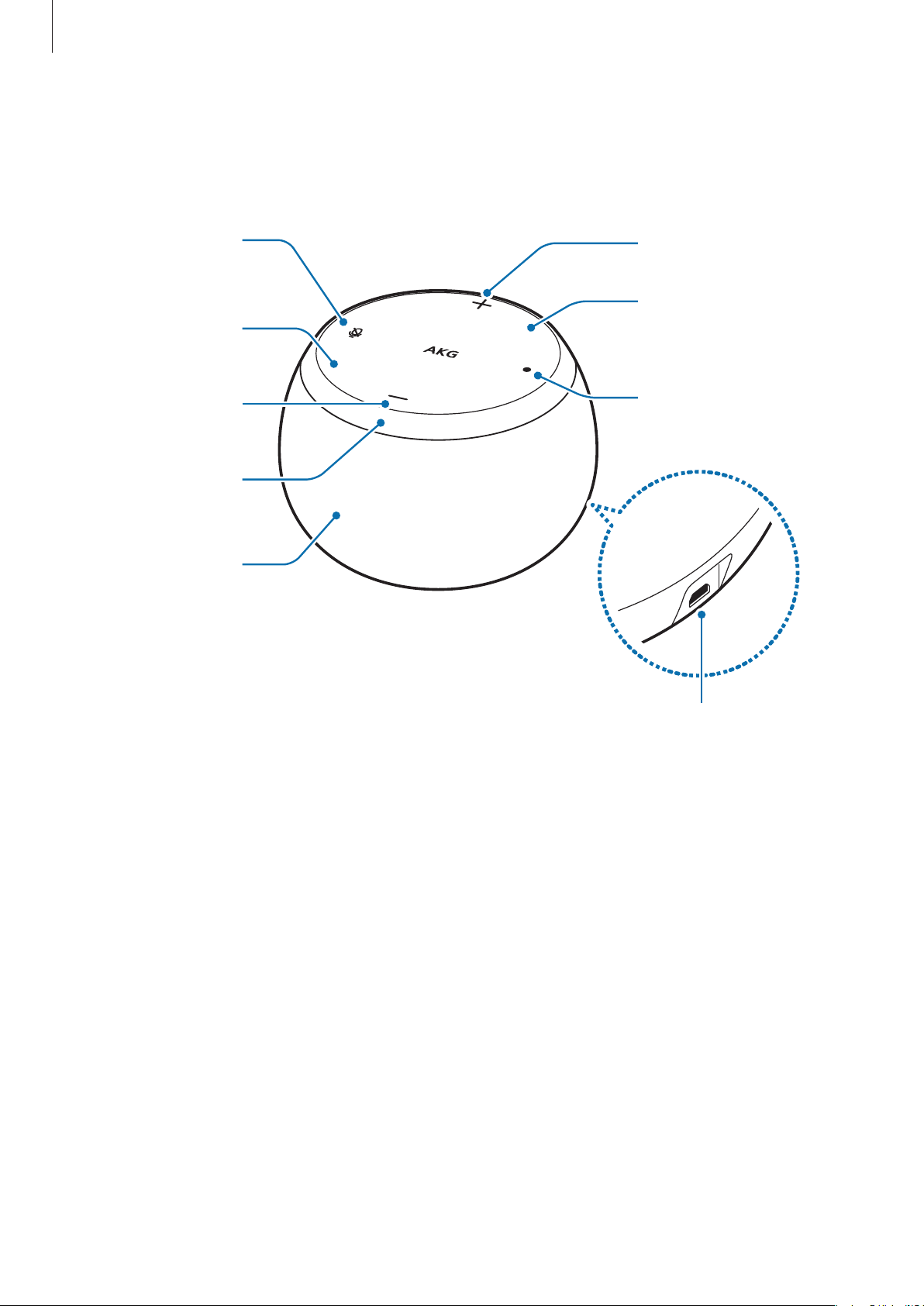
Device layout
MIC On/Off
Button
MIC
Volume Down
Button
Indicator Light
Speaker
Volume Up
Button
MIC
Action
Button
USB Power Jack
Page 7
Getting started
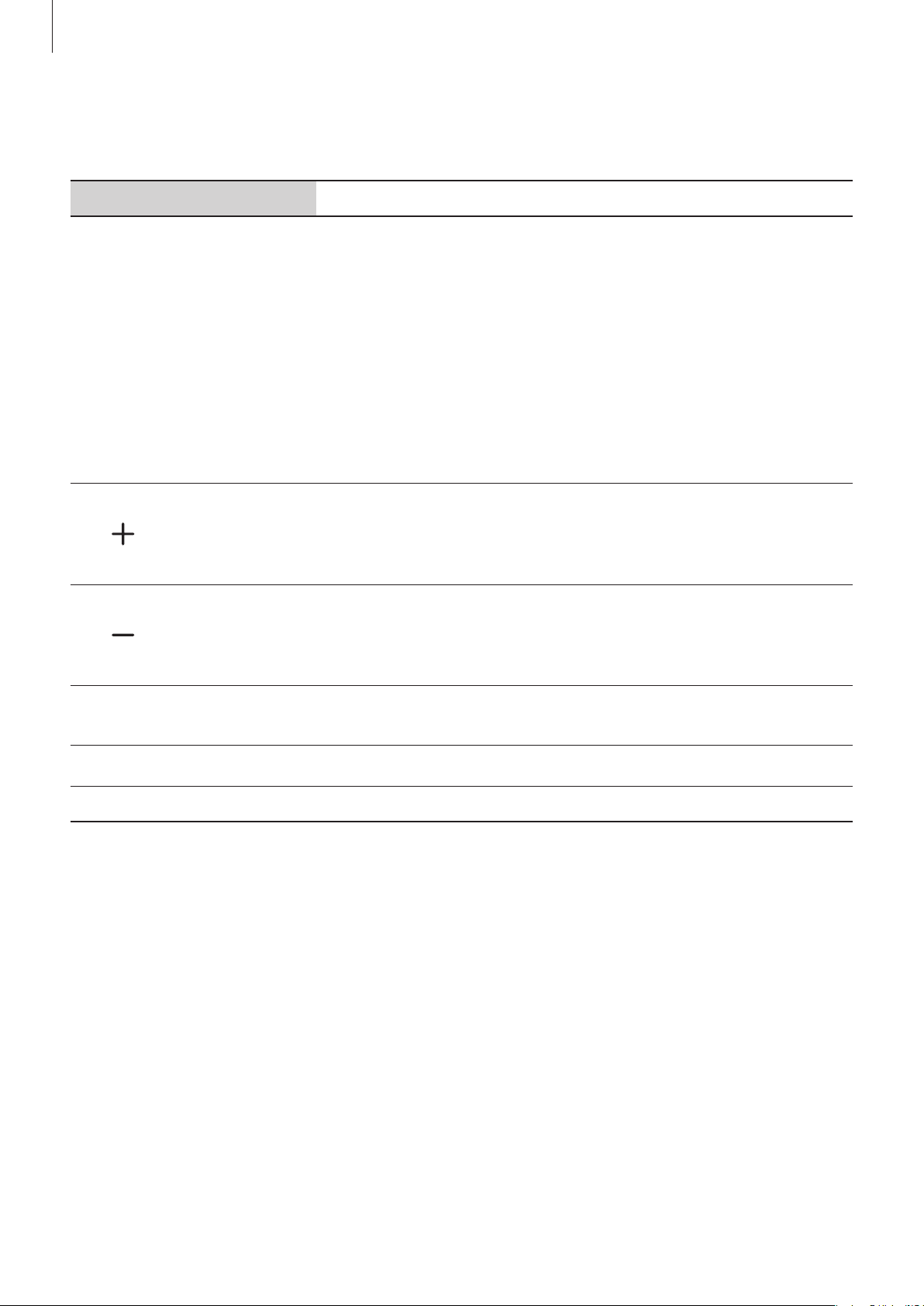
Use the touch panel when it is difficult to control the speaker by voice. The functions of the
touch panel are as follows.
Touch panel Function
•
Press to play or pause music.
•
Press and hold for 1 second to launch Bixby. (It does not
work when the microphones are turned off.)
•
Play/Pause
button
Press to turn off Bixby while it is processing your request.
•
Press to stop an alarm or timer.
•
Press to turn off the notification sound.
•
When a call is incoming, press to answer the call.
•
When you are on a call, press to end the call.
Volume Up
button
Volume Down
button
•
Press to increase the volume.
•
Press and hold to increase the volume incrementally.
•
Press to turn off a ringtone.
•
Press to decrease the volume.
•
Press and hold to decrease the volume incrementally.
•
Press to turn off a ringtone.
7
Page 8
Getting started
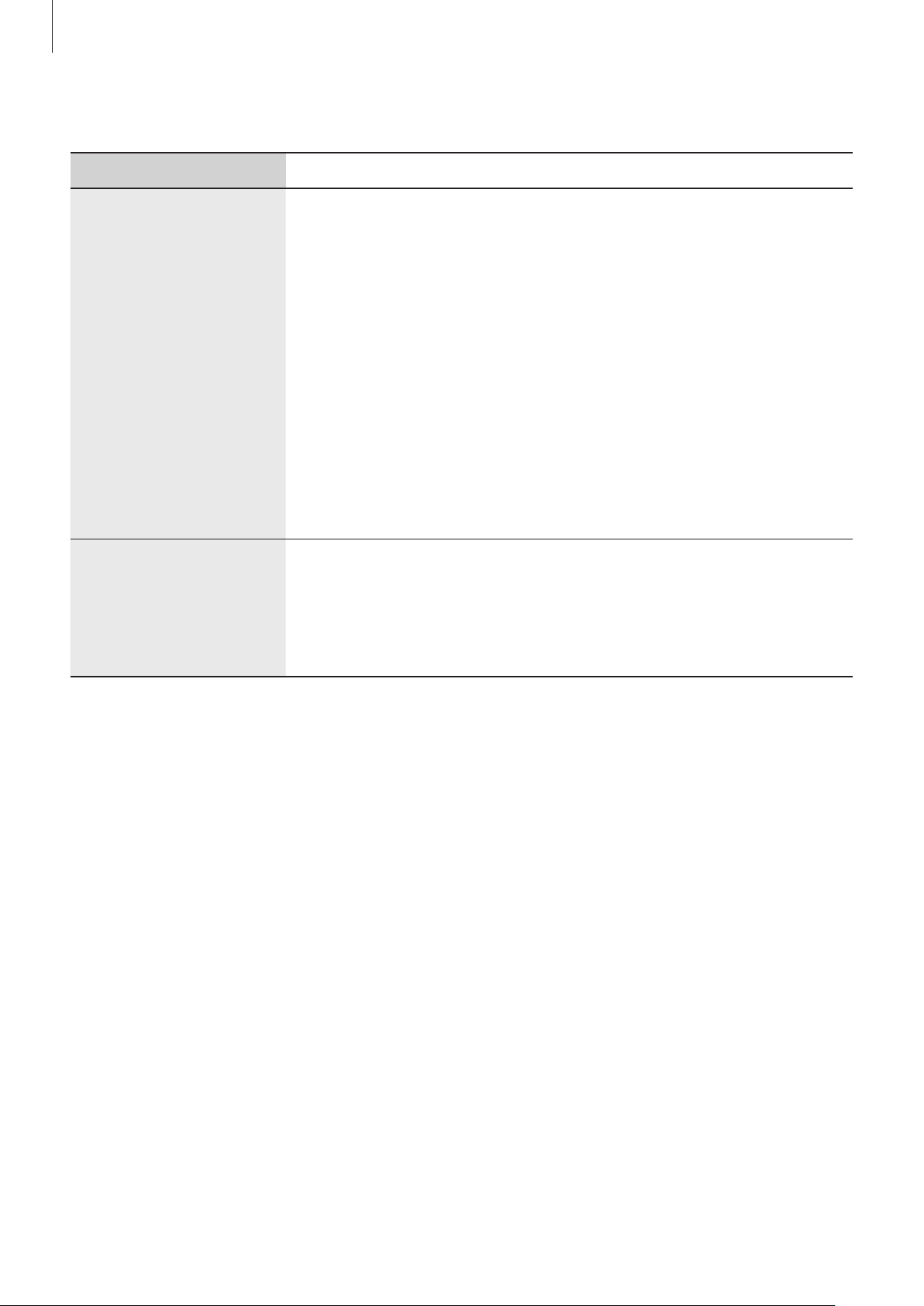
You can view the current status of the speaker by the changes of the lighting of the speaker.
light Function
•
Blue: When booting
•
Red: When microphones are off
•
Flashing blue: When updating software, during initial setup,
when set to the left speaker in stereo mode
•
Flashing red → green → blue: When entering Bluetooth
Indicator light
Circle LED
pairing mode
•
Flashes blue three times: When a Bluetooth connection is
established
•
Flashing red: Function error, no network connection, when set
to the right speaker in stereo mode
•
Flashes red three times and turns off: When rebooting
The circle LED alerts you to Bixby’s status and notifications.
•
Turns on when Bixby is listening or speaking
•
Turns on clockwise while Bixby is processing your request
•
Turns on when the alarm or timer is sounding
8
Page 9
Getting started
Preparation to use the speaker
To use the speaker, you must first connect the legs to the speaker, install it on a flat surface,
and enter your Wi-Fi information and Samsung account information to the speaker. After
completing the initial setup, you can use the speaker by itself without a smartphone.
1
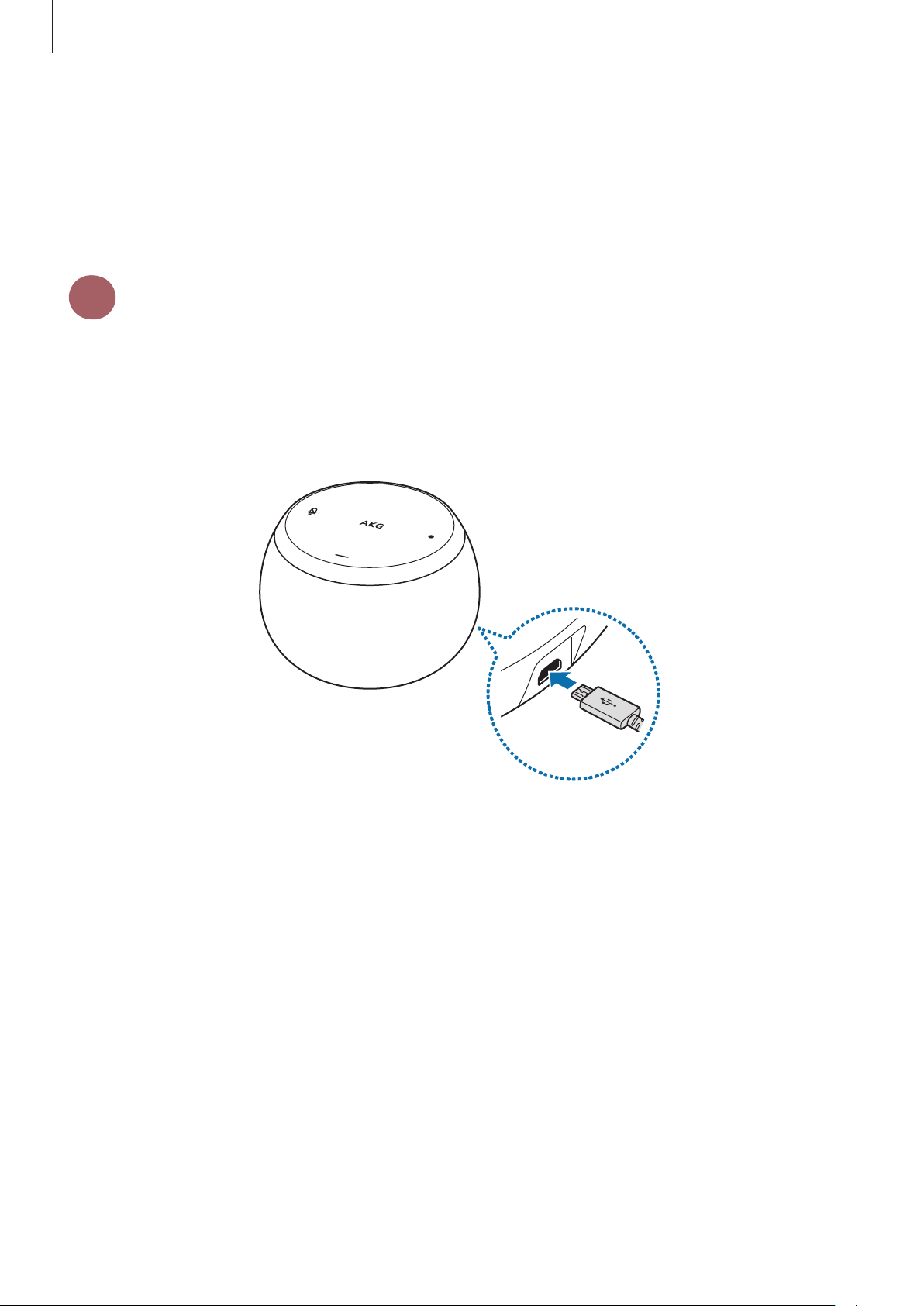
1. Connect the USB Cable to the speaker’s USB Power Jack
2. Insert Travel Adaptor into an electric socket.
Turning on the speaker
9
Page 10
Getting started
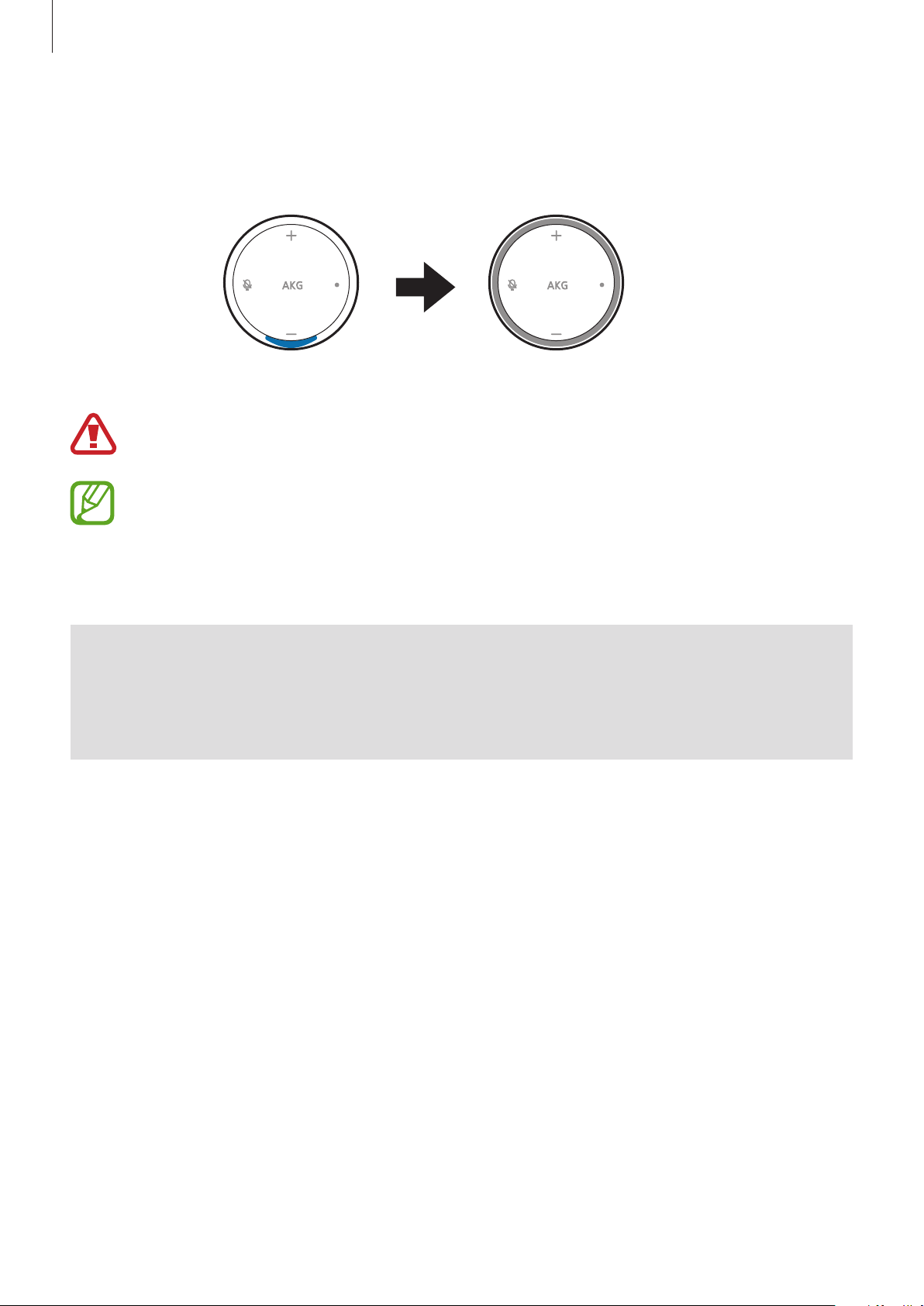
The indicator light will flash blue. It will then turn off and the circle LED will start to turn on
clockwise, and the speaker will turn on.
Use only Samsung-approved USB cable And Travel Adaptor provided with the speaker.
To save energy, unplug the power cable when not in use. The power cable does not
have a power switch, so you must unplug the power cable from the electric socket
when not in use to avoid wasting power. The speaker should remain close to the
electric socket and easily accessible while charging.
I want to turn off the power.
Q
This speaker does not have a power button. Simply unplug the Travel Adaptor from
A
the electric socket.
11
Page 11
Getting started
3
You can use the speaker wherever you can connect to Wi-Fi. Before using the speaker, make
sure the Wi-Fi works properly.
On your smartphone’s settings screen, turn on the Wi-Fi feature and connect to Wi-Fi.
Connecting your smartphone to Wi-Fi
•
Connect within 5 m of the Wi-Fi router.
•
For secured Wi-Fi, enter the password to connect.
•
You may fail to connect to Wi-Fi in the following situations:
–
When trying to connect to the Wi-Fi of a public facility, company, or dormitory
which has a security policy
–
When trying to connect to a home router installed by a carrier haphazard
operation
–
When trying to connect to a router on which certain ports are restricted
4
Before using the speaker, you should install the SmartThings app on your smartphone.
Depending on your smartphone, you can download the SmartThings app from the following
places:
•
•
•
Installing the SmartThings app on your smartphone
Samsung Android smartphones:
Other Android smartphones:
iPhone:
App Store
•
To view the smartphones compatible with the
www.samsung.com.
•
You must register and sign in to your Samsung account to use the
app.
•
If the
•
Supported features may vary depending on your smartphone and its operating
system.
SmartThings
app is not the latest version, update it.
Galaxy Apps, Play Store
Play Store
SmartThings
app, visit
SmartThings
•
To play music, you must register and sign in to your Spotify account.
12
Page 12

Getting started
5
Initial setup
Setup for Android smartphones
On your smartphone, launch the
1
A connection pop-up window will automatically appear on your smartphone.
SmartThings
app and move close to the speaker.
Tap
2
3
GET STARTED
Follow the on-screen instructions to complete the connection.
When the connection is completed, the
devices list.
on the pop-up window.
Galaxy Home (XXXX)
card will appear on the
13
Page 13

Getting started
The (XXXX) appearing with the speaker name is the last four digits of the speaker’s
serial number. The serial number of the speaker is on the label attached to the
connecting leg.
Tap the card. The Galaxy Home screen will appear as shown below.
You can listen to music or change the settings of Bixby and the speaker on the Galaxy Home
screen. Refer to Controlling music through the SmartThings app or Bixby settings, General
settings for more information.
14
Page 14

Getting started
Setup for iPhones (or if the connection pop-up window does not appear)
On your smartphone, launch the
1
On the dashboard of the
2
When your speaker is detected, select it and follow the on-screen instructions to
3
complete the connection.
When the connection is completed, the
devices list.
SmartThings app
SmartThings
, tap
Galaxy Home (XXXX)
app and move close to the speaker.
Add device
.
card will appear on the
Understanding initial setup
•
If the initial setup is not completed or the speaker is not detected, unplug the power
cable from the speaker and connect it again.
•
After completing the initial setup, the Wi-Fi and the Samsung account information will
be registered to your speaker and you can use the speaker by itself. Even if you unplug
the power cable from the speaker and reconnect it, you can use the speaker without any
configuration.
•
Alarms, timers, reminders, or events on the calendar are saved on the speaker and your
Samsung account. They are not saved on your smartphone.
15
Page 15

Getting started
I want to use the speaker when Wi-Fi is not connected.
Q
You can use the speaker as a Bluetooth speaker. If you have not yet performed the
A
initial setup, you can connect with other devices with the method described below.
1. Press and hold the Play/Pause button more than 3 seconds.
The speaker enters Bluetooth pairing mode and the indicator light flashes red,
green, and blue.
2. Turn on the Bluetooth feature on the device you want to connect to and
complete the pairing.
When the pairing is complete, the indicator light flashes blue three times.
If you have already completed the initial setup, refer to Using the speaker
through Bluetooth.
The speaker freezes.
Q
Unplug the power cable from the speaker and connect it again. Then, check that the
A
Wi-Fi works properly. If the problem is still not resolved, contact a Samsung Service
Center.
16
Page 16
Using the speaker
Using Bixby
Tell Bixby what you want. Then, Bixby will launch the function you request or tell you the
information you want to know.
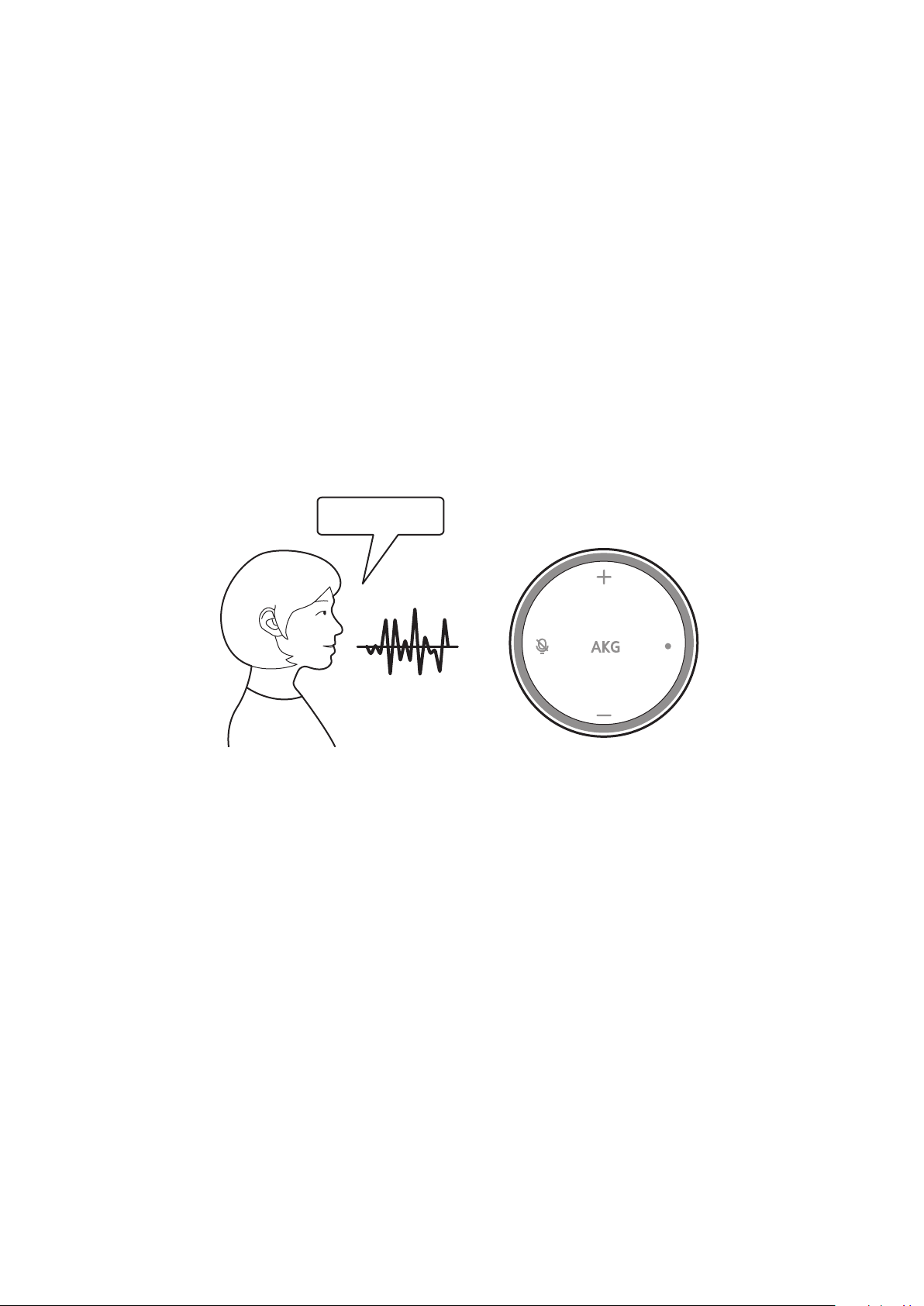
Say “Hi, Bixby”.
1
When the speaker emits a sound and the circle LED turns on, Bixby wakes up and you can
start a conversation.
Hi, Bixby
When Bixby wakes up, say what you want.
2
Bixby recognizes it and launch a function or tell the information you request.
When Bixby is recognizing your request, the circle LED lights up clockwise.
17
Page 17

Using the speaker
For example, if you say “Play music.” the speaker will play music.
When Bixby does not understand your request, it will give voice feedback appropriate to the
situation.
Tips for better voice recognition
•
Speak clearly.
•
Speak in quiet places.
•
Do not use offensive or slang words.
•
Avoid speaking in dialectal accents.
•
To use Bixby, say “Hi, Bixby” to wake it up. When Bixby wakes up, the circular LED
light turns on. Bixby will return to standby mode after 5 seconds.
•
The examples of Bixby usage in this guide may not work depending on the
software version of the speaker or the environment.
•
Use the speaker in a quiet place. If you use it in a noisy environment, such as
a place where the TV is on, Bixby may unintentionally respond or the voice
recognition rate may drop.
Bixby does not understand me.
Q
To make Bixby launch functions more accurately, include the name of the app and
A
the feature.
For example, say “Meeting at 2 PM tomorrow, save to the calendar.”
Bixby does not wake up.
Q
Press and hold the Play/Pause button on the touch panel for 1 second. Bixby will
A
wake up.
Bixby keeps listening to my conversation so I’m worried about privacy.
Q
Bixby does not listen what you are saying when the microphones are turned off or
A
when it is not awakened by saying “Hi, Bixby.”
To turn off the microphone, cover the palm touch area with your palm. The indicator
light will flash red and the microphone will turn off.
To turn on the microphone, cover the palm touch area with your palm again.
The indicator light will turn off and you can wake up Bixby by saying “Hi, Bixby.”
18
Page 18
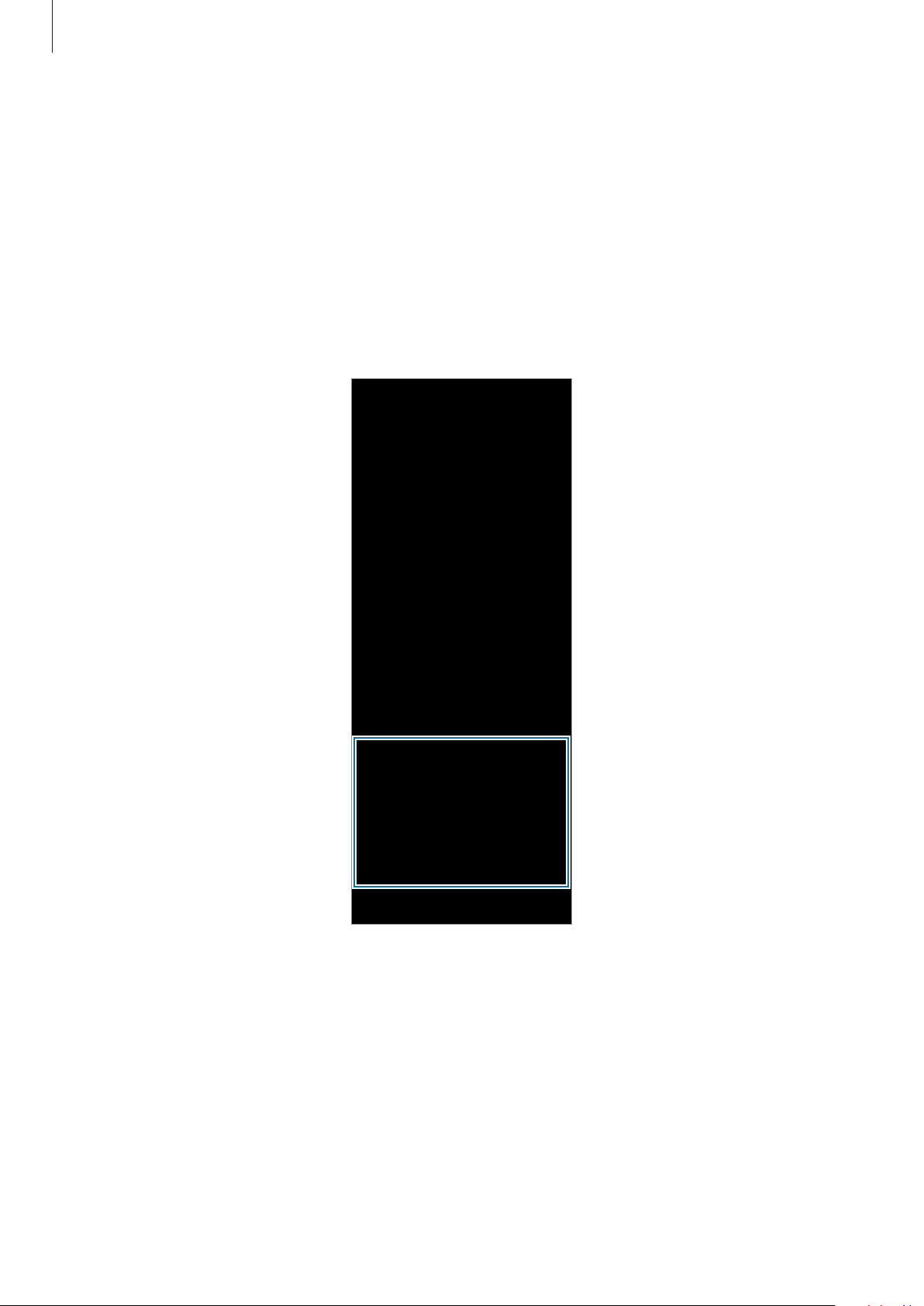
Using the speaker
Viewing what Bixby has saved
The SmartThings app allows you to view alarms, timers, and reminders saved by Bixby. You
can also delete or change the details.
On your smartphone, launch
1
Tap
2
Devices
Galaxy Home screen will appear.
and select your speaker.
SmartThings
app.
19
Page 19

Using the speaker
Select an option.
3
•
Alarms
alarm sound.
: You can view and delete the saved information. You can also change the
•
Timers
: You can check the remaining time and stop the timer.
20
Page 20

Using the speaker
•
Reminders
: You can view and delete saved information.
•
Calendar
you can select and set a default calendar from among multiple calendars.
: You can view the default calendar where the upcoming events are saved, or
21
Page 21

Using the speaker
Bixby basic settings
Changing Bixby language
You can set the language that Bixby will use.
On your smartphone, launch the
1
Tap
2
3
Devices
The Galaxy Home screen will appear.
Tap →
Bixby is only available in some languages.
and select your speaker.
Settings
→
Language
SmartThings
and select a language.
app.
Setting up the Bixby notifications
You can set up a notification sound for when Bixby starts and stops listening.
On your smartphone, launch the
1
Tap
2
Devices
and select your speaker.
SmartThings
app.
The Galaxy Home screen will appear.
→
3
Tap
•
•
Settings
To hear a notification sound when Bixby starts listening, tap the
listening
To hear a notification sound when Bixby stops listening, tap the
listening
→
Feedback and notifications
switch to activate it.
switch to activate it.
→
Sound feedback
.
When Bixby starts
When Bixby stops
22
Page 22

Using the speaker
Bixby usages
You can launch various functions by voice through Bixby.
Creating events
If you are worried about forgetting plans for a specific date, tell Bixby.
For example, say “Hi, Bixby, make a meeting event for 4 PM tomorrow.”
Check out what to do today
You can quickly receive today’s schedule.
Tell Bixby, “Hi, Bixby, read today’s schedule.”
Bixby tells you the events and reminders for today.
Setting alarms and timers
If you want to receive an alarm at a certain time, tell Bixby “Hi, Bixby, set an alarm for 6 AM
tomorrow morning.” To set a timer, tell Bixby “Hi, Bixby, set a timer for 10 minutes.”
The speaker will notify you at the set time.
To turn off the alarm or timer, say “Hi, Bixby, dismiss alarm.” Or, press the Play/Pause button on
the speaker’s touch panel.
You can view the timers and alarms you set via Bixby in the SmartThings app. Refer to Viewing
what Bixby has saved for more information.
Creating reminders
If you have anything you want to remember, tell Bixby. Bixby will not forget to inform you
when it is time.
For example, say, “Hi, Bixby, remind me to workout tomorrow morning at 9 AM.”
Bixby saves it to reminders and notifies you at the appointed time.
You can also view reminder set up by Bixby in the SmartThings app. Refer to Viewing what
Bixby has saved for more information.
23
Page 23

Using the speaker
Registering IoT products
You can register your IoT products with Bixby. IoT products are registered to the same
Samsung account as the speaker.
Set the connection mode of the IoT product you want to connect with.
1
Say “Hi, Bixby, add a new device.”
2
Your device will search for IoT products and register them.
•
Samsung SmartThings Hub features may not be available in all countries. You can
view more information at www.samsung.com.
•
Only IoT devices certified by Samsung Electronics can be connected and used. You
can view the certified devices at www.samsung.com.
•
Refer to the product’s user manual for details on how to enter connection mode.
To make it easier to use registered IoT products, register a location with the SmartThings app
and configure any desired modes or automations. For more information, please refer to the
explanations and instructions in the SmartThings app.
Controlling IoT products
You can control SmartThings products registered to the Samsung account which is registered
to your speaker. The following are examples of commands that you can give to SmartThings
through Bixby:
•
Hi, Bixby, turn on living room TV.
•
Hi, Bixby, turn on the air conditioner in the living room at 10.
•
Hi, Bixby, please turn on the wind free mode for the living room air conditioner in the
home.
•
Hi, Bixby, run good morning scene in home.
24
Page 24
Using the speaker
Find My Phone
If you misplace your smartphone, the speaker can help you find it.
Just say “Hi, Bixby, find my phone,” or “Hi, Bixby, where is my phone?”
Your smartphone emits sounds and the screen turns on.
•
This feature is only available when the smartphone is logged into the same
Samsung account as the speaker.
•
This feature is only supported for Samsung Android smartphones. It may not be
available in some models.
Launching other features
Ask Bixby about news, weather, and other things. Bixby will search for and provide you with
related information and services on the Internet. Use the following phrase:
•
Hi, Bixby, what's the weather this week? (Weather)
•
Hi, Bixby, tell me today's news. (News)
•
Hi, Bixby, how high is Mt. Everest? (General information)
•
Hi, Bixby, how many centimeters is 25 inches? (Unit conversion)
•
Hi, Bixby, 5 plus 10 times 4. Please calculate. (Calculation)
•
Hi, Bixby, please mute. (Volume control)
You can view more supported services and usages for Bixby. On your smartphone, launch the
SmartThings
Available Bixby services may differ depending on the region.
app and tap
Devices
, select your speaker, and tap
Services
.
25
Page 25

Using the speaker
Playing music
Listening to music with Bixby
Tell Bixby play music. You can listen to music through the music streaming services which
support Bixby.
Say, “Hi, Bixby, play music.“ If there is no music you have been listening to, Bixby plays the
latest music.
You can also ask for a specific singer or request music that suits your situation or mood as well
as specify a certain music streaming service. Use the following commands:
•
Hi, Bixby, play songs of (name of an artist or group).
•
Hi, Bixby, play an album by (name of an artist or group).
•
Hi, Bixby, play (song title) by (name of the singer or group).
•
Hi, Bixby, play songs that are good for mornings.
•
Hi, Bixby, play exciting music.
•
Hi, Bixby, play (song title) by (name of the singer or group) on (music streaming app).
•
Hi, Bixby, play songs that are good for mornings on (music streaming app).
•
Hi, Bixby, play exciting music on (music streaming app).
You can also use Bixby while playing music. You can say “Hi, Bixby, tell me the title of the song.”
Or, “Hi, Bixby, tell me the singer of this song.”
26
Page 26

Using the speaker
Setting music apps
You can set the music streaming app that will be launched when you ask Bixby play music.
On your smartphone, launch the
1
Tap
2
3
4
Devices
The Galaxy Home screen will appear.
Tap
Services
The services that Bixby supports will appear.
Select the music streaming service you want and tap .
The app you selected is set as your primary music app.
and select your speaker.
.
SmartThings
app.
Controlling music with Bixby
You can use Bixby while music is playing. Use voice controls like the following:
•
Pause or resume music: “Hi, Bixby, stop music.” Or, “Hi, Bixby, play music.”
•
Play the next song: “Hi, Bixby, play the next song.”
•
Play the previous song: “Hi, Bixby, play the previous song.”
•
Adjust the volume: “Hi, Bixby, turn the volume up.” Or, “Hi, Bixby, turn down the volume.”
27
Page 27
Using the speaker
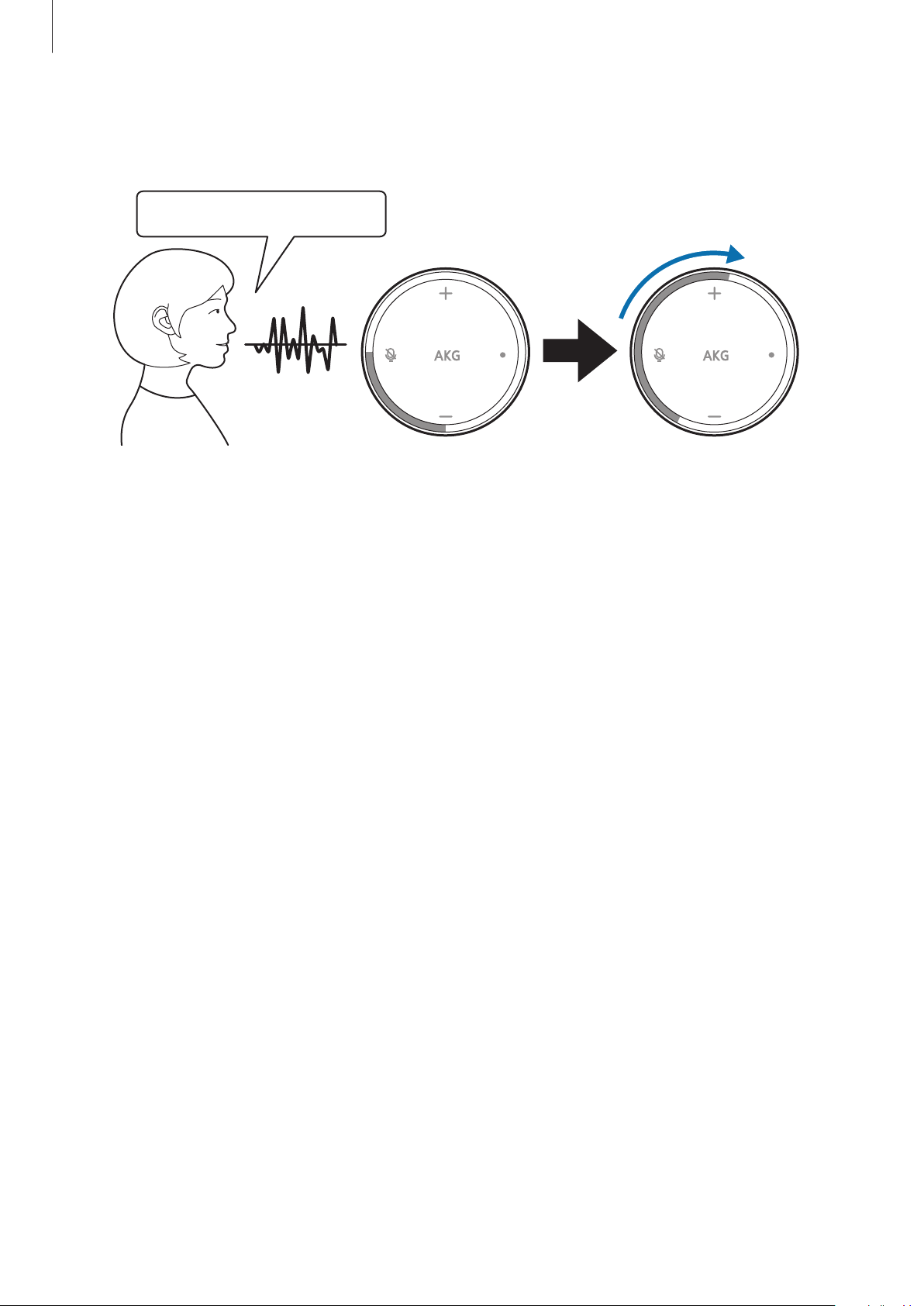
When you adjust the volume, the circle LED will incrementally on or off clockwise or
counterclockwise.
Hi, Bixby, turn the volume up.
•
Shuffle: “Hi, Bixby, shuffle play.”
•
Repeat: “Hi, Bixby, repeat this song.”
•
Favorites: ”Hi, Bixby, play favorite songs.”
Controlling music through the touch panel
You can control the music by using the touch panel. If it is difficult to control the music by
voice, use the touch panel.
•
Pause or resume music: Press the Play/Pause button.
•
Play the next song: Press the Next button.
•
Play the previous song: Press the Previous button.
•
Adjust the volume: Press the Volume Up or Volume Down button. Press and hold the
volume button to increase or decrease the volume incrementally.
28
Page 28
Using the speaker
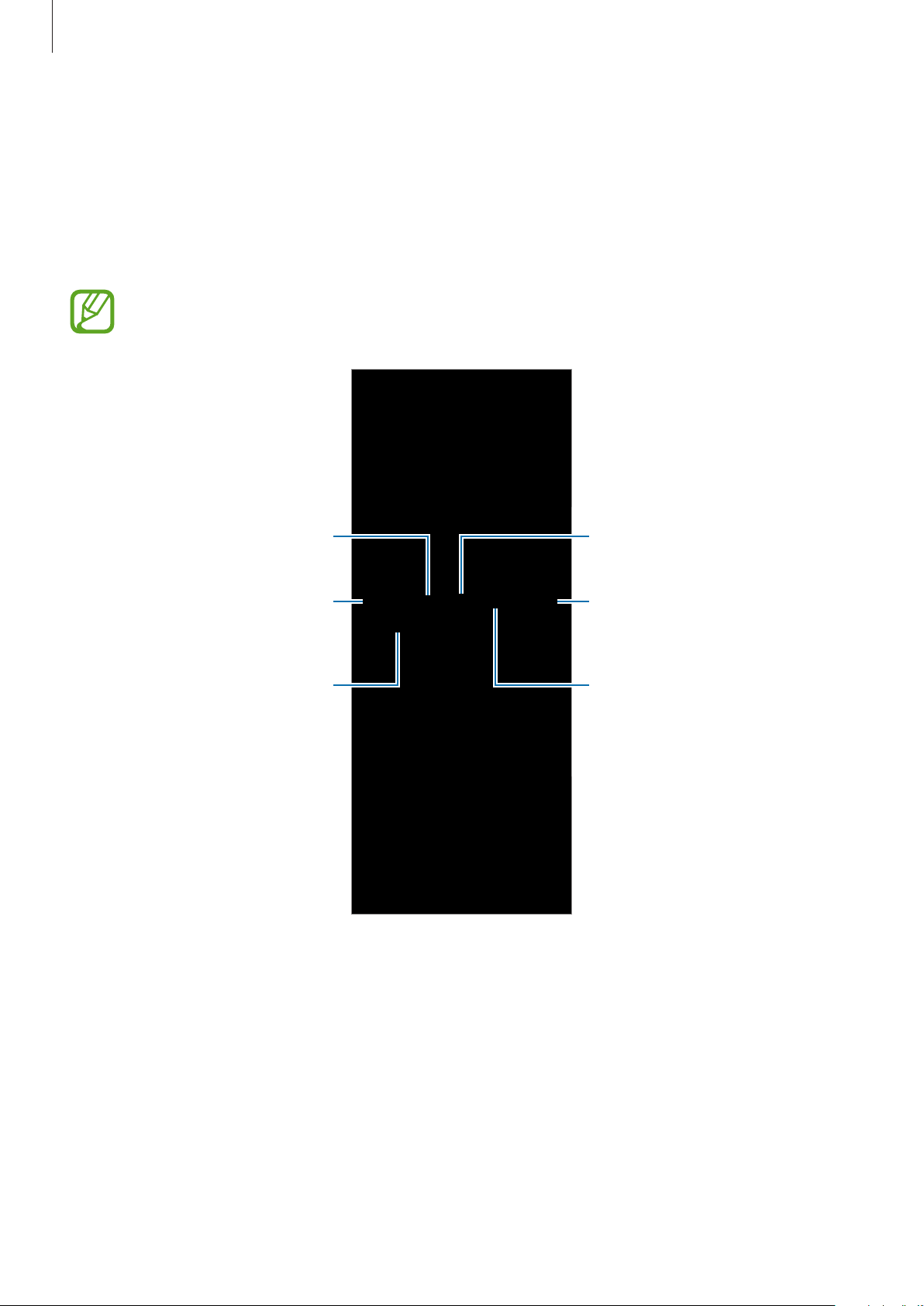
Controlling music through the SmartThings app
You can control the music in the SmartThings app.
On your smartphone, launch the
SmartThings
app and tap
The Galaxy Home screen will appear.
Launch any features in the music playback screen area.
The screen may vary depending on the music streaming service app you use.
Skip to the previous song.
Turn on shuffle.
Devices
and select your speaker.
Pause or resume playback.
Change the repeat mode.
Adjust the volume.
Skip to the next song.
You can control your music remotely. You can turn on your music at home for your family or
pets when you are out, or you can turn it on if you do not want to come back to a quiet home.
The last music you listened to on your smartphone’s Spotify will play.
However, if you change your smartphone’s Spotify account, the last song you listened to
using the speaker will play.
29
Page 29

Using the speaker
Using the speaker through Bluetooth
You can use the product by connecting it with another device via Bluetooth.
Say “Hi, Bixby, turn on the Bluetooth feature.”
1
The speaker enters Bluetooth pairing mode and the indicator light flashes red, green, and
blue.
You can also enter Bluetooth pairing mode with the SmartThings app. On your
smartphone, launch the
Settings
Turn on the Bluetooth feature on the device you want to connect with and complete the
2
pairing.
When the paring is complete, the indicator light flashes blue three times.
→
Bluetooth
When connected with Bluetooth, you cannot control the volume, play the next song
or previous song, or pause with Bixby. You can only control the speaker from the
touch panel or the
SmartThings
→ OK.
SmartThings
app and tap
app.
Devices
to select the speaker. Tap →
32
Page 30

Configuring the speaker
Viewing product registration information
You can view various information registered to the product.
On your smartphone, launch
1
Tap
2
3
Devices
The Galaxy Home screen will appear.
→
Tap
•
View the Samsung account registered to the speaker.
•
Services
•
Quick commands
allows you to combine multiple commands into one command, or to speak a long
command quickly and easily.
For example, before going to bed, register the request to ”turn off the TV, turn off the
air conditioner.” to a quick commands as ”Good night, Bixby.” When you say ”Good
night, Bixby,” the requests you have registered with the quick command will be
processed at once.
and select your speaker.
My profile
: View services supported by Bixby and examples of how to use them.
.
: View quick commands you have saved. Adding quick commands
SmartThings
app.
33
Page 31

Configuring the speaker
Bixby settings
Change the settings related to Bixby using the
On your smartphone, launch
1
Tap
2
3
Devices
The Galaxy Home screen will appear.
Tap →
and select your speaker.
Settings
to change Bixby settings.
SmartThings
SmartThings
app.
app.
Language
You can set the language that Bixby will use. Refer to Changing Bixby language for more
information.
Feedback and notifications
Change the settings related to notifications.
•
Sound feedback
stops. Refer to Setting up the Bixby notifications for more information.
•
Do not disturb
speaker’s lights. Alarms and timers are exceptions.
•
Notifications
settings for categories such as Emergency, Appliances and sensors, and General.
: Set to hear an audible sound when Bixby starts to listen or when it
: Activate do not disturb mode to mute notifications and turn off the
: Select the type of notification you want to receive. You can change the
Privacy
For some of the services supported by Bixby to operate properly, they may need permission
to access or use information on your smartphone. You can view the app’s permissions list and
change its permissions for each service.
34
Page 32

Configuring the speaker
General settings
Change the settings related to the speaker using
On your smartphone, launch
1
Tap
2
3
Devices
The Galaxy Home screen will appear.
Tap →
•
Bluetooth
•
Voice dialing
You can make phone calls to your contacts through Bixby. The product and
smartphone should be close when calling. The quality of the call may vary depending
on the surrounding environment, such as whether there are walls or other obstacles.
•
Geolocation
information to inform you of the weather and news.
and select your speaker.
Settings
to change settings.
: Turn the speaker's Bluetooth feature on or off.
: Add contacts by importing them from other devices to your speaker.
: View or change the current location of the speaker. Bixby uses this
SmartThings
app.
SmartThings
app.
•
Software update
•
DEVICE DETAILS
Bluetooth address, and serial number.
: Update the speaker to the latest software.
: Check the speaker’s information, such as the Wi-Fi MAC address,
Software update
Update your device’s software via the firmware over-the-air (FOTA) service. You can download
updates automatically when connected to a Wi-Fi network.
You can also download updates manually.
On your smartphone, launch
1
Tap
2
3
Devices
The Galaxy Home screen will appear.
Tap →
and select your speaker.
Settings
→
Software update
SmartThings
.
app.
4
Tap
Check for updates
it.
. If there is the newer version of the software, download and install
35
Page 33

Configuring the speaker
I want to register another Samsung account to the speaker. (Factory reset)
Q
Press and hold the Play/Pause button and the Volume Down button for more than
A
7 seconds to initialize the speaker. When the initialization is complete, you will hear
Bixby’s welcome message. Do not unplug the power cable until rebooting has been
completed.
The Wi-Fi information has changed.
Q
Sign in to the
A
speaker. On the dashboard screen, tap
to select your device and tap
SmartThings
app with the Samsung account registered to your
Update
→
Settings
to enter the new Wi-Fi information.
→
Update Wi-Fi information
36
Page 34

Appendix
Troubleshooting
Before contacting a Samsung Service Center, please attempt the following solutions. Some
situations may not apply to your speaker.
Your speaker does not turn on
When the battery is completely discharged, your speaker will not turn on. Fully charge the
battery completely before turning on the speaker.
The touch panel responds slowly or improperly
•
If you attach a screen protector or optional accessories to the touchscreen, the
touchscreen may not function properly.
•
If you are wearing gloves, if your hands are not clean while touching the touch panel, or if
you tap the panel with sharp objects or your fingertips, the touch panel may malfunction.
•
The touch panel may malfunction in humid conditions or when exposed to water.
•
Restart your speaker to clear any temporary software bugs.
•
If the touch panel is scratched or damaged, visit a Samsung Service Center.
37
Page 35

Appendix
Your speaker freezes or encounters an error
Try the following solutions. If the problem is still not resolved, contact a Samsung Service
Center.
Restarting the speaker
If your speaker freezes or lags, you may need to close apps or turn off the speaker and turn it
on again.
Forcing restart
If your speaker is frozen and unresponsive, press and hold the Power key and the Volume
Down key simultaneously for more than 7 seconds to restart it. When the initialization has
completed, the speaker reboots and displays a welcome message. Do not disconnect the
power cable until it has rebooted.
Calls are not connected
•
Ensure that your smartphone is within Bluetooth range (10 m).
•
Ensure that you have not set call barring for the incoming phone number.
Others cannot hear you speaking on a call
Ensure the microphone is not switched off or hidden by other objects.
A small gap appears around the outside of the speaker case
•
This gap is a necessary manufacturing feature and some minor rocking or vibration of
parts may occur.
•
Over time, friction between parts may cause this gap to expand slightly.
38
Page 36

Appendix
Bixby does not respond
•
Ensure the Wi-Fi is working properly.
•
Ensure that the microphone is not turned off or that you are not covering the built-in
microphone.
•
Ensure that the you speak closer to the microphone.
The call or the Wi-Fi connection is often disconnected or audio quality
is poor
•
Ensure the Wi-Fi is working properly.
•
Ensure that the microphone is not turned off or the speaker is not blocked by other
devices.
•
Voice recognition may not function properly in noisy places.
•
Restart your speaker to clear any temporary software bugs.
•
Ensure that your speaker software is updated to the latest version.
•
If you are still having trouble with Bixby Voice after trying these tips, contact a Samsung
Service Center.
The speaker cannot connect to smartphone
You cannot connect in a Wi-Fi environment with a firewall installed. If your smartphone is
connected to Wi-Fi with a firewall enabled, reconnect to Wi-Fi with a firewall disabled and try
again.
An IoT product does not work
•
Ensure the product you want to run is registered on the SmartThings app.
•
Ensure that the Samsung account you logged in to the SmartThings app is the same as
the Samsung account registered in your speaker.
•
Turn off the SmartThings app on your smartphone and try running it again.
39
Page 37

Appendix
Managing the speaker
•
When the speaker is dirty, wipe it clean with a soft and dry cloth.
•
Keep the speaker dry. Prevent liquid from coming into contact with or entering the
speaker.
•
When you will not be using the speaker for a long time, unplug the power cable from the
electric socket.
•
Do not place objects on top of the touch panel.
40
Page 38

Appendix
FCC Part 15.19
This device complies with part 15 of the FCC Rules. Operation is subject to the following
two conditions: (1) This device may not cause harmful interference, and (2) this device must
accept any interference received, including interference that may cause undesired operation.
FCC Part 15.21
Any changes or modifications (including the antennas) made to this device that are not
expressly approved by the manufacturer may void the user’s authority to operate the
equipment.
Note : This equipment has been tested and found to comply with the limits for a Class B
digital device, pursuant to part 15 of the FCC Rules. These limits are designed to provide
reasonable protection against harmful interference in a residential installation This
equipment generates, uses and can radiate radio frequency energy and, if not installed
and used in accordance with the instructions, may cause harmful interference to radio
communications, However, there is no guarantee that interference will not occur in a
particular installation. If this equipment does cause harmful interference to radio or television
reception, which can be determined by turning the equipment off and on, the user is
encouraged to try to correct the interference by one or more of the following measures:
•
Reorient or relocate the receiving antenna.
•
Increase the separation between the equipment and receiver.
•
Connect the equipment into an outlet on a circuit different from that to which the
receiver is connected.
•
Consult the dealer or an experienced radio/TV technician for help.
Modifications not expressly approved by the manufacturer could void your authority to
operate the equipment under FCC rules.
RF Exposure
This equipment complies with FCC RF Radiation exposure limits set forth for an uncontrolled
environment. This device and its antenna must not be co-located or operating in conjunction with
any other antenna or transmitter.
This equipment should be installed and operated with a minimum distance of 20 cm between the
radiator and your body.
Cet équipement est conforme à l'exposition de FCC rayonnements RF limites é-tablies pour un
environnement non contrôlé. L’antenne pour ce transmetteur ne doit pas être même endroit avec
d’autres émetteur sauf conformément à FCC et IC procédures de produits Multi-émetteur.
Cet équipement doit être installé et utilisé avec une distance minimale de 20 cm entre le radiateur et
votre corps.
41
Page 39
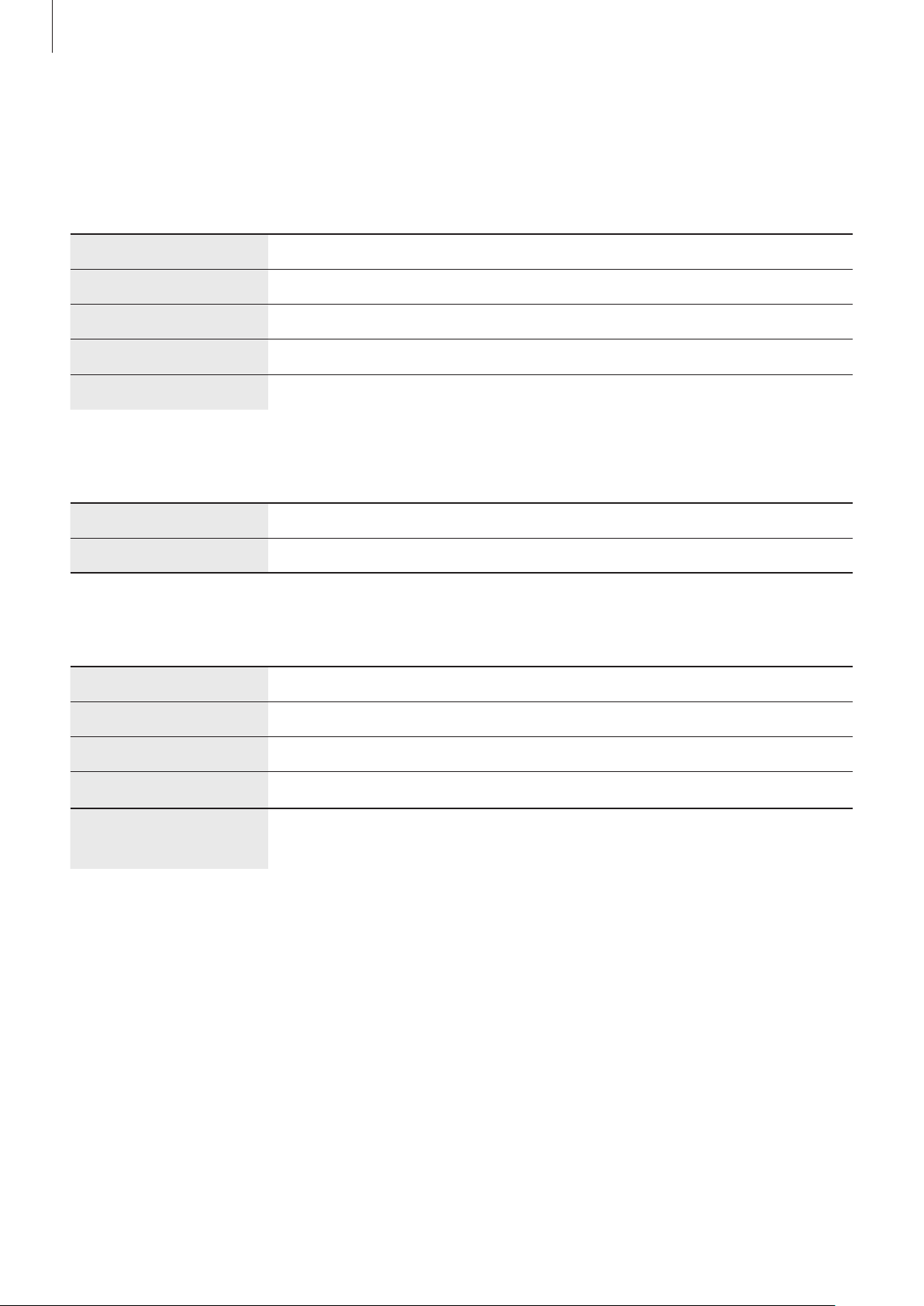
부록
Product Specification
Common specification
Dimensions(mm)
Weight(±1 g) 265 g
Power supply
Operating temperaure
104.5(mm) X 104.5(mm) X 74.5(mm)
DC 9 V, 1.67 A
0 ℃ ~ 35 ℃
WLAN
Operating Frequency
Output power
2412 ~ 2462 MHz
2.5 mW/MHz, 5 mW/MHz, 10 mW/MHz
Bluetooth
Operating Frequency
402 ~ 2480 MHz
2
odule
M
Version
Output power
S5N5C10B01
4.2
3 mW
42
Page 40

Samsung Electronics America, Inc
85 Challenger Road,
Ridgefield Park, New Jersey, 07660
Phone: 1-800-SAMSUNG (726-7864)
Copyright
Copyright © 2018 Samsung Electronics America, Inc.
This manual is protected under international copyright laws.
No part of this manual may be reproduced, distributed, translated, or transmitted in any form
or by any means, electronic or mechanical, including photocopying, recording, or storing
in any information storage and retrieval system, without the prior written permission of
Samsung Electronics.
Trademarks
•
SAMSUNG and the SAMSUNG logo are registered trademarks of Samsung Electronics.
•
Bluetooth® is a registered trademark of Bluetooth SIG, Inc. worldwide.
•
Wi-Fi®, Wi-Fi Protected Setup™, Wi-Fi Direct™, Wi-Fi CERTIFIED™, and the Wi-Fi logo are
registered trademarks of the Wi-Fi Alliance.
•
Z-Wave and Z-Wave Plus are registered trademarks of Silicon Laboratories and its
subsidiaries in the United States and other countries.
•
Zigbee and Zigbee Certified Product are registered trademarks of Zigbee Alliance.
•
All other trademarks and copyrights are the property of their respective owners.
 Loading...