

Page 1

Some of the contents in this manual may differ from your phone depending on the software of the phone or your
service provider.
World Wide Web
http://www.samsungmobile.com
Printed in Korea
Code No.:GH68-20485A
English (EU). 05/2009. Rev. 1.
1
Page 2

Samsung S3030
user manual
Page 3
using this
manual
This user manual has been specially designed to
guide you through the functions and features of your
mobile phone. To get started quickly,
refer to “introducing your mobile phone,”
“assembling and preparing your mobile phone,”
and “using basic functions.”
ii
Instructional icons
Before you start, familiarise yourself with the icons
you will see in this manual:
Warning
—situations that could cause
injury to yourself or others
Caution
—situations that could cause
damage to your phone or other equipment
Note
—notes, usage tips, or additional
information
X
Refer to
—pages with related information;
for example:
page 12”)
X
p. 12 (represents “see
Page 4

→
[ ]
Followed by
menus you must select to perform a step;
for example: Press <Menu> → Messages
→ Create message (represents Menu
followed by Messages, followed by
Create message)
Square brackets
example: [ ] (represents the Power/
Menu exit key)
—the order of options or
—phone keys; for
Copyright information
Rights to all technologies and products that
comprise this device are the property of their
respective owners:
•Bluetooth
• Java™ is a trademark of Sun Microsystems, Inc.
®
Bluetooth SIG, Inc. worldwide—Bluetooth QD
ID: B014488.
is a registered trademark of the
using this manual
< >
Angled brackets
different functions at each screen; for
example: <OK> (represents the OK
softkey)
—softkeys that control
iii
Page 5

safety and usage information 2
Safety warnings .......................................... 2
contents
iv
Safety precautions ...................................... 4
Important usage information ....................... 7
introducing your mobile phone 11
Unpack ..................................................... 11
Phone layout ............................................. 12
Keys ......................................................... 13
Display ...................................................... 14
Icons .........................................................15
assembling and preparing your mobile
phone 17
Install the SIM card and battery .................17
Charge the battery .................................... 19
Insert a memory card (optional) ................. 20
Change the photo on the battery cover ..... 20
Page 6

using basic functions 21
Turn your phone on and off ....................... 21
Access menus .......................................... 22
Customise your phone .............................. 22
Use basic call functions ............................ 24
Send and view messages ......................... 25
Add and find contacts ............................... 27
Use basic camera functions ...................... 28
Listen to music ......................................... 29
Browse the web ........................................ 30
using advanced functions 32
Use advanced call functions ..................... 32
Use advanced Phonebook functions ......... 35
Use advanced messaging functions ..........36
Use advanced music functions ................. 37
using tools and applications 40
Use the Bluetooth wireless feature ............40
Activate and send an SOS message ......... 41
Activate the mobile tracker ........................ 42
Make fake calls ......................................... 43
Record and play voice memos .................. 44
Use Java-powered games and
applications .............................................. 44
Create and view world clocks ................... 45
Set and use alarms ................................... 46
Use the calculator ..................................... 47
Convert currencies or measurements ....... 47
Set a countdown timer ............................. 48
Use the stopwatch .................................... 48
Create a text memo .................................. 48
Manage your calendar .............................. 49
troubleshooting a
index d
contents
v
Page 7
safety and
usage
information
Safety warnings
Keep your phone away from small
children and pets
Keep your phone and all accessories out of the
reach of small children or animals. Small parts may
cause choking or serious injury if swallowed.
Comply with the following precautions to avoid
dangerous or illegal situations and ensure peak
performance of your mobile phone.
2
Protect your hearing
Listening to a headset at high volumes
can damage your hearing. Use only the
minimum volume setting necessary to
hear your conversation or music.
Page 8

Install mobile phones and equipment
with caution
Ensure that any mobile phones or related equipment
installed in your vehicle are securely mounted. Avoid
placing your phone and accessories near or in an air
bag deployment area. Improperly installed wireless
equipment can cause serious injury when air bags
inflate rapidly.
Handle and dispose of batteries and
chargers with care
• Use only Samsung-approved batteries and
chargers specifically designed for your phone.
Incompatible batteries and chargers can cause
serious injuries or damage to your phone.
• Never dispose of batteries or phones in a fire.
Follow all local regulations when disposing used
batteries or phones.
• Never place batteries or phones on or in heating
devices, such as microwave ovens, stoves, or
radiators. Batteries may explode when
overheated.
• Never crush or puncture the battery. Avoid
exposing the battery to high external pressure,
which can lead to an internal short circuit and
overheating.
Avoid interference with pacemakers
Maintain a minimum of 15 cm (6 inches) between
mobile phones and pacemakers to avoid potential
interference, as recommended by manufacturers
and the independent research group, Wireless
Technology Research. If you have any reason to
suspect that your phone is interfering with a
pacemaker or other medical device, turn off the
phone immediately and contact the manufacturer of
the pacemaker or medical device for guidance.
safety and usage information
3
Page 9

Turn off the phone in potentially
explosive environments
Do not use your phone at refuelling points (service
stations) or near fuels or chemicals. Turn off your
phone whenever directed by warning signs or
safety and usage information
instructions. Your phone could cause explosions or
fire in and around fuel or chemical storage and
transfer areas or blasting areas. Do not store or carry
flammable liquids, gases, or explosive materials in
the same compartment as the phone, its parts, or
accessories.
Reduce the risk of repetitive motion
injuries
When sending text messages or playing games on
your phone, hold the phone with a relaxed grip,
press the keys lightly, use special features that
reduce the number of keys you have to press (such
as templates and predictive text), and take frequent
breaks.
4
Safety precautions
Drive safely at all times
Avoid using your phone while driving and obey all
regulations that restrict the use of mobile phones
while driving. Use hands-free accessories to
increase your safety when possible.
Follow all safety warnings and
regulations
Comply with any regulations that restrict the use of a
mobile phone in a certain area.
Use only Samsung-approved
accessories
Using incompatible accessories may damage your
phone or cause injury.
Page 10

Turn off the phone near medical
equipment
Your phone can interfere with medical equipment in
hospitals or health care facilities. Follow all
regulations, posted warnings, and directions from
medical personnel.
Turn off the phone or disable the
wireless functions when in an aircraft
Your phone can cause interference with aircraft
equipment. Follow all airline regulations and turn off
your phone or switch to a mode that disables the
wireless functions when directed by airline
personnel.
Protect batteries and chargers from
damage
• Avoid exposing batteries to very cold or very hot
temperatures (below 0° C/32° F or above 45° C/
113° F). Extreme temperatures can reduce the
charging capacity and life of your batteries.
• Prevent batteries from contacting metal objects,
as this can create a connection between the +
and - terminals of your batteries and lead to
temporary or permanent battery damage.
• Never use a damaged charger or battery.
Handle your phone carefully and
sensibly
• Do not allow your phone to get wet—liquids can
cause serious damage. Do not handle your
phone with wet hands. Water damage to your
phone can void your manufacturer’s warranty.
safety and usage information
5
Page 11

• Avoid using or storing your phone in dusty, dirty
areas to prevent damage to moving parts.
• Your phone is a complex electronic device—
protect it from impacts and rough handling to
avoid serious damage.
safety and usage information
• Do not paint your phone, as paint can clog
moving parts and prevent proper operation.
• Avoid using the phone’s camera flash or light
close to the eyes of children or animals.
• Your phone and memory cards may be damaged
by exposure to magnetic fields. Do not use
carrying cases or accessories with magnetic
closures or allow your phone to come in contact
with magnetic fields for extended periods of time.
6
Avoid interference with other electronic
devices
Your phone emits radio frequency (RF) signals that
may interfere with unshielded or improperly shielded
electronic equipment, such as pacemakers, hearing
aids, medical devices, and other electronic devices
in homes or vehicles. Consult the manufacturers of
your electronic devices to solve any interference
problems you experience.
Page 12

Important usage information
Use your phone in the normal position
Avoid contact with your phone’s internal antenna.
Allow only qualified personnel to service
your phone
Allowing unqualified personnel to service your phone
may result in damage to your phone and will void
your warranty.
Ensure maximum battery and charger
life
• Avoid charging batteries for more than a week, as
overcharging may shorten battery life.
• Over time, unused batteries will discharge and
must be recharged before use.
• Disconnect chargers from power sources when
not in use.
• Use batteries only for their intended purpose.
Handle SIM cards and memory cards
with care
• Do not remove a card while the phone is
transferring or accessing information, as this
could result in loss of data and/or damage to the
card or phone.
• Protect cards from strong shocks, static
electricity, and electrical noise from other devices.
• Frequent writing and erasing will shorten the life
span of memory cards.
• Do not touch gold-coloured contacts or terminals
with your fingers or metal objects. If dirty, wipe the
card with a soft cloth.
safety and usage information
7
Page 13

Ensure access to emergency services
Emergency calls from your phone may not be
possible in some areas or circumstances. Before
travelling in remote or undeveloped areas, plan an
alternate method of contacting emergency services
safety and usage information
personnel.
Specific Absorption Rate (SAR)
certification information
Your phone conforms to European Union (EU)
standards that limit human exposure to radio
frequency (RF) energy emitted by radio and
telecommunications equipment. These standards
prevent the sale of mobile phones that exceed a
maximum exposure level (known as the Specific
Absorption Rate, or SAR) of 2.0 watts per kilogram
of body tissue.
8
During testing, the maximum SAR recorded for this
model was 0.383 watts per kilogram. In normal use,
the actual SAR is likely to be much lower, as the
phone has been designed to emit only the RF
energy necessary to transmit a signal to the nearest
base station. By automatically emitting lower levels
when possible, your phone reduces your overall
exposure to RF energy.
The Declaration of Conformity at the back of this
manual demonstrates your phones compliance with
the European Radio & Terminal Telecommunications
Equipment (R&TTE) directive. For more information
about the SAR and related EU standards, visit the
Samsung mobile phone website.
Page 14
Correct disposal of this product
(Waste Electrical & Electronic Equipment)
(Applicable in the European Union and
other European countries with separate
collection systems)
This marking shown on the product or its
literature, indicates that it should not be
disposed with other household wastes at the end of
its working life. To prevent possible harm to the
environment or human health from uncontrolled
waste disposal, please separate this from other
types of wastes and recycle it responsibly to
promote the sustainable reuse of material resources.
Household users should contact either the retailer
where they purchased this product, or their local
government office, for details of where and how they
can take this item for environmentally safe recycling.
Business users should contact their supplier and
check the terms and conditions of the purchase
contract. This product should not be mixed with
other commercial wastes for disposal.
This EEE is compliant with RoHS.
safety and usage information
9
Page 15

Correct disposal of batteries in this
product
(Applicable in the European Union and
other European countries with separate
safety and usage information
packaging indicates that the batteries in this product
should not be disposed of with other household
waste at the end of their working life. Where marked,
the chemical symbols Hg, Cd or Pb indicate that the
battery contains mercury, cadmium or lead above
the reference levels in EC Directive 2006/66. If
batteries are not properly disposed of, these
substances can cause harm to human health or the
environment.
To protect natural resources and to promote material
reuse, please separate batteries from other types of
waste and recycle them through your local, free
battery return system.
10
battery return systems)
This marking on the battery, manual or
Page 16

introducing your
mobile phone
In this section, learn about your mobile phone’s
layout, keys, display, and icons.
Unpack
Check your product box for the following items:
• Mobile phone
• Battery
• Travel adapter (charger)
• User manual
The items supplied with your phone may vary
depending on the software and accessories
available in your region or offered by your
service provider.
You can obtain additional accessories from
your local Samsung dealer.
11
Page 17
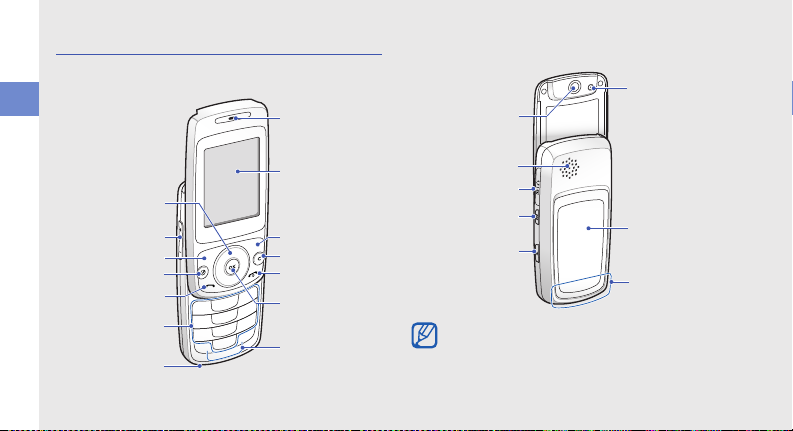
Phone layout
Power/Menu
exit key
Volu me key
Dial key
Right softkey
Earpiece
Display
Alphanumeric
keys
Web acc ess/
Confirm key*
4-way
navigation key
Special
function keys
Left softkey
Music player key
Delete key
Mouthpiece
* Depending on your service provider or region, the key may
perform differently.
Battery cover
Camera key
SOS call key
Internal ant enna
Camera lens
Mirror
Speaker
Multifunction jack
The front of your phone includes the following keys
and features:
introducing your mobile phone
12
The rear of your phone includes the following keys
and features:
Closing the phone automatically locks the
exposed keys to prevent you from accidentally
pressing them. To unlock these keys, press
<Unlock> → <OK>
.
Page 18
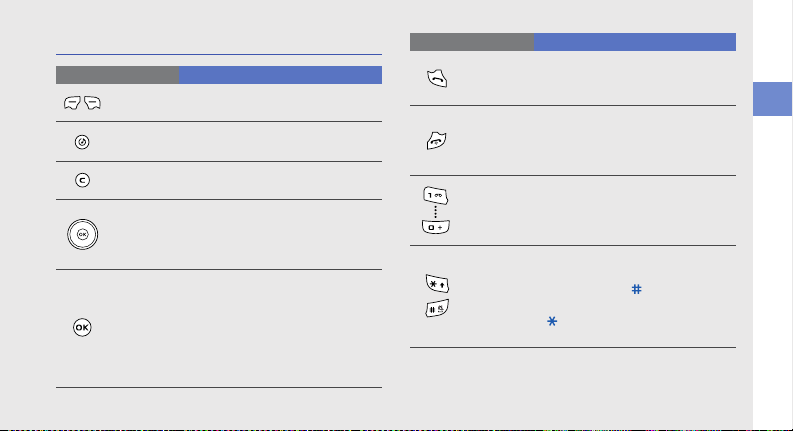
Keys
Key Function
Softkeys
Music
player
Delete
4-way
navigation
Web
access/
Confirm
Perform actions indicated at the
bottom of the display
In Idle mode, launch the music
player
Delete characters or items in an
application
In Idle mode, access My menu
mode (up) or user-defined menus
(left/right/down); In Menu mode,
scroll through menu options
In Idle mode, launch the web
browser; In Menu mode, select the
highlighted menu option or confirm
an input
Depending on your service provider
or region, the key may perform
differently
Key Function
Dial
Power/
Menu exit
Alphanumeric
Special
function
Make or answer a call; In Idle mode,
retrieve recently dialled, missed, or
received numbers
Turn the phone on and off (press
and hold); End a call; In Menu
mode, cancel input and return to
Idle mode
Enter numbers, letters and special
characters; In Idle mode, press and
hold [1] to access voice mails and
[0] to enter an international call prefix
Enter special characters or perform
special functions; In Idle mode,
press and hold [ ] for the Silent
profile; In Idle mode, press and hold
[ ] to enter a pause between
numbers
introducing your mobile phone
13
Page 19
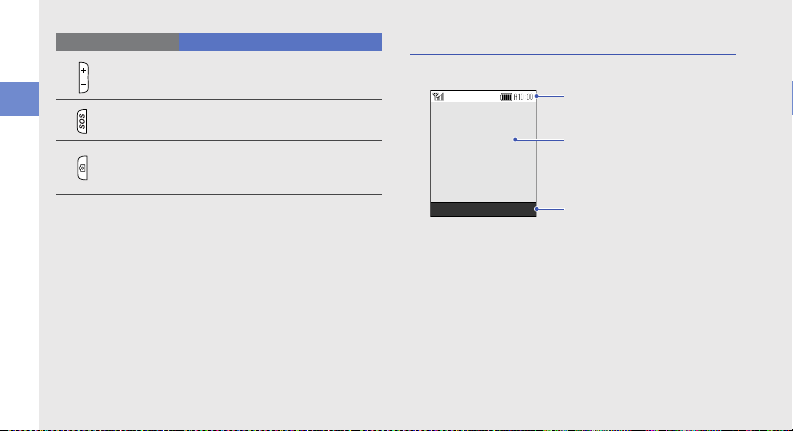
Key Function
Icon line
Displays various icons
Text and graphic area
Displays mess ages,
instructions, and
information you enter
Softkey line
Displays the current actions
assigned to each softkey
Select Back
Volume
Adjust the phone’s volume
Display
Your phone’s display consists of three areas:
introducing your mobile phone
14
SOS call
Access the SOS contact menu;
Make an SOS call (press and hold)
In Idle mode, turn on the camera
Camera
(press and hold); In Camera mode,
take a photo or record a video
Page 20
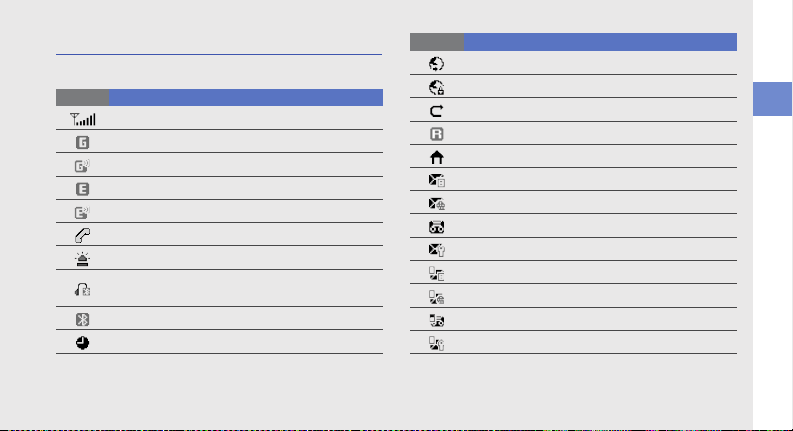
Icons
Learn about the icons that appear on your display.
Icon Definition
Signal strength
GPRS network connected
Transferring data via GPRS network
EDGE network connected
Transferring data via EDGE network
Call in progress
SOS message feature activated
Bluetooth hands-free car kit or headset
connected
Bluetooth activated
Alarm activated
Icon Definition
Browsing the web
Connecting to secured web page
Call diverting active
Roaming (outside of normal service area)
In Home Zone service area
New text message (SMS)
New multimedia message (MMS)
New voice mail message
New configuration message
Tex t m e s s a g e f u ll
Multimedia message full
Voice mail message full
Configuration message full
introducing your mobile phone
15
Page 21
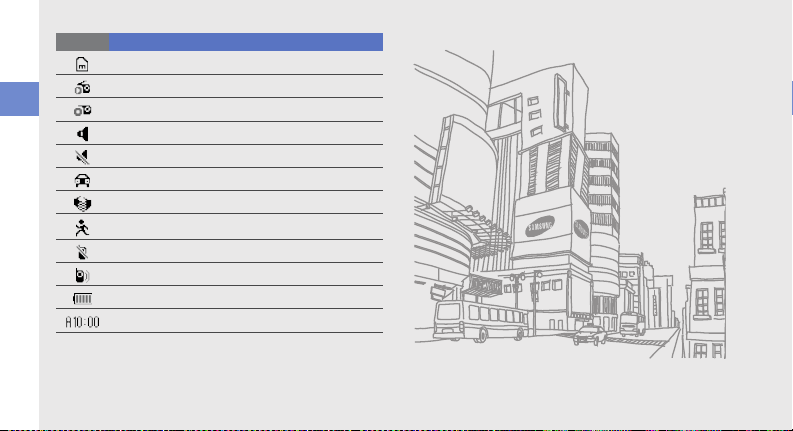
Icon Definition
introducing your mobile phone
16
Memory card inserted
FM radio on
FM radio suspended
Normal profile activated
Silent profile activated
Driving profile activated
Meeting profile activated
Outdoor profile activated
Offline profile activated
User created profile activated
Battery power level
Current time
Page 22
assembling and
preparing your
mobile phone
Get started by assembling and setting up
your mobile phone for its first use.
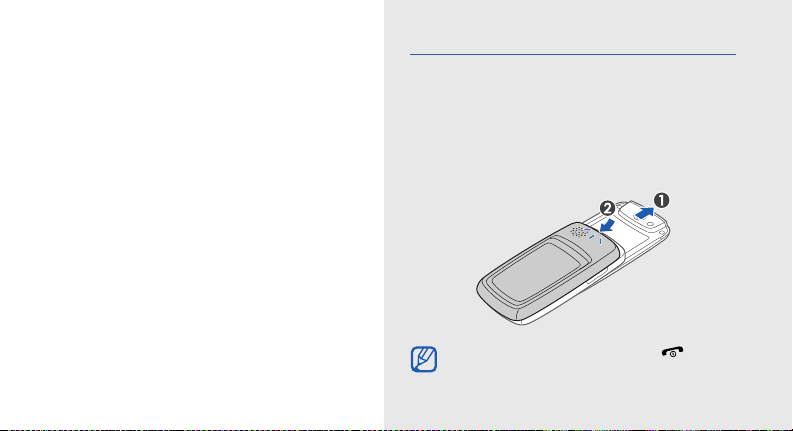
Install the SIM card and battery
When you subscribe to a cellular service, you will
receive a Subscriber Identity Module, or SIM card,
with subscription details, such as your personal
identification number (PIN) and optional services.
To install the SIM card and battery,
1. Remove the battery cover.
If the phone is on, press and hold [ ] to turn
it off.
17
Page 23
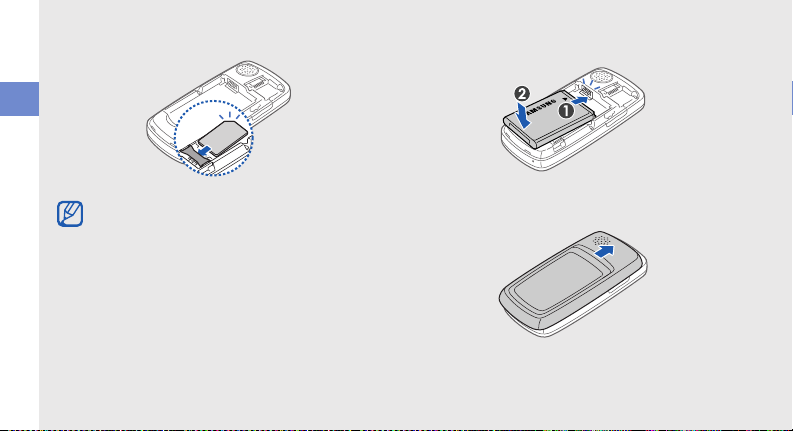
2. Insert the SIM card. 3. Insert the battery.
assembling and preparing your mobile phone
Place the SIM card in the phone with the goldcoloured contacts facing down.
18
4. Replace the battery cover.
Page 24
Charge the battery
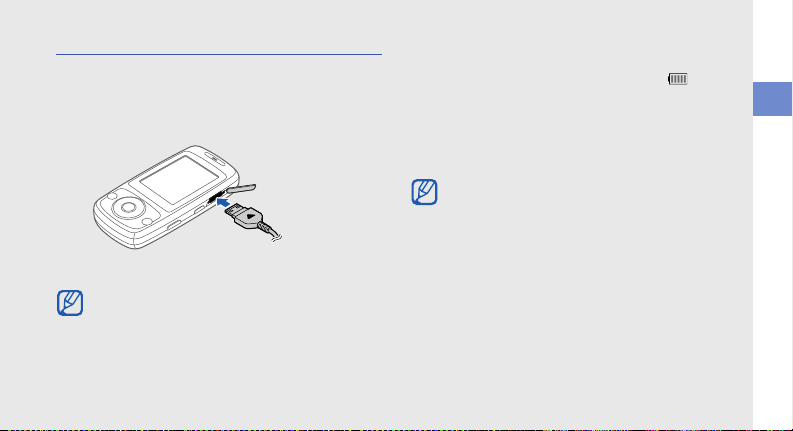
With the triangle
facing up
Before using the phone for the first time, you must
charge the battery.
1. Open the cover to the multifunction jack and plug
the small end of the travel adapter.
Improperly connecting the travel adapter can
cause serious damage to the phone. Any
damages by misuse are not covered by the
warranty.
2. Plug the large end of the travel adapter into a
power outlet.
3. When the battery is fully charged (the icon is
no longer moving), unplug the travel adapter from
the power outlet.
4. Unplug the travel adapter from the phone.
5. Close the cover to the multifunction jack.
About the low battery indicator
When your battery is low, the phone will emit a
warning tone and a low battery message. The
battery icon will also be empty and blinking. If
the battery level becomes too low, the phone
will automatically power off. Recharge your
battery to continue using your phone.
assembling and preparing your mobile phone
19
Page 25
Insert a memory card (optional)
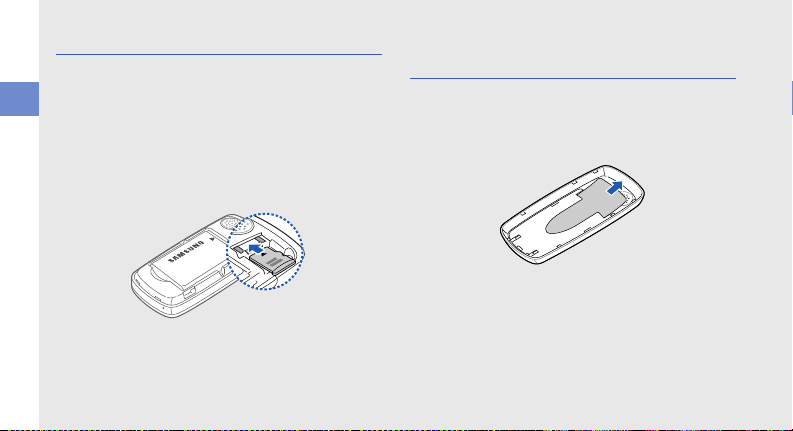
To store additional multimedia files, you must insert a
memory card. Your phone accepts microSD™
memory cards up to 8 GB (depending on memory
assembling and preparing your mobile phone
card manufacturer and type).
1. Remove the battery cover.
2. Insert a memory card with the label side facing
up.
20
Change the photo on the battery cover
1. Remove the battery cover.
2. Replace the image with your photo on the
battery cover.
Page 26

using basic
functions
Learn how to perform basic operations and use the
main features of your mobile phone.
Turn your phone on and off
To turn your phone on,
1. Slide open the phone.
2. Press and hold [ ].
3. Enter your PIN and press <OK> (if necessary).
4. When the setup wizard opens, customise your
phone as desired by following the screen.
To turn your phone off, repeat steps 1 and 2 above.
Switch to the Offline profile
By switching to the Offline profile, you can use your
phone’s non-network services in areas where
wireless devices are prohibited, such as aeroplane
and hospitals.
21
Page 27

To switch to the Offline profile, press <Menu> →
Settings → Phone profiles → Offline.
Follow all posted warnings and directions from
official personnel when in areas where wireless
devices are prohibited.
Access menus
using basic functions
To access your phone’s menus,
1. Press a softkey for the menu you want.
2. Use the navigation key to scroll to a menu or
option.
3. Press [OK], <Select>, or <OK> to confirm the
highlighted option.
4. Press <Back> to move up one level; Press [ ]
to return to Idle mode.
22
Customise your phone
Get more from your phone by customising it to
match your preferences.
Adjust the volume of the key tones
In Idle mode, press [ / ] to adjust the key tone
volume.
Switch to or from the Silent profile
In Idle mode, press and hold [ ] to silence or
unsilence your phone.
Change your ringtone
1. In Idle mode, press <Menu> → Settings →
Phone profiles.
2. Scroll to the profile you are using.
3. Press <Options> → Edit → Voice call ringtone.
Page 28

4. Select a ringtone category → a ringtone.
5. Press <Options> → Save profile.
To switch to another profile, select it from the list.
Create a phone profile
1. In Idle mode, press <Menu> → Settings →
Phone profiles.
2. Press <Options> → Create.
3. Enter a name for the profile and press <Save>.
4. Customise the sound settings as desired.
5. When you are finished, press <Options> →
Save profile.
Select a wallpaper (Idle mode)
1. In Idle mode, press <Menu> → Settings →
Display and light settings → Home screen.
2. Scroll left or right to Images.
3. Select Main display.
4. Select an image category → an image.
5. Press <Save>.
Select a theme for the display
1. In Idle mode, press <Menu> → Settings →
Display and light settings → My theme.
2. Scroll left or right to a theme and press <OK>.
Set menu shortcuts
1. In Idle mode, press <Menu> → Settings →
Phone settings → Shortcuts.
2. Select a key to use as a shortcut.
3. Select a menu to assign to the shortcut key.
using basic functions
23
Page 29

Lock your phone
1. In Idle mode, press <Menu> → Settings →
Security → Phone lock → On.
2. Enter a new 4- to 8-digit password and press
<OK>.
3. Enter the new password again and press <OK>.
using basic functions
Use basic call functions
Learn to make or answer calls and use basic call
functions.
Make a call
1. In Idle mode, enter an area code and a phone
number.
2. Press [ ] to dial the number.
3. To end the call, press [ ].
24
Answer a call
1. When a call comes in, press [ ].
2. To end the call, press [ ].
Adjust the volume
To adjust the volume during a call, press [ / ].
Use the speakerphone feature
1. During a call, press [OK] → <Yes> to activate
the speaker.
2. To switch back to the earpiece, press [OK]
again.
In noisy environment, you may have difficulty
hearing the calls while using the speakerphone
feature. For better performance, use the normal
phone mode.
Page 30

Record a conversation
This feature may not be available depending on
your region or service provider.
1. During a call, press <Options> → Menu →
Multimedia → Voice recorder.
2. Press [OK] to start recording.
3. Press the navigation key down to stop recording.
Use the headset
By plugging the supplied headset into the
multifunction jack, you can make and answer calls:
• To redial the last call, press the headset button
twice.
• To answer a call, press and hold the headset
button.
• To end a call, press and hold the headset button.
Send and view messages
Learn to send or view text (SMS) or multimedia
(MMS) messages.
Send a text message
1. In Idle mode, press <Menu> → Messages →
Create message → Text message.
2. Enter your message text and press [OK].
3. Enter a destination number.
4. Press [OK] to send the message.
Send a multimedia message
1. In Idle mode, press <Menu> → Messages →
Create message → Multimedia message.
2. Select Subject.
3. Enter a subject and press [OK].
X
p. 26
using basic functions
25
Page 31
4. Scroll down to Image or video or Sound and
press [OK].
5. Add the item you want.
6. Scroll down to Text and press [OK].
7. Enter your message text and press [OK].
8. Press <Options> → Send.
using basic functions
9. Enter a destination number or an email address.
10. Press [OK] to send the message.
Enter text
When entering text, you can change the text input
mode:
• Press and hold [ ] to switch between T9 and
ABC modes. Depending on your region, you may
be able to access an input mode for your specific
language.
26
• Press [ ] to change case or switch to Number
mode.
• Press and hold [ ] to switch to Symbol mode.
Enter text in one of the following modes:
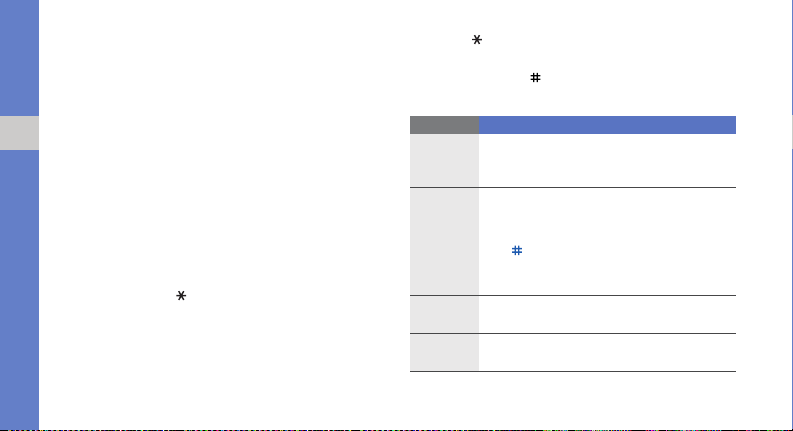
Mode Function
Press the appropriate alphanumeric key until
ABC
T9
Number
Symbol
the character you want appears on the
display.
1. Press the appropriate alphanumeric
keys to enter an entire word.
2. When the word displays correctly, press
[ ] to insert a space. If the correct word
does not display, press [
alternate word.
Press the appropriate alphanumeric key to
enter a number.
Press the appropriate alphanumeric key to
select a symbol.
0
] to select an
Page 32

View text or multimedia messages
1. In Idle mode, press <Menu> → Messages →
My messages → Inbox.
2. Select a text or multimedia message.
Add and find contacts
Learn the basics of using the Phonebook feature.
Add a new contact
1. In Idle mode, enter a phone number and press
<Options>.
2. Select Save contact → a memory location
(phone or SIM) → New.
3. Select a number type (if necessary).
4. Enter contact information.
5. Press <Save> to add the contact to memory.
Find a contact
1. In Idle mode, press <Menu> → Phonebook.
You can also press <Phonebook> in Idle mode.
2. Enter the first few letters of the name you want to
find.
3. Select the contact’s name from the search list.
Once you have found a contact, you can:
• call the contact by pressing
• edit the contact information by pressing [OK]
[]
using basic functions
27
Page 33

Use basic camera functions
Learn the basics to capture and view photos and
videos.
Capture photos
1. In Idle mode, press and hold [ ] to turn on the
using basic functions
camera.
2. Rotate the phone anti-clockwise to landscape
view.
3. Aim the lens at the subject and make any
adjustments.
4. Press [ ] or [OK] to take a photo.
The photo is saved automatically.
5. Press [ ] or < > to take another photo (step
3).
28
View photos
In Idle mode, press <Menu> → My files → Images
→ My photos → a photo file.
Capture videos
1. In Idle mode, press and hold [ ] to turn on the
camera.
2. Rotate the phone anti-clockwise to landscape
view.
3. Press [1] to switch to Recording mode.
4. Aim the lens at the subject and make any
adjustments.
5. Press [ ] or [OK] to start recording.
6. Press [ ], [OK], or < > to stop recording.
The video is saved automatically.
7. Press [ ] or < > to record another video (step
4).
Page 34

View videos
In Idle mode, press <Menu> → My files → Videos
→ My video clips → a video file.
Listen to music
Learn how to listen to music via the music player or
FM radio.
Listen to the FM radio
1. Plug the supplied headset.
2. In Idle mode, press <Menu> → Multimedia →
FM radio.
3. Press [OK] to turn on the FM radio.
4. Press <Yes> to start automatic tuning.
The radio scans and saves available stations
automatically.
The first time you access the FM radio, you will
be prompted to start automatic tuning.
5. Scroll up or down to a radio station.
6. To turn off the FM radio, press [OK].
Listen to music files
Start by transferring files to your phone or memory
card:
• Download from the wireless web.
• Download from a PC with the optional Samsung
PC Studio.
• Receive via Bluetooth.
• Copy to your memory card.
After transferring music files to your phone or
memory card,
1. In Idle mode, press [ ].
2. Select a music category → a music file.
X
p. 37
X
p. 41
X
p. 38
X
p. 30
using basic functions
29
Page 35
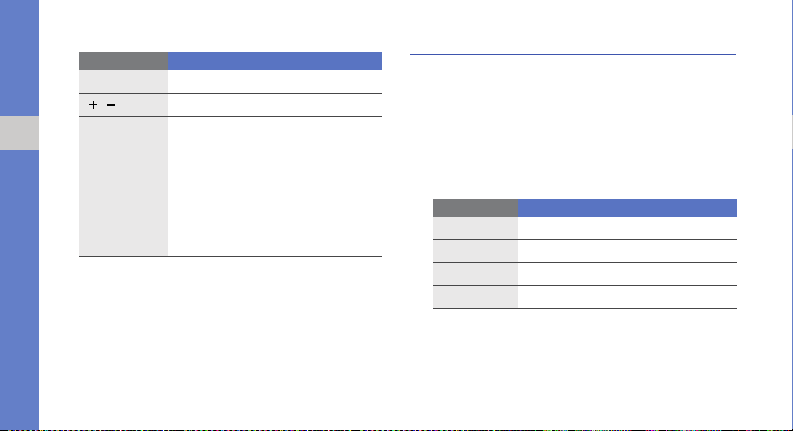
3. Control playback using the following keys:
Key Function
OK
/
using basic functions
Navigation
Pause or resume playback
Adjust the volume up or down
• Left: Restart playback; Skip
backward (press within 3
seconds); Scan backward in a
file (press and hold)
• Right: Skip forward; Scan
forward in a file (press and hold)
• Up: Open the playlist
• Dow n: Stop playback
30
Browse the web
Learn to access and bookmark your favourite web
pages.
Browse web pages
1. In Idle mode, press [OK] to launch your service
provider’s homepage.
2. Navigate web pages using the following keys:
Key Function
Navigation
OK
<
Back
<
Options
Scroll up or down on a web page
Select an item
>
Return to the previous page
>
Access a list of browser options
Page 36

Bookmark your favourite web pages
1. In Idle mode, press <Menu> → Browser →
Bookmarks.
2. Press <Add>.
3. Enter a page title and a web address (URL).
4. Press <Save>.
using basic functions
31
Page 37

using advanced
Use advanced call functions
Learn about your phone’s additional calling
capabilities.
functions
Learn how to perform advanced operations and use
additional features of your mobile phone.
32
View and dial missed calls
Your phone will display calls you have missed on the
display. To dial the number of a missed call,
1. Press <View>.
2. Scroll to the missed call you want to dial.
3. Press [ ] to dial.
Call a recently dialled number
1. In Idle mode, press [ ] to display a list of
recent numbers.
2. Scroll to the number you want and press [ ] to
dial.
Page 38

Hold a call or retrieve a held call
Press <Hold> to place a call on hold or press
<Retrieve> to retrieve a held call.
Dial a second call
If your network supports this function, you can dial
another number during a call:
1. Press <Hold> to place the first call on hold.
2. Enter the second number to dial and press
[].
3. Press <Swap> to switch between the two calls.
4. To end the call on hold, press <Options> → End
held call.
5. To end the current call, press [ ].
Answer a second call
If your network supports this function, you can
answer a second incoming call:
1. Press [ ] to answer the second call.
The first call is automatically placed on hold.
2. Press <Swap> to switch between the calls.
Make a multiparty call (conference call)
1. Call the first party you want to add to the
multiparty call.
2. While connected to the first party, call the
second party.
The first party is automatically placed on hold.
3. When connected to the second party, press
<Options> → Join.
4. Repeat steps 2 and 3 to add more parties (if
necessary).
5. To end the multiparty call, press [ ].
using advanced functions
33
Page 39

Call an international number
1. In Idle mode, press and hold [0] to insert the +
character.
2. Enter the complete number you want to dial
(country code, area code, and phone number),
and then press [ ] to dial.
using advanced functions
Call a contact from Phonebook
You can call numbers directly from Phonebook
using stored contacts.
1. In Idle mode, press <Menu> → Phonebook.
You can also press <Phonebook> in Idle mode.
2. Scroll to the number you want to dial and press
[ ] to dial.
X
p. 27
Make an SOS call
When you have an emergency, you can make an
SOS call asking for help.
34
1. In Idle mode, press <Menu> → Settings → SOS
settings → SOS call.
2. Scroll left or right to On.
3. Scroll down and press [OK] to open the recipient
list.
4. Press [OK] to open your contact list.
5. Scroll to a contact and press [OK].
6. Select a number (if necessary).
7. When you are finished selecting contacts, press
<Select> to return to the recipient list.
8. Press [OK] to save the recipients.
9. Press <Save>.
To make an SOS call, press and hold [SOS] in Idle
mode. You can also press [SOS] and select a
contact in Idle mode.
Page 40

Use advanced Phonebook functions
Learn to create namecards, set speed dial numbers,
and create groups of contacts.
Create a namecard
1. In Idle mode, press <Menu> → Phonebook.
You can also press <Phonebook> in Idle mode.
2. Press <Options> → My namecard.
3. Enter your personal details and press <Save>.
You can send your namecard by attaching it to
a message or transferring it via the Bluetooth
wireless feature.
Set speed dial numbers
1. In Idle mode, press <Menu> → Phonebook.
You can also press <Phonebook> in Idle mode.
2. Press <Options> → Management→ Speed
dial.
3. Scroll to a number you want to set (2-9) and
press [OK].
4. Select a contact → a number (if necessary) to
assign to the number.
The contact is saved to the speed dial number.
You can now call this contact from Idle mode
by pressing and holding the assigned speed
dial number.
Create a group of contacts
By creating groups of contacts, you can assign
ringtones and caller ID photos to each group or send
messages to an entire group. Start by creating a
group:
1. In Idle mode, press <Menu> → Phonebook.
You can also press <Phonebook> in Idle mode.
2. Scroll left or right to Group.
3. Press <Options> → Create group.
using advanced functions
35
Page 41

4. Enter a group name.
5. To set the caller ID image, scroll down and press
[OK] → an image category → an image.
6. To set a group ringtone, scroll down and press
[OK] → a ringtone category → a ringtone.
7. Press <Save>.
using advanced functions
Use advanced messaging functions
Learn to create templates, use templates to create
new messages, and use the messenger.
Create a text template
1. In Idle mode, press <Menu> → Messages →
Templates → Text message templates.
2. Select an empty location to open a new template
window.
3. Enter your text and press [OK] to save the
template.
36
Create a multimedia template
1. In Idle mode, press <Menu> → Messages →
Create message → Multimedia message.
2. Create a multimedia message, with a subject
and desired attachments, to use as your
template.
3. Press <Options> → Save in → Templates to
save the template.
X
p. 25
Insert text templates in new messages
1. To start a new message, press <Menu> →
Messages → Create message → a message
type.
2. In the text field, press <Options> → Insert →
Text template → a template.
Page 42

Create a message from a multimedia
template
1. In Idle mode, press <Menu> → Messages →
Templates → Multimedia message templates.
2. Scroll to the template you want and press
<Options> → Edit.
Your template opens as a new multimedia
message.
4. Scroll to a device and press <Select>.
5. Enter a PIN for the Bluetooth wireless feature or
the other device’s Bluetooth PIN, if it has one,
and press <OK>.
When the owner of the other device enters the
same code or accepts the connection, pairing is
complete.
6. Enter your message and press [OK].
using advanced functions
Use the Bluetooth messenger
Learn to chat with your family or friends instantly via
the Bluetooth wireless feature.
1. In Idle mode, press <Menu> → Messages →
Bluetooth messenger.
2. Press <Yes> to turn on the Bluetooth wireless
feature.
3. Press <Options> → Search Bluetooth contact
→ Search for new devices.
Use advanced music functions
Learn to prepare music files, create playlists, and
store radio stations.
Copy music files via Samsung PC Studio
1. Using an optional PC data cable, connect the
multifunction jack on your phone to a PC.
37
Page 43

2. Run Samsung PC Studio and copy files from the
PC to the phone.
Refer to the Samsung PC Studio help for more
information.
Copy music files to a memory card
1. Insert a memory card.
using advanced functions
2. Using an optional PC data cable, connect the
multifunction jack on your phone to a PC.
When connected, a pop-up window will appear
on the PC.
3. Select Open folder to view files in the pop-up
window on the PC.
4. Copy files from the PC to the memory card.
38
Create a playlist
1. In Idle mode, press [ ] → Playlists.
2. Press <Options> → Create playlist.
3. Enter a title for your new playlist and press [OK].
4. Select the new playlist.
5. Press <Options> → Add → Tracks.
6. Select the files you want to include and press
<Add>.
Customise your music player settings
Learn to adjust the playback and sound settings for
your music player.
1. In Idle mode, press [ ].
2. Press <Options> → Player settings.
3. Adjust the settings to customise your music
player.
4. Press <Save>.
Page 44

Store radio stations automatically
1. Plug the supplied headset.
2. In Idle mode, press <Menu> → Multimedia →
FM radio.
3. Press [OK] to start the FM radio.
4. Press <Options> → Self-tuning.
5. Press <Yes> to confirm (if necessary).
The radio scans and saves available stations
automatically.
using advanced functions
39
Page 45

using tools and
applications
Learn how to work with your mobile phone’s tools
and additional applications.
40
Use the Bluetooth wireless feature
Learn about your phone’s ability to connect to other
wireless devices for exchanging data and using
hands-free features.
Turn on the Bluetooth wireless feature
1. In Idle mode, press <Menu> → Bluetooth →
Activation → On.
2. To allow other devices to locate your phone,
select My phone’s visibility
Find and pair with other Bluetoothenabled devices
1. In Idle mode, press <Menu> → Bluetooth → My
devices
→
Search for new devices.
2. Scroll to a device and press <Select>.
→
On.
Page 46

3. Enter a PIN for the Bluetooth wireless feature or
the other device’s Bluetooth PIN, if it has one,
and press <OK>.
When the owner of the other device enters the
same code or accepts the connection, pairing is
complete.
Send data using the Bluetooth wireless
feature
1. Select the file or item from one of your phone’s
applications that you want to send.
2. Press <Options> → Send via → Bluetooth
(when sending contact data, specify which data
to send).
Receive data using the Bluetooth
wireless feature
1. Enter the PIN for the Bluetooth wireless feature
and press <OK> (if necessary).
2. Press <Yes> to confirm that you are willing to
receive data from the device (if necessary).
Activate and send an SOS message
When you have an emergency, you can send an
SOS message asking for help.
This feature may not be available depending on
your region or service provider.
1. In Idle mode, press <Menu> → Settings → SOS
settings → SOS messages → Sending
options.
2. Scroll left or right to On.
3. Scroll down and press [OK] to open the recipient
list.
4. Press [OK] to open your contact list.
5. Scroll to a contact and press [OK].
6. Select a number (if necessary).
41
using tools and applications
Page 47

7. When you are finished selecting contacts, press
<Select> to return to the recipient list.
8. Press [OK] to save the recipients.
9. Scroll down and set the number of times to
repeat the SOS message.
10. Press <Save> → <Yes>.
using tools and applications
To send an SOS message, the phone must be
closed and the keys locked. Press [ / ] four times.
Once you send an SOS message, all phone
functions will be suspended until you press
[]
.
Activate the mobile tracker
When someone inserts a new SIM card in your
phone, the mobile tracker feature will automatically
send the contact number to two recipients to help
you locate and recover your phone.
42
To activate the mobile tracker,
1. In Idle mode, press <Menu> → Settings →
Security → Mobile tracker.
2. Enter your password and press <OK>.
3. Scroll left or right to On.
4. Scroll down and press [OK] to open the recipient
list.
5. Press <Options> → Phonebook to open your
contact list.
6. Scroll to a contact and press [OK].
7. Select a number (if necessary).
8. When you are finished selecting contacts, press
<Select> to return to the recipient list.
9. Press [OK] to save the recipients.
10.Scroll down and enter the sender’s name.
11.Press <Save> → <Accept>.
Page 48

Make fake calls
You can simulate fake incoming calls when you want
to get out of meetings or unwanted conversations.
You can also make it appear as if you are talking on
the phone by playing back a recorded voice.
To activate the fake call feature,
1. In Idle mode, press <Menu> → Settings →
Phone settings → Shortcuts and set a shortcut
key for Fake call.
2. Press [ ] to return to Idle mode.
3. Press <Menu> → Settings → Application
settings → Fake call → Fake call voice.
To record a voice,
1. Press <Menu> → Settings → Application
settings → Fake call.
2. Scroll to Fake call voice.
3. Press <Options> → Edit.
4. Press <Record> to start recording.
5. Speak into the microphone.
6. When you are finished speaking, press the
navigation key down.
7. Press <Set> to set the recording as a response
for the fake call.
To make a fake call,
• press and hold the shortcut key in Idle mode
• press the shortcut key four times when the phone
is closed
using tools and applications
43
Page 49

Record and play voice memos
Learn to operate your phone’s voice recorder.
Record a voice memo
1. In Idle mode, press <Menu> → Multimedia →
Voice recorder.
using tools and applications
2. Press [OK] to start recording.
3. Speak your memo into the microphone.
4. When you are finished speaking, press the
navigation key down.
Play a voice memo
1. From the voice recorder screen, press
<Options> → My voice clips.
2. Select a file.
44
3. Control the playback using the following keys:
Key Function
OK
/
Navigation
Pause or resume playback
Adjust the volume up or down
• Left: Scan backward in a file
• Right: Scan forward in a file
• Down: Stop playback
Use Java-powered games and applications
Learn to use games and applications powered by
award-winning Java technology.
Play games
1. In Idle mode, press <Menu> → Applications →
Games and more → My games.
Page 50

2. Select a game from the list and follow the onscreen instructions.
Available games may vary, depending on your
region or service provider. Game controls and
options may vary.
Launch applications
1. In Idle mode, press <Menu> → Applications →
Games and more → an application.
2. Press <Options> to access a list of various
options and settings for your application.
Create and view world clocks
Learn to view the time in another city and set world
clocks to appear on your display.
Create a world clock
1. In Idle mode, press <Menu> → Applications →
World clock.
2. Press <Options> → Add.
3. Scroll left or right to a time zone.
4. To set daylight saving time, scroll down and
press [OK].
5. Press <Save> to create your world clock.
The world clock is set as the second clock.
6. To add more world clocks, repeat steps 2-5
above.
using tools and applications
45
Page 51

Add a world clock to your display
In Dual Clock Display mode, you can view clocks
with two different time zones on your display.
After you have created world clocks,
1. In Idle mode, press <Menu> → Applications →
World clock.
using tools and applications
2. Scroll to the world clock you want to add and
press <Options> → Set as second clock.
3. Press <Options> → Clock display setting.
If
Clock display setting
your wallpaper to
4. Scroll left or right to Dual.
5. Scroll down, and then scroll left or right to select
a dual clock style.
6. Press <Save>.
46
is deactivated, set
Image
. X p. 23
Set and use alarms
Learn to set and control alarms for important events.
Set a new alarm
1. In Idle mode, press <Menu> → Alarms.
2. Scroll to an empty alarm location and press [OK].
3. Set alarm details.
You can set either the FM radio or a sound for
the alarm tone.
4. Press <Save>.
The auto power-up feature sets the phone to
automatically turn on and sound the alarm at
the designated time if the phone is turned off.
Page 52

Stop an alarm
When the alarm sounds,
• Press <Exit> or any key to stop an alarm without
snooze.
• Press <Confirm> or [OK] to stop an alarm with
snooze, or press <Snooze> or any key to silence
the alarm for the snooze period.
Deactivate an alarm
1. In Idle mode, press <Menu> → Alarms.
2. Scroll to the alarm you want to deactivate and
press [OK].
3. Scroll down (if necessary).
4. Scroll left or right to Off.
5. Press <Save>.
Use the calculator
1. In Idle mode, press <Menu> → Applications →
Calculator.
2. Use the keys that correspond to the calculator
display to perform basic mathematical
operations.
Convert currencies or measurements
1. In Idle mode, press <Menu> → Applications →
Convertor → a conversion type.
2. Enter the currencies or measurements and units
in the appropriate fields.
using tools and applications
47
Page 53

Set a countdown timer
1. In Idle mode, press <Menu> → Applications →
Timer.
2. Press <Set>.
3. Enter the length of time to count down and press
<OK>.
using tools and applications
4. Press [OK] to begin or pause the countdown.
5. When the timer expires, press <Exit> to stop the
alert.
48
Use the stopwatch
1. In Idle mode, press <Menu> → Applications →
Stopwatch.
2. Press [OK] to begin and record lap times.
3. Press <Reset> to clear recorded times.
Create a text memo
1. In Idle mode, press <Menu> → Applications →
Memo.
2. Press <Options> → Create.
3. Enter your memo text.
4. Press [OK].
Page 54

Manage your calendar
Learn to change the calendar view and create
events.
Change the calendar view
1. In Idle mode, press <Menu> → Calendar.
2. Press <Options> → View by → Day or Week.
Create an event
1. In Idle mode, press <Menu> → Calendar.
2. Press <Options> → Create → an event type.
3. Enter the details of the event as required.
4. Press <Save>.
using tools and applications
49
Page 55
troubleshooting
If you are having trouble with your mobile phone, try these troubleshooting procedures before contacting a service
professional.
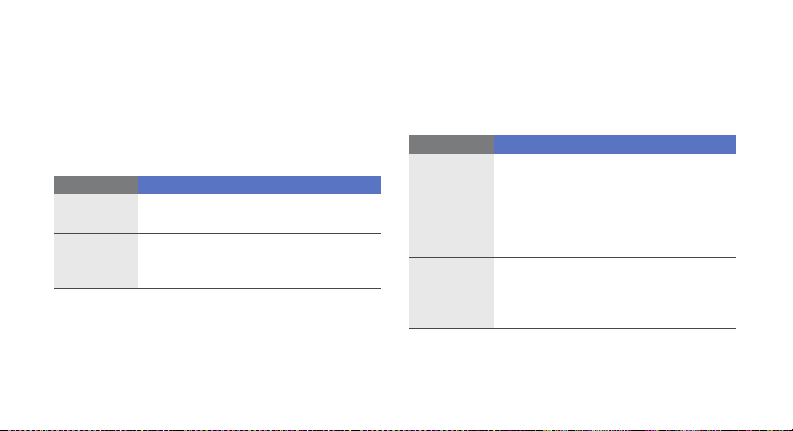
While using your phone, the following messages
may appear:
Message Try this to solve the problem:
Insert SIM
card
Phone lock
a
Ensure that the SIM card is installed
correctly.
When the phone lock feature is
enabled, you must enter the password
you set for the phone.
Message Try this to solve the problem:
When using the phone for the first time
or when the PIN requirement is
PIN lock
PUK lock
enabled, you must enter the PIN
supplied with the SIM card. You can
disable this feature by using the
lock
menu.
Your SIM card is blocked, usually as a
result of entering your PIN incorrectly
several times. You must enter the PUK
supplied by your service provider.
PIN
Page 56

Your phone displays “Service unavailable” or
“Not done.”
• When you are in areas with weak signals or poor
reception, you may lose reception. Move to
another area and tr y again.
• You cannot access some options without a
subscription. Contact your ser vice provider for
more details.
You enter a number, but the call is not dialled.
• Ensure that you have pressed the Dial key: [ ].
• Ensure that you have accessed the right cellular
network.
• Ensure that you have not set call barring for the
phone number.
Another caller cannot reach you.
• Ensure that your phone is turned on.
• Ensure that you have accessed the right cellular
network.
• Ensure that you have not set call barring for the
phone number.
Another caller cannot hear you speaking.
• Ensure that you are not covering the built-in
microphone.
• Ensure that the microphone is close to your
mouth.
• If using a headset, ensure that it is properly
connected.
The phone beeps and the battery icon flashes.
Your battery is low. Recharge or replace the battery to
continue using the phone.
troubleshooting
b
Page 57

The audio quality of the call is poor.
• Ensure that you are not blocking the phone’s
internal antenna.
• When you are in areas with weak signals or poor
reception, you may lose reception. Move to
another area and tr y again.
You select a contact to call, but the call is not
dialled.
troubleshooting
• Ensure that the correct number is stored in the
contact list.
• Re-enter and save the number, if necessary.
The battery does not charge properly or
sometimes the phone turns itself off.
• The battery terminals may be dirty. Wipe both
gold-coloured contacts with a clean, soft cloth
and try charging the battery again.
c
• If the battery will no longer charge completely,
dispose of the old battery properly and replace it
with a new battery.
Your phone is hot to the touch.
When you use several applications at once, your
phone requires more power and may heat up.
This is normal and should not affect your phone’s
lifespan or performance.
Page 58

index
alarms
creating, 46
deactivating,
stopping,
battery
charging,
installing,
low battery indicator,
Bluetooth
activating,
receiving data,
sending data,
Bluetooth messenger
47
47
19
17
40
41
41
37
19
browser
see web browser
calculator
see tools, calculator
calendar
see tools, calendar
calls
advanced functions,
answering additional calls,
answering,
basic functions,
dialling additional calls,
dialling missed calls,
from Phonebook,
international numbers,
24
24
34
32
32
33
34
33
making fake calls,
making SOS calls,
making,
24
multiparty,
placing on hold,
recently dialled,
recording conversations,
retrieving held calls,
viewing missed,
conference calls
see calls, multiparty
contacts
adding,
creating groups,
finding,
33
33
32
32
27
35
27
43
34
25
33
d
Page 59

convertor
see tools, convertor
countdown timer
see tools, countdown timer
fake calls
see calls, making fake calls
FM radio
listening to,
index
storing stations,
25
headset
internet
see web browser
Java
accessing applications,
launching games,
key tones
e
22
29
39
44
45
lock
see phone lock
memo
see text or voice memos
memory card
messages
sending instant (Bluetooth
messenger),
sending multimedia,
sending text,
viewing multimedia,
viewing text,
mobile tracker
multimedia
see messages
music player
creating playlists,
20
37
25
27
42
38
25
27
customising,
listening to music,
namecards
offline profile
phone lock
photos
capturing,
viewing,
radio
see FM radio
ringtone
Samsung PC Studio
shortcut keys
see shortcuts
shortcuts
38
35
21
24
28
28
22
23
29
37
Page 60

silent profile 22
SIM card
17
SOS call
see calls, making SOS calls
SOS message
stopwatch
see tools, stopwatch
templates
inserting,
multimedia,
text,
text
creating memos,
entering,
messages,
timer
see tools, countdown timer
41
36
36
36
48
26
25
tools
46
alarm,
calculator,
calendar,
49
convertor,
countdown timer,
stopwatch,
videos
capturing,
viewing,
29
voice memos
playing,
44
recording,
volume
call volume,
key tone volume,
wallpaper
23
47
47
48
28
44
24
48
22
web browser
adding bookmarks,
launching homepage,
world clock
45
creating,
setting dual display,
31
30
46
index
f
Page 61

Page 62
Declaration of Conformity (R&TTE)
We, Samsung Electronics
declare under our sole responsibility that the product
GSM Mobile Phone : S3030
to which this declaration relates, is in conformity with the following
standards and/or other normative documents.
SAFETY EN 60950- 1 : 2001 +A11:2004
EMC EN 301 489- 01 V1.6.1 (09-2005)
EN 301 489- 07 V1.3.1 (11-2005)
EN 301 489- 17 V1.2.1 (08-2002)
SAR EN 50360 : 2001
EN 62209- 1 : 2006
RADIO EN 301 511 V9.0.2 (03-2003 )
EN 300 328 V1.7.1 (10 -2006)
We hereby declare that [all essential radio test suites have been carried
out and that] the above named product is in conformity to all the
essential requirements of Directive 1999/5/EC.
The conformity assessment procedure referred to in Article 10 and
detailed in Annex[IV] of Directive 1999/5/EC has been followed with the
involvement of the following Notified Body(ies):
BABT, Balfour House, Churchfield Road,
Walton-on-Thames, Surrey, KT12 2TD, UK
Identification mark: 0168
The technical documentation kept at :
Samsung Electronics QA Lab.
which will be made available upon request.
(Representative in the EU)
Samsung Electronics Euro QA Lab.
Blackbushe Business Park, Saxony Way,
Yateley, Hampshire, GU46 6GG, UK*
2008.09.18 Yon g-Sang Park / S. M anager
(place and date of issue) (name and signature of authorised person)
* It is not the address of Samsung Service Centre. For the address or the
phone number of Samsung Service Centre, see the warranty card or contact
the retailer where you purchased your phone.
*
 Loading...