

Page 1
English
SDR(Eng) 11/12/98 8:11 AM Page 1
Internal DVD-ROM DRIVE
SD-604
Safety Warnings
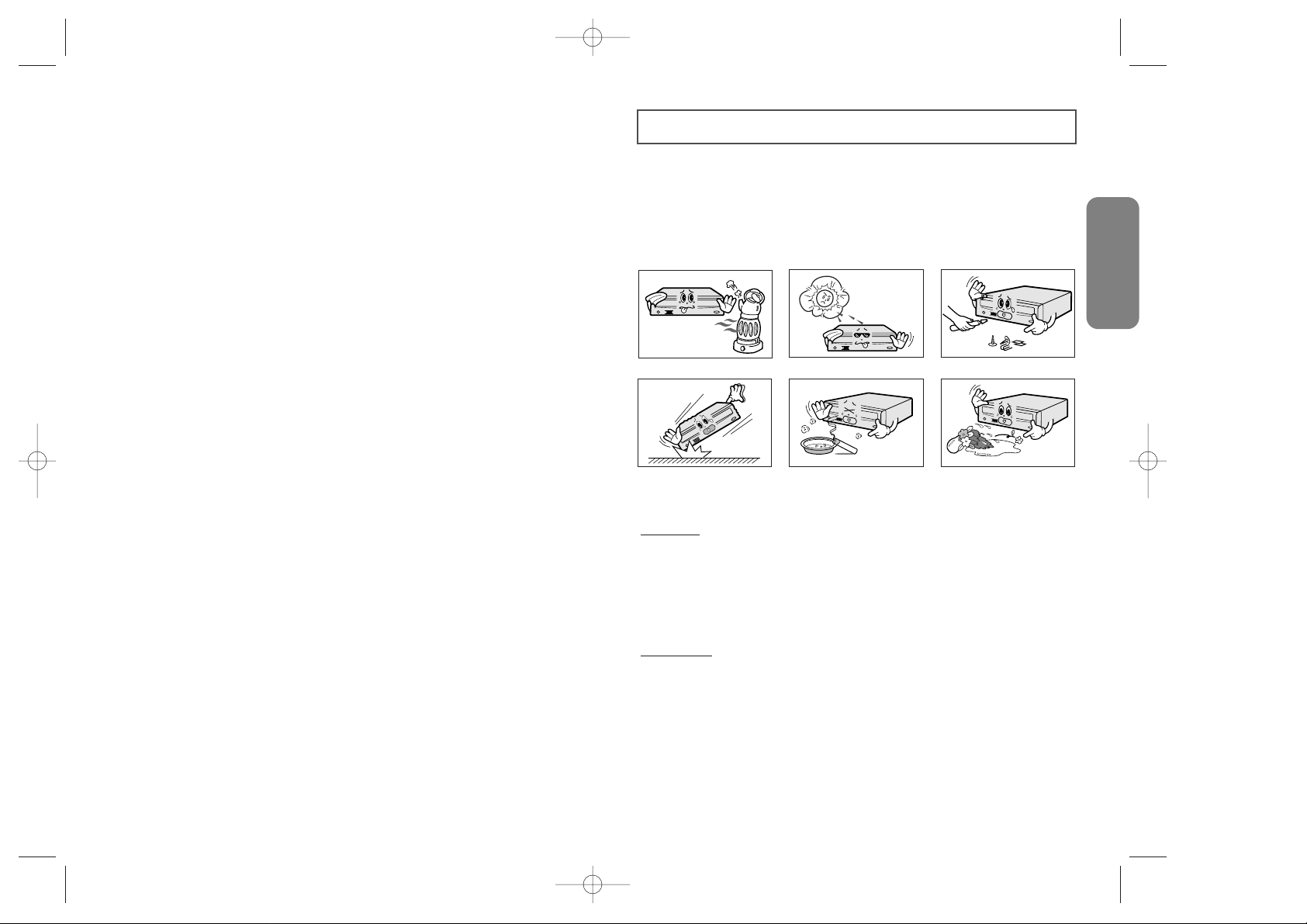
The following diagrams illustrate the precautions to be taken when using
your DVD-ROM drive.
User’s Manual
You must not use the drive in any manner other than that specified in this guide.
CAUTION
To reduce the risk of fire or electric shock, do not expose this appliance to rain or moisture.
WARRANTY
As SD-604 has a steel ball installed in the turntable for the purpose of reducing the
vibration and noises to be generated while the disc shaft rotates, you may hear the ball
clicking sounds when the driver is handled manually or when it rotates at a low speed.
But it is not a problem.
Do not attempt to repair the DVD-ROM drive yourself. Contact your
dealer or local SAMSUNG representative for all repairs.
Use of controls or adjustments or performance of procedures other than
those specified here in may result in hazardous radiation exposure.
Please refer to the Samsung limited warranty statements.
1
Page 2
2 3
English
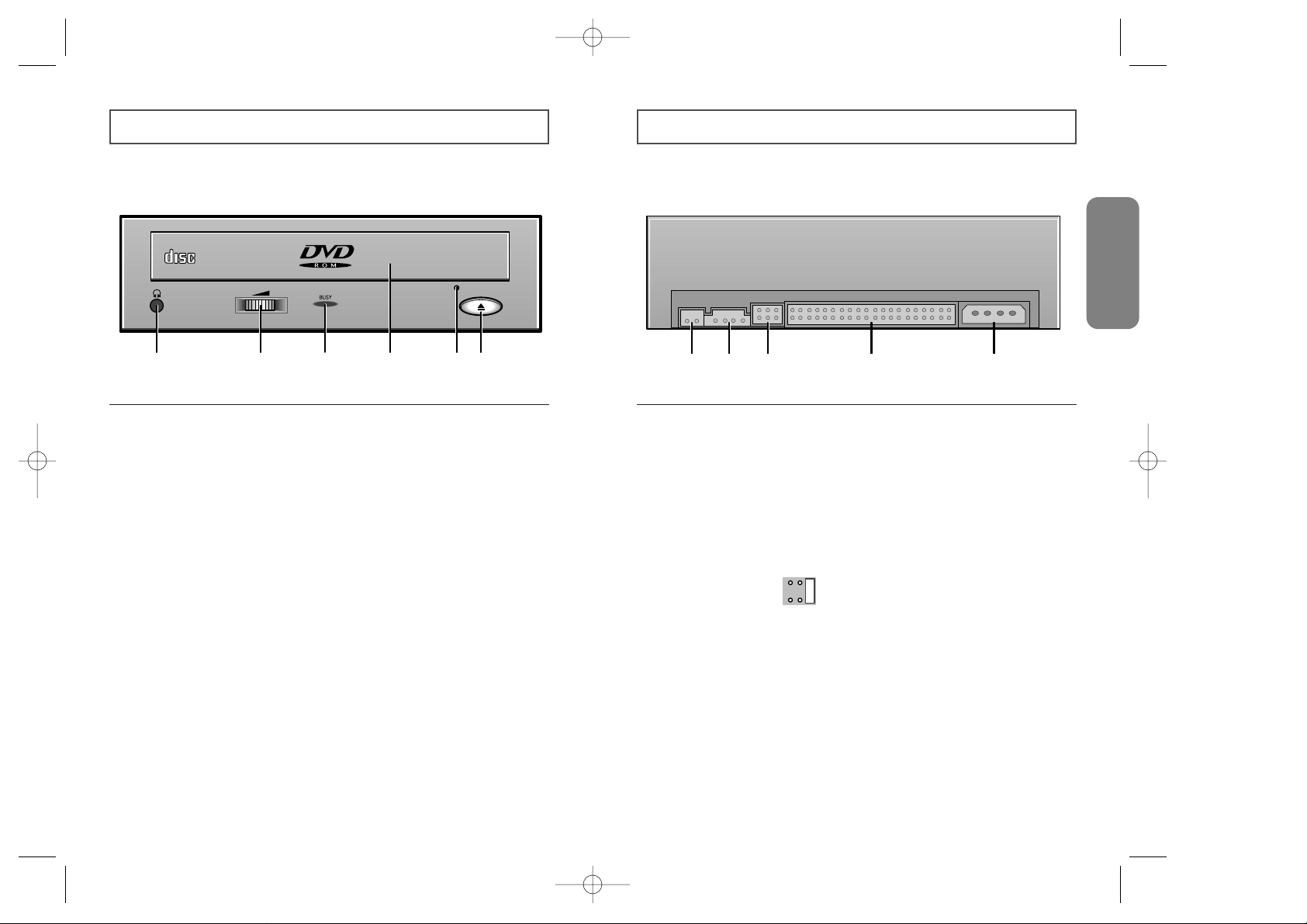
Front View of the DVD-ROM Drive Rear View of the DVD-ROM Drive
COMPACT
1 2 3 4 5 6
1 Headphone Connector
The audio output connector enables you to plug stereo headphones into the drive.
It requires a 3.6 mm stereo mini-jack.
2 Volume Control Dial
This control dial adjusts the volume for your headphones.
You can only use the headphone jack and volume control when you have installed the
required software utilities. For example, the Microsoft Windows Media player can be used.
3 LED
It lights when a DVD/CD disc is loaded or is worked.
4 Disc Tray
The disc tray opens and closes automatically when you press the Open/Close button.
☛ When you place a disc in the tray, make sure that the label on the disc is facing
upwards. If you are not loading or unloading a disc, the tray should remain closed.
5 Emergency hole
If the tray does not open when you press the Open/Close button, insert a small, metal
rod (for example, an unwound paper clip) into this hole to eject the disc.
☛ This function should only be performed when the computer is powered OFF.
6 Stop(Open/Close) Button
When in play, press the stop key and when in stop, press open/close key.
21 3 4 5
1 Digital Output Terminal
Connect an audio cable of the board that supports digital output to this terminal.
2 Audio Output Connector
You can connect a sound card to your drive using this four-pin connector.
➢This function is not covered in detail in this guide. Refer to the documentation supplied
with your sound card.
3 Device Configuration Jumper
Usually, this is a pre-set configuration as illustrated below:
☛Verify that the setting is as illustrated. If it is not, simply remove the jumper and place it
in the correct position.
4 Host IDE Interface Connector
This input/output interface connector is used to connect the 40-pin flat cable from the
IDE interface to the drive.
5 Power Connector
The power connector is a four-conductor male plug.
CSSLM
A
SDR(Eng) 11/12/98 8:11 AM Page 2
Page 3
4 5
English
Before you install the DVD-ROM drive, we strongly recommend that you make certain that
your set-up meets the system requirements listed below.
System Requirements
Install the drive in your computer horizontally, making sure that the Open/Close
button is on the right.
Installing the DVD-ROM Drive
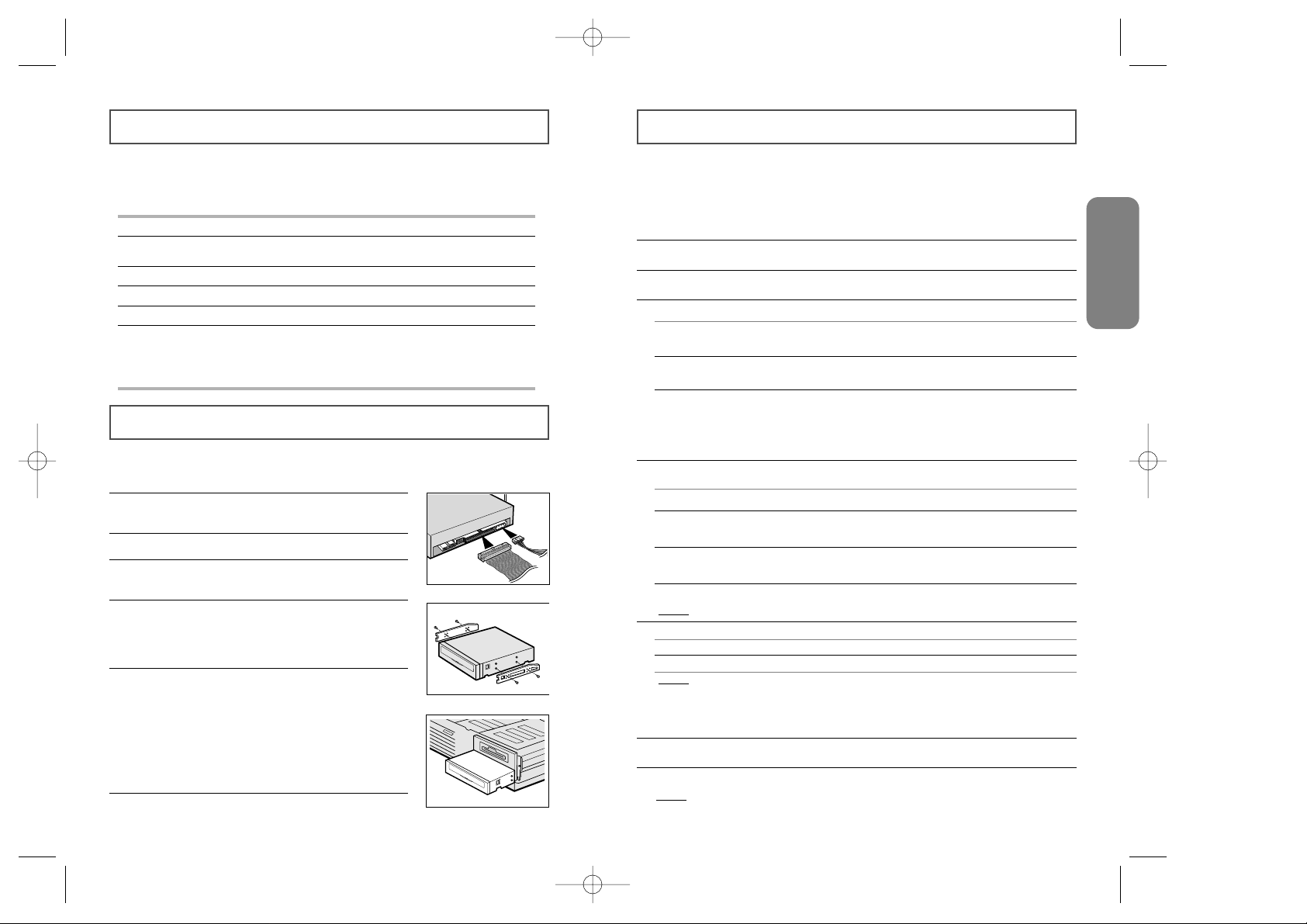
1 Turn OFF your computer. Remember to verify the
configuration jumper on the rear of the DVD-ROM drive.
To install the drive, proceed as follows.
2 Remove the cover of your PC(main unit of the computer).
3 Remove the blank cover panel for the 5.25 inch unit in
which the DVD-ROM drive is to be installed.
4 Connect the DVD-ROM drive to the IDE interface and
power cables located inside your computer.
☛Connectors are keyed so it is impossible to put them in an incorrect
position. Do not force the connectors, if they do not seem to fit.
5 Install the DVD-ROM drive into the unit and secure it with
mounting screws (recommended standard M3x6x4).
◆ Depending on your PC model, you may need to attach
guide rails to the drive, so that the drive is held firmly in place.
On the ground that the guide rails are parts of the computer,
if you don’t have these, please purchase separately.
◆ If you use screws that are longer than the recommended
standard, you may damage the drive.
6
Put the cover back on your PC.
Item Description
Type of computer Intel Pentium 166MHz, RAM 16MB(or higher) with an
IDE interface (or a 100% IBM-compatible computer)
Free expansion unit 5.25 inch
Disk space 100 MB minimum
Windows version 95 OSR2 (or higher)
Playback of DVD Video PC with Window95 OSR2
DVD-Video playback software and appropriate hardware
(MPEG2 card etc.)
❉For further details, refer to the documentation that comes with DVD-Video playback software
Installing the Software
You can install the device driver for DOS or for Windows.
1 Turn on your computer and wait for it to boot.
7 Reboot your system.
Result
: ◆ The computer restarts
◆ Both the device driver and MSCDEX are loaded.
6 When the Setup Completed screen is displayed, remove the installation floppy disk from the drive.
2 Insert the driver disk into a floppy disk drive (usually the A drive).
4 Run the program:
5
To... Then enter...
Confirm the installation Y
Exit without installing N
Result
: If you answer Y (Yes), the installation program automatically
◆ Creates a SAMSUNG directory on your hard disk,
◆ Copies the required softwares,
◆ Modifies the CONFIG.SYS and AUTOEXEC.BATfiles.
3
If you are a... Then...
DOS user ◆ Type a: at the DOS prompt.
◆ Press the RETURN key.
Windows user ◆ Access the File Manager.
◆ Click on the A icon.
Windows 95 user ◆ When you are in Windows 95, it is not necessary to
install Device Driver. Whereas, when you are in Dos
Mode of Windows 95, then install as follows.
Windows 95 user ◆ Click on MY COMPUTER icon.
Windows 95 user ◆ Click on the A icon.
If you are a... Then...
DOS user ◆ Type CDSETUP after the a: prompt.
◆ Press RETURN.
Windows user Double-click CDSETUP.EXE from the Windows
File Manager.
Windows 95 user Double click on CDSETUP icon.
Result
: The CD/DVD-ROM Setup Program dialog box is displayed.
SDR(Eng) 11/12/98 8:11 AM Page 3
Page 4

6 7
English
Please consult the following table BEFORE contacting your dealer or local SAMSUNG
representative.
Changing the Drive and Driver Settings
Resolving Technical Problems
Parameter Details
/D:<drive name>
Specifies the name of the top DVD-ROM drive. The <drive name> field
must contain the same information as specified by parameter in your
CONFIG.SYS file (which loads the corresponding DVD-ROM drive).
☛The MSCDEX command must have at least one /D parameter.
If you add another DVD-ROM device, you must add and specify
a corresponding /D parameter for each new drive.
/E If the EMS memory mode (Expanded Memory Support) is
enabled, this parameter specifies that the DVD-ROM driver
can save sector buffers using EMS memory.
/K Specifies that MS-DOS can recognize a DVD-ROM volume
written in kanji (Chinese characters). Must be used for all
DVD-ROM volumes written in kanji.
/S Permits the DVD-ROM drive to be shared on the MS-NET or
Windows for Work Groups server.
/V: When MSCDEX.EXE is loaded, this parameter indicates the
memory status.
/L:<drive letter> Specifies the letter of the top DVD-ROM drive. If more than
one DVD-ROM drive is connected, the system automatically
assigns arbitrary drive names to the additional drives.
/M:<buffer> Specifies the number of sector buffers.
Your DVD-ROM drive is controlled by:
◆
MSCDEX.EXE (a Microsoft CD-ROM extensions program)
◆
SSCDROM.SYS (the CD/DVD-ROM device driver)
MSCDEX.EXE Parameters
The MSCDEX.EXE parameters are added to your AUTOEXEC.BAT file. Below is the syntax for each
parameter. Information indicated within square brackets [ ] is optional.
<Drv:>\<path>\MSCDEX.EXE [/E/K/S/V] /D:<drive name> [/L:<drive letter>] [/M:<buffer>]
Example
: The default set-up procedure adds the following default settings to your AUTOEXEC.BATfile:
C:\SAMSUNG\MSCDEX.EXE /D:SSCD000
SSCDROM.SYS Parameters
The SSCDROM.SYS parameters are added to your CONFIG.SYS file. Below is the syntax for each
parameter. Information indicated within square brackets [ ] is optional.
DEVICE=<Drv:>\<path>\SSCDROM.SYS /D:<drive name> [P:<X>]
Example
: The default set-up procedure adds the following default settings to your CONFIG.SYS file:
Device=C:\SAMSUNG\SSCDROM.SYS /D:SSCD000 /P:1F0,14,1
Details for each parameter are listed below.
Parameter Details
/P:<X> Specifies the port for the interface card.
Possible values
: 1F0, 170
Default:
1F0.
Problem Meaning/Solution
The software
installation failed
◆ Check that your hard disk is not full.
◆ The installation floppy disk may be corrupted.
Repeat the installation with the backup floppy disk.
I re-booted my PC
and it paused
during the start-up
program.
After installing the device driver, your system start-up program
may take more time than expected. If it does not start-up after
60 seconds, verify your AUTOEXEC.BAT file and, if necessary,
contact your local computer dealer.
The disc tray does
not open.
The drive may not be installed correctly.
Verify the physical installation.
I installed the
software and rebooted my PC. The
DVD-ROM drive
icon/directory still
does not appear.
◆ Verify the connections between the drive and your PC.
Check that the 40-pin flat cable is connected to an IDE
interface (some PCs are equipped with an SCSI disk
interface).
◆ Verify your AUTOEXEC.BAT file. Go to page 6 for the
verification procedure.
◆ Check the LASTDRIVE= command in the CONFIG.SYS file.
The specified letter must take the DVD-ROM volume into
account. If you do not know which letter is assigned to the
DVD-ROM, enter Z.
◆ Using the documentation provided with your PC, check that
the IDE hard disk is set up in MASTER mode.
In the File
Manager, the
DVD-ROM icon
does not display.
If you have installed the DVD-ROM drive... Then...
And the software Re-boot your PC.
And have not installed the software
Install the software
following the instructions
on page 5.
/D:<drive name>
✽ Refer to README. DOC.
Changes the name for the DVD-ROM drive. Up to eight
characters can be input.
Default:
SSCD000.
Details for each parameter are listed below.
SDR(Eng) 11/12/98 8:11 AM Page 4
Page 5
SDR(Eng) 11/12/98 8:11 AM Page 5
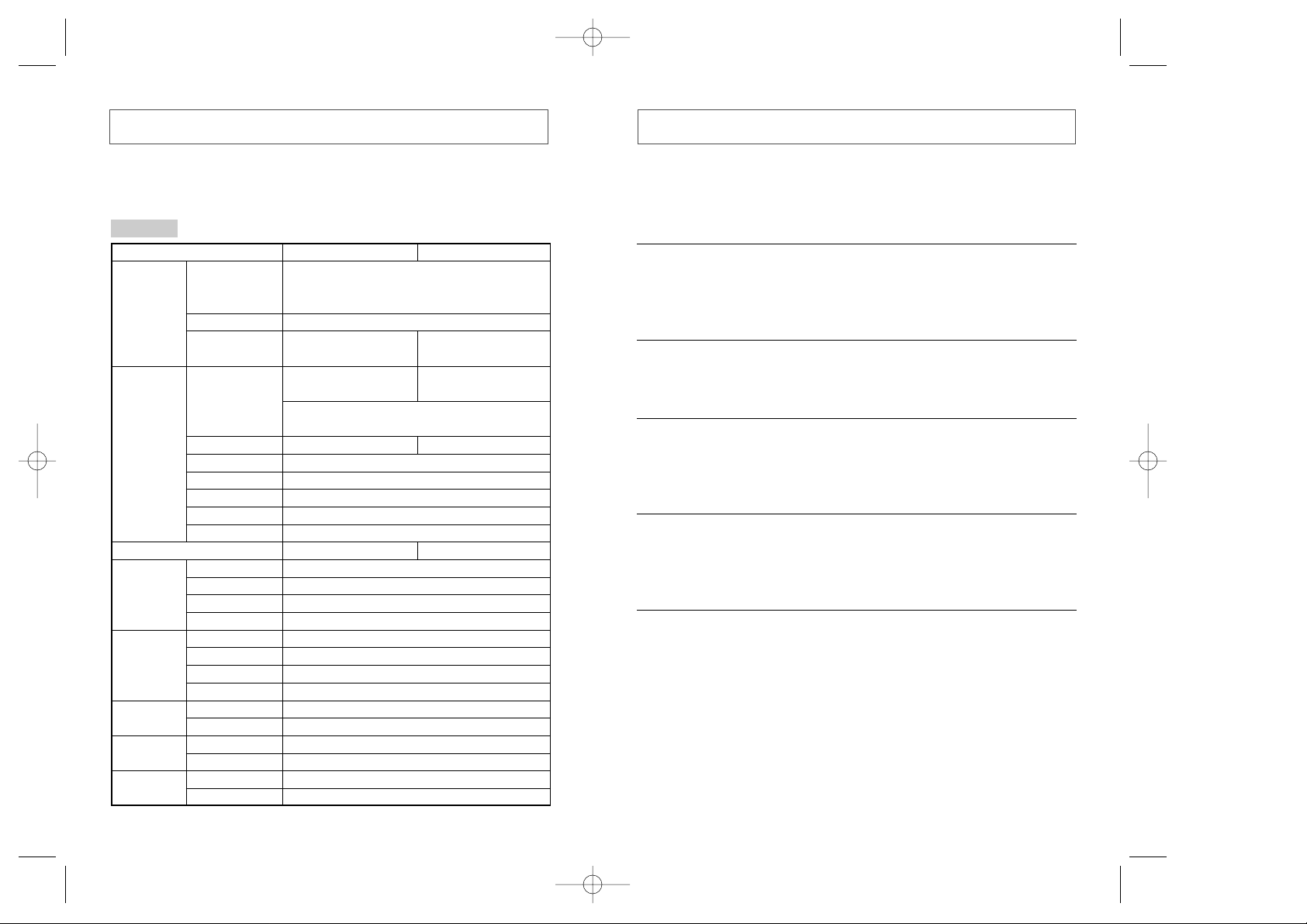
Technical Specifications Question & Answer
SAMSUNG continually strives to improve its products. Both the design specifications and
these user instructions are thus subject to change without notice.
SD-604
SECTIONS
DVD-ROM, DVD-VIDEO, CD-DA(Audio), CD-ROM,
CD-ROM XA, CD-Plus, CD-Extra, Photo-CD(Single,Multi-session),
Video CD ready, Enhanced CD, CD-I/FMV, CD-R,CD-RW
12cm or 8cm
2770 r.p.m
(linear velocity 3.49m/sec)
Sustained : Max. 6480KB/sec
PIO Mode 4 : 16.6MB/sec
Multiword DMAmode 2 : 16.6MB/sec
100ms(Typical)
512KB
Semiconductor Laser
Stepping motor
Brushless motor
Tray. DC motor(Soft Eject). Horizontal/Vertical
-15
10
Auto eject or Auto inject
BUSY
Stereo mini-jack(
Dial type
+5VDC : 1.0A, +12VDC : 1.5A(Max)
ATAPI
Line out 0.70
Device configuration jumper
Temperature : 5 ~ 45°C, Humidity : 8 ~ 80%
Temperature : -20 ~ 55°C, Humidity :5 ~ 85%
149(W)
900g
125,000 POH(Duty 20%)
50,000 times
DISC
DRIVE
PERFORMANCE
ERROR RATE
FRONT PANEL
REAR PANEL
OPERATING
ENVIRONMENT
GENERAL
RELIABILITY
Disc types supported
Disc diameter
Rotational speed
Data transfer rate
Access time(1/3stroke)
Data buffer capacity
Laser
Slide mechanism
Spindle motor
Loading mechanism
Eject button
Indicator(LED)
Headphone output
Volume control
Required power
Interface connector
Audio output
Jumper block
Work area
Storage area
Dimensions
Net weight
MTBF
Disc tray loading
DVD CD
6700 r.p.m
(linear velocity 1.3m/sec)
Ø3.6mm)
Sustained : Max. 4800KB/sec
95ms(Typical)
MODE1:10
0.60±0.06V(rms) 33Ω
(32X)
-12
, MODE2:10
±0.07V(rms) : 47KΩ
x
41.5(H) x 200(D)mm (Including bezel)
1What is DVD?
Adisc that the data capacity of a single-layer and single-sided DVD, at 4.7GB(Giga
Byte), is 7 times that of a CD. The picture data uses the MPEG2 format, one of the
worldwide standards of digital compress technology.
2What is MPEG2 card?
AMPEG2 card decode data of MPEG2 format on a DVD disc.
There is a soft-MPEG2 lately.
3What is Regional Code?
AMPEG2 card and discs have regional code numbers. It is only possible to play a
disc on a DVD-ROM drive when MPEG2 card has the same regional code with the
disc.
-9
4What is the difference of DVD-ROM DRIVE and DVD PLAYER?
ADVD player has a MPEG2 decoder, but a DVD-ROM drive hasn’t a MPEG2
decoder, so you need appropriate hardware to decode MPEG2 data on a disc.
(MPEG2 card etc.)
5Where can I get DVD disc or MPEG2 card?
You can get DVD discs at big disc stores, get MPEG2 card at computer stores.
8 9
 Loading...