

Page 1

r580.book Page 1 Thursday, October 28, 2010 12:45 PM
Page 2

Intellectual Property
All Intellectual Property, as defined below, owned by or which is otherwise the property of Samsung or its respective suppliers relating to
the SAMSUNG Phone, including but not limited to, accessories, parts, or software relating there to (the “Phone System”), is proprietary to
Samsung and protected under federal laws, state laws, and international treaty provisions. Intellectual Property includes, but is not limited
to, inventions (patentable or unpatentable), patents, trade secrets, copyrights, software, computer programs, and related documentation
and other works of authorship. You may not infringe or otherwise violate the rights secured by the Intellectual Property. Moreover, you
agree that you will not (and will not attempt to) modify, prepare derivative works of, reverse engineer, decompile, disassemble, or
otherwise attempt to create source code from the software. No title to or ownership in the Intellectual Property is transferred to you. All
r580.book Page 2 Thursday, October 28, 2010 12:45 PM
Page 3

The Bluetooth® word mark, figure mark (stylized “B Design”), and combination mark (Bluetooth word mark and “B Design”) are registered
trademarks and are wholly owned by the Bluetooth SIG.
Nuance®, VSuite™, T9 Text Input, and the Nuance logo are trademarks or registered trademarks of Nuance Communications, Inc. or its
affiliates in the United States and/or other countries.
microSD™, microSDHC™, and the microSD logo are Trademarks of the SD Card Association.
Openwave® is a registered Trademark of Openwave, Inc.
Disclaimer of Warranties; Exclusion of Liability
r580.book Page 3 Thursday, October 28, 2010 12:45 PM
Page 4

Table of Contents
Section 1: Getting Started .............................................. 7
Understanding this User Manual . . . . . . . . . . . . . . . . . . . . . . . . 7
Installing the Battery . . . . . . . . . . . . . . . . . . . . . . . . . . . . . . . . . 7
Charging the Battery . . . . . . . . . . . . . . . . . . . . . . . . . . . . . . . . . 8
Activating Your Phone . . . . . . . . . . . . . . . . . . . . . . . . . . . . . . . . 9
Locking and Unlocking the Phone . . . . . . . . . . . . . . . . . . . . . . 10
Menu Shortcuts . . . . . . . . . . . . . . . . . . . . . . . . . . . . . . . . . . . 21
Navigate Using Shortcut Icons . . . . . . . . . . . . . . . . . . . . . . . . 21
Navigation Key Shortcuts . . . . . . . . . . . . . . . . . . . . . . . . . . . . 22
QWERTY Keypad Shortcuts . . . . . . . . . . . . . . . . . . . . . . . . . . . 22
Customizing Shortcuts . . . . . . . . . . . . . . . . . . . . . . . . . . . . . . 22
Section 5: Entering Text ............................................... 23
r580.book Page 4 Thursday, October 28, 2010 12:45 PM
Page 5

Message Content and Delivery Options . . . . . . . . . . . . . . . . . 38
Receiving Messages . . . . . . . . . . . . . . . . . . . . . . . . . . . . . . . 38
Creating Quick Text . . . . . . . . . . . . . . . . . . . . . . . . . . . . . . . . 39
Section 8: Browser .......................................................40
Browser . . . . . . . . . . . . . . . . . . . . . . . . . . . . . . . . . . . . . . . . . 40
Launching the Browser . . . . . . . . . . . . . . . . . . . . . . . . . . . . . 40
Using the Browser . . . . . . . . . . . . . . . . . . . . . . . . . . . . . . . . . 40
Using Links . . . . . . . . . . . . . . . . . . . . . . . . . . . . . . . . . . . . . . 41
How Browser Buttons Work . . . . . . . . . . . . . . . . . . . . . . . . . . 41
Bluetooth . . . . . . . . . . . . . . . . . . . . . . . . . . . . . . . . . . . . . . . . 57
Calendar . . . . . . . . . . . . . . . . . . . . . . . . . . . . . . . . . . . . . . . . 59
Memo Pad . . . . . . . . . . . . . . . . . . . . . . . . . . . . . . . . . . . . . . . 59
Alarm Clock . . . . . . . . . . . . . . . . . . . . . . . . . . . . . . . . . . . . . . 60
World Time . . . . . . . . . . . . . . . . . . . . . . . . . . . . . . . . . . . . . . 60
Calculator . . . . . . . . . . . . . . . . . . . . . . . . . . . . . . . . . . . . . . . 61
Stop Watch . . . . . . . . . . . . . . . . . . . . . . . . . . . . . . . . . . . . . . 61
Converter . . . . . . . . . . . . . . . . . . . . . . . . . . . . . . . . . . . . . . . 62
Tip Calculator . . . . . . . . . . . . . . . . . . . . . . . . . . . . . . . . . . . . 62
r580.book Page 5 Thursday, October 28, 2010 12:45 PM
Page 6

Operating Environment . . . . . . . . . . . . . . . . . . . . . . . . . . . . . . 80
Using Your Phone Near Other Electronic Devices . . . . . . . . . . 80
FCC Hearing-Aid Compatibility (HAC)
Regulations for Wireless Devices . . . . . . . . . . . . . . . . . . . . . . 81
Potentially Explosive Environments . . . . . . . . . . . . . . . . . . . . . 83
Emergency Calls . . . . . . . . . . . . . . . . . . . . . . . . . . . . . . . . . . . 83
FCC Notice and Cautions . . . . . . . . . . . . . . . . . . . . . . . . . . . . 84
Other Important Safety Information . . . . . . . . . . . . . . . . . . . . . 85
Product Performance . . . . . . . . . . . . . . . . . . . . . . . . . . . . . . . 85
r580.book Page 6 Thursday, October 28, 2010 12:45 PM
Page 7

Section 1: Getting Started
This section explains how to start using your phone.
Understanding this User Manual
The chapters of this guide generally follow the same order as the
menus and sub-menus in your phone.
A robust index for quick reference to most features begins on
Text Conventions
To condense information in this manual, the following terms and
icon appear in procedural steps:
highlight
Use the Navigation key ( ) to move a highlighting
r580.book Page 7 Thursday, October 28, 2010 12:45 PM
Page 8
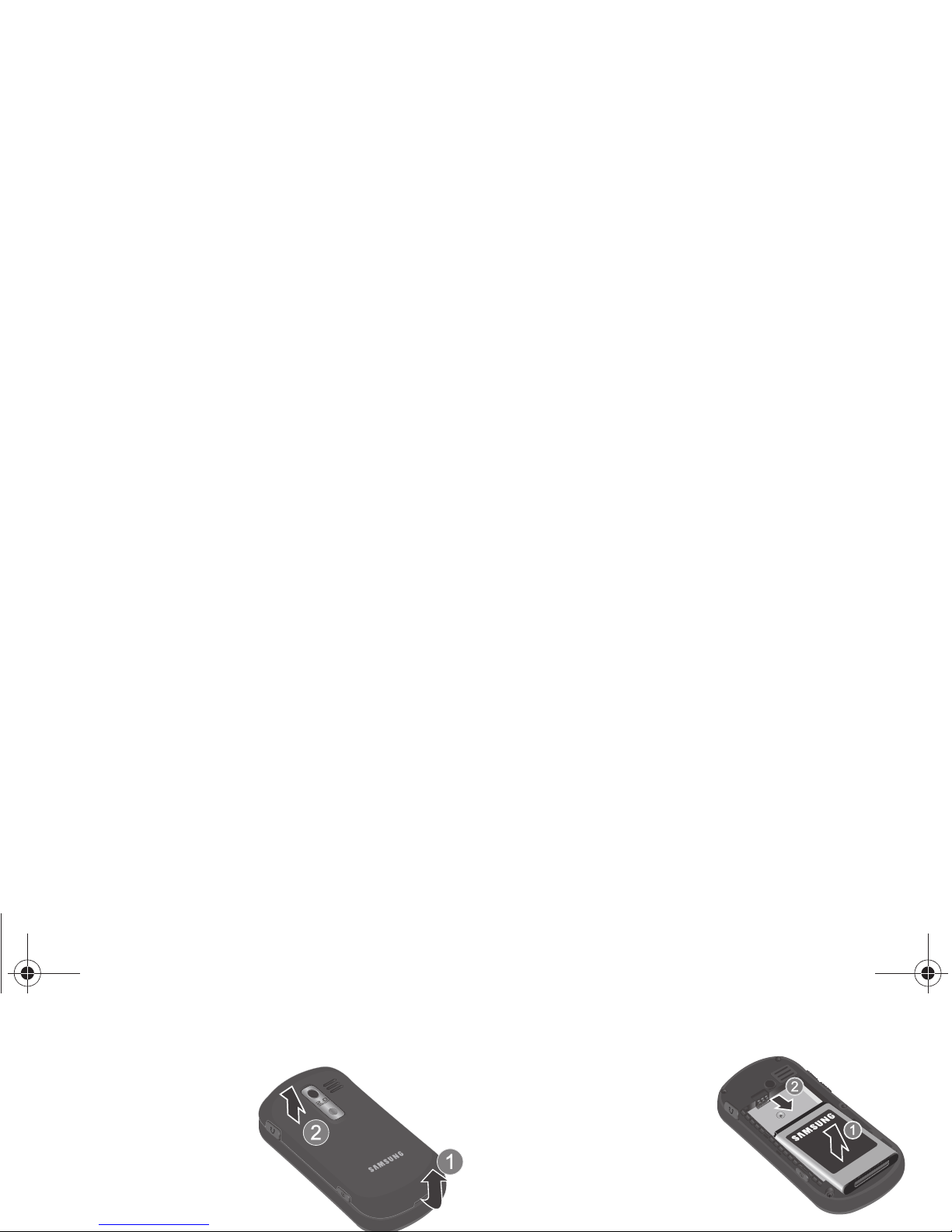
2.
Hold the device firmly
and locate the cover
release latch, then
place your fingernail
in the opening and
firmly lift the cover off
the device.
䊳
Slide the battery back
and lift it out and away
from the phone as
illustrated.
Charging the Battery
Your phone comes with a
convenient, light-weight Travel
Adapter for rapidly charging
r580.book Page 8 Thursday, October 28, 2010 12:45 PM
Page 9
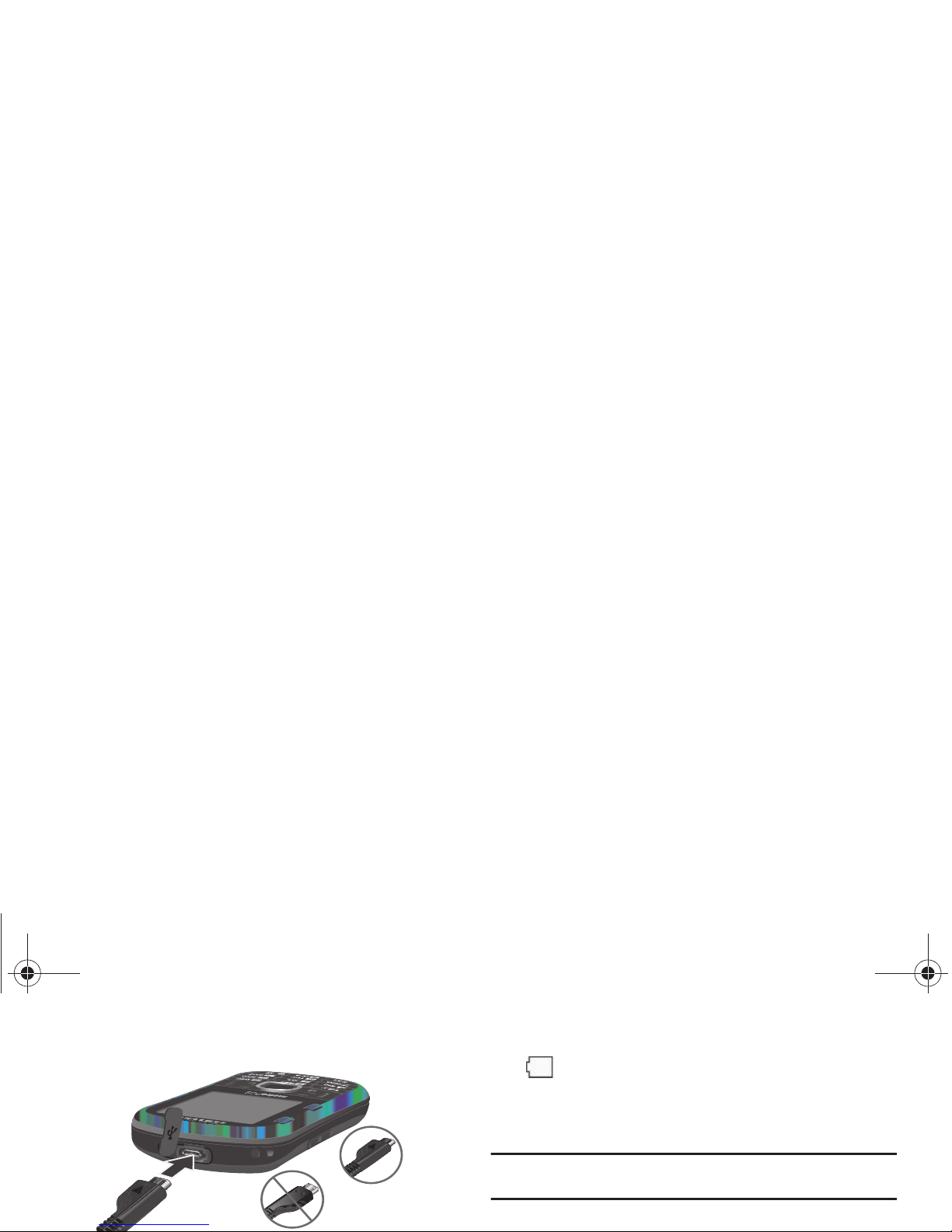
Note:
If you continue to use the phone without charging the battery, the
phone shuts down.
Activating Your Phone
Correct
A blinking empty battery icon and a tone indicate you
have two to three minutes before the battery power
runs out.
r580.book Page 9 Thursday, October 28, 2010 12:45 PM
Page 10

T u rning Your Phone Off
䊳
With the phone closed, press and hold the key for two
or more seconds.
Note:
If your phone is on and you press for less than one second, the
phone does not power off. This prevents you from accidentally turning
off the phone.
Locking and Unlocking the Phone
1. Press any key.
2. At the prompt, enter the
Lock Code
.
Note:
The default Lock Code is the last four digits of your telephone number.
Unlocking the Screen
When the phone is inactive for a period of time the screen locks
to prevent accidental key presses.
r580.book Page 10 Thursday, October 28, 2010 12:45 PM
Page 11

Listen to Voi cemail
1. In Standby mode, press and hold the key or dial your
own mobile number to dial Voicemail. After connecting,
you will hear your voice greeting.
2. You are prompted to enter your password.
Memory Card (Optional)
Your phone has a Memory Card slot on its right side, behind the
r580.book Page 11 Thursday, October 28, 2010 12:45 PM
Page 12
Section 2: Understanding Your Phone
This section lists some important features of your phone and
describes the keys and the screen format.
Features of Your Phone
•
Domestic and international voice and text messaging service (available
on participating networks).
•
Bluetooth® Stereo (v2.0) Wireless Technology (see Note)
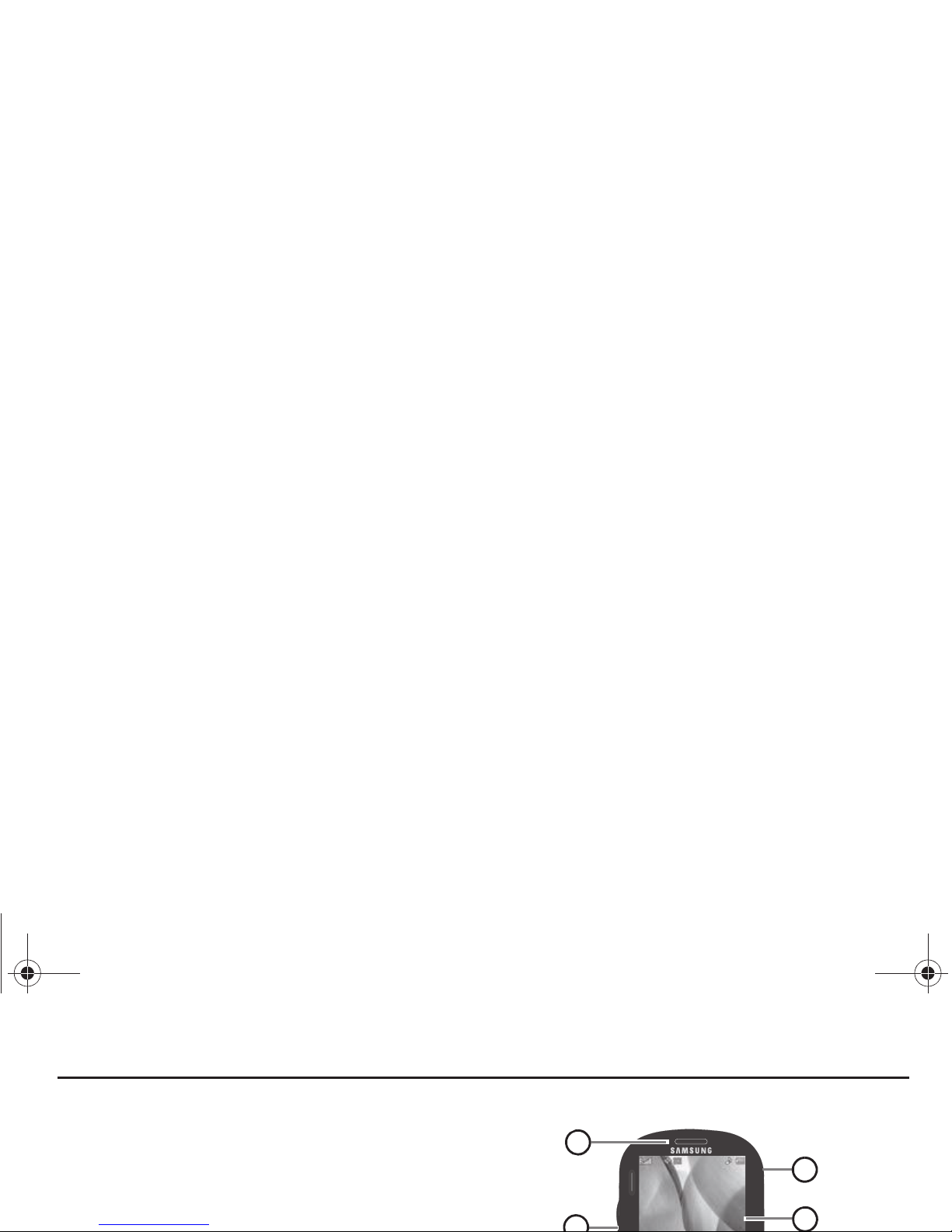
Closed View of Your Phone
1
14
15
r580.book Page 12 Thursday, October 28, 2010 12:45 PM
Page 13

Features
1. Earpiece Lets you hear ringing, alert tones, alarm tones,
and the caller.
2. Volume Key In Standby mode, adjusts the ring volume.
When receiving a call, mutes the ringer. During a call,
adjusts the voice volume.
3. Left Soft Key Performs the function indicated on the
bottom, left portion of the screen.
10. Back / Clear Key Deletes characters from the display
when you are in text entry mode. Press this key to return to
the previous menu or screen when navigating features on
your phone.
11. END Key Press and hold to switch the phone on or off.
When receiving a call, press to send the call to voicemail.
During a call, press to end it. In Menu mode, cancels any
input and returns the phone to Standby mode.
r580.book Page 13 Thursday, October 28, 2010 12:45 PM
Page 14

Open View (Front) of Your Phone
5.
Shift Key
Toggles ABC mode capitalization between ABC,
Abc, and abc.
6. space Key Inserts a character space in text.
7. OK Key In Standby mode, launces the Main Menu. Selects
a menu option or confirms/saves an input.
8. Arrow (Navigation) Keys In Menu mode, lets you scroll
through the phone menu options. In Standby mode, lets
you access preset functions and one user-defined
3
2
1
r580.book Page 14 Thursday, October 28, 2010 12:45 PM
Page 15
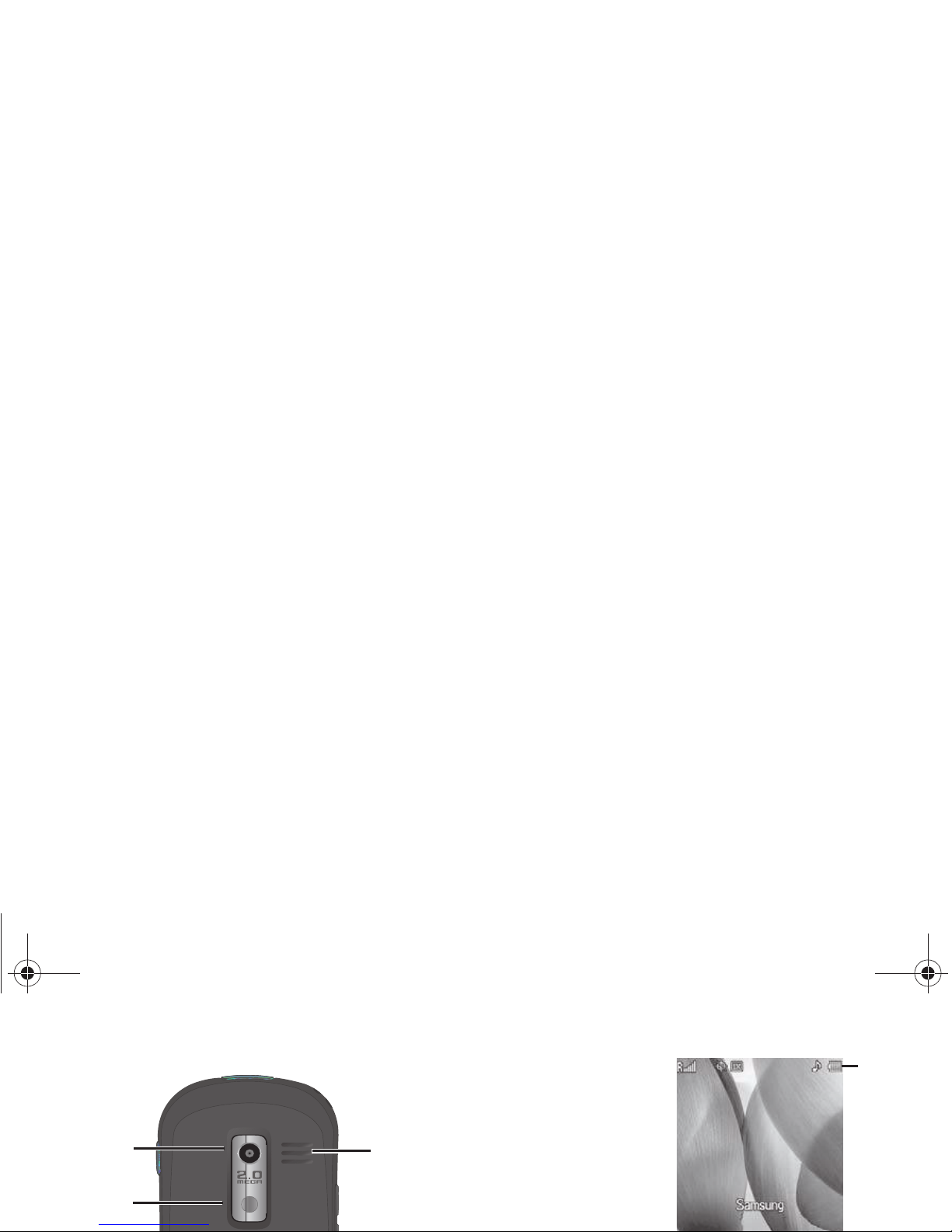
Display Screen Icons
Your phone has a glossy
that defines the icons
that display on the top
line of the screen.
To access the Icon
Glossary:
䊳
In Standby mode,
Camera Lens
Mirror
Speaker
Status
icons
display
here
r580.book Page 15 Thursday, October 28, 2010 12:45 PM
Page 16

Section 3: Call Functions
This section provides procedures for making and answering
calls, and for reviewing your call time.
Tip:
When using the QWERTY keypad with Call Functions, it is recommended
that you also use an optional headset or an optional handsfree car kit or
that you place your phone in Speakerphone mode. (For more
information, refer to “Closed View of Your Phone” on page 12.)
䊳
In Standby mode, enter the Emergency Number (911,
*911, or #911) and press .
Important!:
Because of various transmission methods, network parameters,
and user settings necessary to complete a call from your
wireless phone, a connection cannot always be guaranteed.
Therefore, emergency calling may not be available on all
r580.book Page 16 Thursday, October 28, 2010 12:45 PM
Page 17

2.
Press Options and select the desired pause:
•
2-Sec Pause
: pauses for two seconds and then resumes dialing.
•
Wait
: pauses and waits for your input.
3. Press to call the number.
Tip:
Press Save to store pauses along with the number to Contacts.
Speed Dialin g
Three-Way Calling
Set up a three-way call by merging two calls together.
1. Enter the number for the first party, then press .
2. Enter the second party’s phone number and press .
3. When the second party answers, press to set up the
three-way call.
Voice Dialing
r580.book Page 17 Thursday, October 28, 2010 12:45 PM
Page 18

Note:
Contact your Wireless Carrier for feature availability.
1. Press to place the first call on hold.
2. Answer the second call.
3. Press to place the second call on hold and return to the
first call.
4. Press to alternate between calls.
Call Settings
You can set your phone to answer calls only when you press
or when you press any key except , , or .
Note:
For more information, refer to “Call Answer” on page 64.
In-Call Options
You can access a number of menus and options during a call.
r580.book Page 18 Thursday, October 28, 2010 12:45 PM
Page 19
1.
In Standby mode, press
Menu
➔
Calls
.
2. Press the
Up
or
Down
Navigation key to view the call logs.
Tip:
From Standby mode, press to view a list of your most recent calls.
3. Select a number and press to call the number.
Saving Numbers from Call Log
You can store numbers from your Outgoing, Incoming, Missed,
Call Log Options
From the Call log you can view caller information, send a
message to a missed caller, or access further options.
Viewing Caller Information
䊳
Highlight a name or number and press
OPEN
( or ).
Sending a Message
䊳
Highlight a name or number and press
Msg
.
r580.book Page 19 Thursday, October 28, 2010 12:45 PM
Page 20

1.
In Standby mode, press
Menu
➔ Calls.
2. From the Calls menu, select Call Timer.
3. Highlight a time to reset and press Reset.
4. Press Reset All to reset all the timers.
Note:
You cannot reset LifeTime call timers.
5. Press to exit the Call Timer screen.
More Call Log Options
䊳
Highlight a missed call and press
Options
to display the
following:
•
Save
: Saves the number to the Contacts list.
•
Erase
: Erases the selected call from your Call list.
•
Lock / Unlock
: Locks the missed call to protect it from deletion or
unlocks it to allow deletion.
•
Erase all
: Erases all unlocked calls from the Call list.
r580.book Page 20 Thursday, October 28, 2010 12:45 PM
Page 21

Section 4: Menu Navigation
This section explains the menu navigation for your phone.
Menu Navigation
Access the menus and sub-menus in your phone using the
Navigation key, arrow keys , soft keys, or use a shortcut.
1. In Standby mode, press
Menu
. Menus and applications
Example:
To view the
Outbox
sub-menu, press
Menu
then press 2
(Messages) and or (Outbox).
Navigate Using Shortcut Icons
You can also access menus and sub-menus using Shortcut Icons,
and without the menu-based drill down.
r580.book Page 21 Thursday, October 28, 2010 12:45 PM
Page 22

Navigation Key Shortcuts
In Standby mode and with the QWERTY keypad closed, press the
Navigation key Up or Down to launch the corresponding
applications in the pattern shown here.
Create Text Message
Create Text Message
Inbox
Recent Calls
r580.book Page 22 Thursday, October 28, 2010 12:45 PM
Page 23

Section 5: Entering Text
This section outlines how to select the desired text entry mode
using the phone keypad or the nested, QWERTY keyboard-style
keypad. This section also describes how to use T9 predictive
text entry.
Built-in QWERTY Keypad
Note:
Two of your phone’s functions require use of the QWERTY keypad. You
can use either the keypad or QWERTY keyboard for all other text entry
functions such as, Messaging and Memo Pad.
Changing the Text Entry Mode
When creating text messages, you can use alphabetical
r580.book Page 23 Thursday, October 28, 2010 12:45 PM
Page 24

Tip:
You can also use 123 mode to enter symbols by pressing the key until
the symbol you want displays.
•
Symbols: Using the phone keypad, scroll to the desired symbol and
press OK to select and enter the symbol into text.
The current text entry mode (T9 Word, Abc, ABC, 123, or
Symbols) displays on the lower, left portion of the screen. To
change the text entry mode, do the following:
Note:
Press to enter a space. Press to enter a period. These key
functions apply to both T9 Word and Abc modes. For other symbols,
see “Entering Symbols” on page 25.
Using Abc Mode
1. While composing a text message, do one of the following:
Using the QWERTY keyboard
䊳
Press until “
Abc
” displays in the lower left corner of
r580.book Page 24 Thursday, October 28, 2010 12:45 PM
Page 25

Entering Numbers
Enter numbers into a text message while in 123 mode.
While composing a text message, do one of the following:
Using the QWERTY keyboard
䊳
Press until “
123/Sym
” displays in the lower left
corner of the screen.
Using the Phone keypad
3. Press the corresponding number key to select a symbol.
Tip:
Use the Left and Right soft keys to page through the other symbols.
Using the Phone keypad
1. Press the Left soft key, then select
Symbols
. The first of
three symbol screens displays on the screen.
2. Use the Left and Right soft keys to page through the other
r580.book Page 25 Thursday, October 28, 2010 12:45 PM
Page 26

Section 6: Understanding Your Contacts
This section explains how to use and manage your Contacts list.
Note:
Although the procedures in this section are written for the phone
keypad, you can also perform these procedures using the QWERTY
keypad.
Using the Contacts List
2. Highlight the Picture in the
No Picture
field and press
Set
.
3. Select an image from the My Images folder and press OK
to save this image for caller ID.
– or –
Press the
Camera
key to take a photo, then select the
photo and press
Confirm
( or ) t
o save this image
r580.book Page 26 Thursday, October 28, 2010 12:45 PM
Page 27

Adding a Contact to a Group
When you create a new contact you can associate that contact
with a predefined caller group.
1. In Standby mode, press
Contacts
.
2. Press
Options
➔
New Contact
. For more information on
creating a new contact see “Creating a New Contact” on
page 26.
– or –
Add the contact to a group. For more information, refer to
“Adding a Contact to a Group” on page 27.
3. Press
SAVE
. The new or current contact is associated with
this group.
Finding a Contact Entry
You can store phone numbers and their corresponding names in
r580.book Page 27 Thursday, October 28, 2010 12:45 PM
Page 28

Editing the Contacts List
1. In Standby mode, press
Contacts
.
2. Enter the first few letters of the contact name in the
Go To
field to quickly locate a name.
– or –
Use the Navigation keys to locate a name in the list.
3. Press
VIEW
, highlight the information to modify, and
Dialing a Number from Con t ac ts
䊳
In Standby mode, press
Contacts
, highlight the number to
call, then press
Options
➔
Call
.
– or –
Press .
Sending a T ext or Picture Message from the Contacts List
1. In Standby mode, press
Menu
➔
Contacts ➔ Find
.
r580.book Page 28 Thursday, October 28, 2010 12:45 PM
Page 29

3.
Compose the video message and press
SEND
.
For more information about text or picture messages, see
“Creating and Sending Video Messages” on page 33.
Sending a Namecard using Bluetooth
1. In Standby mode, press
Contacts
.
2. Highlight the contact to send a Namecard and press
Options
➔
Send Namecard via Bluetooth
.
r580.book Page 29 Thursday, October 28, 2010 12:45 PM
Page 30

Section 7: Messages
This section explains how to use your phone to exchange Text,
and Picture messages with compatible phones and devices.
Although the procedures in this section are written for the phone
keypad, you can also perform these procedures using the
QWERTY keyboard.
3. Enter the phone number or e-mail address for the
recipient.
– or –
Press
Add
and select a contact from
Contacts, Groups
, or
the
Recent Calls
list.
4. Press or and compose your text message.
r580.book Page 30 Thursday, October 28, 2010 12:45 PM
Page 31

•
Auto Scroll
: On/Off. With Auto Scroll On, the full content of a text
message automatically rolls upward on the display, one screen-full
at a time.
• Message View
: Chat/Normal. With Message View set to
Chat
,
multiple text messages exchanged with a single addressee appear
as a chat session.
Creating and Sending Picture Messages
1. In Standby mode, press
Menu
➔ Messages.
– or –
Press
Camera
, take a picture, and press
Save
() ➔
My Images
().
Select the picture and press OK.
7. Highlight the Sound: field and press
Sounds
to add a
sound to this message.
8. Press
SEND
to send this message.
r580.book Page 31 Thursday, October 28, 2010 12:45 PM
Page 32

Sending Picture Messages in Camera Mode
Picture messages can be sent to recipients with compatible
phones or devices. You can even accompany a Picture message
with a voice memo or other sound file.
1. In Standby mode, press and hold the Camera key ( ).
The camera view finder screen displays. (For more
information, refer to “Screen Layouts” on page 48.)
6. Select
Record New
, press
REC
to record the audio file, then
press
SAVE
to save the file. The file is added to the list and
displays on the screen.
7. Press
OK
and record an audio file to attach to this
message.
– or –
Select one of the listed audio files and press OK.
r580.book Page 32 Thursday, October 28, 2010 12:45 PM
Page 33

Creating and Sending Video Messages
1. In Standby mode, press
Menu
➔ Messages.
2. Select Send Message ➔ Video Message. The Create
Video Msg screen displays.
3. Enter the phone number or e-mail address for the
recipient.
– or –
Video Message Settings
1. In Standby mode, press
Menu
➔ Messages ➔
Msg Settings
➔
Picture/Video Message
.
2. Select the desired option, then select the desired setting or
enter the desired value.
The following options are available:
•
Auto Receive
: On/Off. With Auto Receive On, Picture messages
automatically download and display as they are received. With Auto
r580.book Page 33 Thursday, October 28, 2010 12:45 PM
Page 34

Note:
You can send a video message to up to ten recipients. Enter each
recipient’s address or phone number in a separate
Send to
field of the
video message composer.
6. Enter the phone number or e-mail address for the
recipient.
– or –
Press
Add
and select a contact from
Contacts, Groups
, or
Message Boxes
From each of the message boxes you can view, edit, send,
delete, or perform several other options.
Inbox
Received messages of all types (except Voicemail) are stored in
the Inbox.
Review Messages in the Inbox
r580.book Page 34 Thursday, October 28, 2010 12:45 PM
Page 35

1.
In Standby mode, press
Menu
➔ Messages ➔ Outbox. A
list of outgoing messages displays.
2. Press Options while viewing your message, to access
additional options. (For more information, refer to
“Message Folder Options” on page 35.)
Draft Box
Messages in the Draft Box are those that have been composed
and saved to the Draft Box. You can return to the Draft Box at any
Message Folder Opti ons
The following options are combined and apply to Inbox, Outbox,
or Draft messages. Each option denotes to which box the option
belongs.
•
Add Quick Text
: Drafts/Drafts Picture. Insert pre-composed text into
your message text.
•
Add Slide
: Picture Messages Only. Add a picture to the message.
•
Add To Contacts
: Inbox/Outbox/Drafts. Save the sender’s number to
r580.book Page 35 Thursday, October 28, 2010 12:45 PM
Page 36

•
Forward
: Inbox/Outbox. Send a copy of this message to another
recipient.
•
Lock
/
Unlock
: Inbox/Outbox. Block/permit erasure of the highlighted
message.
•
Message Info
: Inbox/Outbox. Shows message delivery status,
addressee, size, and so on.
•
Play Again
: Outbox. Replay the sound file in a Picture message.
•
Preview
: Draft Picture. Shows the message contents.
•
Validity Period: Drafts/Drafts Picture.
Allows you to enter a date and
time when this message expires.
Message List Options
•
Add To Contacts:
Inbox/Outbox/Drafts. Save the sender’s number
and/or e-mail to your Contacts.
•
Erase Multiple:
Erases multiple unlocked messages from Drafts,
Inbox, and the Outbox.
•
Forward:
Inbox/Outbox. Sends a copy of this message to another
r580.book Page 36 Thursday, October 28, 2010 12:45 PM
Page 37

Voicemail Overview
Voicemail allows callers to leave retrievable voice messages.
Voicemail messages are stored to the Messages, Voicemail
inbox. Open the Voicemail box to view the details of the message.
When you receive a voicemail message an alert tone sounds and
the new message icon displays.
䊳
Select one of the following, listening options:
Message Settings
Use the Msg Settings sub-menus to define settings for general,
text, and picture messages.
General Message Settings
1. In Standby mode, press
Menu
➔ Messages ➔
Msg Settings
➔
General
. The following options display on
the screen.
r580.book Page 37 Thursday, October 28, 2010 12:45 PM
Page 38

Message Content and Delivery Options
䊳
Create a Message (text, picture, or video) then press
Options
to select one of the following:
• Edit Send To
: allows you to edit the recipient’s number or email
address.
• Add Quick Text
: inserts pre-composed text in your message.
• Save As Draft
: saves the message to the Draft folder.
• Priority Level
: Choose
Urgent
or
Normal
.
• Remove Video
: Video message only. Removes the video
attachment from the message.
• Add Slide
: Picture message only. Adds a picture as a slide when
this is a multiple-picture message.
Receiving Messages
When you receive a message, your phone notifies you in one of
the following ways:
•
In Standby mode
: The ringer sounds (unless turned off) and
New
r580.book Page 38 Thursday, October 28, 2010 12:45 PM
Page 39

•
View Later
: Saves the message to the Inbox for later viewing, then
returns to the previous mode. (For more information, refer to
“Message Boxes”
on page 34.)
Creating Quick Text
1. In Standby mode, press
Menu
➔ Messages ➔
Msg Settings
➔ General ➔ Quick Text.
Note:
You cannot change the pre-defined Quick Text included with your
phone.
r580.book Page 39 Thursday, October 28, 2010 12:45 PM
Page 40

Section 8: Browser
This section outlines how to launch the Browser, how to navigate
to other pages on the web, and how the keys on the QWERTY
keypad are used with the web application. Additionally, links to
other sites are briefly discussed.
Browser
With the Browser, you can conveniently surf the web and
1. In Standby mode, open the QWERTY keyboard and do one
of the following to launch the Browser:
•
Press
Menu
, then select
Browser
➔
Get In Web
.
2. A list of categories (each representing one or more web
sites) displays on the screen.
r580.book Page 40 Thursday, October 28, 2010 12:45 PM
Page 41

Browser soft keys
At the bottom of the Browser display is a browser
command bar.
Text that displays in the left or right, bottom corner of the screen
is called a soft key and when pressed, executes the action of the
displayed word. Soft key functions change, depending on the
application.
Using Links
SHIFT
: Press before entering text to enable uppercase
characters.
Spacebar
: Press to insert a space when entering text.
Number 1 thru 0
: Use the number keys to select items
in a menu if they are numbered.
r580.book Page 41 Thursday, October 28, 2010 12:45 PM
Page 42

Section 9: Voice SVC
This section explains how you can use and customize your
phone’s Voice SVC voice recognition feature.
Voice Service
Your phone includes Nuance Vsuite, state-of-the-art voice
recognition software that lets you use your voice to dial numbers,
access your Contacts list, and open Tools. To access your
Tip:
You can also set your phone to start VoiceSignal when you connect an
optional headset to the phone. (For more information, see “Voice
Launch” on page 45)
•
Call <Name or #>
: Call a Contact by saying the name saved in your
Contacts list. Call any telephone number, even if not saved in your
r580.book Page 42 Thursday, October 28, 2010 12:45 PM
Page 43

Note:
Speaking clearly, say the command that you want to use. If VoiceSignal
does not recognize a command, it prompts you to repeat the
command. If VoiceSignal still does not recognized the command, it
tells you “Sorry, no match found” and cancels voice recognition.
Voic e C ommand Tips
•
Make sure you wait for the beep before speaking.
•
Speak clearly at a normal volume, as if you were talking on the phone.
2. Say “
Home
”, “
Work
”, or “
Mobile
”, and Voice Dial dials the
specified number.
3. Press to exit VoiceSignal without dialing.
Dialing a Number
1. In Standby mode, press and hold or until “Say
a command” displays on the screen.
2. Say “Call” followed by the phone number. Voice Dial
r580.book Page 43 Thursday, October 28, 2010 12:45 PM
Page 44

To change the way Vsuite uses choice lists:
䊳
From the
Voice Settings
menu, select Choice Lists and
select one of the following:
•
Automatic
: A choice list displays only when a spoken name or
number is not recognized.
•
Always On
: A choice list always displays, even when there is only
one choice.
•
Always Off
: A choice list never displays.
Tips for Adapting Digit Dialing
•
Use Adapt Digits in a quiet place.
•
Wait for the beep before speaking.
•
Speak clearly, and say each digit distinctly.
•
If you make a mistake while recording a sequence of digits, or if there
is an unexpected noise that interrupts the recording, re-record the
sequence.
Adapt Digits
r580.book Page 44 Thursday, October 28, 2010 12:45 PM
Page 45

6.
Continue the recording process.
After 10 sets of digits, the phone asks whether you want to
do more adaptation.
7. If you answer Yes in step 5, repeat steps 4 and 5 for
another 10 sets of digits.
After the second group of 10 sets of digits, Adaptation
complete plays through the speaker and the Digit Dialing
menu displays.
2. Select Sound.
3. Select one of the following options and press or
to accept the new setting:
•
Prompts
: Enables or disables audio prompts.
•
Digits
: Enables or disables digit playback.
•
Names
: Enables or disables name playback.
•
Name Settings
: Allows you to adjust the
Speed (Faster
,
Slower
or
Recommended
) and
Volume (Louder, Softer,
or
r580.book Page 45 Thursday, October 28, 2010 12:45 PM
Page 46

•
Key/EarMic
: Attach a headset to your phone. Press and hold
or , or press and hold the button on the headset to
activate VoiceSignal.
4. Press
OK
to accept the new setting.
About
1. In Standby mode, press
Menu
➔
Voice SVC
➔ Voice
Settings.
r580.book Page 46 Thursday, October 28, 2010 12:45 PM
Page 47

Section 10: Using the Camera
Use your phone to take full color digital pictures, display them on
your phone’s vivid color display, and instantly share them with
family and friends. This section explains how you can:
•
Take pictures with your phone’s built-in digital camera.
•
Send and receive pictures taken with your phone’s camera.
•
Set the several options associated with the camera that help you take
2. Point the camera at your subject and center it in the
viewfinder.
3. Press the Camera key ( ) or OK Key to take a picture.
The photo displays on the screen. Do one of the following:
•
Press the Right soft key to erase the photo.
•
Press key to send the photo as part of a Picture message.
r580.book Page 47 Thursday, October 28, 2010 12:45 PM
Page 48

2.
Press the Right soft key and select from the following:
• Single Shot
: Take one photo with each press of the Camera button.
•Series Shot
: Lets you take a series of 6 photos.
–
When you select Series Shot, the Series progress bar displays.
•Mosaic Shot
: Lets you take a mosaic of 1 to 18 photos.
–
When you select Mosaic, the size is automatically set to 320x240.
3. Center the subject in the viewfinder, then press the
Camera key ( ) to take the picture. The camera takes
5. Press
OK
to save the address(es).
6. Select other message fields as needed.
7. Press
SEND
to send the Picture message.
For more information, refer to “Picture Message Settings” on
page 31
Screen Layouts
Camera Screen
r580.book Page 48 Thursday, October 28, 2010 12:45 PM
Page 49
Camera Screen Icons
The following icons display on the Camera screen when the
Icon
Display
Camera setting is set to
Display All
.
Indicates whether the camera mode is set to
Camera
or
Camcorder
.
Shooting Mode
: Indicates/changes Camera shooting
Self Timer in use
: Delays the camera shutter for 2/5/10
seconds.
Color Effects
: Replaces the natural colors with shades
of a selected color. Selections are:
Normal
,
Black&White, Sepia, Negative, Green
, or
Aqua
.
Settings
: Displays/changes Camera Settings allows
r580.book Page 49 Thursday, October 28, 2010 12:45 PM
Page 50

4.
Press
Options
and select one of the following:
•Send
: Send the currently highlighted or displayed image as part of
a Picture message.
•Set As
: Assign the currently highlighted or displayed image as the
Main Wallpaper or as the Picture ID for a Contact.
• Erase Files
: Delete one or more marked images from the My
Images folder.
•Move
: Relocate the currently highlighted or displayed image from
r580.book Page 50 Thursday, October 28, 2010 12:45 PM
Page 51

Section 11: Multimedia
Use your phone’s Camera to take full color digital pictures,
display them on your phone’s vivid color display, and instantly
share them with family and friends.
With Mobile Shop, you can download personalized ringtones,
pictures, and more. For more information, contact your Wireless
Provider.
•
Set the several options associated with the camcorder that help you
capture crisp, clear videos.
Capturing Videos
Capturing videos with the built-in camcorder is as simple as
choosing a subject, pointing the lens (located on the rear of your
r580.book Page 51 Thursday, October 28, 2010 12:45 PM
Page 52

•
Press key to send the video as part of a Video message.
•
Press the Left soft key to save the video to memory.
Sending Videos
Capture a video and send it to anyone with a compatible device
in a few easy steps.
6. Capture the video using the procedural steps in “Capturing
Videos” on page 51.
Saves the new video.
Allows you to manage previously captured videos. See
“Gallery Options” on page 53.
Allows you to manage both camera and camcorder
settings. See “Camcorder Screen Icons” on page 52.
r580.book Page 52 Thursday, October 28, 2010 12:45 PM
Page 53

䊳
In Standby mode, press
Menu
➔
Multimedia
➔ My
Images. A multiple-page matrix of thumbnail views of
saved photos and images appears in the display.
•
To take new photos, press
Camera
.
•
To expand an image to fill the screen, highlight it and press
VIEW
( or ).
Gallery Options
Sound Off
: Indicates that the sound feature is Off.
White Balance
: Indicates/changes the current photo
White Balance setting. Selections are:
Auto, Sunny
,
Cloudy, Tungsten
, or
Fluorescent
.
Self Timer in use
: Delays the video capture for 2/5/10
seconds.
r580.book Page 53 Thursday, October 28, 2010 12:45 PM
Page 54

•Lock/Unlock
: Prevent/allow erasure of the currently highlighted or
displayed image.
• Slide Show
: displays multiple pictures as a slide show.
• Picture Info
: View the Name, Date, Time created, Resolution, and
Size of the currently highlighted or displayed image.
Music Player
Lets you launch and set up your phone’s music player and
manage music files stored on an optional microSD memory card.
temporary music playlist.
•Artists: Lists artist names for music files on the Memory Card and
lets you play one or more music files by a selected artist.
• Albums: Lists album titles for music files on the Memory Card and
lets you play one or more music files from a selected album.
•Genres: Lists music categories for music files on the Memory Card
and lets you play one or more music files of a particular music
category.
r580.book Page 54 Thursday, October 28, 2010 12:45 PM
Page 55

Playing Music
1. In Standby mode, press
Menu
➔
Multimedia
➔ Music
Player ➔
Library
➔
Now
playing
/
All
/
Artists
/
Albums
/
Genres
/
Recently added
/
Playlists
.
2. Highlight a song, press
MARK
6. Press the
Library
key to display the Library screen.
7. Press
Options
and select one of the following options:
• Go to Home Screen
: Plays music in the background while
performing other tasks.
•Play Mode
: Lets you change the play mode to Normal, Shuffle,
Repeat One, or Repeat All.
• Add to Playlist
: Displays the
Playlists
menu to let you add the
selected music file to a playlist.
r580.book Page 55 Thursday, October 28, 2010 12:45 PM
Page 56

Loading Music Files
To transfer music to a microSD™ Memory Card, do the
following:
1. Insert a memory card into the phone. (For more
information, see “Install a Memory Card” on page 11.)
2. Turn on the phone and when the memory card icon
displays, remove the memory card from the phone. This
places the folders on the memory card that are required for
r580.book Page 56 Thursday, October 28, 2010 12:45 PM
Page 57

Section 12: Tools
This section explains how you can use your phone’s Personal
Information Manager (PIM) functions to view today’s calendar,
schedule appointments, set an alarm, perform simple math
calculations, and more.
Accessing Your Phone’s Tools
To launch the Tools menu:
To turn Bluetooth support on:
䊳
In Standby mode, press
Menu
➔
Tools
➔
Bluetooth
➔
Registered List
and press
Yes
.
To turn Bluetooth support off:
䊳
In Standby mode, press
Menu
➔
Tools
➔
Bluetooth
r580.book Page 57 Thursday, October 28, 2010 12:45 PM
Page 58

䊳
In Standby mode, press
Menu
➔
Tools
➔
Bluetooth
➔Registered List.
A list of registered
Bluetooth devices or the
Add New Device screen
displays.
Add (Pair With) a New Device
5. Enter the device passkey or PIN and press or .
When pairing completes, you are prompted to connect with
the device.
6. Press
Yes
. to pair.
Connecting to a Registered (Already Paired) Device
1. In Standby mode, press
Menu
➔
Tools
➔
Bluetooth
➔Registered List.
2. From the Registered List, highlight the device and press
r580.book Page 58 Thursday, October 28, 2010 12:45 PM
Page 59

The following options display:
• Enable
/
Disable
: Turns Bluetooth on or off. (For more information,
see
“Turn Bluetooth On/Off”
on page 57.)
•Discovery Mode
: Select On for other devices to see your device, or
Off
for no visibility.
• Device Name
: Shows the handset name. You can change this
name. Enter the text and press
or
.
• Supported Profiles
: Lists and describes the Bluetooth profiles your
2. Press
Add
.
3. Enter an
Appointment Name, Start Date, Start Time, End
Date, End Time, Recurrence
, and
Alert
for this event.
4. Highlight
Reminder
and select On if you want an alarm to
notify you prior to this event occurrence.
5. Select
Alert time
and use the Navigation key to select the
amount of time to alert (choices are:
5 Min. Before, 10 Min.
Before, 15 Min. Before, 30 Min. Before, 1 Hour Before, 3
r580.book Page 59 Thursday, October 28, 2010 12:45 PM
Page 60

3.
Press
VIEW
to view the memo.
4. Press
Options
, select one of the following actions, then
press OK.
•Edit
: Allows you to edit the current memo.
•Erase
: Erases the selected memo.
•Erase all
: Erases all the memos.
•Lock/Unlock
: Locks the selected memo to protect it from deletion,
or Unlocks it to allow deletion.
6. Highlight the
Frequency
field and select an alarm
frequency. Selections are:
Daily, Mon. - Fri., Weekends
, or
Once
.
7. Highlight the
Ringer
field and use the
Left
or
Right
Navigation key to select a Ringer type. Selections are:
Ton e, Vibrate
, or
Light Only
.
8. Press
SAVE
to save your selections.
9. Highlight
Snooze
or
Dismiss
to silence the alarm and press
r580.book Page 60 Thursday, October 28, 2010 12:45 PM
Page 61

1.
In Standby mode, press
Menu
➔
Too ls
➔ World
Time. A World map
displays.
2. Press
Edit
and use the
Navigation key to scroll left
or right until the desired
time zone displays then
Calculator
You can perform calculations, including addition, subtraction,
multiplication and division using your phone.
Note:
You must use the phone keypad to use the Calculator.
1. In Standby mode, press
Menu
➔
Tools
➔ Calculator.
2. Enter the first number using the numeric keys.
r580.book Page 61 Thursday, October 28, 2010 12:45 PM
Page 62

Converter
You can use the converter to convert Currency, Length, Weight,
Volume, Area, or Temperature.
1. In Standby mode, press
Menu
➔
Tools
➔ Converter.
2. Select a conversion type and press .
3. Use the Navigation keys to select the
From
and To units of
measure for the quantity you want converted.
r580.book Page 62 Thursday, October 28, 2010 12:45 PM
Page 63

Section 13: Settings
This section explains how to configure your phone’s language,
network preferences, security options, and other settings.
Accessing Phone Settings
To launch the Settings menu:
䊳
In Standby mode, press
Menu
➔ Settings.
Wallpaper
This menu allows you to change the background image to display
in Standby mode. Choose from downloaded images in the My
Images folder, or from the Preset Images folder.
Banner
r580.book Page 63 Thursday, October 28, 2010 12:45 PM
Page 64

Master Volume
Use the
Master Volume
sub-menu to set the default volume for
Voice Call ringers, Message alerts, and Alarms to the desired
volume level (
Silence All, Vibrate
, Low, Vib. on/off, Low/
Medium, Medium, Medium/High, or High).
Ringer Type
Use the
Ringer Type
sub-menu to select ringtones, melodies, or
Call Answer
You can set your phone to answer incoming calls only when you
press or when you press any key on the keypad except ,
, or .
Call Alert
Call Alert lets you set your phone plays to notify you of incoming
calls by playing the voice calls ringer only, by reading any Caller
r580.book Page 64 Thursday, October 28, 2010 12:45 PM
Page 65

TTY Mode
Your phone is fully Teletypewriter (TTY)/Telecommunication
Device for the Deaf (TDD) compatible. You connect TTY/TDD
equipment to the headset connector on the top of your phone,
behind the folder hinge. You can set your phone to allow TTY/TTD
communication while you converse with the other party, or you
can limit voice communication to Talking or Hearing only.
Tip:
If you need to make an emergency call with Airplane mode enabled, just
dial the emergency number and press .
Shortcut Key
The Shortcut Key option lets you change the shortcuts assigned
to the up, down, right, and left navigation key directions. You can
assign a different path to any function that’s typically used the
most often. These options include: Brew, Browser, New Text
r580.book Page 65 Thursday, October 28, 2010 12:45 PM
Page 66

Note:
The default lock code is the last four digits of your mobile phone
number.
NAM Selection
The
NAM Selection
option lets you select your preferred system
(
NAM 1
or
NAM 2
), provided your phone has a NAM 2 number
programmed into it. (For more information, contact your Wireless
Provider.)
Note:
In digital service mode, the Set Time feature is disabled. The network
adjusts time and date automatically.
With
Airplane Mode
set to On, the Set Time feature is enabled.
•
Enter the current Time using your keypad:
–
The hour and minute must be entered using two digits each. You must
enter the hour in 12-hour format.
–
Use the Left and Right navigation keys to select am or pm.
r580.book Page 66 Thursday, October 28, 2010 12:45 PM
Page 67

Note:
For more information, refer to “Install a Memory Card” on page 11.
With
PC Connection
set to
USB Mass Storage
or
Bluetooth
, you can
transfer music, sound, ringtone, and image files to and from a
microSD Memory Card.
Auto Key Lock
With
Auto Key Lock
set to On, your phone automatically disables
Important!:
If after setting your phone to Lock itself On Power Up, you change
the NAM Selection setting from
NAM1
to
NAM2
, but there is no
number programed into NAM2, you won’t be able to access your
phone. You must call your Wireless Provider’s Service Center to
unlock your phone.
Memory Info
The Memory Info options let you:
•
Select the default storage location (
Phone Memory
or
Card Memory
)
r580.book Page 67 Thursday, October 28, 2010 12:45 PM
Page 68

Section 14: Health and Safety Information
This section outlines the safety precautions associated with using
your phone. These safety precautions should be followed to
safely use your phone.
Health and Safety Information
Exposure to Radio Frequency (RF) Signals
The exposure limit set by the FCC for wireless mobile phones
employs a unit of measurement known as the Specific
Absorption Rate (SAR). The SAR is a measure of the rate of
absorption of RF energy by the human body expressed in units of
watts per kilogram (W/kg). The FCC requires wireless phones to
comply with a safety limit of 1.6 watts per kilogram (1.6 W/kg).
r580.book Page 68 Thursday, October 28, 2010 12:45 PM
Page 69

Before a new model phone is available for sale to the public, it
must be tested and certified to the FCC that it does not exceed
the exposure limit established by the FCC. Tests for each model
phone are performed in positions and locations (e.g. at the ear
and worn on the body) as required by the FCC.
For body worn operation, this phone has been tested and meets
FCC RF exposure guidelines when used with an accessory that
contains no metal and that positions the handset a minimum of
Sometimes it may be necessary to remove the battery pack to
find the number. Once you have the FCC ID number for a
particular phone, follow the instructions on the website and it
should provide values for typical or maximum SAR for a particular
phone. Additional product specific SAR information can also be
obtained at
www.fcc.gov/cgb/sar.
Please Note the Following Information When
Using Your Handset
r580.book Page 69 Thursday, October 28, 2010 12:45 PM
Page 70

Samsung Mobile Products and Recycling
Samsung cares for the environment and encourages its
customers to recycle Samsung mobile phones and genuine
Samsung accessories.
Go to:
http://mobile.samsungusa.com/recycling/index.jsp
or
1-800-822-8837 for more information.
UL Certified Travel Adapter
Consumer Information on Wireless Phones
The U.S. Food and Drug Administration (FDA) has published a
series of Questions and Answers for consumers relating to radio
frequency (RF) exposure from wireless phones. The FDA
publication includes the following information:
What kinds of phones are the subject of this update?
The term wireless phone refers here to hand-held wireless
r580.book Page 70 Thursday, October 28, 2010 12:45 PM
Page 71

Do wireless phones pose a health hazard?
The available scientific evidence does not show that any health
problems are associated with using wireless phones. There is no
proof, however, that wireless phones are absolutely safe.
Wireless phones emit low levels of radio frequency energy (RF) in
the microwave range while being used. They also emit very low
levels of RF when in the stand-by mode. Whereas high levels of
RF can produce health effects (by heating tissue), exposure to
What is FDA's role concerning the safety of wireless
phones?
Under the law, FDA does not review the safety of radiationemitting consumer products such as wireless phones before they
can be sold, as it does with new drugs or medical devices.
However, the agency has authority to take action if wireless
phones are shown to emit radio frequency energy (RF) at a level
that is hazardous to the user. In such a case, FDA could require
r580.book Page 71 Thursday, October 28, 2010 12:45 PM
Page 72

FDA belongs to an interagency working group of the federal
agencies that have responsibility for different aspects of RF
safety to ensure coordinated efforts at the federal level. The
following agencies belong to this working group:
•
National Institute for Occupational Safety and Health
•
Environmental Protection Agency
•
Federal Communications Commission
•
Occupational Safety and Health Administration
What are the results of the research done already?
The research done thus far has produced conflicting results, and
many studies have suffered from flaws in their research
methods. Animal experiments investigating the effects of radio
frequency energy (RF) exposures characteristic of wireless
phones have yielded conflicting results that often cannot be
repeated in other laboratories. A few animal studies, however,
have suggested that low levels of RF could accelerate the
r580.book Page 72 Thursday, October 28, 2010 12:45 PM
Page 73

However, none of the studies can answer questions about longterm exposures, since the average period of phone use in these
studies was around three years.
What research is needed to decide whether RF exposure
from wireless phones poses a health risk?
A combination of laboratory studies and epidemiological studies
of people actually using wireless phones would provide some of
the data that are needed. Lifetime animal exposure studies could
What is FDA doing to find out more about the possible
health effects of wireless phone RF?
FDA is working with the U.S. National Toxicology Program and
with groups of investigators around the world to ensure that high
priority animal studies are conducted to address important
questions about the effects of exposure to radio frequency
energy (RF). FDA has been a leading participant in the World
Health Organization international Electromagnetic Fields (EMF)
r580.book Page 73 Thursday, October 28, 2010 12:45 PM
Page 74

CTIA-funded research is conducted through contracts to
independent investigators. The initial research will include both
laboratory studies and studies of wireless phone users. The
CRADA will also include a broad assessment of additional
research needs in the context of the latest research
developments around the world.
What steps can I take to reduce my exposure to radio
frequency energy from my wireless phone?
Again, the scientific data do not demonstrate that wireless
phones are harmful. But if you are concerned about the RF
exposure from these products, you can use measures like those
described above to reduce your RF exposure from wireless phone
use.
What about children using wireless phone s?
The scientific evidence does not show a danger to users of
wireless phones, including children and teenagers. If you want to
r580.book Page 74 Thursday, October 28, 2010 12:45 PM
Page 75

Do hands-free kits for wireless phones reduce
risks from exposure to RF emissions?
Since there are no known risks from exposure to RF emissions
from wireless phones, there is no reason to believe that handsfree kits reduce risks. Hands-free kits can be used with wireless
phones for convenience and comfort. These systems reduce the
absorption of RF energy in the head because the phone, which is
the source of the RF emissions, will not be placed against the
Do wireless phone accessories that claim to shield
the head from RF radiation work?
Since there are no known risks from exposure to RF emissions
from wireless phones, there is no reason to believe that
accessories that claim to shield the head from those emissions
reduce risks. Some products that claim to shield the user from RF
absorption use special phone cases, while others involve nothing
more than a metallic accessory attached to the phone.
r580.book Page 75 Thursday, October 28, 2010 12:45 PM
Page 76

What about wireless phone interference with
medical equipment?
Radio frequency energy (RF) from wireless phones can interact
with some electronic devices. For this reason, FDA helped
develop a detailed test method to measure electromagnetic
interference (EMI) of implanted cardiac pacemakers and
defibrillators from wireless telephones. This test method is now
part of a standard sponsored by the Association for the
Additional information on the safety of RF exposures from various
sources can be obtained from the following organizations
(Updated 1/1/2010):
•
FCC RF Safety Program:
http://www.fcc.gov/oet/rfsafety/
•
Environmental Protection Agency (EPA):
http://www.epa.gov/radiation/
•
Occupational Safety and Health Administration's (OSHA):
r580.book Page 76 Thursday, October 28, 2010 12:45 PM
Page 77

Road Safety
Your wireless phone gives you the powerful ability to
communicate by voice, almost anywhere, anytime. But an
important responsibility accompanies the benefits of wireless
phones, one that every user must uphold. Always comply with
road safety regulations on using a mobile phone while driving.
Using a mobile phone while driving can be dangerous.
When driving a car, driving is your first responsibility. When using
4. Let the person you are speaking with know you are driving.
Suspend the call in heavy traffic or hazardous weather
conditions. Rain, sleet, snow, ice and even heavy traffic
can be hazardous.
5. Do not take notes or look up phone numbers while driving.
Jotting down a "to do" list or flipping through your address
book takes attention away from your primary
responsibility, driving safely.
r580.book Page 77 Thursday, October 28, 2010 12:45 PM
Page 78

9.
Use your wireless phone to help others in emergencies. If
you see an auto accident, crime in progress or other
serious emergency where lives are in danger, call 9-1-1 or
other local emergency number, as you would want others
to do for you.
10. Call roadside assistance or a special non-emergency
wireless assistance number when necessary. If you see a
broken-down vehicle posing no serious hazard, a broken
Responsible Listening
Caution!:
Avoid potential hearing loss.
Damage to hearing occurs when a person is exposed to loud
sounds over time. The risk of hearing loss increases as sound is
played louder and for longer durations. Prolonged exposure to
loud sounds (including music) is the most common cause of
preventable hearing loss. Some scientific research suggests that
r580.book Page 78 Thursday, October 28, 2010 12:45 PM
Page 79

You should follow some commonsense recommendations when
using any portable audio device:
•
Always turn the volume down before plugging the earphones into an
audio source.
•
Set the volume in a quiet environment and select the lowest volume at
which you can hear adequately.
•
When using headphones, turn the volume down if you cannot hear the
people speaking near you or if the person sitting next to you can hear
You can obtain additional information on this subject from the
following sources:
American Academy of Audiology
11730 Plaza American Drive, Suite 300
Reston, VA 20190
Voice: (800) 222-2336
r580.book Page 79 Thursday, October 28, 2010 12:45 PM
Page 80

As with other mobile radio transmitting equipment, users are
advised that for the satisfactory operation of the equipment and
for the safety of personnel, it is recommended that the
equipment should only be used in the normal operating position
(held to your ear with the antenna pointing over your shoulder if
you are using an external antenna).
Using Your Phone Near Other Electronic Devices
Most modern electronic equipment is shielded from radio
National Institute for Occupational Safety and Health (NIOSH)
395 E Street, S.W.
Suite 9200
Patriots Plaza Building
Washington, DC 20201
Voice: 1-800-35-NIOSH (1-800-356-4647)
r580.book Page 80 Thursday, October 28, 2010 12:45 PM
Page 81

•
Should turn the phone OFF immediately if there is any reason to
suspect that interference is taking place;
•
Should read and follow the directions from the manufacturer of your
implantable medical device. If you have any questions about using
your wireless phone with such a device, consult your health care
provider.
For more information see:
http://www.fcc.gov/oet/rfsafety/rf-faqs.html
The wireless telephone industry has developed a rating system
for wireless phones, to assist hearing device users find phones
that may be compatible with their hearing devices. Not all phones
have been rated. Phones that are rated have the rating on their
box or a label located on the box.
The ratings are not guarantees. Results will vary depending on
the user's hearing device and hearing loss. If your hearing device
happens to be vulnerable to interference, you may not be able to
r580.book Page 81 Thursday, October 28, 2010 12:45 PM
Page 82
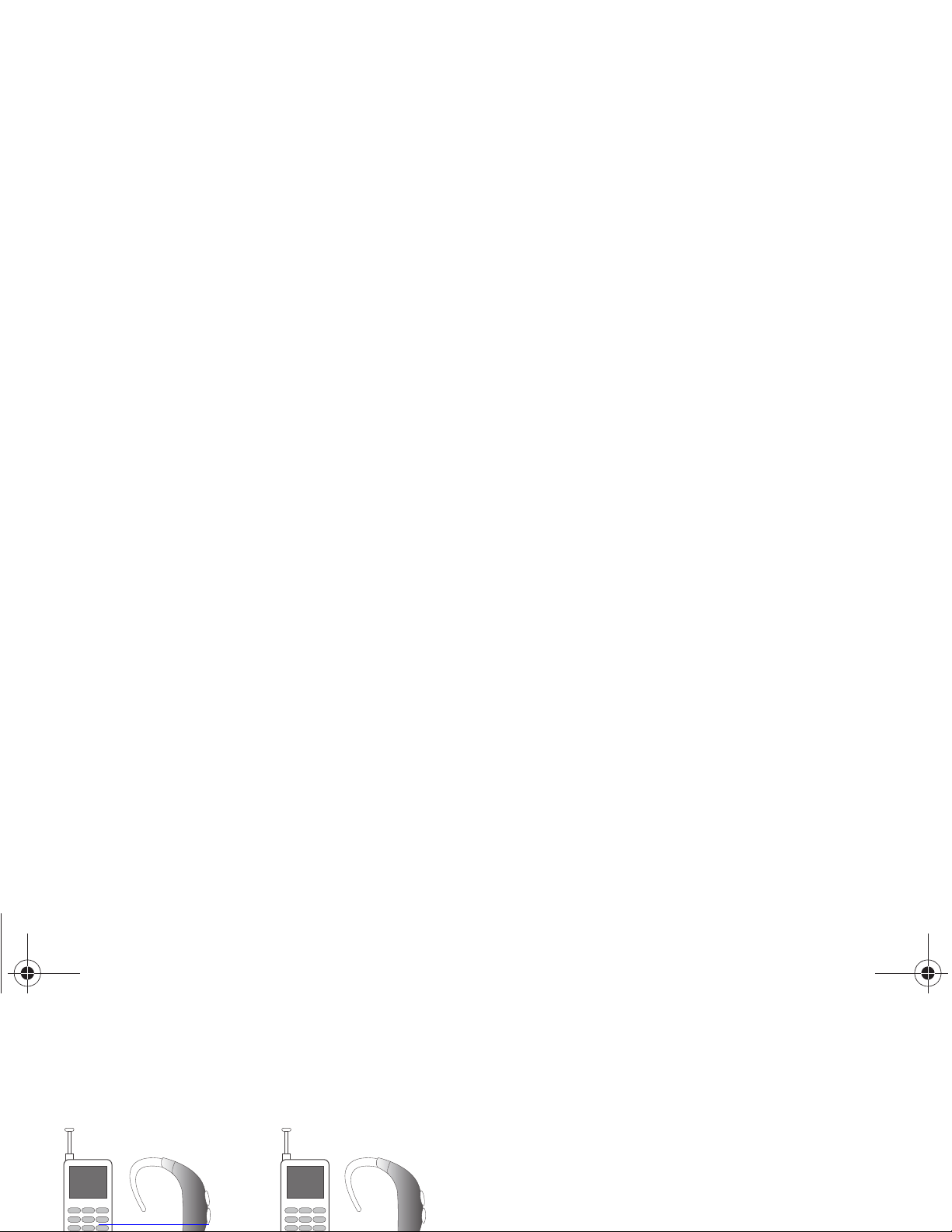
A sum of 5 is considered acceptable for normal use. A sum of 6
is considered for best use.
The HAC rating and measurement procedure are described in the
American National Standards Institute (ANSI) C63.19 standard.
Other Medical De vice s
If you use any other personal medical devices, consult the
manufacturer of your device to determine if it is adequately
shielded from external RF energy. Your physician may be able to
assist you in obtaining this information. Switch your phone off in
health care facilities when any regulations posted in these areas
r580.book Page 82 Thursday, October 28, 2010 12:45 PM
Page 83

Potentially Explosive Environments
Switch your phone off when in any area with a potentially
explosive atmosphere and obey all signs and instructions. Sparks
in such areas could cause an explosion or fire resulting in bodily
injury or even death.
Users are advised to switch the phone off while at a refueling
point (service station). Users are reminded of the need to observe
restrictions on the use of radio equipment in fuel depots (fuel
Emergency Calls
This phone, like any wireless phone, operates using radio
signals, wireless and landline networks as well as userprogrammed functions, which cannot guarantee connection in all
conditions areas or circumstances. Therefore, you should never
rely solely on any wireless phone for essential communications
(medical emergencies, for example). Before traveling in remote
or underdeveloped areas, plan an alternate method of contacting
r580.book Page 83 Thursday, October 28, 2010 12:45 PM
Page 84

When making an emergency call, remember to give all the
necessary information as accurately as possible. Remember that
your phone may be the only means of communication at the
scene of an accident; do not cut off the call until given
permission to do so.
Restricting Children's access to your Phone
Your phone is not a toy. Do not allow children to play with it
because they could hurt themselves and others, damage the
NFPA (National Fire Protection Agency)
1 Batterymarch Park
Quincy, Massachusetts
USA 02169-7471
Internet:
http://www.nfpa.org
r580.book Page 84 Thursday, October 28, 2010 12:45 PM
Page 85

Other Important Safety Information
•
Only qualified personnel should service the phone or install the phone
in a vehicle. Faulty installation or service may be dangerous and may
invalidate any warranty applicable to the device.
•
Ensure that any mobile phones or related equipment installed in your
vehicle are securely mounted.
•
Check regularly that all wireless phone equipment in your vehicle is
mounted and operating properly.
Product Performance
Getting the Most Out of Your Signal Reception
The quality of each call you make or receive depends on the
signal strength in your area. Your phone informs you of the
current signal strength by displaying a number of bars next to the
signal strength icon. The more bars displayed, the stronger the
signal.
r580.book Page 85 Thursday, October 28, 2010 12:45 PM
Page 86

Understanding How Your Phone Operates
Your phone is basically a radio transmitter and receiver. When it's
turned on, it receives and transmits radio frequency (RF) signals.
When you use your phone, the system handling your call controls
the power level. This power can range from 0.006 watts to 0.2
watts in digital mode.
Maintaining Your Phone's Peak Performance
•
Speak directly into the phone's receiver.
•
If your phone has a SIM or memory card: (i) handle the SIM or memory
card with care, (ii) do not remove a card while the phone is transferring
or accessing information, as this could result in loss of data and/or
damage to the card of phone, (iii) protect cards from strong shocks,
static electricity, and electrical noise from other devices, and (iv) do
not touch gold-colored contacts or terminals with your fingers or metal
objects (if dirty, wipe the card with a soft cloth).
r580.book Page 86 Thursday, October 28, 2010 12:45 PM
Page 87

Battery Precautions
•
Avoid dropping the cell phone. Dropping it, especially on a hard
surface, can potentially cause damage to the phone and battery. If you
suspect damage to the phone or battery, take it to a service center for
inspection.
•
Never use any charger or battery that is damaged in any way.
•
Do not modify or remanufacture the battery as this could result in
serious safety hazards. Use batteries only for their intended use.
•
Use only Samsung-approved batteries and recharge your battery only
with Samsung-approved chargers which are specifically designed for
your phone. When a charger is not in use, disconnect it from the power
source. Do not leave the battery connected to a charger for more than
a week, since overcharging may shorten its life.
•
Do not use incompatible cell phone batteries and chargers. Some Web
sites and second-hand dealers, not associated with reputable
manufacturers and carriers, might be selling incompatible or even
r580.book Page 87 Thursday, October 28, 2010 12:45 PM
Page 88

•
Do not leave the battery in hot or cold places, (below 0 °C (32 °F) or
over 45 °C (113 °F) such as in a car in summer or winter conditions, as
you will reduce the charging capacity and lifetime of the battery.
Always try to keep the battery at room temperature. A phone with a
hot or cold battery may temporarily not work, even when the battery is
fully charged. Li-ion batteries are particularly affected by temperatures
below
0 °C (32 °F).
•
Dispose of used batteries in accordance with local regulations. In some
areas, the disposal of batteries in household or business trash may be
prohibited. Do not handle a damaged or leaking Lithium Ion (Li-Ion)
battery. For safe disposal options for Li-Ion batteries, contact your
nearest Samsung authorized service center. Always recycle. Do not
dispose of batteries in a fire.
Care and Maintenance
Your phone is a product of superior design and craftsmanship
r580.book Page 88 Thursday, October 28, 2010 12:45 PM
Page 89

•
Do not store the phone in cold areas (below 0 °C (32 °F)). When the
phone warms up to its normal operating temperature, moisture can
form inside the phone, which may damage the phone's electronic
circuit boards.
•
Do not drop, knock or shake the phone. Rough handling can break
internal circuit boards.
•
Do not use harsh chemicals, cleaning solvents or strong detergents to
clean the phone. Wipe it with a soft cloth slightly dampened in a mild
•
Dispose of phones in accordance with local regulations. In some areas,
the disposal of phones in household or business trash may be
prohibited. For safe disposal options for phones, contact your nearest
Samsung authorized service center.
r580.book Page 89 Thursday, October 28, 2010 12:45 PM
Page 90

Section 15: Warranty Information
Standard Limited Warranty
What is Covered and For How Long?
SAMSUNG TELECOMMUNICATIONS AMERICA, LLC ("SAMSUNG")
warrants to the original purchaser ("Purchaser") that SAMSUNG's
phones and accessories ("Products") are free from defects in
material and workmanship under normal use and service for the
items, including framing, and any non-operative parts unless caused by
SAMSUNG; (b) defects or damage resulting from excessive force or use
of a metallic object when pressing on a touch screen; (c) equipment that
has the serial number or the enhancement data code removed, defaced,
damaged, altered or made illegible; (d) any plastic surfaces or other
externally exposed parts that are scratched or damaged due to normal
r580.book Page 90 Thursday, October 28, 2010 12:45 PM
Page 91

show evidence of tampering, or (iii) the battery has been used in
equipment other than the SAMSUNG phone for which it is specified.
What are SAMSUNG's Obligations?
During the applicable warranty
period, SAMSUNG will repair or replace, at SAMSUNG's sole
option, without charge to Purchaser, any defective component
part of Product. To obtain service under this Limited Warranty,
Purchaser must return Product to an authorized phone service
facility in an adequate container for shipping, accompanied by
must pay all parts, shipping, and labor charges for the repair or
return of such Product.
What Are The Limits On Samsung's Warranty/liability?
EXCEPT AS
SET FORTH IN THE EXPRESS WARRANTY CONTAINED HEREIN,
PURCHASER TAKES THE PRODUCT "AS IS," AND SAMSUNG MAKES NO
WARRANTY OR REPRESENTATION AND THERE ARE NO CONDITIONS,
EXPRESS OR IMPLIED, STATUTORY OR OTHERWISE, OF ANY KIND
WHATSOEVER WITH RESPECT TO THE PRODUCT, INCLUDING BUT NOT
r580.book Page 91 Thursday, October 28, 2010 12:45 PM
Page 92

WRITTEN WARRANTY STATED HEREIN. SOME STATES DO NOT ALLOW
LIMITATIONS ON HOW LONG AN IMPLIED WARRANTY LASTS, SO THE
ABOVE LIMITATION MAY NOT APPLY TO YOU. IN ADDITION, SAMSUNG
SHALL NOT BE LIABLE FOR ANY DAMAGES OF ANY KIND RESULTING
FROM THE PURCHASE, USE, OR MISUSE OF, OR INABILITY TO USE THE
PRODUCT OR ARISING DIRECTLY OR INDIRECTLY FROM THE USE OR
LOSS OF USE OF THE PRODUCT OR FROM THE BREACH OF THE
EXPRESS WARRANTY, INCLUDING INCIDENTAL, SPECIAL,
WHICH PURCHASER ACKNOWLEDGES IS AND WILL ALWAYS BE
CONSTRUED TO BE LIMITED BY ITS TERMS OR AS LIMITED AS THE LAW
PERMITS.
THE PARTIES UNDERSTAND THAT THE PURCHASER MAY USE THIRDPARTY SOFTWARE OR EQUIPMENT IN CONJUNCTION WITH THE
PRODUCT. SAMSUNG MAKES NO WARRANTIES OR REPRESENTATIONS
AND THERE ARE NO CONDITIONS, EXPRESS OR IMPLIED, STATUTORY OR
OTHERWISE, AS TO THE QUALITY, CAPABILITIES, OPERATIONS,
r580.book Page 92 Thursday, October 28, 2010 12:45 PM
Page 93

whether oral or written, do not constitute warranties by SAMSUNG and
should not be relied upon.
Samsung Telecommunications America, LLC
1301 E. Lookout Drive
Richardson, Texas 75082
Phone: 1-800-SAMSUNG
Phone: 1-888-987-HELP (4357)
BE BOUND BY THE TERMS OF THIS EULA. IF YOU DO NOT
ACCEPT THE TERMS IN THIS EULA, YOU MUST CLICK THE
"DECLINE" BUTTON, DISCONTINUE USE OF THE SOFTWARE.
1. GRANT OF LICENSE. Samsung grants you the following rights
provided that you comply with all terms and conditions of this
EULA: You may install, use, access, display and run one copy of
the Software on the local hard disk(s) or other permanent storage
media of one computer and use the Software on a single
r580.book Page 93 Thursday, October 28, 2010 12:45 PM
Page 94

applicable law notwithstanding this limitation), or modify, or
disable any features of, the Software, or create derivative works
based on the Software. You may not rent, lease, lend, sublicense
or provide commercial hosting services with the Software.
4. CONSENT TO USE OF DATA. You agree that Samsung and its
affiliates may collect and use technical information gathered as
part of the product support services related to the Software
provided to you, if any, related to the Software. Samsung may
all of the Software (including all component parts, the media and
printed materials, any upgrades, this EULA) and you may not
retain any copies of the Software. The transfer may not be an
indirect transfer, such as a consignment. Prior to the transfer, the
end user receiving the Software must agree to all the EULA
terms.
7. EXPORT RESTRICTIONS. You acknowledge that the Software is
subject to export restrictions of various countries. You agree to
r580.book Page 94 Thursday, October 28, 2010 12:45 PM
Page 95

SAMSUNG AND ITS LICENSORS (COLLECTIVELY REFERRED TO AS
"SAMSUNG" FOR THE PURPOSES OF SECTIONS 9, 10 and 11)
HEREBY DISCLAIM ALL WARRANTIES AND CONDITIONS WITH
RESPECT TO THE SOFTWARE, EITHER EXPRESS, IMPLIED OR
STATUTORY, INCLUDING, BUT NOT LIMITED TO, THE IMPLIED
WARRANTIES AND/OR CONDITIONS OF MERCHANTABILITY, OF
SATISFACTORY QUALITY OR WORKMANLIKE EFFORT, OF FITNESS
FOR A PARTICULAR PURPOSE, OF RELIABILITY OR AVAILABILITY,
10. EXCLUSION OF INCIDENTAL, CONSEQUENTIAL AND CERTAIN
OTHER DAMAGES. TO THE EXTENT NOT PROHIBITED BY LAW, IN
NO EVENT SHALL SAMSUNG BE LIABLE FOR PERSONAL INJURY,
OR ANY INCIDENTAL, SPECIAL, INDIRECT OR CONSEQUENTIAL
DAMAGES WHATSOEVER, OR FOR LOSS OF PROFITS, LOSS OF
DATA, BUSINESS INTERRUPTION, OR FOR ANY PECUNIARY
DAMAGES OR LOSSES, ARISING OUT OF OR RELATED TO YOUR
USE OR INABILITY TO USE THE SOFTWARE, THE PROVISION OF
r580.book Page 95 Thursday, October 28, 2010 12:45 PM
Page 96

damages you incur in reasonable reliance on the Software up to
the amount actually paid by you for the Software or US$5.00. The
foregoing limitations, exclusions and disclaimers (including
Sections 9, 10 and 11) shall apply to the maximum extent
permitted by applicable law, even if any remedy fails its essential
purpose.
12. U.S. GOVERNMENT END USERS. The Software is licensed
only with "restricted rights" and as "commercial items"
14. ENTIRE AGREEMENT; SEVERABILITY. This EULA is the entire
agreement between you and Samsung relating to the Software
and supersedes all prior or contemporaneous oral or written
communications, proposals and representations with respect to
the Software or any other subject matter covered by this EULA. If
any provision of this EULA is held to be void, invalid,
unenforceable or illegal, the other provisions shall continue in full
force and effect.
r580.book Page 96 Thursday, October 28, 2010 12:45 PM
Page 97

Customer Care Center:
1000 Klein Rd.
Plano, TX 75074
Toll Free Tel: 1.888.987.HELP (4357)
Samsung Telecommunications America, LLC:
1301 East Lookout Drive
Richardson, Texas 75082
r580.book Page 97 Thursday, October 28, 2010 12:45 PM
Page 98

Index
A
Accessing Phone Settings 63
Accessing Your Phone’s Tools 57
Adjust
Key Tone 64
Alerts 64
Calendar
View an Event 59
Call Answer 18, 64
Call Functions
Answering a Call 17
Making a Call 16
Sending Videos 52
Camera
Photo Gallery 49
Screen Icons 48
Taking Pictures 47
Change Text Entry Modes 23
r580.book Page 98 Thursday, October 28, 2010 12:45 PM
Page 99

Using T9 Mode 24
Erase Logs 20
Exit the Browser 40
G
Gallery
Image 53
Gallery, photo 49
General Message Settings 37
Memory Info 67
Memory Management 67
Message Folder
Draft Box 35
Inbox 34
Outbox 34
Voice 37
Voicemail 37
P
Pause Dial 16
Phone Safety 80
Phone Settings
Airplane Mode 65
Language 65
NAM Selection 66
Security 65
r580.book Page 99 Thursday, October 28, 2010 12:45 PM
Page 100

Return to Last Menu 21
Reviewing Outbox 34
Ringer Type 64
S
SAR values 68
Screen Layouts 48
Security Settings
Emergency # 67
Settings, Picture Messages 31
Settings, Text Messages 30
Settings, Video Messages 33
Shortcut to Menus 21
Sound Settings
Ringer Type 64
Volume 64
Standard Limited Warranty 90
Calendar 59
Memo Pad 59
World Time 60
Tools Menu
Accessing 57
T-Ratings 81
TTY Mode 65
U
r580.book Page 100 Thursday, October 28, 2010 12:45 PM
 Loading...