

Page 1
Setting Up Your Samsung Gear VR Headset & Experience
STEP 1
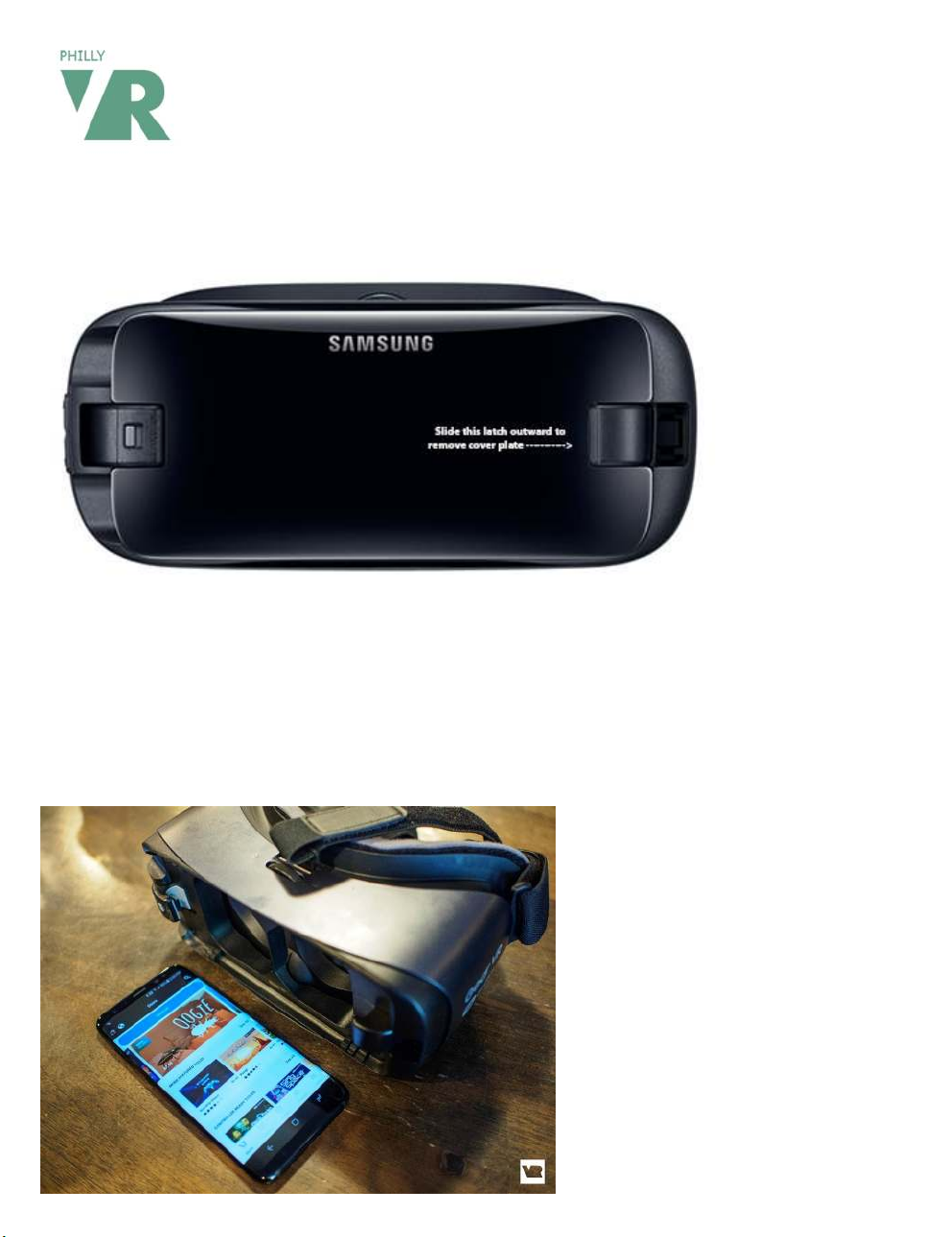
On the front of the VR headset there is a cover plate. This needs to be removed first and stored safely
somewhere until you are done using the headset. You will notice two small latches to the left and
right of the front plate of the head set. The one without any button needs to be gently slid outward
and the cover plate will pop up for removal.
Page 2
STEP 2
Power up your Galaxy Phone and swipe the lock screen to open to phone’s home screen. If required,
be sure Wifi is turned on and set up. If you choose to use the game controller vs the headset built in
controller, you need to also enable Bluetooth and be sure to pair the controller device first (see
separate instruction sheet on using Samsung Game Controller). To turn on Wifi or Blue tooth on the
phone, swipe down from the top of the home screen and click on Wifi and/or Bluetooth Symbols. We
generally ship these activated already.
STEP 3
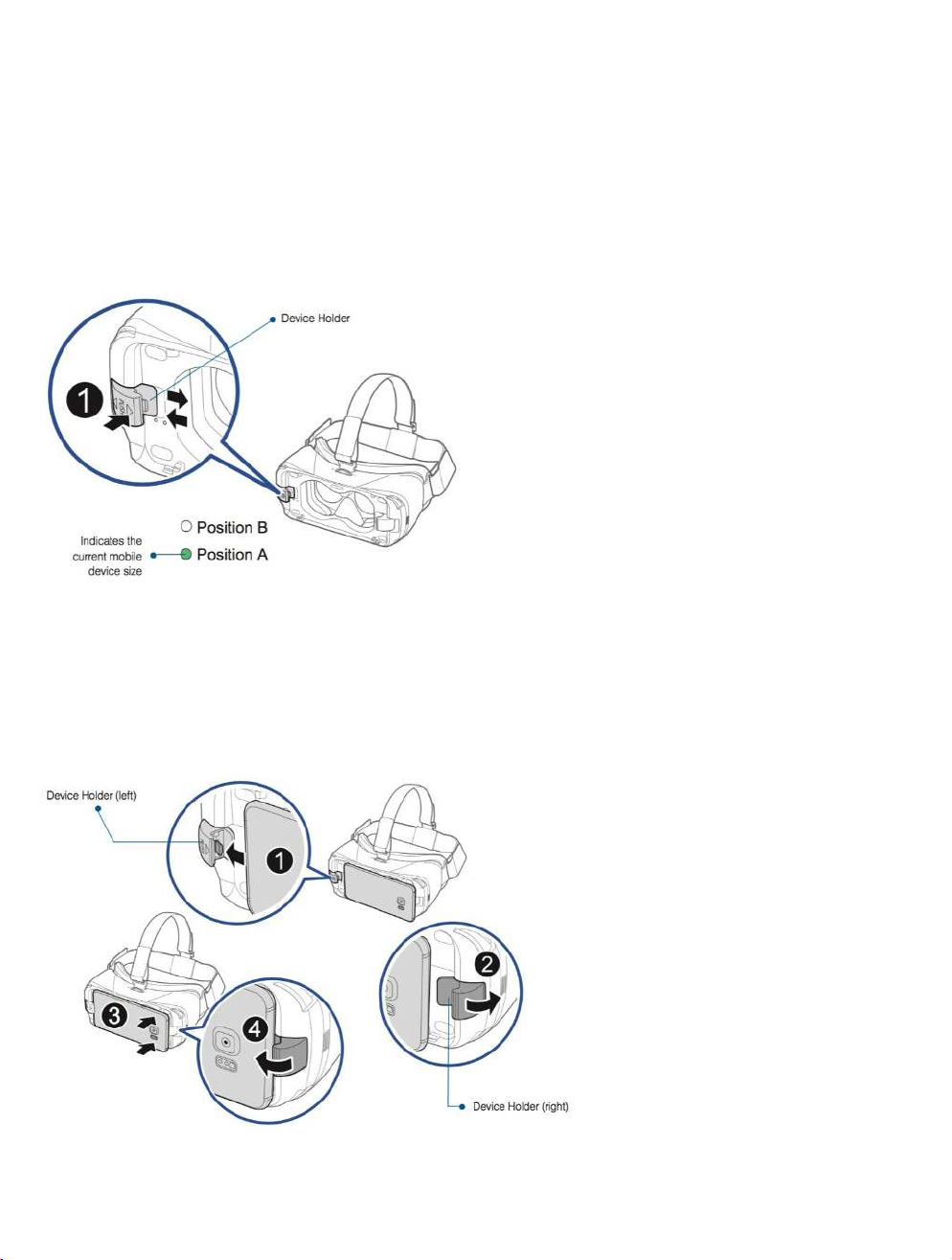
On the opposite tab that you used to slide to remove the cover plate you will see a USB male
port/device holder on the inside of the tab. With the screen of the phone facing the lens of the
headset, hold the mobile device at a slight angle to slide the mobile device's USB port CAREFULLY AND
GENTLY onto the Gear VR connector. DO NOT FORCE OR BEND! Be sure the connector is firmly seated
against the USB port.
Pull the other device holder (2) slightly outward.
Press the top of the mobile device into the device holder (3) until it clicks (4).
Page 3
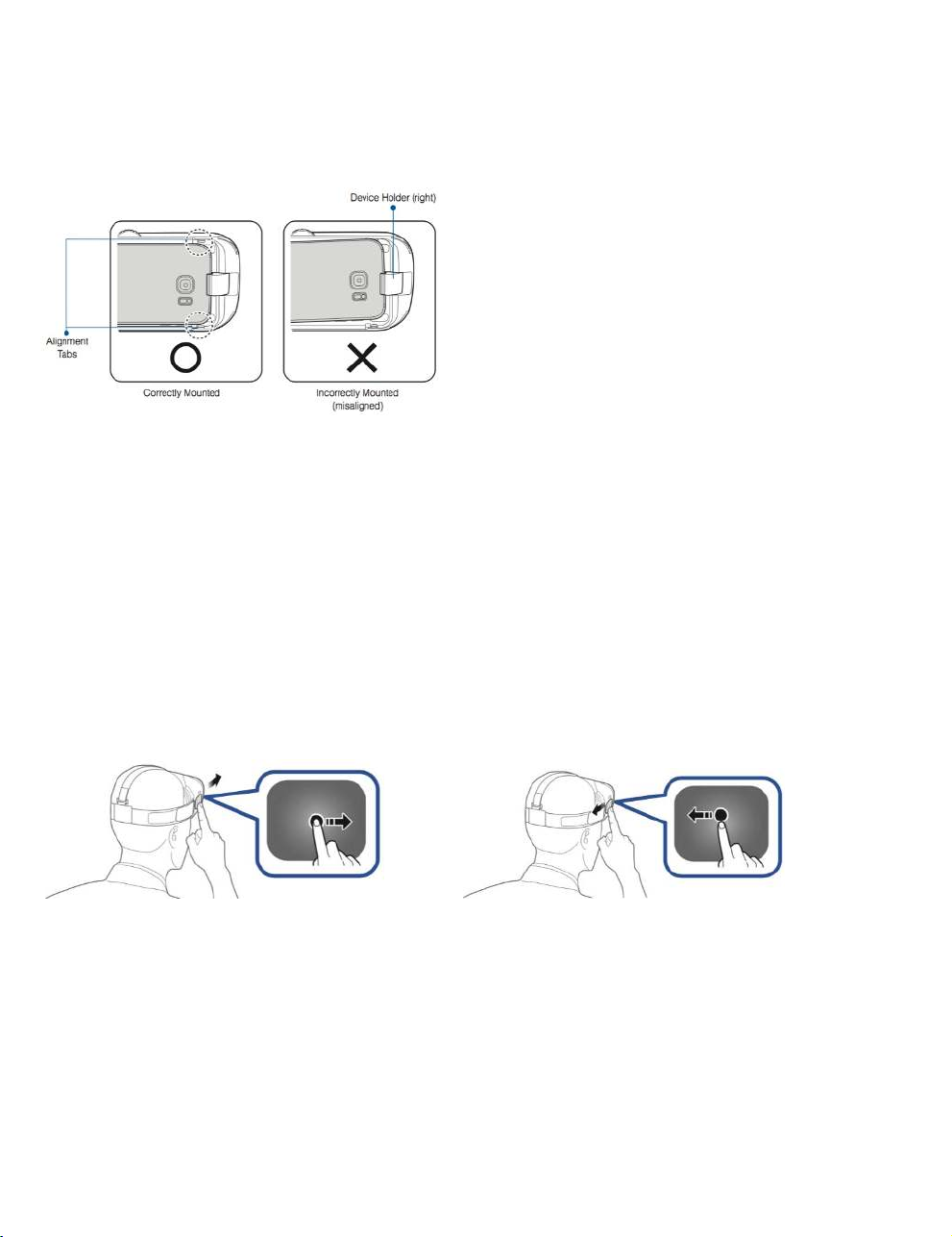
AGAIN - Make sure the screen of the mobile device faces inward, toward the Gear VR headset. To
avoid damage, do not insert the connector forcefully or roughly into the mobile device. You'll only
need a small amount of force if the headset and the mobile device are in the correct position. Make
sure your mobile device isn't tilted to one side. It's important to align your mobile device's screen and
the headset's lenses precisely.
STEP 5
Once installed, the phone will automatically pull up the Oculus App and home screen. With the
headset on you can adjust the velcro straps as needed to fit your head. The thumbnail wheel knob on
top of the headset in the middle can be turned to adjust your screen focus while wearing the headset.
HEADSET TOUCH PAD
This is located on the right side of the headset. There is a HOME button and a RETURN/BACK arrow
button with an actual touchpad.
These may be used to navigate your VR experience or you can set up and use the VR controller.
VR CONTROLLER SET UP
See separate instruction sheet. Be sure you have Bluetooth enabled and the controller paired as a
device before installing phone in the headset.
ATTACH SONY HEADPHONES
Open up the Sony headphones by swiveling the earpieces in to position. Plug the male jack of the
headphones in to the Galaxy 7 phone
carefully while holding the phone in place to be sure not to
unseat the phone.
 Loading...