

Page 1
- 이 문서는 삼성전자의 기술 자산으로 승인자만이 사용할 수 있습니다 -
- This Document can not be used without Samsung's authorization -
2. 2. Introduction and Specication
2-1. Instroduction
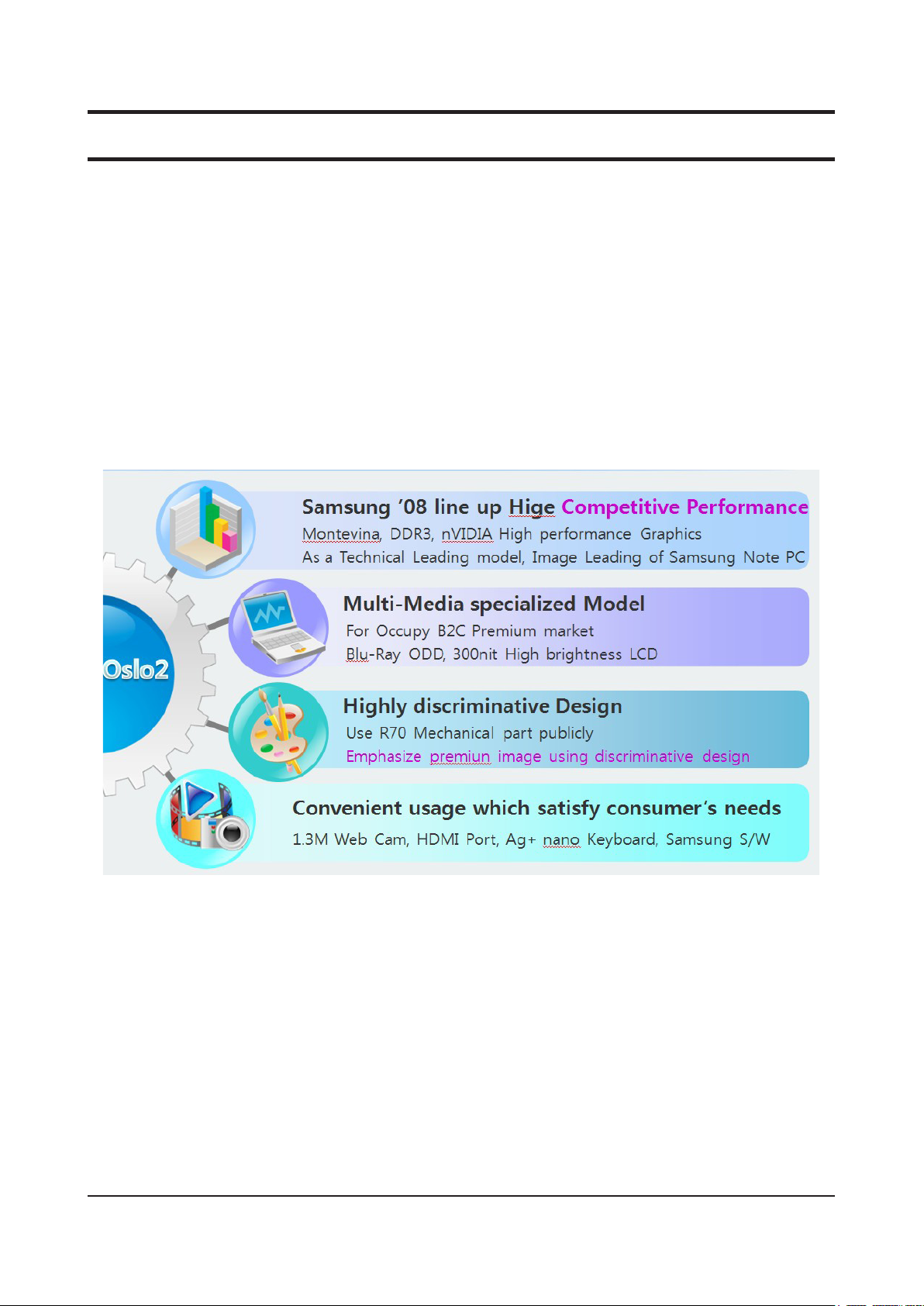
High Performance Note PC
High Performance with Intel Core 2 Duo Processor and DDR II Memory
•
New nVIDIA 9200 PCI-Express Graphics(External model), intel GMA X4500 (Internal model)
•
New Intel Montevina Platform
•
Improve the system performance using Intel turbo memory(Option)
•
Convenient Function
Easy use of picture and moving image through Internal Camera (Option)
•
Convenient connection with TV with HDMI port
•
Prudent Design for easy use.
Use of Various memory card through Multi card slot
•
Good feeling and design through the Flat type touchpad.
•
2-1
Page 2
2-2
2. Introduction and Specication
- 이 문서는 삼성전자의 기술 자산으로 승인자만이 사용할 수 있습니다 -
- This Document can not be used without Samsung's authorization -
2-2. Specication
Processor and Motherboard Description
Processor Intel® Core™2 Duo Processor T9600 (2.8 GHz, 1066 MHz, 6 MB, 35 W)
Chipset (MCH + ICH)
Memory
Memory capacity Min. 1 GB ~ Max. 4 GB
Memory type PC3-6400 (800 MHz), PC3-8500 (1067MHz) DDR3 SODIMM
Memory modules 1 GB SODIMM
Sockets
Display
LCD 1
Vendor
Resolution
Colors
Viewing angle
Dot pitch
Contrast ratio
Brightness
Response time
Polarizer
Weight
LCD 2
Vendor
Resolution
Colors
Viewing angle
Dot pitch
Contrast ratio
Brightness
Response time
Polarizer
Weight
LCD 3
Vendor
Resolution
Colors
Viewing angle
Dot pitch
Contrast ratio
Brightness
Response time
Intel® Core™2 Duo Processor T9400 (2.53 GHz, 1066 MHz, 6 MB, 35 W)
Intel® Core™2 Duo Processor P9500 (2.53 GHz, 1066 MHz, 6 MB, 25 W)
Intel® Core™2 Duo Processor P8600 (2.4 GHz, 1066 MHz, 3 MB, 25 W)
Intel® Core™2 Duo Processor P8400 (2.26 GHz, 1066 MHz, 3 MB, 25 W)
Intel® Core™2 Duo Processor P7350 (2.00 GHz, 1066 MHz, 3 MB, 25 W, Tj)
Intel PM45 + ICH9M
2 GB SODIMM
2-slot SODIMMs
15.4" WXGA Gloss
Samsung LCD
1,280 x 800 pixel
262,144 colors
Left 45° / Right 45° / Up 15° / Down 30°
0.25875 x 0.25875 mm (Horizontal x Vertical)
Typical 300 CR
Typical 200 cd/m2
Typical 16 ms / max. 25 ms
Gloss
Max. 550 g
15.4” WSXGA+ Gloss
Samsung LCD
1,680 x 1050 pixel
262,144 colors
Left 65° / Right 65° / Up 50° / Down 50°
0.1972 x 0.1972mm (Horizontal x Vertical)
Typical 300 CR
Typical 200 cd/m2
Typical 16 ms / max.25 ms
Gloss
Max. 590 g
15.4” WXGA Gloss
Samsung LCD
1,280 x 800 pixel
262,144 colors
Left 40° / Right 40° / Up 15° / Down 30°
0.25875 x 0.25875 mm (Horizontal x Vertical)
Typical 500 CR
Typical 220 cd/m2
Typical 16 ms / max.25 ms
Page 3

- 이 문서는 삼성전자의 기술 자산으로 승인자만이 사용할 수 있습니다 -
- This Document can not be used without Samsung's authorization -
2. Introduction and Specication
Processor and Motherboard Description
Polarizer
Weight
LCD 4
Vendor
Resolution
Colors
Viewing angle
Dot pitch
Contrast ratio
Brightness
Response time
Polarizer
Weight
Graphics
NVIDIA External GFx
Video Memory NVIDIA GeForce 9600M GS Dedicated GDDR3 256MB
Max.Resolution for LFP LVDS
Max.Resolution for External Monitor 2048 x 1536 @ 32bps (CRT)
Controls
GPU TDP
Audio
Sound
Codec
Chipset
Conversion
Sound effect
Internal interfaces
Speaker power rating
External interfaces
Controls
Microphone
Type
Sensitivity
Gloss
Max. 570 g
15.4” WXGA Gloss
CPT
1,280 x 800 pixel
262,144 colors
Left 40° / Right 40° / Up 10° / Down 30°
0.25875 x 0.25875 mm (Horizontal x Vertical)
Typical 500 CR
Typical 220 cd/m2
Typical 8 ms / max.16 ms
Gloss
Max. 565 g
NVIDIA GeForce 9600M GS / 9600M GT
Vista OS
1. Turbo Cache (Total Available Graphics Memory) 511MB
(Dedicate 256MB with1GB System Memory)
2. Turbo Cache (Total Available Graphics Memory) 1023MB
(Dedicate 256MB with 2GB System Memory)
3. Turbo Cache (Total Available Graphics Memory) 2047MB
(Dedicate 256MB with 4GB System Memory)
NVIDIA GeForce 9600M GT Dedicated GDDR3 512MB
Vista OS
1. Turbo Cache (Total Available Graphics Memory) 767MB
(Dedicate 512MB with 1GB System Memory)
2. Turbo Cache (Total Available Graphics Memory) 1279MB
(Dedicate 512MB with 2GB System Memory)
3. Turbo Cache (Total Available Graphics Memory) 2303MB
(Dedicate 512MB with 4GB System Memory)
1680 x 1050 x 18Bits color (WSXGA+)
1080p HDMI
Keyboard Brightness control
GeForce 9600M GS 21W, GeForce 9600M GT 24W
Intel® HD (High Denition) audio codec
REALTEK ALC262-VC2-GR
Built-in high performance 20 bit ADC & 24 bit DAC
EDS (Enhanced Digital Sound)
Embedded stereo speakers & integrated mono microphone
2 speakers x 1.5 W with enclosure
Headphone-out, microphone-in
Keyboard volume control
1 integrated mono microphone
-40±3 dB
2-3
Page 4

2-4
2. Introduction and Specication
- 이 문서는 삼성전자의 기술 자산으로 승인자만이 사용할 수 있습니다 -
- This Document can not be used without Samsung's authorization -
Processor and Motherboard Description
Output impedance
Noise supression
Storage
Hard disk drive 1
Vendor
Type
Speed
Average seek time
Supports
Capacity 80 GB
Hard disk drive 2
Vendor
Type
Speed
Average seek time
Supports
Security 80 GB
Type
Memory capacity 1 GB
Feature
Interface
Optical disk drive
Combo drive 1
Vendor
Type
Speed
Average access time
Weight
Software supplied
Security
Combo drive 2
Vendor
Type
Speed
Average access time
Weight
Software supplied
Security
Max. 2,200 Ohm
Noise supression
HGST, Fujitsu, Samsung Storage, Toshiba , WD
9.5 mm Height 2.5” S-ATA
5,400 rpm
Read max. 14 ms, write max. 15 ms
SATA II 3.0Gbit , SataI 1.5Gbit/s
120 GB
160 GB
200 GB
250 GB
320 GB
HGST, Fujitsu
9.5 mm Height 2.5” S-ATA
7,200 rpm
Read max. 16 ms, write max. 17 ms
SATA II 3.0Gbit , SataI 1.5Gbit/s
120 GB
160 GB
200 GB
NAND ash
2 GB
ReadyDrive/ReadyBoost Support, AHCI Mode, Intel® Turbo Memory driver
Mini card (PCI-Express)
TSST
12.7 mm, S-ATA, Fixed type
24 x CD-R/RW, 8x DVD, 24x CD
DVD 150 ms typ, CD 150 ms typ.
Max. 165 g
CyberLink DVD Suite
RPC-II regional encoding
TEAC
12.7 mm, S-ATA, Fixed type
24 x CD-R/RW, 8x DVD, 24x CD
DVD 110 ms Typ., CD 90 ms Typ.
Max. 178g
CyberLink DVD Suite
RPC-II regional encoding
Page 5

- 이 문서는 삼성전자의 기술 자산으로 승인자만이 사용할 수 있습니다 -
- This Document can not be used without Samsung's authorization -
2. Introduction and Specication
Processor and Motherboard Description
Super multi dual layer 1
Vendor
Type
Speed 5 x DVD-RAM, 8 x DVD±R, 6 x DVD±R DL, 8 x DVD+RW, 6 x DVD-RW, 24 x CD-R/RW,
Average access time
Weight
Software supplied
Security
Super multi dual layer 2
Vendor
Type
Speed 5 x DVD-RAM, 8 x DVD±R, 6 x DVD±R DL, 8 x DVD+RW, 6 x DVD-RW, 24 x CD-R/RW,
Average access time
Weight
Software supplied
Security
Super multi light scribe 1
Vendor
Type
Speed 5 x DVD-RAM, 8 x DVD±R, 6 x DVD±R DL, 8 x DVD+RW, 6 x DVD-RW, 24 x CD-R/RW,
Average access time
Weight
Software supplied
Security
Network communication
Fax / Modem
Type
Chipset
Interface
LAN
Type
Chipset
Interface
Feature
Wireless LAN 1
Type
Interface
Chipset
Antenna
Feature
Wireless LAN 2
Type
TSST
12.7 mm, S-ATA, Fixed type
8 x DVD, 24 x CD
DVD 130 ms Typ., CD 130 ms Typ.
Max. 165 g
CyberLink DVD Suite
RPC-II regional encoding
TEAC
Fixed 12.7mm
8 x DVD, 24 x CD
DVD 150 ms Typ., CD 140 ms Typ.
Max. 180 g
CyberLink DVD Suite
RPC-II regional encoding
TSST
12.7 mm, S-ATA, Fixed type
8 x DVD, 24 x CD
DVD 130 ms Typ., CD 130 ms Typ.
Max. 165 g
CyberLink DVD Suite
RPC-II regional encoding
56 Kbps / V.92 Modem
SV92A3
RJ11 output
10/100/1000 Ethernet
Marvell 88E8055
RJ45 output
Atheros® 802.11b/g
Mini card type
Atheros XB63
2 integrated
Intel® 802.11a/b/g/n
2-5
Page 6
2-6
2. Introduction and Specication
- 이 문서는 삼성전자의 기술 자산으로 승인자만이 사용할 수 있습니다 -
- This Document can not be used without Samsung's authorization -
Processor and Motherboard Description
Interface
Chipset
Antenna
Feature
Wireless LAN 3
Type
Interface
Chipset
Antenna
Feature
Bluetooth
Type
Interface
Chipset
Ports and interfaces ( Input / output )
PC card slot 1
Type
Chipset
Support
PC card slot 2
Type
Chipset
Support
Memory card slot
Type
Support
Dock port
Type X-Dock port
Model Code
Feature PIO, SIO, PS/2, VGA, DVI, SVHS, 4 x USB 2.0, RJ45, Microphone-in, Headphone-out ,
Input / output ports
VGA
S-Video (TV-out)
HDMI
Headphone-out
Microphone-in
USB
SIO
IEEE1394
RJ11 (Modem)
RJ45 (LAN)
TV antenna
DC-In (power port)
Mini card type
Intel® WiFi Link 5300
3 integrated (Main, AUX, MIMO)
Intel® 802.11a/b/g/n (11a/b/g for Russia, Ukraine, Pakistan)
Mini card type
Intel® WiFi Link 5100
2 integrated (Main, AUX)
Bluetooth V2.0 + EDR (Enhanced Data Rate)
USB daughter card type with integrated PIFA (Plane Inverted F Antenna)
Broadcom BCM2045
ExpressCard/34/54
PM45
PCI Express 1.1
No
PCMCIA
YES
7-in-1 Multi Memory Card Slot
MS / MS Pro / SD / SDHC / xD / MMC / MMC Plus
No
[X-Dock Option Product ]
AA-RD3NX25
Kensington Lock, DC-In
Yes (15 pin)
No
Yes
Yes
Yes
3 x USB 2.0
No
No
Yes
Yes
No
Yes (5 pie)
Page 7
- 이 문서는 삼성전자의 기술 자산으로 승인자만이 사용할 수 있습니다 -
- This Document can not be used without Samsung's authorization -
2. Introduction and Specication
Processor and Motherboard Description
Input devices
Keyboard
- Amount of keys 88 (KOR, RUS, UKR, US)
- Feature
- Silver Nano Technology
- Fast function keys (EZ BLU)
Touchpad
Button
LED indicator
Multimedia
Integrated digital camera
Type
Chipset
Image sensor
SCAN mode
Still image capture resolution
Video capture resolution
Digital video capture speed
Focus
UVC support
Power and power management
System power management
Power management features
Standard battery
Model code BA43-00150A Sanyo (1’st)
Details of cell
Battery capacity
Voltage
Battery rating
Color
Dimension
Weight
Recharge time
Battery life (DVD play mode)
- Test program
- Test condition Multimedia MOde, LCD Brightness-Level 4, WLAN R/F Off, discharged by 3%
Battery life (Bench mark mode)
- Test program
- Test condition Samsung Optimized mode, LCD Brightness-Minimum, WLAN R/F Off, discharged by 3%
Long-life battery
Yes
89 (UK, FR, GM, SP)
Travel length 2.6 mm, key pitch 19.05 mm
Yes
F7 (Magic Doctor), F8 (SpeedUp Manager)
Synaptics touchpad (plat type with scroll area)
Power On
Power, AC-in / battery, HDD, num-lock, caps-lock, scroll-lock, wireless antenna
1.3M Web-Cam
GD-5931A/B (D-MAX)
Color CMOS SXGA (1.3 Mpixel)
Progressive
SXGA (1,280 x 1,024), VGA (640 x 480), CIF (352 x 288)
VGA (640 x 480)
Max. 30 frame
Min. 50 cm ~ innity
USB video class 1.0 standard compliant
ACPI 1.0b support, standby (S3), hibernate (S4)
BA43-00149A SDI (2’nd)
6 cells
5,200 mAh
11.1 V
57.72 Wh
Black
204 x 48.05 x 21.4 mm (W x H x D)
Max. 350 g
Approx. 2 hours
Typ. 2.6 hours
PowerDVD(Max Batttery Mode)
T9400(2.53GHz), DDR3 1GB, 15.4” WXGA(200nits), NB9P-GS(512MB), 80GB,
DVD-Multi, Vista Home Premium
Max. 3.7 hours
BatteryMark v.4.0.1
T9400(2.53GHz), DDR3 1GB, 15.4” WXGA(200nits), NB9P-GS(512MB), 80GB,
DVD-Multi, Vista Home Premium
2-7
Page 8
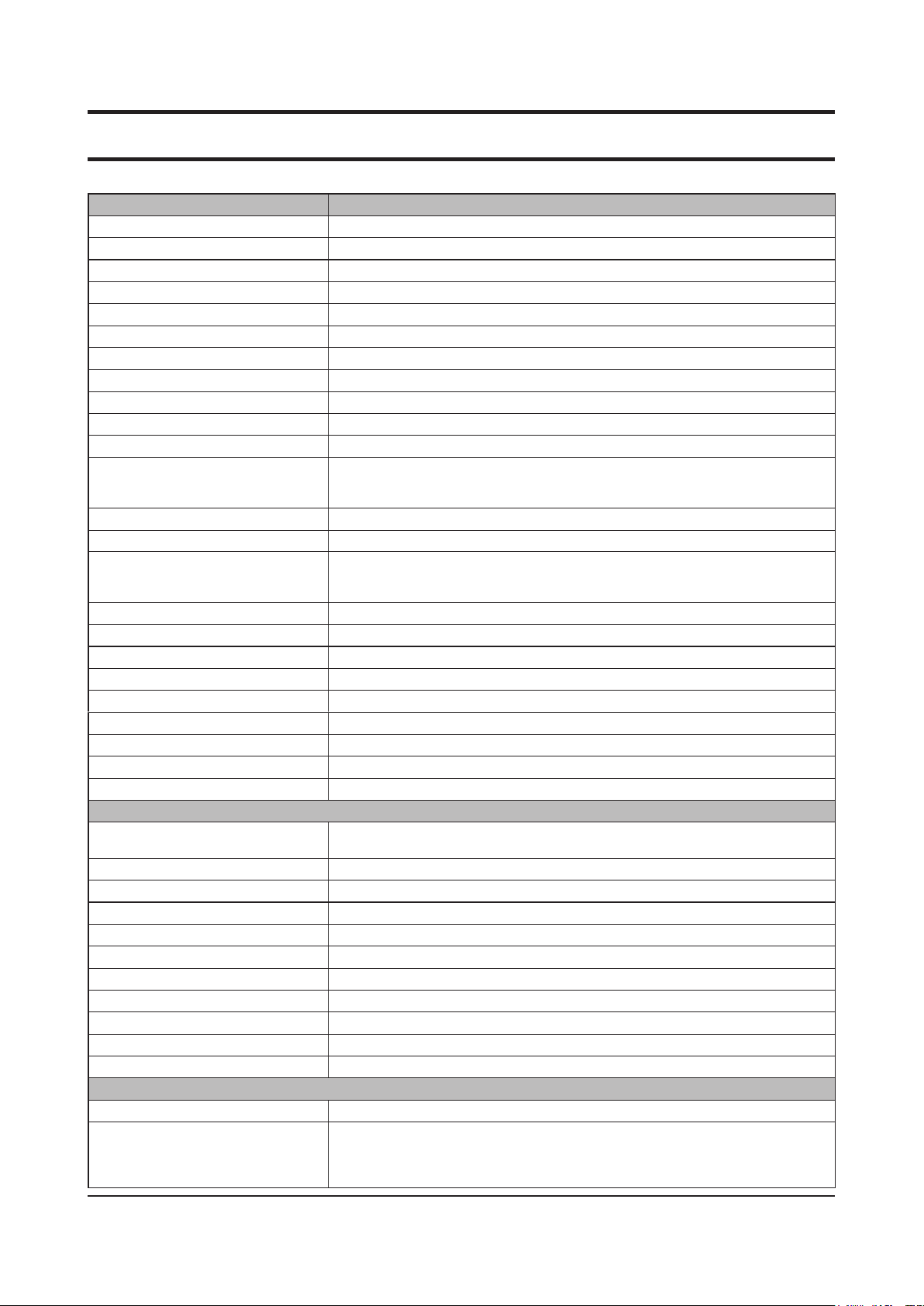
2-8
2. Introduction and Specication
- 이 문서는 삼성전자의 기술 자산으로 승인자만이 사용할 수 있습니다 -
- This Document can not be used without Samsung's authorization -
Processor and Motherboard Description
Model code
Details of cell
Battery capacity
Voltage
Battery rating
Color
Dimension
Weight
Recharge time
Battery life (DVD play mode)
- Test program
- Test condition Mutimedia Mode, LCD Brightness-Level 4, WLAN R/F Off, discharged by 3%
Battery life (Bench mark mode)
- Test program BatteryMark v.4.0.1
- Test condition Samsung Optimized mode, LCD Brightness-Minimum, WLAN R/F Off, discharged by 3%
AC Adapter
Model Code
Output Power
Dimension
Weight (AC Adapter)
Worldwide Compatibility
Line Frequency
Adapter Rating - Input
Adapter Rating - Output
System dimensions
Dimensions (W x D x H) 358 x 264 x28.6 (min) ~ 36.5 (max.) mm
Weight
- Condition
Package dimensions (W x D x H)
Package weight
- Condition
Materials & Design
- LCD Back
- LCD Front
- System Top
- System Bottom
Installed software
Operating system
Software Samsung Recovery Solution III (optional), Samsung Magic Doctor, Samsung Update Plus
AA-PL2NC9B
9 cells
7,800 mAh
11.1 V
86.58 Wh
Black
204 x 67 x 21.4 mm (W x H x D)
Max. 470 g
Approx. 3.2 hours
Typ. 4.0 hours
PowerDVD (Max Batttery Mode)
T9400(2.53GHz), DDR3 1GB, 15.4” WXGA(200nits), NB9P-GS(512MB), 80GB,
DVD-Multi, Vista Home Premium
Max. 5.7 hours
T9400(2.53GHz), DDR3 1GB, 15.4” WXGA(200nits), NB9P-GS(512MB), 80GB,
DVD-Multi, Vista Home Premium
AA-PA1N90W
90 W
126 x 50 x 30 mm (W x H x D)
430g (Max.)
Auto-sensing 100 - 240 VAC
50 Hz / 60Hz
100 VAC ~ 240 VAC, 1.5A
19.0 VDC, 4.74 A
(14.1" x 10.4" x 1.12" (min) ~ 1.44" (max.) inch)
2.70Kg (5.95lbs)
(with battery)
425 x 110 x 405 mm
4.34 Kg
Status : Combo , 6cell battery, 2.5” 80GB 2 platter HDD with Bundle items
PC/ABS
PC/ABS
PC/ABS
PC/ABS
Genuine Windows Vista® Home Premium SP1
Easy Display Manger, Easy Battery Manager, Easy Network Manager, Easy SpeedUp
Manager McAfee SecurityCenter, Adobe Acrobat Reader, Microsoft® Ofce Professional
2007 (free 60-day trial)
Page 9

- 이 문서는 삼성전자의 기술 자산으로 승인자만이 사용할 수 있습니다 -
- This Document can not be used without Samsung's authorization -
2. Introduction and Specication
2-3. Comparing product specications
R70 R560
CPU
Chipset PM965 (Crestline) PM 45 (Cantiga)
Memory DDR2 533 / 667MHz DDR3 800 / 1067MHz
Graphic
LCD 15.4” WXGA, WSXGA+ Glare 15.4” WXGA, WSXGA+ Glare
HDD SATA SATA
ODD PATA 12.7mm SATA 12.7mm
Port
Battery 6cell / 9cell (Option) 6cell / 9cell (Option)
Design 2nd Proto type Chrome Bar, Heat Transfer mechanical disign
667/800MHz Intel Core 2 Duo Processor
(Merom)
nVIDIA Geforce 8600M GS
nVIDIA Geforce 8400M GS
3USB, CRT, Headphone/MIC, RJ45, RJ11 (Option),
HDMI, PC-Card, 6-in-1
800MHz/1066MHz Intel Core 2 Duo Processor
(Penryn)
nVIDIA Geforce 9600M GS
nVIDIA Geforce 9600M GT
3USB, CRT, Headphone/MIC, RJ45, RJ11 (Option),
HDMI, Express-Card, 7-in-1
2-9
Page 10
2-10
2. Introduction and Specication
- 이 문서는 삼성전자의 기술 자산으로 승인자만이 사용할 수 있습니다 -
- This Document can not be used without Samsung's authorization -
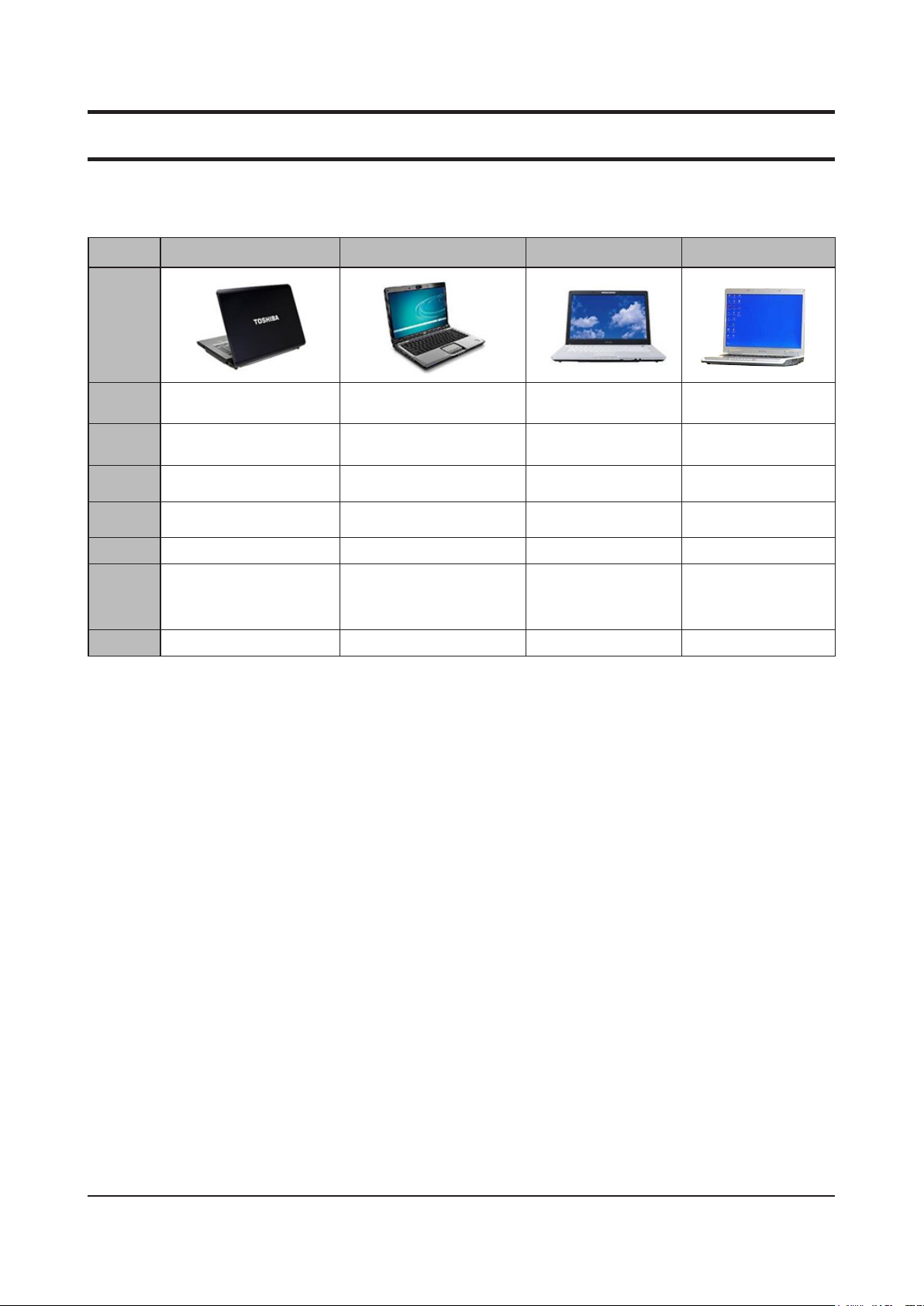
2-4. Comparing product specications jatasa
Model Toshiba Satellite A200 HP Pavilion DV Sony FE590 Dell Insprion E1505
Feature
LCD 15.4” WXGA Glare 15.4” WXGA Glare 15.4” WXGA Xbrite 15.4” WXGA
CPU Intel Core 2 Duo Intel Core 2 Duo
Graphic
Wireless
LAN
LAN 1Gbit/10/100 1Gbit/10/100 10/100 10/100
Port 4USB, 1394, TV Out VGA 4USB, HDMI, Web-Cam
Battery 6Cell 6Cell 6Cell 6Cell
ATI MR HD2600
256MB
802.11abg/n 802.11ab/g 802.11abg, BT 802.11abg/bg, BT
nVIDIA GF 8400M GS
Intel Centrino Duo,
MCE
nVIDIA 7400
Intel 950GMA
2USB, 1394, PCI-E,
SPDIF VGA, S-VHS,
Camera*,
Prot Replicator*
Intel Centrino Duo,
MCE
ATI X1400
Intel 950GMA
4USB, 1394, PCI-E,
SPDIF, SD card VGA,
S-VHS,
Page 11
- 이 문서는 삼성전자의 기술 자산으로 승인자만이 사용할 수 있습니다 -
- This Document can not be used without Samsung's authorization -
2. Introduction and Specication
2-5. Option Material List
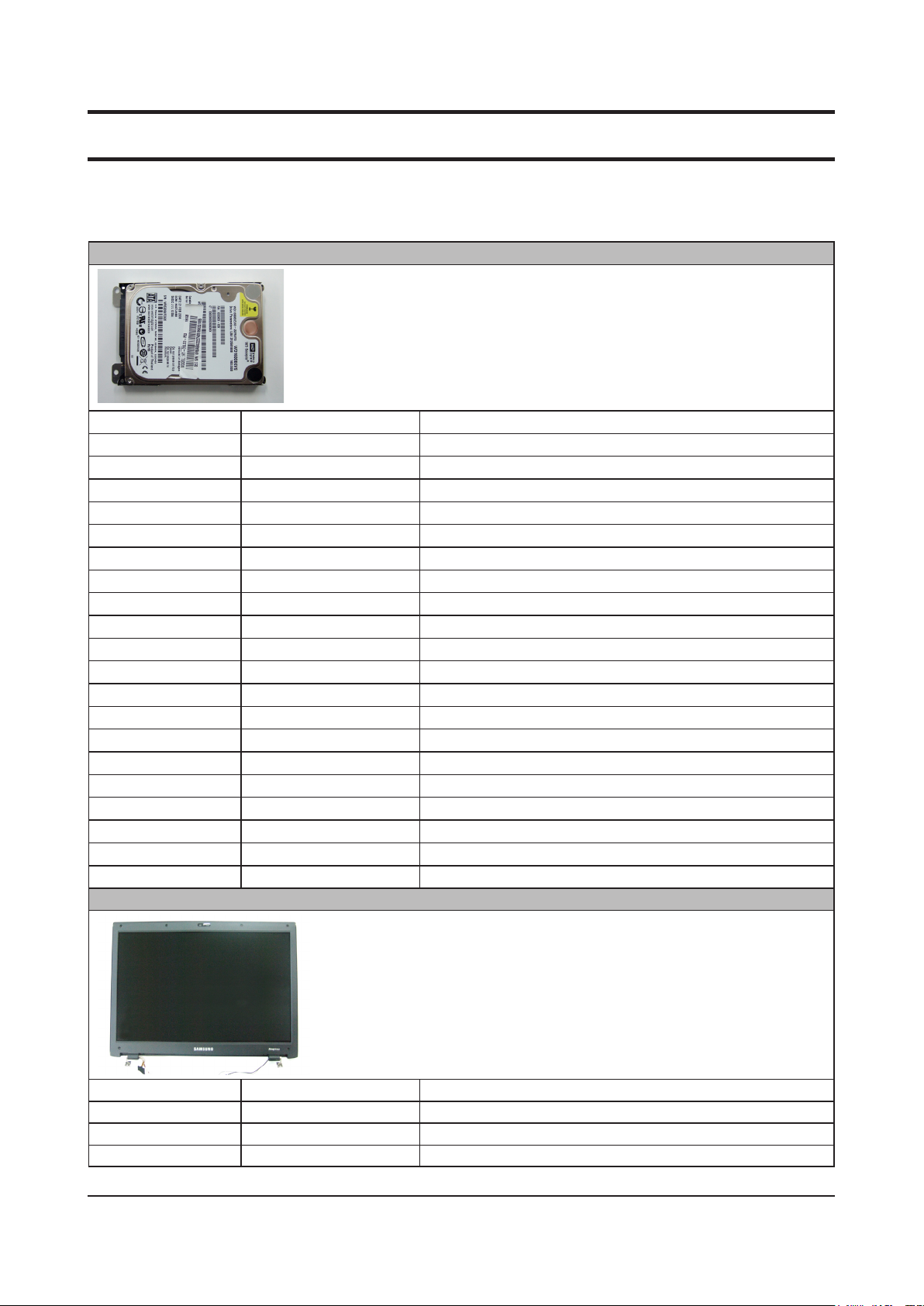
HDD
BA59-02202A HTS542512K9A300 5400rpm, 125G/P 120G, SATA 2, 8M
BA59-02208A MHY2120BH 5400rpm, 125G/P, 120G, SATA 1, 8M
BA59-02189A HM121HI 5400RPM ,160G/P, 120G ,Sata 1,8M
BA59-02215A MK1237GSX 5400rpm,80G/P,120G,SATA,8M
BA59-02226A WD1200BEVS 5400rpm, 120G/P, 120G, SATA 1, 8M
BA59-02286A MK1246GSX 5400RPM,125G/P,SATA 2, 8M
BA59-02203A HTS542516K9A300 5400rpm, 125G/P 160G, SATA 2, 8M
BA59-02209A MHY2160BH 5400rpm, 125G/P, 160G, SATA 1, 8M
BA59-02187A HM160HI 5400RPM ,160G/P, 160G ,Sata 1,8M
BA59-02287A MK1646GSX 5400rpm,80G/P,160G,SATA,8M
BA59-02227A WD1600BEVS 5400rpm, 80G/P, 160G, SATA, 8M
BA59-02279A WD1600BEVT 5400rpm,160G/P,160G, SATA 2, 8M
BA59-02204A HTS542520K9A300 5400rpm, 125G/P 200G, SATA 2, 8M
BA59-02210A MHY2200BH 5400rpm, 125G/P, 200G, SATA 1, 8M
BA59-02290A MK2046GSX 5400RPM,125G/P, 200G, SATA 2, 8M
BA59-02205A HTS542525K9A300 5400rpm, 125G/P 250G, SATA 2, 8M
BA59-02211A MHY2250BH 5400rpm, 125G/P, 250G, SATA 1, 8M
BA59-02190A HM250JI 5400RPM ,160G/P, 250G ,Sata 1,8M
BA59-02228A WD2500BEVS 5400rpm, 120G/P, 250G, SATA 1, 8M
BA59-02288A MK2546GSX 5400rpm, 125G/P 250G, SATA 2, 8M
BA59-02280A WD3200BEVT 5400rpm, 160G/P, 320G, SATA 2, 8M
LCD
BA59-02243A LTN154P3-L04 15.4”WSXGA+(High Bright,Gloss)
BA59-02224A LTN154AT07 15.4” WXGA(High Bright, 200nit Gloss)
BA59-02277A LTN154AT09 15.4” WXGA(High Bright, 220nit Gloss)
BA59-02278 CLAA154WB03AN 15.4” WXGA(High Bright, 220nit Gloss)
2-11
Page 12
2-12
2. Introduction and Specication
- 이 문서는 삼성전자의 기술 자산으로 승인자만이 사용할 수 있습니다 -
- This Document can not be used without Samsung's authorization -
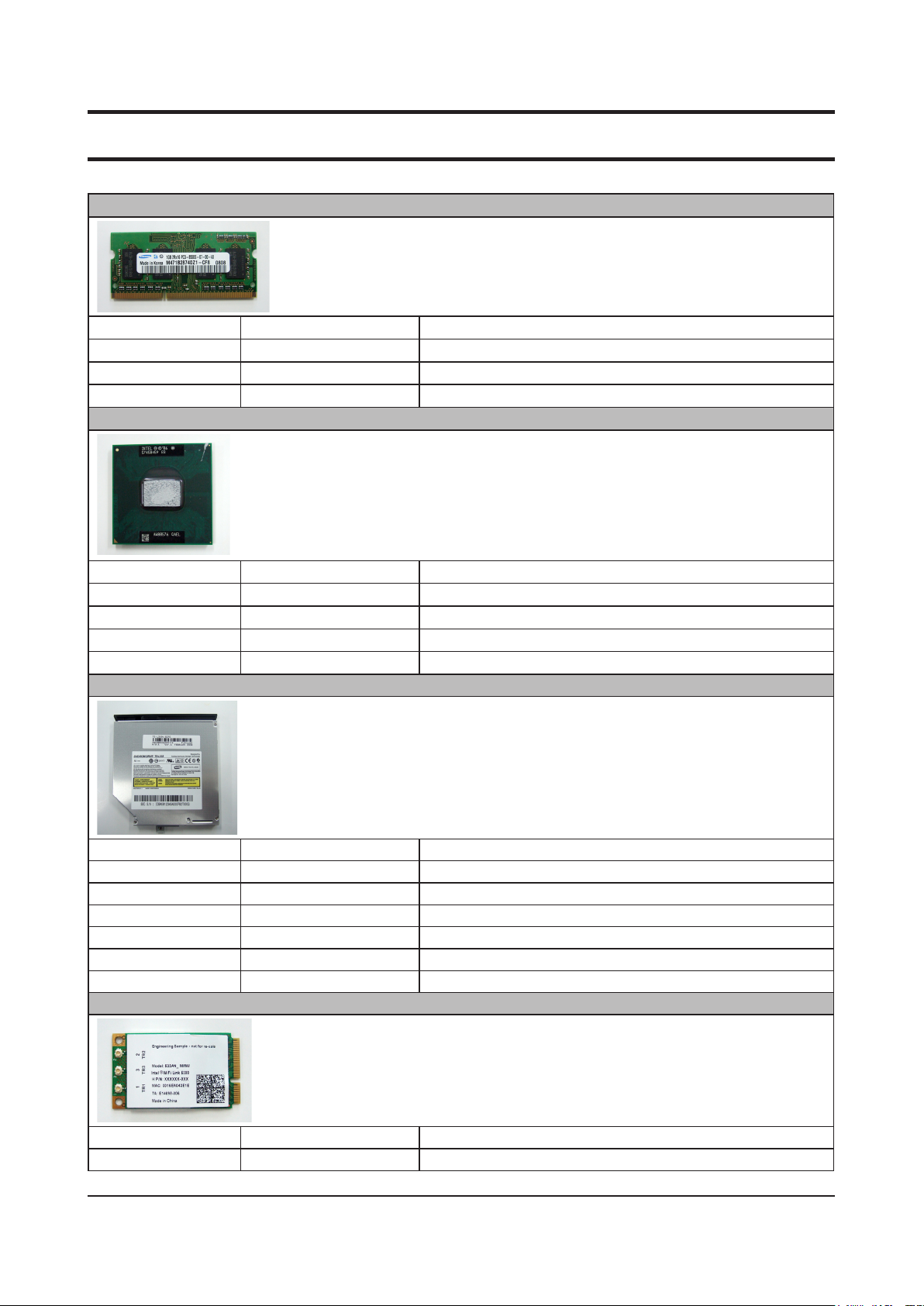
MEMORY
1105-001924 M471B2874DZ1-CF7 1GB (DDR3 800MHz/1G*1)
1105-001922 M471B5673DZ1-CF7 2GB (DDR3 800MHz/2G*1)
1105-001923 M471B2874DZ1-CF8 1GB (DDR3 1066MHz/1G*1)
1105-001921 M471B5673DZ1-CF8 2GB (DDR3 1066MHz/2G*1)
CPU
0902-002341 T2_P8400 2.26 GHz, 1066 MHz, 3 MB, 25 W
0902-002337 T2_P8600 2.4 GHz, 1066 MHz, 3 MB, 25 W
0902-002336 T2_T9400 2.53 GHz, 1066 MHz, 6 MB, 35 W
0902-002340 T2_P9500 2.53 GHz, 1066 MHz, 6 MB, 25 W
0902-002342 T2_T9600 2.8 GHz, 1066 MHz, 6 MB, 35 W
ODD
BA96-03597A TSST DVD-ROM
BA96-03599A TEAC DVD-ROM
BA96-03600A TSST DVD-COMBO
BA96-03601A TEAC DVD-COMBO
BA96-03602A TSST Super Mul
BA96-03603A TEAC Super Mul
BA96-03604A TSST Super Mul-scribe
WLAN
BA59-02273A Intel Shirley Peak 3x3 AGN
BA59-02297A Intel Shirley Peak 1x2 AGN
Page 13
- 이 문서는 삼성전자의 기술 자산으로 승인자만이 사용할 수 있습니다 -
- This Document can not be used without Samsung's authorization -
2. Introduction and Specication
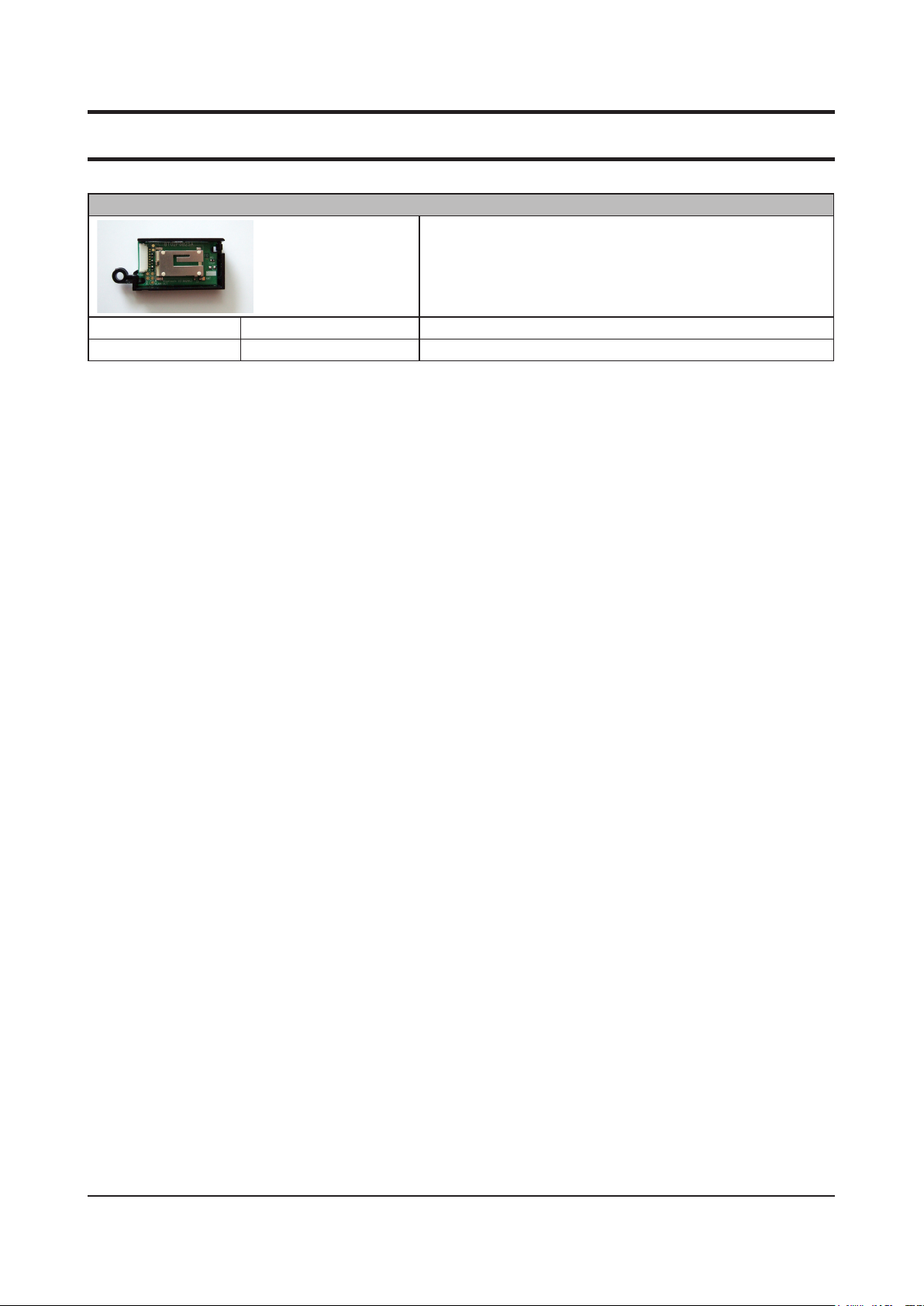
BLUE TOOTH
BA59-01691A T60H928.01 Bluetooth V2.0, FOXCONN
BA59-01916A BTO2P0B2SA Bluetooth V2.0, SEM
2-13
Page 14
2-14
2. Introduction and Specication
- 이 문서는 삼성전자의 기술 자산으로 승인자만이 사용할 수 있습니다 -
- This Document can not be used without Samsung's authorization -
2-6. Function of Product
2-6-1. Overview
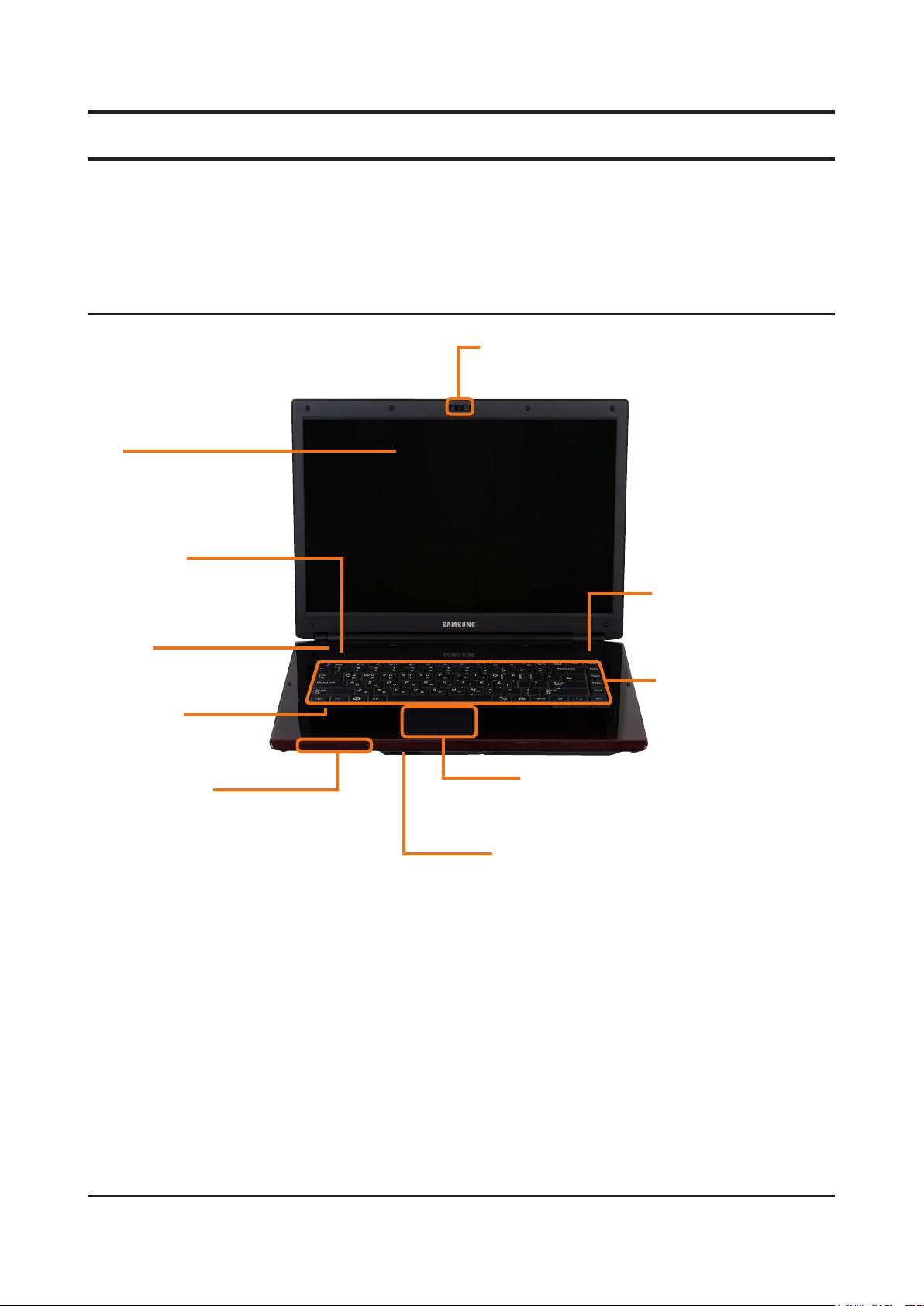
Front View
LCD
The screen images are displayed
here.
Power Button
Turns the computer on and off.
Speaker
A device used to generate
Microphone
Status Indicators
Shows the operating status of the
computer. The corresponding operating
LED is lit when the corresponding
function operates.
*
Camera Lens
Using this lenCcs, you can take still pictures and
record video.
Multi Card Slot
A card slot that supports Memory Stick, Memory Stick Pro,
SD Card, SDHC, MMC, MMC Plus and xD cards.
*
Speaker
A device used to generate
sound.
Keyboard
A device to enter data by
pressing the keys.
Touchpad/Touchpad Buttons
The touchpad and touchpad buttons provide functions
similar to the mouse ball and buttons.
Page 15
- 이 문서는 삼성전자의 기술 자산으로 승인자만이 사용할 수 있습니다 -
- This Document can not be used without Samsung's authorization -
2. Introduction and Specication
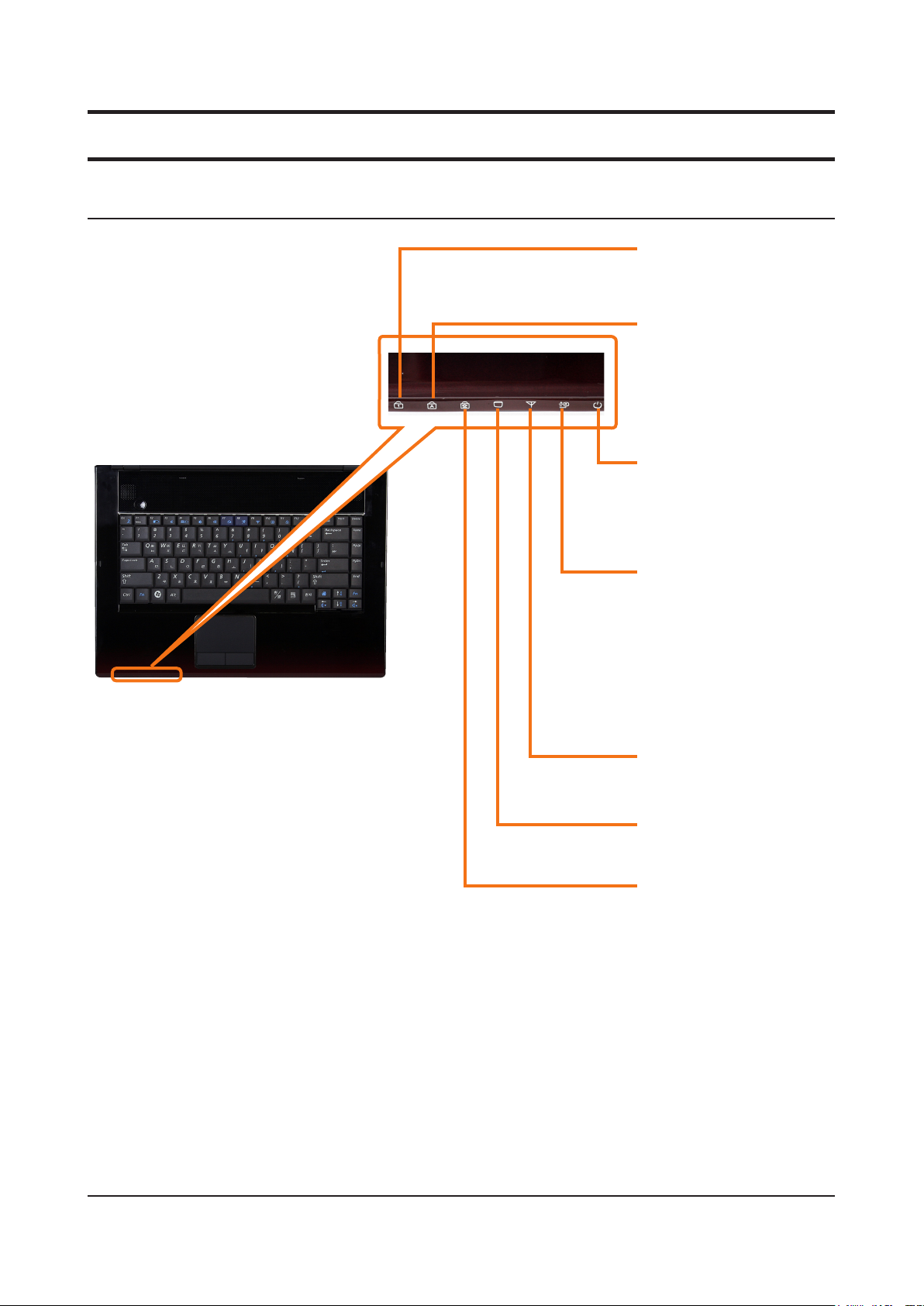
Status Indicators
Num Lock
This turns on when the Num Lock key
is pressed and numeric keypad is
activated.
Caps Lock
This turns on when the Caps Lock
key is pressed allowing capital
letters to be typed without holding
the Shift button down.
Power
This shows the computer operating
status.
On:
Whenthecomputeris operating
Blinks:
When the computer is in
Sleep mode.
Charge Status
This shows the power source and
the battery charge status.
Green:
When the battery is fully
charged or the battery is not
installed.
Red:
When the battery is being
charged.
Off:
When the computer is running
on battery power without being
connected to AC adapter.
Wireless LAN
This turns on when the wireless
LAN is operating.
HDD/ODD
This turns on when the hard disk is
or ODD being accessed.
Scroll Lock
This turns on when the Scroll Lock
key is pressed and screen scroll is
locked.
2-15
Page 16
2-16
2. Introduction and Specication
- 이 문서는 삼성전자의 기술 자산으로 승인자만이 사용할 수 있습니다 -
- This Document can not be used without Samsung's authorization -
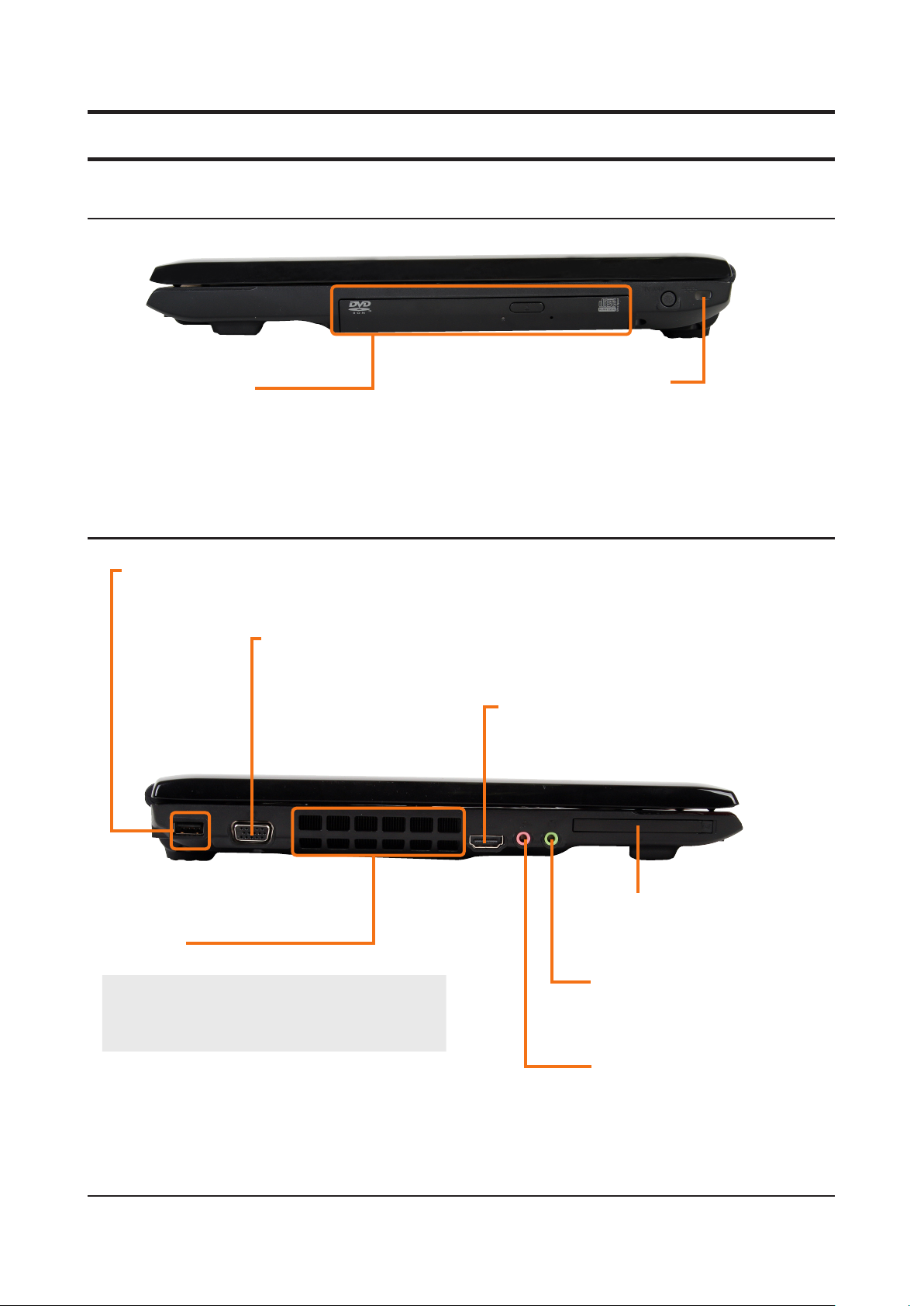
Right View
CD Drive(ODD)
Plays CD or DVD titles.Since an ODD (Optical Disk Drive)
is optional, the installed drive depends on the computer
model.
*
Left View
USB Port
You can connect USB devices to the USB port
such as a keyboard/mouse, digital camera, etc.
Monitor Port
A port used to connect a monitor, TV or projector
supporting a 15pin D-SUB interface.
Security Lock Port
You can connect a Kensington lock to
the Security Lock Port to prevent the
computer from being stolen.
Digital Video/Audio Port (HDMI)
You can connect an HDMI cable to this port.
Using this port, you can enjoy digital video and
audio on the TV.
Fan Vents
The internal heat of the computer is emitted through these holes.
Caution
If the vents are blocked the computer
may overheat.
Avoid blocking the vents as this may
be dangerous.
ExpressCard Slot
Install the Express card intothis slot.
Headphone Jack
A jack used to connect the headphones.
Microphone Jack
A jack used to connect the microphone.
*
Page 17
- 이 문서는 삼성전자의 기술 자산으로 승인자만이 사용할 수 있습니다 -
- This Document can not be used without Samsung's authorization -
2. Introduction and Specication
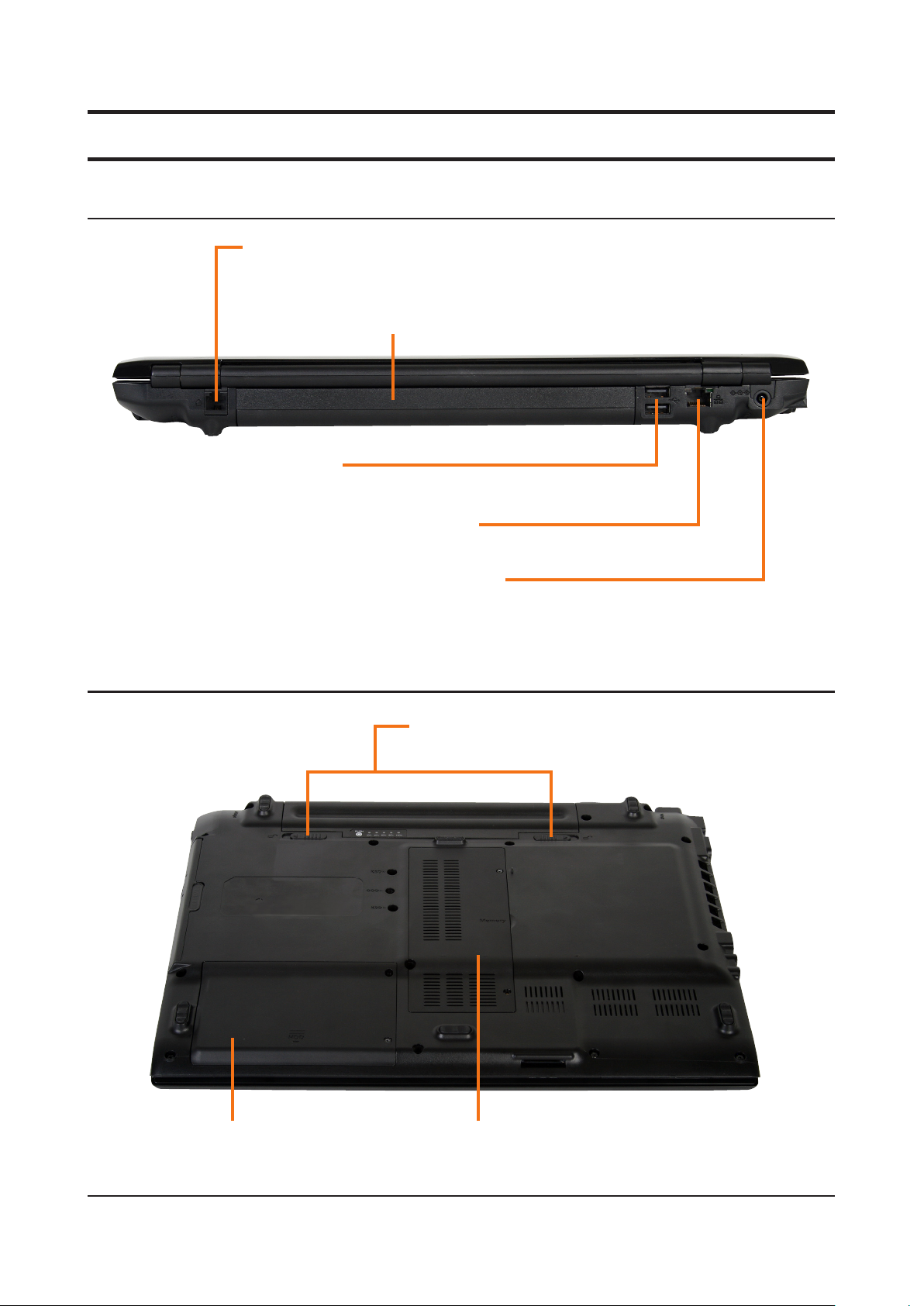
Back View
Bottom View
Modem Port
A port to which a telephone cable is connected to in order to dial up to the Internet.
USB Port
You can connect USB devices to the USB port such as a
keyboard/mouse, digital camera, etc.
*
Battery
This is a Lithium-Ion rechargeable battery that supplies power to the
computer.
Wired LAN Port
Connect the Ethernet cable to this port.
*
DC Jack
A jack to connect the AC adapter that supplies power to the
computer.
Hard Disk Drive Compartment Cover
The hard disk drive is installed inside the cover.
Battery Latches
The latch used to remove or install the battery.
Memory Compartment Cover
The main memory is installed inside the cover.
2-17
Page 18
2-18
2. Introduction and Specication
- 이 문서는 삼성전자의 기술 자산으로 승인자만이 사용할 수 있습니다 -
- This Document can not be used without Samsung's authorization -
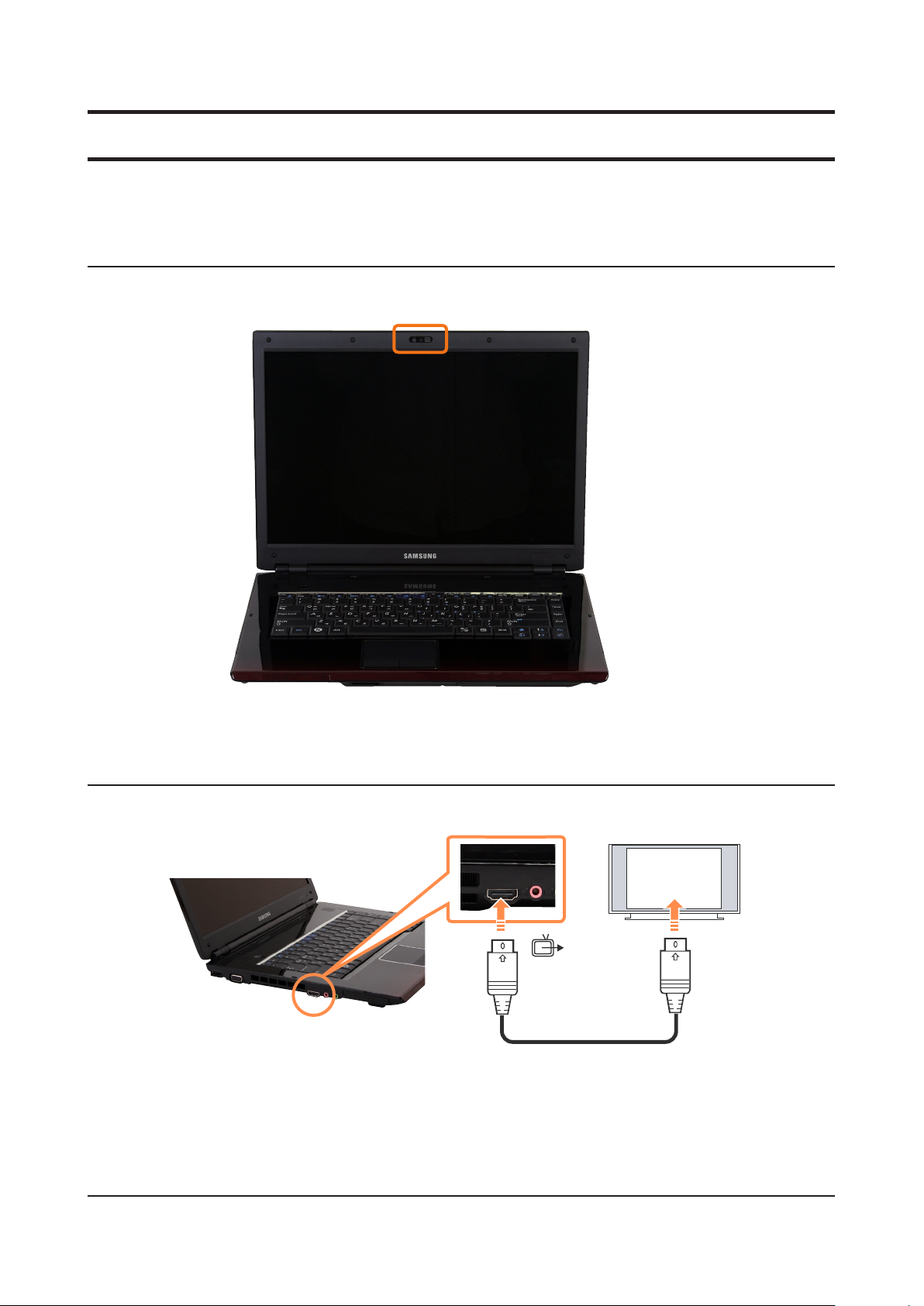
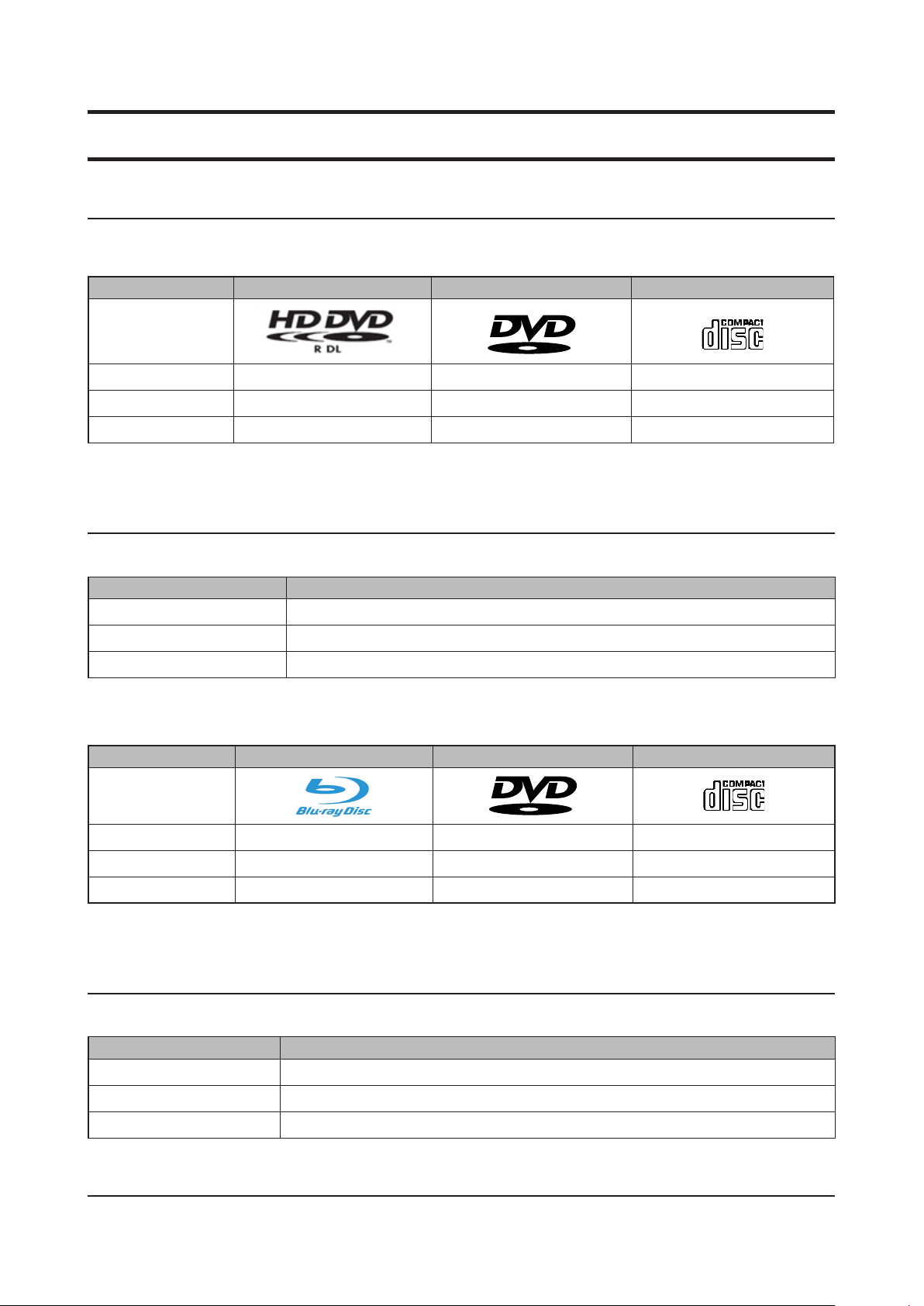
2-6-2. New Added Function
Camera (Option)
Easy use of taking a picture and moving image.
HDMI Port
Convenient connection with TV through HDMI port.
Page 19
- 이 문서는 삼성전자의 기술 자산으로 승인자만이 사용할 수 있습니다 -
- This Document can not be used without Samsung's authorization -
2. Introduction and Specication
HD-DVD, Blue-Ray
The existing DVD HD-DVD can store more data in the next-generation storage devices, much sharper than the existing HD DVD movies,
SD-class save, and you can enjoy.
Type HD DVD DVD
Logo
Storage Capacity 15GB / 30GB 4.7GB / 8.5GB 0.65GB
Data Rate 36.55 Mbps 11.08 Mbps 7.8 Mbps
Supported Resolution 1920 x 1080(i) 720 x 480 320 x 240
Date Rate :
The amount of data that can be read or written onto a storage media per second.
CD
Supported Disk Types
HD DVD supports the nfollowing disk types.
Type Function
HD DVD-ROM Reads HD DVD disks.
HD DVD-R Reads HD DVD disks and writes data onto HD DVD disks once.
HD DVD-RW Reads and writes to rewritable HD DVD media.
Blu-Ray is a next generation storage media that can save approximately 5 to 10 times more data than the existing DVD format.
You can record and play better quality HD movies than the existing SD-grade DVD format.
Type Blu-Ray DVD
Logo
Storage Capacity 25GB / 50GB 4.7GB / 8.5GB 0.65GB
Data Rate 36 Mbps 11.08 Mbps 7.8 Mbps
Supported Resolution 1920 x 1080(i) 720 x 480 320 x 240
Date Rate :
The amount of data that can be read or written onto a storage media per second.
CD
Supported Disk Types
Blu-Ray supports the nfollowing disk types.
Type Function
BD-ROM Reads Blu-Ray disks.
BD-R Reads Blu-Ray disks and writes data onto Blu-Ray disks once.
BD-RE Reads and writes to rewritable Blu-Ray media.
2-19
Page 20
2-20
2. Introduction and Specication
- 이 문서는 삼성전자의 기술 자산으로 승인자만이 사용할 수 있습니다 -
- This Document can not be used without Samsung's authorization -
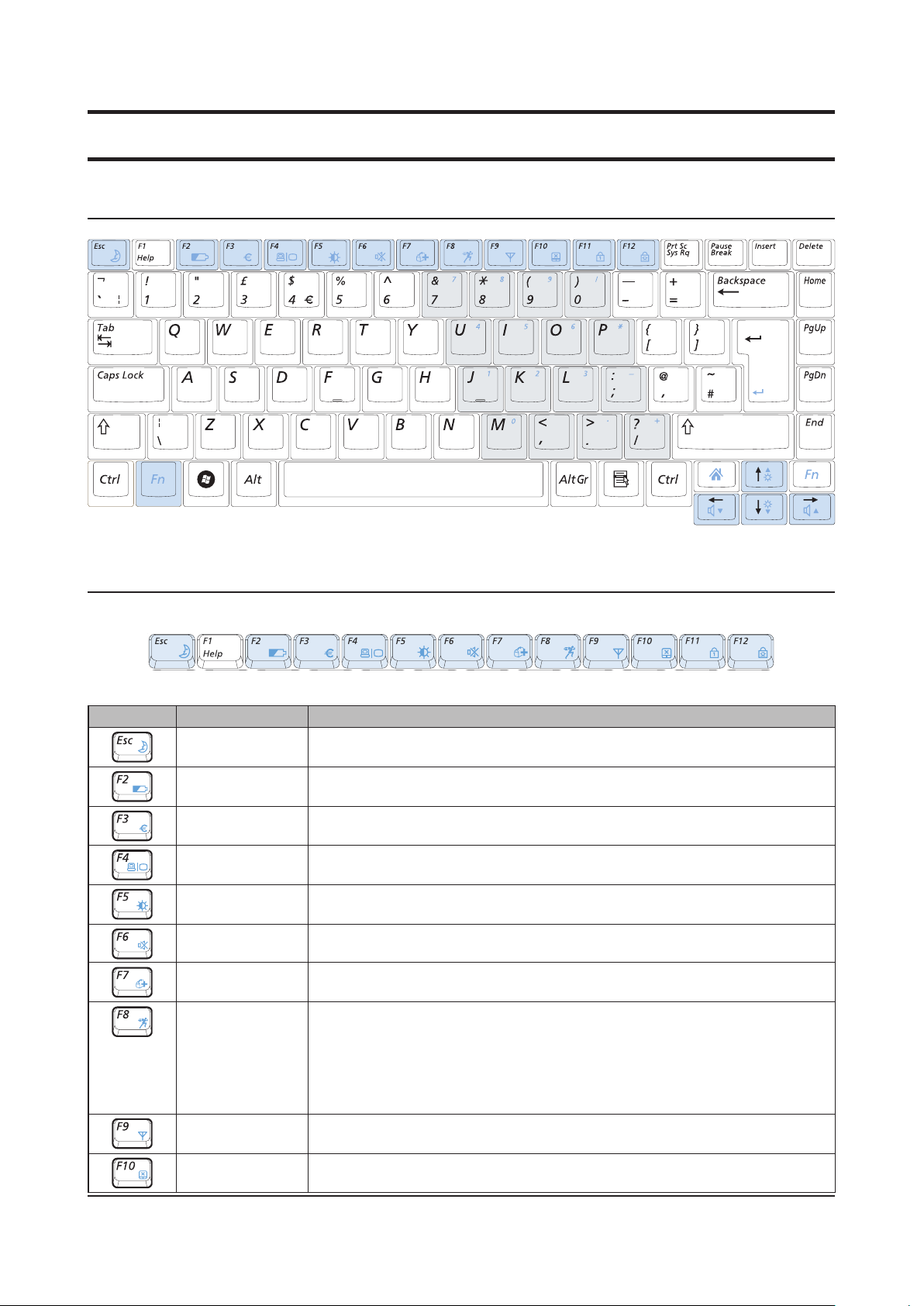
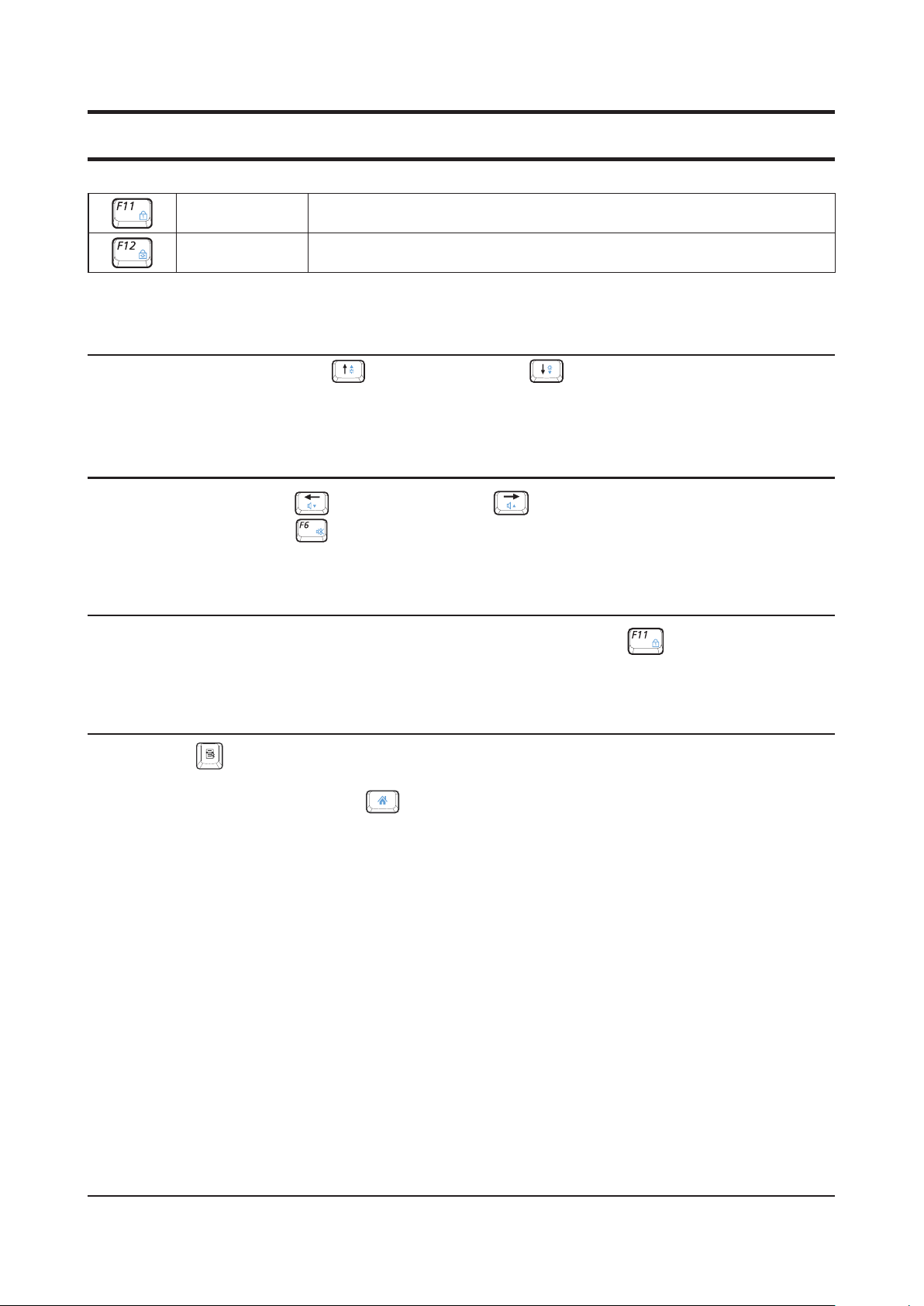
New Keyboard
Shortcut Keys
You can use the following functions by pressing the keys below with the Fn key.
Fn+ Name Function
REST(Sleep Mode) Switches to Sleep mode. To wake the computer up, press the Power button.
Gauge
Euro
CRT/LCD
Backlit Turns the LCD backlight on or off.
Mute Mutes or cancels mute.
Samsung Magic
Doctor
Easy SpeedUP
Manager
Shows the remaining battery charge.You can only use this function when the Easy Display
Manager program is installed.
Enters the Euro monetary unit symbol.This key may not be provided depending on the
keyboard type.
Switches the screen output to the LCD or external monitor when an external monitor (or TV)
is connected to the computer.
System diagnosis, recovery and Internet consultation program, Samsung Magic Doctor, will
be launched.
You can select operation mode when you need maximum system performance or low-noise/
low power consumption with one-click.
Slient
: Low-noise and low power consumption mode
Normal
: Normal Mode
Speed
: Maximum performance mode.
The system operates in its maximum performance, and system resources are allocated to the
currently active program with priority for maximum performance.
Wireless LAN Turns the wireless LAN function on or off in models with wireless LAN capability.
Touchpad
Turns the Touchpad function on or off.When using an external mouse only, you can turn the
Touchpad off.
Page 21
- 이 문서는 삼성전자의 기술 자산으로 승인자만이 사용할 수 있습니다 -
- This Document can not be used without Samsung's authorization -
2. Introduction and Specication
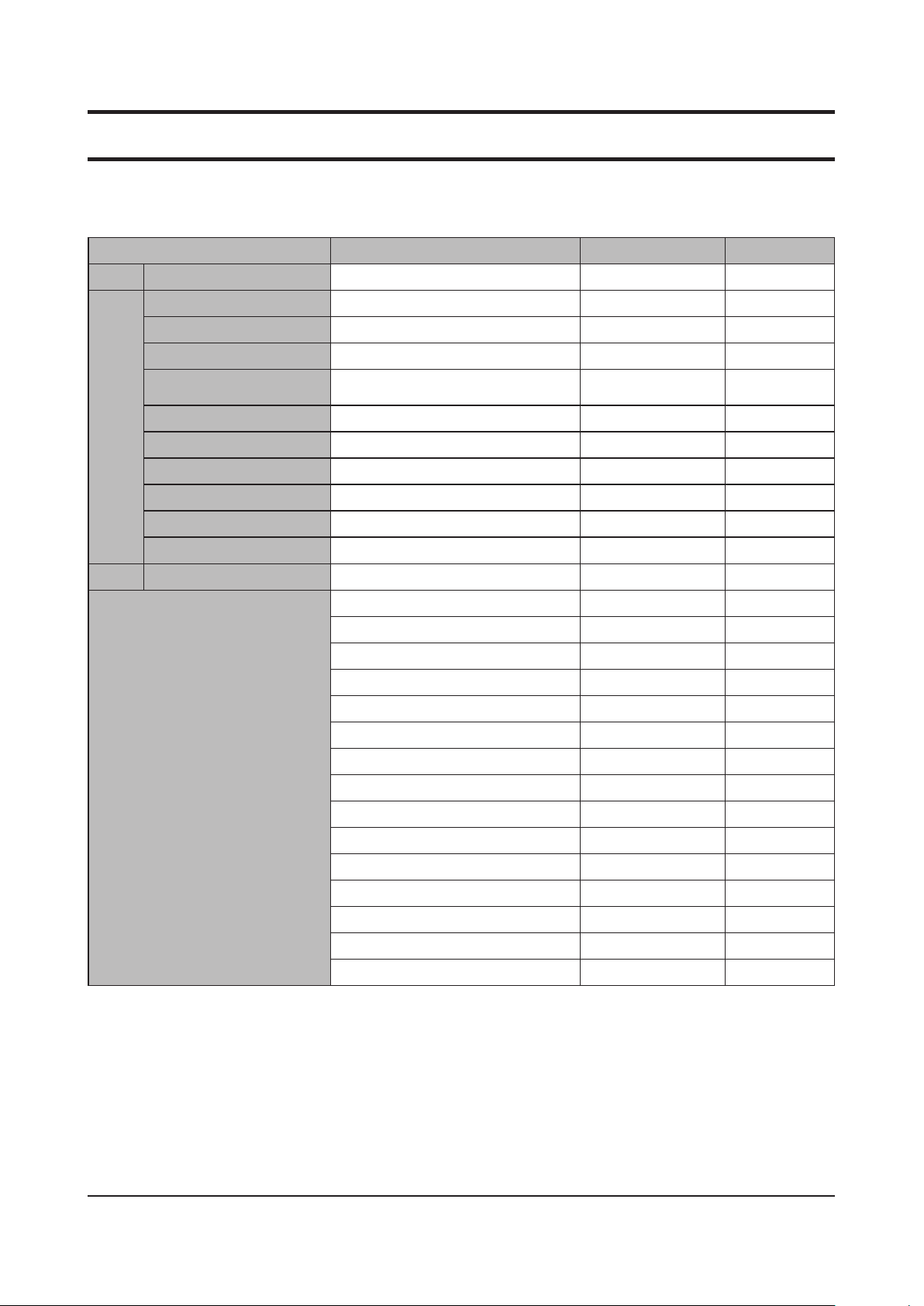
Num Lock Turns the numeric keyboard on or off.
Scroll Lock
If you turn the Scroll Lock on, you can scroll the screen up or down without changing the
cursor location in some applications.
Screen Brightness Control
To adjust the LCD brightness press the
is displayed at the center of the screen for a moment.
Fn +
( ) key combination or the Fn + ( ) key combination. The changed screen brightness
Volume Control
To control the volume, press the
the mute function by clicking the Fn + ( ) key combination.
Fn +
( ) key combination or the Fn + ( ) key combination.You can mute the sound or cancel
Numeric Key
The numbers are printed in blue on the numeric keys.If Num Lock is turned on by pressing the Fn + ( ) key combination, you can use
the numeric keys to enter digits.
Other Function Keys
Application Key [ ]
Performs the right-click mouse function (touchpad).
Internet Explorer Quick Launch Key : (Fn+) [ ]
Launches Internet Explorer.
2-21
Page 22
2-22
2. Introduction and Specication
- 이 문서는 삼성전자의 기술 자산으로 승인자만이 사용할 수 있습니다 -
- This Document can not be used without Samsung's authorization -
2-7. SW List
Item Specication Ver Comment
OS Vista Vista Home Premium 32Bit SP1 New
Chipset Montevina PM45 + ICH9M 8.7.0.1007 New
Graphic Driver Nvidia GeForce 9600M GS/9600M GT 175.61 New
Wireless LAN Driver (Intel) 3965ABG 12.0.0.72 New
Driver
Wireless LAN Driver
(Atheros)
Sound Driver ALC262-VC2 6.0.1.5605
Bluetooth Driver Bluetooth Driver 6.0.1.6300
Touchpad Driver Touchpad Driver 10.1.2.0
Modem Driver Delphi V92 2.1.77
Atheros LAN Driver 7.3.1.109
LAN Driver Marvell Giga LAN 10.51.3.3
Camera Driver Demax Camera Driver 6.11.706.12 New
Intel Turbo Memory Driver Intel Turbo Memory Driver 1.6.0.1034 New
Adobe Reader 8.1.0.137
Easy Battery Manager3 3.2.1.7 New
Easy Display Manager 2.2.3.0 New
Easy Network Manager 3.0.1.7
Easy Partition Manager 2.2.2.2
Easy Speed Up Manager 2.0.1.0
Intel Turbo Memory Console 1.6.0.1034
Application
McAfee VirusScan 8.0.226.0
MS Ofce 2007 Ready 1.2
Play Camera 2.0.0.10 New
Recovery Solution III 3.0.0.5 New
Samsung Magic Doctor5 5.0.3.2
Samsung Update Plus 1.3.0.12
Samsung Screen Saver 1.0.2.0
Wallpaper 2.0.0.0
Page 23
- 이 문서는 삼성전자의 기술 자산으로 승인자만이 사용할 수 있습니다 -
- This Document can not be used without Samsung's authorization -
2. Introduction and Specication
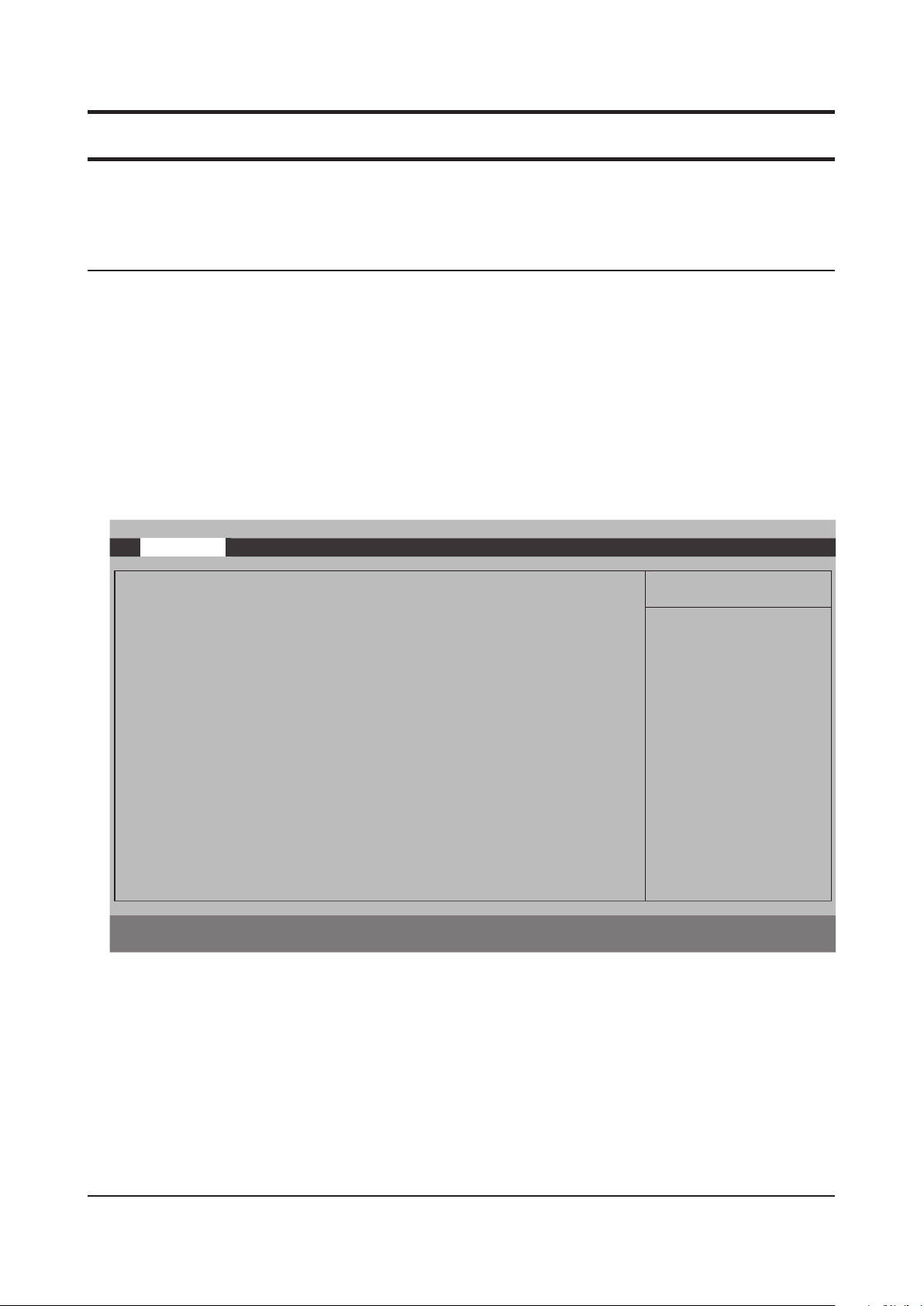
2-8. System Setup (BIOS Setup)
MAIN
SATA Port 1
HDD model name is displayed in this item for SATA Port 1.
•
SATA Port 2
HDD model name is displayed in this item for SATA Port 2.
•
Total Memory
Total memory size of the system.
•
Slot 1 Memory
Memory size of the slot 1.
•
Slot 2 Memory
Memory size of the slot 2.
•
Phoenix SecureCore(tm) Setup Utility
Main
System Time [18:06:14]
System Date
SATA Port 1 [FUJITSU MHY2160BH-(PM) ]
SATA Port 2 [TSSTcorp CDDVDW TS-L633A-]
CPU Type Intel(R) Core (TM) 2 Duo CPU
CPU Speed 2.53 GHz
Total Memory 1024 MB
Slot1 Memory Not Installed
Slot2 Memory 1024 MB
BIOS Version 00LE.PV10.20080326.KSY
MICOM Version 00LEPV03
F1
Help
ESC
Exit
Advanced Security Boot Exit
[04/16/2008]
Select Item
Select Menu
F5/F6
Enter
Change Values
Select Sub-Menu
F9
F10
Item Specific Help
<Tab>, <Shift-Tab>, or
<Enter> selects field.
Setup Defaults
Save and Exit
2-23
Page 24
2-24
2. Introduction and Specication
- 이 문서는 삼성전자의 기술 자산으로 승인자만이 사용할 수 있습니다 -
- This Document can not be used without Samsung's authorization -
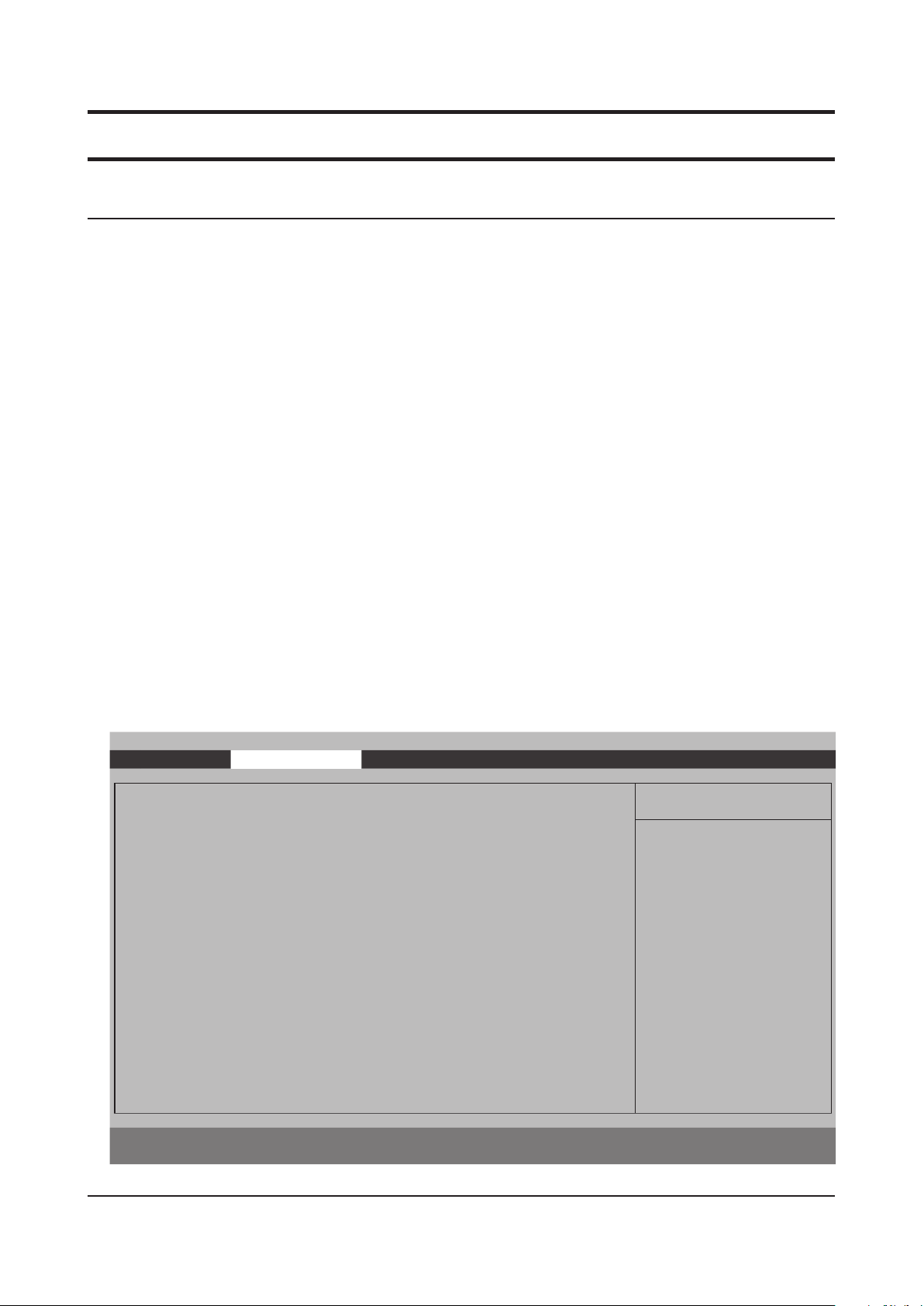
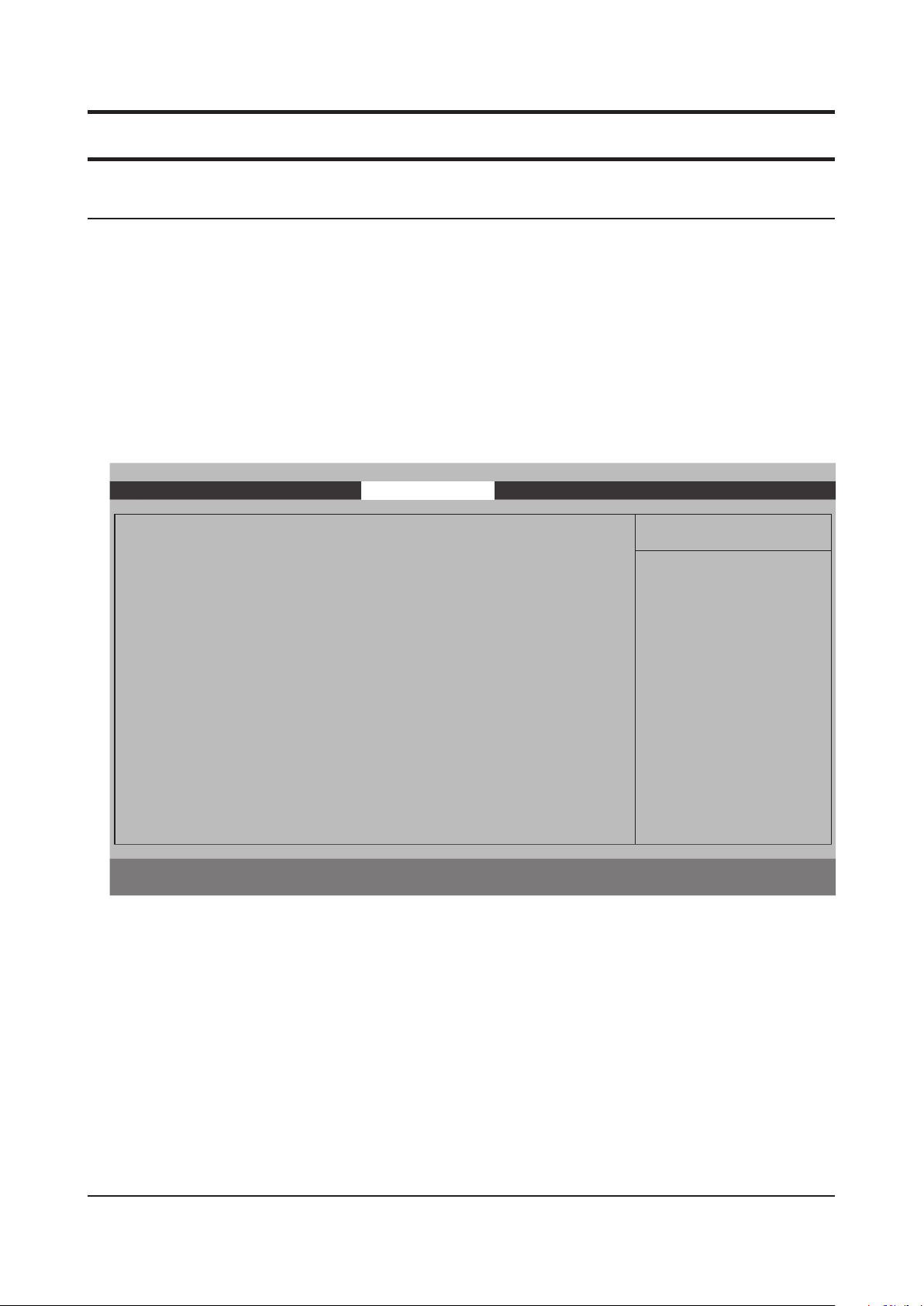
Advanced
Intel(R) SpeedStep(TM)
This selects whether Intel® SpeedStep™ Thchnology is enabled or not.
•
Legacy USB Support
Enable support for Legacy Universal Serial Bus.
•
Large Disk Access Mode
UNIX, Novell NetWare or other O/S, select ‘Other’.
•
AHCI Mode Control
Select a AHCI mode always enabled or disabled.
•
EDB (Execute Disable Bit)
supports the Data Execution Prevention (DEP) feature. DEP is a set of H/W & S/W technologies that perform additional checks
•
on memory to help prevent malicious code from running on a system.
Internal LAN
“Enabled” will allow the internal LAN to operate correctly.
•
Touch Pad Mouse
‘Disabled’ prevents installed Touch Pad mouse from functioning, but frees up IRQ 12. ‘Enabled’ forces the Touch Pad mouse to be
•
enabled.
CPU Power Saving Mode
‘Enabled’ will decrease system power consumption.
•
USB S3 Wake-up
Select Enabled to support that system can be waked up from ACPI S3 state by USB activities.
•
Purchased Date
Purchased date is displayed after 10 times boot.
•
Phoenix SecureCore(tm) Setup Utility
Main
Intel (R) SpeedStep (TM) [Enabled]
Legacy USB Support
Large Disk Access Mode
Advanced
Security Boot Exit
Item Specific Help
[Enabled]
[DOS] This selects whether
Intel (R) SpeedStep (TM)
AHCI Mode Control
EDB (Execute Disable Bit)
Internal LAN
Touch Pad Mouse
CPU Power Saving Mode
USB S3 Wake-up
[Enabled] Techhnology is enabled
[Disabled] or not.
[Enabled]
[Enabled] 'Disbled' means that
[Enabled] system does not support
[Disabled] Intel (R) SpeedStep (TM)
Technology.
Purchased Date 2008/04
'Enabled' is recommened.
F1
ESC
Help
Exit
Select Item
Select Menu
F5/F6
Enter
Change Values
Select Sub-Menu
F9
Setup Defaults
F10
Save and Exit
Page 25
- 이 문서는 삼성전자의 기술 자산으로 승인자만이 사용할 수 있습니다 -
- This Document can not be used without Samsung's authorization -
2. Introduction and Specication
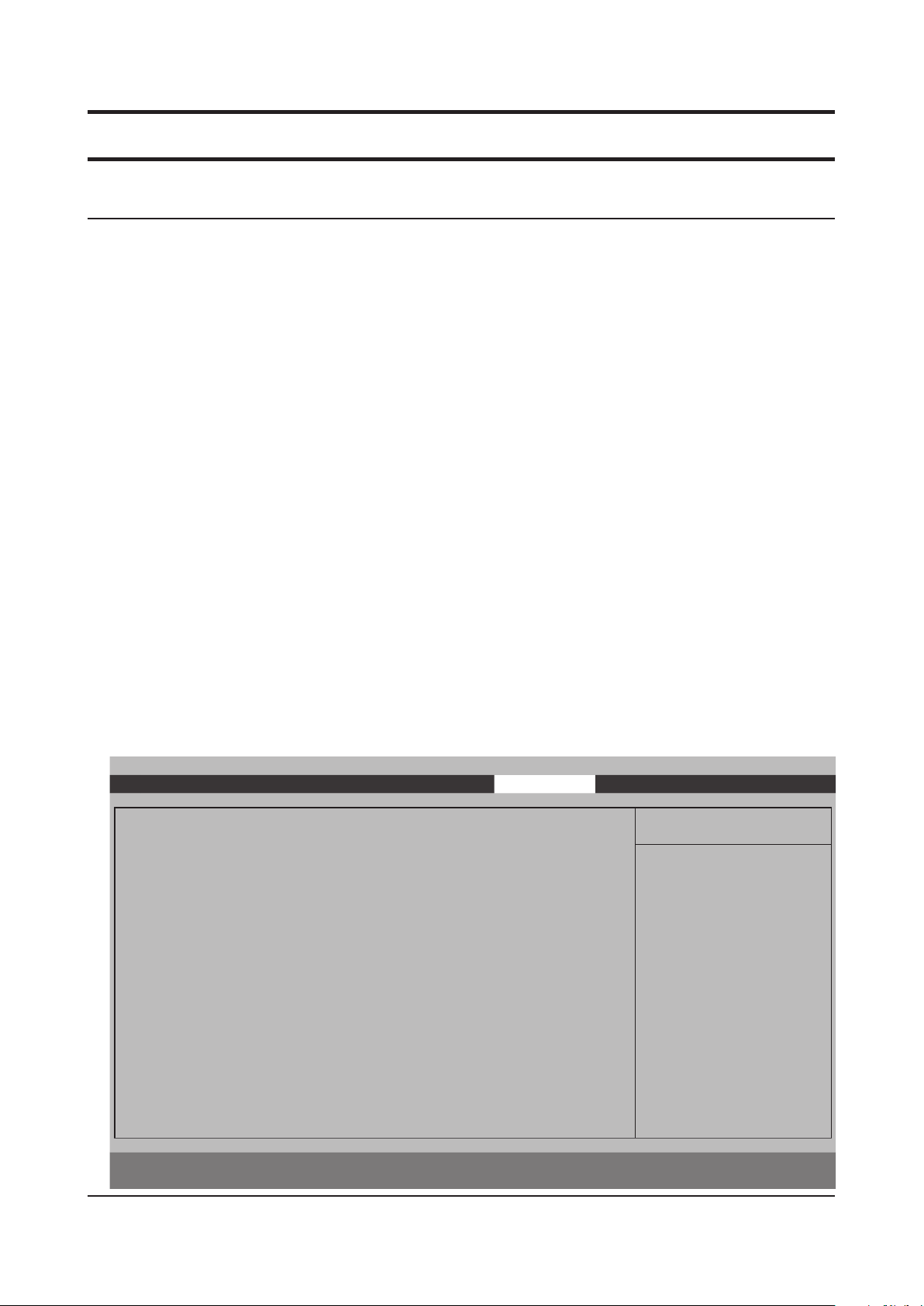
Security
set Supervisor Password
Supervisor Password controls access to the setup utility.
•
set User Password
User Password controls access to a few items in the setup utility.
•
set HDD Password
User can set a password of a HDD.
•
Password on Boot
Supervisor Password controls access to system boot.
•
Fixed Disk Boot Sector
“Write Protect” will protect to write in Boot Sector of HDD.
•
Phoenix SecureCore(tm) Setup Utility
Main Advanced
Security
Boot Exit
Supervisor Password Clear
User Password Clear
HDD Password Clear
Set Supervisor Password [Enter] setup utility
Set User Password
Set HDD Password
Password on boot
Fixed disk boot sector
F1
ESC
Help
Exit
Select Menu
Select Item
[Enter]
[Enter]
[Enabled]
[Normal]
F5/F6
Enter
Change Values
Select Sub-Menu
F9
F10
Item Specific Help
Supervisor Password
controls access to the
Setup Defaults
Save and Exit
2-25
Page 26
2-26
2. Introduction and Specication
- 이 문서는 삼성전자의 기술 자산으로 승인자만이 사용할 수 있습니다 -
- This Document can not be used without Samsung's authorization -
Boot
Boot Device Priority
Select system boot options.
•
NumLock
Selects Power-on state for Numlock.
•
Enable Keypad
Select a method of Keypad.
•
- [Only By Fn Key] : Leave the embedded keypad disabled when the Numlock LED is on.
- [By NumLock] : Enable the embedded keypad when Numlock LED is on and no external keyboard is attached.
Summary Screen
Display system conguration on boot.
•
Boot-time Diagnostic Screen
Display the diagnostic screen during boot.
•
PXE Oprom
This selects whether network boot PXE will be loaded or not during the POST.
•
- [Only with F12] : The network boot PXE will be loaded only if F12 is pressed during the POST.
- [Always] : The network boot PXE will be always loaded during the POST.
Brightness Control Mode
[Auto] : The brightness values are set by the status of AC adapter at each bootup.
•
[User Control] : The brightness values could be remained regardless of the status of AC adapter.
•
Wireless Device Control
[Always On / Off] : The wireless devices are turned on or not.
•
[Last Status] : The wireless devices are restored to last status.
•
Smart Battery Calibration
If you select this option, the system battery will be discharged completely for more accurate battery level detection.
•
This option only works with SMART battery.
Phoenix SecureCore(tm) Setup Utility
Main Advanced Security
Boot Device Priority
NumLock
Enble Keypad
Summary screen
Boot-time Diagnostic Screen
PXE OPROM
Brightness Mode Control
Wireless Device Control
[OFF] Select system boot
[By NumLock] options
[Disabled]
[Disabled]
[Only with F12]
[Auto]
[Always On]
Boot
Exit
Item Specific Help
Smart Battery Calibration
F1
ESC
Help
Exit
Select Item
Select Menu
F5/F6
Enter
Change Values
Select Sub-Menu
F9
F10
Setup Defaults
Save and Exit
Page 27

- 이 문서는 삼성전자의 기술 자산으로 승인자만이 사용할 수 있습니다 -
- This Document can not be used without Samsung's authorization -
2. Introduction and Specication
Exit
Exit Saving changes
Exit System Setup and save your changes to CMOS.
•
Exit Discarding Changes
Exit utility without saving Setup data to CMOS.
•
Load Setup Defaults
Load default values for all SETUP items.
•
Discard Changes
Load previous values from CMOS for all SETUP items.
•
Save Changes
Save Setup Data to CMOS.
•
Phoenix SecureCore(tm) Setup Utility
Main Advanced Security Boot
Exit
Exit Saving Changes
Exit Discarding Changes
Load Setup Defaults
Discard Changes
Save Changes
F1
ESC
Help
Exit
Select Item
Select Menu
F5/F6
Enter
Change Values
Select Sub-Menu
F9
F10
Item Specific Help
Exit System Setup and
save your changes to
CMOS.
Setup Defaults
Save and Exit
2-27
Page 28

2-28
2. Introduction and Specication
- 이 문서는 삼성전자의 기술 자산으로 승인자만이 사용할 수 있습니다 -
- This Document can not be used without Samsung's authorization -
BIOS Vendor
BIOS Vendor : Phoenix
Page 29
- 이 문서는 삼성전자의 기술 자산으로 승인자만이 사용할 수 있습니다 -
- This Document can not be used without Samsung's authorization -
2. Introduction and Specication
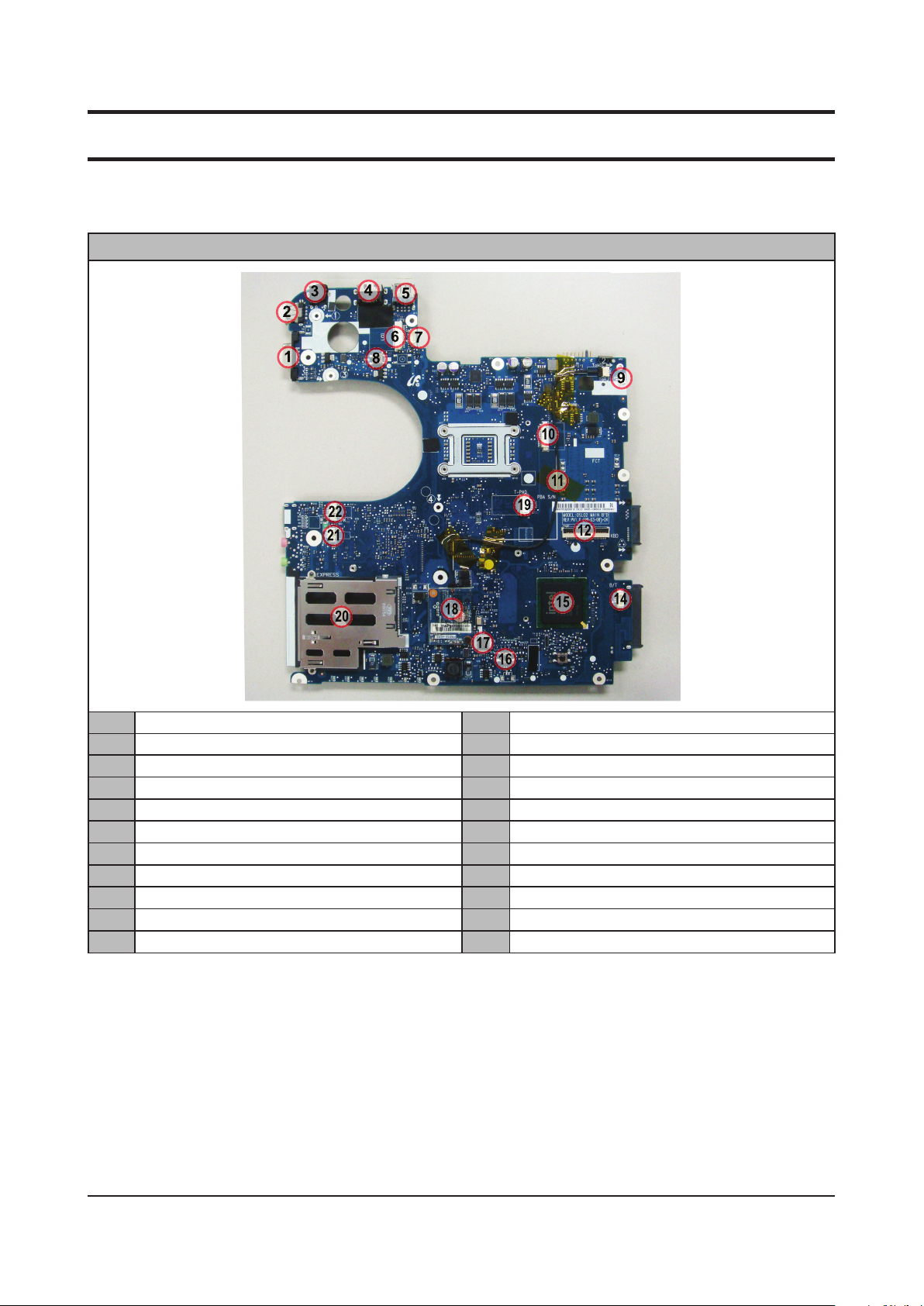
2-9. Mainboard Part Description
TOP
1 CRT Connector (JCRT501) 12 KBD Connector (J8)
2 1-stack USB Connector (J503) 14 Bluetooth Connector (J9)
3 DC-Jack (J501) 15 ICH9M (U5)
4 RJ45 Connector (J502) 16 Touchpad button (SW3, SW4)
5 2-stack USB Connector (J504) 17 Multicard Controller (U6)
6
LCD Connector (JLCD1) 18 MDC card
7 Camera Connector (J1) 19 Touchpad FFC Connector (J5)
8 Power switch (SW1) 20 Express Frame (JEXP1)
9 MDC Cable Connector (J3 , Option) 21 MIC Connector (J7)
10 Debug Connector (J4) 22 Speaker Connector (J6)
11 MDC Cable (on board, Option)
2-29
Page 30
- 이 문서는 삼성전자의 기술 자산으로 승인자만이 사용할 수 있습니다 -
- This Document can not be used without Samsung's authorization -
2. Introduction and Specication
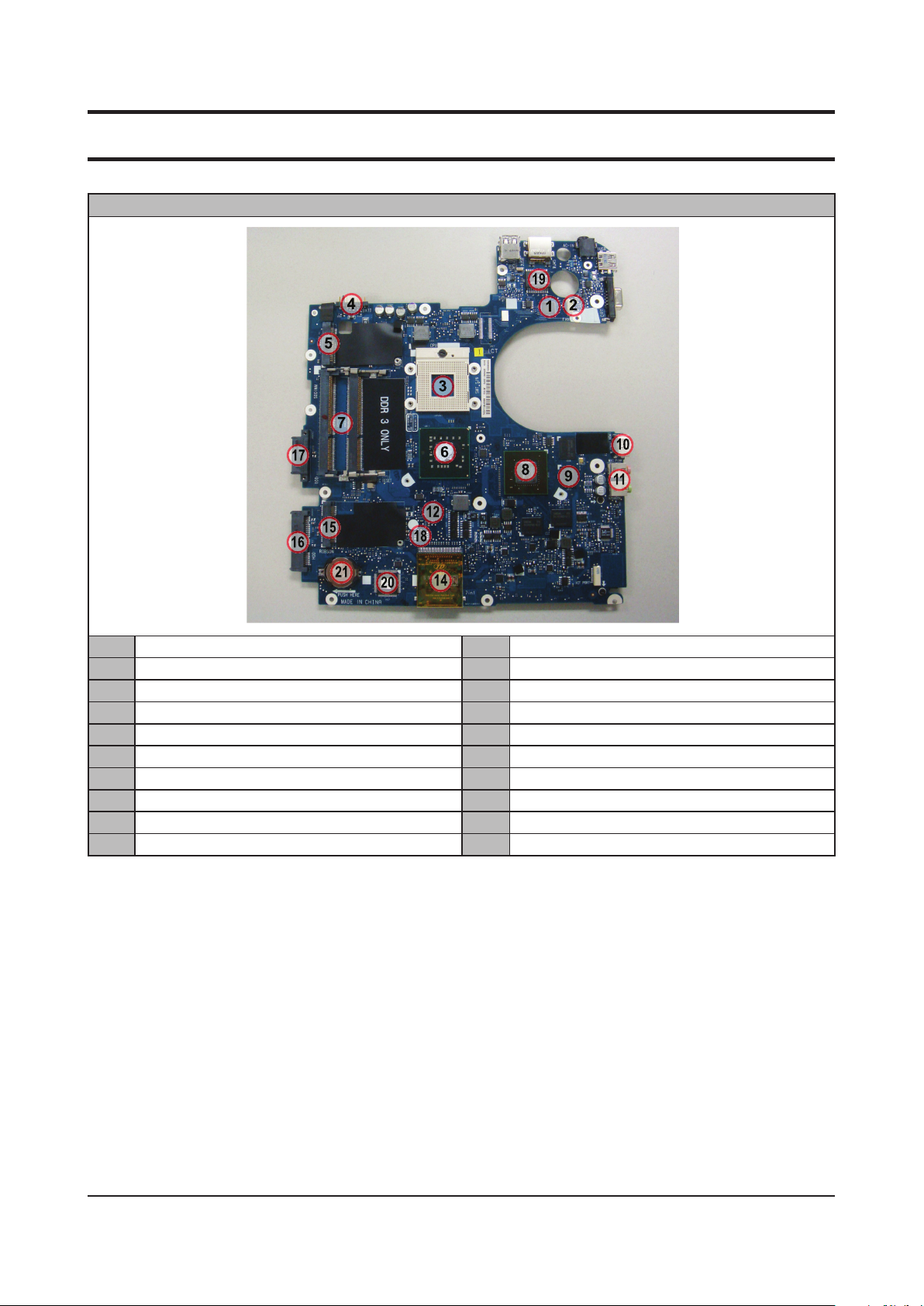
Bottom
1 LAN Controller (U506) 11 Headphone, MIC jack (J509, J510)
2 FAN Connector (J505) 12 Clock generator (U515)
3 CPU socket (JCPU501) 14 7-in-1 Connector (Jmulticard501)
4 Battery Connector (J506) 15 Minicard Connector (Robson, J511)
5 Minicard Connector (WLAN, J508) 16 SATA HDD Connector (JHDD501)
6 MCH (U511) 17 SATA ODD Connector (J0DD501)
7 DDR3 Connector (DDR501, 502) 18 SPI ROM (U521)
8 GFX Controller (U513) 19 LAN Transformer (LT501)
9 GDDR3 Memory (U508, U512, U517, J518) 20 MICOM (U527)
10 HDMI Connector (JHDMI501) 21 RTC Battery
2-30
 Loading...