

Page 1

User Manual
GT-B9150
www.samsung.com
Page 2

About this manual
•
Please read this manual before using the device to ensure safe and proper use.
•
Images and screenshots may differ in appearance from the actual product.
•
Content may differ from the final product, or from software provided by service providers
or carriers, and is subject to change without prior notice. For the latest version of the
manual, refer to the Samsung website,
•
Content (high quality content) that requires high CPU and RAM usage will affect the
overall performance of the device. Applications related to the content may not work
properly depending on the device’s specifications and the environment that it is used in.
•
Default applications that come with the device are subject to updates and may no longer
be supported without prior notice. If you have questions about an application provided
with the device, contact a Samsung Service Centre. For user-installed applications,
contact service providers.
•
The content may differ from the operating system of the user’s computer.
•
The device has similar functions to those on personal computers, but some features are
different and not supported.
•
Applications and their functions may vary by country, region, or hardware specifications.
Samsung is not liable for performance issues caused by applications from any provider
other than Samsung.
•
Modifying the device’s operating system or installing softwares from unofficial sources
www.samsung.com
.
may result in device malfunctions and data corruption or loss. These actions are violations
of your Samsung licence agreement and will void your warranty.
•
The device can be upgraded to the latest software. For more information, refer to the
Samsung website.
•
Software, sound sources, wallpapers, images, and other media provided with this device
are licensed for limited use. Extracting and using these materials for commercial or other
purposes is an infringement of copyright laws. Users are entirely responsible for illegal
use of media.
2
Page 3

About this manual
Instructional icons
Warning: situations that could cause injury to yourself or others
Caution: situations that could cause damage to your device or other equipment
Note: notes, usage tips, or additional information
Copyright
Copyright © 2013 Samsung Electronics
This guide is protected under international copyright laws. No part of this guide may be
reproduced, distributed, translated, or transmitted in any form or by any means, electronic
or mechanical, including photocopying, recording, or storing in any information storage and
retrieval system, without the prior written permission of Samsung Electronics.
Trademarks
•
SAMSUNG and the SAMSUNG logo are registered trademarks of Samsung Electronics.
•
The Android logo, Google™, YouTube™, Google Play™ Store, Google Play™ Movies, and
Google Play
•
Bluetooth® is a registered trademark of Bluetooth SIG, Inc. worldwide.
•
HDMI, the HDMI logo and the term “High Definition
Multimedia Interface” are trademarks or registered
trademarks of HDMI Licensing LLC.
Music are trademarks of Google, Inc.
™
3
Page 4

About this manual
•
Wi-Fi®, Wi-Fi Protected Setup™, Wi-Fi Direct™, Wi-Fi CERTIFIED™, and the Wi-Fi logo are
registered trademarks of the Wi-Fi Alliance.
Your device uses a non-harmonised frequency and is intended for use in all European
countries. The WLAN can be operated in the EU without restriction indoors, but cannot
be operated outdoors.
•
All other trademarks and copyrights are the property of their respective owners.
DivX
trademarks of Rovi Corporation or its subsidiaries and are
used under licence.
ABOUT DIVX VIDEO
DivX
an official DivX Certified
video. Visit
DivX videos.
ABOUT DIVX VIDEO-ON-DEMAND
This DivX Certified
Demand (VOD) movies. To obtain your registration code, locate the DivX VOD section in
your device setup menu. Go to
registration.
, DivX Certified® and associated logos are
®
is a digital video format created by DivX, LLC, a subsidiary of Rovi Corporation. This is
®
device that has passed rigorous testing to verify that it plays DivX
®
www.divx.com
device must be registered in order to play purchased DivX Video-on-
®
for more information and software tools to convert your files into
vod.divx.com
for more information on how to complete your
DivX Certified
to play DivX® video up to HD 720p, including premium content.
®
4
Page 5

Table of Contents
Getting started
7 Key features
7 Device layout and function
9 Package contents
9 Installation
11 Turning on the device
12 Connecting to a smartphone
13 Connecting to audio equipment
14 Resetting the device
Basics
15 Controlling a screen
19 Entering text
19 Home screen
20 Opening an application
21 Applications screen
22 Setting up accounts
22 Notifications
Web & network
27 Internet
29 Screen Mirroring
Media
30 Music Player
31 Gallery
32 Video Player
33 YouTube
Application & media stores
34 Video Hub
34 Play Store
35 Samsung Apps
36 Play Movies
36 Play Music
23 Transferring files
24 Setting up user profiles
25 Backing up or restoring data
26 Connecting to a Wi-Fi network
Utilities
37 POLARIS Office
38 Google
39 My Files
39 Downloads
39 McAfee VirusScan
5
Page 6

Table of Contents
Settings
40 About Settings
40 Wi-Fi
41 Bluetooth
41 Ethernet
41 Nearby devices
41 Play nearby device content
42 Sound
42 Display
42 Storage
42 Application manager
43 Location services
43 Lock screen
43 Member management
44 Security
44 Language and input
46 Content backup and restoration
46 Backup and reset
46 Add account
46 Mouseover
46 Audio output
47 Date and time
47 Accessibility
47 About device
Appendix
48 Upgrading the device
50 Troubleshooting
Safety information
6
Page 7

Getting started
Use this device to play multimedia files on large screens that support the High Definition
Multimedia Interface (HDMI). You can also save and share files with family members via the
Home cloud storage. Install
download content, add and manage multiple user accounts, use it as a remote control for the
screen (TV or monitor), and more.
HomeSync
application on your smartphone to upload and
Key features
The device’s key features include:
•
Home cloud service with mass storage
•
Multiple user management
•
Easy setup with the NFC feature
•
Automatic uploading
•
Media playback on large screens
•
Screen mirroring
•
Easy control with
HomeSync
application
Device layout and function
Notification
light
Power button
Functions
button
Power adaptor
port
microUSB port
LAN cable port
S/PDIF port
USB port (3.0)
HDMI cable
port
7
Page 8

Getting started
Name Function
•
Press and hold to turn the device on or off.
•
Power button
Functions button
Press and hold for more than 8 seconds to reset the device.
•
Press to confirm secure pairing with your smartphone.
•
Press and hold for a few seconds to capture a screenshot.
Power adaptor port
microUSB port
HDMI cable port
USB port (3.0)
S/PDIF port
LAN cable port
Some items, including monitors, smartphones, and peripherals may not be
compatible with the device.
•
Connect a power cable to supply power.
•
Connect to a computer using a microUSB cable.
•
Connect to a monitor (TV or computer) using an HDMI cable.
•
Connect to a compatible device, such as a smartphone or
camera, or an external USB storage device using a USB cable.
•
Connect to a keyboard or mouse using a USB cable.
•
Connect to audio equipment using an S/PDIF cable.
•
Connect to a network using a LAN cable.
Notification light
The notification light alerts you to the device’s status with the following colours.
Colour Status
•
Network connected
Blue (steady)
•
Ready to download or upload data
•
Upcoming events
Green (steady)
•
Application being updated
Red (blinking)
Yellow (steady)
•
Failed to recognise internal hard disk drive (HDD)
•
Network connection error
8
Page 9

Getting started
Package contents
Check the product box for the following items.
•
Device
•
Power adaptor/Power cord
•
LAN cable
•
HDMI cable (A-to-A)
•
The items supplied with the device may vary depending on the region or service
provider.
•
You can purchase additional accessories: USB cable, S/PDIF cable, and microUSB
cable.
•
Make sure they are compatible with the device before purchase.
Installation
Connect the device to a monitor that supports the High Definition Multimedia Interface
1
(HDMI) using the HDMI cable.
For more information, refer to the user manual for the monitor.
9
Page 10

Getting started
Connect a LAN cable to the LAN cable port on the device to connect to a network.
2
•
To set the static IP, access
•
You can let the device connect automatically to the Wi-Fi network your
Settings
→
Ethernet
→
Configure Ethernet device
.
smartphone uses, or you can connect to a Wi-Fi network by accessing
Wi-Fi
. However, to establish a better connection, it is recommended to use the LAN
cable.
Connect the power adaptor to the device, and then connect the power cord to the
3
electrical socket.
Settings
→
10
Page 11

Getting started
Turning on the device
Press and hold the Power button to turn on the device.
1
Turn on the connected monitor.
2
For better picture quality, follow the on-screen instructions when setting up the
device for the first time and select a screen aspect ratio to fit the original screen. Or,
access
Settings
→
Display
→
Screen size
.
Turning off the device
To turn off the device, press and hold the Power button, and then press and hold the Power
OK
button again or select
For more information about how to control the screen, see page 15.
Do not disconnect the power adaptor from the device while applications are running.
Doing so may cause malfunctions or damage to the device.
.
11
Page 12

Getting started
Connecting to a smartphone
Connect and register the device to a smartphone. You can upload and download content,
add and manage multiple user accounts, use it as a remote control for the screen (TV or
monitor), and more. To use this feature, you must download
Samsung Apps
When your smartphone supports the Near Field Communication (NFC) feature, touch
the back of your smartphone to the NFC antenna area near the centre of the device to
download
Once the device connects to a smartphone, the device will automatically reconnect to it
whenever
For more information about compatible smartphones, refer to
or
Play Store
HomeSync
HomeSync
and install it on your smartphone.
application.
application is activated.
HomeSync
application from
www.samsung.com
When your smartphone supports the NFC feature
Activate the NFC feature on your smartphone.
1
To start
2
area of the device.
HomeSync
application, touch the back of your smartphone to the NFC antenna
.
Follow the on-screen instructions.
3
The NFC antenna area of the smartphone may differ. For more information, refer to
the user manual for the smartphone.
12
Page 13

Getting started
When your smartphone does not support the NFC feature
You can connect the device to your smartphone via the Bluetooth feature when the
smartphone does not support the NFC feature.
If the Bluetooth feature on your smartphone is off, the Bluetooth feature is turned on
automatically when
Tap
1
2
3
4
HomeSync
Tap →
Select the device name from the list of detected devices.
Follow the on-screen instructions.
.
Add device
HomeSync
.
application launches.
Connecting to audio equipment
You can connect the device to audio equipment, such as home theaters.
Connect the device to audio equipment using an S/PDIF cable.
You can select a sound output format to use by accessing
13
Settings
→
Audio output
.
Page 14

Getting started
Resetting the device
If your device is frozen or unresponsive, press and hold the Power button for more than
8 seconds.
Resetting may disconnect the device from your smartphone. Connect the device to
your smartphone again via the NFC feature or the Bluetooth feature.
14
Page 15

Basics
Controlling a screen
Control a screen (TV or monitor) by using your smartphone as a mouse or a remote control.
Tap
HomeSync
•
•
Using the button mode
Touch the button up, down, left, or right to move the blue frame. You can select the focused
item by touching
→ on your smartphone, and then switch to control mode you want.
Available control modes may vary depending on the smartphone you use.
You can also connect a mouse to the USB port on the device to control a screen.
OK
.
Switch to the mirror mouse
mode.
Switch to the cursor mode.
Launch the TV application.
15
Page 16

Basics
Using the cursor mode
Control the screen by touching the control pad and scrolling lists with the scroll cursors.
Switch to the mirror mouse
mode.
Switch to the button mode.
Launch the TV application.
Using the mirror mouse
Tap .
The monitor screen appears on your smartphone. Use the touch screen on the smartphone to
control the monitor screen.
Using the remote mouse
Tap →
Control the screen by moving the smartphone up, down, left, or right, and then touching the
control pad.
To switch to the previous control mode, tap
Remote mouse
.
→
Button mode
or
Cursor mode
.
Controlling the pointer speed
Adjust the pointer speed when using the remote mouse or touch pad.
Tap
→
Pointer speed
. Drag the slider to the left or right and select OK.
16
Page 17

Basics
Using the control pad
Tapping
To open an application, to press an on-screen button, or to enter a character using the onscreen keypad, tap it with your finger.
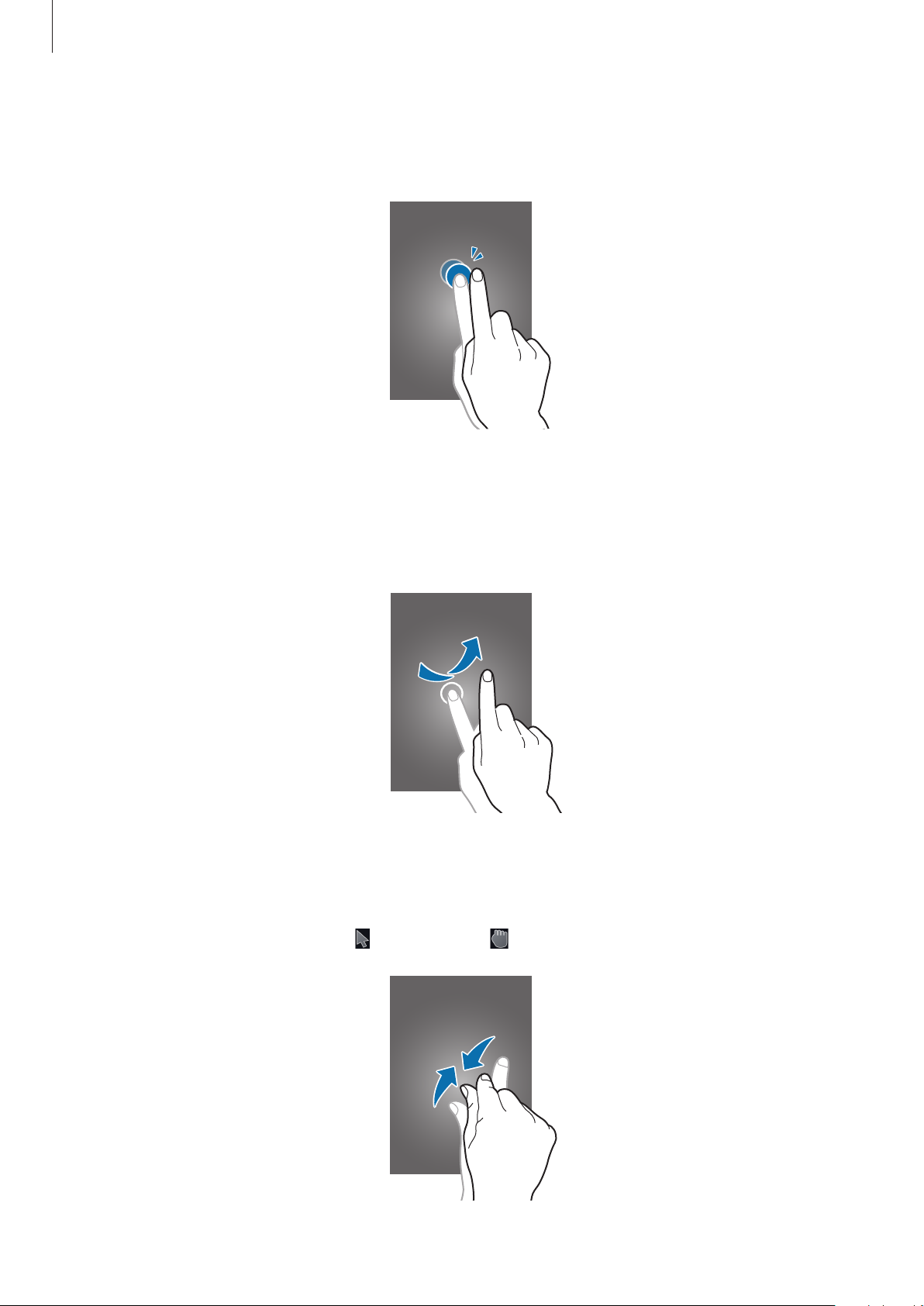
Dragging
Drag left or right to move to another page when is changed to after tapping and holding
the control pad.
Drag up or down to scroll through a list when
the control pad.
is changed to after tapping and holding
17
Page 18
Basics
Double-tapping
Double-tap on a webpage or image to zoom into an area. Double-tap again to return.
Flicking
Flick left or right on the Home screen or the Applications screen to see another panel. Flick up
or down to scroll through a webpage or a list.
Pinching
Tap and hold the control pad with two fingers, and then spread them apart on a webpage or
image to zoom into an area when
is changed to . Pinch to zoom out.
18
Page 19

Basics
Entering text
To enter text, place the cursor at the text input field, and then use the keypad that appears on
the screen.
Delete a preceding
character.
Enter uppercase.
Enter punctuation
marks.
Set options for the
Samsung keyboard.
Enter uppercase.
Add an item from
the clipboard.
Enter a space.
You can also connect a keyboard to the USB port on the device to enter text.
Home screen
The Home screen provides thumbnails for multimedia files and icons for applications. Select
Recommended
select
Apps
The Home screen have multiple panels. To view other panels, scroll left or right.
or
My content
to preview photos, videos, or music in thumbnail view, or
to view icons for applications.
The available options may vary depending on the region or service provider.
Select to view other
panels.
Select an application
shortcut.
Select a preview
thumbnail to open.
19
Page 20

Basics
Buttons
Place the pointer at the bottom of the screen to open the navigation bar.
Button Function
•
Press to open the list of recent applications.
•
Press to open the Home screen.
•
Press to return to the previous screen.
Opening an application
Open the Applications screen and select an application icon to open. To close the application,
press
.
Opening from recently-used applications
On the Applications screen, select an application icon under
select an application icon to open.
Recent apps
. Or, press and
Closing an application
When you multi-task by running multiple applications at the same time, some applications
may slow down. It may also cause memory shortage.
Close applications not in use to maintain device performance.
Press
To close all running applications, select
→
Task manager
, and then select
End all
End
next to an application to close it.
.
20
Page 21
Basics
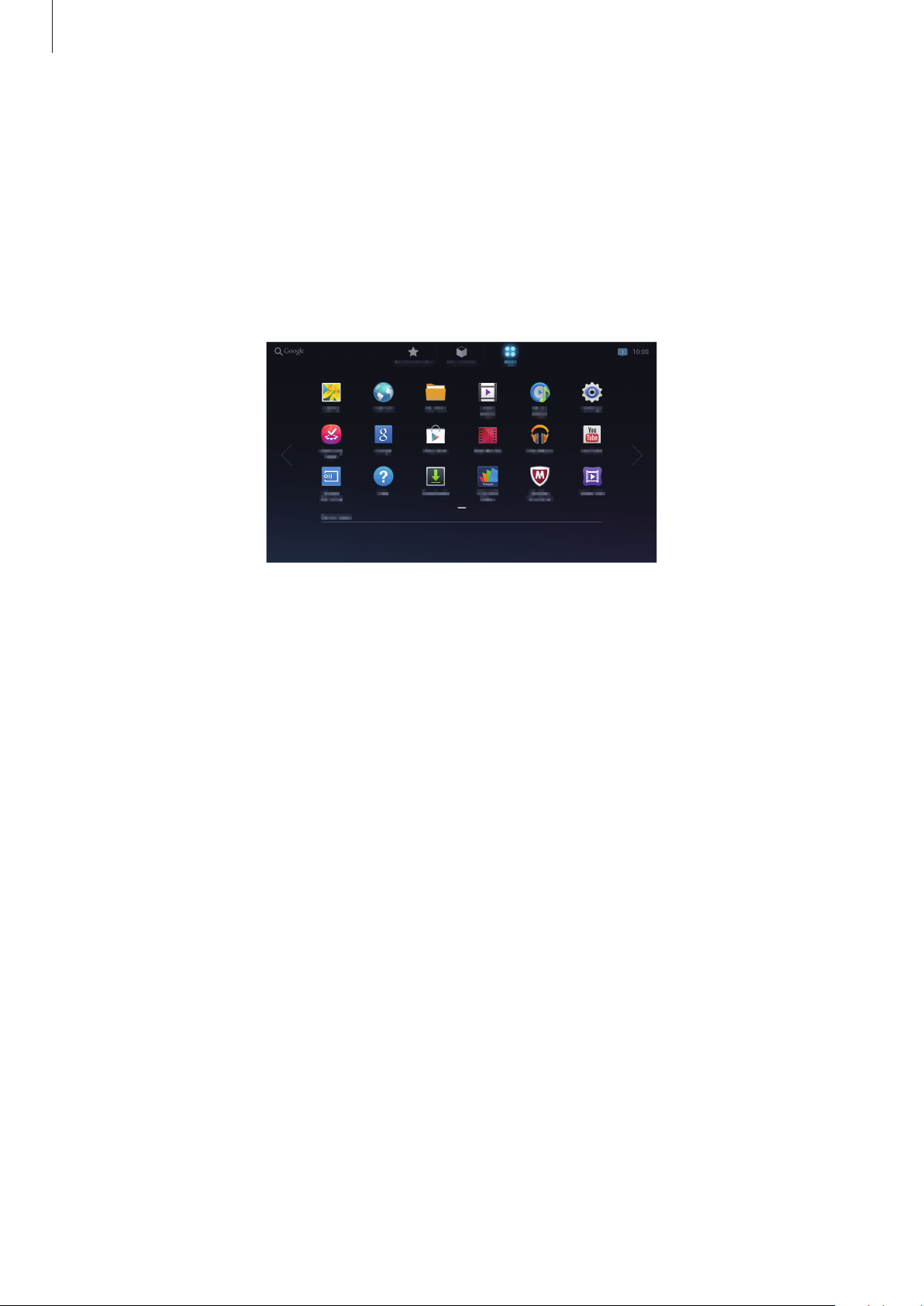
Applications screen
The Applications screen displays icons for applications, including any new applications
installed. Icons for recently-used applications appear at the bottom of the screen.
On the Home screen, select
When a new panel is added due to newly installed application, move to another panel by
dragging right.
Apps
.
Installing applications
Use application stores, such as
Samsung Apps
, to download and install applications.
21
Page 22
Basics
Setting up accounts
Google applications, such as
requires a Samsung account. Create Google and Samsung accounts to have the best
experience with the device.
Play Store
, require a Google account, and
Samsung Apps
Adding accounts
Follow the instructions that appear when opening a Google application without signing in to
set up a Google account.
To sign in with or sign up for a Google account, on the Applications screen, select
Add account
onscreen instructions to complete the account setup. More than one Google account can be
used on the device.
Set up a Samsung account as well.
→
Google
. After that, select
New
to sign up, or select
Existing
Settings
, and then follow
→
Removing accounts
On the Applications screen, select
the account to remove, and then select
Settings
, select an account name under
Remove account
Accounts
.
, select
Notifications
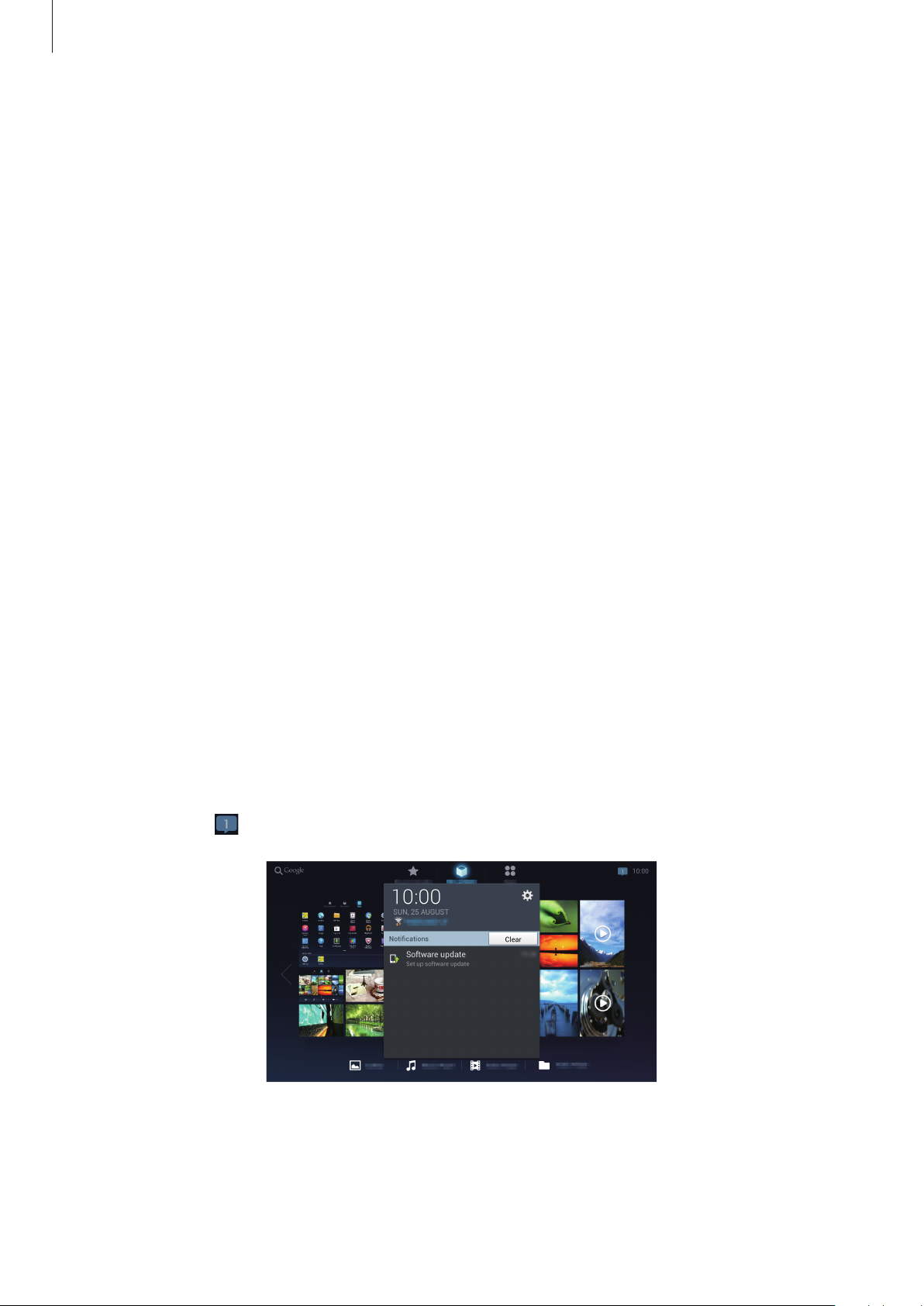
The notification icon appears in the upper right corner of the screen to report device status
and more. Select
to open the notifications panel.
22
Page 23

Basics
Transferring files
Once HomeSync is activated, photos and videos taken with registered devices (such as
smartphones and cameras) are uploaded to the device automatically. You can also connect a
USB storage device to transfer media files.
The following file formats are supported by some applications. Some file formats are
not supported depending on the version of the device’s software or the computer
operating system.
•
Music: mp3, m4a, 3ga, wma, ogg, oga, aac, wav, and flac
•
Image: bmp, gif, jpg, and png
•
Video: avi, wmv, asf, flv, mkv, mp4, 3gp, and webm
•
Document: doc, docx, dot, dotx, rtf, xls, xlsx, xlt, xltx, csv, ppt, pptx, pps, ppsx, pot,
potx, pdf, hwp, txt, asc, and Password-protected MS office files
Setting automatic uploading
When you connect your smartphone or camera to the device for the first time, a pop-up
Yes
window for automatic uploading will appear. Tap
instructions.
Photos and videos you take with connected smartphones or cameras will be uploaded to the
device automatically.
, and then follow the on-screen
Connecting as a media device
Connect the device to the computer using the microUSB cable.
1
Open My computer folder and double-click the device name.
2
Transfer files between the computer and the device.
3
23
Page 24

Basics
Remove the microUSB cable from the device.
4
•
Do not remove the microUSB cable from the device while transferring files. Doing
so may result in the loss of data or damage to your device.
•
Do not disconnect the device from a computer while the computer is playing a file
stored on your device. Stop playback before disconnecting the device from the
computer.
•
Your device may not be recognised if you connect it to a USB hub. Connect your
device directly to a USB port on a computer.
Setting up user profiles
The administrator can add guests who have Samsung accounts and each guest can access
the device.
Adding multiple users
To add multiple guests and manage the accounts, on the Applications screen, select
→
Member management
Enter a Samsung account email address of a guest and then select
HomeSync
Or, when a guest requests remote access to the device with an administrator’s Samsung
account, the administrator is prompted to allow or reject it. Select
management
application can access the device.
, and then allow or reject the request.
Guest accounts must be registered to the same region as the administrator account.
→ , and then select OK. Sign in to your Samsung account.
OK
. The guest who uses
Settings
→
Member
Settings
24
Page 25
Basics
Setting a private storage
The device provides shared, personal, and private storage. An administrator or each guest can
create a secure sector by setting a password for one’s private storage.
To set a password for the private storage, tap
To reset the password for the private storage, access
→
then select
Esure that your smartphone and the device are within the maximum Bluetooth range
(10 m).
Reset password
.
HomeSync
Settings
→
Private
→
on your smartphone.
Member management
, and
Backing up or restoring data
Back up or restore data by connecting an external USB storage device to the USB port (3.0).
Backing up data
On the Applications screen, select
Sign in to your Samsung account, select which data to back up, and then select
Settings
→
Content backup and restoration
→
Back up
Start Backup
.
.
When you back up encrypted data to an external USB storage, the data is decrypted
and anyone who uses the external USB storage can see it.
Restoring data
On the Applications screen, select
Sign in to your Samsung account, and then select
•
When you restore your private data, the data is encrypted again. Do not change
files or folders to restore the data.
•
To restore your private data on another Homesync device, you must first create a
private storage on the device.
Settings
→
Content backup and restoration
Restore
→
Restore
.
.
25
Page 26

Basics
Connecting to a Wi-Fi network
Connect the device to a Wi-Fi network to use the Internet or share media files with other
devices.
Turning Wi-Fi on and off
On the Applications screen, select
right.
Settings
→
Wi-Fi
, and then drag the
Wi-Fi
switch to the
Joining Wi-Fi networks
Select a network from the list of detected Wi-Fi networks, enter a password if necessary, and
then select
device connects to a Wi-Fi network, the device will automatically connect to it any time it is
available.
Connect
. Networks that require a password appear with a lock icon. After the
Adding Wi-Fi networks
If the desired network does not appear in the networks list, select
bottom of the networks list. Enter the network name in
type and enter the password if it is not an open network, and then select
Network SSID
Add Wi-Fi network
, select the security
Connect
.
at the
26
Page 27
Web & network
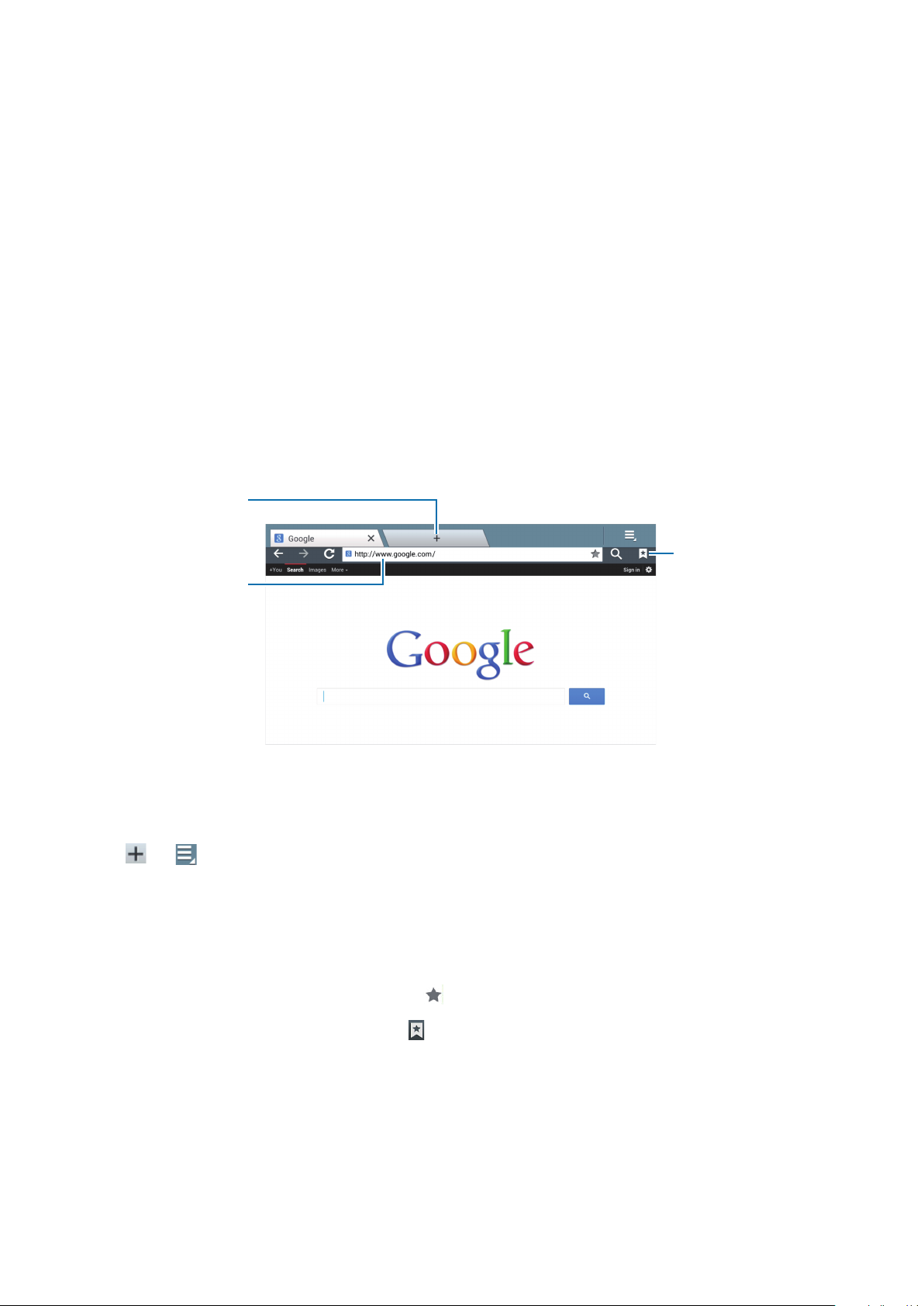
Open a new
Internet
Use this application to browse the Internet.
Select
Internet
on the Applications screen.
Viewing webpages
Select the address field, enter the web address, and then select Go.
window.
Enter a web address
or a keyword.
View your
bookmarks, saved
pages, and recent
Internet history.
Opening a new page
Select , or →
To go to another webpage, scroll left or right on the title field, and select the title to open it.
New tab
.
Bookmarks
To bookmark the current webpage, select .
To open a bookmarked webpage, select
, and then select one.
27
Page 28

Web & network
History
Select →
webpages. To clear the history, select
Select
visited webpages.
Bookmarks
→
Bookmarks
→
→
History
History
to open a webpage from the list of recently-visited
→
→
Most visited
Clear history
.
to open a webpage from the list of most
Saved pages
To view saved webpages, select →
Bookmarks
→
Saved pages
.
Links
Press and hold a link on the webpage to open it in a new page, save, or copy.
To view saved links, select
→
Downloads
.
Sharing webpages
To share a webpage address with others, select →
Share page
.
28
Page 29

Web & network
Screen Mirroring
Use this application to share your smartphone’s display on a connected monitor.
Some smartphones may be incompatible with the device.
Using Screen Mirroring on the device
On the Applications screen, select
On your smartphone, activate the screen mirroring feature. Select the device name and select
files to share.
Screen Mirroring
.
Using Screen Mirroring on HomeSync application
On
HomeSync
The screen of connected smartphones or cameras that curently uses
appears on the monitor screen.
application, tap →
Screen Mirroring
.
HomeSync
application
29
Page 30
Media
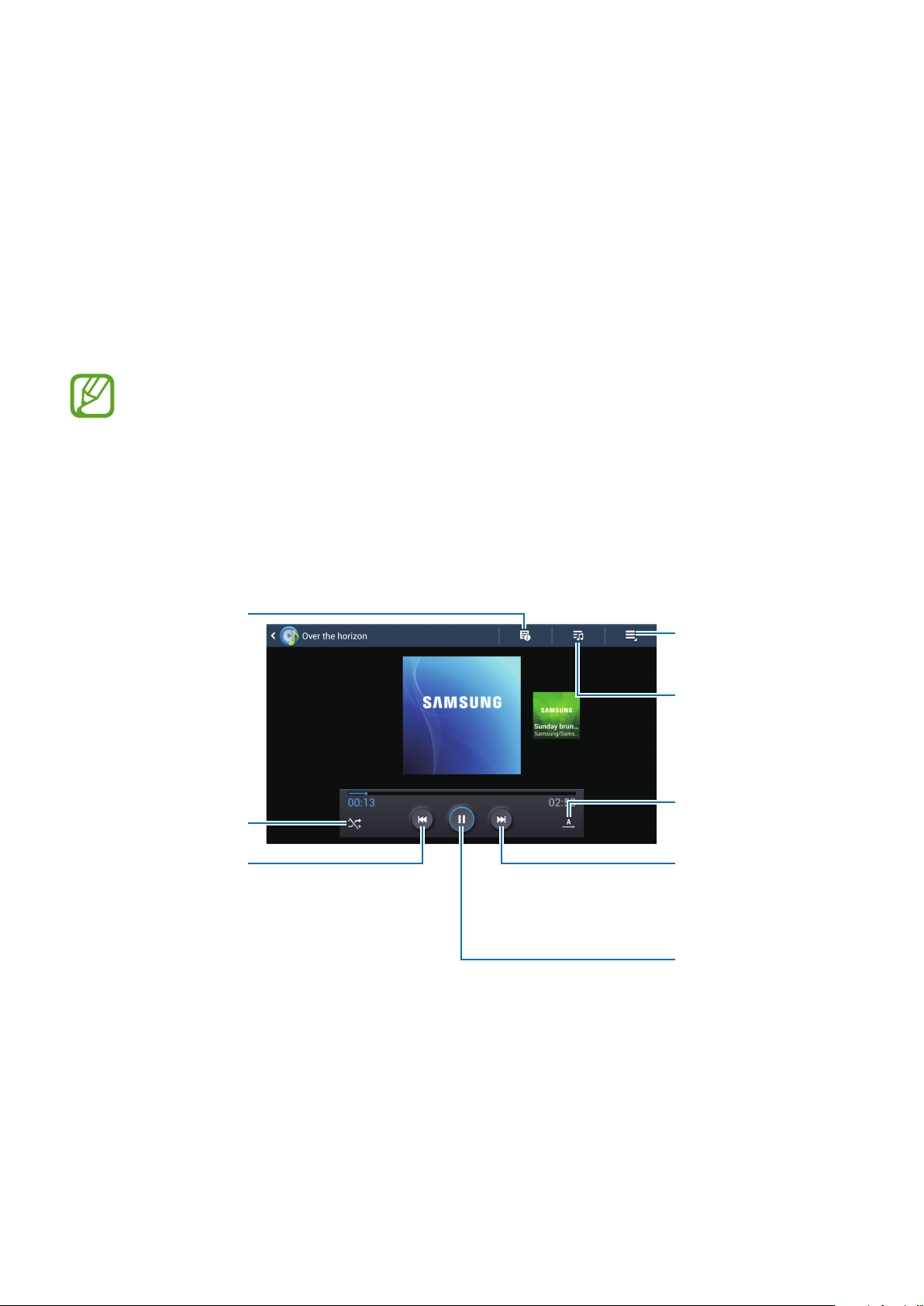
View file details.
Music Player
Use this application to listen to music.
Select
Music Player
•
Some file formats are not supported depending on the device’s software version.
•
Some files may not play properly depending on the encoding method used.
on the Applications screen.
Playing music
Select a category, and then select a song to play.
Select the album image at the bottom of the screen to open the music player screen.
Open the list of
other options.
Open the playlist.
Turn on shuffle.
currently-playing
song or skip to the
previous song. Press
and hold to move
backwards quickly.
Restart the
Change the repeat
mode.
Skip to the next
song. Press and hold
to move forwards
quickly.
Pause and resume
playback.
30
Page 31

Media
Creating playlists
Make an own selection of songs.
Select
To add the currently-playing song to a playlist, select
→
New playlist
, and then enter a title. Select OK.
→
Add to playlist
.
Playing music by mood
Play music grouped by mood. The playlist is automatically created by the device. When a new
song is added, select
Music square
→ .
Gallery
Use this application to view images.
Select
Viewing images in slideshow
Launching
Gallery
Gallery
on the Applications screen.
displays available folders. Select a folder to open it.
Press and hold an image, select images to view in slideshow, and then select
Playing videos
Video files show the icon on the preview. Select a video to watch it.
Editing images
When viewing an image, select and use the following functions:
•
Favourite
•
Change player
•
Share via
•
Rename
•
Rotate left
: Add the image to the favourites.
: Search for devices that have media sharing activated.
: Send the image to others.
: Rename the file.
: Rotate anticlockwise.
.
31
Page 32
Media
Open the list of
•
Rotate right
•
Crop
: Resize the blue frame to crop and save the image in it.
•
Print
: Print via a USB or Wi-Fi connection. The device is only compatible with some
: Rotate clockwise.
Samsung printers.
•
Details
: Show file details.
Video Player
Use this application to play videos.
Select
Video Player
•
Some file formats are not supported depending on the device’s software version.
•
Some files may not play properly depending on the encoding method used.
on the Applications screen.
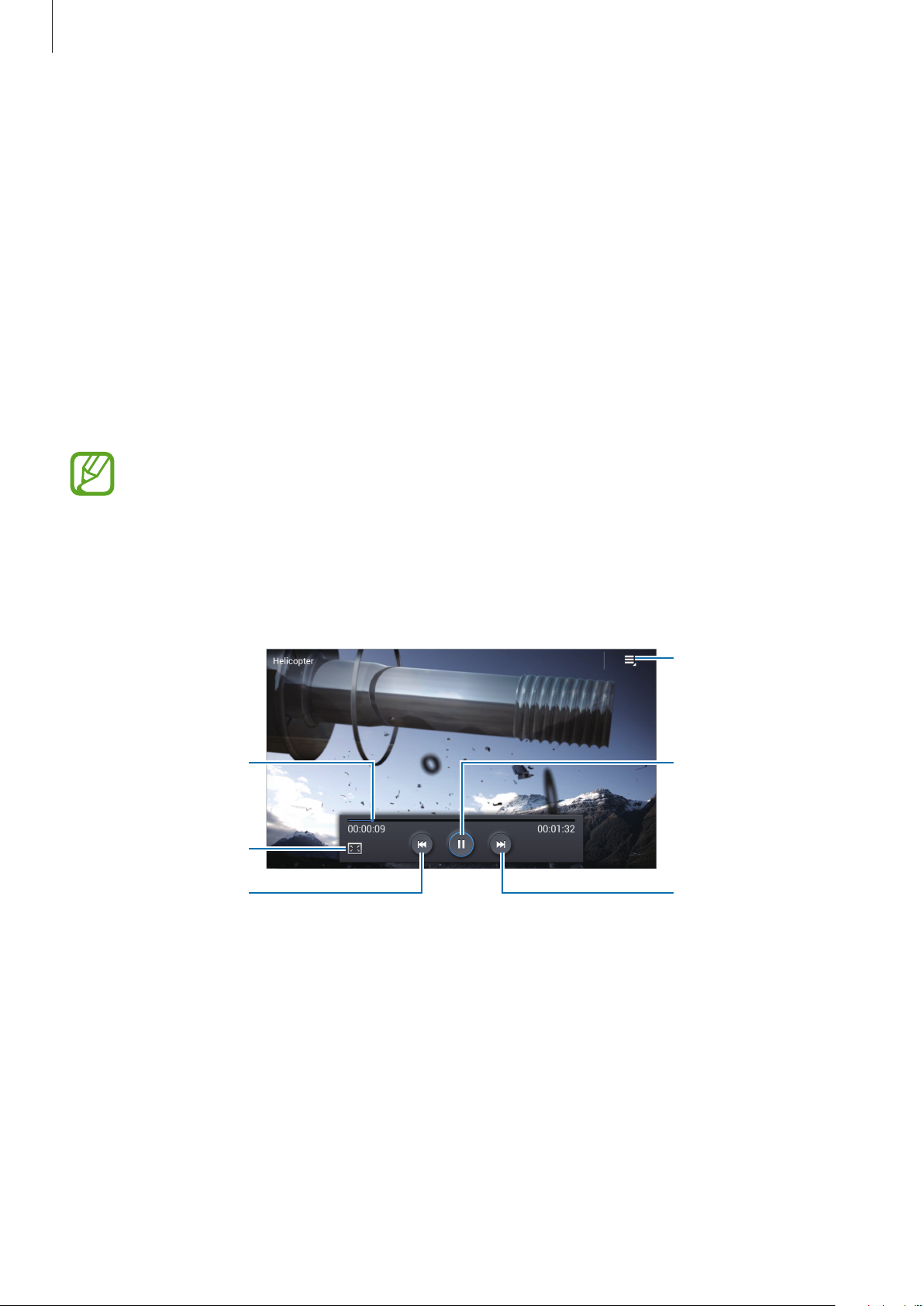
Playing videos
Select a video to play.
Move forwards or
backwards by
dragging the bar.
Change screen ratio.
other options.
Pause and resume
playback.
Restart the current
video or skip to the
previous video.
Press and hold to
move backwards
quickly.
32
Skip to the next
video. Press and
hold to move
forwards quickly.
Page 33

Media
YouTube
Use this application to watch videos from the YouTube website.
Select
YouTube
This application may not be available depending on the region or service provider.
on the Applications screen.
Watching videos
Select , and then enter a keyword. Select one of the returned search results to watch a
video.
33
Page 34
Application & media stores
Video Hub
Use this application to access multimedia files.
Select
Select a category, and then select a video.
Video Hub
This application may not be available depending on the region or service provider.
on the Applications screen.
Play Store
Use this application to purchase and download applications and games that are able to run
on the device.
Select
Play Store
This application may not be available depending on the region or service provider.
on the Applications screen.
Installing applications
Browse applications by category, or select to search with a keyword.
Select an application to view information. To download it, select
the application, select the price, and follow on-screen instructions to complete the purchase
process.
•
When a new version is available for any installed application, an update icon
appears at the top of the screen to alert you to the update. Open the notifications
panel and select the icon to update the application.
•
To install applications that you downloaded from other sources, on the
Applications screen, select
Settings
→
Security
→
Install
Unknown sources
. If there is a charge for
.
34
Page 35
Application & media stores
Uninstalling applications
Uninstall the applications purchased from
Select
Uninstall
→ an application to delete in the list of installed applications, and then select
.
Play Store
.
Samsung Apps
Use this application to purchase and download dedicated Samsung applications. For more
information, visit
Select
Samsung Apps
This application may not be available depending on the region or service provider.
www.samsungapps.com
on the Applications screen.
Installing applications
Browse applications by category. Select
.
CATEGORY
to select a category.
To search for an application, select
the search field.
Select an application to view information. To download it, select
When a new version is available for any installed application, an update icon appears
at the top of the screen to alert you to the update. Open the notifications panel and
select the icon to update the application.
at the top of the screen, and then enter a keyword in
Download
or
Buy
.
35
Page 36

Application & media stores
Play Movies
Use this application to watch and rent movies or TV shows.
Select
Play Movies
This application may not be available depending on the region or service provider.
on the Applications screen.
Play Music
Use this application to listen to music from the device or stream music from the Google cloud
service.
Select
Play Music
This application may not be available depending on the region or service provider.
on the Applications screen.
36
Page 37

Utilities
POLARIS Office
Use this application to view documents in various formats, including spreadsheets and
presentations.
Select
POLARIS Office
Some functions may not be available, depending on the file type.
on the Applications screen.
Reading documents
Select
To start a slideshow, select
To search for a text string in the document, select
Select
Document
Form type, Browser
, and then use one of the following functions:
•
Zoom In/Out
•
Bookmark
•
View Settings
: View bookmarks.
, or
Favourites
.
: Change the view size.
: Change the view mode settings.
, and then select a file to open.
.
•
Read All
•
Screen capture
•
View Information
: Let the device read all the text aloud.
: Capture an image of the screen.
: View information about the file.
37
Page 38

Utilities
Presentation
•
Zoom In/Out
•
Slide note
•
Screen capture
•
View Information
Spreadsheet
•
Zoom In/Out
•
Freeze frame
•
Screen capture
•
View Information
: Change the view size.
: View memos on slides.
: Capture an image of the screen.
: View information about the file.
: Change the view size.
: Keep the selected row in place.
: Capture an image of the screen.
: View information about the file.
Use this application to search not only the Internet, but also applications and their contents
on the device as well.
Select
Searching the device
Select the search field, and then enter a keyword. Select one of the suggested keywords that
appear.
Search scope
To select what applications to search, select →
items to search for.
Google
on the Applications screen.
Settings
→
Phone search
, and then tick the
38
Page 39

Utilities
My Files
Use this application to access all kinds of files stored in the device including images, videos,
songs, and sound clips.
Select
Select a folder to open it. To go back to the parent folder, select
directory, select
My Files
on the Applications screen.
. To return to the root
.
Downloads
Use this application to see what files are downloaded through the applications.
Select
To see the files downloaded from the Internet, select
Other downloads
Select a file to open it with an appropriate application.
Downloads
on the Applications screen.
Internet downloads
to see the files downloaded from other applications.
, otherwise, select
McAfee VirusScan
Use this application to check for infection and delete it to protect your device from malware
and viruses.
Select
McAfee VirusScan
on the Applications screen.
39
Page 40

Settings
About Settings
Use this application to configure the device, set application options, and add accounts.
Select
Scroll up or down for more options.
Settings
on the Applications screen.
Wi-Fi
Activate the Wi-Fi feature to connect to a Wi-Fi network and access the Internet or other
network devices.
To use options, select
•
Advanced
•
WPS push button
•
WPS PIN entry
: Customise Wi-Fi settings.
Setting Network notification
The device can detect open Wi-Fi networks and display an icon on the status bar to notify
.
: Connect to a secured Wi-Fi network with a WPS button.
: Connect to a secured Wi-Fi network with a WPS PIN.
when available.
On the Settings screen, select
activate this feature.
Wi-Fi
→ →
Advanced
and tick
Network notification
to
Wi-Fi Direct
Wi-Fi Direct connects two devices directly via a Wi-Fi network without requiring an access
point.
On the Settings screen, select
Wi-Fi
→
Wi-Fi Direct
.
40
Page 41

Settings
Bluetooth
Use the Bluetooth feature to connect to Bluetooth-enabled keyboards or mice.
Ethernet
Activate the Ethernet feature to connect to a local area network, the Internet, or other
network devices.
Nearby devices
Search for other DLNA-enabled devices on the same Wi-Fi network and allow the devices to
share media files.
•
File sharing
media files on your device.
•
Shared contents
•
Allowed devices list
•
Not-allowed devices list
device.
•
Download to
•
Upload from other devices
: Activate media sharing to allow other DLNA-enabled devices to access
: Set to share your content with other devices.
: View the list of devices that can access your device.
: View the list of devices that are blocked from accessing your
: Select a memory location for saving media files.
: Set to accept uploads from other devices.
Play nearby device content
Specify devices for playing media files from other DLNA-enabled devices on your monitor.
•
Allowed devices list
: View the list of devices that can access your device.
•
Denied device list
•
Access Control
device.
: View the list of devices that are blocked from accessing your device.
: Set whether or not to allow other DLNA-enabled devices to access your
41
Page 42

Settings
Sound
Change settings for various sounds on the device.
•
Volume
•
Default notification sound
: Adjust the volume level for music and videos, system sounds, and notifications.
: Select a ringtone for events, such as incoming messages.
Display
Change the settings for the display.
•
Screen size
•
Daydream
•
Font style
: Select a screen aspect ratio to fit the original screen.
: Select a background type for the screen saver.
: Change the font type for the display text. You can download fonts from Play
Store by selecting
•
Font size
: Change the font size for creating or showing items in applications.
Get fonts online
.
Storage
View memory information for your device.
The actual available capacity of the internal memory is less than the specified
capacity because the operating system and default applications occupy part of the
memory. The available capacity may change when you upgrade the device.
Application manager
View and manage the applications on your device.
42
Page 43
Settings
Location services
Change settings for location information permissions.
•
Access to my location
Google services.
•
Use wireless networks
: Set to use your current location for Google search and other
: Set to use Wi-Fi network for finding the current location.
Lock screen
Change settings for the locked screen.
Member management
Delete the administrator or add guests who have Samsung accounts and manage their
accounts.
To add a guest, select
To delete a guest, select
To use options, select
•
Delete administrator
•
Clear storage
•
Reset password
If you change the device, you need the password for your private storage to restore
the private storage on the new device.
: Delete your private storage.
.
.
.
: Delete the account of the administrator.
: Reset the password for your private storage.
43
Page 44

Settings
Security
Change settings for securing the device.
•
Firewall
•
Make passwords visible
•
Device administrators
device administrators to apply new policies to the device.
•
Unknown sources
download applications only from Play Store.
•
Verify apps
before installing it.
•
Trusted credentials
: Activate an Internet firewall to protect your data from unapproved access.
: Set the device to display passwords as they are entered.
: View device administrators installed on the device. You can allow
: Choose to install applications from any source. If not chosen,
: Set this to allow Google to check the application for harmful behaviour
: Use certificates and credentials to ensure secure use of networks.
•
Install from device storage
•
Clear credentials
: Erase the credential contents from the device and reset the password.
: Install encrypted certificates stored on the USB storage.
Language and input
Change the settings for text input. Some options may not be available depending on the
selected language.
Language
Select a display language for all menus and applications.
Default
Select a default keyboard type for text input.
44
Page 45

Settings
Google voice typing
To change the voice input settings, select
•
Choose input languages
•
Block offensive words
words in voice inputs.
•
Download offline speech recognition
voice input.
: Select input languages for text input.
: Set the device to prevent the device from recognising offensive
Settings
: Download and install language data for offline
under
Google voice typing
Samsung keyboard
To change the Samsung keyboard settings, select
•
Input languages
•
Predictive text
show word suggestions. You can also customise the word prediction settings.
•
Continuous input
•
Advanced
: Change the advanced settings.
: Select languages for text input.
: Activate predictive text mode to predict words based on your input and
: Set to enter text by sweeping on the keyboard.
Settings
under
Samsung keyboard
.
.
•
Tutorial
•
Reset settings
: Learn how to enter text with the Samsung keyboard.
: Reset Samsung keyboard settings.
Text-to-speech options
•
Preferred TTS engine
speech synthesis engines, select
•
Speech rate
•
Listen to an example
: Select a speed for the text-to-speech feature.
: Select a speech synthesis engine. To change the settings for
.
: Listen to the spoken text for an example.
Pointer speed
Adjust the pointer speed for the mouse or trackpad connected to your device.
45
Page 46

Settings
Content backup and restoration
Back up or restore data by connecting an external USB storage device.
Backup and reset
Change the settings for managing settings and data.
•
Back up my data
•
Backup account
•
Automatic restore
reinstalled on the device.
•
Factory data reset
: Set to back up settings and application data to the Google server.
: Set up or edit your Google backup account.
: Set to restore settings and application data when the applications are
: Reset settings to the factory default values and delete all data.
Add account
Add a Google or Samsung account to use.
Mouseover
Set the options for previewing the content or viewing information in pop-up windows when
you hold the mouse pointer near an option or button.
Audio output
•
Audio output
HDMI devices. Some devices may not support the surround sound setting.
: Select a sound output format to use when connecting your device to
46
Page 47

Settings
Date and time
Access and alter the following settings to control how the device displays the time and date.
•
Select time zone
•
Set date
•
Set time
•
Use 24-hour format
•
Select date format
: Set the current date manually.
: Set the current time manually.
: Set the home time zone.
: Display time in 24-hour format.
: Select a date format.
Accessibility
Accessibility services are special features for those with certain physical disabilities. Access
and alert the following settings to improve accessibility to the device.
•
Services
Kickback, which provide voice, melody, or vibration feedback.
•
Font size
•
Text-to-speech options
–
–
–
•
Enhance web accessibility
content more accessible.
: Activate an accessibility application you have downloaded, such as Talkback or
: Change the font size.
: Customise settings for speech synthesis engines.
Preferred TTS engine
Speech rate
Listen to an example
: Select a speed for the text-to-speech feature.
: Select a speech synthesis engine.
: Listen to the spoken text for an example.
: Set applications to install web scripts to make their web
About device
Access device information and update device software.
47
Page 48

Appendix
Upgrading the device
Software is regularly upgraded to the higher version. Update the device to the latest version
for optimised user interface.
The device can be directly upgraded to the latest software by the Firmware Over-TheAir (FOTA) service.
Upgrading over the air (FOTA)
On the Applications screen, select
1
2
3
4
Select
Select
Select
•
•
About device
Software update
Update
When using this function for the first time, follow the on-screen instructions. Select
your country and complete the process.
The device is automatically connected to the server when there are available updates.
.
.
.
Settings
.
48
Page 49

Appendix
Upgrading with Samsung Kies
Install Samsung Kies to the computer.
1
You can download Samsung Kies from the Samsung website.
Launch Samsung Kies.
2
Connect the device to the computer using the USB cable while the device is turned on.
3
Select
4
If the dialogue box does not appear, select the device name
Firmware upgrade
Follow the on-screen instructions to update the device.
5
When the update process is completed, a completion message will appear on the
computer and the device will restart automatically.
Update
•
For more information about Samsung Kies, please refer to the Samsung website.
•
Some functions of Samsung Kies may differ depending on devices and are subject
to change without prior notice.
•
Windows XP, Windows Vista, and Windows 7 support Samsung Kies.
when a dialogue box appears.
.
→
Basic information
→
49
Page 50

Appendix
Troubleshooting
Nothing appears on the screen.
Ensure that the power adaptor and the HDMI cable are connected properly.
Some parts of screen is cut off.
Follow the on-screen instructions when setting up the device for the first time and select a
screen aspect ratio to fit the original screen. Or, access
Settings
→
Display
→
Screen size
.
Music, video, or other media content do not play.
•
Ensure that your device supports the file type.
•
Some files downloaded from the Internet cannot be played.
The device is dirty.
Wipe your device with a soft towel or an eraser. Using chemicals or detergents may discolor or
corrode the outside of the device.
Data stored on the device has been deleted.
Be sure to back up important data to another storage media (for example, Samsung Kies)
before resetting the device. Samsung is not responsible for the loss of any data.
50
Page 51

Appendix
A connection is not established when the device is connected to a
computer with a microUSB cable.
•
You can transfer media files from a computer to the device by connecting the device via
Media Transfer Protocol (MTP).
•
If you are a Windows XP user, ensure that you have Windows XP Service Pack 3 or higher
installed on your computer.
•
Ensure that you have Samsung Kies 2.0 or Windows Media Player 10 or higher installed
on your computer.
A network connection is not established when the LAN cable is
connected to the device.
If you need to use a static IP, configure settings for the static IP by accessing
Ethernet
→
Configure Ethernet device
.
Settings
→
51
Page 52

Safety information
To prevent injury to yourself and others or damage to your device, read the safety
information about your device before using the device. Some content may be not
applicable to your device.
Warning
Failure to comply with safety warnings and regulations can
cause serious injury or death
Do not use damaged power cords or plugs, or loose electrical sockets
Unsecured connections can cause electric shock or fire.
Do not touch the power cord with wet hands or disconnect the power
cord by pulling it
Doing so may result in electrocution.
Do not bend or damage the power cord
Doing so may cause electric shock or fire.
Do not touch your device with wet hands
Doing so may cause electric shock.
52
Page 53

Safety information
Use manufacturer-approved accessories and supplies
Using generic accessories or supplies may shorten the life of your device or cause the device
to malfunction. They may also cause a fire or cause the device to explode.
Handle and dispose of the device with care
•
Never dispose of the device in a fire. Never place the device on or in heating devices, such
as microwave ovens, stoves, or radiators.
•
Never crush or puncture the device.
•
Avoid exposing the device to high external pressure, which can lead to an internal short
circuit and overheating.
Protect the device from damage
•
Avoid exposing your device to very cold or very hot temperatures.
•
Extreme temperatures can damage the device.
Do not store your device near or in heaters, microwaves, hot cooking
equipment, or high pressure containers
Your device may overheat and cause a fire.
Do not use or store your device in areas with high concentrations of dust
or airborne materials
Dust or foreign materials can cause your device to malfunction and may result in fire or
electric shock.
Do not bite or suck the device
•
Doing so may damage the device or result in an explosion or fire.
•
Children or animals can choke on small parts.
•
If children use the device, make sure that they use the device properly.
53
Page 54

Safety information
Caution
Failure to comply with safety cautions and regulations can
cause injury or property damage
Do not use your device near other electronic devices
Most electronic devices use radio frequency signals. Your device may interfere with other
electronic devices.
Do not use your device in a hospital, on an aircraft, or in an automotive
equipment that can be interfered with by radio frequency
•
Avoid using your device within a 15 cm range of a pacemaker, if possible, as your device
can interfere with the pacemaker.
•
If you use medical equipment, contact the equipment manufacturer before using your
device to determine whether or not the equipment will be affected by radio frequencies
emitted by the device.
•
In a hospital, turn off the device and always comply with regulation. The radio frequency
emitted by your device may interfere with some medical equipment.
Do not expose the device to heavy smoke or fumes
Doing so may damage the outside of the device or cause it to malfunction.
Do not use your device near devices or apparatuses that emit radio
frequencies, such as sound systems or radio towers
Radio frequencies may cause your device to malfunction.
54
Page 55

Safety information
Turn off the device in potentially explosive environments
•
Always comply with regulations, instructions and signs in potentially explosive
environments.
•
Do not store or carry flammable liquids, gases, or explosive materials in the same
compartment as the device, its parts, or accessories.
If you notice strange smells or sounds coming from your device, or if
you see smoke or liquids leaking from the device, stop using the device
immediately and take it to a Samsung Service Centre
Failure to do so may result in fire or explosion.
Care and use your device properly
Keep your device dry
•
Humidity and liquids may damage the parts or electronic circuits in your device.
•
Do not turn on your device if it is wet. If your device is already on, turn it off (if the device
will not turn off, leave it as-is). Then, dry the device with a towel and take it to a service
centre.
•
Liquids will change the colour of the label that indicates water damage inside the device.
Water damage to your device can void your manufacturer’s warranty.
Store your device only on flat surfaces
If your device falls, it may be damaged.
Do not store your device in very hot or very cold areas. It is recommended
to use your device at temperatures from 5 °C to 35 °C
•
Do not store your device in very hot areas such as inside a car in the summertime. Doing
so may cause the device to malfunction, result in damage to the device, or cause the
device to explode.
•
Do not expose your device to direct sunlight for extended periods of time.
55
Page 56

Safety information
Do not place heavy items on the device or place the device on top of other
electronic devices
Do not use your device or applications for a while if the device is
overheated
Prolonged exposure of your skin to an overheated device may cause low temperature burn
symptoms, such as red spots and pigmentation.
Do not drop or cause an impact to the device
Your device may be damaged or may malfunction.
Do not disassemble, modify, or repair your device
•
Any changes or modifications to your device can void your manufacturer’s warranty. If
your device needs servicing, take your device to a Samsung Service Centre.
•
Do not disassemble or puncture the device, as this can cause explosion or fire.
When cleaning your device, mind the following
•
Wipe your device with a towel or an eraser.
•
Do not use chemicals or detergents. Doing so may discolour or corrode the outside the
device or may result in electric shock or fire.
Do not use the device for anything other than its intended use
Your device may malfunction.
Allow only qualified personnel to service your device
Allowing unqualified personnel to service your device may result in damage to your device
and will void your manufacturer’s warranty.
56
Page 57

Safety information
Handle cables with care
•
When connecting a cable to your device, make sure that the cable is connected to the
proper side.
•
Connecting a cable by force or improperly may result in damage to the multipurpose jack
or other parts of the device.
Protect your personal data and prevent leakage or misuse of sensitive
information
•
While using your device, be sure to back up important data. Samsung is not responsible
for the loss of any data.
•
When disposing of your device, back up all data and then reset your device to prevent
misuse of your personal information.
•
Carefully read the permissions screen when downloading applications. Be particularly
cautious with applications that have access to many functions or to a significant amount
of your personal information.
•
Check your accounts regularly for unapproved or suspicious use. If you find any sign of
misuse of your personal information, contact your service provider to delete or change
your account information.
•
In the event your device is lost or stolen, change the passwords on your accounts to
protect your personal information.
•
Avoid using applications from unknown sources.
Do not distribute copyright-protected material
Do not distribute copyright-protected material without the permission of the content
owners. Doing this may violate copyright laws. The manufacturer is not liable for any legal
issues caused by the user’s illegal use of copyrighted material.
57
Page 58

Safety information
Malware and viruses
To protect your device from malware and viruses, follow these usage tips.
Failure to do so may result in damages or loss of data that may not be
covered by the warranty service
•
Do not download unknown applications.
•
Do not visit untrusted websites.
•
Delete suspicious messages or email from unknown senders.
•
Set a password and change it regularly.
•
Deactivate wireless features, such as Bluetooth, when not in use.
•
If the device behaves abnormally, run an antivirus program to check for infection.
•
Run an antivirus program on your device before you launch newly-downloaded
applications and files.
•
Install antivirus programs on your computer and run them regularly to check for
infection.
•
Do not edit registry settings or modify the device’s operating system.
•
Regularly update the device’s operating system and anti-virus program.
Keep your data safe
Prevent damage to data stored on the device
•
Impacts to the device can cause device malfunctions or damage to data. Avoid causing
impacts to the device.
•
Turn off the device before transporting it.
•
Viruses can damage data. Always keep antivirus programs up to date.
•
Do not turn off your device while applications are running. Doing so may damage data
stored on the device.
•
Always back up your data to another storage device for safekeeping. Samsung is not
responsible for the loss of any data.
58
Page 59

Safety information
RF Exposure
General Statement on RF energy
Your device contains a transmitter and a receiver. When it is ON, it receives and transmits
RF energy. When you communicate with your device, the system handling your connection
controls the power level at which your device transmits.
(!) Body operation
Important safety information regarding radiofrequency radiation (RF) exposure. To ensure
compliance with RF exposure guidelines device must be used with a minimum of 20.0 cm
antenna separation from the body. Failure to observe these instructions could result in your
RF exposure exceeding the relevant guideline or Limits.
Limiting exposure to radio frequency (RF) fields
For individuals concerned about limiting their exposure to RF fields, the World Health
Organisation (WHO) provides the advice. Further information on this subject can be obtained
from the WHO home page
http://www.who.int/peh-emf
.
Correct disposal of this product
(Waste Electrical & Electronic Equipment)
(Applicable in countries with separate collection systems)
This marking on the product, accessories or literature indicates that the product
and its electronic accessories (e.g. charger, headset, USB cable) should not be
disposed of with other household waste.
To prevent possible harm to the environment or human health from uncontrolled
waste disposal, please separate these items from other types of waste and recycle them
responsibly to promote the sustainable reuse of material resources.
Household users should contact either the retailer where they purchased this product, or
their local government office, for details of where and how they can take these items for
environmentally safe recycling.
Business users should contact their supplier and check the terms and conditions of the
purchase contract. This product and its electronic accessories should not be mixed with other
commercial wastes for disposal.
This EEE is compliant with RoHS.
59
Page 60

Safety information
Disclaimer
Some content and services accessible through this device belong to third parties and are
protected by copyright, patent, trademark and/or other intellectual property laws. Such
content and services are provided solely for your personal non-commercial use. You may
not use any content or services in a manner that has not been authorised by the content
owner or service provider. Without limiting the foregoing, unless expressly authorised by the
applicable content owner or service provider, you may not modify, copy, republish, upload,
post, transmit, translate, sell, create derivative works, exploit, or distribute in any manner or
medium any content or services displayed through this device.
“THIRD PARTY CONTENT AND SERVICES ARE PROVIDED “AS IS.” SAMSUNG DOES NOT
WARRANT CONTENT OR SERVICES SO PROVIDED, EITHER EXPRESSLY OR IMPLIEDLY, FOR ANY
PURPOSE. SAMSUNG EXPRESSLY DISCLAIMS ANY IMPLIED WARRANTIES, INCLUDING BUT NOT
LIMITED TO, WARRANTIES OF MERCHANTABILITY OR FITNESS FOR A PARTICULAR PURPOSE.
SAMSUNG DOES NOT GUARANTEE THE ACCURACY, VALIDITY, TIMELINESS, LEGALITY, OR
COMPLETENESS OF ANY CONTENT OR SERVICE MADE AVAILABLE THROUGH THIS DEVICE
AND UNDER NO CIRCUMSTANCES, INCLUDING NEGLIGENCE, SHALL SAMSUNG BE LIABLE,
WHETHER IN CONTRACT OR TORT, FOR ANY DIRECT, INDIRECT, INCIDENTAL, SPECIAL OR
CONSEQUENTIAL DAMAGES, ATTORNEY FEES, EXPENSES, OR ANY OTHER DAMAGES ARISING
OUT OF, OR IN CONNECTION WITH, ANY INFORMATION CONTAINED IN, OR AS A RESULT OF
THE USE OF ANY CONTENT OR SERVICE BY YOU OR ANY THIRD PARTY, EVEN IF ADVISED OF
THE POSSIBILITY OF SUCH DAMAGES.”
Third party services may be terminated or interrupted at any time, and Samsung makes no
representation or warranty that any content or service will remain available for any period
of time. Content and services are transmitted by third parties by means of networks and
transmission facilities over which Samsung has no control. Without limiting the generality of
this disclaimer, Samsung expressly disclaims any responsibility or liability for any interruption
or suspension of any content or service made available through this device.
Samsung is neither responsible nor liable for customer service related to the content and
services. Any question or request for service relating to the content or services should be
made directly to the respective content and service providers.
60
Page 61
Some content may differ from your device depending on the region, service provider, or
software version, and is subject to change without prior notice.
www.samsung.com
English (EU). 09/2013. Rev. 1.3
 Loading...