

Page 1
2
Set up your phone
Your SIM card may be pre-installed.
Samsung Care
How can we help you?
GET TO KNOW YOUR PRODUCT:
• Access user manuals, tips and more at
samsung.com/us/support.
ASK THE COMMUNITY:
• Ask questions and get solutions from
Samsung customers, at
us.community.samsung.com.
CONTACT US FOR SUPPORT:
• For hardware or software support, visit
samsung.com/us/support/contact or call
us at 1.800.SAMSUNG.
• Find a service location near you, at
support-us.samsung.com/cyber/locator/
asc_locator.jsp.
Quick Reference
Manual
1
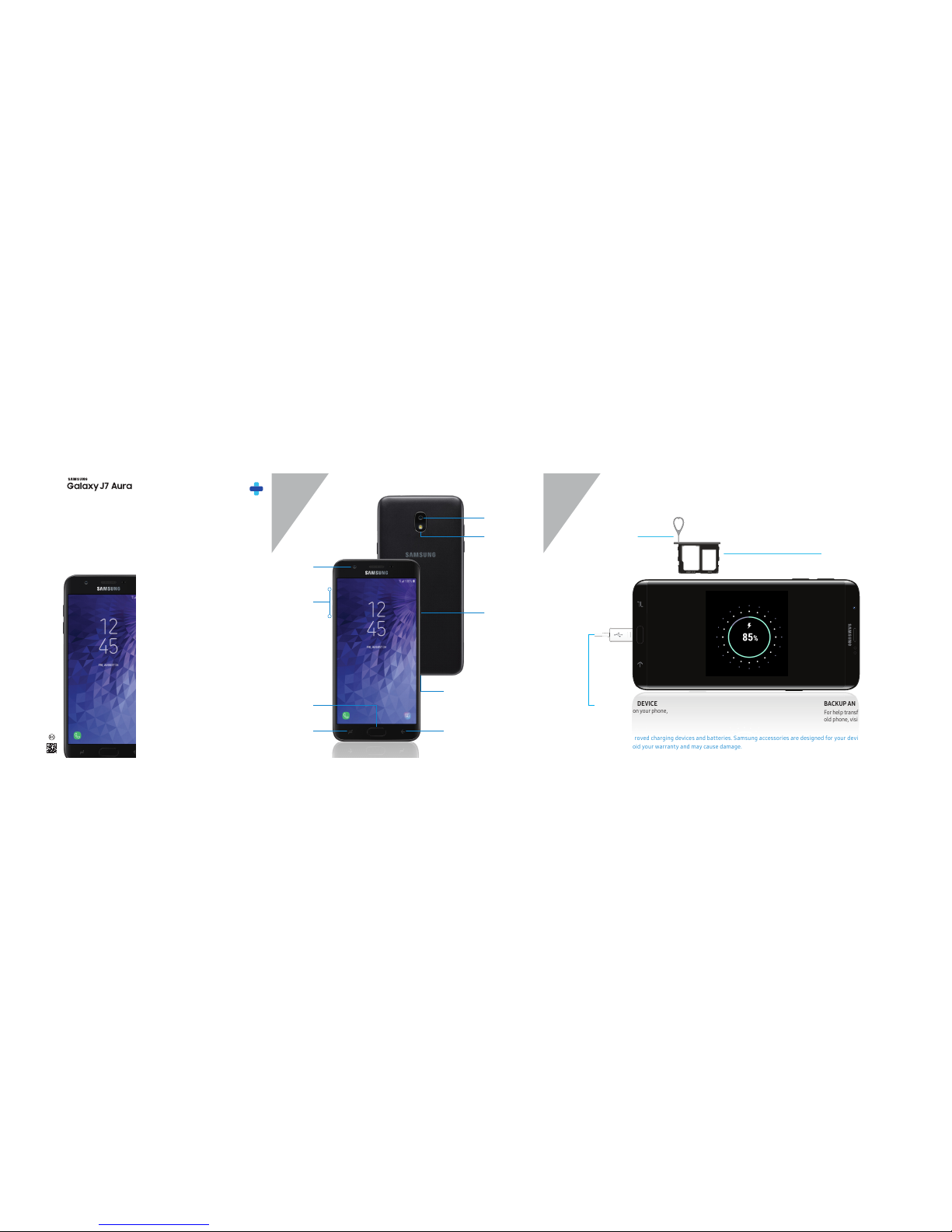
About your phone
Caution: Use only Sam sung approved charging device s and batteries. Sa msung accessories are de signed for your device to maximize ba ttery life.
Using other accessor ies may void your warranty an d may cause damage.
USB/Charger port
Camera
Flash
Camera
+
-
Volume
Recents
Back
Home
Power/Lock
REMOVE SIM/microSD TR AY
Use the tool to open th e SIM/microSD™
card t ray.
Slide the SIM card and th e optional microSD car d
(microSD card sold sepa rately) into the tray wit h
the gold contact s facing down.
INSERT SIM/microSD CARD
Before turning on your phone,
charge it fully.
CHARGE YOUR DEVICE
For help transferring content from your
old phone, visit: samsung.com/smartswitch
BACKUP AND RESTO RE
Printed in Mexico
GH68-49216A
Battery is non-removable
Page 2
Need help?
The Help setting displays the device
user manual. The user manual provides
information about the following and
more.
3
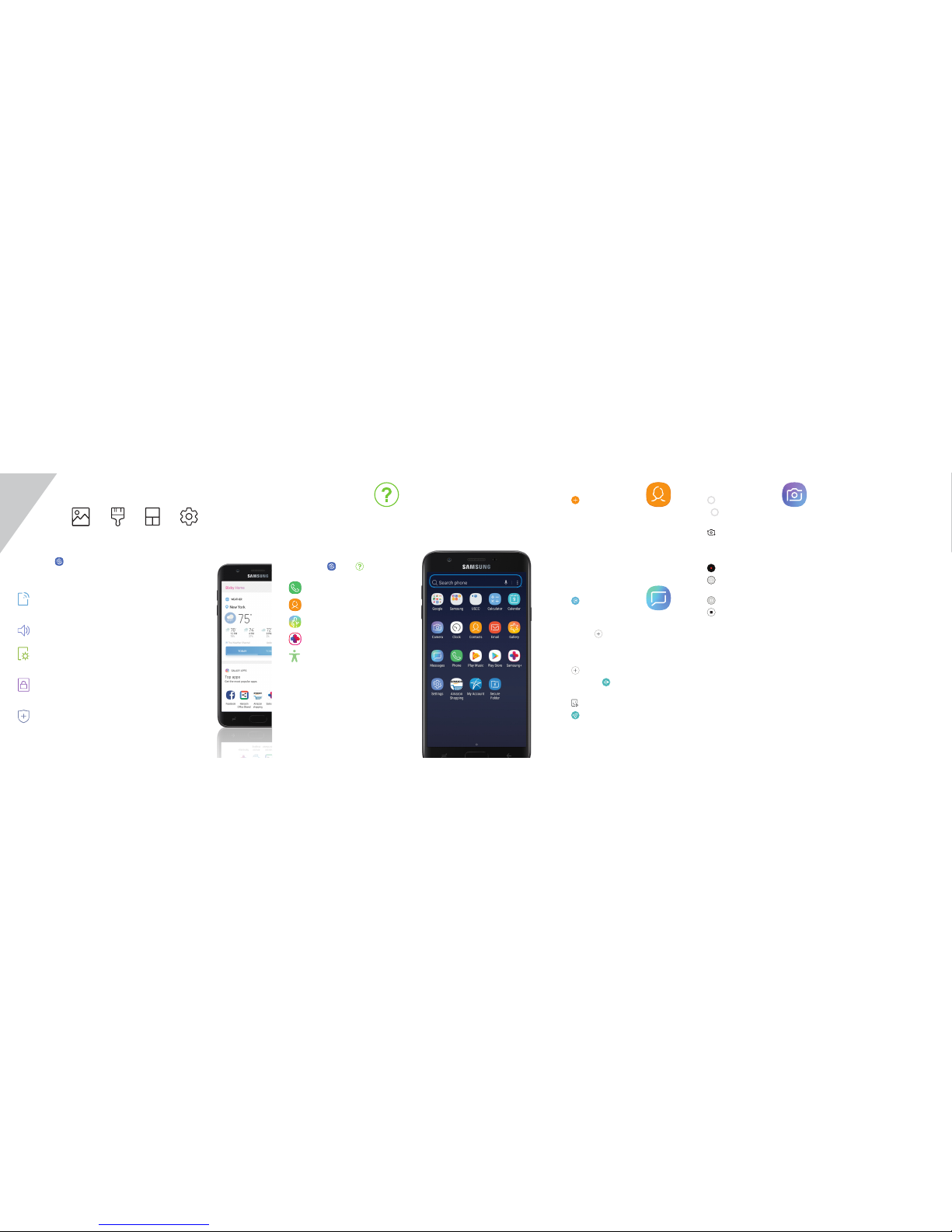
Customize your phone
Pinch the home screen to change the look of your phone:
Bixby
Set reminders, send
messages, search
and access content
on your phone and
Internet.
To launch Bixby,
from the home
screen, swipe right.
Note: For more
information about
Bixby, visit samsung.
com/us/support/
owners/app/Bixby.
From a home screen swipe up, and then
tap Settings to customize, connect
or turn on options to personalize your
phone:
CONNECTIONS
Connect to a Wi-Fi network, Bluetooth
device and other connection options.
SOUNDS AND VIBRATION
Set device volume and sounds.
DISPLAY
Customize the home screen and
display brightness.
LOCK SCREEN
Select a screen lock type and set
security options.
BIOMETRIC AND SECURITY
Set biometric security options.
Wallpaper
Themes Widgets Home screen
settings
Search
From the home screen swipe up,
and search for anything on the phone.
For example enter an app or settings
name.
Picture & Video
• Tap to take a photo.
• Drag left or right to zoom
in or out.
• Tap or swipe up to take seles.
• Swipe right to select a mode.
• Swipe left to select an effect.
• Tap to begin recording.
• Tap to capture a picture while
recording.
• Tap to pause a recording.
• Tap to end a video.
Contacts
• Tap to add a new contacts.
• Enter the desired information
and tap SAVE to store the new entry.
• To edit, tap a name > Details > EDIT.
• Tap SAV E to complete.
• To delete, touch and hold a contact name
and tap DELETE.
Messages
• Tap to create a new
message.
Note: When entering a phone number
manually, press to add the number
as a recipient.
• Tap STA RT to compose a message.
• Tap to add an attachment.
• Touch and hold to create an audio
message.
• Tap to add a sticker or a GIF.
• Tap to send the message.
©2018 Samsung Electronics America, Inc.
Samsung and Galaxy J7 are both trademarks of
Samsung Electronics Co., Ltd. Android, Google,
Google Play, and other marks are trademarks of
Google LLC. Other company and product names
mentioned herein may be trademarks of their
respective owners. Screen images simulated.
Appearance of phone may vary.
U.S. Cellular® Customer Care 1-888-944-9400
Learn more
To open, from the Home screen, swipe up
and tap Settings > Help .
Make a call
Contacts
Health & Fitness
Personalized device support
Accessibility settings
 Loading...