

Page 1
Digital Audio Player
user manual
imagine the possibilities
Thank you for purchasing this Samsung
product. To receive a more complete
service, please register your product at
www.samsung.com/register
YP-F3
Page 2

2
Using this manual
•Some operations of your MP3 player may differ from
those described in this manual depending on the
firmware installed.
Some of the contents may be changed without prior
notice.
•Your MP3 player and screens may differ from the
illustrations in this manual.
• This user manual is based on the Windows XP operating
system. The operation of your player may differ from the
operation described in this manual depending on your PC's
operating system.
• Sound sources, wallpapers, and images provided in this
product are licensed for limited use by Samsung from their
respective owners. Extracting and using these materials for
commercial or other purposes is an infringement of copyright
laws. Samsung is not liable for such copyright infringement
by the user.
•To view troubleshooting, see "Troubleshooting".
Icons used in this manual
Icon Description
Note
Caution
< >
Copyright
Copyright © 2011 Samsung Electronics
This user manual is protected under international
copyright laws.
No part of this user manual may be reproduced,
distributed, translated, or transmitted in any form or
by any means, electronic or mechanical, including
photocopying, recording, or storing in any information
storage and retrieval system, without the prior written
permission of Samsung Electronics.
Trademarks
SAMSUNG, and the SAMSUNG logo are
registered trademarks of Samsung Electronics.
Notes, usage tips, or additional information
Safety warnings and precautions
Menu names or text on the screen ;
for example: <Yes>
Page 3

3
Safety information
This manual describes how
to properly use your new
MP3 player. Read it carefully
to avoid damaging the player
and injuring yourself. Pay
particular attention to the
following serious warnings.
CAUTION
Situations that may result in death or serious injury to yourself or others
• Do not use the product during a thunderstorm. Thunderstorms can cause the player to
malfunction and increase the risk of electric shock.
• Using earphones or headphones for an extended time may cause serious damage to
your hearing.
If you are exposed to sound louder than 85db for an extended time, you may adversely
affect your hearing. The louder the sound is, the more seriously damaged your hearing
may be. Note that an ordinary conversation is between 50 to 60 db and road noise is
approximately 80 db.
You are strongly advised to set the volume level to medium. The medium level is usually
less than 2/3 of the maximum.
• If you hear a ringing in your ear(s), lower the volume or stop using the earphones or
headphones.
• Exposure to loud sounds while walking or driving may distract your attention and cause
an accident.
• Do not use the earphones while riding a bicycle, driving an automobile or motorcycle, or
while walking or jogging on a road or in a crosswalk. The earphones may prevent you
from hearing oncoming traffic and lead to a serious accident. Using earphones when
driving is also prohibited by law in some areas.
• Use only accessories provided by or approved by Samsung.
• When hanging the product around your neck, do not apply pressure to the neck strap.
To prevent accidental choking, keep the neck strap away from children, the elderly, and
people incapable of caring for themselves.
Page 4

Safety information
4
• Stop using the player and contact a Samsung Service
Centre if the player or battery emits smoke, an unusual
smell, or unusual noises. Failure to do so may result in a
fire or injury.
• Do not touch the product or the power cord with wet
hands. The water can conduct electricity and cause an
electrical shock.
• Do not place the product in or near heaters, microwave
ovens, hot cooking equipment, or high pressure
containers. Excessive heat or pressure can cause the
product to break, explode, or catch fire.
• Turn off the product where it is prohibited.
The product may interfere with electronic signals.
Turn off the product when boarding an airplane.
The product may interfere with the electronic navigation
system of the airplane.
Turn off the product in hospitals.
Comply with all hospital regulations. The product may
interfere with medical equipment.
• Do not use the player near fuels, combustibles,
flammable chemicals, or explosive materials. Comply
with regulations, instructions, and warnings in
environments where explosive materials are located. Turn
off the product before refuelling your car, motorcycle,
boat, etc.
• Keep your player and all accessories out of the reach
of small children and animals. Children or animals can
damage the player or accidently damage the battery and
cause an explosion. Small parts may choke children or
pets.
• If your device has a camera flash or light, do not use a
flash close to the eyes of people or pets.
• Do not expose your eyes to direct sunlight through the
screen of the product. It may damage your eyes.
Page 5

Safety information
WARNING
Situations that could cause damage to yourself or the product
5
• Do not disassemble, repair, or modify this product on your
own.
• For your safety, make sure the earphone cable does
not get in the way of your arm or become entangled in
nearby objects while you are exercising or walking.
• Do not get the product wet or drop it in water. If the
product gets wet, do not switch it on. You could get an
electric shock.
Do not allow the product or battery to come in contact
with liquid. This product contains an internal label that
indicates contact with liquids. Damages caused by
contact with liquids are not covered by the warranty.
• Do not leave the player in locations with temperatures
above 35° C, such as saunas or a parked cars.
• Do not use or store your player in dusty, dirty, humid, or
poorly-ventilated areas. Using or storing your player in
these environments can lead to electrical shock or fire.
Prevent any foreign particles or dust from entering the
product.
• Do not use the product if the screen is cracked or broken.
Broken glass or acrylic could cause injury to your hand or
face. Bring the product to a Samsung service centre to
replace the screen. Damage caused by careless handling
will void the warranty.
• Be sure to backup important data. Samsung is not
responsible for data loss.
• Protect your player from harsh impacts and rough
handling.
• Do not place heavy objects on top of the player.
• Do not place or store the product on an incline, as the
product can fall and be damaged due to an impact.
• Be sure children understand how to operate the product
correctly and safely.
Improper use of the product may cause the product to
break down or cause an injury.
• Do not use the product near speakers, large electric
motors, strong magnetic fields, high voltage power lines,
or communication towers. The product may malfunction
due to electromagnetic waves.
Page 6

Safety information
6
• Do not spray water on the product. Never clean the
product with chemical substances such as benzene or
thinner, as this may cause fire, electric shock or cause
the surface to deteriorate.
• Do not paint or put stickers on the product. The USB
connection cap may get stuck, or the touch screen may
not work properly.
If you are allergic to the paint on the product or the
metal parts of the product, you may experience itching,
eczema, or swelling of the skin. If this happens, stop
using the product and consult your physician.
• Do not carry the product in your back pockets or around
your waist. You may be injured by the player and/or
damage the player if you fall.
• Do not place the product near magnetic objects.
Exposure to magnetic objects can cause the product to
malfunction or the battery to discharge.
Magnetic strip cards, including credit cards, phone
cards, passbooks, and boarding passes, may be
damaged by magnetic fields.
• Use common sense when using the product in public.
Avoid disturbing others when using the product in public.
• To clean the product, wipe it with a soft, clean, dry cloth.
Do not use strong chemicals or detergents.
• Use caution when using the product near other
electronic devices.
Most electronic devices emit radio frequency signals. The
product may interfere with other electronic devices, such
as medical appliances, pacemakers, hearing aids, and
automotive equipment.
• Avoid exposing the product to hot exhaust gas or steam.
The product may become deformed or malfunction.
• Do not use the product for anything other than its
intended purpose.
• In dry environments, static electricity can build up in the
headset. Avoid using headsets in dry environments or
touch a metal object to discharge static electricity before
connecting a headset to the device.
Page 7

Safety information
Use caution when using the battery
7
• If you detect a leak, odours, or smoke, turn off the product
immediately and contact a Samsung service centre.
The battery may explode or cause a fire.
• Do not use the product on or near hot floors or electric
blankets.
The battery may malfunction, explode, or cause a fire.
• Do not expose the battery to sources of excessive heat
such as sunshine, fire, or the like.
• Do not puncture the battery or subject the battery to
sharp impacts. Damaged or punctured batteries can
explode or cause a fire.
• Do not store the battery with metal objects, such as
coins, keys, and necklaces. If the battery terminals
come in contact with metal objects, the battery can be
damaged, become deformed, or malfunction. It can also
cause a fire.
• Do not use the player in a bathroom. Water or fluids may
damage the parts or circuits of the product.
The product or battery may malfunction, cause a fire or
explode.
Use the product only within the suggested temperature
and humidity range: -5° ~ 35°C and 20 ~ 80 % relative
humidity.
• Do not overcharge the battery.
Disconnect the charger when the battery is fully charged.
• Charge the battery once a month if you are not using
it regularly over along time. Discharging the battery
may shorten the battery life. The battery may eventually
malfunction, cause a fire, or explode.
Page 8

Special features of your MP3 player
Simple menus for language study in
Study mode
SoundAlive
A virtual you
Create a Popcon character
TM
brings your music to life
Contents
Use basic functions
10
Product layout
10
Connect to a PC and charge the
12
battery
Turn your player on and lock the
14
buttons
Access menus from the main
15
menu
Check your calorie consumption in
Fitness mode
Compact, simplistic design
Enjoy free jogging and hiking with a
solid portable clip
Manage music files
16
Download music files
16
Supported file formats and PC
16
requirements
Download files using your player as a
17
removable disk
Disconnect your player from a PC
18
My files
19
8
Page 9
Contents
Play music
20
Music
20
Listen to music
20
Create your own playlists
22
Use the user key
22
Use additional
25
applications
FM Radio
25
Listen to the FM radio
25
Save radio stations
26
Fitness
27
Set fitness information
27
Use Fitness mode
28
Customise settings
30
Settings
30
Music settings
31
FM radio settings
31
My Popcon settings
32
Sound settings
33
Display settings
33
Language settings
34
Date and time settings
34
System settings
35
Appendix
36
Maintenance of your player
36
Troubleshooting
37
Specifications
39
Correct disposal of this product
40
(Waste Electrical & Electronic
Equipment)
Correct disposal of batteries in
40
this product
Licence
41
Open Source Announcement
41
Contact Samsung World Wide
42
9
Page 10
Use basic functions
Learn to perform basic operations with your player.
Product layout
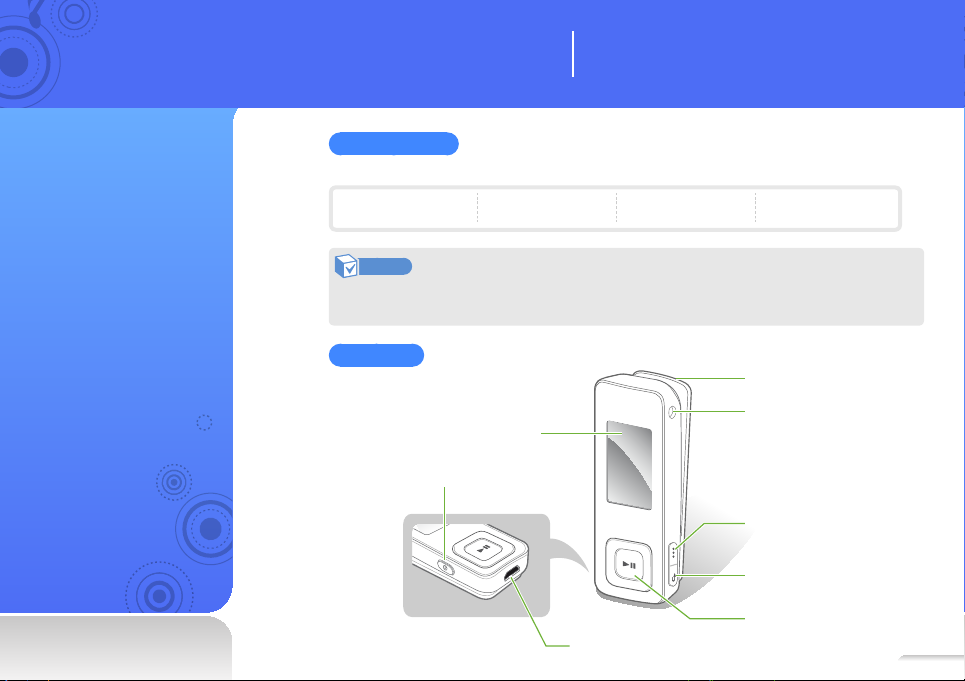
What's included
Check your product box for the following items:
Player Earphones USB cable Quick start guide
Note
• The items supplied with your player may look different than the illustrations in this manual.
• You can obtain additional accessories from your local Samsung dealer.
Your player
Portable clip
Earphones jack
Display
Power/lock button
User key
Back button
n Navigation/
USB connection port
Selection button
10
Page 11

Use basic functions > Product layout
11
Button functions
Button Function
• Turn your player on and off (press and hold)
• Lock the buttons
Use the user key function (See page 22)
• Return to the previous screen
• Return to the main menu (press and hold)
n
o
(Centre)
a
(Up/Down)
b
(Left/Right)
n
Power/lock
User
Back
Navigation/
Selection
Reset your player
If your player is frozen or unresponsive, press and hold the
Power/Lock button for 8-10 seconds.
This will reset the player without damaging applications or
data saved in the player's memory.
Scroll up, down, left, or right on the
screen
• Select the highlighted menu or
option
• Begin or pause playback
Adjust the volume
• Skip to the previous/next file
• Move to the previous/next page
• Search backward/forward (press
and hold)
Page 12
12
Connect to a PC and charge the battery
Connect your player to a
PC and charge the battery
before you use your player
for the first time or when
you have not used it for a
long time.
Caution
The rechargeable battery
incorporated in this product is not
user replaceable. For information
on its replacement, please
contact your service provider.
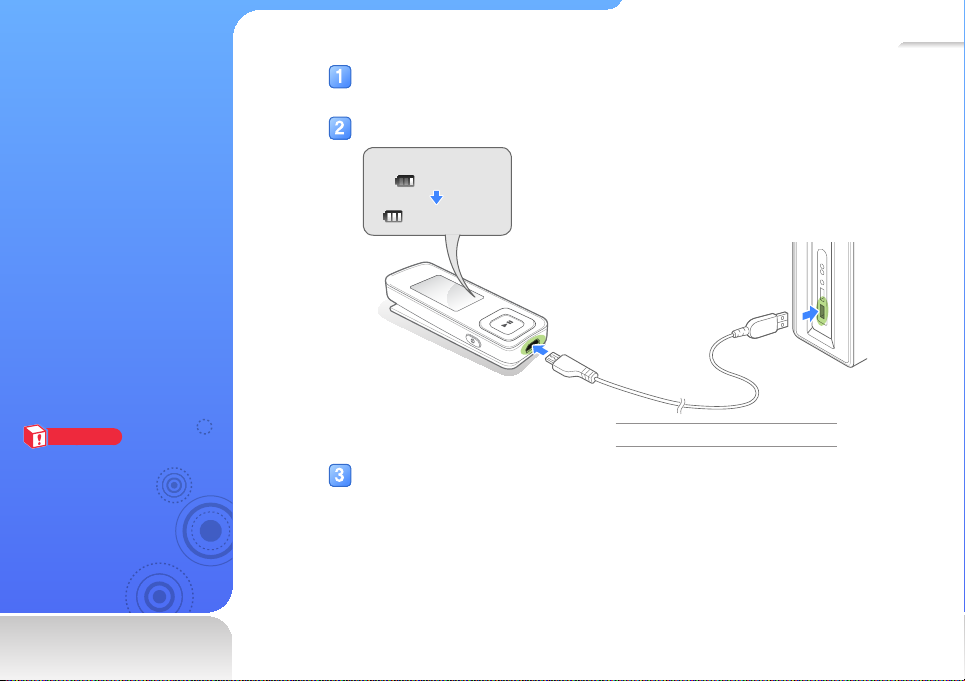
Connect the smaller end of the USB cable to the USB connection port at
the bottom of your player.
Connect the larger end of the USB cable to the USB port of a PC.
<USB connected>
: Charging
: Fully charged
Charging time About 2 hours
When the battery is fully charged, unplug the USB cable from your player
and the PC.
Page 13

Use basic functions > Connect to a PC and charge the battery
About the battery
• Charge and store the battery at 5˚ C ~ 35˚ C.
• Do not charge the battery for more than 12 hours or leave the
battery fully discharged for a long time. Doing so may shorten
the battery life.
• Depending on how you use your player, actual battery life may
vary and may be shorter than specified.
Note
• The charging time may differ depending on your PC’s
capabilities.
• If you want to charge the battery on your laptop, make
sure that the laptop's battery is full or the laptop is plugged
into a power source.
13
Page 14

14
Turn your player on and lock the buttons
Turn your player on or off
Press and hold to turn your player on or off.
Note
• The Popcon character settings appear when you turn on the player for the
first time. See "My Popcon settings" on page 32.
• If you do not use your player for 5 minutes, it will automatically turn off.
Lock or unlock the buttons
Lock the buttons to prevent any unwanted operations while listening to music.
Press
Note
to lock or unlock the buttons.
When the buttons are locked, will appear at the top of the screen.
Page 15
15
Access menus from the main menu
Select menus from the main
menu.
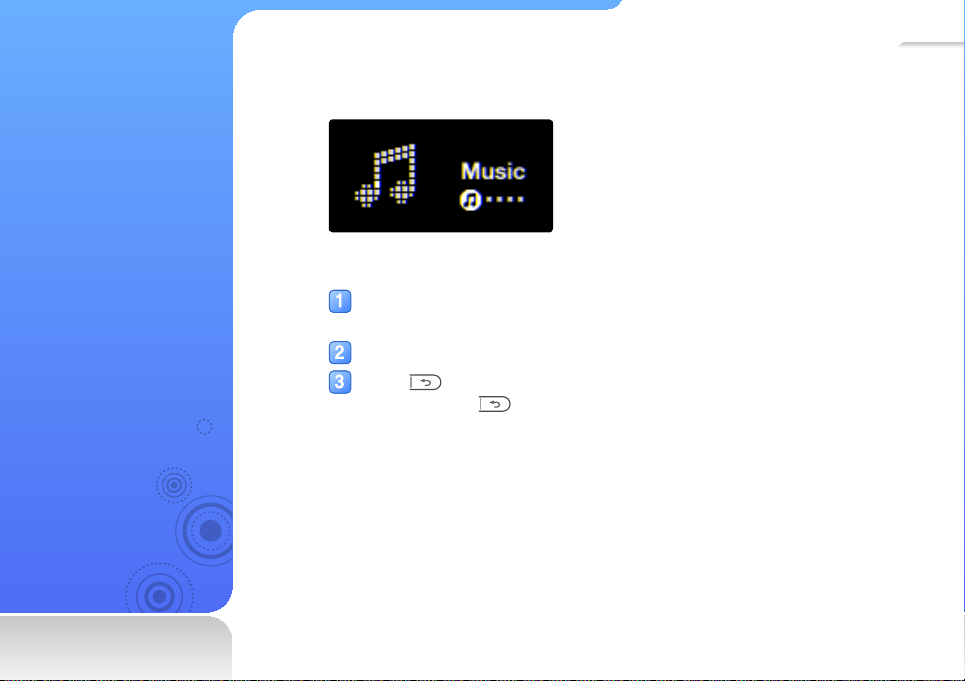
When you turn on the player, the main menu appears, which allows you to run functions you
want.
▲ Main menu
In the main menu, use b to scroll to a menu you want,
and then press o.
Use the menu you select.
Press to return to the previous screen.
■
Press and hold to return to the main menu.
Page 16
Manage music files
Download music files to your player, and search for files
stored in your player.
Download music files
Download music files from a
PC to your player.
Caution
To avoid damage to your player
and corruption of your files, do
not disconnect the USB cable
while files are being transferred.
Supported file formats and PC requirements
Supported files
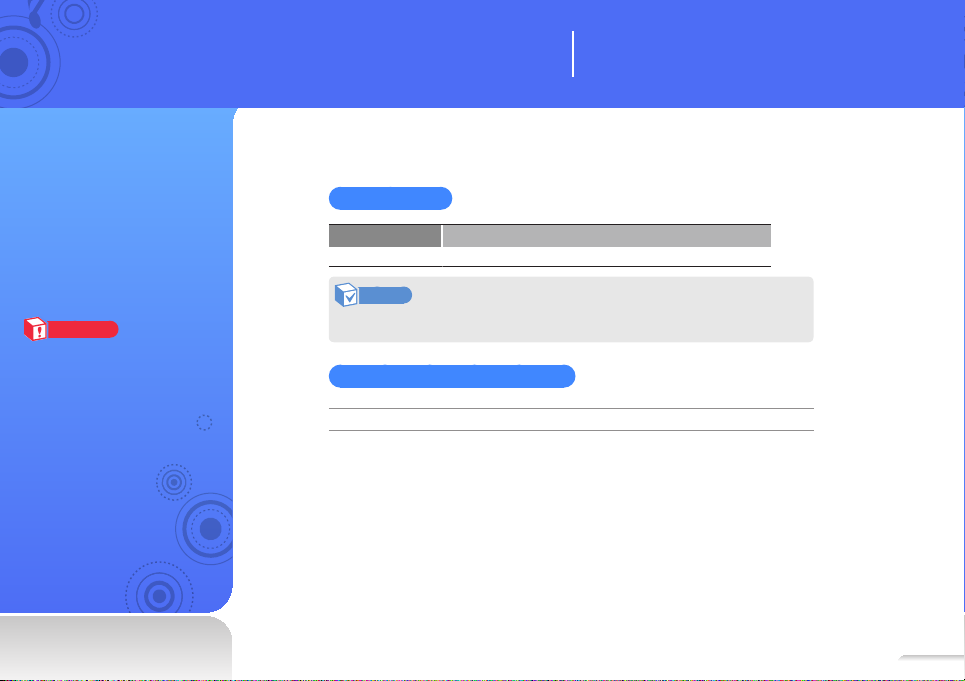
Menu Supported files
Music
Note
For supported file formats, see "Specifications" on page 39.
Recommended PC requirements
Operating System Windows XP SP 2 or higher/Vista/7
Music files
16
Page 17
Manage music files > Download music files
Download files using your
17
player as a removable disk
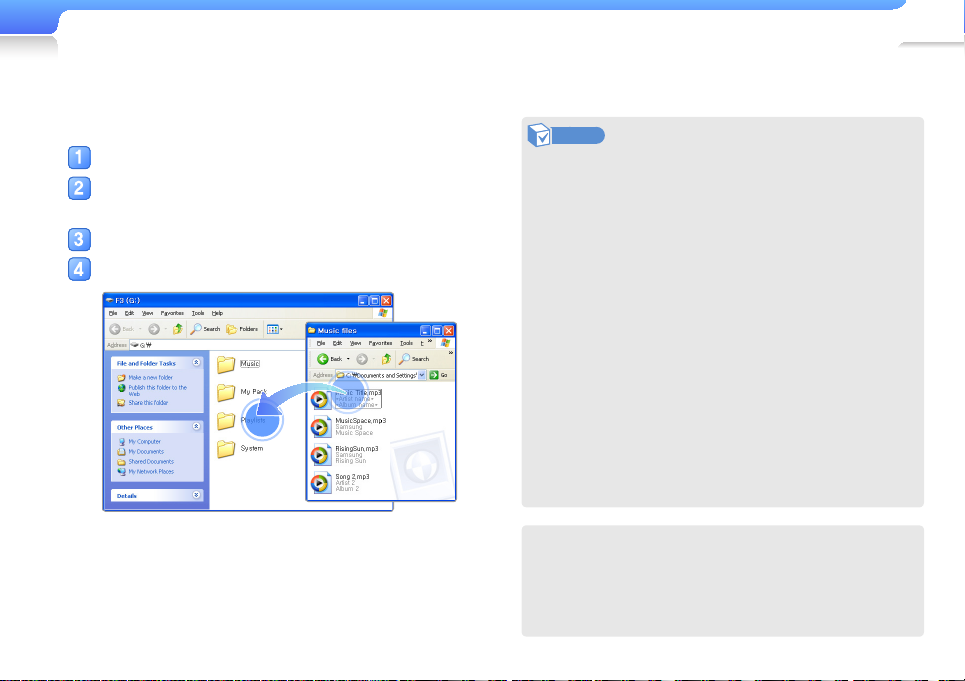
Connect your player to a PC using the USB cable.
On your PC, open <My Computer> and
then the <F3> folder.
Select a folder you want.
Copy files from the PC to your player.
Note
• The order of files on your PC will differ from the order of
files in your player.
• Your player restricts playback of files protected by a DRM
(Digital Rights Management) system.
• You cannot use your player when connected to a PC.
• If you connect your player to a PC when the player's
battery is low, the battery charges for a few minutes before
your player links to the PC and Kies launches.
• Connect the player directly to the USB port of your PC.
If you connect through a USB hub or a USB extension
cable, your player may not work properly.
• When you format your player on a PC, use the FAT32
system. In Windows Vista/7, click <Restore device
defaults> and then format your player.
• You can easily download various media files with Kies.
For information about installing Kies on a PC, refer to the
Quick Start Guide supplied with your player.
Refer to http://www.samsung.com for installation
precautions and installation details.
What is DRM?
Digital Rights Management (DRM) is a technology and service
that prevents the illegal copying of digital contents and
protects the profit and rights of copyright holders or content
producers.
Page 18
Manage music files > Download music files
Disconnect your player from a
18
PC
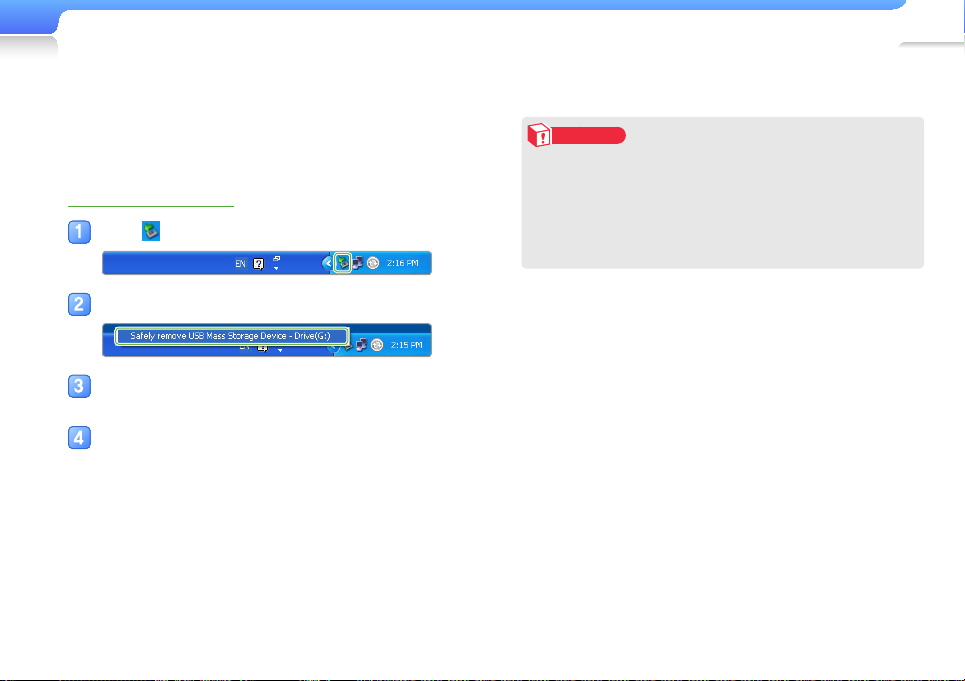
Carefully follow the steps below when disconnecting your player
from a PC to avoid data loss or damage to your player.
Example: Windows XP
Click on the Windows taskbar.
Click the pop-up message.
Click the window that says you can remove the
player safely.
Unplug the USB cable from your player and the
PC.
Caution
• To avoid damage to your player and corruption of your
files, do not disconnect the USB cable while files are being
transferred.
• Do not disconnect your player when playing files stored
in your player on a PC. Make sure that you stop playback
and then disconnect your player from a PC.
Page 19
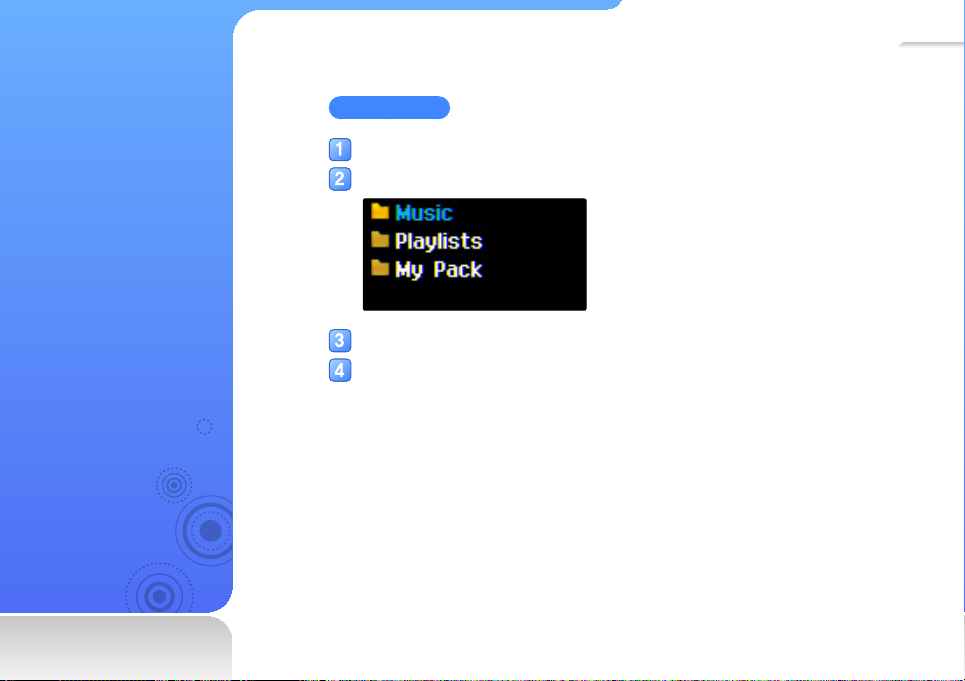
My files
Search files by folder, and
open files.
Search for files
In the main menu, select <My files>.
Select a folder from the list.
Scroll through the file list.
Select a file you want.
19
Page 20
Play music
SoundAlive brings your music to life.
You can press the User Key to set button operation to
your preference.
Music
Play music files on your
player.
To download files, see
"Download music files" on
page 16.
Listen to music
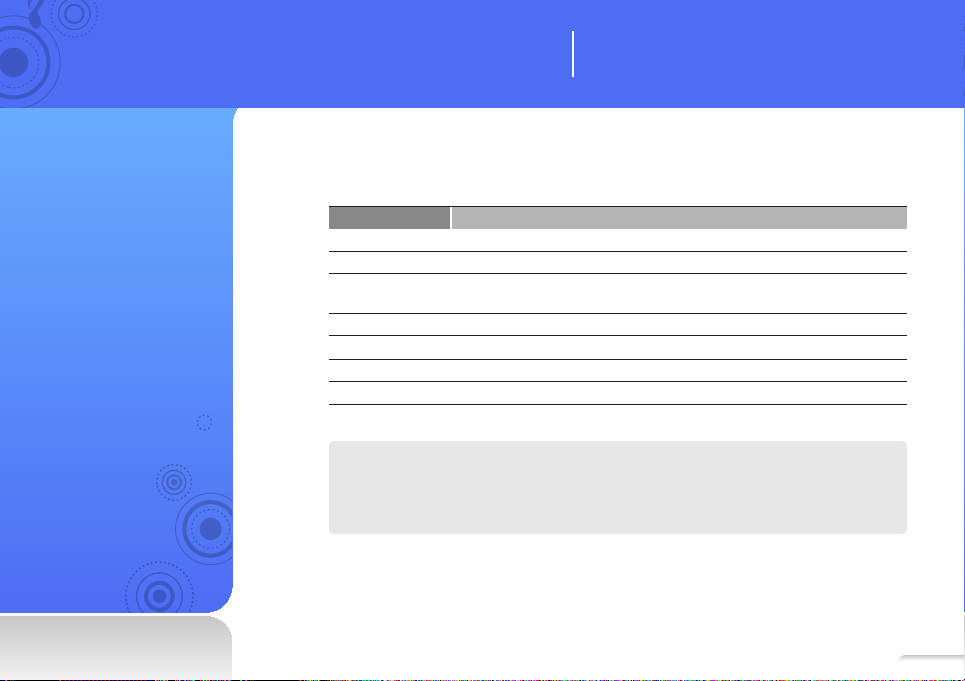
Music files are categorised in folders by type. You can easily find a music file you want.
Music category Function
Artists Display files by artist.
Albums Display files by album.
Songs
Genres Display files by genre.
Playlists Display playlists you created. See "Create your own playlists" on page 22.
Music browser Display all files in the Music folder.
Unknown Display files that have no track information (ID3 tag).
What is ID3 an tag?
An ID3 tag is a metadata container attached to an MP3 file. It includes information about
the music, such as the title, artist, album, or track number, which a player can display on
its screen during playback.
Display files by file name in the the following order: special characters,
numbers, letters.
20
Page 21
Play music > Music
1
21
Play music files
In the main menu, select <Music>.
Select a music category.
■
To play the file you last played, select <Now playing>.
Select a file to play.
Control playback by using the buttons.
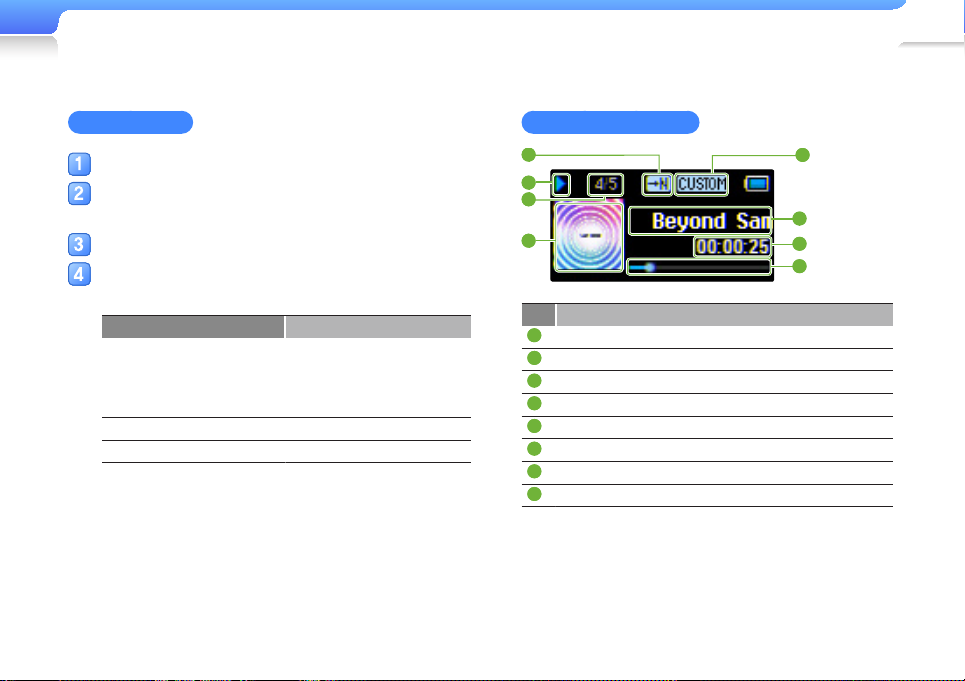
Music playback screen
2
3
4
5
6
7
8
See "Music playback screen."
To Do this
Press l/r
Skip to the previous or
next file
Search backward or forward Press and hold l/r
Pause or resume playback Press o
• If you press l 3 seconds
after the file starts playing,
playback will restart.
No. Description
1
Repeat mode
2
Playing status
3
Track number / Total number of tracks
4
Album image*
5
SoundAlive display
6
Song title, artist
7
Elapsed playing time
8
Playing progress bar
* The Popcon character will appear when no album image information exists
in an ID3 Tag.
Page 22
Play music > Music
22
Create your own playlists
You can create your own playlist by adding music files you want.
There are 5 default playlists.
Add music files to a playlist
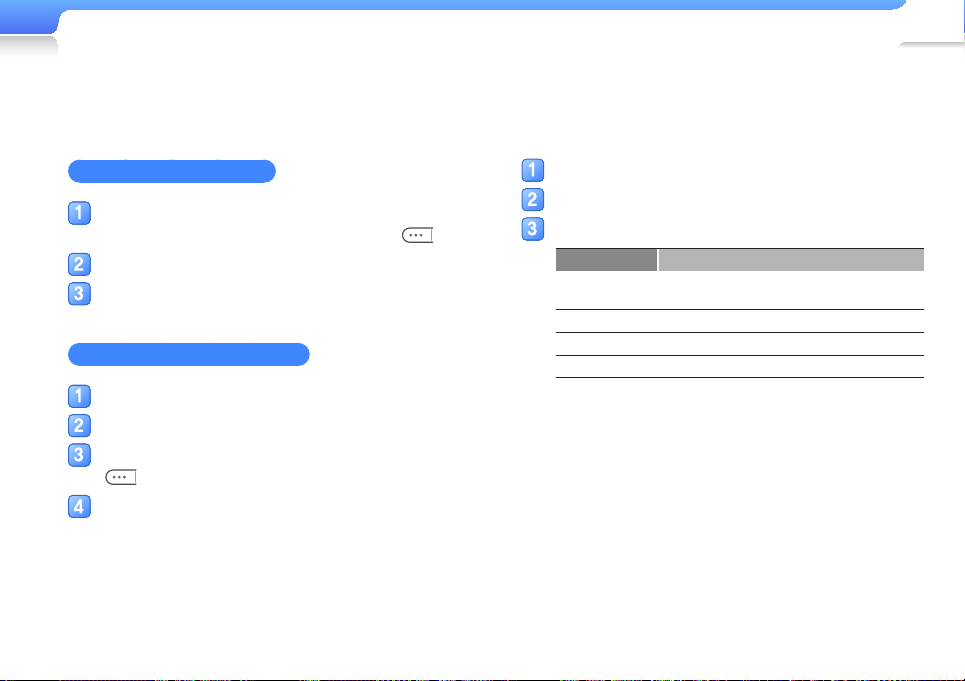
From the music category list, select a file you
want to add to a playlist, and then press
Select <Add to Playlist>.
Select a playlist to add the file to.
Delete music files from a playlist
From the music category list, select <Playlists>.
Select a playlist that has a file you want to delete.
Select a file you want to delete, and then press
.
Select <Remove from Playlist>.
■
To delete all files, select <Remove all from playlist>.
■
Files deleted from a playlist are not deleted from the
player.
.
Use the user key
While playing music, press the user key to access various
options.
In the main menu, select <Settings>.
Select <The user key (•••)>.
Use one or more of the following options.
Mode Description
Study mode Switch from General mode to Study mode.
SoundAlive Select appropriate sound effects for music.
Play speed Change the playback speed.
Play mode Change the repeat mode.
Page 23
Play music > Music
Study Mode
Use this mode when you frequently use the section repeat,
playback speed, or skip functions. Press
Study mode. Press
to switch to Music mode again.
Repeat a section of a track
You can select a section of a track to repeat.
Press at the beginning of the section you
want to repeat.
■
<A →> displays at the top of the screen.
Press at the end of the section you want to
repeat.
■
<A ↔ B> displays at the top of the screen. Your player
repeats the marked section.
To cancel repeating, press again.
Note
You must set the end point at least 3 seconds after the start
point.
to switch to
23
Change the playback speed
Change the playback speed.
While playing a track, press a to select the playback speed.
Set skip interval
While playing a track, press b to skip backward or forward in
10-second intervals.
Note
Some files may not skip at the interval.
Page 24
Play music > Music
24
SoundAlive
Select appropriate sound effects for music.
While playing music, press
Note
• If you select <AUTO>, your player searches the track
information (ID3 tag) and automatically selects an
appropriate effect.
• To select your own equaliser, select <CUSTOM>.
to select the sound effect.
Example: Set your own equalizer to <CUSTOM>
In the main menu, select <Settings>.
Select <Music>.
Select <SoundAlive>.
Select <Custom>, and then press r.
Select a mode, and then adjust the settings.
Play Speed
Change the playback speed.
While playing music, press
Play Mode
Change the repeat mode.
While playing music, press
to select the playback speed.
to select the repeat mode.
Page 25
Radio mode
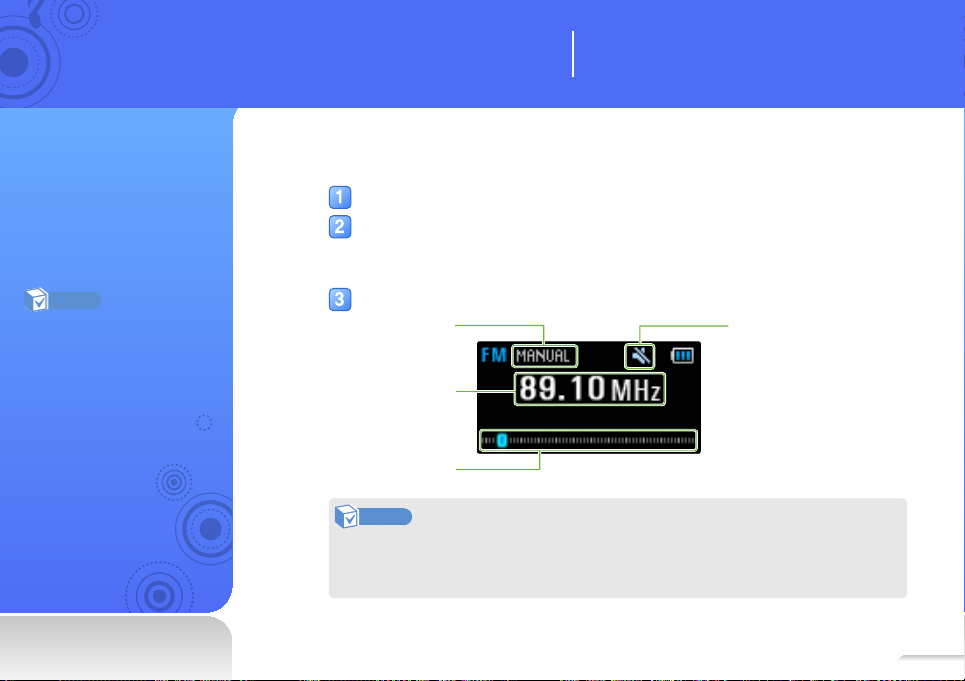
Mute indicator
Use additional applications
Learn how to work with your player’s additional
applications.
FM Radio
You can listen to the FM
radio as well as save radio
stations.
Note
• The FM radio may be
unavailable depending on the
region you purchased.
• You must connect the
earphones to your player to
listen to the FM radio. The
earphones serve as a radio
antenna.
Listen to the FM radio
In the main menu, select <FM Radio>.
Press b to scan the radio stations.
■
Press l/r to scroll through radio frequencies.
■
Press and hold l/r to scan the available stations automatically.
Listen to the FM radio.
(Manual mode/
Preset mode)
Frequency for the
current station
Frequency bar
Note
• The FM radio may not tune frequencies for stations correctly depending on the signal
strength and transmitting conditions in your current region.
• Press o to mute or un-mute the FM radio.
25
Page 26
Use additional applications > FM Radio
Save radio stations
You can save your favourite radio stations to access them easily.
Save the current radio station
In Manual mode, press to save a radio station.
Note
To automatically save radio stations, see 'Save radio stations
automatically' on page 32.
Listen to a favourite radio station
In Manual mode, press and hold o.
Press l/r to move to another preset station.
26
Page 27
27
Fitness
You can check your
expected calorie
consumption according to a
type of exercise, your body
weight, and the duration of
your workout.
Note
You must set the current time
before using Fitness mode.
See "Date and time settings" on
page 34.
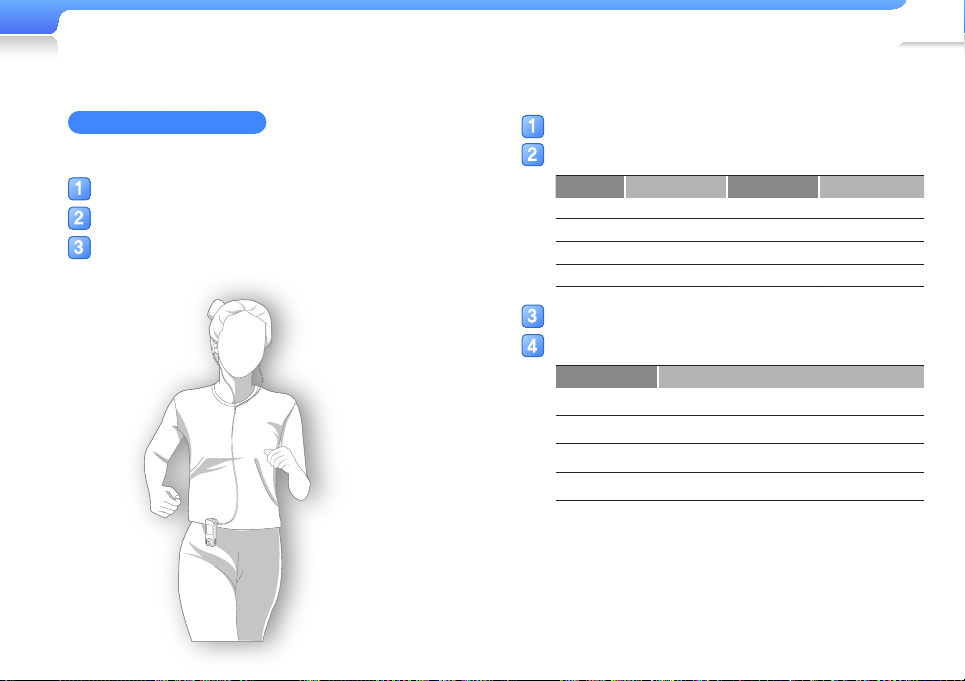
Set fitness information
Set a daily goal
Set your daily calorie consumption and a daily fitness goal.
In the main menu, select <Fitness>.
Select <Daily Goal>.
Set calorie consumption.
Set audio guide
Provide voice information while using Fitness mode.
In the main menu, select <Fitness>.
Select <Audio Guide>.
Select <On>.
Note
Audio guide is not available if you are listening to music or the FM radio.
Page 28
Use additional applications > Fitness
Set body type information
Set your body type information before using Fitness mode.
In the main menu, select <Fitness>.
Select <Body Info>.
Set your current weight and the unit of measure.
Use Fitness mode
In the main menu, select <Fitness>.
Select an exercise type, and then press o.
Type Description Type Description
Walk1
Walk2 Walk Fast Cycle Cycle
Run1
Run2
Set the duration of your workout.
Select a play option, and then press o.
Option Description
Now Playing Play the most recent music.
Playlist Play the most recent playlist.
FM Radio Listen to a recently played FM radio station.
Shuffle Play Randomly play tracks.
Walk Slow Hiking
Run Slow Yoga
Run Fast
28
Hiking
Yoga
Page 29
Use additional applications > Fitness
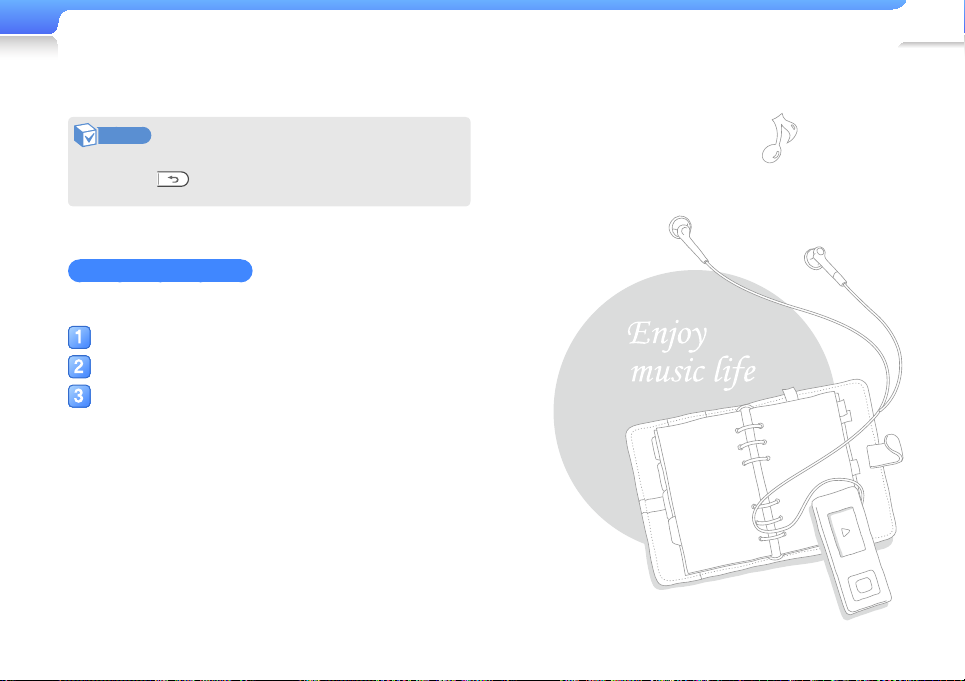
Note
• In Fitness mode, press o to pause.
• Press to stop Fitness mode.
View your fitness record
You can compare your Daily Goal and your actual fitness record.
In the main menu, select <Fitness>.
Select <Performance>.
Select a date.
■
You can view fitness hours, calories consumed, and
achievement of your daily goals.
29
Page 30
Customise settings
Change your player’s settings to match your
preferences.
Settings
You can change your
player’s settings.
In the main menu, select <Settings>.
Select a setting menu.
Menu Description
Music Set music playback settings
FM radio Set FM radio settings
My Popcon Set Popcon character settings
The user key (•••) Set user key settings (See page 22)
Sound Set sound settings
Display Set display settings
Language Set language settings
Date and time Set the current time and date
System Set system settings
Select an option.
Change the settings.
30
Page 31
Customise settings > Settings
31
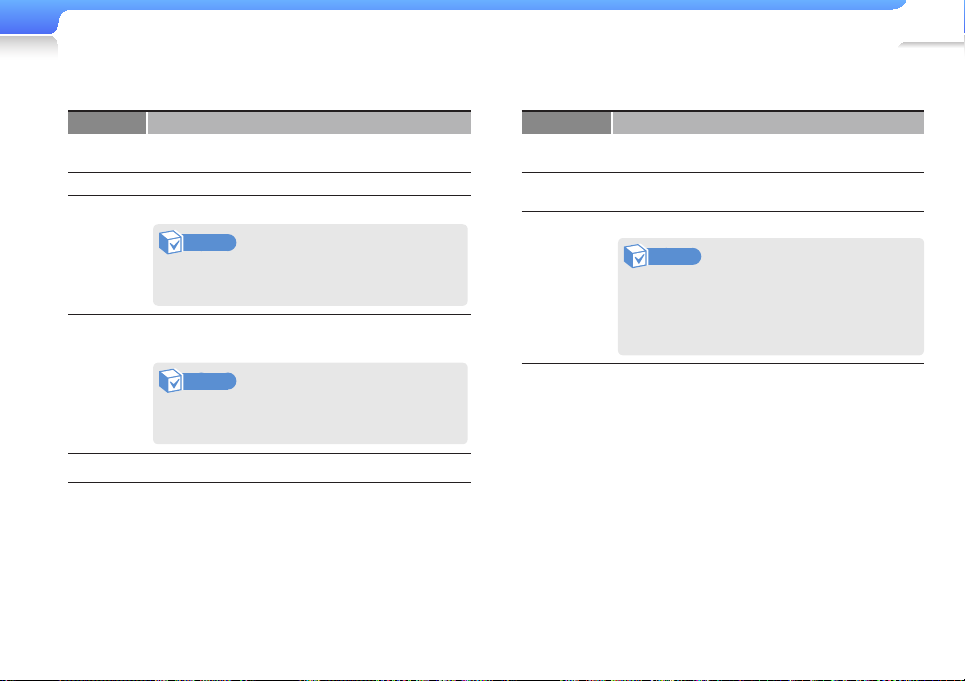
Music settings
Menu Description
SoundAlive
Play mode Change the repeat mode.
Play speed
Skip
interval
Tag You can view file information when an ID3 Tag exists.
Select appropriate sound effects for music. See page
24.
Change the playback speed.
Note
Changing <SoundAlive> effects will set the
playback speed to <Normal>.
Set the interval when you press b during music
playback.
Note
Some files may not skip at the interval you
selected.
FM radio settings
Menu Description
Mode
Auto scan
FM region
Switch between Manual mode and Preset mode.
Preset mode is not available when no presets exist.
Search for and save available radio stations
automatically (up to 100).
Re-tune frequencies according to your region.
Note
• This option may not be available
depending on your region.
• If you change the region, the previously
saved stations will be deleted.
Page 32
Customise settings > Settings
SaveClear
Save radio stations automatically
You can automatically search for available radio stations and
save them as your favourites. You can save up to 100 radio
stations.
In the FM Radio settings menu, select
<Auto scan>.
Select <Yes> from the pop-up window.
■
Automatic tuning begins. The player saves the radio
stations it locates in your favourites.
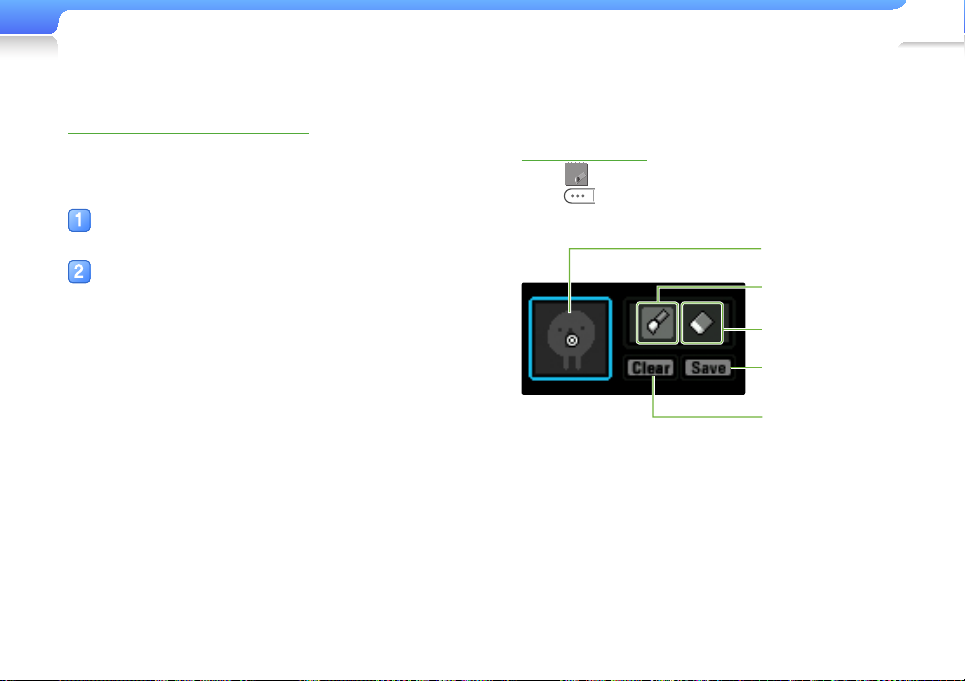
My Popcon settings
Select a Popcon character and name it.
Draw a character
Select
Press to select Canvas, Drawing tool, <Clear>, or
<Save>.
to draw your own character.
Canvas
Draw
Erase
Save
Clear canvas
32
Page 33
Customise settings > Settings
33
Sound settings
Menu Description
Beep
Volume
limit
Turn the beep sound on or off when you press the
buttons.
Set to limit the volume of the earphones to protect your
hearing.
- <On>: You cannot increase the volume over level
16.
- <Off>: You can adjust the volume as you want. If
you increase the volume over level 26 and restart
your player, the player will turn on at volume level
25 to protect your hearing.
Display settings
Menu Description
Display light
duration
Screen saver Select a screen saver and delay.
Contrast Adjust the contrast of the screen.
Brightness Adjust the brightness of the screen.
Set how long the screen stays on when not in use.
Page 34
Customise settings > Settings
34
Language settings
Menu Description
Menu Select a language for the display text.
Contents
Select a language for file names and information
about saved contents.
Date and time settings
Set the current time and date.
Scroll to a unit and press a to change the time or date. To
save the time and date, press o.
Page 35
Customise settings > Settings
System settings
Menu Description
Sleep
Reset to
default
Format
Set to turn off your player automatically after a
specified period of time.
Restore all settings to the factory settings.
Delete all data and files stored in your player.
Note
Remember to make backup copies of all
important data stored in your player. The
manufacturer’s warranty does not cover loss of
data that results from your use of the player.
Menu Description
Check the system information of your player.
- <Firmware Version>: View the version of the
firmware installed in your player.
- <Memory>: View the total amount of memory, and
the amount of memory being used and remaining.
About
Note
Regarding the Built-In Memory
1 GB = 1,000,000,000 bytes : actual
formatted capacity may be less as the
internal firmware uses a portion of the
memory.
35
Demo
mode
Set the player to play music repeatedly with the
display on.
Page 36
Appendix
Maintenance of your player
Carefully read the following to clean, store, or dispose of your player properly.
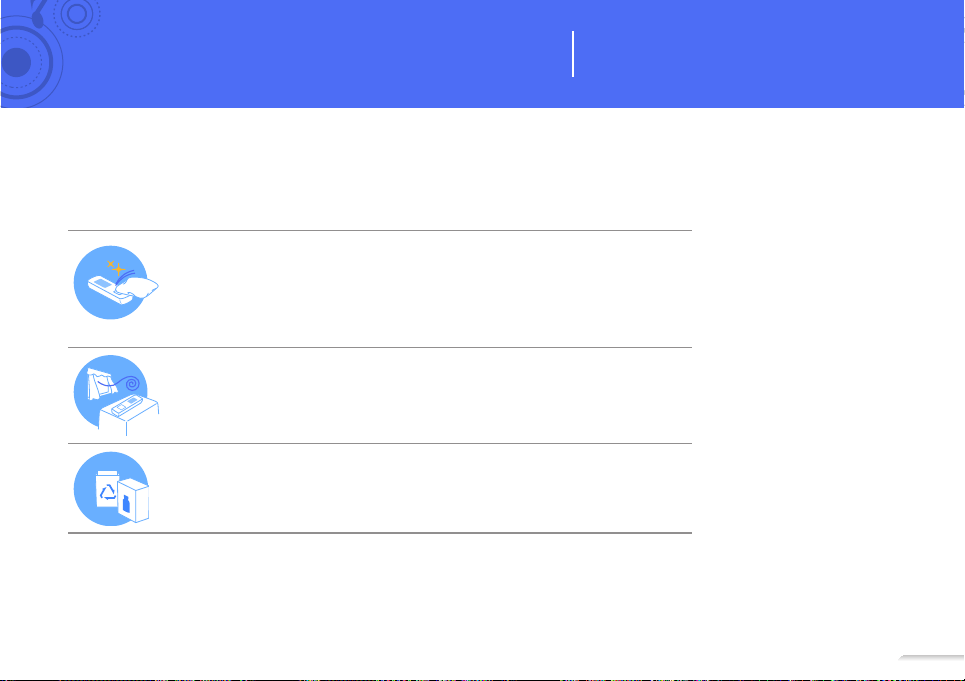
Cleaning
• When your player is dirty, wipe it with a soft, clean, dry cloth.
• Do not apply cleaners to your player's surface. This may cause damage or
affect the performance of the player.
• Do not use strong chemicals or detergents.
Storing
Store your player in a well-ventilated area.
Disposing
• Dispose of wrapping materials, batteries, and electronic devices separately.
• The wrapping materials include paper and two kinds of plastics (PC, PE).
View the maintenance procedures, specifications
and troubleshooting solutions for your player.
36
36
Page 37
Troubleshooting
When you have a trouble using the player, try the following before contacting a service centre.
37
Problem Solution
• Your player will not turn on if the battery is
My player will not
turn on.
The buttons do
not work.
The screen
does not display
anything.
My player turns
off automatically.
The battery
running time is
different from
what is written in
the user manual.
completely drained. Recharge the battery
and turn the player on again.
• Press and hold the Power button for about
8-10 seconds to reset your player.
• Check if the buttons are locked.
• Check if the buttons correspond to the
functions you want to activate.
• Press and hold the Power button for about
8-10 seconds to reset your player.
• The screen may not be visible under the
direct rays of the sun.
• The screen turns off automatically after
the period of time you set in <Display light
duration> has elapsed.
If you do not use your player for 5 minutes after
you pause playback, it automatically turns off.
Turn on your player.
• The battery running time may differ
depending on the current sound mode or
display settings.
• The battery running time may decrease if
your player is left in a location with a high or
low temperature.
Problem Solution
Kies will not work
on a PC.
My player will not
connect to a PC.
The file transfer is
too slow.
My player will not
play any files.
I cannot
download files to
my player.
Files or data are
missing.
Check if your PC meets PC requirements.
See "Recommended PC requirements."
Run Windows Update on the PC. Select key
updates and service packs and update all.
When the update is completed, reboot the PC
and reconnect.
• Format your player in <Settings> →
<System> → <Format> and try again.
• End all programs you are not using. Running
multiple programs simultaneously can slow
down the file transfer rate.
• Check if any playable files are stored in your
player.
• Check if the files are damaged.
• Check if the battery is charged.
• Check if the USB cable is correctly
connected. Reconnect it.
• Check if the memory is full.
• Press and hold the Power button for about
8-10 seconds to reset your player.
Check if you disconnected the USB cable while
transferring files or data. This can cause data
loss or fatal errors in your player. Samsung is
not responsible for any damages resulting from
data loss.
Page 38
Appendix > Troubleshooting
Problem Solution
The playing time
does not display
correctly during
playback.
The file name
does not display
correctly.
My player is
getting hot to the
touch.
This is normal if the currently playing file is in the
VBR (Variable Bit Rate) format.
Change the language setting in <Settings> →
<Language> → <Contents>.
Charging the battery can heat up your player. It
does not affect the player's life or capabilities.
38
Page 39

Specifications
Model Name YP-F3
Rating DC 5.0 V / 0.5 A
• MPEG1/2/2.5 Layer3 (20 kbps ~ 320 kbps, 8 kHz ~ 48 kHz)
File
Output Frequency
Range
Signal to Noise Ratio 91 dB with 20 kHz LPF (based on 1 kHz 0 dB)
Supported Number of
Files/Folders
Playing Time Music: 15 hours (Default Set, MP3 128 kbps, Volume level 15, Normal sound mode, Display off)
Temperature Range for
Operation
Case Plastic
Weight 22.5 g
Dimensions (WxHxD) 23.7 x 63.8 x 18.3 (with clip) mm
• WMA(48 kbps ~ 320 kbps, 8 kHz ~ 48 kHz)
• Ogg(Q0 ~ Q10)
• FLAC (Free Lossless Audio Codec)
20 Hz ~ 20 kHz
File: Max. 3000
Folder: Max. 1000
-5˚ C ~ 35˚ C
39
FM T.H.D
FM Radio
* Some of the contents in this manual are subject to change without prior notice for further improvement.
FM Signal to Noise Ratio
FM Useable Sensitivity
0.3 %
60 dB
18 dBμ
Page 40
40
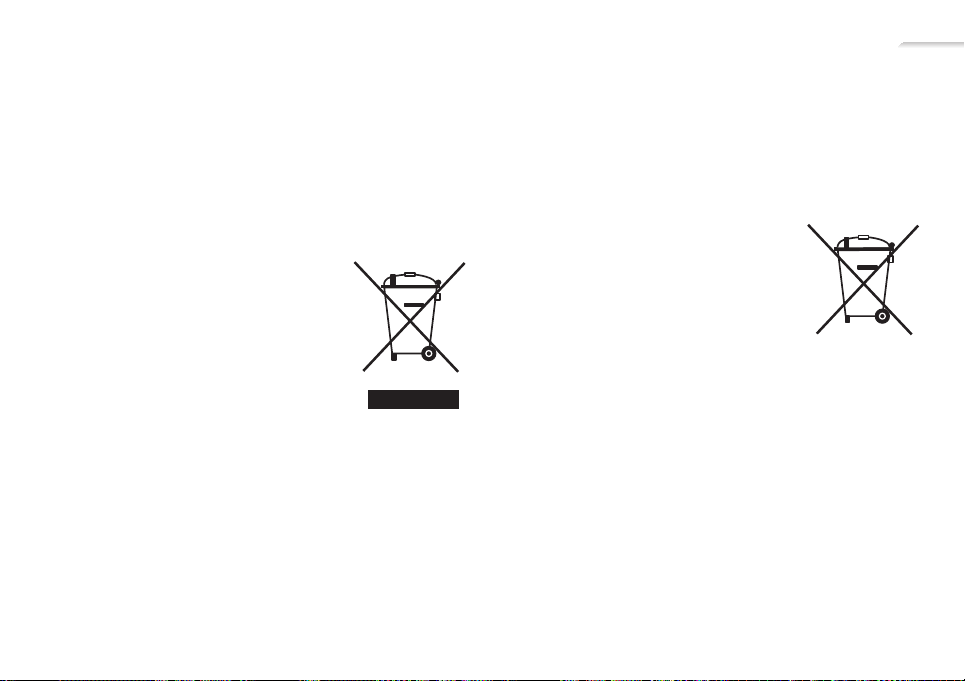
Correct disposal of this product (Waste Electrical & Electronic Equipment)
(Applicable in the European Union and other European countries
with separate collection systems)
This marking on the product, accessories
or literature indicates that the product and
its electronic accessories (e.g. charger,
headset, USB cable) should not be
disposed of with other household waste
at the end of their working life. To prevent
possible harm to the environment or human
health from uncontrolled waste disposal,
please separate these items from other
types of waste and recycle them responsibly to promote the
sustainable reuse of material resources.
Household users should contact either the retailer where
they purchased this product, or their local government office,
for details of where and how they can take these items for
environmentally safe recycling.
Business users should contact their supplier and check the
terms and conditions of the purchase contract. This product
and its electronic accessories should not be mixed with other
commercial wastes for disposal.
Correct disposal of batteries in this product
(Applicable in the European Union and other European countries
with separate battery return systems.)
This marking on the battery, manual or
packaging indicates that the batteries in
this product should not be disposed of with
other household waste at the end of their
working life. Where marked, the chemical
symbols Hg, Cd or Pb indicate that the
battery contains mercury, cadmium or lead
above the reference levels in EC Directive 2006/66. If batteries
are not properly disposed of, these substances can cause harm
to human health or the environment.
To protect natural resources and to promote material reuse,
please separate batteries from other types of waste and recycle
them through your local, free battery return system.
Page 41

Licence
The product player accompanying this user manual is licensed under certain intellectual property
rights of certain third parties. This licence is limited to private non-commercial use by end-user
consumers for licensed contents.
No rights are granted for commercial use.
The licence does not cover any product player other than this product player and the licence does
not extend to any unlicensed product player or process conforming to ISO/IEC 11172-3 or ISO/
IEC 13818-3 used or sold in combination with this product player. The licence only covers the use of
this product player to encode and/or decode audio files conforming to the ISO/IEC 11172-3 or ISO/
IEC 13818-3. No rights are granted under this licence for product features or functions that do not
conform to the ISO/IEC 11172-3 or ISO/IEC 13818-3.
Open Source Announcement
This product includes certain free/open source software.
The exact terms of the licences, disclaimers, acknowledgements and notices are available on the
Samsung's website http://opensource.samsung.com.
41
Page 42
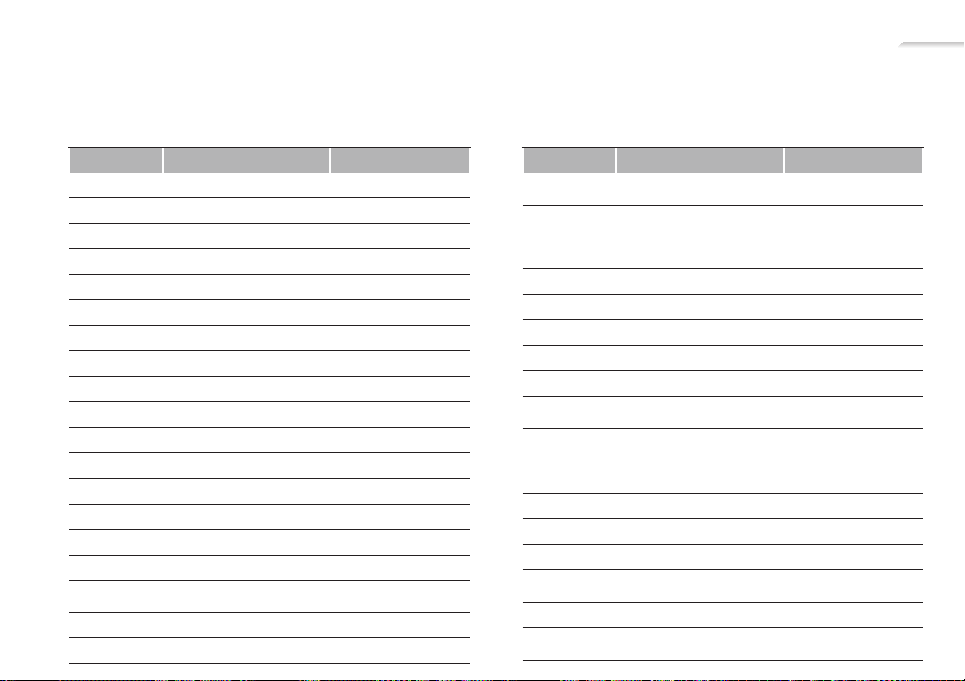
Contact Samsung World Wide
If you have any questions or comments relating to Samsung products, please contact the SAMSUNG Customer Care
Centre.
Country
CANADA
MEXICO
U.S.A
ARGENTINE
BRAZIL
CHILE
NICARAGUA
HONDURAS
COSTA RICA
ECUADOR
EL SALVADOR
GUATEMALA
JAMAICA
PANAMA
PUERTO RICO
REP. DOMINICA
TRINIDAD &
TOBAGO
VENEZUELA
COLOMBIA
Customer Care Centre
1-800-SAMSUNG(726-7864)
01-800-SAMSUNG(726-7864)
1-800-SAMSUNG(726-7864)
0800-333-3733
0800-124-421, 4004-0000
800-SAMSUNG(726-7864)
00-1800-5077267
800-7919267
0-800-507-7267
1-800-10-7267
800-6225
1-800-299-0013
1-800-234-7267
800-7267
1-800-682-3180
1-800-751-2676
1-800-SAMSUNG(726-7864)
0-800-100-5303
01-8000112112
Web Site
☎
www.samsung.com
www.samsung.com
www.samsung.com
www.samsung.com
www.samsung.com
www.samsung.com
www.samsung.com
www.samsung.com
www.samsung.com
www.samsung.com
www.samsung.com
www.samsung.com
www.samsung.com
www.samsung.com
www.samsung.com
www.samsung.com
www.samsung.com
www.samsung.com
www.samsung.com
Country
AUSTRIA
BELGIUM
BULGARIA
CZECH
DENMARK
FINLAND
FRANCE
GERMANY
GREECE
HUNGARY
ITALIA
LUXEMBURG
NETHERLANDS
NORWAY
POLAND
Customer Care Centre
0810 - SAMSUNG(7267864,
€ 0.07/min)
02 201 2418
07001 33 11
800-SAMSUNG(800-726786)
70 70 19 70
030 - 6227 515
01 48 63 00 00
01805 - SAMSUNG(726-7864
€ 0,14/Min)
80111-SAMSUNG(80111
7267864) from land line, local
charge / 210 6897691 from
mobile
06-80-SAMSUNG(726-7864)
800-SAMSUNG(726-7864)
261 03 710
0900-SAMSUNG (0900-
7267864) (€ 0,10/Min)
815-56 480
0 801 1SAMSUNG(172678),
022-607-93-33
Web Site
☎
www.samsung.com
www.samsung.com/be
(Dutch)
www.samsung.com/be_fr
(French)
www.samsung.com
www.samsung.com
www.samsung.com
www.samsung.com
www.samsung.com
www.samsung.com
www.samsung.com
www.samsung.com
www.samsung.com
www.samsung.com
www.samsung.com
www.samsung.com
www.samsung.com
42
Page 43
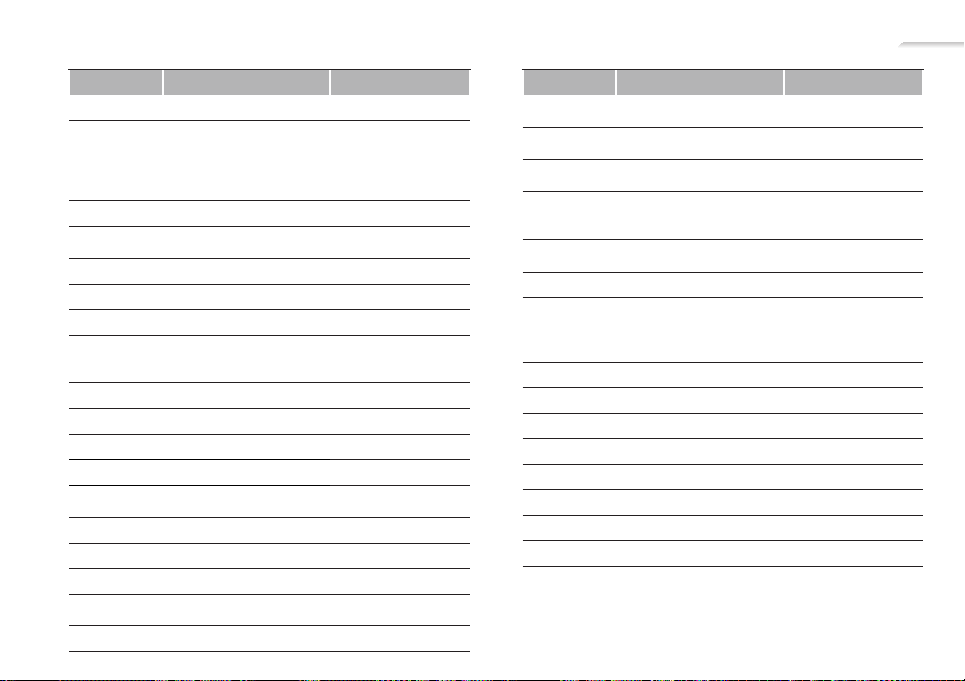
Appendix > Contact Samsung World Wide
43
Country
PORTUGAL
RUMANIA
SLOVAKIA
SPAIN
SWEDEN
U.K
EIRE
SWITZERLAND
LITHUANIA
LATVIA
ESTONIA
RUSSIA
KAZAKHSTAN
UZBEKISTAN
KYRGYZSTAN
TADJIKISTAN
UKRAINE
AUSTRALIA
Customer Care Centre
80820-SAMSUNG(726-7864)
08010 SAMSUNG (08010 726
7864) only from landline, local
network Romtelecom - local
tariff / 021 206 01 10 for landline
and mobile, normal tariff
0800-SAMSUNG(726-7864)
902-1-SAMSUNG(902 172
678)
0771 726 7864(SAMSUNG)
0330 SAMSUNG(7267864)
0818 717 100
0848-SAMSUNG(7267864,
CHF 0.08/min)
8-800-77777
8000-7267
800-7267
8-800-555-55-55
8-10-800-500-55-500(GSM:
7799)
8-10-800-500-55-500
00-800-500-55-500
8-10-800-500-55-500
0-800-502-000
1300 362 603
☎
Web Site
www.samsung.com
www.samsung.com
www.samsung.com
www.samsung.com
www.samsung.com
www.samsung.com
www.samsung.com
www.samsung.com/ch
www.samsung.com/ch_fr/
(French)
www.samsung.com
www.samsung.com
www.samsung.com
www.samsung.com
www.samsung.com
www.samsung.com
www.samsung.com
www.samsung.com
www.samsung.ua
www.samsung.com/ua_ru
www.samsung.com
Country
NEW ZEALAND
CHINA
HONG KONG
INDIA
INDONESIA
MALAYSIA
PHILIPPINES
SINGAPORE
THAILAND
TAIWAN
VIETNAM
SAUDI ARABIA
TURKEY
U.A.E
SOUTH AFRICA
Customer Care Centre
0800 SAMSUNG(0800 726
786)
400-810-5858
010-6475 1880
(852) 3698-4698
3030 8282, 1800 110011,
1-800-3000-8282,
1800 266 8282
0800-112-8888,
021-5699-7777
1800-88-9999
1-800-10-SAMSUNG(726-7864),
1-800-3-SAMSUNG(726-7864),
1-800-8-SAMSUNG(726-7864),
02-5805777
1800-SAMSUNG(726-7864)
1800-29-3232, 02-689-3232
0800-329-999
1 800 588 889
9200-21230
444 77 11
800-SAMSUNG(726-7864)
0860-SAMSUNG(726-7864 )
Web Site
☎
www.samsung.com
www.samsung.com
www.samsung.com/hk
www.samsung.com/hk_en/
www.samsung.com
www.samsung.com
www.samsung.com
www.samsung.com
www.samsung.com
www.samsung.com
www.samsung.com
www.samsung.com
www.samsung.com
www.samsung.com
www.samsung.com
www.samsung.com
Page 44
Halogen Free Product
Samsung's Halogen Free Product means that an environmental friendly product does not
contain Chlorine, Bromine Flame Retardants and PVC (poly vinyl chloride) material based
on the IEC 61249-2-21 standard. This product also complies with EU RoHS Directive,
which restricts the use of certain Hazardous Substances - Cadmium (Cd), Lead (Pb),
Mercury (Hg), Hexavalent Chromium (Cr+6) as well.
REV. 1.0
 Loading...