

Page 1

E-MANUAL
Thank you for purchasing this Samsung product.
To receive more complete service, please register
your product at
www.samsung.com/register
Model______________ Serial No.______________
Page 2

Contents
Connecting Antenna and External
devices
Antenna Connection
Video Device Connections
2 HDMI Connection
3 Component Connection
4 Composite (A/V) Connection
Audio Input and Output Connections
5 Digital Audio (Optical) Connection
6 Audio Output Connection
Connecting to a Computer
7 Connecting Through the HDMI Port
8 Connecting With a DVI to HDMI Cable
9 Connecting Through Samsung Link
9 Connecting Through DLNA Using Your Home Network
Connecting To a Mobile Device
11 Screen Mirroring
13 Connecting Mobile Devices without a Wireless Router
(Wi-Fi Direct)
13 Connecting Through Samsung Link
14 Connecting Through DLNA Using Your Home Network
14 Specifying the Name of the TV on a Network
Switching Between Video Sources
15 Other Functions Available When You Display the Source
List
15 The Universal Remote Function
Using the Remote Control and
Peripherals
16 Displaying and Using the On-Screen Remote
Controlling External Devices with the TV Remote Using the Universal Remote
17 Connecting the IR Extender Cable
18 Setting Up the Universal Remote Control
19 Universal Remote Features
Controlling the TV with a Keyboard
20 Connecting a Keyboard
20 Using the Keyboard
Controlling the TV with a Mouse
21 Connecting a Mouse
22 Using the Mouse
Entering Text Using the On-Screen QWERTY Keypad
23 Using Additional Functions
Internet Connection
Establishing a Wired Internet Connection
24 Using Cat 7 LAN Cables
25 Connecting to a Wired Internet Network Automatically
26 Connecting to a Wired Internet Network Manually
Establishing a Wireless Internet Connection
28 Connecting to a Wireless Internet Network Automatically
29 Connecting to a Wireless Internet Network Manually
30 Connecting to a Wireless Internet Network with WPS
Troubleshooting Internet Connectivity Issues
31 Troubleshooting Wired Internet Connectivity Issues
32 Troubleshooting Wireless Internet Connectivity Issues
Checking the Internet Connection Status
Page 3

Smart Features
Smart Hub
34 Testing Smart Hub connections
35 Opening the First Screen
36 Moving to the Panel Screen
36 Using the Smart Hub Tutorial
36 Resetting Smart Hub
Using Smart Hub with a Samsung Account
37 Creating a Samsung Account
39 Signing in to a Samsung Account
40 Linking Your Samsung Account to External Service
Accounts
41 Changing and Adding Information to a Samsung Account
41 Deleting a Samsung Account from the TV
Using the SAMSUNG APPS Panel
43 Using Supported Features via the Pop-Up Menu -
Downloaded Apps
44 Using Supported Features via the Pop-Up Menu -
Recommended Apps
44 Installing an App
46 Default Apps
46 Relocating an App on the Apps Screen.
46 Deleting an App from the TV
47 Rating/Reviewing an App
47 Updating Apps
48 Using Other App Features and Functions
Using the On TV Panel
50 Using Supported Features via the Pop-Up Menu
50 Viewing Detailed Program Information
51 Configuring On TV Settings
Using the Multimedia (Playing Photos, Videos, and
Music)
52 Playing Media Content Saved on a USB Device
53 Playing Photos
54 Playing Videos
56 Playing Music
57 Functions on the Media Content List Screen
TV Viewing
Digital Broadcast Information at a Glance
58 Using the Guide
59 Viewing Detailed Information
59 Checking Current Program Info
59 Changing the broadcast signal
59 Digital Channel Signal Info and Strength
Setting Up a Schedule Viewing
60 Digital Channel Schedule Viewing
61 Analog Channel Schedule Viewing
62 Canceling a Schedule Viewing
62 Editing a Schedule Viewing
Using the Channel List
Registering, Removing, and Editing Channels
64 Registering and Removing Channels
65 Editing Registered Channels
66 Program Rating Lock
Creating a Personal Favorites List
69 Registering Channels as a Favorites
70 Selecting from Favorite List Channels Only
Editing a Favorites List
71 Edit Favorites Screen Menu Items
Making Sports Programs More Realistic with Soccer
Mode
74 Enabling Soccer Mode
TV-Viewing Support Features
75 Showing Captions
77 Enabling the Audio Guide for the Video Description
77 PIP Broadcast Viewing
78 Scanning for Available Channels
78 Selecting the Broadcast Audio Language
79 Fine-Tuning the Screen
79 Remove Scrambled Channels
Page 4

Picture and Sound Settings
Changing the Picture Mode and Adjusting the Picture
Quality
80 Choosing the Right Picture Mode for the Viewing
Environment
81 Adjusting the Picture Quality for Each Picture Mode
82 Fine-Tuning Each Picture Mode (Advanced Settings)
84 Adjusting the Picture for Easier Viewing (Picture Options)
Viewing in 3D
86 Starting 3D
87 Changing the 3D Mode
88 Adjusting the 3D Effect
Picture Support Functions
89 PIP Broadcast Viewing
90 Changing the Picture Size and Position
91 Listening to Audio Only with the Screen Turned Off
(Picture Off)
91 Resetting the Picture Mode Settings
Changing the Sound Mode and Using Sound Effects
92 Choosing the Right Sound Mode for the Environment
92 Using Sound Effects
Sound Support Functions
93 Selecting Speakers
93 Designating the TV's Installation Type
94 Enabling Digital Audio Output
94 Listening to 3D Audio in 3D Mode
94 Resetting All Sound Settings
General
Setting the Time and Using the Timer
95 Setting the Current Time
96 Using the Timers
Using the Screen Burn Protection and Energy Saving
Features
99 Preventing Screen Burn
99 Using Energy Saving Features
Using the e-Manual
100 Launching the e-Manual
100 Additional e-Manual Features
101 Accessing the Menu from the e-Manual
101 Loading Reference Pages
101 Updating the e-Manual to the Latest Version
Updating the TV’s Software
102 Update now
102 Online
103 Manually, Using a USB Flash Drive
104 Enabling Automatic Software Updates
Protecting the TV from Hacking and malicious code
104 Checking the TV and Connected Storage Media
105 Automatically Scanning when the TV is Powered On
105 Automatically Adding malicious code to the Blocked List
Using Other Functions
106 Setting Up a Password
106 Changing the Menu Language
106 Checking Notifications
106 Adjusting the Menu Transparency
107 White Text on Black Background (High Contrast)
107 Expanding the Smart Hub's Focus Area
107 Locking/Unlocking the Panel Keys
107 Showing/Hiding the Samsung Logo while Booting
107 Enabling Game Mode
108 Enjoying Rich Colors and Superior Picture Quality (BD
Wise)
108 Registering the TV as a DivX-Certified Device (To Watch
For Pay DivX Movies)
109 Restoring the TV to the Factory Settings
109 Using the TV as a Display Model (exclusively for retail
stores)
Page 5

Troubleshooting
Getting Support
110 Support through Remote Management
111 Finding the Information You Need for Service
There is a problem with the picture
112 Testing the Picture
I can't hear the sound clearly
114 Testing the Sound
I can't see 3D images clearly.
115 Testing 3D Picture Quality
There is a problem with the broadcast.
My computer won't connect.
I can't connect to the Internet.
I am having trouble launching/using apps.
My file won't play.
I want to reset the TV.
Other Issues
Appendix
Read Before Using 3D Viewing Mode
120 3D Precautions
Supported Resolutions for 3D Modes
123 HDMI
123 Component
123 Digital Channel
123 Videos/Photos
123 Computer via HDMI Cable.
Read Before Using Apps
Read Before Using the Web Browser
Read Before Playing Photo, Video, or Music Files
127 Photo, Video, and Music File Use Limitations
127 Compatible Storage Devices for File Transfers
128 Supported External Subtitles
128 Supported Internal Subtitles
129 Supported Image Formats and Resolutions
129 Supported Music Formats and Codecs
130 Supported Video Codecs
Read After Installing the TV
132 Picture Sizes and Input Signals
132 Installing an Anti-Theft Lock
133 Read Before Setting Up a Wireless Internet Connection
Read Before Connecting a Computer (Supported
Resolutions)
134 LED 5300, 5200, 5100, 6100 and 6200 series
134 IBM
134 MAC
135 VESA DMT
136 LED 4500, 4300 and 4200 series
136 IBM
136 MAC
136 VESA DMT
Supported Resolutions for Video Signals
137 CEA-861
License
Glossary
Page 6

Antenna Connection
If you are not connecting your TV to a cable or satellite box, you must connect an antenna or a cable
outlet to the TV to receive broadcast signals.
Connect a cable from an antenna or cable outlet to the ANT IN connector as shown in the diagram
below.
"
An antenna connection is not necessary when a cable box or satellite receiver is used.
Video Device Connections
Your TV has a variety of connectors for video input from external devices such as cable boxes, satellite
receivers, Blu-ray players, DVD players, camcorders, and gaming consoles. Below is a list of featured
connectors shown in descending order of picture quality.
●
HDMI
●
Component
●
Composite (A/V)
Connect a video device to the TV via an HDMI connector for the best picture quality. If the device does
not have an HDMI connector, try a component connector to get the next best picture quality.
"
The number of connectors and their names and locations may vary depending on the model.
"
Refer to the external device's operating manual when connecting it to the TV. The number of external device
connectors and their names and locations may vary depending on the manufacturer.
Page 7
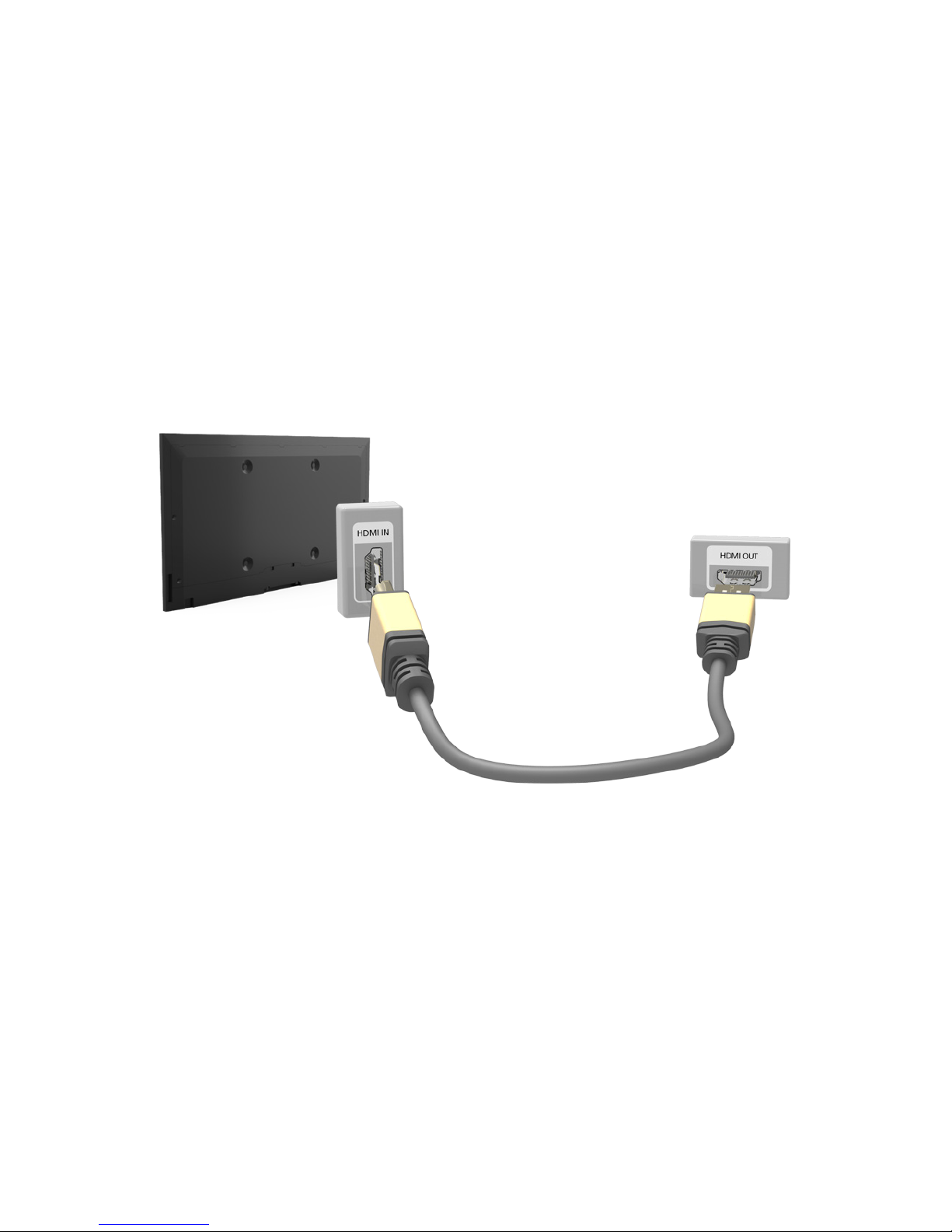
HDMI Connection
The following types of HDMI cables are recommended:
●
High-Speed HDMI Cable
●
High-Speed HDMI Cable with Ethernet
"
Use an HDMI cable with a thickness of 0.55 inches (14mm) or less.
"
Using a non-certified HDMI cable may result in a blank screen or a connection error.
"
Some HDMI cables and devices may not be compatible with the TV due to different HDMI specifications.
"
This TV does not support HDMI Ethernet Channel. Ethernet is a LAN (Local Area Network) built with coaxial
cables standardized by the IEEE.
Refer to the diagram and connect the HDMI cable to the video device's HDMI output connector and the
TV's HDMI input connector.
"
The number of connectors and their names and locations may vary depending on the model.
Once the connection has been made, press the SOURCE button to select the connected external
device.
Page 8
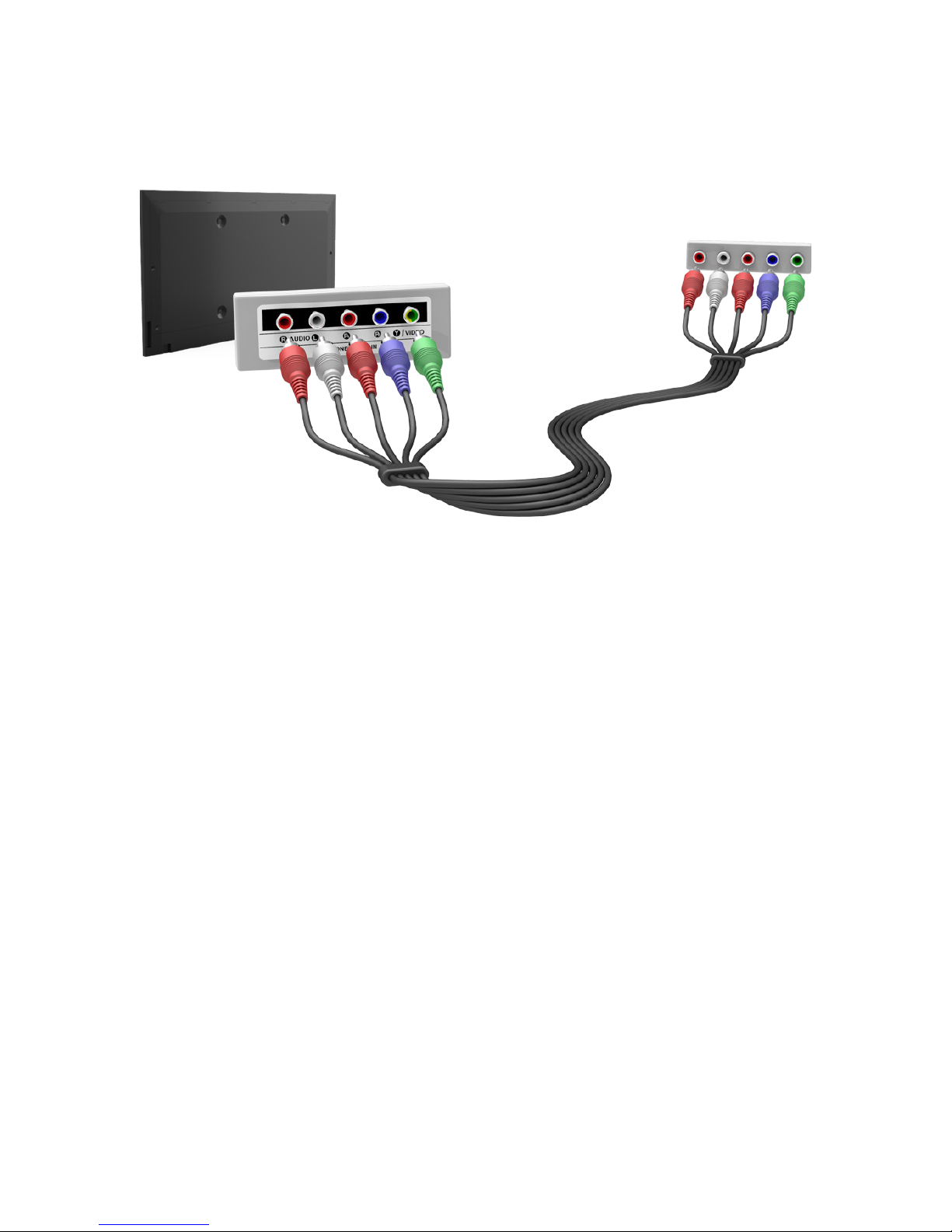
Component Connection
Refer to the diagram and connect the Component cable to the TV's component input connectors and
the device's component output connectors.
Make sure the cable colors match the connector colors.
Once the connection has been made, press the SOURCE button to select the connected external
device.
Page 9
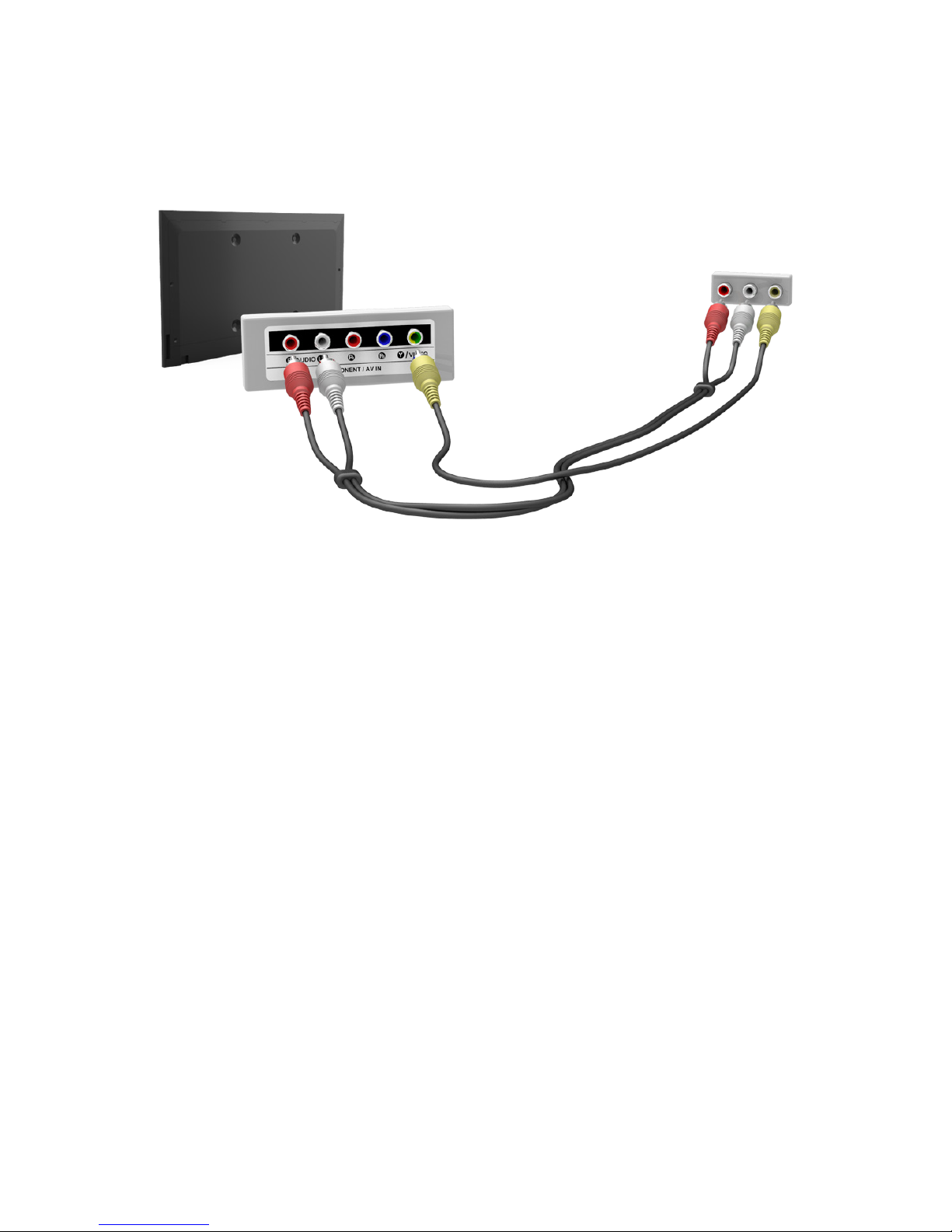
Composite (A/V) Connection
Refer to the diagram and connect the AV cable to the TV's AV input connectors and the device's AV
output connectors.
If you are using the TV's AV input connectors, connect the device's audio output to the TV using a Y
connector.
Once the connection has been made, press the SOURCE button to select the connected external
device.
Page 10
Audio Input and Output Connections
Your TV has a variety of connections for audio input from devices such as Blu-ray players and DVD
players and for audio output to such devices as amplifiers. The connections are listed below.
●
Digital Audio (Optical)
●
Audio (Analog)
"
For better audio quality, it is a good idea to use an AV receiver.
"
The number of connectors and their names and locations may vary depending on the model.
"
Refer to the external device's operating manual when connecting it to the TV. The number of external device
connectors and their names and locations may vary depending on the manufacturer.
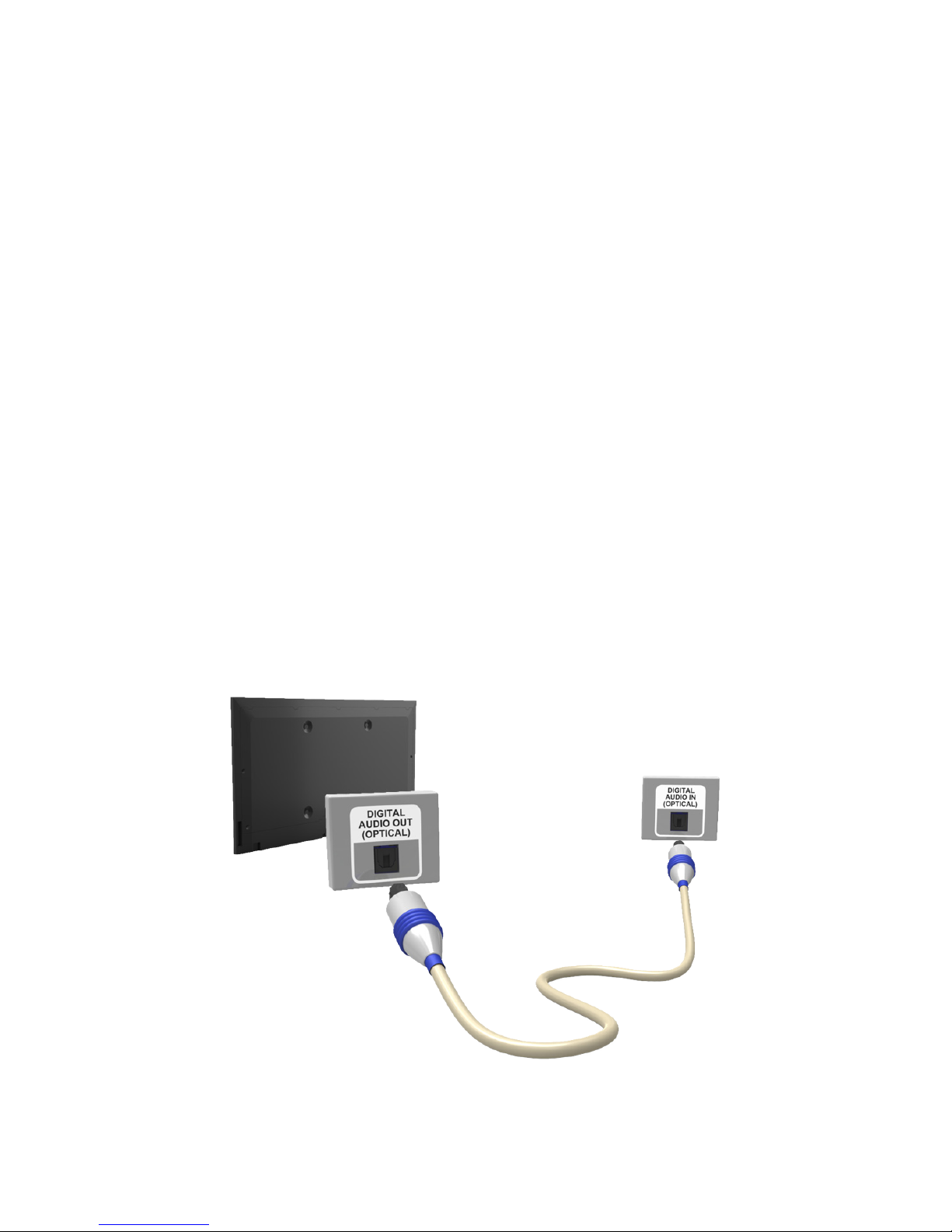
Digital Audio (Optical) Connection
Connecting an AV receiver to the TV via a digital audio (optical) connector lets you listen to digital
audio.
"
Connecting a device using an optical cable does not automatically turn off the TV speakers. To turn off the
TV's speakers, set TV Sound Output (Sound > Speaker Settings > TV Sound Output) to something other
than TV Speaker.
"
Adjust the audio device's volume using its remote control.
"
An unusual noise coming from the audio device while you are using it may indicate a problem with the
audio device itself. If this occurs, ask for assistance from the audio device's manufacturer.
"
Digital audio is only available with 5.1-channel broadcasts.
Refer to the diagram and connect the optical cable to the TV's digital audio output connector and the
device's digital audio input connector.
Page 11
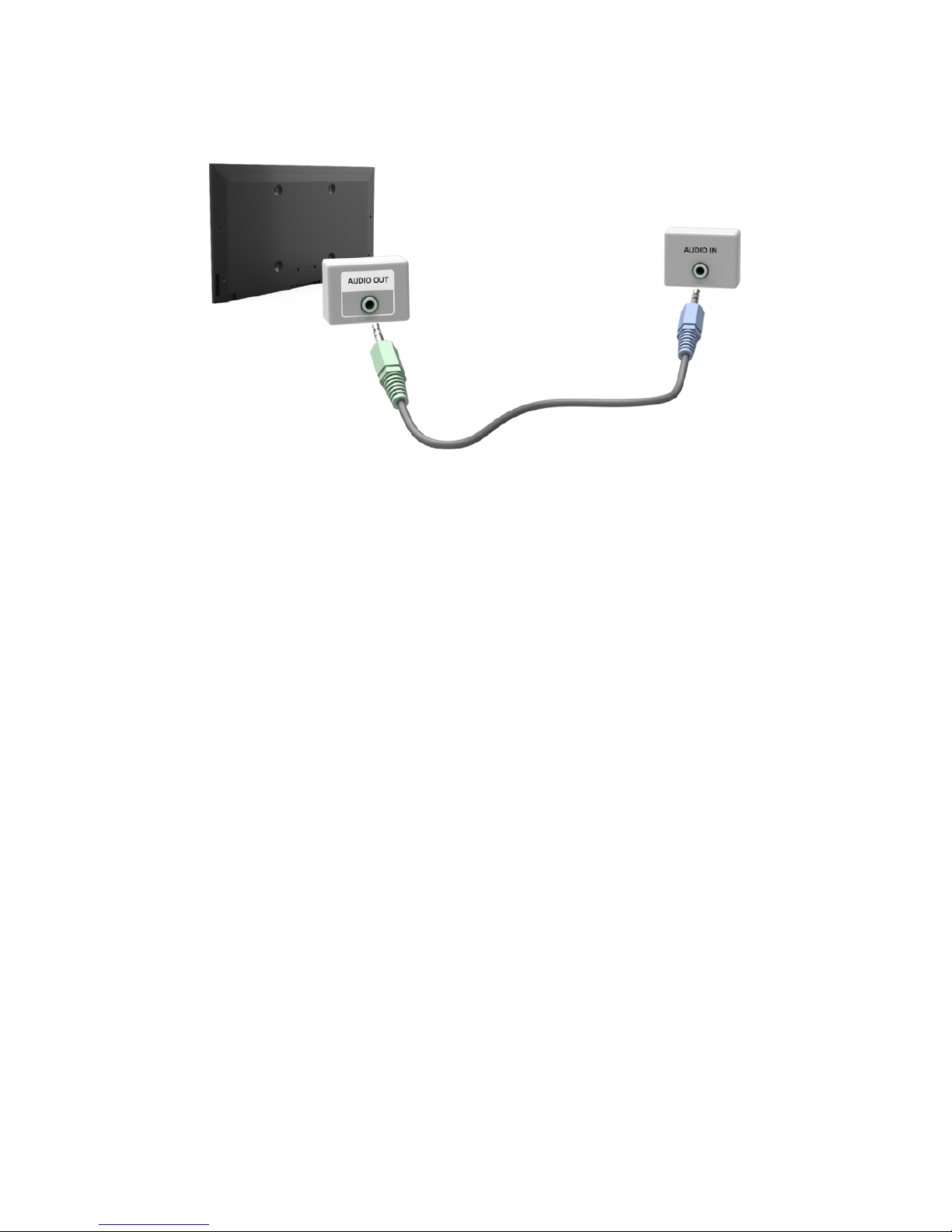
Audio Output Connection
Refer to the diagram and connect an audio cable to the TV's audio output connector and the device's
audio input connector.
Once the connection has been made, press the SOURCE button to select the connected external
device.
Connecting to a Computer
You can connect a computer directly to the TV using an HDMI or DVI to HDMI cable and use the TV as
a monitor. You can also connect the TV to a computer via your home network and access media files
saved on the computer on the TV screen. The kinds of connections you can make are listed below.
To use the TV as a Computer Monitor
●
Connect through the HDMI Port using an HDMI cable.
You can connect the computer to the TV using an HDMI cable and display the computer screen
on the TV.
●
Connect though the HDMI (DVI) port using a DVI to HDMI cable.
You can connect a computer to the TV by connecting the computer's DVI port to the TV's HDMI
(DVI) port with a DVI to HDMI cable and display the computer screen on the TV.
To Access Media Files on a Computer and View or Play Them on the TV
●
Connect Through Samsung Link.
Quickly access photo, video, and music files saved on a computer on which Samsung Link
software is installed, even if you do not connect the TV directly to the computer.
●
Connect Through DLNA Using Your Home Network.
Quickly access photo, video, and music files saved on a computer by connecting the TV and the
computer to the same router or AP.
Page 12
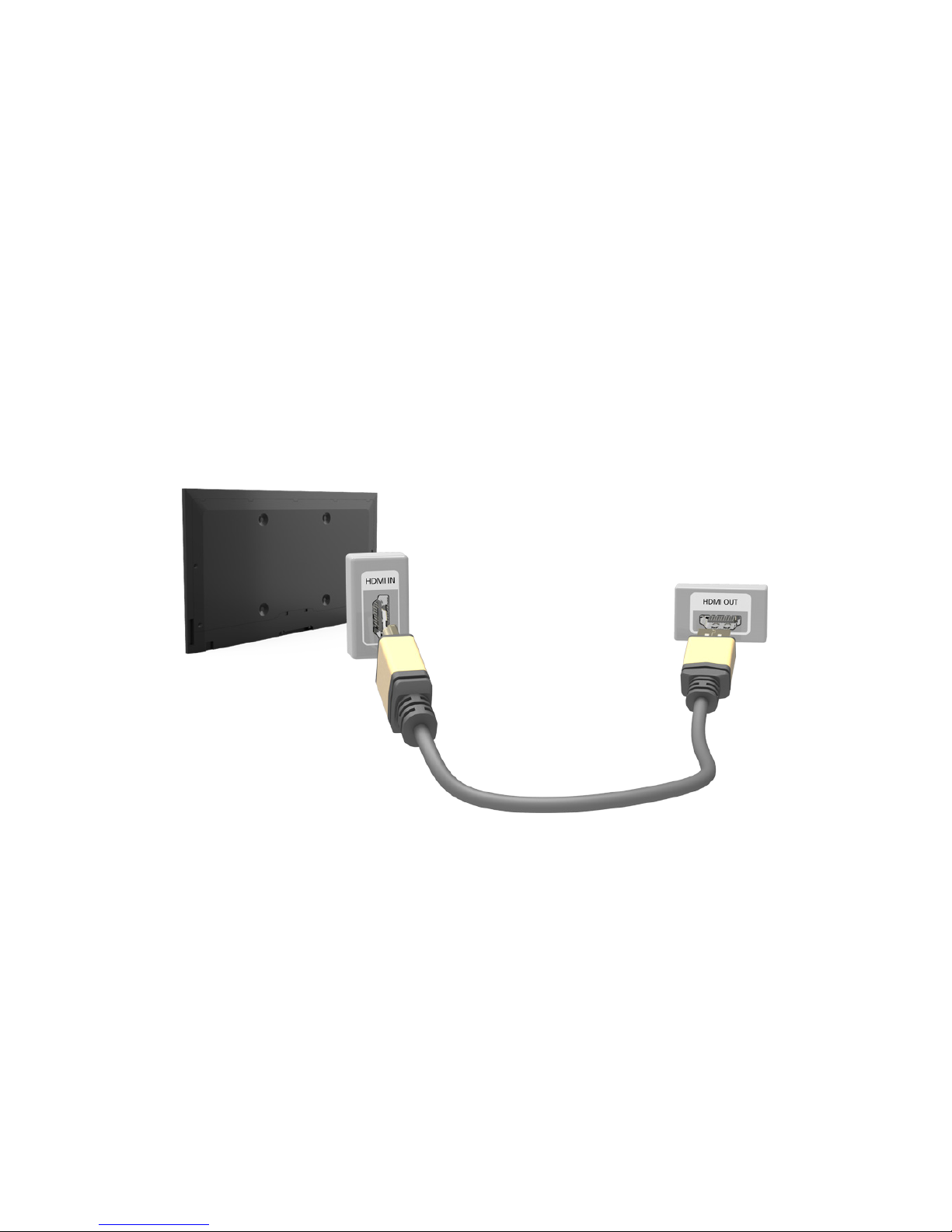
Connecting Through the HDMI Port
For an HDMI connection, we recommend one of the following HDMI cable types:
●
High-Speed HDMI Cable
●
High-Speed HDMI Cable with Ethernet
"
Use an HDMI cable with a thickness of 0.55 inches (14mm) or less. Using a non-certified HDMI cable may
result in a blank screen or a connection error.
"
Some HDMI cables and devices may not be compatible with the TV due to different HDMI specifications.
"
This TV does not support HDMI Ethernet Channel. Ethernet is a LAN (Local Area Network) built on coaxial
cables standardized by the IEEE.
"
Many computer graphics adaptors do not have HDMI ports, but have DVI ports instead. If your computer
graphics adaptor has a DVI port, use a DVI to HDMI cable to connect the computer to the TV. For more
information, refer to "Connecting With a DVI to HDMI Cable".
Refer to the diagram and connect an HDMI cable to the computer's HDMI output connector and the
TV's HDMI input connector.
"
The number of ports, and their names and locations may vary depending on the model.
Once the connection has been made, press the SOURCE button to select the connected external
device.
Page 13
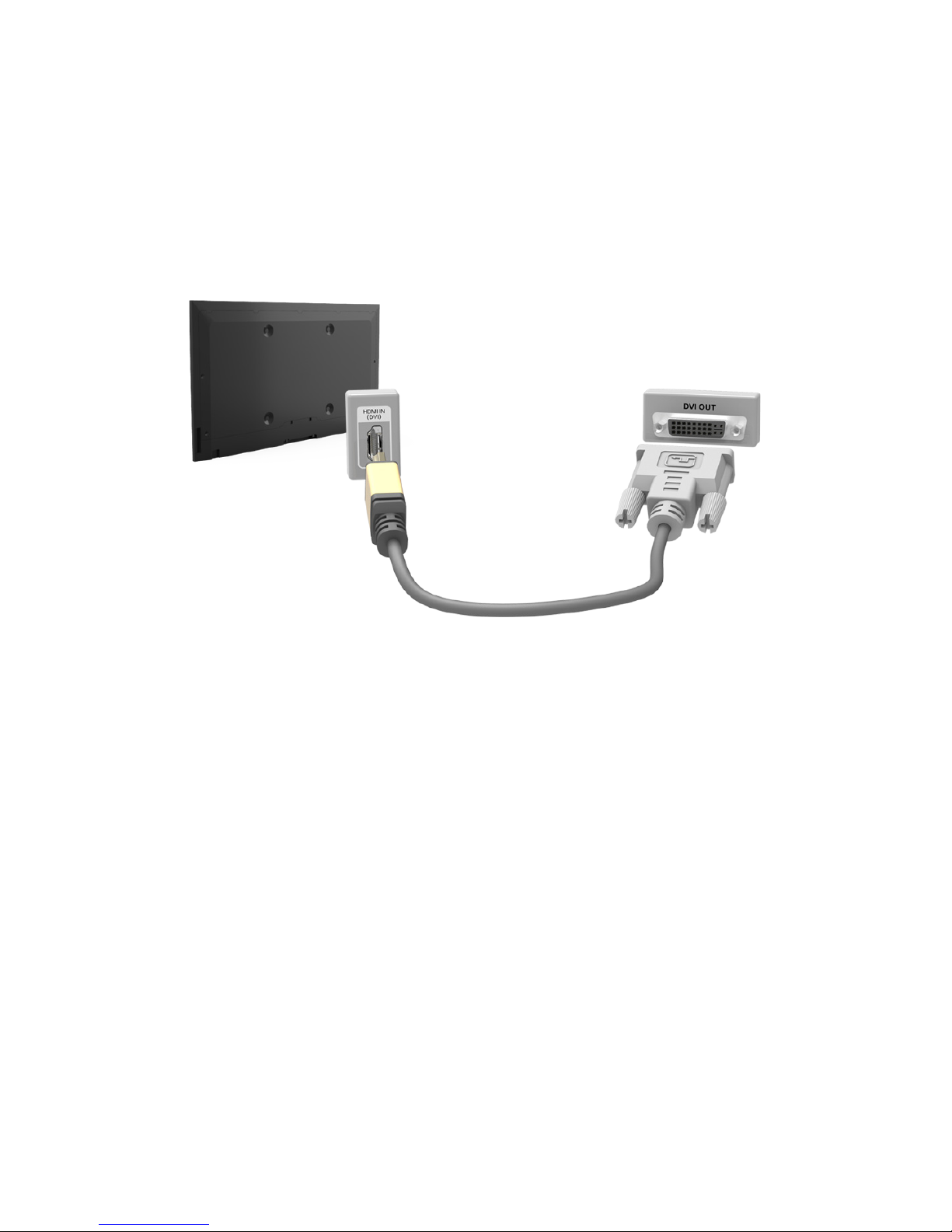
Connecting With a DVI to HDMI Cable
If the graphics adapter of your computer does not support the HDMI interface, connect the computer
to the TV with a DVI (Digital Visual Interactive) to HDMI cable. Note that the DVI to HDMI connection
is only supported by the HDMI (DVI) port and does not support audio signal transmission. To listen to
the computer sound, connect external speakers to the computer’s audio output connector.
"
For the resolutions supported by the TV, refer to "Read Before Connecting a Computer (Supported
Resolutions)".
Refer to the diagram and connect the DVI to HDMI cable to the TV's HDMI (DVI) port and the
computer's DVI output port.
Once the connection has been made, press the SOURCE button to select the connected external
device.
Page 14

Connecting Through Samsung Link
Quickly access photo, video, and music files saved on a computer on which Samsung Link software
is installed. In addition, using Samsung Link, you can view or play the content of a computer which is
registered with Samsung Link through your Samsung account, even if the computer and the TV are not
connected to the same router or AP.
1.
On a computer, navigate to the Samsung content and service portal (http://link.samsung.com),
and then sign into your Samsung account.
"
To install the Samsung Link desktop software, you need to sign into your Samsung account. If you
don't have a Samsung account, create one first.
2.
Install the Samsung Link desktop software. When the installation is complete, the computer will
be registered with Samsung Link.
3.
Specify a folder on the computer to connect to the TV. You can view or play the photo, video,
and music files in the specified folder on the TV.
"
For more information about using the Samsung Link desktop software, refer to the Help section of the
Samsung Link software.
Connecting Through DLNA Using Your Home Network
Quickly access and play photo, video, and music files stored on a computer on the TV.
1.
Connect the TV and the computer to the same router or AP. Once you connect them to the same
router or AP, a home network is configured.
"
DLNA is the technology that lets TV's, computers, and mobile devices connected to one wired or
wireless router share content.
2.
On the computer, select [Control Panel] > [Network and Internet] > [Network and Sharing Center]
> [Change advanced sharing settings], and then select [Choose media streaming options...] to
activate media streaming.
3.
From the list, set the TV to [Allowed].
4.
Launch Windows Media Player on a computer. Select [Settings] > [Library Management], and then
add the location where photo, video, and music files are saved to play them on the TV.
"
Alternatively, you can move the files to the default folder specified by Windows Media Player, and then
play or view them on the TV.
"
As long as File Sharing is activated, unauthorized access may occur. When you do not need to access
data, disable File Sharing.
Page 15

Connecting To a Mobile Device
You can connect a mobile device such as a smartphone or tablet directly to the TV, or connect it to the
network and display the mobile device's screen or play its content on the TV. The kinds of connections
you can make are listed below.
●
Connect by Mirroring the Mobile Device's Screen on the TV (Screen Mirroring)
Wirelessly connect the TV and the mobile device with the mirroring function. You can view the
mobile device's screen on the TV screen.
"
This option is available only on a mobile device that supports the mirroring function.
●
Connect Mobile Devices without a Wireless Router (Wi-Fi Direct)
Wi-Fi Direct enables you to connect the TV and the mobile device without a router or AP. Quickly
access and play photo, video, and music files in the connected mobile device on the TV.
"
This option is available only on a mobile device that supports the Wi-Fi Direct function.
●
Connect Through Samsung Link
Samsung Link enables you to play photo, video, and music files saved on a Samsung Linkenabled mobile device easily, without the need for a connection to the TV.
●
Connect Through DLNA Using Your Home Network
You can conveniently play photo, video, and music files saved on a mobile device by connecting
the mobile device and the TV to the same router or AP.
Page 16

Screen Mirroring
MENU > Network > Screen Mirroring
Try Now
Wirelessly connect a mirroring-enabled mobile device to the TV and play the video and audio files
stored on the device on the TV. Mirroring refers to the function that plays the video and audio files
located on a mobile device on a TV and on the mobile device simultaneously.
"
To use the Screen Mirroring function, the mobile device must support a mirroring function such as AllShare
Cast or Screen Mirroring. To check whether your mobile device supports the mirroring function, please visit
the mobile device manufacturer's website.
"
The video or audio may intermittently stop depending on network conditions.
Connecting via a mobile device
1.
On the mobile device, run Screen Mirroring. The mobile device searches for available devices to
connect to.
2.
In the search result list, select the TV. The TV displays a pop-up at the top of the screen.
3.
In the pop-up, select Allow to connect the mobile device.
"
All previously allowed mobile devices will automatically connect without needing approval.
"
If you select Deny, the device cannot connect. In addition, you are setting the device's connection
status to Deny and it will not be able to connect in the future unless you change its connection status.
To change the connection status of a denied device, Navigate to Network > Screen Mirroring > Device
Manager, select the device, and then select Allow.
Page 17

Connecting by Automatically Allowing the Connection
1.
Navigate to Network > Screen Mirroring, and then select Screen Mirroring. The Screen Mirroring
function starts. You can also start screen mirroring by pressing the SOURCE button on your
remote, and then selecting Screen Mirroring from the list at the top of the screen.
2.
Launch Screen Mirroring on your mobile device. The device searches for available devices.
3.
Select the TV from the list. The TV automatically allows the connection and the device connects.
"
If the mobile device cannot connect, try turning the TV off and on.
Managing the Connection Status of Previously Connected Mobile Devices
"
This function is only available if devices have previously connected to the TV or have previously attempted
to connect and been denied.
1.
Navigate to Network > Screen Mirroring > Device Manager. The TV displays a list of devices that
have previously connected to the TV or have tried to connect to the TV and been denied. The
status of the connection (Allow/Deny) is also displayed.
2.
Select a device. A pop-up appears.
3.
In the pop-up, you can select Allow connection, Deny connection, or Delete the device from the
list.
Page 18

Connecting Mobile Devices without a Wireless Router (Wi-Fi
Direct)
Navigate to MENU > Network > Wi-Fi Direct
Try Now
You can connect a mobile device with the Wi-Fi Direct feature directly to the TV without using a
wireless router or AP. By connecting a mobile device to the TV through Wi-Fi Direct, you can play
photo, video, and music files saved on the mobile device on the TV.
"
This option is available only on a mobile device that supports the Wi-Fi Direct function. Please check if your
mobile device supports Wi-Fi Direct.
"
The video or audio may intermittently stop depending on network conditions.
1.
Enable Wi-Fi Direct on the mobile device, and then navigate to Network and select Wi-Fi Direct
on the TV. The TV automatically scans for and displays a list of available devices. The TV's name
also appears on the mobile device.
2.
Select the device from the list to initiate a connection. If a connection request is made by the TV,
a permission message appears on the mobile device and vice versa.
3.
Allow the connection. The TV and mobile device connect.
Connecting Through Samsung Link
Samsung Link lets you play the photo, video, and music files saved on a Samsung Link-enabled
mobile device. In addition, using Samsung Link, you can play the content of a mobile device, which is
registered to Samsung Link through your Samsung account, even if the mobile device and the TV are
not connected to the same router or AP.
1.
Run the Samsung Link app on the mobile device, and then sign in to your Samsung account.
"
To use Samsung Link, you have to sign in to your Samsung account. If you don't have a Samsung
account, create one first.
2.
Access and play photo, video, and music files saved on the mobile device.
"
For more information about using the Samsung Link mobile software, refer to the Help section of the
software.
Page 19

Connecting Through DLNA Using Your Home Network
Quickly access and play photo, video, and music files stored on a mobile device on the TV.
1.
Connect both the TV and the mobile device to the same router or AP. Once you connect them to
a single router or AP, a home network is configured.
"
DLNA is the technology that lets TV's, computers, and mobile devices connected to one wired or
wireless router share content.
2.
Enable File Sharing on the mobile device. You can play the content shared on the mobile device
on the TV.
"
As long as File Sharing is active, unauthorized access can occur. When you do not need to access data,
disable File Sharing.
Specifying the Name of the TV on a Network
MENU > Network > Device Name
Try Now
Choose or specify a name for the TV that will appear on mobile devices and laptop computers.
1.
Select Device Name from the Network menu, and then choose a name from the list that appears.
Alternatively, select User Input to enter a name manually.
2.
Check the name from a mobile device or laptop computer.
Page 20

Switching Between Video Sources
Press the SOURCE button to switch between external devices connected to the TV. For example, to
switch to a game console connected to the second HDMI connector, press the SOURCE button. The
Source List appears across the top of the screen. From the Source List, select HDMI2.
"
The connector names may vary depending on the product.
Other Functions Available When You Display the Source List
A number of functions are available in the pop-up Options menu when the TV displays the Source
List. The functions that appear in the Options menu vary, depending on the source you selected in the
Source List and the external device connected to the source.
To view the Options menu, press the TOOLS button or press and hold the E button.
The functions that appear in the Options menu can include any of the following:
●
Edit Name: Lets you assign a device name to an input source, for example, Blu-ray to HDMI1. To
assign a device name to an input source, follow these steps:
1.
Open the Source List. The list appears in a horizontal line across the top of the TV. Using your
remote, highlight the source you want to assign a device name to.
2.
Select Edit Name in the Options menu. The on-screen keyboard appears.
3.
Using the keyboard, enter a new name. You can enter up to 15 characters.
4.
When finished, select DONE on the keyboard, and then press the E button.
●
Information: View information about the connected devices.
●
Remove USB: Use to safely remove a USB device connected to the TV. This option is only
available when a USB device has been selected.
●
Delete: Use to delete an external device from a source. When you delete an external device
from a source, you erase the information the TV has stored about the device and you delete the
association the device has with the source.
The Universal Remote Function
This function may not be available depending on the country or model.
When you display the Source List, the Universal Remote Setup button is displayed in the upper right
corner of the screen. Select this button to start the Universal Remote function. The Universal Remote
function lets you control cable boxes, Blu-ray players, home theaters, and other external devices using
your TV remote control. Refer to the "Controlling External Devices with the TV Remote - Using the
Universal Remote" section for more information on using the Universal Remote function.
Page 21
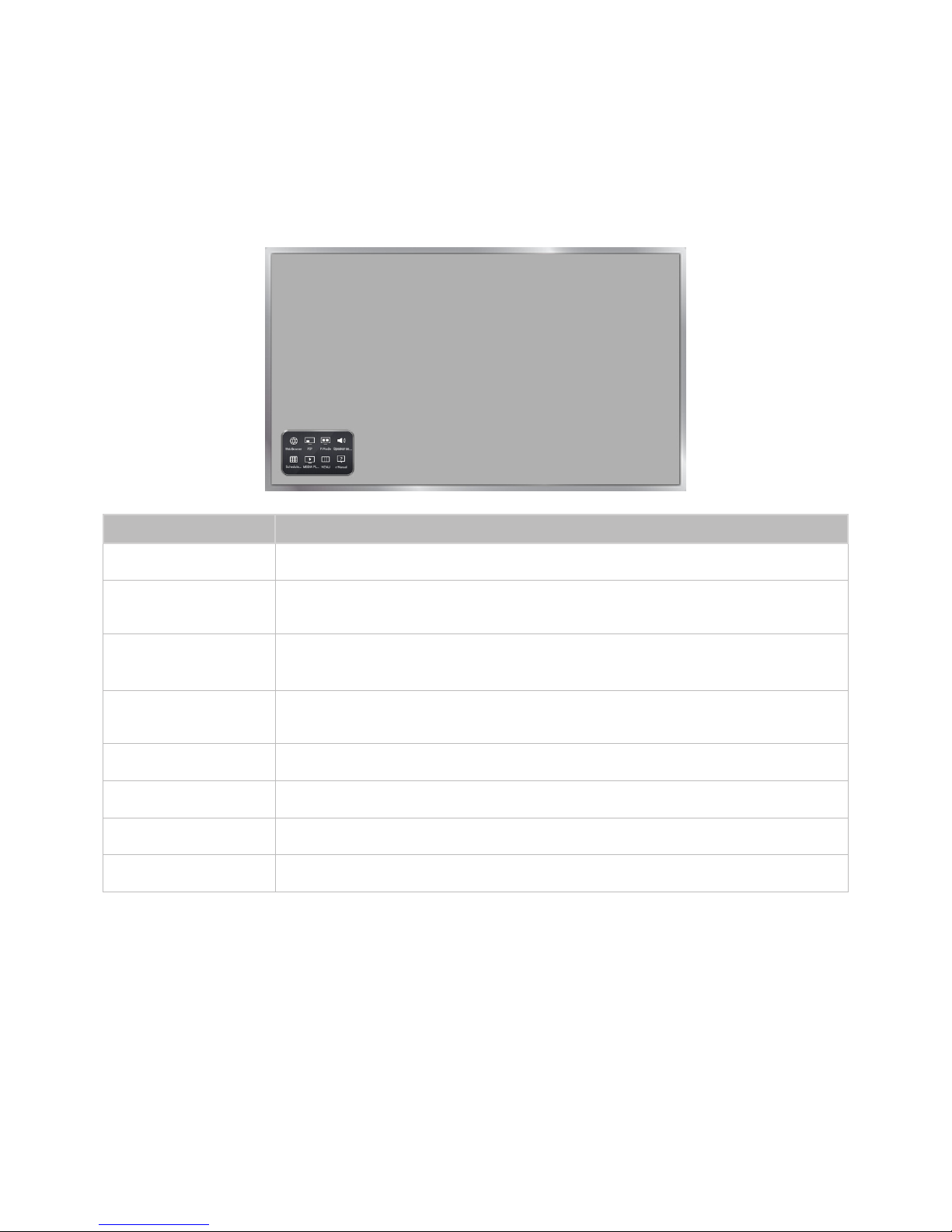
Displaying and Using the On-Screen Remote
The KEYPAD button may not be available depending on the model or area.
Press the KEYPAD button on the remote to display the On-Screen Remote on the TV's screen. Use the
On-Screen Remote to enter numbers, control content playback, and use the features and functions of
the TV, just like a real remote.
"
The On-Screen Remote buttons may vary depending on the TV features or functions you are using.
Button Description
Web Browser
Launches the Web Browser.
PIP
Lets you display video from an external device or computer on the main screen and
a TV broadcast in a picture-in-picture window.
P.Mode
Lets you select the Picture Mode.
"
Availability depends on the specific model and area.
Speaker Settings
Lets you select the speakers which will play the TV's audio. You must connect a
home theater or amplifier with external speakers to the TV to use this function.
Schedule Manager
Press to display to the Schedule Manager screen.
MEDIA PLAY
Lets you play media content saved on USB devices.
MENU
Displays the TV's menu on the screen.
e-Manual
Opens the e-manual.
Page 22
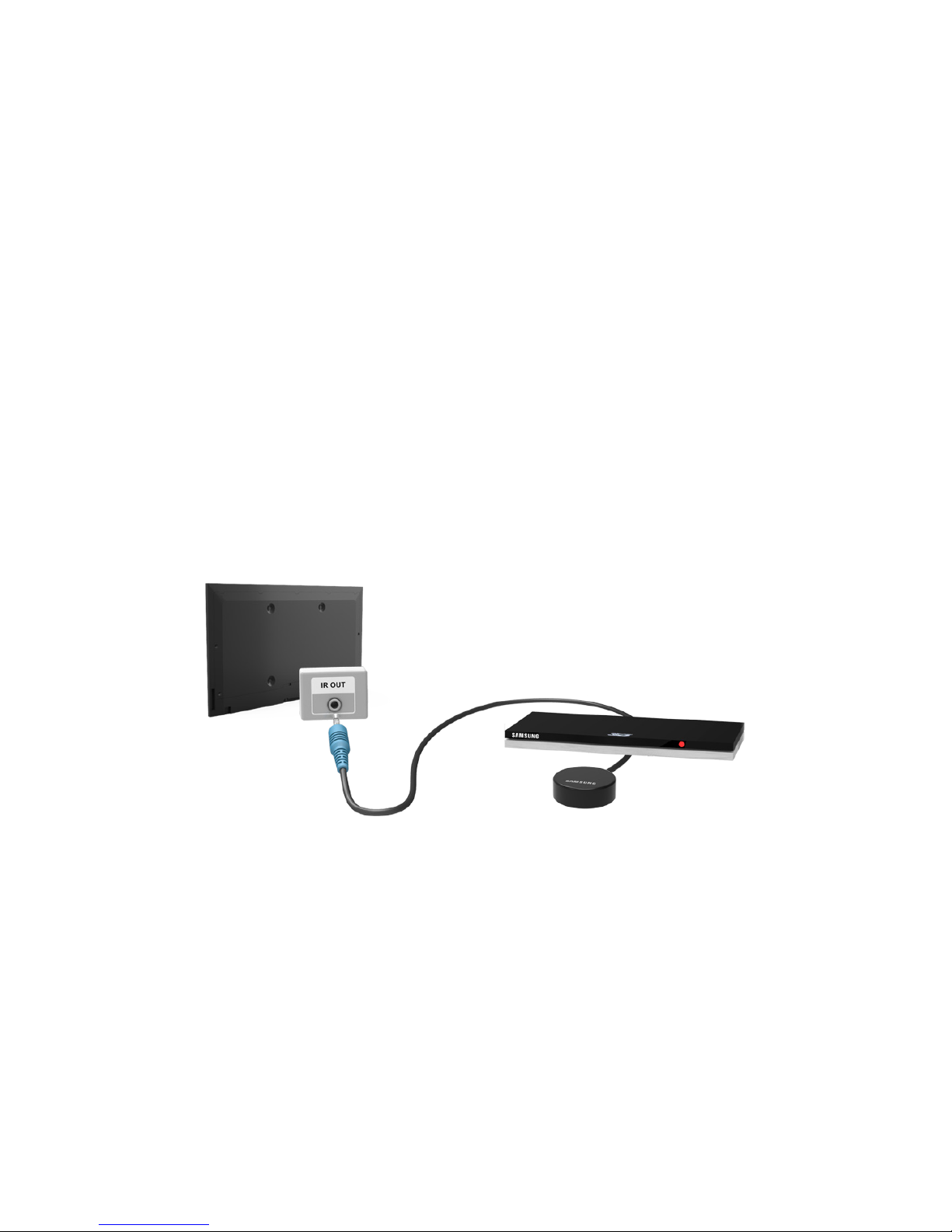
Controlling External Devices with the TV Remote -
Using the Universal Remote
MENU > System > Universal Remote Setup
This function may not be available depending on the model or region.
The universal remote control feature lets you control cable boxes, Blu-ray players, home theaters,
and other third-party external devices connected to the TV using the TV's remote control. For each
external device you want to control, you must run the universal remote set up process. The first step
in the process is connecting the IR extender cable (included) to the TV and positioning the transmitter
end of the cable in front of the device you want to control.
"
Certain external devices connected to the TV may not support the universal remote feature.
Connecting the IR Extender Cable
"
The color and design of the IR extender cable may vary depending on the model.
To begin the universal remote set up process, connect the IR extender cable (included) to the TV's IR
output connector as shown in the diagram. Then, position the transmitter end within 4 inches (10 cm)
of the external device's remote control sensor, pointing in the direction of the sensor.
There can be no obstacles between the transmitter end of the IR extender cable and the external
device. Any obstacles will interfere with the transmission of the remote control signals.
Page 23

Setting Up the Universal Remote Control
"
If you want to control a set-top-box, you need to have your zip code and your cable provider's name and
location on hand before you begin. If you want to control a Blu-ray player or home theater, you need the
manufacturer's name and the device's model number.
1.
Turn on the external device you want to control with the universal remote function.
2.
Press the SOURCE button on your remote to bring up the Source screen.
3.
Select the Universal Remote Setup icon.
"
You can also start Universal Remote Setup through the TV's menu. Navigate to System > Universal
Remote Setup.
4.
The TV checks if the IR Extender cable is connected. If it confirms the connection, press the E
button.
5.
Select the type of device you want to control - set-top-box, Blu-ray player, or home theater.
6.
Follow the directions on the screen to complete the set up and register the device. The directions
will be different, depending on the device you want to control.
"
If the external device does not respond after being registered, register it again using its model number.
"
You must leave the IR extender in place so that it faces the external device to be able to control the
device.
Controlling an External Device with the TV Remote
During the universal remote set up process, the TV registers the connector (source) the external device
is connected to. To control a registered external device with your TV's remote, select the external
device on the Source List.
1.
Press the SOURCE button on your remote.
2.
Select the source (connector) the device is connected to (HDMI1, HDMI2, etc.). If the external
device is a Blu-ray player, home theater, or similar kind of device, the external device's home
screen or menu appears on the TV screen. If the external device is a set-top-box, a channel
appears on the screen.
3.
Aim the remote at the IR sensor on the TV to control the device.
Page 24

Universal Remote Features
1.
Press SOURCE to display the Source list.
2.
Select Universal Remote Setup from the top of the screen. This initiates the universal remote
setup process.
3.
Select an external registered device on the Universal Remote Setup screen. The following
options are available:
●
Use with Set-Top Box
Listen to the audio from a set-top box through the home theater that is connected to the TV.
"
This is available only if you have selected a set-top-box in Step 3 and you have a home theater
connected to the TV.
●
Use with Blu-ray player
Listen to the audio from a Blu-ray player through the home theater that is connected to the
TV.
"
This is available only if you have selected a Blu-ray player in Step 3 and you have a home theater
connected to the TV.
●
Use with Home Theater
Listen to the audio from an external device through the connected home theater.
"
This is available only if you have selected a set-top-box or Blu-ray player in Step 3 and you have
a home theater connected to the TV.
●
Source Setup
Change the TV's input source of your selected external device.
●
Synced TV power
When set to On, the connected set-top-box turns off when you turn the TV off.
"
This is available only if you have selected a set-top-box in Step 3. You can only sync TV power to
a set-top-box.
●
Rename
Rename the registered external device. The name can be up to 15 characters long.
●
Delete
Remove the external device from the list of registered devices. The device is de-registered
and you will no longer be able to control it with the Universal Remote function.
Page 25

Controlling the TV with a Keyboard
MENU > System > Device Manager > Keyboard Settings
Try Now
Connecting a keyboard makes it easy to control most of the functions on the TV.
"
Certain models do not support USB HID class keyboards.
Connecting a Keyboard
Connecting a USB Keyboard
Plug the keyboard cable into the TV's USB port. A connection message appears on the screen.
Using the Keyboard
Use the following remote features with the USB keyboard connected to the TV.
●
Arrow Keys (moving the focus), Windows Key (MENU Button), Menu List Key (TOOLS Button),
Enter Key (Select/run item), ESC (RETURN Button), Number Keys (Number Buttons)
●
F1 (a), F2 (b), F3 ({), F4 (}), F5 ( ), F6 (SOURCE Button), F7 (CH List), F8 (¢ Button), F9/F10
(Volume Buttons), F11 / F12 (Channel Buttons)
●
Page Up/Page Down: Scroll web browser pages up/down.
Changing Keyboards
Try Now
Select System > Device Manager > Keyboard Settings > Select Keyboard. Designate which keyboard
to use.
"
Only one keyboard can be used at a time.
Page 26

Input Languages, Keyboard Type, and Switch Language Key
Select System > Device Manager > Keyboard Settings > Keyboard Options. The following options are
available:
Try Now
●
Keyboard Language
If the keyboard supports multiple languages, choose the language you want to use from the
displayed list.
●
Keyboard Type
Match the Keyboard Type to the language selected in Keyboard Language.
"
The Keyboard Type list varies depending on which language was selected under Keyboard Language.
●
Switch Input Language
If the keyboard supports multiple languages, choose the key you want to use to switch between
languages.
Controlling the TV with a Mouse
MENU > System > Device Manager > Mouse Settings
Try Now
Connecting a mouse makes it easy to control most of the functions on the TV.
"
Certain models do not support USB HID class mice.
Connecting a Mouse
Connecting a USB Mouse
Plug the mouse cable into the TV's USB port. A connection message appears on the screen.
Page 27

Using the Mouse
Once a USB mouse is connected to the TV, a pointer appears on the TV's screen. You can use this
pointer to control the TV in the same way you use a pointer on a computer.
●
Selecting and Running an Item
Left-click using the mouse.
●
Showing Tools Buttons
Right-clicking displays the Tools buttons on the screen so that you can easily use the TV's
functions.
"
The Tools buttons may vary depending on the function your are using.
●
Scrolling the TV Menu or Screen
Move the mouse wheel up or down. This scrolls the TV menu or screen up/down.
●
Exiting the TV Menu or Feature
Click the X button. This closes the menu.
"
The X button appears on the TV menu when a mouse is being used. Left-clicking once while using a
feature displays the X button on the current screen.
Changing Mice
Try Now
Select System > Device Manager > Mouse Settings > Select Mouse. Designate which mouse to use.
"
Only one mouse can be used at a time.
Changing Mouse Buttons and Pointer Speed
Try Now
Select System > Device Manager > Mouse Settings > Mouse Options. The following options are
available:
●
Primary Button
Choose which button (left or right) to use to select and run items.
●
Pointer Speed
Adjust the movement speed of the pointer that appears on the screen.
Page 28

Entering Text Using the On-Screen QWERTY Keypad
A QWERTY keypad appears when you need to enter text (entering the network password, logging into
your Samsung account, etc.), allowing you to enter text using your remote control.
Using Additional Functions
Select on the QWERTY keyboard screen. The following options are available:
●
Recommended text
Enable/disable the Recommended Text feature Enabling the Recommended text feature allows
you to quickly enter text starting with the characters you typed in by displaying recommended
words. To enter the word "Internet," for example, all you have to do is enter "In" and select the
word "Internet" from the list of recommended words. The word is memorized so that you can
enter the same text again more easily.
●
Reset recommended text data
Delete both the recommended words and the memorized words to clear the list.
●
Predict Next Letter
Enable/disable the Text Prediction feature. Enabling the Text Prediction feature eliminates the
need to find and select individual character keys. To enter the word "Internet," for example, select
"I". A predicted word will then appear next to the I key. Simply select the predicted word to enter
"Internet".
"
This feature is limited to words that have previously been added to the dictionary.
Page 29
Establishing a Wired Internet Connection
Connecting the TV to the Internet gives you access to online services and SMART features, and lets
you update the TV's software quickly and easily through the Internet.
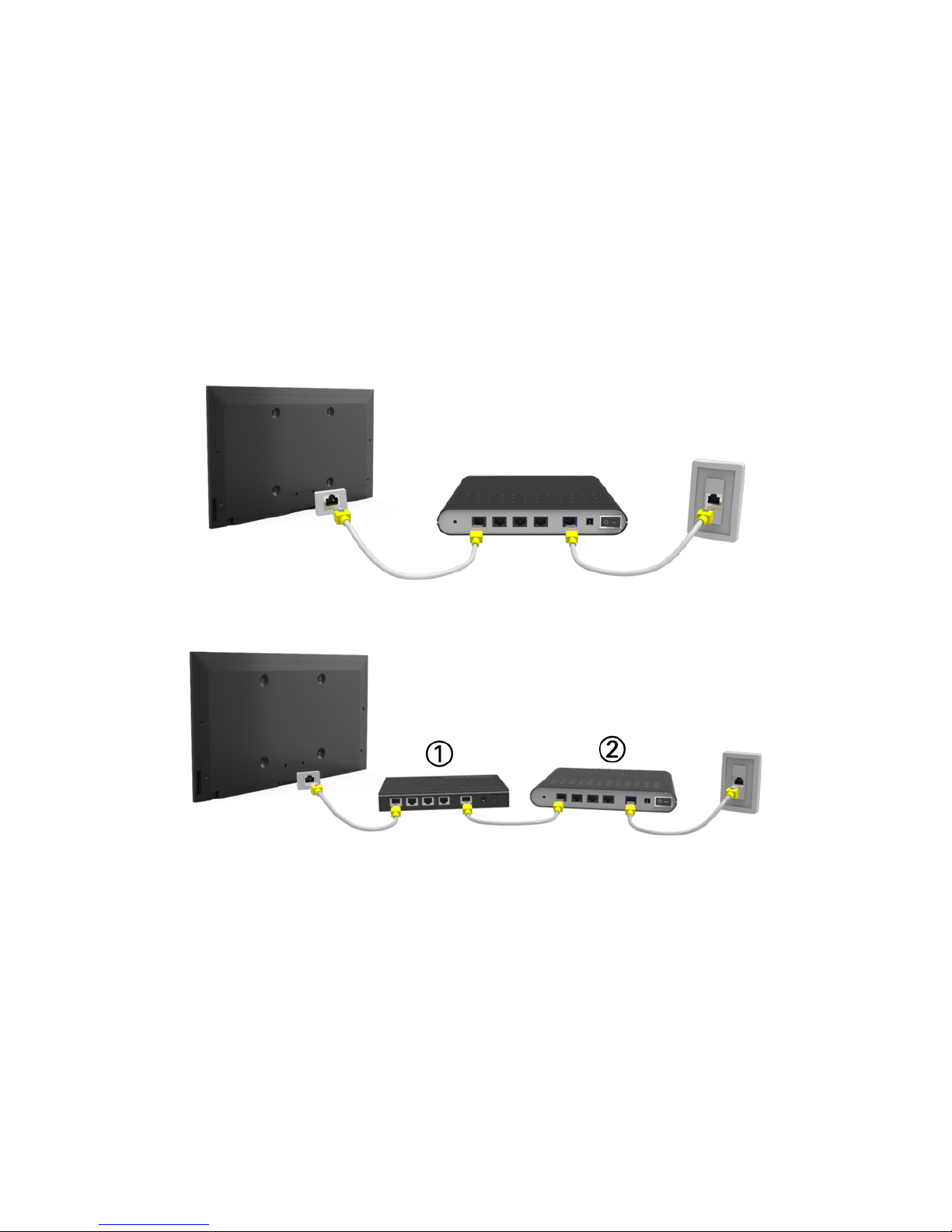
Using Cat 7 LAN Cables
We recommend using Cat 7 LAN cables to link your TV to the Internet Access Points.
"
The TV will not be able to connect to the Internet if the network speed is below 10Mbps.
There are three ways to connect the TV to your Internet Access Points. Using Cat 7 cables, connect
the TV to the Access Points as shown in one of the following illustrations.
●
External Modem
●
① IP Router + ② External Modem
Page 30
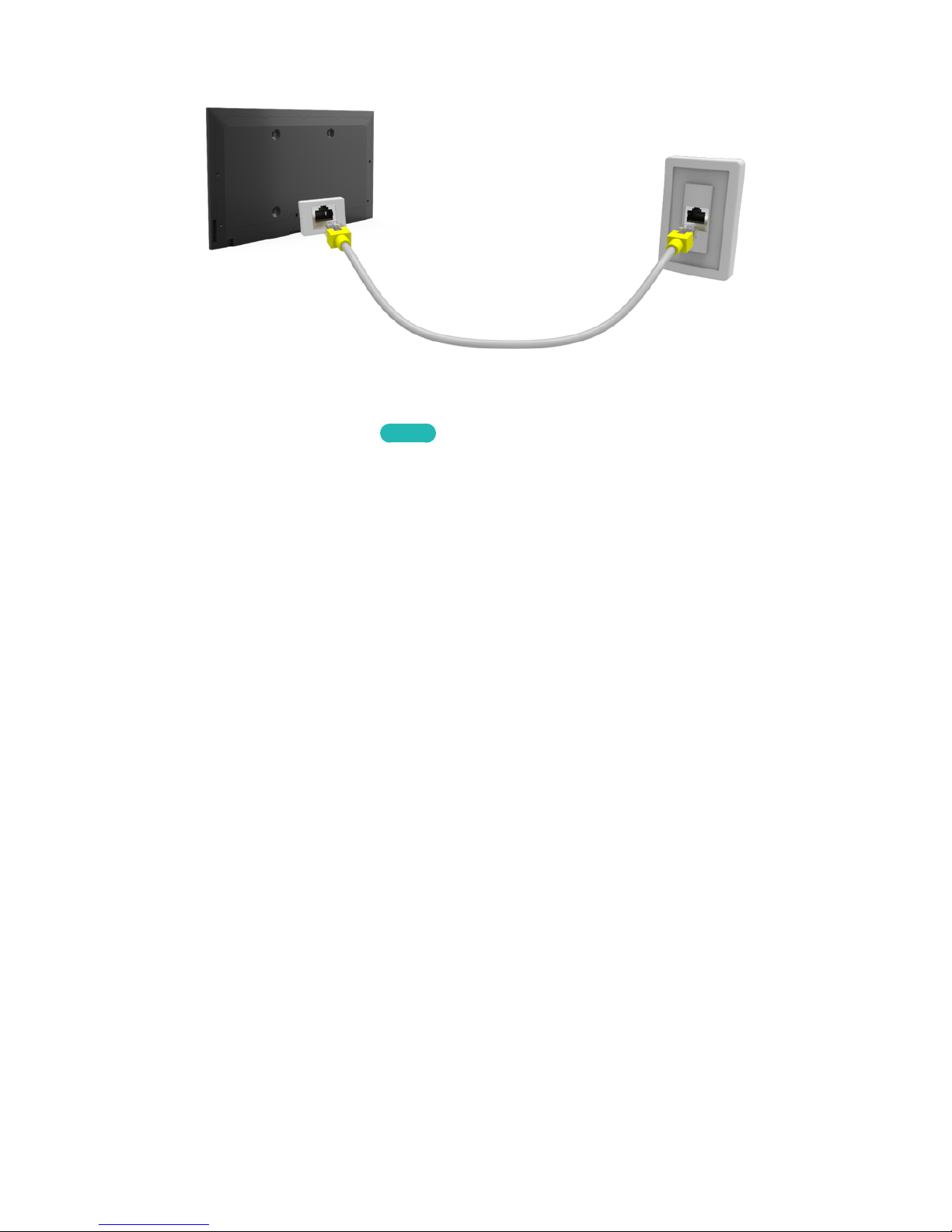
●
Wall-mounted LAN Outlet
Connecting to a Wired Internet Network Automatically
MENU > Network > Network Settings
Try Now
Automatically connect to an available network.
1.
Set the Network type to Wired, and then select Connect.
2.
The TV attempts to connect to an available network. Once it is successful, you will see a
confirmation message. Select OK. If the attempt fails, try again, or connect manually.
Page 31

Connecting to a Wired Internet Network Manually
MENU > Network > Network Settings
With networks that require a static IP address, you will need to enter the IP address, subnet mask,
gateway, and DNS values manually to connect to the network. To get these values, contact your
Internet Service Provider (ISP).
"
Refer to the "Dynamic versus Static IP Addresses" section for more information on dynamic IP and static IP
addresses.
1.
Set the Network type to Wired, and then select Connect.
Network Settings
Select your network type.
Network type Wired
Connect
You can connect your
TV to the internet.
2.
Select Stop when the TV attempts to connect to the network. Once the network connection has
been interrupted, select IP Settings.
Network Settings
Connection verification cancelled.
Wired network connection test is stopped.
Change Network IP Settings Retry Close
Page 32

3.
In the IP Settings screen, set IP Setting to Enter Manually.
IP Settings
IP Setting Enter Manually
IP Address 0.0.0.0
Subnet Mask 0.0.0.0
Gateway 0.0.0.0
DNS Setting Enter Manually
DNS Server 0.0.0.0
OK Cancel
4.
Select IP Address. When the IP Address entry window appears, enter three digits into each field
on the IP Address line. If the value has less than three digits, add leading zeroes. For example,
to enter 10, enter 010. After three digits have been entered in a field, the highlight automatically
jumps to the next field.
"
Enter numbers by pressing the number buttons. After you have filled in all four fields, press the E
button again.
5.
Repeat the process for Subnet Mask, Gateway, and DNS Server.
6.
When done, select OK.
7.
The TV attempts to connect to the network again using the settings you entered. Once it has
established the connection, it displays a confirmation message. Select OK.
"
The network connection speed may differ depending on the DNS server settings.
"
For details on the DNS server settings, contact your Internet service provider (ISP).
Page 33

Establishing a Wireless Internet Connection
Connecting the TV to the Internet gives you access to online services and SMART features, and lets
you update the TV's software quickly and easily through the Internet.
Connecting to a Wireless Internet Network Automatically
MENU > Network > Network Settings
Connect the TV to the Internet via a wireless router. Make sure you have the wireless router's SSID
(name) and password settings before attempting to connect. The password can be found on the
wireless router's configuration screen.
1.
On the Network Settings screen, set Network type to Wireless. The TV automatically displays a
list of available wireless networks.
2.
Select a network. If the network you want doesn't appear in the list, select Add Network, and
enter the network's SSID (name) manually.
3.
Using the on-screen keyboard that appears, enter the password. When finished, select Done. If
the selected network is not security-enabled, the TV will by-pass the on-screen keyboard and
attempt to connect right away.
–
To select a character on the on-screen keyboard, highlight the character and then select it.
Select Caps to view capital letters. Select the 123#& key to view additional characters.
–
To view the password as you enter it, select Show Password.
4.
The TV attempts to connect to the network. Once a connection is established, the TV displays a
confirmation message. Select OK. If the attempt fails, try again or connect manually
Page 34

Connecting to a Wireless Internet Network Manually
MENU > Network > Network Settings
With networks that require a static IP address, you will need to enter the IP address, subnet mask,
gateway, and DNS values manually to connect to the network. To get the IP address, subnet mask,
gateway and DNS values, contact your Internet Service Provider (ISP).
"
Refer to the "Dynamic versus Static IP Addresses" section for more information on dynamic IP and static IP
addresses.
1.
On the Network Settings screen, set Network type to Wireless. The TV automatically displays a
list of available wireless networks.
Network Settings
Select your network type.
Network type Wireless
Wireless network
AP0000
You can connect your TV to
the internet. Please select
which wireless network to
use.
AP0001
Add Network
Refresh WPS (PBC)
2.
Select a network. If the network you want doesn’t appear in the list, select Add Network, and
enter the network’s SSID (name) manually.
3.
Using the on-screen keyboard that appears, enter the password. When finished, select Done. If
the selected network is not security-enabled, the TV will by-pass the on-screen keyboard and
attempt to connect right away.
–
To select a character on the on-screen keyboard, highlight the character and then select it.
Select Caps to view capital letters. Select the 123#& key to view additional characters.
–
To view the security password as you enter it, select Show Password.
4.
Select Stop when the TV attempts to connect to the network. Once the network connection has
been interrupted, select IP Settings.
Network Settings
Connection verification cancelled.
Wireless network connection test is stopped.
Change Network IP Settings Retry Close
Page 35

5.
In the IP Settings screen, set IP Setting to Enter Manually.
IP Settings
IP Setting Enter Manually
IP Address 0.0.0.0
Subnet Mask 0.0.0.0
Gateway 0.0.0.0
DNS Setting Enter Manually
DNS Server 0.0.0.0
OK Cancel
6.
Select IP Address. When the IP Address entry window appears, enter three digits into each field
on the IP Address line. If the value has less than three digits, add leading zeroes. For example,
to enter 10, enter 010. After three digits have been entered in a field, the highlight automatically
jumps to the next field.
"
Enter numbers by pressing the number buttons. After you have filled in all four fields, press the E
button again.
7.
Repeat the process for Subnet Mask, Gateway, and DNS Server.
8.
When done, select OK.
9.
The TV attempts to connect to the network again using the entered settings. Once it has
established the connection, it displays a confirmation message. Select OK.
"
Network connection speeds may differ depending on the DNS server settings.
"
For details on the correct DNS server settings, contact your Internet service provider (ISP).
Connecting to a Wireless Internet Network with WPS
MENU > Network > Network Settings
If the router has a WPS push button, you can use it to connect the TV to the router automatically. WPS
automatically configures the SSID and WPA key settings.
●
Your router must support WPS to use the WPS functionality.
1.
On the Network Settings screen, set Network type to Wireless. The TV automatically displays a
list of available wireless networks.
2.
Select WPS (PBC), and then press the router’s WPS or PBC button within two minutes.
3.
The TV automatically acquires the SSID and password settings, and then connects to the
network. Once a connection is established, the TV displays a connection message. Select OK.
Page 36

Troubleshooting Internet Connectivity Issues
If you are not able to connect the TV to the Internet, read the information below.
Troubleshooting Wired Internet Connectivity Issues
No network cable found
Try Now Try Now
Make sure the network cable is plugged in. If it is connected, make sure the router is turned on. If it is
on, try turning if off and on again.
IP auto setting failed
Try Now
Do the following or configure the IP Settings manually.
1.
Ensure that the DHCP server is enabled on the router and reset the router.
2.
If this does not work, contact your Internet Service Provider for more information.
Unable to connect to the network
Try Now
Do the following:
1.
Check all IP Settings.
2.
Ensure that the DHCP server is enabled on the router. Then, unplug the router and plug it back in.
3.
If this does not work, contact your Internet Service Provider for more information.
Connected to a local network, but not to the Internet
Try Now
1.
Make sure that the Internet LAN cable is connected to the router's external LAN port.
2.
Check the DNS values in IP Settings.
3.
If the problem persists, contact your Internet Service Provider.
Page 37

Network setup is complete, but unable to connect to the Internet
Try Now
If the problem persists, contact your Internet Service Provider.
Troubleshooting Wireless Internet Connectivity Issues
Wireless network connection failed,
Try Now Try Now
Selected wireless router not found. Go to Network Settings and select the correct router.
Unable to connect to a wireless router
Try Now Try Now
Check the following:
1.
Check if the router is turned on. If it is, turn it off and on again.
2.
Enter the correct password if required.
IP auto setting failed
Try Now
Do the following or configure the IP Settings manually.
1.
Make sure that the DHCP server is enabled on the router. Then, unplug the router and plug it back
in.
2.
Enter the correct password if required.
3.
If this does not work, contact your Internet Service Provider for more information.
Unable to connect to the network
Try Now
Do the following:
1.
Check all IP Settings.
2.
Enter the correct password if required.
3.
If this does not work, contact your Internet Service Provider for more information.
Page 38

Connected to a local network, but not to the Internet
Try Now
1.
Make sure that the Internet LAN cable is connected to the router's external LAN port.
2.
Check the DNS values in IP Settings.
3.
If the problem persists, contact your Internet Service Provider.
Network setup is complete, but unable to connect to the Internet
Try Now
If the problem persists, contact your Internet Service Provider.
Checking the Internet Connection Status
MENU > Network > Network Status
Try Now
Network
Network Status
Network Settings
Wi-Fi Direct
Multimedia Device Settings
Screen Mirroring
Device Name [TV]Samsung L…
"
Your TV's menu may differ from the image above, depending on the model.
View the current network and Internet status.
Page 39

Smart Hub
MENU > Smart Hub > Open Smart Hub
Try Now
With Smart Hub, you can surf the web and download apps.
"
Some of the Smart Hub services are for pay services. To use a for pay service, you must have an account
with the service provider or a Samsung Apps TV account. Refer to the "Using Smart Hub with a Samsung
Account" section for more information.
"
The TV must be connected to the Internet to access Smart Hub.
"
Some Smart Hub features may not be available depending on the service provider, language, or region.
"
To use Smart Hub, you must agree to the end user agreement and privacy policy. Otherwise, you will not be
able to access the features and services associated with them. You can view the entire text of the Terms &
Policy by navigating to Smart Hub > Terms & Policy. If you want to stop using Smart Hub, you can cancel
the agreement. Try Now
"
Smart Hub service outages can be caused by disruptions in your Internet service.
Testing Smart Hub connections
MENU > Support > Self Diagnosis > Smart Hub Connection Test
If Smart Hub is not functioning, navigate to Support > Self Diagnosis > Smart Hub Connection Test.
Diagnose the problem by checking the internet connection, your ISP, the Samsung server and the
Samsung Apps panels.
"
After completing the test, if Smart Hub continues to have problems, contact your Internet Service Provider
or a Samsung Contact Center.
Page 40

Opening the First Screen
Press the button while watching TV to open the First Screen.
On the First Screen, search through favorite apps, channels, or sources and access previously run or
frequently used functions.
Setting your favorite item
1.
Press the button to open the First Screen, and move to a desired item.
2.
Press and hold the E button. The Options menu appears.
3.
In the Options menu, select Add to Favorites to add the selected item to the favorite list, which
will move top of the list.
"
To delete a favorite item, select it, and then press and hold the E button to display the context menu.
Then, select Remove from Favorites.
Deleting browsing history
1.
Press the button to open the First Screen, and select Clear All. You will be asked to confirm
your selection.
2.
Select OK on the screen. Your browsing history is deleted completely.
"
However, the Favorites list items will not be deleted.
"
You can also delete your browsing history by selecting Clear All in the Smart Hub > First Screen
Settings menu.
Page 41

Moving to the Panel Screen
Press the button to open the First Screen, and select the Panel icon. On the Panel screen for each
service panel, the following are available:
●
SAMSUNG APPS
You can enjoy a variety of free and for pay news, sports, weather, and gaming apps on the TV as
you would on a smart phone or tablet.
●
On TV
This function is only available in the U.S.A. and Canada.
You can view the current programs on TV at a glance and view Program Recommendations by
Channel or by Time for programs that will be broadcast later.
Using the Smart Hub Tutorial
MENU > Support > Smart Hub Tutorial
Select Support > Smart Hub Tutorial. The tutorial introduces you to the basics of using Smart Hub and
the Smart Hub panels.
Resetting Smart Hub
MENU > Smart Features > Smart Hub Reset
Smart Hub Reset lets you remove all Samsung accounts and everything linked to them, including apps,
from the TV. To access Smart Hub Reset, you must enter your Smart Hub password.
To use Smart Hub again fully after resetting it, you must agree to the terms and conditions again.
Open the System menu, choose Setup, and then follow the initial setup procedure.
Page 42

Using Smart Hub with a Samsung Account
Samsung Account
Log In
Edit Profile
Link Service Accounts
Remove Accounts from TV
Create Account
Terms and Conditions, Privacy Policy
"
Your TV's menu may differ from the image above, depending on the model.
Creating a Samsung Account
MENU > Smart Hub > Samsung Account
Some of the Smart Hub services are for pay services. To use a for pay service, you must have an
account with the service provider or a Samsung Apps TV account (a Samsung account).
You can create a Samsung account using your email address as your ID.
"
To create a Samsung account, you must be over 14 years old.
"
To create a Samsung account, you must agree to the Samsung account end user agreement and privacy
policy. Otherwise, you cannot create a Samsung account. You can view the entire content of the agreement
by navigating to Smart Hub > Samsung Account > Terms and Conditions, Privacy Policy.
"
You can also create a Samsung account at http://content.samsung.com. Once you have an account, you can
use the same ID on both the TV and the Samsung website.
Page 43

Creating a Samsung Account Using the Create Samsung Account Menu
1.
Press the MENU button on your remote, and then select Smart Hub > Samsung Account > Create
Account > Create Samsung Account. The Terms and Conditions screen appears.
2.
Press the E button to agree to the Terms and Conditions, and then press E button again.
"
If you want to reveiw the Terms and Conditions, select the View Details buttons.
3.
Select the Email field. The keyboard pop-up appears. Enter your e-mail address. Use the
directional keys to move from character to character, and then press the E button to select a
character. Select the Caps button on the left to enter capital letters. Select the 123#& button to
view and select additional symbols. Select .com at the bottom of the keyboard to enter .com.
4.
When finished, select Done on the keyboard. The Create Account screen reappears.
5.
Enter a password, your first name, and last name in the same fashion.
"
If you want your account to be password protected, select "Password (Security: High)" in the field
below the Password field. If you don't, select "No password required". You still need to create a
password, however. Other functions in your account require that you enter a password.
"
Leave "Sign me in automatically" checked if you want the TV to log you in to your account
automatically when you turn the TV on.
6.
Select the Date of Birth field, and then select numbers pressing the up or down directional
buttons, or, on a standard remote, using the number pad. Move from month to day to year by
pressing the left or right directional buttons. Press the RETURN button on the remote when done.
7.
After you have finished with all the fields, select Next. The Image Selection screen appears.
8.
Select an image to use to identify your account. The Account Created screen appears. Press the
E
button. You are signed in to your Samsung account.
"
If you have an existing account saved on the TV, you must be logged out of the account to create new
accounts on the TV.
Page 44

Creating a Samsung Account using a Facebook Account
If you have a Facebook account, you can use the account to create a Samsung account.
1.
Press the MENU button on your remote, select Smart Hub > Samsung Account. And then select
Log In. The Sign In screen appears.
2.
Select , and then select Create with Facebook on the Sign In screen.
3.
Enter your Facebook ID and password and select Sign In.
4.
The Terms and Conditions screen appears.
5.
Press the E button to agree to the Terms and Conditions, and then press the E button again.
6.
Follow the directions on the Create Account screen to create a Samsung account.
7.
Once a Samsung account is created, you are automatically signed in.
"
If you create a Samsung account using your Facebook account, they are automatically linked.
Signing in to a Samsung Account
MENU > Smart Hub > Samsung Account > Log In
1.
Press the MENU button on your remote, and then select Smart Hub > Samsung Account > Log In.
2.
On the Log In screen, select your account. And then select Sign In on the Sign In screen.
3.
If you don't need to enter a password, login proceeds. If you need to enter a password, the onscreen keyboard appears. Enter your password. When finished, select Done.
Page 45

Linking Your Samsung Account to External Service Accounts
MENU > Smart Hub > Samsung Account > Link Service Accounts
Linking your Samsung account to an external service accounts lets you automatically log in to
the linked account when you log into your Samsung account. For example, you can download the
Facebook application - which lets you access Facebook from your TV - and then link your Facebook
account to your Samsung account. Logging into your Samsung account then automatically logs you
into your Facebook account as well and lets you access it directly from the TV.
"
To use Link Service Accounts, you must first log into your Samsung account.
Linking a Service Account
1.
Log in to your Samsung Account.
2.
Navigate to Smart Hub > Samsung Account, and then select Link Service Accounts. The
accounts you can link to your Samsung account are displayed.
3.
Select an account from the list. The Link to other accounts window appears on the screen.
4.
Enter the current ID and password of the account to log in and select OK.
5.
When the login is complete, the account is linked to the Samsung account.
Disconnecting a Linked Account
1.
Navigate to Smart Hub > Samsung Account, select Link Service Accounts. Select an account to
unlink.
2.
A confirmation dialog box appears. Select Yes to unlink the account.
Page 46

Changing and Adding Information to a Samsung Account
MENU > Smart Hub > Samsung Account
Using the Samsung Account menu, you can manage your Samsung account.
"
To change the account information, you must be logged in to your Samsung account.
1.
Navigate to Smart Hub > Samsung Account, and then select Edit Profile. The keyboard appears.
2.
Enter your password, and then selec Done. The Edit Profile screen appears.
The Edit Profile screen lets you do the following:
●
Change Your Profile Image
Select Edit Profile Picture to change your profile image.
●
Choose a Samsung Account Sign-in Method
Select Sign-in Method and choose a sign-in method from the drop down that appears.
●
Turn Auto Login On or Off
Select Sign me in automatically. Auto Login automatically logs you in to your Samsung account
when you turn the TV on. A check mark indicates that Auto Login is on.
●
Enter Basic User Information
You can enter your first name, last name, and date of birth.
●
Add a Credit Card to Your Samsung Account
Select Add Card to add a credit card to your Samsung Account. Adding a credit card to your
account makes it easier to purchase online movies and TV shows. Follow the easy directions on
the screen.
●
Subscribe to the Samsung e-Newsletter
You can receive emails containing information about Samsung products, new service
announcements, special offers, and events.
Deleting a Samsung Account from the TV
MENU > Smart Hub > Samsung Account > Remove Accounts from TV
Navigate to Smart Hub > Samsung Account and select Remove Accounts from TV. The account
and password information for the currently signed in account is deleted from the TV. The account
information for any external accounts linked to the signed in account is also deleted from the TV.
"
Only the information for the current signed in account is deleted. Account information for all other accounts
saved on the TV remain.
Page 47

Using the SAMSUNG APPS Panel
SAMSUNG APPS
Recommended
My Apps
Most Popular What's new Categories
"
Usability depends on your specific model and local region.
Smart Hub offers a variety of free news, sports, weather, and gaming apps you can install directly to
and enjoy on your TV. The first line on the screen contains apps recommended by Samsung. These
apps were automatically downloaded to your TV when you set up Smart Hub. The lines of apps below
the first line contain some apps that were automatically downloaded to your TV and other apps you
have selected and downloaded.
"
Your TV must be connected to the Internet for you to use SAMSUNG APPS.
"
When Smart Hub is launched for the first time, the default apps are automatically installed. The default apps
may differ depending on the region.
Page 48

Using Supported Features via the Pop-Up Menu - Downloaded
Apps
Move the focus to an app in the second row or below, and then press and hold the E button. The
Tools menu appears displaying the following functions.
●
Move
Lets you relocate an app on the screen.
●
Delete
Lets you remove a selected app from your TV.
●
Multi Delete
Lets you remove multiple apps from the TV.
●
View Details
Displays detailed information about a selected app.
●
Change View
Lets you change how the apps are sorted on the screen, by Custom or Most Played.
●
Lock/Unlock
Lets you lock or unlock an app.
●
Update Apps
Displays a list of apps that have updates available. You can select which apps to update.
Page 49

Using Supported Features via the Pop-Up Menu - Recommended
Apps
Move the focus to a recommended app in the top row, and then press and hold the E button. A drop
down list appears with the following functions.
●
View Details
Displays detailed information for a selected app.
●
Update Apps
Lets you update the apps when updates are available.
●
Lock/Unlock
Lets you lock or unlock an app.
Installing an App
Quick Installation
1.
On the SAMSUNG APPS screen, select Most Popular, What's new, or Categories.
"
Most Popular and What's new show the most popular and new Samsung apps, respectively. To view
the entire app list by genre, select Categories. When the Categories screen appears, select a category
icon to view the apps in that category.
2.
Move the focus to an app, and then press and hold the E button. A pop-up menu appears.
3.
On the pop-up menu, select Download.
"
Most apps are free to install.
"
While an app is being installed, the progress bar appears at the bottom of the app icon so that you can
monitor the progress of the installation.
4.
The selected app is installed on the TV.
"
You can view installed apps on the SAMSUNG APPS screen.
Page 50

Installing an App from the Detailed App Information Screen
1.
On the SAMSUNG APPS screen, select Most Popular, What's new, or Categories.
"
The Most Popular and What's new show the most popular and new Samsung apps, respectively. To
view the entire app list by genre, select Categories. When the Categories screen appears, select a
category icon to view the apps in that category.
2.
Select an app from the list. Detailed information about your selection appears on the screen.
3.
Select Download to install the selected app on the TV.
"
Most apps are free to install.
"
While an app is being installed, the progress bar appears at the bottom of the app icon so that you can
monitor the progress of the installation.
4.
When the installation is complete, the Download button changes to Open.
"
You can view installed apps on the SAMSUNG APPS screen.
Additional Notes
"
When the TV's internal memory is insufficient, you can install an app on a USB device.
"
You can view icons for the apps saved on the USB device on the Apps screen only when the device is
connected to the TV. You can use an app installed on a USB device only when the USB device is connected
to the TV. If the USB device is disconnected while the app is running, the app is terminated.
"
You can use the app installed on the USB device on a PC or another TV.
Launching an App
Select an app on the SAMSUNG APPS screen, and then press the E button. You can also start an
app from its Detail screen.
Page 51

Default Apps
Default apps download to your TV automatically during set up.
e-Manual
The embedded e-manual contains information about your TV's key features.
Web Browser
Web Browser is an Internet browsing app. Using Web Browser, you can surf the Internet on the TV
in the same manner as you would using a PC - even while watching a TV program using PIP. Use a
keyboard and mouse for a more convenient web browsing experience.
"
The browsing page may differ from that on a PC.
Relocating an App on the Apps Screen.
1.
On the SAMSUNG APPS screen, select to the app you want to move.
2.
Press and hold the E button. A pop-up menu appears.
3.
On the pop-up menu, select Move.
"
You may be asked to change the view to Custom.
4.
Highlight an app you want to move. Move the app to a desired location use the arrows buttons.
5.
When the app is in it's new location, press the E button.
"
You cannot move Recommended Apps.
Deleting an App from the TV
"
If an app is deleted, the data related to the app is also deleted.
Deleting an App
1.
On the SAMSUNG APPS screen, move to the app you want to remove.
2.
Press and hold the E button. A pop-up menu appears.
3.
On the pop-up menu, select Delete. A removal confirmation window appears.
4.
Select Yes . The selected app is deleted.
Page 52

Removing Multiple Apps
1.
On the SAMSUNG APPS screen, move to an app you want to remove.
2.
Press and hold the E button. A pop-up menu appears.
3.
On the pop-up menu, select Multi Delete. A check box appears on the app icons.
4.
Select all the apps you want to delete. A check mark appears on each app you select. When
done, select Delete at the bottom of the page. A removal confirmation window appears.
5.
Select Yes . The selected apps are deleted.
Rating/Reviewing an App
On the detailed app information screen, you can rate an app or send a review to the app developer.
"
To rate or review an app, you must log into your Samsung account. You can only rate or review with a TV
purchasing apps and games.
Updating Apps
1.
On the SAMSUNG APPS screen, select an app.
2.
Press and hold the E button. A pop-up menu appears.
3.
On the pop-up menu, select Update Apps. A pop-up window listing all the apps with available
updates.
4.
Select the apps you want to update, and then select Update. All the selected apps are updated to
the latest version.
"
You can choose all the apps listed in the Update window at once by selecting Select All.
Setting Auto App Update
To update apps automatically, navigate to Smart Hub > Apps Settings and set Auto Update to On. The
apps will then be updated automatically when an update becomes available.
Page 53

Using Other App Features and Functions
MENU > Smart Hub > Apps Settings
Try Now
You can configure additional app features and functions.
Setting Push Notification
The Push notification function lets publishers of some apps installed on the TV send alarm messages
containing news about their apps, modification information, etc. The messages are displayed on your
screen as you watch TV.
1.
Navigate to Smart Hub > Apps Settings > Push Notification Settings, and then set Push
Notification to On.
2.
On the Push Notification screen, select the apps you want push notifications for.
"
The Push Notification app lists only the apps that support Push Notification Settings.
Using Channel Bound Apps.
A Channel-Bound App is an app that is linked to a particular channel. These apps provide services for
or information about programs on the linked channel while you are watching the programs.
Navigate to Smart Hub > Apps Settings and set Channel-Bound Apps to On.
"
You can use this feature only when an app supporting Channel-Bound Apps is installed on the TV.
Page 54

Using the On TV Panel
This function is only available in the U.S.A. and Canada.
On TV
FORYOU
Guide Timeline View Trending
"
Usability depends on your specific model and local region.
On TV displays your current program live in a small window, a list of recommended programs currently
on other channels, and a list of of recommended programs that will air later. You can use these lists to
change the channel and watch another program. You can also use these lists to view more information
about recommended programs running later, including how much time is left until they air. In addition,
you can set up a Schedule Viewing of a program that hasn't aired.
To view a program recommended by On TV, select the image. The TV changes the channel and
displays the program you selected.
"
Availability of recommended content depends on the specific model and area.
"
You must connect the TV to the Internet to use On TV.
"
The channels or programs recommended by On TV may differ from the actual channels or programs
depending on the broadcast information provider.
You can use the following features by selecting the buttons at the bottom of the screen.
●
Viewing the Program Schedule of Digital Channels
Select Guide at the bottom of the screen to view the program schedule of each digital channel.
You can check the program schedule and even set up a Schedule Viewing. For more information
about Guide, refer to the "Using the Guide" section.
"
The Guide provides information only about digital channels. Analog channels are not supported.
●
Program Recommendations by Time
Select Timeline View at the bottom of the screen to view program recommendations for different
times of the day.
●
Popular Videos
Select Trending at the bottom of the screen to see what is the most trendy or popular content on
Twitter, and then set up a Schedule Viewing to view that content.
Page 55

Using Supported Features via the Pop-Up Menu
Move the focus to a desired program, and then press and hold the E button. The following options
are available:
"
Available options may differ depending on the selected program.
●
Viewing Detailed Information
Lets you view detailed information about the program you selected.
●
Reserving
Lets you set up a Scheduled Viewing for the program you selected.
Viewing Detailed Program Information
1.
Move the focus to a desired program, and then press and hold the E button. A context-sensitive
menu appears.
2.
On the context-sensitive menu, select View details. Detailed information about the selected
program screen appears.
Select a program from the list to see more information about the program and to access the following
options:
●
Moving to a Channel
Jumps to the selected program's channel.
●
Reserving
Lets you set up a Schedule for the program.
●
Viewing Related Content
View a list of content related to the program. If you select an item from the list, the detailed
information screen of the selected item appears.
●
Rate
Lets you rate the program.
●
Sharing
You can share information about the selected program via an SNS.
Page 56

Configuring On TV Settings
MENU > Smart Hub > On TV Settings > Set Up Service Provider
Lets you select the source of your TV programs and the source of the program information that
appears on the On TV screen (the signal source, cable company provider, etc.). Follow the Instructions
that appear on your TV screen when you start this function. Set Up Service Provider is only available
if you have not set up Smart Hub.
Receiving Recommended Content Notification
You can configure the TV to display a notification when a frequently watched program is broadcast.
Navigate to Smart Hub > On TV Settings and set Automatic Notifications to On.
Changing Recommendation Type
Lets you choose the kind of program notifications you will see. Select Preference to see notifications
for shows you watch often or Popularity to see notifications for popular shows. You must enable
Automatic Notifications for this function to work. See Automatic Notifications above.
Navigate to Smart Hub > On TV Settings, select Recommendation Type and set it to a desired type.
Removing Adult Content from the Recommended List
Enabling Block Adult Content prevents the On TV screen from listing TV programs with adult content.
Navigate to Smart Hub > On TV Settings and set Block Adult Content to On.
Page 57

Using the Multimedia (Playing Photos, Videos, and
Music)
"
You cannot play media content if the content is not supported by the TV. For more information, refer to
"Read Before Playing Photo, Video, or Music Files".
"
Backup important files before connecting a USB device. Samsung is not responsible for damaged or lost
files.
Playing Media Content Saved on a USB Device
1.
To use the multimedia function, press the KEYPAD button, and then select Media Play or press
the SOURCE button. The USB devices connected to the TV are listed.
2.
Select the device you want to access. The folders and files in the selected USB are listed.
3.
Select the media content you want to play from the list. The media content plays.
"
Alternatively, navigate to the media content you want to play, and then press the ∂ button to play the
content.
4.
To exit, press the ∫ button or RETURN button.
"
If you connect a USB device to the TV while watching the TV, the New Device Connected pop-up appears.
Select All, Music, Videos, or Photos, and then press the E button. The folders and files on the USB device
are listed.
"
Alternatively, if you select a USB device on the Source screen, a pop-up window appears on the screen
displaying the folders and files of the USB device.
Safely Removing a USB Device
1.
Press the SOURCE button. The Source screen appears.
2.
Navigate to the USB device you want to remove. Press and hold the E button. An options list
window appears.
3.
Select Remove USB in the list.
Page 58

Playing Photos
You can play photos saved on USB device.
Try Now
Buttons and Functions Available While Viewing Photos
The TV displays the buttons below when you press the E button while viewing photos from a
multimedia source. The playback buttons disappear if the RETURN button is pressed.
●
Pause / Play
Start or stop the slideshow. Using slideshow, you can play all the photos in a folder one by one.
●
Previous / Next
View the previous or the next photo.
●
Settings
The following functions are available when you select the Settings button.
Function Description
Slideshow Settings
Speed: Set the slideshow speed.
Effects: Apply transition effects for the slide show.
Rotate
Rotate the photo.
Zoom
Zoom in by up to a factor of 4.
Picture Mode
Change the Picture Mode setting.
Background Music
Listen to background music while viewing photos.
"
The music file must be saved in the same device as the photo file.
"
When background music plays, the mini player appears on the screen. Using the
mini player, you can pause the current music file or play another music file.
Sound Mode
Change the Sound Mode setting.
"
This option is supported only when background music is playing.
Select Speakers
Choose the speakers to play the background music through. Only available if you have
a home theater or receiver connected to the TV.
Send
This function is the same as the 'Copy' function of a computer. Using this function,
you can send the current photo to another storage device.
"
To see a list of the storage devices supported by this feature, refer to "Compatible
Storage Devices for File Transfers".
Information
View detailed information about the current photo.
Page 59

Playing Videos
You can play Videos saved on USB device.
Try Now
Buttons and Functions Available While Viewing Videos
The TV displays the buttons listed below when you press the E button while viewing videos from a
multimedia source. The playback buttons disappear if the RETURN button is pressed.
●
Pause / Play
Pause or play the video.
When the video is paused, you can use the following functions. The TV does not play audio when
the video is paused or when you are using the Step or Slow Motion functions described below.
–
Step: Whenever you press the ∑ button, it scans the paused video one frame at a time.
–
Slow Motion: Select the … button to play the video in slow playback speed (1/8, 1/4, 1/2).
●
Rewind / Fast Forward
Rewind or fast forward the video.
●
Previous / Next
Select the € button twice to play the previous video. Selecting € once starts the current video
from the beginning.
To play the next video, select the ‚ button.
Page 60

●
Settings
The following functions are available when you select the Settings button.
Function Description
Select Scene
Thumbnails: Select a scene and play the video from the scene.
"
Thumbnails is not available if 1) the thumbnail of the video is not extracted yet, 2)
the video contains audio only or 3) the video play time is shorter than 60 seconds.
Chapter Titles: Select and play another video in the same folder.
Time Bar: You can use the ¡ and £ buttons to scan through the file in 10-second
intervals or enter a specific time value to jump to that point in the video.
Subtitle
Control the subtitles of the video.
Language: Turn the subtitles on or off.
Sync: When the video and the subtitles are not synchronized, you can adjust the
synchronization.
Reset Sync: Reset the subtitle synchronization adjustment to 0.
Size: Choose the font size for the subtitles.
Encoding: If the subtitles are not working, you can change the encoding language.
Repeat
Set the repeat mode. Repeat One repeats the current video only. Repeat All repeats all
videos contained in the folder.
Picture Size
Change the picture size. The supported video sizes are determined by the video
content.
Picture Mode
Change the Picture Mode setting.
Sound Mode
Change the Sound Mode setting.
Select Speakers
Choose the speakers to play the audio through. Only available if you have a home
theater or receiver connected to the TV.
Audio Language
Choose a desired audio language. This option works only when the video supports
multi-track sound.
Information
View detailed information about the video.
Page 61

Playing Music
You can play Music saved on USB device.
Try Now
Buttons and Functions Available While Playing Music
The TV displays the buttons listed below when you press the E button while playing music files from
a multimedia source. The playback buttons disappear if the RETURN button is pressed.
●
Pause / Play
Pause or resume the music.
●
Rewind / Fast Forward
Rewind or fast forward the music file. Repeatedly select the button to make the rewind/fast
forward speed up to 3 times faster. To restore normal playback speed, select ∂.
●
Previous / Next
Select the € button twice to play the previous music file. Selecting € once starts the current
music file from the beginning.
To play the next music file, select the ‚ button.
●
Repeat
Set the repeat mode. Repeat One repeats the current music file only. Repeat All repeats all music
files contained in the folder.
●
Shuffle
Play the music files in random order.
●
Select Speakers
Choose the speakers to play the audio through. Only available if you have a home theater or
receiver connected to the TV.
●
Sound Mode
Change the Sound Mode setting.
Page 62

Functions on the Media Content List Screen
On the media content list screen of a storage device, the following functions are provided.
●
Filter
Filters the media content so only one type of content - photo, video, or music - is displayed.
●
Options
Displays viewing and playing options. The options displayed vary, depending on the type of
content you have selected. Not all options listed below are displayed at the same time.
"
This function is not available when Filter is set to All.
The following options are available when you select the Options button.
Function Description
Slide Show
Start the slide show.
"
Available for photos only.
Play Selected
Play only content you want from the media content list.
Send
This function is the same as the 'Copy' function of a computer. Using this function,
you can send media content to another storage device.
"
To see a list of the storage devices supported by this feature, refer to "Compatible
Storage Devices for File Transfers".
Encoding
If the media content's title will not display properly, you can change the encoding
language.
"
Available for music files only.
Rename Playlist
You can change the name of the playlist you created.
"
Available for music only.
Delete Playlist
Delete a playlist that you created.
"
Available for music only.
Add to Playlist
Add a file to a playlist that you created or create a new playlist.
"
Available for music files only.
Page 63

Digital Broadcast Information at a Glance
MENU > Broadcasting > Guide
Try Now Try Now
The Guide provides an overview of each digital channel's program lineup. You can check the program
schedules and set up a Schedule Viewing.
Press the GUIDE button on the remote to launch the Guide.
"
The information in the Guide is for digital channels only. Analog channels are not supported.
Using the Guide
To access the Guide functions, press and hold the E button. A popup window listing the following
functions appears.
Channel Filter
Channel filter lets you filter the channels in the Guide by the following categories: Added Ch. and
Favorites 1 - Favorites 5.
Navigating the Program Schedule
You can move the Guide by 2 hours in either direction each time you press the † or … button. You can
only view programs scheduled after the current time.
Schedule Manager
This displays the schedule manager. For information about the Schedule Manager, see "Setting Up a
Schedule Viewing".
Edit Favorite Channels
Edit favorites lets you designate a channel you have selected in the Guide as a favorite.
To use Edit Favorite Channels:
1.
Highlight a channel you want to add to your favorites in the Guide.
2.
Press the TOOLS button. The Guide functions pop-up window appears.
3.
Select Edit Favorite Channels. The Edit Favorites window appears.
4.
Select the Favorites list you want to put the channel into.
Page 64

Viewing Detailed Information
You can view detailed information about a selected program. The program information may differ
depending on the broadcast signal and may not be available at all for certain programs.
●
Select a current program on another channel, and then View Details to Watch the program.
●
Select an upcoming program, and then select View Details to set up a Schedule Viewing.
"
For more information about watching or Schedule Viewing refer to "Setting Up a Schedule Viewing".
Checking Current Program Info
To get information about a show, press INFO on your remote.
"
To view the program info, you must first set the TV's clock. Go to Clock (System > Time > Clock).
"
The program information may vary depending on the type of incoming signal and may not be available at
all for certain programs.
Use the ¡ and £ buttons to view information about upcoming programs. Select a program to set up a
Schedule Viewing for that program.
For more information on Schedule Viewing, refer to "Setting Up a Schedule Viewing".
Changing the broadcast signal
MENU > Broadcasting > Antenna
Try Now
You can choose the appropriate DTV mode for your viewing environment. Choose Air or Cable. Air is
suitable for homes equipped with a separate, over-the-air antenna. Cable is suitable for homes that
have subscribed to a local cable-service or satellite-service provider.
"
Do not use this function if your TV is connected to a cable or satellite box.
Digital Channel Signal Info and Strength
MENU > Support > Self Diagnosis > Signal Information
Try Now
Select Support > Self Diagnosis > Signal Information. This displays the digital channel's signal
information and strength.
"
If your TV is attached to a separate, over-the-air antenna, you can use the signal strength information to
adjust the antenna for increased signal strength and improved HD channel reception.
"
Signal information is only available for digital channels.
Page 65

Setting Up a Schedule Viewing
Configure the TV to show a specific channel or program at a specific time and date. The icon
appears next to programs that have been configured for a Schedule Viewing.
"
To set up a Schedule Viewing, you must first set the TV's clock. Go to Clock (System > Time > Clock).
"
It is not possible to make a viewing schedule for a program that is currently on air.
Digital Channel Schedule Viewing
You can set up Schedule Viewing for programs on digital channels on the following screens:
●
The Guide Screen
●
The Program Info Screen
The Guide Screen
To set up a scheduled viewing on the Guide screen, follow these steps:
1.
Press the GUIDE button on your remote.
2.
On the Guide screen, use your remote control to highlight, and then select a program you would
like to view.
3.
On the Information Screen that appears, select Schedule Viewing. The program is scheduled for
viewing. The Guide screen re-appears.
Page 66

The Program Info Screen
To set up a Schedule Viewing on the INFO screen, follow these steps:
1.
Change the channel to the channel that will be broadcasting the program you want to schedule.
2.
Press the INFO button.
3.
Move right to see program information for later broadcasts. The program information for the
programs that will be broadcast later on that channel is displayed on the screen.
4.
Highlight and then select the program you want to schedule. The Information screen appears.
5.
Select Schedule Viewing. The program is scheduled for viewing. Press the RETURN button on
your remote.
Analog Channel Schedule Viewing
MENU > Broadcasting > Schedule Manager
Try Now
When you set up a scheduled viewing for an analog channel, you need to know the channel, day or
days of the week the program is airing, and the time the program is airing.
To set up a schedule viewing for an analog station, follow theses steps:
1.
Press the MENU button, and then select Broadcasting > Schedule Manager.
2.
On the Schedule Manager screen, select Schedule. The Schedule Viewing screen appears.
3.
On the Schedule Viewing screen, select the Antenna connection (Air or Cable), and then move to
the Channel field.
"
If you only receive your TV broadcasts through Air or Cable, the Antenna connection field displays
only Air or only Cable.
4.
Highlight the Channel field, and then select it. Scroll it up or down, find the desired channel, and
then select it. Move to the Repeat field.
5.
Highlight the Repeat filed, and then select it. Select Once, Manual, Sat~Sun, Mon~Fri, or
Everyday. If you select manual, you must also highlight and select the days you want.
6.
Move to the Time field, and then select it. Set the hours by using the Up/Down directional
buttons to move the numbers up or down. Do the same for the am/pm and minutes fields.
7.
When done entering the time, press RETURN.
8.
Select OK at the bottom of the Schedule Viewing screen.
Page 67

Canceling a Schedule Viewing
To cancel a specific scheduled viewing, follow these steps:
1.
Press the MENU button, and then select Broadcasting > Schedule Manager.
2.
On the Scheduled screen, select the scheduled viewing. A pop-up menu appears.
3.
Select Delete to cancel.
4.
Select Yes on the "Remove this show" pop-up. The scheduled viewing is removed.
Editing a Schedule Viewing
To edit the time, days, or channel of a Schedule Viewing, follow these steps:
1.
Press the MENU button, and then select Broadcasting > Schedule Manager.
2.
On the Scheduled screen, select the scheduled viewing. A pop-up menu appears.
3.
Select Edit.
4.
Change the time, days, or channel in the way described in Analog Channel Schedule Viewing.
Select OK when done.
Page 68

Using the Channel List
MENU > Broadcasting > Channel List
Try Now
Press and hold the GUIDE button while watching TV to bring up the Channel List and change the
channel or check programs on other digital channels.
Select a channel from the Channel List to jump to it right away. To quickly scroll through the list, use
the channel up/down buttons. This moves the focus one page at a time.
The Channel List screen contains the following icons:
–
: An analog channel
–
: A favorite channel
–
: A locked channel
●
Using Options
Press the ¡ button, and then select Options. The following options are available:
Function Description
Antenna
Choose Air or Cable as the DTV mode. Air is suitable for homes equipped with
separate, over-the-air antennas. Cable is suitable for homes that subscribe to a local
cable-service or satellite-service provider.
Genre
Sort the list so that it includes channels of a selected genre only. You can only use
Genre if you have set the channel mode in the Channel List to Added Ch. and only if
the added channels contain genre information.
Edit Favorites
Designate favorite channels. Refer to the "Creating a Personal Favorites List" section
for more information.
●
Viewing the Added Channels or Favorites Lists
In the Channel List, press the £ button, and then select Added Ch. or Favorites. Favorites will
only appear if you have registered at least one favorite channel. For more information, refer to
"Creating a Personal Favorites List".
Page 69

Registering, Removing, and Editing Channels
MENU > Broadcasting > Edit Channel
Try Now
Remove channels from the index of channels, restore removed channels, and rename analog channels.
The Edit Channel screen icons indicate the following:
●
: An analog channel
●
: A favorite channel
●
: A locked channel
Registering and Removing Channels
MENU > Broadcasting > Edit Channel
Removing Registered Channels
Removing a registered channel from the channel index removes it from the list of channels you can
access using the CH.LIST buttons on your remote.
1.
Move the highlight to a channel, and then select it to remove it. Repeat to select additional
channels.
2.
To unselect a channel, move the highlight to the channel, and then select it.
3.
To select all channels, select Options, and then select Select All from the list. You can also select
Deselect All.
4.
After you have made your selections, select Delete.
Page 70

Adding Back Removed Channels
You restore channels to the index of channels by adding them back. Removed channels are displayed
in gray in the All list only. In addition, the Add option is only available for removed channels.
1.
Select Options to display a list of options. Select Category from the list, and then select All.
2.
Move the highlight to a channel you want to add. Repeat to select additional channels.
3.
To unselect a channel, move the highlight to the channel, and then select it.
4.
To select all channels, select Options, and then select Select All from the list. You can also select
Deselect All.
5.
After you have made your selections, select Add.
Editing Registered Channels
MENU > Broadcasting > Edit Channel
Select Options at the bottom left of the screen to access the following options. The available options
may vary depending on the broadcast signal.
●
Select All
Selects all channels displayed on the Edit Channel screen.
●
Antenna
Choose Air or Cable as the DTV mode.
●
Category
Channels stored in the TV are grouped into the following categories: All and Added Ch..
●
Edit Favorites
Designate favorite channels. For more information, refer to "Creating a Personal Favorites List".
●
Rename Channel
Rename analog channels. The new name can be up to 5 characters long.
●
Information
View detailed information about the current program.
Page 71

Program Rating Lock
MENU > Broadcasting > Program Rating Lock
The Program Rating Lock feature lets you block programs based on their ratings. This is useful for
controlling what children watch on TV. Program Rating Lock does not block programs originating from
external sources, such as Blu-ray players, DVD players, or USB files.
Every time you access the Program Rating Lock feature, you must enter the security PIN. You must
also enter this PIN to watch a blocked program. The default PIN is 0000. To change the PIN, go to
System > Change PIN.
The Program Rating Lock is available only in TV mode.
Blocking Programs Using the TV Rating
To block content, select a rating category to lock. All programs at that level and higher are blocked
and require the PIN to watch. To unblock a category, select the lock icon. To unblock all the categories
in a row, select the lock under ALL.
Categories on the left:
●
TV-Y: Young children
●
TV-Y7: Children 7 and over
●
TV-G: General audience
●
TV-PG: Parental guidance
●
TV-14: Viewers 14 and over
●
TV-MA: Mature audience
Categories on the top:
●
ALL: Lock all TV ratings.
●
FV: Fantasy violence
●
V: Violence
●
S: Sexual situations
●
L: Adult Language
●
D: Sexually Suggestive Dialog
Page 72

Blocking based on Movie Rating (MPAA)
Block movies based on their MPAA rating. This applies to all material with supplied ratings in the USA.
From the MPAA:
“The Motion Picture Association of America (MPAA) has implemented a rating system that provides
parents or guardians with advanced information on which films are appropriate for children.”
Select a lock beside one of the rating categories to block that category and all higher categories. To
unblock a category, select the lock icon.
●
G: General audience (no restrictions).
●
PG: Parental guidance suggested.
●
PG-13: Parents strongly cautioned.
●
R: Restricted. Children under 17 should be accompanied by an adult.
●
NC-17: No children under age 17.
●
X: Adults only.
●
NR: Not rated.
Blocking Based on Canadian English Rating
Block material based on its English Canadian rating. This applies to all rated material viewed on
English-Canadian TV channels.
Select a lock beside one of the rating categories to block that category and all higher categories. To
unblock a category, select the lock icon.
●
C: Programming intended for children under age 8
●
C8+: Programming generally considered acceptable for children 8 years and over to watch on
their own
●
G: General programming, suitable for all audiences.
●
PG: Parental Guidance
●
14+: Programming containing themes or content which may not be suitable for viewers under the
age of 14
●
18+: Adult programming
Page 73

Blocking Based on Canadian French Rating
Block material based on its French Canadian rating. This applies to all rated material viewed on
French-Canadian TV channels.
Select a lock beside one of the rating categories to block that category and all higher categories. To
unblock a category, select the lock icon.
G: General
8 ans+: Programming acceptable for children 8 years and over to watch on their own
13 ans+: Programming that may not be suitable for children under the age of 13
16 ans+: Programming not suitable for children under the age of 16
18 ans+: Programming restricted to adults
Blocking Based on Downloadable U.S. Rating
Block material based on its Downloadable U.S. Rating. This rating system only applies to material
originating from US DTV channels.
Parental restriction information is automatically downloaded while you watch DTV channels. This
download may take several seconds. If the information is unavailable from the broadcasting station,
the Downloadable U.S. Rating menu is deactivated.
Parental restriction levels differ depending on the broadcasting station. The default menu name and
the Downloadable U.S. Rating name changes depending on the downloaded information.
Even when the on-screen display is set to another language, the Downloadable U.S. Rating menu
appears only in English.
Select a lock beside one of the rating categories to block that category and all higher categories. To
unblock a category, select the lock icon.
Watching Blocked / Restricted Programs
To watch a blocked program, enter the PIN when requested.
When initially showing a restricted program or movie, the screen is blank because the Program Rating
Lock blocks it. Enter the PIN to unblock the program when a message appears requesting the code.
Page 74

Creating a Personal Favorites List
MENU > Broadcasting > Edit Favorites
Try Now
You can designate frequently watched channels as favorite channels. Favorite channels are highlighted
in the Edit Channel and Channel List screens with the symbol. You can create up to 5 favorite
channel lists.
Registering Channels as a Favorites
MENU > Broadcasting > Edit Favorites
Registering the Current Channel as a Favorite
To register the current channel as a favorite:
1.
While watching a TV channel, press the TOOLS button.
2.
Select Edit Favorites from the list.
3.
In the popup window that appears, select the Favorites lists you want, and then select OK.
"
You can select more than one Favorites list.
4.
Select OK again. The TV has added the current channel to the Favorites list(s) you selected.
Page 75

Registering Multiple Channels as Favorites
To register multiple channels as favorites at the same time:
1.
Press the MENU button, and then select Broadcasting > Edit Favorites.
2.
Select the channels that you want to add to your Favorites list(s) from the list in the screen.
3.
Select Change Fav. on the screen.
4.
Press the E button repeatedly on the standard remote to cycle through the Favorites list until the
list you want appears.
5.
Select Add on the screen. The TV adds the channels you selected to the Favorites list you chose.
Selecting from Favorite List Channels Only
To flip through Favorite list channels only and select a channel using the channel up/down buttons:
"
You can select a Favorites list only if it contains at least one favorite channel.
1.
Press the MENU button, and then select Broadcasting > Channel List. The Channel List appears.
2.
Press the £ button. A Favorites list appears.
3.
Press the ¡ or £ button to view other Favorites list.
4.
Highlight a channel from the selected Favorites list using the channel up/down buttons, and then
select it. The channel changes.
Page 76

Editing a Favorites List
MENU > Broadcasting > Edit Favorites
You can rename and edit Favorites lists.
Edit Favorites Screen Menu Items
Select Options on the Edit Favorites screen to access the following options:
●
Copy to Favorites
Copy channels from one favorite channels list to another. Refer to the "Copying Channels from
One Favorites list to Another" section for more information.
"
You can use Copy to Favorites only if you have registered one or more channels to at least one
Favorites list.
●
Rename Favorites
Rename an existing favorite channels list. Refer to the "Renaming a Favorites List" section for
more information.
"
You can use Rename only if you have registered one or more channels to at least one Favorites list.
●
Antenna
Choose between Air and Cable.
●
Edit Channel
Lets you manage the channels saved on the TV. For more information, refer to "Registering,
Removing, and Editing Channels".
●
Information
View detailed information about the current program.
Page 77

Removing Registered Channels from a Favorites List
To remove channels from a favorite list:
1.
Select Change Fav..
2.
Press the E button repeatedly to change the Favorites list on the screen to the Favorites list you
want to use.
3.
Select the channels you want to remove from the selected Favorites list.
4.
Select Delete. The channels are removed.
Rearranging a Favorites List
To rearrange the order of the channels in a favorite channels list:
1.
Select Change Fav. at the screen.
2.
Press the E button repeatedly to change the Favorites list displayed to the Favorites list you
want to use.
3.
In the selected Favorites list, choose the channels you want to rearrange.
"
The TV will move the channels you selected as a group and rearrange them so they are displayed one
after another in their new location.
4.
Select Change order. The Change Order highlight appears highlighting the channel you chose
that is closest to the top of the screen.
5.
Press the </> arrow buttons to relocate the channels you selected. Press the E button to set
the channels into their new location in the list.
Page 78

Renaming a Favorites List
To rename an existing favorite channels list:
1.
Select Options on the screen. A list of Options appears.
2.
Select Rename Favorites from the list. A popup window appears.
3.
In the popup window. select the Favorites list whose name you want to change. The on-screen
keyboard appears.
4.
On the keyboard, select the Clear button on the right. The current name displayed in the text
entry field disappears.
5.
Using the keyboard, enter a new name. The new name can be up to 20 characters long.
6.
When finished, select Done. The list of favorite lists appears displaying the renamed list. Select
OK.
Copying Channels from One Favorites list to Another
To copy channels from one favorite channels list to another:
1.
Select Change Fav.
2.
Press the E button repeatedly to change the displayed Favorites list to the Favorites list that
contains the channels you want to copy.
3.
Select Options on the screen. A list of Options appears.
4.
Select Copy to Favorites from the list. A popup window appears.
"
Copy to Favorites is only available if there are channels in at least one Favorites list.
5.
In the popup list, select the Favorites lists you want to copy the selected channels to.
6.
When done, select OK. The TV copies the channels. Select OK again.
Page 79

Making Sports Programs More Realistic with Soccer
Mode
MENU > System > Soccer Mode
This function is not available in the U.S.A and Canada.
Enabling Soccer Mode
MENU > System > Soccer Mode > Soccer Mode
Go to System > Soccer Mode and then set Soccer Mode to On. The picture and sound modes of the
TV are automatically optimized for sports events.
"
Enabling Soccer Mode changes the Picture Mode to Stadium and the Sound Mode to Stadium, and disables
some Picture and Sound menus.
"
Press the ¥ button to turn Soccer Mode on or off.
"
a
(Zoom): Pause playback and divide the picture into 9 parts. Select a part to zoom it in.
Page 80

TV-Viewing Support Features
Showing Captions
MENU > System > Accessibility > Caption
Try Now
You can watch TV broadcasts with captions.
"
Even if enabled, captions will not be displayed by programs that do not support captions.
Enabling Captions
Try Now
Select System > Accessibility > Caption > Caption
"
The TV cannot control or modify DVD or Blu-ray subtitles. To control DVD or Blu-ray subtitles, use the subtitle feature of the DVD or Blu-ray player and the player's remote control.
Selecting the Caption Language
Try Now
Select System > Accessibility > Caption > Caption Mode to display a list of subtitle modes. The list of
modes may vary depending on the broadcast.
●
Default / CC1 ~ CC4 / Text1 ~ Text4
(Analog channels only) The analog caption function operates in either analog TV channel mode
or when a signal is supplied from an external device to the TV. (Depending on the broadcast
signal, the analog caption function may or may not work with digital channels.)
●
Default / Service1 ~ Service6 / CC1 ~ CC4 / Text1 ~ Text4
(Digital channels only) The digital caption function works with digital channels. Service1 –
Service6 may not be available in digital caption mode depending on the broadcast.
Page 81

Changing the Font Color, Caption Size, and Font Opacity
Try Now
Change the font color, background color, and size settings.
Select System > Accessibility > Caption > Digital Caption Options and then choose the setting to
change.
●
Size
Use to change the font size. Size is not supported by analog channels.
●
Font Style
Choose the font style for the subtitles.
●
Font Color
Use to change the font color.
●
Background Color
Use to change the caption's background color.
●
Window Color
Use to select the color of the digital caption window.
●
Font Opacity
Use to change the caption's opacity.
●
Background Opacity
Use to change the background's opacity.
●
Window Opacity
Use to select the transparency level of the digital caption window.
●
Edge Type
Use to select outline type of the digital captions.
●
Edge Color
Use to select the color outline of the digital captions.
●
Return to Default
This restores all caption display options to Default. Setting to Default applies the TV station's
transmitted settings.
"
The foreground and background color and opacity settings cannot be the same.
Page 82

Enabling the Audio Guide for the Video Description
MENU > System > Accessibility > Video Description
Try Now
Select System > Accessibility > Video Description. Activates the audio guide for the visually impaired.
This function is only available with broadcasts that provide this service.
PIP Broadcast Viewing
MENU > Picture > PIP
Try Now
Use the PIP ("Picture-In-Picture") function to watch TV in a small window within the main screen
while also watching content from a DVD player, Blu-ray player, computer, or a different external device
on the main screen.
Select Picture > PIP to display the PIP settings screen. The PIP settings screen contains the following
options:
●
PIP Setting
Activates/deactivates PIP.
●
Antenna
Choose Air or Cable as the digital channel mode.
●
Channel
Select the PIP sub-picture channel.
●
Size
Select the PIP sub-picture size.
●
Position
Select the PIP sub-picture position.
●
Select Sound
Select the audio source.
Choose a broadcast.
"
You cannot use PIP while using Smart Hub or the 3D function. (Applies in countries or for models
supporting 3D.)
"
Turning off the TV automatically disables PIP.
"
Playing a game or using the karaoke feature on the main screen can result in lower PIP picture quality.
"
For PIP to work, the main screen's source must be Component or HDMI and the input resolution must be
less Full HD (FHD - 1080p). The PIP sub-screen supports digital channels only.
Page 83

Scanning for Available Channels
MENU > Broadcasting > Auto Program
Try Now
Automatically scans and indexes all channels received through the TV's antenna input connector.
"
Do not use this function if your TV is connected to a cable or satellite box.
"
If the TV has saved channels, Auto Program deletes the existing list, and then saves the newly scanned
channels.
1.
Select Broadcasting > Auto Program.
2.
Select Start when prompted. This initiates the Auto Program function. The process can take up to
30 minutes to complete.
Selecting the Broadcast Audio Language
MENU > Broadcasting > Audio Options
Try Now
Configure the program's audio language. Audio Options functions differently for analog and digital
channels.
"
Press the INFO button to view the current broadcast's audio signal information.
Selecting the Broadcast Audio Language (Digital)
●
Selecting a Language
Try Now
Select Audio Options > Preferred Language, and then choose a language. Digital broadcasts
contain audio signals in multiple languages. Digital programs that include the language you
selected in Preferred Language are automatically played using that language. If the language
you selected is not supported by the broadcast signal, the TV will use the default audio language
broadcast by the TV station.
Page 84

Selecting the Broadcast Audio Language (Analog)
●
Listening to Multi-Track Sound
Try Now
Select Audio Options > Multi-Track Sound. Configure the audio for the current broadcast. Multi-
Track Sound can be set to mono or stereo, depending on the broadcast signal or program.
However, this option is automatically set to mono if the broadcast signal or program does not
support stereo.
"
Press the INFO button to view the current broadcast's audio signal information.
"
While watching TV, press the TOOLS button, and then select Multi-Track Sound.
Fine-Tuning the Screen
MENU > Broadcasting > Channel Settings > Fine Tune
Try Now
"
Available for analog broadcasts only.
Analog pictures can become shaky and full of noise. If this happens, you can fine-tune the signal
and/or reduce noise to clear up the picture.
1.
Select Broadcasting > Channel Settings > Fine Tune. An adjustment bar appears on the screen.
2.
Press the ¡ or £ button to make adjustments. Select Save or Close to apply the new setting.
Select Reset to reset the Fine-Tune operation.
Remove Scrambled Channels
MENU > Broadcasting > Channel Settings > Clear Scrambled Channel
Remove scrambled channels from your auto-programed channel list.
Page 85

Changing the Picture Mode and Adjusting the Picture
Quality
Choosing the Right Picture Mode for the Viewing Environment
MENU > Picture > Picture Mode
Try Now
The following picture modes utilize different contrast and brightness settings to provide the best
viewing experience for the environment.
"
Navigate to Edit Name, if you use the PC setting for PC or DVI PC, you can only available Standard and
Entertain.
"
Some options may not be supported depending on the model or country.
●
Dynamic
If the ambient lighting is too bright and makes the screen blurry, use this mode to make the
picture clearer.
●
Standard
This is the default mode suitable for most environments.
●
Natural
This mode is useful for reducing eye strain.
●
Movie
Appropriate for darkened rooms, for watching movies, and when experiencing eye fatigue.
Darkens the screen and reduces glare.
●
Entertain
Sharpens images for a more dynamic viewing experience.
"
This mode is only available when you use a PC setting for PC or DVI PC on Edit Name.
Page 86

Adjusting the Picture Quality for Each Picture Mode
MENU > Picture
Select one of the settings below from the Picture menu to display the slide bar for the selected
setting. Adjust the value by pressing the ¡ or £ button on your remote. Choose a different setting by
pressing the < or > button. Adjusted values are applied to the current source and picture mode.
"
The Color and Tint (G/R) settings cannot be adjusted when the TV is connected to a computer via an HDMI
to DVI cable.
Choose a Picture Mode - Dynamic, Standard, Natural, Movie - and then adjust the settings.
●
Backlight
Try Now
Adjusts the brightness of individual pixels. Decreasing the brightness reduces power
consumption.
●
Contrast
Try Now
Adjusts the screen contrast.
●
Brightness
Try Now
Adjusts the overall brightness.
●
Sharpness
Try Now
Sharpens or dulls the edges of objects.
●
Color
Try Now
Adjusts the overall color saturation.
●
Tint (G/R)
Try Now
Adjusts the ratio of green to red. Increase the green value to saturate the greens and the red
value to saturate the reds.
"
Adjusted values are saved by the TV for the current source and picture mode, and remain in effect each
time the source and picture mode is selected. Consequently, the TV can have different picture settings for
each external source.
Page 87

Applying the Current Picture Settings to Other Input Sources
Try Now
MENU > Picture > Apply Picture Mode
You can apply the picture quality setting that you configured for the TV to all external devices
connected to the TV or to the current source only.
To apply the setting to all external devices connected to the TV, select All Sources. To apply the
setting to the current input only, select Current Source.
Fine-Tuning Each Picture Mode (Advanced Settings)
MENU > Picture > Advanced Settings
Try Now
Select Picture > Advanced Settings to fine-tune how images are displayed on the TV screen for each
Picture Mode.
"
Advanced Settings is only available when the Picture Mode is set to Standard or Movie.
"
When the TV is connected to a computer via an HDMI-DVI cable, only White Balance and Gamma can be
adjusted.
Choose a Picture Mode and then adjust the settings.
●
Dynamic Contrast
Try Now
Automatically adjusts the screen contrast. Use this option to achieve the optimal contrast setting.
●
Black Tone
Try Now
Adjusts the black color depth.
●
Flesh Tone
Try Now
Darkens or lightens skin tones.
●
RGB Only Mode
Try Now
Adjusts the red, green, and blue levels individually.
Page 88

●
Color Space
For the LED 5300, 5200, 5100, 4300 and 4200 series models, Custom is not supported.
Adjusts the range of colors (the color space) that the TV can display. Auto automatically adjusts
the color space depending on the input signal. Native applies a range that is wider than the input
signal. Custom allows you to adjust the color space manually.
●
White Balance
–
For the LED 5300, 5200, 5100, 4300 and 4200 series models
You can adjust the color temperature of the picture to make white objects look white and the
overall picture appear natural. You can adjust each of the 3 color's luminosity with the offset
menu and the brightness with the gain menu. To restore the default values, select Reset.
–
For the LED 6100 series and higher
You can adjust the color temperature of the picture to make white objects look white and the
overall picture appear natural.
2 Point: Lets you adjust red, green, and blue luminosity with the offset menu and brightness with
the gain menu. To restore the default values, select Reset.
10 Point: Divides red, green, and blue into 10 sections each, and lets you modify the white
balance by adjusting the brightness of each section. Select the section to adjust in the Level
field.
"
You can use the 10 Point function only when the Picture Mode is set to Movie. Some external devices
may not support this function.
●
Gamma
Try Now
Adjusts the primary color intensity.
●
Motion Lighting
Try Now
Adjusts the brightness in response to on-screen movements to reduce power consumption.
"
This feature is only available when the Picture Mode is set to Standard and is not available in 3D mode.
(Applies in countries or for models supporting 3D.)
"
Adjusting the Contrast, Brightness, and other picture quality settings deactivates Motion Lighting.
Page 89

Adjusting the Picture for Easier Viewing (Picture Options)
MENU > Picture > Picture Options
Try Now
Select Picture > Picture Options to make additional adjustments for a better viewing experience.
"
When the TV is connected to a computer via an HDMI-DVI cable, only Color Tone can be adjusted.
Choose a Picture Mode and then adjust the settings.
●
Color Tone
Try Now
Adjusts the color tone. The setting is applied on an individual Picture Mode basis. When
you select a new Picture Mode, the TV applies the Color Tone you selected for that mode
automatically.
"
If the Picture Mode is set to Dynamic, you will only be able to choose Cool or Standard.
●
Digital Clean View
Try Now
Reduces static and ghosting caused by a weak signal. Selecting Auto Visualization displays the
signal strength on the screen. Green indicates the best possible signal.
"
This function is only available for analog channels.
●
MPEG Noise Filter
Try Now
Reduces MPEG noise and improves video quality.
●
HDMI Black Level
Try Now
Some external devices connected to the TV via an HDMI cable can have issues such as low black
level, low contrast, and dull colors. Use HDMI Black Level to adjust the black level to compensate.
"
HDMI Black Level is only available when you are viewing content from an external device connected to
the TV via an HDMI connection.
Page 90

●
Film Mode
Try Now
Optimizes the picture quality for movies. Select this mode for watching movies.
"
This feature is only available when you are watching a TV broadcast or when the input signal is AV,
Component (480i, 1080i), or HDMI (1080i).
●
Auto Motion Plus
This function is only available with the LED 6100 series and higher.
Removes blurring and judder from scenes with rapid movement. If you select Custom, you can
configure Blur Reduction and Judder Reduction manually and set LED Clear Motion on for a
sharper LED image.
"
If you have Auto Motion Plus on, and then bring up the INFO screen, the INFO screen displays the
resolution and frequency of the incoming video signal (60Hz). This frequency is not the same as the
frequency of the picture the TV is displaying when Auto Motion Plus is on.
"
If LED Clear Motion is On and the TV is receiving a 60Hz video signal, the screen may flicker.
●
LED Clear Motion
This function is only available for the LED 5300, 5200, 5100, 4300 and 4200 series.
Removes drag from fast scenes with a lot of movement to provide a clear picture.
Page 91

Viewing in 3D
MENU > Picture > 3D
3D is not available in the U.S.A. and Canada and is only available on LED 6200 series TVs or higher.
The 3D option lets you view 3D media content and broadcasts. You will need to wear Samsung 3D
Active Glasses to play 3D content. IR-type Samsung 3D Active Glasses and third-party 3D glasses are
not supported.
"
Carefully read the health and safety information concerning 3D viewing before viewing 3D content. Refer to
the "3D Precautions" section for more information.
"
Whether 3D video is displayed in true HD is usually determined by the quality and format of the video.
Starting 3D
1.
Press the 3D button on your remote control or select the 3D On-Screen Remote.
2.
Play 3D content.
3.
Put on the Samsung 3D glasses, and then turn the glasses on. 3D viewing is enabled.
The ideal viewing distance is three times the height of the screen or more. 3D images may not appear
if you do not adhere to the recommended viewing angle or distance.
The 3D feature may not work properly if there is another 3D product or an electronic device running
nearby. If there is a problem, keep other electronic devices as far away as possible from the 3D Active
Glasses.
The left and right 3D images may initially overlap when the TV is turned on. It takes a moment for the
display to optimize and the overlapping to stop.
There are several restrictions when using 3D TV:
●
Launching Smart Hub automatically disables 3D mode.
●
PIP cannot be used.
●
Certain Picture options are disabled.
Page 92

Changing the 3D Mode
MENU > Picture > 3D > 3D Mode
1.
Press the 3D button on your remote to start the 3D function, and then select 3D Mode under
Picture > 3D.
2.
Choose from the 3D modes that appear on the screen. The supported 3D Modes may vary
depending on the 3D content.
"
3D Mode is automatically configured for most 3D content.
The following 3D Modes are available. However, mode availability may vary depending on the 3D
content's format.
"
The supported resolutions vary for each mode. Refer to the "Supported Resolutions for 3D Modes" section
for more information.
●
Of f
Of
f
(Off)
Deactivates 3D viewing.
●
(Normal)
Converts normal images to 3D images.
"
Some formats do not support this mode.
●
(L/R)
Splits a single image into left and right overlapping images to create the 3D effect.
●
(T/B)
Splits a single image into top and bottom overlapping images to create the 3D effect.
Page 93

Adjusting the 3D Effect
MENU > Picture > 3D
Configure the viewpoint, depth, and other 3D settings for a custom viewing experience.
"
All 3D effects with the exception of 3D Auto View can only be used while watching 3D content.
●
Adjusting the 3D Viewpoint
Select Picture > 3D > 3D Perspective. Use the adjustment bar shown on the screen to adjust the
viewpoint.
●
Adjusting the 3D Depth
Select Picture > 3D > Depth. Use the adjustment bar shown on the screen to adjust the depth.
"
This option cannot be used if 3D mode is set to (L/R) or (T/B).
●
Reversing the Left/Right 3D Images
Select Picture > 3D > L/R Change. Use to reverse the left and right images.
●
Displaying 3D Content in 2D
Select Picture > 3D > 3D → 2D. Use to enable 2D viewing of 3D content.
"
This function is not available if 3D mode is set to (Normal) or
Of f
Of
f
(Off).
●
Adjusting 3D Brightness
Select Picture > 3D > 3D Light Control. Adjust the 3D brightness level. If the screen is too dark,
select High.
Page 94

Picture Support Functions
PIP Broadcast Viewing
MENU > Picture > PIP
Try Now
Watch video from an external device such as a Blu-ray player on the main screen while viewing a TV
broadcast in a picture-in-picture window.
Select Picture > PIP to display the PIP settings window. The PIP settings window contains the
following options:
●
PIP
Activates/deactivates PIP.
●
Antenna
Choose Air or Cable as the input source for the PIP sub-picture window.
●
Channel
Selects the PIP sub-picture channel.
●
Size
Selects the PIP sub-picture size.
●
Position
Selects the PIP sub-picture position.
●
Select Sound
Selects the audio source.
Choose a broadcast.
"
PIP cannot be used while Smart Hub or 3D is active. (Applies in countries or for models supporting 3D.)
"
Turning off the TV automatically disables PIP.
"
Playing a game or using the karaoke feature on the main screen can result in a lower PIP picture quality.
"
For PIP to work, the main screen's source must be Component or HDMI and the input resolution must be
less than FHD (Full HD). The PIP sub-screen supports digital channels only.
Page 95

Changing the Picture Size and Position
Choosing the Right Screen Size
Try Now
MENU > Picture > Picture Size > Picture Size
Most TV programs and videos are displayed in full screen, but some programs and videos are
displayed in sizes that are larger or smaller. You can change the screen size for such programs and
videos so that the picture fits the screen better.
"
Supported screen sizes vary depending on the input signal. Refer to the "Picture Sizes and Input Signals"
section for more information about supported screen sizes.
●
16:9
Set the picture to the 16:9 wide-screen format.
●
Zoom1
Magnify 16:9 pictures vertically. A magnified picture can be moved up and down.
●
Zoom2
Magnify Zoom1 picture even more. A magnified picture can be moved up and down.
●
Wide Fit
Enlarge the aspect ratio of the picture so it fits the entire screen. Enjoy 4:3 images as undistorted
16:9 images.
●
4:3
Sets the picture to basic 4:3 mode.
●
Screen Fit
Displays the full image without any cutoff.
●
Smart View 1
Reduces a 16:9 picture by 50%.
●
Smart View 2
Reduces a 16:9 picture by 25%.
Page 96

Adjusting the Screen Position
Try Now
MENU > Picture > Picture Size > Position
Adjusts the screen position.
"
This option is only available with Size set to Zoom1, Zoom2, Wide Fit, or Screen Fit. When the TV is tuned
to a digital channel, the screen position cannot be adjusted if the Picture Size is set to Screen Fit.
1.
To adjust the screen's position, select Picture > Picture Size > Position. A popup window
appears.
2.
Select Position again from the popup window.
3.
Press the <, >, ¡ or £ button to move the screen. When done, select Position and then Close.
Select Reset to reset the screen position.
Listening to Audio Only with the Screen Turned Off (Picture Off)
MENU > Picture > Picture Off
Try Now
Turns off the screen and plays audio through the speakers only. To turn the screen back on, press any
button other than the power and volume buttons.
Resetting the Picture Mode Settings
MENU > Picture > Reset Picture
Try Now
Use this option to reset the current Picture Mode to its factory settings. This does not affect the
settings of other Picture Modes.
Page 97

Changing the Sound Mode and Using Sound Effects
Choosing the Right Sound Mode for the Environment
MENU > Sound > Sound Mode
Try Now
Sound modes apply preset adjustments to the sound output, optimized for different viewing and
listening circumstances.
"
The sound modes cannot be used when you are listening to audio through external speakers.
●
Standard
This is the normal sound mode.
●
Music
This mode emphasizes normal music instead of voices.
●
Movie
This mode is calibrated to provide the best sound for movies.
●
Clear Voice
This mode emphasizes voices.
●
Amplify
This mode increases the overall intensity of high-frequency sounds for a better listening
experience. It is designed for hearing-impaired listeners.
Using Sound Effects
MENU > Sound > Sound Effect
Try Now
Use sound effects to alter how the TV projects sound.
"
Sound effects can only be used if the Sound Mode is set to Standard.
"
The sound effects cannot be used when you are listening to audio through external speakers.
Choose a Sound Effect and then adjust the settings.
●
DTS TruSurround HD
Try Now
Produces sound that will make you feel like you are sitting in a movie theater or concert hall.
●
DTS TruDialog
Try Now
Increases voice intensity to make dialog clearer.
●
Equalizer
Try Now
Lets you adjust the speaker balance and make bandwidth adjustments. Select Reset to reset the
settings.
Page 98

Sound Support Functions
Selecting Speakers
MENU > Sound > Speaker Settings > TV Sound Output
TV Sound Output lets you choose which speakers the TV uses for audio output. Select Sound >
Speaker Settings > TV Sound Output, and then select the speakers from the list. To listen to audio
through the TV's speakers and the speakers of a connected AV receiver or home theater simultaneously,
select TV Speaker. If this causes an echo effect, choose any speaker option other than TV Speaker to
mute the TV speakers, or turn off the receiver or home theater.
"
Using external speakers alone disables the volume button and the mute function. In addition, certain Sound
options are also disabled.
●
TV Speaker
Listen to the TV's audio through the TV's internal speakers.
●
Audio Out
Listen to the TV's audio though headphones or through the speakers of a device connected to the
TV via a digital optical cable.
Designating the TV's Installation Type
MENU > Sound > Speaker Settings > TV Installation Type
Specify the TV's installation type. Choose between Wall Mount and Stand to optimize the TV's sound
automatically.
Page 99

Enabling Digital Audio Output
MENU > Sound > Additional Settings
Try Now
This Smart TV is SPDIF-enabled. The Sony Philips Digital Interface (SPDIF) provides digital audio
output to speakers and various digital devices, including A/V Receivers and home theaters.
●
Audio Format
Try Now
Selects the Digital Audio output (SPDIF) format. The available Digital Audio output (SPDIF)
formats may vary depending on the input source.
●
Audio Delay
Try Now
This setting helps correct timing mismatches between the audio and video tracks when you are
watching TV and listening to audio through a digital audio device. Enabling the feature displays a
slide bar that you can use to adjust the delay by up to 250ms.
●
Dolby Digital Comp
Try Now
Set Dolby Digital compression mode.
●
Auto Volume
Try Now
When you change channels, video sources, or content, Auto Volume automatically adjusts the
TV's volume level so that the volume level remains the same for all sources. For example, if you
switch from a streaming video application to a Blu-ray player or a favorite TV channel, Auto
Volume can modify the volume up to 12db to equalize the sound.
The Auto Volume function has two settings: Normal and Night. Normal applies a normal level
of volume adjustment. Night applies a slightly lower volume level and is ideal for late-night TV
viewing. If you want to use the volume control of a connected source device to control the sound,
deactivate the Auto Volume function. When you use the Auto Volume function with a source
device, the device's volume control may not function properly.
Listening to 3D Audio in 3D Mode
MENU > Sound > 3D Audio
This function is not available in the U.S.A and Canada.
This function is only available for the LED 6200 series models.
3D audio technology provides immersive sound that matches the pop-up effect of 3D video by using
perspective in the audio depth control.
"
This function is only available in 3D mode.
Resetting All Sound Settings
MENU > Sound > Reset Sound
Try Now
Use to reset all sound settings to the factory defaults.
Page 100

Setting the Time and Using the Timer
Setting the Current Time
MENU > System > Time > Clock
Try Now
Set the clock manually or automatically.
To view the time after the clock is set, press the INFO button on your remote.
"
The clock must be reset every time the power is disconnected.
Setting the Clock using Digital Broadcast Info
MENU > System > Time > Clock > Clock Mode
Try Now
Set Clock Mode to Auto. The TV automatically downloads the correct time from a digital channel. To
enable this option, the TV's Antenna jack must be connected to either an antenna or a cable output
and must be receiving digital broadcasts. The accuracy of the time information received may vary
depending on the channel and signal. If your TV is connected to a set-top-box or satellite box using
HDMI or Component connections, you must set the time manually.
If the Clock is Wrong in Auto Mode...
MENU > System > Time > Clock > Time Offset
Try Now
If the time the TV sets automatically is incorrect, you can offset the clock in 1-hour increments by as
much as -/+ 12 hours. Select System > Time > Clock > Time Offset, and then offset the clock to the
correct time.
"
Time Offset adjusts the time through a network connection and is only available if the Clock Mode is set to
Auto and the TV is connected to the Internet though a local area network.
"
Time Offset adjusts the time if the TV fails to receive time information through normal digital broadcast
signals.
 Loading...