

Page 1

DECT
6.0 Multi
-Handset
Speakerphone Answering System
User’s Guide
Please read this manual before
operating
product for the first time.
Visit
the
RCA
web
site at
www.rca4phones.com
Model 2112 / 2112-2 / 2112-3 / 2112-4
Page 2

Equipment Approval
Information
Your
telephone
equipment is
approved
for
connection
to the
Public Switched
Telephone
Network and is in compliance with parts 15 and 68, FCC Rule
s
and Regulations and the Technical Requirements for
Telephone Terminal
Equipment published
by ACTA.
1 Notification to the Local Telephone
Company
On the bottom of this equipment is a label indicating,
among other
information, the
US
number and
Ringer Equivalence Number (REN) fo
r
the equipment . You must,
upon request, provide this information to your
telephone
company.
The REN
is useful in determining the number of
devices
you may connect
to your telephone line and still have al l of these
devices
ring when your
telephone
number is called.
In most (but not all) areas,
the sum of the RENs
of all
devices connected
to one line
should
not
exceed
5.
To
be certain of the
number of
devices
you may connect to your line as
determined
by the REN,
you
should
contact your
local telephone
company.
A plug and jack used to connect this equipment to the
premises
wiring
and
telephone
network must comply with the applicable
FCC
Part
68 rules
and
requirements
adopted by the
ACTA.
A compliant
telephone
cord and
modular plug is
provided
with this pro
duct
. It is
designed
to be
connected
to a
compatible
modular jack that is
also
compliant. See installation instructions
for details.
Notes
•
This
equipment
may not be
used
on
coin service provided
by the telephone
company.
• Party
lines
are
subject
to state tariffs, and
therefore,
you may not be able
to use your own
telephone
equipment if you are on a party line. Check
with your
local telephone
company.
•
Notice must be given to the telephone company upon permanent
disconnection
of your
telephone
from your line.
•
If your hom e has specially wired alarm equipment connected to the
telephone line, ensure
the
installation
of this product
does
not
disable
your
alarm equipment .
If you have
questions
about what will disable alarm
equipment, consult your
telephone company
or a qualified installer.
US
Number is located on the cabinet
bott
om.
REN
Number is located on the cabinet
bott
om.
Page 3

2
Rights of
the
Telephone
Company
Should your equipment cause trouble on your line which may harm the
telephone network,
the
telephone
company shall,
where practicable, notif
y
you that temporary
discontinuance
of
service
may be required.
Where
prior
notice is not practicable and the
circumstances
warrant such action,
the
telephone
company may temporarily
discontinue service i
mmediately. In case
of
such
temporary
discontinuance,
the
telephone
company
must: (1) promptly
notify you of
such
temporary discontinuance;
(2)
afford you the opportunity to correct the situation;
and (3) inform you of
your right to bring a complaint to the
Commission pursuant
to
procedures
set
forth in Subpart E of
Part 68,
FCC Rules
and Regulations.
The telephone
company may make
changes
in its
communications fa
cilities
,
equipment , operations or
procedures
where such action is required in the
operation
of its
business
and not
inconsistent
with
FCC Rules
and Regulations.
If these changes are expected to affect the use or performance of your
telephone equipment ,
the telephone company must give you adequate
notice,
in
writing,
to allow you to maintain
uninterrupted
service.
Interference Information
This device complies
with
Part
15 of the
FCC Rules.
Operation
is
subject
to the
following two conditions: (1) This device
may not
cause
harmful interference
;
and (2)
This
device must accept any interference received, including
interference
that may
cause undesired
operation.
This
equipment has been tested and found to comply with the limits for a
Class
B digital de
vice,
pursuant to
Part
15 of the
FCC Rules. These
limits are
designed
to provide
reasonable
protection against harmful
interference
in a
residential
installation.
This
equipment generates, uses,
and can radiate radio frequency energy
and, if not
installed
and
used
in
accordance
with the
instructions,
may cause
harmful
interfe rence
to radio communications.
However,
there is
no guarantee
that
interference
will not
occur
in a particular installation.
Privacy of
Communications
may not be
ensured
when using this product
.
If this equipment does cause harmful interferenc e to radio or television
reception,
which can be
determined
by turning the
equipment
off and
on,
the
user is
encouraged
to try to correct the
interference
by one or more of the
following
measures:
• Reorient
or
relocate
the
receiving antenna (that is,
the
antenna
for radio or
television
that
is “receiving”
the interference).
• R e o r i e n t o r r e l o c a t e a n d i n c r e a s e t h e s e p a r a t i o n b e t w e e n t h e
telecommunications equipment
and
receiving
antenna.
Page 4
•
Connect
the
telecommunications
equipment into an outlet on a circuit
different
from that to which the
receiving antenna is
connected.
If
these measures
do not
eliminate
the interference,
please consult
your dealer
or an
experienced radio/television technician
for additional
suggestions. Also
,
the
Federal Communications Commission
has prepared a helpful booklet,
“How
To
Identify and
Resolve Radio/TV Interference Problems.” This booklet
is
available from the
U.S.
Government Printing
Office, Washington,
D.C.
20402
.
Please specify stock number
004-000-0034
5-4 when ordering
copies.
Notice:
The changes
or modifications not
expressly
approved by the party
responsible
for compliance could void the user ’s authority to operate the
equipment .
Hearing
Aid
Compatibility
(HAC)
This telephone system meets
FCC
standards
for
Hearing Aid
Compatibility.
FCC RF Radiation Exposure Stat
ement
This equipment complies
with
FCC RF
radiation
exposure
limits set forth for an
uncontrolled environment. This equipment
should be
installed
and operated
with a minimum distance
of 20 centim
eters between
the radiato
r and your
body.
This
transmitter
must not be
co-located
or
operated
in conjunction with
any other
antenna
or
transmitter.
For
body worn operation, this phone has been tested and meets the
FCC R
F
exposure guidelines
when used with the belt clip
supplied
with this product
.
Use
of other
accessories
may not
ensure compliance
with
FCC RF
exposure
guidelines.
Information for
DECT
Pr
oduct
This telephone is c
ompliant with the
DECT 6.0 sta
ndar
d
which
operates
in the 1.92GHz
to 1.93GHz
frequency r
ange.
Installation of this equipment is subject to notification and
coordination
with UTAM.
Any
relocation
of this
equipment
must be
coordinated
through
and
approved
by
UTAM. UTAM
may be
contacted
at
1-800-42
9-8826.
Page 5

Industry Canada
(I.C.)
Notice
This
product meets the applicable Industry Canada technical specifications.
Le
présent materiel est conforme aux
specifications techniques
app
licables
d'Industrie
Canada.”
The Ringer Equivalence Number is an indication of the maximum number of
terminals allowed to be
connected
to a
telephone interface.
The
termination
on an
interface
may
consist
of any
combination
of
devices subject
only to the
requirement
that the
sum
of the
Ringer Equivalence
Numbers
of all the devices
does not exceed five.
L'indice d'équivalence
de la
sonnerie
(IES)
sert à indiquer le nombre maximal
de terminaux qui peuvent être
raccordés
à une interface téléphonique. La
terminaison
d'une interface peut
consister
en une
combinaison
quelconque
de
dispositifs,
à la
seule
condition que la
somme d'indices d'équivalence
de la
sonnerie
de tous
les dispositifs n'excède pas
5.''
This
Class B digital
apparatus
complies with Canadian ICES-003.
Cet appareil numérique
de la cla
sse
B est conforme à la
norme
NMB-003 du
Canada.
IMPORTANT
SAFETY
INSTRUCTIONS
When using your telephone equipment,
basic safety precautions should
always be followed to reduce the risk of fire, electric shock and injury to
persons, including
the following:
-Do not use this
product near water for example,
near a bathtub, washbowl,
kitchen sink
or laundry tub, in a wet
basement
or
near a swimming
pool.
-Avoid using
a telephone (other than a cordless type) during
an electrical
storm. There
may be a
remote risk
of
electric shock
from lightning.
-Do not use the
telephone
to report a gas leak in the
vicinity
of the leak.
-Use only
the power cord and ba
tteries indicated in this manual.
Do no
t
dispose
of batteries in a fire.
They
may explode.
Check
with local
codes fo
r
possible special disposal
instructions.
SA
VE THESE INSTRUCTIONS
Page 6

T
able of Cont
ents
Equipment
Approval Information...2
Interference
Information.................3
Hearing
Aid
Compatibility
(HAC)....4
FCC RF Radiation
Exposure
Statement
.........................................4
Industry
Canada
(I.C.)
Notice ..........5
Intr
oduction.......................................8
Before You Begin..............................8
Telephone Jack Requir
ements.........9
Installation.........................................9
Important
Installation
Guidelines..9
Base Layout
....................................10
Handset Layout
..............................11
Display
icons..........................................11
Installing the
Phone.......................12
Installing
the
Handset
Battery
.....12
Base Station..........................................12
Wall mounting the phone............13
Answering System Setup
.............14
Answerer................................................ 14
Answer
Mode .......................................14
Handset
Access.................................. 14
Message Alert
......................................15
Security
Code .......................................15
Speaker Volume ..................................16
Voice
Instr
uction .................................16
Recor
ding
the Outgoing
Announcement ...................................16
Sample
Outgoing
Announcement ...................................16
R
eviewing
and
Choosing
the
Announcement ...................................17
Programming the Telephone......17
S
tandby
Scr
een ..................................17
Programming
Functions....................17
Alarm
Clock ...........................................18
Initial
Setup ........................................19
Handset Name .................................19
Date and
Time ..................................19
Area Code ...........................................20
Tone/Pulse...........................................20
Language.............................................20
Auto Talk
..............................................2
0
Registration.........................................21
De-R
egistration..................................21
Global De-r
egistration......................22
Sound Setup
.......................................22
Ringer Tone ........................................23
Ringer Volume ...................................23
Key Tone ..............................................23
Reset
Setting................................... ... 23
Voicemail
.............................................24
All
Settings ..........................................24
T
elephone Operation...................24
Visual
Indicator
s...............................24
VMWI / Visual Ringer
Indicator
on
Handset .........................................25
Call
Timer .............................................26
Auto
Standby...................................... 26
Ringer Volume
(Shor
tcut) ..............26
Flash/Call W
aiting............................ 26
Last Number Redial......................... 26
Exit ..........................................................27
P
age .......................................................27
Paging
from the Base/
Group Page..........................................27
Mute .......................................................27
Receiver Volume
Contr
ol............... 27
Do Not Disturb
(D-N-D) …..............27
Intercom Operation
...................28
Making
an
Auto Intercom
Call….
28
Advanced Intercom Featur
es
….....
29
Page 7

T
able of Cont
ents
Transferring External
Calls
to
Other
…....................................30
Handsets......................................30
Caller ID (CID)...........................30
Call
Waiting Caller
ID…............... 30
Caller ID.........................................3
0
phone
number
...............................3
0
signal............................................... 3
0
strength .........................................3
0
time ................................................3
0
new
call .........................................3
0
batter
y........................................... 3
0
date.................................................. 30
Caller
ID
name
.............................30
Receiving
CID R
ecords .................31
Storing
CID R
ecords
(In CID
Memory)
................................31
Reviewing
CID R
ecor
ds................. 31
Dialing a CID Number..................... 31
Storing
CID R
ecords
in
Internal
Memory
...............................................32
Deleting a
CID R
ecord ..................32
Deleting
All CID Records ..............33
Phonebook
.....................................33
Review Recor
ds..............................
33
Add Records
...................................33
Edit Records
.........................................34
Delete Records ...................................34
Dialing
a Number from
Internal
Memor
y.................................................. 35
Answering System Operation...35
Message Counter
Indicator ..........35
Leaving a Message/Memo ...........36
Screening Calls
from the
Base .....36
Messages
Playback ..........................36
Memory
Full .........................................36
Erasing Messages ..............................36
R
emote
Access...............................37
Cordless
Handset ..............................37
Screening Calls
from the
Handset .................................................37
Memory
Full......................................... 38
Changing the Batter
y..................39
Battery
Safety Precautions.......... 39
Display Messages.........................39
Answering System
Display
Messages.......................................42
Warranty Assistance...................42
Limited Warranty..........................43
Page 8
Introduction
CAUTION:
When
using telephone equipment, there are basi
c
safety instructions that should always be followed.
Refer
to th
e
IMPORTANT SAFETY INSTRUCTIONS provided w i t h this
product and save them for future refer
ence.
IMPORTANT:
Because cordless phones
operate on electricity,
you
should
have at
least
one
phone
in your home that is
n’t
cordless,in case the power in your home goes out .
Before You
Begin
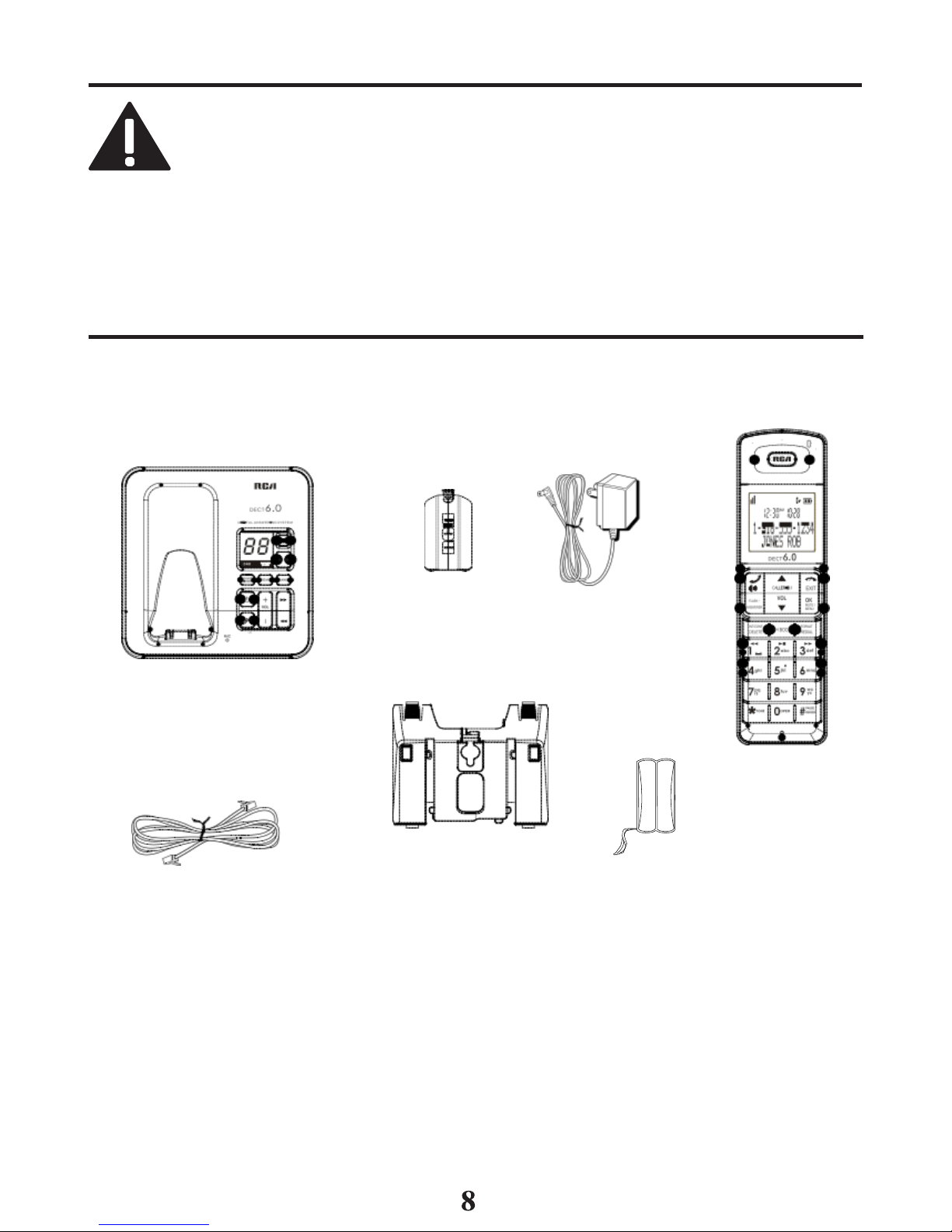
Parts Checklist
(for
2112 single handset model)
Make sure
your
package includes
the
items listed
here.
Base
Batter
y
compar
tment
cover
AC
power
adaptor
Handset
Telephone line
cord
Brack
et/W
all
Mounting
P
edestal
Battery pack
For
Model 2112-2
there will be
ONE
additional
handset ,
charge cradle, batter
y
pack
and
cover.
For
Model
2112-3 there will be
TWO
additional
handsets, charge cradles
,
battery
packs
and
covers.
For
Model
2112-4 there will be
THREE
additional
handsets, charge cradles
,
battery
packs
and
covers.
Page 9

Telephone Jack Requirements
To use
this
phone,
you
need
an
RJ11C
type modular
telephone jack installed
in your home.
If you don’t have a modular jack, call your local
phone
company
to find out how to get one installed.
Installation
Digital Security System
Modular
telephone
line jack
Wall
plate
Your cordless
phone
uses
a digital security system to protect against false
ringing, unauthorized access,
and
charges
to your
phone
line.
INSTALLATION NOTE:
Some cordless
telephones
operate
at
frequencies
that may
cause or receive interference
with
nearby
TVs,
microwave ovens, and
VCRs. To
minimize or
prevent such interference,
the
base of
the
cordless telephone
should not be placed near or on top of a TV,
microwave
oven, or
VCR. If
such interference continues, move
the
cordless telephone farther away from these
appliances.
Certain other communications devices may also use the 1.9GHz
DECT
frequency for communication, and,
if
not properly set
, these
devices may interfere with each other and/or your new telephone.
If
you
are
concerned with interference, please refer
to the
owner’
s manual for these devices on how
to
properly set channels
to avoid
interference. Typical devices that may use the
1.9GHz DECT
frequency for communication include wireless audio/video sender
s,
wireless computer networks, multi-handset cordless
telephone
systems,
and some long-range cordless telephone
syst
ems.
Important Installation
Guidelines
•
Avoi d
sources
of noise and heat ,
such as motors, fluorescent lighting
,
microwave ovens, heating appliances
and direct
sunlight .
•
Avoid areas
of
excessive
dust ,
moisture
and low temperatures.
•
Avoid
other
cordless telephones
or
personal
computers.
•
Never install telephone
wiring during a
lightning
storm.
•
Never install
telephone
jacks in wet locations unless the jack is specifically
designed
for wet locations.
•
Never touch non-insulated telephone wires or terminals, unl
ess the
telephone line has been disconnected
at the
network
interface.
•
Use
caution
when installing
or modifying
telephone
lines.
Page 10
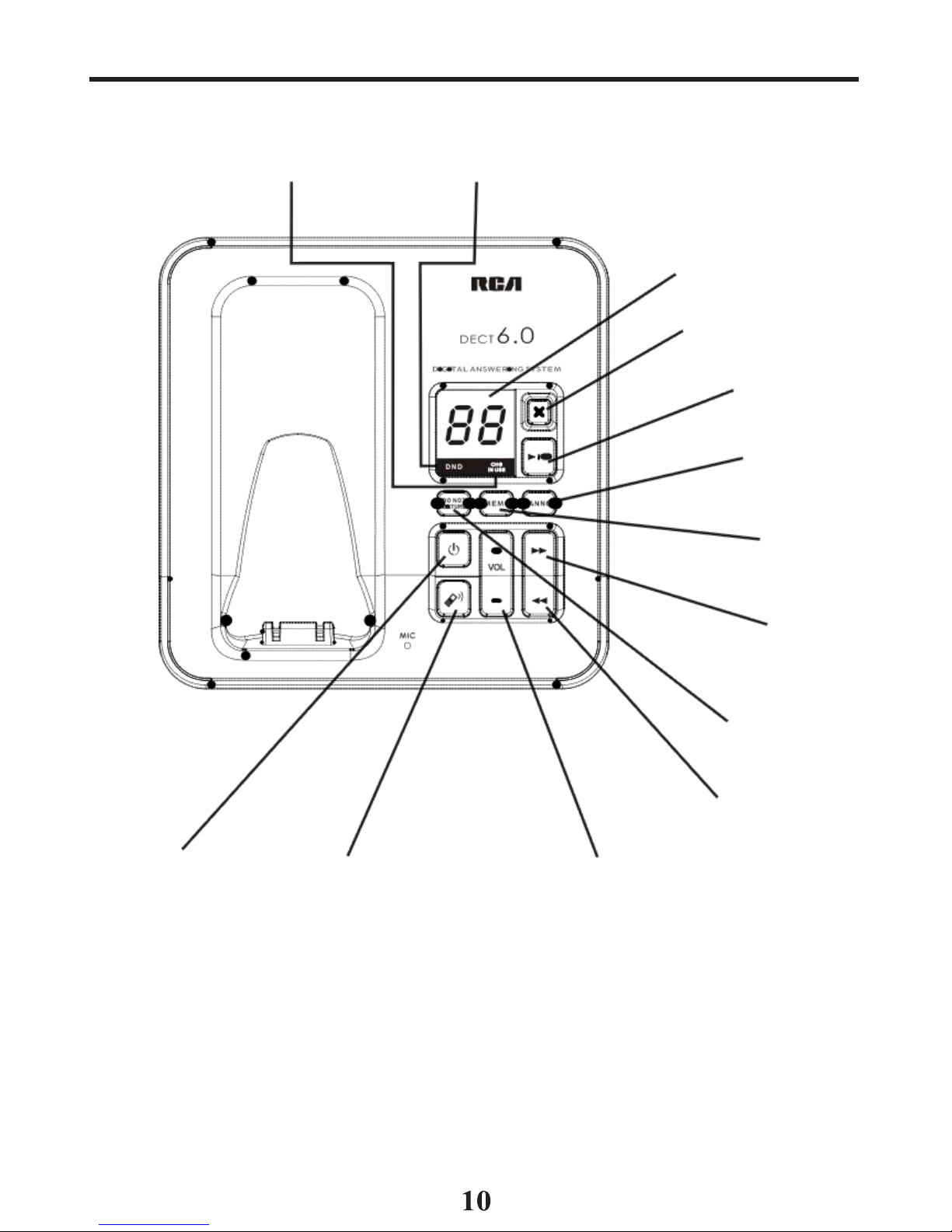
Base Layout
charge/in-use
(indicator)
do not
disturb
(indicator)
message
counter
(indicator)
delete (button)
play/stop
(button)
announce
(button)
memo
(button)
skip
(button)
do not disturb
(button)
answer mode
(button)
find
(button)
repeat(button)
volume
or
(buttons)
Page 11
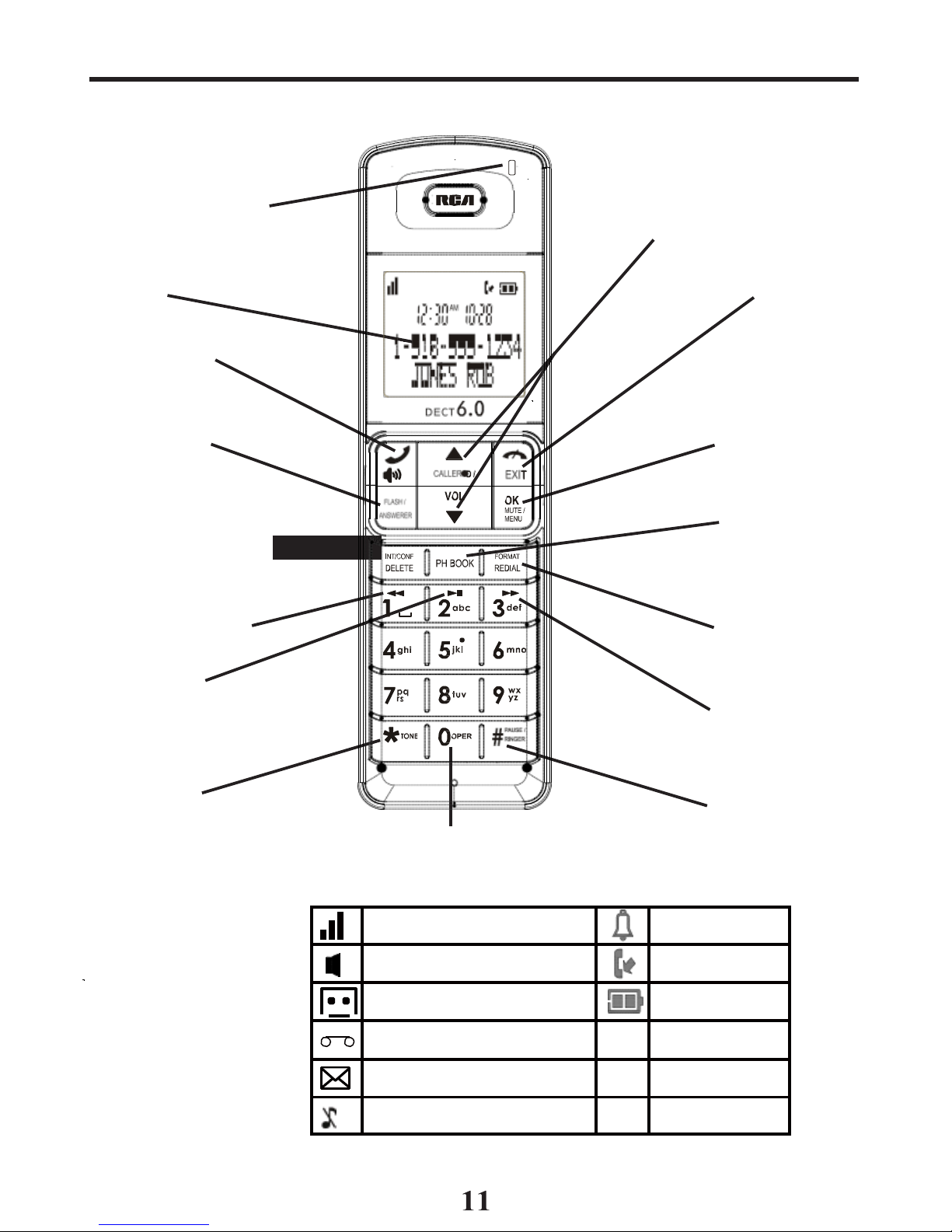
Handset
Layout
Voice Mail W
aiting
Indicator
(VMWI)/
Visual Ringer
display
T
ALK/SPEAKER
(button)
flash
/answ
erer
(button)
delete/int/conf
(delete/inter
com/
confer
ence)
review (button)
CALLER ID-VOL
or
(caller id/volume
up
or
down
button)
END /EXIT
(button)
mute/menu
OK
(button)
phone book
(button)
format/r
edial
(button)
play/stop
(button)
skip
(button)
*tone/
(button)
Display icons
microphone
#pause/ringer
(button)
Signal
strength
Alarm ON
Speakerphone
New Call
Message
Battery
Voicemail AM AM
SMS
PM
PM
Ringer OFF/DND ON
Page 12
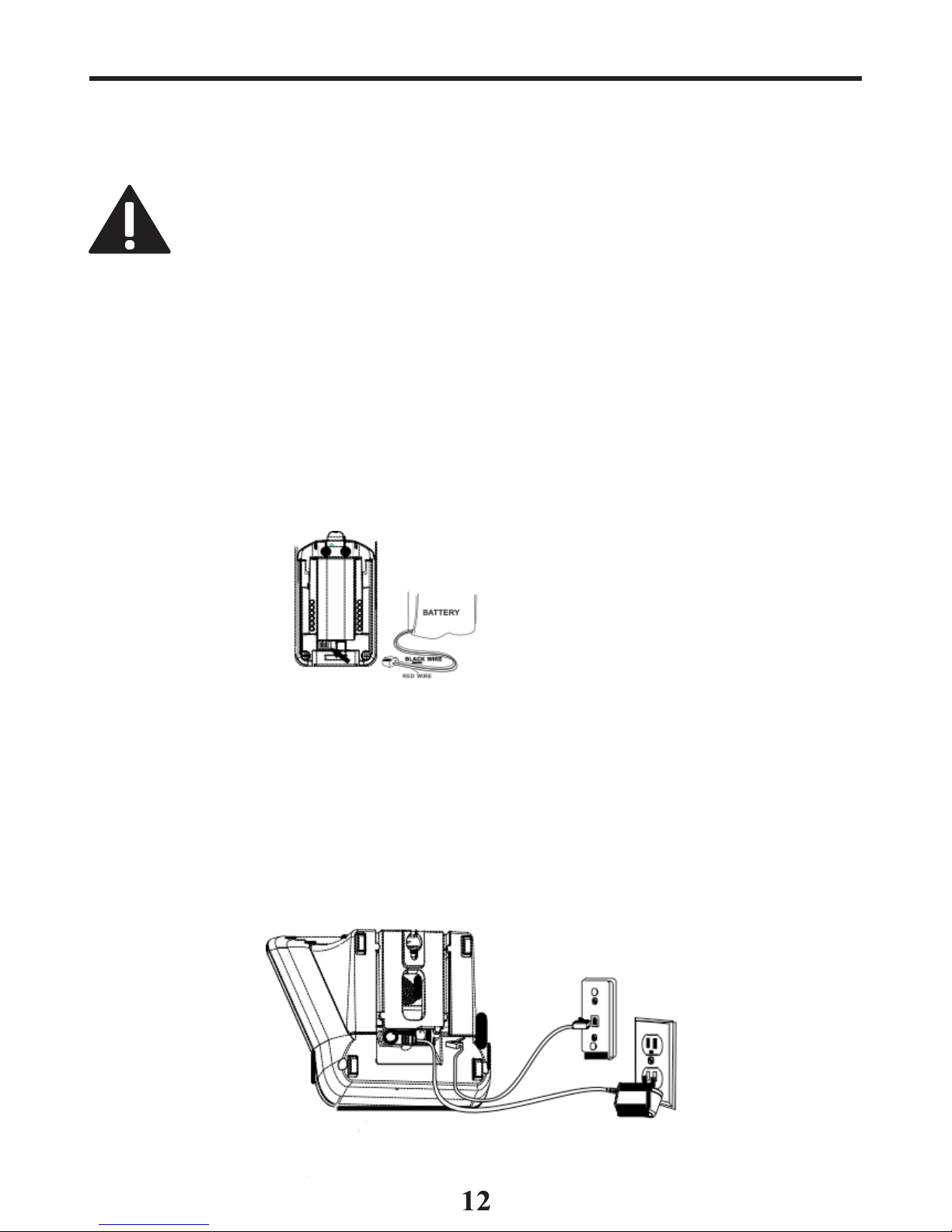
Installing the Phone
Installing the Handset Battery
NOTE: You
must connect the handset battery before
use.
CAUTION: To
reduce the risk of fire or personal injury, use only
the approved Nickel metal Hydride batt ery (Ni-
MH)(Brand
n a m e
: S A N I K , M o d e l n a m e
: 2 S N - A A A 5 5 H - S - J 1 , C a p a c i t y :
2.4V/
550mAh;
Brand name: BYD,
Model name: H-
AAA
550BX2,
Capacity:
2.4V/550mAh;
Brand name:
Corun,
Model name:
NI-MH
AAA550*2, Capacity: 2.4V/550mAh), that is compatible with this
unit.
1.
Locate
battery and battery door which are packaged together inside a
plastic
bag and are
separate
from the
handset .
2.
Locate
the battery compartment on the
back
of the
handset
.
3.
Plug
the battery
pack
cord into the
jack inside
the
compar
tment.
NOTE: To ensure proper
battery
installation,
the
connector is keyed and can be inserted only one w
ay.
4.
Insert
the battery
pack.
5.
Close
the battery compartment by
pushing
the door up until it
snaps
into
place.
Base Station
1.
Choose
an area near an
electrical
outlet and a
telephone
wall
jack (RJ11C),
and
place
your
cordless telephone
on a
level surface, such
as a
desktop
or
tabletop, or you may mount it on the wall.
Page 13
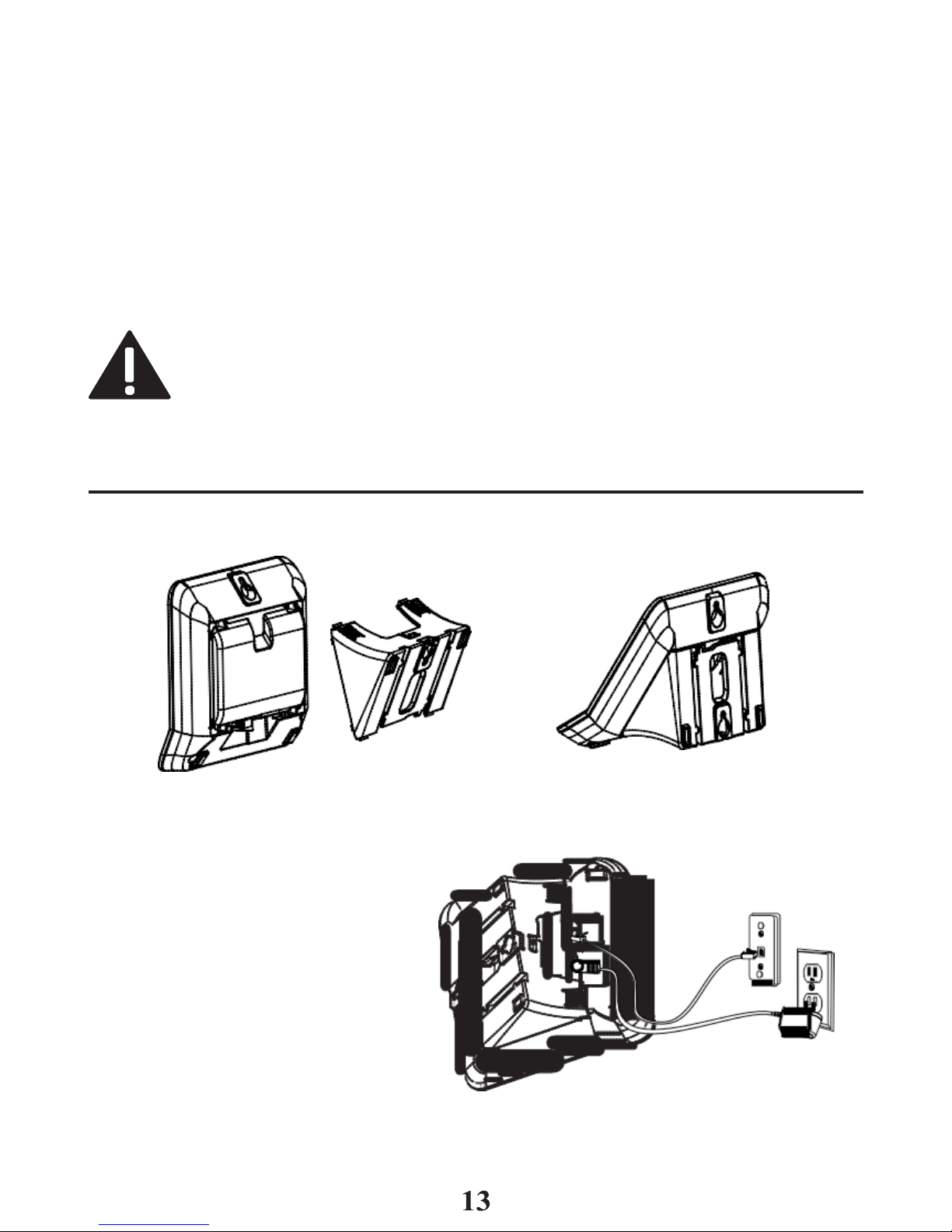
2.
Plug
one end of the
telephone
line cord into the
TEL LINE
jack on the back
of the
base
and the other
end
into a
modular
jack.
3. Plug the
AC
power conver ter into
the electrical outlet
and the DC
connector
into the
jack
on the
back
of the base.
4.
Place
the
handset
in the
base cradle. The
charge/in
use
indicator turns on,
verifying
the battery
is
charging.
5. Allow the phone to charge for 16 hours prior to first use.
If you don’t
properly
charge
the
phone,
battery
performance is
compromised.
CAUTION: To
reduce risk of personal injury, fire , or damage
use only the power adaptor
(Manufacturer: ESL, Type: IA5060,
120Vac/6Vdc/500mA ; Ma
nufacturer
:
Nan Tong DaMing,
Type: DM-SC060058,
120Vac/60Vdc/0-0.58A)
listed in th
e
user’s
guide. This
power adaptor is intended to be correctly
orientated in a vertical or floor mount position.
Wall mounting
the phone
To detach
the
desktop
pedestal:
1.
Plug
one end of the straight
telephone
line co rd into the
jack on the bottom of the
base.
2.
Feed
the line cord through
the groove and plug the end
into the modular telephone
jack. Excess
telephone line
c a
n b e s t u f f e d i n t o t h e
recess
area on the bottom of
the
Base
Unit .
3. Connect the small end of the power
adaptor
into the
POVER 9V DC
jack on
the
back
of the
phone
plug the other and into an
AC
power
outlet .
Page 14

4.
Slip
the mounting
holes
of the
base (on
bottom of unit ) over the wall plate
posts end slide the base down until the phone is firmly in
place.
Answering System Setup
This
section shows you how to set up your answering system to receive
incoming calls.
Before
you begin the set up process,
you must turn on the
answering
system.
1.
Answering system has 3 modes
RECORDS MSGS MODE, ANNOUNCE
ONL
Y
MODE
and
OFF.
2.
Press
the answer mode button to switch to
RECORDS MSGS MODE,
ANNOUNCE ONLY MODE
and
OFF.
NOTE:
The answering
system
displays “- -” when it is off.
Answerer
On the Handset:
In the
Answerer Menu,
there are four
programmable
submenus:
Answerer Mode, Ring
to
Answer, Message Alert
and
Security
Code.
1.
Make sure
your
phone is
OFF
(not
in
TALK
mode).
2.
Press
the
mute/menu
OK
button to go to the main menu.
3.
Press
caller ID-volume ( or ) button to
scroll
to
ANSWERER.
4.
Press
mute/menu
OK
button to
enter
the submenu.
Answer
Mode
From
the
Answerer
Menu:
1.
Press
the
caller
ID-volume
(
or
)
button to sc roll to the Answerer
Mode
sub-menu.
2.
Press mute/m
enu OK
button to enter the menu.
The
screen displays
RECORD MSGS.
3.
Use
the
caller ID-volume
(
or )
button to
scroll
to your
selection.
The
default setting is
RECORD
MSGS.
4.
Press
the mute/m
enu OK
button to confirm. You
will
hear a confirmation
tone and the
screen displays
the new setting.
Handset
Access
From
the
Answerer
Menu:
1.
Press
the
caller ID-volume ( or ) button to
scroll
to the
Answerer
Mode
sub-menu.
2.
Press mute/m
enu OK
button to enter the menu.
The
screen displays
ANSWER MODE RECORD
MSGS.
Page 15

3.
Use
the
caller ID-volume ( or ) button to scroll to your selection. The
default setting is
RECORD
MSGS.
4.
Press
the mute/m
enu OK
button to confirm. You
will
hear a confirmation
tone and the new
setting shows
in the display.
Ring
to Answer
This
feature lets you
select
the number of times you want the phone to ring
before
the
answering system answers
a call.
From
the
Answerer
Menu:
1.
Press
the
caller ID-volume ( or ) button to sc roll to
the
RING
TO
ANSWER
sub-menu.
2.
Press
mute/menu OK button to enter the
menu. The screen displays
RING
TO ANSWER
3 4 5 6 TS.
3.
Use
the caller
ID-volume ( or ) button to scroll to your selection. Th
e
default
setting is
5.
4.
Press
the mute/m
enu OK
button to confirm. You
will
hear a confirmation
tone and the
screen displays
the new setting.
NOTE: If
you select
Toll
Saver
(TS)
the unit answers after
the
3rd ring
if
there
are
NEW messages, OR
the
unit
answers
after the 5th ring if there are
NO
new
messages.
This
allows
users
to
access their answerer from another location
and
then hang up after 4 rings to save long distance char
ges.
Message
Alert
This feature sets your answering
system to give
an alert tone every 10
seconds when
there are new messages.
From
the
Answerer
Menu:
1.
Press
the
caller ID-volume
(
or
)
button to scroll to the MESS
AG
E
ALERT
sub-menu.
2.
Press mute/m
enu OK
button to enter the menu.
The screen displays
ON
OFF.
3.
Use
the
caller ID-volume
(
or
)
button to scroll to ON or
OFF. Th
e
default
setting is
OFF.
4.
Press
the mute/m
enu OK
button to confirm. You
will
hear a confirmation
tone and the
screen displays
the new setting.
Security Code
You
can
access
the answering system from a tone dialing telephone in
another (remote) location.
The security code is required
for
remote access,
and
it
prevents unauthorized access
to your
answering
system.
Page 16

From
the
Answerer
Menu:
1.
Press
the caller
ID-volume ( or ) button to scroll to the SECURIT
Y
CODE
sub-menu.
2.
Press mute/m
enu OK
button to enter the menu.
The
screen displays
SECURITY CODE
1 2 3.
3. Use the
touch-tone
pad to enter your new -digit security code. The
default
setting is
123.
4.
Press
the mute/m
enu OK
button to confirm. You
will
hear a confirmation
tone and the
screen displays
the new
security
code.
NOTE:
If
you make a mistake, use
the delete/int/conf
button to delete the security code and begin
again.
Speaker
Volume
Use
the
volume
(
or )
buttons to adjust
speaker volume
on the
base
to a
comfortable
level. L1 is
the minimum
speaker volume
and
L8 is
the maximum.
Voice
Instruction
If you need additional assistance,
press
the repeat button in standby mode
and follow the
voice
instructions.
Recording
the
Outgoing
Announcement
For
best results when recording, you should be about nine
inches
from the
microphone,
and
eliminate as
much
background noise as
possible.
You
may
record
an
outgoing announcement
for the current
answerer mode
or
choose
the default for your current
outgoing announcement
.
1.
Make sure
the
answering system is
ON.
2.
Press
and
hold
the
announce
button until the
speaker announces “RECORD
ANNOUNCEMENT FOR RECORD MESSAGES MODE
AFTER THE TONE “.
3.
Begin speaking
after you
hear
the
beep.
4. Release
the button when you finish your
announcement
.
NOTE:
If
you choose not
to
record
an outgoing
announcement
, a default
announcement
plays
instead.
To return
to the
default announcement
after
you
have
recorded your own outgoing announcement
,
press and hold
the
announce button and release it when you hear the beep. Or,
press the delete button while the
announcement
is reviewing.
Sample Outgoing
Announcement
Hi,
this is (use your name here), I can’t answer the phone right
now
,
so please leave
your
name, number
and a brief
message
after the
tone, and
I’ll
get back to you. Thanks.
Page 17

NOTE: The maximum recording
time
for
the
outgoing announcement
is 2 minut
es.
N OT E
: W h i l e re c o rd i
n g m e s s a g e f o r A N N OU N C E ON LY m o
d e ,
remember
to
advise
your
caller
that they will not be able to leave
a
message
as the
ANNOUNCE ONLY
mode will not record incomin
g
messages.
Reviewing and Choosing
the Announcement
Press
and
release
the
announce
button to review and
select
this one as your
outgoing announcement
.
NOTE: Press
the
play/stop button
at any time
to stop playing the
announcement
.
Pr
ogramming the T
elephone
S
tandby
Screen
The handset displays
the
handset number
and
user name
or
Programming
Functions
The
system uses a menu structure to give
you
access
to all
of the
built-in
features. You
may program the
following items
in main menu:
Phone
book,
Room
monitor,
Alarm clock,
Answ
erer, Initial
Setup,
Sound Setup
,
Reset
Settings.
R
oom Monitor
(applicable only with additional
handsets)
1.
Make sure
your
phone is
OFF
(not
in
TALK
mode).
2.
Press
the
mute/menu
OK
button to go to the main menu.
Page 18

3.
Press
caller ID-volume ( or ) button to
scroll
to
ROOM
MONIT
OR.
4.
Press
the mute/m
enu OK
button to enter
ROOM MONITOR menu. Th
e
screen displays
ROOM MONITOR EX
TENSION?
5. Use the touch tone pad to enter the handset name/numbe
r to be
monitored.
NOTE:
When this phone
system
is expanded
(up
to
4
handsets by purchase of optional
Model
2110
handset
with recharge cradle), handsets are named
HANDSET
1,
HANDSET
2,
HANDSET
3 and so on respectiv
ely.
6.
The receiving
handset will turn on the microphone and the originating
handset
will turn on the
speakerphone
to monitor
sound
from the receiving
handset .
NOTE: For
room monitoring mode
to
work,
the
originating handset must
NOT
be on the cradle.
NOTE:
While in room monitoring mode,
the
handsets
will
emit
an alert
tone approximately every 5 seconds
if there
is an incoming call. You
may press the TALK/SPE
AKER
button to quit room monitor and answer the call.
NOTE:
While in room monitoring mode,
the originating
handset can be switched
to
monitor
by
handset
earpiece
by pressing the
TALK/SPEAKER
button once. Switch back
to
speakerphone by pressing the
TALK/SPEAKER
button
once.
NOTE:
Press the
END
button on the handset to exit room monitor
mode.
Alarm
Clock
1.
Make sure
your
phone is
OFF
(not
in
TALK
mode)
2.
Press
the
mute/menu
OK
button to go to the main menu.
3.
Use
the
caller
ID-volume ( or )) button to
scroll
to
ALARM CLOCK.
4.
Press
mute/menu OK button to enter the
menu. The screen displays
ON
>
OFF.
5.
Use
the caller
ID-volume ( or ) button to select ON or
OFF. Press
mute/menu
OK
button to confirm.
6. If ON is selected, then the screen displays
SET ALARM TIME.
Use the
number keys to enter the alarm time (for example, 02:10PM)
key in 0210
.
Use
the
caller ID-volume ( or ) button to
select
AM or
PM.
7.
Press
mute/menu
OK
button to
display >ONCE OR DAILY
and
select
ONCE
or DAILY.
8.
Press
the mute/m
enu
ok button to save selection.
You
will hear a
confirmation tone and return to main
menu.
Page 19

Initial
Setup
1.
Make sure
your
phone is
OFF
(not
in
TALK
mode).
2.
Press
the
mute/menu
OK
button to go to the main menu.
3.
Press
caller ID-volume ( or ) button to
scroll
to
INITIAL
SETUP.
4.
Press
the mute/m
enu OK
button to confirm and you may program the
following items:
Handset Name, Date and Time, Area Code, Tone/Pulse
,
Language, Auto
Talk, Registration, Der
egistration.
NOTE:
During programming, you may press the
END / EXIT
button
at
any time to exit the sub-menu and return to the menu.
Handset
Name
From
the
Initial Setup
Menu:
1.
Press
the caller
ID-volume ( or ) button to scroll to the
HANDSET
NAME
sub-menu.
2.
Press mute/m
enu OK
button to enter the menu.
The
screen displays
HANDSET NAME.
3. Use the
touch-tone
pad to enter a name (up to 14
character
s).
More
than
one letter is stored in each of the number keys. For example, to enter Bill
Smith, press the 2 key twice for the letter
B.
Press the 4 key 3 times for
the
letter
I. Press
the 5 key 3 times for the letter
L. Press
the 5 key 3 times for
the second letter
L,
and press the 1 key to insert a space
between
the first
and last name. Press the 7 key 4 times for the letter
S;
press the 6 key
once
for the letter
M;
press the 4 key 3 times for the letter
I;
press the 8 key for
the letter
T;
press the 4 key twice for the letter H.
NOTE:
If
you make a mistake, use
the delete/int/conf
button to backspace and delete one character at a time.
4.
Press
the mute/m
enu OK
button to save your name. You
will hear a
confirmation tone and the
handset
name shows in the display.
Date and
Time
From
the
Initial Setup
Menu:
1.
Press
the
caller ID-volume ( or ) button to
scroll
to the
DATE
and TIME
sub-menu.
2.
Press mute/m
enu OK
button to enter the menu.
Use
the number keys to
enter the current date,
(for
example, 31
December, 2007) key in 071231.
3.
Press
mute/menu OK
button to confirm your selection and
advance SET
TIME
sub-menu.
4.
Use
the number keys to enter the current hour and minute, then use the
caller ID-volume ( or ) to
select
AM
or
PM.
Page 20

5.
Press
the mute/menu
OK
button to save your selection.
You
will hear a
confirmation tone and the current time shows in the display.
Area
Code
From
the
Initial Setup
Menu:
1.
Press
the
caller ID-volume ( or ) button to scroll to the
AREA CODE
sub-menu.
2.
Press
mute/menu OK
button to enter the
menu. The screen displays SET
AREA CODE
- - -.
3. Use the
touch-tone
pad to enter your 3-digit area
code.
4.
Press
the mute/m
enu OK
button to confirm. You
will
hear a confirmation
tone and the
screen displays
the new
area
code.
NOTE: To restore
the
default setting
to - - -,
press and release
delete/
int/conf when the screen displays
SET AREA CODE.
Tone/Pulse
From
the
Initial Setup
Menu:
1.
Press
the
caller ID-volume ( or ) button to scroll to the TONE/PULSE
sub-menu.
2.
Press
mute/menu
OK
button to enter the
menu. The screen displays TONE
PULSE. The
default
setting is TONE.
3.
Use
the
caller ID -volume ( or ) to
select
TONE
or
PULSE.
4.
Press
the mute/m
enu OK
button to confirm. You
will
hear a confirmation
tone and the
screen displays
your selection.
Language
From
the
Initial Setup
Menu:
1.
Press
the
caller ID-volume ( or ) button to scroll to the LANGUAGE
sub-menu.
2.
Press mute/m
enu OK
button to enter the menu.
The
screen displays
ENGLISH
ESPANOL.
3.
Use
the
caller ID-volume ( or ) button to
scroll
to the
desired l
anguage.
ENGLISH is
the default setting.
4.
Press
the mute/m
enu OK
button to save your selection.
You
will hear a
confirmation tone and the screen displays the selected
language.
Auto
Talk
When
this function is
ON,
during an
external call,
you may lift the
handset
to
answer
a call
immediately
without
pressing
any buttons.
To end a call,
put the
handset back
on the
base cradle
directly.
Page 21

From
the
Initial Setup
Menu:
1.
Press
the
caller ID-volume ( or ) button to scroll to the
AUTO TALK
sub-menu.
2.
Press
mute/menu OK
button to enter the
menu. The screen displays
> NO
YES.
3.
Use
the
caller ID-volume ( or ) button to
scroll
to your
selection. NO
is
the default setting.
4.
Press
the
mute/menu
OK
button to confirm.
R
egistration
You
r
packaged hand
set(s) are pre-regi
stered and ready to use. It is no
t
recommended that a handset be registered again unless absolutely
necessary.
From
the
Initial Setup Menu:
1.
Press
the
caller ID-volume ( or ) button to
scroll
to the
REGISTRA
TION
sub-menu.
2.
Press
the mute/m
enu OK
button to enter the menu.
The screen
displays
YES NO. The
default
setting
is
NO.
3.
Use
the
caller ID -volume ( or ) button to
scroll
to
YES
or
NO.
4. If you select
YES
, press the mute/menu OK button.
The sc reen
displays
HOLD BASE FIND FOR 5 SECONDS, THEN PRESS MENU OK KEY. (Your
handset should
be
held near
the
base
during
registration
process.)
5.
Press
and
hold
the find button on the
base unit , the charge/in use
indicator
flashes.
Press
the handset mute/m
enu OK button.
The screen
displays
REGISTERING, and then the screen displays
REGISTERED
. You
may
now
rename
your
handset. (Refer to Step
of
Handset Name
Section)
NOTE:
If you are
re-registering
the
handset through
the handset
menu; to rename your handset you must go to the Handset Name
Section and start from the beginning step.
De-Registration
De-registration cancels registration. During
the de-registration process, keep
the
handset near
the base.
From
the
Initial Setup
Menu:
1. P r e s s t h e c a l l e r I D - v o l u m e ( o r
) b u t t o n t o s c r o l l t o t h e
DEREGISTRATION
sub-menu.
2.
Press
the mute/m
enu OK
button to enter the menu.
The screen
displays
YES
u
NO.
The
default
setting is
NO.
3.
Use
the
caller ID -volume ( or ) button to
scroll
to
YES
or
NO.
Page 22

WARNING: It
is
not
recommended
that a
handset
be de-
regis tered unless absolutely necessary because
once a
handset is de-registered,
that
handset’s telephone features
cannot be used until the handset is re-r
egistered.
4.
Select
NO
, if
you do not want to
de-r
egister.
5. If you
select
YES
, press the mute/menu OK
button and
MOVE NEAR BASE
displays
for
seconds,
then the
screen displays
YES
NO.
6.
Use
the
caller ID-volume ( or ) button to
scroll
to
YES
or
NO.
7. If you
select Y E S , press the mute/menu OK
button to confirm. The
scr
een
displays DE-REGISTER
.... You
will hear a confirmation tone.
Then
the
screen displays
DEREGISTERED
to confirm the
handset
is
der
egistered.
NOTE:
When you complete the de-registration process,
HANDSET
NEEDS REGISTRATION
shows in the display.
To
use the handset ,
you
MUST
re-register the handset using the Registration pr
ocess.
Global
De-registration
If
one or more
handsets
become lost, you should de-regi
ster all
handsets to
ensure proper system
operation.
WARNING: It
is
not
recommended
that a
handset
be de-
regis tered unless absolutely necessary because
once a
handset is de-registered,
that
handset’s telephone features
cannot be used until the handset is re-r
egistered.
1. Disconnect power from the base by pulling the plug out of the back of
the
unit .
2.
Press
and hold the find button and
while holding
the find button reconnect
the
power.
3.
Continue
to hol d the find button until the charge/in
us e light flashes
rapidly.
4.
Release
the find button.
5.
Press
and
release
the find button on the base once. All
handsets
are de-
registered
and the
screen displays
HANDSET NEEDS
REGISTRA
TION.
Sound
Setup
1.
Make sure
your
phone is
OFF
(not
in
TALK
mode).
2.
Press
the
mute/menu
OK
button to go to the main menu.
3.
Press
caller ID-volume ( or ) button to
scroll
to
SOUND SETUP.
4.
Press mute/m
enu OK
button to confirm and you may program the
following items: Ringer Tone, Ringer Volume, Key Tone.
Page 23

Ringer
Tone
You may choose from five ringer tones and five melodies.
From
the
Sound Setup
Menu:
1.
Press
the
caller ID-volume ( or ) button to scroll to the
RINGER T
ONE
sub-menu.
2.
Press mute/m
enu OK
button to
enter
the menu.
The screen displays
1 OF
10. 01 is default
setting.
3.
Use
the
caller ID-volume ( or ) button to
scroll
to the
desired setting (1
through
10). You will
hear a sample of the ringer
tone/melody
you select .
4.
Press
the mute/m
enu OK
button to save your selection.
You
will hear a
confirmation
tone.
5. NOTE:
You must have
the
Ringer Volume set
to
ON for ring tone
to signal
an incoming call.
Ringer
Volume
From
the
Sound Setup
Menu:
1.
Press
the caller
ID-volume ( or ) button to scrol l to the RINGER
VOLUME
sub-menu.
2.
Press mute/m
enu OK
button to enter the menu.
The screen displays
RING VOLUME
2.
3.
Use
the
caller ID -volume ( or ) button to
scroll
to your
selection.
LEVEL
2
is
the default setting.
4.
Press
the mute/m
enu OK
button to
save
your selection.
You
will hear a
confirmation tone and the new volume setting shows in the display.
NOTE: If
you turn the ringer
OFF,
the screen displays the ringer off icon.
Key
Tone
From
the
Sound Setup
Menu:
1.
Press
the
caller ID-volume ( or ) button to
scroll
to the
KEY TONE
sub-
menu.
2.
Press
mute/menu OK
button to enter the
menu. The screen displays
> ON
OFF.
3.
Use
caller ID-volume ( or ) button to
scroll
to your
selection.
ON
is the
default setting.
4.
Press
the mute/m
enu OK
button to confirm
and the screen displays the
key tone setting.
Reset
Setting
1.
Make sure
your
phone is
OFF
(not
in
TALK
mode).
2.
Press
the
mute/menu
OK
button to go to the main menu.
3.
Press
caller ID-volume ( or ) button to
scroll
to
RESET
SETTINGS.
Page 24

4.
Press mute/m
enu OK
button to confirm and you may program the
following items: Voicemail, All
Settings.
Voicemail
From
the
Reset Settings
Menu:
1.
Press
the
caller ID -volume ( or ) button to scroll to the
VOICEMAIL
sub-menu.
2.
Press
the
mute/menu OK
button to enter the
menu. The screen displays
YES
NO.
The
default
setting is
YES.
3.
Use
the
caller ID-volume ( or ) button to move the cursor to
YES
or
NO.
NOTE: If YES
is selected, new voicemail icon is cleared from the LCD
and the
VMWI LED
is turned
OFF
(on
ALL
handsets, and the char
ge/in
use
LED
on the
base).
4.
Press
the mute/m
enu OK
button to save your selection.
You
will hear a
confirmation
tone.
All Settings
As
you
become
familiar with this
system,
you may prefer to
use
the system's
original settings.
Follow
the steps below to return to the factory default
settings.
From
the
Reset Settings Menu:
1.
Press
the caller
ID-volume ( or ) button to scroll to the ALL
SETTINGS
sub-menu.
2.
Press
the
mute/menu
OK
button to enter the
menu. The
screen displays
YES uNO.
The
default
setting is
NO.
3.
Use
the
caller ID-volume ( or ) button to move the cursor to
YES or
NO.
NOTE:
If you
choose YES
all the
settings
in the
programmable
menu
are returned to factory default
setting.
4.
Press
the
mute/menu OK
button to
save
your
selection. You
will hear a
confirmation
tone.
Telephone
Operation
Visual
Indicators
Base
The
charge/in
use indicator on the base
will
flash to alert you to an incoming
call, during
paging, or if you have a
message
waiting from your service
pr
ovider.
The indicator
will
remain
lit
when a handset is
in the
base charging
or
when
the
line is
in use.
Handset
Page 25

The TALK/SPEAKER indicator buttons flash when you receive
a call and remain
lit during a call.
The keypad and
CID will
also illuminate when a call is receiv
ed.
VMWI / Visual Ringer
Indicator on
Handset
IMP
ORT
ANT: In
order
to
use this unit’s Voice
Mail
Waiting Indicator
(VMWI)
feature, you must
subscribe
to this service from your phone
company.
The VMWI
indicator on the top of the
handset
flashes when you receive a
new
message
from your
service provider.
Also, it
serves
as a
Visual Ringer
function.
It
will
flash when there is an incoming call.
Speakerphone
Operation
NOTE:
If
you
are
using
the
speakerphone, remain close
to
handset so
the party you are speaking to can hear
you.
If you are using the
earpiece
and want to switch to the
speakerphone,
press
the
TALK/SPEAKER
button,
press
END
button to
end
conversation.
If you are using the
speakerphone
and want to switch to the
earpiece,
press
the
TALK/SPEAKER
button
again, press
END
button
again
to
end
conversation.
Making
a Call
1.
Press
the
TALK/SPEAKER
button.
Dial
the desired
number
.
-
OR -
Dial
the number
first , then press the
TALK/SPEAKER
button.
-
OR -
Press
the
caller ID-volume ( or ) button to
select
the
desired record,
and
then
press
the
TALK/SPEAKER
button.
2. When finished, press the
END
button to hang up.
NOTE: You
may enter up to 28 pre-dial digits.
NOTE:
If you want to
delete
the
pre-dial number
you
entered,
press
the
delete/int/conf
button until all of the digits are
erased.
Answering
Calls
1.
When
the phone rings,
pick up the handset and
press
the TALK/SPEAKER
button.
2. When finished, press
END
button to hang up.
-
OR -
If the auto talk mode is
selected,
pick up the
handset
from the charge cradle
to
answer
the call immediately.
NOTE: Adjust
the handset volume by pressing the caller ID-vol
ume
or
)
button during a call.
Page 26

Call Timer
After you
pres s
the TALK/SPEAKER button on the handset,
the
built-in ca
ll
timer
shows
on the
display
and
counts
the
length
of time of the call in minutes
and seconds.
Auto Standby
If you
place
the
handset
in the
cradle while
the
handset
is off the
hook
(during
a
call),
the call
is
automatically disconnected.
Ringer Volume
(Shortcut)
There
are two ways to set the ringer
volume. One
is the traditional way as
described
in the
Programming Functions; Sound Setup; Ringer Volume
menus.
The
other
one is
this short cut to
ringer
menu.
1.
Make sure
the
phone is
OFF
(not
in
TALK
mode).
2.
Press
the
#pause/ringer
button to
display
SET RINGER LEVEL 5.
3.
Use
the
caller ID -volume ( or ) button to
scroll
to your
selection.
LEVEL
5
is
the default setting.
4.
Press #pause/ringe
r button again to
save
and display the new selection
for a few seconds.
Flash/Call
Waiting
If
you subscribe to the combined
Call
Waiting Caller
ID
service from your local
telephone company,
you
will
receive Caller
ID
information
(if
available) on Call
Waiting calls. During a phone call, you
will
hear a beep to indicate
another
call
is waiting on the line and Caller
ID information for the waiting call shows on
the
handset
display.
•
To
connect to the waiting call, press
the flash button on the
handset, and
your original call
is
put on hold.
•
To
switch
between
the two
calls, press
the flash button.
Last Number Redial
You may redial a number up to 20 digits long.
To quickly redial
the last numbe
r
you
dialed:
1.
Press
the
TALK/SPEAKER
button.
2.
Press
the
redial/format
button.
-OR-
3.
Press
the redial/format button first , then use the
caller ID-volume ( or )
button to
select
the
desired redial
number.
- Press the
caller ID-volume
( )
to
review
the
oldest
call and scroll tow
ard
the most
recent calls (higher
number
s).
Page 27

- Press the
caller ID-volume
( )
to
review
the
newest
call and
scroll
to older
calls (lower
number
s).
NOTE: You
may choose from the last three numbers that were dialed.
4.
Press
the TALK/SPEAKER button.
The
number dials automatically. If yo
u
get a busy signal and want to
keep
dialing the number, press
the redial
/
format
button to quickly
redial
the
number.
Exit
Press
the
END
button to exit a menu function and return to the standby
screen.
P
age
The
page feature
helps
you locate a
misplaced handset . To send
and receive
pages,
all
handsets
must be
registered.
If your
handset is
not
registered,
follow
the
instructions
in the Registration section
of this manual.
Paging from
the
Base/Group Page
Use the
base-only
to page all registered handsets at the same time.
1.
Press
the find button on the
base.
All
handsets beep
for two
minutes,
and
each handset's screen displays
FIND
HANDSET.
2.
To cancel
the
page, press
the find button on the
base,
or
press
the TALK/
SPEAKER
button or the
END
button on
each handset .
Mute
To
have a private, off-line conversation,
use the
MUTE feature. The
party on
the
telephone line
cannot
hear you,
but you can
hear
them.
1.
Press
the
mute/menu
OK
button.
The handset screen displays
MUTE
ON.
2.
Press
the mute/m
enu OK
button to cancel and return to your phone
conversation.
Receiver Volume
Control
When the handset is ON
(in TALK mode) you
may adjust the
receiver
volume
by
pressing
the
caller ID-volume
(
or
) button. There
are five volume
levels
to choose from. When the maximum or minimum volume level is
reached,
the
phone beeps twice. VOL 1 is
minimum and
VOL 5 is
maximum.
Do Not Disturb
(D-N-D)
This feature allows
you to turn off all the
handset ringer(s)
at
once,
by pressing
one button at the
base unit,
even though
the ringer
volume
of
handset(s)
has
been preset
.
1. In the standby
mode, press
the
do not disturb
button on the base.
2. The
DND
indicator illuminates and the
handset
screen displays
.
Page 28

3.
To cancel, press
the
do not disturb
button again.
NOTE: You
can
press
the do not
disturb
button and activate the
function immediately, even when there is an incoming call ringing in,
or during call screening after the call is taken by the
answ
erer.
Intercom Operation
(Applicable only with additional
handsets)
The
intercom feature allows yo u to have a conversation with another
registered
handset without tying up the
telephone line, allowing you to still
receive incoming
calls.
Making
an
Auto Intercom
Call
1.
Make sure
the
handset is
OFF (not
in
TALK
mode).
2.
Press
the
delete/int/conf
button on the
handset .
3. Use the
touch-tone
pad to select the
handset
you want to
page.
NO
TES:
a)
If
the user has not entered the paged handset number within
a
few seconds, the handset displays a paged handset number list (i.
e.
Handset 2, Handset 3, Handset 4, ) if Handset 1 is paging the handset .
b) Even if the handset has not been registered with all 4 handsets,
the paging list displays all handset numbers.
c)
If
the user has
selecte
d a paged handset number that has n
ot
been registered,
the
handset emits
an
error tone and asks
the
user
to retry
again.
4. A long beep is heard and then the two handsets are immediately
connected.
Receiving
handset shall immediately come into the auto
intercom mode that both “microphone” and “speake
r ” of this receiving
handset shall
be
enabled such
that the
user
of
receiving handset
can freely
talk and
listen
to the conversation.
5. When finished,
press the
END
button or delete/int/conf
button on either
handset
to
deactivate
the intercom.
NOTE: The system is expandable up to 4 handsets (by purcha
se
of optional
Model
2110 handset with recharge cradle).
When
4
handsets
are
registered,
the
system can handle 2 separate
intercom
operations
at
once,
for
example, 1st handset intercoms
with 2nd
handset while 3rd handset intercoms with 4th handset.
Page 29

Advanced Intercom Featur
es
Receiving
an
Incoming Call During
an
Intercom
Call
If you
receive
a telephone call during an intercom call,
an
incoming
call alert tone will be heard
(through
the
earpiece
or
speaker).
If the user wants to answer an incoming call, the
y
must press
END
to terminate the intercom and
receive
an
incoming
ring.
Using Intercom with External Telephone Calls
During
a telephone call,
you may use the intercom/paging f
unction to
page
another handset
and have an off line, private (two-way) intercom
conversation. You
may also have a
three-way conversation
between th
e
external
caller and the
handsets,
or you may transfer the
external
telephone
call to another
handset
.
NOTE: Before
you
intercom/page another
handset
, you
must
decide
whether you want to create a two-way or a three-way
conversation.
Two-Way Calling
1. During an external call,
press the delete/int/conf
button,
and use the
touch-tone
pad to enter the
handset
number to put an external line on
hold. The user
may then auto
intercom
with the
paged handset .
NOTE:
Both intercom users may speak privately. The
external caller will not hear the intercom
conversation.
2. When finished, press the
END
button to
end
the intercom
call,
return to the
talk
mode,
and
resume
your
original telephone
conversation.
Three-Way
Calling
1. During an external call,
press the delete/int/conf
button. The
screen
displays
LINE ON HOLD EX
TENSION?
2. Use the
touch-tone
pad to select Handset # to enter into
auto intercom call
with
paged handset .
3.
When
the
receiving handset connects, press
the
delete/int/conf
button on
the originating handset to
conference
with the
receiving
handset and the
external caller. The screen
displays
CONFERENCE
on the originating and
receiving
handsets.
NOTE: A handset can
enter
conference mode directly
by
pressing
TALK/SPEAKER
on the second handset during a call.
Page 30

Transferring External Calls
to Other
Handsets
During an external call, you may transfer the external call to
another
handset .
1.
Press
the delete/int/conf
button on the originating handset to put an
external
call on
hold,
and
enter
the
paged handset
number.
2. A long beep is heard and then the two handsets are immediately
connected.
Receiving
handset shall immediately come into the auto
intercom mode that both “microphone” and “speake
r ” of this receiving
handset shall
be
enabled such
that the
user
of
receiving handset
can freely
talk and
listen
to the conversation.
3. When th e receiving handset connects, press the
END
button on the
originating handset
to transfer the call.
Caller ID (CID)
IMPORTANT: In
order
to
use this unit’s Caller
ID
features,
you must
subscribe
to either the
standard Name/Number Caller
ID
Service
or
Call
Waiting
Caller
ID
Service.
To
know who is calling while you ar
e
on the phone, you must subscribe to
Call
Waiting
Caller ID
Ser
vice.
This
unit
receives
and displays information transmitted by your local phone
company.
This
information can include the phone
number, date, and time; or
the
name, phone
number,
date,
and time.
signal
strength
time
Caller ID
phone number
Call Waiting Caller
ID
new
call
battery
date
Caller
ID name
Provided you subscribe
to Call Waiting Caller
ID service
from your
phon
e
company;
if you
receive
an incoming call and you are using the
RCA
multi
handset system, a beep
indicates
the
presence
of a
Call
Waiting call on the
line. The Call Waiting Caller
ID
information
will
be displayed and stored in
the
history of all
handsets
in the system.
•
When you hear the call waiting beep in the handset receiver,
press
the
flash button to put the current call on hold and
answer
the incoming call.
Press
the flash button to return to the
original
call.
Page 31

Receiving CID Recor
ds
When you receive a call, the Caller
ID
information is
transmitted between the
first
and second ring. The Caller ID information
appears
on the display whil
e
the phone rings,
giving you a chance to monitor the information and decide
whether
or not to
answer
the call.
Storing
CID Records
(In CID
Memory)
If
you are not at home or cannot answer, your telephone’s Caller
ID
memor
y
stores the data for the 40 most recent calls you received so you can see
who
called while
you were
unavailable. When the 41st call is received,
th e oldest
Caller
ID
record (1st
call)
is
automatically deleted.
You
may review the stored information at any time.
Calls received since
your
last
review show
as in the display.
Reviewing CID Recor
ds
As
calls are
received
and stored, the display is updated to let you know how
many calls have been received.
To
scroll
CID recor
ds:
1.
Make sure
the
phone is
OFF
(not
in
TALK
mode).
2.
Press
the
caller ID-volume ( ) button to review the newest
CID record.
3.
Press
the
caller ID-volume (
)
button to revie
w the oldest CID record
first .
Dialing a CID
Number
1.
Make sure
the
phone is
OFF
(not
in
TALK
mode).
2.
Use
the
caller ID -volume ( or ) button to
display
the
desired
record.
3.
Press
the
TALK/SPEAKER
button.
The number dials
automatically
.
NOTE: Depending on (a) how the incoming calle
r’s
phone number is
formatted when it is received, and
(b)
whether or not you previously
pre-programmed
your
local
area
code
into the
set
up
menu,
you
may need to adjust the format of the incoming caller’s stored
phone
number before making
the
call, pres s
the redial/format button to
adjust the number, and try
again.
Page 32

Available
formats include:
Number of
digits
Explanation
Example
Eleven
digits
Long distance code
“1 ”
1-317-888-8888
+3-digit area
code
+7-digit
telephone number.
Ten
digits
3 -digit area
code
+ 3
17-888-8888
7-digit
telephone number.
Seven
digits
7-digit
telephone number
888-8888
Storing CID Records in Internal
Memory
You may also store
CID
information in the phone’s internal
memory.
NOTE:
It
is important that you format CID
records
correctly
BEFORE
storing in internal memory as
you
cannot reformat
CID
records stored in memory.
1.
Make sure
the
phone is
OFF
(not
in
TALK
mode).
2.
Use
the
caller
ID-volume
(
or
)
button to scroll to the desired CID
record.
3.
Press
the
mute/menu OK
button to display
ENTER NAME
and then follow
“ADD RECORDS in
Phonebook section”
procedures
from Step 3 to Step
7
to
store
the
number.
NOTE: Press
the
END button once
to
keep
the previous
setting (making no changes) and return to the menu.
NOTE:
If the
selected CID record contains
any
information
that is
non-numeric,
the
unit will not allow this record
to
transfer
to the
internal user memory. The handset will display
UNABLE TO STORE.
Deleting a CID Record
1.
Make sure
the
phone is
OFF
(not
in
TALK
mode).
2.
Use
the
caller ID-volume ( or ) button to display the
CID
record yo
u
want to delete.
3.
Press
the
delete/int/conf
button.
The screen displays
DELETE CALL ID?
NOTE: Press
the
END button
to
return
to the
previous screen
without
deleting any
CID records.
4.
Press
the delete/int/conf
button to erase the record showing in the
display. The screen displays
DELE
TED.
Page 33

Deleting All CID Recor
ds
1.
Make sure
the
phone is
OFF
(not
in
TALK
mode).
2.
Use
the
caller ID -volume ( or ) button to display any Caller
ID record.
3.
Press
and hold the
delete/int/conf
button until the
screen displays
DELE
TE
ALL?.
NOTE: Press
the
END button
to
return
to the
previous screen
without
deleting any
CID records.
4. Press
delete/int/conf
button to erase all of the current CID records. The
screen displays
DELETED
followed
by
NO
CALLS.
Phonebook
Each
handset can store up to fifty records in phone book for quick dialing;
each record can contain a maximum of 20-digit
numbers and 14
-character
names (including
spaces).
Review Recor
ds
1.
Make sure
the
phone is
OFF
(not
in
TALK
mode).
2.
Press
the
mute/menu
OK
button to go to main menu.
3.
Use
the
caller ID-volume ( or ) button to
scroll
to
PHONE
BOOK.
4.
Press
the
mute/menu
OK
button to
access
the
phonebook
submenu.
5.
Use
the
caller ID -volume ( or ) button to
scroll
to
VIEW
REC
ORDS.
6.
Press
the mute/m
enu OK
button to confirm,
al l records are shown in
alphabetical or
der.
7.
Press
the
caller ID-volume ( or ) button or key in
alphabet
to view the
records
and
scroll
to a
record
to be
dialed out .
8.
Press
the
TALK/SPEAKER
button to confirm.
Add Recor
ds
From Phonebook Sub-Menu:
1.
Use
the
caller ID -volume (
or ) button to
scroll
to
ADD
REC
ORDS.
2.
Press
the mute/m
enu OK
button to confirm. The screen displays ENTE
R
NAME.
3. Use the
touch-tone
pad to enter a name (up to 14
character
s).
More
than
one letter is stored in each of the number keys. For example, to enter Bill
Smith, press the 2 key twice for the letter
B.
Press the 4 key 3 times for
the
letter
I. Press
the 5 key 3 times for the letter
L. Press
the 5 key 3 times for
the second letter
L,
and press the 1 key to insert a space
between
the first
and last name. Press the 7 key 4 times for the letter
S;
press the 6 key
once
for the letter
M;
press the 4 key 3 times for the letter
I;
press the 8 key for
the letter
T;
press the 4 key twice for the letter H.
Page 34

NOTE:
If you make a
mistake press
the delete/int/conf
button to
backspace and erase the wrong character(s) or number(s).
4.
Press
the
mute/menu OK
button again to
save
your
selection. The
screen
displays
ENTER
NUMBER.
5. Use the
touch-tone
pad to enter the telephone number (up
to 20 digits,
including
pauses), and press the mute/m
enu
button to confirm and
advance
SET MELODY
sub-menu.
6.
Use
the
caller ID -volume ( or ) button to select from melody 01 to
melody 10 (a testing tone is
generated
while making melody selection).
7. P re s s m u t e / m e n u O
K b u t t o n t o c o n f i r m
, t h e re c o rd s a re s t o re d
alphabetically
in the
phone book.
Inserting a Pause in the Dialing Sequence (of a Stored
Number)
Press
the #pause/ringe
r button on the handset’s touch-tone
pad to insert
a
delay in dialing
sequence
when a
pause
is
needed
to wait for a dial tone (for
example,
after you dial 9 for an
outside line,
or to wait for a computer access
tone.) Each pause counts as one
digit in the
dialing
sequence.
Edit Recor
ds
From Phonebook Sub-Menu:
1.
Use
the
caller ID -volume ( or ) button to
scroll
to
EDIT
REC
ORDS.
2.
Press
the mute/m
enu OK
button to confirm,
the screen displays the
records.
3.
Use
the caller
ID-volume ( or ) button or key in alphabet to move
to
desired record,
pres s mute/menu
OK
button to confirm. The
screen
displays
ENTER
NAME.
4.
Repeat Steps
3 through 7 in
“Add Records”
section.
Delete Recor
ds
From Phonebook Sub-Menu:
1.
Use
the
caller ID -volume ( or ) button to
scroll
to
DELETE REC
ORDS.
2.
Press
the mute/m
enu OK
button to confirm,
the screen displays the
records.
3.
Use
the caller
ID-volume ( or ) button or key in alphabet to move
to
desired record, press
the delete/int/conf button. The sc reen
displays
DELE
TE?.
4.
Press
the
delete/int/conf
button again to confirm.
NOTE:
If you do
n’t
want to
change
or
delete a record, simply press
the
END
button, or wait for one minute to exit
automatically.
Page 35

Dialing a Number from Internal
Memory
1.
Make sure
the
phone is
OFF
(not
in
TALK
mode).
2.
Press
the
mute/menu
OK
button to
access
the
phonebook sub-menu.
3.
Use
the
caller ID -volume (
or ) button to
scroll
to
VIEW
REC
ORDS.
4.
Press
the
mute/menu
OK
button to confirm
5.
Use
the
caller ID-volume ( or ) button or key in alphabet to move to
the
desired
number.
6.
Press
the
TALK/SPEAKER
buttons,
the
number dials
automatically.
Answering System
Operation
This section discusses
the buttons and
features
on the
answering
system.
Message Counter
Indicator
The message
counter
gives
you a numeric display of how many message
s
you have. The
new
message
indicator flashes to indicate you have new
messages. See below
for the details.
a)
Message
counter has a number displayed without flashing – No new
messages. Shows
total
number
of old messages.
b) Message counter has a flashing number displayed - There are ne
w
messages. Shows
total
number
of old and new
messages.
c) Message counter has bars ( - - ) - Answerer is
off.
d) Message counter has an
“F“
flashing on the display - Memory is full.
e) Message counter has a
“CL”
flashing on the display - Clock is not set
since
power up or after power failure.
f) Message counter has six horizontal
bars flashing on th e display-
MEMO
recording.
g)
Message
counter has a “IN“ flashing on the display – recording an
incoming
call.
h) Message counter has “
LA” - The answering system is
being
accessed
remotely.
i) Message counter has “A
n“ on the display - Answerer is ANNOUNCE
ONLY
MODE.
NOTE:
While the
messages
are
playing,
the
message counter
will
display the
messages
in the order they were receiv
ed.
NOTE: The maximum recording
time for
each message is 3 minutes
and the total recording time of this unit is 12 minut
es.
Page 36

Leaving a
Message/Memo
Use
the
memo feature
to
leave
a message.
1.
Press
and hold the
memo
button.
2.
Begin speaking
after you
hear “
RECORD MESSAGE” and start tone.
3.
Release
the
memo
button when you are finished recording the
memo.
NOTE:
Maximum
recording time for memo is 3 minut
es.
Screening Calls from
the Base
1.
When
the
answering system answers
the
call, listen
while the
caller
leaves
a
message (to determine
who
is
calling).
2.
To speak
to the caller,
pick up the
handset, and
press
the TALK/ SPEAKER
button.
The answering system
automatically stops recording when you activate the
handset
or
pick
up an
extension
phone.
TIP: Make
sure
the
volume
on the
base is set loud enough
to hear
your incoming
calls.
Messages
Playback
The message counter
let you know when you have message(s) or new
message(s). To
play the
messages, press
the
play/stop
button.
While a message is playing,
you may do the following:
•
Press
the
play/stop
button to stop the
message
playback.
•
Press
and
release
the
repeat
button to restart the current message.
•
Press
and
release
the
repeat
button twice to go to the
previous
message.
•
Press
and
release
the
skip
button to go to the next message.
•
Press
the
delete
button to
erase
the current message.
Memory Full
When the answering system memory is full,
the system
answers
after 15
rings. You should erase some messages
so the
answering
system may record
new messages.
Erasing Messages
You
may
erase messages
in the
following three
ways:
To erase a message while
it
is playing:
1.
Press
and
release
play/stop
button.
2.
Press
the repeat and
skip
buttons to select and play the
message yo
u
want to erase.
3.
Press
the delete button, the current
message
is erased, and the next
message
plays.
Page 37

To erase
all
previously played Messages in a mailbox:
1.
Make sure
the
phone is
OFF
(not
in
TALK
mode)
2.
Press
and hold the
delete
button until “ALL OLD MESSAGES ERASED” is
announced.
To erase a message with
the
handset:
1.
Press
flash/answerer
button to
access
the
answering system. The
screen
displays
ANSWERER REMOTE AC
CESS.
2.
Press
the
play/stop
(Key
2] on the
handset
.
3.
Press
the delete button on the handset to erase a
message
during
playback.
NOTE:
Erased
messages
cannot be restored.
Remote Access
You
may
access
the
answering system
with the
cordless handset
or from any
tone-dial compatible
telephone.
Cordless
Handset
Use
the
corresponding handset keys
just
like
you would
use
the
base
buttons
(see “Answering System Setup”). The
button functions are located on the
handset above each number key. For example,
to play messages:
•
Press
the
flash/answerer button to
access
the
answering
system.
•
Press
the
PLAY/STOP
button to play the message.
•
When you are finished listening to your
messages,
press the
END
button to
exit .
Screening Calls from the
Handset
Use
the handset to
screen
calls even when you can’t hear the answering
system.
When
the
answering system picks
up:
1.
Press
the
flash/answerer
button to
access
the
answering
system.
2.
Listen as
the
caller leaves
a message.
3.
Press
the
TALK/SPEAKER
buttons to
speak
to the
person
or
press
the END
button to stop
screening
the
call.
Page 38

Accessing
the
Answering System
from Anot
he
r
Location
You
can
access
your answering
system from any
touch-tone phon
e
by entering
your 3-digit security code
during the playing
of outgoi
ng
announcement
or after you
hear
the
outgoing announcement .
1.
Dial
the
telephone
number to which the answering system is
connected.
2.
While
the
outgoing announcement is playing,
enter the security
code
“123
”
-OR
After the
announcement has
played and you hear a
tone,
enter security code
“123 ”.
3.
Follow
the
voice menu
to
use
the
answering system’s remote
functions.
The remote feature lets you perform
the
following
functions:
To Press this
button
Review
message
1
Play back
messages
2
S
top
message
playback
2
Erase
message
0 (during
message playback)
Skip
message
3
Turn
off/on answerer
4
Review voice menu
options
7
Memory Full
When answering
system memory is full,
the system
answers
after the 15th
ring, and beeps to prompt you to enter the 3-digit security code.
If
you don’t
enter
the
security code
within 8
seconds,
the
phone hangs up.
You
should
erase
some
messages
so the
answering
system can record new
messages.
NOTE:
The unit also answers after the 15th ring if it is turned off. To
access
the answering
system,
enter your 3-digit security
code.
Page 39

Changing
the Battery
CAUTION: To
reduce the risk of fi re or personal injury,
use
only the approved Nickel-metal Hydride battery (Ni-
MH),
which is compatible with this unit .
1. Make sure the
telephone
is
OFF (not
in
TALK mode)
before you replace
battery.
2.
Remove
the battery compartment
door.
3. Disconnect the cord
attached
to the
battery
pack and remove the
battery
pack
from the
handset .
4. Insert the new battery pack and connect the cord to the jack
inside
the
battery
compar
tment.
5.
Put
the battery compartment door
back
on.
6.
Place
handset in the base to charge. Allow
the
handset
batter y to
properly charge (for
16 hours) prior to first use or when you install
a
new battery pack.
If
you do not properly charge the phone, batter
y
performance will be compr
omised.
Battery Safety
Precautions
•
Do not burn, disassemble, mutilate, or
puncture. Like other ba
tteries of
this type, toxic
materials could
be
released
which can
cause
injury.
•
To
reduce the risk of fire
or personal injury,
use only
the Nickel-metal
Hydride
battery
listed
in the
User’s
Guide.
•
Keep batteries
out of the
reach
of children.
• Remove
batteries
if
storing over 30
days.
Display
Messages
The following messages
show the
status
of the
phone, provides Caller ID
information,
or
helps
you
set
up and
use
your phone.
BLOCKED
NUMBER
Indicates
the
person is calling
from a number
which
is blocked
from transmission.
CALL
SCREENING
Indicates
you may
use
the
handset
to screen
calls before answering
the call.
CHAR
GING...
Indicates
the
handset needs
to
charge
for a
period
of time
before
it can
resume
normal
function.
Page 40

DELETE ALL?
Prompt asking
if
you want to erase all CID
r
ecords
DELETE CALL
ID? Prompt asking
if
you want to erase the CID
record showing
on the display.
DELETE?
Prompt asking
if you want to
erase one
of
the 50 records stored in
the phone’s memory.
END OF LIST
I n d i c a t e
s t h a t t h e r e i s n o a d d i t i o n a l
information in
CID
memory.
ENTER
NAME
Prompt
telling you to enter the name for one
of the 50 memory
locations.
ENTER TEL
NUMBR
Prompt telling you to enter the telephone
number for one of the 50 memory
locations.
HANDSET
NAME
Prompt telling
you to enter the
user name
for
the
registered handset
.
HANDSET
NEEDS Indicates you must register a
non-registered
handset
REGISTRATION
prior to use.
INCOMPLETE DATA
Caller
information is interrupted during
transmission
or the phone line is
excessiv
ely
noisy. Indicates
no
CID information was
received,
you are not subscribed to CI
D
service, or
CID
service is not working.
LINE IN
USE Displays on
handset
while the line is in
use.
LONG
DISTANCE
Indica
tes CID
record is
from a long distance
call.
LOW BATTE RY
Indicates
the battery
needs
to be
char
ged.
Page 41

MSG WAITING
OFF
Indicates
voice mail has been
retrieved
from
service provider.
NEW CALL XX
XX
represents
the number of new
CID records
not r
eview
ed.
NEW VOICE MAIL
Indicates
voice mail has not been retrieved
from
service provider.
NO CALLS
Indicates there are no
CID
records in
memory.
OUT OF
RANGE May
indicate handset is
too far away
from the
base
or that the power has
been interrupted. Move closer
and check
connections.
PAGING or PAGING FROM
Someone pressed
the
page
button on the
base
or delete/int/conf
button on the handset
REPT
Indicates a repeat
call
message. Indicates
a
new call from the
same number was receive
d
more than once.
ROOM
MONITORING....
The audio link between handsets
is
established.
SEARCHING
Indicates handset is searching
for the
base.
SPKR
Indicates the handset is
in speakerphone
mode.
UNKNOWN NAME/ CALLER/
NUMBER
The incoming
call
is
from an
area
not
serviced by
CID
or the
CID
information w
as
not
sent
.
Page 42

Answering System Display
Messages
The
following
messages show
the status of the
answering system
or
help
you
set
up and
use
the system.
0-59 Indicates
the total
number
of messages.
CL
(blinking)
The voice
time/day stamp
needs
to be
set .
- -
Answering system is
turned off.
IN
(blinking)
Recording
an
incoming
call
F
(blinking)
Answering system
memory
is
full.
Six
bars (blinking)
The system is recording
a memo
or an
announcement
.
LA (Line
Access)
External line remote answering
system.
An
(blinking)
Answering system is
in
announcement
only mode.
Warranty
Assistance
Your sales
receipt
will be
required
to
demonstrate
proof of
purchase
in
order to
validate your warranty eligibility.
You
may want to attach either the original,
or a
photocopy,
of your
sales receipt
to this
booklet
for future reference.
If this product was
received
as a gift,
it is
suggested
you jot down the date
of gift receipt,
as this information will be
valuable should service
be required
during the warranty
period.
If the
equipment
is
causing
harm to the telephone
network, the telephone company may require that you disconnect the
equipment
until the
problem is
resolved.
Purchase
Date or Date
R
eceived as
Gift
Name
of
S
tore
For
instructions
on how to obtain warranty service,
you may call Customer
Care at
1-877-722-4908
or you may visit ou r website at www.rca4phones.
com.
If you prefer, you may write to
us
at:
S
upr
eme Power USA
LLC
PO Box
501045
Indianapolis
IN
46250-1045
Page 43

Please
do not
send products
to
this address as
it onl y
adds delays
in
service and may result in lost or damaged product . This
PO
BOX
is for
written communication only.
If the equipment is causing harm to the
telephone network,
the telephone
company may
require
that you
disconnect
the
equipment
until the
problem
is
resolved.
Limited
W
arranty
What
your limited warranty
covers:
•
Defects in materials or w
orkmanship.
For how long
after
your
pur
chase:
•
One
year, from date of
purchase. Please
retain your
sales receipt,
as that
will act
as
your proof of
purchase
in
order
to
validate
warranty status.
What
we will do:
•
Provide
you with a new or,
at our option, a
refurbished exchange
unit of
same or similar model.
The exchange model
is under warranty for the
remainde
r of the original
product’s one year warranty, or 90 days from
the date the replacement product was shipped to you,
whichever is
longer.
How to get
ser
vice:
• Call Customer Care at 1-
877-722-4908. Please have your product with
you and please have your model number an d dat e code available
when calling
us. The
model number and date code can be found on the
underside
of the
base unit.
If you are
within
your
limited
warranty
period
and it
is determined that
service is
required:
•
We will ask that yo u properly pack your product to avoi d shipping
damage. We
recommend
that you use the original carton and packing
materials.
•
We
will
ask
you to
include
with your product the following:
º
Your name,
return shipping address and daytime phone number
handwritten or typed on a
sheet
of paper
º A
legible
copy of your
sales
receipt ( please
do not send the original
sales receipt )
•
Ship
your product prepaid, to the address we pr
ovide. We suggest
shipping
your product via a traceable carrier, as we are not responsible
for lost , mis-directed or
damaged
shipments. You
may want to write
the
date shipped, carrier and tracking number here:
Page 44

•
Upon receipt of your product we will validate your product is under
warranty and if
determined
your product
is
warranty
eligible,
we will ship
to you a new or, at our option,
a
refurbished exchange
unit of same or
similar model. This exchange
unit will be
shipped
to you at no
cost .
What
your limited warranty
does not cover:
•
Customer Instruction. (You
r Owner’s Manual provides information
regarding operating and installation instructions. Additional
information
may
be
obtained
by contacting the retailer)
•
Installation
and
set-
up
service adjustments.
•
Batteries.
•
Damage from misuse, neglect, unauthorized repair.
•
Products which have been modified or
incorporated
into other products
•
Products
that
have been serviced
by an
unauthorized
ser
vicer.
•
Products purchased
or
serviced outside
the
USA
or
Canada.
•
Acts
of
nature, such as
but not limited to,
lightning
damage.
Limitation
of Warranty:
•
THIS LIMITED WARRANTY IS THE ONLY WAR RANTY APPLICABLE TO
THIS PRODUCT.
ALL
OTHER WARRANTIES, EXPRESS OR IMPLIED
(INCL
UDING
ALL IMPLIED WARRANTIES OF MERCHANTABILITY
OR FITNESS
FOR A PARTICULAR PURPOSE) ARE HEREBY DISCLAIMED. NO VERBAL
OR WRIT TEN INFORMATION GIVEN BY SUPREME POWER USA LLC, IT
S
AGENTS, EMPLOYEES, RETAIL
DEALERS OR INDEPENDENT CONTRACTORS
SHALL CREATE A GUARANTY OR IN ANY WAY INCREASE THE SCOPE OF
THIS WARRANTY.
•
REPAIR OR REPLACEMENT AS PROVIDED
UNDER THIS WARRANTY IS
THE EXCLUSIVE REMEDY OF THE CONSUMER. SUPREME POWER USA LLC
SHALL NOT BE LIABLE FOR INCIDENTAL OR CONSEQUENTIAL DAMAGES
RESULTING FROM THE USE OF THIS PRODUCT OR ARISING OUT OF ANY
BREACH OF ANY EXPRESS OR IMPLIED WARRANTY
ON
THIS PRODUCT
.
THIS DISCL
AIMER OF WARRANTIES AND LIMITED WA
RRANT
Y AR
E
GOVERNED BY THE LAWS OF TH E STATE OF INDIANA
EXCEPT TO TH
E
EXTENT PROHIBITED BY APPLICABLE LAW, ANY IMPLIED WARRANTY OF
MERCHANTABILITY OR FITNESS FOR A PARTICULAR PURPOS E
ON THIS
PRODUCT IS LIMITED TO THE APPLICABLE WARRANTY PERIOD SET
FOR
TH
ABO
VE.
Page 45

How state law relates to this warranty:
Some states
do not allow the
exclusion
nor limitation of
incidental
or
consequential damages,
or
limitations
on how long an
implied
warranty
lasts so
the
above limitations
or
exclusions
may not apply to you.
This
warranty
gives you specific legal rights, and you also may have
other
rights
that vary from state to state.
If
you purchased your product outside
the
USA or
Canada:
This
warranty
does
not
apply. Contact
your
dealer
for warranty information.
Product Registration:
•
Please
complete and mail the Product Registration Card
packed wit
h
your product or visit
www.rca4phones.com
to
register
your new
product
.
Product registration
is not
required
for warranty
coverage
but
does
allow
us
to contact you
should
it be necessary.
Visit
the
RCA
web site at www.rca4phones.com
Please
do not send any products to the
Indianapolis address
listed in this
manual or on the
carton. This
will only add
delays
in
service
for your
product .
2112
Printed
in China
10-35
 Loading...