

Page 1

ISCOM2126 EMS User Manual
RC-A093-V11-050722-EN
Beijing Raisecom Science & Technology Co., Ltd.
Copyright © 2005 Raisecom Company
Page 2

Legal Notices
Beijing Raisecom Science & Technology Co., Ltd makes no warranty of any kind with regard to this
manual, including, but not limited to, the implied warranties of merchantability and fitness for a particular
purpose. Beijing Raisecom Science & Technology Co., Ltd shall not be held liable for errors contained
herein or direct, indirect, special, incidental or consequential damages in connection with the furnishing,
performance, or use of this material.
Warranty
A copy of the specific warranty terms applicable to your Raisecom product and replacement parts can be
obtained from Service Office.
Restricted Rights Legend
All rights are reserved. No part of this document may be photocopied, reproduced, or translated to another
language without the prior written consent of Beijing Raisecom Science & Technology Co., Ltd
information contained in this document is subject to change without notice.
. The
Copyright Notices
Copyright ©2005 Raisecom
No part of this publication may be excerpted, reproduced, translated or utilized in any form or by any means,
electronic or mechanical, including photocopying and microfilm, without permission in Writing from
Beijing Raisecom Science & Technology Co., Ltd
. All rights reserved.
.
Trademark Notices
is the trademark of Beijing Raisecom Science & Technology Co., Ltd.
Java™ is a U.S. trademark of Sun Microsystems, Inc.
Microsoft® is a U.S. registered trademark of Microsoft Corporation.
Windows NT® is a U.S. registered trademark of Microsoft Corporation.
Windows® 2000 is a U.S. registered trademark of Microsoft Corporation.
Windows® XP is a U.S. registered trademark of Microsoft Corporation.
Windows® and MS Windows® are U.S. registered trademarks of
Microsoft Corporation.
Page 3

Contact Information
Technical Assistance Center
The Raisecom TAC is available to all customers who need technical assistance with a Raisecom product,
technology, or, solution. You can communicate with us through the following methods:
Add: 1120, Haitai Tower, 229 Fourth North Loop Middle Road, Haidian District, Beijing
100083
Tel: +86-10-82884499 Ext.878 (International Department)
Fax: +86-10-82885200, +86-10-82884411
W orld W ide Web
You can access the most current Raisecom product information on the World Wide Web at the following
URL:
http://www.raisecom.com
Feedback
Comments and questions about how the NView iEMS system software works are welcomed. Please review
the FAQ in the related manual, and if your question is not covered, send email by using the following web
page:
http://www.raisecom.com/en/xcontactus/contactus.htm.
If you have comments on the NView iEMS specification, instead of the web page above, please send
comments to:
We hope to hear from you!
Page 4

Beijing Raisecom Science & Technology Co., Ltd
Preface
Who Should Read This Manual
Sales and marketing engineers, after service staff and telecommunication network design engineers
could use this manual as a valuable reference. If you want to get an overview on features, applications,
architectures and specifications of ISCOM2126 Switch, you could find useful information in this manual as
well.
Related Document
Raisecom NView System User Manual
Raisecom NView System Installation and Deployment Manual
ISCOM2126 Switch Command Notebook
Document Organization
This manual introduces primary functions of the configuration management software for ISCOM2126
Switch, it is recommended that you read through this manual carefully before using ISCOM2126 EMS. The
manual consists of the following chapters:
Chapter 1 Overview Brief introduction of compliance and basic functions of
ISCOM2126 EMS.
Chapter 2 Function/Protocol ConfigurationIntroduction of usages of ISCOM2126 EMS.
Chapter 3 Alarm And Event Management Description of current and historical alarm management.
Appendix A Alarm Type Support of alarm types.
Appendix B Expansion Card Model Support of expansion card models.
ISCOM2126 EMS User Manual I
Page 5

Beijing Raisecom Science & Technology Co., Ltd
CONTENTS
PREFACE ........................................................................................................................................................ I
CHAPTER 1 OVERVIEW ........................................................................................................................1
1.1 COMPLIANCE....................................................................................................................................1
1.2 FUNCTION OVERVIEW......................................................................................................................2
CHAPTER 2 FUNCTION/PROTOCOL CONFIGURATION...............................................................1
2.1 LAYER-2 PORT CONFIGURATION.....................................................................................................2
2.2 SWITCH INFORMATION....................................................................................................................2
2.3 RFC1213 SYSTEM GROUP...............................................................................................................3
2.4 PORT BANDWIDTH CONFIGURATION...............................................................................................4
2.5 QOS CONFIGURATION.....................................................................................................................5
2.6 STATIC MAC ADDRESS CONFIGURATION .......................................................................................6
2.7 PORT MIRRORING CONFIGURATION...............................................................................................7
2.8 TRUNK CONFIGURATION...............................................................................................................8
2.9 IGMP SNOOPING CONFIGURATION.............................................................................................8
2.10 VLAN CONFIGURATION................................................................................................................10
2.11 IP SUBNET CONFIGURATION..........................................................................................................10
2.12 ARP CONFIGURATION ................................................................................................................... 11
2.13 SPANNING TREE PROTOCOL CONFIGURATION.............................................................................12
2.14 RMON CONFIGURATION...............................................................................................................13
2.15 SNTP CLIENT CONFIGURATION.................................................................................................... 15
2.16 SYSLOG CONFIGURATION ...........................................................................................................15
2.17 CUSTOMER CONFIGURATION.........................................................................................................17
2.18 REBOOT SWITCH............................................................................................................................18
2.19 SAVING CURRENT CONFIGURATION..............................................................................................19
2.20 DELETING CURRENT CONFIGURATION.........................................................................................19
2.21 UPGRADE AND BACKUP (UPLOAD AND DOWNLOAD)...................................................................19
ISCOM2126 EMS User Manual II
Page 6

Beijing Raisecom Science & Technology Co., Ltd
CHAPTER 3 ALARM AND EVENT MANAGEMENT.......................................................................21
3.1 VIEWING CURRENT ALARM...........................................................................................................21
3.2 VIEW HISTORICAL ALARM ............................................................................................................22
APPENDIX A ALARM TYPE................................................................................................................25
APPENDIX B EXPANSION CARD MODEL.......................................................................................26
ISCOM2126 EMS User Manual III
Page 7

Beijing Raisecom Science & Technology Co., Ltd
Chapter 1 Overview
This chapter describes compliance and basic functions of ISCOM2126 EMS, and consists of the
following sections:
Compliance
Function Overview
1.1 Compliance
Support for the following MIB standards:
RFC1213
RFC1271
RFC1493
RFC1724
RFC1757
RFC1850
RFC1907
RFC2233
RFC2571
RFC2572
RFC2573N
RFC2573T
RFC2574
RFC2575
RFC2618
RFC2620
RFC2665
RFC2674P
ISCOM2126 EMS User Manual 1
Page 8
Beijing Raisecom Science & Technology Co., Ltd
RFC2674Q
1.2 Function Overview
ISCOM2126 EMS (Element Management System) provides management of ISCOM2126 Switch
through Simple Network Management Protocol (SNMP).
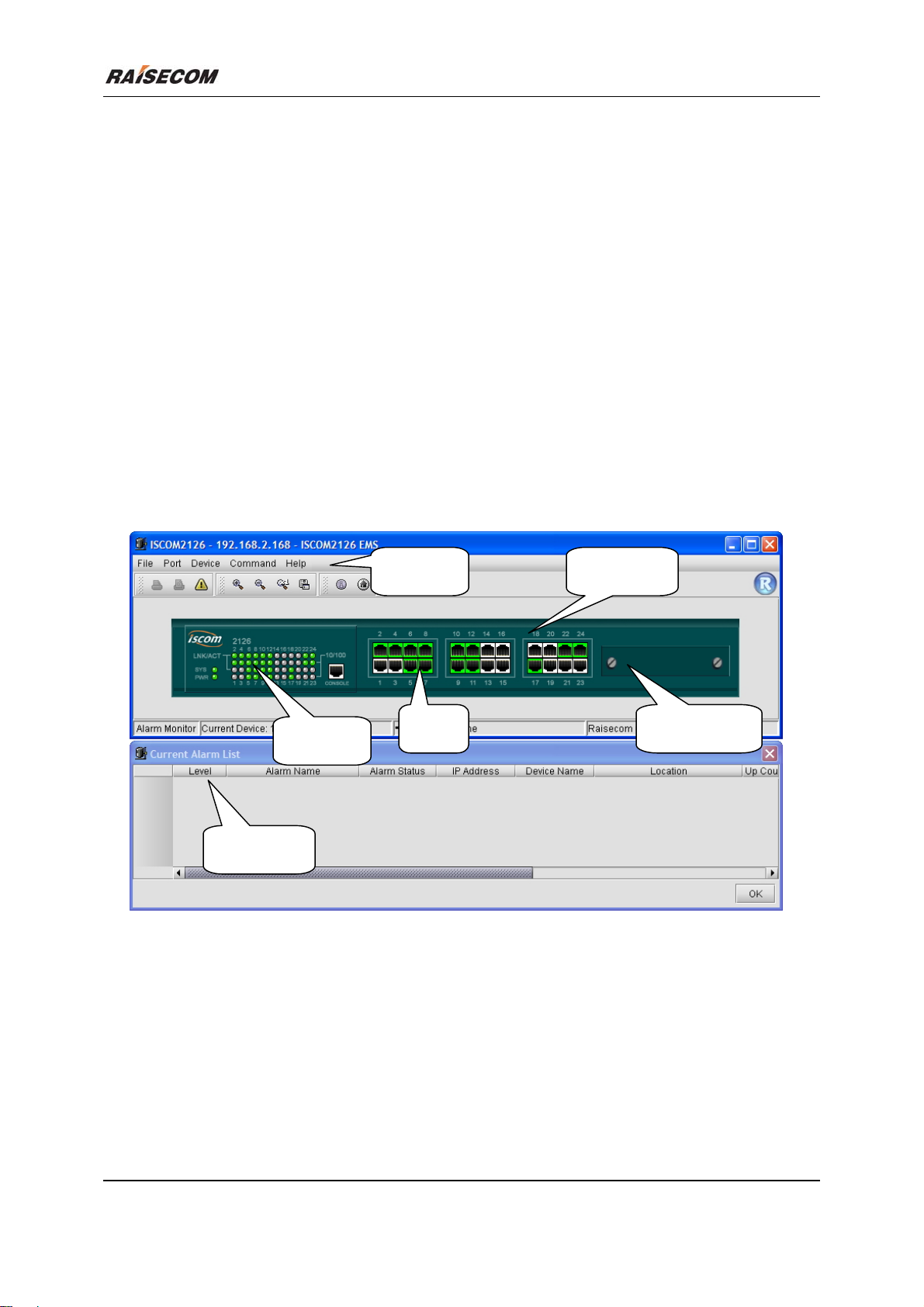
The device view generated by the EMS is identical with appearance of the real device, so it could
truly reflect current status of the Switch.
With advantage of ISCOM2126 EMS, you can monitor and manage your Switch in a simple way.
Through prior installation of NView iEMS (or NView NNM) network management platform, ISCOM2126
EMS, together with configuration of relevant parameters like SNMP information and Trap target address,
all that can do.
Chassis Panel Main Menu
Indicator
Current Alarm
Figure 1-1 The Main View of ISCOM2126 EMS (for Hardware Version Rev.C)
Port Expansion Slot
ISCOM2126 EMS User Manual 2
Page 9
Beijing Raisecom Science & Technology Co., Ltd
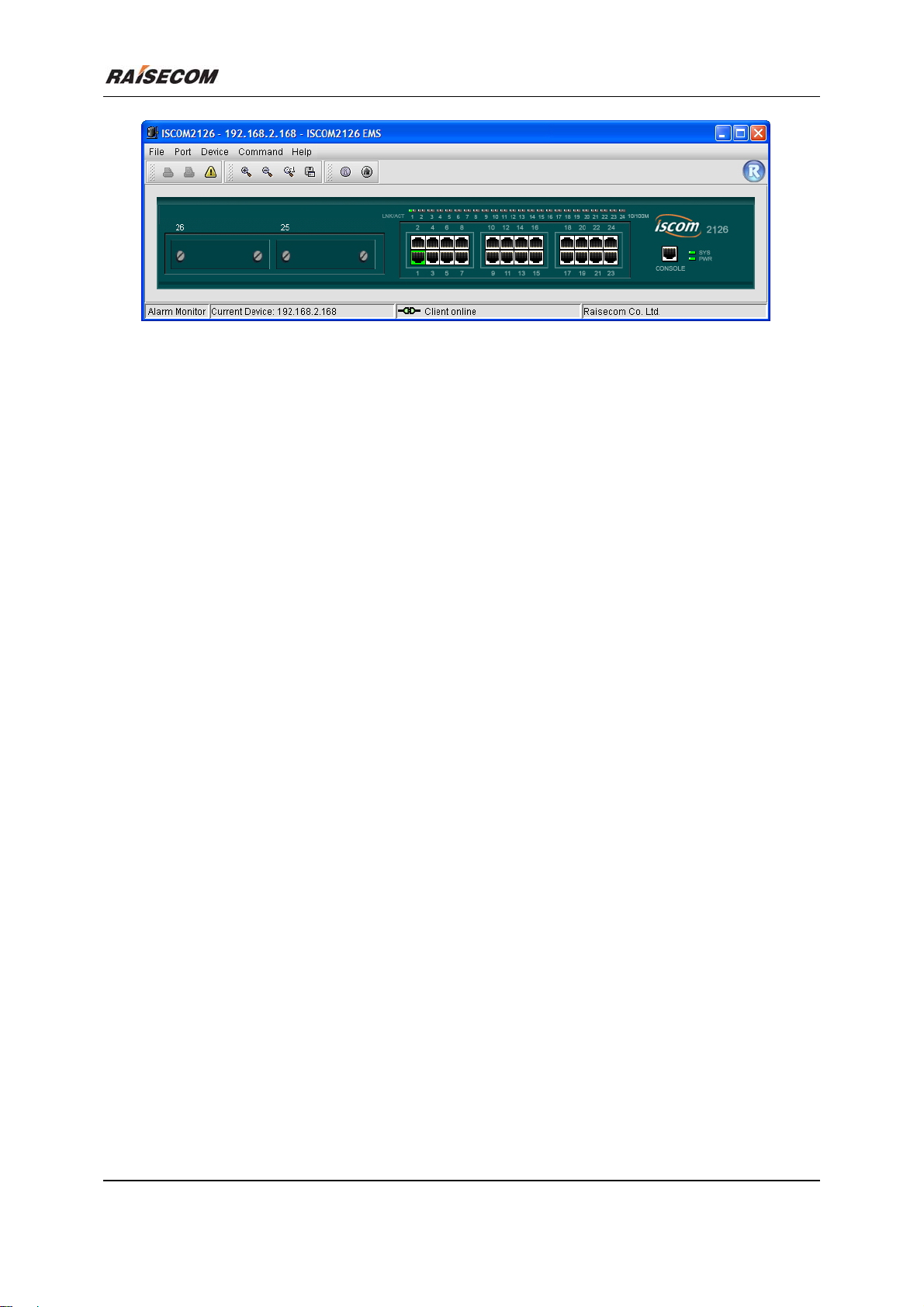
Figure 1-2 The Main View of ISCOM2126 EMS (for Hardware Version Rev.D)
ISCOM2126 EMS User Manual 3
Page 10

Chapter 2 Function/Protocol Configuration
This chapter describes the usages of function/protocol configuration dialog boxes initiated from main
menu and popup menus of ISCOM2826 EMS, and consists of the following sections:
Lay-2 Port Configuration
Switch Information
RFC1213 System Group
Bandwidth Configuration
QOS Configuration
Static MAC Address Configuration
Port Mirroring Configration
Trunk Configuration
IGMP SNOOPING Configuration
VLAN Configuration
IP Subnet Configuration
ARP Configuration
Spanning Tree Protocol Configuration
RMON Configuration
SNTP Client Configuration
SYSLOG Configuration
Customer Configuration
Reboot Switch
Save Current Configuration
Delete Current Configuration
Upload and Download
Obtain SNTP Message
For each protocol and function’s role, value and restrictions, see relevant commands of “ISCOM2126
Switch Command Notebook”.
Page 11
Beijing Raisecom Science & Technology Co., Ltd
2.1 Layer-2 Port Configuration
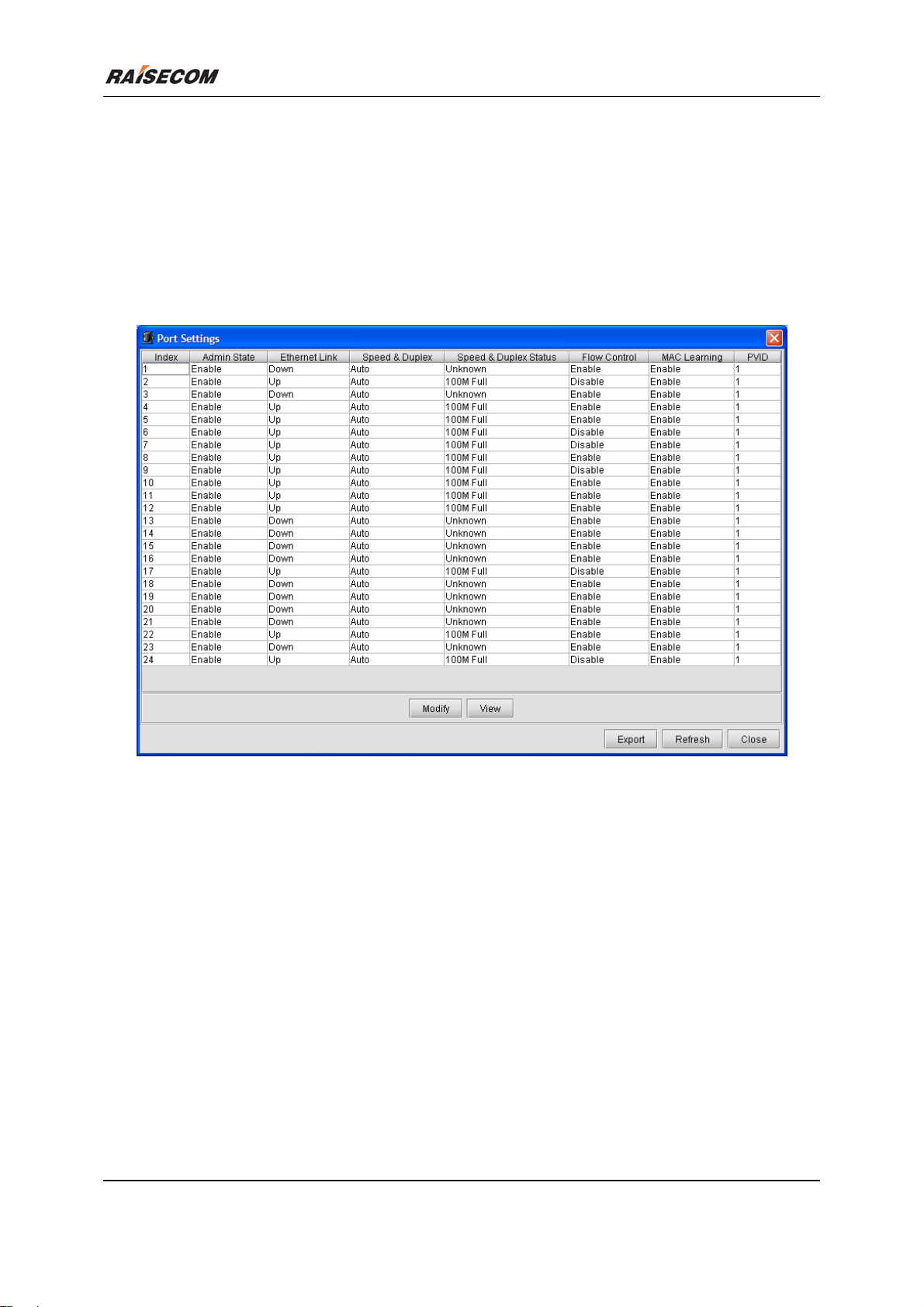
Click [Main Menu\Port\Port Settings] to launch the Port Settings dialog box. Select one or more
rows from the port table, and click the <Modify> button to configure port information. The following figure
is an example of this box.
Related commands:
See chapter 3 of “ISCOM126 Switch Command Notebook” for
interface port and pvid commands.
Figure 2-1 The Port Settings dialog box
2.2 Switch Information
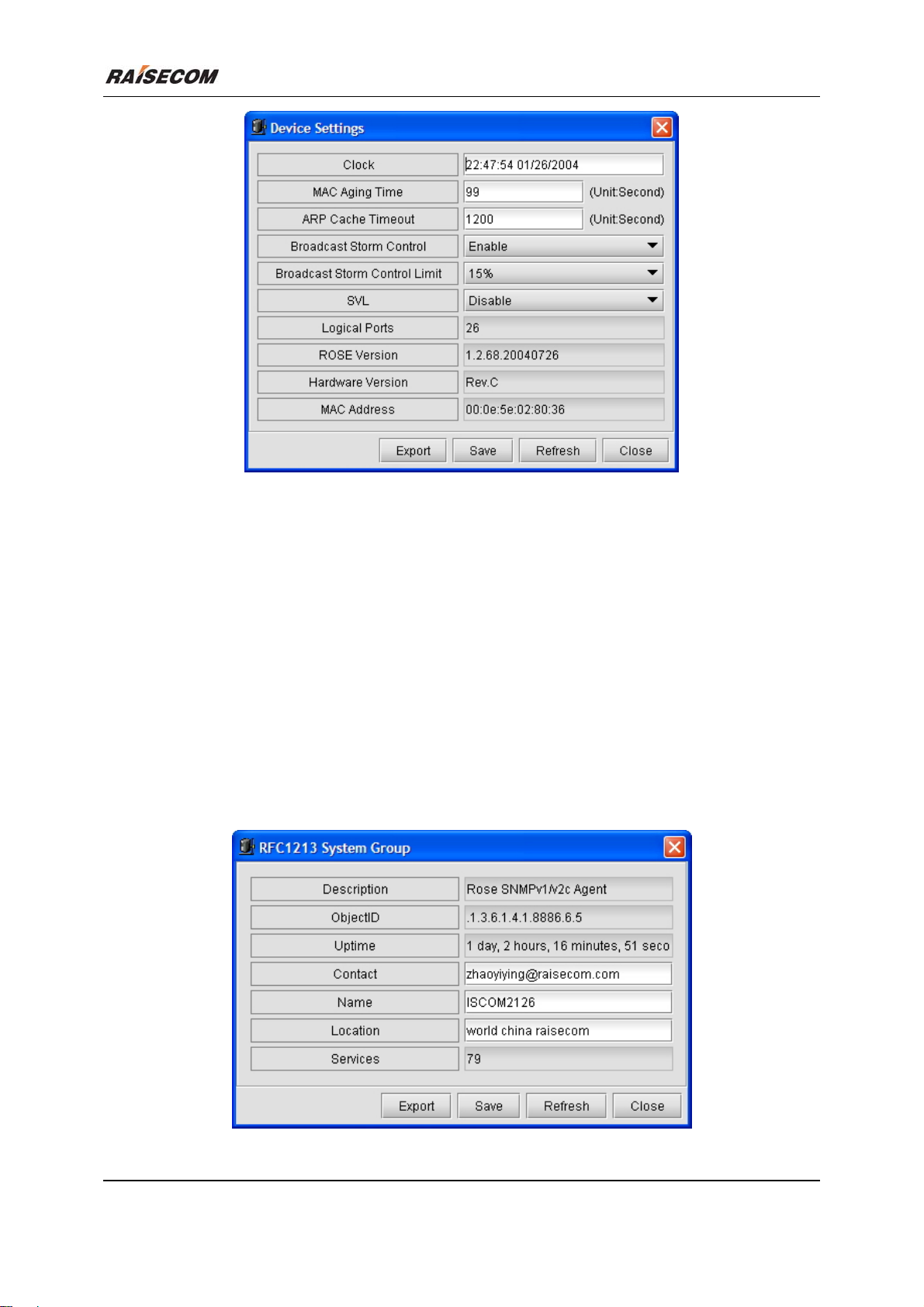
Click [Main Menu\Device\Device Settings] to launch the Device Settings dialog box, which is useful
for configuring some basic information of Switch. The following figure is an example of this window.
Related commands:
See chapter 3 of “ISCOM126 Switch Command Notebook” for
arp timeout
mac-address-table aging-time
storm_control
pvid-space
svl
stp
clockset
commands.
ISCOM2126 EMS User Manual 2
Page 12
Beijing Raisecom Science & Technology Co., Ltd
Figure 2-2 The Device Settings dialog box
2.3 RFC1213 System Group
Click [Main Menu\Device\RFC1213 System Group] to launch the RFC1213 System Group dialog
box. It enables you to view and configure RFC1213 System Group information of Switch. The following
figure is an example of this window.
Related commands:
See chapter 3 of “ISCOM126 Switch Command Notebook” for
show snmp contact
show snmp location
snmp-server contact
snmp-server location
commands.
Figure 2-3 RFC1213 System Group
ISCOM2126 EMS User Manual 3
Page 13
Beijing Raisecom Science & Technology Co., Ltd
2.4 Port Bandwidth Configuration
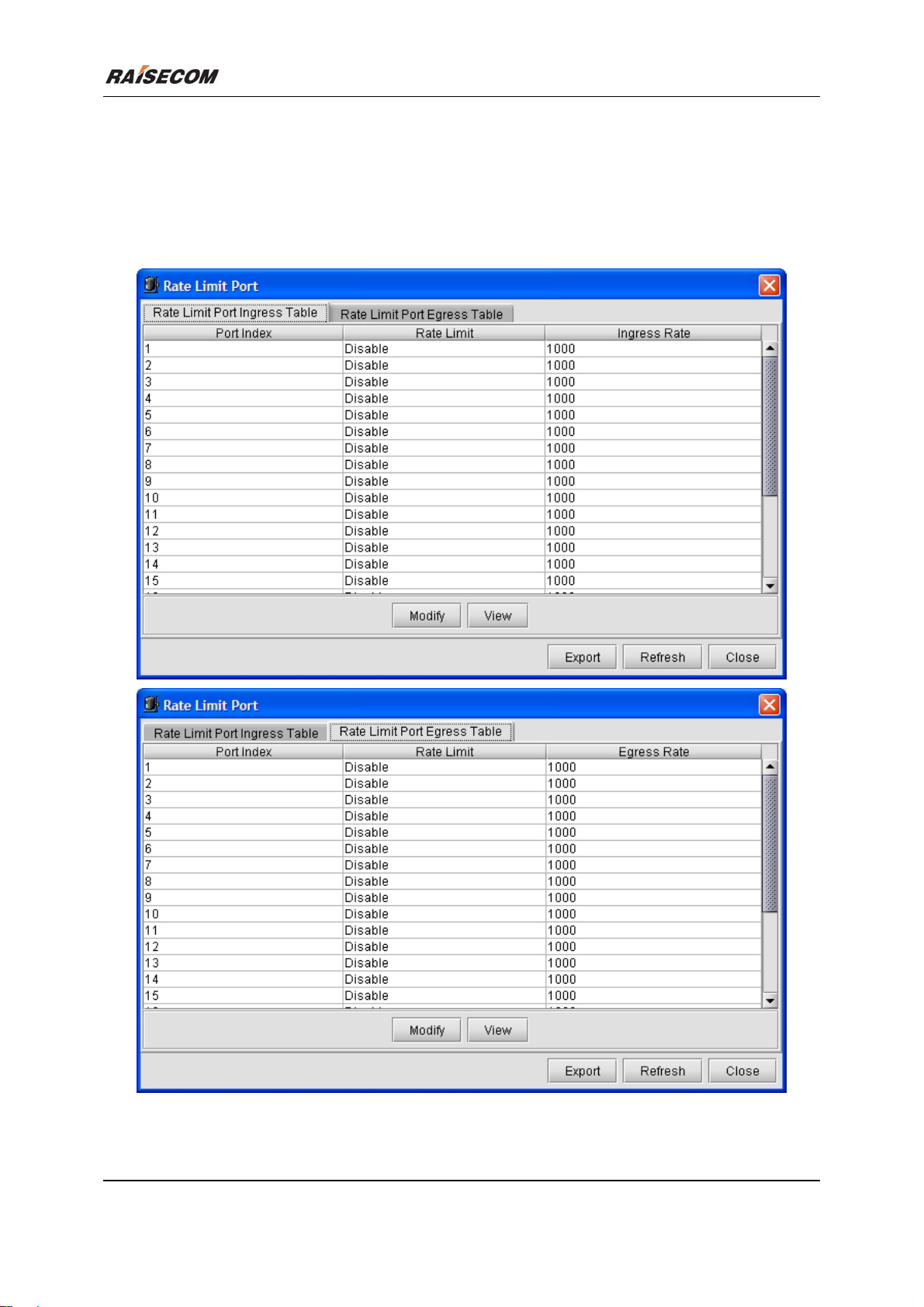
Click [Main Menu\Device\Rate Limit] to launch the Rate Limit dialog box. It enables you to view
and configure the port bandwidth information. The following figure is an example of this window.
Related commands:
See chapter 3 of “ISCOM126 Switch Command Notebook” for
rate-limit port command.
Figure 2-4 The Port Bandwidth Configuration dialog box
ISCOM2126 EMS User Manual 4
Page 14
Beijing Raisecom Science & Technology Co., Ltd
2.5 QOS Configuration
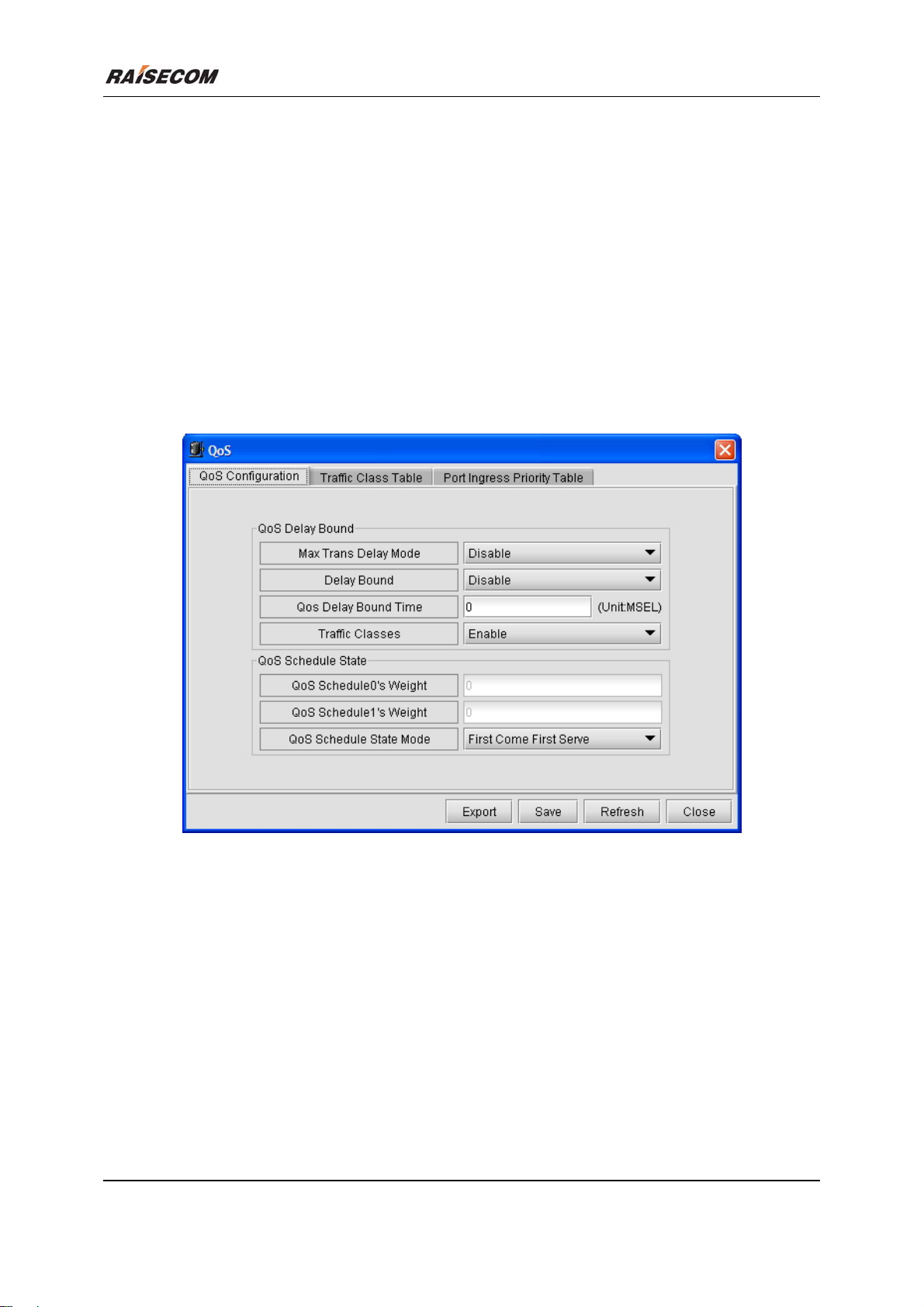
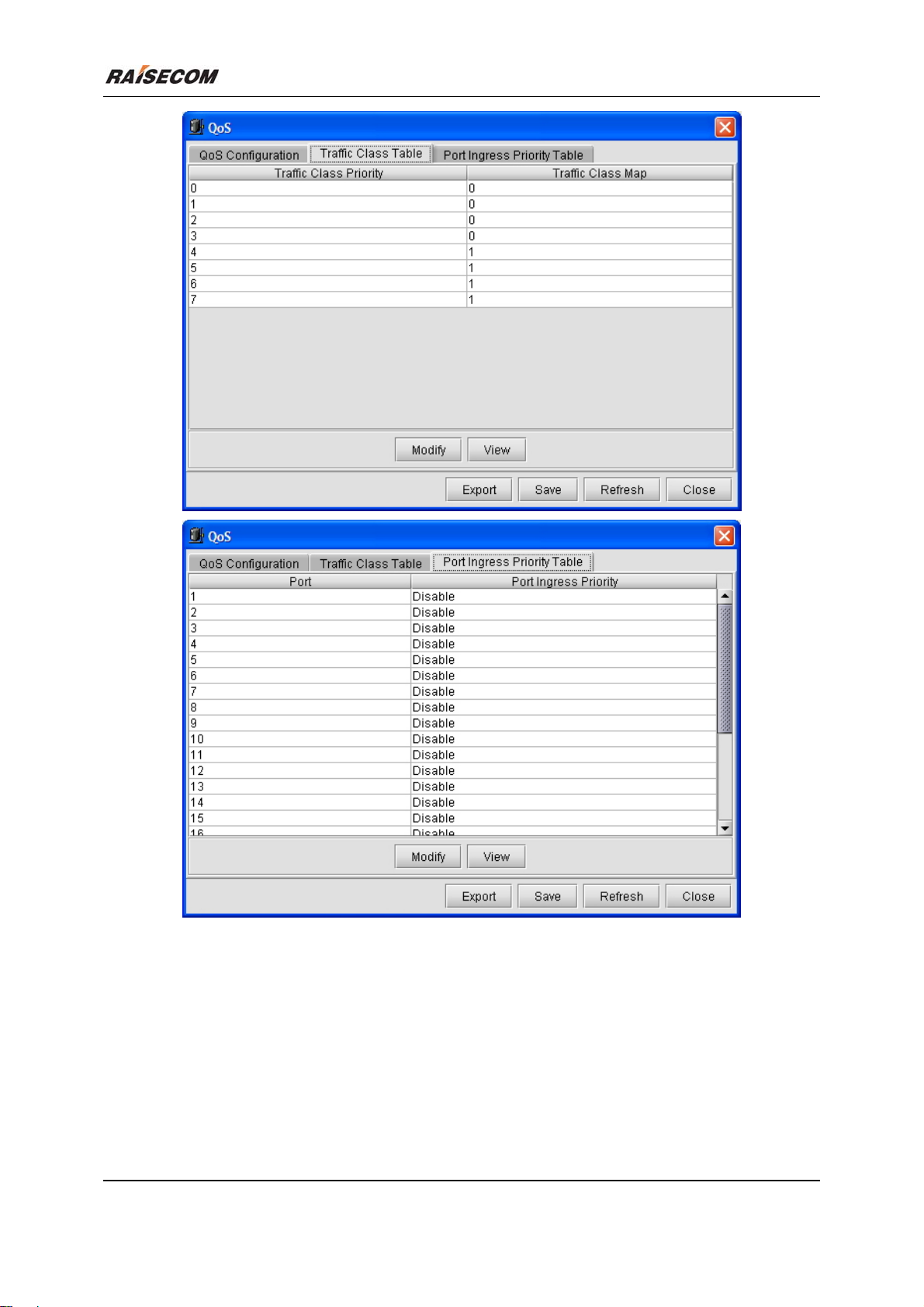
Click [Main Menu\Device\QOS] to launch the QOS dialog box. It enables you to view and configure
the QOS information. The following figure is an example of this window.
Related commands:
See chapter 3 of “ISCOM126 Switch Command Notebook” for
qos cosq
qos port-prio
qos max-trans-delay
qos delay-bound
qos delay-bound-time
qos map priority queue
commands.
ISCOM2126 EMS User Manual 5
Page 15
Beijing Raisecom Science & Technology Co., Ltd
Figure 2-5 QOS Configuration
2.6 Static MAC Address Configuration
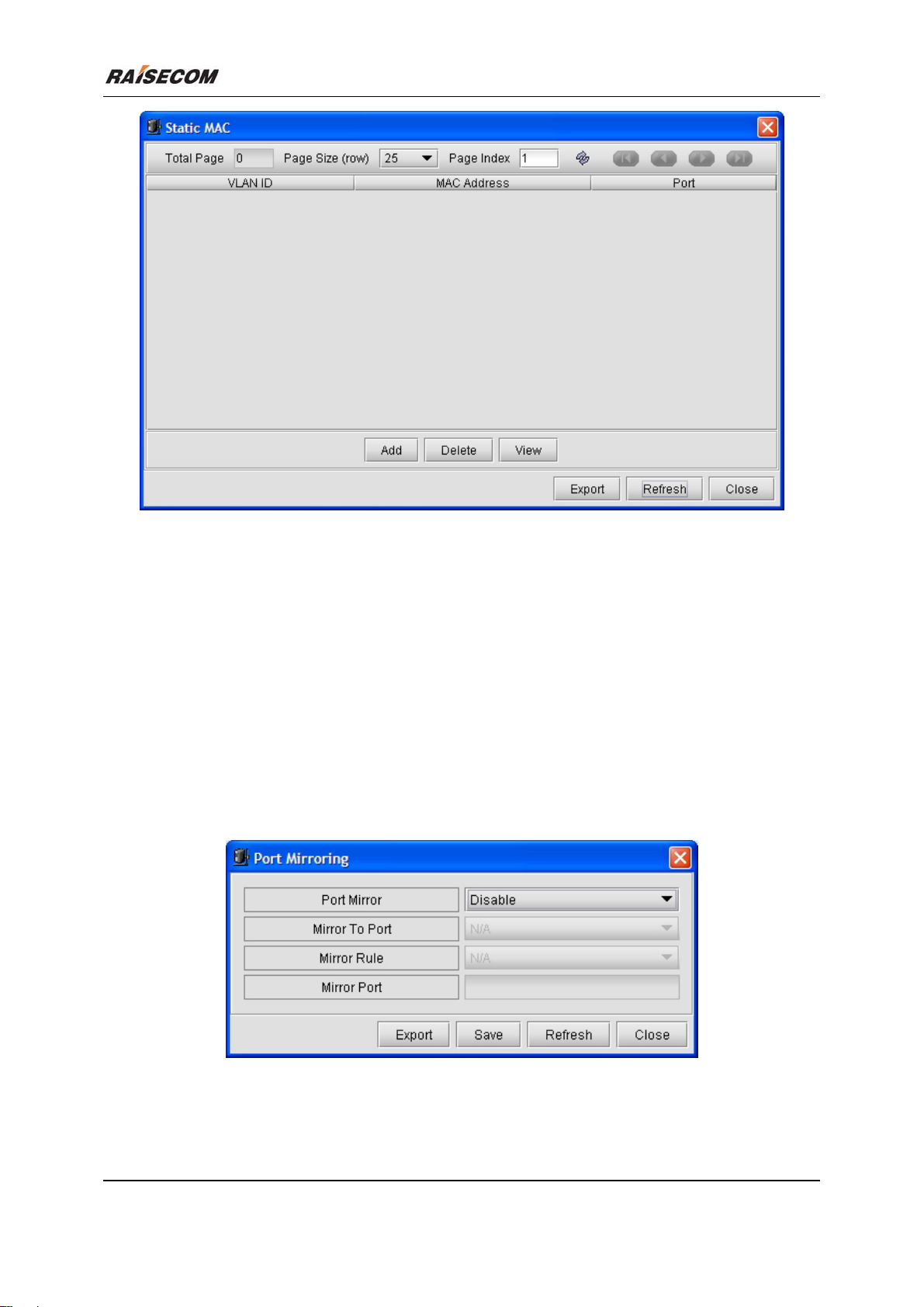
Click [Main Menu\Device\Static MAC] to launch the Static MAC dialog box. It enables you to view
and configure the static MAC address information. The following figure is an example of this window.
Related commands:
See chapter 3 of “ISCOM126 Switch Command Notebook” for
ISCOM2126 EMS User Manual 6
mac-address-table static command.
Page 16
Beijing Raisecom Science & Technology Co., Ltd
Figure 2-6 Static MAC Address Configuration
2.7 Port Mirroring Configuration
Click [Main Menu\Device\Port Mirroring] to launch the Port Mirroring dialog box. It enables you
to view and configure the port mirror information. The following figure is an example of this window.
Related commands:
See chapter 3 of “ISCOM126 Switch Command Notebook” for
mirror
mirror monitor_port
mirror source_port
mirror rule
command.
Figure 2-7 Port Mirroring Configuration
ISCOM2126 EMS User Manual 7
Page 17
Beijing Raisecom Science & Technology Co., Ltd
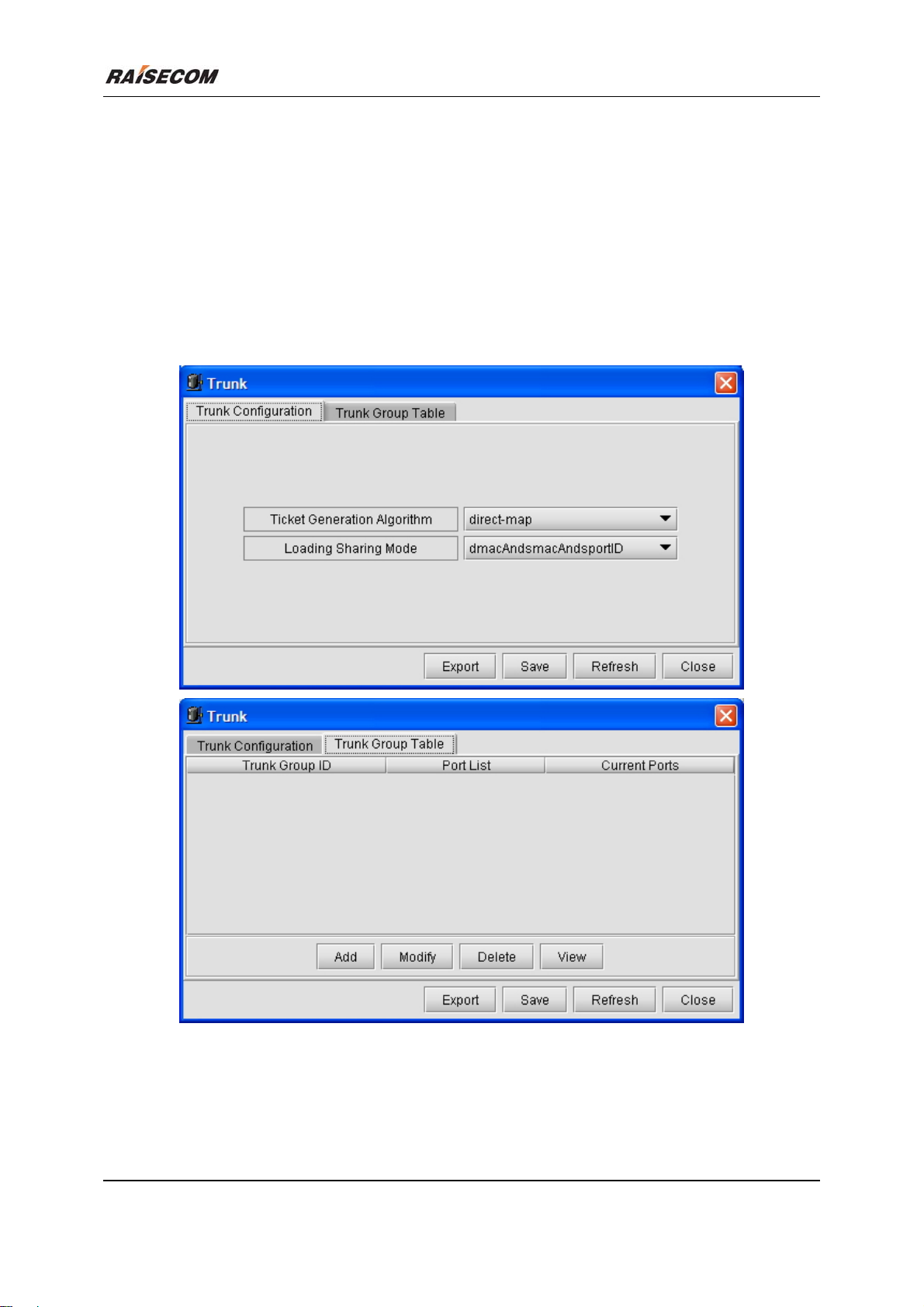
2.8 TRUNK Configuration
Click [Main Menu\Device\Trunk] to launch the Trunk dialog box. It enables you to view and
configure the port convergence information. The following figure is an example of this window.
Related commands:
See chapter 3 of “ISCOM126 Switch Command Notebook” for
trunk-group
trunk-loading-sharing mode
trunk-loading-sharing ticket-generation-algorithm
commands.
Figure 2-8 Trunk Configuration
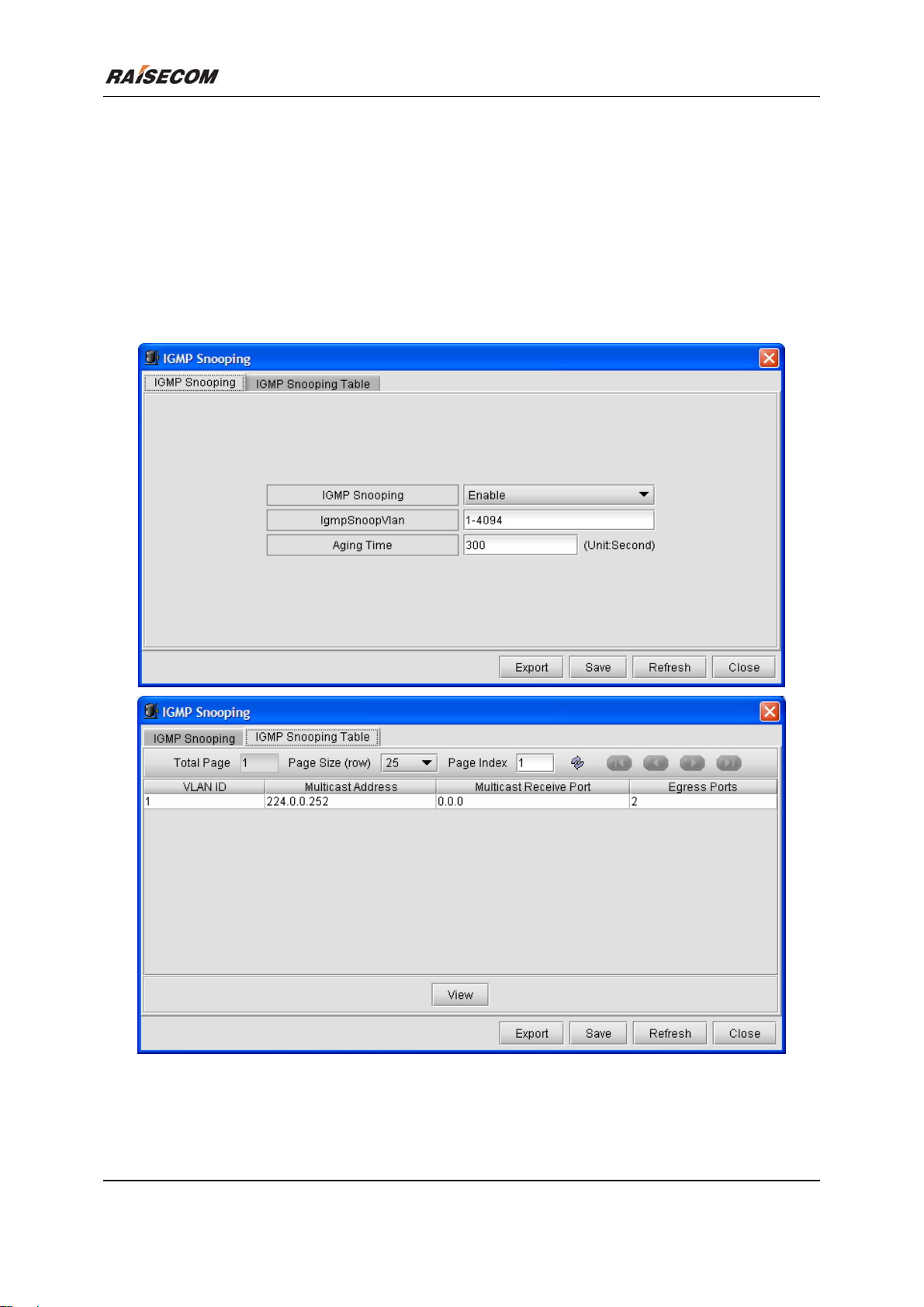
2.9 IGMP SNOOPING Configuration
Click [Main Menu\Device\IGMP SNOOPING] to launch the IGMP SNOOPING dialog box. It
ISCOM2126 EMS User Manual 8
Page 18
Beijing Raisecom Science & Technology Co., Ltd
enables you to view and configure the IGMP SNOOPING information. The following figure is an example
of this window.
Related commands:
See chapter 3 of “ISCOM126 Switch Command Notebook” for
ip igmp-snooping
ip igmp-snooping vlan
ip igmp-snooping static
ip igmp-snooping timeout
commands.
Figure 2-9 IGMP SNOOPING Configuration
ISCOM2126 EMS User Manual 9
Page 19
Beijing Raisecom Science & Technology Co., Ltd
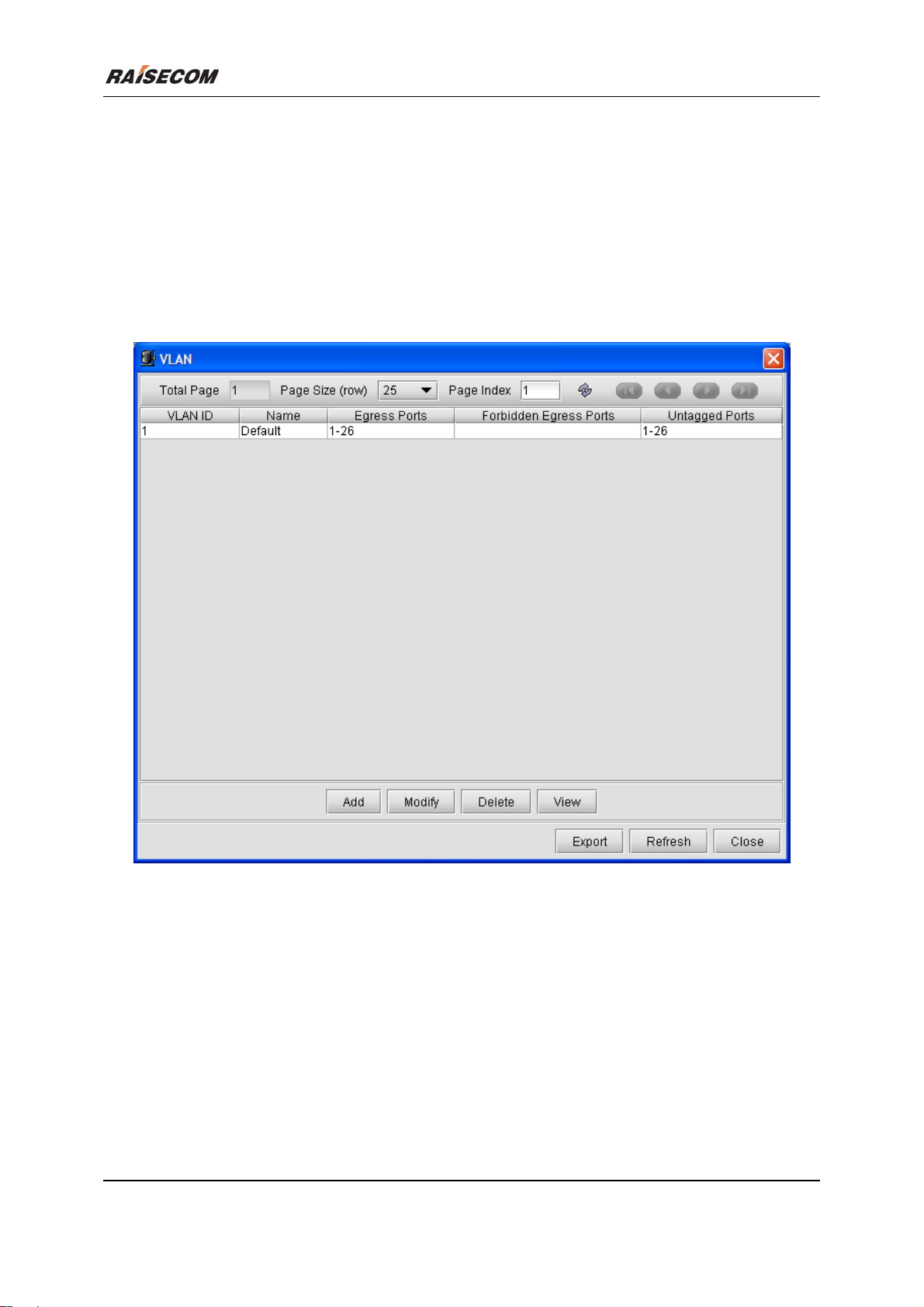
2.10 VLAN Configuration
Click [Main Menu\Device\VLAN] to launch the VLAN dialog box. It enables you to view and
configure the VLAN information of Switch. The following figure is an example of this window.
Related commands:
See chapter 3 of “ISCOM126 Switch Command Notebook” for
vlan
vlan-access
commands.
Figure 2-10 VLAN Configuration
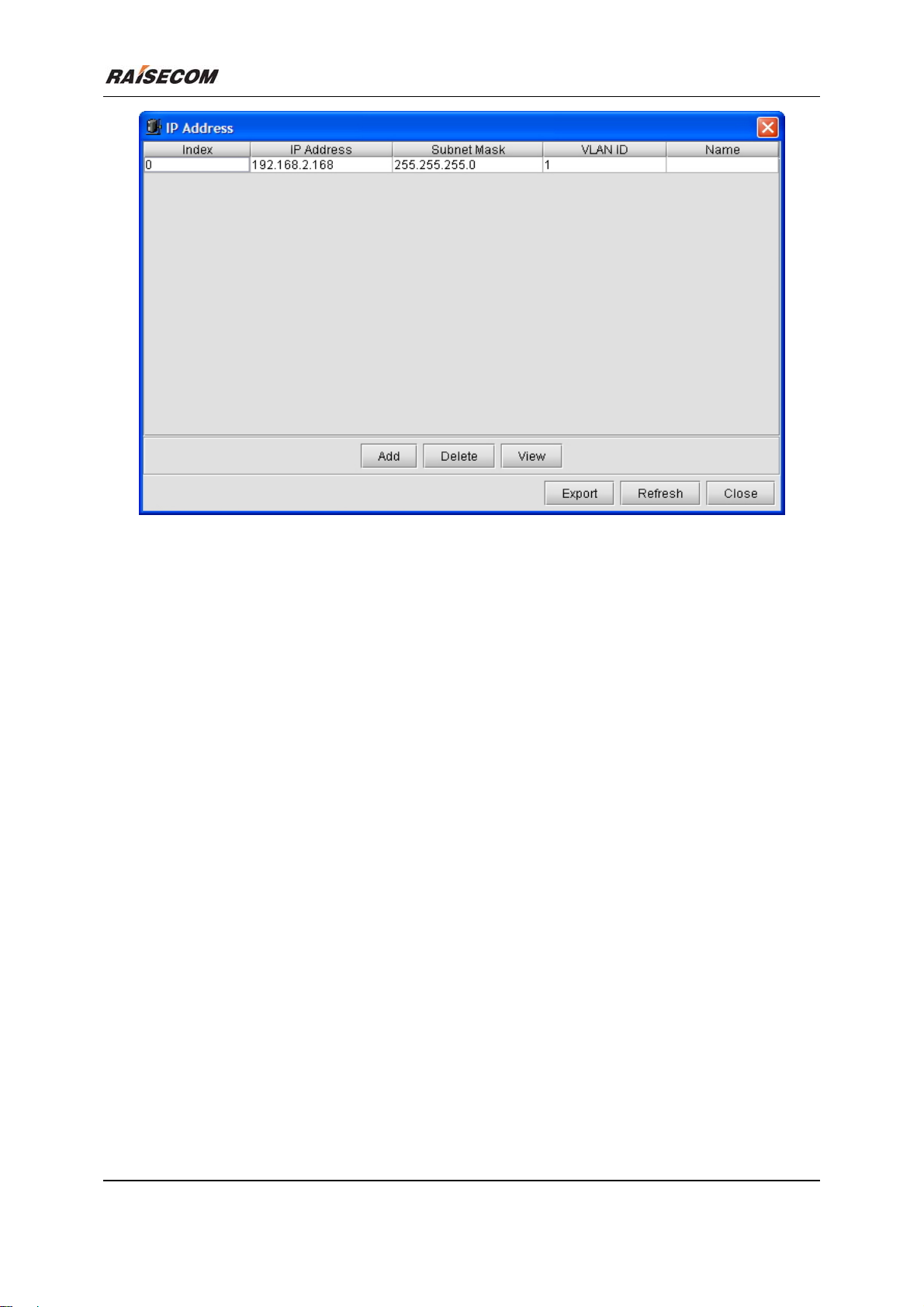
2.11 IP Subnet Configuration
Click [Main Menu\Device\IP Address] to launch the IP Address dialog box. It enables you to view
and configure the IP subnet information of Switch. The following figure is an example of this window.
Related commands:
See chapter 3 of “ISCOM126 Switch Command Notebook” for
ISCOM2126 EMS User Manual 10
ip address command.
Page 20
Beijing Raisecom Science & Technology Co., Ltd
Figure 2-11 IP Subnet Configuration
2.12 ARP Configuration
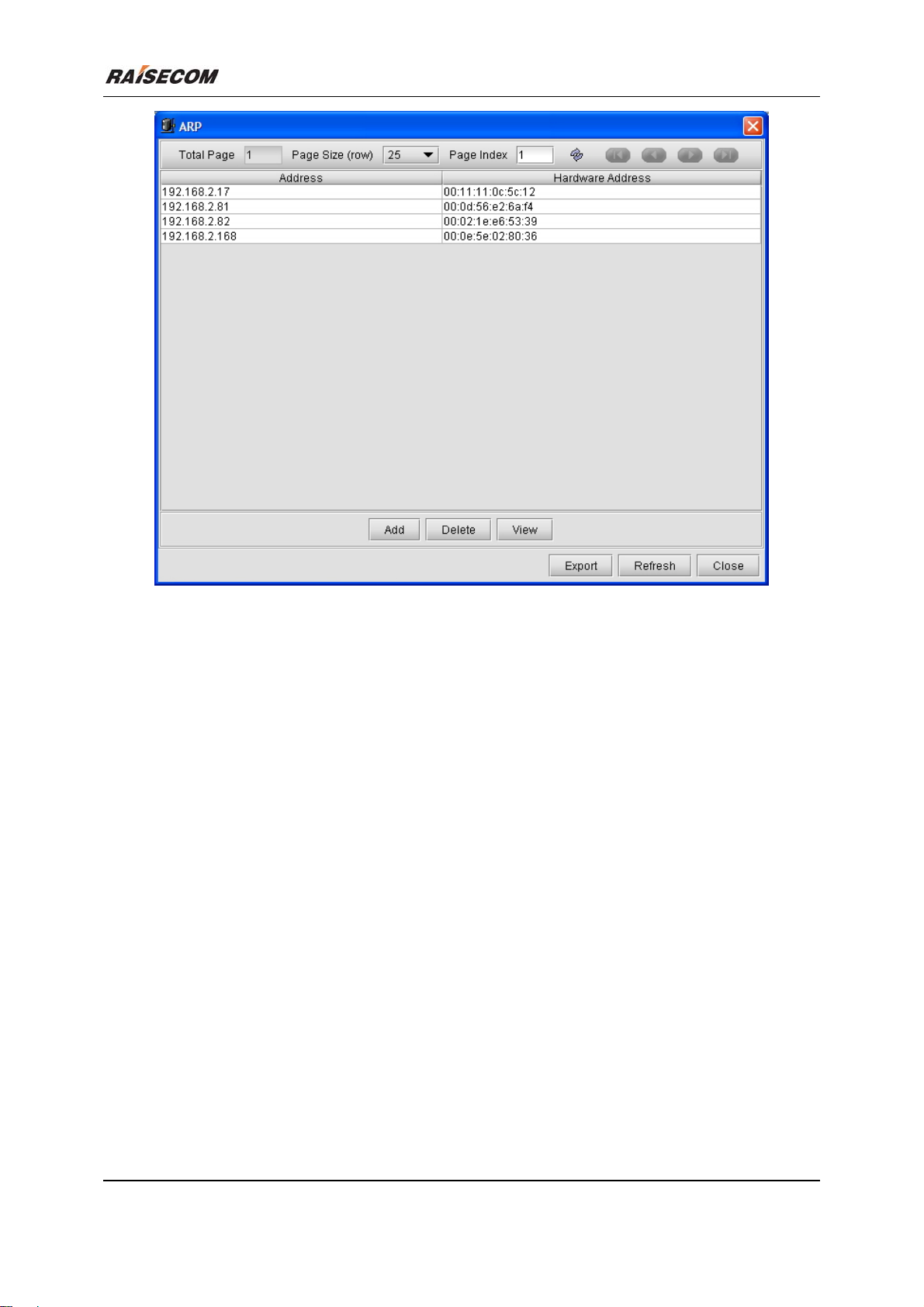
Click [Main Menu\Device\ARP] to launch the ARP dialog box. It enables you to view and configure
the ARP information of Switch. The following figure is an example of this window.
Related commands:
See chapter 3 of “ISCOM126 Switch Command Notebook” for
arp add command.
ISCOM2126 EMS User Manual 11
Page 21
Beijing Raisecom Science & Technology Co., Ltd
Figure 2-12 ARP Configuration
2.13 Spanning Tree Protocol Configuration
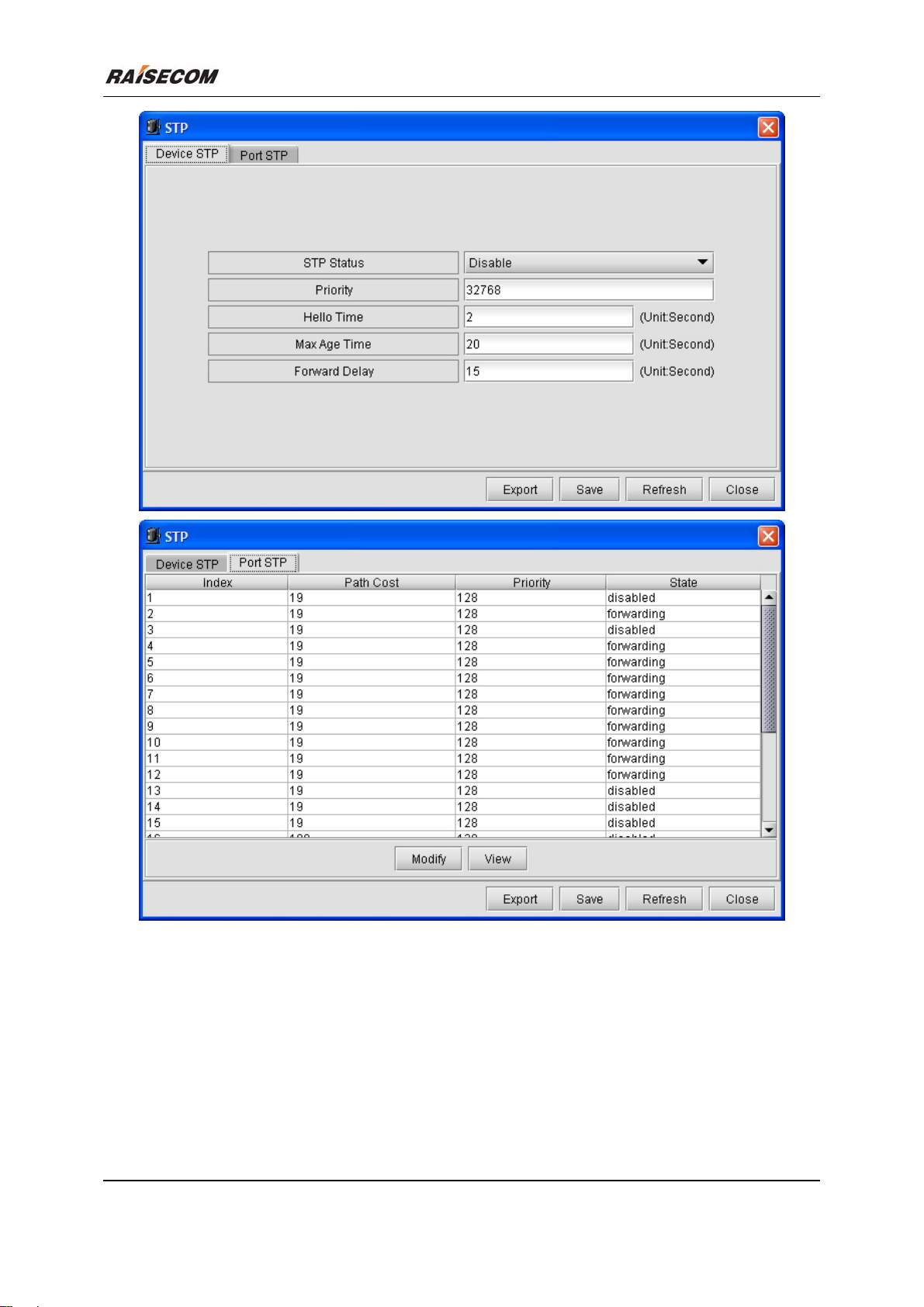
Click [Main Menu\Device\STP] to launch the SPT dialog box. It enables you to view and configure
the Spanning Tree Protocol information of Switch. The following figure is an example of this window.
Related commands:
See chapter 3 of “ISCOM126 Switch Command Notebook” for
stp
stp forward-delay
stp hello-time
stp max-age
stp path-cost
stp priority
commands.
ISCOM2126 EMS User Manual 12
Page 22
Beijing Raisecom Science & Technology Co., Ltd
Figure 2-13 Spanning Tree Protocol Configuration
2.14 RMON Configuration
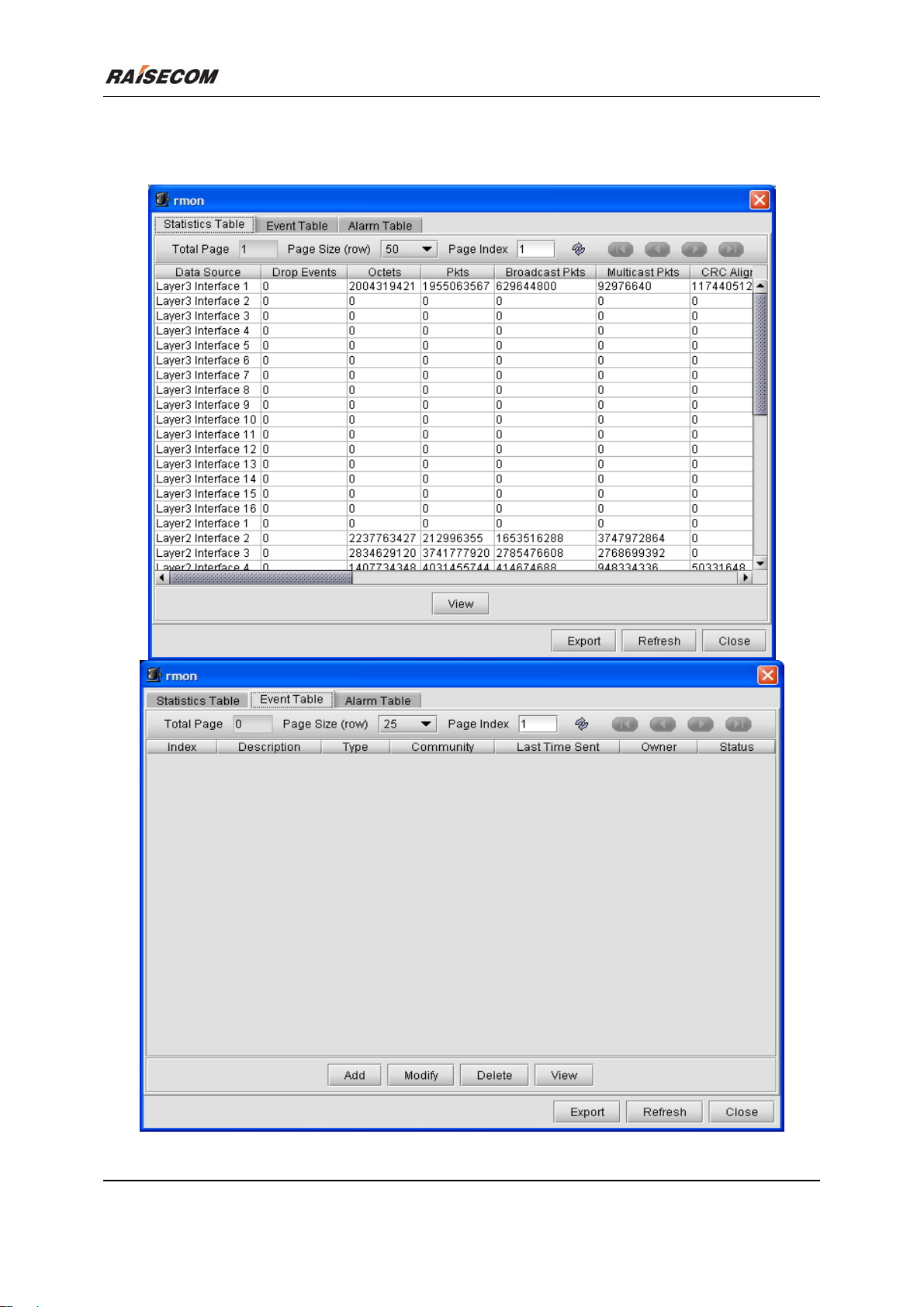
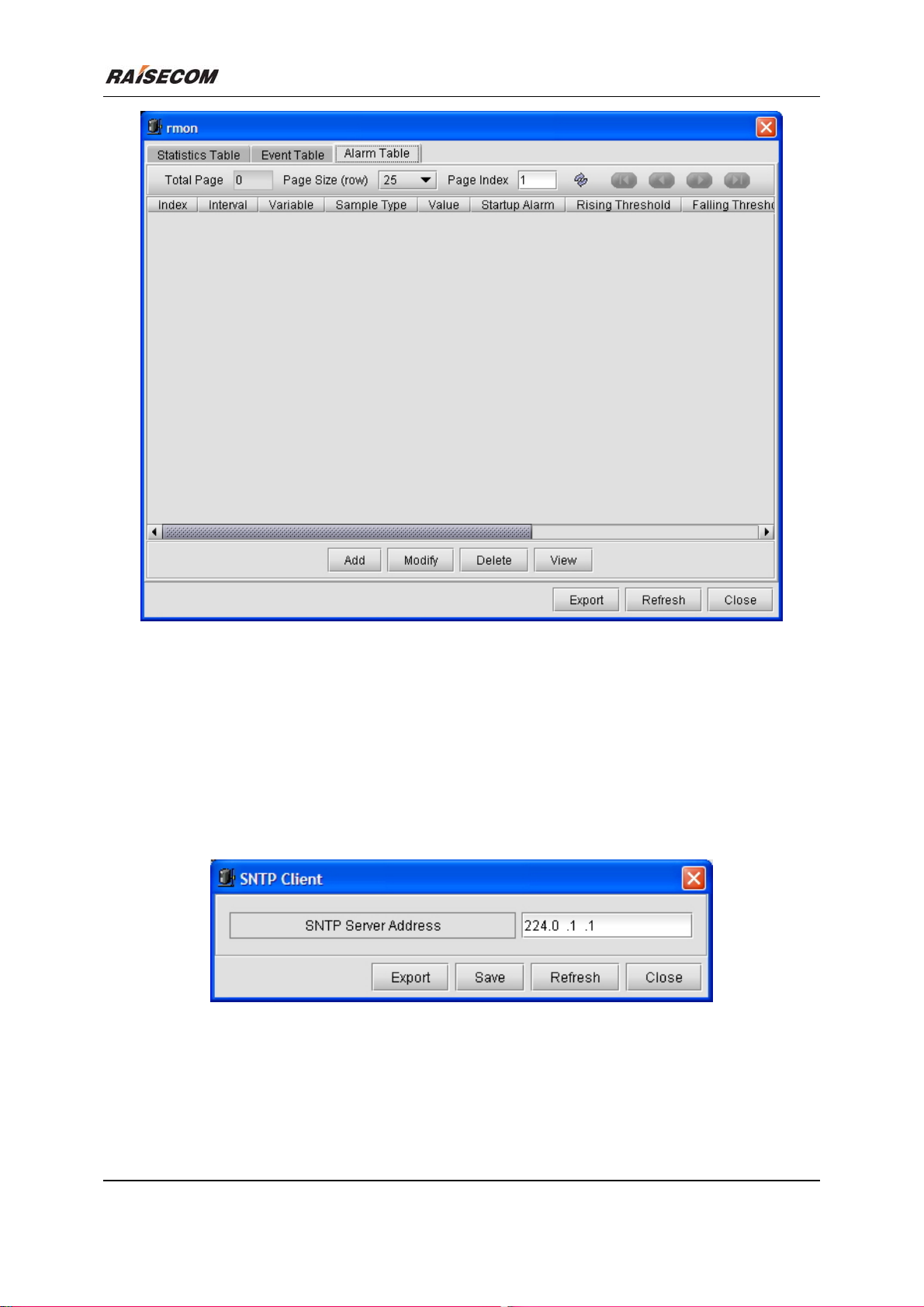
Click [Main Menu\Device\RMON] to launch the RMON dialog box. It enables you to view and
configure the RMON information of Switch. The following figure is an example of this window.
Related commands:
See chapter 3 of “ISCOM126 Switch Command Notebook” for
rmon alarm
ISCOM2126 EMS User Manual 13
Page 23
rmon event
rmon queuesize
commands.
Beijing Raisecom Science & Technology Co., Ltd
ISCOM2126 EMS User Manual 14
Page 24
Beijing Raisecom Science & Technology Co., Ltd
Figure 2-14 RMON Configuration
2.15 SNTP Client Configuration
Click [Main Menu\Device\SNTP Client] to launch the SNTP Client dialog box. It enables you to view
and configure the SNTP client information of Switch. The following figure is an example of this window.
Related commands:
See chapter 3 of “ISCOM126 Switch Command Notebook” for
Figure 2-15 SNTP Client Configuration
sntp broadcast client command.
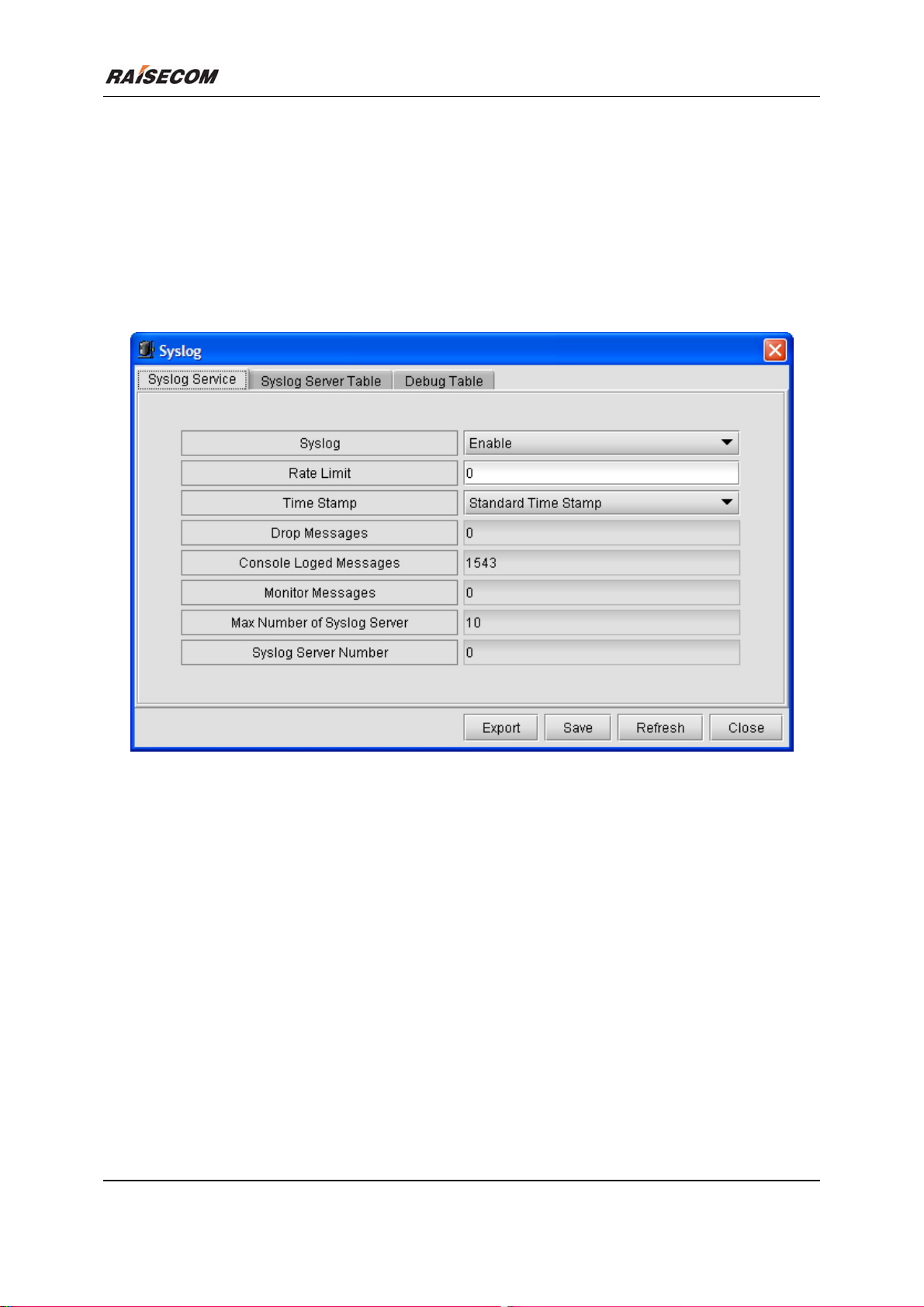
2.16 SYSLOG Configuration
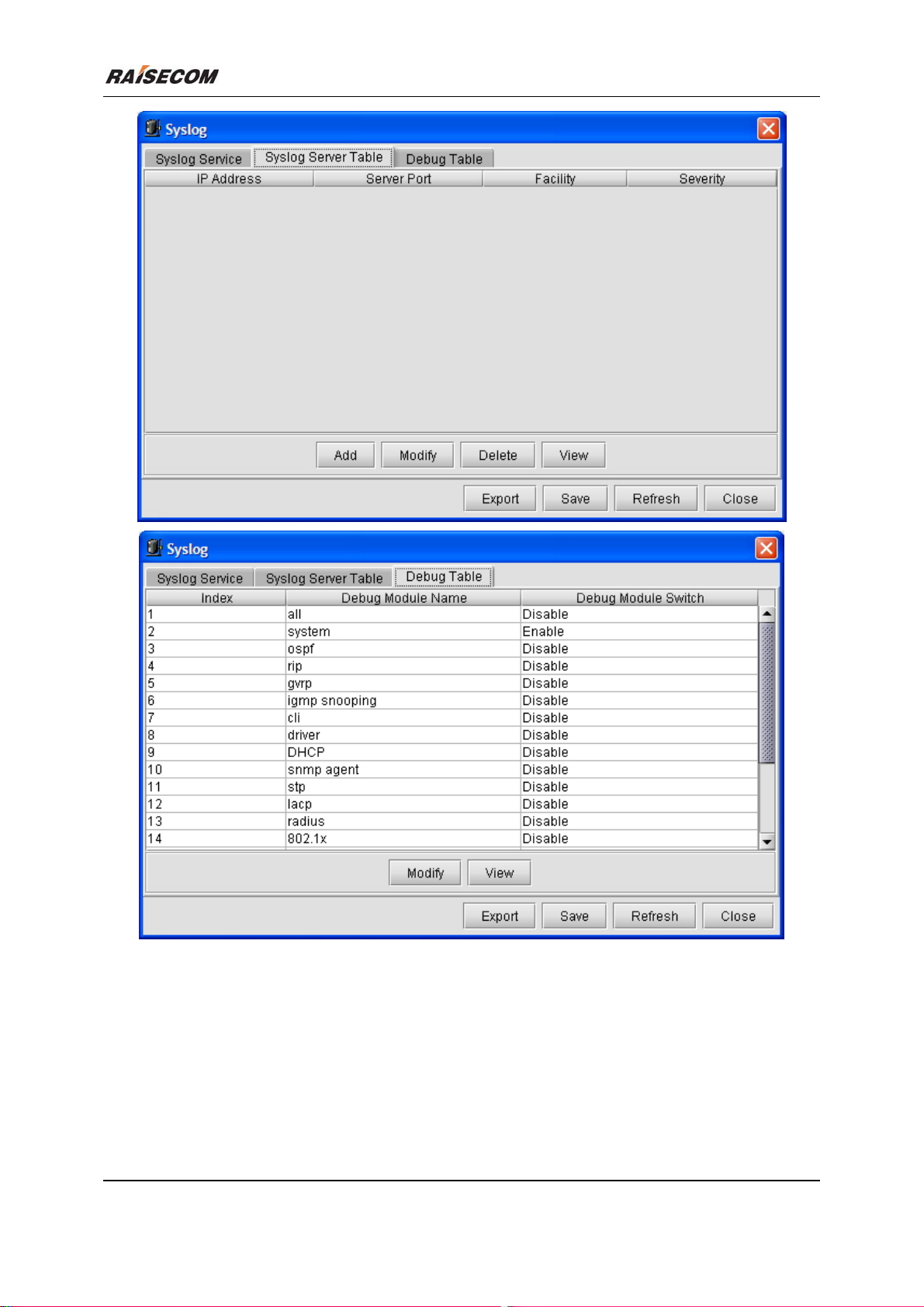
Click [Main Menu\Device\Syslog] to launch the Syslog dialog box. It enables you to view and
configure the SYSLOG information of Switch. The following figure is an example of this window.
ISCOM2126 EMS User Manual 15
Page 25
Beijing Raisecom Science & Technology Co., Ltd
Related commands:
See chapter 3 of “ISCOM126 Switch Command Notebook” for
logging on
logging rate
logging time-stamp
logging monitor
logging host
logging file
commands.
ISCOM2126 EMS User Manual 16
Page 26
Beijing Raisecom Science & Technology Co., Ltd
Figure 2-16 SYSLOG Configuration
2.17 Customer Configuration
Click [Main Menu\Device\User] to launch the User dialog box. It enables you to view and configure
the customer information of Switch. The following figure is an example of this window.
Related commands:
See chapter 3 of “ISCOM126 Switch Command Notebook” for
ISCOM2126 EMS User Manual 17
Page 27
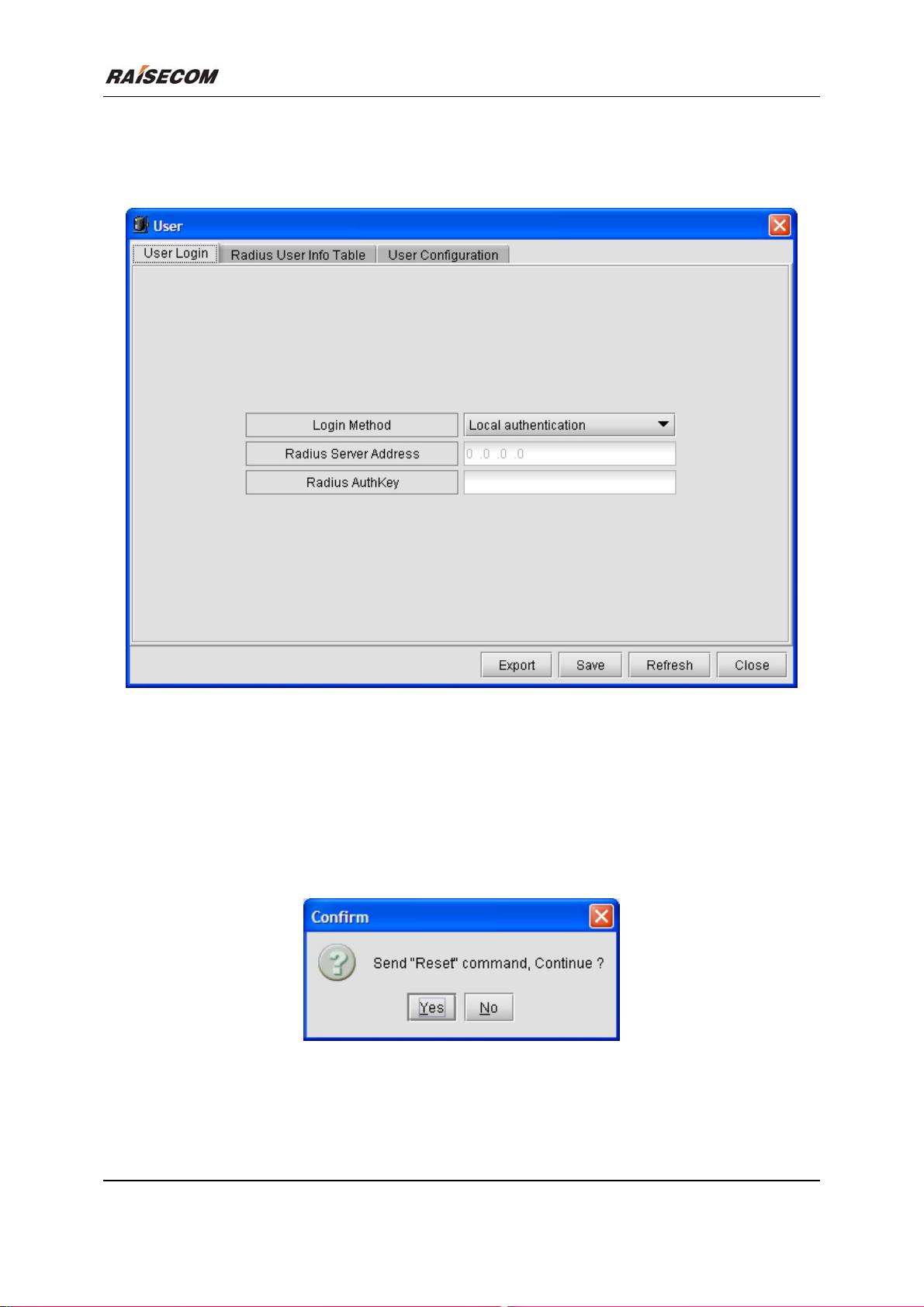
user
user login
user privilege
commands.
Beijing Raisecom Science & Technology Co., Ltd
Figure 2-17 User Configuration
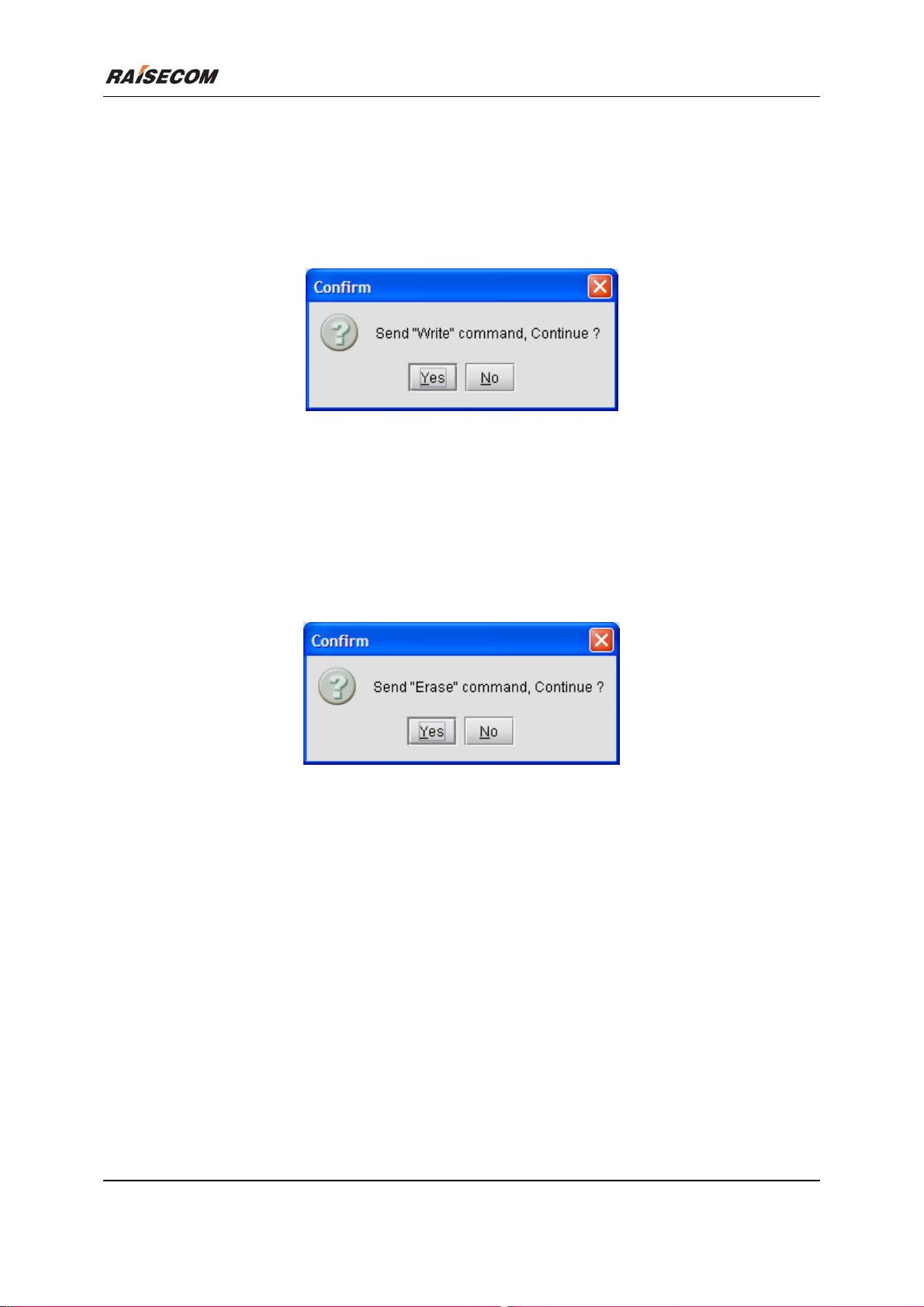
2.18 Reboot Switch
Click [Main Menu\Command\Reset] to initiate the reboot Switch command. The following figure is
an example of this window.
Related commands:
See chapter 3 of “ISCOM126 Switch Command Notebook” for
Figure 2-18 Reboot Switch
reboot command.
ISCOM2126 EMS User Manual 18
Page 28
Beijing Raisecom Science & Technology Co., Ltd
2.19 Saving Current Configuration
Click [Main Menu\Command\Write] to initiate the save current configuration command. The
following figure is an example of this window.
Related commands:
See chapter 3 of “ISCOM126 Switch Command Notebook” for
write command.
Figure 2-19 Save Current Configuration
2.20 Deleting Current Configuration
Click [Main Menu\ Command\Erase] to initiate the delete current configuration command. The
following figure is an example of this window.
Related commands:
See chapter 3 of “ISCOM126 Switch Command Notebook” for
erase command.
Figure 2-20 Delete Current Configuration
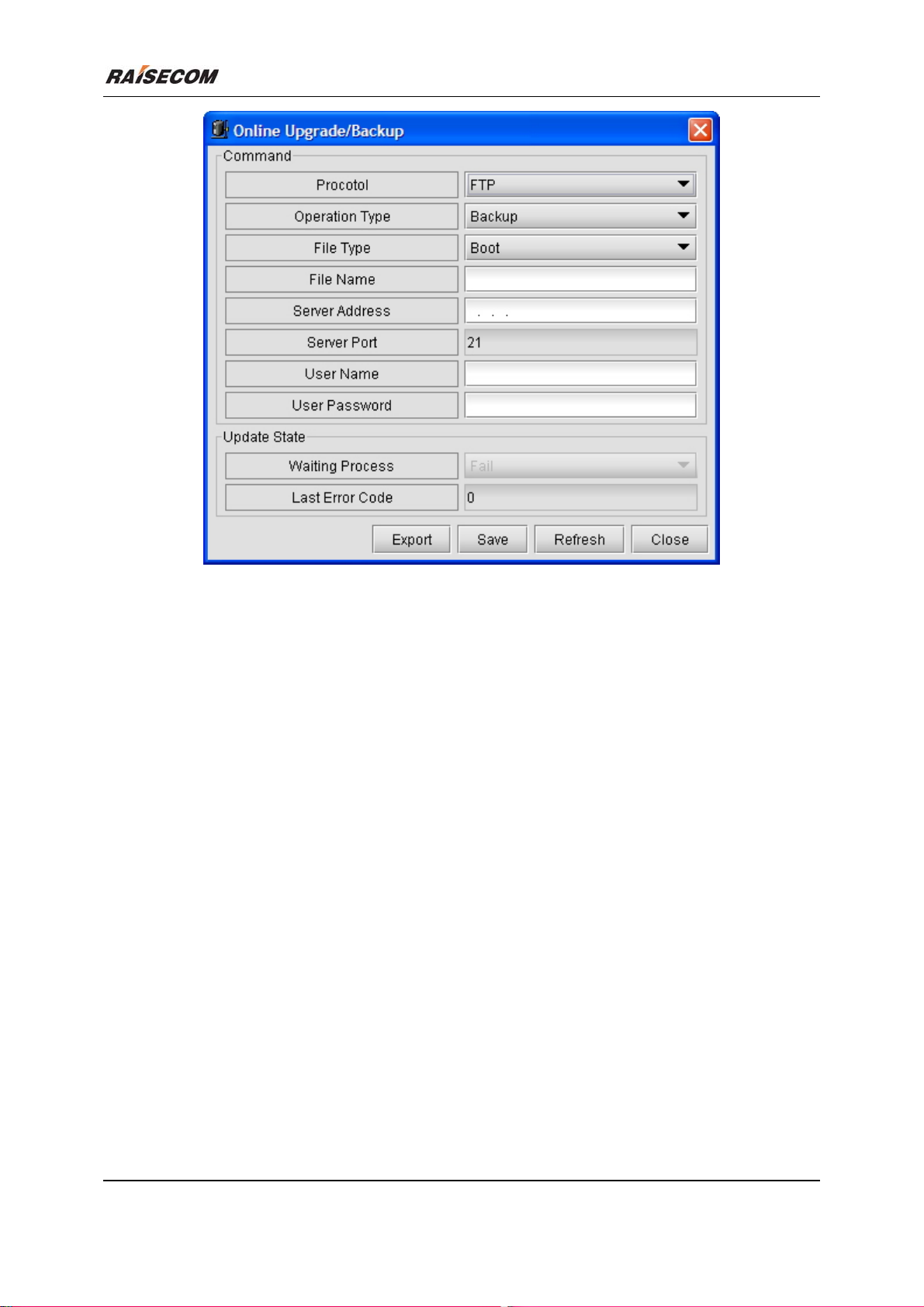
2.21 Upgrade And Backup (Upload And Download)
Click [Main Menu\ Command\Online Upgrade/Backup] to launch the Online Upgrade/Backup
dialog box. The following figure is an example of this window.
Related commands:
See chapter 3 of “ISCOM126 Switch Command Notebook” for
upload
download
commands.
ISCOM2126 EMS User Manual 19
Page 29
Beijing Raisecom Science & Technology Co., Ltd
Figure 2-21 Online Upgrade/Backup
ISCOM2126 EMS User Manual 20
Page 30
Beijing Raisecom Science & Technology Co., Ltd
Chapter 3 Alarm And Event Management
This chapter introduces how to view and maintain the current and historical alarm, and consists of the
following sections:
View Current Alarm
View Historical Alarm
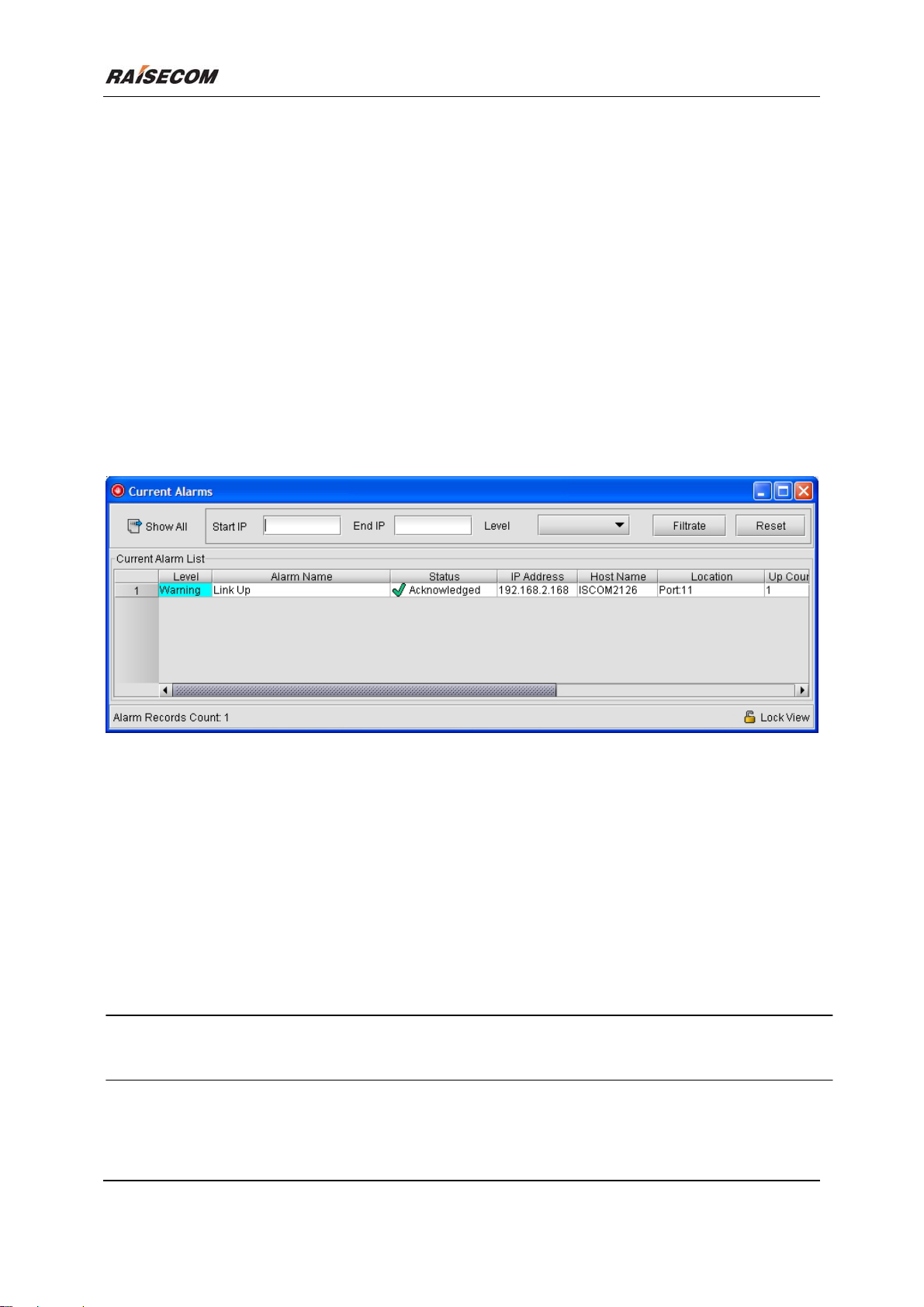
3.1 Viewing Current Alarm
Open the Current Alarm Management window
Double click the “Component Tree” within NView platform to select the [Current Alarm
Management] item.
Figure 3-1 The Current Alarm Management window
Confirm alarm record
Select a record whose “Alarm State” is “Newcome” and right click, then click the [Acknowledge] item.
Delete current alarm record
Select one or more pieces of record in the alarm list and right click, then select the [Clear] item.
Export current alarm record
Select [Export] from the right click menu to export the list into text file or Excel file.
Filtrate current alarm
Input filtration criteria: IP Address Scope and alarm level, then click the <Filtrate> button.
L Note: The IP Address scope supports asterisk wildcard “*”. For example, “192.168.1.*”, which can
serve as the “Start IP”.
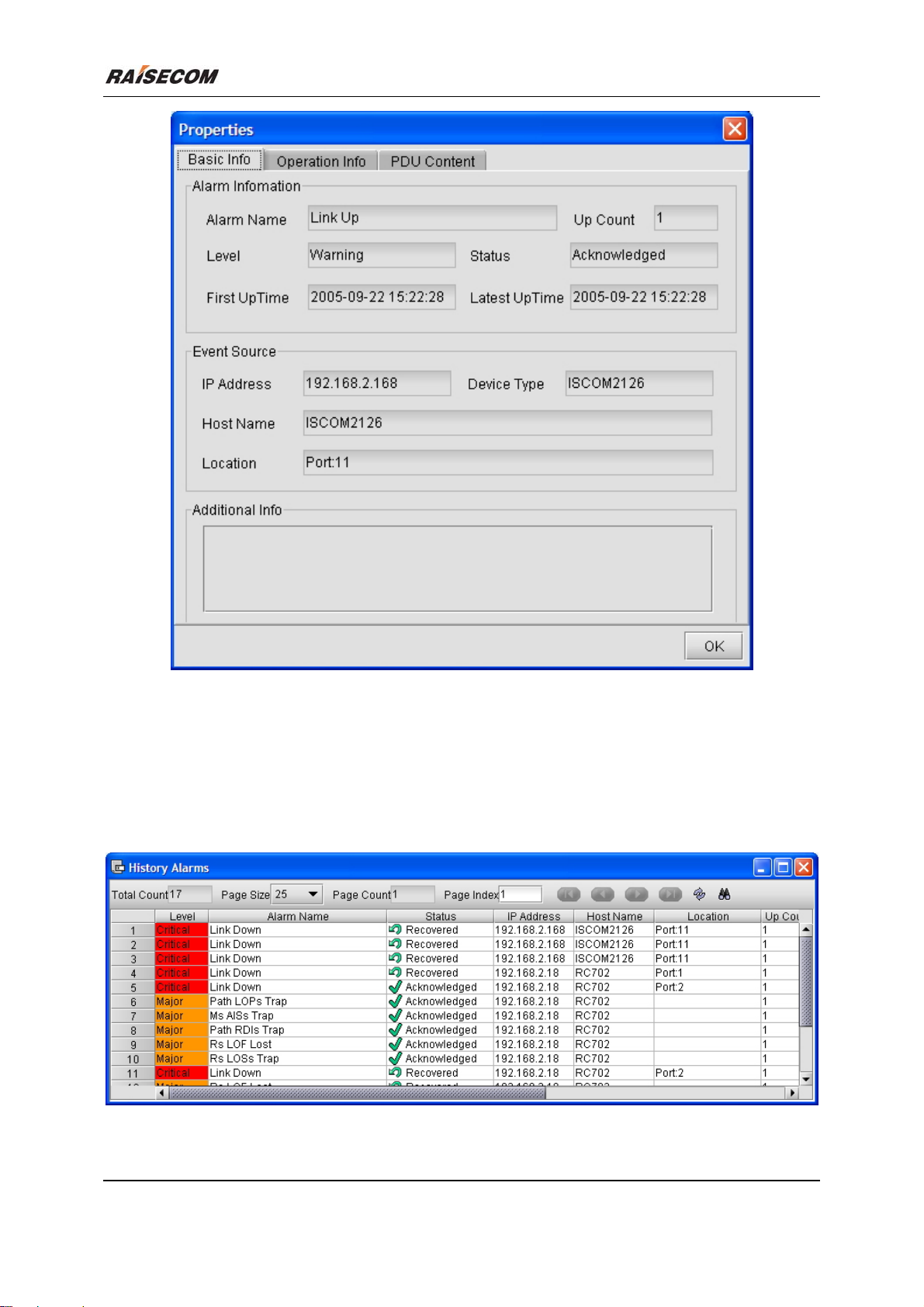
View details of alarm
Select a record in the alarm list and right click, then select the [Properties] item.
ISCOM2126 EMS User Manual 21
Page 31
Beijing Raisecom Science & Technology Co., Ltd
Figure 3-2 The Current Alarm Property window
3.2 View Historical Alarm
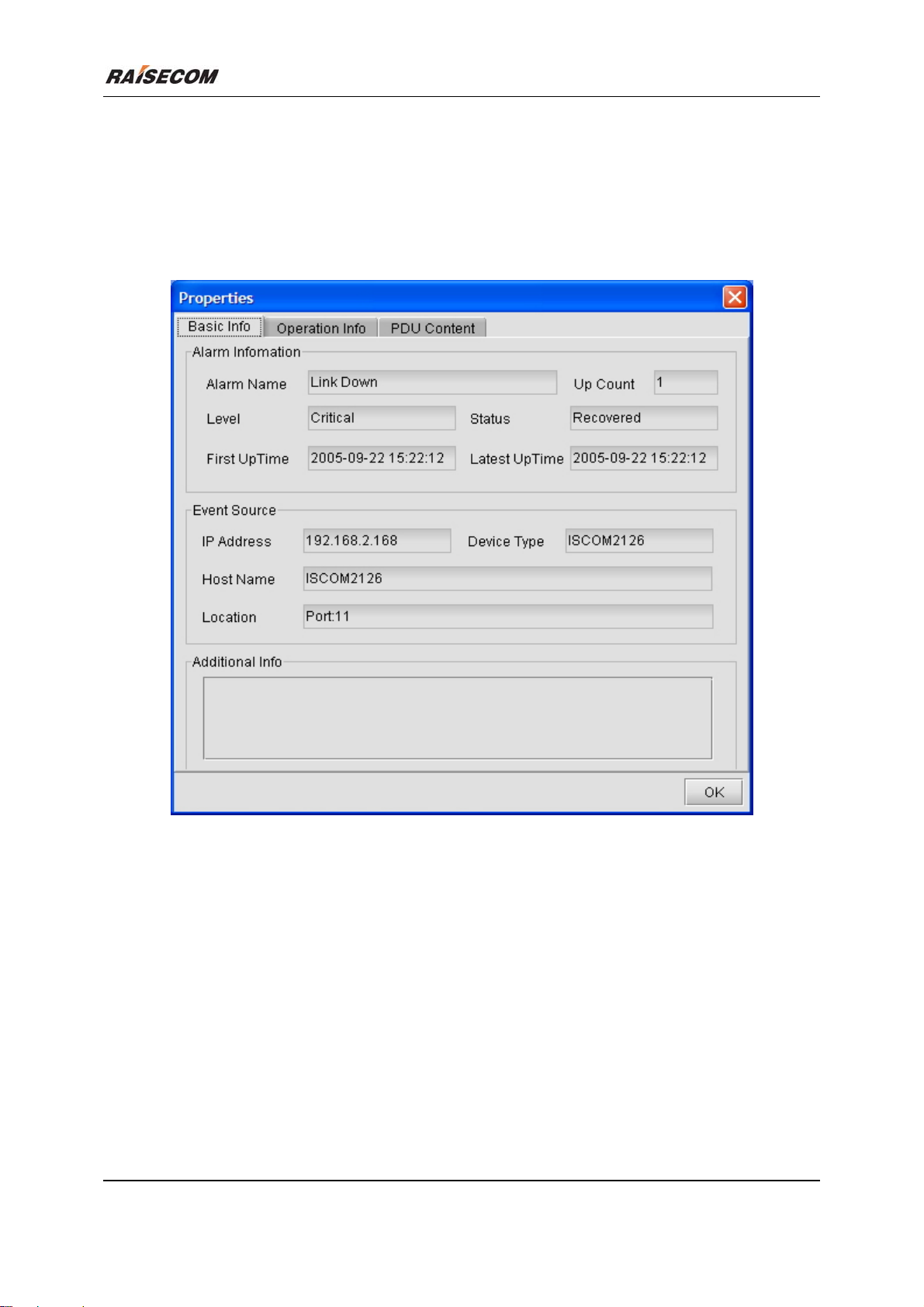
Open the Historical Alarm Management window
Double click the “Component Tree” within NView platform, and select the [History Alarm
Management].
Figure 3-3 The Historical Alarm Management window
ISCOM2126 EMS User Manual 22
Page 32
Beijing Raisecom Science & Technology Co., Ltd
Delete historical alarm record
Select one or more pieces of record in the alarm list and right click, then select the [Delete] item.
Export historical alarm record
Select the [Export] item from the right click menu to export the records into text or Excel formatted
file.
View details of alarm
Figure 3-4 The Historical Alarm Properties window
Query historical alarm
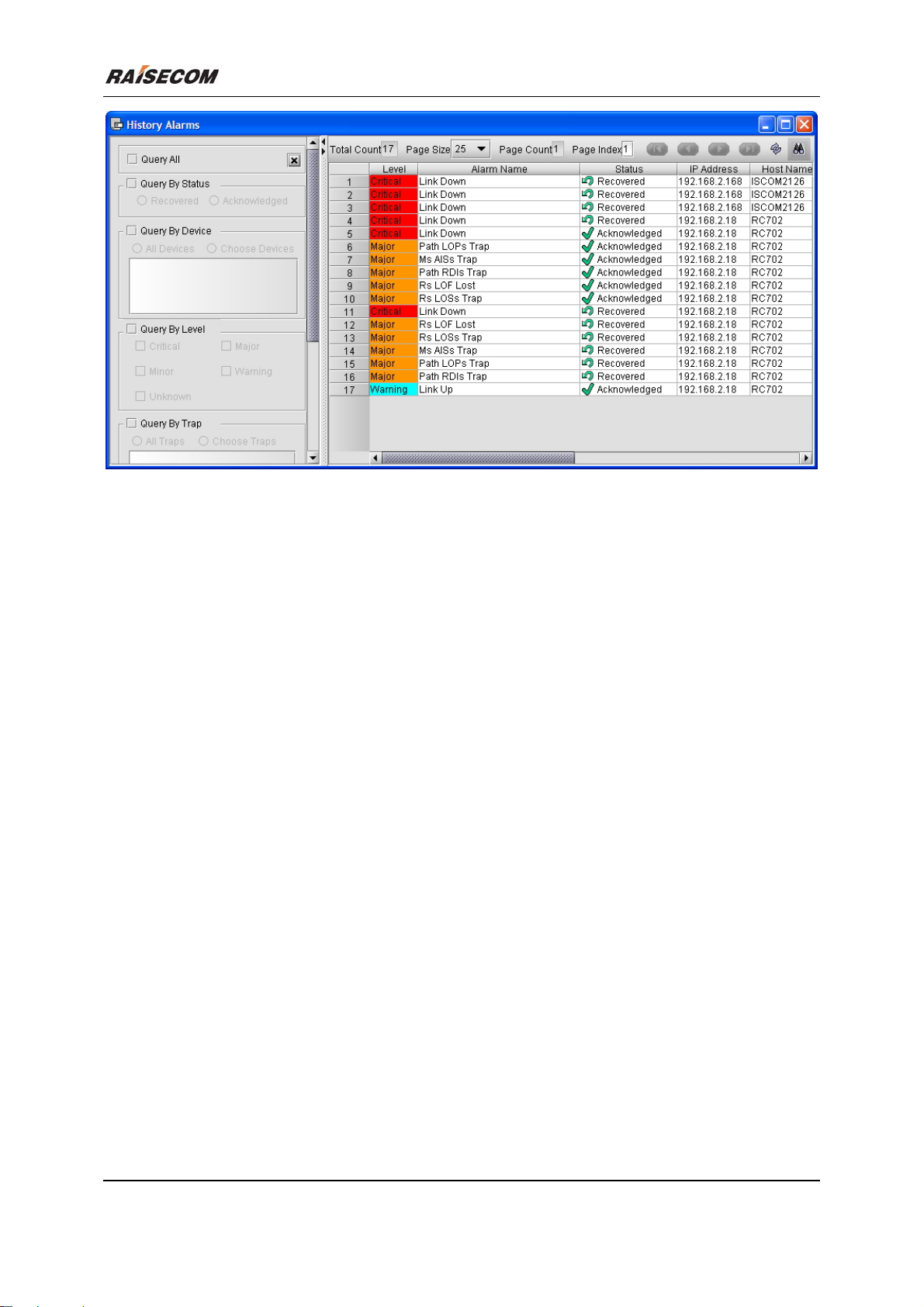
Select [Query] from the right click menu, a Query panel will appear on left side of the window. It
enables you to make queries depending on parameters you have set in the Device Node, Period Scope, Alarm
Type, and Alarm Level fields.
ISCOM2126 EMS User Manual 23
Page 33
Beijing Raisecom Science & Technology Co., Ltd
Figure 3-5 The Query panel on Historical Alarm Management window
ISCOM2126 EMS User Manual 24
Page 34

Beijing Raisecom Science & Technology Co., Ltd
Appendix A Alarm Type
Serial Number Alarm
1 GeneralLinkDown
2 GeneralLinkUp
3 ColdStart
4 WarmColdStart
5 AuthenticationFailure
6 STP NewRoot
7 TopologyChange
8 RisingAlarm
9 FallingAlarm
ISCOM2126 EMS User Manual 25
Page 35
Beijing Raisecom Science & Technology Co., Ltd
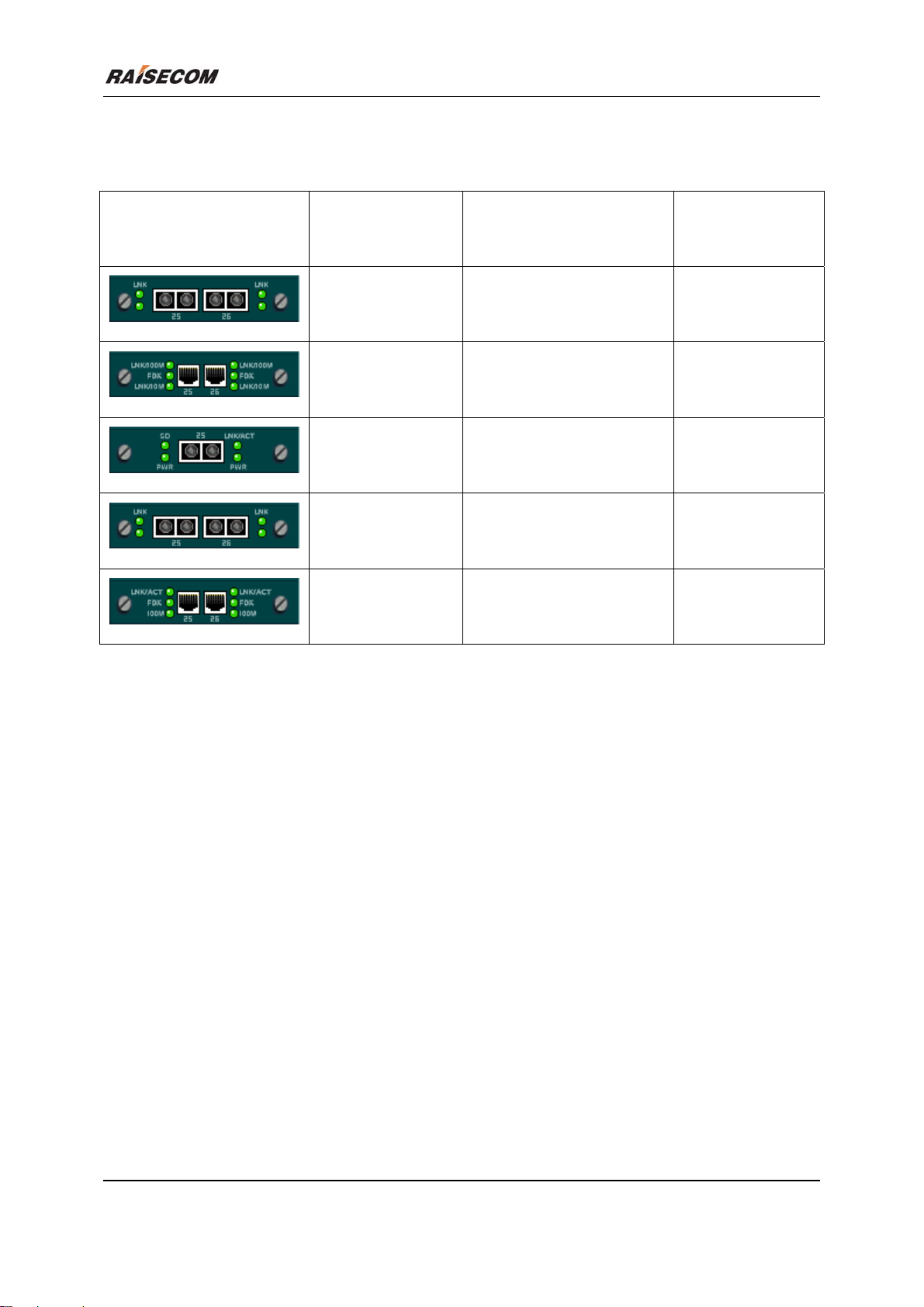
Appendix B Expansion Card Model
Illustration
Expansion Card
Description
Model
SC100-2GE-X Expansion module,
2*1000M optical interface
SC100 –2GE-T Expansion module,
2*1000M electrical interface
SC100-GE-X Expansion module,
1*1000M optical interface
SC100-2FE-FX Expansion module,
2*100M optical interface
SC100-2FE-TX Expansion module,
2*100M electrical interface
Hardware Version
of Switch
Rev.C
Rev.C
Rev.C
Rev.C
Rev.C
ISCOM2126 EMS User Manual 26
 Loading...