

Page 1

HDTV
User’s Manual
Page 2

Page 3
Important Information
WARNING
To reduce the risk of fire or
electric hazard, do not expose
this product to rain or moisture.
WARNING
RISK OF ELECTRIC
SHOCK DO NOT OPEN
This symbol indicates "dangerous
voltage" inside the product that
presents a risk of electric shock or
personal injury.
To reduce the risk of electric shock, do not remove
cover (or back). No user-serviceable parts inside.
Refer servicing to qualified service personnel.
This symbol indicates
important instructions
accompanying the
product.
Refer to the identification/rating label located on the back panel of your product for its
proper operating voltage.
This device complies with part 15 of the FCC rules. Operation is subject to the condition
that this device does not cause harmful interference. FCC Regulations state that
unauthorized changes or modifications to this equipment may void the user’s authority to
operate it. Use of this device without the supplied power cord may cause this set to be
non-compliant with FCC part 15 regulations.
If fixed (non-moving) images are left on the screen for long periods, they may be
permanently imprinted on the screen. Such images include network logos, phone
numbers, and video games. This damage is not covered by your warranty. Extended
viewing of channels displaying these images should be avoided.
Cable TV Installer: This reminder is provided to call your attention to Article 820-40 of
the National Electrical Code (Section 54 of the Canadian Electrical Code, Part 1) which
provides guidelines for proper grounding and, in particular, specifies that the cable
ground shall be connected to the grounding system of the building as close to the point
of cable entry as practical.
PRODUCT REGISTRATION
Please fill out the product registration card and return it immediately. Returning the card allows us to contact you if
needed.
Keep your sales receipt to obtain warranty parts and service and for proof of purchase. Attach it here and record the
serial and model numbers in case you need them. The numbers are located on the back of the product.
Model No. _______________________________________________________
Serial No. ________________________________________________________
Purchase Date: ____________________________________________________
Dealer/Address/Phone: _____________________________________________
Page 4

(THIS PAGE INTENTIONALLY LEFT BLANK)
Page 5

Table Of Contents
Setup and Connections ................................................. 5
Step 1: Unpack the System .................................................................... 6
Step 2: Connect Your TV to Other Components ..................................... 6
Jacks and Cables ........................................................................................ 7
Front Buttons ..............................................................................................8
Back of the TV.......................................................................................... 10
The Basic Connection .............................................................................. 12
The Advanced Connection ....................................................................... 13
Connecting Speakers to the TV ................................................................. 14
Connecting a Stereo Amplifier .................................................................. 15
Step 3: Place Batteries in the Remote Control ...................................... 16
Step 4: Plug in and Turn on the System ................................................ 16
Step 5: Complete the Interactive Setup ................................................. 16
Step 6: Order Programming ................................................................. 16
Using the Remote............................................................... 17
Remote Control Buttons ....................................................................... 18
Programming the Remote Control ........................................................ 20
Using the Remote to Control a Component.......................................... 21
Remote Control Codes ......................................................................... 22
Basic TV Operation ............................................................ 23
About the Channel Banner................................................................... 24
Changing Between DIRECTV and TV Mode ......................................... 26
Changing Channels.............................................................................. 27
PIP (Picture-in-Picture) Operation ........................................................ 28
PIP Buttons ............................................................................................... 28
Using the PIP Feature ............................................................................... 28
PIP Problems?........................................................................................... 29
Using the INPUT Button ...................................................................... 30
Using the Program Guides ........................................ 31
Bringing Up the Program Guides ......................................................... 32
Anatomy of the TV Program Guide ...................................................... 33
Anatomy of the DIRECTV® Programming Guide .................................. 34
Getting Around in the Guides .............................................................. 35
1
Page 6

Table Of Contents
Tuning to a Program............................................................................. 35
Using the GUIDE Button...................................................................... 36
The Other Guides Icon ........................................................................ 36
Exiting A Program Guide...................................................................... 37
Sorting the DIRECTV® Programming Guide......................................... 38
The Other Icons ................................................................................... 42
Adjusting TV Controls................................................ 43
Picture Quality Controls ...................................................................... 44
Picture Settings ......................................................................................... 44
Color Warmth .......................................................................................... 44
Noise Filter ............................................................................................... 45
Picture Tilt ................................................................................................ 45
Picture Presets ..........................................................................................45
Reset Controls .......................................................................................... 45
Audio Controls .................................................................................... 46
Mute ........................................................................................................46
Tone Controls ...........................................................................................46
Audio Processor .................................................................................... 46
Speakers ............................................................................................... 47
Sound Logic ..........................................................................................47
SAP .......................................................................................................... 47
Optical Output ..................................................................................... 47
Audio Language ....................................................................................... 48
Using The Profiles............................................................ 49
About Profiles ...................................................................................... 50
The DIRECTV Setup ............................................................................. 50
Editing Channels in a DIRECTV List .......................................................... 50
Selecting or Deleting All DIRECTV Channels ............................................ 51
Setting the DIRECTV Spending Limit ........................................................51
Setting the TV Rating ............................................................................ 54
Choosing Your Profile ........................................................................... 60
Locking and Unlocking a User Profile .................................................. 61
Locking the System .............................................................................. 62
Unlocking the System............................................................................... 62
2
Page 7

Table Of Contents
System Options and Preferences ..........................63
Changing the Signal Source ................................................................. 64
Changing the Signal Type..................................................................... 64
Auto Tuning ......................................................................................... 65
Channel Search ................................................................................... 66
Mailbox ............................................................................................... 66
Purchases: Pay Per View Programs ....................................................... 67
Setting the Time and Date.................................................................... 71
Using the Preferences Menu ................................................................ 71
Color Scheme ........................................................................................... 71
Translucency ............................................................................................ 72
Default Guide .......................................................................................... 72
Screen Format .......................................................................................... 72
Caption Display .......................................................................................73
Analog Captions ....................................................................................... 73
Using Fetch.......................................................................................... 74
Getting Assistance ........................................................... 75
Running the Interactive Setup .............................................................. 76
Getting Antenna Information................................................................ 76
Dish Pointing ....................................................................................... 77
Your New Access Card......................................................................... 79
Running the System Test ....................................................................... 79
Off-Air Guides ..................................................................................... 80
Upgrades ............................................................................................. 80
Reference .................................................................................. 81
Troubleshooting ................................................................................... 82
Care and Cleaning ............................................................................... 83
PROSCAN HDTV Limited Warranty..................................................... 84
FCC Registration Information ............................................................... 85
Accessory Information ......................................................................... 86
Index ................................................................................................... 91
3
Page 8
Welcome to HDTV
High Definition refers to a new way of sending programming information over the airwaves and into your TV. There
are two types of TV display formats available. One is ATSC format, which originated from the Advanced Television
Systems Committee. The other is NTSC format, which is named for the National Television System Committee. What
makes your High Definition Television (HDTV) special is that it has tuners capable of receiving several types of
signals: analog (in NTSC format) and digital (in ATSC format), cable (in NTSC and ATSC formats), and digital satellite
and high definition satellite (coming from DIRECTV if you subscribe to DIRECTV® programming†). This TV makes
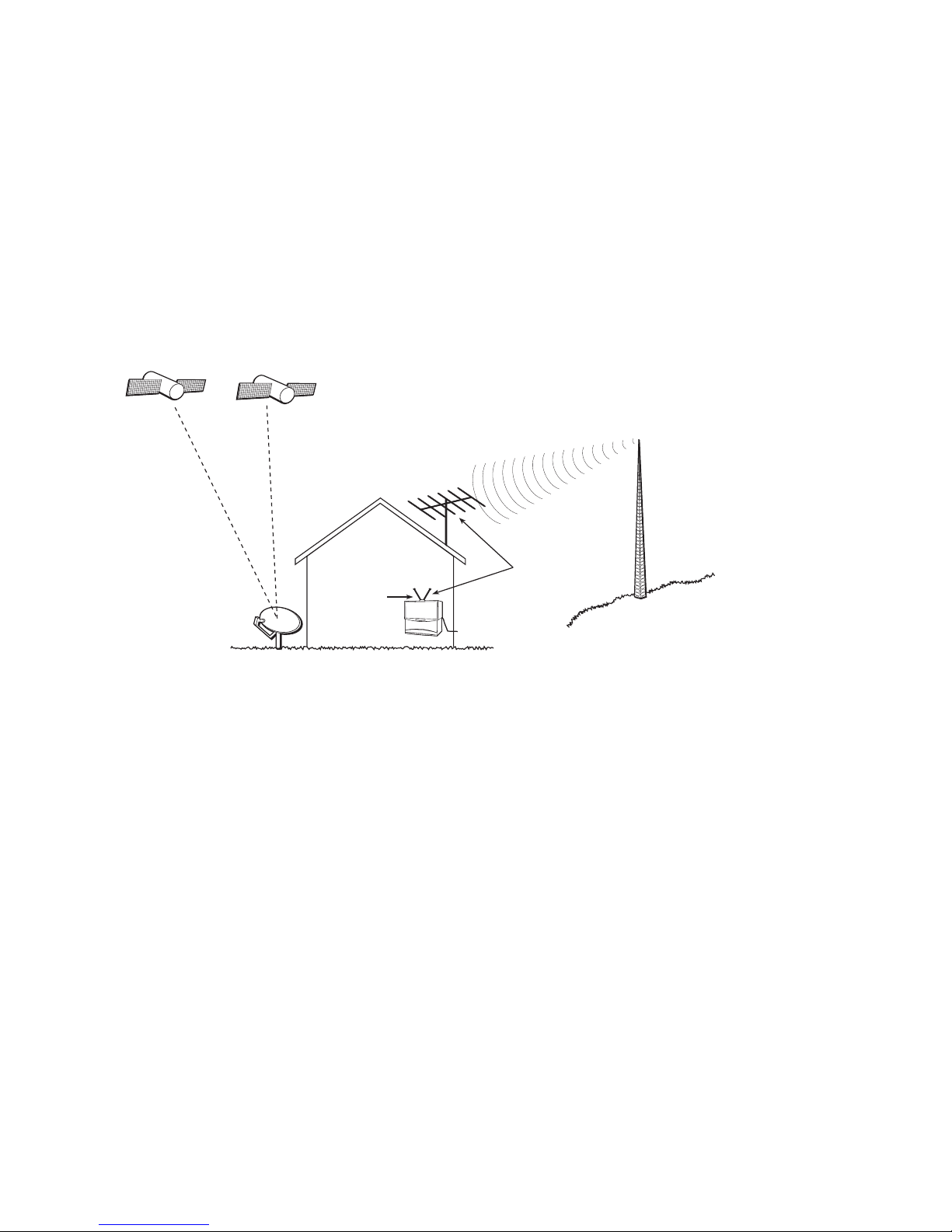
receiving all types of signals seamless. Below is an example of how your HDTV can receive the different types of
signals.
DIRECTV
SATELLITE
DIRECTV HD
SATELLITE
SATELLITE
DISH ANTENNA*
TERRESTRIAL
ANTENNA
TERRESTRIAL
ANTENNA
HDTV
CABLE TV
OR
TOWER SENDING
ANALOG AND/OR
SIGNALS
DIGITAL
Parts of a Complete High Definition System
So why is it called High Definition? Definition—commonly called resolution—refers to the sharpness of the image
and is determined by the number of dots, or pixels, your screen uses to create the image. The more pixels the sharper
the image. An HDTV normally has either 1080 or 720 rows and over 1,000 columns of pixels. This results in a
display of over one million pixels. Your HDTV also has a wide screen, or “wide aspect ratio” of 16:9 as opposed to
the common 4:3 ratio. It is normally capable of displaying both interlaced images (like today’s analog TVs) and
progressive images (like a computer monitor).
What this all means is that while digital broadcasting will bring many new possibilities, only people with HDTVs like
yours will actually be capable of realizing many of them. A wide aspect ratio, one million pixel resolution, CDquality audio with Dolby Digital surround sound, and improved interactivity are features of many digital broadcasts,
and your HDTV will help bring it all into your home.
† Receipt of DIRECTV programming is subject to the terms of the DIRECTV Customer Agreement, a copy is provided with your first
billing statement. DIRECTV and DIRECTVis a trademark of DIRECTV, Inc., a unit of Hughes Electronics Corp., and is used with
permission.
* The appearance of your satellite dish antenna may differ from that shown here. If your satellite dish antenna is round instead of oval,
you can receive programming from only one DIRECTV satellite.
4
Page 9

Setup and Connections
GETTING STARTED
This section tells you how to get your HDTV set up
and connected. It describes the cables you will need,
explains the front and back panels, and walks you
through the steps needed to start using your TV.
SETUP AND CONNECTIONS
1
➣➣➣ ➣
USING THE REMOTE
2
BASIC TV OPERATION
3
USING THE PROGRAM
4
GUIDES
ADJUSTING TV CONTROLS
5
➣
USING THE PROFILES
6
➣
SYSTEM OPTIONS AND
7
PREFERENCES
➣
GETTING ASSISTANCE
8
➣
REFERENCE
9
5
Page 10

Setup and Connections
STEP 1: UNPACK THE SYSTEM
Make sure to locate the remote control and power cord.
STEP 2: CONNECT YOUR TV TO OTHER
ON•OFF
DVD
VCR2
MUTE SKIP
CH
VOL
CH
GUIDE INFO
OK
MENU CLEAR
123
456
789
INPUT
0
REVERSE PLAY FORWARD
RECORD
STOP PAUSE
PIP SWAPCH CTRLWHO
TVVCR1
AUX
DIRECTV
+
VOL
GO BACKFETCH
ANTENNA
COMPONENTS
During the satellite dish antenna installation, the TV may have been connected
with just a coaxial cable for the system test. Depending on what components you
have, another connection may provide better picture and audio quality. The
following sections provide cable and connection information to help you decide
what connection is best for you.
THINGS TO KNOW BEFORE CONNECTING
COMPONENTS
Protect Your Components from Power Surges
• Connect all components before plugging any power cords into the wall outlet.
• Always turn off the TV and other components before you connect or
disconnect any cables.
Position Cables Correctly to Avoid Audio Hum or
Interference
• Insert all cable plugs firmly into their jacks.
Remote Control
Power Cord
• Place the audio/video cables to the sides of the TV’s back panel instead of
straight down the middle after you connect your components.
• Try not to coil any twin-lead cables; keep them away from the audio/video
cables as much as possible.
• Make sure all antennas and cables are properly grounded. Refer to the safety
sheet packed with your unit.
Protect Your Components from Overheating
• Do not block ventilation holes in any of the components. Arrange the
components so that air can circulate freely.
• Do not stack components.
• Allow adequate ventilation when placing your components in a stand.
• Place an amplifier on the top shelf of the stand so that heated air rising from it
will not flow around other components.
6
Page 11
Setup and Connections
JACKS AND CABLES
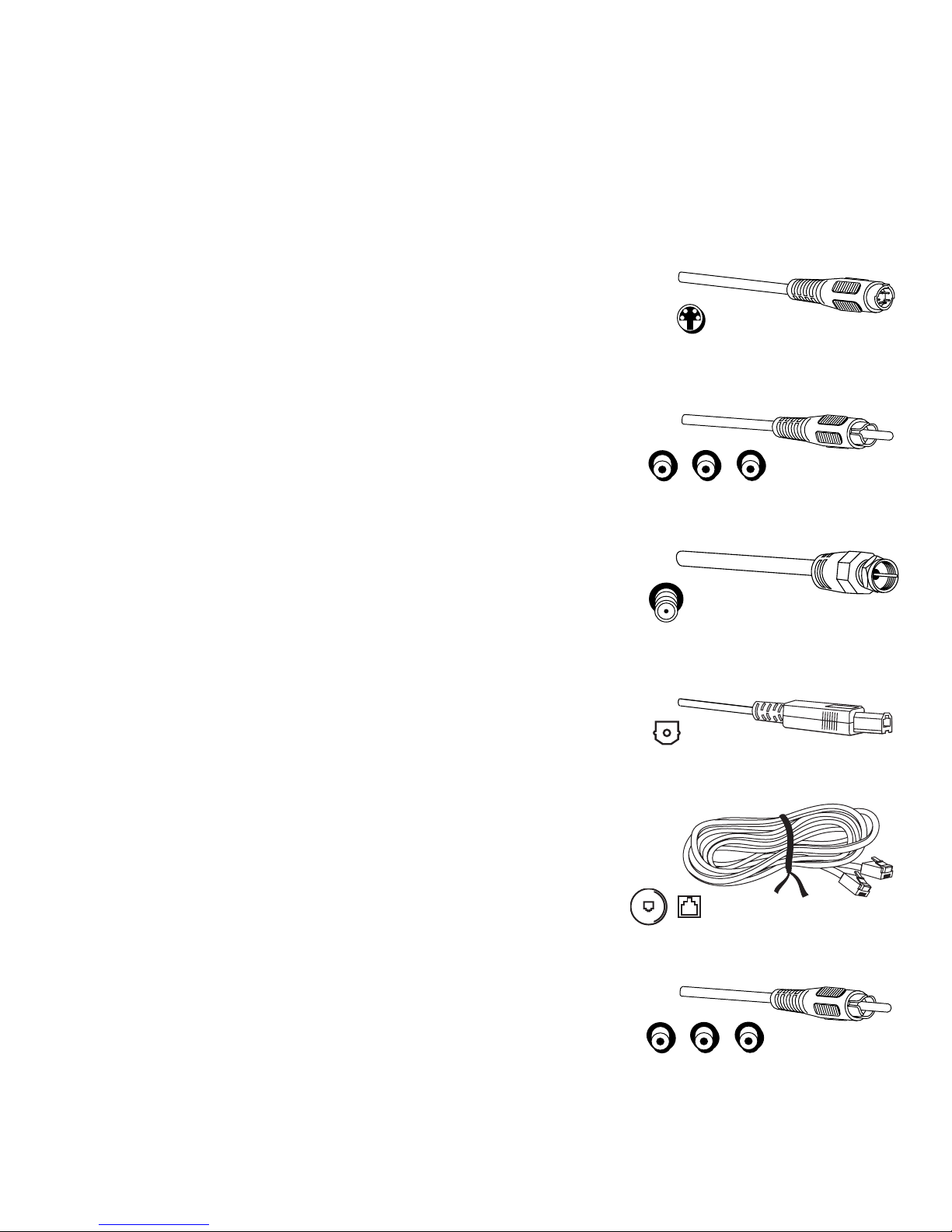
Below is a description of the jacks and cables you can use to make connections.
Note that not all cables come with your television unit.
S-Video Jack and Cable
The S-Video jack provides the best picture quality for your system.
This jack is available on this TV and is used in conjunction with audio cables.
Remember also to connect the left and right audio cables because the S-Video
jack carries only the picture signal, not the sound.
Audio/Video Jacks and Cables (RCA-type)
The audio/video jacks provide very good picture and stereo sound quality.
Theses jacks are used for most audio/video connections between components.
The audio/video jacks are often color coded (yellow for video, red for right
audio, and white for left audio). If your component has only one input for audio
(mono), connect it to the left (white L/Mono) audio jack on the TV.
S-Video Jack
Audio/Video Jacks
RF Jacks and Coaxial Cables (F-type)
The RF jacks are necessary for reception of off-air broadcasts, cable, and
DIRECTV signals.
These jacks are required for antenna or cable connections. The RF and coaxial
jacks on the TV are labeled SATELLITE IN, ANTENNA A IN, and ANTENNA B
IN. An RG-6 coaxial cable is required for all satellite signal distribution.
Optical Jack and Cables
The optical cable is used for connecting a Dolby Digital receiver. If you own a
Dolby Digital receiver that uses an optical cable-type input, you can use an
optical cable to connect the TV to that receiver for the best sound quality.
Telephone Jack and Cord
The telephone line cord is required to connect your TV to a phone line. If you
choose to subscribe to DIRECTV® programming, some services require this
phone line connection. The phone line connection is used to periodically call
out to DIRECTV. You will need an RJ11 type modular jack, which is the most
common type of phone jack and might look like the one pictured here. If you
don’t have a modular jack, call your local telephone company to find out how
to get one installed.
RF Jack
Digital Audio
Out Jack
Phone Jacks
Y, PB, PR Jacks and Cable
The Y, PB, PR jacks allows you to connect an optional component video source,
such as a DVD player. This connection provides optimum quality by
maintaining the video source as three separate signals through these jacks. To
ensure maximum picture quality, use three video-grade cables for the
connection.
Y PB PR
7
Page 12
Setup and Connections
FRONT BUTTONS
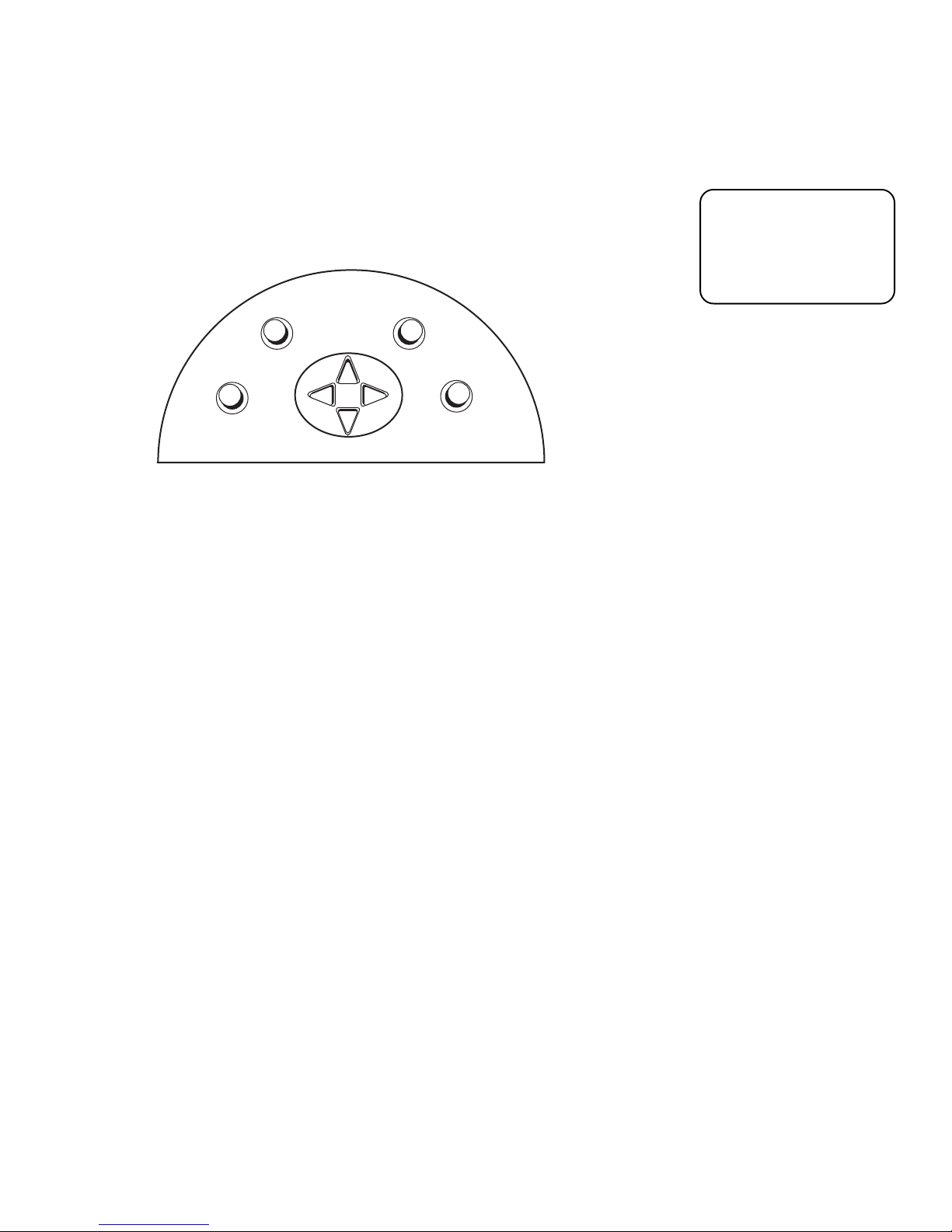
The diagrams below describe the front panel and front input jacks on the TV.
Please note that the exact look of the buttons pictured here may be different from
yours.
E
O
F
N
I
CH
V
T
C
E
R
I
D
/
V
T
VOL
CH
N
M
U
/
O
K
O
P
W
E
R
VOL
TV|DIRECTV Toggles between TV mode and DIRECTV mode.
INFO Brings up the on-screen channel banner. Press when in the program guide to get
more information on the highlighted program or channel.
VOL < Decreases the volume. When in the menu system, VOL < moves the highlight
left and adjusts menu controls.
VOL > Increases the volume. When in the menu system, VOL > moves the highlight
right and adjusts menu controls.
If you cannot find your
remote control, you can
use the front panel of the
TV to operate many of
the TV’s features.
CH v Scrolls down through the current channel list. If you are in TV mode and press
CHv, you scroll down through TV channels. If you subscribe to DIRECTV® programming
and are in DIRECTV mode, you scroll down through DIRECTV channels. In the menu
system, CHv moves the highlight down one page at the time and adjusts menu controls.
In the program guides, CHv advances the highlight one screen down.
CH ^ Scrolls up through the channel list. If you are in TV mode and press CH^, you
scroll up through TV channels. If you subscribe to DIRECTV® programming and are in
DIRECTV mode, you scroll up through DIRECTV channels. In the menu system, CH^
moves the highlight up one page at the time and adjusts menu controls. In the program
guides, CH^ advances the highlight one screen up.
MENU|OK Brings up the main menu. When in the menu system, it selects highlighted
items.
POWER Turns the TV on and off.
8
Page 13
Setup and Connections
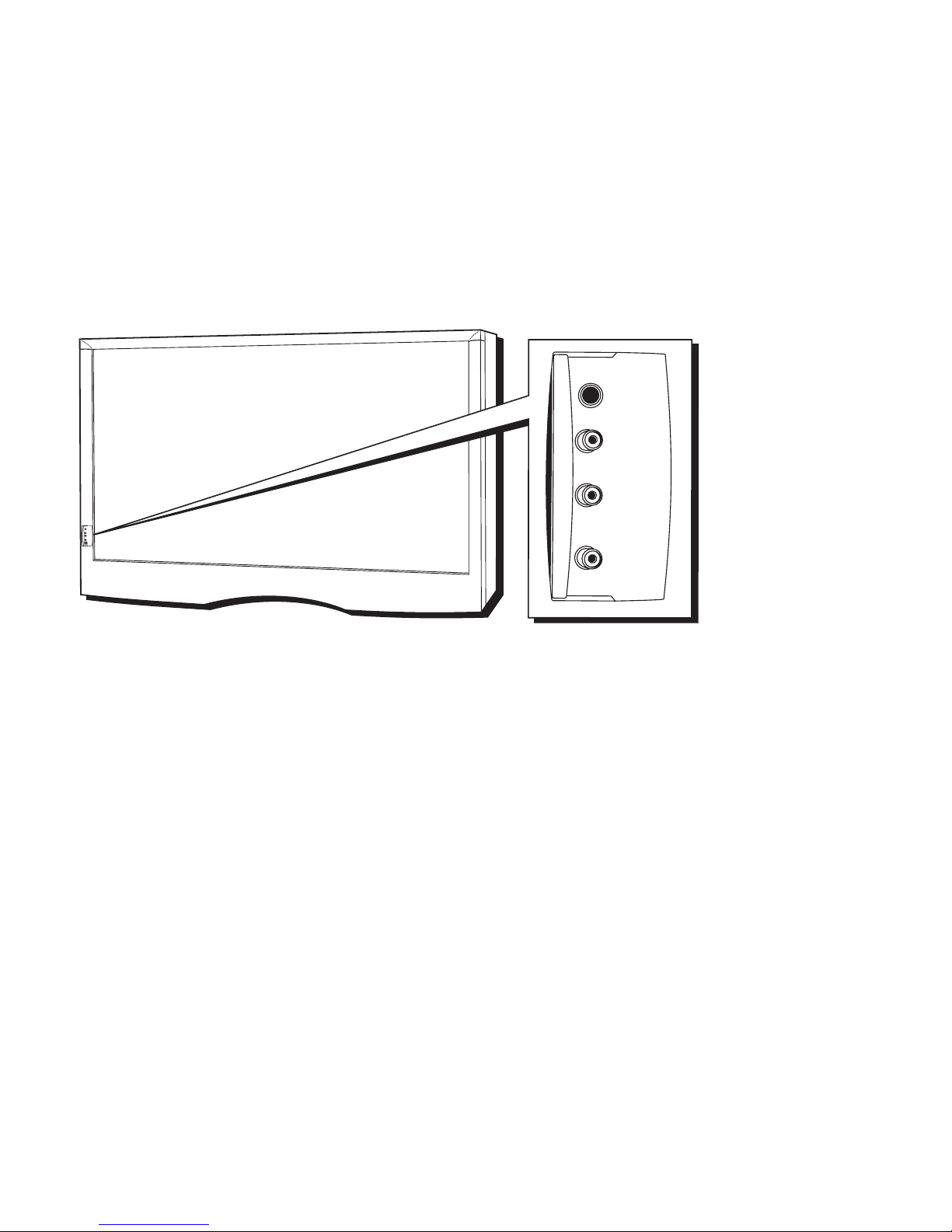
FRONT INPUTS
The monitor has front inputs for convenience; one set of audio/video inputs and a
headphone jack. These jacks let you connect a baseband NTSC (analog) component
such as a VCR, Internet access device, game, or camcorder. Look for a hinged door and
gently lift the cover open. Please note that the exact look of the jacks or the TV pictured
here may be different from yours.
S
E
N
O
H
P
N
I
O
E
D
I
V
)
O
N
O
M
(
L
N
I
O
I
D
U
A
R
B
S
U
PHONES
VIDEO IN
L
AUDIO IN
R
PHONES Provides a connection for headphones.
VIDEO IN Provides video connection. The video connector is usually yellow.
AUDIO IN L Provides left audio connection. The left audio connector is
usually white. When connecting devices that use amonaural
cable, such as some camcorders, use the left input jack to get
sound from both speakers.
R Provides right audio connection. The right audio connector is
usually red.
9
Page 14
Setup and Connections
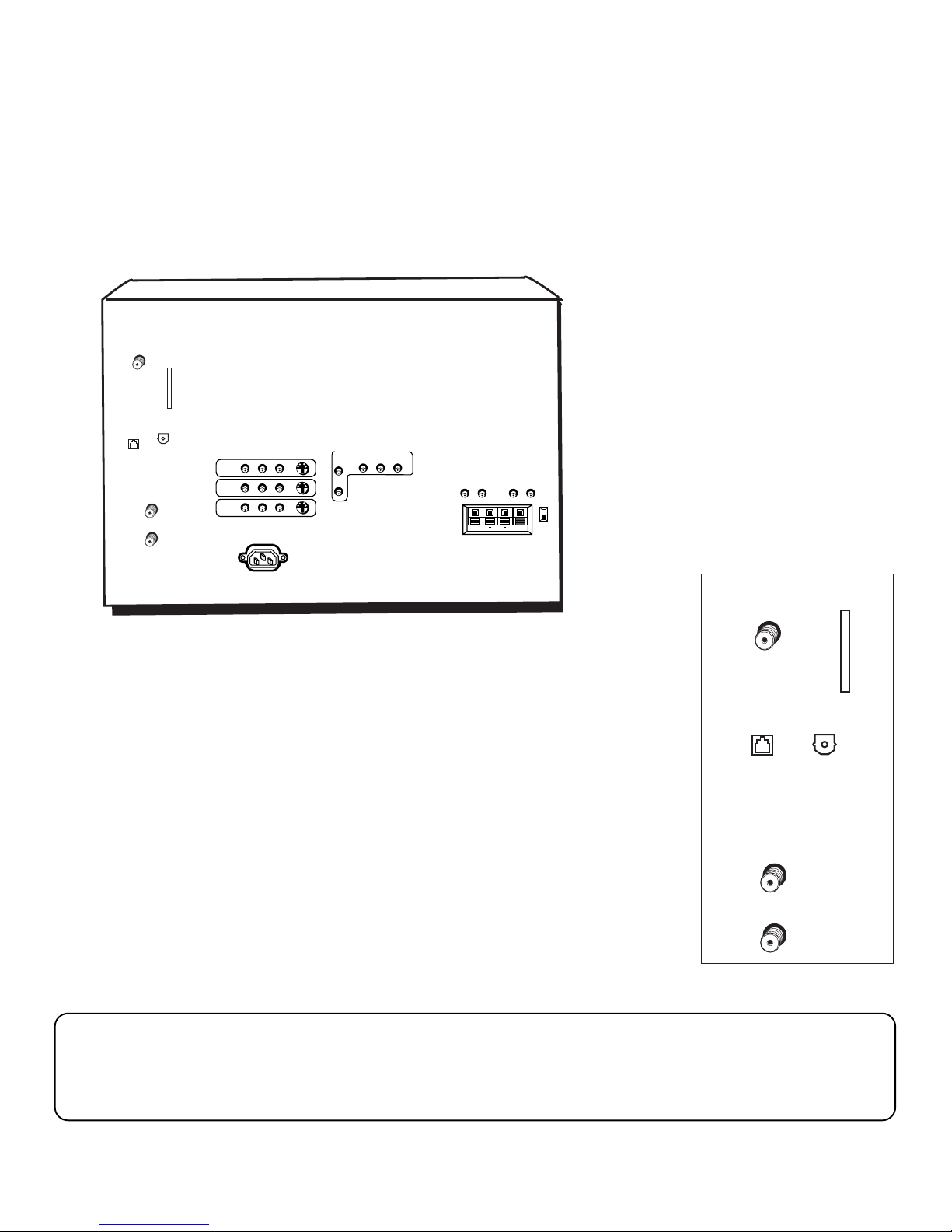
BACK OF THE TV
The diagram below describes each of the back panel jacks found on the TV. When
connecting A/V cables, be sure to connect corresponding outputs and inputs (video to
video, right audio to right audio, etc.).
SATELLITE
IN
ACCESS
CARD
DIGITAL
PHONE
AUDIO OUT
JACK
ANTENNA B
IN
ANTENNA A
IN
INPUT1
INPUT2
INPUT3
VIDEO
POWER
AUDIO
L
R
S-VIDEO
COMPONENT VIDEO INPUT
AUDIO
BPR
YP
R
L
AUDIO OUTPUTS
VARIABLE
FIXED
LR L
EXT SPEAKERS
L
R
R
EXT
INT
++
SATELLITE
IN
SATELLITE IN Use to connect the satellite dish antenna to the TV using an RG6 cable.
ACCESS CARD Insert the access card into the slot so your program provider can
identify you. Make sure the contacts on the access card are facing left and the top of
the card is facing right while inserting. (Refer to “New Access Card” in this manual’s
PHONE
JACK
ACCESS
CARD
DIGITAL
AUDIO OUT
“Assistance” section for details.) The DIRECTV System requires a valid card.
PHONE JACK Use to connect a phone line to the TV. The DIRECTV System requires a
continuous phone line connection to periodically call out to program providers.
DIGITAL AUDIO OUT Use a digital optical cable (or SPDIF cable) to connect your
TV to a compatible Dolby Digital receiver or decoder. Dolby Digital offers theatrequality sound (six audio channels).
ANTENNA B
IN
ANTENNA B IN Use to connect an off-air or terrestrial antenna or cable TV signal to
the TV.
ANTENNA A
IN
ANTENNA A IN Use to connect a second off-air or terrestrial antenna or cable TV
signal to the TV.
You can also use the ANT B IN (or ANT A IN) for video games and switch between the two inputs using the ANTENNA
button on the remote control. When using TV games, computers, and similar products with your TV, keep the contrast at
a low setting. If a fixed (non-moving) pattern is left on the screen for long periods of time at a high contrast setting, the
image can be permanently imprinted onto the picture tubes. These types of imprints are not covered by your warranty
because they are the result of misuse.
10
Page 15
Setup and Connections
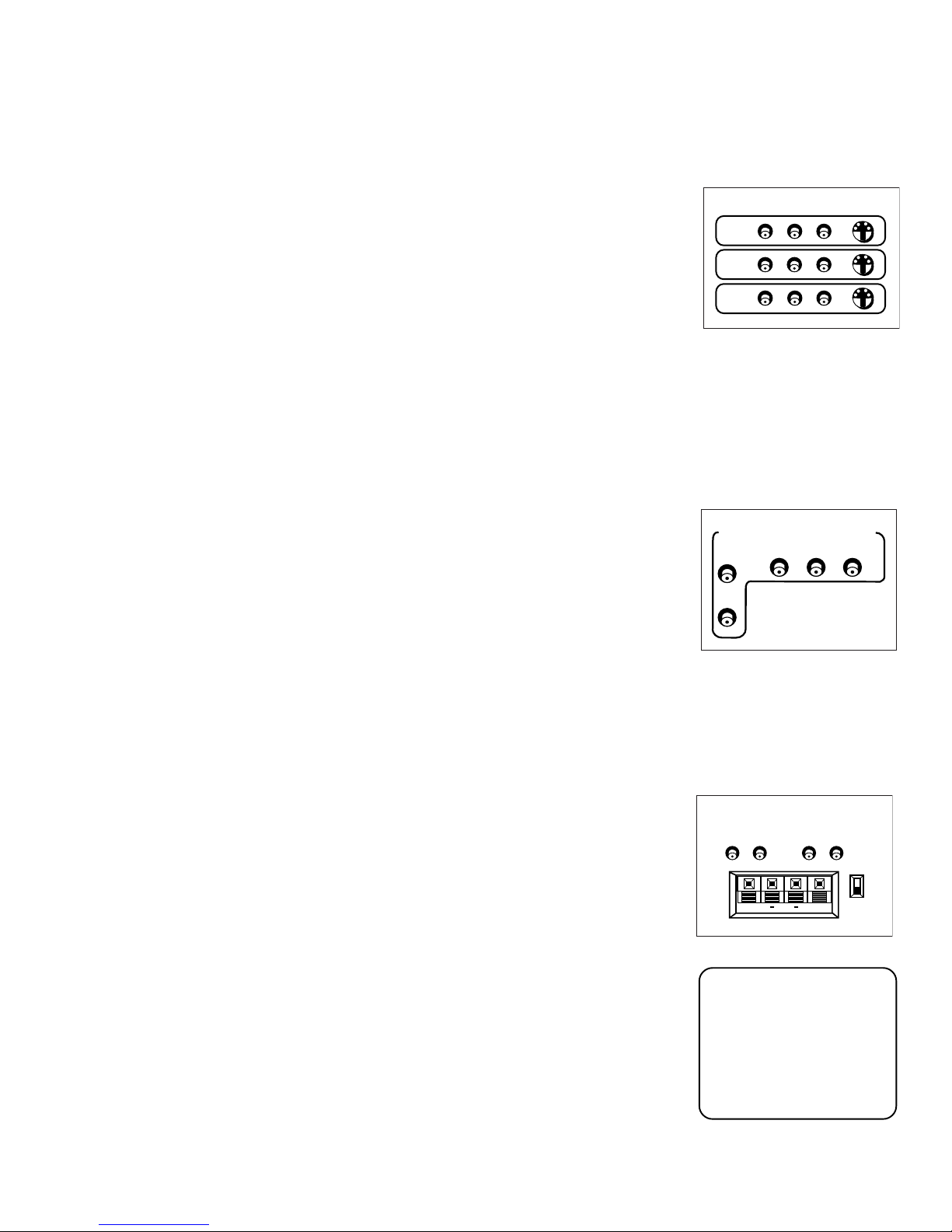
INPUT 1 Lets you connect a baseband NTSC (analog) component such as a VCR,
laserdisc player, Internet access device, or DVD player.
• VIDEO provides composite video connection. The video connector is usually
yellow.
INPUT1
VIDEO
AUDIO
L
R
S-VIDEO
• L AUDIO provides left audio connection. The left audio connector is usually white.
• R AUDIO provides right audio connection. The right audio connector is usually red.
• S-VIDEO lets you connect an S-Video cable for better video quality picture to a
component with S-Video capability, such as a VCR or DVD player. When using SVideo, make sure to connect the two audio cables as well as the S-Video connector.
INPUT 2 Provides connection to a second NTSC (analog) video component such as a
VCR or laserdisc player. Its jacks are the same as described for INPUT 1, above.
INPUT 3 Provides connection to a third NTSC (analog) video component, such as a
VCR or laserdisc. Its jacks are the same as described for INPUTS 1 and 2.
COMPONENT VIDEO INPUT Use to connect an optional component video source,
such as a DVD player. This connection provides optimum quality. Note that it is
essential to match the color coded connectors between a compatible device and the
monitor.
Grey side panels protecting against screen burn-in are not always generated when
watching a 4:3 image via the COMPONENT VIDEO INPUT jacks.
viewing of a 4:3 image is recommended when no side panel are present.
Therefore, limited
Also note that
when watching an image via the COMPONENT VIDEO INPUT jacks, you will not be
able to manipulate the screen format.
• AUDIO R/L The audio jacks provide stereo sound. When connected, audio
volume from the main front and rear speakers is variable audio.
INPUT2
INPUT3
COMPONENT VIDEO INPUT
AUDIO
R
L
B PR
YP
• Y PB PRUnlike a single video input, component video maintains the video
signal as three separate signals through these three jacks. To ensure maximum
picture quality, use three video-grade cables for the Y, PB, and PR connections.
AUDIO OUTPUTS
• FIXED L/R Provides fixed-level audio output from the television. This audio
output is ideal for audio recording or for connecting to an A/V receiver
amplifier (an auxiliary baseband component) when you want to control the
volume through the A/V receiver instead of the TV.
• VARIABLE L/R Use to connect an A/V receiver or amplifier (an auxiliary
baseband component) for variably-controlled stereo output.
• RIGHT and LEFT Speaker Terminals Use to connect external speakers for right
and left surround sound.
• INT. / EXT. (switch) INT sends audio only to the monitor’s internal speakers.
EXT sends audio to only external speakers.
AUDIO OUTPUTS
FIXED
LR L
EXT SPEAKERS
VARIABLE
R
EXT
INT
++
R
L
To turn the TV’s internal
speakers on and off,
press MENU on the
remote control and
choose
choose
Audio
. Then
Speakers
from
the menu.
11
Page 16
Setup and Connections
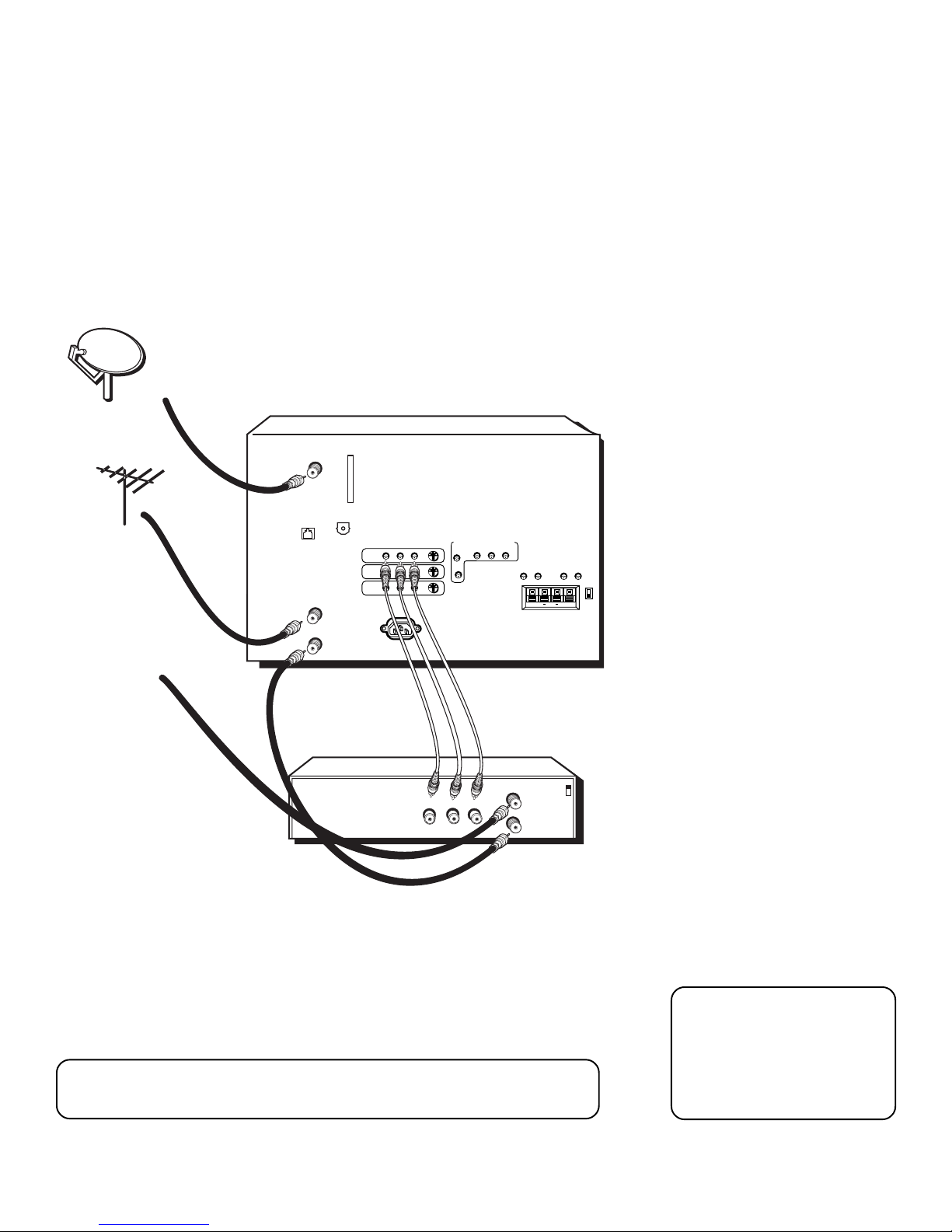
THE BASIC CONNECTION
TV and VCR
SATELLITE
DISH ANTENNA
CABLE OR
ANY ALTERNA TE
RF SIGNAL, SUCH AS
A DIGITAL OR ANALOG
TERRESTRIAL ANTENNA
CABLE OR
OFF-AIR ANTENNA
TV
SATELLITE
IN
ACCESS
CARD
PHONE
JACK
ANTENNA B
IN
ANTENNA A
IN
VCR
DIGITAL
AUDIO OUT
INPUT1
INPUT2
INPUT3
VIDEO
POWER
AUDIO
L
R
VIDEO
S-VIDEO
COMPONENT VIDEO INPUT
AUDIO
YP
R
L
OUT
L
R
BPR
FIXED
LR L
IN FROM ANT
OUT TO TV
AUDIO OUTPUTS
EXT SPEAKERS
R
CH
CH
VARIABLE
++
L
How to view
programming:
• To watch cable TV or off-air TV
programs from an antenna in
this connection, press
ANTENNA on the remote
control until ANTENNA A is
displayed in the channel banner.
• To watch cable or any other
alternate RF signal, such as
digital or analog terrestrial, press
ANTENNA on the remote
control until ANTENNA B is
displayed in the channel banner.
• To watch satellite programming,
press DIRECTV on the remote
control and channel up or down
to the desired program.
R
EXT
INT
How to view your VCR:
• Press INPUT on the remote
control and select the video
input (in this example, VID1) in
the channel banner. Because the
digital decoder is in the TV, not
the VCR, digital channels
cannot be recorded. If an off-air
antenna is used, the VCR output
should be viewed using one of
the video inputs.
• If you’ve already set up auto
tuning, press the VCR1 button
on your remote control.
Some cable systems may require a “conversion box.” If so, consult your cable
company’s box tuning instructions for details.
12
• NOTE: Viewing a VCR while in
AIR mode may result in poor
picture performance. Instead,
select
System Options
main menu, then select
Type
and select
Cable
from the
Signal
.
The ANT B and ANT A jacks
can receive digital or analog
RF signals. The illustrations
here are recommended
connections in a cable
environment.
Page 17
Setup and Connections
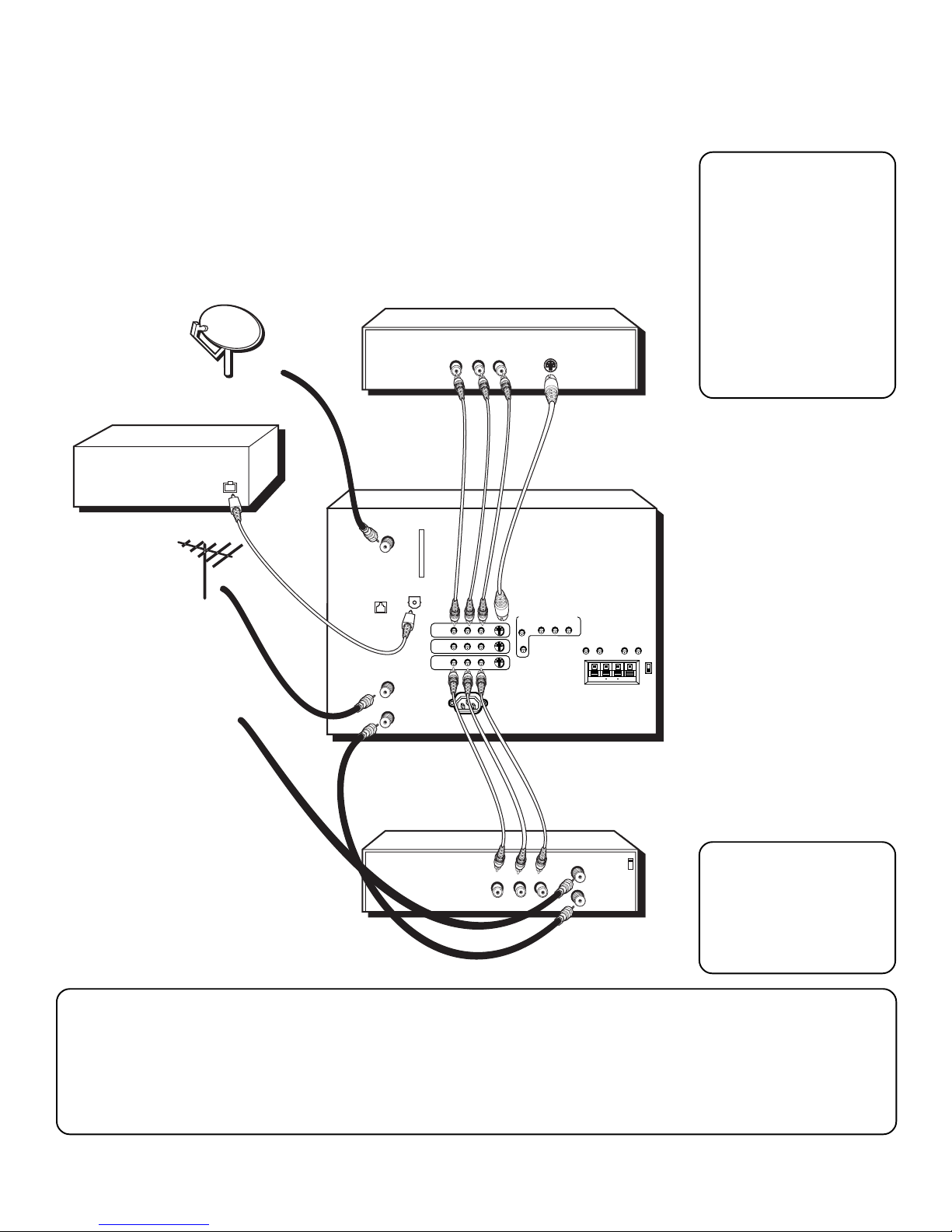
THE ADVANCED CONNECTION
TV, VCR, and DVD Player With Amplifier
DVD
AMPLIFIER WITH
OPTICAL INPUT
CABLE OR
ANY ALTERNA TE
RF SIGNAL, SUCH AS
A DIGITAL OR ANALOG
TERRESTRIAL ANTENNA
CABLE OR
OFF-AIR ANTENNA
DIGITAL
AUDIO IN
SATELLITE
DISH ANTENNA
TV
SATELLITE
PHONE
JACK
ANTENNA B
ANTENNA A
VCR 1
IN
ACCESS
CARD
AUDIO OUT
IN
IN
DIGITAL
INPUT1
INPUT2
INPUT3
VIDEO
VIDEO
POWER
L
AUDIO
OUT
R
R
L
S-VIDEO
S-VIDEO
COMPONENT VIDEO INPUT
AUDIO
YP
BPR
R
L
AUDIO OUTPUTS
VARIABLE
FIXED
LR L
EXT SPEAKERS
L
R
After you have made your
connections, program the
TV to tune to the correct
video input channel to
see and hear audio and
video from the attached
component (VCR, DVD
player, etc.). Program
your TV as described in
the “System Options and
Preferences” section of
this book.
How to view your DVD
and VCR:
• To watch the VCR in this
connection, press INPUT
on the remote control
until the correct video
input appears (in this
example, VID3). Note
that because the digital
decoder is in the TV, not
R
EXT
INT
++
the VCR, you cannot
record digital channels.
• To watch the DVD
player in this
connection, press INPUT
on the remote control
until the correct video
input appears (in this
example, S-VID1 ).
Please Read Before Using the Digital Audio Out Jack
This TV’s optical digital output jack fully complies with the international standard governing this type of jack (IEC958),
and is designed for connection to a Dolby Digital (AC-3 or PCM) receiver or Dolby Digital (AC-3 or PCM) decoder.
Older equipment, some of which is not fully compliant with IEC958, may not be compatible with the Dolby Digital
bitstream. Such a connection using anything other than Dolby Digital AC-3 or PCM receiver or decoder could create a
high noise level, causing damage to headphones or speakers.
VIDEO
OUT
IN FROM ANT
L
R
OUT TO TV
CH
CH
Some cable systems may
require a “conversion
box.” If so, consult your
cable company’s box
tuning instructions for
details.
13
Page 18
Setup and Connections
AUDIO OUTPUTS
FIXED
VARIABLE
LR L
R
EXT SPEAKERS
EXT
INT
L
R
++
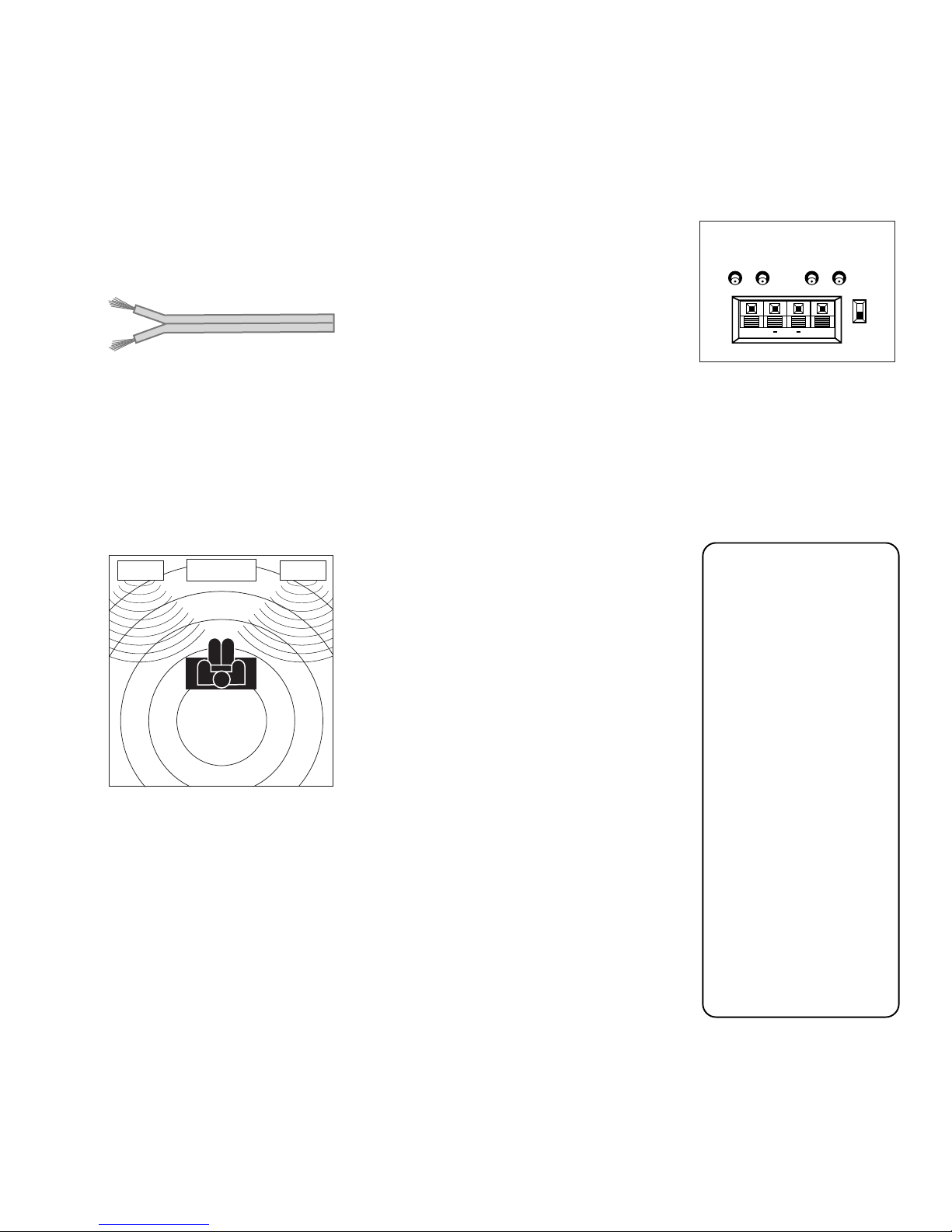
CONNECTING SPEAKERS TO THE TV
You can connect up to two additional speakers to the TV: one to the RIGHT
terminal, and one to the LEFT terminal.
1. If necessary, remove the vinyl covering from the ends of the speaker wire and
twist the wire core.
Speaker wire
2. Open the lever on the speaker terminal.
3. Insert the wire core into the hole. Be sure to connect the (+) to (+) and (-) to (-).
4. Close the lever. Pull gently on the wire to see that it’s connected securely.
To turn on or off the TV’s internal speakers, press MENU on the remote control and
choose
Audio
. Then choose
Speakers
from the menu.
LEFT RIGHT
Arrange the speakers in your TV room to achieve maximum
sound quality.
TELEVISION
When connecting the
speaker wire, make sure
you connect the positive
(+) terminal on the TV to
the positive (+) terminal
on the speaker. One side
of the speaker wire is
usually marked with a
white stripe to help you
match the terminals
correctly. If the (+) and
(-) terminals are not
matched properly, the
speakers will not be “in
phase,” causing
reduction in bass
frequencies.
Do not allow the wire
core to touch other
wires or terminals.
Damage to components
could result if the cores
of two wires touch.
14
Page 19
Setup and Connections
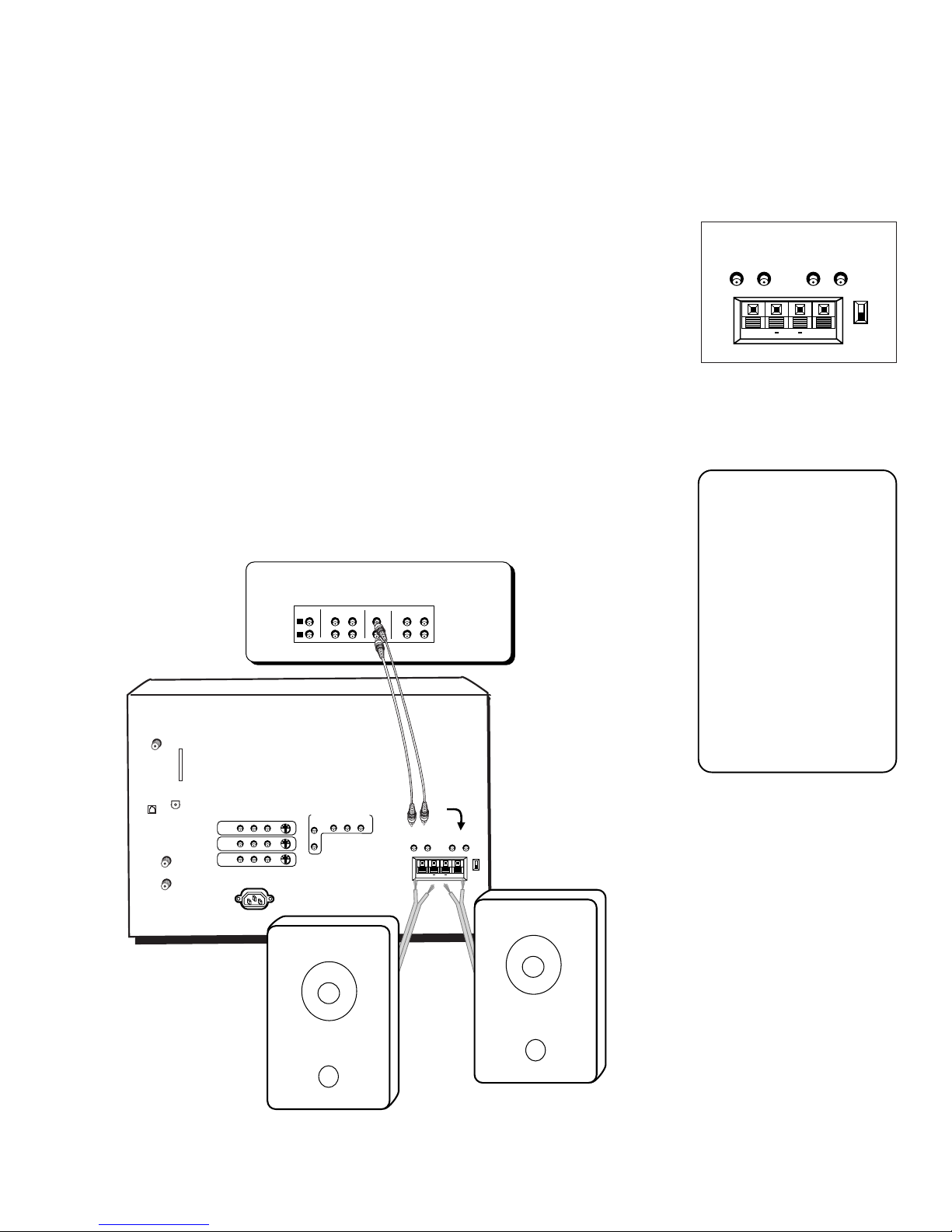
CONNECTING A STEREO AMPLIFIER
1. Use RCA cables to connect either the FIXED or VARIABLE AUDIO OUTPUT from
the monitor to an A/V receiver.
• FIXED provides fixed-level audio output from the monitor. This audio output is
ideal for connecting to an A/V receiver that has its own volume control.
• VARIABLE provides variable-level audio output. Volume levels are controlled
by the volume controls on the monitor and monitor remote control.
2. Use speaker wire to connect the monitor to external speakers.
• The EXT/INT switch beside the jacks let you turn speakers on or off. EXT sends
audio to external and internal speakers. INT sends audio only to the monitor’s
internal speakers.
AUDIO OUTPUTS
FIXED
LR L
EXT SPEAKERS
VARIABLE
++
R
L
R
EXT
INT
3. You may prefer to turn off the TV’s internal speakers. Select
menu and then select
Speakers
.
Audio
from the main
Important: Do not use the amplifier’s PHONO inputs. Consult the amplifier’s
owner’s manual for the manufacturer’s recommended hookup.
A/V RECEIVER
TAPE
SATELLITE
IN
PHONE
JACK
ANTENNA B
ANTENNA A
ACCESS
CARD
DIGITAL
AUDIO OUT
IN
IN
INPUT1
INPUT2
INPUT3
VIDEO
POWER
CD
IN
R
L
AUDIO
L
COMPONENT VIDEO INPUT
AUDIO
S-VIDEO
R
R
L
TV
IN OUT IN
IN
BPR
YP
VCR
OUT
OR
AUDIO OUTPUTS
VARIABLE
FIXED
LR L
EXT SPEAKERS
L
R
R
EXT
INT
++
The FIXED/VARIABLE
OUT jacks on the back
panel provide a fixed or
variable audio signal.
When connected to
“variable”, they are ideal
for use with an audio
amplifier that does not
have its own remote
volume control. When
connected to “fixed,” the
output volume stays the
same no matter how the
volume changes on
the TV.
Right Speaker
Left Speaker
15
Page 20
Setup and Connections
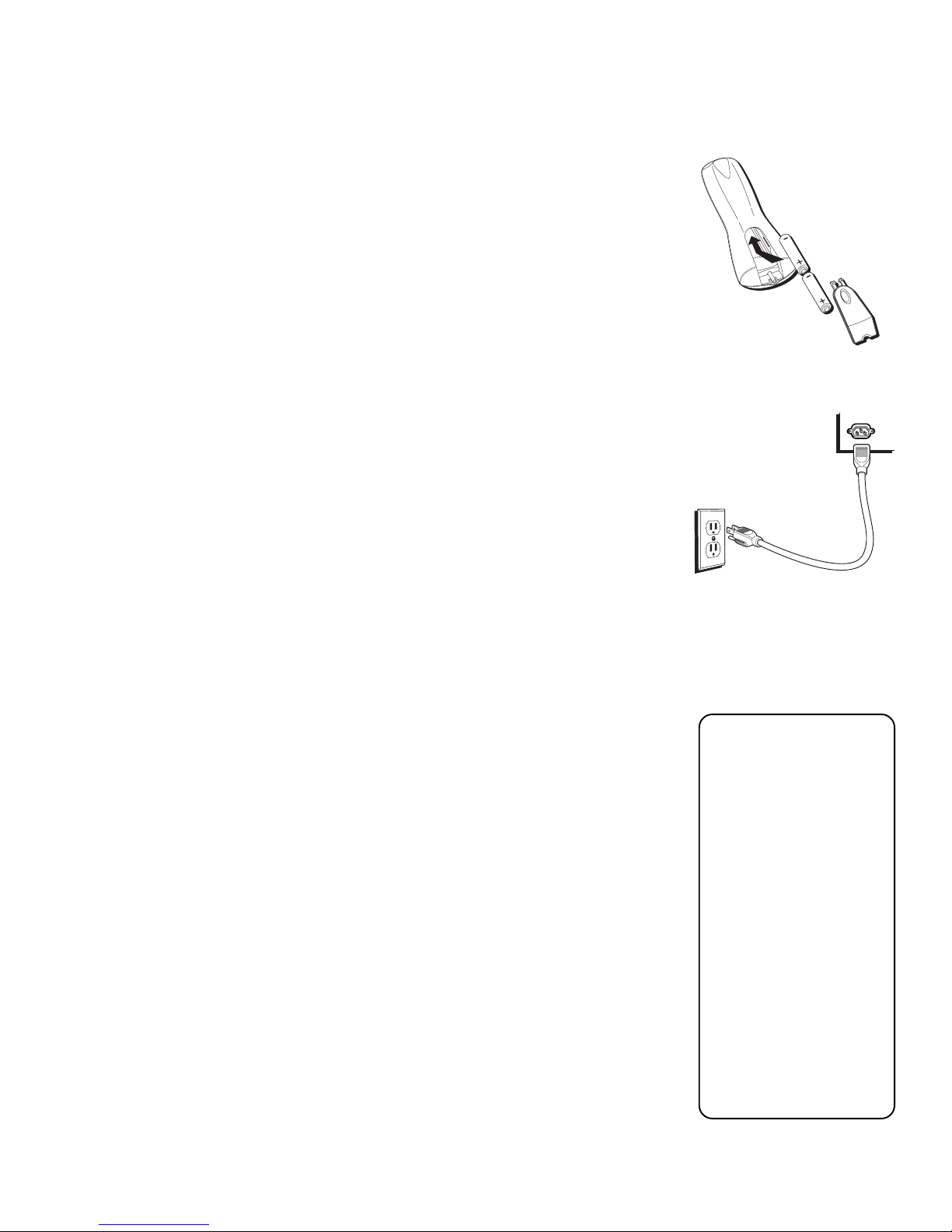
STEP 3: PLACE BATTERIES IN THE REMOTE
CONTROL
Follow these steps whenever you need to install or change the batteries in your TV’s
remote control.
1. Remove the cover from the battery compartment.
2. Insert batteries into the battery compartment, matching
the + and – end of each battery.
3. Replace the cover.
STEP 4: PLUG IN AND TURN ON THE SYSTEM
Plug one end of the power cord into the back of the television as shown on right.
Plug the other end into a wall outlet. Be sure to insert the plugs completely.
To turn on the TV, press the TV or ON•OFF button on the remote control or the
POWER button on the front panel. It may take several seconds for the TV to turn on.
STEP 5: COMPLETE THE INTERACTIVE SETUP
Interactive setup appears when you turn on your TV for the first time. Follow the
steps to configure the basics of your system, such as setting up the time and day,
searching for available channels, and setting up speakers. To run it again, select
Assistance
the section “Getting Assistance” in this book.
from the main menu, then select
Interactive Setup
. For more details, see
STEP 6: ORDER PROGRAMMING
You should decide if you would like to receive DIRECTV® programming*. To receive
DIRECTV programming, your satellite dish antenna must be installed and pointed
correctly. You must also contact your service provider, DIRECTV.
Programming with DIRECTV: Call 1-800-347-3288
POWER
TV
When you order
programming, you need
to know your access
card number. To get the
number, select
Assistance
main menu and then
select
Wait for the system to
run all of its tests. The
access card number is
displayed at the end of
the system test.
Write the access card
number in the space
below for easy
reference:
from the
System Test
.
* Receipt of DIRECTV programming is subject to the terms of the DIRECTV Customer Agreement, a
copy is provided with your first billing statement. DIRECTV and DIRECTV is a trademark of DIRECTV,
Inc., a unit of Hughes Electronics Corp., and is used with permission.
16
______________________________
Page 21

Using the Remote
HOW TO USE Y OUR UNIVERSAL REMOTE
In this section you will find out how to use your
universal remote control. This section:
• defines the buttons on the remote control.
• describes how you toggle between TV “mode”
and DIRECTV “mode.”
• shows you how to change between analog
terrestrial, digital terrestrial, and DIRECTV
channels.
• walks you through using the PIP (picture-inpicture) feature.
• describes how to program the remote to control
other devices such as a VCR.
Important: Because this universal remote can control
several different components (TV, VCR, etc.), it uses
operational modes triggered by the component
buttons. For example, if you want the remote to
control the VCR, you would press the VCR button to
put the remote into VCR mode so you could control
the VCR.
SETUP AND CONNECTIONS
1
➣➣➣ ➣
USING THE REMOTE
2
®
BASIC TV OPERATION
3
USING THE PROGRAM
4
GUIDES
ADJUSTING TV CONTROLS
5
➣
USING THE PROFILES
6
➣
SYSTEM OPTIONS AND
7
PREFERENCES
➣
GETTING ASSISTANCE
8
➣
REFERENCE
9
17
Page 22
Using the Remote
REMOTE CONTROL BUTTONS
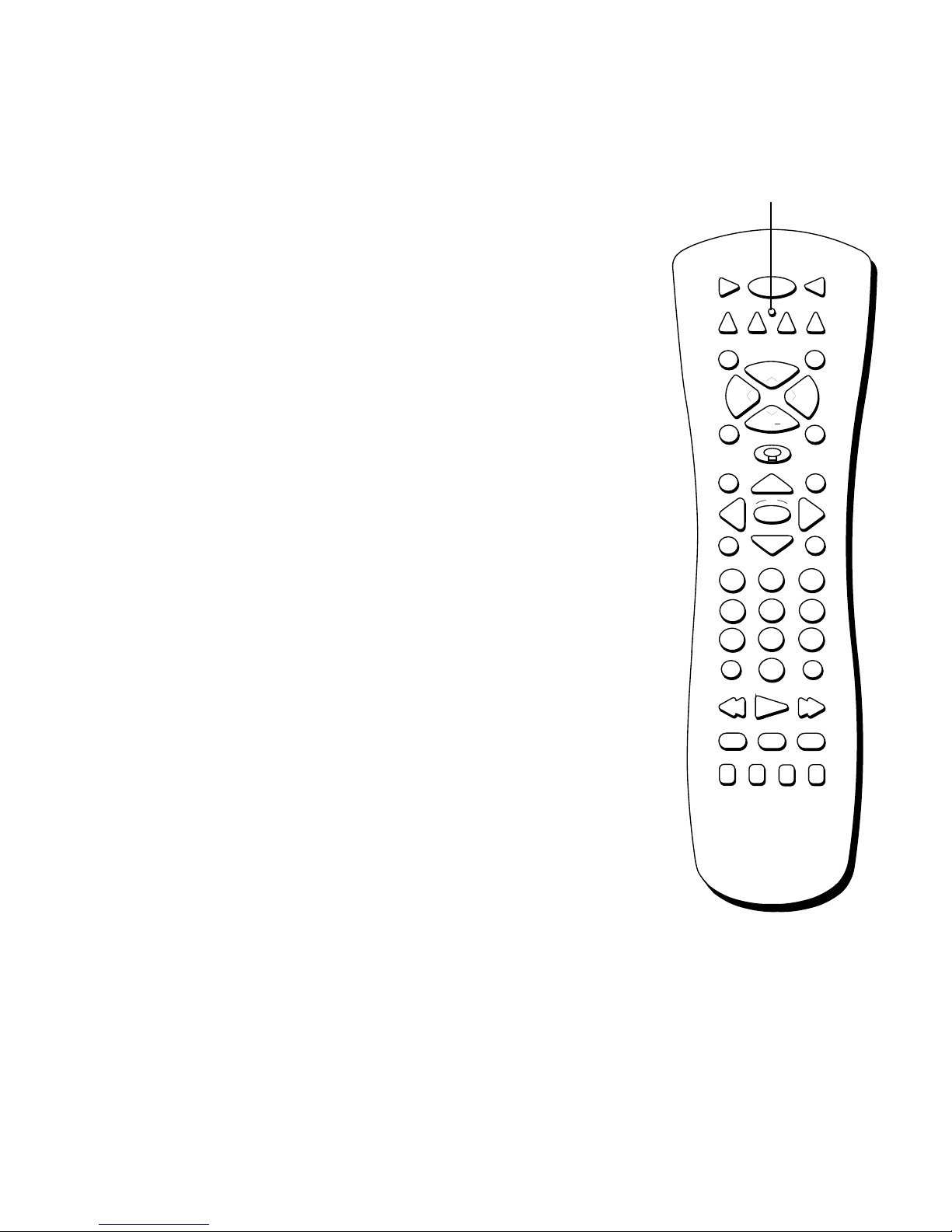
ON•OFF When the remote control is in TV or DIRECTV mode, ON•OFF turns
the TV on or off. If in another component mode, (VCR, DVD, etc.) and
programmed, the remote will turn the component on and off. When pressed twice
within two seconds, all components that are on will be turned off (this feature only
works with most RCA, GE, and PROSCAN products).
VCR1 Places the remote control in VCR mode and if auto tuning is enabled, it
will turn on the TV and tune to the correct video input channel for viewing VCR1.
TV Turns on the TV and tunes to the last-viewed TV channel. Also places the
remote control in TV mode. Placing the remote in TV mode enables you to access
the TV’s menu system as well as tune to analog, digital, or cable TV channels.
DVD Places the remote control in DVD mode and if auto tuning is enabled, it will
turn on the TV and tune to the correct video input channel for viewing your RCA,
GE, or PROSCAN DVD player.
LED
ON•OFF
DVD
VCR2
MUTE SKIP
VOL
GUIDE INFO
TVVCR1
AUX
DIRECTV
CH
+
VOL
CH
GO BACKFETCH
VCR2 Places the remote control in VCR2 mode and if auto tuning is enabled, it
will turn on the TV and tune to the correct video input channel for viewing VCR2.
(LED) Light that indicates you’re in programming mode when programming the
remote control. Also displays when a valid remote control button is pressed.
AUX Places the remote in auxiliary mode in order to control the component (such
as a laserdisc player) that you have programmed it to control. Acts as a “wildcard”
button, as it can be programmed to control another VCR, cable box, satellite
receiver, or an RCA, GE, or PROSCAN audio component.
DIRECTV Places the remote control in DIRECTV mode, turns on the TV, and tunes
to the last-viewed DIRECTV® channel. If you subscribe to DIRECTV® programming,
you must be in DIRECTV mode to view DIRECTV® channels. Placing the remote in
DIRECTV mode enables you to access the TV’s menu system as well as tune to
DIRECTV® channels.
MUTE Reduces the TV’s volume to its minimum level. Press again to restore
volume.
SKIP Press once before changing channels and the TV will return to the original
channel after 30 seconds. Press repeatedly to add more time. If no other displays
are present, pressing CLEAR will cancel the commercial skip timer.
CH +/- Scrolls up or down through the current channel list. Press once to change
the channel up or down; press and hold to continue changing channels. If you are
in TV mode and press CH+/-, you scroll through TV channels. If you subscribe to
DIRECTV® programming and are in DIRECTV mode, you scroll through DIRECTV
®
channels. In DVD mode, CH +/- will skip chapters on a disc played by RCA, GE, or
PROSCAN DVD players.
OK
MENU CLEAR
123
456
789
INPUT
0
REVERSE PLAY FORWARD
RECORD
PIP SWAP CH CTRL WHO
ANTENNA
STOP PAUSE
VOL UP/DOWN Adjusts the TV’s audio volume.
FETCH Brings up the Fetch menu, which is a list of most commonly accessed
menu items.
18
Page 23

Using the RemotE
GO BACK Moves you back and forth between the last two channels selected in either
DIRECTV mode or TV mode. For example, if you have been viewing both DIRECTV
®
and TV channels (and thus using both the DIRECTV and TV “modes”), pressing GO
BACK while watching a DIRECTV® channel moves you back to the last DIRECTV
®
channel you viewed. Pressing it while watching a TV channel moves you to the last TV
channel you viewed. In the menu system, pressing GO BACK returns you to the
previous menu screen.
(Light Bulb Button) Press to illuminate some of the remote control’s buttons. To
conserve battery power, the light turns off after several seconds.
GUIDE When in TV mode, brings up the TV program guide. In DIRECTV mode,
brings up the DIRECTV®programming guide. Subsequent presses of the GUIDE button
scroll through the different types of guides. Press GUIDE after pressing INPUT to get a
guide-like list of available video input channels.
INFO Brings up channel and viewing information via the channel banner. Quickly
press again to bring up an extended channel banner and press a third time to remove
the banner. Press when in the program guides to get more information on the
highlighted program or channel.
ARROWS Used to point to different items in the menu system and adjust the menu
controls. Also move the PIP window when no menus are on the screen.
OK When in the menu system and other on-screen displays, selects highlighted items.
MENU Brings up the main menu and selects highlighted items. When in using an
RCA, GE, or PROSCAN VCR and in VCR mode, it functions as a PROGRAM button.
Don’t worry about getting
stuck inside a menu.
Pressing the CLEAR
button on the remote
control takes you out of
the menu system.
CLEAR Removes on screen displays and returns to normal viewing. If no displays are
present and the skip timer is set, CLEAR will cancel the commercial timer.
DIGIT BUTTONS (0 - 9) Enters channel numbers and time settings directly though the
remote control. For more information on entering digits to change channels, see the
section “Basic TV Operation.” When in the menus, the digit buttons can be used to
directly select items without using the arrows. 0 can be used to return to the previous
menu screen.
INPUT Toggles through the available external input sources.
ANTENNA Switches the source of the off-air signal between the HDTV’s ANTENNA A
and B. When in VCR mode, the ANTENNA button also functions as a TV/VCR button.
REVERSE, PLAY, FORWARD, RECORD, STOP, PAUSE If programmed, provides
transport control for some remote-controllable VCRs, DVD players, laserdisc players,
tape decks, and CD players when the remote is in that mode. When in TV or DIRECTV
mode, FORWARD will toggle through screen formats.
PIP (Picture-in-Picture) When viewing an analog signal, brings up the small PIP
window. Press again to hide PIP.
SWAP Exchanges the main analog picture with the analog PIP window.
CH CTRL (Channel Control) Selects the picture window (either the main or PIP
window) that will change when you press the CH +, CH -, INPUT, or digit buttons on
the remote control.
WHO Toggles through user profiles.
19
Page 24
Using the Remote
PROGRAMMING THE REMOTE CONTROL
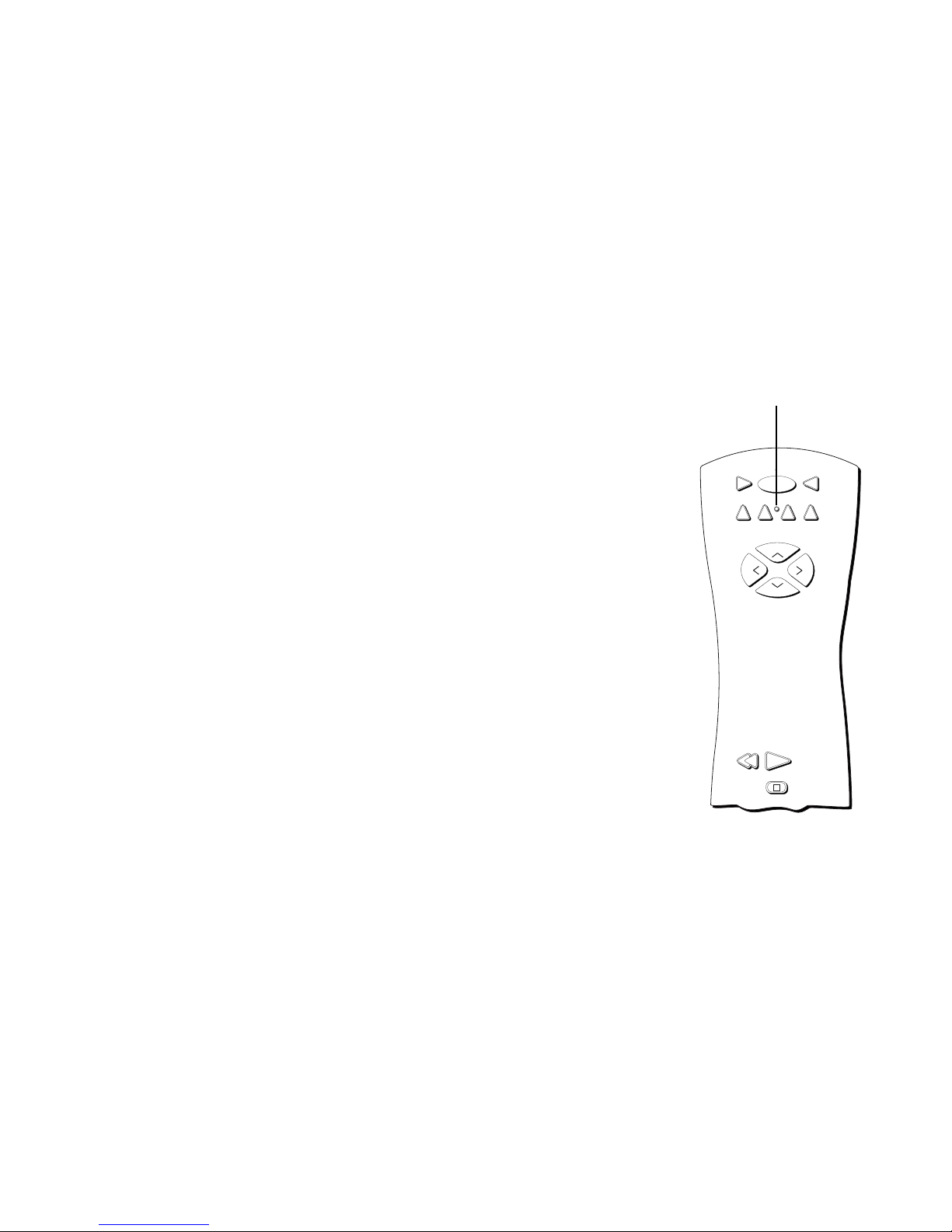
The universal remote can be programmed to control most brands of remote controllable
components, such as VCRs. The remote is already programmed to control most RCA,
GE and PROSCAN TVs, VCRs, DVD players, and laserdisc players.
TESTING THE REMOTE CONTROL
To determine whether the universal remote control requires programming, turn on a
component, such as a VCR, point the remote control at the VCR, and press the VCR1
button. Then press ON•OFF or CH + (channel up) or CH - (channel down) to see if the
VCR responds to the remote control commands. If not, the remote control requires
programming.
PROGRAMMING THE REMOTE CONTROL
VCR1
DVD
VCR2
LED
ON OFF
TV
DIRECTV
AUX
Using Automatic Code Search
The following instructions can be used to program the remote control. If you want to
exit the automatic code search without programming any of your components, press
and hold CLEAR until the LED light on the remote control turns off.
1. Turn on the component you want to control (VCR, etc.).
2. Press and hold the button you want to program (VCR1, VCR2, etc.). Note that the
AUX button can only be programmed using direct entry (see the next section for
details). While holding the component button, press and hold ON•OFF until the
LED light on the remote control turns on, then release both buttons.
3. Point the remote control at the component you want it to control.
4. Press and release PLAY, then wait five seconds or until the LED light stops flashing.
At this point the remote control is searching for the correct code to program. If,
after five seconds, the component you want to control does not turn off, press PLAY
again to tell the remote control to search the next set of codes.
Continue pressing PLAY until the component turns off or you have searched
through all of the codes. There are 20 total sets of codes. If the component does not
turn off after pressing PLAY 20 times, then the remote cannot control that particular
component.
If the component you want to control
does
turn off:
+
H
C
STOP
V
O
L
C
H
-
PLAYREVERSE
L
O
V
You’ll use these buttons when
you program the remote to
control any component.
The remote may not operate all
models of all brands.
1. Press and release REVERSE, then wait two seconds. Repeat this step until the
component turns back on.
2. To finish, press and hold STOP until the LED light on the remote control turns off.
20
Page 25
Using the RemotE
Using Direct Entry
1. Turn on the component to be programmed.
2. Look up the brand and code number(s) for the component on the code list in the
section “Remote Control Codes” on the following page.
3. Press and hold the remote control button you want to program.
4. Enter the code from the code list.
5. Release the button, and then press ON•OFF to see if the component responds to
the remote control commands. If it doesn’t, try pressing the component button and
then ON•OFF again.
6. If you get no response, repeat these steps using the next code listed for your brand
until the component responds to the remote control commands.
USING THE REMOTE TO CONTROL A COMPONENT
Once the remote has been programmed successfully, you are ready to use it to control
your components, such as a VCR, DVD player, or laserdisc player.
To operate the component:
1. Press the component button (VCR1, VCR2, DVD, or AUX) to set the remote to
control the component.
This remote control may
not operate all models
of the brands that are
shown. Use the codes
shown in this manual,
or on the sheet packed
with your remote
control.
Use the AUX button to
control a separate
satellite receiver, if
necessary. Do not
reprogram the DIRECTV
button.
2. Press ON•OFF to turn the component on or off.
3. Use the remote control buttons that apply to that component.
21
Page 26

Using the Remote
REMOTE CONTROL CODES
VCR
Admiral ............................................. 2131
Adventura ......................................... 2026
Aiko ................................................... 2027
Aiwa ........................................ 2002, 2026
Akai ........ 2003, 2004, 2005, 2007, 2008,
American High ................................ 2021
Asha ................................................... 2013
Audio Dynamics .................. 2009, 2010
Audiovox .......................................... 2014
Bell & Howell................................... 2011
Beaumark ......................................... 2013
Broksonic .............................. 2012, 2025
Calix .................................................. 2014
Candle ... 2013, 2014, 2015, 2016, 2017,
Canon .......................... 2021, 2022, 2114
Capehart ................................ 2020, 2110
Carver ............................................... 2062
CCE ........................................ 2027, 2061
Citizen . 2013, 2014, 2015, 2016, 2017,
Colortyme ....................................... 2009
Colt .................................................... 2061
Craig ................. 2013, 2014, 2023, 2061
Curtis-Mathes 2000, 2002, 2009, 2013,
..... 2016, 2018, 2021, 2022, 2024, 2115
Cybernex .......................................... 2013
Daewoo 2015, 2017, 2019,2025, 2026,
Daytron............................................. 2110
Dbx ......................................... 2009, 2010
Dimensia ........................................... 2000
Dynatech ............................... 2002, 2026
Electrohome ......................... 2014, 2029
Electrophonic .................................. 2014
Emerson ..................... 2002, 2012,2014,
...... 2015, 2021, 2024, 2025,2026,2029,
2030, 2032, 2033, 2034, 2035, 2036,
2037, 2038, 2039, 2040, 2041,
..... 2042, 2044, 2045, 2047, 2065, 2105,
Fisher ..... 2011, 2023, 2048, 2049, 2050,
Fuji .......................................... 2021, 2119
Funai ....................................... 2002, 2026
Garrard ............................................. 2026
GE 2000, 2001, 2013, 2021, 2022, 2053,
Goldstar 2009, 2014, 2018, 2054, 2121
Gradiente ......................................... 2026
Harley Davidson ............................. 2026
Harman Kardon .............................. 2009
Harwood .......................................... 2061
Headquarter .................................... 2011
Hitachi ... 2002, 2055, 2056, 2057, 2107,
HI-Q .................................................. 2023
Instant Replay .................................. 2021
JCL ..................................................... 2021
JC Penney ........ 2009, 2010, 2011, 2013,
... 2022, 2055, 2056, 2058, 2059, 2060,
Jensen .......................... 2055, 2056, 2111
2111,2112, 2113
2018, 2019
2018,2019,2027
2027, 2028, 2110
2113, 2116, 2117, 2130
2051, 2052,2118
2115, 2120
2111, 2120, 2122
2014, 2021,
2107, 2118
JVC ... 2009, 2010, 2011, 2018, 2058, 2111,
Kenwood ... 2009, 2010, 2011, 2016, 2018,
KLH ........................................................ 2061
Kodak .......................................... 2014, 2021
Lloyd ............................................ 2002, 2026
Logik ....................................................... 2061
LXI .......................................................... 2014
Magnavox ... 2021, 2022, 2062, 2063, 2104,
Magnin .................................................... 2013
Marantz ........................... 2009, 2010, 2011,
........... 2016, 2018, 2021, 2058, 2062,2064
Marta ...................................................... 2014
Masushita ............................................... 2021
MEI .......................................................... 2021
Memorex ................................... 2002, 2011,
2013, 2014, 2021, 2023, 2026, 2104, 2131
MGA ................................. 2029, 2065, 2113
MGN Technology ................................. 2013
Midland .................................................. 2053
Minolta ............................. 2055, 2056, 2107
Mitsubishi .. 2029, 2055, 2056, 2065, 2066,
......... 2070, 2071, 2072, 2073, 2074, 2106,
Montgomery Ward ................... 2075, 2131
Motorola..................................... 2021,2131
MTC ................................. 2002, 2013, 2026
Multitech ... 2002, 2013, 2016, 2026, 2053,
NEC ........... 2009, 2010, 2011, 2016, 2018,
2058, 2064, 2076, 2078, 2079, 2111, 2123
Nikko...................................................... 2014
Noblex ................................................... 2013
Olympus ................................................ 2021
Optimus ...................................... 2014, 2131
Optonica ................................................ 2096
Orion ..................................................... 2035
Panasonic ... 2021, 2022, 2109, 2125, 2126,
Pentax ........ 2016, 2055, 2056, 2107, 2120
Pentex Research .................................. 2018
Philco ..................... 2021, 2022, 2062, 2063
Philips .................... 2021, 2062, 2096, 2124
Pilot ........................................................ 2014
Pioneer ....... 2010, 2055, 2080, 2081, 2123
Portland ................ 2016, 2017, 2019, 2110
ROSCAN ...................................... 2000, 2001
P
Protec ..................................................... 2061
Pulsar ...................................................... 2104
Quarter ................................................. 2011
Quartz .................................................... 2011
Quasar ............................. 2021, 2022, 2125
RCA ........... 2000, 2001, 2003, 2013, 2021,
........... 2055, 2056, 2082, 2083, 2084,2085,
2088, 2089, 2090, 2091, 2107, 2115, 2120,
Radioshack/Realistic ...... 2002, 2011, 2013,
......... 2021, 2022, 2023, 2026, 2029, 2049,
Radix ....................................................... 2014
Randex ................................................... 2014
Ricoh ...................................................... 2128
2058, 2111,2123
2050, 2096, 2131
2123
2108, 2124
2067, 2069,
2113, 2123
2061
2127
2086,2087,
2125
2014
Runco .......................................................... 2104
Samsung 2005, 2013, 2015, 2033, 2053, 2112
Sanky ................................................ 2131, 2104
Sansui ......................... 2010, 2092, 2111, 2123
Sanyo ..................................... 2011, 2013, 2023
Scott ..... 2012, 2015, 2025, 2032, 2035, 2038,
Sears ................ 2011, 2014, 2021, 2023, 2048,
.... 2049, 2050, 2051, 2055, 2056, 2107, 2118
Sharp .... 2002, 2017, 2029, 2094, 2095, 2096,
Shintom ...................... 2004, 2056, 2061, 2098
Shogun ........................................................ 2013
Signature ......................................... 2002, 2131
Singer ..................................... 2021, 2061, 2128
Sony ...... 2002, 2004, 2098, 2099, 2119, 2128
STS .................................................... 2021, 2107
Sylvania . 2002, 2021, 2022, 2026, 2062, 2063,
Symphonic ....................................... 2002, 2026
Tandy ................................................ 2002, 2011
Tashiko ........................................................ 2014
Tatung ............................................... 2058, 2111
TEAC ............... 2002, 2026, 2058, 2085, 2111
Technics ........................................... 2021, 2109
Teknika . 2002, 2014, 2021, 2026, 2100, 2129
TMK ....................................... 2013, 2024, 2047
Toshiba . 2015, 2049, 2051, 2055, 2065, 2093,
ToteVision ....................................... 2013, 2014
Unitech ....................................................... 2013
Vector Research ...... 2009, 2010, 2015, 2016
Victor .......................................................... 2010
Video Concepts ....... 2009, 2010, 2015, 2016,
Videosonic ................................................. 2013
Wards . , 2002, 2013, 2014, 2015, 2021, 2023,
.... 2029, 2055, 2056, 2061, 2096, 2101, 2102,
XR-1000 ............................... 2021, 2026, 2061
Yamaha . 2009, 2010, 2011, 2018, 2058, 2111
Zenith .............. 2004, 2098, 2104, 2119, 2128
2065, 2093, 2116
2131
2065, 2124
2116
2113
2026,
2103, 2107, 2116, 2131
Cable Boxes
ABC ...... 5002, 5003, 5004, 5005, 5006, 5007,
Antronix .......................................... 5008, 5009
Archer ........................ 5008, 5009, 5010, 5011
Cabletenna ................................................. 5008
Cableview ................................................... 5008
Century ...................................................... 5011
Citizen ......................................................... 5011
Colour Voice ................................... 5012, 5013
Comtronics ..................................... 5014, 5015
Contec ........................................................ 5016
Jasco ............................................................ 5011
Jerrold ... 5003, 5005, 5007,5018, 5023, 5024,
Magnavox.................................................... 5025
Memorex .................................................... 5026
Movie Time .......................... 5002, 5027, 5028
NSC ....................................... 5002, 5027, 5028
Oak ......................................... 5002,5016, 5029
Panasonic ......................................... 5048, 5052
5053
5046, 5053
Paragon .............................................. 5026
Philips ................ 5011, 5012, 5013, 5019,
Pioneer .................................... 5033, 5034
Pulsar .................................................. 5026
RCA .............................. 5047, 5049, 5052
Realistic ................................... 5009, 5049
Regal ........................................ 5022, 5035
Regency ............................................. 5017
Rembrandt ........................................ 5003
Runco ................................................. 5026
Samsung .................................. 5014, 5034
Scientific Atlanta5006, 5036, 5037, 5038
Signal ........................................ 5014, 5018
Signature ............................................ 5003
SL Marx .............................................. 5014
Sprucer .............................................. 5052
Starcom ........................ 5007, 5018, 5053
Stargate ................................... 5014, 5018
Starquest ............................................ 5018
Tandy .................................................. 5040
Teleview ............................................. 5014
Tocom ........................... 5004, 5023, 5041
Toshiba ............................................... 5026
Tusa ..................................................... 5018
TV86 ................................................... 5027
Unika ............................ 5008, 5009, 5011
United Artists ................................... 5002
United Cable .................................... 5053
Universal ............ 5008, 5009, 5010, 5011
Videoway ........................................... 5044
Viewstar ............. 5015, 5025, 5027, 5040
Zenith ........................... 5026, 5050, 5051
5025, 5030, 5031, 5032
Satellite Receivers
Chapparal ............................... 5056, 5057
Drake ...................................... 5058, 5059
GE ............................................ 5000, 5001
General Instruments . 5060, 5061, 5062
Panasonic ........................................... 5075
Primestar ........................................... 5076
PROSCAN ............................. 5000, 5001
RCA ......................................... 5000, 5001
Realistic .............................................. 5063
Sony .................................................... 5072
STS1 .................................................... 5064
STS2 .................................................... 5065
STS3 .................................................... 5066
STS4 .................................................... 5067
Toshiba ............................................... 5068
Toshiba ............................................... 5073
Uniden ................................................ 5069
Audio
(For RCA and Dimensia brands only)
AM/FM ............................................... 4003
Aux ..................................................... 4004
Phono ................................................. 4005
CD ...................................................... 4007
Tape .................................................... 4006
22
Page 27

Basic TV Operation
THE INS AND OUTS OF USING Y OUR HDTV
This section tells you about the interactive channel
banner, which appears when you change channels or
press INFO on the remote.
It also describes how to change channels and modes
and how to use PIP (Picture-In-Picture).
This section gives you a broad, clear view of how to
operate the basics of your TV.
SETUP AND CONNECTIONS
1
➣➣➣ ➣
USING THE REMOTE
2
BASIC TV OPERATION
3
USING THE PROGRAM
4
GUIDES
ADJUSTING TV CONTROLS
5
➣
USING THE PROFILES
6
➣
SYSTEM OPTIONS AND
7
PREFERENCES
➣
GETTING ASSISTANCE
8
➣
REFERENCE
9
23
Page 28
BASIC TV OPERATION
ABOUT THE CHANNEL BANNER
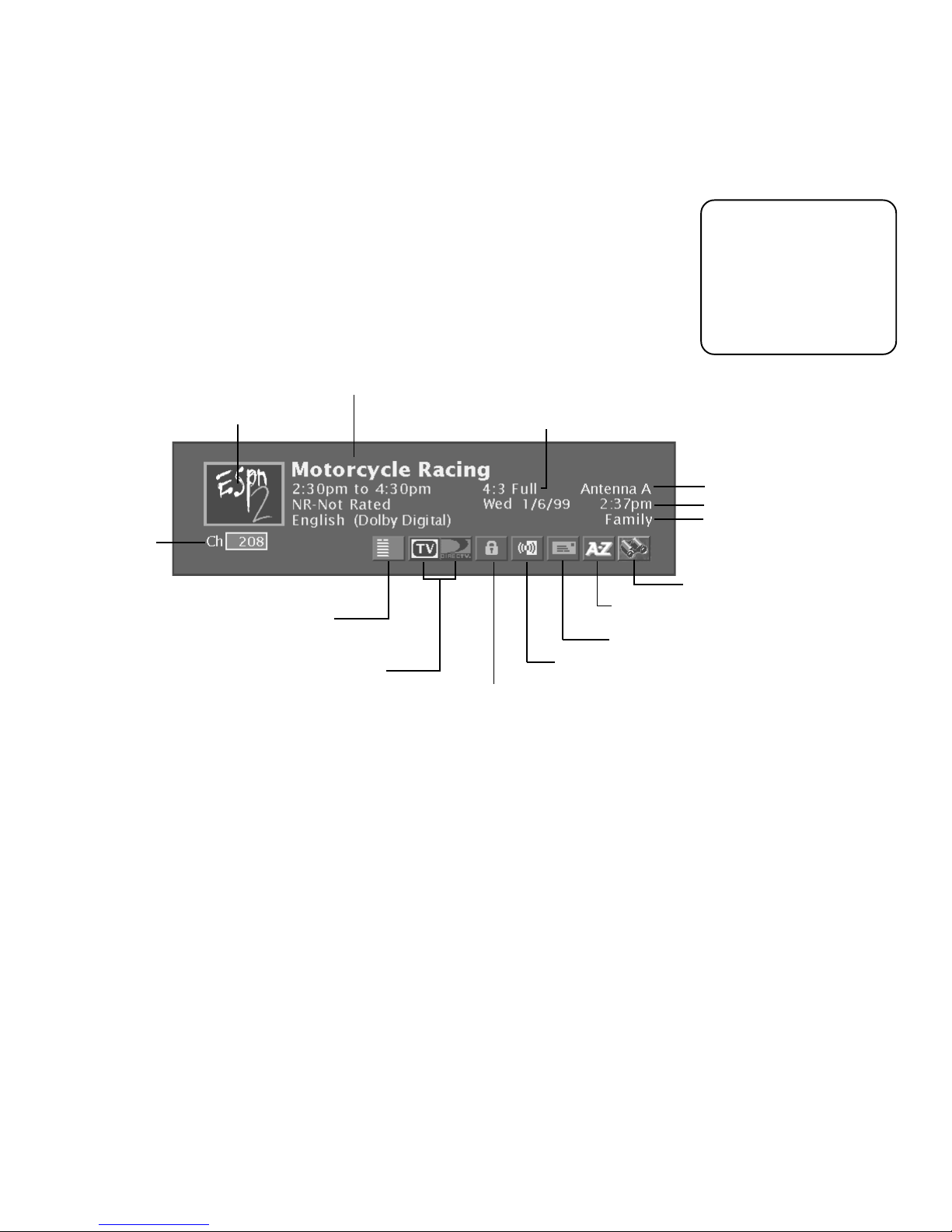
The channel banner appears whenever you tune to a channel or press INFO on the
remote control. When the banner is displayed, pressing INFO gives extended
information, when available. Use the arrow buttons and OK to choose an icon in the
channel banner.
Channel banner icons represent frequently-used features. Some icons change
appearance to show the item’s status or availability.
Program title, start and end time, rating, current audio
language, and audio mode availability
Channel logo, when available
Main picture
channel number
Takes you to the Main menu
Toggles between TV mode and DIRECTV mode
Indicates incoming signal aspect ratio and screen format applied to it
Cycles through the audio language choices
Locks and unlocks the system or unlocks the video
Please note that when
you’re in TV mode, the
channel banner will not
look the same as when
you’re in DIRECTV mode
(if you subscribe to
DIRECTV® programming).
Current antenna (TV mode only)
Current date and time
“Family” is one of five
selectable profiles
Searches titles of all DIRECTV® programming guides for specific information
Sorts titles of the current DIRECTV programming
guide for specific information
Displays mail from program providers
24
Page 29

BASIC TV OPERATION
CHANNEL BANNER ICONS
Main menu icon When selected, takes you to the main menu.
TV/DIRECTV logo When selected, toggles between TV and DIRECTV viewing.
The highlighted icon indicates the current viewing state.
Green unlock icon Indicates that the system is unlocked. Spending, viewing and
other limits can be accessed and changed. When selected, locks the system.
Yellow unlock icon Indicates that a password has been entered to override
profile limits. No limits can be accessed or changed. When selected, locks the
system.
Red lock icon Indicates that no limits can be accessed or changed. A password is
required to override limits or access the system.
Audio language icon If the icon is highlighted while watching a digital (ATSC) or
DIRECTV® channel, two or more audio languages are available. Selecting the icon
repeatedly scrolls through and plays the options.
If the icon is highlighted when watching an analog (NTSC) TV channel, a Second
Audio Program (SAP) is available. Selecting the icon will play the SAP for the
current channel until the channel is changed.
Highlighted mail icon Indicates that you have a message in your mailbox from
your DIRECTV® programming provider. Select this icon to access the mailbox and
read your mail.
Press INFO on the remote
control twice to view an
expanded channel banner
that shows a program
description (when
available).
AlphaSort™ (A-Z) icon When selected, allows you to sort currently-listed program
titles alphabetically.
Highlighted Scout™ (binoculars) icon When highlighted, indicates a Scout has
found a program. If selected when highlighted, you view the Scout’s results. If you
select the icon when it is not highlighted, you can set up a Scout to find a program
for you.
25
Page 30
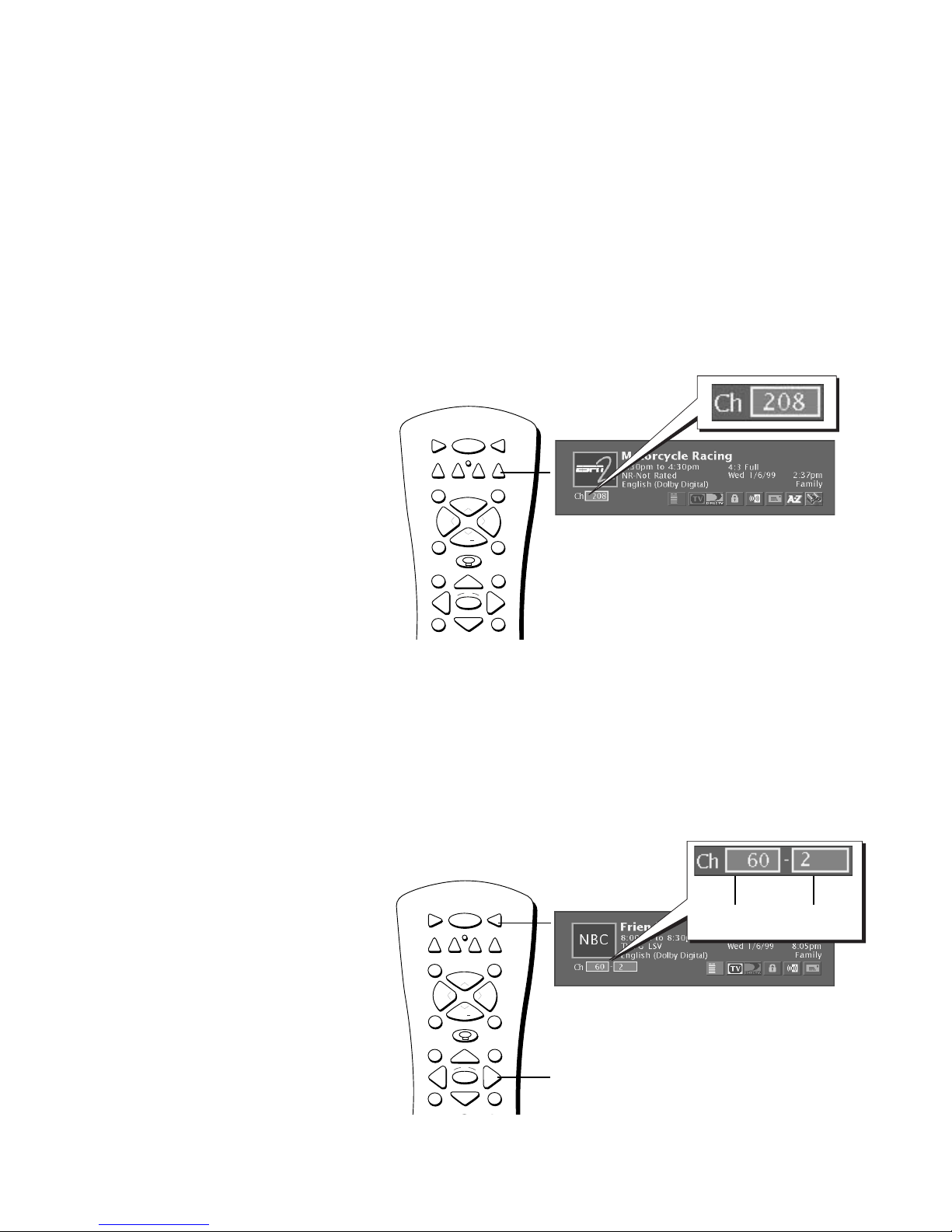
BASIC TV OPERATION
CHANGING BETWEEN DIRECTV AND TV MODE
When you change channels by entering numbers with the remote control, you tune to
programming that can come from one of three different sources: the DIRECTV satellite
(if you have DIRECTV service), a terrestrial off-air antenna, or cable TV. You tune to one
of these sources by pressing either TV or DIRECTV on the remote control; then you can
enter the channel numbers. The diagrams below show how your remote control
communicates with the three sources.
ON•OFF
In DIRECTV mode, you tune to channels
that come from the DIRECTV satellite
signal (if you subscribe to DIRECTV
®
programming). Enter channel numbers that
are one to four digits long. Then press OK
to tune.
DVD
MUTE SKIP
VOL
GUIDE INFO
TVVCR1
DIRECTV
AUX
VCR2
CH
+
VOL
CH
GO BACKFETCH
OK
In TV mode, you tune to channels that
carry the terrestrial off-air or cable TV
signal.
• To tune to an analog channel, enter
channel numbers that are up to three
digits long. Press OK to tune.
• To tune to a digital channel, enter
channel numbers that are one, two, or
three digits long. If necessary, press the
right arrow and enter a subchannel
number. These subchannel numbers
appear in the box to the right of the
primary channel number. Press OK to
tune.
MENU CLEAR
ON•OFF
DVD
MUTE SKIP
GUIDE INFO
DIRECTV
AUX
VCR2
CH
+
VOL
CH
GO BACKFETCH
OK
TVVCR1
VOL
Primary
Channel
Subchannel
(if necessary)
Right arrow button
26
MENU CLEAR
Page 31

BASIC TV OPERATION
CHANGING CHANNELS
To change channels by entering numbers with the remote control, the remote needs to
be in the correct “mode”: either DIRECTV mode (if you subscribe to DIRECTV) or TV
mode.
When you want to watch DIRECTV
programming, put the remote in DIRECTV
mode
1. Make sure the TV is in DIRECTV mode by pressing DIRECTV
on the remote control.
2. Enter the channel number and press OK. If you do not enter at
least three digits, “???” will appear in the channel entry box,
and the system will wait for a valid entry.
When you want to watch a digital or analog TV
channel, put the remote in TV mode
If you want to watch a digital channel:
®
ON•OFF
TVVCR1
DVD
AUX
DIRECTV
VCR2
MUTE SKIP
CH
+
VOL
VOL
DIRECTV
button
Channel entry box Highlighted to indicate
DIRECTV mode
1. Make sure the TV is in TV mode by pressing TV on the remote
control.
2. Enter the primary channel number. This number will appear in
the primary channel entry box. If there is no subchannel,
press OK.
3. If the primary channel number has fewer than three digits and
you want to enter subchannel numbers, press the right arrow
to advance to the subchannel entry box.
4. Enter the number of the subchannel. This number will appear
in the subchannel entry box.
5. Press OK on the remote control to tune to the channel.
If you want to watch an analog channel:
1. Make sure the TV is in TV mode by pressing TV on the remote
control.
2. Enter the channel number. This number will appear in the
primary channel entry box. (Analog channels don’t have
subchannels.)
3. Press OK on the remote control to tune to the channel.
Subchannel
entry box
Primary channel
entry box
ON•OFF
DVD
AUX
VCR2
MUTE SKIP
CH
+
VOL
TVVCR1
DIRECTV
VOL
TV
button
Highlighted to indicate
TV mode
Note that you can always
use the channel up and
down buttons on the
remote control to change
channels within the
DIRECTV and TV modes.
27
Page 32

BASIC TV OPERATION
PIP (PICTURE-IN-PICTURE) OPERATION
The PIP (Picture-In-Picture) feature lets you display a second, smaller analog (NTSC
format) picture on top of the main analog picture.
Your TV is equipped with a dual NTSC tuner that tunes to cable or off-air television
signals. You will only be able to use the PIP window and main picture with analog
channels.
PIP BUTTONS
There are certain remote buttons that control the way the PIP window works:
PIP Brings up the PIP window. Press PIP again to remove the window.
Arrows Let you move the PIP window to different areas of the screen.
SWAP Switches, or “swaps,” the video from the PIP window with the main
picture.
CH CTRL (Channel Control) Lets you switch channel control between the PIP
window and the main picture. To determine whether you are controlling the PIP or
the main picture, look at the channel banner as you change channels. The
triangular indicator is beside the channel number for the picture you’re controlling.
Main picture
channel number
Channel control
indicator
PIP channel number
Note that you will only
be able to use PIP with
analog channels.
DVD
MUTE SKIP
VOL
GUIDE INFO
Arrows
MENU CLEAR
123
456
789
INPUT
REVERSE PLAY FORWARD
RECORD
PIP
buttons
PIP SWAP CH CTRL WHO
ON•OFF
VCR2
CH
CH
OK
0
STOP PAUSE
TVVCR1
DIRECTV
AUX
+
VOL
GO BACKFETCH
ANTENNA
USING THE PIP FEATURE
While you may use PIP in different ways, this basic PIP scenario should get you
started. When watching an analog channel, follow these steps.
1. Press the PIP button on the remote control. The PIP window appears on the
screen.
2. Use the channel up and down or digit buttons to change the PIP channel.
3. To change the program in the main picture window, press CH CTRL. Then use
the channel up and down or digit buttons.
To go back and forth between controlling the PIP window and the main picture,
press the CH CTRL button.
28
Page 33

BASIC TV OPERATION
PIP PROBLEMS?
• If you are channel surfing and the PIP disappears, you may have tuned to a digital
channel. To view PIP and the main picture, make sure that both the main and PIP
channels are analog inputs, or signals. Continue changing the channel until you
find an analog (NTSC format) channel. The PIP window will reappear.
The message “PIP Not Viewable or Exceeds Rating” in the channel banner lets
you know that PIP is not available on this channel and you should tune to
another channel.
• If you press PIP and the PIP box is grayed, you may have movie or TV rating limits
set. These limits may block your access to the PIP channel. For information on
removing limits, see the section “Using the Profiles.”
• If the PIP window disappears when closed captioning is displayed or you press the
MUTE button on the remote control, you have a conflict in your settings. You
cannot view PIP when parental controls have blocked the current program or
closed captioning is displayed. In order to view PIP, either unlock parental controls
or change the closed captioning setting.
• You cannot view closed captioning in the PIP window.
29
Page 34

BASIC TV OPERATION
USING THE INPUT BUTTON
1. Repeatedly press the INPUT button to scroll through the available input sources
until you find the input associated with the component (such as VCR or DVD
player) you want to view.
Input source
Watch the channel banner to see the input sources change with
each press of the INPUT button.
2. Once you have found the input source you want, stop pressing INPUT.
• If you tune to VID1 and your VCR is connected to that input, you will be
able to view your VCR. To play, stop, or rewind the VCR1 tape using the
remote that came with your TV, you must first press the VCR1 button to put
the remote control in VCR mode.
There are other ways of selecting an input channel:
• Program the component (VCR, DVD, etc.) buttons on the remote control to
automatically tune to the correct input channel when pressed. See the section
in this book, “System Options and Preferences“ for information on auto tuning.
INPUT button
ON•OFF
AUX
DVD
MUTE SKIP
GUIDE INFO
MENU CLEAR
123
456
789
INPUT
REVERSE PLAY FORWARD
RECORD
PIP SWAP CH CTRL WHO
VOL
VCR2
CH
CH
OK
0
STOP PAUSE
DIRECTV
+
GO BACKFETCH
ANTENNA
TVVCR1
VOL
• After pressing INPUT on the remote, enter the digits 1, 2, 3, 4, or 5 to tune to
(S)VID1, 2, 3, FRONT, or CMPNT, respectively.
• After pressing INPUT on the remote, press GUIDE on the remote control to
view a guide-like list of your line inputs and corresponding channels.
30
Page 35

Using the Program Guides
WHAT IS A PROGRAM GUIDE?
A program guide is an on-screen programming
schedule. It is a list of the current and future
programs. There are separate guides for TV programs
and DIRECTV® programming (available if you
subscribe to DIRECTV® programming).
Both of these guides can be viewed in different
formats.
Using the program guides is easy as long as you
remember to highlight items on the screen by
pressing the arrow buttons on the remote control.
Then, press OK to tune to that channel.
SETUP AND CONNECTIONS
1
➣➣➣ ➣
USING THE REMOTE
2
BASIC TV OPERATION
3
USING THE PROGRAM
4
GUIDES
ADJUSTING TV CONTROLS
5
➣
USING THE PROFILES
6
➣
SYSTEM OPTIONS AND
7
PREFERENCES
➣
GETTING ASSISTANCE
8
➣
REFERENCE
9
31
Page 36

Using the Program Guides
123
456
789
0
ON•OFF
TVVCR1
DVD
MUTE SKIP
GO BACKFETCH
GUIDE INFO
MENU CLEAR
INPUT
REVERSE PLAY FORWARD
RECORD
PIP SWAP CH CTRL WHO
STOP PAUSE
ANTENNA
AUX
DIRECTV
OK
CH
+
CH
VOL
VOL
VCR2
BRINGING UP THE PROGRAM GUIDES
If you subscribe to DIRECTV® programming, you have access to two program guides: a
DIRECTV® programming guide and a TV program guide (for terrestrial programming).
If you do not subscribe to DIRECTV® programming, you will have one guide: the TV
program guide.
You can access the program guides by:
• Pressing the GUIDE button on the remote control, or
• Pressing MENU on the remote control and selecting
Program Guide
.
Note that when you access a program guide, you view the guide corresponding to the
“mode” you are in. For example, if you are in DIRECTV mode and press the GUIDE
button, you will view the DIRECTV® programming guide. Similarly, if you are in TV
mode and press the GUIDE button, you will view the TV program guide.
If you are viewing the TV program guide and would like to view the DIRECTV guide,
press DIRECTV on the remote control to change “modes” and view the DIRECTV
®
programming guide.
GUIDE
button
32
Page 37

Using the Program Guides
ANATOMY OF THE TV PROGRAM GUIDE
To access the TV program guide:
1. Press the TV button on the remote control.
2. Press GUIDE on the remote control. The following diagram shows you the kind of
information you will see in the TV program guide. Note that the availability of TV
program titles and information is dependent upon information provided by local
broadcasters.
“Family” is one of five selectable profiles
(press WHO on the remote to change)
Primary channel number
Subchannel number
Abbreviated channel
name, when available
Returns you to previous screen
Program titles and information, when available
Scrolls down through the guide
Help gives you more information
about the program guide
Indicates current time and day
Takes you to the main menu
Provides access to other program guide formats
When you are viewing the
TV program guide, you
can press DIRECTV on the
remote control and view
the DIRECTV
®
programming guide if you
subscribe to DIRECTV
®
programming.
33
Page 38

Using the Program Guides
ANATOMY OF THE DIRECTV
®
PROGRAMMING GUIDE
To access the DIRECTV® programming guide, you must subscribe to DIRECTV® service.
Press the DIRECTV button, then press GUIDE on the remote control. The following
diagram shows you the kind of information you will see in the DIRECTV® programming
guide.
“Family” is one of five selectable profiles
Program titles and information
Indicates current time and day
Returns you to previous screen
Help gives you more information
about the program guide
34
Sorts the guide by themes
Sorts the guide by movies or sports
Scrolls down through the guide
Shows all available programs
Takes you to the main menu
Provides access to other program
guide formats and functions
Searches program titles for specific
information
Sorts the current guide alphabetically by title
When you are viewing
the DIRECTV
®
programming guide, you
can press TV on the
remote control and view
the TV program guide.
Page 39

Using the Program Guides
GETTING AROUND IN THE GUIDES
There are several ways to change channels and move around the TV and DIRECTV
programming guides.
• Point to channels with the number buttons (0-9)
You can quickly highlight any channel in the program guides by entering the
channel number with the number buttons (0-9). For example, to highlight channel
228, press the numbers 2-2-8 and press OK on the remote control. To highlight
channel 73, press 7-3 and OK.
• Scroll channel by channel
The programs that you see on the TV screen make up one section—or page—of the
total program guide. You can scroll to other sections using the arrows: highlight
other times with the left and right arrows; highlight other channels with the up and
down arrows.
• Scroll page by page
If you want to scroll up or down through the program guides faster, press the
channel up and down buttons on the remote control. The highlight scrolls a page at
a time.
®
TUNING TO A PROGRAM
• To tune directly to a current program listed in a guide, highlight the program name
and press OK.
To view a listing of
future programming in
the guide, continuously
press the right arrow
button on the remote
control to scroll to the
right.
• To see information about a program or channel in the guide, highlight the program
or channel name and press INFO.
After you highlight a program name and press INFO, the Program Details screen
appears and gives you several options.
Then, if the program is not a Pay Per View (PPV) program, your options are to
choose:
•
•
•
The options available to you may vary according to the type of program you select.
If the program is PPV, you will have the option to buy the program.
View Channel
Channel Guide
Other Times
to see what other times the program is available
to tune to that channel
to see a program lineup for that channel
35
Page 40

Using the Program Guides
USING THE GUIDE BUTTON
Each press of the GUIDE button on the remote control takes you to an alternate type of
TV or DIRECTV® programming guide: Detail Guide, SurfGuide™ (DIRECTV only), or Grid
Guide.
By default, the Detail Guide appears when you press GUIDE on the remote control. You
can change the default guide from the Detail Guide to the Grid Guide or the SurfGuide
feature (DIRECTV only) using the following steps:
1. Select
2. Select
3. Use the arrows and OK to choose the guide you want to appear first when you press
The Detail Guide
The Detail Guide shows five channels in a time-and-channel format, with program
information for the highlighted program (if available) at the top of the guide.
The SurfGuide™ (DIRECTV only)
The SurfGuide feature displays seven DIRECTV® channels in a half-hour time-andchannel format, if you subscribe to DIRECTV® programming. The full name of the
program and its rating are listed at the bottom of the screen. Press the right arrow button
to extend the SurfGuide to show two hours of programming.
Preferences
Default Guide
GUIDE. If SurfGuide is selected as the default guide, Grid Guide will appear when
you access the TV program guide since the SurfGuide feature isn’t available as a TV
program guide.
from the main menu.
.
The TV Detail Guide
The SurfGuide feature
The Grid Guide
The Grid Guide shows seven channels in a time-and-channel format, with the full title of
the highlighted program at the top of the guide.
THE OTHER GUIDES ICON
The
Other Guides
you sort the guides by different variables, such as by channels, data, channel lists, and
channel groups. You can access these guides by highlighting then selecting the
Guides
• Channel Guide Displays a channel’s DIRECTV® or TV programming schedule in a
icon at the bottom of the Detail Guide and Grid Guide.
channel-by-channel format. You may also directly enter channel numbers and press
OK to go to another channel’s listing.
icon at the bottom of the TV and DIRECTV® programming guides lets
Other
The TV Grid Guide
Other Guides icon
Channel Guide lets you see programs on a specific channel.
36
Page 41

Using the Program Guides
• SurfGuide™ (available with DIRECTV only) Displays seven DIRECTV® channels in
a half-hour time-and-channel format, if you subscribe to DIRECTV® programming.
The full name of the program and its rating are listed at the bottom of the screen.
Press the right arrow button to extend the SurfGuide to show two hours of
programming.
• Guide Data Shows you the future guides that are available and lets you select one
to view in either the TV or DIRECTV® programming guide.
Guide Data shows you future guides.
• Channel Lists Displays a list of profiles. You can choose a profile from this list and
the guide will display only the DIRECTV® or TV channels which have been included
in that profile’s channel list. You can also access profiles by pressing WHO on the
remote when in the program guide.
You can highlight any
program then tune to
that channel by pressing
OK or get more
information by pressing
the INFO button.
• Channel Groups Lets you sort only the DIRECTV® programming guide to include
only channels that fall into the selected category. For example, you could sort the
DIRECTV® programming guide to show only Pay Per View movies that are available
at a future time.
• Attractions… Displays a list of DIRECTV® channels that show coming attractions
and special events information.
The Attractions Guide shows coming DIRECTV events and programs.
EXITING A PROGRAM GUIDE
There are three ways to exit a guide:
• Highlight a channel and press OK.
• Highlight
Exit
and press OK.
• Press CLEAR or GO BACK on the remote control.
37
Page 42

Using the Program Guides
SORTING THE DIRECTV® PROGRAMMING GUIDE
Sorting the guide is a way of organizing the DIRECTV® programming guide to show
only the types of programs that interest you. There are several on-screen buttons that
sort the DIRECTV guide in different ways.
The Sorting icons appear at the bottom of the Grid Guide and Detail Guide.
SORTING THE DIRECTV® PROGRAMMING GUIDE BY
TOPICS
The topics icon sorts the DIRECTV® programming guide according to the current user’s
preferences. Select the topics icon to sort the guide.
After you select the topics icon, it changes to the topics themes icon. Select the topics
themes icon to edit the current user’s themes preferences. These preferences are saved
in each user’s profile.
Checkmark the themes that interest you.
Select the topic categories, and checkmark the themes you would like to appear when
you select the topics icon in the guides. Programming that fits the description of
checkmarked themes will appear in the DIRECTV® programming guide when you sort
by the topics icon.
Topics button
Topics themes button
38
Page 43

Using the Program Guides
SORTING THE DIRECTV® PROGRAMMING GUIDE BY
MOVIES
Select the movies icon to tell the DIRECTV® programming guide to list only DIRECTV
movies. After you select the movies icon, it changes to a movies themes icon.
Select the movies themes icon to sort the guide to list movies by type, such as comedies
or musicals.
Select a movie theme that interests you.
Movies icon
Movies themes icon
SORTING THE DIRECTV® PROGRAMMING GUIDE BY
SPORTS
Select the sports icon tell the DIRECTV® programming guide to list only DIRECTV
sporting events. After you select the sports icon, it changes to the sports themes icon.
Select the sports themes icon to sort the guide to list sports by type, such as basketball
or soccer.
Select a sports theme that interests you.
®
LISTING ALL DIRECTV® PROGRAMMING
Sports icon
Sports themes icon
The all icon resets the DIRECTV® programming guide to show all available topics,
channels and listings for the current profile.
All icon
39
Page 44

Using the Program Guides
SORTING THE CURRENT DIRECTV® PROGRAMMING
GUIDE ALPHABETICALLY
The AlphaSort™ feature lists all the program titles in the current DIRECTV® programming
guide in alphabetical order. You can also find this icon in the channel banner. Select the
AlphaSort icon to search for specific program titles that are in the current guide. After
listing programs whose first letter or number match your entry, AlphaSort lists programs
in the current DIRECTV® programming guide that have your entry anywhere in the title.
In the AlphaSort menu, use the arrow buttons on your remote control to highlight a
character, then press OK.
For example, to search for the program Auto Racing, the first letter you should highlight
and select is “A.” (Words like “The”, “A”, and “An” appear at the end of a title.) All
titles that begin with “A” appear in the AlphaSort list. Next, enter the letter “U”. All
titles beginning with “AU” appear in the list. Programs that contain “AU” anywhere in
their titles will appear at the end of the list.
FINDING DIRECTV PROGRAMS USING SCOUT
The Scout icon at the bottom of the DIRECTV® programming guide lets you assign
“Scouts” to search all DIRECTV® programming guides (both current and future) for very
specific program title information.
™
AlphaSort icon
To use the Scout feature:
1. Highlight the Scout icon in the program guide and select it.
2. Highlight one of the Scout 1-8 menu items from the next screen and press OK. If
you’re setting up a new Scout, make sure to select a Scout menu item without a
check beside it, since the check means you have already set up that Scout search.
Select a Scout menu item without a check to set up a new Scout search.
40
Scout icon
Page 45

Using the Program Guides
3. Select
4. Use the on-screen keyboard to enter the desired search parameters. For example, if
5. Select
6. Check the Scout search results by selecting the Scout icon from the program guide
Enter Text
program guide titles.
you are interested in tennis events, enter a common term you might see in program
titles, like “tennis.”
Select Enter Text to set up a Scout.
Run Scout
guide titles.
or channel banner, then selecting the Scout menu item that has the binoculars icon
next to it.
to set up the information the Scout feature will look for in all
. Scout will search for information in all DIRECTV®programming
On-screen icons
represent the
status of the scout
feature:
Indicates the Scout
feature is set to find
specific
information.
Indicates the Scout
feature has found
the information
you specified.
7. Select
Scout Results.
program title, the program will be included in the Scout Results program list. If no
match is found, check again after the receiver has been off for approximately 30
minutes.
Scouts look for specific program information.
If the characters you entered appear anywhere within a
41
Page 46

Using the Program Guides
THE OTHER ICONS
These icons are located on both the DIRECTV and TV program guides.
Exit
Exits the guide and returns you back to where you were before entering the program
guides.
Help
Brings up additional information about the guide. Press OK to continue.
Exit icon
Down Arrow
The arrow icon allows you to scroll down through other channels in the guide.
Highlight the down arrow, and then press either OK or the down arrow on the remote
to scroll down through the program guide.
The Main Menu
Brings up the main menu. Press OK to continue.
Help icon
Arrow icon
Main menu icon
42
Page 47

Adjusting TV Controls
MAKE ADJUSTMENTS TO YOUR PICTURE AND
AUDIO
The following section tells you how to adjust the
picture quality and audio quality of your TV.
• The Picture Quality menu contains the controls
that let you adjust the picture.
• The Audio menu contains the controls that let
you adjust the way the audio sounds.
SETUP AND CONNECTIONS
1
➣➣➣ ➣
USING THE REMOTE
2
BASIC TV OPERATION
3
USING THE PROGRAM
4
GUIDES
ADJUSTING TV CONTROLS
5
➣
USING THE PROFILES
6
➣
SYSTEM OPTIONS AND
7
PREFERENCES
➣
GETTING ASSISTANCE
8
➣
REFERENCE
9
43
Page 48

Adjusting TV Controls
PICTURE QUALITY CONTROLS
The Picture Quality menu contains all of the TV’s video configuration controls. To
access the Picture Quality menu, press MENU on the remote control to go to the
main menu, then select
PICTURE SETTINGS
Picture Quality
.
The Picture Settings menu displays the controls for adjusting the way the picture looks.
The picture settings you specify apply to your current mode. Use the left and right
arrow buttons on the remote control to move the slider to the desired position. Then
select
Exit
when you are finished.
Your options under the Picture Settings menu are:
• Contrast Adjusts differences between the light and dark areas of the picture.
• Color Adjusts the richness of the color.
• Tint Adjusts the balance between the red and green levels.
• Black Level Adjusts the brightness of the picture.
• Sharpness Adjusts the crispness of edges in the picture.
You can have seven different picture settings: one for analog channels, one for digital
channels (including DIRECTV channels), and one for components attached to CMPNT
(component video input), and INPUT 1, 2, 3, and 4 (FRONT).
To make settings:
1. Enter the “mode” for which you would like to apply the setting (for example, press
DIRECTV or TV).
2. Then press MENU.
3. Select
Picture Quality
, and then select
Picture Settings
to set picture settings.
COLOR WARMTH
Color Warmth displays a choice list that lets you set one of three automatic color
adjustments:
picture color, and
corresponds to the NTSC standard of 6500 K and the normal setting corresponds
to 9300 K.
44
Cool
for a more blue palette of picture colors,
Warm
for a more red palette of picture colors. The warm setting
Normal
for an ordinary
Page 49

Adjusting TV Controls
NOISE FILTER
Noise Filter reduces picture “static” or any type of interference. You can set Noise Filter
to Off, Low, or High.
Off When set to Off, no Noise Filtering occurs.
Low When set to Low, the television produces a softer, smoother picture and retains
picture sharpness and detail. This is especially useful for providing a cleaner picture in
weak analog signal conditions.
High When set to High, the television produces an even softer, smoother picture. This
is especially useful for providing a cleaner picture in weak analog signal conditions.
However, when Noise Filter is on High, picture detail is somewhat decreased.
PICTURE TILT
Your TV has an extra-large picture tube, which makes it vulnerable to the effects of the
Earth’s magnetic field. You may need to adjust picture tilt. Use the left and right arrows
to adjust the picture tilt.
PICTURE PRESETS
Picture Presets displays a choice list that lets you select one of three preset picture
settings:
Based on the degree of lighting in your room, you should choose Bright, Normal, or
Soft Lighting. After you select one, the contrast, color tint, black level, and sharpness
settings found under the Picture Settings menu are automatically adjusted according to
your selection.
If you choose
sharpness to your desired level, and the television “saves” those settings. After you’ve
done this, it allows you to go back into the menu and select
Lighting
normally use
today, you can choose
to your customized settings by choosing
Bright Lighting, Normal Lighting, Soft Lighting
Personal Picture Preset
when you need to without losing your customized settings. For example, if you
Personal Picture Preset
Bright Lighting
, you can customize color, tint, black level, and
but wanted to watch a show in Bright Lighting
now, watch the show, and then afterwards return
Personal Picture Presets
, or
Personal Picture Preset
Bright, Normal, or Soft
again.
.
RESET CONTROLS
Allows you to reset all picture quality controls to their original defaults.
45
Page 50

Adjusting TV Controls
AUDIO CONTROLS
The Audio menu lets you adjust the controls that involve the TV’s audio outputs.
To access the Audio menu, press MENU on the remote, then select
main menu.
MUTE
Audio
from the
Turn Mute on (select
same can be accomplished by pressing MUTE on the remote control.
Sound Off
) to set the TV’s volume to its minimum level. The
TONE CONTROLS
Lets you adjust the Bass, Treble and Balance. Use the right and left arrow buttons
on your remote to adjust the sliders. Increasing the bass and treble output from the
TV’s internal speakers increases the low and high tones, respectively. Adjusting the
balance shifts the audio output between the left and right internal speakers.
AUDIO PROCESSOR
Displays a choice list of available audio modes, which control the way the sound
comes through your speakers.
To make settings:
1. Press MENU to access the main menu.
2. Select
Audio
, and then select
setup, any combination of the following options will appear:
•
Mono
used when receiving broadcasts where distance from the broadcasters
makes the stereo signal weak. The channel banner displays the word Mono
when you tune to a program that is broadcast in mono.
•
Stereo
channels. Most TV programs and recorded materials have stereo audio.
The channel banner displays the word Stereo when you tune to a program
that is broadcast in stereo.
Plays the sound in monophonic audio only. This should only be
Splits the incoming stereo audio signal into left and right front
Audio Processor
. Depending on your speaker
For information on
connecting external
speakers to your HDTV,
see the section “Setup
and Connections.”
46
Page 51

Adjusting TV Controls
• *
SRS Stereo (•)
stereo separation to stereo audio signals.
•
*SRS Focus (•)
more understandable.
SPEAKERS
Allows you to turn on or off internal speakers.
SOUND LOGIC
Monitors a program’s audio track and limits volume excursions to a minimum and
maximum volume range from the current volume setting. Acting like a dynamic range
limiter, it compresses the dynamic range to limit sudden volume increases, like when a
commercial begins.
Is an audio processing technology that adds greater depth and
Focuses audio signals by adding treble and making dialog
For more information on
the variable and fixed
audio jacks, see the
section “Setup and
Connections” under
“Back of the TV” and
“Connecting a Stereo
Amplifier.”
SAP
When turned on, Second Audio Program (SAP) plays the program’s audio in a second
language, if one is available. SAP is also used to broadcast a program’s audio with
descriptions of the video for the visually impaired. SAP is broadcast in mono and is not
available for digital programs.
OPTICAL OUTPUT
Select
Auto Select
television will automatically choose Dolby Digital or PCM based on the signal source.
Select
Dolby Digital
provide six independent soundtrack channels through the optical output jack (labeled
DIGITAL AUDIO OUT). Select
provide two independent soundtrack channels. Select
provided.
* SRS, SRS-Focus, Sound Retrieval System, and the SRS logo are registered trademarks of
SRS Labs, Inc.
† Manufactured under license from Dolby Laboratories. "Dolby", "Pro Logic" and the double-D
symbol are trademarks of Dolby Laboratories. Confidential Unpublished Works. ©1992-1997
Dolby Laboratories, Inc. All rights reserved.
if your TV is connected to a Dolby Digital† and PCM decoder. Your
if the TV is connected to a Dolby Digital only decoder; it will
PCM
if connected to a PCM only decoder; it will then
Off
if you want no audio output
When the TV is
connected to an
optional, compatible sixchannel amplifier/
receiver and speakers
via the DIGITAL AUDIO
OUT jack on the back
panel, you receive
Dolby Digital Surround
Sound, if transmitted.
Use the Optical Output
menu to specify Auto
Select, PCM, Dolby
Digital, or Off.
47
Page 52

Adjusting TV Controls
AUDIO LANGUAGE
The Audio Language menu lets you choose the default audio language you want to hear
when it is available. The system will automatically set the audio program to the selected
audio language when the channel you are viewing is either a DIRECTV or a digital
channel and the specified language is available.
In the Audio Language menu, highlight the audio language you want using the up and
down arrows, then press OK to select.
Icon in the Channel Banner
You will find an audio language icon in the channel banner.
Audio language icon
If the icon is highlighted while watching a digital (ATSC) or DIRECTV channel, two or
more audio languages are available. Selecting the icon repeatedly scrolls through and
plays the options.
If the icon is highlighted when watching an analog (NTSC) TV channel, a Second Audio
Program (SAP) is available. Selecting the icon will play the SAP for the current channel
until the channel is changed.
48
Page 53

Using The Profiles
CREATING USER PROFILES
This section describes the user profiles feature. It
includes information about:
• creating a profile’ s TV and DIRECTV viewing lists.
• setting spending limits.
• setting DIRECTV® programming, TV , and movie
rating limits.
• blocking unrated TV programs.
• locking and unlocking a profile.
SETUP AND CONNECTIONS
1
➣➣➣ ➣
USING THE REMOTE
2
BASIC TV OPERATION
3
USING THE PROGRAM
4
GUIDES
ADJUSTING TV CONTROLS
5
➣
USING THE PROFILES
6
➣
SYSTEM OPTIONS AND
7
PREFERENCES
➣
GETTING ASSISTANCE
8
➣
REFERENCE
9
49
Page 54

Using the Profiles
ABOUT PROFILES
When you select
in addition to the default “Family” profile. You can set up specific channels, rating
limits, and spending limits for each profile. After you’ve set up these profiles, exit
the menu system. Then, press the WHO button on the remote control to scroll
through your profiles and press OK to access a certain one.
But first, personalize a profile by entering a name.
1. Select
2. Select a profile to edit:
3. Select
4. Use the up, down, and right arrows on the remote control to find and select a
letter.
5. Press OK.
Profiles
Profiles
Edit User Name
from the main menu, you can create four different profiles
from the main menu.
User 1, User 2, User 3
from the next menu.
, or
User 4
.
Use the MENU button
on the remote control to
bring up the main menu,
use the arrows to
highlight an option, and
press OK to select it.
If the main menu does
not appear, the remote
control might not be in
TV or DIRECTV mode.
Try pressing the TV or
DIRECTV button and
then MENU.
You can personalize each profile.
To continue editing the profile, select
DIRECTV® programming) or
up these features.
TV Setup
DIRECTV Setup
. The following sections describe how to set
(if you have ordered
THE DIRECTV SETUP
The DIRECTV Setup menu item is only accessible if you subscribe to DIRECTV
programming. Through this menu you can establish DIRECTV channel lists, set
spending limits, and set rating limits for DIRECTV® programs.
EDITING CHANNELS IN A DIRECTV LIST
You should create a DIRECTV channel list to establish which DIRECTV channels
the selected profile can access. To create the DIRECTV channel list:
1. Highlight and select a user name, then select
2. Highlight
Edit Channels
and press OK.
DIRECTV Setup
.
®
You can also set up
profiles as categories
instead of as users. For
example, name a profile
“Sports” and include
only sports channels in
the profile. Or, name it
“Movies,” include only
movie channels, and set
a rating and spending
limit for yourself or your
family.
50
Page 55

Using the Profiles
Check the channels you want to include in the list (programming subject to change).
3. Use the arrow buttons to point to a DIRECTV channel, and press OK to remove (or
replace) the check mark. To go directly to a certain channel, enter its number using
the digits on the remote control. Or, page through the list using the channel up and
down buttons.
Checkmarked items appear in the DIRECTV channel list. In other words, when you
select that profile and begin surfing through DIRECTV channels with the channel up
and down buttons, only the checkmarked channels will appear as you surf.
SELECTING OR DELETING ALL DIRECTV CHANNELS
You might be able to save time when creating a DIRECTV channel list by using the
Select All Chans
channels before removing or adding individual channels.
Also, DIRECTV program providers may make additional channels available. To prevent
new channels from appearing in a profile channel list, choose
checkmark only the channels you want to appear in the list.
option or the
Delete All Chans
option to either add or delete all
Delete All Chans
and
SETTING THE DIRECTV SPENDING LIMIT
Use the
View (PPV) programs. To set the spending limit, choose the user profile name, select
DIRECTV Setup
1. Highlight
Spending Limit
, then follow these steps:
Spending Limit
option to indicate a profile’s per-event spending limit for Pay Per
, and press OK.
Tip
You can also access
spending limits by
selecting
Options
menu and then selecting
Purchases
select
and set limits for all
users from one location
instead of accessing
each profile individually.
System
from the main
. You can then
Spending Limit
You can set a per-event spending limit for each profile.
51
Page 56

Using the Profiles
2. Use the digits or the arrow buttons on the remote control to enter a singleprogram spending limit.
3. Lock the system. See “Locking the System” near the end of this section for
details.
After a spending limit is set and the system is locked, you must enter a password to
purchase a Pay Per View program that costs more than your spending limit allows.
The system will then temporarily unlock the limits you have set until the power is
turned off. When the system is turned back on, the system will be locked again.
SETTING THE DIRECTV RATING LIMIT
The Set Rating Limit menu enables you to set a maximum viewing limit for rated
movies (based on the MPAA ratings system).
• Note that the rating limit cannot be enforced if a program has not been rated, if
rating information for that program is not transmitted by the program provider,
or if the system has not been locked.
1. Select a user.
2. Select
3. Highlight
DIRECTV Setup
Set Rating Limit
.
and press OK.
Important!
You need to lock the
system in order for
rating limits, channel
limits, and spending
limits to go into effect.
To edit the limits after
you lock the system, you
need to enter the system
password. See “Locking
the System” for details.
Use the arrow buttons on the remote control to move the selector up and down.
4. Use the up and down arrows to move the rating selector to the highest rating
you want to be able to view. In the preceding illustration, movies that are rated
up to and including a PG-13 rating can be viewed.
After the rating limit is set and the system is locked, you must enter the system
password to watch programs with a rating higher than the limit. The system will
then temporarily unlock the limits you have set until the power is turned off. When
the system is turned back on, the system will be locked again.
Please note that the rating
limit you set while in the
DIRECTV Setup menu
applies only to the
selected profile and to
DIRECTV® programs—it
does not apply to TV
programs.
To set limits for TV
programming, select a
profile, select
and then select
Rating
or
Rating.
TV Setup
Set TV
Set Movie
52
Page 57

Using the Profiles
THE TV SETUP
You can establish TV channel lists, set spending limits, and set rating limits for TV
programs using the TV Setup menu.
EDITING CHANNELS IN A TV LIST
You should create a TV channel list to establish which TV channels (including both
analog and digital) the selected profile can access. To create the TV channel list:
1. Select a user.
2. Select
3. Use the arrow buttons to highlight a TV channel, and press OK to remove (or
Checkmarked items appear in the channel list. In other words, when you select that
profile and begin surfing through TV channels, only the checkmarked channels will
appear as you surf. Note that the only channels you can add to a list are ones that were
found during the channel search (see the “Getting Assistance” section in this book for
details on automatically searching for channels).
Edit Channels
To start, you can add or delete all channels.
replace) the check mark. To go directly to a certain channel, enter its number using
the digits on the remote control. Or, page through the list using the channel up and
down buttons.
.
SELECTING OR DELETING ALL TV CHANNELS
You might be able to save time when creating a TV channel list by using the
Chans
option or the
removing or adding individual channels.
Delete All Chans
option to either add or delete all channels before
Select All
Note that if you’re using
two terrestrial antennas,
pressing the ANTENNA
button on the remote
allows you to edit the
other antenna’s channel
list when you are in TV
mode.
Another way to add a
channel to the channel
list is to directly tune to
it using the digit buttons
on the remote control. If
the system can obtain
that channel’s signal,
that channel will be
added into the channel
list.
Don’t forget about
the CLEAR button.
Press the CLEAR button
on the remote control to
remove the on-screen
menus and return to
normal viewing.
53
Page 58

Using the Profiles
SETTING THE TV RATING
The Set TV Rating menu enables you to program your TV so children cannot see certain programs or channels.
The last three choices in the TV Setup menu involve software inside your TV (often called V-Chip) which allows
you to “block” TV programs and movies based on violence, sex, or other content you may believe children
should not view. In other words, it lets you program your TV so it will not display certain programs. Once you
block programs, you or other adults are not limited to only parent-approved programs; you can “unblock”
programs by entering the system password.
The V-Chip software inside your TV is initially turned “off,” so if you choose not to implement it, you can just
ignore it.
When turned “on,” the V-chip software reads a code that most broadcasters send with programs. That code tells
the V-Chip software the program’s age-based rating (TV-MA, TV-14, etc.) and content themes (Violence (V),
Adult Language (L), etc.). If you have blocked the rating or content themes that the program contains, you will
receive the message, “Program exceeds the TV rating limit you set,” when you turn to that particular channel.
Broadcasters are not required to provide ratings. However, you can block out programs that have been given a
rating of “Not Rated,” and programs that are considered “unrated” because no code has been sent by the
broadcaster.
The TV age-based ratings and content themes you can block are listed in the table below.
Age-Based
Rating
TV-MA
TV-14
TV-PG
TV-G
TV-Y7
Mature Audience Only. Specifically designed to be viewed by adults and may be unsuitable for
children under 17. It contains one or more of the following content themes: crude indecent
language (L), explicit sexual activity (S), or graphic violence (V).
Parents Strongly Cautioned. Contains some material that many parents would find unsuitable for
children under 14. Parents are strongly urged to exercise greater care in monitoring this program
and are cautioned against letting children under the age of 14 watch unattended. This program
contains one or more of the following content themes: intensely suggestive dialogue (D), strong
coarse language (L), intense sexual situations (S), or intense violence (V).
Parental Guidance Suggested. Contains material that parents may find unsuitable for younger
children. Many parents may want to watch it with their younger children. The program contains
one or more of the following content themes: some suggestive dialogue (D), infrequent coarse
language (L), some sexual situations (S), or moderate violence (V).
General Audience. Most parents would find this program suitable for all ages. It contains little or no
sexual dialogue (D), no strong language (L) or situations (S), and little or no violence (V).
Directed to Children 7 years and older. Designed for children ages 7 and above. It may be more
appropriate for children who have acquired the developmental skills needed to distinguish between
make-believe and reality. Themes and elements in this program may include mild fantasy violence
(FV) or comedic violence, or may frighten children under the age of 7.
Description and Content Themes for Age-Based Ratings
TV-Y
All Children. Themes and elements in this program are designed for a young audience, including
children from ages 2-6. It is not expected to frighten younger children.
54
Page 59

Using the Profiles
To set TV programming limits:
1. From the main menu, select
Profiles.
2. Select the user name you would like to set limits for through the
3. Select
4. Select
Once you get to the Set TV Rating screen, use the arrows and OK buttons on your
remote control to change the status of a TV program rating from
following sections give you more details about how to change the status of TV
program limits.
TV Setup
Set TV Rating
Selecting TV Rating allows you to set a limit for TV programs based on rating
and content.
from the next menu.
.
View
Profiles
to
THE RATING LIMIT SCREEN
Block
menu.
. The
Remember you are only
blocking TV programs
and movies for the one
Profile you select in the
Profiles menu. If you
would like to block
different programs for
different users, be sure
to complete the process
for each of them.
Below is an example of where items are located within the Rating Limit screen.
Age-Based Rating Limit
Lists the available ratings you
can block or view with the
rating status buttons.
Rating Status Buttons
Lets you know whether the status of the age-based
rating limit to the left is View or Block.
Content Themes
Lists the content themes you can block or view
with the content status buttons.
Content Status Buttons
Lets you know which content themes are
available for that rating, and whether the status of
the content theme is View (V) or Block (B).
You must remember to
lock the system for rating
limits to take effect.
55
Page 60

Using the Profiles
BLOCKING AGE-BASED RATINGS
You can automatically block all program ratings above a specified age-based rating
level. For example, if you only want your child to watch programs that have a
TV-G rating and lower (in other words, you want the child to watch only TV-G,
TV-Y7, and TV-Y programs), then you need to block other programming with higher
ratings.
To block programs with higher ratings:
1. First, determine the lowest level rating you do not want the child to watch.
2. Highlight the rating status button that corresponds with the lowest rating you
do not want the child to watch. (In the example above, you would point to the
rating status button corresponding to TV-PG, since the highest rating you want
her to watch is TV-G.)
3. Press OK to change the button from
higher ratings automatically change to
View
Block
to
Block
. The status for this and all
(and B).
When you change the
status of a rating to
the system will
automatically block
higher ratings and all
corresponding content
themes.
Block
Hierarchy of
Age-Based Ratings
TV-MA
TV-14
TV-PG
Mature
Audience Only
Parents Strongly
Cautioned
Parental
Guidance
Suggested
,
Changing the TV-PG rating status button from View to Block causes the buttons
for the higher ratings and content to change to Block and B.
4. Press the left arrow button on the remote control to return to the menu.
Viewing Age-Based Ratings
After you block age-based ratings, you have the option of going back and changing
some of the ratings to
1. Determine the rating you want to view that is currently blocked.
2. Use the arrows on the remote control to highlight the rating status button, such
as TV-14, whose status is
3. Press OK to change the status to
all programs with a TV-14, TV-G, TV-Y7, and TV-Y rating.
Note that the content theme buttons corresponding to TV-14 change to
well. They and the age-based rating status buttons are the only buttons that
automatically change back to
View
.
Block
.
View
. Your child would then be able to watch
View
when you complete this process.
View
as
TV-G
TV-Y7
TV-Y
General
Audience
Directed to
Children 7
Years and Older
All Children
56
Page 61

Using the Profiles
Blocking Specific Content Themes
You can block programs based on their content. (Content is represented by the D, L,
S, V, and FV on your screen. See “Setting the TV Rating” for details.) When you block
a content theme for a particular rating, you automatically block that content theme
for higher rated programs as well.
For example, if you do not want your child to watch programs that have adult
language (L) rated TV-PG or higher, you need to block adult language in all
programming rated TV-PG and above.
To block program content:
1. Determine the lowest level of content you do not want the child to watch.
2. Highlight the content button that corresponds with the lowest content you do
not want the child to watch. (In the example above, you would highlight the
button located under the L and to the right of TV-PG.)
3. Press OK to change the button from V to B. All higher ratings’ language content
theme button will automatically change to B.
V
You must remember to
lock the system for
rating limits to take
effect.
Content Themes
D Sexually Explicit
Dialogue
L Adult Language
S Sexual Situations
V Violence
FV Fantasy Violence
Selecting the content theme button corresponding with adult language (L) and TVPG blocks all programs with adult language (L) rated TV-PG and higher.
4. Press the left arrow to return to the menu or exit the screen.
Viewing Specific Content Themes
After you block specific content themes, you have the option of going back and
changing some of the content themes back to View (V):
1. Determine the content themes you want to change to View (V).
2. Use the arrows to highlight a particular content button, such as the B under
language (L) corresponding with TV-14.
3. Press OK to change its status back to V. Your child would then be able to watch
programs with TV-14 adult language content, but not programs with TV-PG or
TV-MA language content.
Note that only the content theme status button corresponding to TV-14 language
(L) changes to View (V). Higher rated content theme buttons, such as that for TVMA language, do not change.
57
Page 62

Using the Profiles
SETTING THE MOVIE RATING
You set movie rating limits by blocking movies rated above a specified level. To
access the Set Movie Rating menu:
1. From the main menu, select
2. Select the user you for whom you would like to set limits.
3. Select
4. Select
TV Setup
Set Movie Rating
Selecting Set Movie Rating allows you to set a limit for movies based on rating.
from the next menu.
.
Profiles
.
Blocking Movie Ratings
If you only want your child to watch movies that have a PG rating and lower (in
other words, movies rated PG and G), then you can automatically block out all other
movies with higher ratings.
To block movies:
Please note that the rating
limits you set while in the
TV Setup menu apply
only to TV programs—
they do not apply to
DIRECTV® programs.
To set limits for
DIRECTV® programming,
select a profile, select
DIRECTV Setup
select
Set Rating Limit
You must remember to
lock the system for
rating limits to take
effect.
and then
.
1. Determine the lowest level rating you do not want the child to watch.
2. Highlight the rating status button corresponding to the lowest rating you do not
want the child to watch. (In the example above, you would highlight the rating
status button corresponding to PG-13, since the highest rating you want the
child to watch is PG.)
3. Press OK to change the button from
buttons will automatically change to
Change the button from View to Block and all higher rated movies will also be
blocked.
4. Press the left arrow to return to the menu or exit the screen.
View
Block
to
.
Block
. All higher ratings’
View
58
Page 63

Using the Profiles
Viewing Moving Ratings
After you block movie ratings, you have the option of going back and changing some
of the rating status buttons back to View:
1. Determine the movie ratings you want to change to
2. Use the arrows to highlight the status button you want to change.
3. Press OK to change its status back to
For example, if movies with a rating of PG-13 and higher are blocked, you can
change the rating status button corresponding with NC-17. Your child would then
be able to watch all movies with a G, PG, and NC-17 rating.
View
.
View (V
).
BLOCKING UNRATED TV SHOWS
Some TV programming is not rated and may contain material you do not want your
children to see. These shows must be blocked separately.
To block unrated shows:
1. Select the user you would like to set limits for through the Profiles menu.
2. Select
3. Select
4. Now select
5. Highlight the radio button beside your choice of
TV Viewing
Set TV Rating
Unrated Shows
Unrated Shows
.
.
.
and press OK to select it.
View Unrated Shows
or
Block
Some movies may be
given a “Not Rated”
rating. After blocking
movie ratings, you must
separately set “Not Rated
Movies” to View to see
these movies.
Note that “unrated” TV
shows may include news,
sports, political, religious,
local and weather
programs, emergency
bulletins, public
announcements, and
programs sent without
ratings. It could also
include programs whose
ratings are either “None”
or “N/A.”
Selecting Unrated Shows allows the user to view or block all unrated programs.
59
Page 64

Using the Profiles
CHOOSING YOUR PROFILE
Each time you turn on the TV, the Family profile is selected by default. To select a
different profile:
1. Press the WHO button to scroll through the profiles in the channel banner.
The WHO button toggles through the profiles.
2. When your profile appears, enter your four-digit personal password to access your
profile. If the profile is not password protected, you can just press OK to activate it.
The channel, spending, ratings and viewing limits associated with the chosen profile
will be active only when the system is locked.
60
Page 65

Using the Profiles
LOCKING AND UNLOCKING A USER PROFILE
When you lock a profile, you prevent anyone who does not know the user
password from accessing the locked profile. This applies only when they press
WHO on the remote control. It does not prevent them from accessing and
editing the profile via the main menu if they first enter the system password.
When you lock a profile (excluding “Family”), you lock its channel limits, rating
limits, and spending limits. After locking the profile, you need to enter the
system password to edit these settings.
1. Choose the profile you want to lock or unlock from the Profiles menu,
highlight
Locking the user profile protects the limits you set up.
Lock User
or
Unlock User,
and press OK.
Don’t Forget Your
Password
If you forget a USER
password and the system
is locked, you need to
unlock the system and
then assign a new user
password. If the system
is not locked, select
Profiles
menu, choose
User
password.
from the main
Unlock
, and enter a new
2. When locking a user, use the arrows or the digits on the remote control to
enter a four-digit user password.
Some other things to remember about locking and unlocking profiles are:
• For a lock to be effective, you must exit out of the menu system.
• When you attempt to access a profile’s channel that is blocked by one or
more limits and the system is locked, you will be asked to unlock the video
by entering the SYSTEM password.
• If you enter the system password to override a limit, the lock on the
channel banner will turn yellow, and all limits are temporarily unlocked
until you turn off the television. When you turn on the television again, the
system will be locked, and the Family profile channel list will be active. If
you want to re-lock without turning off the television, you can select the
lock icon in the channel banner.
• If a profile is locked and you want to access its channels, press WHO on
the remote control and then enter the user password.
• If a profile is locked and you want to access its settings, you can access it
through the menu system by choosing
name. Then enter the system password.
Profiles
, then choosing the profile
61
Page 66

Using the Profiles
LOCKING THE SYSTEM
When you lock the system, all limits set up for all profiles are put into effect, regardless
of whether the profile is locked or unlocked. Unlocked profiles require no user
password to access their channel list if the system is locked.
When the system is locked, you can still access a profile and watch a channel in its
channel list (if the profile is locked, however, you must have the user password).
Locking the system activates all rating, spending, viewing, and channel limits for all
profiles. When you lock the system, no one can modify any of these settings without
first entering the four-digit system password.
1. Select
Profiles
press INFO on the remote control and select the green unlock icon from the
channel banner.
You can lock the system via the channel banner by entering a password.
from the main menu. Then select
Lock System
and press OK. Or,
The Lock/Unlock icons in
the channel banner are an
easy way to lock or unlock
the system. Press INFO
and select the icon to
change the lock status.
• Green Unlock icon
The system is unlocked.
Spending, viewing and
other limits can be
accessed and changed.
• Yellow Unlock icon
A password has been
entered to override
limits. No limits can be
accessed or changed in
the menu without a
system password.
• Red Lock icon
cannot be accessed or
changed without the
system password and all
limits are in effect.
Limits
2. Use the arrows or the digits to enter a four-digit system password.
3. Enter the password a second time to confirm it.
For the changes to be effective, you must exit out of the menu system.
UNLOCKING THE SYSTEM
When the system is unlocked, the channel, spending, viewing, and ratings limits that
you set are no longer in effect. To unlock:
1. Highlight
2. Highlight
When you attempt to access a channel that is blocked by one or more limits and the
system is locked, you will be asked to temporarily unlock the system by entering the
four-digit system password.
If you enter the system password to override a limit, all limits are unlocked until you
turn off the TV. When you turn on the TV again, the system will be locked, and the
Family profile channel list will be selected. If you want to re-lock the system without
turning off the TV, you can select the lock icon in the channel banner.
Unlock System
Yes
and press OK to confirm that you want to unlock the system.
in the Profiles menu and press OK.
If you subscribe to
DIRECTV® programming
and forget the SYSTEM
password, contact your
satellite program
provider’s authorization
center.
If you forget the system
password and do not
have DIRECTV
programming, remove
the access card from the
TV’s back panel (store it
in a safe place, or
reinsert it upside down to
store it in the TV). Press
and hold the INFO
button on the front
panel; simultaneously
press and hold the WHO
button on the remote
control. Continue to hold
for three seconds. All
passwords will be
cleared.
®
62
Page 67

System Options and Preferences
DIFFERENT WAYS TO ADJUST Y OUR HDTV
This chapter describes the other options available to
you such as:
• selecting a signal source and type
• auto tuning your remote control to tune to the
VCR1, VCR2, or DVD channel
• searching for all available channels
• checking your mailbox
• purchasing programs
• setting up personal preferences
• using the FETCH button on the remote control
SETUP AND CONNECTIONS
1
➣➣➣ ➣
USING THE REMOTE
2
BASIC TV OPERATION
3
USING THE PROGRAM
4
GUIDES
ADJUSTING TV CONTROLS
5
➣
USING THE PROFILES
6
➣
SYSTEM OPTIONS AND
7
PREFERENCES
➣
GETTING ASSISTANCE
8
➣
REFERENCE
9
63
Page 68

System Options and Preferences
CHANGING THE SIGNAL SOURCE
The Signal Source menu allows you to choose the source from which you would
like the signal to come: Antenna A, Antenna B, DIRECTV, or Video Inputs. The same
can be accomplished using the ANTENNA, DIRECTV, and INPUT buttons on your
remote control. If you misplace your remote control, use the front panel buttons to
access this menu and change the signal source.
To access the Signal Source menu:
1. Press MENU on the remote control to access the main menu.
2. Select
3. Select
4. Use the arrows and OK to select which source from which you would like to
System Options
Signal Source
Select the appropriate signal source.
receive a signal.
from the main menu.
from the next menu.
CHANGING THE SIGNAL TYPE
The Signal Type menu lets you choose whether you are receiving a signal from
cable TV or an off-air antenna. When you run Channel Search (see “Channel
Search” in this section for details), the TV automatically detects your signal and you
don’t have to specify it here. However, if you decide to change the source, you will
need to use the Signal Type menu. Note that when your signal source is coming
from DIRECTV, this menu will not be available.
Note that viewing a VCR
while in AIR mode may
result in poor picture
performance. If you
have a VCR connected
to Antenna A or Antenna
B, set the Signal Type to
Cable
for that Antenna.
Select whether you are receiving signals from an off-air antenna or cable.
64
Page 69

System Options and Preferences
AUTO TUNING
This menu displays the various components you have connected to your TV. It lets you
set up the TV to automatically tune to the correct input channel when you press a
device button (VCR1, VCR2, or DVD) on the remote control.
1. Use the arrow buttons on the remote control to highlight the field corresponding
with a device.
Selecting any of the fields on this screen enables you to specify which input or
channel the component will use.
2. Press the OK button on the remote to choose which input channel you want to
tune to when you press that device button. Choices for each device are:
Not Connected Select this if you don’t have that device connected to the antenna
or video input jack on the back of the TV or if you don’t want the TV to tune to a
channel when the particular device button (VCR1, VCR2, or DVD) is pressed.
Ch 2 (or 3 or 4) - Ant A Select this if your device is connected to Antenna A on
the back of the TV and you want the TV to tune to channel 2 (or 3 or 4) when you
press the device button (VCR1, VCR2, or DVD).
Ch 2 (or 3 or 4) - Ant B Select this if your device uses Antenna B on the back of
the TV and you want the TV to tune to channel 2 (or 3 or 4) when you press the
device button (VCR1, VCR2, or DVD).
Video INPUT 1 (or 2 or 3) Select this if your device is connected to the Video
INPUT 1 (or 2 or 3) jack on the back of the TV and you want the TV to tune to the
input channel VID1 (or VID2 or VID3) when you press the button. If you have an SVideo cable connected, the input channel will read S-VID1 (or S-VID2 or S-VID3).
Cmpnt Video (Component Video Input) Select this if your device is connected to
the COMPONENT VIDEO INPUT jack on the back of the TV and you want the TV
to tune to the input channel CMPNT when you press the device button (VCR1,
VCR2, or DVD).
3. Now you can use the device buttons (VCR1, VCR2, or DVD) on the remote control
to tune to the correct input channel when you press the button.
Reminder: Make sure
the Ch 2/3/4 switch on
the back of the
component is set to the
channel you specify in
the Auto Tuning screen.
If you have programmed your remote control and completed the above steps to auto
tune, you can—for example—press the VCR button and both tune to the VCR’s input
channel and enter into “VCR mode.” You can then begin using the REVERSE, PLAY,
FORWARD, RECORD, STOP, and PAUSE buttons to control your VCR.
65
Page 70

System Options and Preferences
CHANNEL SEARCH
Engaging in a channel search tells the TV to search automatically for all the
terrestrial TV channels available through the antenna inputs. When the TV finds an
active channel, it places it in the channel list. Inactive channels (weak stations or
channels with no signal at all) will not be placed the channel list.
You can also edit the TV
channel list and remove
unwanted channels by
using the Profiles menu.
The Channel Search screen lets you choose to do either a Full Search or a Quick
Search. A Full Search searches both Antenna A and B, automatically detects
whether you are using cable or an off-air antenna, and may take many minutes.
Quick Search searches only for channels on the antenna you’re currently using and
uses the current Air or Cable setting. Quick Search is also completed faster than a
Full Search and is needed after you adjust a terrestrial antenna for optimum
reception.
Running Channel Search collects all available TV channels in a channel list.
MAILBOX
Another way to add TV
channels is to directly
tune to them using the
digit buttons on the
remote control. If the
system can obtain that
channel’s signal, it will
be added into the
channel list.
If you have ordered DIRECTV® programming, the mailbox shows you messages that
are sent—or “mailed”—from your program providers. For example, you may
receive a message calling your attention to a new service or special program
offering. If you have new or unread mail, the mail icon in the channel banner is
highlighted.
CHECKING YOUR MAIL
1. Select
2. Highlight a message and press OK. The message opens for you to read.
2. Press OK again to close the message.
3. If you want to erase a message, highlight
66
Mailbox
channel banner to view your mail.
you exit the display screen, messages not erased are saved in memory.
from the System Options menu or the mail icon from the
Erase Message
and press OK. When
Page 71

System Options and Preferences
Mail provides the latest information from program providers.
PURCHASES: PAY PER VIEW PROGRAMS
Pay Per View programs (PPV) are DIRECTV programs that you purchase—like a movie
ticket—if you subscribe to DIRECTV® programming. You can preview movies on certain
channels to determine if you would like to purchase them.
PREVIEWING AND PURCHASING
You can preview and purchase DIRECTV® Pay Per View movies and events if you
subscribe to DIRECTV® programming.
You may need to enter
your four-digit system
password to order a PPV
program if it costs more
than the spending limit
you set up in the Profiles
menu.
To preview a movie or event:
1. When in the DIRECTV program guide, use the down arrow on the remote to move
the highlight to the bottom of the screen.
2. Select the
The Other Guides icon
3. Select
Other Guides
Attractions Guide
icon.
and select a channel to preview.
The Attractions Guide gives you a choice of which channel to preview.
67
Page 72

System Options and Preferences
To purchase a movie or event, you can take one of two actions:
• Highlight a PPV program from the DIRECTV® programming guide and press INFO.
The Program Details screen will appear and give you more information about the
program. From this screen you can also purchase the program.
-or-
• Tune to a PPV by channel surfing within DIRECTV® channels and finding a PPV
channel. When you find it, press the INFO button find more information and
details about how to purchase it.
You need to connect
your phone line to your
television to be able to
order PPV programs
using the on-screen
menus.
From the Program Details screen, you can select:
•
Channel Guide
•
Buy Program
•
Other Times
The options available to you may vary according to the type of program you select and
whether you press INFO from a Pay Per View channel or from the program guide.
to see a program lineup for that channel
to purchase the program
to see what other times the program is available
68
Page 73

System Options and Preferences
USING THE ATTRACTIONS GUIDE
Your program providers may offer future programming events not
currently listed in your DIRECTV program guide. These events are
called “coming attractions” and can be previewed in the Attractions
Guide. To access the Attractions Guide:
1. Press the DIRECTV button on the remote control. Then press
GUIDE.
2. Use the down arrow icon to move the highlight to the bottom of
the screen.
3. Select the
4. Select
5. Select a channel.
The Attractions Guide is accessed through the Other Guides
menu.
Other Guides
Attractions Guide
icon.
.
The Other Guides icon
69
Page 74

System Options and Preferences
USING THE PURCHASES MENU
The Purchases menu allows you to review upcoming and past DIRECTV Pay Per View
purchases and edit spending limits.
The Purchases menu shows you upcoming or past DIRECTV purchases and spending
limits.
The list of purchases may be longer than one screen; use the down arrow button on the
remote control to see more items. The display also shows the title, channel, date, time,
and cost of each program.
• Note that the past purchases list might not be updated until the end of the billing
cycle and therefore may show purchases for which you have already paid.
REVIEWING AND CANCELING AN
UPCOMING PURCHASE
You can review the program description, as well as cancel an upcoming purchase.
Highlight an upcoming purchase from the DIRECTV Future Purchases screen and press
OK. To cancel, select the program, and then press OK.
The Future Purchases screen lets you cancel an upcoming purchase.
70
Page 75

System Options and Preferences
SETTING THE TIME AND DATE
You can set the current time and day, the current date, the time zone, and whether or
not you observe daylight saving time.
Indicate the settings for your area.
Use the arrow buttons to move around the menu screen, OK to select an item, and the
digit buttons on your remote control to enter numbers. If you have already acquired a
digital signal, the time was automatically set and you cannot reset it. You can,
however, reset the time zone and whether you observe daylight saving time.
Important: After making changes, be sure to select
choices will be discarded.
Save Changes
. If you do not, your
USING THE PREFERENCES MENU
If you select
Defaults
you made will be
discarded and the time
and date will be reset to
the last saved settings.
Use
, any changes
The Preferences menu allows you to change some aspects of your TV to fit your
personal preference. The following sections outline what you can do in this menu.
COLOR SCHEME
You can change the color that appears in the menu and guides. To change the color,
select
Preferences
Use the up and down arrows and OK button to select the menu color scheme you
prefer.
from the main menu and select
Color Scheme
.
71
Page 76

System Options and Preferences
TRANSLUCENCY
You can adjust the level of translucency that the menu screens and program guides
possess. Adjust the slider up for more translucency (the video behind the menu and
guides will be more visible) or down for less translucency (less video will be shown
behind the menu or guides).
DEFAULT GUIDE
By default, the Detail Guide appears when you press GUIDE on the remote control, no
matter if you access the DIRECTV® programming guide or the TV program guide. You
can change the default guide from the Detail Guide to the Grid Guide or the SurfGuide
feature (DIRECTV only).
1. Select
2. Use the arrows and OK to choose which guide you want to appear first when you
If you choose the SurfGuide feature as the default, the Grid Guide will appear when
you access the TV program guide, since the SurfGuide feature isn’t available as a TV
program guide.
Preferences
press the GUIDE button on the remote control.
from the main menu, then select
Default Guide
.
SCREEN FORMAT
Note that when tuned to
the device connected to
the component video
input jacks, translucency
is set to opaque and
cannot be changed.
Once you return to
watching another
device, the original
setting is restored.
For more information
about the three types of
guides, see the section,
“Using the Program
Guides.”
If you receive an image with a 4:3 aspect ratio, the image will be displayed at that ratio
on your HDTV unless you specify otherwise. Note that when watching an image via the
COMPONENT VIDEO INPUT jacks, you will not be able to manipulate the screen
format or view the screen format in the channel banner.
The Screen Format menu allows you to adjust the image through the following options:
Normal Choose this when receiving a 4:3 image and you want the on-screen
appearance of the video to be a centered picture with gray side panels (blank areas) on
the right and left sides.
Full Choose this when you want the television to adjust the 4:3 image horizontally so
it fills your 16:9 screen. No gray side panels will be added, and the image is vertically
unaltered. This setting is especially useful for viewing 16:9 formatted DVDs.
Fill Choose this when receiving a 4:3 image and you do not want gray side panels on
the right and left sides of the screen. The television will adjust the image both
horizontally and vertically so it fills the height and width of your 16:9 screen with no
gray side panels added. It will also maintain the correct image proportion. Use with
material such as “letterboxed” laserdiscs or VCR tapes.
Also note that when in TV or DIRECTV mode, pressing the FORWARD button on the
remote will toggle through screen formats.
4:3 ratio
16:9 ratio
Some digital (ATSC format)
stations may transmit 4:3
images in a way that will
not allow expansion. You
will be unable to adjust
the screen format.
72
Page 77

System Options and Preferences
CAPTION DISPLAY
The Caption Display menu displays a choice list that lets you choose when closed
captioning information is shown on the screen.
Closed Captioning On Captioning information is shown always, when available.
Closed Captioning Off No captioning information is displayed.
On When Muted Captioning information is only shown when the TV’s sound is
muted, when available. (To mute the sound, press the MUTE button on the remote
control.)
ANALOG CAPTIONS
You can also select a closed caption mode, which is the mode, or source, used for
displaying captioning information for all types of channels except digital terrestrial.
The content of CC and Text are different; you can select which one you want to see
on the screen.
• CC displays information at any position on the screen. It overlays the text on
top of the picture as it is received.
• Text displays information at one particular position (such as the bottom third)
of the screen. You cannot see the picture underneath the text.
You can choose between eight closed caption modes, or sources:
• CC1 and Text 1 are the primary caption and text services. The captioning or
text is displayed in the same language as the program’s dialog.
• CC3 and Text 3 serve as the preferred data channels. The captioning or text is
often a secondary language translation, simplified English, or displayed at a
slower rate.
• CC2 and CC4 and Text 2 and Text 4 are rarely available and broadcasters use
them only in special conditions, such as when CC1 and CC3 are not available,
or Text 1 and Text 3 are not available.
73
Page 78

System Options and Preferences
USING FETCH
The Fetch menu is a list of eight convenient menu items. It serves as a shortcut to access
these menu items.
For instance, instead of going through four steps to access the Signal Meter (pressing
MENU, selecting
can press FETCH on the remote and select Signal Meter with only two button presses.
To view the Fetch menu, press FETCH on the remote control.
Using FETCH is a convenient way to access frequently used menu items.
Assistance
, selecting
Dish Pointing
, then selecting
Signal Meter
), you
74
Page 79

Getting Assistance
NEED HELP?
If you run across any problems or need to rely on the
system to give you feedback, you should use the
Assistance menu to get information. This section
explains the different types of assistance your system
is capable of giving you. It walks you through the
Assistance menu, which is accessed by pressing
MENU then selecting Assistance.
This section:
• tells you about the interactive setup process
• helps you get antenna and signal meter
information
• explains the on-screen signal meter
• tells you how to validate a new access card
• describes how to use the system test
• explains how to acquire off-air guides
SETUP AND CONNECTIONS
1
➣➣➣ ➣
USING THE REMOTE
2
BASIC TV OPERATION
3
USING THE PROGRAM
4
GUIDES
ADJUSTING TV CONTROLS
5
➣
• discusses possible upgrades for your TV
Most of the screens contain information to help you
decide what to do next. If you get stuck, look for the
help text at the bottom of the screen. Or, select the
Help button from the top of a menu to view more
information about your options.
USING THE PROFILES
6
➣
SYSTEM OPTIONS AND
7
PREFERENCES
➣
GETTING ASSISTANCE
8
➣
REFERENCE
9
75
Page 80

Getting Assistance
RUNNING THE INTERACTIVE SETUP
You should have completed the interactive setup the first time you plugged in your
TV. However, if you need to access the interactive setup again, you can access it
through the Assistance menu.
1. Press MENU on the remote control to access the main menu.
2. Select
3. Select
The steps involved in the interactive setup include:
• Setting the time and date
• Searching for channels
• Setting up speakers
• Selecting an audio processor
• Specifying your satellite dish antenna type and finding coordinates
• Viewing the signal meter and running the system test
Note that if you do not subscribe to DIRECTV® programming, you can select “Skip
this step” for specifying satellite dish antenna type and running the system test.
Assistance
Interactive Setup
from the main menu.
and follow the on-screen directions.
GETTING ANTENNA INFORMATION
The Antenna Info menu helps you assess the availability of available TV channels.
It is useful for checking the strength of digital channels, obtaining all channels
possible, and adjusting any terrestrial TV antennas.
• Press MENU to bring up the main menu, select
The Antenna Info screen reports the status of the signal search and lists channels
that are being received or have been received from all terrestrial antennas. To
switch between antennas, highlight a channel and then press ANTENNA on the
remote control.
Assistance
, then
Antenna Info
The interactive setup process allows you to
complete all steps or selectively skip steps.
.
When getting antenna information, the screen lists:
• the channel number,
• the station name, if available,
• whether the channel is digital or analog,
• which antenna is receiving the signal, and
• if a digital channel, the current signal strength.
The channel list consists of all channels being received or that have been
received from terrestrial antennas.
76
Note that if you highlight
a channel in the
Antenna Info menu, you
tune to the channel and,
if digital, get a real-time
update of the signal
strength.
Page 81

Getting Assistance
DISH POINTING
The Dish Pointing menu helps you set up your HDTV and optimize your reception
of the satellite signal.
SELECTING DISH TYPE
It is important to complete each of the following steps required for your satellite
dish antenna. If you do not, you will not receive proper dish pointing coordinates
and will not be able to take full advantage of your system.
Specify the type of dish you are using:
1. Press MENU on the remote control to bring up the Main menu.
2. Select
3. Use the arrows to highlight
4. Specify the type of dish you are using: a round satellite dish or an oval dish.
5. If you are using a round satellite dish, you are finished selecting your dish.
6. If you are using an oval satellite dish, specify the number of satellite locations
Assistance,
Depending on the type of dish you have, the Select Dish menu will prompt you
for more information about your satellite dish antenna.
from which your satellite dish antenna will be receiving signals. This number is
equal to the number of LNBs (Low Noise Blocks) mounted on your dish. For
example, if you have two LNBs, select
then
Dish Pointing
.
Select Dish
, then press OK.
2 Satellite Location Dish.
Peak Signal
The “Peak Signal”
indicates the highest
signal strength you have
obtained, which is not
necessarily the highest
possible signal.
While the maximum
signal strength is 100,
the signal strength you
achieve will probably be
less. Although there is
no difference in picture
quality between signal
strengths of 60 and 85,
the higher the signal, the
less likely you are to
experience negative
effects in degraded
conditions such as rain
or snow (called “rain
fade”).
LNBs
An oval satellite dish with two LNBs.
77
Page 82

Getting Assistance
FIND YOUR DISH POINTING COORDINATES
Use one of the available methods (ZIP Code, Latitude/Longitude) to find your dish
pointing coordinates.
Follow these steps to obtain your dish pointing coordinates using the ZIP Code of the
dish installation location:
1. Press MENU on the remote control to bring up the Main menu.
2. Select
3. Select
4. Enter the ZIP Code for the satellite dish antenna installation location.
5. Record the elevation, azimuth, and tilt (oval satellite dish only) numbers below.
Assistance
Enter ZIP Code
Elevation ____________ Azimuth ___________
Tilt (oval satellite dish only) _____________________
, then
.
Dish Pointing
.
USING THE ON-SCREEN SIGNAL METER
Use the signal strength meter to determine whether or not you are receiving a satellite
signal. You can also use it to find the strength of the satellite signal.
Azimuth is the side-toside direction that the
satellite dish antenna is
pointed.
Elevation is the up/
down angle that the
satellite dish antenna is
pointed.
Tilt is the circular
rotation of the dish
itself, like the motion of
a steering wheel.
Follow these steps to bring up the on-screen signal meter:
1. Press MENU on the remote control to bring up the Main menu.
2. Select
3. Select
Assistance
Signal Meter
The signal meter screen you see may look somewhat different from the one
pictured above.
, then
.
Dish Pointing
78
.
Page 83

Getting Assistance
4. Select a satellite location (such as 101W). If the satellite dish antenna is pointed
correctly, the signal meter will show you the current signal strength and you should
hear a continuous tone.
5. If you are using an oval satellite dish, select the second satellite group and obtain a
signal.
Once you have a signal locked for both satellite locations (this may require some
tweaking), you can select
both signals. When this button is selected, the signal meter alternates between the
two signals every four seconds. Make small adjustments to your dish’s position
until both signals are satisfactory.
If you are not receiving a signal and you have entered all Select Dish information
correctly, please see your satellite dish antenna Installer’s Guide for detailed
instructions.
To change transponders, press the right arrow button on the remote, then use either the
digit buttons on the remote or the on-screen + and - buttons to enter the transponder
number.
Alternate for fine tuning
to improve your reception of
YOUR NEW ACCESS CARD
Periodically, your program provider may issue you a replacement access card if you
subscribe to DIRECTV® programming. The New Access Card Setup screen allows you
to transfer the information from the old card onto the new one. The access card fits into
the TV through the back panel.
To replace the card:
1. Select
2. Select
3. Follow the on-screen directions to validate the new card.
Assistance
New Access Card
from the main menu.
.
RUNNING THE SYSTEM TEST
The System Test display screen is accessed through the Assistance menu and allows
you to initiate diagnostic procedures on the DIRECTV System, if you subscribe to
DIRECTV® programming. You should use this feature to get your access card number or
when your television doesn’t seem to be receiving satellite signals correctly.
See the section “Setup
and Connections” for
details about where to
insert your access card.
A message screen appears
when you select
Test
from the Assistance
menu. This screen tells
you whether the system
passed each test. If your
system fails the test, run
the system test several
times before concluding
that there is a problem.
Occasional fluctuations in
the phone line or satellite
signal can give temporary
false readings. Note that if
you do not subscribe to
DIRECTV® programming
or do not have your
satellite dish antenna
installed, the test will fail.
System
79
Page 84

Getting Assistance
OFF-AIR GUIDES
If you are certain your antenna is properly set up and receiving a strong signal, but
you are receiving invalid program guide information or are having trouble tuning to a
channel, you can disable your system’s ability to acquire off-air TV program guides.
If you subscribe to DIRECTV® programming, you will still receive DIRECTV
programming guides if you do not receive TV program guides.
To disable the TV program guide:
®
1. Select
2. Select
Assistance
Off-Air Guides
Select Off-Air Guides from the Assistance menu.
3. Use the arrows on the remote to highlight
from the main menu.
from the Assistance menu.
Do Not Acquire Off-Air Guides
and
press OK to select it. Then exit from the menu.
4. You should now rebuild the channel list by selecting
main menu and selecting
Channel Search
.
System Options
from the
UPGRADES
Your HDTV is able to receive upgrades or modifications to some of its features and
functions. These modifications will occur automatically, usually at times when your
TV would likely be turned off. If your TV is on when an upgrade or modification is
sent, you may experience a disruption in reception for a minute or two. Your
reception should return to normal after the modification is complete. Please consult
the Upgrades Menu to find a schedule of upgrades or modifications planned by
DIRECTV. The Upgrades feature is enhanced by *RSATM Secure.
The “RSA Secure” logo ensures that
only authorized upgrades or
modifications are delivered to
your HDTV.
Future Upgrades lets you review upcoming upgrades. Past Upgrades shows you
the current software version number.
80
TM
*RSA
Secure and the RSATM Secure
logo are trademarks of RSA Data
Security, Inc.
Page 85

Reference
GETTING INFORMATION
This section contains troubleshooting information, your
PROSCAN limited warranty, and accessory ordering
information.
SETUP AND CONNECTIONS
1
➣➣➣ ➣
USING THE REMOTE
2
BASIC TV OPERATION
3
USING THE PROGRAM
4
GUIDES
ADJUSTING TV CONTROLS
5
➣
USING THE PROFILES
6
➣
SYSTEM OPTIONS AND
7
PREFERENCES
➣
GETTING ASSISTANCE
8
➣
REFERENCE
9
81
Page 86

Reference
TROUBLESHOOTING
Can’t select certain channel
• Channel may be blocked or not approved in the Profiles menu.
• If using a VCR, check to make sure the TV/VCR button on the VCR is in the correct “mode.”
Noisy stereo reception
• May be a weak station. Change to mono mode instead of stereo in the Audio menu under Special Audio.
No picture, no sound but TV is on
• Maybe a vacant channel or input is tuned.
• If watching VCR (connected only through antenna input), make sure TV is tuned to channel 3 or 4 – same as
CH3/4 switch on VCR. Also check to make sure the TV/VCR button on the VCR is in the correct “mode.”
• Simultaneously press the POWER and CHANNEL DOWN buttons on the front panel to reset the TV.
Sound okay, picture poor
• Check antenna connections and pointing and also check for interfering sources.
• Try adjusting the picture quality, especially sharpness, to improve weak signals.
• Viewing a VCR while in AIR mode may result in poor picture performance. To exit AIR mode, select
Options
from the main menu, then select
Signal Type
and select
Cable
.
System
Black box appears on the screen
• Captioning may be turned on and in text mode. Check the Caption Display in the Options menu.
Wrong picture
The TV and most VCRs let you toggle between pictures: one can be the picture from DIRECTV signal or a terrestrial
antenna (or cable) and one can be from the VCR. If you don’t see the picture you think you should be seeing, try
using these buttons to toggle between the pictures:
• Press the TV/VCR button on the VCR remote or on the VCR’s front panel.
• Press the ANTENNA button on the remote control.
Taking either of these actions lets you switch the source of the video signal from DIRECTV to the off-air antenna or
cable, and vice versa.
Problems with the remote control
• Maybe something is between the remote control and the remote sensor on the front of the TV.
• Maybe the remote control is not in the correct mode. Press the DIRECTV button so the remote will be in
DIRECTV mode or press the TV button so the remote will be in TV mode.
• Maybe the batteries in the remote control are weak, dead or installed incorrectly. Try replacing batteries. (Note, if
you remove the batteries, you may have reprogram the remote to control other components.)
• Remove the batteries and hold the number 1 button for at least 60 seconds to drain the microprocessor inside the
remote control. Release the button, replace the batteries, and (if necessary) reprogram the remote control.
82
Page 87

Reference
Blank screen
• Maybe the component (VCR, DVD, etc.) connected to the input jacks is not on.
• Try another channel, because there may just not be any programming on at that time.
• Cables in back may be disconnected.
TV will not turn on
• Check to make sure it is plugged in, and try the front panel POWER button.
• Check the wall receptacle (and extension cord, if applicable) to make sure it is “live” by plugging in something
else.
• Maybe remote control is not aimed at remote sensor.
• Unplug. Wait five minutes. Plug in again.
TV turns off while playing
• Electronic protection circuit may have been activated because of a power surge. Wait 30 seconds and then turn
on again. If this happens frequently, the voltage in your house may be abnormally high or low.
Problems with your system password
• If you forget your system password and subscribe to DIRECTV® programming, you should call DIRECTV to
obtain a new one.
Invalid program guide information
• Make sure your antenna is properly set up and receiving a strong signal. If this still does not correct the problem,
disable your system’s ability to acquire off-air TV program guides by selecting
and then selecting
Off-Air Guides.
Assistance
from the main menu
CARE AND CLEANING
CAUTION: Turn OFF your TV before cleaning.
You can clean the TV as required, using a soft lint-free cloth. Be sure to occasionally dust the ventilation slots in the
cabinet to help assure adequate ventilation.
The TV’s screen may be cleaned with a soft, lint-free cloth as well. Take care not to scratch or mar the screen. If
necessary, you may use a cloth dampened with warm water.
Never use strong cleaning agents, such as ammonia-based cleaners, or abrasive powder. These types of cleaners
will damage the TV.
While cleaning do not spray liquid directly on the screen, or allow liquid to run down the screen and inside the TV.
Also, avoid placing drinks, vases, or potted plants with water on top of the TV. This could increase the risk of fire or
shock hazard or damage to the TV.
Caution: If fixed (non-moving) images are left on the screen for long periods, they may be permanently imprinted on
the screen. Such images include network logos, phone numbers, and video games. This damage is not covered by
your warranty. Extended viewing of channels displaying these images should be avoided.
83
Page 88

Reference
PROSCAN HIGH DEFINITION TELEVISION (HDTV) LIMITED
WARRANTY
What your warranty covers:
• Any defect in materials or workmanship.
For how long after your purchase:
• One year for labor charges.
• One year for parts.
• Two years for the picture tube.
The warranty period for rental units begins with the first rental or 45 days from date of shipment to the rental firm,
whichever comes first.
What we will do:
• Pay any Authorized PROSCAN Digital Television Service Center the labor charges to repair your HDTV.
• Pay any Authorized PROSCAN Digital Television Service Center for the new or, at our option, refurbished
replacement parts and picture tube required to repair your HDTV.
How you get service:
• Call 1-888-903-HDTV and have your unit’s date of purchase and model number ready.
• A representative will troubleshoot your problem over the phone.
• If the representative determines that you should receive service they will provide you with name(s) of the closest
Proscan Digital Television Authorized Service Center(s).
• Contact the Service Center and arrange for home service.
• Show the Authorized Service Center Representative your sales receipt or other evidence of purchase date or first
rental.
What your warranty does not cover:
• Customer instruction. (Your Owner’s Manual clearly describes how to install, adjust, and operate your HDTV.
Any additional information should be obtained from your dealer.)
• Installation and related adjustments.
• Signal reception problems not caused by your HDTV.
• Damage from misuse or neglect.
• Batteries.
• Images burned onto the screen.
• A HDTV that has been modified or incorporated into other products or used for institutional or other
commercial purposes.
• Acts of God, such as but not limited to lightning damage.
Product Registration:
• Please complete and mail the Product Registration card packed with your HDTV. It will make it easier to
contact you should it ever be necessary. The return of the card is not required for warranty coverage.
84
Page 89

Reference
How state law relates to this warranty:
• This warranty gives you specific legal rights, and you also may have other rights that vary from state to state.
If you purchased your HDTV outside the United States:
This warranty does not apply. Contact your dealer for warranty information.
Service calls that do not involve defective materials or workmanship are not covered by this warranty. Costs of such
service calls are the sole responsibility of the purchaser.
FCC REGISTRATION INFORMATION
Your HDTV is registered with the Federal Communications Commission and is in compliance with parts 15B and 68,
FCC Rules and Regulations.
1. Notification to the Local Telephone Company.
On the back of this equipment is a label indicating among other information, the FCC Registration number and Ringer
Equivalence Number (REN) for the equipment. You must, upon request, provide this information to your telephone
company.
The REN is useful to determine the number of devices you may connect to your telephone line and still have all these
devices ring when your telephone number is called. In most (but not all) areas, the sum of the RENs of all devices
connected to one line should not exceed 5. To be certain of the number of devices you may connect to your line as
determined by the REN, you should contact your local telephone company.
Note: This equipment may not be used on coin service provided by the telephone company. Party lines are subject to
state tariffs, and therefore you may not be able to use your own telephone equipment if you are on a party line. Check
with your local telephone company. Notice must be given to the telephone company upon permanent disconnection of
your equipment from your line.
2. Rights of the Telephone Company.
Should your equipment cause trouble on your line which may harm the telephone network, the telephone company
shall, where practicable, notify you that temporary discontinuance of service may be required. Where prior notice is not
practicable and the circumstances warrant such action, the telephone company may temporarily discontinue service
immediately. In case of such temporary discontinuance, the telephone company must: (1) promptly notify you of such
temporary discontinuance (2) afford you the opportunity to correct the situation and (3) inform you of your right to bring
a complaint to the Commission pursuant to procedures set forth in Subpart E of Part 68, FCC Rules and Regulations.
The telephone company may make changes in its communications facilities, equipment, operations of procedures where
such action is required in the operation of its business and not inconsistent with FCC Rules and Regulations. If these
changes are expected to affect the use or performance of your telephone equipment, the telephone company must give
you adequate notice, in writing, to allow you to maintain uninterrupted service.
85
Page 90

Reference
ACCESSORY INFORMATION
The following accessories are available from most dealers
and electronics supply stores in case you want to position
your components farther apart or need additional cables.
Standard Audio/Video cable with
RCA-type phono plugs. VH83
Monaural VCR Dubbing Audio/
Video Cable is a double cable that
lets you connect the video and audio
jacks of two VHS VCRs to duplicate
tapes. It can also be used to connect
a VCR to your TV. The cable is
color-coded and shielded. It has
RCA-type phono plugs on each end.
Gold-Tipped cable, VH83 (6-ft)
Stereo VCR Dubbing Audio/Video
Cable is a triple cable that lets you
connect the VIDEO and AUDIO jacks of
stereo components. Gold-Tipped
cable, VH84 (6-ft)
Push-on Cable* attaches to the
round antenna connectors (called
75-ohm F-type) on the back of your
VCR or TV. The ends push on for a
quick connection. VH89 (6-ft)
Screw-on Cable* attaches to the
round antenna connectors (called
75-ohm F-type) on the back of your
VCR or TV. The ends screw onto the
connectors for a secure connection.
VH82 (6-ft), VH81 (3-ft)
S-Video Cable has multi-pin
connectors on each end for
connecting S-Video components to
your TV. VH976 (6-ft), VH913 (12-ft)
RG-6 Coaxial Burial Cable with
weatherproof “F” connectors. D905
Optical/SPDIF cables help you
connect to a component with an
Optical Audio In jack, such as a
Dolby Digital decoder or receiver.
DV3 (3-ft), DV6 (6-ft)
* This accessory is intended for use with an off-air or cable TV signal distribution and is not suitable for distribution
of the satellite signal originating from your satellite dish antenna.
86
Page 91

Reference
123
456
789
0
ON•OFF
TVVCR1
DVD
MUTE SKIP
GO BACKFETCH
GUIDE INFO
MENU CLEAR
INPUT
REVERSE PLAY FORWARD
RECORD
PIP SWAPCH CTRLWHO
STOP PAUSE
ANTENNA
AUX
D
I
R
E
C
T
V
OK
CH
+
CH
VOL
VOL
VCR2
CRK76TCL3
2-way Splitter (VH47)
4-way Splitter (VH49)
Remote Control This is the
remote control that came
packed with your TV.
Replacements or spares can
be ordered as needed.
2-way Signal Splitter, 4-way
Signal Splitter* helps you
connect to other
components.
Accessory Order Form
Description
Part No.
Screw-on antenna cable* (3-ft) VH81 $3.99
Screw-on antenna cable* (6-ft) VH82 $3.95
Push-on antenna cable* (6-ft) VH89 $5.95
Weatherproof “F” Connector (2) D905 $5.95
Monaural VCR Dubbing Cable (6-ft) VH83 $5.95
Stereo VCR Dubbing Cable (6-ft) VH84 $9.95
S-Video Cable (6-ft) VH976 $7.95
S-Video Cable (12-ft) VH913 $14.95
2-way Signal Splitter* VH47 $3.95
4-way Signal Splitter* VH49 $6.95
Amplified Antenna ANT200 $49.95
Antenna Mixer 193984 $11.15
Remote Control (CRK76TCL3) 244876 $32.00
Optical/SPDIF Cable (3-ft) DV3 $15.95
Optical/SPDIF Cable (6-ft) DV6 $19.95
Price
Qty
Tot al
Amplified VHF/UHF/FM
Antenna allows you to
easily switch from the
antenna signal to cable or
satellite easily without
ANT200
disconnecting antenna.
* This accessory is intended for use with an off-air or
cable TV signal distribution and is not suitable for
distribution of the satellite signal originating from
your satellite dish antenna.
Audio•Video Adapter 228449 $4.45
Diplexer D920 $19.95
Total Merchandise...............................................................
Sales Tax ...............................................................................
We are required by law to collect the appropriate sales
tax for each individual state, country, and locality to
which the merchandise is being sent.
Shipping and Handling* ....................................................
Total Amount Enclosed ......................................................
Use VISA, MasterCard, or Discover Card preferably.
Money order or check must be in U.S. currency only.
No COD or CASH.
✂
Prices are subject to change without notice.
All accessories are subject to availability.
Where applicable, we will ship a superseding model.
Detach Here
Please complete other side also
$
$
$ 5.00
$
87
Page 92

Reference
Charge your order on your VISA,
MasterCard, or Discover Card by
USE YOUR CREDIT CARD
IMPORTANT: Copy complete account number
IMPORTANT: Copy complete account number
Copy Number
above your
name on
MasterCard
IMPORTANT: Copy complete account number
filling in below
from your VISA card
My card expires:
from your MasterCard
My card
expires:
from your Discover Card
Placing an Order
To place your order by phone, have your Visa, MasterCard
®
s
rr
TM
or Discover Card ready and call the toll-free number listed
below.
Use this number only to place an order for accessory items
listed on this order form.
1-800-338-0376
To place your order by mail, detach and mail the
completed order form with credit card information, money
order or check in US currency (made payable to Thomson
multimedia Inc.) to the following address:
Video Accessories
PO Box 8419
Ronks, PA 17573
My card expires:
AUTHORIZED SIGNATURE
(Credit card order will not be processed without signature)
Print or type your name and
address clearly.
Name:
Street:
City:
State:
Daytime Phone Number:
A complete and correct
order will save you days
of waiting.
Apt:
Zip:
Please make sure that both sides of this form
have been filled out completely.
• Allow 4 weeks for delivery.
• All accessories are subject to availability.
• Prices are subject to change.
88
Page 93

(THIS PAGE INTENTIONALLY LEFT BLANK)
Page 94

(THIS PAGE INTENTIONALLY LEFT BLANK)
Page 95

INDEX
Reference
A
A-Z icon 34, 40
Access card 10, 79
Number 16
Accessories 86
Age-based ratings 54
Blocking 56
Viewing 56
AIR mode 12, 64
All icon 39
Amplifier
Connecting 15
Analog captions 73
Analog terrestrial 26
Anatomy of the TV program
guide 33
Antenna
A 64, 65
ANTENNA IN jacks 10
B 64, 65
Information 76
Receiving signals 76
AphaSort 25, 34, 40
Arrows on remote 19
Assistance menu 75
Attractions guide 69
Audio
AUDIO jacks 9
Audio/Video jacks, cable 7
Processor 46
Quality controls 46
Audio language icon 25
Auto
Convergence 45
Tuning 65
AUX button 18
Available channels 66
Azimuth 78
B
Back of the TV 10
Batteries 16, 82
Binocular icon 25
Black level 44
Blocking
Age-based ratings 56
Content themes 57
Bright lighting 45
Buy programs 68
C
Cables 10
Jacks 7
USB 9
Canceling purchases 70
Caption
Display 73
Mode 73
Care and cleaning 83
Changing
Channels 26, 27
From the TV guide to the DIRECTV
guide 32
Channel
Banner
Icons 24, 25
Groups 37
Lists 37
Delete channels 51, 53
Retrieving channel number 76
Search 66
Up and down 8, 18
CLEAR button 19
Closed captioning 73, 82
Color 44
Scheme 71
Warmth 44
Colors
Of icons 62
Connections
To the back panel 6
Content themes 54
Viewing 57
Contrast 44
D
Date and time 71
Default guide 36, 72
Detail guide 36
DIGITAL AUDIO OUT jack 10, 47
DIRECTV
Button 16, 18, 82
Channel list 50
Rating limit 52
Setup 50
Spending limit 51
Dish Pointing 77
coordinates 78
Dish type 77
Dolby
Digital 47
Receiver 7
DVD button 18
E
Editing
Channels 50
Profiles 50
Elevation 78
Exit icon 42
Exiting
Program guides 37
F
FCC information 85
Fetch
Button 18
Using 74
Fill screen format 72
Fine tuning the dish 79
Fixed
Images 83
Variable out jack 11
Fixed Output 15
Front
And rear speaker jacks 11
Input jacks 8
Of the TV 8
Panel 8
Speaker INT./ EXT. switch 11
Front inputs 9
Full screen format 72
G
Getting around in the guides 35
GO BACK button 19
Grid guide 36
Guide
Button 19, 33, 34, 36
Data 36, 37
H
Headphone jack 9
Help 42
91
Page 96

Reference
I
Icons 25, 34, 40, 62
Lock, Unlock 62
INFO
Button on front panel 8
Button on the remote 19, 35
INPUT
1 jacks 11
2 jacks 11
3 jacks 11
Button on the remote 19
Interactive setup 16, 76
J
Jacks 10
Cables 7
L
Latitude and longitude 78
Listing all DIRECTV programs 39
LNB (Low Noise Block) 77
Lock icon 62
Locking
Profiles 61
The system 25, 52, 58, 62
M
Mail icon 66
Mailbox
Checking your mail 66
Deleting mail 66
Icon 25
Main menu 42
Maximum signal strength 77
MENU button 8, 19
Menus
Icons 62
Profiles 50
Modes 8
Of operation 26
SAT and TV 26
Mono sound 46
Movie
Icon in the program guide 39
Ratings 58
Blocking 58
Viewing 59
Themes icon 39
Mute 18, 46
N
Naming profiles 50
New access card 79
Noise filter 45
Normal lighting 45
Normal screen format 72
Not rated
Movies 59
Programs 54
Number buttons on the remote 35
O
Off-Air Guides 79
OK button 19
ON•OFF button 18
Optical
Jacks and cables 7
Output menu 47
Other guides
Attractions guide 69
Icon 36
Overheated components 6
P
Password
System 61
User 61
Pay Per View program 52, 67
PCM
Decoder 47
Personal picture preset 45
Phone
Jack 7, 10
Line 7
Picture 44
Controls 44
Presets 45
Quality 44, 77
Settings 44
Tilt 45
PIP (Picture in Picture)
Buttons 28
Problems 29
Using 28
Positioning cables 6
POWER button 8
Preferences menu 71
Profiles
Choosing 60
Locking
Unlocking 61
Menu 50
Unlocking 60
Program guides
Anatomy 34
Default guide 72
Detail guide 36, 72
DIRECTV 32
Down arrow 42
Exiting 37
Grid guide 36, 72
Help 42
Scrolling 35
SurfGuide 36, 37, 72
Tuning to a program 35
TV 32
Programming the remote to control
components 20
Purchases
Cancelling 70
Menu 70
Pay Per View programs 67
Previewing 67
Reviewing 70
Q
Quality controls 44
R
Rain fade 77
Rating limit 52
Ratio (16:9 and 4:3) 72
RCA-type cables 7
Remote control 82
Buttons 18
Programming 20
Reset picture controls 45
Reviewing purchases 70
RF jacks
Cables 7
S
S-VIDEO jack 7
Satellite 26
In jack 10
Satellite dish type 77
Scout 25
Icon 40
Screen format 72
Scrolling 35
Search for channels 66
Second Audio Program (SAP) 47
Set
Movie ratings 58
Rating limit 52
Time and date 71
92
Page 97

Reference
Sharpness 44
Signal
Meter
Peak Signal 77
Source
Changing 64
Strength
Of a digital signal 76
Type
Changing 64
Signal meter 78
SKIP button 18
Soft lighting 45
Sorting
The DIRECTV guide
By movies 39
By sports 39
By title 34
By topics 38
Using movies icon 39
Using sports icon 39
Using topics icon 38
Sorting by
Scout button 40
Sound
Logic 47
Speaker
Connecting 14
Setup 14
Speakers 47
Spending limit 51
Sports
Icon 39
Themes icon 39
SRS Stereo 47
Station name
Retrieving 76
Stereo sound 46
Subchannel number 33
SurfGuide 36, 37
System
Lock 58, 62
Password 62
Test 79
Unlock 62
Translucency 72
Troubleshooting 82
Tuning to a program 35
TV
And DIRECTV button on remote 8
Button 18
Channel list 53
Mode 27
Rating limit 54
Setup 53
U
Unlocking
Profiles 61
The system 25, 62
Unrated
Movies 59
Programs and shows 54
Shows 59
Upgrades 80
V
V-Chip
Age-based ratings 54
Content themes 54
Variable Output 15
VCR
VCR1 button 18
VCR2 button 18
Video
Configuration 44
Games 10
Jack 9
Viewing
Age-based ratings 56
Content themes 57
Volume
Button 8, 18
W
Warranty 84
Weak reception 82
WHO button 19, 60
T
Telephone jack and cord 7
Terrestrial antennas 76
Text
Closed caption 73
Time and date 71
Tint 44
Tone controls 46
Z
ZIP code 78
93
Page 98

Page 99

Page 100

Please do not send any products to the Indianapolis address listed in this manual or on the carton. This will only add
delays in service for your product.
Thomson multimedia Inc.
10330 North Meridian Street
Indianapolis, IN 46290
©2001 Thomson multimedia Inc.
Trademark(s)® Registered
Marca(s) Registrada(s)
DIRECTV is a trademark of DIRECTV, Inc., a unit of Hughes Electronics Corp., and is used with permission.
DIRECTV® programming is sold separately and independently of DIRECTV System hardware. A valid
programming subscription is required to operate DIRECTV System hardware. Please contact DIRECTV
directly at 1-800-DIRECTV to order programming.
Printed in USA
TOCOM 1547421A
 Loading...