

Page 1

SOFTWARE VERSION 3.6
WWW.PRG.COM
V276 ON MAC
INSTALLATION & OPERATION MANUAL
Page 2

AutoPar®, Bad Boy®, Best Boy 4000®, PRG Series 400®, MBOX®, MBOX Extreme®, OHM™, Super Node™, V476®, V676®, Virtuoso®, Virtuoso®
®
DX, Virtuoso
DX2, and VL6C+™ are trademarks of Production Resource Group, LLC, registered in the U.S. and other countries.
Mac®, QuickTime® and FireWire® are registered trademarks of Apple Computer, Inc.
All other brand names which may be mentioned in this manual are trademarks or registered trademarks of their respective companies.
This manual is for informational use only and is subject to change without notice. Please check www.prg.com for the latest version.
PRG assumes no responsibility or liability for any claims resulting from errors or inaccuracies that may appear in this manual.
V276 On Mac Installation & Operation Manual
Version as of: July 9, 2013
PRG part number: 02.9818.0002 B
Production Resource Group, LLC
Dallas Office
8617 Ambassador Row, Suite 120
Dallas, Texas 75247
www.prg.com
V276 On Mac Installation & Operation Manual
©2013 Production Resource Group, LLC. All Rights Reserved.
Page 3

FOREWORD
End User Software License
PLEASE READ THIS DOCUMENT CAREFULLY BEFORE ACTIVATING, COPYING, INSTALLING, OR USING THIS
SOFTWARE PROVIDED BY PRODUCTION RESOURCE GROUP, LLC. BY ACTIVATING, COPYING, INSTALLING, OR
USING THIS SOFTWARE, YOU ARE AGREEING TO BE BOUND BY THE TERMS OF THIS LICENSE. IF YOU DO NOT
AGREE TO THE TERMS OF THIS LICENSE, DO NOT ACTIVATE, COPY, INSTALL, OR USE THIS SOFTWARE AND
PROMPTLY RETURN IT FOR A REFUND.
1) License
software and related documentation (collectively, the "Software") solely with the console sold in conjunction with
the Software. PRG retains all right, title and interest to the Software which is protected by various proprietary
rights, including but not limited to copyrights, trade secrets, or patents ("Proprietary Rights"). No license, right or
interest in any trademark, trade name or service mark of PRG or any third party is granted under this License.
2) No Implied License
license to use, modify or improve any of PRG’s patented technology, copyrights, trade secrets, trademarks, and/
or other Proprietary Rights.
3) Restrictions
copyright, trade secret, and/or other Proprietary Rights, and constitutes valuable property of PRG. You
acknowledge that the Software is disclosed in circumstances of confidence and only for use by you under the
terms and conditions of this License and that you do not acquire any rights of ownership or title in the Software.
You may not attempt to create or derive source codes by disassembly, reverse engineering or any other method,
or otherwise reduce the Software to a human-perceivable form. You may not modify or translate any part of the
Software. You may not use, disclose, distribute, make or have made any copies of the Software, in whole or in
part, without the prior written authorization of PRG. You agree to make reasonable efforts to notify and inform
your employees or agents having access to the Software of your limitations, duties and obligations regarding nondisclosure and copying of the Software. The Software shall be used only by you, your employees or your
authorized agents. You agree to provide notice to PRG immediately after learning of or having reason to suspect
a breach of any of the restrictions set forth in this License.
4) Termination
the Software, and all copies thereof. This License will terminate immediately without notice from PRG if you fail to
comply with any provision of this License. Upon termination, you must destroy the Software and all copies
thereof.
5) Export Control Requirements
License, is made subject to any restrictions concerning the export of products or technical data from the United
States of America which may be imposed upon PRG or you from time to time by the Government of the United
States of America. Furthermore, you agree that at no time, either during the term of this License or thereafter, will
you knowingly export, directly or indirectly, any United States source technical data acquired from PRG under this
License or any direct products of that technical data to any country for which the U.S. Government or any agency
thereof at the time of export requires an export license or other governmental approval, without first obtaining that
license or approval when required by applicable United States law.
6) Limited Warranty
and workmanship under normal use for a period of ninety (90) days from the date of purchase as evidenced by a
copy of your receipt. PRG’s entire liability and your exclusive remedy will be replacement of a media that does
not meet PRG’s limited warranty and is returned at your expense, along with a copy of your receipt, to PRG
customer support or to PRG’s authorized representative. If replacement of the media is not reasonably practical
or commercially reasonable as determined solely in the discretion of PRG, PRG will refund the purchase price as
evidenced by a purchase receipt. PRG will have no responsibility to replace media damaged by accident, abuse
or misapplication. EXCEPT FOR THE FOREGOING, THE SOFTWARE AND RELATED DOCUMENTATION ARE
PROVIDED "AS IS," WITHOUT ADDITIONAL WARRANTY OF ANY KIND, AND PRG EXPRESSLY DISCLAIMS ALL
OTHER WARRANTIES, EXPRESS OR IMPLIED, INCLUDING, BUT NOT LIMITED TO, THE IMPLIED
WARRANTIES OF DESIGN, MERCHANTABILITY, FITNESS FOR A PARTICULAR PURPOSE, OR TITLE, ANY
. Production Resource Group, LLC. ("PRG") hereby grants you a limited license to install and use the Vx76
. You acknowledge that this License in no way shall be construed to provide an implied
. The Software contains proprietary information that is possibly protected by a combination of patent,
. This License is effective until terminated. You may terminate this License at any time by destroying
. This License, and any technical information supplied during the term of this
. PRG warrants the media on which the Software is recorded to be free from defects in materials
V276 ON MAC INSTALLATION & OPERATION MANUAL I
Page 4

WARRANTIES ARISING FROM A COURSE OF DEALING, USAGE, OR TRADE PRACTICE, OR ANY
WARRANTIES OF NON-INFRINGEMENT OF ANY THIRD PARTY'S PATENT(S), TRADE SECRET(S),
COPYRIGHT(S) OR OTHER INTELLECTUAL PROPERTY RIGHTS. PRG DOES NOT WARRANT THAT THE
FUNCTIONS CONTAINED IN THE SOFTWARE WILL MEET YOUR REQUIREMENTS, OR THAT THE OPERATION
OF THE SOFTWARE WILL BE UNINTERRUPTED OR ERROR-FREE, OR THAT DEFECTS IN THE SOFTWARE
WILL BE CORRECTED. FURTHERMORE, PRG DOES NOT WARRANT OR MAKE ANY REPRESENTATIONS
REGARDING THE USE OR THE RESULTS OF THE USE OF THE SOFTWARE OR RELATED DOCUMENTATION IN
TERMS OF THEIR CORRECTNESS, ACCURACY, RELIABILITY, OR OTHERWISE. NO ORAL OR WRITTEN
INFORMATION OR ADVICE GIVEN BY PRG OR ITS AUTHORIZED REPRESENTATIVE SHALL CREATE ANY
WARRANTY OR IN ANY WAY INCREASE THE SCOPE OF THIS WARRANTY. SHOULD THE SOFTWARE PROVE
DEFECTIVE, YOU (AND NOT PRG OR ITS AUTHORIZED REPRESENTATIVE) ASSUME THE ENTIRE COST OF
ALL NECESSARY SERVICING, REPAIR OR CORRECTION. SOME STATES DO NOT ALLOW EXCLUSION OF
IMPLIED WARRANTIES, SO THE ABOVE EXCLUSION MAY NOT APPLY TO YOU. THIS WARRANTY GIVES YOU
SPECIFIC LEGAL RIGHTS, AND YOU MAY ALSO HAVE OTHER RIGHTS WHICH VARY FROM STATE TO STATE.
7) Limitation Of Liability
. UNDER NO CIRCUMSTANCES, INCLUDING NEGLIGENCE, SHALL PRG BE LIABLE FOR
ANY LOST REVENUE OR PROFITS OR ANY INCIDENTAL, INDIRECT, SPECIAL, OR CONSEQUENTIAL
DAMAGES THAT RESULT FROM THE USE OR INABILITY TO USE THE SOFTWARE OR RELATED
DOCUMENTATION, EVEN IF PRG OR ITS AUTHORIZED REPRESENTATIVE HAS BEEN ADVISED OF THE
POSSIBILITY OF SUCH DAMAGES. SOME STATES DO NOT ALLOW THE LIMITATION OR EXCLUSION OF
LIABILITY FOR INCIDENTAL OR CONSEQUENTIAL DAMAGES SO THE ABOVE LIMITATION OR EXCLUSION
MAY NOT APPLY TO YOU. IN NO EVENT SHALL PRG’S TOTAL LIABILITY TO YOU FOR ALL DAMAGES,
LOSSES, AND CAUSES OF ACTION, WHETHER IN CONTRACT, TORT (INCLUDING NEGLIGENCE) OR
OTHERWISE, EXCEED THE AMOUNT PAID BY YOU FOR THE SOFTWARE.
8) Arbitration, Jurisdiction, and Venue
. You agree that any action at law or in equity arising out of the License or
relating to this Software shall be resolved, individually, through biding arbitration using the then current rules of
the American Arbitration Association, in Dallas, Texas and the resulting decisions may be entered in any court with
proper jurisdiction. This means that if you have a grievance with us, you cannot take us to court, and you may not
join your action with any other party. You can address such grievances through arbitration only and you are
hereby consenting to do it in Dallas, Texas, using Texas' laws (without regard to Texas' conflicts of laws). You
agree that are properly subject to the jurisdiction of the courts of the State of Texas and waive any rights to
challenge personal jurisdiction.
9) Government Licensee
. If you are acquiring the Software on behalf of any unit or agency of the United States
Government, the following provisions apply: (a) the Government acknowledges PRG’s representation that the
Software and its documentation were developed at private expense and no part of them is in the public domain;
(b) the Government acknowledges PRG’s representation that the Software is "Restricted Computer Software" as
that term is defined in Clause 52.227-19 of the Federal Acquisition Regulations ("FAR") and is "Commercial
Computer Software" as that term is defined in Subpart 227.471 of the Department of Defense Federal Acquisition
Regulation Supplement ("DFARS"). The Government agrees that: (i) if the Software is supplied to the Department
of Defense ("DoD"), the Software is classified as "Commercial Computer Software" and the Government is
acquiring only "limited rights" in the Software and its documentation as that term is defined in Clause 252.2277013(a)(13) of the DFARS, and (ii) if the Software is supplied to any unit or agency of the United States
Government other than DoD, the Government’s rights in the Software and its documentation will be as defined in
Clause 52.227-19(c)(2) of the FAR.
10) Indemnity
. You agree to indemnify and hold harmless PRG, and its parents, subsidiaries, affiliates, officers,
directors, shareholders, employees and agents, from and against any costs, losses, liabilities and expenses,
including reasonable attorney’s fees, that PRG may suffer, incur, or be subjected to by reason of any claim by a
third party due to or arising out of your conduct, your use of the Software, any alleged breach of this License or
the representations and warranties herein, the alleged violation of the rights of any third party, or any alleged
infringement of the intellectual property rights of any third party, including but not limited to your use of any
content, trademarks, service marks, trade names or other intellectual property used in connection with the
Software. PRG reserves the right to control the exclusive defense of any matter otherwise subject to your
indemnification, which will not excuse your indemnity obligations.
II V276 ON MAC INSTALLATION & OPERATION MANUAL
Page 5

11) Complete Agreement. This License constitutes the entire agreement between the parties with respect to the use
of the Software and supersedes all prior or contemporaneous understandings or agreements, written or oral,
regarding such subject matter.
12) Miscellaneous
provision shall be deemed severable (or reformable, if necessary), and shall not affect the validity and
enforceability of any remaining provisions. Alternatively, such provision may also be modified to the extent
necessary for its validity.
13) Transfer
the terms and conditions of this License and you notify PRG of the transfer in writing.
. If any provision of this License shall be unlawful, void, or for any reason unenforceable, then that
. This License may be transferred to another party provided the other party reads and agrees to accept
Warranty/Repairs
PRG warrants its products for 1 year from the date of shipment, unless otherwise noted on the face hereof in
accordance with the following:
1) PRG warrants its products against defects in workmanship and materials, under normal use, for a period of one
year from the time of delivery to the Customer. During this period, if any product is found to be defective or fails to
operate in accordance with PRG’s published specifications for the product in effect as of the date of shipment,
PRG will repair or replace the product, subject to the terms of this limited warranty. The warranty will be null and
void under the following conditions: (a) improper or inadequate maintenance; (b) unauthorized modifications or
misuse; (c) operations outside of environmental specifications for the product.
2) This Warranty does not cover any product or product part damaged by or subject to accident, negligence,
alteration, abuse or misuse, or any accessories or parts not supplied by PRG. This Warranty shall not apply to any
damage to any product, or product part caused by or due to an act of God, any catastrophe resulting from
earthquake, fire, flood, explosion or any other cause beyond the control of PRG. This warranty does not cover
“consumable” parts such as fuses, lamps, color media or components which may be warranted directly to the
Customer by the original manufacturer. PRG’s warranty does not extend to items not manufactured by PRG.
Freight terms on warranty repairs are FOB PRG factory in Dallas Texas or other PRG designated repair facility.
Collect shipments or freight allowances will not be accepted.
3) PRG’s sole responsibility under this warranty shall be to repair or replace at PRG’s option such parts as shall be
determined to be defective on PRG’s inspection. Such repairs may be performed with re-worked or refurbished
parts. PRG will not assume any responsibility for any labor expended or materials used to repair any equipment
without PRG’s prior written authorization. NO OTHER WARRANTY, EXPRESS OR IMPLIED, APPLIES TO THE
PRODUCT, INCLUDING BUT NOT LIMITED TO WARRANTY OF QUALITY, FITNESS FOR A PARTICULAR
PURPOSE OR MERCHANTABILITY. PRG SHALL NOT BE RESPONSIBLE FOR ANY INCIDENTAL, SPECIAL,
GENERAL OR CONSEQUENTIAL DAMAGES, DAMAGES TO PROPERTY, DAMAGES FOR LOSS OF USE, TIME,
PROFITS OR INCOME, OR ANY OTHER DAMAGES.
4) The Customer’s obligations during the warranty period under this warranty are to notify PRG of any suspected
defect and to return the goods prepaid to PRG at PRG’s depot in Dallas, Texas or authorized service center. In the
event the defect is not covered under the warranty, as determined by PRG at its reasonable discretion, PRG will
charge for the parts, materials and labor at rates as in effect from time to time.
5) (a) THIS WARRANTY IS CONTINGENT ON THE CUSTOMER’S FULL AND TIMELY COMPLIANCE WITH THE
TERMS OF USE AND PAYMENT SET FORTH HEREIN.
(b) This written warranty is intended as a complete and exclusive statement of the terms thereof. Prior dealings or
trade usage shall not be relevant to modify, explain or vary this warranty.
(c) To obtain warranty service contact PRG at 214-819-3100, [email protected], or via mail at
Production Resource Group, 8617 Ambassador Row, Suite 120, Dallas, Texas 75247.
6) For sales outside of North America, the relevant PRG repair location shall be listed on the face of your invoice.
V276 ON MAC INSTALLATION & OPERATION MANUAL III
Page 6
Important Safety Instructions
+ Read these instructions.
+ Keep these instructions.
+ Heed all warnings.
+ Follow all instructions.
+ Do not use this apparatus near water.
+ Clean only with dry cloth.
+ Do not block any ventilation openings. Install in accordance with the manufacturer's instructions.
+ Do not install near any heat sources such as radiators, heat registers, stoves, or other apparatus (including
amplifiers) that produce heat.
+ Protect the power cord from being walked on or pinched particularly at plugs, convenience receptacles, and the
point where they exit from the apparatus.
+ Unplug this apparatus during lightning storms or when unused for long periods of time.
+ Refer all servicing to qualified service personnel. Servicing is required when the apparatus has been damaged in
any way, such as power-supply cord or plug is damaged, liquid has been spilled or objects have fallen into the
apparatus, the apparatus has been exposed to rain or moisture, does not operate normally, or has been dropped.
+ In Europe: The building installation shall be regarded as providing protection in accordance with the rating of the
wall socket outlet.
+ In Finland: Laite on liitettävä suojamaadoituskoskettimilla varustettuun pistorasiaan.
+ In Norway: Apparatet må tilkoples jordet stikkontakt.
+ In Sweden: Apparaten skall anslutas till jordat uttag.
+ No naked flame sources should be placed on the apparatus.
+ Apparatus for use in tropical climates.
+ The apparatus shall not be exposed to dripping or splashing. No objects filled with liquids, such as vases, shall be
placed on the apparatus.
Safety symbols used throughout this manual are as follows:
CAUTION advising of potential damage to product.
WARNING advising of potential injury or death to persons.
WARNING! To reduce the risk of fire or electric shock, do not expose this apparatus to rain or moisture.
ATTENTION! Pour réduire le risque d'incendie ou un choc électrique, ne pas exposer cet appareil à la pluie
ou à l'humidité.
WARNING! Power supply plug and/or power switch/circuit breaker shall remain readily operable.
ATTENTION! Prise d'alimentation et / ou l'interrupteur d'alimentation / disjoncteur doit rester facilement
accessible.
3077774
IV V276 ON MAC INSTALLATION & OPERATION MANUAL
Page 7
WARNING! This CLASS I apparatus shall be connected to a MAINS socket outlet with a protective earthing
connection.
ATTENTION! Ce appareils de CLASSE I doit être raccordé à une prise secteur dotée d'une connexion à la
terre.
WARNING! Where the MAINS plug or an appliance coupler is used as the disconnect device, the disconnect
device shall remain readily operable.
ATTENTION! Si la fiche d'alimentation ou un coupleur d'appareil est utilisé comme dispositif de
déconnexion, le dispositif de déconnexion doit rester facilement accessible.
WARNING! For personal safety, this equipment must be properly grounded.
Do not, under any circumstances, cut or remove the ground prong from the power cord.
The power cord of this equipment is provided with a 3-prong grounding plug which mates with a standard 3prong grounded wall outlet to minimize the possibility of electric shock hazard from this equipment.
Have the wall outlet and electrical circuit checked by a qualified electrician to ensure the outlet is properly
grounded. If the outlet is a standard 2-prong outlet, it is your personal responsibility and obligation to have it
replaced with a properly grounded 3-prong outlet.
Never unplug the equipment by pulling on the power cord. Always grip the plug firmly and pull it straight out
from the outlet. Do not use a cord that shows cracks or damage along its length or at either end.
Replacement cords may be ordered from PRG.
ATTENTION! Pour votre sécurité, cet appareil doit être correctement mis à la terre.
Il ne faut en aucun cas couper ou enlever la broche de terre du cordon d'alimentation.
Le cordon d'alimentation de cet appareil est fourni avec une fiche à 3 broches qui s'accouple avec un
standard à 3 broches mise à la terre prise murale afin de minimiser le risque de choc électrique de cet
équipement.
Faites vérifier la prise murale et le circuit électrique par un électricien qualifié pour assurer la prise est
correctement mise à la terre. Si la prise est un standard 2 broches prise, il est de votre responsabilité et
l'obligation de la faire remplacer par une prise à 3 broches prise.
Ne jamais débrancher l'appareil en tirant sur le cordon d'alimentation. Toujours saisir fermement la fiche et
tirez-le tout droit hors de la prise. Ne pas utiliser un cordon qui présente des fissures ou des dommages sur
toute sa longueur ou aux extrémités. Cordons de rechange peuvent être commandées auprès PRG.
V276 ON MAC INSTALLATION & OPERATION MANUAL V
Page 8

Revision History
This manual has been revised as follows:
Version Release Date Notes
BASIC March 22, 2013 Initial release.
A May 20, 2013 Various updates.
B July 9, 2013 Added Brightness Level instructions.
VI V276 ON MAC INSTALLATION & OPERATION MANUAL
Page 9

TABLE OF CONTENTS
Introduction
About This Manual ................................................................................................................................................... 1
Additional Documentation ........................................................................................................................................ 1
Training Videos ......................................................................................................................................................... 1
Customer Service ..................................................................................................................................................... 1
Text Conventions and Icons ..................................................................................................................................... 2
Product Overview
Features.................................................................................................................................................................... 3
Vx76 Software .......................................................................................................................................................... 4
Included Items .......................................................................................................................................................... 4
Front Panel Layout ................................................................................................................................................... 5
Rear Panel Layout .................................................................................................................................................... 6
Installation
Unpack and Setup Procedure .................................................................................................................................. 7
Software Installation ............................................................................................................................................... 10
Basic Operation
Power Up Console and Launch Vx76 Application ................................................................................................. 11
Quit/Restart Vx76 Application ................................................................................................................................ 11
Power Down Console............................................................................................................................................. 11
LED Indicators ........................................................................................................................................................ 12
Setting Preferences
Brightness Level ..................................................................................................................................................... 13
Technical Specifications
V276 On Mac.......................................................................................................................................................... 14
V276 ON MAC INSTALLATION & OPERATION MANUAL VII
Page 10

Notes
VIII V276 ON MAC INSTALLATION & OPERATION MANUAL
Page 11

INTRODUCTION
About This Manual
This manual provides necessary information regarding product safety, installation, and operation for the following
equipment:
+ V276 On Mac (20.9818.0001)
This manual applies to the hardware (console) only. For complete software operating instructions, refer to the
following manual:
+ Vx76 Software User Manual (02.9814.0001.xx)
Familiarizing yourself with this information will help you get the most out of your lighting system.
Additional Documentation
For more information, refer to the following PRG manuals:
+ Vx76 Software User Manual (02.9814.0001.xx)
+ PRG Lighting Systems Networking Guide (02.3004.1000.0)
+ PRG Node Plus User Manual (02.9801.0301)
+ PRG Super Node™ User Manual (02.9821.0001)
Training Videos
Console Training Videos are available on the PRG website. For a list of videos, refer to the following webpage:
+ http://www.prg.com/console-training-videos/
Customer Service
For technical assistance, contact the PRG International Service Center or contact your nearest PRG office. Contact
information for all PRG office locations can be found on our website at: www.prg.com
PRG Dallas (International Service)
8617 Ambassador Row, Suite 120
Dallas, Texas 75247 USA
Phone: 214.630.1963
Fax: 214.630.5867
Service Fax: 214.638.2125
Service Email: [email protected]
For Vx76 support, please contact: [email protected]
For additional resources and documentation, please visit our website at: www.prg.com
V276 ON MAC INSTALLATION & OPERATION MANUAL 1
Page 12
Text Conventions and Icons
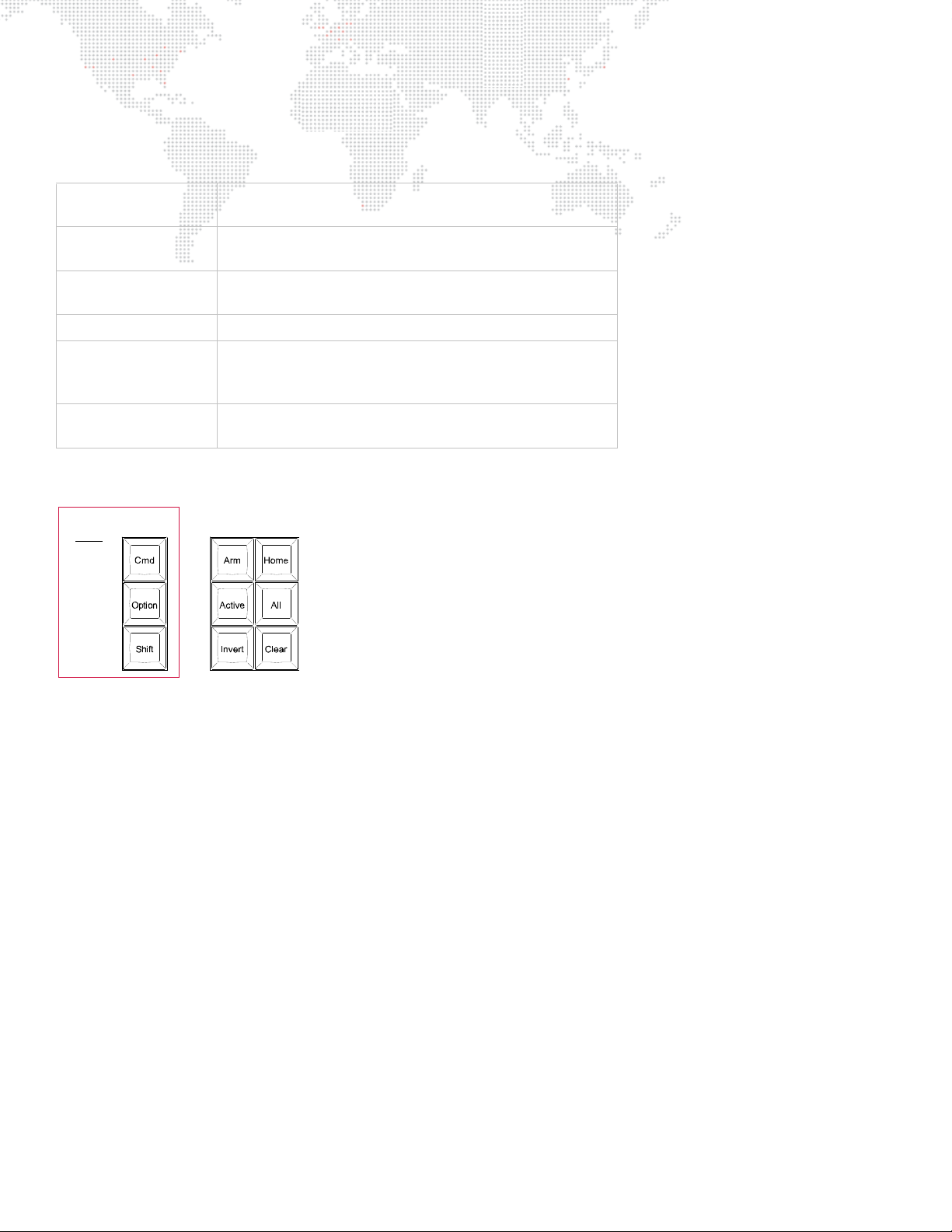
WIN =
ALT =
SHIFT =
Mac
Keys
The following button styles are used throughout this manual:
[Button]
<Button>
[Button 1 ] / [Button 2]
Front panel "hard" button.
Example
: Press [Cue] [1] [Enter] to recall Cue 1.
Optional desk button press.
Example
: Press [Store] <Cue> [n] [Enter].
Front Panel button combination sequence.
Press and hold Button 1 while pressing Button 2.
[Button/Button] Front Panel button double-click.
Software menu or window dialog button.
Button
ENTER
Example
Example
Mac keyboard key.
Example
: Click OK.
: At Operation menu, select Luminaire Status.
: Hold down ALT on the Mac keyboard.
Note these equivalent buttons on the Mac keyboard and console keypad:
2 V276 ON MAC INSTALLATION & OPERATION MANUAL
Page 13
PRODUCT OVERVIEW
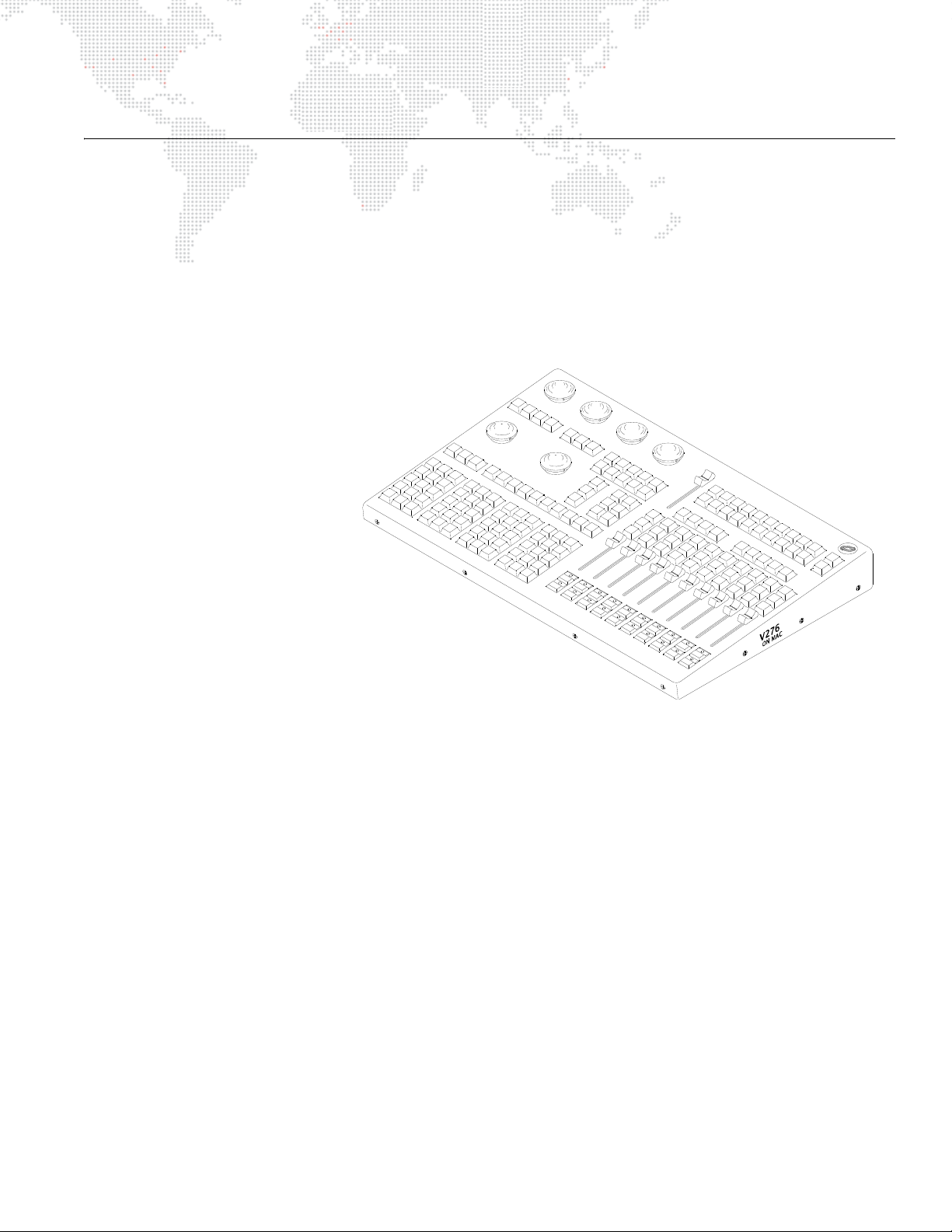
Figure 1: V276 Console Front Panel
Features
The V276 On Mac is a compact lighting control console. When combined with a user-supplied Mac® computer, the
console is capable of controlling automated luminaires, conventional fixtures and media servers. The hardware
interface of the V276 includes six encoders and ten submasters. Additional faders can be added with the addition of
any third-party console or submaster wing. The V276 generates four universes of DMX-512 and eight universes of ArtNet/sACN direct from the console. It also works with SMPTE timecode, MIDI, and remote triggers.
Console Function Capabilities:
+ Channels: 4,000 multiple parameter luminaires
+ Color Palettes: 1,000
+ Beam Palettes: 1,000
+ Presets: 1,000
+ Macros: 2,000
+ Effects: 1,000
+ Sets: 1,000
+ Sequences: 1,000
+ Dynamics: 500
+ System Snapshots: 1,000
+ Cue Snapshots: 10,000
+ Cues: 10,000
+ Stacks: 1,000
+ Encoders: 6
+ Faders: 11
+ Submasters: 10 (+1
Grandmaster)
External Equipment:
+ Apple® Macbook Pro, iMac,
Macbook Air, Mac Mini, Mac Pro
+ PRG Node Plus - provides up to 6 additional universes
+ PRG Super Node™ - provides up to 16 additional universes
+ The console will support up to 99 PRG Nodes, which can be located remotely on the Ethernet network
+ PRG Ethernet Switch - allows two or more V476®, V676®, or V276 consoles to be networked together
+ Hand-held remote
Outputs:
+ (4) 5-Pin XLR Connectors for DMX (4 universes of DMX)
+ (1) Ethernet DMX (8 Universes of Art-Net/sACN)
+ (2) DIN Connectors for MIDI Out/Thru
Inputs:
+ (1) 5-Pin XLR for DMX Input (for third-party consoles, fader wings, & DMX merging)
+ (1) 3-Pin XLR for SMPTE Timecode Input
+ (1) DIN Connector for MIDI In
+ (1) Remote Trigger for Switch Closures
V276 ON MAC INSTALLATION & OPERATION MANUAL 3
Page 14
Vx76 Software
NEMA 5-15P
BS 1363
JIS 8303
AS 3112
CEE 7/7
GB 2099
LN
N
L
LN
N
L
L
N
N
L
IEC320
IEC320
IEC320
IEC320
IEC320
IEC320
USA CABLE
UK CABLE
JAP CABLE
AUS CABLE
EUR CABLE
CHN CABLE
OR
OR
OR
OR
OR
6
2
1
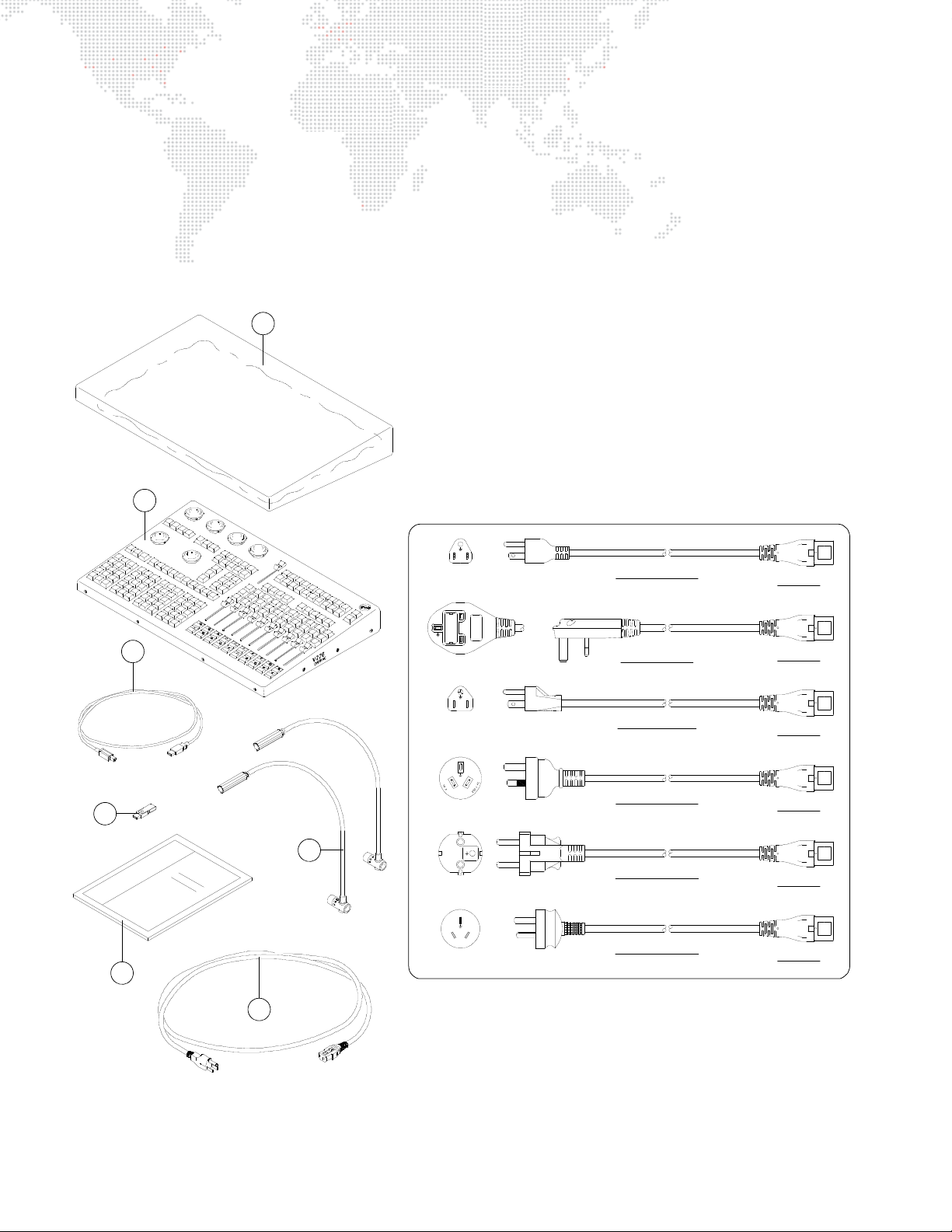
AVAILABLE COUNTRY-SPECIFIC AC LINE POWER CORDS *
1 Dust Cover
2 V276 On Mac Console
3 USB Cable
4 USB Thumb Drive (contains Vx76 software)
5 Desk Lamp (x2)
6 Installation/Operation Manual
7 AC Line Power Cord *
* The configuration of the AC Line Power Cord supplied
will be specific to your order based on your local power.
(There are six types available.)
3
7
4
5
The V276 On Mac works in combination with PRG Vx76 software. The Vx76 software application provides the
graphical user interface (GUI) for console operation.
The Vx76 application is installed on the host computer and may be upgraded as new features become available.
Included Items
The V276 On Mac includes the following components:
4 V276 ON MAC INSTALLATION & OPERATION MANUAL
Figure 2: V276 Components
Page 15
Front Panel Layout
Intensity
Encoders
TiltPan
Palette
Action Submasters
Control
Board
Master
Grand
12345678910
0.
Clear
123
4756
89
At Full
Time
Mark
+
Thru
-
Link Loop
Enter
Sub
Rate
Cue/
Move
Update
Sneak
Undo
Copy/
Delete
Label
Recall
Store
Sel
Effect
Preset
Group
Park/
Unpark
Dynam
Set
Step
Seq
Color
Macro
Beam
Snap
Shot
Chan
Dimmer
Grab
Out
Full
Zero
Mark NextLast
High
Light
Fan Color Beam Image Frame
Slow
Dynam
Effect 3D
Cmd
Option
Shift Invert Clear
AllActive
Arm Home
Live/
Preview
Manual
Time
Auto
Display
Snap
Shot
Chan
Select
Plan
View
Cue
Sheet
Filter Time Patch Palette Status Subs
Query/
Help
Cue/
Stack
Force
Delay/
Speed
11 151312 14 16 1817
Go
2019
12345678910
Back
Back
Go
BackGoBackGoBackGoBackGoBackGoBackGoBackGoBackGoBack
Go
Rate Clear Load Select 1-10 11-20 21-30
Store
Block/
UnBlk
Manual/
Revert
Patch
Track
Back
Track/
Wait/
Trail
Cue
Board
Board
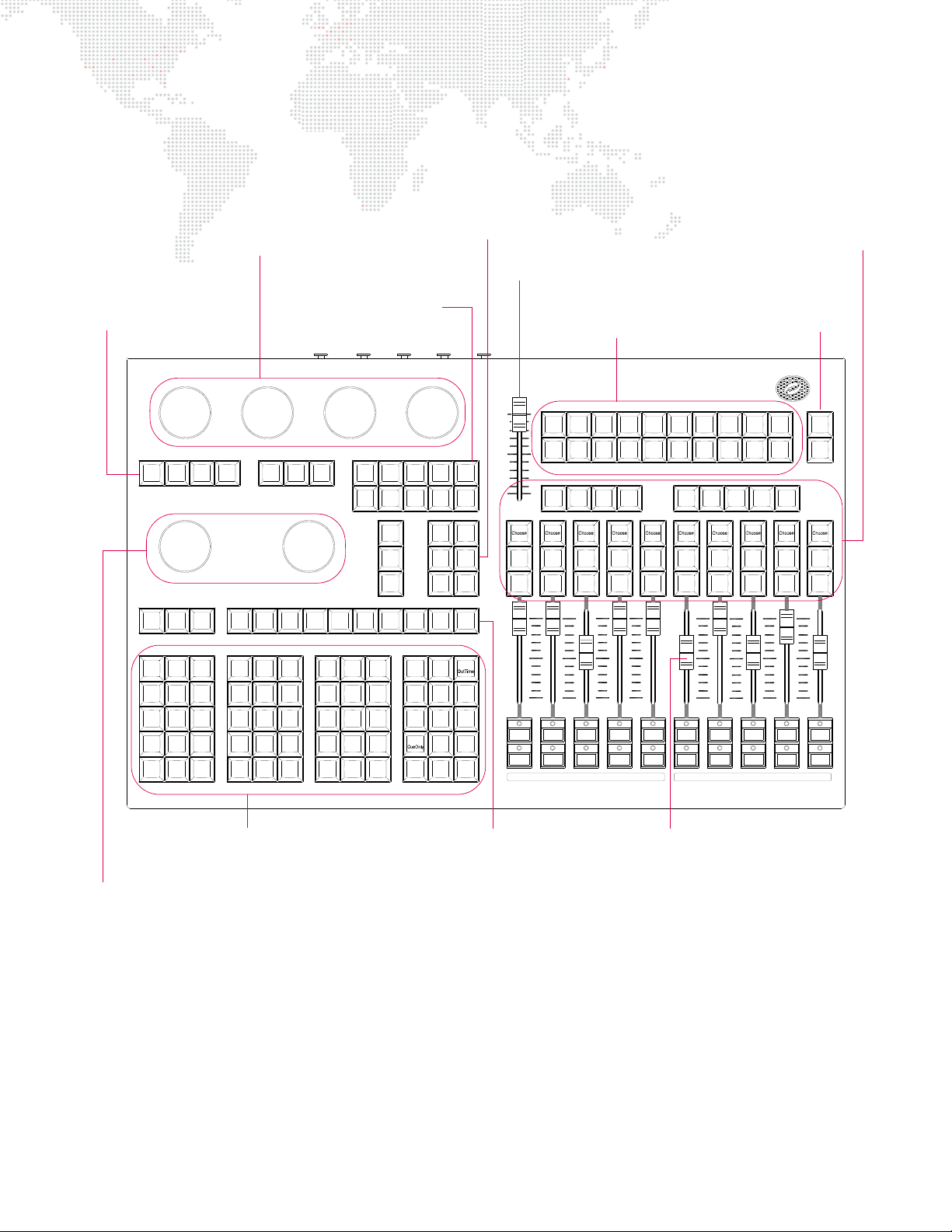
Command Keypad Used to input command-line actions.
Grandmaster Fader Masters overall intensity output.
Function Encoders (4) Four knobs which control luminaire parameters
as selected by the Encoder Buttons.
Intensity Buttons Applies an intensity
state to selected
luminaire(s).
Board Control Buttons Used to record events on
the console and play
them back on command.
Pan/Tilt Encoders Manually controls pan and tilt functions
of selected luminaire(s).
Palette Buttons Selects a palette (color,
beam, image, etc.
Submaster Faders Used for playback control.
Submaster Buttons Controls submaster playback.
Control Buttons Initiates various control actions.
Encoders Buttons Selects a luminaire
parameter for control
by Encoder Knobs.
Window Buttons Opens the associated
desktop window.
The following illustration shows the major control areas of the V276 console:
Figure 3: V276 Front Panel Layout
V276 ON MAC INSTALLATION & OPERATION MANUAL 5
Page 16
Rear Panel Layout
OutThruIn
In
Out
In In
In
USB
DMX
RDM
Link
Act
1 2 3 4
Out
Link
Panel
Status
Model 20-9818-0001
Act
100-240 VAC
50/60 Hz
o
_
Desk lamp
Trigger
MIDI
SMPTE In
DMX AC In
Desk lamp
1A MAX
12 VDC12 VDC
Act
Desk Lamp
Connector
AC Power
Desk Lamp
Connector
Input
Ethernet Output
DMX512 Output
MIDI Input / Output
USB
SMPTE
(Art-Net/sACN)
(to computer)
(4 Universes)
Input
Switch Closure
Trigger Input
Power Switch
DMX512
Input
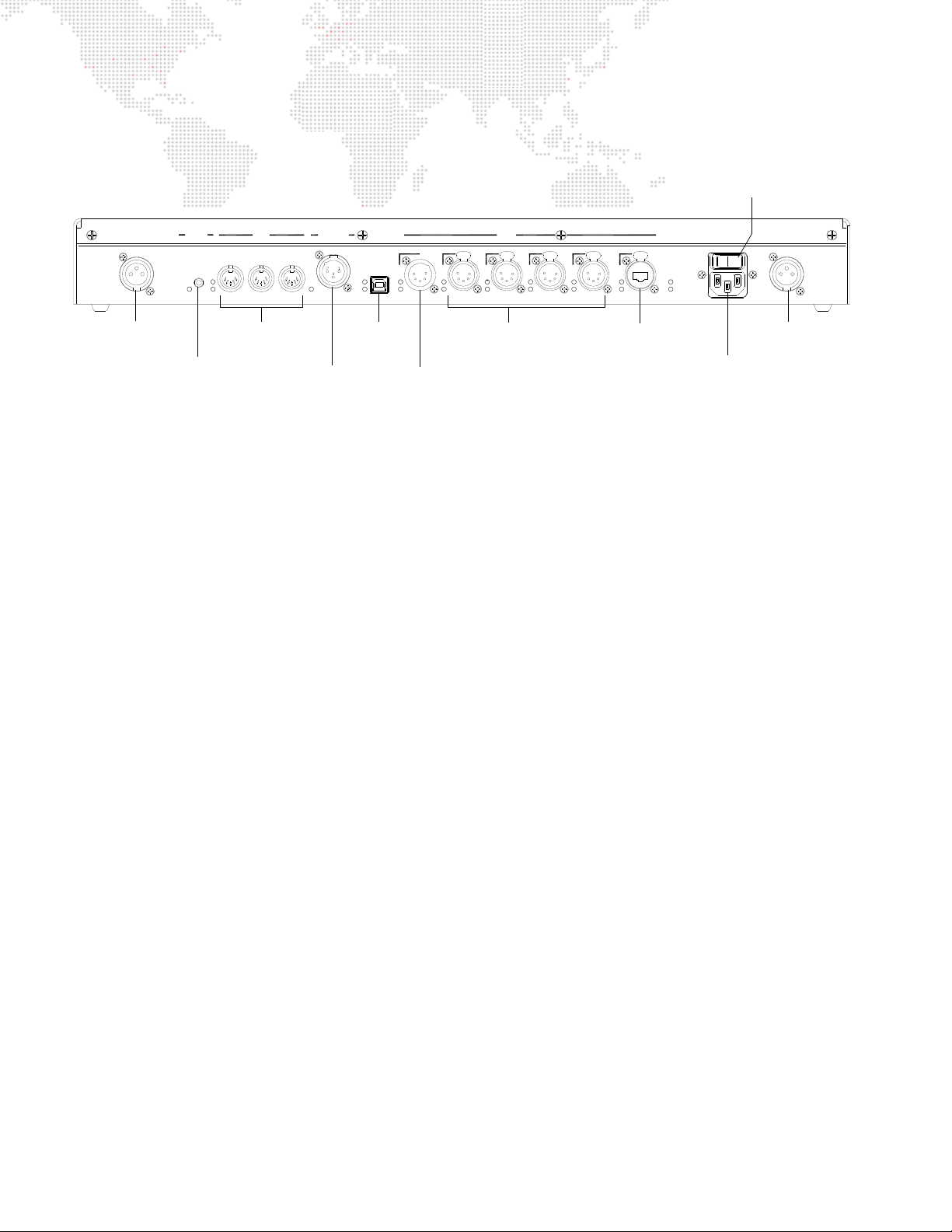
The following illustration shows the rear panel layout of the V276 console:
Figure 4: V276 Rear Panel Layout
6 V276 ON MAC INSTALLATION & OPERATION MANUAL
Page 17
INSTALLATION
Shipping Box
USB Cable
AC Line Power Cord
Dust Cover
V276 On Mac Console
Foam Insert
Desk Lamp (x2)
USB Thumb Drive
Installation/
Operation Manual
Unpack and Setup Procedure
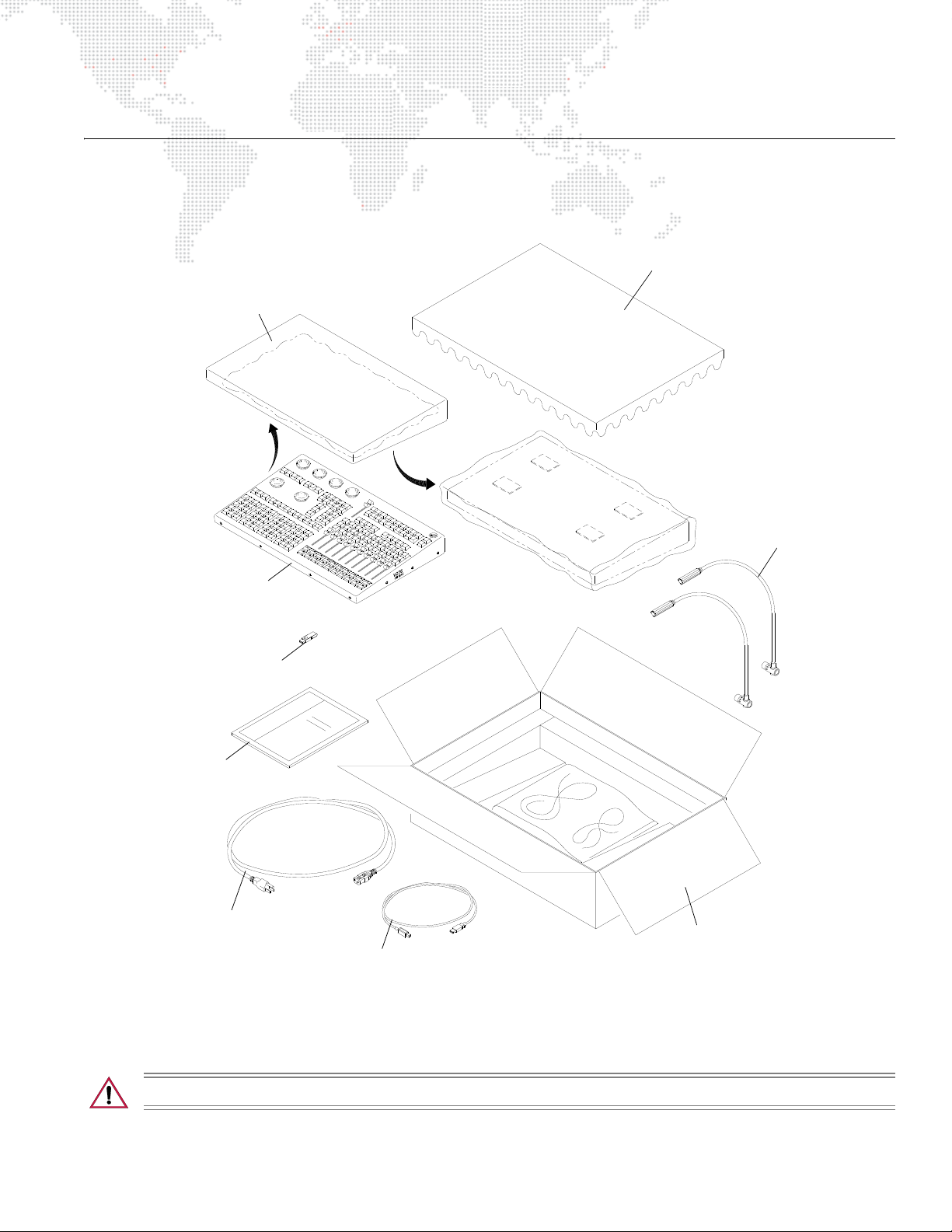
Step 1. Remove all components from shipping box (Figure 5).
Step 2. Remove dust cover from console.
Step 3. Place console on a sturdy table or other flat surface (Figure 6).
Figure 5: Unpacking the V276 On Mac Contents
CAUTION: Power supply plug and/or power switch/circuit breaker shall remain readily operable.
V276 ON MAC INSTALLATION & OPERATION MANUAL 7
Page 18
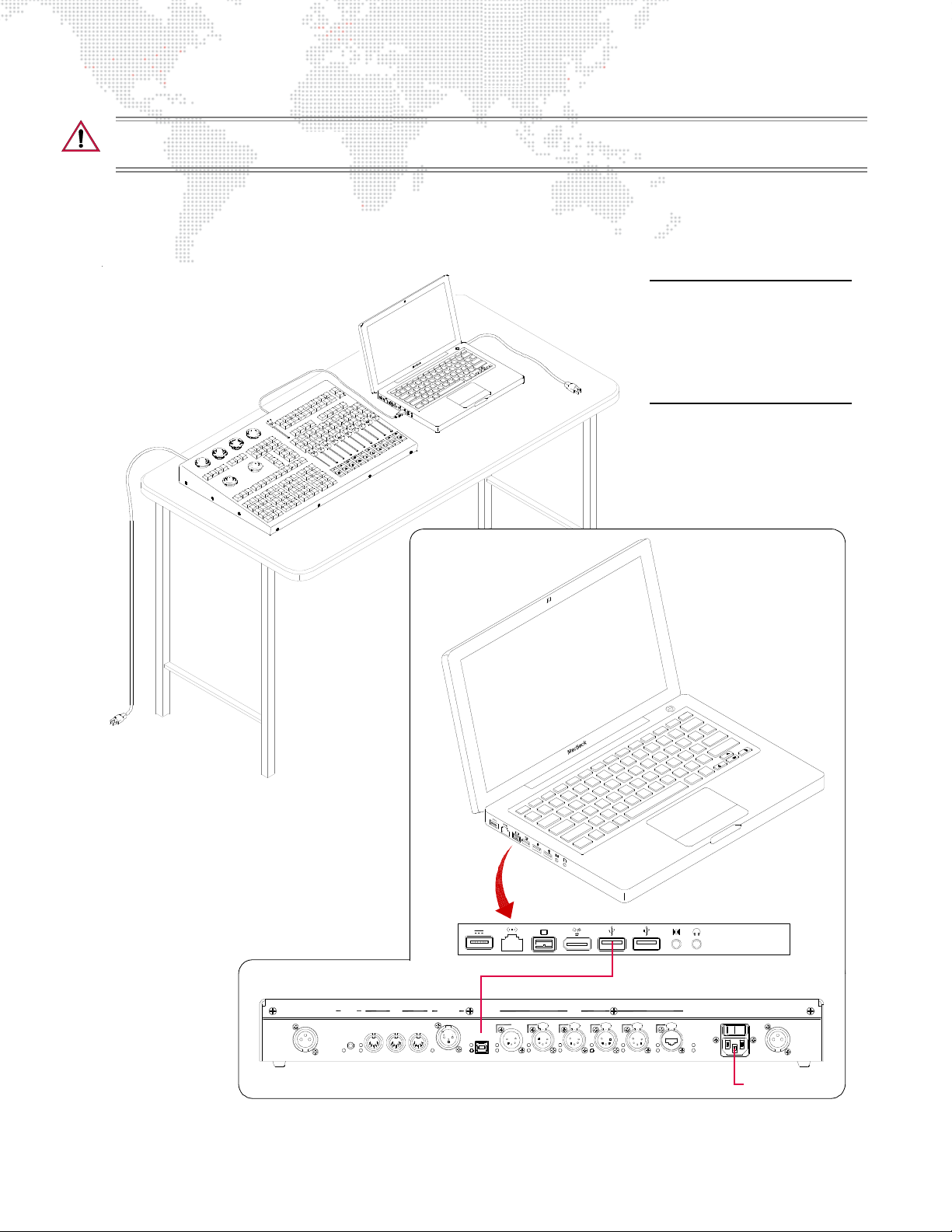
ATTENTION: Prise d'alimentation et / ou l'interrupteur d'alimentation / disjoncteur doit rester facilement
OutThr uIn
In
Out
In In
In
USB
DMX
RDM
Link
Act
1 2 3 4Out
Link
Panel
Status
Model20-9818-0001
Act
100-240 VAC
50/60 Hz
o
_
Desk la m p
Trigger
MIDI SM PTE In DMX AC In Des k lam p
1AMAX
12VDC12VDC
Act
Mac Computer
AC Power Cable
USB Cable
Note: A Macbook Pro
computer is shown in this
example. The host computer
used in your specific system
may be different. (Table not
included.)
Mac Side Panel
V276 Rear Panel
DETAIL
accessible.
Step 4. Connect USB Cable (supplied) from USB connector at back of console to an available USB connector on
host Mac computer.
Step 5. Connect AC Line Power Cord (supplied) from AC In connector at back of console to AC power source.
8 V276 ON MAC INSTALLATION & OPERATION MANUAL
Figure 6: Connecting Components to V276 Console
Page 19
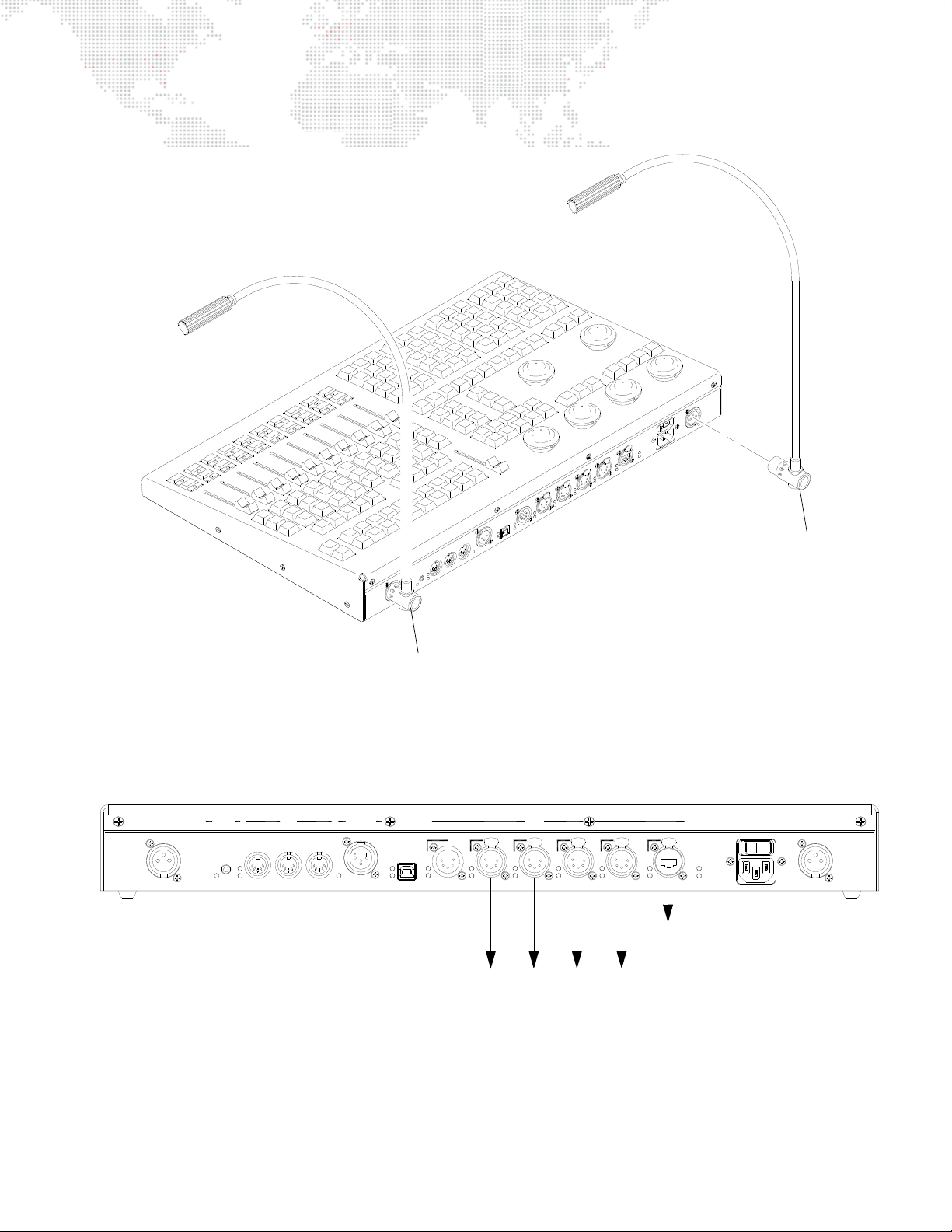
Step 6. At rear of console, install desk lamps as required (Figure 7).
Desk Lamp
Desk Lamp
OutThruIn
In
Out
In In
In
USB
DMX
RDM
Link
Act
1 2 3 4
Out
Link
Panel
Status
Model 20-9818-0001
Act
100-240 VAC
50/60 Hz
o
_
Desk lamp
Trigger
MIDI
SMPTE In
DMX AC In
Desk lamp
1A MAX
12 VDC12 VDC
Act
Ethernet DMX Output
DMX512 Output (4 Universes of DMX512)
(8 Universes of Art-Net/sACN)
Figure 7: Installing Desk Lamps
Step 7. Connect console to system using Ethernet and DMX ports (Figure 8).
Figure 8: Connecting V276 to System
V276 ON MAC INSTALLATION & OPERATION MANUAL 9
Page 20
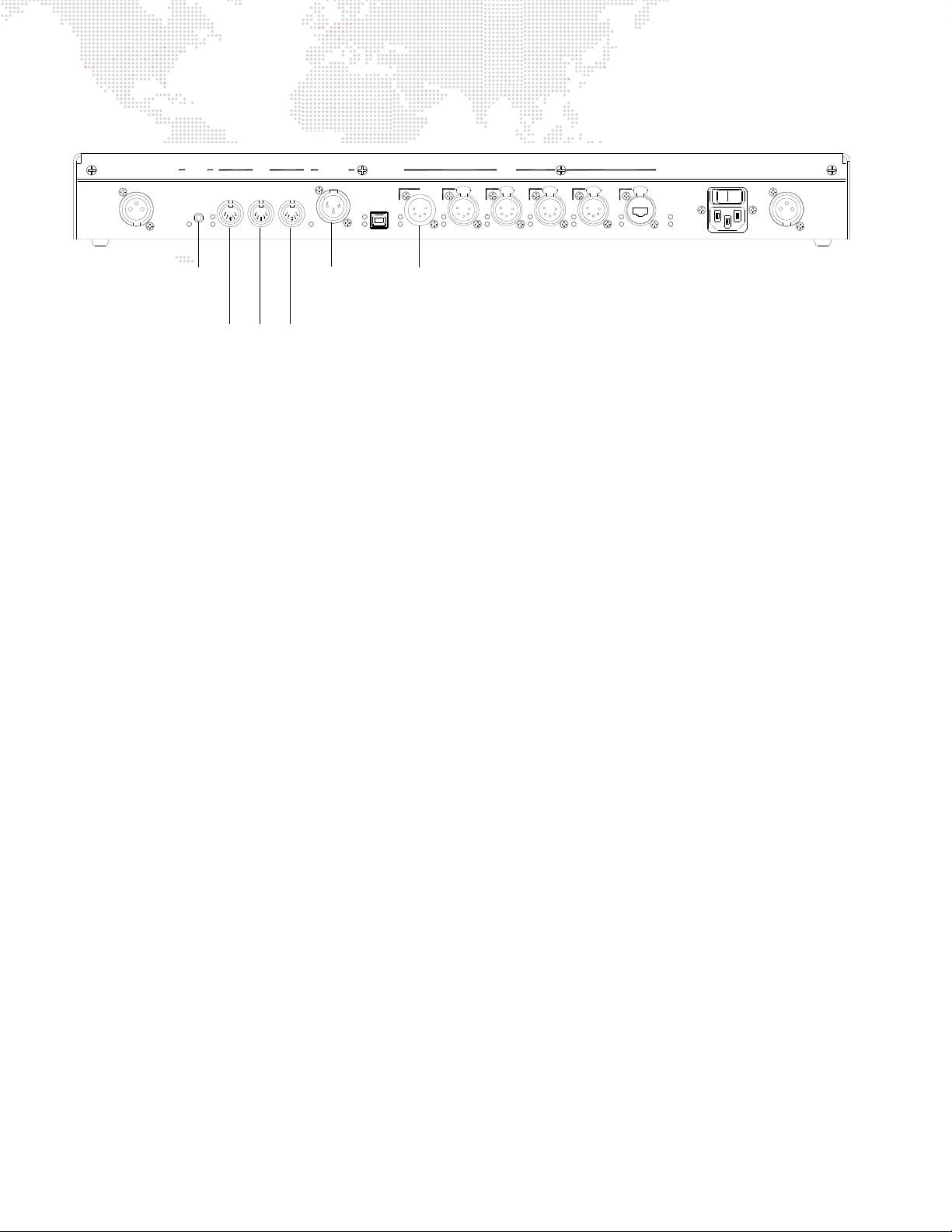
Step 8. Connect optional external devices as required (Figure 9).
OutThruIn
In
Out
In In
In
USB
DMX
RDM
Link
Act
1 2 3 4Out
Link
Panel
Status
Model 20-9818-0001
Act
100-240 VAC
50/60 Hz
o
_
Desk lamp
Trigger
MIDI
SMPTE In
DMX AC In Desk lamp
1A MAX
12 VDC12 VDC
Act
• MIDI Timecode Input
• MIDI Show Control Input & Output
• MIDI Notes Input
Trigger
SMPTE
• Third-Party Console
• Fader Wing
• DMX Merging
Timecode Input
Figure 9: Connecting External Devices (Optional)
Software Installation
The following Apple® Mac computers will support the software:
+ Macbook Pro
+ iMac
+ Macbook Air
+ Mac Mini
+ Mac Pro
The Mac computer should meet the following minimum requirements:
+ Mac OS X 10.7 or higher
+ At least one (1) USB port
+ At least 4GB RAM
Using the supplied USB Thumb Drive, install the Vx76 software on the host computer.
10 V276 ON MAC INSTALLATION & OPERATION MANUAL
Page 21
BASIC OPERATION
4Out
Link
Panel
Status
Model 20-9818-0001
Act
100-240 VAC
50/60 Hz
o
_
AC In Desk lamp
1A MAX
12 VDC
Act
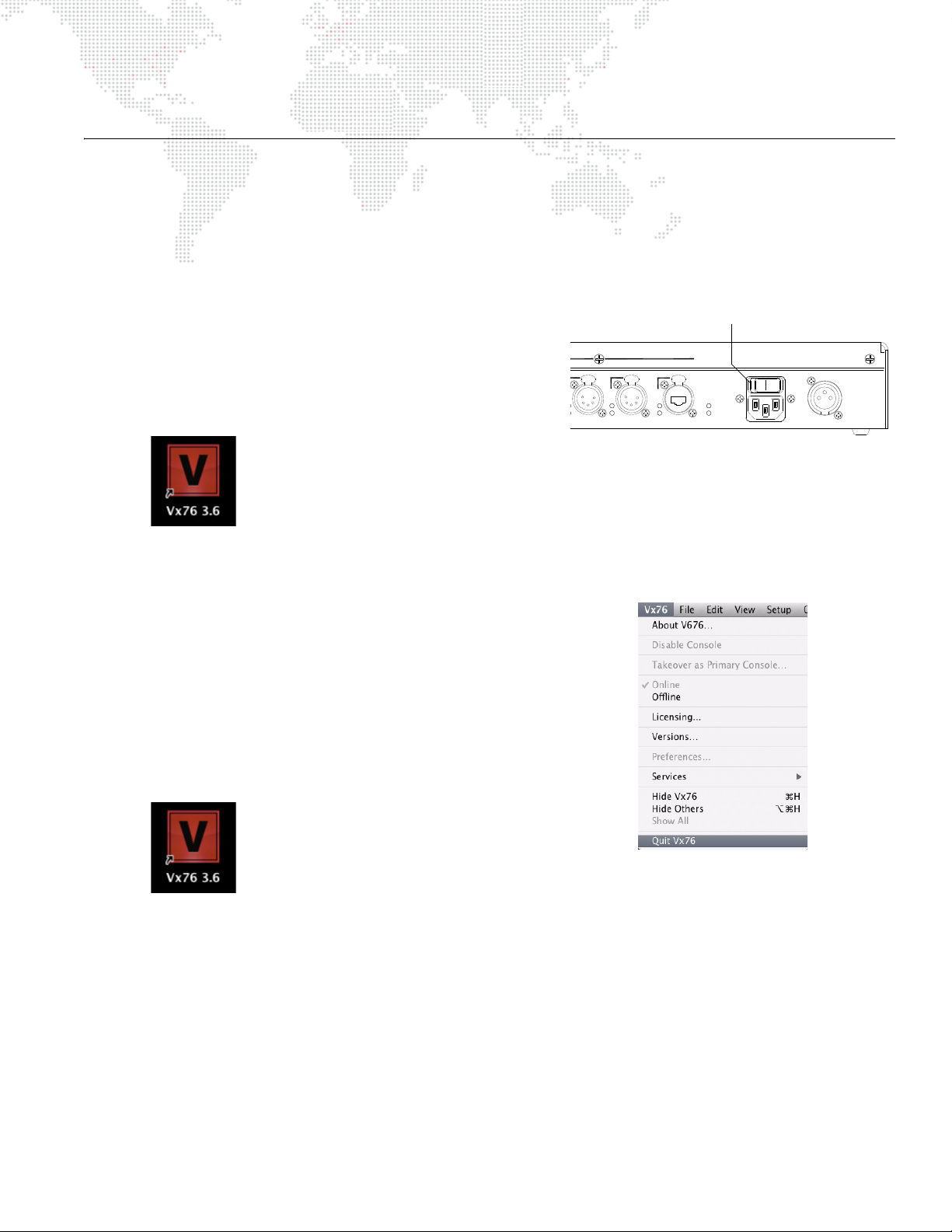
Power Switch
Figure 10: Power Switch
The following sections provide basic procedures for powering up the hardware and starting the software application.
For complete instructions on controlling a lighting system, refer to the Vx76 Software User Manual.
Power Up Console and Launch Vx76 Application
Use the following procedure to power up the console and to launch the software application.
To power up and launch:
Step 1. At rear of console, set power switch to ON position (Figure
10).
Step 2. At Mac desktop, double-click Vx76 icon to launch
application. A new show file (or last open show file) will
automatically load and Task Progress window will show
progress of data downloads.
Quit/Restart Vx76 Application
The Vx76 software application can be independently closed and restarted.
This is useful for upgrading the software or for restarting the application
itself.
To close and restart Vx76 application:
Step 1. At Vx76 menu, select Quit Vx76. Allow application to completely
shut down.
Step 2. At Mac desktop, double-click Vx76 icon to relaunch application.
A new show file (or last open show file) will automatically load and
Task Progress window will show progress of data downloads.
Power Down Console
Use the following procedure to power down the console and close the software application.
To power down console and Vx76 application:
Step 1. Save show file as required.
Step 2. At Vx76 menu, select Quit Vx76.
Step 3. At rear of console, set power switch to OFF position (Figure 10).
V276 ON MAC INSTALLATION & OPERATION MANUAL 11
Page 22
LED Indicators
OutThruIn
In
Out
In In
In
USB
DMX
RDM
Link
Act
1 2 3 4
Out
Link
Panel
Status
Model 20-9818-0001
Act
100-240 VAC
50/60 Hz
o
_
Desk lamp
Trigger
MIDI
SMPTE In
DMX AC In
Desk lamp
1A MAX
12 VDC12 VDC
Act
OutThruIn
In
Out
In In
In
USB
DMX
RDM
Link
Act
1 2 3 4
Out
DMX
RDM
Panel
Status
Model 20-9818-0001
Act
100-240 VAC
1A MAX
o
_
Desk lamp
Trigger
MIDI
SMPTE In
DMX AC In Desk lamp
Trigger In
MIDI In & Out
SMPTE In
USB Link & Activity
Ethernet Link & Activity
DMX Out & RDM (4)
DMX In & RDM
Panel Status & Activity
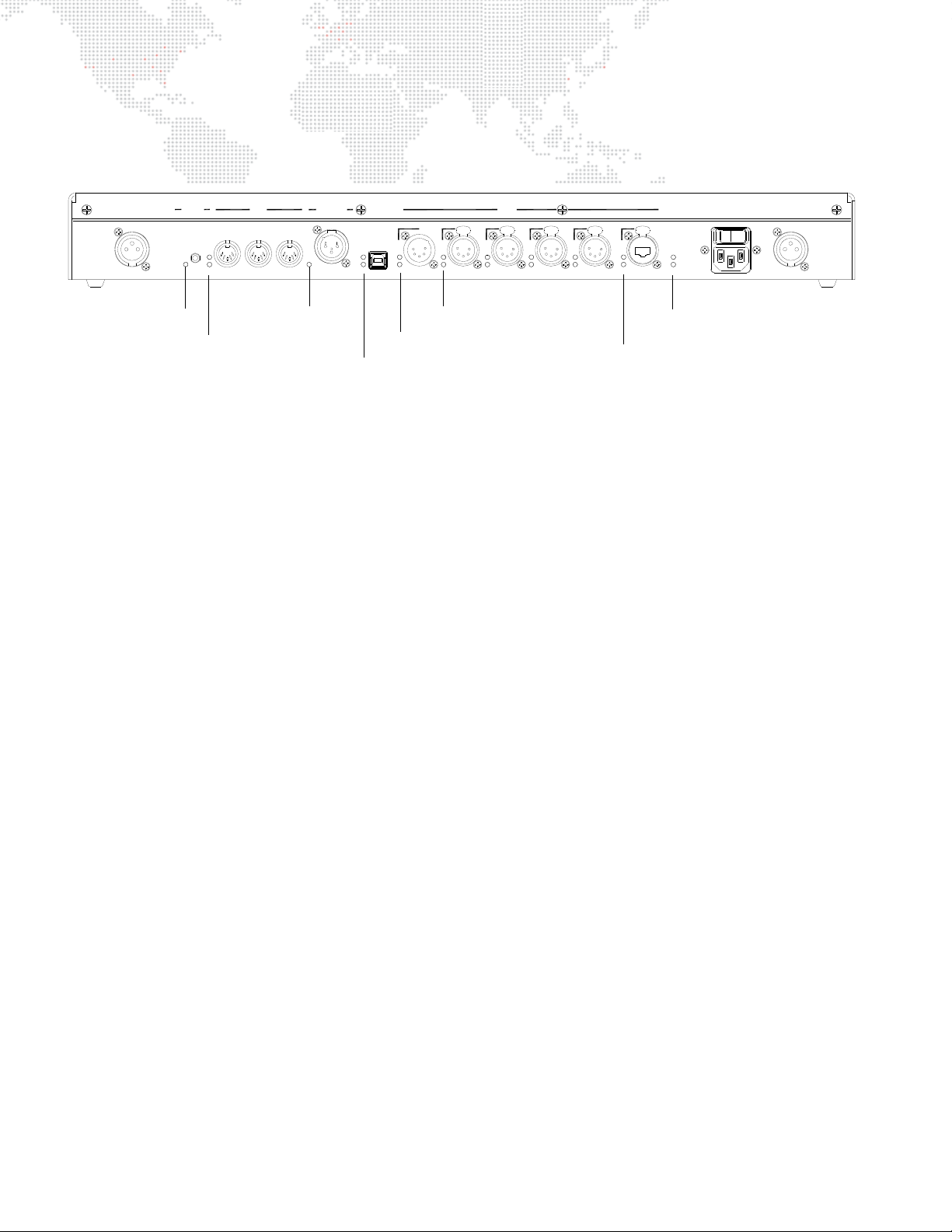
LED indicators located on the rear panel provide feedback for device and system connections.
Figure 11: V276 Rear Panel Indicators
Indications are as follows:
Trigger:
+ Trigger In - Flashes green when a switch closure is detected on the trigger input.
MIDI:
+ In - Flashes green when when a MIDI message is received.
+ Out - Flashes green when a MIDI message is transmitted.
SMPTE:
+ SMPTE In - Lights green when a valid SMPTE input signal is present.
USB:
+ Link - Lights green when there is an active USB connection to the host computer.
+ Activity - Flashes green when a USB message is transmitted or received.
DMX In:
+ DMX - Lights green when DMX512 is being received.
+ RDM - Lights green when an RDM message is transmitted.
DMX Out (1-4):
+ DMX - Lights green when DMX512 is being transmitted.
+ RDM - Lights green when an RDM message is received.
Ethernet (Art-Net/sACN):
+ Link - Lights green when there is an active link to another Ethernet device.
+ Activity - Flashes green when an Ethernet message is received or transmitted.
Panel:
+ Status - Blinks green to indicate that the panel CPU is running.
+ Activity - Flashes green to indicate activity internal to the console (scanning switches, etc.).
In addition, all LEDs are bi-color and will light up or flash red to indicate that an error has been detected.
12 V276 ON MAC INSTALLATION & OPERATION MANUAL
Page 23
SETTING PREFERENCES
Intensity
Encoders
TiltPan
Action
Master
Grand
Out
Full
Zero
Mark NextLast
High
Light
Fan Color Beam Image Frame
Slow
Dynam
Effect 3D
Cmd
Option
Shift Invert Clear
AllActive
Arm Home
Live/
Preview
Manual
Time
Auto
Display
Snap
Shot
Chan
Select
Plan
View
Cue
Sheet
Filter Time Patch Palette Status Subs
11 1312
123
Back
Go
BackGoBack
Go
Rate Clear Load
Blank Button
Brightness Level
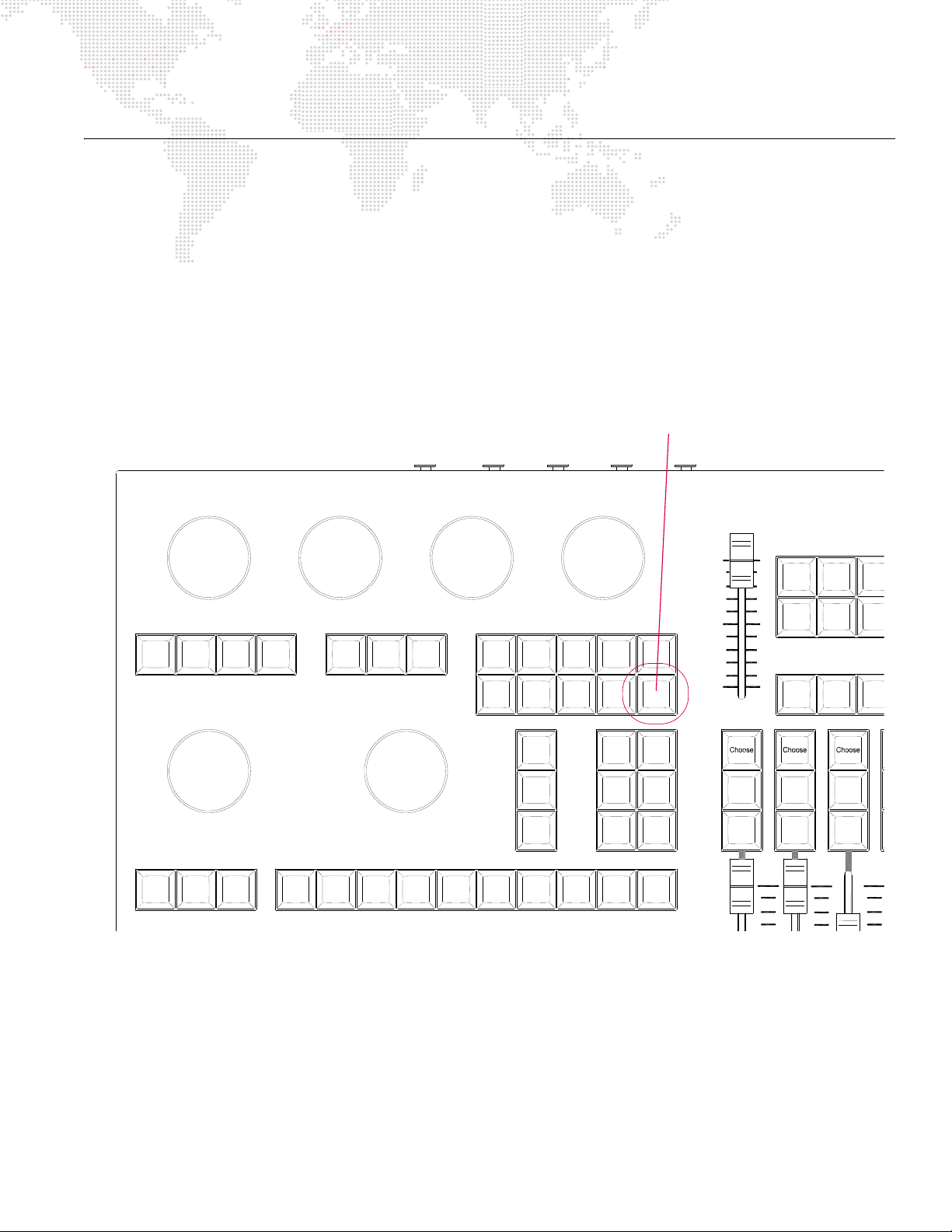
The brightness level can be set for the console backlight and desk lamps. This is done by pressing the blank button
(i.e., the button with no label) at the Encoder area and turning the Pan or Tilt encoders.
To set a new brightness level:
Step 1. At Encoder area, press and hold blank button to activate dimming (Figure 12). Options are:
a. Pan encoder controls backlight of entire console.
b. Tilt encoder controls desk lamps.
Step 2. While holding down button, turn appropriate encoder until desired brightness level is reached.
Step 3. Release button. New brightness level will be set.
Figure 12: Front Panel Brightness Control
V276 ON MAC INSTALLATION & OPERATION MANUAL 13
Page 24

TECHNICAL SPECIFICATIONS
V276 On Mac
Console Function Capacities:
+ Channels: 4,000 multiple parameter luminaires
+ Color Palettes: 1,000
+ Beam Palettes: 1,000
+ Presets: 1,000
+ Macros: 2,000
+ Effects: 1,000
+ Sets: 1,000
+ Sequences: 1,000
+ Dynamics: 500
+ System Snapshots: 1,000
+ Cue Snapshots: 10,000
+ Cues: 10,000
+ Stacks: 1,000
+ Encoders: 6
+ Faders: 11
+ Submasters: 10 (+1 Grandmaster)
External Equipment:
+ Apple® Macbook Pro, iMac, Macbook Air, Mac Mini,
Mac Pro
+ PRG Node Plus - provides up to 6 additional universes
+ PRG Super Node™ - provides up to 16 additional
universes
+ The console will support up to 99 PRG Nodes, which
can be located remotely on the Ethernet network
+ PRG Ethernet Switch - allows two or more V476®,
V676®, or V276 consoles to be networked together
+ Hand-held remote
Outputs:
+ (4) 5-Pin XLR Connectors for DMX (4 universes of DMX)
+ (1) Ethernet DMX (8 Universes of Art-Net/sACN)
+ (2) DIN Connectors for MIDI Out/Thru
Inputs:
+ (1) 5-Pin XLR for DMX Input (for third-party consoles, fader
wings, & DMX merging)
+ (1) 3-Pin XLR for SMPTE Timecode Input
+ (1) DIN Connector for MIDI In
+ (1) Remote Trigger for Switch Closures
Other Connections:
+ (1) IEC Input for Power
+ (1) USB/B to Connect to Mac Computer
+ (2) 3-Pin XLR Connectors for Console Lights
External Monitors:
+ External displays are supplied by the user and capacity is
based upon the user’s Mac model
Electrical Specifications:
+ AC Power Input via Latching IEC-320 Inlet
+ Line Cord provided with country-specific plug
+ Universal Voltage Range: 100-240 VAC, 50/60 Hz, 1A Max
+ Maximum Ambient Temperature: TA = 50° C
Physical Specifications:
+ Weight and Dimensions:
- 13 lbs (5.90 kg)
- 21.50" (546 mm) wide
- 3.25" (83 mm) high
- 13.5" (343 mm) deep
14 V276 ON MAC INSTALLATION & OPERATION MANUAL
Page 25
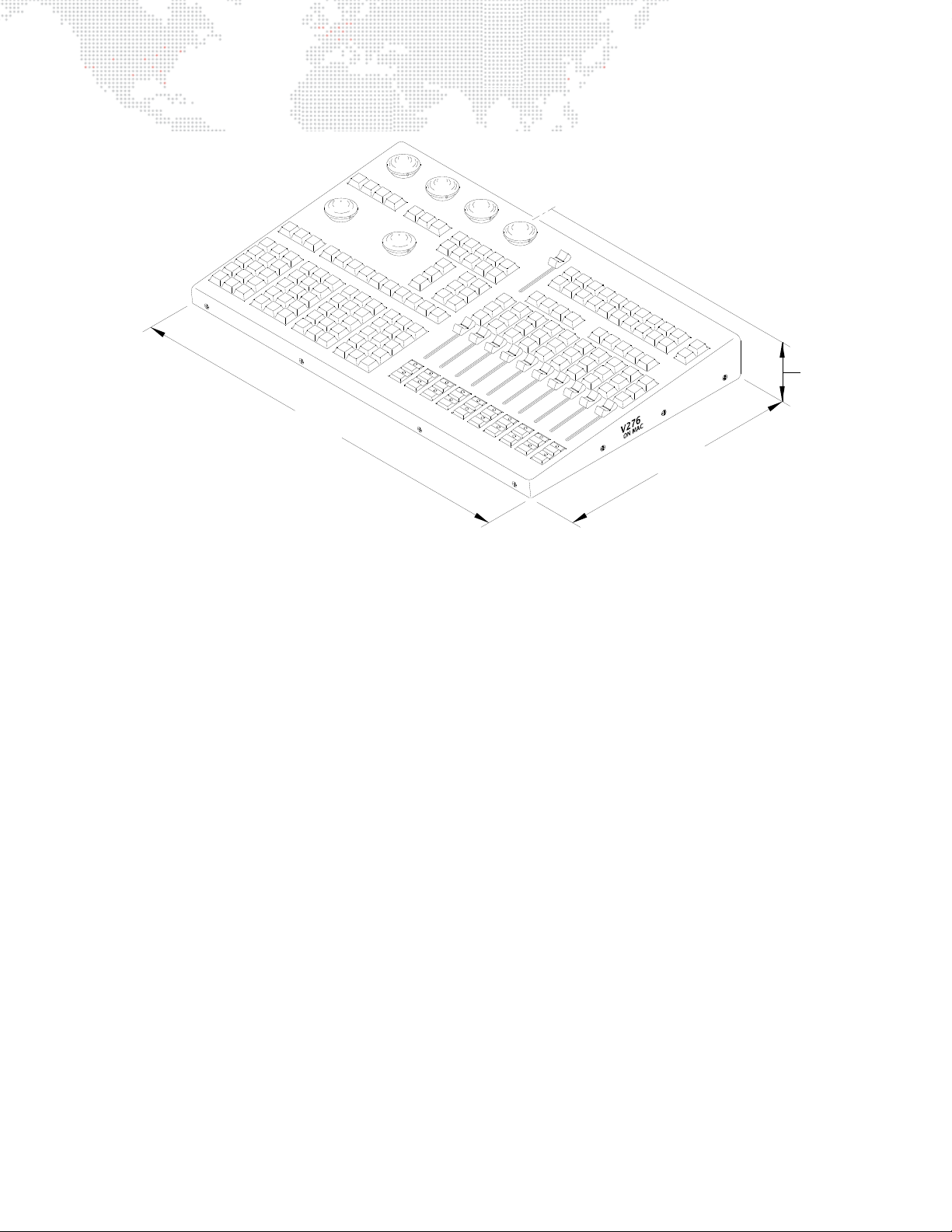
Figure 13: V276 On Mac Dimensions
(546 mm)
21.5"
(343 mm)
13.5"
(83 mm)
3.25"
V276 ON MAC INSTALLATION & OPERATION MANUAL 15
Page 26

Notes
16 V276 ON MAC INSTALLATION & OPERATION MANUAL
Page 27

V276 On Mac Installation & Operation Manual
Version as of: July 9, 2013
PRG part number: 02.9818.0002 B
Page 28

Production Resource Group, LLC
Dallas Office
8617 Ambassador Row, Suite 120
Dallas, Texas 75247
www.prg.com
 Loading...