

Page 1
USER MANUAL | MultiPad PMP7100D
1
MultiPad PMP7100D
Tablet PC
User Manual
+
Page 2

USER MANUAL | MultiPad PMP7100D
2
Common information
Dear Customer. Thank you for choosing Prestigio MultiPad PMP7100D Tablet PC. Before starting to use the tablet, please read
this manual carefully to discover all its features. Please save this manual and refer to it in the future if you have questions
concerning your device.
This manual contains safety information, technical specifications of Prestigio MultiPad PMP7100D Tablet PC, preinstalled
software basic features and other useful information, which will help you to improve your use of the device, Android
operating system and applications.
For information about meaning of the terms used in this manual, please refer to the "Glossary" section at the end of this
manual, as well as to other open information sources or Prestigio customer support line.
Disclaimer.
As the Prestigio products are constantly updated and improved, your device’s software may have a slightly different
appearance or modified functionality than presented in this User Manual. We make every effort to ensure that the
information and procedures in this user manual are accurate and complete. No liability can and will be accepted for any
errors or omissions. Prestigio reserves the right to make any changes without further notice to any products herein.
Important Safety Instructions
Your Prestigio MultiPad PMP7100D Tablet PC is manufactured and designed for mobile using.
Please, read the following instructions carefully. It helps you to proper use your device without risk for someone's safety and
keep your Tablet PC in good working condition as long as it possible.
General instructions
1. Do not place objects on top of the MultiPad as objects may scratch the screen.
2. MultiPad should be kept away from extreme changes of temperature.
3. Protect it from direct sunlight or heat sources.
4. Protect the device from moisture and from dusty or smoky environment as it can harm the tablet.
5. Keep your MultiPad away from contact with active chemicals.
6. Do not place the MultiPad on an uneven or unstable surface. Fall of the device can cause damage to the LCD screen which
is not covered with warranty.
7. Do not expose the MultiPad to strong magnetic or electrical field.
8. Protect your MultiPad from hits and extreme pressure.
9. Operation Temperature: This MultiPad should only be used in environments with ambient temperatures between 5°C
(41°F) and 35°C(95°F).
10. Do not insert into MultiPad devices or items not matching to standard sockets on it.
11. Do not use MultiPad in the rain - it is NOT a waterproof device. Protect the Multipad from dust, dirt and high humidity.
12. Do not use Your MultiPad during driving.
13. Use only manufacturer approved chargers. Using non-original chargers may cause damage of the device and be harmful to
your health.
14. The MultiPad and the adapter may produce some heat during normal operation or charging. Avoid placing it to the soft
surfaces, other places and conditions which may prevent normal dispersion of the heat, causing device overheating. Do not
leave the MultiPad on your lap or other part of the body to prevent discomfort or injury from heat exposure.
15. Disconnect the MultiPad from an electrical outlet after it is charged.
16. Do not use a pen or any sharp object to tap the screen. Clean the touch screen with a soft cloth. If needed, dampen the
cloth slightly before cleaning. Never use abrasives or cleaning solutions.
17. DO NOT disassemble the MultiPad, only a Prestigio certified service technician should perform repair.
18. Always power off the MultiPad to install or remove external devices that does not support hot-plug.
29. Your MultiPad must be switched off during airplane take-off and landing.
Warranty Information
Warranty information could be found at www.prestigio.com/service. Prestigio MultiPad PMP7100D Tablet PC life cycle is 2 years.
Page 3

USER MANUAL | MultiPad PMP7100D
3
Contents
1. Product Overview
1.1 Package Contents
1.2 Device Overview
2. Getting Started
2.1 Charging the battery
2.2 Using the storage card
2.3 Hot plug of storage card
2.4 Memory space
2.5 Power on/off and Device Reset
2.6 Connect to wireless networks (Wi-Fi)
2.7 Inserting a SIM card
3. Home Screen
3.1 Status and notifications
3.2 Shortcuts to Add widgets
3.3 Finger gestures
3.4 Coping files to and from the storage card
3.5 Searching the device and the web
4. Personalizing
4.1 Change the Notification ringtone
4.2 Change your wallpaper
4.3 Personalize your Home screen with folders
4.4 Rearrange widgets and shortcuts on your Home screen
5. Web browsing
6. Manage Applications
7. Typical applications introduction
7.1 Music Player
7.2 Video Player
7.3 Gallery
7.4 File Manager
7.5 Instant Messaging tools
7.6 E-mails
7.7 Camera
8.Prestigio preinstalled applications
9. Settings
9.1 Wireless & networks
9.2 Sound
9.3 Display
9.4 HDMI Settings
9.5 Storage
9.6 Apps
9.7 Accounts& Sync
9.8 Location service
9.9 Security settings
9.10 Language & input setting
9.11 Backup &reset
9.12 Date & Time setting
9.13 Accessibility
9.14 Developer options
9.15 About tablet
10. Troubleshooting
10.1 Force shutdown
10.2 Restore default settings
10.3 System updating
11. Glossary
Page 4
USER MANUAL | MultiPad PMP7100D
4
1
1. Product Overview
Prestigio MultiPad PMP7100D Tablet PC – 1x
Carrying Case – 1x
Quick Start Guide – 1x
Legal and Safety Notices – 1x
AC Adapter – 1x
USB Cable – 1x
Warranty Card – 1x
OTG cable – 1x
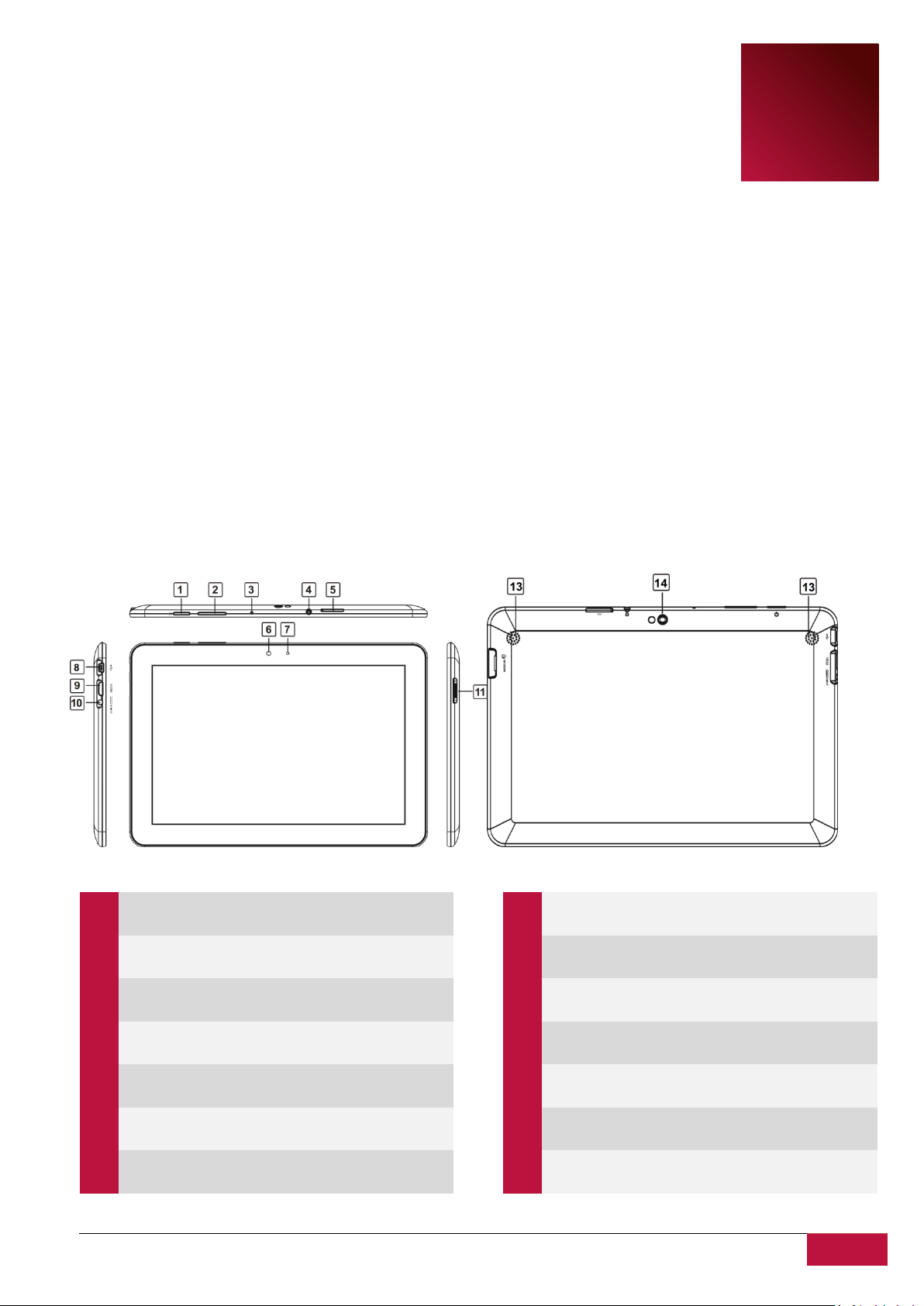
1
Power Button
Turn on/off the device;
Suspend/Activate the device
2
Vol+\Vol-
Adjust the volume level
3
Microphone
To record voice
4
Earphone Jack
Earphones connection
5
SIM Card slot
Insert a SIM card
6
Front Camera
Take photos or video chat
7
Light Sensor
Adjusts the display brightness
8
Mini USB port
USB connection
9
HDMI port
Back to Home screen
10
DC port
Power adapter connection
11
Micro SD card
slot
Insert the Micro SD card
12
Front Camera
Take photos or video chat
13
Speakers
Stereo Speakers
14
Rear Camera
Take photos
1.1 Package Content:
1.2 Device Overview
Control Buttons and Connectivity:
Page 5
USER MANUAL | MultiPad PMP7100D
5
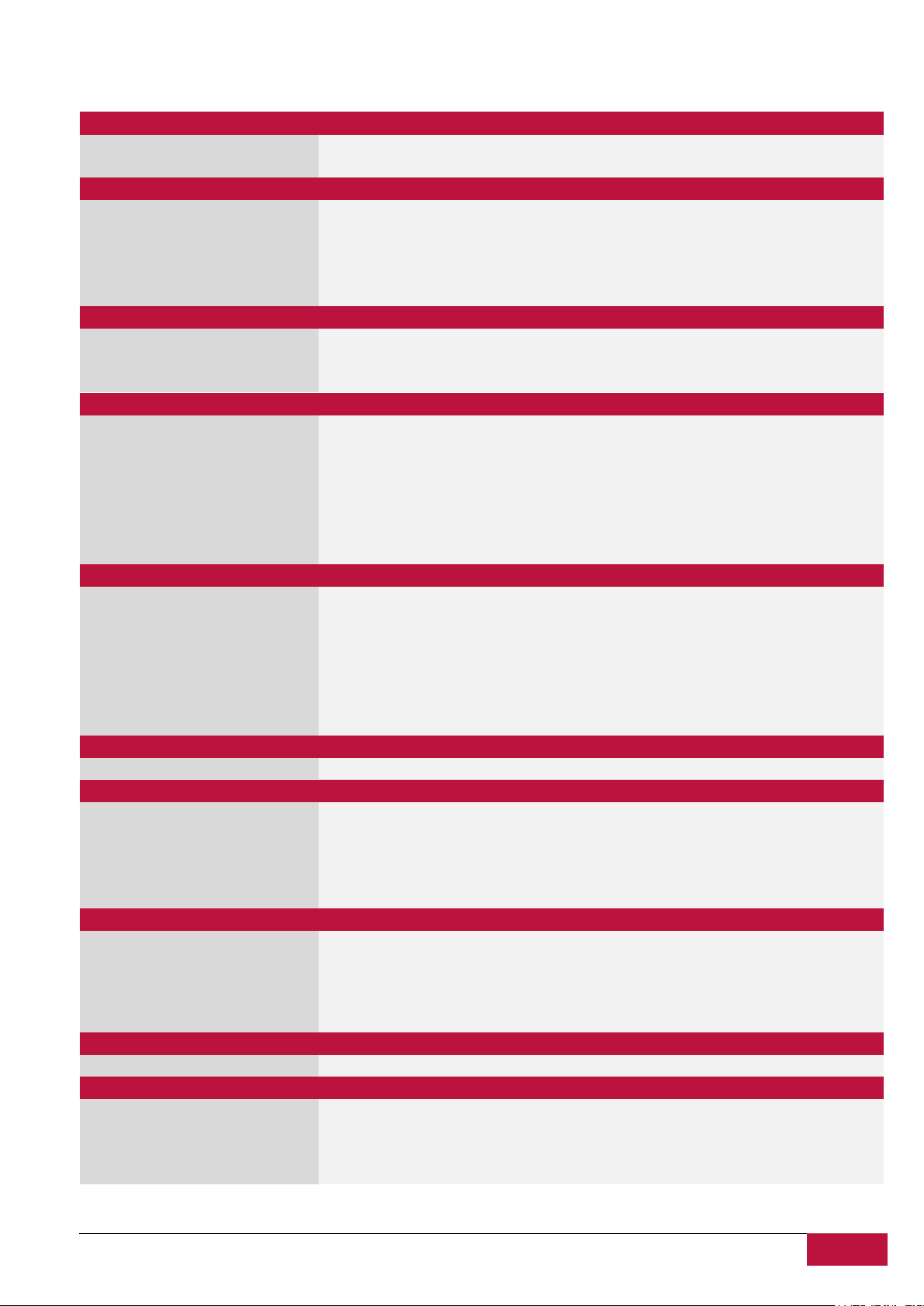
Processor
CPU
ARM Cortex A9 (Rockchip 3066)
CPU Internal Clock Rate
1.6 GHz
Display
Display Size
10.1’
Display Resolution
1280x800
Display Technology
TFT LCD
Display Features
Capacitive multi touch screen
Screen rotation
4 way G-Sensor
Memory
Internal Memory Size
16 GB
Installed RAM Storage Capacity
1 GB DDR3
Flash Card
External Micro SDHC up to 32GB
Interfaces
Interface ports available
Micro SD, USB 2.0, Wi-Fi, Mini HDMI
Interface Wi-Fi
IEEE 802.11b/g/n
Interface Bluetooth
Yes
Interface USB
1 x mini USB
Interface HDMI
1 x mini HDMI
Interface Audio
1 x 3.5 mm mini jack
Multimedia
Digital Camera
Back : 2 Mpixel, Front : 0.3 Mpixel
Supported eBook Formats
PDF, FB2
Supported Audio Formats
MP1, MP2, MP3, WMA7, WMA8, WMA9, WAV, APE, OGG, OGA, FLAC, AAC, M4A
Supported Picture Formats
PNG, BMP, GIF, JPG
Supported Video Formats
1080P@60 fps & H.264/MVC/VP8 encoder by 1080P@30fps
Video Features
Video Playback
Sound Features
Stereo Audio Playback
Software
Operating System
Android 4.0.4
Battery
Battery Technology
Lithium Polymer
Battery Current Capacity
6400 mAh
Battery Video playback Time
Up to 6.5hr
Battery Audio playback Time
Up to 36hr
Battery Standby Time
Up to 120hr
Miscellaneous
Built-in Devices
Modem, Card Reader, Microphone, Speakers,
Included Accessories
USB Cable, OTG-cable, Pouch, Power Adapter
System Requirements
Microsoft Windows 7, Microsoft Windows Vista, Microsoft Windows XP, Apple Mac OS
10.6 or Later, Linux 2.6
Applications Installed
Adobe Flash, Office Suite, eReader Prestigio, Skype, Google Play
Warranty
Warranty Term (month)
24 month
Temperature and Humidity
Storage Temperature
0°C (32°F) ~ +50°C (122°F)
Operation Temperature
5°C (41°F) ~ +35°C (95°F)
Storage Relative Humidity
0% ~ 90%, Non-Condensed
Operating Relative Humidity
0% ~ 90%, Non-Condensed
Technical Specifications:
Page 6
USER MANUAL | MultiPad PMP7100D
6
2
2. Getting Started
2.1 Charging the battery
Prestigio MultiPad comes with a built-in polymer rechargeable battery and is designed to use only
manufacture-specified original batteries and accessories. You can see battery status on status bar of
MultiPad in the lower right corner of the home screen. Android OS has battery charge detection system
and notify user if battery charge is low and device need to be connected to AC adapter. If you will see
such message, or your device couldn’t power on, connect original AC power adapter to charge your
device. Plug one end of the adapter into the power jack of the device, and the other to the power
socket. To extend the battery operation life, wait for finish of charge process.
Please, fully charge your new device after unpacking.
[Note]: it is normal if the device is warm or hot during charging, you can use it as usual, just follow the
respective security precautions.
2.2 Using the storage card
Your new Prestigio MultiPad PMP7100D Tablet PC is equipped with Micro SD card slot to extend
available device memory. It is compatible with Micro SD/ Micro SDHC/ TF-Flash card formats of size up to
32Gb. Proper functioning of larger capacity cards is not guaranteed.
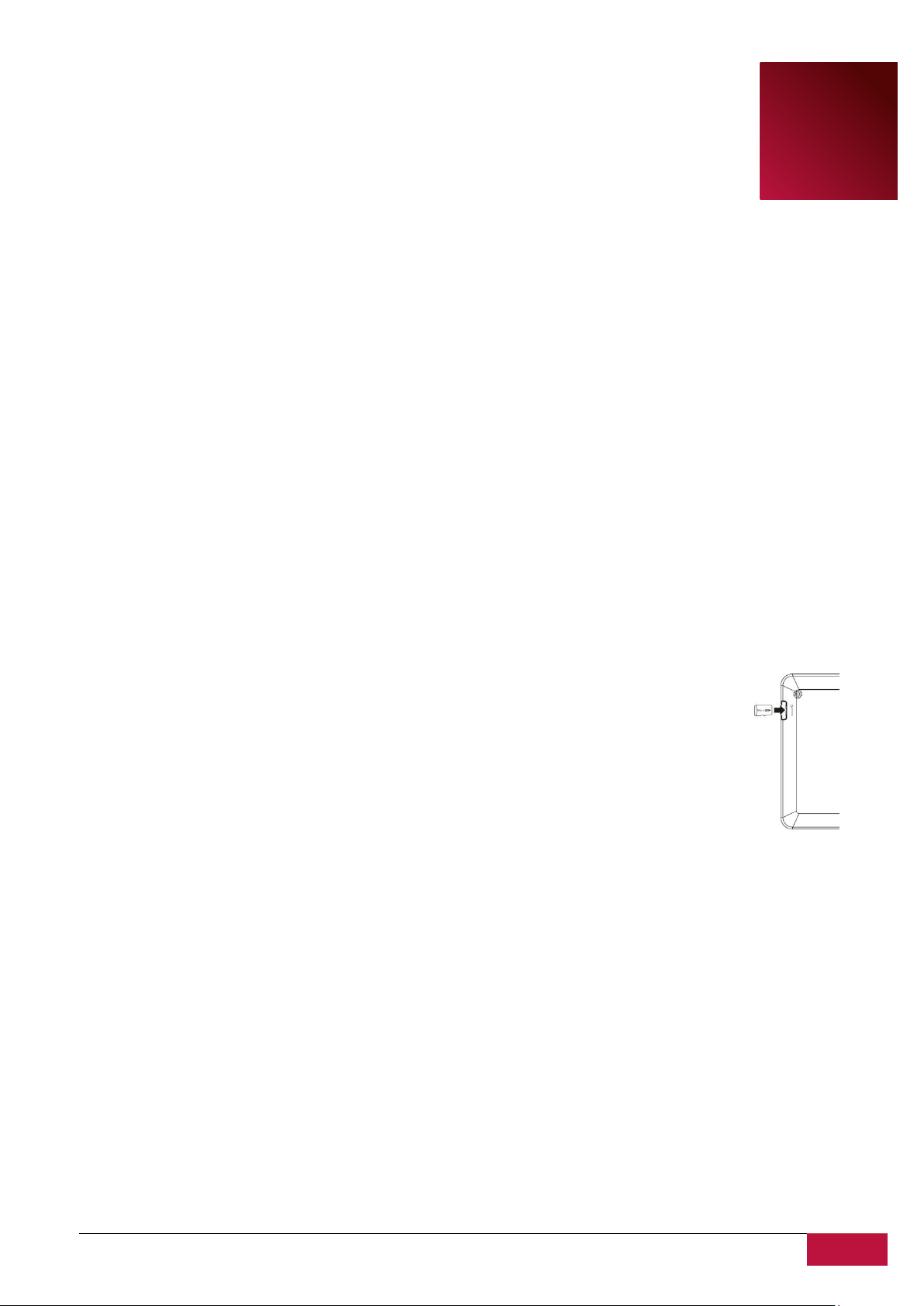
Insert the storage card
The storage card slot is on the left side of the back panel of device. To insert a
card, place the card as shown on the picture (left) and press it in card slot until click.
Card must be inserted effortlessly. DO NOT push the card too strong, it could damage
the card slot or storage card.
Browse files in the storage card
To browse the files you should do one of the following:
● Select “Explorer” icon to view files in the storage card;
● You can also install and run any other third party file browser applications.
Remove the storage card
To avoid data loss or damage, please stop using files/programs in the storage card, and then tap
Settings> Storage> Unmount SD card to remove it safely.
To remove the storage card, gently press the edge of the card to release the safety lock and pull the
card out of the slot.
[Note]:
1. Make sure the location and direction of the storage card is correct when inserting.
2. To avoid possible issues or incompatibility of the storage card with your MultiPad, major brands of
storage card are recommended.
Page 7
USER MANUAL | MultiPad PMP7100D
7
2.3 Hot plug of storage card
Please do not hot plug the storage card when using or browsing its files.
For example, when you are running the Music/Video Player/ Gallery, the storage card could be damaged
and files on it might become corrupt if you take out the storage card without proper preparation. As for
details of inserting/removing storage card, see 2.2 Use the storage card.
2.4 Memory space
The capacity of built-in flash chip is 16GB. The device contains 2 memory partitions: Internal storage &
NAND Flash storage. The space is partitioned to store apps, setting and user data. A part of storage will
be reserved for system resources and wouldn’t be available for user. The exact size of available memory
may vary depending on Firmware version.
MultiPad supports extended storage – micro SD cards of 32GB maximum capacity.
2.5 Power on/off and Device Reset
1. Power on: press down the Power Button and hold it for a while to turn on the device when the
battery is full enough.
2. Power off: press down the Power Button and hold it for about 3 seconds and then select Power Off
in popup menu to turn off the device.
3. Screen Lock:short-press down the Power Button once to shutdown the screen to save battery life.
Short-press down the Power Button again to activate the lock screen. After unlocking, the device will
resume the screen before locking.
4. Reset: Press the power button for about 8 seconds to perform forced reset of device.
2.6 Connect to wireless networks (Wi-Fi)
To connect to a Wi-Fi wireless network, you should follow:
1. Tap Settings on the Home screen or go to the Settings in other way (via Notification bar or
Application list);
Page 8
USER MANUAL | MultiPad PMP7100D
8
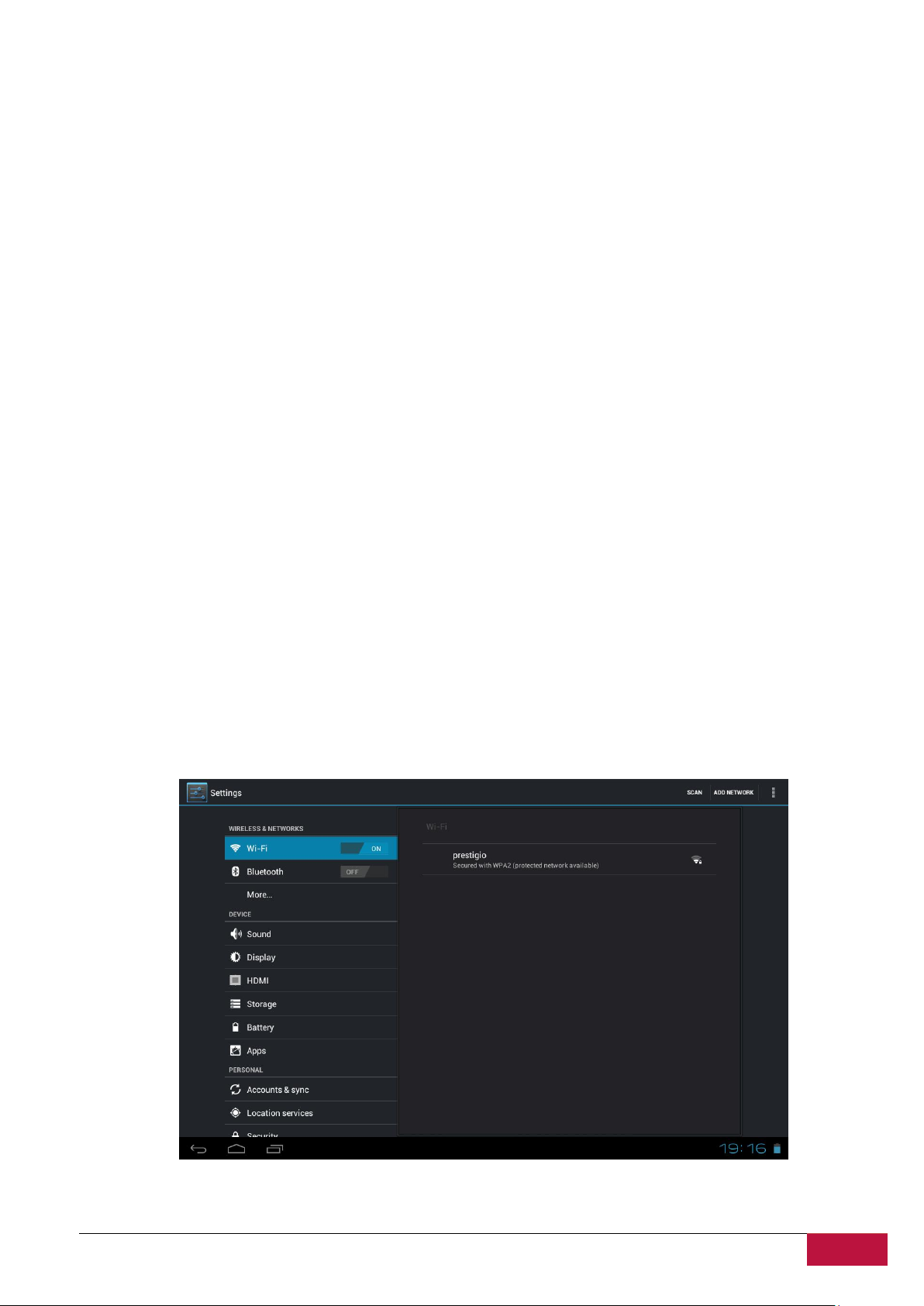
2. Turn Wi-Fi switch on in Wireless & Networks section;
3. The network names and security settings of detected Wi-Fi networks are displayed in the Wi-Fi
networks section;
4. Tap a Wi-Fi network to connect. If you select an open network, you will be automatically
connected to the network. If you select a secure protected network, enter the Password and then tap
Connect.
Depending on the network type and its security settings, you may also need to enter more information
or choose a security certificate.
5. After successful connection, the Wi-Fi connected icon will appear on the status bar.
2.7 Inserting a SIM Card
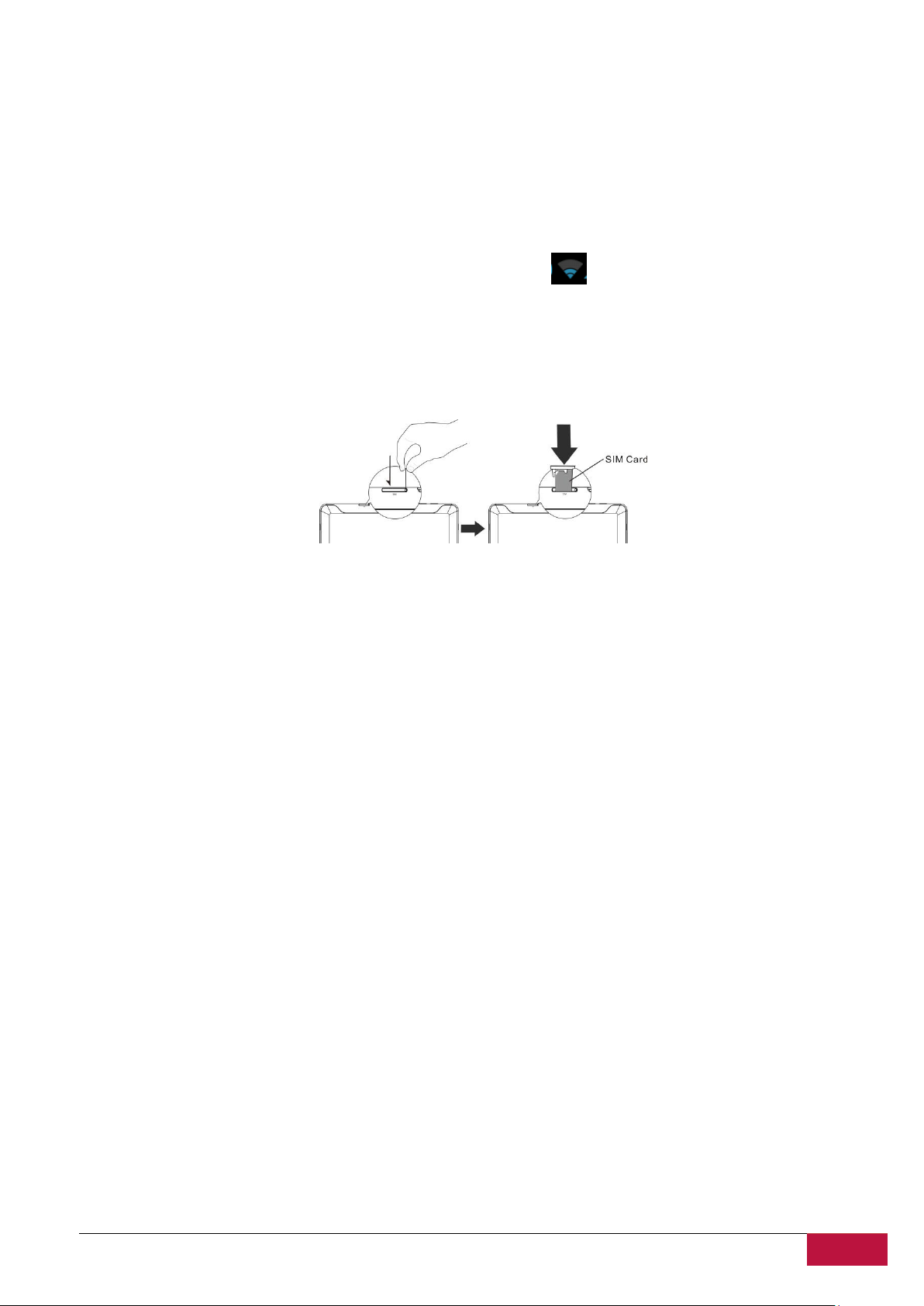
The MultiPad is equipped with the SIM card slot which allows you to insert the SIM card into the unit as
shown below:
Use steel wire to poke the hole on the SIM card port to popup the SIM card base.
Place the SIM card on the card base and insert them into the SIM card port.
Page 9
USER MANUAL | MultiPad PMP7100D
9
3
3. Home Screen
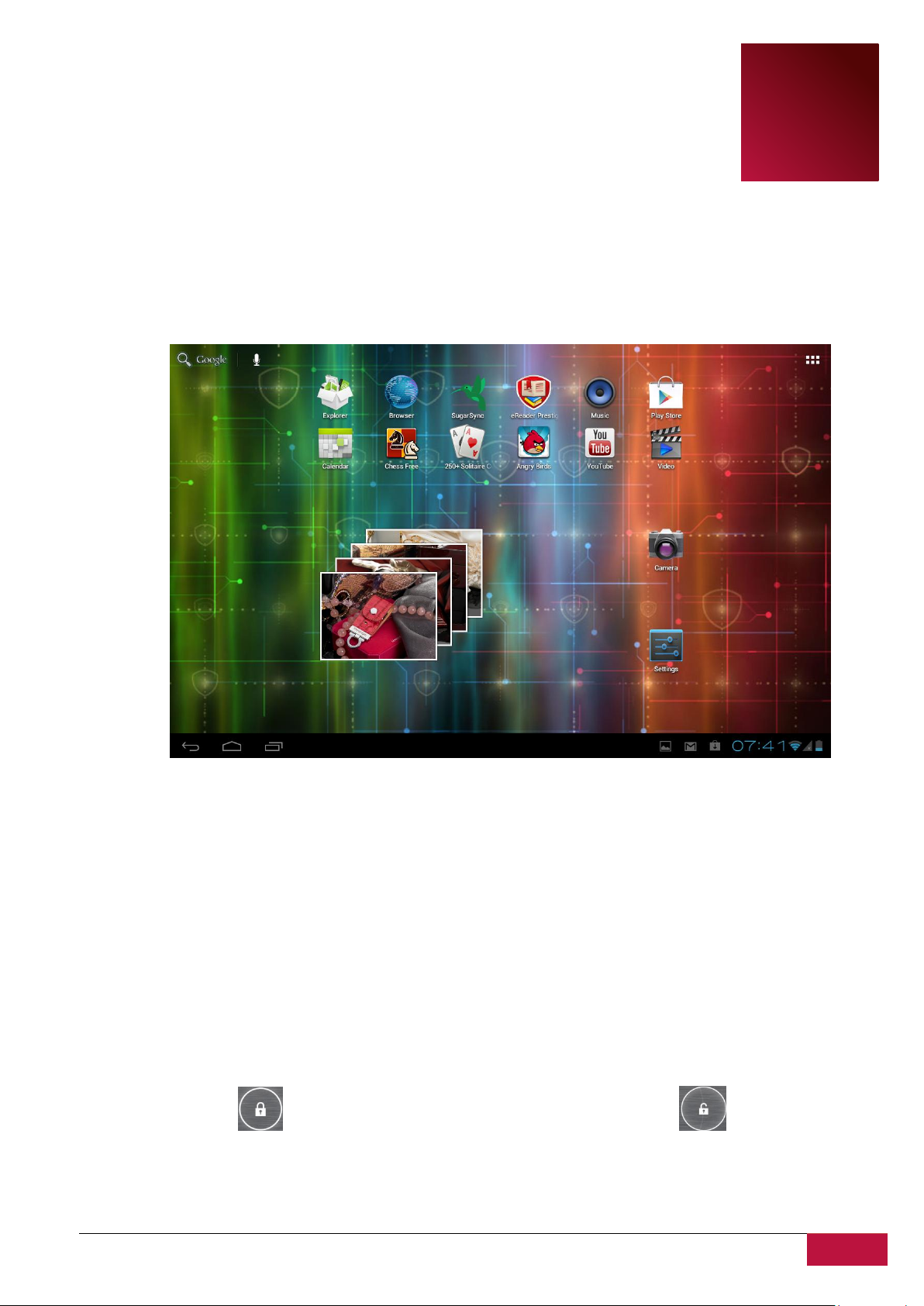
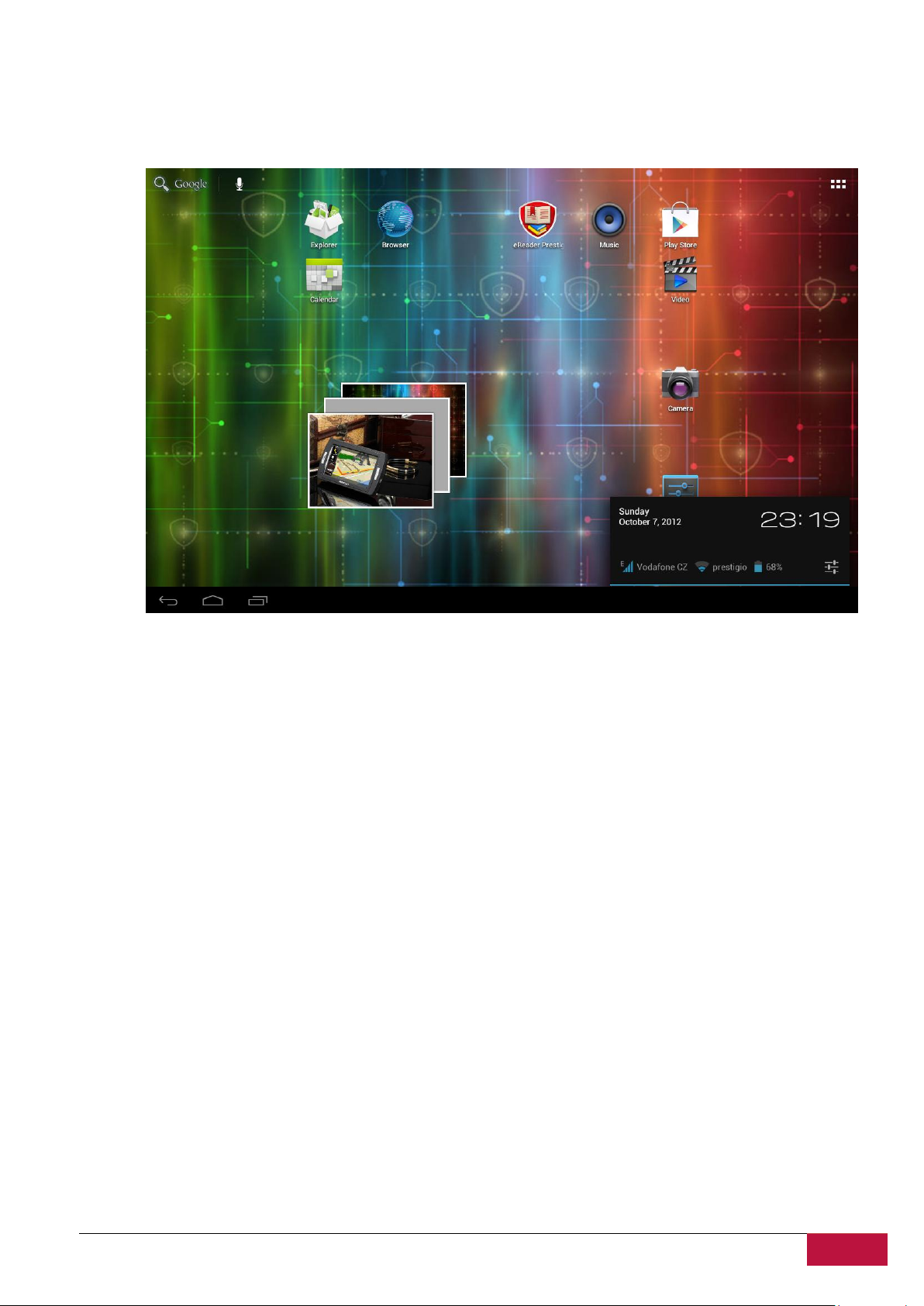
The Home screen is your starting point to access all the features on you device. It displays application
icons, widgets, shortcuts, and other features. You can customize the Home screen with different
wallpaper & widgets and display items you want. See the Personalizing section in this manual.
When you start, the Home screen appears.
Sleep mode
Sleep mode suspends your device to a low power state while the display is off in order to save battery
power. You will still be able to receive messages while the device is in Sleep mode.
[Note]: By default the device enters sleep mode automatically in case it’s not operated for 2 minutes.
You may change this time or even disable automatic sleep mode activation in menu Settings-Device-
Display-Sleep.
Wake up from sleep mode
To wake up your device manually, press the Power Button. You will a Lock Screen than.
Unlocking the screen
Touch the lock icon , hold it and slide towards unlock icon on the screen.
Other unlock ways, like PIN code, Face Unlock, Pattern etc. could be set up by user in menu Settings-
Personal-Security-Screen Security – Screen Unlock.
Page 10
USER MANUAL | MultiPad PMP7100D
10
Browse Home Screen
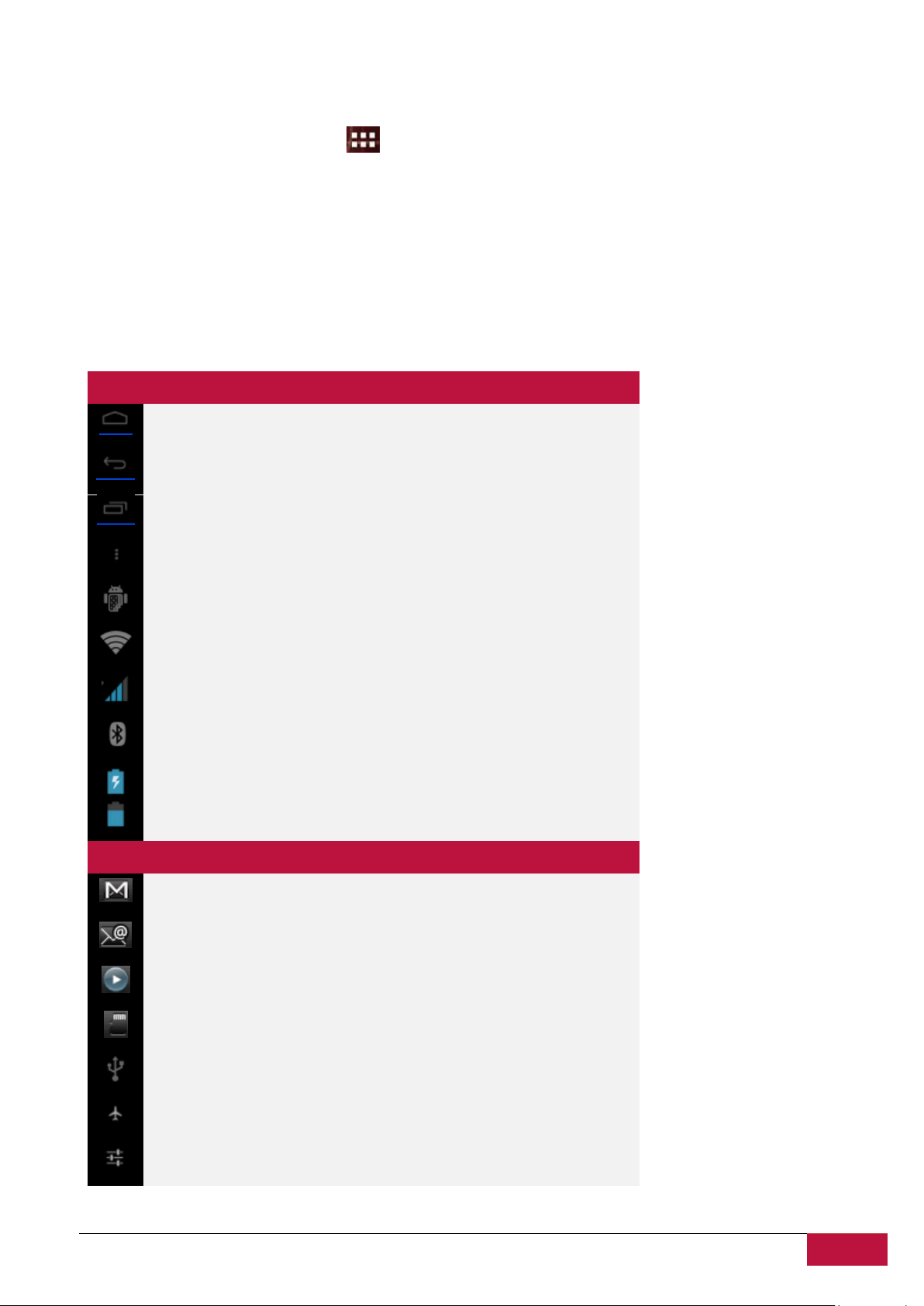
Status icons and its meanings
Tap to go to the Home screen
Back
Recently applications view
Menu icon
Android debug bridge enabled
Connected to a Wi-Fi network and display the signal strength
Connected to 2G
Bluetooth status icon
Battery status
Notification icons its meanings
New Gmail (Google Mail) message
New Email message
Music player is ongoing
SD card is mounted
USB Connected
Airplane mode
Settings
You can go to the extended Home screen by sliding your finger horizontally across the screen to go to
the left or right side
of the Home screen. Tap the icon to view all applications on your device.
3.1 Status and notifications
Status and Notification Icons may appear.
The status bar contains different information like time and date, battery status, wireless networks
status, active notifications from Android OS or installed applications and so on. When an application is
running, corresponding notification icon will appear in the notification area. Icons you may often see are
listed as follows:
Page 11
USER MANUAL | MultiPad PMP7100D
11
Open notification panel
When a new notification icon displays in the status bar, touch and hold the status bar, then slide your
finger upwards to open the Notifications panel as follows:
If you have several notifications, you can scroll down the screen to view more notifications.
In the notification panel, there are toggles for turning on/off Auto-rotate screen option and
Notifications, and shortcuts for quick access to Settings and Wi-Fi tabs.
Close the Notifications panel
Simply touch the Back button on the device panel.
Page 12

USER MANUAL | MultiPad PMP7100D
12
3.2 Shortcuts to Add widgets
Widgets put at-a-glance important information and media content up front on your Home screen. Some
widgets are already added to your Home screen for your convenience. You can add more from the
available selection of widgets, or download more widgets.
1. Adding a widget to your Home screen
To add widgets to Home screen, you can:
1.1 Tap on the home screen to enter into all apps interface as follows
1.2 Tap
1.3. Select one item. Touch and hold your finger on widget. Choose desired place for widget on the
home screen.
[Note]: When choosing place for widget you can switch home screen tabs by sliding finger with holding
widget to the left or right side of the home screen.
Page 13

USER MANUAL | MultiPad PMP7100D
13
Examples of Widgets are as follows:
2. Removing widget from your Home screen
To remove a widget, touch and hold the widget until the icon “X Remove” or “X” appears at the top of
the screen, drag the widget onto it, so the widget you want to remove has become red and release your
finger.
3.3 Finger gestures
Tap: When you want to type using the keyboard, select items onscreen such as application and settings
icons, or touch onscreen buttons, simply tap them with your finger.
Touch and hold: To open the available option for an item (e.g. contact or link in a web page), simply
touch and hold the item.
Swipe or slide: To swipe or slide means to drag your finger vertically or horizontally across the screen.
Drag: Touch the object before you start to drag. While dragging, do not release your finger until you have
reached the target position.
Rotate: For most screens, you can automatically change the screen orientation from portrait to
landscape by turning the device sideways. When entering text, you can turn the device sideways to bring
up a bigger keyboard. Refer to Settings chapter for more details.
Page 14

USER MANUAL | MultiPad PMP7100D
14
3.4 Coping files to and from the storage card
You can copy music, photos/pictures and others to MultiPad to personalize your device.
1. Use the USB cable that came with your device to connect it to an USB port on your computer.
2. When the icon appears in the notification area, open the notification panel and tap USB
Connected to popup the following screen:
3. Tap , read popup notice, tap “OK” and when the notification icon turns
yellow, the computer will recognize your device as a removable disk;
4. Find the removable disk and open it. Do one of the followings:
Copy the files from the computer to the storage card’s root folder.
Copy the files from the storage card to a folder in your computer or computer desktop.
5. After copying the files, you may turn USB off. To do this, if you would like to keep your device
connected to the computer and enable reading its storage card from Android, you can open the
Notifications panel and tap .Otherwise, if you would like to disconnect the
device physically from computer, please unmount the removable disk (that is, your device) as required
by your computer’s operating system to safely remove your device.
6. Disconnect your device from the computer.
Page 15

USER MANUAL | MultiPad PMP7100D
15
3.5 Searching the device and the web
You can search information in your device and in the Web by using the Quick Search Box. It’s placed on
the top left side of the Home Screen:
Tap the magnifying lens, and enter the search item into the Quick Search box.
You may use also the following way:
1. Touch on the home screen to enter into all apps interface;
2. Tap Search and then enter the search item in the Quick Search Box
As you type, matching items on your device and suggestions from Google web search are shown as a list.
The suggested items that appear will depend on the options that you have selected in the search
settings.
3. Do one of the following:
If what you’re searching for is in the list of suggestions, tap it in the list. The item opens in the
appropriate application.
If what you’re searching for is not in the list, tap to open the search settings menu. Tap Web and
then tap Back and Enter to search the Web. The web browser opens, displaying results of a Google
search on the Web.
Page 16

USER MANUAL | MultiPad PMP7100D
16
4
4. Personalizing
4.1 Change the Notification ringtone
Choose from the available selections of notification ringtones on your device. You can also download or
copy notification ringtones or songs to your device's storage card and choose one to use as your
notification ringtone. To find out how you can copy files to your storage card, see “Copying files to and
from the storage card”.
1. In the Home screen, tap Settings > Sound > Default notification.
2. Tap the notification ringtone you want to use. The notification ringtone briefly plays when selected.
3. Tap OK.
4.2 Change your wallpaper
Personalizing your Home screen wallpaper with your favorite photo is a quick and easy way to change
the feel of your device and give it a fresh look. Browse the collection of wallpapers included in your
device or choose from photos that you have taken with the camera.
To change your Home screen or lock screen wallpaper:
1. On the Home screen touch and hold your finger at the free area. Choose wallpaper from menu will
appears.
[Note]: You can also tap >Settings>Display>Wallpaper to reach Choose wallpaper from menu.
2. Choose source and wallpaper you would like to use.
You can do one of the following:
Tap Gallery to select a photo/picture that you have taken using the camera or copied to your storage
card. Tap Crop to crop the photo/picture and set the cropped picture as wallpaper.
Tap Wallpaper gallery to choose from preset wallpapers and then tap Set wallpaper.
Tap Live Wallpaper gallery to choose from preset live wallpapers and then tap Set wallpaper.
4.3 Personalize your Home screen with folders
Use folders to group related applications and other shortcuts to keep your Home screen tidy and
organized.
4.3.1. Adding folders on your Home screen
Touch and hold the application shortcut and drag it onto another shortcut to create a folder for the
applications you want to file together, and then release your finger to finish creating a folder. You can
drag any other application shortcut into the new folder.
To rename a folder:
1. Tap the folder to open it.
2. Tap Unnamed Folder to prompt the keyboard.
3. Enter a new folder name and then tap Enter key.
Page 17

USER MANUAL | MultiPad PMP7100D
17
4.3.2. Removing folders from Your Home screen
Tap the folder you want to remove to open it. One by one touch and hold application shortcut inside
folder and drag it out of the folder. When only one application shortcut will stay inside the folder, folder
will be automatically deleted.
[Note]: During operations with folders your application shortcuts are not removed.
4.4 Rearrange widgets and shortcuts on your Home screen
Rearrange widgets and shortcuts on your Home screen to get space for adding more items to the Home
screen.
4.4.1. Moving a widget or shortcut
1. Gently tap and hold the widget or shortcut you want to move.
You’ll see a blue edging around the widget or shortcut. Don’t release your finger.
2. Drag the widget or shortcut to a new location on the screen.
Pause at the left or right edge of the screen to drag the widget or shortcut onto another Home
screen panel.
3. When the widget or shortcut is where you want it, release your finger.
If you’ve released your finger but a message shows that there’s no space to place the widget or
shortcut, drag it right or left again to another Home screen panel.
4.4.2. Removing shortcuts
To remove a shortcut, touch and hold the shortcut until the icon “X Remove” or “X” appears at the top of
the screen, drag the shortcut onto it so the shortcut you want to remove has become red and release
your finger.
Page 18

USER MANUAL | MultiPad PMP7100D
18
5
5. Web browsing
User can connect to the network via the browser.
Tap the browser icon on the Home screen to open it as follows:
Use keyboard to type URL (web-site address) or search phrase at the address bar.
To exit browser application just tap Back button .
Page 19

USER MANUAL | MultiPad PMP7100D
19
6
6. Manage Applications
You can personalize and enrich your MultiPad by installing a wide variety of free and
paid apps ranging from productivity apps, entertainment, to games. When you find a program you want,
you can easily download and install it on your MultiPad with just a few steps as follows:
How to install Android programs
1. Tap at the Home screen to enter into all apps interface. Run Play Store application .
2. Find program you’d like to install. It can be free or paid program.
3. Use Play Store interface to install program to your device.
How to uninstall Android programs
To uninstall the program:
1. Go to Settings > Apps> Downloaded menu
2. Tap on program you want to uninstall
3. Tap Uninstall and OK in popup menu.
[Note]: You can also use an alternative way of uninstallation: enter the list of applications, tap the
application you’d like to uninstall, hold it and drag to the “Uninstall” icon on top of the display.
Page 20

USER MANUAL | MultiPad PMP7100D
20
7
Tap to go to the previous song.
Tap to play, pause, or resume playing the song
Tap to go to the next song
Tap to go to the now playing list
Tap to switch the following repeat modes: repeat all songs, repeat current song, do not repeat
Tap to shuffle the current playlist.
7. Typical applications
7.1 Music Player
Enjoy listening to songs and music on your MultiPad using the Music application. You need to copy music
files to your storage card first to use the Music application to play music. To find out how to copy files,
see “Copying files to and from the storage card”. Supported audio formats see in MultiPad technical
specifications above.
Tap the icon on the Home screen to enter the following screen:
Your music is organized into different categories such as Artists, Songs and Albums. Tap one of the
category tabs to view a category.
Select a song in the playlist and tap on it to start playing as follows:
When you are playing music and the screen turns off, you can control the music playback volume with
hardware buttons Vol+\Vol-.
Page 21

USER MANUAL | MultiPad PMP7100D
21
7.2 Video Player
following interface:
on the Home screen and then tap the Video player icon to go to the Tap the launcher icon
Double tap on a video file to start playing it.
To quit the video playing screen, touch the Back icon in the status bar directly.
Page 22

USER MANUAL | MultiPad PMP7100D
22
7.3 Gallery
You use Gallery to view pictures and play videos that you’ve taken with Camera, downloaded, or copied
onto your SD card. You can perform basic editing tasks on pictures and set them as your wallpaper or
contact picture. You can also share your pictures and videos with friends.
On the Home screen tap the launcher icon and Gallery icon after. Photos and videos are
classified automatically for easy view. The gallery application will run and the interface is as follows:
Browse & edit pictures/photos
Tap an album to open it and view its contents;
- this icon could be found on upper right corner of the screen; it allows you to browse all
photos/pictures in slideshow mode.
Select a picture to view it in full screen mode; drag left or right to view the next or previous picture in
the album; move your fingers inward/outward to zoom out/zoom in the selected photo/picture.
- this button allows you to share it with friends via email, Twitter, Facebook etc.
Use delete icon to delete the selected files.
Tap to pop-up the following control menu:
- starts a slide show of all pictures in the album;
- to edit the selected picture. When the picture is zoomed in, drag the picture to view parts that are
not in view. When the picture is zoomed to fit the window, drag left or right to view the next or previous
Page 23

USER MANUAL | MultiPad PMP7100D
23
picture in the album.
or to rotate the picture/photo 90° anticlockwise or clockwise;
If you tap icon the following cropping rectangle will appear on top of the picture/photo:
Drag from the inside of the cropping tool to move it; drag an edge of the cropping tool to resize it to any
proportion; drag a corner of the cropping tool to resize it with a fixed proportions.
Tap to save a copy of the picture as you cropped it. The original (not cropped) version remains on
your SD card.
to set the current picture/photo as wallpaper;
to see more details about the current picture/photo;
7.4 File Manager
Introduction to File Manager
On the Home screen, tap the File Manager (Explorer) icon to open it as follows:
Page 24

USER MANUAL | MultiPad PMP7100D
24
File Management
In the above screen, you can navigate your storage and manage your files in the local disk and your
storage card: copy/paste, delete, move and rename file and folder and send them via Bluetooth, mail or
Skype.
Touch to select multiple items in the list
Page 25

USER MANUAL | MultiPad PMP7100D
25
7.5 Instant Messaging tools
You can download from Google Play and install chat tools on your device such as Skype, Fring, ICQ etc.
7.6 Emails
Tap the launcher icon on the Home screen to display all icons, tap the Email/Gmail icon to run it.
With help of Prestigio MultiPad you can:
1. Setup mail accounts
2. Create new mails
3. Receive and send mails
4. Download or open the attached files
7.7 Camera
The Camera app is a combination camera and camcorder that actually consists of two cameras, one
facing back (toward you) and one facing forward (away from you). You may toggle between front and
rear cameras by touching this icon
To take pictures and videos touch the Camera icon on a Home or All Apps screen.
Page 26

USER MANUAL | MultiPad PMP7100D
26
8
Application
Description
eReader Prestigio
Prestigio branded bookstore. You can download and read
Your favorite books here.
Facebook
Stay always connected with Your friends and family with
Facebook social network
Twitter
Your favorite Twitter app. now always with You. Create and
send Your messages from anywhere.
OfficeSuite
Increase Your productivity with mobile office application.
Games
And games, of course. Angry Birds – favorite game of
millions! Classic Chess – game of all times.
SugarSync
Let Your important files synchronized from everywhere! It is
a client for cloud storage service.
Explorer
Manage Your files with this application.
8. Prestigio preinstalled apps
Your new MultiPad contains several applications preinstalled by Prestigio to make
using MultiPad more comfortable right from the box.
Following applications you can find in all apps list by touching icon on the Home screen:
Page 27

USER MANUAL | MultiPad PMP7100D
27
9
9. Settings
Control and customize your device settings on the Settings screen.
To open the Settings screen, simply tap the Settings icon on the Home screen.
You can scroll on the screen upwards/downwards to check the rest setting items.
9.1 Wireless & networks
Configure your device’s wireless connections, e.g., Wi-Fi, Virtual Private Networks, or set the options for
Portable hotspot.
Wi-Fi
To turn on/off Wi-Fi, simply slide your finger rightward/leftward on the control bar.
Bluetooth
Switch Bluetooth ON to pair your device with Bluetooth devices such as hands-free, keyboards or mobile
phones
Page 28

USER MANUAL | MultiPad PMP7100D
28
Data Usage
Data usage menu lets you to control 2G data connections, to monitor total usage by network type and
application and then set limits if needed.
Data usage menu lets you to control 2G data connections, to monitor total usage by network type
More…
This menu allows you to switch on/off Airplaine mode, setup Virtual Private Network (VPN) or enable
WiFi hotspot. Wi-Fi Direct allows Android 4.0 devices with the appropriate hardware to connect directly
to each other via Wi-Fi without an intermediate access point
Page 29

USER MANUAL | MultiPad PMP7100D
29
9.2 Sound
Set the device and notification ring tones, volume adjust, system sounds.
Volume
To adjust the volume for media, ringtone, notification and alarms:
1. Tap Settings > Sound > Volumes;
2. Drag the control bar leftwards/rightwards to turn down/up the volume for media and notification;
3. Tap OK.
Notification ringtone
To set a notification ringtone:
4. Tap Settings > Sound > Default notification
5. Tap a ringtone to listen it
6. Enable a ringtone as notification ringtone by tapping OK.
Audible selection
To enable playing sound when making screen selection, simply check it.
9.3 Display
Set the screen brightness, auto-rotate option, wallpaper, screen timeout and font size.
Page 30

USER MANUAL | MultiPad PMP7100D
30
Brightness
Use the slider to set a brightness level you want at all times when using MultiPad. For the best battery
performance, use the dimmest comfortable brightness.
Wallpaper
Tap to select source of wallpaper and set wallpaper for the device.
Auto-rotate screen
Check to enable/disable automatic switch of the orientation of the screen when you turn the device.
Sleep
Open a dialog where you can set how long to wait after you tap the screen or touch a button before the
screen darkens. For the best battery performance, use the shortest convenient timeout.
Font size
Open a dialog where you can set font size.
Page 31

USER MANUAL | MultiPad PMP7100D
31
9.4 HDMI Settings
In this menu you can turn on/off mini HDMI output, choose HDMI Resolution for your output device,
adjust screen zoom on the output device by slider.
Page 32

USER MANUAL | MultiPad PMP7100D
32
9.5 Storage
Check the usage condition of the storage space on the internal & external storage card. You can erase all
data on the SD card and unmount the external SD card for safety removal.
Unmount the SD card: Tap Settings > Storage > Unmount SD card > OK.
Page 33

USER MANUAL | MultiPad PMP7100D
33
9.6 Apps
Manage applications and installation of new programs.
Apps
Open a list of all the applications and other software installed on your MultiPad, along with their sizes.
By default, only downloaded applications are shown, and they are sorted in alphabetical order. Touch
and tap Sort by size to display applications in order by size. Tap an application to open its Application
Info screen.
To manage and /or remove uploaded applications, tap Settings > Apps > Downloaded.
Running services
To check and control running service, tap Settings > Apps > Running.
9.7 Accounts & Sync
Log in or out from your social network accounts, Google Account, and Exchange ActiveSync account. You
can also manage synchronization and other settings for your accounts.
Page 34

USER MANUAL | MultiPad PMP7100D
34
Tap to turn on\off account sync . Tap in the above screen to add new
accounts by following onscreen instructions. Tap the icon to prompt the following screen to
manage your accounts:
Check to turn on/off data synchronization, touch the menu icon and then tap
to remove the selected account from your device.
9.8 Location service
Enable applications using data from sources such as Wi-Fi and mobile networks to orientate your
location and improve Google search results via check the options.
Page 35

USER MANUAL | MultiPad PMP7100D
35
9.9 Security settings
Set the screen lock mode and owner information, encrypt your device, manage password and
administrate your device.
To personalize the screen lock mode of your device, tap Settings > Security> Screen lock
Unknown sources
Check to permit installation of applications that you obtain from web sites, email, or other locations
other than Google Play Store.
9.10 Language & input settings
Set the operating system language and region. You can also set onscreen keyboard options.
9.11 Backup & reset
You can enable or disable the automatic backup feature of the device and reset the device.
[Note]: after factory data reset, you personalizing settings and the installed third-party applications will
be removed from your device. Before restoring default settings, it is suggested to backup
data/applications you want and remove your storage card safely in case of data loss or damage during
restoring factory default settings.
Page 36

USER MANUAL | MultiPad PMP7100D
36
9.12 Date & Time setting
Set the date and time, time zone, and date or time format. To turn off auto time synchronization simple
unmark it and you will be able to manually change time settings.
9.13 Accessibility
Speak passwords: check to enable speak password
Touch & hold delay: 3 levels of delay when touch and hold widget or icon are available – Short, Medium,
Long. It regulates the duration of object hold till further actions.
Page 37

USER MANUAL | MultiPad PMP7100D
37
9.14 Developer options
You can set the USB debugging mode, select screen stay awake while charging and so on. And you can
also manage user interface and apps.
USB debugging: Check to permit debugging tools on a computer to communicate with your MultiPad via
a USB connection.
Stay awake: Check to prevent the screen from dimming and locking when the MultiPad is connected to a
charger or to a USB device that provides power. Don’t use this setting with a static image on the
MultiPad for long periods of time, or the screen may be marked with that image.
Allow mock locations: Check to permit a development tool on a computer to control where the
MultiPad believes it is located, rather than using the internal methods for this purpose.
9.15 About tablet
View the device status such as the network type, battery power level, and network name. You can also
check the battery use of individual applications or view the legal information and firmware version (Build
number; symbols vx.x.x) of your MultiPad.
Page 38

USER MANUAL | MultiPad PMP7100D
38
10
10. Troubleshooting
10.1 Forced shutdown
Touch the Power Button for about 8 seconds and the device will be forced shutdown. This operation
might cause data loss though, so please backup important information regularly.
10.2 Restore default settings
To restore the factory default settings, you can tap Settings > Backup & reset> Factory data reset.
Warning: data of your Google account, your personalized settings, and installed applications will be
removed from your device once you execute factory default settings, so please make a careful decision
whether to restore default settings. Before restoring default settings, it is suggested to backup
data/applications you want.
10.3 System updating
After system update/upgrade, it may occur that the installed third-party applications cannot run or there
is data loss or damage to the apps. This is normal phenomena rather than system fault. You just need to
download and install the third-party applications again into the device. It is recommended to backup
data of the third-party applications before system update/upgrade.
Page 39

USER MANUAL | MultiPad PMP7100D
39
11
11. Glossary
Android 4.0 (Ice Cream Sandwich) - operating system for Tablet PCs and smartphones based on
Linux kernel;
Google Play Store – online store with software for Android OS;
Google Account - pre registered user account for having access to the Google branded services and
registration of MultiPad;
MultiPad – Prestigio trademark for Tablet PC devices;
Gmail – Google branded e-mail client;
Widgets – simple programs on the Tablet PC desktop for showing different information or shortcuts to
connected installed software.
 Loading...