

Page 1

Prestigio P260DVD-X P420DVD-X 1
ENG
Prestigio P260DVD-X P420DVD-X
User’s Manual
Page 2
2 Prestigio P260DVD-X P420DVD-X
ENG
Safety Instructions
Before using this product, please read the security instructions first and bear them in mind when using the product.
Warning
TO PREVENT FIRE OR SHOCK HAZARD. DO NOT EXPOSE THIS APPLIANCE TO RAIN OR MOISTURE.
CAUTION
RISK OF ELECTRIC SHOCK DO NOT OPEN. NO USER-SERVICEABLE PARTS INSIDE.
CAUTION: TO REDUCE THE RISK OF ELECTRIC SHOCK, DO NOT REMOVE COVER (OR BACK). NO
USER-SERVICEABLE PARTS INSIDE. REFER SERVICING TO QUALIFIED SERVICE PERSONNEL.
THIS SYMBOL IS INTENDED TO ALERT THE USER TO THE PRESENCE OF UNINSULATED DANGEROUS
VOLTAGE. WITHIN THE PRODUCTS ENCLOSURE THAT MAY BE OF SUFFICIENT MAGNITUDE TO CONSTITUTE A
RISK OF ELECTRIC SHOCK TO PERSONS.
THIS SYMBOL IS INTENDED TO ALERT THE USER TO THE PRESENCE OF IMPORTANT OPERATING AND
MAINTENANCE (SERVICING) INSTRUCTIONS IN THE LITERATURE ACCOMPANYING THE APPLIANCE.
Disposal of Old Electrical & Electronic Equipment (Applicable in the European Union and other
European countries with separate collection systems)
This symbol on the product or on its packaging indicates that this product shall not be treated as household
waste. Instead it shall be handed over to the applicable collection point for the recycling of electrical and
electronic equipment. By ensuring this product is disposed of correctly, you will help prevent potential
negative consequences for the environment and human health, which could otherwise be caused by
inappropriate waste handling of this product. The recycling of materials will help to conserve natural
resources. For more detailed information about recycling of this product, please contact your local city office,
your household waste disposal service or the shop where you purchased the product.
Important Safety Instructions
This equipment has been designed and manufactured to meet international safety standards but, like any electrical equipment,
care must be taken if you are to obtain the best results and safety is to be assured. So, please read the points below for your own
safety. They are of a general nature, intended to help you with all your electronic consumer products and some points may not
apply to the goods you have just purchased.
• Read these instructions.
• Keep these instructions.
• Heed all warnings.
• Follow all instructions.
• Do not use this apparatus near water.
• Clean only with a dry cloth.
• Do not block any ventilation openings. Install in accordance with the manufacturer’s instructions.
• Do not install near any heat sources such as radiators, heat registers, stoves, or other apparatus (including amplifiers) that
produce heat.
• This TV is not completely disconnected from a power supply line, as minute current is consumed even when the POWER
switch is turned off (Depend on the model).
• Do not place hot objects or naked flame sources, such as lighted candles or highlights on, or close to the TV. High
temperatures can melt plastic and lead to fires.
• Do not set on top of the TV any object or container that might spill liquids or small objects into the TV.
• Protect the power cord from being walked on or pinched, particularly at plugs, convenience receptacles, and the point where
it exits the apparatus.
• Only use attachments/accessories specified by the manufacturer.
• Use only with the cart, stand, tripod, bracket, or table specified by the manufacturer, or sold with the apparatus. When a cart
is used, use caution when moving the cart/apparatus combination to avoid injury from tip-over.
Page 3

Prestigio P260DVD-X P420DVD-X 3
ENG
• Unplug this apparatus during lightning storms or when unused for long periods of time.
• Refer all servicing to qualified service personnel. Servicing is required when the apparatus has been damaged in any way,
such as power supply cord or plug is damaged, liquid has been spilled or objects have fallen into the apparatus, the apparatus
has been exposed to rain or moisture, does not operate normally, or has been dropped.
• The apparatus shall not be exposed to dripping or splashing and no objects filled with liquids, such as vases, shall be placed
on the apparatus.
• Please keep the minimum distance 100mm from the back side of this product to the back wall.
• Where the MAINS plug or an appliance coupler is used as the disconnect device, the disconnect device shall remain readily
operable.
• Do not defeat the safety purpose of the polarized or grounding-type plug. A grounding type plug has two blades with one
wider than the other. A grounding type plug has two blades and a third grounding prong. The side blade or the third prong
are provided for your safety. If the provided plug does not fit into your outlet, consult an electrician for replacement of the
obsolete outlet.
• This product complies with DHHS RULES 21 CFR Chapter 1, Subchapter J applicable at the date of Manufacture.
CAUTION: Danger of explosion if battery is incorrectly replaced. Replace only with the same or equivalent
type.
CAUTION: These servicing instruction are for use by qualified service personnel only. To reduce the electric
shock do not perform any servicing other than that contained in the operating instructions unless you are
qualified to do so.
WARNING: This apparatus should be connected to a MAINS socket outlet with a protective earthing
connection.
Page 4
4 Prestigio P260DVD-X P420DVD-X
ENG
Overview
Front View
LM
LQ
Page 5
Prestigio P260DVD-X P420DVD-X 5
ENG
LT
LU
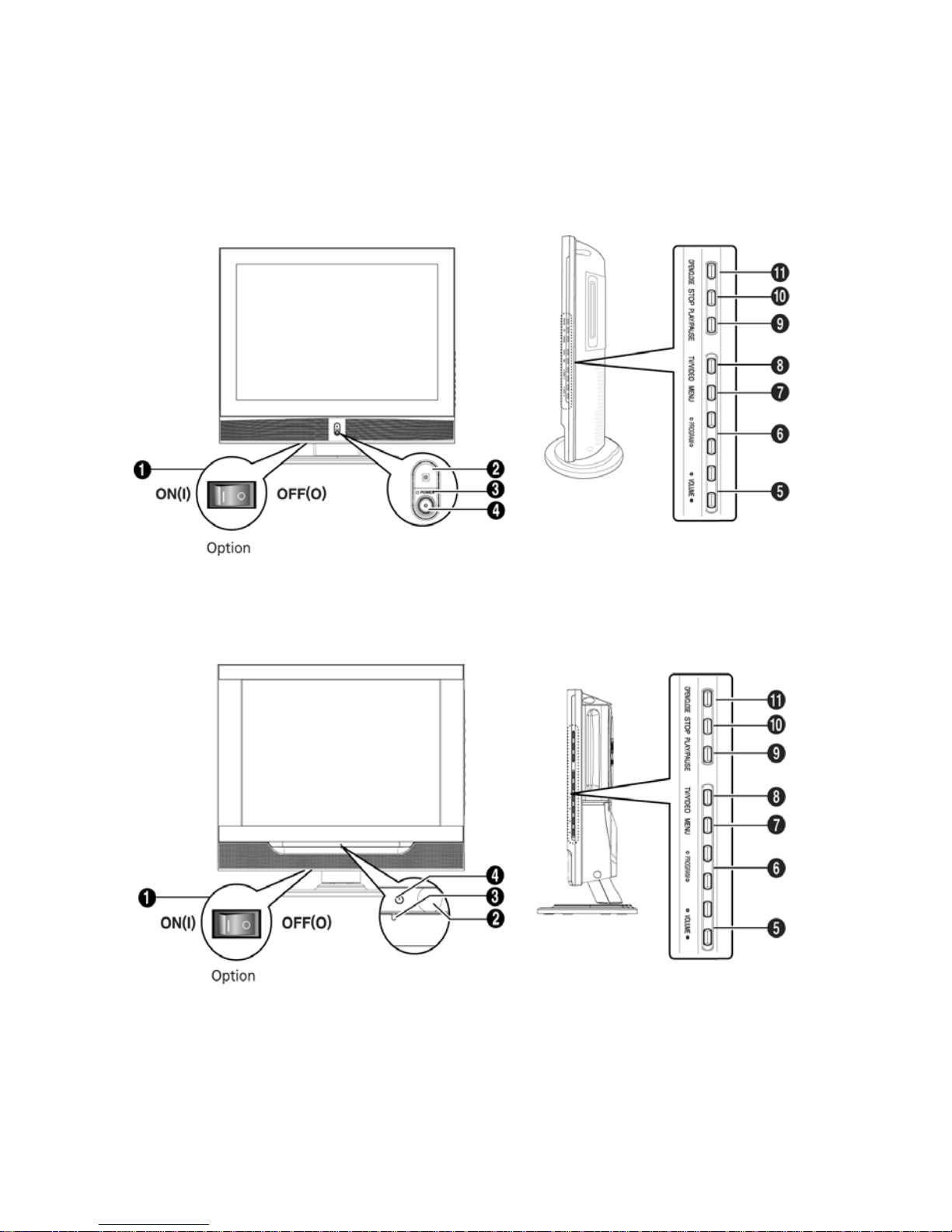
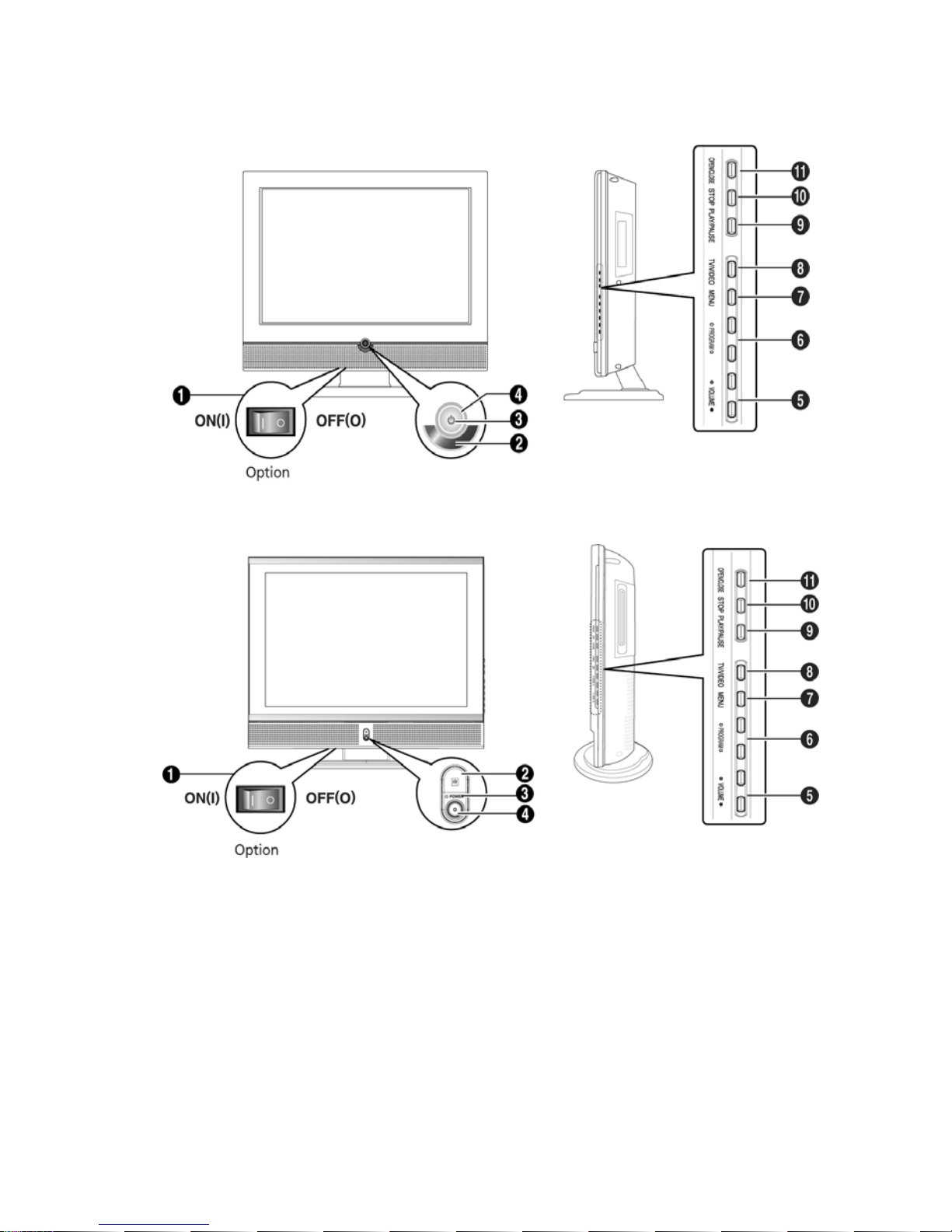
1. MASTER SWITCH (Depend on the model)
2. Remote Control Sensor
3. POWER: Turns the TV on and off.
4. LED Lights
5. VOLUME: Increases or decreases the volume. This is also used to select the “MOVE&ADJUST” item on the on-screen menu.
6. PROGRAM: Changes channels or “MOVE&ADJUST” to items on the on-screen menu.
7. MENU: To access or close menus, simultaneously.
8. TV/VIDEO: Selects an external device connected to the TV.
<DVD> - Depend on the model
9. PLAY/PAUSE: Play the DVD or temporarily stop playback.
10. STOP: Stop the DVD playback.
11. OPEN/CLOSE: OPEN/CLOSE the DVD.
Page 6
6 Prestigio P260DVD-X P420DVD-X
ENG
Rear Panel Jacks
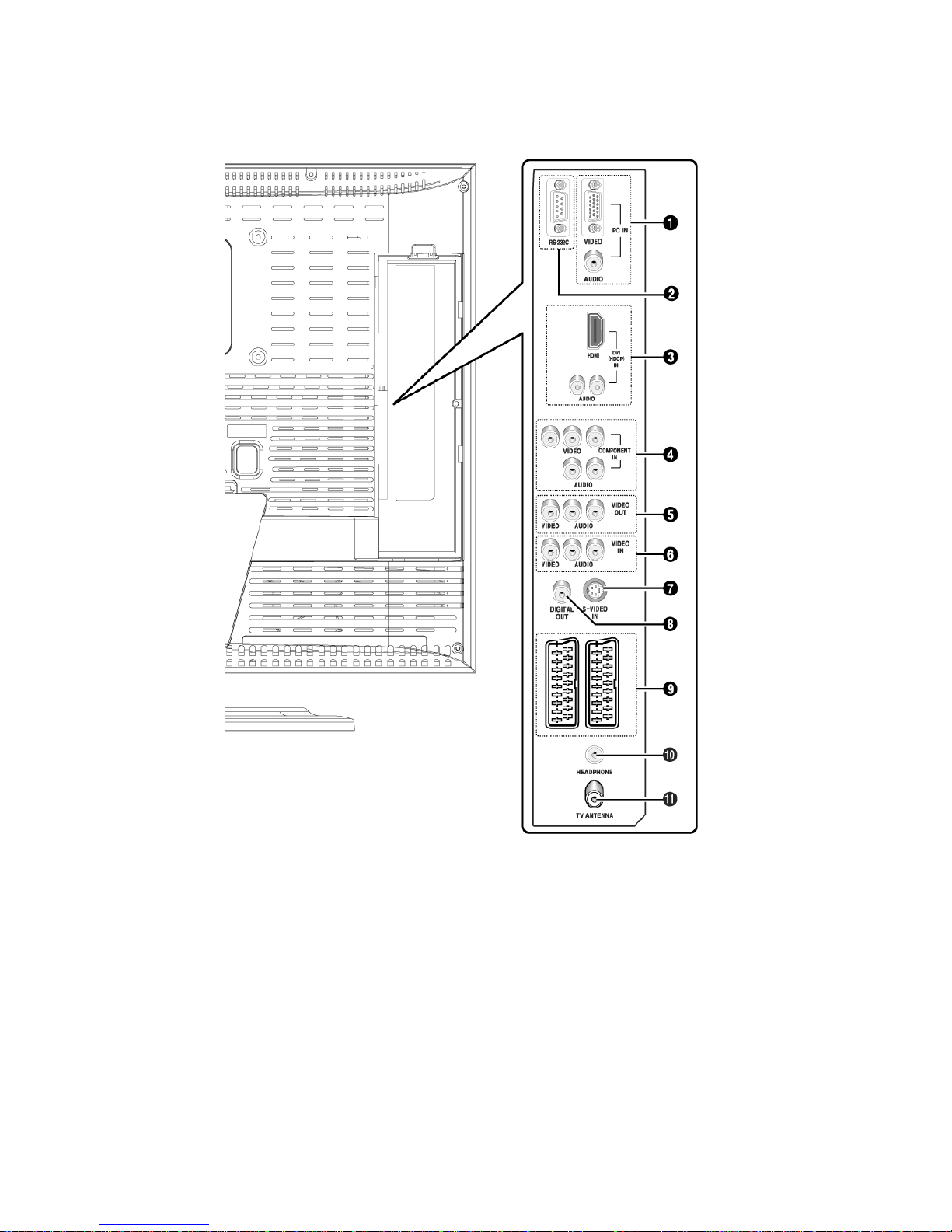
1. PC INPUT (VIDEO/AUDIO) JACKS
2. RS-232C INPUT JACK (UPGRADE)
3. HDMI INPUT, DVI INPUT(VIDEO/AUDIO:L/R) JACK
4. COMPONENT JACKS (VIDEO : Y, Pb, Pr/AUDIO : L/R)
5. LINE (VIDEO/AUDIO) OUTPUT JACKS
6. VIDEO3 (VIDEO/AUDIO) INPUT JACKS
7. S-VIDEO INPUT JACK
8. DIGITAL AUDIO OUTPUT JACK
9. SCART JACKS (BOTTOM : SCART1, TOP : SCART2)
10. HEADPHONE JACK : Used for headphones that can be purchased additionally.
11. TV ANTENNA INPUT JACK
Page 7
Prestigio P260DVD-X P420DVD-X 7
ENG
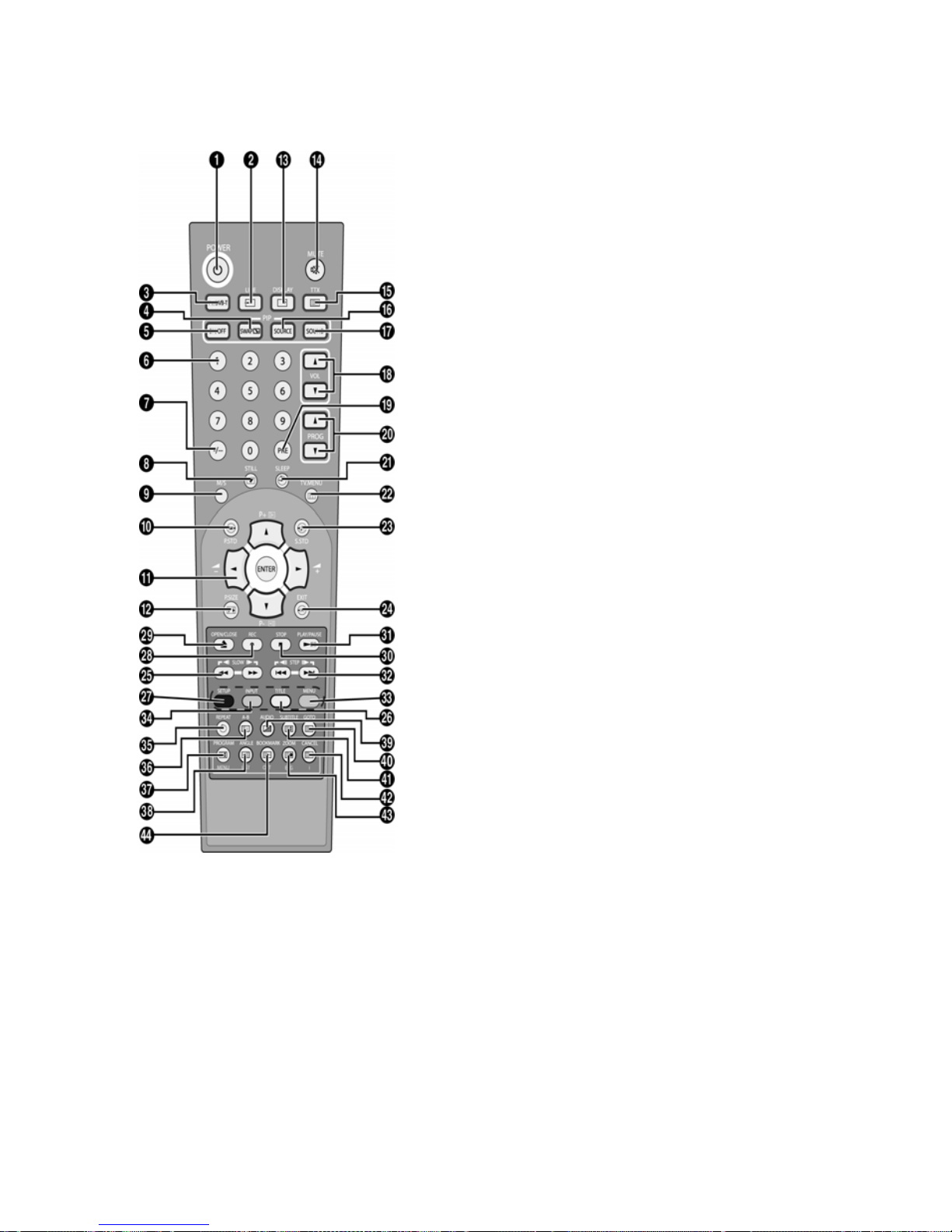
Remote Control
1. POWER: Turns the TV on and off.
2. LINE: External input selection. (TV > RGB >Video1 >Video2 > Video3 >
S-Video >DVD >COMPONENT >PC >HDMI )
3. TV/DVB-T: Switches to TV/DVB-T mode.
4. SWAP: Exchanges the video signal source of the main screen and the PIP
window.
5. ON/OFF: Turns PIP on or off.
6. NUMBER BUTTONS: Selects channels directly on the TV.
7. -/--: Selects channels over 10. For example, to select channel 21, press “-/--”
then press “2”, “1”.
8. STILL: Freezes a moving picture on the screen.
9. M/S: Sound mode selection.
10. P.STD: Configures various video settings.
11. ARROW/ENTER: Select an item of menu/Change confirmation.
12. P.SIZE: Changes the screen size.
13. DISPLAY: Displays the current channel and the audiovideo settings.
14. MUTE: Temporarily mute the sound.
15. TTX: Switches to Teletext mode.
16. SOURCE: Selects the signal source for the PIP window.
17. SOUND: Changes the audio signal source between the main screen and the
PIP window.
18. VOL: Increases or decreases the volume.
19. PRE: Moves to the previous channel.
20. PROG: Changes channels.
21. SLEEP: Selects a preset time interval for automatic shutoff.
22. TV.MENU: Displays the OSD menu.
23. S.STD: Configures various audio settings.
24. EXIT: Exit the current configuration.
<DVD> - Depend on the model
25. SLOW: For fast and slow playback.
26. TITLE: For selecting a title on the disc.
27. SETUP: For initial DVD player settings.
28. REC: DVD R/W (option)
29. OPEN/CLOSE: OPEN/CLOSE the DVD tray.
30. STOP: Stop the DVD playback.
31. PLAY/PAUSE: Play the DVD or temporarily stop playback.
32. STEP: For playing one frame at a time.
33. MENU: For displaying the menu contained in the disc.
<DVD & TTX> - Depend on the model
34. INPUT: DVD R/W (option)
35. TIME/REPEAT: To display time / For specifying and repeating playback of a
segment.
36. INDEX/A-B: Program selection by name/For repeated playback of disc titles,
chapters or sound.
37. HOLD/PROGRAM: Teletext page/For playback in a specified order.
38. PRE PAGE/ANGLE: Teletext previous page/For viewing scenes from different.
39. MIX/AUDIO: Video & TTX MIX/ For selecting the audio language.
40. REVEAL/GOTO: Teletext reveal/For jumping to a specified location.
41. SIZE/SUBTITLE: Teletext size selection/For selecting the SUBTITLE language.
42. CANCEL/CANCEL: To exit from the teletext display/To erase a program
content.
43. SUB PAGE/ZOOM: Teletext SUB-PAGE/For magnifying the screen.
44. NEXT PAGE/BOOK MARK: Teletext NEXTPAGE/ To SAVE a specific frame for
later viewing
Page 8
8 Prestigio P260DVD-X P420DVD-X
ENG
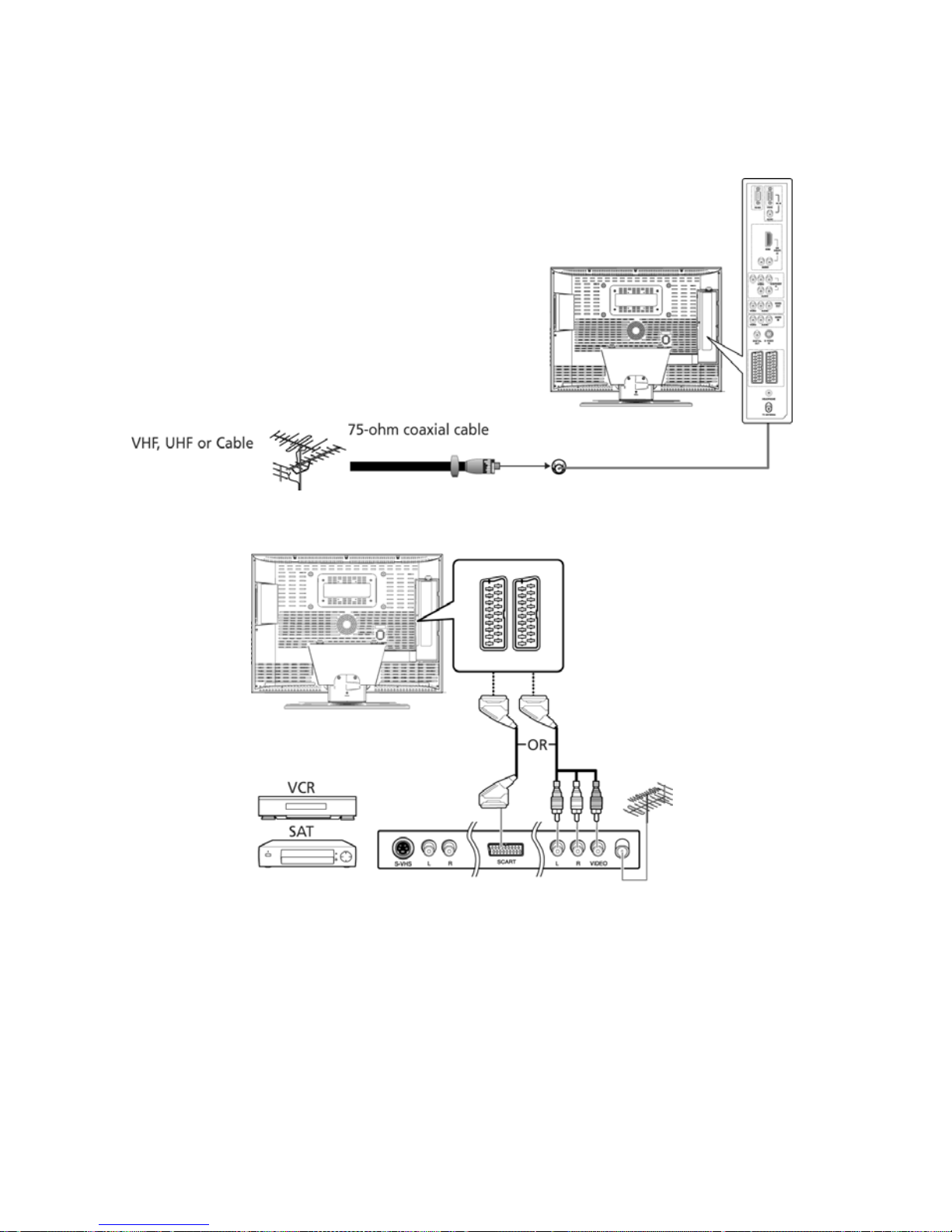
Connecting Your TV
Connecting an Antenna or Cable without a Decoder box
Connecting the Scart Jack
Connection Procedures
1. SCART1 is used for the equipment with an RGB output, such as video game devices or video disc players. This end can be fitted
with:
- A SCART connector
- Three RCA connectors (VIDEO+AUDIO_L+AUDIO_R)
Procedures for watching a Video over a VCR
1. Turn the TV on, and select ‘VIDEO1’ using the LINE button on the remote control.
2. If you have a second VCR and wish to copy cassette tape, connect the source VCR to SCART1 and the target VCR to SCART2 so that
you can redirect the signal from SCART1 to SCART2.
Page 9
Prestigio P260DVD-X P420DVD-X 9
ENG
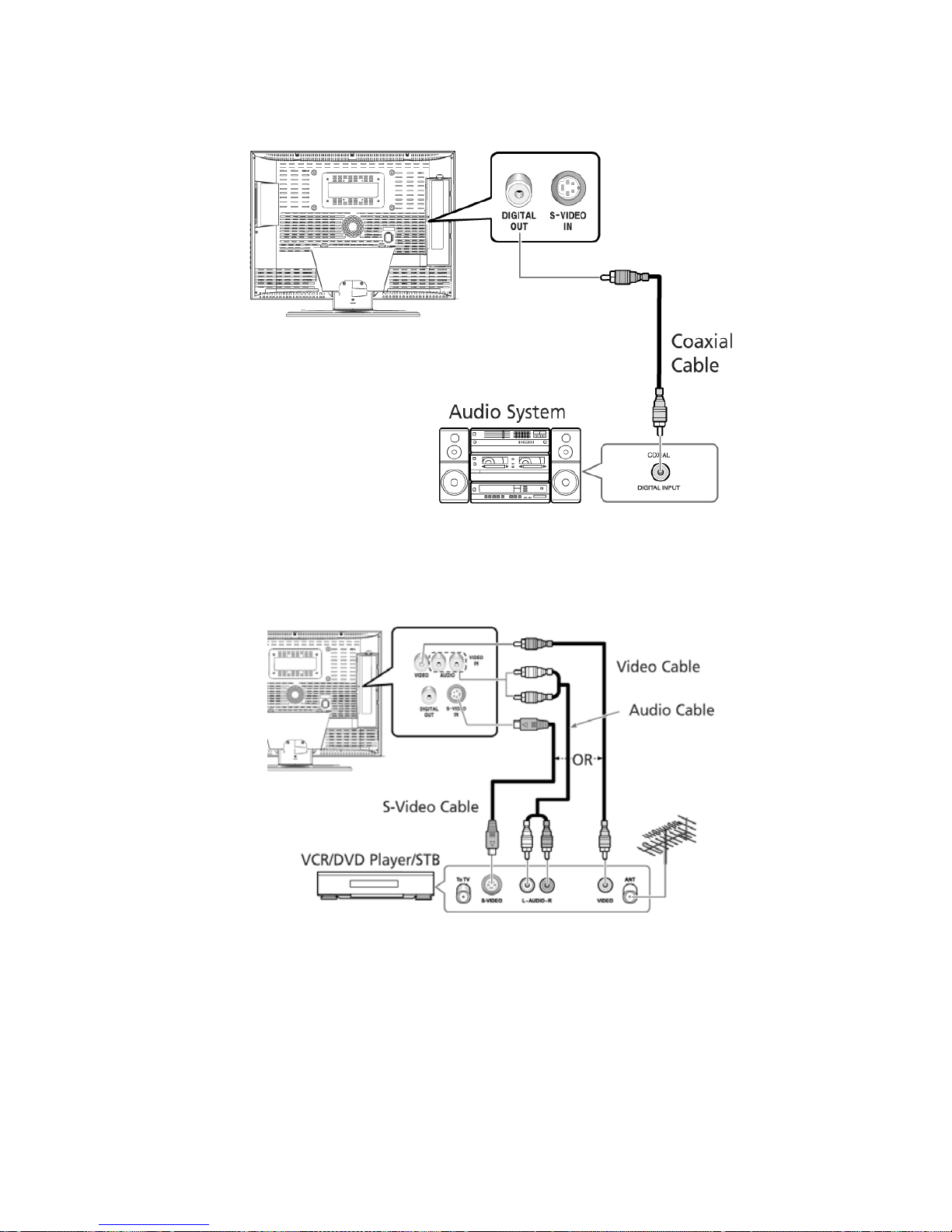
Connecting a Digital Audio System
Connection Procedures
1. Connect the DIGITAL OUT jack on the back of your TV to the DIGITAL IN jack of the Decoder or AV amplifier.
2. Turn the digital amp on and select the external input mode.
Connecting the Video or S-Video/Audio Jacks
Connection Procedures
1. Connect the antenna cable to the ANTENNA IN terminal on the back of your VCR.
2. Connect the VIDEO/AUDIO INPUT jacks of the TV and the video/audio output jacks of your VCR with the video/audio cables.
(Connect the cable to the terminal of the same color)
- You can use the S-Video cable to connect a VCR or a DVD player for better video quality.
- If your VCR does not support stereo sound, connect the mono audio out jack to the AUDIO INPUT (left) jack.
Procedures for watching a video over a VCR
Turn the TV on, and select ‘VIDEO 3’ using the LINE button on the remote control.
- If you have connected a S-Video cable, select ‘S-VIDEO’.
Page 10
10 Prestigio P260DVD-X P420DVD-X
ENG
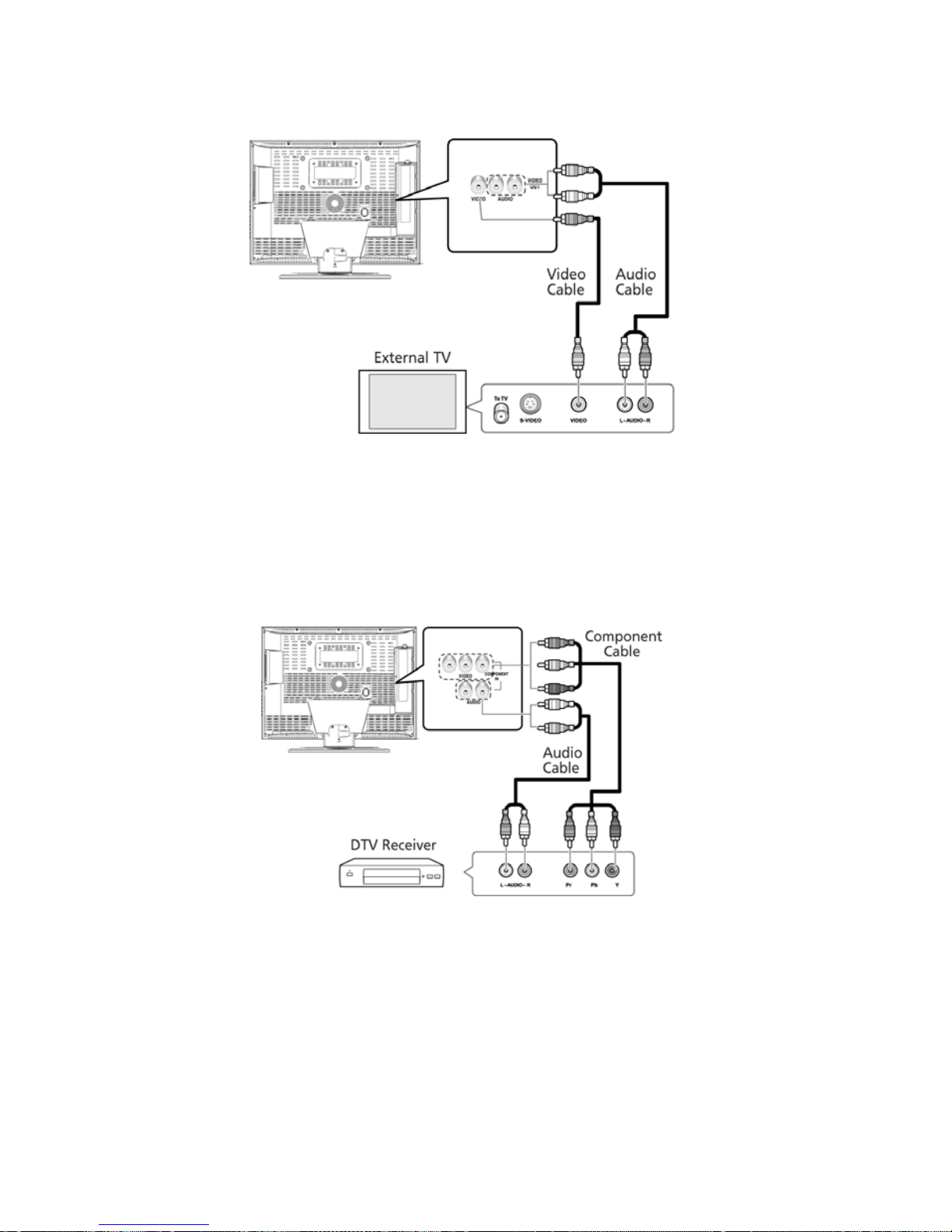
Connecting a External TV
Connection Procedures
1. Connect the AUDIO CABLES between the AUDIO OUT L and R jacks on the back of your TV and the corresponding AUDIO INPUT
jacks on external TV.
2. Connect the VIDEO CABLE between the VIDEO OUT jack on the back of your TV and the corresponding VIDEO INPUT jack on
external TV.
To watch the external TV
1. Turn the external TV on and select ‘VIDEO’ using the external input button.
2. Turn your TV on.
Connecting the DTV Receiver
Connection Procedures
1. The COMPONENT VIDEO IN and COMPONENT AUDIO IN connectors are used for equipment with a DVD or DTV receiver out.
(480i/60Hz, 480p/60Hz, 576i/50Hz, 576p/50Hz, 720p/50Hz, 720p/60Hz, 1080i/50Hz,1080i/60Hz)
To watch the DTV
1. Turn the TV on, and select ‘COMPONENT’ using the LINE button on the remote control.
2. Turn the DTV Receiver on.
Page 11

Prestigio P260DVD-X P420DVD-X 11
ENG
Connecting the HDMI JACK
Warning: Do not Connect DVI audio cable.
Connection Procedures
1. Connect the HDMI input jack of the TV and the HDMI output jack of your DTV Receiver (480p/60Hz, 576p/50Hz, 720p/50Hz,
720p/60Hz, 1080i/50Hz, 1080i/60Hz).
Connecting the HDMI JACK (USE DVI JACK)
Connection Procedures
1. Connect the HDMI input jack of the TV and the DVI output jack of your DTV Receiver (Using the adapter or HDMI cable).
2. Connect the DVI audio input jacks of the TV and the DVI audio output jacks of your DTV Receiver with the audio cable (480p/60Hz,
576p/50Hz, 720p/50Hz, 720p/60Hz, 1080i/50Hz,1080i/60Hz).
3. VESA Standard Mode (Resolution/Vertical Frequency) • 800x600/60Hz, 800x600/72Hz, 800x600/75Hz, 1024x768/60Hz,
1024x768/70.1Hz,1280x768/60Hz.
Page 12
12 Prestigio P260DVD-X P420DVD-X
ENG
TV Function
Check Before Using
Please check the following check list before using the TV.
1. Is the antenna cable connected properly?
2. Are the remote control batteries installed properly?
- Install two AAA size batteries according to the correct polarity.
- The remote control works up to about 7~10m from the TV, 3m to the left or right of the TV, and to within
30 degrees from the remote control sensor of the TV.
3. Have the receive channels been configured?
4. Are the cables connected to any external devices connected properly?
Watching TV
Turning the TV On and OFF
Note
When you power on this product in the first time, the product will ask you language and country selection
on the screen menu. Thus, you should select your own language and country by /\ / \/ and ENTER button.
1. Plug the mains lead into an appropriate socket.
2. Press the POWER switch on the bottom of the television toward “ON”(I) (Depend on the model).
3. Press the POWER button on the remote control (or on the front panel of the unit.)
You can also switch on by pressing the PROG /\ / \/ buttons.
• When you turn the power ON, the screen appears and the POWER/STANDBY light is turned off.
• When you turn the power OFF, the screen goes blank, and the POWER/STANDBY light turns red.
• Do not leave your television in Standby mode for long periods of time (when you are away on holiday, for example). Turn
your television off by pressing the POWER switch toward “OFF”(O)(Depend on the model). It is best to unplug the set from the
mains and aerial.
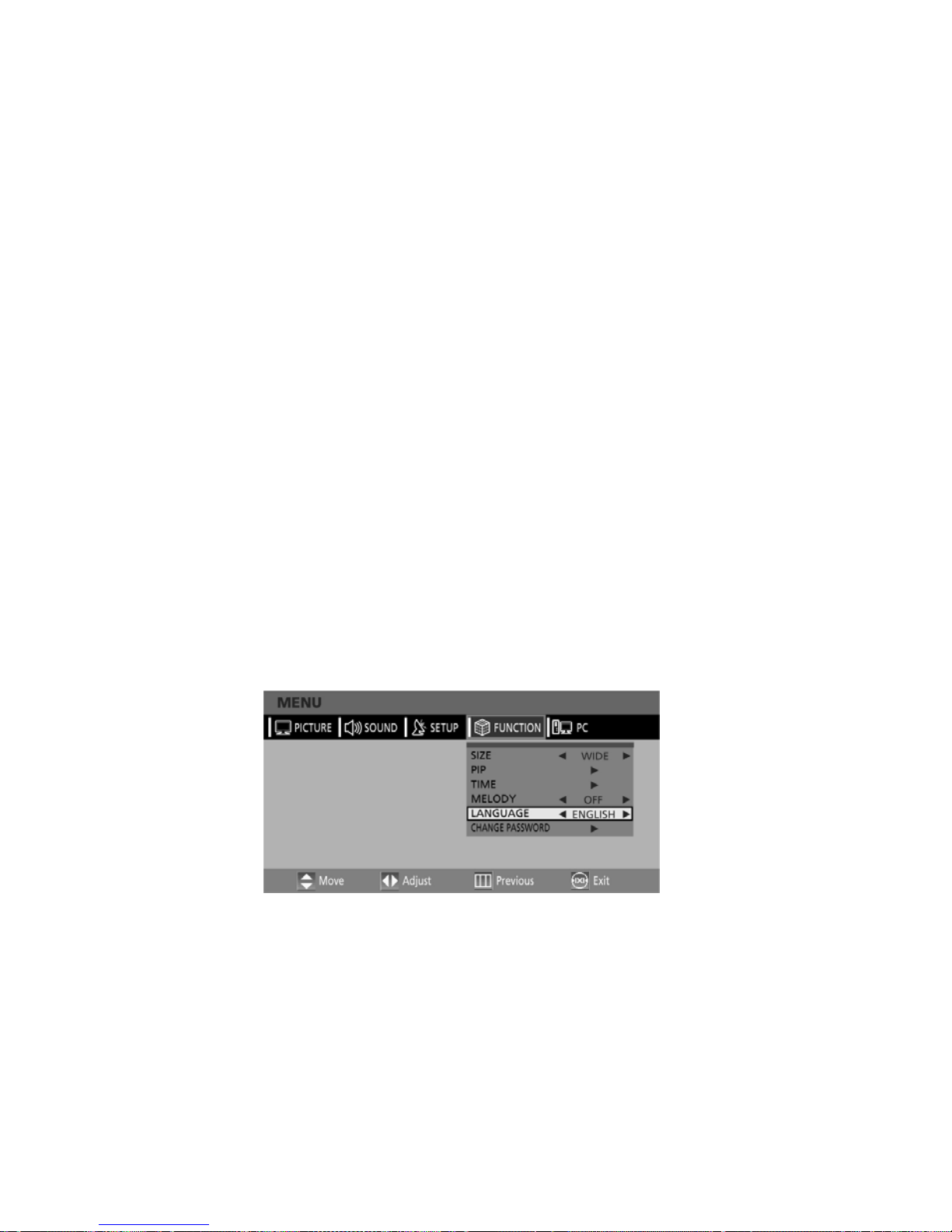
Selecting the Menu Language
1. Press the TV.MENU button. The OSD MENU will be displayed.
2. Select FUNCTION using the < / > button.
3. LANGUAGE using the /\ / \/ button and then press the > button.
4. Select the desired menu language using the /\ / \/ button.
5. Press the EXIT button to exit the menu.
Viewing the Status Information
Press the DISPLAY button on the remote control. The TV will display the input source, the picture mode, the sound mode, the
STEREO mode, the sleep time, the current time, and the pip mode.
Page 13
Prestigio P260DVD-X P420DVD-X 13
ENG
Adjusting the Volume
Adjust the volume using the VOL /\ / \/ button.
Muting the Sound
Press the MUTE button. You can conveniently use the MUTE button when a telephone or a door bell rings. To cancel, press the MUTE
button again.
Viewing a Video, DVD or COMPONENT
Press the LINE button. For connection and setup procedures, refer to the corresponding chapter of this manual.
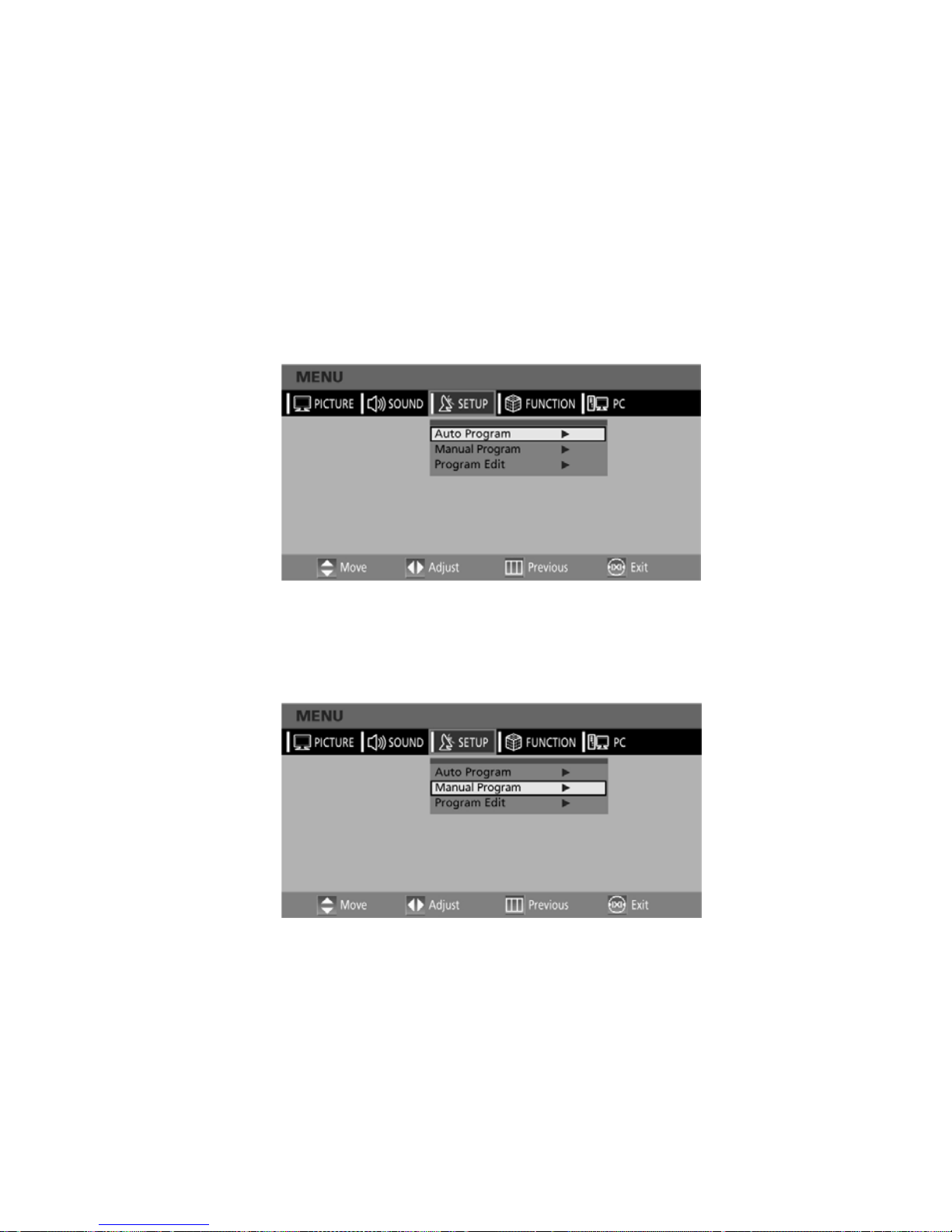
Storing Channels Automatically
1. Press the TV.MENU button. The OSD MENU will be displayed.
2. Select SETUP using the < / >button.
3. Select AUTO PROGRAMMING using the /\ / \/ button and then press the > button.
4. Select your COUNTRY using the < / > button and then press the \/ button.
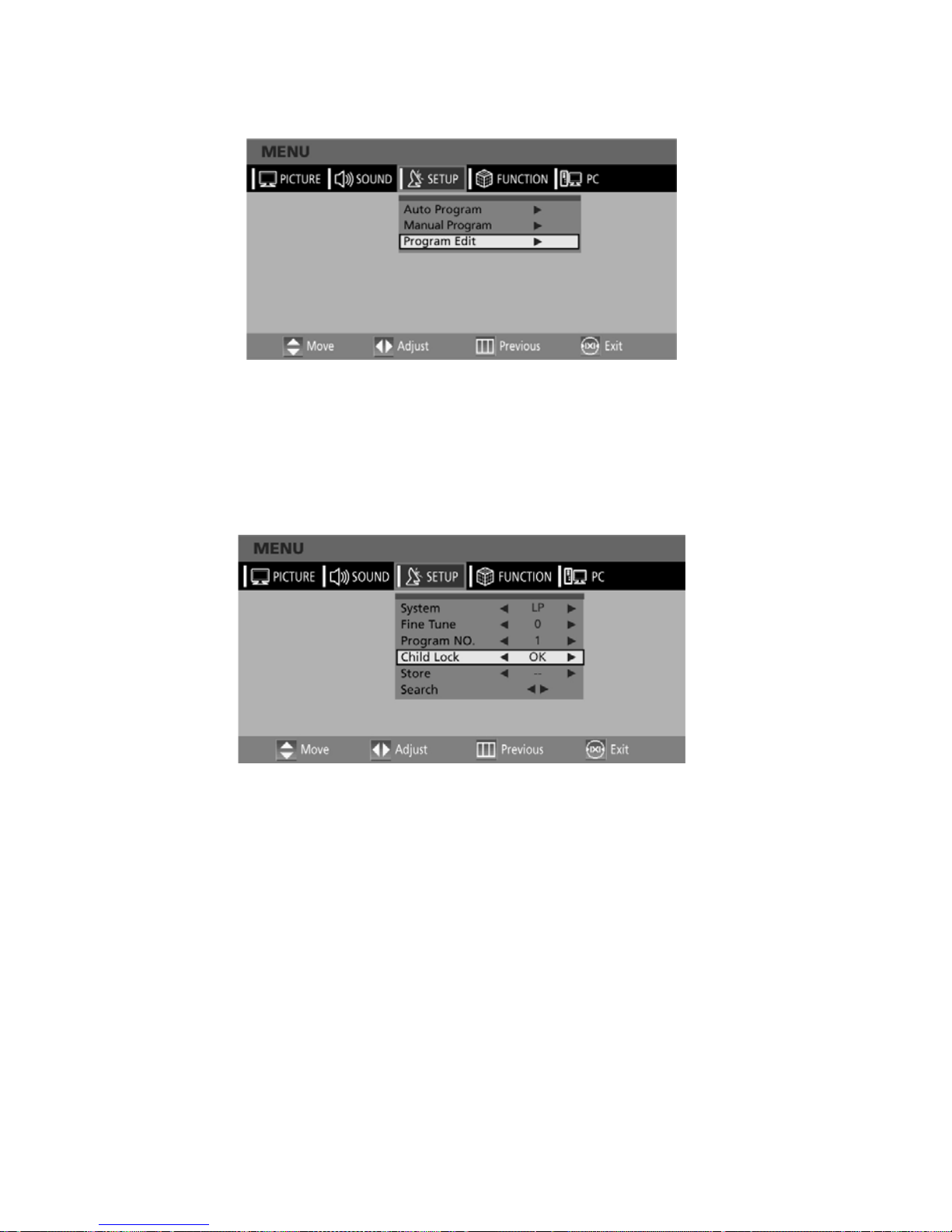
Manual Storing of Channels
When storing channels manually, you can choose:
- Whether or not to store each of the channels found.
- The programme number by which you wish to identify each stored channel.
1. Press the TV.MENU button. The OSD MENU will be displayed.
2. Select SETUP using the < / > button.
3. Select MANUAL PROGRAM using the /\ / \/ button and then press the > button.
4. Select SYSTEM using the < / > button. AUTO > BG >I >DK > M > L > LP > AUTO
5. Select PROGRAM NO. using the /\ / \/ button and press the < / > button to select the required channel number.
6. Select SEARCH using the /\ / \/ button and then press the > button.
The tune scans the frequency range until the first channel on the channel that you selected is received on your screen.
7. Select STORE using the /\ / \/button and then press the > button.
8. Repeat Step 5 to 7 for each channel to be stored.
Page 14
14 Prestigio P260DVD-X P420DVD-X
ENG
Channel Name
1. Press the TV.MENU button. The OSD MENU will be displayed.
2. Select SETUP using the < / > button.
3. Select Program Edit using the /\ / \/ button and then press the > button.
4. Select NAME using the < / > button and press the /\ / \/ or < / > buttons to edit the name.
/\ / \/: Select the characters (A~ Z, 0~9, -, +).
< / >: move on the previous or next letter.
5. Press the EXIT button to exit the menu.
Activating the Child Lock
This feature allows you to prevent unauthorized users, such as children, from watching unsuitable programmers by muting out
video and audio. Child Lock cannot be released using front panel buttons. Only remote control can release the Child Lock setting, so
keep the remote control away from children.
1. Press the TV.MENU button. The OSD MENU will be displayed.
2. Select SETUP using the < / > button.
3. Select MANUAL PROGRAM using the /\ / \/ button and then press the > button.
4. Select CHILD LOCK using the /\ / \/ button.
5. To lock the channel, select LOCK by pressing the < / > button.
Activating the Child Unlock
Note
When child lock is activated, only entering the correct password will proceed to the operation before you
can do auto or manual searches. Everything previously locked will be unlocked.
1 - 4. STEP1~STEP4 is the same as that of Activating the Child Lock.
5. When a login dialog box appears, enter the password to deactivate the CHILD LOCK.
Page 15

Prestigio P260DVD-X P420DVD-X 15
ENG
Program Edit
This function enables you to delete, copy, move or skip the stored programs.
1. Select the channel to tune using the numeric or channel buttons.
2. Press the TV.MENU button. The OSD MENU will be displayed.
3. Select SETUP using the < / > button.
4. Select PROGRAM EDIT using the /\ / \/ button and then press the > button.
Delete a Program
1. Select a program to the deleted with the /\ / \/ buttons.
2. Press the RED button. The selected program is deleted.
All the following programs are shifted up one position.
Copy a Program
1. Select a program to the copied with the/\ / \/ buttons.
2. Press the YELLOW button.
Move the program to the desired program number with the /\ / \/ buttons.
All the following programs are shifted down one position.
3. Press the YELLOW button again to release this function.
Moving a Program
1. Select a program to the moved with the /\ / \/buttons.
2. Press the GREEN button.
3. Move the program to the desired program number with the /\ / \/ buttons.
4. Press the GREEN button again to release this function.
Skipping a Program Number
1. Select a program to the skipped with the /\ / \/ buttons.
2. Press the BLUE button. The skipped program turns to ‘YES’.
3. Press the BLUE button again to release this function.
When a program number is skipped it means that you will be unable to select it using the /\ / \/ button during normal TV viewing. If
you want to select the skipped program, directly enter program number with the number buttons or select it in the program edit or
table menu.
Page 16

16 Prestigio P260DVD-X P420DVD-X
ENG
Changing Channel
1. Using the CHANNEL buttons. Press the PROG /\ / \/buttons to change channels. You will see all the channels that the TV has
memorized. (The TV must have memorized at least three channels.)
2. Using the NUMBER buttons
- To change to single-digit channels (0~9) faster, press “0” before the single digit. Example: For channel 4, press “0”, then “4”.
- To select a channel over 10, press the -/-- button first. Example: For channel 42, press “-/--”, then “4”, then “2”.
3. Using the Previous Channel. Press the PRE button on the remote control. The TV changed to the last channels to the last channel
you were watching.
When the Picture Quality is Poor or Unstable
Use fine tuning to adjust a particular channel for better picture quality when noise interferes, color quality is poor, or the screen is
unstable.
1. Select the channel to tune using the numeric or channel buttons.
2. Press the TV.MENU button. The OSD MENU will be displayed.
3. Select SETUP using the /\ / \/ button.
4. Select MANUAL PROGRAM using the /\ / \/ button and then press the > button.
5. Select FINE TUNE using the /\ / \/ button and then press the </>button to fine tune.
If you are unable to fine-tune a channel, check that the SYSTEM settings are correct.
6. Select STORE using the /\ / \/ button and then press the > button.
7. Press the EXIT button to exit the menu.
Selecting the Picture Status
You can select a video mode from among USER, STANDARD, DYNAMIC, or MILD mode according to your personal preference.
QUICK! Press the P.STD button. Whenever you press this button, PICTURE STATUS changes to
STANDARD >DYNAMIC >MILD >USER mode, in this order.
1. Press the TV.MENU button. The OSD MENU will be displayed.
2. Select PICTURE using the </> button.
3. Select the desired PICTURE STATUS using the </> button. Whenever you press this button, PICTURE STATUS changes to
STANDARD >DYNAMIC >MILD >USER mode, in this order.
4. Press the EXIT button to exit the menu.
Page 17

Prestigio P260DVD-X P420DVD-X 17
ENG
Picture Status
• STANDARD: Select this mode when the surrounding illumination is bright.
• DYNAMIC: Select this mode to increase picture clarity and sharpness.
• MILD: Select this mode when viewing the TV when the light is low.
• USER: Select this mode if you want to adjust the settings according to your personal preferences.
Adjusting the Picture Settings
1. Press the TV.MENU button. The OSD MENU will be displayed.
2. Select PICTURE using the </> button.
3. Select the desired item to adjust using the /\ / \/ button.
4. Select the desired status using the </> button. In addition, PICTURE STATUS is automatically changed to USER mode.
5. Press the EXIT button to exit the menu.
Picture
• CONTRAST: Determines the difference in brightness between an object and the background.
• BRIGHTNESS: Determines the brightness of the screen.
• SHARPNESS: Determines the sharpness of an object image.
• COLOR: Determines the color density.
Selecting the Sound Mode
You can select a sound mode from among STANDARD, MUSIC, SPEECH or USER mode according to your personal preference.
QUICK! Press the S.STD button. Whenever you press this button, SOUND STATUS changes to STANDARD >
MUSIC > SPEECH > USER mode, in this order.
1. Press the TV.MENU button. The OSD MENU will be displayed.
2. Select SOUND using the </> button.
3. Select the desired STATUS using the </> button. Whenever you press this button, SOUND STATUS changes to STANDARD >
MUSIC > SPEECH > USER mode, in this order.
4. Press the EXIT button to exit the menu.
Sound Status
• STANDARD: Select this to listen to sound normally.
• MUSIC: Select this to listen to the original sound.
• SPEECH: Select this to listen to clear voice sound.
• USER: Select this if you want to adjust the settings according to your personal preferences.
Page 18

18 Prestigio P260DVD-X P420DVD-X
ENG
Adjusting the Balance
Determines the volume ratio between the left and right speakers.
1. Press the TV.MENU button. The OSD MENU will be displayed.
2. Select SOUND using the </> button and then press the \/ button.
3. Select BALANCE using the /\ / \/ button.
4. Select the desired status using the </> button. Also, the Sound Status is automatically changed to USER mode.
5. Press the EXIT button to exit the menu.
Adjusting the Headphone Volume
You can listen to the sound of the main or sub PIP using the headphones. You can also adjust the volume of the headphones.
Note: Prolonged use of headphones at a high volume may damage your hearing.
1. Press the TV.MENU button. The OSD MENU will be displayed.
2. Select SOUND using the </> button.
3. Select HEADPHONE VOLUME using the /\ / \/ button.
4. Select the desired volume level using the </> button.
Adjusting the Equalizer
Determines the volume of the frequency range (low to high tones).
1. Press the TV.MENU button. The OSD MENU will be displayed.
2. Select SOUND using the </> button.
Page 19

Prestigio P260DVD-X P420DVD-X 19
ENG
3. Move to the EQUALIZER item using the /\ / \/ button and then press the > button. During the adjustment an additional
adjustment window will be displayed.
4. Move to the desired frequency using the > button.
5. Select the desired status using the /\ / \/button. When you have adjusted the EQUALIZER, the SOUND STATUS is automatically
changed to USER MODE.
Choosing a Soundtrack
The M/S button displays/controls the processing and output of the audio signal. When power is switched ON, the mode is
automatically preset to either DUAL or STEREO, depending on the current transmission.
Quick! Pressing the M/S button. Whenever you press this button, the mode changes to STEREO/MONO
mode, in this order.
1. Press the TV.MENU button. The OSD MENU will be displayed.
2. Select SOUND using the </> button.
3. Select STEREO or DUAL using the /\ / \/ button.
4. Select the desired status using the </> button.
5. Press the EXIT button to exit the menu.
- If the receiving conditions deteriorate, listening will be easier if the mode is set to the MONO position using the M/S button.
- If the stereo signal is weak (or if intermittent Stereo-Mono) and automatic switching occurs, then switch to the MONO mode.
- When receiving mono sound in the AV mode, connect to the ‘L’ input jack on the panels.
- If the mono sound comes out only from the left speaker, then press the M/S button.
Type of broadcast On-Screen
NICAM STEREO Standard broadcast MONO
Regular+NICAM MONO MONO
NICAM STEREO NICAM STEREO<-> MONO
NICAM DUAL NICAM MAIN -> NICAM SUB
A2 STEREO Standard broadcast MONO
Bilingual or DUAL MAIN <-> SUB
STEREO STEREO <-> MONO
Page 20

20 Prestigio P260DVD-X P420DVD-X
ENG
Changing the Screen Size
You can select a desired screen size for each video.
Press the P.SIZE button.
Whenever you press the P.SIZE button, the screen size changes to WIDE >14:9 >4:3 >ZOOM1 > ZOOM2, in this order.
Screen Size Menu
• AUTO : Auto Screen size Control (only TV mode).
• WIDE : Set the picture to 16:9 wide mode (default).
• 14:9 : Sets the picture to 14:9 mode (only TV mode).
• 4:3 : Sets the picture to 4:3 normal mode. This is a standard TV screen size.
• ZOOM1: Magnifies the size of the picture on the screen.
• ZOOM2: Magnifies the size of the picture on the screen leaving the subtitles visible.
Note
You can select only WIDE, 4:3 screen size in the PC Mode.
Freezing the Picture
You can freeze a moving picture on the screen.
Quick! Press the STILL button. Whenever you press this button, the freezing function is turned on or off.
Note
• Even if the picture has been frozen, the audio sound continues normally.
• The freezing function will not work for the PIP window in PIP mode.
Viewing Picture-in-Picture
You can watch two videos on the screen simultaneously.
Quick! Pressing the ON/OFF button. Pressing the button turns the PIP screen on or off.
Page 21

Prestigio P260DVD-X P420DVD-X 21
ENG
1. Press the TV.MENU button. The OSD MENU will be displayed.
2. Select FUNCTION using the </> button.
3. Select PIP using the /\ / \/ button and then press the > button.
4. The PIP menu will be displayed. Whenever you press the
</> button, PIP mode is turned PIP, DW or OFF. Selecting OFF turns off
PIP mode.
5. Press the EXIT button to exit the menu.
Note
• Since this product has a single tuner, you cannot watch two TV channels simultaneously in PIP mode.
• You can only listen to one sound output from either the main screen or the PIP window.
• Refer to the PIP configuration table.
Changing the Source of the PIP Window
You can change the video source of the PIP window from any externally connected devices.
Quick! Pressing the SOURCE button. Whenever you press this button, the source of the PIP window is
changed to the next video signal of an externally connected device, in that order.
1-4. STEP1~STEP4 is the same as that of Viewing Picture-in-Picture.
5. Select SOURCE using the /\ / \/ button.
6. Select the desired external input signal using the
</> button. Since this product has a single tuner, you cannot watch two TV
channels simultaneously when in PIP mode.
7. Press the EXIT button to exit the menu.
Changing the PIP Window Channel
When the PIP window shows normal broadcasting (TV and CATV) channels, you can change the PIP window channel.
Quick! Press the PROG /\ / \/ button. Whenever you press this button, the channel is changed.
1-4. STEP1~STEP4 is the same as that of Viewing Picture-in-Picture.
5. Select CHANNEL using the /\ / \/ button.
6. Select the desired channel using the
</> button. Since this product has a single tuner, you cannot watch two TV channels
simultaneously when in PIP mode.
7. Press the EXIT button to exit the menu.
Page 22

22 Prestigio P260DVD-X P420DVD-X
ENG
Changing the Position of the PIP Window
You can select the location of the PIP window from among the corners of the TV screen.
1-4. STEP1~STEP4 is the same as that of Viewing Picture-in-Picture.
5. Select POSITION using the /\ / \/ button.
6. Select the desired position using the
</> button. Whenever you press this button, the PIP window moves from one corner to
the next of the TV screen.
7. Press the EXIT button to exit the menu.
Selecting the Speaker Output in the PIP Screen Mode
You can select the desired audio source from either the main screen or the PIP window.
Quick! Pressing the SOUND button. Whenever you press this button, the mode is changed to MAIN > PIP.
When MAIN is selected: Audio of the main screen is heard.
When PIP is selected: Audio of the PIP/DW screen is heard.
1-4. STEP1~STEP4 is the same as that of Viewing Picture-in-Picture.
5. Select SPEAKER OUTPUT using the /\ / \/ button and then press the > button.
6. Select a desired status (MAIN or PIP) by pressing the
</> button.
Swapping the Main and the PIP Window
You can swap the video source of the main screen and the PIP window.
Quick! Pressing the SWAP button. Whenever you press this button, the video source of the main screen and
PIP window are swapped.
Page 23

Prestigio P260DVD-X P420DVD-X 23
ENG
Selecting the Headphone Output in the PIP Screen Mode
Note. This function is supported in RF mode only.
You can simultaneously listen to the sound of the main picture using the internal speaker as well as listen to the sound of the
sub-picture using the headphones, by setting up the headphone output configuration or vice versa.
1-4. STEP1~STEP4 is the same as that of Viewing Picture-in-Picture.
5. Select HEADPHONE OUTPUT using the /\ / \/ button and then press the > button.
6. Select a desired status (MAIN or SUB/PIP) by pressing the
</> button.
Setting the Clock
1. Press the TV.MENU button. The OSD MENU will be displayed.
2. Select FUNCTION using the </> button.
3. Select TIME using the /\ / \/ button and then press the > button.
4. Move to the Hour using the > button and then set the Hour to the correct time using the /\ / \/ button.
5. Move to the Minute using the > button and then set the Minutes to the correct time using the /\ / \/ button.
6. Press the EXIT button to exit the menu.
Setting the On/Off Timer
You can set the On/Off Timer to automatically turn the TV on and off at a desired time. The current time has to be configured first to
set the On/Off Timer.
Page 24

24 Prestigio P260DVD-X P420DVD-X
ENG
1-3. STEP1~STEP3 is the same as that of Setting the clock.
4. Select TIMER using the /\ / \/ button. Select ON using the
</> button.
- The ON/OFF TIMER works only when the timer is configured to ON.
Example: Turning On At 6:10 AM
5. Move to ON TIME using the /\ / \/ button.
6. Move to the Hours using the > button and then set the Hour to AM 6 using the /\ / \/ button.
7. Move to the Minute using the > button and then set the Minutes to 10 using the
</> button.
8. Press the > button to finish the ON TIME configuration.
9. Press the EXIT button to exit the menu.
For Off timer setting, select OFF TIME instead of ON TIME.
Selecting the ON Timer Channel/Adjusting the ON Timer Volume
You can configure the channel and volume to play when the TV is turned on by the Timer.
1-3. STEP1~STEP3 is the same as that of Setting the clock.
4. Select PROGRAM NO. using the /\ / \/ button.
5. Select the desired channel to watch when the TV is turned on using the /\ / \/ button.
6. Select VOLUME using the /\ / \/ button.
7. Select the volume level for when the TV turns on using the </> button.
8. Press the EXIT button to exit the menu.
Setting the Sleep Timer
You can shut off the TV after a desired period of time.
Quick! Press the SLEEP button.
Whenever you press this button, the mode is changed to SLEEP OFF > SLEEP 15 > SLEEP 30 > SLEEP 45 >
SLEEP 60 > SLEEP 90 > SLEEP 120 > SLEEP OFF, in this order.
1-3. STEP1~STEP3 is the same as that of Setting the clock.
4. Select SLEEP using the /\ / \/ button.
5. Configure the SLEEP time using the </> button.
6. Press the EXIT button to exit the menu.
Page 25

Prestigio P260DVD-X P420DVD-X 25
ENG
Melody Function
If the MELODY function is turned on, a melody plays whenever the TV is turned on or off.
1. Press the TV.MENU button. The OSD MENU will be displayed.
2. Select FUNCTION using the </> button.
3. Select MELODY using the /\ / \/ button.
4. Select ON using the </> button. Whenever you press this button, the Melody function is either on or off.
5. Press the EXIT button to exit the menu.
Change Password
To play or unlock a locked channel in CHILD LOCK channel mode requires password.
1. Press the TV.MENU button. The OSD MENU will be displayed.
2. Select FUNCTION using the </> button.
3. Select CHANGE PASSWORD using the /\ / \/ button and then press the > button.
4. Enter the password using the numeric button. Initial password is 0000.
5. Enter the change password using the numeric button.
6. To confirm, enter and confirm new password using the numeric button.
Note: Please remember the password should be a 4 digit numeric value.
Page 26

26 Prestigio P260DVD-X P420DVD-X
ENG
TTX Function
Teletext
Most television channels provide written information services via teletext. Information provided includes:
- Television programme times
- News bulletins and weather forecasts
- Sports results
- Travel information initialized with the factory defaults.
This information is divided into numbered pages (see diagram).
Part Contents
A Selected page number.
B Broadcasting channel identity.
C Current page number or search indications.
D Date and time.
E Text.
F Status information.
Displaying the Teletext Information
You can display Teletext information at any time on your television.
For Teletext information to be displayed correctly, channel reception must be stable; otherwise:
- Information may be missing
- Some pages may not be displayed
1. Select the channel providing the Teletext service using the PREPAGE or NEXTPAGE button.
2. Press the TTX button to activate the teletext mode.
Result: The contents page is displayed. It can be redisplayed at any time by pressing the INDEX button.
3. If you wish to display the actual broadcast at the same time as the teletext page, press the MIX button again.
4. Press the CANCEL button to exit from the teletext display.
Selecting a Page by Number
You can enter the page number directly by pressing the numeric buttons on the remote control.
1. Enter the three-digit page number given in the content by pressing the corresponding numeric buttons.
Result: The current page counter is incremented and the page is then displayed.
2. If the selected page is linked with several secondary pages, the secondary pages are displayed in sequence. To freeze the display
on a given page, press the HOLD. Press the HOLD again to resume.
Page 27

Prestigio P260DVD-X P420DVD-X 27
ENG
Using the various display options:
To display... Press the...
Both teletext information and the normal broadcast twice TTX/MIX
Hidden text (answers to quiz games, for example) REVEAL
The normal screen REVEAL again
A secondary page, by entering its 4-digit number SUBPAGE
The next page NEXTPAGE
The previous page PREPAGE
Double-size letters in the:
• Upper half of the screen
• Lower half of the screen
SIZE
• Once
• Twice
Using FLOF to Select a Page
The various topics included in the teletext pages are color-coded, and can be selected by pressing the colored buttons on the
remote control.
1. Display the teletext contents page by pressing the MIX button.
2. Press the coloured button corresponding to the topic that you wish to select; the available topics are given on the status line.
Result: The page is displayed with other coloured information that can be selected in the same way.
3. To display the previous or next page, press the corresponding coloured button.
4. To display the subpage, see the following steps.
• Press the SUBPAGE button. Result: The available subpages appear.
• Select the required sub-page. Sub-pages can be scrolled by using the PREPAGE or NEXTPAGE button.
Page 28

28 Prestigio P260DVD-X P420DVD-X
ENG
PC Function
Connecting to a PC
Connection Procedures
1. Connect the PC D-SUB INPUT jack of the TV and the monitor output jack of the PC using the D-Sub cable.
2. Connect the PC AUDIO jack of the TV and the audio output jack of the PC with the audio cable. (This can only be applied when the
PC actually has an audio output jack.)
Procedures for viewing the PC screen through the TV
1. Turn the PC on and check that the PC settings are correct.
• If the PC settings are incorrect, the screen may display a duplicated or distorted picture.
• For PC configuration procedures, refer to the corresponding chapter of this manual.
2. Press the LINE button and select PC INPUT mode.
3. Adjust the PC screen. (For adjustment procedures, refer to the corresponding chapter of this manual.)
VESA Standard Mode
Resolution 640x480 640x480 640x480 800x600 800x600 800x600 1024x768 1024x768 1280x768
Vertical Frequency 60.0Hz 72.0Hz 75.0Hz 60.0Hz 72.0Hz 75.0Hz 60.0Hz 70.1Hz 60Hz
Page 29

Prestigio P260DVD-X P420DVD-X 29
ENG
Adjusting the PC
1. Press the TV.MENU button. The OSD MENU will be displayed.
2. Select PC using the </> button.
Adjusting the Frequency Position
3. Select FREQUENCY using the /\ / \/ button and adjust the frequency using the </> button.
Adjusting the Phase Position
3. Select PHASE using the /\ / \/ button and adjust the phase using the </> button.
Adjusting the Horizontal Position
3. Select H POSITION using the /\ / \/ button and adjust the horizontal position using the </> button.
Adjusting the Vertical Position
3. Select V POSITION using the /\ / \/ button and adjust the vertical position using the </> button.
Initializing Settings (RESET)
3. Select RESET using the /\ / \/ buttons and then select using the > button. This returns you to the factory default screen.
4. Press the EXIT button to exit the menu.
Auto Adjust
You can adjust the frequency and the phase of the PC screen automatically.
3. Select AUTO ADJUST using the /\ / \/ button and then select using the > button. The PC screen is adjusted automatically.
Page 30

30 Prestigio P260DVD-X P420DVD-X
ENG
DVD Function (Depend on the model)
Playing DVD’s
Turn on the power of the TV and external audio system. Ensure that the local code of the TV set is matched to that of the disc. (If not
matched, your disc cannot be played.)
1. Press the LINE button.
2. Insert the DVD. Ensure that the labeled surface is at the front when placing it.
3. DVD Playback. Your DVD will be automatically played depending on the current program mode.
- To STOP PLAYBACK, press the STOP button.
- To temporarily STOP PLAYBACK, press the PLAY/PAUSE button.
- To resume PLAYBACK, press the PLAY/PAUSE button once again.
Displaying the Playback Status
Select the language on discs that contain more than one language by following the instructions below.
1. Press the DISPLAY button
For DVD Playback
• The ROOT MENU, TITLE REMAIN, CHAPTER ELAPSED, CHAPTER REMAIN is shown.
• Pressing the button again shows the TITLE REMAIN for the chapter.
• Pressing the button again shows the CHAPTER ELAPSED for the chapter.
• Pressing the button again shows the CHAPTER REMAIN for the chapter.
• Pressing the button again exits the status display.
For CD Playback
• The SINGLE ELAPSED for the track is shown.
• Pressing the button again shows the SINGLE REMAIN for the track.
• Pressing the button again shows the TOTAL ELAPSED for the track.
• Pressing the button again shows the TOTAL REMAIN for the track.
• Pressing the button again exits the status display.
Searching for a Specific Screen/Song
You can use one of the functions listed below to jump to a specific chapter or track during playback.
Fast Forward/Reverse
Use this function to play the DISC contents in fast forward or fast reverse. During searching audio will be muted (except CD or MP3).
1. Press the << or >> button.
2. For DVD playback, pressing the button executes the function in the following order: X2 > X4 > X8 > X16 > X32 > X64 > normal.
• For VCD playback, X2 > X4 > X8 > X16 > X32 > normal
• For CD/MP3 playback, X2 > X4 > X8 > normal.
Skip Forward/Reverse
Use this function to move to the next or previous chapter for DVD, track for CD and MP3.
1. Press the |<< or >>| button.
• When the |<< button is pressed, playback skips to the next chapter or track during DVD or CD playback.
• When the >>| button is pressed, playback skips to the beginning of the current chapter during DVD playback and to the
previous chapter when it is pressed again.
Slow Forward/Reverse
1. Press the PLAY/PAUSE button to resume normal playback.
2. Press the << or >> button.
• For disc playback, pressing the button executes the function in the following order: X1/2 > X1/4 > X1/8 > X1/16 > X1/32 >
X1/64 > NORMAL
3. Press the PLAY/PAUSE button to resume normal playback.
Page 31

Prestigio P260DVD-X P420DVD-X 31
ENG
STEP (Frame-by-Frame) Playback
1. Press the PLAY/PAUSE button.
2. Press the |<< or >>| button.
• Each time you press the >>| button, one frame forward is displayed at a time.
• Each time you press the |<< button, one frame backward is displayed at a time.
3. Press the PLAY/PAUSE button to resume normal playback.
Note: Reverse step and reverse slow are not supported on VCD.
Repeating a Title, Chapter (DVD), Track (CD)
Repeat Playback
This function repeats the playback of a chapter, title or track.
1. Press the REPEAT button.
• Each press of the button changes the repeat mode in the following order:
For DVD playback, Chapter > Title > Repeat Off.
For CD playback, Track > Disc > Repeat Off.
2. To resume normal playback, press the REPEAT button repeatedly until the repeat mode indicator disappears on screen.
Repeating a Specific Section
1. During playback, press the A-B button at the beginning of the desired section.
2. Press the A-B button again at the end of the section. "AB" will be displayed on the screen then the A-B section is continually
repeated.
3. To resume normal playback, press the A-B button repeatedly until the repeat mode indicator disappears on screen.
• Chapter repeat: Repeats playback of a single chapter.
• Title repeat: Repeats playback of a single title.
• Repeat disc: Repeats playback of the whole disc.
• Repeat track: Repeats playback of a single track.
• Repeat off: Exits repeat mode.
Changing the Audio Language/Changing the Subtitle Language
Select the language on discs that contain more than one language by following the instructions below.
Changing the Audio Language
It is possible to change the audio soundtrack language to a different language from the one selected at the initial settings. This
operation works only with discs on which multiple audio soundtrack languages are recorded. If the loaded disc supports multiple
languages, you can select the audio language.
1. Press the AUDIO button
• For DVD playback, Each time you press the AUDIO button, the language is changed.
• For CD playback, Mono Left > Mono Right > Mix-Mono > Stereo.
Changing the Subtitle Language
It is possible to change the subtitle language to a different language from the one selected at the initial settings. This operation
works only with discs on which multiple subtitle languages are recorded.
1. Press the SUBTITLE button
2. Press the SUBTITLE button repeatedly until the desired subtitle language is displayed.
3. To turn the subtitles off, press the SUBTITLE button until Subtitle off is displayed.
Changing the Size and Angle of the Screen
Changing the Size of the Screen
1. Press the ZOOM button
• Each press of the button changes the zoom mode in the following order: X1.5 > X2 > X3 > OFF
• If you press the direction button during the zoom mode, the zoom point will shift.
• To resume normal playback, press zoom button repeatedly until the repeat mode indicator disappears on screen.
• This function is activated for only DVD playback.
Page 32

32 Prestigio P260DVD-X P420DVD-X
ENG
Viewing from another Angle
Some DVDs contain scenes that have been shot simultaneously from multiple angles.
1. Press the ANGLE button.
• Pressing the button successively changes the viewing angle which is displayed on the screen.
• The icon (
) appears. If no additional camera angle are recorded, the icon ( ) will be displayed.
• If multiple camera angles are recorded, the (
) icon displays the current angle, number and the number of angles
available.
• This function is activated only for discs having scenes recorded at different angles.
Additional Function
Muting the sound
1. Press the MUTE button.
• Pressing the button toggles the mute function on and off. If no sound is heard with mute turned on, turn it off to hear sound.
Basic Disc Menu Controls
Some DVD's contain menus. Sometimes these are displayed automatically when you start playback; others only appear when you
press MENU or TITLE remote control.
1. Press the MENU button.
• The menu contained on the disc will appear on the screen. The menu appears differently with different disc.
2. Press the TITLE button.
•The title contained on the disc will appear on the screen. The title menu appears differently with different disc.
Programming in a Specific Order
Program play
This function is used to play the Title, Chapter and Tracks on the disc in the order you program.
1. Press the PROGRAM button.
• Program menu is displayed on screen.
2. Select the Track NO.(CD) is displayed on the TV screen.
3. Select other NO. to program. You can add desired racks up to 99 programs. Repeat step 2 until the programming is finished.
4. Using the PLAY button to select "Start", play now begins in the programmed sequence.
5. Stop all the programmed title, chapter and tracks. Using the EXIT button to select "Exit".
Setting a Specific DVD Title or Chapter
This function is used to go to the Chapter, Track or Song of the disc you want.
Program play DIRECT Search (GO TO) for DVD
1. Press the GOTO button.
2. Select the item using the </> button and press the ENTER button.
Page 33

Prestigio P260DVD-X P420DVD-X 33
ENG
• Chapter: Press the chapter number using the numeric button.
• Title: Press the Track number using the numeric button.
• TT: Press the number of the desired time in title using the numeric button.
3. Press the ENTER button to confirm.
DIRECT Search (GO TO) for CD
1. Press the GOTO button and select the desired item.
• Each press of the GOTO button changes the repeat mode in the following order: Disc Go To - - : - - > Disc go to XX:XX
2. Enter the number using the numeric button.
• Disc Go To: Press the number of the desired time in disc using the numeric button.
• Track Go to: Press the number of the desired time in track using the numeric button.
• Select Track: press the track number using the numeric button.
Playing MP3 Discs
Playback of a CD/CD-RW disc that contains a MP3 files.
To Play a MP3 File
1. Insert the MP3 disc. Make sure that the disc's label is facing up.
2. Using the /\ / \/ button to find the desired folder.
3. Using the /\ / \/ button to select the desired a mp3 files.
4. Press the ENTER button to start playback a file.
Repeat Playback
Playback of a CD/CD-RW disc that contains a MP3 files.
1. Press the REPEAT button.
• Each press of the REPEAT button changes the repeat mode in the following order: Repeat track > Folder repeat > Repeat
OFF.
Note
• The file name is only displayed in English.
• This player is compatible with the "MPEG-1 Audio Layer 3" standard. It is not compatible with other
standards, such as "MPEG-2 Audio Layer 3", "MPEG-2.5 Audio Layer 3", MP1, MP2, etc.
• Do not play CD-R/RW discs containing any files other than music CD files, MP3 and JPEG files.
• Programmed playback is not possible with MP3 discs.
• When writing MP3 files on CD-R/RW discs, select "ISO9660 level 1" as the writing software format.
Page 34

34 Prestigio P260DVD-X P420DVD-X
ENG
Playing DIVX Discs (option)
Playback of a CD/CD-RW disc that contains a DIVX files.
CAUTION: This subtitle is selectable only when it' s name is same with the title' s .
To Play a DIVX File
1. Insert the DIVX disc. Make sure that the disc's label is facing up.
2. Using the /\ / \/ button to find the desired folder.
3. Using the /\ / \/ button to select the desired a divx files.
4. Press the ENTER button to start playback a file. Press the SUBTITLE button to delete the subtitle display while playback.
Note
• AVI file used to contain the audio and video data : these must be stored on CD in the ISO 9660 format .
• Press STOP button when file do not appear on the screen .
• When playing the DivX disk , you can play the file with extension of AVI only .
• DTS Audio is not supported .
• WMA is not supported .
• When burning a subtitle file to a CD-ROM in your PC , be sure to burn it as an SMI file .
• Reverse of slow playback does not work DivX .
• Supported format: VIDEO - Divx3. 11 , 4. x , 5. x AUDIO - AC3 , MP3(80kbps ~ 320kbps)
Playing Kodak Picture CD and JPEG File
To play Kodak Picture CD and JPEG File
When a Kodak Picture CD is inserted, an automated slide show is launched. When a JPEG file is loaded the table of contents is
displayed on TV screen.
1. Insert the Kodak Picture CD or JPEC file disc.
• An automated slide show is launched.
• If you press the (
) button, File menu screen will be appeared.
3. Select the picture.
• Select the picture, you want to see, by pressing the /\ / \/ button.
4. Press the ENTER button.
• The selected item is displayed as a full size picture.
Changing the Size of the Screen
1. Press the ZOOM button.
• Each press of the ZOOM button changes the zoom mode in the following order:
(<<) 25% > 50% > 100%(default) > 150% > 200%(>>).
Page 35

Prestigio P260DVD-X P420DVD-X 35
ENG
Image Rotation
1. Press the /\ / \/ </> button. There are 4 modes to rotate a picture:
• /\ button : invert
• \/ button : mirror
• < button : Turn left
• > button : Turn right
Changing JPEG Slideshow Transition Mode
1. Press the ANGLE button.
• 13 slideshow transition modes are provided.
• Each press of the ANGLE button is pressed during JPEG image playback, the display mode on screen shows 13 variations as
follows:
- mode 1 : It displays from top to bottom in turn.
- mode 2 : It displays from bottom to top in turn.
- mode 3 : It displays from top to bottom to center in turn
- mode 4 : It displays from center to top and bottom in turn.
- mode 5 : It displays from vertical blind.
- mode 6 : It displays from left to right in turn.
- mode 7 : It displays from right to left in turn.
- mode 8 : It displays from left and right to center in turn.
- mode 9 : It displays from center to left and right in turn.
- mode 10 : It displays from outside to inside in turn.
- mode 11 : It displays from horizontal blind.
- mode RAND : It displays at random.
- NONE
Starting music slide show
1. Whenever SUBTITLE button pressed at STOP mode, SLIDE SHOW MODE1 > SLIDE SHOW MODE2 > SLIDE SHOW MODE3 > SLIDE
SHOW OFF will be selected repeatedly.
2. Starting slide show mode 1
• After selecting SLIDE SHOW MODE 1, press ENTER button. MP3 FILE No.1 Track will be played with JPEG Picture changing
automatically.
3. Starting slide show mode 2
• Select SLIDE SHOW MODE 2 and press the arrow button to select the MP3 File tracks.
• Press A-B on the remote and Press ENTER.
• The selected MP3 FILE will be played with JPEG Picture changing automatically.
4. Starting slide show mode 3
• Select SLIDE SHOW MODE 3 and press ENTER button. While MP3 FILE No.1 Track is playing, JPEG picture will not be changed.
• When the MP3 FILE track moves to the next one, the JPEG picture will be moved to the next one too.
5. Stopping slide show mode
• Press STOP button to stop MP3 FILE and SLIDE SHOW.
Page 36

36 Prestigio P260DVD-X P420DVD-X
ENG
Using the Setup Menu
Once the initial settings have been completed, the player can always be operated under the same conditions whenever the power is
switched on. These settings are called SETUP data, and are easily modified and stored using the SETUP menu. The SETUP menu
includes the information for GENERAL, LANGUAGE, VIDEO, SPEAKER, AUDIO and CUSTOM SETUP.
Language Setup
1. Press the SETUP button during stop mode and Press the </> button to move to Language Setup.
2. Press the /\ / \/ button to move to desired item. And press the ENTER button.
3. Press the /\ / \/ button to select desired language.
• AUDIO: Use the audio language menu to select the subtitle language that you prefer. If the disc you are playing has that
language available, it will display subtitles in that language.
• SUBTITLE: Use the subtitle language menu to select the subtitle language that you prefer. If the disc you are playing has that
language available, it will display subtitles in that.
• DISC MENU: Use the Disc Menu option to select the language you want a DVD's disc menu to be displayed in(not the same as
the player menu).
Video Setup
For selecting TV screen ratio.
1. Press the SETUP button during stop mode and Press the </> button to move to Video Setup.
2. Press the /\ / \/ button and press the ENTER button.
3. Press the /\ / \/ button to select desired item.
TV DISPLAY
• 4:3 / PS: Choose this setting if you want the movie to fill the entire screen of your TV. This might mean that the left and right
edges won't be seen.
• 4:3 / LB: Choose this setting if you want to see movies in their original aspect ratio. The movie might appear with black bars
at top and bottom of the screen.
• 16:9 / WIDE: Choose this setting if you want the movie to be seen in widescreen.
PIC MODE
• AUTO : The picture mode will be selected automatically according to the disc information.
• FILM : The optimal display at still mode will be selected.
• VIDEO : The optimal display at movie mode will be selected.
• SMART : The optimal display will be displayed by the combination of Film and Video.
SCREEN SAVER
- You can select the screen protection function 'On' and 'Off'.
Page 37

Prestigio P260DVD-X P420DVD-X 37
ENG
Speaker Setup
1. Press the SETUP button during stop mode and Press the </> button to move to Speaker Setup.
2. Press the /\ / \/ button to move to desired item. And press the ENTER button.
3. Press the /\ / \/ button to select desired item.
• Downmix
- LT/RT: Choose this setting if you want to select the surround sound for the front speaker.
- Stereo: Choose this setting if you want to select the stereo output through the front speaker.
Audio Setup
1. Press the SETUP button during stop mode and Press the </> button to move to Audio Setup.
2. Press the /\ / \/ button to move to desired item. And press the ENTER button.
3. Press the /\ / \/ button to select desired item.
DIGITAL
- ON : Set to disconnect the digital output sound.
- OFF : Set to output digital sound.
DUAL MONO
- STEREO : For stereo sound output.
- LEFT MONO : For stereo the output of the left channel of the audio track.
- RIGHT MONO : For selecting the output of the right channel of the audio track.
- MIXED MONO : For selecting the output of both the left and right channels of the audio track.
Dynamic
- For increasing the output of the audio only. (4/4, 3/4, 2/4, 1/4, OFF)
- Selecting OFF returns to the default value.
Custom Setup
1. Press the SETUP button during stop mode and Press the </> button to move to Custom Setup.
2. Press the /\ / \/ button to move to desired item. And press the ENTER button.
3. Press the /\ / \/ button to select desired item.
• Logo
- MPG Logo : To use the original initial screen.
- JPG Logo : To use the initial screen downloaded from CD.
If you use DivX (option), the JPG logo is applied.
If you use DVD (option), the JPG logo is not applied.
Page 38

38 Prestigio P260DVD-X P420DVD-X
ENG
• Parental
- Set a password and select rating level for DVD’s unsuitable for children.
• Password Change
1. Press the SETUP button during stop mode and Press the </> button to move to Password Setup.
2. Press the /\ / \/ button and press the ENTER button.
3. Press the ENTER button again.
4. Enter your old password, and new password in 4 digits.
5. Re-enter new password for confirmation then press the ENTER button.
• The Password is preset to 0000.
• Default
- If user selects reset from the setup menu, all the value of setup menu will be initialized by factory setting value. (Exception:
Parental level and Password values will not be changed.)
Page 39

Prestigio P260DVD-X P420DVD-X 39
ENG
DivX Function(Depend on the model)
DivX (option)
DivX Feature Table
• AVI files are used to contain the audio and video data; these must be stored on CD in the ISO 9660 format.
• When playing the DivX disc, you can play the file with extension of AVI only.
• WMV is not supported.
• When burning a subtitle file to a CD-ROM in your PC, be sure to burn it as an SMI file.
• Reverse of slow playback does not work with DivX.
VIDEO
• DivX 3.11 content
• DivX 4 content (Based on MPEG-4 simple profile)
• DivX 5 content (MPEG-4 simple profile, bi-directional frames, Qpel and GMC are not supported.
Support all resolution up to maximum of 720 X 480 @ 30fps
720 X 576 @ 25fps
Macroblocks per second 40500
Maximum average bitrate 4000 kbps
Maximum peak bitrate during any 3 seconds of video 10000kbps
Minimum VBV buffer size (kbytes) 384k bytes
Note.
Our solution supports a maximum constant 6Mbps bitrate.
AUDIO
DivX certified devices can play back any interleaved MP3 audio at any bitrate, both CBR and VBR.
The audio must be sampled at standard frequencies, such as 32khz, 44.1khz, and must conform to the AVI file specification.
DivX® VOD Playback
This chapter explains how to playback DivX VOD.
1. Press SETUP at disc stop mode.
2. Use </> to move to “Custom” mode.
3. Use /\ / \/ to move to “DivX® VOD”, then press ENTER.
4. Then, below message will pop up.
YOUR REGISTRATION
CODE IS : XXXXXXXX
TO LEARN MORE
GO TO WWW.DIVX.COM/VOD
5. Registration code is : XXXXXXXX please fill out 8 characters registration code.
6. When you down load files through internet. Please make sure to insert registration code before the down loading.
7. Burn the down loaded file to CD-R or CD-RW.
8. Playback CD-R or CD-RW disc to the set.
9. You will see below message.
This rental video has X view left. A view ends when you stop playback, play a different video, or trun off your player. Do you
want to use one of your X views now?
Page 40

40 Prestigio P260DVD-X P420DVD-X
ENG
10. If you select “YES” button, it will playback, otherwise it will show you list of files.
Note.
• If you tried to play back anything over X view. If will show you following message “This rental is expired”
and will not play back. If you tried to play back expired rental disc, it will show you following message “ This
rental is expired”.
• If you want play back new rental disc, please follow the procedure from No.1
• In case of Bad Registration code are inserted. It turns out to be invalid registration code, the file will not be
play back. “This video player is not authorized to play this video.” showing following message.
Using ARM on the Outer Wall
This LCD TV is available for installing Wall Mount Rack. When you install Wall mount rack to this product, please make sure to use
the same manufacturer’s Wall mount rack as LCD TV. Regarding purchasing Wall mount Rack, please contact the shop you
purchased LCD TV. For detailed installing procedure of Wall mount rack please refer to “Wall Mount Rack Installing Guide”.
Page 41

Prestigio P260DVD-X P420DVD-X 41
ENG
Troubleshooting
If the TV seems to have a problem, first try the following list of possible problems and solutions before contacting a service center. If
none of these troubleshooting tips apply, do not attempt to repair the product yourself. Call your nearest service center.
• Symptoms that may appear to be a problem
The following symptoms may happen even if the TV has no problem. First try the following list of possible problems and solutions
before contacting a service center. First try the following list of possible problems and solutions. If the symptom continues, turn the
TV off, and call your nearest service center.
Symptom Possible Problem Possible Solution
No picture on the screen,
and the power LED does not
turn on.
Power connection problem. Check the power cable connectivity to the power
connector. Press the power switch again (Depend on
the model).
The TV is turned on, but
there is no picture on the
screen.
The brightness is adjusted too low.
The fluorescent tube is out of order.
Adjust the brightness and the contrast so that a
picture is displayed brightly. The fluorescent tube of
a LCD TV has a lifetime of about 50,000 hours. To
replace the fluorescent tube, contact a service
center.
An afterimage is generated
when continuously
watching a still image.
This is caused by an inherent property of LCD panels. Depending on the number of valid pixels,
there may be black or bright pixels. These will be less than 0.005% of the sum of all pixels. This
is not a problem.
No picture on the screen. No
audio.
Discordance between the external
device jack and the input switch
button location.
Adjust the input switch location.
A picture is displayed on the
screen, but there is no audio.
The volume is adjusted to 0.
Mute is active.
The audio cable is disconnected.
Turn up the Volume button.
Press the Mute button again.
Check the audio cable connectivity.
Remote control
malfunctions.
The polarity of the batteries
installed in the remote control is
wrong.
The batteries installed in the
remote control have not been
discharged completely.
Reinstall the batteries properly.
Replace the batteries with new ones.
Noise is heard on the radio. This may happen when you use a
radio near the TV.
Noise may occur when you use a radio near the TV.
Keep some distance between any radios and the LCD
TV.
No color in a color picture. The Color density is adjusted to 0 or
almost 0.
Adjust the Color density to 100 or less.
Duplicated pictures on the
screen.
This may be caused by reflected
broadcasting signals when there is
are mountains, buildings, or trees
near your house.
Check if there are any tall objects such as skyscrapers
near your house. Check that the direction of the
antenna is adjusted correctly.
Blurred or snowy picture. The direction of the antenna is not
optimal.
The antenna cable is disconnected.
Check that the direction of the antenna is correct.
Check that the antenna cable is connected to the
ANTENNA jack on the back of the LCD TV.
The entire screen flickers. This product has been optimally set to watch TV
channels in the factory. There may be flickering
when you watch still images from a PC. This is not a
problem of the product.
Page 42

42 Prestigio P260DVD-X P420DVD-X
ENG
The remote control does not work properly!
• Are the polarities of the installed batteries correct?
• Has the battery discharged completely?
• Is the power cord plugged in properly or is there a power failure?
• Is fluorescent lighting or a neon sign near the unit?
Warning
If a problem has been detected, unplug the power cable from the wall outlet first.
Using the product when it has a fault may cause electric shocks or fire.
Do not place objects near the wall outlet so that you can unplug the power cable if necessary.
Page 43

Prestigio P260DVD-X P420DVD-X 43
ENG
Specifications
The exterior design and the product specifications are subject to be changed without prior notice due to improvements in
performance. This product is manufactured for domestic use. This product may not be used in countries whose television system
type or power voltage is different.
The TFT LCD panel uses a panel consisting of sub pixels which require sophisticated technology to produce. However, there may be
few bright or dark pixels on the screen. These pixels will have no impact on the performance of the product.
LCD Panel
Screen Size
26 inch WIDE
32 inch WIDE
37 inch WIDE
42 inch WIDE
Type
Color Active Matrix TFT LCD
Display Color
8-bit, 16.7M
DVD loader (Option)
Applicable disc (Do not insert 8Cm/3inch disc.)
DVD-Video / DVD-R /+R / Super VCD / VCD / CD /
CD-R / RW /MP3 / WMA / JPEG files / Picture CD Disc
Compatible
MPEG4 ASP Video (OPTION)
Support Divx 3.11 / 4.x / 5.x
Aspect Ratio
16:9, 4:3Letter Box, PAN&SCAN
Language
Audio(9), Subtitle(9) (+others)
Audio Outputs
Digital Coaxial out: Dolby digital, DTS digital Output
Analog Audio out : Down Mix 2 CH Stereo, Lt/Rt
TV/ VIDEO
Receiver/Channels
VHF: Channel E2 ~ Channel E12
UHF: Channel E21 ~ Channel E69
CATV: Channel S1 ~ Channel S41
Television Broadcasting System: PAL, SECAM: B/G,
D/K, I, L, L’
Antenna Interface
VHF, UHF: 75ohm
Video Signal
PAL, SECAM, NTSC(3.58/4.43)
PC
Synchronization
Horizontal F – 30 ~ 60KHz
Vertical F – 56 ~ 75Hz
Color Quality
16,772,216 colors
Maximum Resolution
1280 X 768
Separation Signal
TTL, Anode or Cathode
Display Color
8-bit, 16.7M
Interface
D-sub
HDMI(HDCP)
HDMI/DVI-D
Audio Output
26 inch WIDE
8W x 2
32 inch WIDE
10W x 2
37 inch WIDE
10W x 2
42 inch WIDE
10W x 2
Power Consumption
26 inch WIDE
Maximum 140 W (26 inch WIDE)
32 inch WIDE
Maximum 160 W (32 inch WIDE)
37 inch WIDE
Maximum 200 W (37 inch WIDE)
42 inch WIDE
Maximum 250 W (42 inch WIDE)
Power Consumption When Power Saving
Less than 3 W
Input Voltage
AC 100-240V~, 50/60Hz
Dimension
Monitor + Stand (W X H X D)
694.4 X 597.2 X 270 (26 inch WIDE)
819 X 663 X 314 (32 inch WIDE)
958 X 730.5 X 323.4 (37 inch WIDE)
1073 X 840 X 327 (42 inch WIDE)
Monitor Alone (W X H X D)
694.4 X529 X 122 (26 inch WIDE)
819 X 594 X 131.5 (32 inch WIDE)
958 X 660.5 X 138.5 (37 inch WIDE)
1073 X 772 X 141 (42 inch WIDE)
Page 44

44 Prestigio P260DVD-X P420DVD-X
ENG
Weight
16 Kg (26 inch WIDE)
26 Kg (32 inch WIDE)
31 Kg (37 inch WIDE)
37 Kg (42 inch WIDE)
Accessories
Remote control, Battery (AAA), User’s Guide, Power
Cord, SCART Cable (option).
Note: This device has been registered in regards to EMI for residential use. It may be used in all areas.
Appendix
Standard Signal Mode Table
A TFT LCD TV is configured to support the following 11 signal modes. A user can register up to 11 modes. Configure the PC display
mode referring to the following table. For configuration procedures, refer to the Appendix of the PC manual.
Resolution Horizontal
Frequency (KHz)
Vertical
Frequency (Hz)
Clock Frequency
(MHz)
Polarity (H/V)
MAC, 640 X 480 31.469 59.94 25.175 -/-
VESA, 640 X 480 37.861 72.809 31.5 -/-
VESA, 640 X 480 37.5 75 31.5 -/-
IBM, 720 X 400 31.469 70.087 28.322 -/+
VESA, 800 X 600 37.879 60.317 40 +/+
VESA, 800 X 600 48.077 72.188 50 +/+
VESA, 800 X 600 46.875 75 49.5 +/+
MAC, 832 X 624 49.726 74.551 57.284 -/-
VESA, 1024 X 768 48.363 60.004 65 -/-
VESA, 1024 X 768 56.476 70.069 75 -/-
VESA, 1280 X 768 47.693 59.992 80.125 -/+
PIP Screen Configuration Table
TV VIDEO1 VIDEO2 VIDEO3 S-VIDEO RGB DVD
(opt.)
DTV
(opt.)
COMPONENT HDMI
(HDCP)
PC
TV
X X X X X X O O O O X
VIDEO
(SCART)1
X X X X X X O O O O X
VIDEO
(SCART)2
X X X X X X O O O O X
VIDEO3
X X X X X X O O O O X
S-VIDEO
X X X X X X X X X O X
RGB
X X X X X X X X X O X
DVD(opt.)
O O O O X X X O X O X
DTV (opt.)
O O O O X X O X X O X
COMPONENT
O O O O X X O O X O X
HDMI
(HDCP)
O O O O 0 0 O O O X X
PC
O O O O X X O O X O X
 Loading...