

Page 1
Aura Series
PP-8000 / PP-8000L / PP-8000U
FCC Notes:
This equipment generates, uses, and can radiate radio frequency energy and, if not installed and
used in accordance with the instructions manual, may cause interference to radio communications.
It has been tested and found to comply with limits for a Class A digital device pursuant to subpart
J of Part 15 of FCC Rules, which are designed to provide reasonable protection against
interference when operated in a commercial environment. Operation of this equipment in a
residential area is likely to cause interference in which case the user at his own expense will be
required to take whatever measures to correct the interference.
This product has been designed and manufactured in accordance with the International Standards
EN50081-1/01.92 and EN50082-1/01.92 following the provisions of the Electro Magnetic
Compatibility Directive of the European Communities as of May 1989
Warranty Limits:
Warranty terminates automatically when any person other than the authorized technicians opens
the machine. The user should consult his/her dealer for the problem happened. Warranty voids if
the user does not follow the instructions in application of this merchandise. The manufacturer is by
no means responsible for any damage or hazard caused by improper application.
About This Manual:
Posiflex has made every effort for the accuracy of the content in this manual. However, Posiflex
will assume no liability for any technical inaccuracies or editorial or other errors or omissions
contained herein, nor for direct, indirect, incidental, consequential or otherwise damages, including
without limitation loss of data or profits, resulting from the furnishing, performance, or use of this
material.
This information is provided “as is” and Posiflex Technologies, Inc. expressly disclaims any
warranties, expressed, implied or statutory, including without limitation implied warranties of
merchantability or fitness for particular purpose, good title and against infringement.
The information in this manual contains only essential hardware concerns for general user and is
subject to change without notice. Posiflex reserves the right to alter product designs, layouts or
drivers without notification. The system integrator shall provide applicative notices and
arrangement for special options utilizing this product. The user may find the most up to date
information of the hardware from web sites: http://www.posiflex.com
http://www.posiflex.com.tw
All data should be backed-up prior to the installation of any drive unit or storage peripheral.
Posiflex will not be responsible for any loss of data resulting from the use, disuse or misuse of this
or any other Posiflex product.
All rights are strictly reserved. No part of this documentation may be reproduced, stored in a
retrieval system, or transmitted in any form or by any means, electronic, mechanical, photocopying,
or otherwise, without prior express written consent from Posiflex Technologies, Inc. the publisher
of this documentation.
© Copyright Posiflex Technologies, Inc. 2009
All brand and product names and trademarks are the property of their respective holders.
THERMAL PRINTER
USER’S MANUAL
Rev.: A0
CE manufacturer’s Declaration of Conformity
(EC Council Directive 89/336/EEC of 3 May 1989)
or
or http://www.posiflexusa.com
P/N: 19770900020
Part 1
Page 2

GETTING STARTED
CONGRATULATION
You have made a very wise decision by purchasing the easy loading;
low noise; high resolution; light weight; high reliability and high performance
thermal printer Aura (PP-8000, PP-8000L & PP-8000U) series of Posiflex
products. This series of printers has been elegantly designed for a Point-OfSale, kitchen & kiosk application. The PP-8000 series comply with UPOS 1.8
standards under Posiflex UPOS driver support. The manufacturer of this
printer not only wishes to take this opportunity to congratulate your smart
investment on buying this printer but also likes to express the wishes for your
prosperous future by using it.
PRODUCT BRIEFING
The Aura PP-8000, PP-8000L & PP-8000U series printer uses
thermal sensitive paper in form of a roll at a width of 80 mm (standard) or 58
mm (option). These Aura series printers serve the stand-alone desktop
application as well as the application within a Posiflex integrated POS system
equally perfect.
The Aura PP-8000 series support two types of interface input through
different sub-codes to the model number. The interfaces are RS232 for serial
interface and Centronics for parallel interface. The Aura PP-8000L series
connects to a LAN port of Posiflex POS systems. The Aura PP-8000U series
connects to an USB port of Posiflex POS systems and simulates a RS232
device through driver and performs thermal printing particularly designed for
POS applications. The Aura PP-8000 series is already WEPOS (Windows
Embedded for Point Of Service) compliant. Aura printer of different model
number sub-codes utilizes different cabinet color and accessory cable and
switch setting to accommodate the requirement of different interface.
The Aura PP-8000 series support a guillotine type auto cutter for
paper partial cut and a manual cut mechanism. The Aura series also supports
user’s company’s LOGO downloading for superior performance. It even
supports some enhancement capability for reminder function to persons around.
It can be used to drive a separately purchased kitchen bell for such reminder
function in noisy environment. This printer also supports application in
different countries of various kinds of power systems by changing the power
cord to the power adaptor. It offers outstandingly high printing speed. This
series make beeping sound as response to Paper End or Paper Near End signals.
20 plus code pages are supported in the standard model for application
convenience.
Part 2
Page 3

UNPACKING
Followings are items you may find when you carefully unpack the
carton that delivers Aura series printer. If there is any discrepancy or problem,
contact your dealer immediately. Be sure to save the packing materials in
case the printer needs to be shipped at some point in the future.
1). The printer itself
2). Thermal paper test roll 80 mm wide
3). One piece of spacer plate
4). One of the interface cables:
a. Serial cable with 9 pin D sub Female to 9 pin D sub Male
connectors for Aura PP-8000 serial model
b. Parallel cable with 25 pin D sub Male to 25 pin D sub
Female connectors for Aura PP-8000 parallel model
c. No interface cable for PP-8000L
d. USB cable for Aura PP-8000U
Length of the interface cable depends on whether the order includes
the power adaptor. When power adaptor is included, the interface cable is 6 ft
long for stand alone application. When the power adaptor is not included in the
order, the interface cable is a shorter one for integrated application in Posiflex
POS system.
5). One of the power sources:
a. Power adaptor + power cord (depend on country type
ordered)
b. Power supply cable (when no power adaptor and no
powered USB cable ordered)
6). This User’s Manual
OPTIONS
Spill protect cover (P/N: 19770300013/6)
58 mm paper spacing plate (P/N: 19770305013/6)
Kitchen bell (Alarm type KL-100 or buzzer type KZ-200)
Language to add to standard model: Japanese Kanji, Korean, Simplified
Chinese or Traditional Chinese
Wall mount kit
Part 3
Page 4
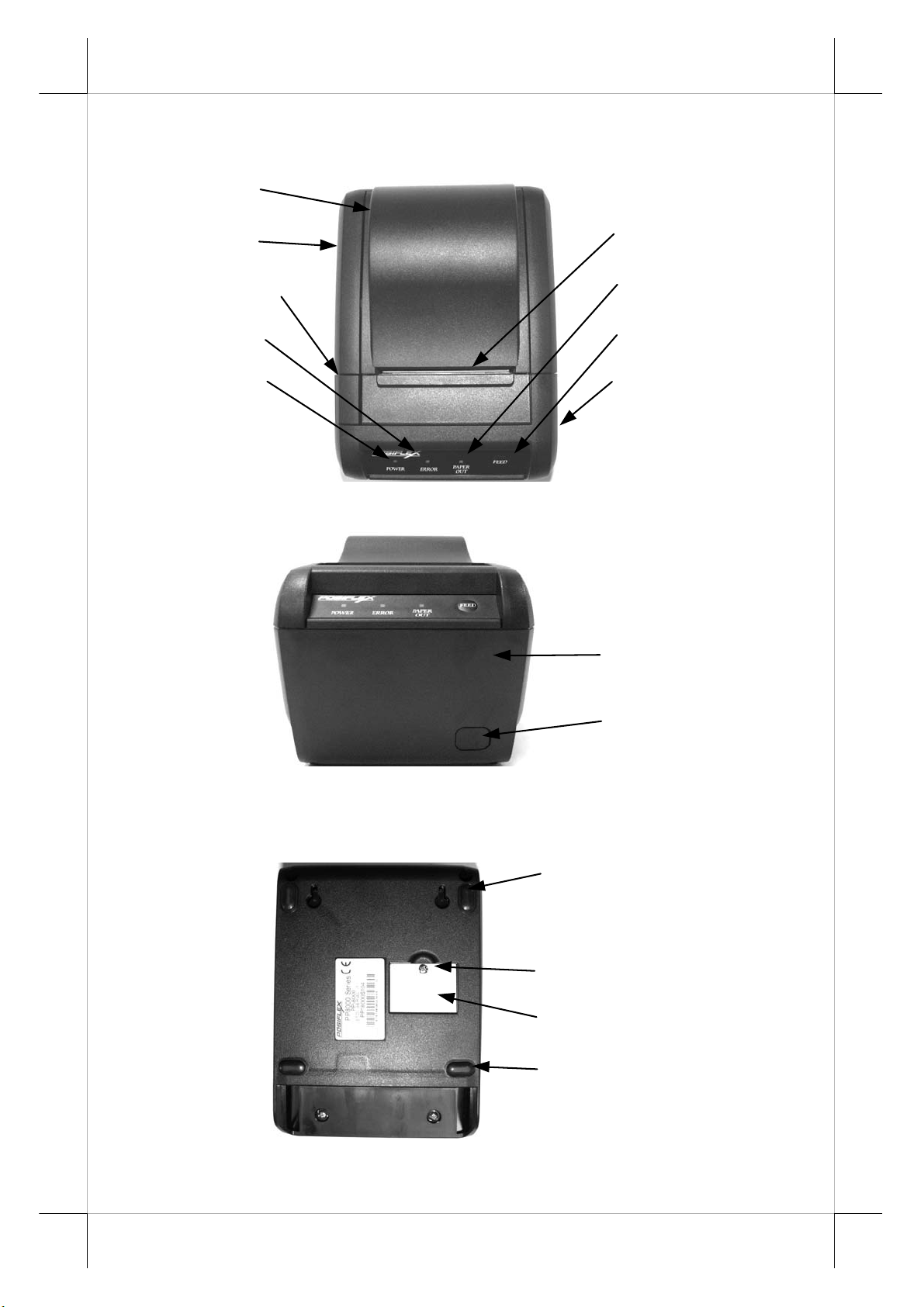
Top Hood
Top Cover
Hood Release
Error LED
Power LED
PRODUCT PICTURES
Top View
Front View
Paper Exit
Paper Out LED
FEED Switch
Cutter Cover
Bottom Cover
Power Switch
Bottom View
Rubber Foot
Wall Mount Hanging Hole
Window Plate Screw
Setup Window Plate
Rubber Foot
Part 4
Page 5
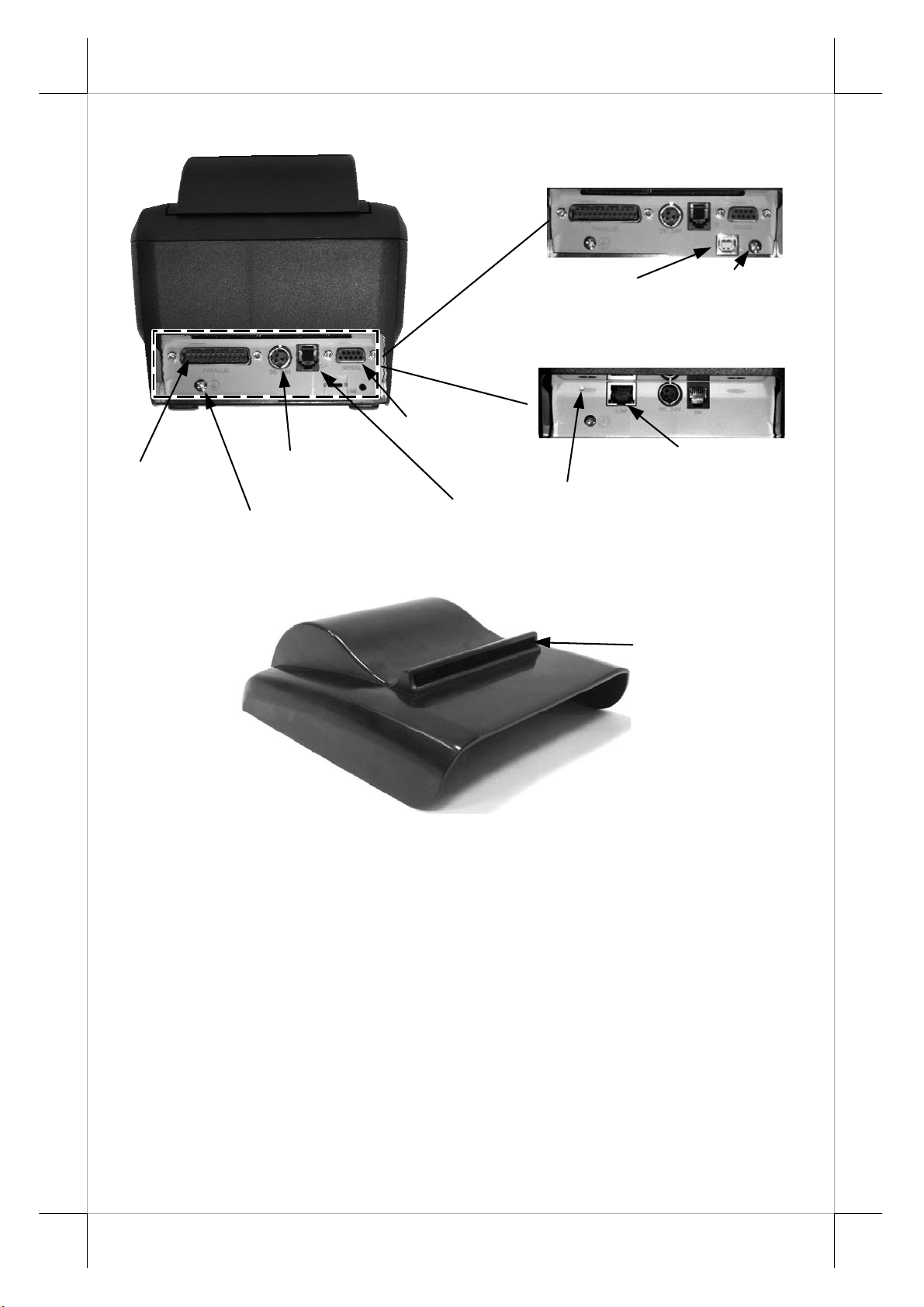
(
I/O Area for PP-8000)
Parallel Port
Frame Ground Screw
Power Connector
Rear View
Serial Port
Peripheral Port
(I/O Area for PP-8000U)
USB Port
(I/O Area for PP-8000L)
Reset Pin Hole for LAN
USB Adaptor
Fixation Screw
LAN Port
Spill Protect Cover
INDICATORS
Power LED: green
Error LED: red (brief lit indicates printer busy)
Paper Out LED: red
Paper Exit
Part 5
Page 6
QUICK START-UP
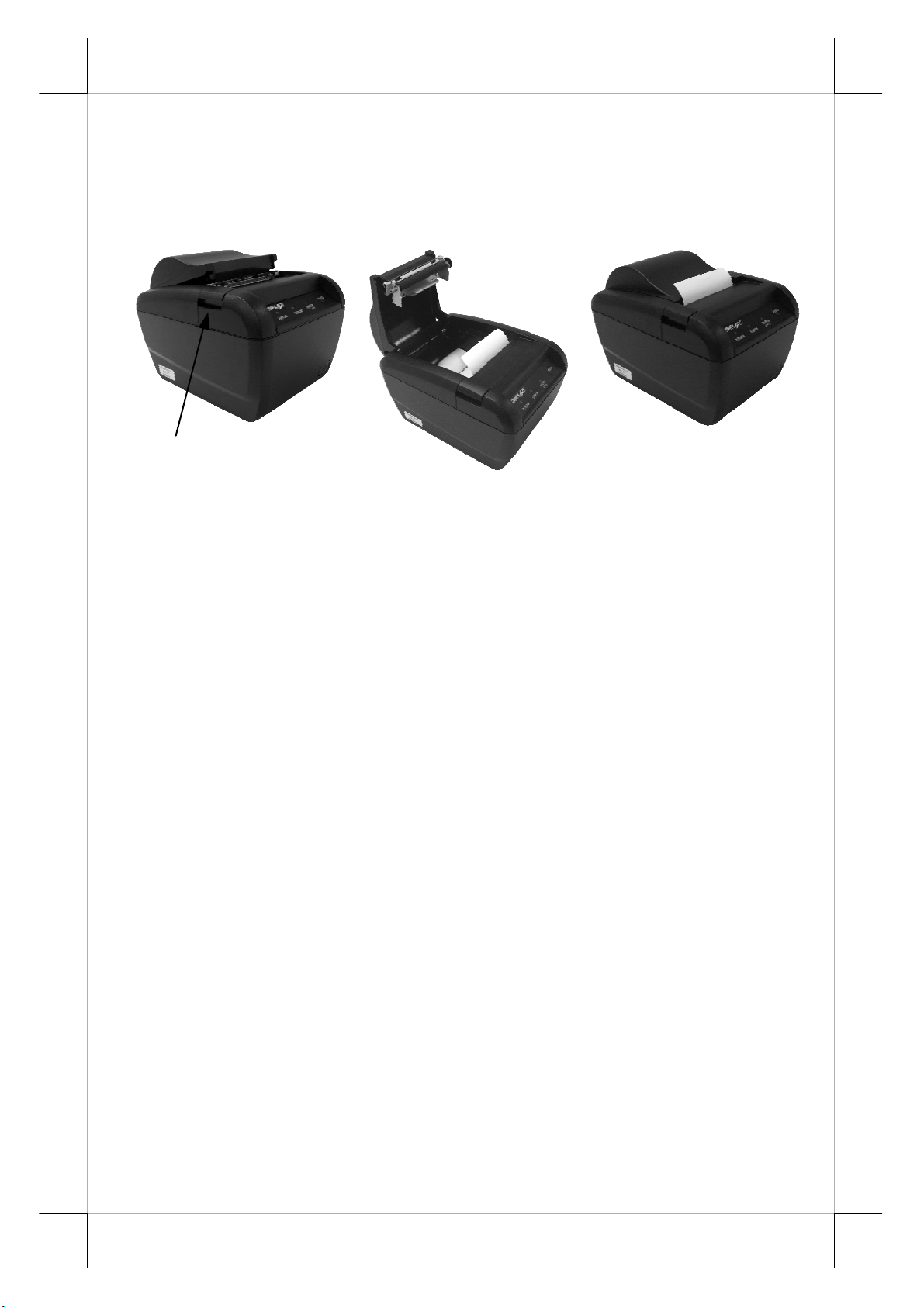
LOADING PAPER
Desk Top Application
Release Button
1. Remove the spill protect cover if the option is on.
2. Press down the hood release button to release the top hood as in Pix. 1.
3. Raise the released hood wide open manually as in Pix. 2.
4. Drop the thermal paper roll inside the printer in orientation as shown in
5. Close the hood back leaving the tail of the paper roll coming out of the
6. Apply the spill protect cover while having the paper to come out of the
7. Tear off excessive paper.
Pix. 1
Pix. 2.
opening between the hood and the top cover as in Pix. 3.
paper exit slot of the cover if this option is used.
Pix. 2
Pix. 3
When to Replace Paper
Whenever the printer gives paper out signal or a red line appears on
the thermal paper, it is the proper timing for replacing the paper. Do not wait
till the print engine is dragging the paper roll at the very end. Remove the
leftover and replace a new paper roll as illustrated above to prevent excessive
paper dust in the printer and consequently possibility for paper jam.
CONNECTING CABLES
Serial Connection
All the external connectors are in the recessed area at the rear
for PP-8000 series. The serial connector is a 9-PIN D sub Female connector at
the right in this area. Apply the male connector of RS232 cable to this port for
serial application. Please note that when serial connection is used, there must
be no cable connection at the parallel port on the printer. The default protocol
used in serial connection is 115,200 bps, none parity, 8 data bits, 1 stop bit. Set
bottom
Part 6
Page 7

in setup window the switch position 1 to OFF, and position 2 to ON leaving
the rest unchanged as factory default setting.
Parallel Connection
The parallel connector is a 25-PIN D sub Male connector at the
leftmost location in the connector area for PP-8000. Apply the female end of
the parallel cable at this port for parallel application. Please note that when
parallel connection is used, there must be no cable connection at the serial port
on the printer. Please also note that to keep parallel interface in fast operation,
please adjust in setup window the switch position 1 to OFF, and position 2 to
ON leaving the rest unchanged as factory default setting.
LAN Connection
The LAN connector is a 8-PIN RJ45 type modular connector at the
position left to the power connector in the connector area for PP-8000L. Please
use a LAN cable of CAT 5 with proper length to connect the LAN connector
on the printer to the LAN HUB as appropriate. Please note that for PP-8000L,
there must be no cable connection at the serial port or the parallel port on the
printer. Please also note that to keep LAN interface operative, please adjust in
setup window the switch position 1 to OFF, and position 2 to ON leaving
the rest unchanged as factory default setting. DO NOT CONNECT THE
PERIPHERAL DEVICE TO THIS PORT!! The LAN port is 10/100BaseT
compliant.
USB Connection
The USB connector on PP-8000U is a
type B USB connector at lower right position
below the serial port. Use the normal USB Cable
Type A
Type B
Normal USB Plugs
http://www.posiflex.com.tw
(P/N: 21863250800) as in the left picture to
connect the type A end to a normal USB port of
host system. Please visit our web site
http://www.posiflex.com
or
for detailed information of the USB driver
installation if required. Please note that for PP-8000U, there must be no cable
connection at either the serial port or the parallel port on the printer. Set in
setup window the switch position 1 to OFF, and position 2 to ON leaving
the rest unchanged as factory default setting.
Peripheral Connection
The peripheral controller is a 6 pin RJ11 type modular jack. With use
of Posiflex cash drawer cable 21863018010 (CCBLA-180-1) come with cash
drawer, this port can control a Posiflex cash drawer CR3100 or CR3200 or
CR4000 or CR4100 or CR-6310. If a Posiflex special split cable 21863023800
Part 7
Page 8

(CCBLA-238) is used instead, this port can control two cash drawers of above
models.
When the printer is used as a kitchen printer, please use this port for
kitchen bell connection instead.
Power Connection
The power connector is a 3-PIN jack between the peripheral
connector and the parallel connector for PP-8000. Either a Posiflex supplied
power adaptor or a printer power cable from a Posiflex POS system can be
connected to this connector to supply power for this printer. During insertion
of the power plug, be sure to hear the click to obtain a firm contact.
CAUTION: Before doing the insertion or extraction of the power plug, be
sure to pull the outer sleeve of the plug backward to release the
internal latch. Failure to do this could damage the power plug. Such
damage is considered as an artificial destruction and is not covered
by the warranty.
Power On
When all the above cable connections are made correctly, you may
connect your power adaptor to the wall
outlet. Make sure that the type of
power cord and the voltage
requirement of the power adaptor meet
the local power conditions. Now the
printer is ready for power on.
Self Test
Press and hold down the feed
button while turning the on / off switch
on. The printer will then perform a
self-test. A sample slip of self-test
result is printed as in the sample at
right. Please note that both serial and
parallel interfaces are indicated. That
means the printer is working on an
auto-sensing and auto-select algorithm.
The header is printed in text
mode and the rest part of this slip is
printed in page mode. If FEED button
is pressed at this moment, a font table
will be printed in text mode again. To
exit the test printing, please turn the
printer off and on again.
Part 8
Page 9

A
SPECIAL ADJUSTMENTS
Paper Near End Sensor
The near end
sensor for paper roll
in the printer is able to
have the printer work
with paper rolls of
several bobbin sizes.
Please refer to the
picture at right for the
inside of the paper roll
compartment that there are a plastic thumb wheel for bobbin size adjustment
and a sensor block in the wall. Turn the thumb wheel to adjust the proper
position of sensor block. For desktop application, the sensor block should be
above the bobbin seating on the 2 support rollers on bottom of paper
compartment when paper near end.. The acceptable paper roll bobbin outer
diameter is between 18 and 24 mm.
Paper Roll Shaft Hold
Sensor Block
Sensor Position Adjust
Support Roller
58mm Paper Spacing Plate
C
B
A
achieved through adoption of an option spacing plate and an internal DIP
switch setting. Please refer to the last chapter of this manual for the DIP switch
setting. Please refer to the middle picture above for the 58 mm paper spacing
plate with its flange at top edge showing out. Insert the noted corners of the
spacing plate into the 3 dents inside the paper roll compartment as arrowed in
the left picture above with point A goes in first. Then the 58 mm paper roll sub
compartment is formed as in the right picture above.
The application of 58 mm width paper roll in this printer can be
Paper Cutting
58 mm
Compartment
B
C
The paper advance after a normal cut with auto paper feed is set to 12
mm. In case the user applies cut without paper feed through DIP switch setting
change to have something like a logo printed on top of each slip, it is also
highly suggested to print the logo and necessary paper feeding to make 12 mm
paper advance right after each cut to prevent curling up and jamming of paper
Part 9
Page 10

front edge inside the paper exit slot.
INSTALLING DRIVER
There will always be a Posiflex Product Information CD or DVD or a
separate CD of similar nature but specifically created for the product delivered.
Please find the appropriate subfolder from the non-specific Posiflex Product
Information CD or DVD and check the information file like “readme” or
installation guide or application guide and follow the instructions inside.
LAN PRINTER SPECIFIC ISSUES
Web Manager
The default static IP for the PP-8000L is 192.168.192.168 and default
listen port is 9100. User may set his own IP to the same network segment and
use any browser to connect to the printer IP to configure the LAN setup of the
PP-8000L including changing the printer IP for application according to his
network administrator’s request. However, DHCP is not supported.
Reset Pin Hole
As the LAN setup for the PP-8000L can be set freely, if the changes
are not well registered some troubles could be introduced. Therefore, in PP8000L, there is a “Reset pin hole” near the LAN connector. Use something like
a ball pen tip or straightened end of paper clip to push and hold for at least 5
seconds into this hole will reset the LAN setup of the printer back to the
default values at delivery so the user may re-do all setup. The LAN setup can
be viewed in second paragraph of self-test printout for the PP-8000L.
LAN POS Printer Manager
This utility can be used to manage multiple PP-8000L’s connected in
same network under Windows as long as there is no conflicting IP in the
network. This utility can assign to each LAN printer a different device name
for easy recognition. In case of confusion, please check the MAC addresses
listed in this utility against the MAC address label you can find under each
printer.
Printer Driver Setup
Any PC connected in same network can use TCP/IP to use PP-8000L
in the way like a directly connected local printer. So, for direct I/O control by
tools like “HyperTerminal” all commands applicable to the serial or parallel
interface model can work on PP-8000L in the same way as PP-8000 except the
port must be TCP/IP with the IP address of the printer. Similarly, for Windows
printer driver setup, please “Add Printer” and select for “Local printer” and
select port “TCP/IP” with the printer IP address then use the same Windows
printer driver of PP-8000 for PP-8000L.
Part 10
Page 11

OPE RATION GUIDE
MAINTENANCE GUIDE LINES
Always turn off and disconnect power before opening the cover.
The areas around the print head and motor become very hot during and just
after printing, DO NOT touch them.
When handling the interior of the thermal printer, please pay attention not
to be hurt by any sharp edge of the metal parts.
GENERAL CLEANING
Please use soft hairbrush or compressed air to clear away any dust or
paper scraps accumulation inside the printer. Check also the area of the autocutter regularly.
PRINT HEAD CLEANING
The print head is located underneath the roll paper passage at the exit
as in the picture below. You can clean the thermal elements of the print head
and paper sensor gently using a cotton swab moistened with isopropyl alcohol
solvent.
NOTE: Never do this when print head is still hot
Do not touch the print head thermal elements
Do not scratch the print head
Thermal Elements
Paper Sensor
Before putting back the paper roll for printing, alcohol solvent must
be dried completely.
TROUBLE SHOOTING
This section gives solutions to some printer problems you may have.
General Problems
No LED lights up on control panel when switched on –Make sure
that the power supply cables are correctly plugged into the printer, the power
adaptor and to the power outlet. Make sure that power is supplied to the power
outlet. If the outlet is controlled by a switch or timer, try use another outlet
Part 11
Page 12

Printing Problems
Nothing can be printed with ERROR LED flashing – Most
possible cause for the flashing Error LED is that the printer has been printing
for quite a period of time and the print head temperature become too high.
After few minutes under normal ventilation, the print head should be able to
cool down and the Error LED will stop flashing. Printing will resume after
cooled down. If this is not the case, contact a qualified service person.
Nothing can be printed with ERROR LED ON – Check the Paper
Out LED. If it is ON, most probably either the paper roll is not installed or the
paper roll is at or near the end. Install a new paper roll. If the Paper Out LED is
OFF, please check if the print hood is properly closed. There are 2 internal
check points inside the printer to assure the locking of the hood for a decent
printing. Therefore any dislocation of the hood may cause an error status and
inhibition to printing. Press down the hood at middle of the opening when
closing it till it audibly clicks into place. If both situations are not the cause,
please try pulling the hood lock forward. If the top hood won’t release
automatically, check for paper jam described in next item.
If there is no paper jam and the print head is not overheated, turn off
the printer and wait for half a minute then turn it back on. If the problem still
remains, contact a qualified service person.
Nothing can be printed with ERROR LED OFF – Try to run selftest according to previous chapter to check if the printer itself works properly.
If the self-test passes, check the following:
1). Check the connection of the interface cable at both the
printer and computer ends. Also make sure that this cable
meets the specification required for both the printer and the
computer.
2). Check the printer data communication settings against the
computer. The printer settings can be found easily on the
self-test print out.
If the problem remains or the self-test fails, contact your dealer or a
qualified service person.
Poor printing quality – Contaminants like paper scraps and dusts on
the thermal print head can lower the print quality drastically. Clean the print
head as described in previous section.
Paper Jam Problems
Paper is jammed inside the printer – Turn off the printer and open
the top hood by releasing the hood lock. Remove the jammed paper and
reinstall the paper roll. Close the hood properly and firmly. Then turn on the
printer for operation.
If the auto cutter is jammed, the top hood will be locked. Please first
Part 12
Page 13

d
resolve the auto cutter problems per description in next item and then come
back to deal with the paper jam. Never force open the top hood. Please also
clear away any contaminants accumulated in the cutter track above the thermal
elements.
Auto Cutter Track
Thermal Elements
Auto Cutter Problems
Adjustment area detailed below
Open Cutter Cover
when hood locke
Lift transparent
protective foil
Use screwdriver
Turn the adjustment wheel
downward for few strokes
Alignment window
In case any foreign materials like a staple or paper clip or excessive
paper scraps fall into the auto cutter mechanism the auto cutter may lock up
and so does the print hood. In such case, please pull the cutter cover forward to
expose the cutter adjustment area. Apply some mechanical assistance in below
procedures to help resetting the cutter blade back to its home position. Please
lift up a transparent protective cover over the adjustment wheel with the printer
powered off. Turn this wheel downward for 4 or 5 strokes. Close the cutter
cover back and turn the printer power on to see if the auto cutter lock up
problem is resolved.
If the problem is not automatically resolved by above procedures,
please power off the printer and open the cutter cover again. Check in the
alignment window while turning the gear downward as above or with a small
Phillips screwdriver at the right side of the cutter mechanism. When the cutter
blade returns to its standard position, a hole in the white plastic gear will show
up in the window as illustrated in detailed picture above. Close the cutter cover
Part 13
Page 14

when finish. The lock up of the print hood can then be released after this
problem solved.
Please use manual cutter as temporary alternative measure once the
auto cutter malfunctioned.
Advanced Analysis Tool
This printer supports Hexadecimal Dump for experienced user to
view exactly what data is received by the printer. This can be useful in finding
software problems.
To start the dump mode: Turn off printer; Open print hood; Hold
down FEED button while turning printer on; Close the hood.
To stop the dump mode: Press the FEED button to print out the last
line; Turn off the printer.
During dump mode: All commands except DLE EOT and DLE ENQ
are disabled.
USEFUL TIPS
Please note that only those qualified technicians may adjust several
jumpers for some technical settings. Please visit our web site
http://www.posiflex.com
technical information such as driver installation, DIP switch settings and
command sets etc. if required.
Place the printer on a sturdy, level surface.
Choose a place that is well ventilated and free of excessive dust, smoke or
fume.
Do not put the printer under direct sunlight or near a heater.
Ideal room temperature is from 5ºC to 40ºC. Ideal humidity is from 20% to
85% RH (no condensation).
Do not set any liquid or drinks such as coffee on the printer case.
Do not touch any metal part to avoid possible electrostatic damage.
Do not touch the areas around the print head and motor during or right after
printing. It can be very hot.
or http://www.posiflex.com.tw for details of the
Do not allow the cut receipt to slide back into the cutter during the
operation. As this would lead to multiple cutting at the lower edge of a
receipt and the multiple cut thin slips tend to cause mechanical malfunction.
Use a grounded AC power outlet with only the power cord and power
adaptor furnished with the printer.
Do not use a power outlet of a circuit shared with any equipment that uses
Part 14
Page 15

a lot of power or causes great electrical noises, such as a copier, electric
motors or a coffee maker.
Do not use thermal paper containing Sodium (Na+), Potassium (K+) and
Chlorine (Cl-) ions that can harm the print head thermal elements.
If the surface of thermal paper is scratched with a hard object such as a nail,
the paper may become discolored.
If thermal paper touches diazzo copy paper immediately after copying, the
printed surface may be discolored.
Use only water paste, starch paste, polyvinyl paste or CMC paste when
gluing thermal paper.
If thermal paper touches anything containing phthalic acid ester plasticizer
for a long time, the image formation ability may be reduced or the printed
image may fade.
Use of volatile organic solvents such as alcohol, ester and ketone or some
adhesive tapes on thermal paper can cause discoloration.
Thermal paper must not be stored with the printed surfaces against each
other as the printing may be transferred between the surfaces.
Since the paper roll is highly thermal sensitive, please keep them in a dark
place that is 20º and 65% RH when not installed in the printer. Avoid
extended exposure to direct light. Use only products made from
polyethylene, polypropylene or polyester for storage of thermal paper.
Part 15
Page 16

SPECIFICATIONS
PRINTER
ITEM SPECIFICATION
Printing method Thermal sensitive line dot method
Effective printing width 64 mm
Thermal head configuration 512 dots / line
Printing speed 220 mm / sec. max.
Paper feed method Friction auto-feed
Paper load method Drop and use
Auto-cutter capability Partial cut (1 point at center left)
Manual cutter Saw tooth blade
Dot Pitch 0.125 x 0.125 mm
Input power type DC
Input voltage 24 V + / - 5 %
Dimension (mm) 148 (W) x 205 (D) x 143 (H)
Weight 1.2 Kg net
PAPER
PAPER TYPE THERMAL ROLL PAPER
Paper roll formation External side is heat-sensitive side
Paper width 80 (or 58) + 0 / - 1 mm
Paper roll outer diameter 83 mm max.
Paper roll inner diameter 12 + 1 / - 0 mm
Paper thickness 60 ~ 80 um
POWER ADAPTOR
ITEM REQUIREMENT
Input voltage 100 V AC ~ 240 V AC
Input frequency 50 ~ 60 HZ
Input current 1.8 A MAX. @ 115 V AC
Output voltage + 24 V DC
Output power 60 W
Static load 0 A ~ 2.5 A
Output regulation + / - 5 %
MTBF 30,000 HRS
EMI standards VDE – A, FCC – A, VCCI – A
Part 16
Page 17

FURTHER TECHNICAL INFORMATION
PRINTER SETUP
On bottom cover of the Aura series thermal
printer, there is screwed a metal plate for setup window.
In this window, there is a 8 position DIP switch for
printer setup. Please use proper tool to change the
switch setting when necessary. The switch position
counting starts from the nearest edge of printer. The
ON direction points to the connector area of the printer. The OFF direction
points to the power switch. The functions of each position may evolve with the
revisions of the firmware. The information below applies to the latest version
to the date of print of this manual.
This 8 position DIP switch works as following:
Switch
position
1
2
3
4
5
6
7
8
Effect of positions 1 & 2 on baud rate is defined as in table below with
parity check set according to position 3, number of data bits always set to 8,
and stop bit set to 1. When the interface used is anything other than RS232,
please still set these 2 switches at exactly the specified combination.
SW Pos. 1
SW Pos. 2
Baud rate setup
Switch position 3 defines the parity check regulation in serial interface.
In Aura, it is selectable between even and none.
Switch position 4 defines the handshaking method in serial interface.
When it is set to ON, the printer transmits an “XOFF” for busy and sends an
“XON” for not busy. When it is set to OFF, the printer signifies the busy status
over hardware signals that can be detected by the host as “DSR” or “CTS”.
When parallel interface is used, both switch positions 3 and 4 should be set to
OFF.
For switch position 5, if the switch is set to ON, the busy signal is sent
RS232 baud rate definition or Parallel interface definition (ref.
Even parity None parity
XON/XOFF handshaking DSR/DTR handshaking
Busy on “buffer full” Busy on “buffer full” and/or “off line”
Cut without paper feed Cut with auto paper feed
CR code (0Dh) effective CR code (0Dh) invalid
Factory internal setting Application standard mode
ON OFF
separate table below)
ON OFF ON OFF
ON ON OFF OFF
38400 bps 115200 bps (Default) 9600 bps 19200 bps
Part 17
Page 18

to host only when input buffer is full. When it is set to OFF, busy signal is sent
to host whenever the input buffer is full or an off line status occurs. Therefore,
signals including the paper near end detect will generate busy signal to the host.
Consequently, the printing may be stopped even when there is still a long way
to go before the paper roll is actually exhausted. Taking the paper out beep into
consideration, the printer will keep on beeping at Paper End (completely no
paper) till paper is replaced when S1-5 is ON. Yet when S1-5 is OFF, the
printer will keep on beeping every 3 seconds at Paper Near End (still long
paper in replace) till paper is replaced.
For switch position 6, when it is set to OFF, there will be a 12 mm paper
feed before cutting when software does not define this point and there will be
further 12 mm paper feeding after cutting to prevent paper jam. Before setting
this switch to ON, please make sure that your software will take care of
enough paper feed for the paper jam prevention issue.
For switch position 7, when it is set to ON, the printer responds to a
carriage return command (CR code or 0Dh) with also a line feed (LF code or
0Ah) action. Then if the text editor always express the change to a new line
with both the CR and LF codes, there will be an extra line advance than
expected. However it works for some old editors that express the change to a
new line with only either one of the LF code or the CR code.
For switch position 8, when it is set to ON in the field, the printer maybe
subject to unpredictable damages and must be strictly prevented.
The factory default for each position is listed below:
Switch Position 1 2 3 4 5 6 7 8
Default setup for all
interface models
OFF ON OFF OFF OFF OFF OFF OFF
ADVANCED SETUP
There is an extra 4 position DIP switch in PP-8000 series next to the 8
position DIP switch for more technical settings. The switch position counting
starts from the nearest side to the 8 position DIP switch.
This 4 position DIP switch works as following:
Switch position Setting Effect
Ð
Windows driver print control Immediate print Buffered print
1
2
Line format (for 80 mm paper) 576 dots / line 512 dots / line
3
4
graphic printing through use of Windows driver. When it is set to ON, the
printer prints on each printing command received immediately. However, in
Paper auto cut at hood close Yes No
The switch position 1 defines the printing behavior of the printer on
Function ON OFF
Paper width 58 mm 80 mm
Part 18
Page 19

some cases, the printer may have to engage brake frequently waiting for next
command resulting in trembling. When this switch is set to OFF, the printer
starts printing only when more graphical data from Windows driver are
collected thus performing a much smoother printing operation.
Switch position 2 is usually set to OFF for use with 80 mm paper width.
When the printer is installed with the 58 mm paper spacing plate for use with
the paper roll of 58 mm width, the switch should be set to ON.
Switch position 3 is usually set to OFF for ESC/POS command
application that prints at 512 dots / line. Only technical users shall set this
switch to ON and make the printer work in the 576 dots / line format.
The switch position is recommended to set to ON when the optional
spill protect cover is used. In this way, the printer performs an automatic paper
cut each time the top hood is closed (e.g. after paper roll loading) with the
printer in operating condition. However, when there is no spill protect cover, it
is recommended to set to OFF and the manual cutter can be engaged whenever
necessary.
MULTIPLE INTERFACE ISSUE
For model PP-8000, there are 2 connectors for host connection through
RS232 or parallel. For PP-8000U, there are 3 connector for host connection:
RS232 and parallel in addition to the USB port. Please always connect only
one interface at a time. Simultaneous multiple host connections could result
in unexpected results!
UPOS CONCERNS
The UPOS compliance and WEPOS compliance ability of the PP-8000
series dictates the printer to perform certain internal affairs such as counter
refreshment periodically. When the printer is engaged in such operations there
will be a brief period of time that the printer is busy without externally
apprehensible cause. In other words, the printer will lit the ERROR LED
briefly once in a while even when no external communication is in process and
that is definitely normal.
Part 19
Page 20

Wall Mount Application
In wall mount application, the option kit will include screws, plastic
cotters and a paper roll shaft. Screws and cotters are to be inserted to holes
drilled on wall 80 mm apart center to center horizontally with the non-threaded
part of the screw remain above the cotter to hang the printer bottom at holes
arrowed in the left picture below.
The paper roll shaft should go through the paper roll and seat in hold
on paper roll compartment wall as indicated by arrows in middle picture above
and the paper roll should be in the orientation as in the right picture above. The
paper near end sensor must be readjusted for wall mount application as it
approaches the paper roll from different direction for desktop application.
For wall mount application, the sensor block should be under the
bobbin supported through a shaft held on paper compartment wall
ᙆѓԴ٫
這是甲類的資訊產品,在居住的環
境中使用時,可能會造成射頻干
擾,在這種情況下,使用者會被要
求採取某些適當的對策。
T31454
Part 20
 Loading...