

Page 1

Page 2

Quick-Start Guide
Visit TheNewInstant.com
for additional information, including
high-res images.
Page 3
Introduction ........................................................................ 6
Polaroid PoGo™ Specifications ...........................................8
ZINK Photo Paper™ Specifications ....................................10
Polaroid PoGo™ Product Diagram .....................................12
Installing and Charging the Battery ................................. 14
Loading ZINK Photo Paper™ .............................................16
Printing from a Cell Phone ...............................................18
Printing from a Digital Camera ........................................ 20
Troubleshooting ................................................................22
About Polaroid .................................................................. 24
About ZINK™ ..................................................................... 25
Safety Information ............................................................ 26
Media Contacts ................................................................ 30
Table of Contents
Page 4

Polaroid PoGo™
Instant Mobile Printer
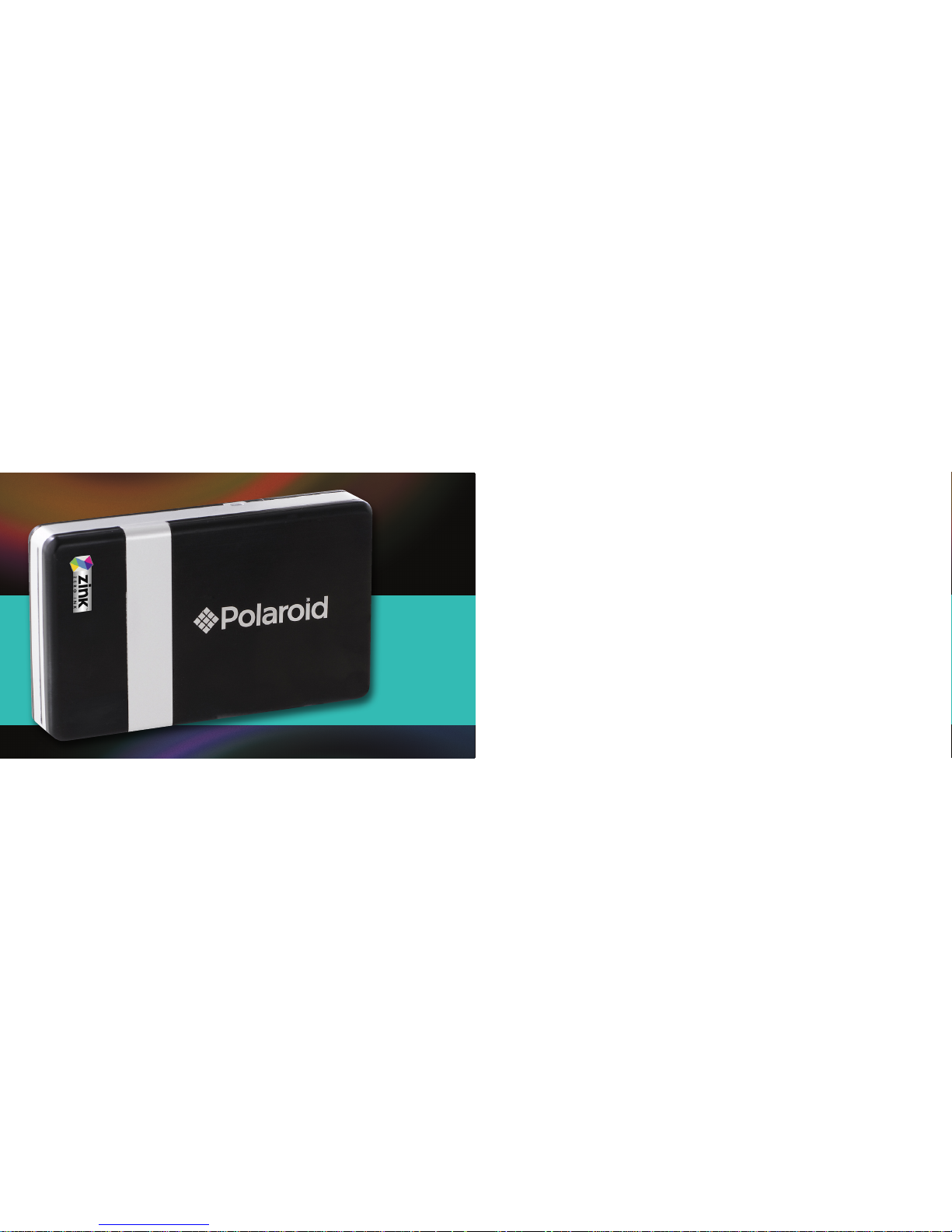
WHAT IT IS: Polaroid PoGo™ – short for Polaroid-
on-the-go – is a pocket-sized, inkless digital printer
that produces full-color photos wirelessly from cell
phones and via PictBridge from digital cameras.
Weighing only eight ounces, Polaroid PoGo™
provides consumers with a convenient solution to
sharing digital images trapped on cell phones and
digital cameras.
WHAT YOU GET:
2” x 3” borderless,
sticky-back prints
Bluetooth, PictBridge
compatibilit y
Smudge-proof, water-
resistant, virtually
tear-proof photos
Fade-resistant,
long-lasting images
No waste – no ink
cartridges
60-second print time
Rechargeable lithium-ion
battery
HOW IT WORKS: The full-color
digital photos are created without
ink cartridges or ribbons using ZINK
Photo Paper™, keeping the printer size
to about the size of a deck of cards.
The paper is a durable material that
contains colorless cyan, yellow and
magenta dye crystals. Heat activation
brings photos to life, colorizing ZINK™
dye crystals, so digital photos can be
shared instantly.
ZINK Photo Paper
™
6
7
Page 5
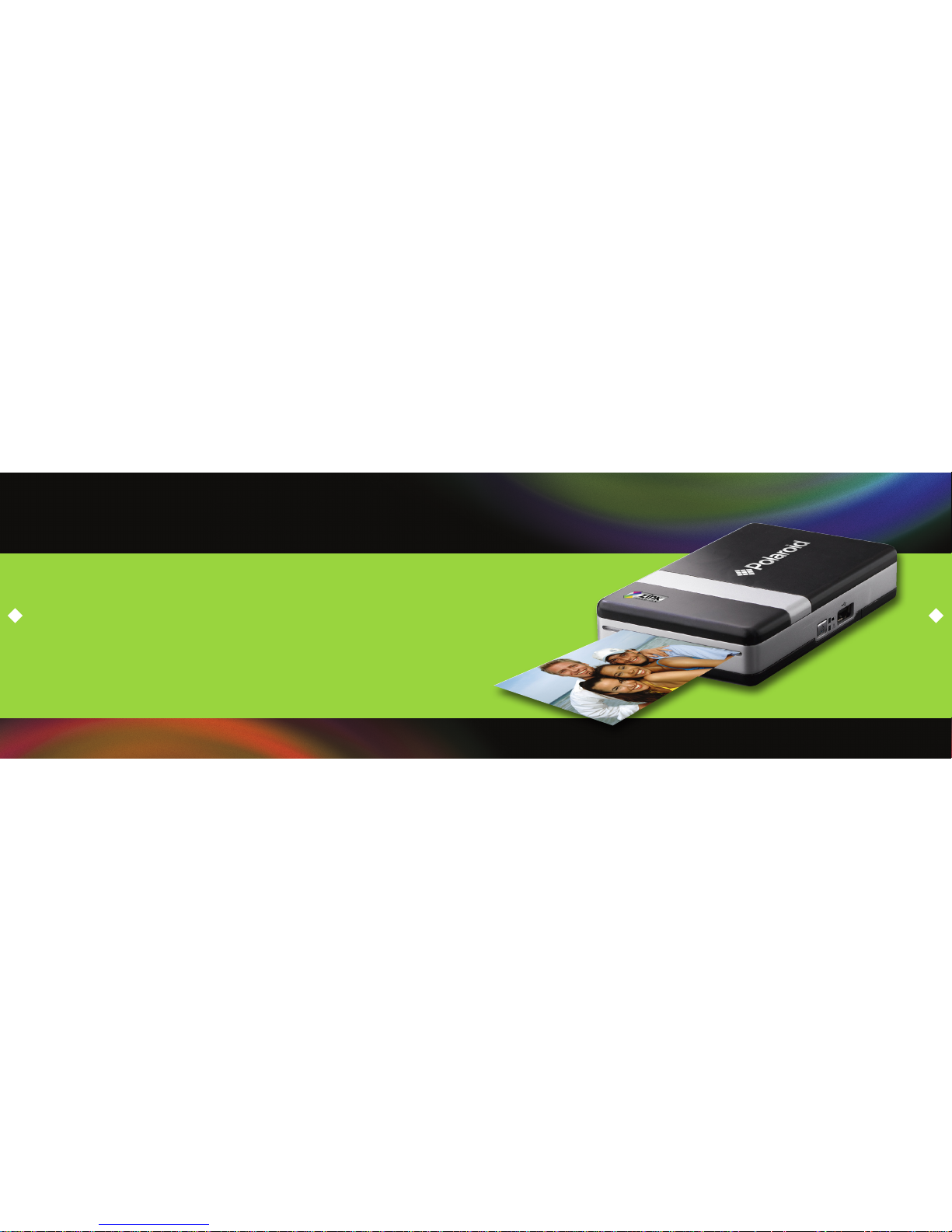
Polaroid PoGo™ Specs
SIZE 4.72" H x 2.83" W x 0.93" D
WEIGHT 8 oz. (without paper), includes batter y
BATT ERY 7.2V rechargeable lithium-ion
15 Prints per charge at 25 C. Batter y is replaceable
USER IN TERFAC E 2 Tri-Color LED indicators
AC AD APTE R 9V output Universal Input 100V to 240 VAC
Printer will print when plugged into the AC adapter
CONNECTIVIT Y Bluetooth (Class 2) OPP USB 2.0 USB A connector
PRIN T SPEED 60 seconds per print, from send to share
8
9
Page 6
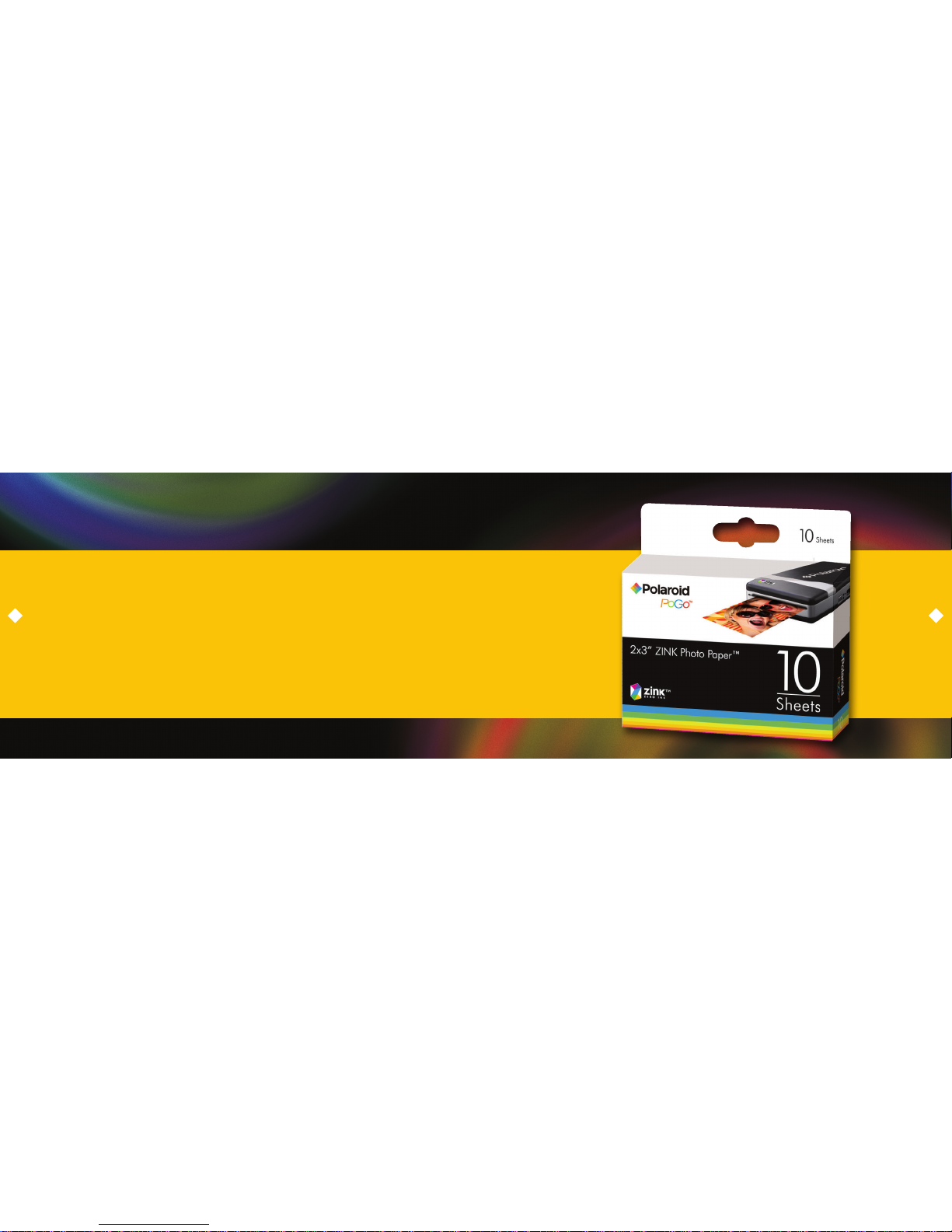
ZINK Photo Paper™ Specs
SIZE 2" x 3"
D YE CRYS TALS 100 billion dye cr ystals activate with 200 million heat pulses in 30 seconds
HUES Each piece of white ZIN K Photo Paper™ is embedded with cyan, yellow and
magenta dye
FEATURES Full-bleed, borderless image
ZINK™ Zero Ink™ Printing Technology embeds color into the paper
Prints dry-to -touch, waterproof, tear-proof, smudge-proof
Peel-off, sticky-backed
Automatic image quality optimization
10
11
Page 7

Power button USB connector Battery coverPower/Battery
LED indicator
Status LED
indicator
Photo
exit slot
Paper tray door
Paper
door latch
AC adapter input
Power button USB connector Battery coverPower/Battery
LED indicator
Status LED
indicator
Photo
exit slot
Paper tray door
Paper
door latch
AC adapter input
LED CommunicationColor Action
Power onSolid
Green
Green
Orange
Orange
Red
Solid
Solid
Pulse (1X speed)
Pulse (1X speed)
Pulse (1X speed)
Pulse (1X speed)
Pulse (3X speed)
Solid
Solid
Low battery
Out of battery
Charging from AC adapter
Fully charged from AC adapter
Ready to print
Printing
Paper jam
Out of paper, non feed
Receiving information
Orange
Green
Green
Green
Red
12
13
Page 8

Installing and Charging the Battery
Remove battery door cover.
Inst all battery.
Replace battery door cover.
Connec t the AC adap ter to
printer and power source.
Note: You can print photos while plugged into the power source. For the best battery life, fully charge
battery before use (approximately 2.5 hours).
1. 2. 3. 4.
14
15
Page 9

Loading ZINK Photo Paper
™
Pres s and release latch
on the paper tray door.
Unwrap the 10-pack
of ZINK Photo Paper™.
Slide the 10-pack of ZINK Photo
Paper™ into the printer with t he
ZINK Smar t Sheet™ facedown.
Close the printer tray door.
The ZINK Smart Sheet™ will
automatically eject.
1. 2. 3. 4.
Note: Do not bend paper or touch the printing surface.
16
17
Page 10

Print Instantly: From a Cell Phone
Passcode: 6-0-0-0
The Polaroid PoGo™ Instant Mobile Printer is the easiest way to print photos
from a cell phone. Wirelessly transfer images from a Bluetooth-enabled cell
phone to the mobile printer and print instantly. Using the built-in OBEX (object
exchange profile) Bluetooth in the phone and printer, connecting and printing
becomes instant.
The following is an example for connecting to the printer and printing your
images. The terminology used in your cell phone may be different—for specific
directions for your phone, visit http: //polaroid.com/pogo /comptool/index.html.
1. Select the image you would like to print from the
stored images on your cell phone. In the “options”
menu, select “send via Bluetooth.” Search for
devices, select the Polaroid printer and print.
2. If you are unable to print from “send via Bluetooth,”
select “connectivity” or “Bluetooth” under the
“settings” or “tools” menu. Search for devices and
select the Polaroid printer. Once paired, go back
to stored images and select the image you want to
print. In the “options” menu, select “beam” or “send
via Bluetooth.” Select the Polaroid printer and print.
3. If your cell phone does not include “send via
Bluetooth” under the “options” menu, select the
image you want to print. Go to the “options” menu
and select “print via Bluetooth.” Search for devices,
select the Polaroid printer and print.
18
19
Page 11

Print Instantly: From a
Digital Camera
Instantly printing images from a digital camera is as
easy as connecting the PictBridge-enabled camera
to the printer. Once connected, follow the PictBridge
screen on the camera display. Simply select what
image to send to the printer and within 60 seconds,
the print is ready to be shared.
The following is an example for connecting to the
printer and printing your images. The terminology
used in your camera may be different.
1. Connect your digital camera and printer to determine if a print option or printer icon is
automatically displayed on the camera screen.
2. If no print option appears, select “menu” and navigate to confirm that PictBridge is enabled.
Note: If “USB” is displayed under “settings,” then PictBridge is NOT enabled.
3. Once PictBridge is enabled, select the image you want to print and follow the on-screen
instructions.
Notes:
Do not disconnect the USB cord until entire printing process is complete.
Do not turn off the printer while printing.
Do not open paper tray door while printing.
To print the date on your photo, ensure the Date Stamp feature on your digital camera is enabled.
Does not print when connected to a PC.
For specific printing directions for your digital camera, review your digital camera user’s manual or
the manufacturer’s Web site.
20
21
Page 12

Troubleshooting
PROB LEM : The photo that prints has streaks.
SOLUT ION:
Do not send another image to print.
First, turn off the printer. Then open the paper tray door and remove the photo paper. Next,
place one sheet of photo paper upside down (with the watermark facing up) in the paper
tray. Gently glide the paper under the print head. Close the tray door. The sheet of paper will
automatically eject. Open the paper door once again, and reload the photo paper.
PROB LEM : The photo paper jammed in the printer before it printed.
SOLUT ION:
Do not send another image to the printer.
First, open the tray door and check to see if there is paper in the tray.
If there is paper in the tray, make sure the paper is loaded correctly.
If there is no paper in the tray, add a new pack of paper.
PROB LEM : The paper jammed while printing was in process.
SOLUT ION:
Do not pull out the paper.
First, turn off the printer. Open the paper tray door and remove the paper that is left in the
paper tray. Place one sheet of paper upside down (watermark facing up) in the tray. Glide
the photo paper under the print head. Next, close the tray door. The sheet of paper will
automatically eject. Open tray door and reload the paper. Close tray door.
TO RE SET TH E PRINT ER:
Turn off printer.
If the printer will not power off, remove the battery cover and the battery.
Replace the battery and battery cover.
Turn on printer.
22
23
Page 13

About Polaroid
Polaroid, the company that pioneered instant photography, has become a leading
consumer electronics brand. Building on its 70-year heritage of visual innovation,
Polaroid is a leading U.S. seller of mass-market digital cameras and personal DVD
players, and ranks among the top five makers of LCD televisions. Through its new
line of digital entertainment products, Polaroid helps consumers capture, share
and enjoy their memories in new ways. Polaroid is a company of Petters Group
Worldwide. Learn more at ww w.polaroid.com.
About ZINK Imaging
ZINK Imaging Inc., a privately held company, was founded to enable millions of
customers to enjoy the magic of ZINK™ Zero Ink™ products. Invented by ZINK
Imaging, ZINK™ Technology and the award-winning ZINK Photo Paper™ provide
a revolutionary technology platform for ink-free digital printing products. ZINK
Imaging’s headquarters and research and development labs are in Massachusetts,
with a state of the art manufacturing facility in Whitsett, North Carolina. For more
information, please visit www.ZINK.com.
The ZINK™ Technology and ZINK™ trademarks are owned by ZINK Imaging, Inc.
and are used under license.
24
25
Page 14

Safety Information
Polaroid Corporation declares that this Instant Mobile Printer is in compliance with
the essential requirements and other relevant provisions of Directive 1999/5/EC.
FCC WA RNING
Changes or modifications not expressly approved by the part y responsible for compliance could void
the user’s authority to operate the equipment.
NOTICE
This equipment has been tested and found to comply with the limits for a Class B digital device,
pursuant to part 15 of the FCC Rules. These limits are designed to provide reasonable protection
against harmful interference in a residential installation.
This equipment generates, uses, and can radiate radio frequency energy and, if not installed and
used in accordance with the instructions, may cause harmful interference to radio communications.
However, there is no guarantee that inter ference will not occur in a particular installation. If this
equipment causes harmful interference to radio or television reception, which can be determined by
turning the equipment off and on, the user is encouraged to tr y to correct the inter ference by one or
more of the following measures :
Reorient or relocate the receiving antenna
Increase the separation between the equipment and receiver
Connect the equipment into an outlet or on a circuit different from that to which the receiver
is connected
Consult the dealer or an experienced radio/TV technician for help.
This transmitter must not be co-located or operated in conjunction with any other antenna or
tra nsmitter.
26
27
Page 15

This equipment complies with the FCC/IC radiation exposure limits sent forth for uncontrolled
equipment and meets the FCC radio frequency (RF) Exposure Guidelines in Supplement C to OET62
and RSS-102 for the IC radio frequency ( RF) Exposure rules. This equipment has very low levels of RF
energy that is deemed to comply without maximum permissive exposure evaluation (MPE). But it is
desirable that it should be installed and operated with at least 20cm or more between the radiator
and person’s body (excluding extremities: hands, wrists, feet, and ankles).
This device complies with Part 15 of the FCC Rules and the RSS-Gen of IC Rules. Operation is subject
to the following two conditions: (1) this device may not cause interference, and (2) this device must
accept any interference, including interference that may cause undesired operation of this device.
CAU TION : RISK OF E XPLOD ING IF BAT TERY IS R EPL ACED BY A N INCORRE CT TY PE.
BAT TERY CA UTION S
Use only the provided charger with this product.
Only charge the battery as recommended by the instructions.
The batter y provided with his product is intended for this product only.
Prolonged use of the printer will result in the battery becoming warm.
BAT TERY WA RNINGS
Avoid contact with a leaking or damaged battery.
Do not short bat tery terminals.
Adult supervision is recommended when product is used by young children.
Avoid areas of excessive heat or moisture.
Do not disassemble the batter y.
This product contains electrical or electronic materials. The presence of these materials may,
if not disposed of properly, have potential adverse effects on the environment and human
health. Presence of this label on the product means it should not be disposed of as unsor ted
waste and must be collected separately. As a consumer, you are responsible for ensuring that
this product is disposed of properly. To find out how to properly dispose of this product, please
go to www.polaroid.com and click on “Company“ or call the customer service number for your
country listed in the instruction manual.
28
29
Page 16

Media Contacts
Mark Bur feind
425-452-5426 office
206-883-4737 mobile
mburfeind@webershandwick.com
Josh Purdy
952-346 -6234 of fice
612-559-62 92 mobile
jpurdy@webershandwick.com
For more information on
Polaroid PoGo™, please visit:
TheNewInstant.com or
Polaroid.com/PoGo
30
Page 17

Mark Burfeind
425-452-5426 office
206-883-4737 mobile
mburfeind@webershandwick.com
Media Contacts:
Josh Purdy
952-346-6234 office
612-559-6292 mobile
jpurdy@webershandwick.com
 Loading...