

Page 1
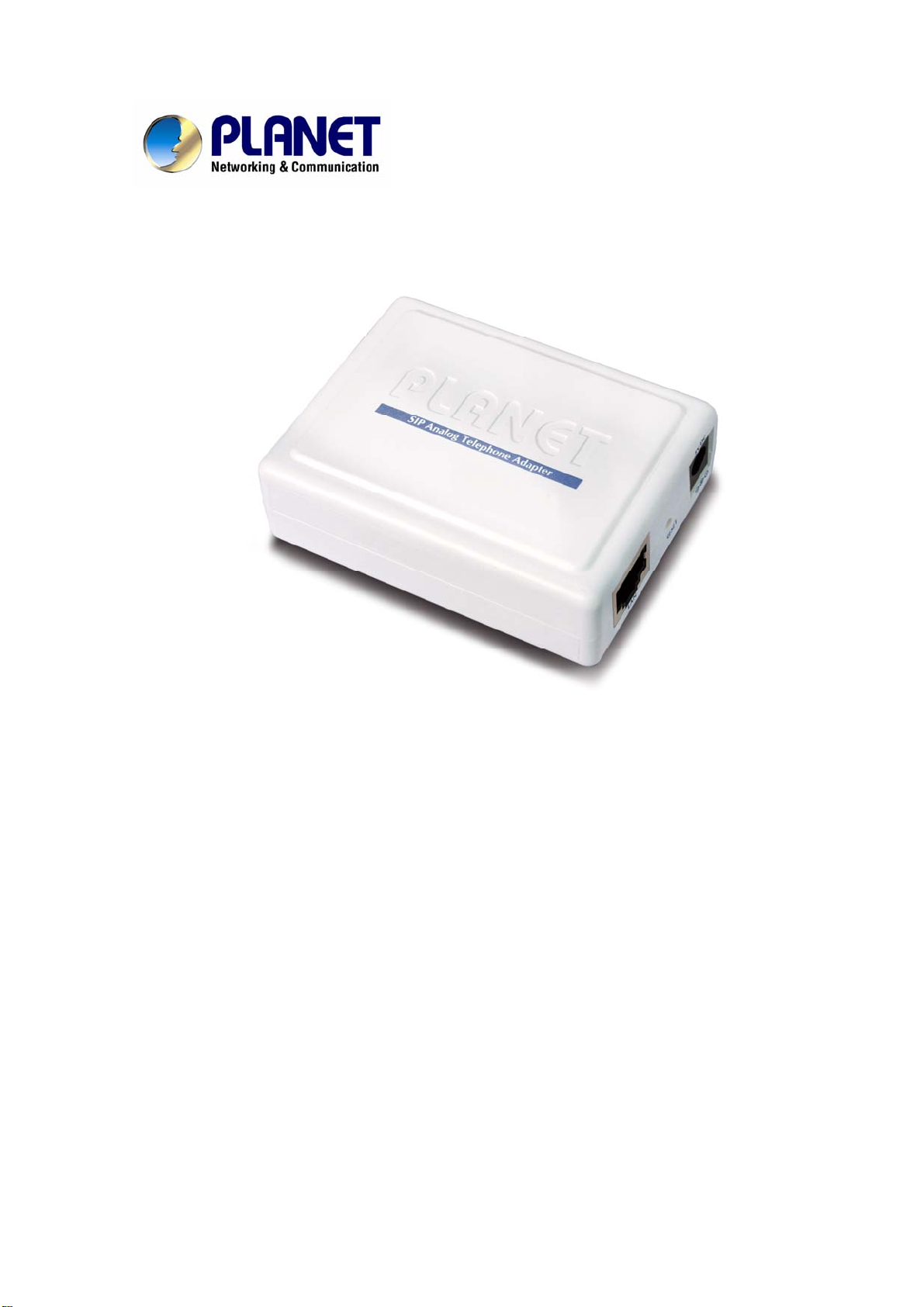
VoIP Analog Telephone Adapter
VIP-158
User’s manual
Version 1.00
- 1 -
Page 2

Copyright
Copyright (C) 2007 PLANET Technology Corp. All rights reserved.
The products and programs described in this User’s Manual are licensed products of PLANET Technology, This
User’s Manual contains proprietary information protected by copyright, and this User’s Manual and all
accompanying hardware, software, and documentation are copyrighted.
No part of this User’s Manual may be copied, photocopied, reproduced, translated, or reduced to any electronic
medium or machine-readable form by any means by electronic or mechanical. Including photocopying, recording,
or information storage and retrieval systems, for any purpose other than the purchaser's personal use, and without
the prior express written permission of PLANET Technology.
Disclaimer
PLANET Technology does not warrant that the hardware will work properly in all environments and applications,
and makes no warranty and representation, either implied or expr essed, with respect to the quality, performance,
merchantability, or fitness for a particular purpose.
PLANET has made every effort to ensure that this User’s Manual is accurate; PLANET disclaims liability for any
inaccuracies or omissions that may have occurred.
Information in this User’s Manual is subject to change without notice and does not represent a commitment on the
part of PLANET. PLANET assumes no responsibility for any inaccuracies that may be contained in this User’s
Manual. PLANET makes no commitment to update or keep current the information in this User’s Manual, and
reserves the right to make improvements to this User’s Manual and/or to the products described in this User’s
Manual, at any time without notice.
If you find information in this manual that is incorrect, misleading, or incomplete, we would appreciate your
comments and suggestions.
CE mark Warning
The is a class B device, In a domestic environment, this product may cause radio interference, in which case the
user may be required to take adequate measures.
WEEE Warning
To avoid the potential effects on the environment and human health as a result of the presence of
hazardous substances in electrical and electronic equipment, end users of electrical and electronic
equipment should understand the meaning of the crossed-out wheeled bin symbol. Do not dispose of
WEEE as unsorted municipal waste and have to collect such WEEE separately.
Trademarks
The PLANET logo is a trademark of PLANET Technology. This documentation may refer to numerous hardware
and software products by their trade names. In most, if not all cases, their respective companies claim these
designations as trademarks or registered trademarks.
- 2 -
Page 3

Revision
User’s Manual for PLANET VoIP Analog Telephone Adapter:
Model: ATA
Rev: 1.00 (2007, October)
Part No. EM-VIP_158
- 3 -
Page 4

TABLE OF CONTENTS
Chapter 1...................................................................................................................................5
Introduction..............................................................................................................................5
Overview.......................................................................................................................................................5
Package Content ..........................................................................................................................................6
Physical Details ............................................................................................................................................6
Physical Interface & Button.................................................................................................................7
Chapter 2 Preparations & Installation...................................................................................8
Physical Installation Requirement..............................................................................................................8
Chapter 3 Network Service Configurations.........................................................................10
Configuring and monitoring your ATA from web browser....................................................................10
Overview on the web interface of ATA..............................................................................................10
Manipulation of AT A via web browser............................................................................................... 10
Chapter 4 VoIP Telephone Adapter Configurations............................................................13
SIP Account Settings..........................................................................................................................13
Call Control Settings ..........................................................................................................................14
Provision Settings............................................................................................................................... 16
Administrator Setting.........................................................................................................................17
Making the setting effective...............................................................................................................18
Appendix A Voice communication samples..............................................................................................19
Peer to peer (P2P) mode.....................................................................................................................19
SIP Proxy mode.................................................................................................................................. 20
Appendix B Frequently Asked Questions List.........................................................................................21
Appendix C VIP-158 Specifications.........................................................................................................22
- 4 -
Page 5

Chapter 1
1
Introduction
Overview
Based on the flexible VoIP technology platform, the PLANET Analog Telephone Adaptor products are
standards-based SIP (RFC 3261) communication devices, which are widely deployed by VoIP
providers of the emerging VoIP managed voice services. It also supports the most popular local
services market to ensure the compatibility and IP devices cost-effectively.
Easy-to-install and simple-to-use, it eliminates the time and effort associated with complicated
installation procedures. The VIP-158 supports Web-based configuration, TFTP Auto-Provisioning and
TFTP Auto-Firmware Upgrade.
The VIP-158 offers and enhanced traditional the telephony communication services to home users via
the existing broadband connection in the Internet or corporation network with very low cost.
With the VIP-158, SOHO users are able to save the installation cost and extend their past investments
of telephones, conference and speakerphones. The VIP-158 can be the bridge between traditi onal
analog systems and IP network with an extremely affordable investment.
Product Features
• Feature-rich telephone service over home Internet / Intranet connection
• Cost-effective, easy-to-use solution for Analog Telephone Adapter
• Web-based utility and machine configuration
• Remote administrator authentication
VoIP Features
• SIP 2.0 (RFC3261) compliant
• G.729a and G.711 voice codec
• DHCP / PPPoE / Fixed IP allocation
• SIP proxy / Peer-to-Peer communications
• VAD / CNG / Echo Cancellation / DTMF tone detection and regeneration
- 5 -
Page 6
Package Content
The contents of your product should contain the following items:
VoIP Telephone Adapter
Power adapter
Quick Installation Guide
User’s Manual CD
RJ-11 cable x 1
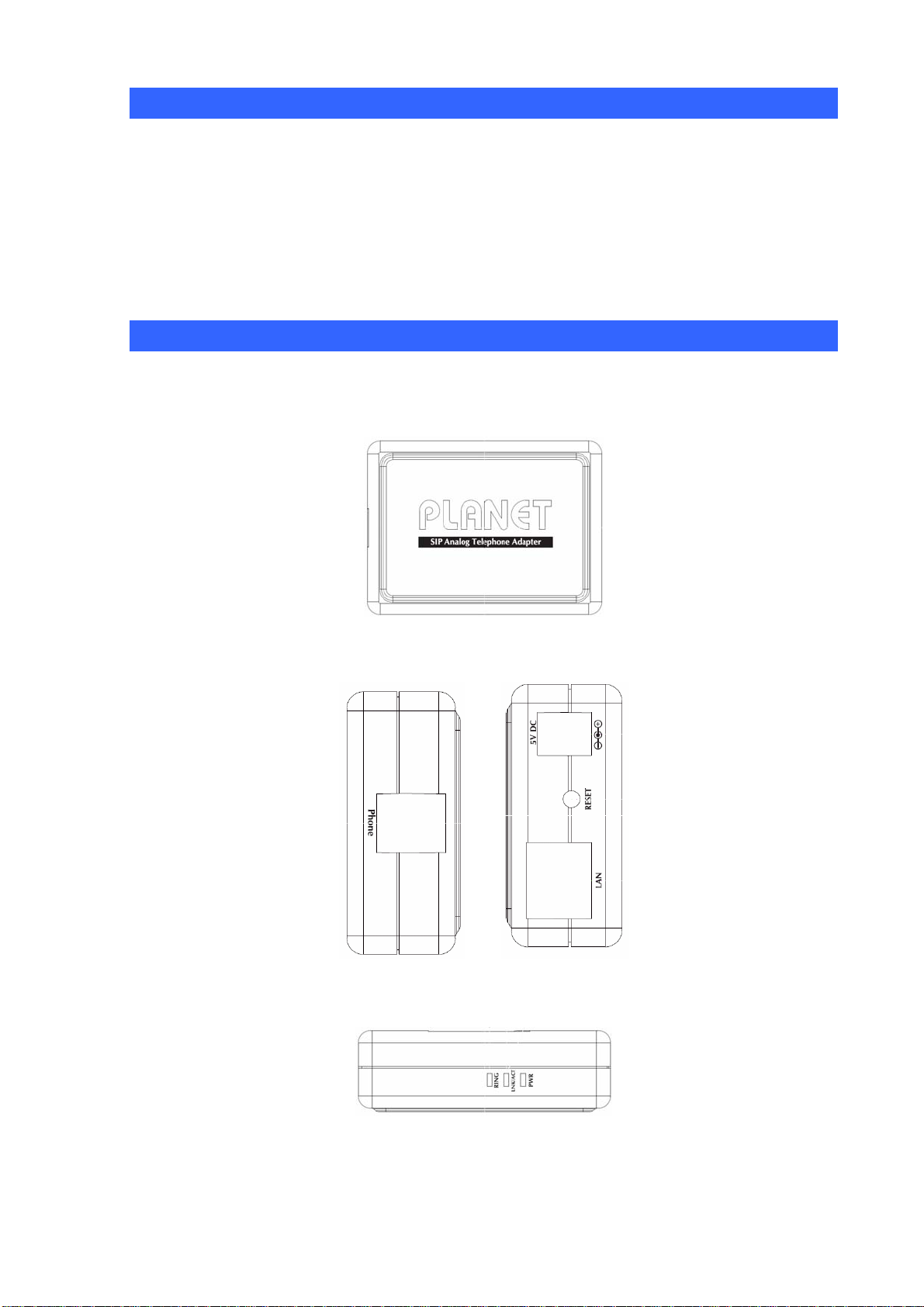
Physical Details
The following figure illustrates the each panel of SIP ATA.
VIP-158: SIP Analog Telephone Adapter (1 x RJ-45, 1 x RJ-11)
Front Panel of VIP-158
Left / Right Panel of VIP-158
Top Panel of VIP-158
- 6 -
Page 7

Physical Interface & Button
A
1 RESET
2 5V DC
3 LAN
4 Phone
Machine default IP is http://192.168.0.1
ÍNote
LED Display
button on rear panel over 5 seconds will reset the VoIP Phone
dapter to factory default value. (Except speed dial and
call forward settings)
Reset to the factory default setting
5V DC Power input outlet
RJ-45 connector, for Internet access, connected directly to
Switch/Hub through straight CAT-5 cable.
RJ-11 connector, connected directly to the analog phone.
. Press RESET
PWR
LNK/ACT
RING
Power is supplied to the device.
OFF: the device is disconnected to LAN.
ON: the device is connected to LAN.
OFF: the phone is idle.
ON: the phone is in use (off-hook).
Blinking: the phone is ringing.
- 7 -
Page 8

Chapter 2
2
Preparations & Installation
Physical Installation Requirement
This chapter illustrates basic installation of ATA analog Phone Adapter (“ATA” in the following term)
• Network cables. Use standard 10/100Base-TX network (UTP) cables with RJ45 connectors.
• TCP/IP protocol must be installed on all PCs.
For Internet Access, an Internet Access account with an ISP, and either of a DSL or Cable modem
Administration Interface
PLANET ATA provides GUI (Web based, Graphical User Interface) and utility for machine management
and administration.
Utility quickly search access
Using for soft utility to search SIP ATA from current network. The utility not only easy-to-use and
provides user more convenience for configuration access, at the some time If you forget this IP address
can also found that via the utility.
Copy this utility tool in your laptop or desktop computer first. And, this utility tool can only be executed in
Windows series of operating systems.
Click the icon for windows desktop to start searching ATA in the network.
Select “Refresh” and you will get the results as above choose the device you want to configuration,
click this IP address of ATA to browse the web page.
- 8 -
Page 9

Web configuration access
To start ATA web configuration, you must have one of these web browsers installed on computer for
management
• Microsoft Internet Explorer 6.00 or higher with Java support
Default IP address of ATA is 192.168.0.1. You may now open your web browser, and insert
http://192.168.0.1
in the address bar of web browser to logon ATA web configuration page.
ATA will prompt for logon username/password, please enter: root / null (no password) to continue
machine administration.
ÍNote
Please locate your PC in the same network segment
(192.168.0.x) of ATA. If you’re not familiar with TCP/IP,
please refer to related chapter on user’s manual CD or
consult your network administrator for proper network
configurations.
- 9 -
Page 10

Chapter 3
3
Network Service Configurations
Configuring and monitoring your ATA from web browser
The ATA integrates a web-based graphical user interface that can cover most configurations and
machine status monitoring. Via standard web browser, you can configure an d check machine status
from anywhere around the world.
Overview on the web interface of ATA
With web graphical user interface, you may have:
More comprehensive setting feels than traditional command line interface.
Provides user input data fields, check boxes, and for changing machine configuration settings
Displays machine running configuration
To start ATA web configuration, you must have one of these web browsers installed on computer for
management
Microsoft Internet Explorer 6.00 or higher with Java support
Manipulation of ATA via web browser
Log on ATA via web browser
After TCP/IP configuration s on your PC, you may now open your web browser, and input
http://192.168.0.1
Enter the IP address of the VIP-158
which by default is 192.168.0.1
Phone Adapter will prompt for logon username/password: root / null (no password)
to logon Phone Adapter web co nfiguration page.
ATA login prompt screen
- 10 -
Page 11

Parameter Description
IP Address
Subnet Mask
Default Gateway
DNS
PPPoE Username
PPPoE Password
PPPoE IP
LAN IP Address of the ATA
Default : 192.168.0.1
LAN mask of the ATA
Default : 255.255.255.0
Gateway of the ATA
Default : 192.168.0.254
DNS server of the ATA
Default : Null
PPPoE user name of the ISP provider
Default : Null
PPPoE pass word of the ISP provider
Default : Null
System will get the IP address when your PPPoE is connection
Default : 0.0.0.0
PPPoE DNS
Connect T ype
MAC
Version
System will get the DNS when your PPoE is connection
Default : 0.0.0.0
Connect Type of the ATA
Default : STATIC
Show the MAC address of the Ethernet interface.
Default : 00304Fxxxxxx
Show the firmware version
Default : 1.0.0
Connection Type Description
SIATIC IP The ISP will assign IP Address, and related information.
DHCP client In most circumstances, it is no need to configure the DHCP settings.
PPPoE The ISP will assign PPPoE username / password for Internet access.
After confirming the modification you’ve done, please click on the SUBMIT button to apply settings
effective and the ATA will be reload page automatic by itsely, that you must to afre sh enter the final
modification IP address for logon web management.
- 11 -
Page 12

ÍNote
Please be noticed that the Utility Tool is only designed
for the LAN environment settgin. If the “Connect Type” is
“PPPoE”, the Utility Tool can NOT find the device.
- 12 -
Page 13

Chapter 4
4
VoIP Telephone Adapter Configurations
SIP Account Settings
In SIP you need to input the account and the related informations in this page, please refer to your ISP
provider. You can register three SIP account in the AT A. You can dial the VoIP phone to your friends via
first enable SIP account and receive the phone from these three SIP accounts.
Besides, if you want to have the VoIP communication to get across the NA T, you should select the
“STUN Enable” item to be “Enable”. Also, you should input the IP address of the “STUN Server”.
- 13 -
Page 14

Parameter Description
Server
Server Port
SIP Port
SIP Name
Username
Password
Register Expires
SIP Proxy Server IP address or Domain Name
Default : Null
Port number of SIP register Server
Default : 5060
Port number of VIP-158
Default : 5060
This SIP account
Default : Null
User name of the SIP account to log into the SIP server
Default : Null
User password of the SIP account to log into the SIP server
Default : Null
Set the time re-registration
Default : 1800 second
NAT Keep Alive
Registrar
STUN Enable
STUN Server
Register Status
Phone Status
Set the time of keeping the NAT alive
Default : 0 second
SIP Registration Server IP address or Domain Name
Default : Null
Set the STUN (Simple Traversal of UDP through NAT) function
Default : Disable
STUN Server IP address
Default : Null
Show the registration status in Register Server
Default : IDLE
Show the analog phone
Default : IDLE
Call Control Settings
User can adjust the items of the “Call Control” when in VoIP communication. And, basically system
will use the following default setting values if user does not want to change them.
- 14 -
Page 15

Parameter Description
RTP Port
RTP TOS (0 - 255)
Default Codec
Packet Size
Jitter Buffer
VAD
LEC
Initial port number for sending RTP p ackets.
Default : 4100
Type of Service value for Quality of Service.
Default : 160
Set the default voice codec to be “G.711 u-law”, “G.711 a-law” or
“G.729A”.
Default : G7.11 u-law
The size of one RTP packet (which is sent out on every specified time
cycle, from 10ms to 60ms).
Default : 20ms
Set the jitter buffer delay time (from 10ms to 60ms)
Default : 60ms
Set the VAD (voice activity detection) function
Default : Disable
Set the LEC (Line Echo Cancellation) function
DTMF Command
DTMF Payload Type
(96-127)
Speaker Volume
Mic. Gain
Tone Volume
T one Coun ty
Default : Enable
Set the DTMF command to be “INBAND”, ”RFC2833” or “SIP-Info”
Default : INBAND
Set the DTMF Payload Type (from 96 to 127).
Default : 101
Set the speaker volume of the analog phone in dB unit.
Default : - 8
Set the microphone gain of the analog phone in dB unit.
Default : - 8
Set the tone volume of the analog phone in dB unit.
Default : - 5
Set the tone rule specification with the associated country name
(CCITT, USA, BT, and Brazil).
Default : USA
- 15 -
Page 16

Provision Settings
The provision feature is for user to easily use ATA by plug & play without the complicated
setting procedures. (Auto provisioning system is an advanced feature of SIP ATA. For further
information on using this function, please contact your ISP.)
1.) If the ISP supports the auto-provisioning system, please select the “TFTP Provision” item to be
“Enable”. Otherwise, select “Disable”.
2.) Also, if user has got the TFTP server IP address from the ISP or network administrator, please
input it in the blank of “TFTP Server IP”.
3.) If user knows the firmware filename, please fill it in blank of “Firmware”.
4.) After above three steps, user should select “SUBMIT” button to deliver the new setting values to
device before the firmware upgrading.
5.) After step 4, user can upgrade the firmware by selecting the “UPGRADE” button.
- 16 -
Page 17

Parameter Descriptio
TFTP Provision
TFTP Server IP
Firmware
Firmware Upgrade
Set the auto-provisioning functionality.
Default : Disable
Shows the IP address of the TFTP server.
Default : 0.0.0.0
Shows the filename of the firmware.
Default : Null
Button for processing the functionality of “Function Upgrade”.
Administrator Setting
User can change the “Username” & “Password” of the login stage.
Parameter Descriptio
Username
Password
Enter of change the username for web logging in.
Default : root
Enter of change the password for web logging in.
Default : No password (null)
- 17 -
Page 18

Making the setting effective
1.) Aftersetting the above all, user should select “SUMBIT” button to deliver the new setting.
2.) From previous step, if users do not want to deliver the new setting values to the device, user can
select “RESET” button to return the original settings.
3.) After step 1, select “REBOOT” button to make the settings effective.
4.) Besides, if user wants to use the default settings, please just select the “RESTORE DEFAULTS”
button.
Parameter Descripti
REBOOT
RESTORE DEFAULT
SUBMIT
RESET
For rebooting the system of the device with the current settings of the
device
For restoring the factory default settings of the devices
For delivering the setting values to the device
For resetting the setting values to the original values
(when getting into this web page this time)
- 18 -
Page 19

Appendix A Voice communication samples
There are several ways to make calls to desired destination in ATA. In this section, we’ll lead you step
by step to establish your first voice communication via keypad and web browsers operations.
Peer to peer (P2P) mode
Assuming there are two VIP-158 in the network the IP address are 192.168.0.1 and
192.168.0.2
VIP-158-A VIP-158-B
LAN IP address LAN IP address
(192.168.0.1) (192.168.0.2)
STEP :
L Hint
9 2
1 *
Pick up telephone handset of VIP-158-A and dial “192.168.0.2#”. Then the phone of
VIP-158-B should ring. You can do the same thing to the VIP-158-B.
y If the IP address of the remote calling party is known,
you may directly make calls by preset number via its IP
address and end with “#”.
y If the Telephone Adapter is installed behind a
NAT/firewall/ IP sharing device, please make sure the
NAT device support SIP applications before making calls.
1 6
* *0 2 #
8
- 19 -
Page 20

SIP Proxy mode
VIP-158-A
LAN IP address
(192.168.0.1)
STEP 1:
STEP 2:
Number: 100 Number: 200
Log in IPX-2000 and create two testing accounts/password: 100 / 123 (for VIP-158-A), and
200 / 123 (for VIP-158-B) for the voice calls.
Please log in VIP-158-A via web browser, find to the SIP item. In the setting page, please
insert the account/password information obtained from your service provider (in this sampl e,
we’re using PLANET IPX-2000 as the IP PBX server for SIP account, call authentications),
and then the sample configuration screen is shown below:
VIP-158-B
LAN IP address
(192.168.0.2)
IPX-2000
LAN IP address
(192.168.0.50)
STEP 3:
Repeat the same configuration steps on VIP-158-B, and check the machine registration
status, make sure the registrations are completed.
STEP 4:
To verify the VoIP communication, please pick up the telephone. Dial the destination number to make
call between SIP clients. For example, VIP-158-A (with number 100) with keypad number 200 to
VIP-158-B, or reversely makes calls from SIP client (VIP-158-B) to the number 100 (VIP-158-A).
- 20 -
Page 21

Appendix B Frequently Asked Questions List
If your SIP ATA is not functioning properly, you can refer to this chapter first for sample troubleshooting
before contacting your dealer. This can save your time and effort but if the symptoms persist, please
consult your dealer.
Q: I forget my ATA login username and / or password
A:
1.) Restore VIP-158 to its factory default settings by pressing the “Reset” button which is at the back
panel of the device for 5 seconds or more.
Q: Non of the LEDs are on when I turn on the SIP ATA
A:
1.) Check if power cord is connected properly.
2.) Check if there is proper AC power coming from the power outlet.
Q: Why can’t I dial my friend’s SIP number?
A:
1.) Check SIP Server Domain Name/IP address. Make sure you have the right Name or IP address.
2.) Check the web browser and access the configuratio n menu. Make sure that the SIP Server Domain
Name/IP Address is correct.
3.) Check the register status unde r SIP Account Settings in the configuration menu (from web
browser). If your status is “Idle” (unregistered), it means you do not have a SIP account. Contact
your SIP service provider to get an account.
Q: Why isn’t my firmware updating?
A:
1.) The VIP-158 can automatically detect the new firmware just after you plug in the power. If new
version is available the ATA will automatically update the firmware.
2.) Check if TFTP server IP address is correct.
3.) Check with your supplier if firmware filename is correct.
- 21 -
Page 22

Appendix C VIP-158 Specifications
Product SIP Telephone Adapter
Model VIP-158
Hardware
LAN 1 x 10/100Mbps RJ-45 port
FXS 1 x RJ-11 connection
Protocols and Standard
Standard SIP 2.0 (RFC3261), STUN (RFC 3489), UPnP, MD5 for SIP authentication
(RFC 2069 / RFC 2617)
Voice codec G.729a, G.711
Voice Standard Voice activity detection (VAD)
Comfort noise generation (CNG)
G.168: Line echo canceller (LEC)
Jitter Buffer
DTMF Detection and Generation
In-Band and Out-of-Band (RFC 2833), (SIP INFO)
Protocols TCP/IP, UDP, DHCP, RTP, HTTP, ICMP, ARP, DNS, TFTP, PPP, PPPoE
Network and Configuration
Access Mode Static IP, DHCP, PPPoE
Management Web, Utility, Auto-provisioning (TFTP)
Dimension (W x D x H) 73 x 55 x 24 mm
Operating Environment 0~40 degre e C, 10~95% humidity
Power Requirement 5V DC
EMC/EMI CE, FCC Class B
- 22 -
 Loading...