

Page 1

SIP / H.323 PoE IP Phone
VIP-100PT / VIP-150PT
User’s Manual
Page 2

Table of Contents
Chapter 1 Overview of the PoE IP Phone..........................................................................................................1
VIP-100PT / VIP-150PT Features.....................................................................................................1
1.1 Hardware Overview..............................................................................................................................2
1.1.1 Front View and Keypad function...............................................................................................2
1.1.2 Rear View.................................................................................................................................5
Chapter 2 Configuring the PoE IP Phone through LCD Phone menus..............................................................6
2.1 Initialize VIP-100PT/VIP-150PT...........................................................................................................6
2.2 LCD Menu Configuration......................................................................................................................7
Chapter 3 Configuring the VIP-100PT/VIP-150PT through Web Pages..........................................................16
Step 1. Browse the IP Address of your IP phone.....................................................................................16
Step 2. Input the login name and password.............................................................................................16
Step 3. Enter the web interface main screen...........................................................................................16
1. Overview......................................................................................................................................16
Step 4. Start machine configurations........................................................................................................17
2. Network Configuration.................................................................................................................17
3. H.323 Configuration (VIP-100PT Only).......................................................................................20
3. SIP Configuration (VIP-150PT Only)...........................................................................................22
4. Phone Configuration....................................................................................................................24
5. System Configuration..................................................................................................................25
Chapter 4 Voice communication samples.........................................................................................................28
Peer to peer (P2P) mode.................................................................................................................28
Appendix A PoE IP Phone Specifications.........................................................................................................31
PLANET PoE IP Phone User’s Manual
1
Page 3

Chapter 1
Overview of the PoE IP Phone
Meeting the next-generation Internet telephony service demands, PLANET Technology provides
feature-rich, toll-quality Internet telephony service solutions. The 802.3af Power over Ethernet
(PoE) IP Phone – VIP-100PT / VIP-150PT. VIP-100PT is H.323 v2/v3/v4 compliant with H.235
security support, the VIP-152T is SIP 2.0 (RFC3261) compliant with SIP digest authentication
supports. The VIP-100PT / VIP-150PT feature high-quality speakerphone technology; also include
an easy-to-use speaker on/off button and call hold/transfer buttons for various voice service. These
features beyond the conventional voice systems nowadays, and the PoE IP phones are
cost-effective solution for Internet Telephony Service Provider (ITSPs) communications and
interoperates with major other-vendor VoIP hardware and systems as well as the traditions of
PLANET VoIP family.
As feature-rich IP Phones, the VIP-100PT / VIP-150PT fulfill your needs. They are simple to use,
and have additional features such as: built-in PPPoE/DHCP clients, password-protected machine
management, LCD menu display, hands-free speakerphone, last number redial, incoming
message indicator, and user-intuitive web administration system.
The VIP-100PT / VIP-150PT are self-contained, service-integrated IP phones— offers intelligent
phone features, and powerful voice procesing power. The VIP-100PT / VIP-150PT can effortlessly
deliver toll voice quality equivalent to the regular PSTN connections utilizing cutting-edge Quality of
Service, echo cancellation, comfort noise generation and voice compensation technology.
Meanwhile, the dual Ethernet interfaces on the VIP-100PT / VIP-150PT allow users to install in an
existing network location without interfering with desktop PC network connections..The new
VIP-100PT / VIP-150PT deliver more convenience, efficiency, innovation and benefits of VoIP
into routine tasks, and dailylife.
PLANET PoE IP Phones – VIP-100PT / VIP-150PT are ideal IP phone solution for office / home
use, as well as installation for Internet Telephony Service Provider (ITSP) from leading vendors. It's
the delivery platform for IP voice services that makes your daily life benefit from the VoIP
technologies.
VIP-100PT / VIP-150PT Features
Simple Installation and administration
Configuration of the VIP-100PT / VIP-150PT can be performed in minutes via the keypad, or web
interfaces. Using the built-in LCD display, the VIP-150T offers user-friendly configuration guidelines;
machine operation status, call status displays, and incoming call identification.
Feature-rich keypad IP Phone
The VIP-100PT / VIP-150PT integrate a high-quality speakerphone with the Call Hold, Forward and
Transfer functions and also provides advanced telephone features, such as last number redial,
incoming call history indicator in a much more convenient and functional manner than traditional
telephone sets.
Dynamic IP address assignment, and voice communication
PLANET PoE IP Phone User’s Manual
1
Page 4
The PLANET VIP-100PT / VIP-150PT can act as a PPPoE/DHCP client, automatically obtaining an
IP address for Internet access.
Various field applications compliant
The VIP-100PT / VIP-150PT are capable of handling both peer-to-peer and H.323GK / SIP proxy
registration, authentication, to interact with major H.323/SIP gateway/IP Phone on the market.
VIP-150T offers the most flexibility and interoperability with PLANET and 3rd party VoIP vendors,
allowing the deployment of both simple and complex VoIP networks such as ITSP,
PC-to-Phone/Phone-to-PC or enterprise VoIP environments.
Standards compliant
The VIP-100PT complies with H.323 version 4, and supports H.323 fast start, H.245 tunneling,
GateKeeper H.235 security mode for different occasions. The VIP-150PT complies with SIP 2.0
(RFC3261), interoperates with 3rd party SIP voice gateways/terminal/software as well as other
PLANET VoIP products. Supported Voice codecs and VoIP technologies are: G.723, G.729ab,
G.711mu/ma; Voice Activity Detection (VAD), and the Comfort Noise Generation (CNG).
1.1 Hardware Overview
1.1.1 Front View and Keypad function
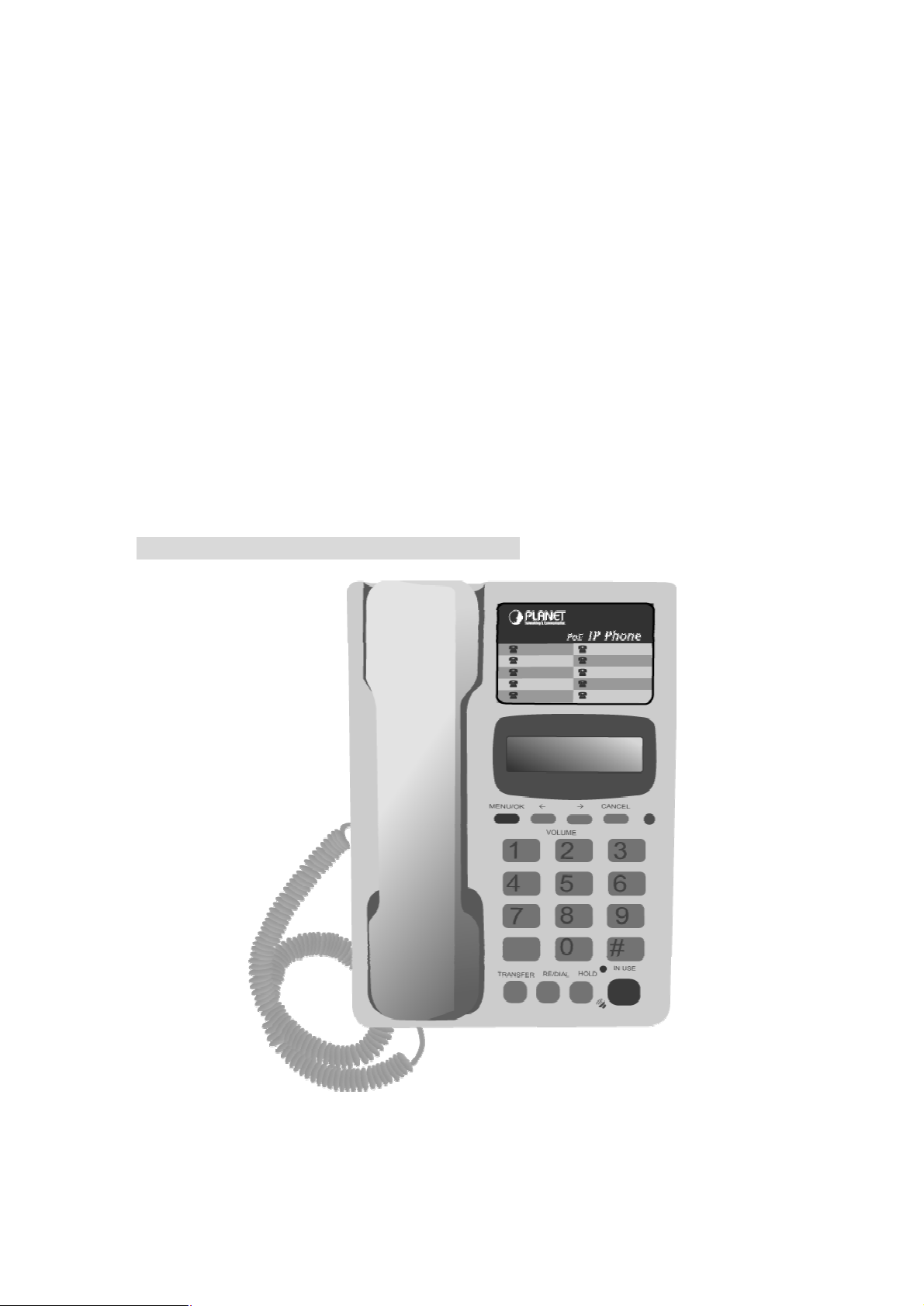
PLANET PoE IP Phone User’s Manual
PoE IP phone overview
2
Page 5
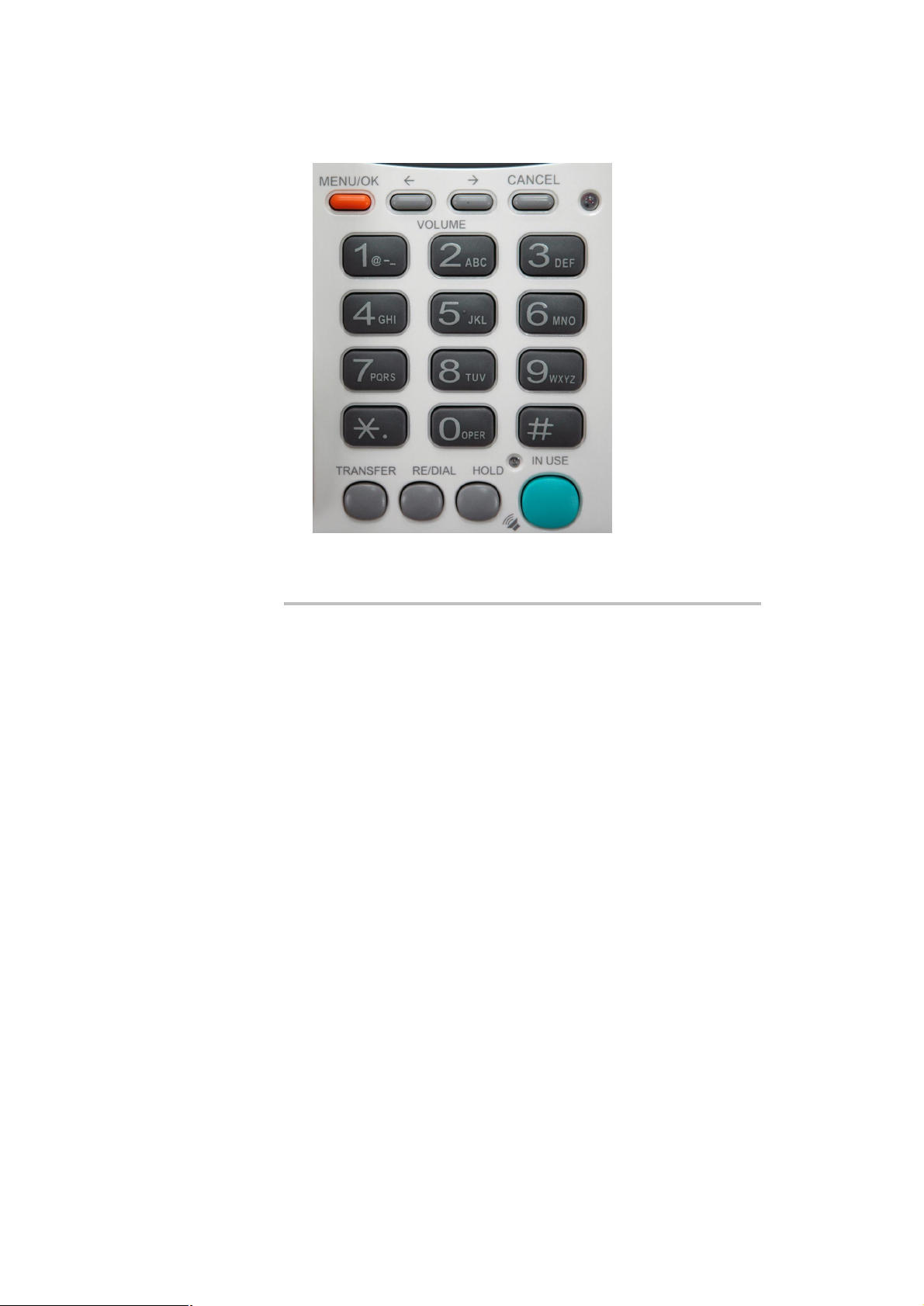
Keypad Description
Menu/OK
When the IP phone is at idle state, this key is used as “Menu” key to bring
out the menu selection on the LCD display.
When inside the menu selection/setting on the LCD display, this key is used
as “OK” key to enter into a lower layer of menu selection or to accept the
edited item’s contents.
When the IP phone is on dial mode, the “OK/Menu” key is used as “Dial
Out ” key.
LEFT
When the IP phone is at idle state or talking on handset or speaker, this key
is used to increase the volume of the voice sound.
The volume of speaker, handset and ring are separately adjusted according
to the mode of current usage. When in idle, “←” key increase the volume of
ring tone, in hand free mode, “←” key increase the volume of speaker, when
in handset mode, “←” key increase the volume of handset.
When the IP phone is entered into the menu selection, this key is used to
scroll up the menu items.
And when the IP phone is editing some menu item’s contents, this key is
used as “ left delete” to delete a digit per each key press.
When the IP phone is on dial mode, the “←” key is used as “delete” key.
RIGHT
When the IP phone is at idle state or talking on handset or speaker, this key
is used to decrease the volume of the voice sound.
The volume of speaker, handset and ring are separately adjusted according
to the mode of current usage. When in idle, “→” key decrease the volume of
ring tone, in hand free mode, “→” key decrease the volume of speaker,
when in handset mode, “→” key decrease the volume of handset.
When the IP phone is entered into the menu selection, this key is used to
scroll down the menu items.
PLANET PoE IP Phone User’s Manual
3
Page 6

And when the IP phone is editing some menu item’s contents, this key is
used as “ right shift” to shift the cursor right a digit per each key press.
CANCEL
When the IP phone is entered into the menu selection, this key is used to
escape to an upper layer of the menu selection.
And when the IP phone is editing some menu item’s contents, this key is
used to cancel current edit and escape to an upper layer of the menu
selection.
TRANSFER
RE/DIAL
HOLD
This key is pressed to transfer an active call to another IP phone. When the
IP phone is active (incoming call answered or outgoing call accepted), by
pressing this key, a dial tone will be heard, then the user can key in another
IP phone’s number to transfer the call to another party. If the call transfer is
successful, a busy tone will appear to notice the user to on-hook the phone.
If the call is failed, the user can press this “Transfer” key again to retrieve
back this original call connection.
When a call is incoming and this IP phone is ringing, by pressing this
“Transfer” key and then another IP phone’s number can transfer the call
immediately to another party without answering the call.
When the IP phone is off-hooked and dialed some number, this key is
pressed to call out. The “#” key has this same function to send out the called
number.
When the IP phone is off-hooked and this key is pressed immediately, the
last dialed number will be called out right away.
To hold the conversation.
This key can also be pressed to do consultant-transfer of an active call to
another IP phone. When the IP phone is active (incoming call answered or
outgoing call accepted), by pressing this key, a dial tone will be heard, then
the user can key in another IP phone’s number to call to another party and
have a conversation with him. Then, by pressing “TRANSFER” key, the call
will be transfer to this new party.
SPK
This key is pressed to switch between the usage of the handset and the
speaker/microphone devices.
#
The “send ” key after phone number is completed during phone dial.
*
Work as symbol “.” (dot) when input IP address.
Number 0~9
These keys are used to dial the call out number when the handset is
offhooked. But when in the menu item editing mode, these keys can be used
to toggle between digits and all English characters by quickly re-pressing the
same key.
PLANET PoE IP Phone User’s Manual
4
Page 7
ture,
rectly to
150PT are installed with 802.3af
PoE device, please make sure the PoE is connected to
The Power over Ethernet support on PLANET PoE IP phones
802.3af
1 “1” ; “ @” ; “-” ; “_”
2 “A” ; “ B” ; “C” ; “2”
3 “D” ; “E” ; “F” ; “3”
4 “G” ; “H” ; “I” ; “4”
5 “J” ; “K” ; “L” ; “5”
6 “M” ; “N” ; “O” ; “6”
7 “P” ; “Q” ; “R” ; “S” ; “7”
8 “T” ; “U” ; “V” ; “8”
9 “W” ; “X” ; “Y” ; “Z” ; “9”
0 “0”
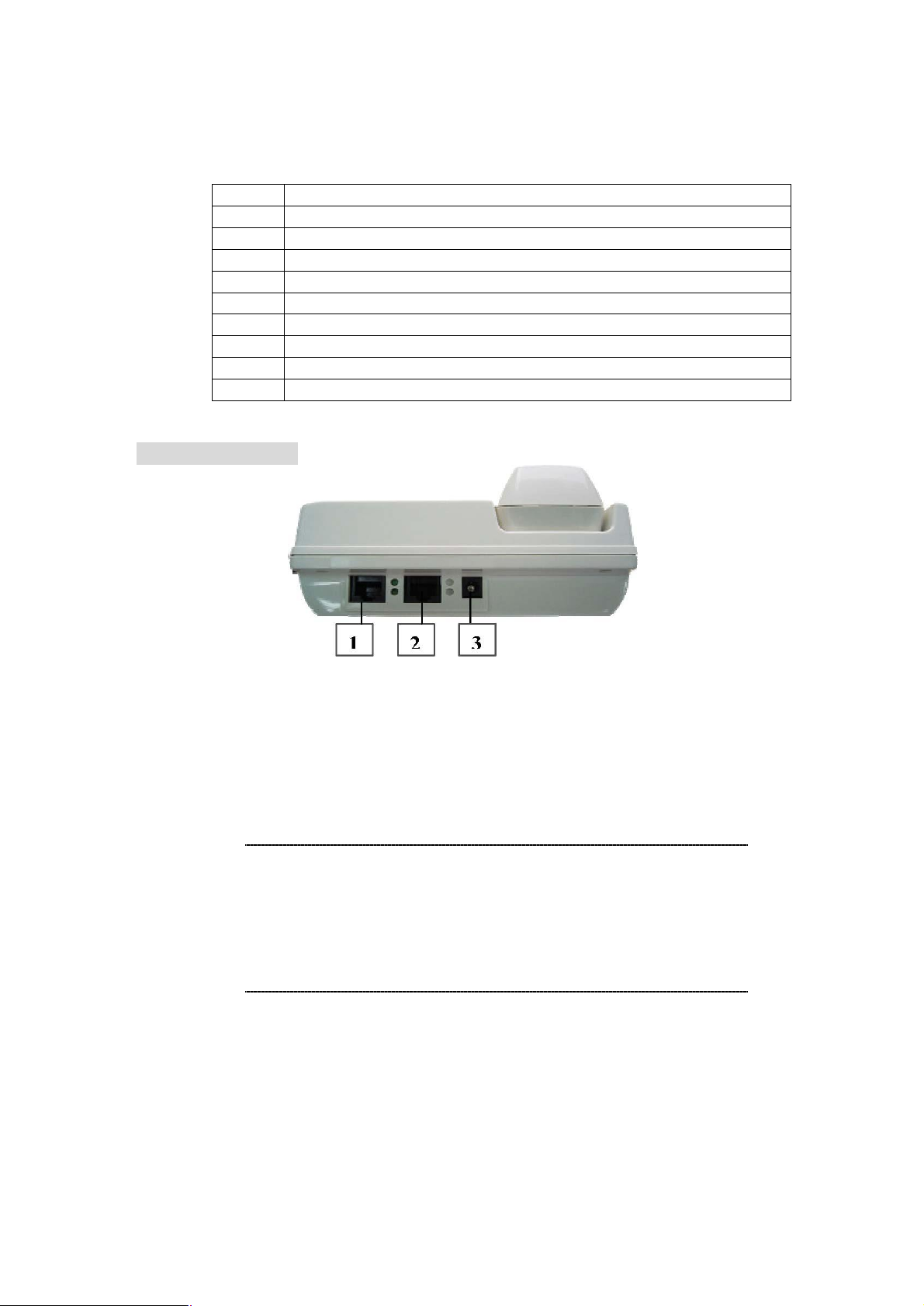
1.1.2 Rear View
i Hint
1 PC
2 WAN
3 12V DC
Ÿ When VIP-100PT/VIP-
the machine WAN interface to be operational.
Ÿ
complies with the 802.3af standards. Using noncompliant PoE device will burn up the IP Phone
permanently.
Rear Panel of VIP-100PT/VIP-150PT
RJ-45 connector, to maintain the existing network struc
connected directly to the PC through straight CAT-5 cable
RJ-45 connector, for Internet access, connected di
Switch/Hub through straight CAT-5 cable.
12V DC Power input outlet
PLANET PoE IP Phone User’s Manual
5
Page 8

Chapter 2
Configuring the PoE IP Phone through
LCD Phone menus
2.1 Initialize VIP-100PT/VIP-150PT
SETP 1:
SETP 2:
1.
When power on the VIP-100PT/VIP-150PT, the LCD screen shows as below.
Starting
…
Wait about 10 seconds, the main LCD screen shall be shown as following, and
when the Internet access is available, the VIP-100PT/VIP-150PT will connected
to the SNTP server. The current time will be displayed on the LCD.
Hi (GK off)
LCD screen of VIP-100PT (H.323)
SIP (Proxy off)
LCD screen of VIP-150PT (SIP)
MENU
Press
CANCEL
1. View
2. Configure (Password: 123)
3.
to enter configuration mode then press OK button to enter sub menus; press
can jump out current menu to previous level.
Advanced Setting (Password: 1234)
Date Time
Date Time
PLANET PoE IP Phone User’s Manual
6
Page 9

2.2 LCD Menu Configuration
1st Level 2nd Level 3rd Level
View
Configure
1.1 Network Value 1.1.1 IP Address
1.1.2 Network Mask
1.1.3 Default Route
1.1.4 DNS Server
1.2 Ping
1.3 Restart
1.4 Firmware Version
1.5 (Yes/No) PKT Trace
2.1 Network 2.1.1 (Yes/No) Dynamic IP
2.1.2 (Yes/No) PPPoE
If Yes: PPPoE User Name
PPPoE Password
2.1.3 Fixed IP
Network Mask
Default Route
DNS Server
2.1.4 GMT
2.2 H323 (VIP-100PT)
2.2 SIP (VIP-150PT) 2.2.1 Display Name
2.3 Forward Mode 2.3.1 (Yes/No) Immediate
2.2.1 Number
2.2.2 Password
2.2.3 H.323 ID
2.2.4 (Yes/No) Reg to GK
2.2.5 (Yes/No) Full RRQ
2.2.2 Login ID
2.2.3 Telephone Number
2.2.4 Password
2.2.5 (Yes/No) Proxy On
If Yes: Proxy Address
2.2.6 (Yes/No) Outbound Proxy
If Yes: Outbound Proxy IP
2.2.7 (Yes/No) RTPLowBw
If Yes: Immediate Number
2.3.2 (Yes/No) Busy
If Yes: Busy Number
2.3.3 (Yes/No) No Answer
If Yes: No Answer Number
2.3.4 No Answer Time
IP Address
Proxy Port
Outbound Proxy Port
PLANET PoE IP Phone User’s Manual
7
Page 10

istration toward the gatekeeper/proxy server will be
“View” menu
In the “
information and also provide some simple functions to check the network status of the IP Phone.
View
” main menu, there are submenus, users may check these items for machine
1.1 View current network settings
By selecting “
1.2 Ping
By selecting “
the IP Phone can verify the connection between remote device. The “
can be used to verify the Internet connection status via pinging an Internet node
1.3 Restart
By selecting the “
“warm restart” is different from the power down/up (cold restart).
i Hint
View” → ”Network
View” → ”Ping
View” → ”Restart
Ÿ Restarting the IP phone will perform the following tasks:
•
connections
•
torn down.
Disconnect all the voice communications, and Internet
Reg
”, you could see the active network parameters in machine.
” and key in the IP address or domain name of another device,
”, the PoE IP Phone will reboot itself immediately. This
ping
” command also
1.5 Display current software version
By selecting the “View” → ”Image Version”, the users can view current software version in
the PoE IP Phone.
1.6 PK Trace for signal monitoring
PLANET PoE IP Phones integrate self-analysis packet tracing algorithm, which is able to
perform machine signaling monitoring task, By enabling the “
the LCD screen will display signaling messages received, and this can be used to monitor
the signals and identify the machine running status.
View” → ”PKT Trace
Network Configuration
The first thing in using the PoE IP Phone is to set the network configuration to let the IP
Phone connect to Internet. Depends on the network environment and phone models, please
use the proper method to configure the IP Phone to connect to Internet.
2.1 Dynamic IP Method (DHCP Client)
When the IP phone installed in a DHCP server enabled network environment (for example,
” to (
Yes
),
PLANET PoE IP Phone User’s Manual
8
Page 11

Once all the network settings are completed, please restart your
IP phone. After rebooting, please check Internet connection status
address (for
example, 168.95.1.1) to ping it. When the response is ok, then the
cable modem connection or corporation internal network). Please browse to machine
network configuration menu, and enable the DHCP client in Dynamic IP selection menu, and
the IP phone will obtain the IP parameters dynamically, and connect to Internet automatically.
Configuration steps:
Configure → Password:123 → Network → (Yes/No) Dynamic IP
2.1.2 PPPoE
Most of the broadband network environment provided now by ISP is the ADSL connection. In
the ADSL environment, the IP Phone can directly connect to the ADSL modem by setting the
PPPoE account (username and password) provided by ADSL service provider, the
configuration steps are shown below: .
Configure → Password:123 → Network → (Yes/No) PPPoE
i
Please browse to machine network configuration menu, and enable the PPPoE service in
machine, and setup the username/password fields for Internet access.
PPPoE Username
PPPoE Password
2.1.3 Fixed IP
Under the “
router settings provided by your ISP or private IP address.
Fixed IP
– please input the user name of the account given by ADSL ISP.
– please input the password of the account given by ADSL ISP.
” submenu, please key in the IP address, network mask and default
Configure → Password:123 → Network → Static IP
Hint
via View -à Ping, then insert in a public, live IP
network configurations are completed.
2.1.3 GMT
Via selecting the time zone in the GMT menu, VIP-100PT/ VIP-150PT is able to retrieve time
information from timeserver on the net.
PLANET PoE IP Phone User’s Manual
Configure → Password:123 → Network → GMT
9
Page 12

Please be sure to check with your
service provider to get the proper information before setting up
i
2.2 Registration to H.323 gatekeeper / SIP Proxy Server
After setting up the network parameters, the IP Phone is able to perform registration to the
H.323 gatekeeper (VIP-100PT) or SIP Proxy server (VIP-150PT) when you’ve been
assigned the account from VoIP vendor/service provider.
2.2.1 Registration to a H.323 gatekeeper (VIP-100PT)
When VIP-100PT is installed in an H.323 GK enabled network, the VIP-100PT registers to
the gatekeeper for voice communications. Following descriptions are parameters to
complete the registration.
Configure → Password:123 → H.323
Telephone Number:
Password:
H.323 ID:
The telephone number, H.323 ID and password fields are
Note
application-oriented parameters.
these fields.
GK mode (Yes/No):
Telephone phone number used to register toward the gatekeeper
Password used to register to the gatekeeper.
This password will be encapsulated in the H.235 message for authentication
purpose. Not every gatekeeper demands this value for authentication; please skip
this field if your ISP does not provide this information.
The H.323 ID will be used to register to the gatekeeper. Not every gatekeeper
demands this value for authentication; please skip this field if your ISP does not
provide this information.
Selecting Yes will enable machine in GK mode, and register to the gatekeeper.
(Machine default mode is Peer-to-Peer (P2P))
.
If you’d like to change the GK settings, it is suggested to log in machine web
interface, and browse to H.323 configuration menu to adjust related parameters.
When VIP-100PT fails to register with the gatekeeper, the IP phone still able to
establish voice calls toward other calling parties Peer-to-Peer via dialing the IP
address directly on the keypad.
PLANET PoE IP Phone User’s Manual
10
Page 13

oriented parameters. Please be sure to check with
i
RTPLowBW (Yes/No):
This ability is to decrease the voice packet bandwidth of the transmit direction in
order to improve the voice quality of transmit direction if the Internet bandwidth is
not good enough.
2.2.1 Registration to a SIP Proxy Server (VIP-150PT)
When the VoIP vendor/operator is running the SIP system, use the VIP-150PT to
register to the proxy server. Configure the following parameters to do the registration.
Configure → Password:123 → SIP
Display Name:
SIP identification
Login ID:
The username used to register to Proxy server. If Proxy server doesn’t request
specific username, please enter the assigned telephone number here.
Telephone Number:
Please input the phone number to register to the proxy server.
Password:
Please input the password to register to the proxy server.
This password is encapsulated in the SIP Proxy-Authorization field using MD5
digest method for authentication purpose. Not every proxy server needs this field,
if not needed, keep it empty.
The SIP telephone number, login ID and password fields are
•
application-
Note
your service provider to get the proper information before
inputting parameters.
VIP-150PT follows the RFC-2617 in the SIP authentication
•
applications.
Proxy mode (Yes/No):
Please check the application demands and select the appropriate operation mode.
Selecting
as the username, password, server information) to establish the voice
communication, SIP proxy is mostly adopted in ITSP (Internet Telephony Service
Provider). Selecting No will enable machine in
After the SIP proxy mode is enabled, two configuration menu will appear: one is
PLANET PoE IP Phone User’s Manual
Yes
to enable SIP proxy mode, and requires additional data input (such
Peer-to-Peer
11
mode.
Page 14

proxy server address, to set the IP address or domain name address of the
proxy server. Another is the proxy server port, to set the port of the proxy server;
Default proxy server port is 5060. Please do not change the proxy server port
number unless your service provider gives these parameters.
If the IP Phone does not register to any proxy server, it still can call to other IP
phone by calling the IP address directly.
Outbound Proxy (Yes/No):
Please set this item to Yes if the registration needs to pass through the Outbound
Proxy server.
Registration / Startup message
When the network and registration configurations are set, please restart the IP Phone, the LCD
display on the IP phone will show one of the following message depends on whether the
registration is ok or not.
When the VIP-100PT is registering to a H.323 gatekeeper successfully, the LCD screen
will display the following message:
Registering
Means that the VIP-100PT is working OK and ready for outgoing/incoming calls. The
number inside braces () is the IP phone ’s number.
Hi
Means that the VIP-100PT is working OK and ready for outgoing/incoming calls. But
the “GK mode ” flag is “No”, i.e. the VIP-100PT not need to register. In this case, can
call the IP address of other VIP-100PT directly.
(Number)
Date Time
(GK off)
Date Time
When the IVIP-150PT is registering to a SIP proxy server successfully, the LCD screen
will display the following message:
Registering
Date Time
(Number)
PLANET PoE IP Phone User’s Manual
12
Page 15

Means that the VIP-150PT is working OK and ready for outgoing/incoming calls. The
number inside braces () is the IP phone ’s number.
SIP
Means that the VIP-150PT is working OK and ready for outgoing/incoming calls. But
the “Proxy On” flag is “No”, i.e. the VIP-150PT not need to register. In this case, can call
the IP address of other VIP-150PT directly.
When the PoE IP Phone is failed in registering to a H.323 gatekeeper or SIP proxy
server, the LCD screen will display the following message:
(Proxy Off)
Date Time
RegFail
Date Time
(Failed message)
The failed message could be one of the followings:
Duplicate:
Phone’s previous registration information is still kept in the gatekeeper/proxy server if
not unregistered last time (this could happened when the PoE IP Phone is powered off
instead of restarted from the menu item). If the previous registration information is not
cleared, may need to wait about 4 minutes to let PoE IP Phone register successfully
again.
Security:
check your account again.
means that the registering number is duplicated with others, or the PoE IP
means that the account (username/password/H.323 ID) is not correct, please
When the
But the menu selection and the onhook/offhook function can work OK.
When the PoE IP Phone is failed in registering to a H.323 gatekeeper or SIP
RegFail
DHCPFail
message displayed, the IP phone cannot make any calls now.
(Number)
Date Time
Means that the PoE IP phone is configured to use DHCP to get IP address, but the
DHCP procedure failed (can not find a DHCP server or the DHCP server rejected
the IP assignment). The IP phone cannot make any calls and the onhook/offhook
PLANET PoE IP Phone User’s Manual
13
Page 16

functions cannot work cannot hear any sound on the handset and the speaker.
Only the menu selection can work, now.
The PoE IP phone will continuously try to get the IP address from the DHCP server,
so, if the DHCP server is responding, the
display to notify that the PoE IP phone is working OK.
When the PoE IP Phone is set to use the PPPoE method for network connection,
but have some problem in finding the PPPoE server (ADSL modem), the LCD
screen will display the following message:
Means that the PoE IP phone is configured to use PPPoE to get IP address, but the
PPPoE procedure failed (can not find a PPPoE server or the network connection
has some problem). The IP phone cannot make any calls, but the menu selection
and the onhook/offhook function can work OK.
When the PoE IP Phone is set to use the PPPoE method for network connection,
but have some problem in the PPPoE account, the LCD screen will display the
PPPoE FindFai
Date Time
l (Number)
DHCPFail
() display will change to Hi()
following message:
PPPoE AuthFail
Means that the PoE IP phone is configured to use PPPoE to get IP address, but the
PPPoE server refuse the connection because the username/password is not
correct. The PoE IP phone cannot make any calls, but the menu selection and the
onhook/offhook function can work OK.
When the PoE IP Phone is enable the “
display the following message:
PLANET PoE IP Phone User’s Manual
(Number)
Date Time
Immediate Forward
14
”, the LCD screen will
Page 17

FWD
(Number)
Date Time
Means that the VIP-100PT is working OK and ready for outgoing/incoming calls.
But for any incoming call, it will be forwarded to the “Immediate Forward Number”;
this PoE IP Phone will not ring.
2.3 Call Forward Configurations
The PoE IP Phone supports three different kinds of call forward functions, please
select “
2.3.1 Immediate Forward
Under “
by selecting Yes on (Yes/No) Immediate and input the number he/she would like
the call to be forwarded to. For example, when A calls B, and B has enabled the
immediate forward with number 555-5555 on the IP phone. In this circumstance,
this phone call from A will be forwarded to number 555-5555. When the
Configure
Forward Mode
” → ”
Forward Mode
” submenu, users are able to setup for immediate forward
” for these three kinds of selection:
“immediate forward” is enabled, the “busy forward” and “no answer forward” cannot
be enabled at the same time.
2.3.2 Busy Forward
Under “
selecting
to be forwarded to when this phone is busy (active). For example, when A calls B,
and IP phone B is busy and “
555-5555, then, this phone call from A will be forwarded to number 555-5555.
2.3.3 No Answer Forward
Under “
by selecting Yes on “(Yes/No) No Answer” and input the number he/she would like
the call to be forwarded to when this phone is not answered for the specified
seconds. For example, when A calls B, and B’s phone is not answered and has Yes
on “(Yes/No) No Answer” with number 555-5555 and no-answer time equals 10,
then, this phone call from A will be forwarded to number 555-5555 after ringing for
10 seconds no answered.
Forward mode
Yes
on “(Yes/No)
Forward mode
” submenu, users are able to setup for busy forward by
” submenu, users are able to setup for no-answer forward
Busy
” and input the number he/she would like the call
busy forward
” has been enabled with number
PLANET PoE IP Phone User’s Manual
15
Page 18

Chapter 3
Configuring the VIP-100PT/
VIP-150PT through Web Pages
VIP-100PT/VIP-150PT are equipped with a web-based graphical user interface that can cover
most configurations and machine status monitoring. Via standard, web browser, you can configure
and check machine status from anywhere around the world.
Step 1. Browse the IP Address of your IP phone
After TCP/IP configurations on the phone, you may now open your web browser, and input
machine default IP address
192.168.0.1
to logon VIP-100PT/VIP-150PT web configuration page.
Step 2. Input the login name and password
n
Login name:
n Password: Null (no password)
root
Step 3. Enter the web interface main screen
After logging in machine, machine main screen is shown below.
1. Overview
Network, and firmware information of the PoE IP Phone will be displayed on machine
homepage; more machine configuration menu can be found in the left frame:
PLANET PoE IP Phone User’s Manual
16
Page 19

o the
150PT to make
i
• Firmware version: machine firmware version information
• Network value: (
IP Address: 192168.0.1
Subnet Mask: 255.255.255.0
Default routing gateway: 192.168.0.254
DNS Server: 168.95.1.1
Step 4. Start machine configurations
Most important items are
remember to configure these commands before start to work with VIP-100PT/VIP-150PT.
After parameter modifications, it is required to browse t
“
Note
System Configuration
changes effective.
Network Configuration
” page to reboot VIP-100PT/VIP-
2. Network Configuration
Please select the “
display to allow you to set all the network related configurations
Network Configuration
H.323/SIP Configuration
and
” icon on the left menu; the following page will
. Please
PLANET PoE IP Phone User’s Manual
17
Page 20

150PT SNTP
e information from the
150PT. For example, the time zone in Taiwan should
i
Network configurations:
Dynamic IP
•
PPPoE
•
Fixed IP
•
: Enable/disable PPPoE function.
1. PPPoE Username: Set PPPoE authentication User Name.
2. PPPoE Password: Set PPPoE authentication password.
3. IP Address: IP Address of VIP-100PT/VIP-150PT
4. Subnet Mask: setup the subnet mask of VIP-100PT/VIP-150PT
5. Default routing gateway: setup default gateway of VIP-100PT/VIP-150PT
6. DNS Server: setup domain name server IP address.
Others:
MAC Address
•
SNTP Server Address
•
GMT
•
Note
: setup time zone for SNTP Server time
When SNTP server is available, enable VIP-100PT/VIP-
•
function to point to SNTP server IP address, so that
VIP-100PT/VIP-150PT can obtain proper tim
SNTP server.
You may enable different time zone to meet the location of
•
VIP-100PT/VIPbe set as 8,which means GMT+8.
: Enable/disable DHCP Client function.
: MAC address of the PoE IP Phone
: setup SNTP Server Address
PLANET PoE IP Phone User’s Manual
18
Page 21

cting your IP phone to the
Internet, please consult your ISP personnel to obtain proper
PPPoE/IP address related information, and input carefully.
If Internet connection cannot be established, please check
e staff
After setting up network parameters, be sure to apply settings (via “
System Configuration
“
Connection Type Data required.
Dynamic IP (DHCP
client)
PPPoE
Fixed IP Address The ISP will assign IP Address, and related information.
i
Hint
When there is difficulty conne
the physical connection or contact the ISP servic
for support information.
” menu to reboot the machine to make the settings effective
In most circumstances, it is no need to configure the DHCP
settings..
The ISP will assign PPPoE username / password for Internet
access,
DONE
” button) and browse to
PLANET PoE IP Phone User’s Manual
19
Page 22

3. H.323 Configuration (VIP-100PT Only)
Please select the “
allow you to set all the H.323 related configurations.
H.323 Configuration
” icon on the left menu; the following page will display to
H.323 Parameters:
Telephone Number:
•
Gatekeeper.
Password:
•
H.323 ID
•
as username for authentication when the IP phone is enabled in GK mode.
GK mode
•
GK IP:
•
• GK Port: communication port number of the Gatekeeper for VIP-100PT to send
messages.
Set Gatekeeper IP address or Domain Name.
the authorized password in the gatekeeper application
: setup H.323 ID provided by service provider, the H.323 ID is mostly used
: Enable/disable Gatekeeper function.
PLANET PoE IP Phone User’s Manual
insert telephone number of VIP-100PT when registering to
20
Page 23

for more
i
Hint
Forward Mode:
Immediate
•
Immediate Number
•
Busy
•
Busy Number
•
No Answer
•
No Answer Number
•
• No Answer Time:
: enable/disable
: setup the immediate forward number here.
: enable /disable
: setup the busy forward number here
: enable /disable
setup the No Answer Forward number here
Busy Forward
: setup the No Answer Forward number here
It is suggested to check section 2.3.1 to 2.3.3
information of Call forward feature in machine
Advanced Setting:
RTP Port (Starting
•
transmission port.
RTP Prot (Ending
•
transmission port.
H.323 Fast Connect
•
H245 Mode
•
fast start connection
H235 Security:
•
H.450.1 On
•
Codec
•
Full RRQ
•
information when registering to the GK (Default: No)
: enable H.245 tunneling mode or open the H.245 channel after H.323
: enable or disable the H.323 supplementary services in machine
: voice codec used to encode the voice packets
: in the GK application, you may enable or disable sending full RRQ
): the starting port number used in the PoE IP phone voice
): the ending port number used in the PoE IP phone voice
: enable/disable the H.323 fast start mode
select the authentication type for the H.235 security
Immediate Forward
function.
No Answer Forward
function.
function.
PLANET PoE IP Phone User’s Manual
21
Page 24

22
3. SIP Configuration (VIP-150PT Only)
Please select the “
SIP Configuration
” icon on the left menu; the following page will display to
allow you to set all the SIP related configurations.
PLANET PoE IP Phone User’s Manual
Page 25

23
ice
provider to obtain proper information before setting up machine
Please contact the service provider or VoIP system administrator
i
SIP Parameters:
Display Name:
•
Login ID
•
specific username, please enter line number here.
Telephone Number
•
Password
•
necessary when SIP proxy doesn’t request client to set password. In the
circumstances, please setup the username same as telephone number for SIP
registration.
Proxy mode
•
Proxy Server Address
•
Proxy Port
•
Outbound Proxy
•
Outbound Proxy Address
•
: the username to register to Proxy Server. If Proxy server doesn’t request
SIP identification
: the telephone number of VIP-150PT to register to SIP proxy.
: the password used to register to SIP proxy. This parameter will not be
: enable/disable SIP proxy mode.
: setup proxy port for SIP proxy communication.
: Enable/disable SIP outbound proxy function.
: SIP proxy IP address or domain name.
: IP address / domain name.of the SIP outbound proxy
• Outbound
STUN server
•
STUN server Address
•
• STUN server
Forward Mode:
Immediate
•
Immediate Number
•
Busy
•
•
•
• No
• No
: Enable/disable busy call forwarding
Busy Number
No Answer
Answer Number
Answer Time
Settings in the SIP configuration menu are mostly
•
application-oriented. Please be sure to check with the serv
Note
•
to have the proper call forwarding settings/information.
Proxy Port
: Enable/disable SIP STUN function.
Port
: Enable/disable immediate call forwarding
: the busy call forwarding number
: Enable/disable no-answer call forwarding in machine
: communication port number of the SIP outbound proxy
: IP address / domain name.of the SIP STUN server
: communication port number of the SIP STUN server
: the immediate call forwarding number
: the no-answer call forwarding number
: the waiting time to forward the call to specific number
PLANET PoE IP Phone User’s Manual
Page 26

24
Advanced Setting:
Reg From
•
unless for very specific system.
Reg To
•
unless for very specific system.
Reg Expire
•
control the re-registration period.
RTP Port (Starting
•
transmission port..
RTP Port (Ending
•
transmission port.
Codec
•
called party determines the type of voice codec used in conversation.
: Modify the “From:” field in the SIP/SDP messages. Should left this empty
: Modify the “To:” field in the SIP/SDP messages. Should left this empty
: Modify the value “Expires:” field in the SIP/SDP messages. This will
): the starting port number used in the PoE IP phone voice
): the ending port number used in the PoE IP phone voice
: voice codec used to encode the voice packets. In SIP communications, the
4. Phone Configuration
Please browse to the “
Phone configuration
” on the left menu, following page will be displayed for
phone call and voice codec related configurations.
Prefix Setting:
This parameter is used to setup the calling prefix string.
For some specific VoIP system, the IP Phone can call to PSTN/mobile number and the
called number must include the country code, e.g. the country code of Taiwan is 886, so
PLANET PoE IP Phone User’s Manual
Page 27

25
if want to call a Taipei city call 02-12345678, the called number needed to be
886-2-12345678. But this is not consistent with the normal dialing behavior. In order to
use the normal dialing behavior, you can set the “My Country Code” value to 886, and
set the “Area Prefix Code” value to 0.
As for the “International Code”, when you want to dial an international call, the
International Code will be removed. E.g., suppose want to make a call to China, the
dialed number will be 002-86-2112341234, the IP Phone will remove the “International
Code” 002, and send the real number of 86-2112341234.
This prefix code implementation is only needed for some specific VoIP system.
Normally, this is not needed, just let all the prefix values be empty.
Voice:
Ring Volume (0-9)
•
Handset Volume (0-9)
•
Handfree Volume (0-9)
•
CodecTxGain(0-9)
•
Ring Type
•
RTPLowBW
•
direction in order to improve the voice quality of transmit direction if the Internet
bandwidth is not good enough.
• Jitter
400ms.) When in some specific Internet connection or slow network, the traffic is
arriving is with large jitter, i.e. with bad voice quality, you can improve the voice
quality via fine tuning the “Jitter Buffering”
: select the ring type (ring pattern) of an incoming call.
Buffer
: select the volume of ringing.
: select the telephone set volume
: select the volume of handfree speaking.
: select the output voice volume.
: this setting is to decrease the voice packet bandwidth of the transmit
: increase the jitter buffer of receiving voice packet. (from 150ms to
Others:
VAD
•
: VAD is short for Voice Activity Detection, the IP Phone will detect if the user is
talking or not, and avoid to send voice packet when the user is silent to decrease the
bandwidth requirement.
BG Noise Level (0-9)
•
the sensitivity of the VAD detection.
: signal level of back ground noise. This parameter controls
5. System Configuration
Please select the “
configurations.
In this page, you can perform machine software upgrade, change username/password of the web
login, and reboot (restart) machine.
PLANET PoE IP Phone User’s Manual
System Configuration
” on the left menu; you may set up the system related
Page 28

26
Firmware Upgrade:
FTP Server
•
PoE IP phone
Image File Name
•
: IP address of the FTP server, which contains the firmware file of the
: firmware file name of VIP-100PT/VIP-150PT.
Configuration Backup/Restore:
FTP Server IP Address
•
backup/restore
Username: Set
•
Password: Set
•
Image File Name
•
login username for the FTP server
login password for the FTP server
: system configuration file for machine backup/restore
Configuration Backup/Restore:
PLANET PoE IP Phone User’s Manual
: IP address of the FTP server for system configuration
The default username/password for web login is
Page 29

27
The PoE IP phones are optimized for VoIP applications, it will
not require firmware upgrade in most cases. It is suggested to
check with our local distributor for machine firmware upgrade
While performing firmware upgrade, please allocate the firmware
file in the FTP root directory, so that the IP phone can find
” button, all the modified data will
saved in machine, and activated in the next
If you’d like to load the factory default value into machine,
i
root / <no password>
enter the new login name, re-enter the current password, new password and confirm new
password to enable new password.
Reboot Button:
, you may modify the username/password for more security. Please
Press the “
REBOOT
” button will reset the PoE IP Phone
•
Hint
information.
•
the firmware file to complete the upgrade process.
When pressing the “REBOOT
•
automatically be
power-on.
•
please press “#*110*” on the keypad to reset the IP phone.
PLANET PoE IP Phone User’s Manual
Page 30

28
*
1 6 8 0 0 0
* *
Chapter 4
Voice communication samples
There are several ways to make calls to desired destination in VIP-100PT/VIP-150PT. In this
chapter, we’ll lead you step by step to establish your first voice communication via web browsers
operations.
Peer to peer (P2P) mode
VIP-100PT to VIP-100PT connection via IP address
Assuming two VIP-100PT are installed in the same network segment, the IP addresses are
192.168.0.1, 192.168.0.2
192.168.0.1
192.168.0.2
In peer-to-peer mode, you can direct pickup the handset and dial the IP address of the remote
VIP-100PT using the keypad as below:
1 9 2
Then you may pick up the ringing VIP-100PT to start conversation. You may repeat the same
steps to make calls from another VIP-100PT.
2 #
VIP-150PT to VIP-150PT connection via IP address
Assuming two VIP-150PT are installed in the same network segment, the IP addresses are
192.168.0.1, 192.168.0.2
192.168.0.1
192.168.0.2
PLANET PoE IP Phone User’s Manual
Page 31

29
*
1 6 8 0 0 0
* *
calling party is known,
via its IP address and end
behind a NAT/firewall/
In peer-to-peer mode, you can direct pickup the handset and dial the number using the keypad as
below:
1 9 2
2 #
Then you may pick up the ringing VIP-150PT to start conversation. You may repeat the same
steps to make calls from another VIP-100PT.
i
Hint
Ÿ If the IP address of the remote
you may directly make calls
with an “#”.
Ÿ If the IP phones are installed
IP sharing device, please make sure the NAT device
support SIP applications before making calls
VIP-150PT to VIP-150PT connection via SIP telephone number
VIP-150PT
WAN IP Address
(192.168.0.1)
Number: 100 Number: 200
VIP-150PT
WAN IP Address
(192.168.0.2)
SETP 1:
Please browse machine “
Insert IP address of the remote calling party in the “
SIP configuration”
menu, and enable the
Proxy Server Address
Proxy mode
” field.
.
Sample configuration screen is shown below:
PLANET PoE IP Phone User’s Manual
Page 32

30
SETP 2:
After these configurations, be sure to click the “
System Configuration
“
rebooting, the unit will communicate with the remote calling party, the LCD screen will show
below:
” menu to reboot the machine to make the settings effective After
DONE
” button to apply settings and browse to
Registering
(100)
SETP 3:
At this moment, you may pick up the handset and dial “200” to connect the remote VIP-150PT to
start the voice communications.
Date Time
PLANET PoE IP Phone User’s Manual
Page 33

31
Appendix A
PoE IP Phone Specifications
Product H.323 PoE IP Phone SIP PoE IP Phone
Model VIP-100PT VIP-150PT
Hardware
WAN 1 x 10/100Mbps RJ-45 port (Power Over Ethernet 802.3af function)
PC 1 x 10/100Mbps RJ-45 port
LCD display 2 x 16 characters
Speaker 8 Ohm/0.2 Watt speaker for speakerphone operation
Protocols and Standard
Standard H.323 version 4,H.323 Fast start,
H.245 Tunneling and H.245 DTMF
relay
Voice codec G.723.1 (6.3k/5.3k), G.729ab, G.711 (a-law/u-law)
Voice Standard Voice activity detection (VAD)
Comfort noise generation (CNG)
Dynamic Jitter Buffer
Supplementary services Immediate (unconditional) call forwarding
Busy call forwarding
No answer calls forwarding
Call hold/transferring.
Call history Record incoming call
Outgoing call
Missed (not accepted) call history
Protocols RFC-3261, H.323, TCP//IP, UDP/RTP/RTCP, HTTP, ICMP, ARP, DNS,
DHCP, NTP/SNTP, FTP, PPP, PPPoE
Network and Configuration
Access Mode Static IP, PPPoE, DHCP
Management Web, Keypad
Dimension (W x D x H) 170 mm x 220 mm x 60 mm
Operating Environment 0~40 degree C, 10~95% humidity
Power Requirement 12V DC
EMC/EMI CE, FCC Class B
SIP 2.0 (RFC3261), SIP digest
authentication (MD5),
PLANET PoE IP Phone User’s Manual
 Loading...