

Page 1

Z-Wave Ceiling-mount Smoke
Detector
HZS-200E/HZS-200A
Page 2

Z-Wave Ceiling-mount Smoke Detector
HZS-200E/HZS-200A
Copyright
Copyright © 2015 by PLANET Technology Corp. All rights reserved. No part of this
publication may be reproduced, transmitted, transcribed, stored in a retrieval system, or
translated into any language or computer language, i n any form or by any mean s, electroni c,
mechanical, magnetic, optical, chemical, manual or otherwise, without the prior written
permission of PLANET.
PLANET makes no representations or warranties, either expressed or implied, with respect
to the contents hereof and specifically disclaims any warranties, merchant ability or fitness for
any particular purpose. Any software described in this manual is sold or licensed "as is".
Should the programs prove defective following their purchase, the buyer (and not PLANET,
its distributor, or its dealer) assumes the entire cost of all necessary s ervicing, repair, and
any incidental or consequential damages resulting from any defect in the software. Further,
PLANET reserves the right to revise this publication and to make changes from time to time
in the contents hereof without obligation to notify any person of such revision or changes.
All brand and product names mentioned in this manual are trademarks and/or registered
trademarks of their respective holders.
Federal Communication Commission Interference Statement
This equipment has been tested and found to comply with the limits for a Class B digital
device, pursuant to Part 15 of FCC Rules. These limits are designed to provide reasonable
protection against harmful interference in a residential installation. This equipment generates ,
uses, and can radiate radio frequency energy and, if not installed and used in accordance
with the instructions, may cause harmful interference to radio communications. However,
there is no guarantee that interference will not occur in a particular installation. If this
equipment does cause harmful interference to radio or television reception, which can be
determined by turning the equipment off and on, the user is encouraged to try to correct the
interference by one or more of the following measures:
1. Reorient or relocate the receiving antenna.
2. Increase the separation between the equipment and receiver.
3. Connect the equipment into an outlet on a circuit different from that to which the receiver
is connected.
4. Consult the dealer or an experienced radio technician for help.
FCC Caution
To assure continued compliance, use only shielded interface cables when connecting to
computer or peripheral devices. Any changes or modifications not expressly approved by the
party responsible for compliance could void the user’s authority to operate the equipment.
This device complies with Part 15 of the FCC Rules. Operation is subject to the following two
conditions: (1) This device may not cause harmful interference, and (2) this device must
accept any interference received, including interference that may cause undesired
operation.
Federal Communication Commission (FCC) Radiation Exposure Statement
This equipment complies with FCC radiation exposure set forth for an uncontrolled
environment. In order to avoid the possibility of exceeding the FCC radio frequency
exposure limits, human proximity to the antenna shall not be less than 20 cm (8 inches)
during normal operation.
Safety
This equipment is designed with the utmost care for the safety of those who in stall and u se it.
However, sp ecial attentio n must be paid to the dangers of electric shock and static electricity
when working with electrical equipment. All guidelines of this and of the computer
manufacture must therefore be allowed at all times to ensure the safe use of the equipment
.
- 2 -
Page 3

Z-Wave Ceiling-mount Smoke Detector
HZS-200E/HZS-200A
CE Mark Warning
This is a Class B product. In a domestic environment, this product may cause radio
interference, in which case the user may be required to take adequate measures.
WEEE Regulation
To avoid the potential effects on the environment and human health as a result of
the presence of hazardous substances in electrical and electronic equipment, en d
users of electrical and electronic equipment should understand the meaning of
the crossed-out wheeled bin symbol. Do not dispose of WEEE as unsorted
municipal waste and have to collect such WEEE separately.
Revision
User’s Manual of PLANET Z-Wave Ceiling-mount Smoke Detector
Model: HZS-200
Rev: 1.00 (October, 201 5)
Part No. EM-HZS-200 Series_v1.0.doc
- 3 -
Page 4

Z-Wave Ceiling-mount Smoke Detector
HZS-200E/HZS-200A
Table of Contents
Chapter 1. Product Intr oduction......................................................................5
1.1 Package Contents...............................................................................5
1.2 Overview.............................................................................................5
1.3 Specifications......................................................................................7
Chapter 2. Hardware Interface........................................................................8
Chapter 3. Z-Wave Device Setting..................................................................9
3.1 Configuring Z-Wave Device via Web ..................................................9
3.2 Configuring Z-Wave via Smart Phone...............................................12
3.3 Configuring Z-Wave via HTS-1000P.................................................17
Appendix A: Troubleshooting & Frequently Asked Questions.......................26
- 4 -
Page 5

Z-Wave Ceiling-mount Smoke Detector
HZS-200E/HZS-200A
Chapter 1. Product Introduction
1.1 Package Contents
The package should contain the following:
z Smoke Detector x 1
z Quick Installation Guide x 1
z CR123A Lithium Battery x 1
z Bracket Holder x 1
z Screw Kit x 1
If any of the above items are missing, please contact your seller immediately.
1.2 Overview
Home Automation and Smart Home Control
The HZS (Z-Wave Sensing Device) series of PLANE T Home Automation product family, based
on Z-Wave technology, provides the advanced security system that protects your home and
family 24/7. Easy operation and flexible configuration are the attractive features of our system;
the simple one-touch button lets you program your regular settings according to your
preference and operation mode. Worked with PLANET HAC-1000 Z-Wave Home Automation
Control Gateway, you get the all-round and reliable home security services that we offer. Our
full range of product lines ensure that you get all the devices you need for your home security
system.
- 5 -
Page 6

Z-Wave Ceiling-mount Smoke Detector
HZS-200E/HZS-200A
Vocal Smoke Alarm Horn
PLANET HZS-200 is a Photoelectric Smoke Detector whose alarm of 85dB will be triggered
upon detection of smoke coming from a fire or other burning sources. The alarm signal is then
picked up by PLANET HAC-1000 Control Gateway where you will be remotely alerted of the
situation via mobile devices, such as smart phone and tablet. The quickness of the alert can
certainly stop the situation from becoming worse, thereby protecting your home from the
would-be tragedy.
Getting Started is as Easy as 1-2-3
1. Via the Cloud Home App (including Home Automation Controller Pad and Control
Gateway), press Inclusion/Exclusion to include/exclude Z-Wave device.
2. On the Z-Wave device, press the Pair button to establish a conne ction with the control
gateway.
3. Users can enjoy and manage Z-Wave network right a way.
- 6 -
Page 7

Z-Wave Ceiling-mount Smoke Detector
HZS-200E/HZS-200A
Easy Installation and Convenient Status Indicator
The HZS-200 can be easily installed by ceiling mounted or wall mou nted. It also provides
various LED light signals for you to conveniently recognize its different statuses directly, such
as standby mode, tamper switch alert, low battery warning and error detection, without logging
in to its configuration interface.
1.3 Specifications
Product
Hardware and Network
Z-Wave Frequency
Sensor
Buzzing Sound Level
LED Indicators
Operating Range
Installation
General
Power Requirements
Operating Temperature
Operating Humidity
Weight
Dimensions (Φ x L)
Emission
HZS-200A HZS-200E
America: 908.42MHz Europe: 868.42MHz
Photoelectric
85dB, 3m distance
Red: Standby mode, low battery warning
Yellow: Tamper switch alert, low battery warning, error
detection
Up to 30 meters in open space
Wall mount, 4 to 6 inches from the ceiling suggested
Ceiling mount
Indoor use only
CR123A 3V
0 ~ 49 degrees C
10 ~ 95% (non-condensing)
144g
120 x 48.7 mm
CE, FCC
- 7 -
Page 8

Z-Wave Ceiling-mount Smoke Detector
Chapter 2. Hardware Interface
Model HZS-200E/HZS-200A
Dimensions (W x D x H) 120 x 48.7 mm
Weight 144g (gross weight)
¾ Front Panel
LED/Test/Program switch
HZS-200E/HZS-200A
Interface Description
LED
Test
Program switch
Red: Standby mode, low battery warning
Yellow: Tamper switch alert, low battery warning, error detection
*For more details of indicator, refer to HZS-200 user manual.
Set the Silence Feature and check whether this device got crash or
ready.
Press to include or exclude a Z-Wave network.
- 8 -
Page 9
Z-Wave Ceiling-mount Smoke Detector
HZS-200E/HZS-200A
Chapter 3. Z-Wave Device Setting
3.1 Configuring Z-Wave Device via HAC-1000
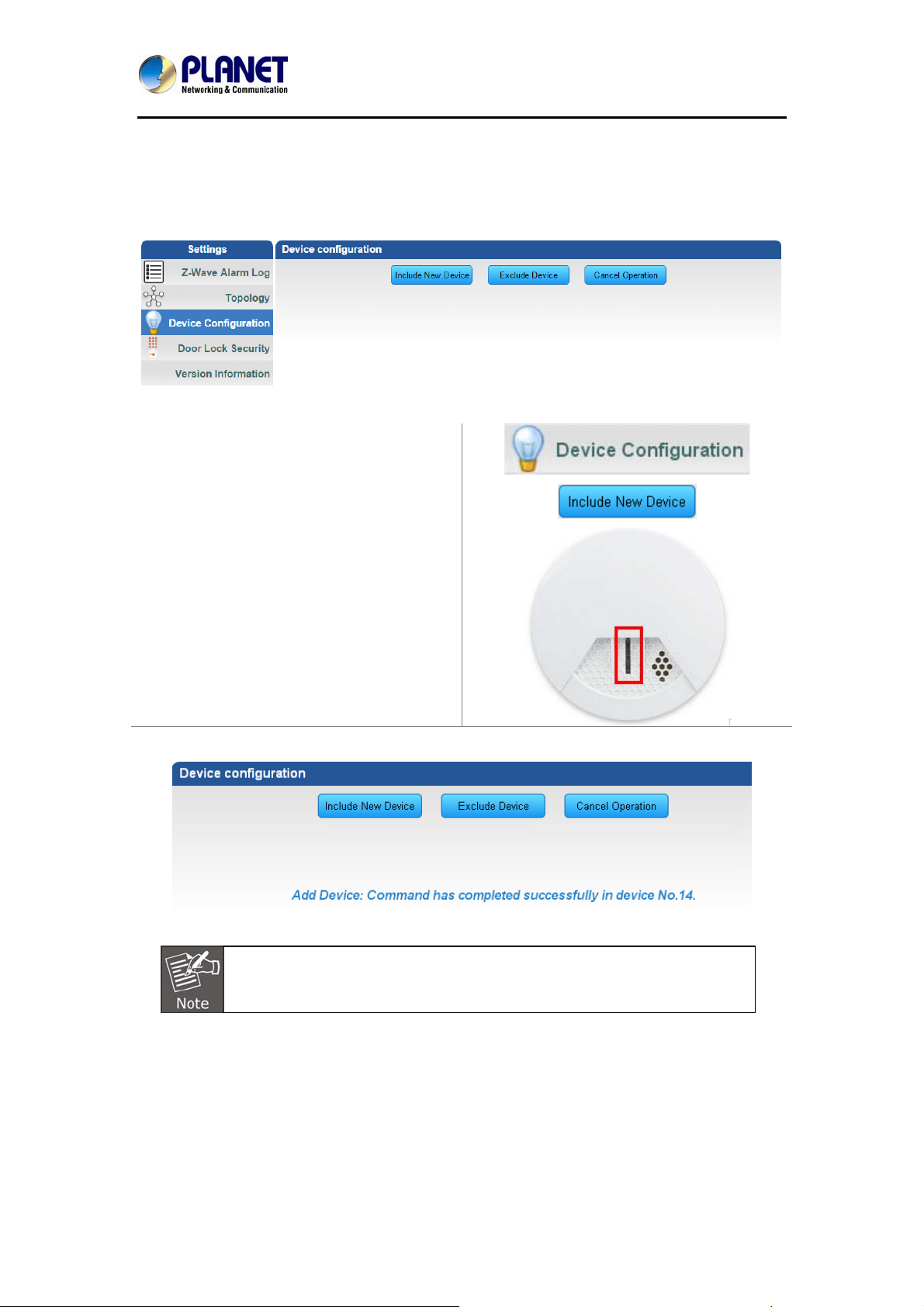
Please refer to the following steps to add Z-Wave device via HAC-1000 web.
Step 1. Include a Z-Wave device via web.
a) Go to "Z-Wave" and click "Device
Configuration".
b) Click” Include New Device” and the
screen will appear with "Add Device:
Waiting for a user action."
c) The distance between HZS-200 and
HAC-1000 is suggested to be in one
meter. Press the program switch of
HZS-200 for 1 second at least to be
included.
d) If your device has succes sfully been added, it will show "Add Device: Command has
been completed successfully".
If the device didn’t add successfully, please place the device next to the
gateway and try again.
- 9 -
Page 10

Z-Wave Ceiling-mount Smoke Detector
HZS-200E/HZS-200A
Step 2. Set up the location and room for Z-Wave device via HAC-1000 web.
a. Create rooms in your environment.
b. Edit device.
Step 3. Create a scene via web.
a. Click “Create Scene” and name new scene.
b. Select a device from this scene.
- 10 -
Page 11

Z-Wave Ceiling-mount Smoke Detector
c. Select ON or OFF from this scene.
d. You can click “RUN” to run this scene.
HZS-200E/HZS-200A
Step 4. Create trigger via web.
a. Click “Create a Trigger” and name
new trigger.
b. Select a Z-Wave device for this
trigger.
c. Select when it triggers, it will alarm or
bypass.
d. Select when it triggers, it will run
which scene.
- 11 -
Page 12

Z-Wave Ceiling-mount Smoke Detector
HZS-200E/HZS-200A
After entering the time selected for the scene to trigger, tick “Save and send alarm notification”.
Tick “Active” to enable this trigger.
3.2 Configuring Z-Wave via Smart Phone
The HAC-1100 can be used on iOS and Android operating system. Cloud Home can be
downloaded at Google Play store or app store.
Please refer to the following steps to install Cloud Home app and add Z-Wave device via
smart phone.
- 12 -
Page 13

Z-Wave Ceiling-mount Smoke Detector
Step 1. Include a Z-Wave device via smart phone (Android/iOS).
a. Register a user account.
b. Setting
HZS-200E/HZS-200A
c. Inclusion/Exclusion
e. e. The distance between HZS-200
and HAC-1000 is suggested to be
one meter. Press the program switch
of the HZS-200 at least for 1 second
to be included.
d. Click Inclusion to add device
- 13 -
Page 14

Z-Wave Ceiling-mount Smoke Detector
Step 2. Set up the location and room for Z-Wave device.
a. Create rooms in your environment.
b. Click “No Room” to show the device.
HZS-200E/HZS-200A
And place the new device in a room.
c. Select “Name” to name this device
and select “Location” to place this
device in the room that you created.
e. Click “Back” to save.
d. Select Picture for your Z-Wave
device.
f. Done successfully.
- 14 -
Page 15

Z-Wave Ceiling-mount Smoke Detector
Step 3. Create a scene via smart phone.
a. Click “Add” and name a new scene.
HZS-200E/HZS-200A
b. Click “Add” to add a Z-Wave device.
c. Select a Z-Wave device.
e. Click “Back” to save.
d. Click ON or OFF for the device you
select.
f. Done successfully.
- 15 -
Page 16

Z-Wave Ceiling-mount Smoke Detector
Step 4. Create Trigger via smart phone.
a. Click “Add”.
HZS-200E/HZS-200A
b. Name this new Trigger.
c. Select the Z-Wave device and click
next.
g. Done successfully.
d. Select a mode for a Z-Wave device.
e. Select a scene.
f. Select the time for the trigger and
which scene to run.
h. If you enable Save and send alarm
notification, when it triggers, it will
have a log. You can check this in
Notification History.
- 16 -
Page 17

Z-Wave Ceiling-mount Smoke Detector
3.3 Configuring Z-Wave via HTS-1000P
Step 1. Fill out the IP of control gateway to connect with gateway.
Click the “Gateway”
button.
HZS-200E/HZS-200A
Click the magnifying
glass to search the IP of
gateway.
Control pad found an IP
of gateway. Click the IP
to join.
- 17 -
Page 18

Z-Wave Ceiling-mount Smoke Detector
The default gateway port
is 5000, and user name
and password are both
admin.
Step 2. Include a Z-Wave device via HTS-1000P.
Click the “Z-Wave
devices” button to add
Z-Wave devices to
gateway.
HZS-200E/HZS-200A
Click the “Include New
Device” button to add
Z-Wave device.
- 18 -
Page 19

Z-Wave Ceiling-mount Smoke Detector
When you see the
message “Waiting for
user action”, you can
press the match button
on Z-Wave devices.
The distance between
HZS-200 and HAC-1000
is suggested to be in one
meter. Press the
program switch of the
HZS-200 at least for 1
second to be included.
HZS-200E/HZS-200A
If a device is added
successfully, it will show
the message: Command
has completed
successfully in device
No. XX.
Click the “Exclude
Device” button to
exclude Z-Wave device.
- 19 -
Page 20
Z-Wave Ceiling-mount Smoke Detector
HZS-200E/HZS-200A
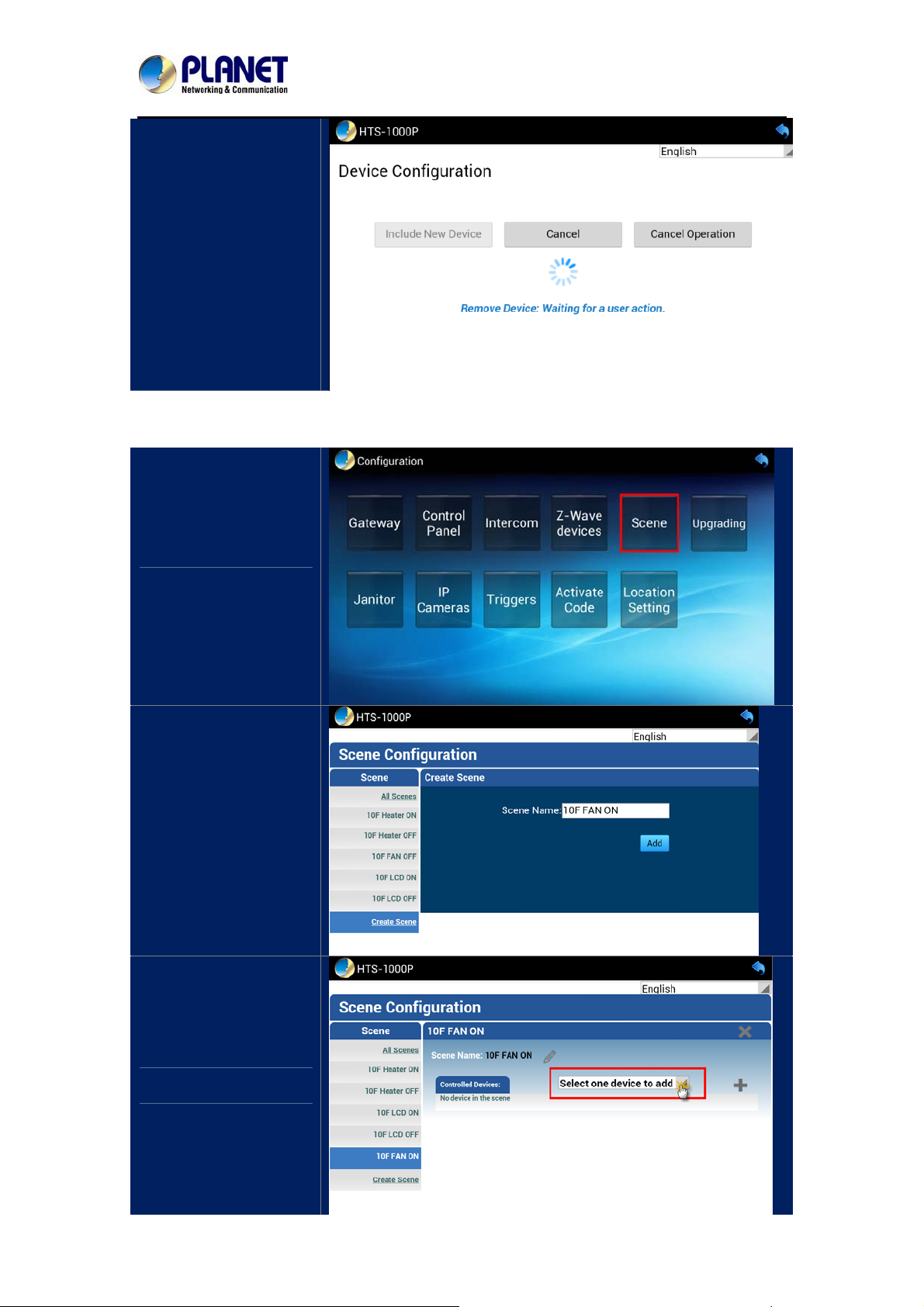
When you see the
message “Waiting for
user action”, you can
press the match button
on Z-Wave devices to
exclude device.
Step 3. After including Z-Wave devices in gateway, you can create different scenes with this
function. You can set scenes to control your devices in Scene mode.
Click the “Scene” button.
Click “Create Scene” and
name the new scene.
Select one device to add
to the device list.
- 20 -
Page 21

Z-Wave Ceiling-mount Smoke Detector
Select one device.
Click the “Plus” button to
add device.
HZS-200E/HZS-200A
Select the status of
device (ON or OFF).
Click “All Scenes” to
check the scene.
- 21 -
Page 22
Z-Wave Ceiling-mount Smoke Detector
HZS-200E/HZS-200A
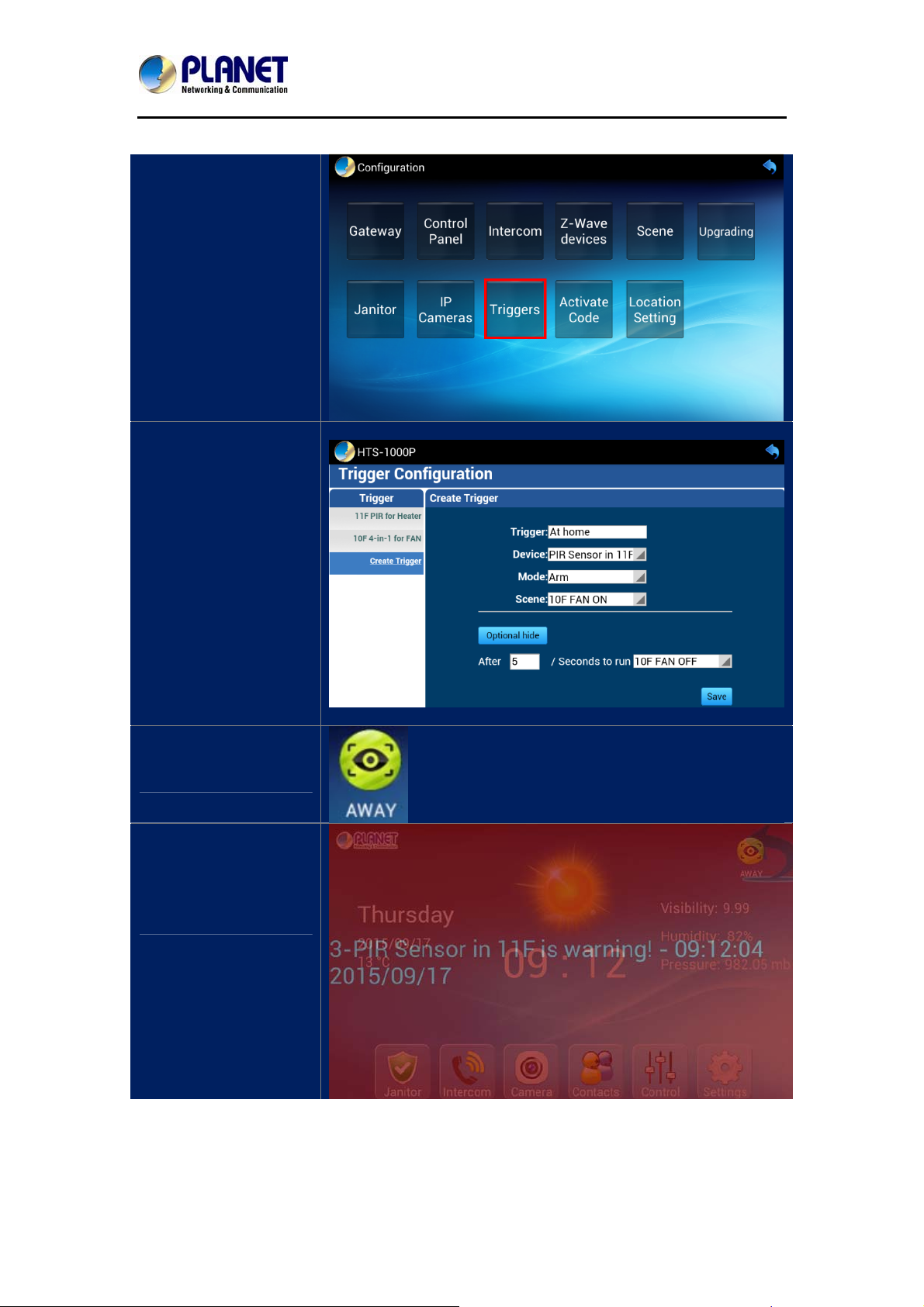
Step 4. In Trigger mode, the trigger time is set. An alarm notification is sent via sensor. If a
sensor is not installed, this step can be skipped.
Click the “Trigger”
button.
Click “Create Trigger”.
Trigger: Name this
trigger.
Device: Select a Z-Wave
device.
Mode: Select “Arm” to
enable alarm.
Scene: When it triggers,
the fan will turn on.
Optional: After
triggering for 5 seconds,
the fan will turn off by
itself.
Switch to “AWAY” to
enable monitor mode.
When one of Z-Wave
devices is triggered,
control pad will alarm.
- 22 -
Page 23

Z-Wave Ceiling-mount Smoke Detector
HZS-200E/HZS-200A
Step 5. After configuring this part, you can control Z- Wave devices and scenes via control pad.
Click the “Control Panel”
button.
Click the three-line
button on the upper right
corner and click “Add
Panel”.
There are two types of
panel that you can
choose from.
Name the panel.
- 23 -
Page 24

Z-Wave Ceiling-mount Smoke Detector
Click and hold for two
seconds to select the
device or scene.
Click on the Device field.
HZS-200E/HZS-200A
Use a paper clip or pin to
press the program button
on the back of the sensor
for 1 time to connect.
- 24 -
Page 25

Z-Wave Ceiling-mount Smoke Detector
Go back to the main
page and click the
“Control” button.
You can control scenes
and devices here.
HZS-200E/HZS-200A
- 25 -
Page 26

Z-Wave Ceiling-mount Smoke Detector
HZS-200E/HZS-200A
Appendix A: Troubleshooting & Frequently
Asked Questions
Features
z The frequency is different between Z-Wave and ZigBee. ZigBee
This difference between Z-Wave
and ZigBee
is 2.4GHz and Z-Wave is about 900MHz.
z The outdoor distance is different. ZigBee is 10~75 meters and
Z-Wave is about 30 meters.
Z-Wave Device Installation
How to reset the HZS-200 Series
Repeater Function
HZS-200 will reset back to default value while excluding from the
network.
Only HZS-530 Series can extend the frequency range of Z-Wave.
HZS-530 Series can act as a signal repeater to enhance the Z-Wave
wireless communication range. For example, the HAC-1000 (Cont rol
gateway) is installed on the second floor to control over the HZS-300
(4-in-1 Sensor) on the first floor, but the Z-Wave frequency is weak.
Thus, HZS-530 Series can be installed in between the second floor
and the first floor to solve the problem.
- 26 -
 Loading...