

Page 1

使用手册
User manual
Page 2

Page 3

目录
1 欢迎 6
1.1 产品特点 6
2 重要须知 8
2.1 安全 8
3 您的智能录音笔 9
供货范围 9
概览 10
3.1 开 / 关机 11
3.2 安装下载 APP 12
Page 4

3.3 连接使用 13
3.4 状态指示说明 15
3.5 录音 16
3.6 播放 18
4 APP 操作指南 21
4.1 APP 操作录音 21
4.2 实时翻译 21
4.3 设置 22
4.4 文件 23
4.5 同步设备 24
5 技术参数 26
Page 5

Page 6

1 欢迎
欢迎来到飞利浦世界!您能选择和购买飞利浦的产品,我们非常高兴。您可在
我们的官方网站上获得飞利浦公司的全方位技术支持,如:使用手册、软件下
载、保修信息等。
www.philips.com
1.1 产品特点
• 高灵敏麦克风;
• 智能同步翻译;
• 实时分享;
• 语音转文本;
6 ZH
Page 7

中文
• 角色区分;
• 边充边录功能;
• 机型迷你小巧、便携。
提示
• 在待机界面,长按音量和播放键会弹出演示界面。
ZH 7
Page 8

2 重要须知
2.1 安全
• 为了避免短路,切勿将产品放置在触水受潮处。
• 不要将产品放在加热设备附近或阳光直射的地方。
• 请注意,切勿挤压电缆,特别是插头处。
小心
• 特别声明:使用本产品前请仔细阅读本说明书,如因人为操作或不可抗力因素
而导致数据丢失,本公司一概不予负责。特别提醒用户小心操作,注意将资料
另外备份。
• 图像仅作参考。飞利浦保留更改颜色 / 外观 / 设计 / 参数 / 产品功能的权利,
硬件、软件、APP 如有更新,恕不另行通知。
8 ZH
Page 9

中文
3 您的智能录音笔
供货范围:
ZH 9
Page 10

概览:
10 ZH
1 指示灯
2 显示
3 录音键
4 电源键/播放键
5 上一曲/音量+
下一曲/音量-
6
音量键
7
USB接口
8
咪头
9
Page 11

中文
3.1 开 / 关机
(1) 开机:长按“ ”两秒机器开机,并显示“PHILIPS”。(开机分享功
能自动打开,分享图标闪)
(2) 关机:在开机状态下,长按“ ”两秒显示“PHILIPS”后关机。
ZH 11
Page 12

3.2 安装下载 APP
安卓 / 苹果手机均可扫描此二维码,安装下载 APP,安装过程中弹出的权限,
请都点击“允许”项,否则不能使用,请知悉。
12 ZH
Page 13

中文
注意
1. 如果连接不成功,关掉手机蓝牙,重新打开;
2. APP 关掉重新打开连接。
3.3 连接使用
安卓手机连接:
第一步:先按“ ”开机,机器自动进入蓝牙搜索状态,分享图标闪烁;
第二步:把手机的蓝牙设置开关打开,再把手机下载安装好的APP应用打开;
第三步:打开手机APP进入搜索状态,搜索出机器型号后,手动点连接;若
“连接或搜索”不成功时,请检查机器分享功能是否打开,或手机的蓝牙是否
ZH 13
Page 14

设置正确,重新打开后,需要再点一次搜索 / 连接;
第四步:连接成功后会进去APP界面,显示连接状态,即可使用。
苹果手机连接:
第一步:手机下载安装好APP后,直接在桌面打开APP,根据提示连接;
第二步:直接打开APP,界面会提示“手机蓝牙没打开”,这个时候需要去
设置里或去快捷方式处把手机蓝牙打开;如果已打开蓝牙,再去打开APP会
直接提示“未找到设备,请点击搜索”;
第三步:点击搜索后,会弹出机器的 ID 号,如 VTR5102_XX_XX手动选择连接即可,
如搜索没有 ID 号,请选择“重新搜索设备”。连接成功后,界面会显示“已连接”
即可使用。
14 ZH
Page 15

中文
注意
• 连接过程中,如搜索不到 ID 号,请确认机器是否打开蓝牙,以及手机蓝
牙是否打开,重新点击搜索;如搜索到 ID 号,连接不成功,请关掉APP,
重新打开搜索连接。
• 苹果手机使用 4G 网络时,请确保蜂窝数据权限是打开的,否则不能使用
翻译功能。
3.4 状态指示说明
①蓝牙搜索配对状态:分享图标闪;
②蓝牙连接后待机:分享图标不闪;
③录音状态:红灯常亮;暂停,红灯闪烁;
ZH 15
Page 16

④播放:绿灯常亮;暂停绿灯闪烁;
⑤充电状态:充电时灯亮,充满灯灭。
3.5 录音
①普通录音:长按 2 秒“ ”,开机,在开机状态下,按“ ”键 2 秒,进
去录音,在录音过程中,按一下“ ”暂停录音,再按一下取消暂停,录音
继续,长按“ ”键保存录音。
16 ZH
Page 17

中文
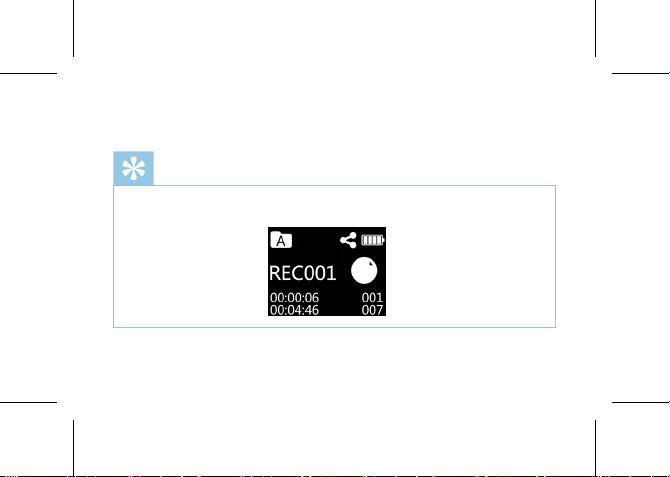
1 录音场景
3 当前录音时间
5 文件总数
7 录音状态
2 文件名
4 剩余时间
6 当前文件数
8 电池电量显示
ZH 17
Page 18

② APP 操作录音:连接 APP 后,在录音界面,选择“开始录音”机器会进去录
音,录音指示灯红灯长亮,在录音过程中,点 APP 上的暂停录音,机器会暂停,
录音指示灯红灯闪烁,再点一次继续录音,点 APP 上的“停止键”保存录音。
3.6 播放
本机播放:在语音界面,按“ ”播放当前的录音文件,在播放的过程中,
按“ ”暂停播放,再按一次取消暂停并继续播放。可按上下曲键切换文件。
18 ZH
Page 19

中文
1 循环模式
3 当前播放时间
文件总数
5
7 播放状态
音量调整:在播放或播放停止状态下,按音量键弹出音量调整界面,再按上一
曲 / 下一曲键,调整音量大小。
温馨提示:
1 因环境因素和不同品牌手机的差异性,为了获得更好的录音效果,以及实
时翻译的流畅性,请保证设备与手机的距离在 5 米内,中间不要有阻碍物;
2 录音过程中,请不要直接关机,或关APP,要先保存文件,避免录音文件损坏;
3 APP 操作录音,超出有效距离时,APP 断开,机器录音继续,需要手动操作
9 分享图标
2 文件名
4 文件总时间
6 当前文件数
8 电池电量显示
ZH 19
Page 20

“机器端”按“ ”键保存录音;
4 APP 操作录音,电话通话后断开,或直接关掉 APP 时,又或者直接关蓝牙后,
都需要手动操作“机器端”按“ ”键保存录音;手机 APP 与设备连接超出
有效距离断开后,再回到可连接距离时需要手动去连接 APP;
5 设备与手机 APP 连接状态下,接通电话后需要手动去切换到手机听筒接电
话;
6 设备与手机 APP 连接状态下,使用微信 /QQ 语音及视频时,会提示麦克风
在使用,需要关闭手机的蓝牙,或断开连接才能正常使用。
20 ZH
Page 21

中文
4 APP 操作指南
4.1 APP 操作录音
录音笔与 APP 连接上之后可通过 APP 控制录音笔录音,具体操作参考录音部分
“APP 操作录音”。
4.2 实时翻译
连接 APP 后,选择“实时翻译”进入翻译界面,点“实时翻译”按钮(根据需
要先设置好需要翻译的语言再点开按钮),提示发送成功后,可实时将当前说
话的内容识别出来并翻译,翻译好可保存,编辑,分享。
ZH 21
Page 22

注意
1. 实时翻译时,请将音源对准麦克风,不要手握住咪头处避免影响识别效果;
2. 实时翻译时,不要超出识别的有效距离;
3. 实时翻译有阻挡物时会影响识别效果。
4.3 设置
在 APP 录音界面,选择右上角的“设置”,可在设置中设置录音场景、指示灯、
播放模式、背光、时间校准、容量(剩余 / 总)、APP 界面介绍、检查更新、
关于、断开设备等。
22 ZH
Page 23

中文
提示
• 需要退出与 APP 的连接时,可以在设置里选择断开设备,即可断开连接,
不能直接关掉 APP,避免出现异常。
4.4 文件
在 APP 界面,选择“文件”选项,进入录音文件和实时翻译文件列表,可选列
表中的文件进行删除,可分享和播放及角色区分等。
角色区分:在文件列表界面选择播放后,会弹出角色区分选项,可以根据录制
的人数选择区分;实时翻译或已转写的文件可以点击“ ”此图标,重新选择
区分的人数。
ZH 23
Page 24

注意
• 角色区分目前只支持中文,不支持其它语言;
• 使用角色区分时,请确保文件是清晰的,混乱吵杂的文件会影响区分效果。
4.5 同步设备
(1)在 APP 界面,选择同步设备选项进去列表界面,选择某一个文件时,该
文件则自动上传,上传到 100% 后可点击文件进去转写。
(2)文件上传成功后,列表界面会显示“未转写”点文件进去可转写。文件
旁边的垃圾桶图标,选择后可删除当前已上传的缓存,选择分享图标可分享当
前的文件。
(3)选择上传完的文件可进去转写,转写后的文件可进行编缉、分享、保存等。
24 ZH
Page 25

中文
(4)在同步设备界面,可选择左上角的“编缉”功能“删除手机文件”或“删
除录音笔文件”选择删除手机文件时,手机上的录音文件会被删除,选择删除
录音笔文件时,录音笔上的文件会被删除,注意请把重要文件保存后,不要误删。
提示
• 同步文件是指录音笔单独录音的文件,连接手机 APP 后可同步到手机转文
本和翻译。
• 录音笔里的后缀名为 opus 的文件不能删除,否则不能同步。
• 同步上传文件的时间会跟随您手机的蓝牙配置而定,不同品牌的手机,以
及不同的蓝牙版本,上传的速度也会不同。
ZH 25
Page 26

5 技术参数
录音格式:WAV
录音场景:采访模式;日记模式;教学模式;会议模式
麦克风:双 MIC 阵列
净重:36g
尺寸:70*22*11mm
手机操作系统要求:Android4.4 以上, iOS9.0 或更高版本。
26 ZH
Page 27

English
Content
1 Welcome 29
1.1 Product features 29
2 Important Notice 31
2.1 Safety 31
3 Your Smart Voice Recorder 33
What’s in the box 33
Overview 34
3.1 Power on/off 35
3.2 Download and install APP 36
3.3 Connection 37
EN 27
Page 28

3.4 Status indication 41
3.5 Recording 41
3.6 Playback 43
4 APP Operating Instruction 47
4.1 Recording with APP 47
4.2 Real-time translation 47
4.3 Settings 49
4.4 File 50
4.5 Sync with device 50
5 Specifications 53
28 EN
Page 29

English
1 Welcome
Welcome to the world of Philips! We are honoured by your choice and
purchase of Philips' products. You can have Philips’ comprehensive technical
supports from our website, e.g. user’s manuals, software downloading and
warranty information etc.
www.philips.com
1.1 Product features
• High-sensitivity microphone;
• Intelligent real-time translation;
• Real-time sharing;
• Voice-to-text;
• Role identification;
EN 29
Page 30
• Record while charging;
• Mini-compact and portable.
Reminder
• In the state of standby, long press the volume and play button will pop
up the demo interface.
30 EN
Page 31

English
2 Important Notice
2.1 Safety
• To avoid short circuits, DO NOT expose the product to humidity.
• DO NOT place the product near a location with heat source or direct
sunlight.
• Be careful not to pinch the cable, especially the plug.
EN 31
Page 32

Warning
• Special Announcement: Before using the product, please read the
Manual carefully. Our Company shall not be held liable for any data
loss due to incorrect manual operation or force majeure. We specially
recommend that users make additional copies of the files in the device.
• Images are for reference only. Philips reserves the right to change the
color / appearance / design / parameters/product functions. Hardware,
software and APP are subject to update without prior notice.
32 EN
Page 33
English
3 Your Smart Voice Recorder
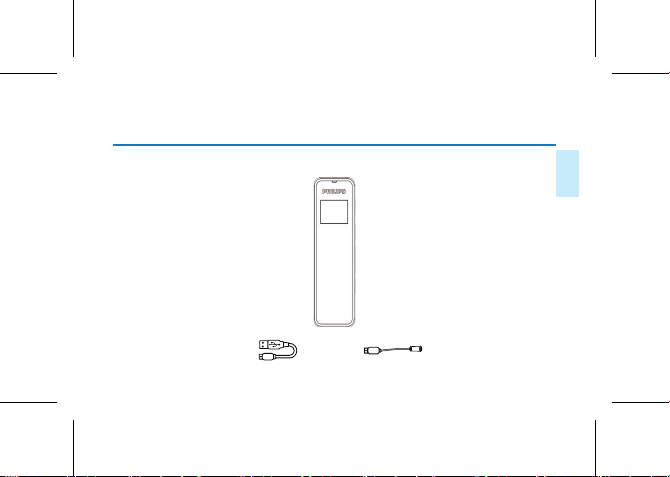
What’s in the box:
EN 33
Page 34
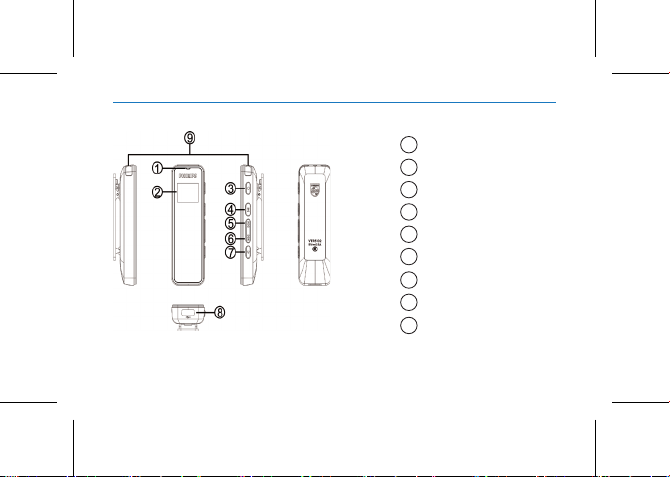
Overview:
34 EN
Indicator light
1
2 Display
3 Record key
Power / Play key
4
5 Previous / Volume+
6 Next / Volume-
7 Volume
8 USB connector
9 Mic head
Page 35

English
3.1 Power on/off
(1)Power on: Long press " " for 2 seconds to switch the device on, and
"PHILIPS" will be displayed. (Share at power-on function is enabled automatically, and the Share icon begins to flash )
(2)Power o: In the state of power-on, long press " " for 2 seconds to
power o after "PHILIPS" is displayed.
EN 35
Page 36
3.2 Download and install APP
Scan the QR code below to download and install the APP with an Android
phone or iPhone. Choose "always allow" if there is a prompt that the application requires the permission of the mobile phone, otherwise it cannot be
used.
36 EN
Page 37
English
Note
1. If Bluetooth connection is unsuccessful, turn Bluetooth o, then turn it
on again;
2. Close the APP and reopen it to connect.
3.3 Connection
Connect with an Android phone:
Step 1: Press " " to power on, the device automatically enters into
Bluetooth search status, and the Share icon begins to flash.
Step 2: Turn on Bluetooth of the phone, and open the installed APP;
Step 3: Search with the APP, tap the device in the Device list to connect
manually; if failed to Connect/Search, check if the Share function of the
EN 37
Page 38

device is turned on, or if Bluetooth of the phone is set up correctly, reopen
the APP and tap Connect/Search again.
Step 4: If connected successfully, the APP interface appears and show the
connection status, and ready for use.
38 EN
Page 39

English
Connect with iPhone
Step 1: Download and install the APP, open it directly and connect as
prompted;
Step 2: If open the APP directly, you will be prompted with "Mobile phone's
Bluetooth not turned on", turn Bluetooth on in Settings, or via shortcut; if
Bluetooth is turned on, when you open the APP you will be prompted with
"Device not found, please tap Search";
Step 3: ID number pops up when you tap Search, e.g. “PHILIPS_VTR5102_
XXXX”, manually select Connect, if there is not ID number for the search,
please select “re-search device”. After connected successfully, the device is
ready for use once "Connected" appears on the interface.
EN 39
Page 40

Note
• If the Device ID is unable to find during the connection, check
Bluetooth of the device is turned on and ensure to turn on Bluetooth
of the phone, and tap Search again; If the Device ID is found but
connection is unsuccessful, close the APP, then reopen it to search
again.
• When using 4G with iPhone, make sure to turn cellular data on,
otherwise Translation function unable to be used.
40 EN
Page 41

English
3.4 Status indication
Bluetooth search and pairing: Share icon flashes;
①
Standby after Bluetooth connected: Share icon doesn't flash;
②
Recording: The indicator turns red and keeps on; when paused, the
③
indicator flashes in red;
Playback: The indicator turns green and keeps on; when paused, the
④
indicator flashes in green;
Charging: The indicator is on while charging and o when fully charged.
⑤
3.5 Recording
Normal recording: Long press " " for 2 seconds to power on, in the
①
state of power-on, press " " for 2 seconds to record. During recording,
press " " to pause, press once again to resume, long press " " to save
EN 41
Page 42
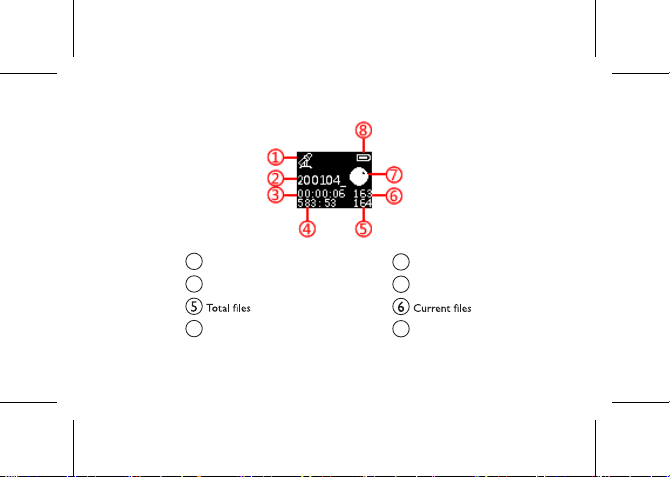
the recording.
42 EN
1 Recording scene
3 Current recording time
7
Recording status indicator
2 File name
4 Remaining time
8 Battery
Page 43

English
Recording with APP: After connected via the APP, in the Recording in-
②
terface select "Start Recording", the device begins to record, the indicator
turns red and keeps on. During recording, tap Pause in the APP to pause
recording, the indicator flashes in red; tap again to resume recording, tap
Stop in the APP to save the recording.
3.6 Playback
Play via device: In the Voice interface, press " " to play the current
recording file, press " " to pause, and press again to resume playback.
Press the Previous and Next keys to switch between files.
EN 43
Page 44
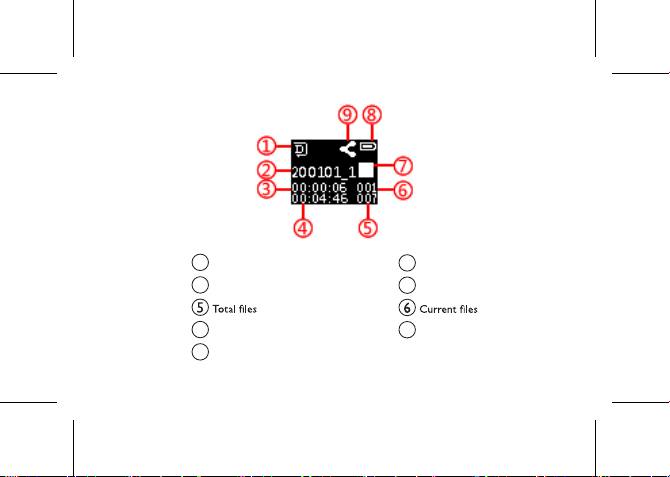
1 Loop mode
3 Current playback time
2 File name
4 Total time
44 EN
7 Playback status indicator
9 Share icon
8
Battery
Page 45

English
Volume Control: In the playing or playback stop state, press the Volume
key, the Volume Control interface pops up, press the Previous and Next
keys to adjust the volume.
Tip:
1 Due to environmental factors and the differences between different
brands of mobile phones, to achieve better recording effect and fluency
of real-time translation, make sure the device is within 5 meters of the
mobile phone, and no obstacles between them;
2 During recording, do not turn off the device or close the APP. Save the
recording file first to avoid file corruption;
3 When recording with the APP, if the effective distance is exceeded, the
APP will be disconnected. Recording continues with device, you need to
press " " manually to save the recording.
4 When recording with the APP, if disconnection caused by a phone call, or
direct close of the APP, or by directly turning off Bluetooth, you need to
EN 45
Page 46

press " " manually to save the recording; If the APP disconnects with the
device due to exceeding the effective distance, back to the connectable
distance to connect the APP manually.
5 With the device connected to the APP, when a call has been connected,
you need to manually switch to the receiver to answer the call;
6 With the device connected to the APP, if WeChat/QQ voice and video
is used, you will be prompted that the microphone is in use. You need to
turn off Bluetooth of the mobile phone, or disconnect for normal use.
46 EN
Page 47

English
4 APP Operating Instruction
4.1 Recording with APP
Once the Voice Recorder connected to the APP, you can control the
recording with the APP. Specific operations refer to the Recording section
in "Recording with APP".
4.2 Real-time translation
After connecting to the APP, select "Real-time Translate" to enter translation interface. Tap "Real-time Translate" button (Set the target language as
needed before tapping the button). After prompted to be sent successfully,
current speech can be recognized and translated instantly, and the transla-
EN 47
Page 48

tion can be edited, saved and shared.
Note
1. During real-time translation, focus the sound source on the micro-
phone, and do not cover the Mic head with your hand, so as to avoid to
aect the recognition eect;
2. During real-time translation, do not exceed the eective recognition
distance;
3. During real-time translation, the recognition eect will be aected if
obstacles exist.
48 EN
Page 49

English
4.3 Settings
In the recording interface, tap "Settings" in the upper right, to set Recording scene, Indicator, Playback mode, Backlight, Time calibration, Capacity
(remaining/total), APP interface introduction, Check for updates, About,
Disconnect the device, etc.
Reminder
• If you need to disconnect with the APP, just select "Disconnect the
device" in the Settings to disconnect. To avoid exceptions, you cannot
close the APP directly.
EN 49
Page 50

4.4 File
In the APP interface, select the option "File" to enter the list of recording
files and real-time translation files. You can select a file to delete, share,
play, etc.
4.5 Sync with device
(1)In the APP interface, select the option "Sync with device" to enter the
sync file list interface; Select a file and the file will automatically uploaded,
uploaded to 100% can click the file to transcribed.
(2) after the file is uploaded successfully, the list interface will show “not
transcribed”. Click the file to enter the file for transcribed.
The trash icon next to the file can be selected to delete the currently uploaded cache, and the share icon can be selected to share the current file.
50 EN
Page 51

English
(3) Select the uploaded file to transcribed, after the transfer of the file can
be edited, Shared, saved, etc.
(4)In sync device interface, you can select the upper left corner of the
edit function to “delete files on the mobile phone” or delect files on the
recorder”. If you choose to delete files on the mobile phone and the Voice
Recorder files on the Voice Recorder will be deleted. Save important files
to avoid files being deleted by mistake. Once files on the Voice Recorder
have been deleted, the original files will be permanently removed.
EN 51
Page 52

Reminder
• Synchronize file refers to the file recorded by the recorder separately,
which can be synchronized to the mobile phone to transfer text and
translate after connecting the APP.
• Files with the suffix named opus in the recorder cannot be deleted,
otherwise they cannot be synchronized.
• The time to upload files synchronously will depend on the Bluetooth
configuration of your phone. Different brands of mobile phones and
different Bluetooth versions will have different upload speeds.
52 EN
Page 53

English
5 Specifications
Recording format: WAV
Recording scene: Interview mode, Diary mode, Teaching mode, Conference
mode
Microphone: Dual MIC array
Net weight: 36g
Dimensions: 70*22*11mm
Operating system: Android4.4 or above, iOS9.0 or above
EN 53
Page 54

Page 55
VTR5102
Page 56
Page 57

Page 58

© 2020 Speech Processing Solutions GmbH.
版权所有文档版本
1.0, 2020/05/09
Register your product and get support at
www.philips.com/welcome
 Loading...