

Page 1
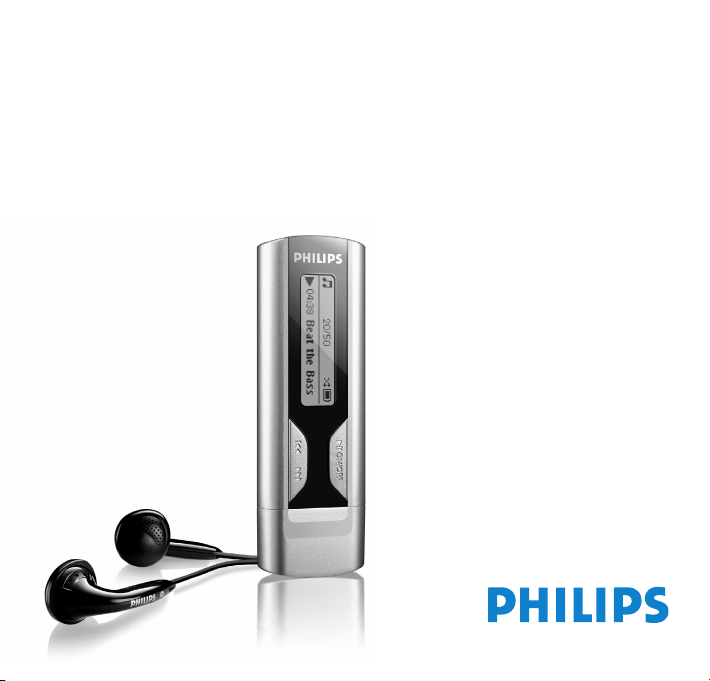
User manual
SA1100
SA1102
SA1103
SA1106
SA1110
Philips audio player
Page 2

ii
Need help?
Please visit
www.philips.com/support
where you can access to a full set of supporting materials
such as user manual, flash tutorial, the latest software
upgrades and answers to frequently asked questions.
Or call our Customer Care Helpline,
0906 1010 017 (£00.15/min)
where our professional support team will be pleased to assist
you in solving any issues you may have with your player.
Page 3

iii
Country Helpdesk Tariff / min Keep ready
Europe
Belgium 070 253 010 €0.17 La date d’achat la référence et le numéro de série du produit
Denmark 3525 8761 Lokal tarif Indkøbsdato, type-, model- og serienummer
Germany 0180 5 007 532 €0,12 Das Kaufdatum. Modellnummer und Serial nummer
Das Kaufdatum. Modellnummer und Serial nummer
Das Kaufdatum. Modellnummer und Serial nummer
Spain 902 888 785 €0,15 Fecha de compra y número del modelo y número de serie
Fecha de compra y número del modelo y número de serie
Fecha de compra y número del modelo y número de serie
Fecha de compra y número del modelo y número de serie
Greek 0 0800 3122 1223 1
Ireland 01 601 1161 Local tariff Date of Purchase. Model number and Serial number
Italy 199 404 042 €0.25 La data di acquisto, numero di modello e numero di serie
Luxemburg 26 84 30 00 Tarification locale La date d’achat, la référence et le numéro de série du produit
Netherlands 0900 0400 063 €0.20 De datum van aankoop, modelnummer en serienummer
Norway
2270 8250 Lokal tariff Datoen da du kjøpte produktet & modellnummer & serienummeret
Portugal 2 1359 1440 Preço local A data de compra, número do modelo e número de série
A data de compra, número do modelo e número de série
Switzerland 02 2310 2116 Ortstarif
Sweden
France 08 9165 0006 €0.23 La date d’achat la référence et le numéro de série du produit
Finland 09 2290 1908 Paikallinen hinta Ostopäivä ja tarkka mallinumero ja sarjanumero
08 632 0016 Lokal kostnad Inköpsdatum, modellnummer och serienummer
UK 0906 1010 017 £0.15 Date of Purchase, Model number and Serial number
Austria 0820 901115 €0.20
North America
Canada 1-800-661-6162 Free
(Francophone)
1-888-744-5477
(English / Spanish)
USA 1-888-744-5477 Free Date of Purchase, Model number and Serial number
Date of Purchase, Model number and Serial number
South America
Argentina 11 4544 2047 Tarifa local
Brazil 0800 701 02 03
(Except Sao Paulo)
2121 0203
(Sao Paulo)
Grátis
Preço local
Chile 600 744 5477 Tarifa local
Mexico 01 800 504 6200 Gratis
Asia
China 4008 800 008
Hong Kong 2619 9663
Korea 02 709 1200
Page 4

1
2 Your new player
2 Accessories
2 Register your product
2 Overview of controls and connections
3 Getting started
3 Install
3 Connect
4 Transfer
4 Enjoy
5 Music mode
5 Folder skip
6 Playback features
6 Recordings
6 Make recordings
7 Play back recordings
7 Upload recordings to the computer
7 Delete recordings
8 Settings
8 About Firmware manager
8 Install Firmware Manager
8 Update firmware
8 Troubleshooting
10 Technical Data
11 Important safety information
Contents
EN
Page 5

2
Register your product
We strongly recommend that you register your product in order to gain access to free upgrades. To register your product,
please log on to www.philips.com/register so that we can inform you as soon as new updates become available.
Your new player
With your newly purchased GoGear player, you can enjoy the following:
• MP3 and WMA playback
• Voice recording
Accessories
AAA battery CD-ROM with user manual, drivers and
Frequently Asked Questions
Headphones
Overview of controls and connections
1 p Headphones jack
2 MIC Microphone
3 Display Dynamically display menu, options and track
information
4 J( Press to skip to previous song, press and hold to skip
to previous folder.
In menu mode, press to navigate through menu.
5 2; Power on/off and Play/Pause, confirm a menu setting
6 )K Press to skip to next song, press and hold to skip to
next folder.
In menu mode, press to navigate through menu.
7 USB USB connector
8 MENU/LOCK Press to access the menu
Press and hold to disable or enable key press
9 + / - Volume control
10 REC Start or stop voice recording
8
9
10
1
2
3
4
5
6
7
USB Extension cable
Page 6
3
EN
Getting started
Install
1 Insert the CD supplied with your product into the CD ROM drive of your PC.
2 Follow the onscreen instructions to complete the installation of the Firmware manager and if required, device drivers.
3 If the installation program does not start automatically, browse the CD contents via Windows Explorer and run the
program by double clicking on the file ending with .exe.
Lost your CD? Don’t worry, you can download the CD contents from www.philips.com/support or
www.philips.com/usasupport (for U.S. residents).
Windows 98SE user:
To avoid installation problems, do not connect your device to the computer until after installation
completes.
Connect
Insert the battery
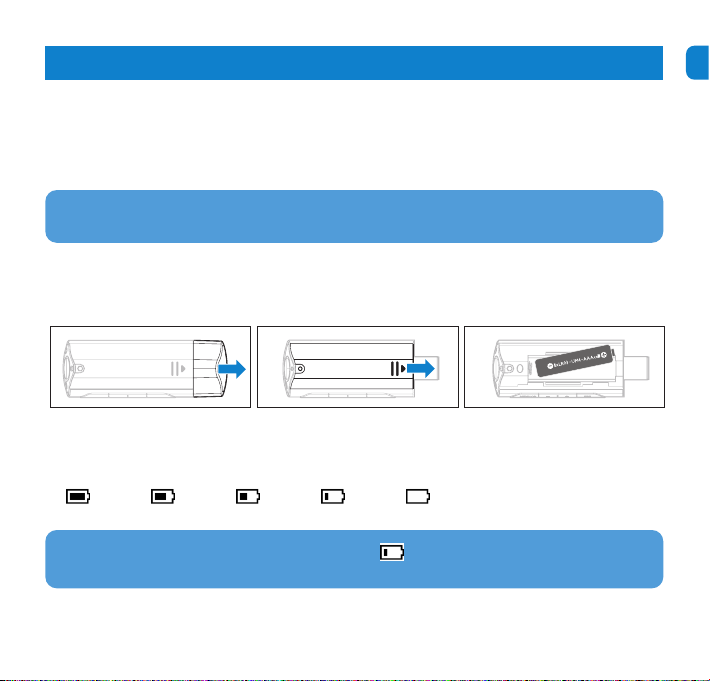
1 Remove the USB cap. 2 Remove the battery door by sliding
it in the direction of arrow.
3 Insert the supplied AAA battery into
the battery compartment.
Read the battery level indication of your player
The approximate power levels of your battery are indicated as follows:
Full Two-thirds full Half full Low Empty
TIP
When the batteries are nearly empty, the battery low screen
blinks. Your player will power down in less than
60 seconds. Your player will save all settings and un-finished recordings before it powers down.
Page 7
4
Transfer
Your player appears as a USB mass storage in Windows Explorer. You can organize files and transfer music to your player
during USB connection.
1 Click and highlight one or more songs to transfer between your player and your computer.
2 Use drag and drop actions to complete your transfer.
TIP Organize your music in folders. Your player will play your music folder by folder so that you can organize your
music by artists and albums. You can drag and drop entire folders to your player. Your player will play the music files
that are not inside folders first followed by the music files inside folders.
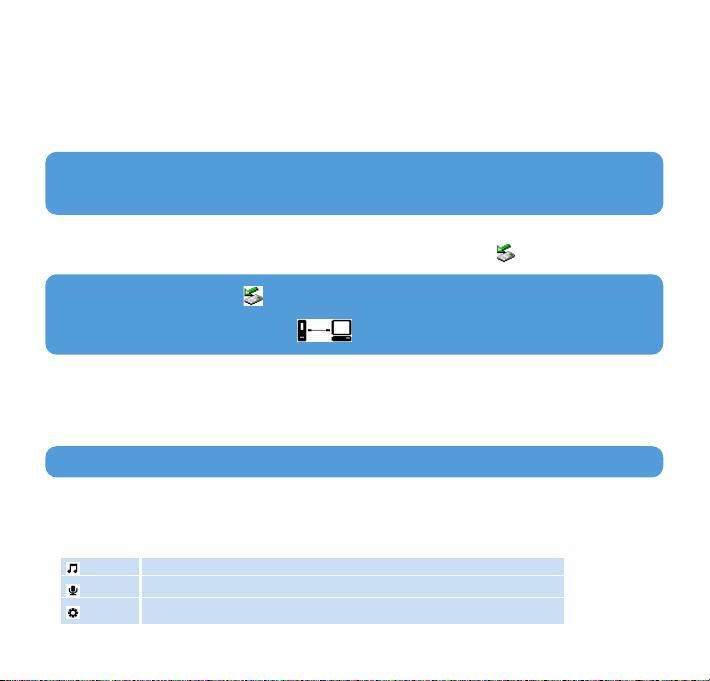
Windows 98SE users: There is no in the task tray of your PC.
Simply disconnect the player when the animation stops which means the transfer is complete.
TIP Your player automatically powers down if there is no operation and no music played for 3 minutes.
Disconnect your player safely
Exit any active application working with your player. Remove your player safely by clicking in the task tray shown in
your PC.
Enjoy
Power on/off
To power on, press 2; until the PHILIPS splash screen appears.
To power off, press and hold 2; again until there is no display on the screen.
Navigate the menu
Your player has an intuitive menu navigation system to guide you through various settings and operations. Use J( and )K to
browse through menus. Press 2; to confirm your selection.
When your player powers up, you will see the Root menu. You can also press MENU to access the root menu. It includes:
Music Play your digital music tracks
Recordings Play your recordings
Settings Change the playmode, equalizer or language settings, display the player information
Page 8
5
EN
This player does not support copy right protected (Digital Rights Management – DRM) WMA songs bought from the
Internet.
From the root menu, select Music to enter
the Music mode. Your player will play the
music per folder in alphabetical order. Basic
operations in music mode include:
Music mode (also applicable to playback of recordings)
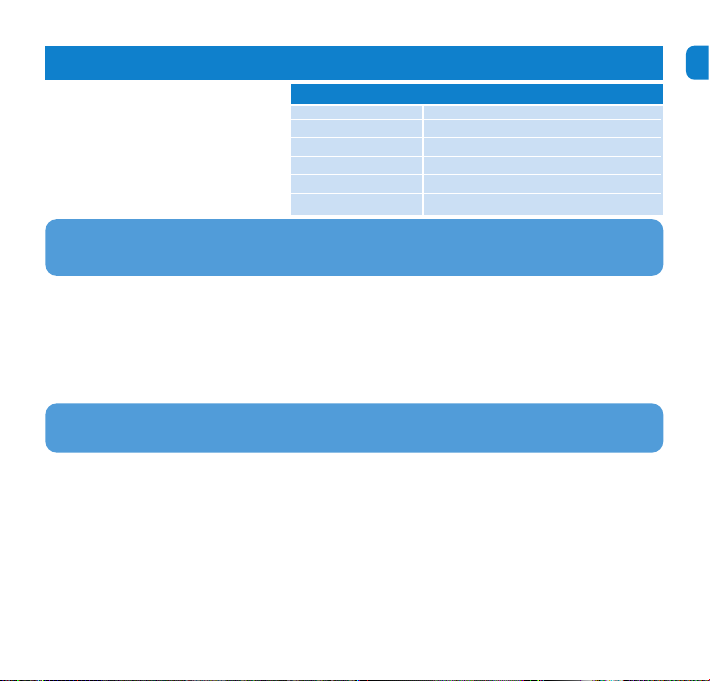
Basic operations Controls to press
Go for next song Press )K
Go for previous song Press J(
Pause music Press 2; during music playback
Go to next folder Press and hold )K
Go to previous folder Press and hold J(
Volume Control Press +/-
Folder skip is applicable to the highest level of folders only. Folder skip is not available when the play mode is set to
“Shuffle all”.
Folder skip
Folder skip functions allows you to go to next or previous folders quickly.
1 Press and hold J( / )K will enter into Folder skip function.
> The display will show the folder icon and the folder name and scroll through all folders on the player in alphabetical order.
2 Release J( / )K when you see the folder of your selection.
> The player will start playing the first song in your selected folder.
Page 9
6
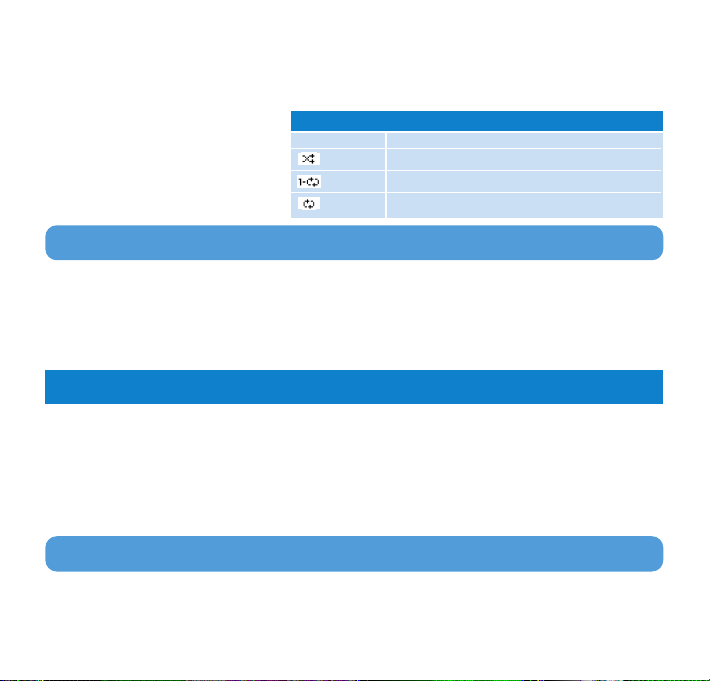
Icon Meaning
Off Normal Playback
Shuffle Play all songs randomlyy
Repeat 1 Play one song repeatedly
Repeat all Play all songs repeatedly
Playback features
Play modes
You can set your player to play songs randomly and/or repeatedly.
1 Press MENU, select Settings and then
select Play modes.
2 Press J( / )K to browse through different
play modes (Off, Shuffle, Repeat 1, Repeat
all).
3 Press 2; to confirm your selection.
Playmodes are not available in recordings playback.
Equalizers
You can set your player to play music with different EQ (equalizers).
1 Press MENU, select Settings, then select Equalizer.
2 Press J( / )K to select Rock, Jazz, Pop, Classical or Off.
3 Press 2; to confirm your selection.
Your player allows you to make voice recordings and play back your recordings.
Make recordings
1 Press REC to start voice recording.
> Your player shows the recording state.
2 Press REC again to stop voice recording
> Your player shows the saving state. Your voice recording will be saved on your player. (Filename: VOICEXXX.WAV where XXX is
the recording number which is automatically generated.)
Recordings
TIP You can pause and restart a recording anytime with 2; key.
Page 10

7
EN
Play back recordings
You can find your recordings in the Recordings mode.
1 From the root menu, select RECORDINGS to enter into the Recordings mode. Your player will play all your
recordings alphabetically and will start with the last made recording.
2 Press 2; to pause the current playing recording.
3 Press J( or )K to play next or previous recordings.
4 Press and hold J( or )K to fast forward or fast rewind the current recording playback.
Upload recordings to the computer
1 Connect your player to your computer.
2 Select your player in Windows Explorer.
> You will find a VOICE folder. This folder contains the recordings.
3 Copy and paste the recordings to any desired location on your computer.
Delete recordings
Recordings can only be deleted on the computer.
1 Connect your player to your computer.
2 Select your player in Windows Explorer.
3 Double click the VOICE folder.
4 Select the files you want to delete and press Delete on your computer keyboard.
Page 11
8
Settings
About Firmware manager
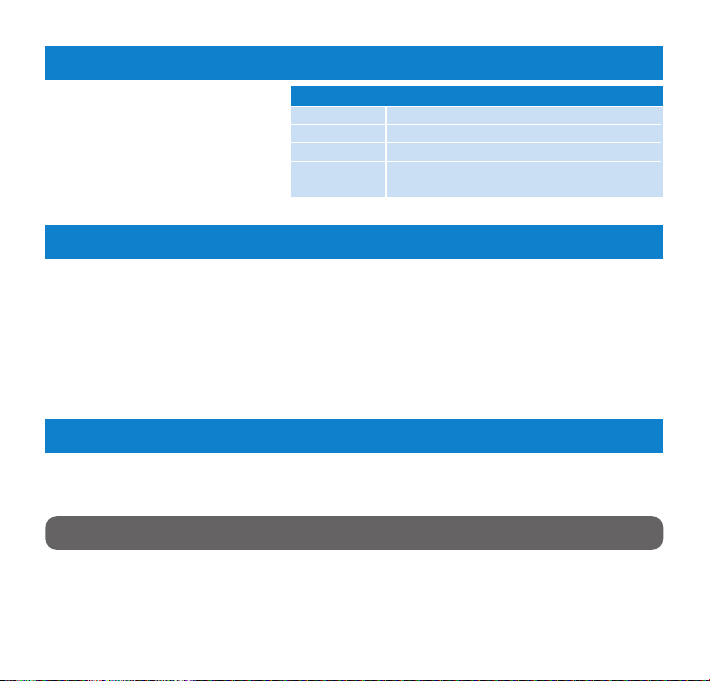
Settings Further Options
Playmode Off / Shuffle / Repeat 1 / Repeat all
Equalizer Rock / Jazz / Pop / Classical / Off
Language English / French / German
Information FW (Firmware) version / Memory available
You can set your preferences in your player to
suit your needs.
1 Press MENU and choose SETTINGS.
2 Press J( / )K to browse through the
various options and press 2; to confirm
your selection.
3 Press MENU to exit the current settings
screen.
Your player is controlled by an internal program called firmware. With Firmware Manager, you can update and restore
your player with a few simple clicks.
Install Firmware Manager
1 Insert the supplied CD into the CD ROM drive of your computer.
2 Follow the onscreen instructions to begin and complete the installation.
Update firmware
Regularly check www.philips.com/support for new Firmware updates. Follow the instruction on the website to update the
firmware of your player.
Troubleshooting
If a fault occurs, first check the points listed in the following pages. For further help and other troubleshooting tips, please
also check out FAQs at www.philips.com/support.
If you are unable to find a solution by following these hints, consult your dealer or service center.
WARNING Under no circumstances should you try to repair the set yourself, as this will invalidate the warranty.
Page 12
9
EN
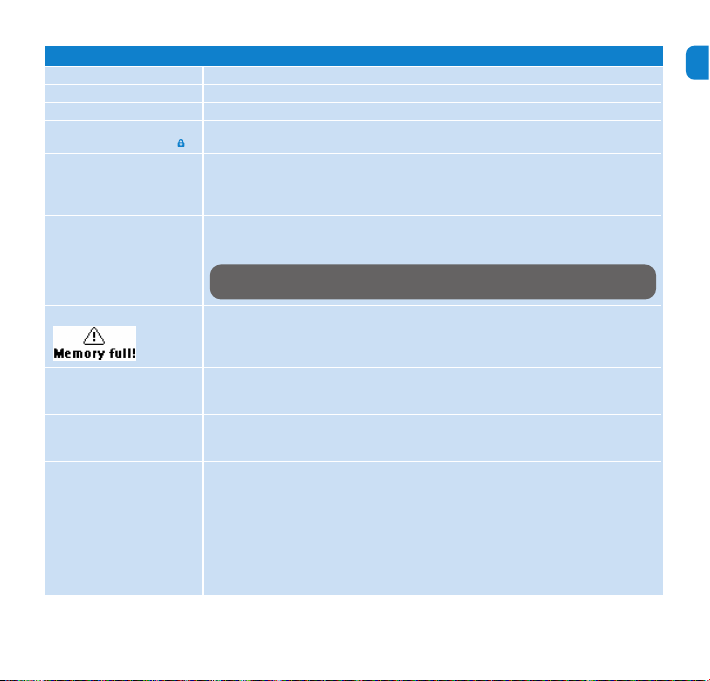
Symptoms
Hang up
The player is “frozen”
There is no sound
My player does not react on
any key press and shows
Cannot power up
The player shows: “Player
problem! Connect to PC“
The player shows
The player shows
“Maximum number of
files exceeded!“
The player shows “File
format not supported!“
Some songs do not show up
or playback on the player
Solutions
Remove and insert the battery again.
Remove and insert the battery again.
Make sure your headphones are inserted all the way into the headphones jack.
Press and hold MENU/LOCK to enable key press.
Insert a new battery
Press 2; and power up your player. In case this does not work: Press and hold 2; while
connecting the device to the PC. Start Firmware Manager, your device will be
automatically recovered.
Connect your player to the PC, open Windows Explorer, open “My computer“, select
your player, right click and select “Format“. Select FAT or FAT32 file system and press
Start to format your player.
Connect your player to the computer. Delete unwanted files, unplug safely and record
again.
The maximum total number of files, recordings and folders on your player is 450. Connect
your player to your computer, delete unwanted files, unplug safely and record again.
This player does not support copyright protected (DRM) WMA tracks bought from the
Internet. The song is in a format that is not supported by the player. Only MP3, WMA and
WAV files are supported.
•This player does not support copyright protected (DRM) WMA tracks bought from the
Internet. The song is in a format that is not supported by the player. Only MP3, WMA and
WAV files are supported.
•The audio file might be corrupted, try to playback the file on your PC first. If it does not
play, rip the song again.
•Total number of sub-folders and songs within one single folder exceeds 50. If there is no
folder created, you will be able to have maximum of 450 tracks.
•Songs with bit rates higher than 320kbps ar not supported by the player.
WARNING All media contents will be erased!
Page 13

10
Technical Data
Power supply AAA alkaline
*
Picture / Display Mono display, 32 x 128 pixels
Sound Channel separation 40dB
Equalizer settings Rock / Jazz / Pop / Classical / off
Frequency response 30-18000Hz
Signal to noise ration >85dB
Output Power (RMS) 2 x 5mW
Audio Playback
Compression format MP3 (8-320 kbps and VBR; Sample rate: 8, 11.025, 16, 22.050, 24, 32, 44.1, 48kHz)
WAV
WMA (5-192kbps)
ID3-tag support Song title and artist name
Audio Capturing Built-in microphone Mono
Storage Media SA110X 512MB NAND Flash
**
SA111X 1GB NAND Flash
**
Connectivity Headphones 3.5mm, USB 2.0
+
Music transfer Drag and drop in Windows Explorer
System Requirements Windows® 98 SE, Me, 2000 or XP
Pentium Class MMX 166MHz processor or better
96MB RAM
50MB hard drive space
Internet connection
Microsoft Internet Explorer 5.5 or later
Video display card
Soundcard
USB port
* Battery life varies by use and settings.
** 1MB = 1 million bytes; available storage capacity will be less.
1GB = 1 billion bytes; available storage capacity will be less.
Full memory capacity may not be available as some memory will be reserved for the player.
Storage capacity based on 4 minutes per song and 64 kbps WMA.
+ Actual transfer speed may vary based on your operating system and software configuration.
Page 14
11
EN
General maintenance
To avoid damage or malfunction:
• Do not expose the player to excessive heat caused by heating equipment or direct sunlight.
• Do not drop your player or allow objects to fall on your player.
• Do not allow your player to be submersed in water. Do not expose headphone socket or battery compartment to
water, as water entering the set may cause major damage.
• Do not use any cleaning agents containing alcohol, ammonia, benzene, or abrasives as these may harm the set.
• Active mobile phones in the vicinity may cause interference.
• Backup your files. Please ensure that you retain the original files you have downloaded to your device. Philips is not
responsible for any loss of data if the product becomes damaged or not readable / legible.
About operating and storage temperatures
• Operate in a place where temperature is always between 0 and 35ºC (32 to 95ºF)
• Store in a place where temperature is always between -20 and 45ºC (-4 to 113ºF)
• Battery life may be shortened in low temperature conditions.
Hearing safety
Listen at a moderate volume. Using the headphones at high volume can impair your hearing. We recommend
headphone no. AY3809/AY3810 for this product.
Important (for models supplied with headphones):
Philips guarantees compliance with the maximum sound power of its audio players as determined by relevant regulatory
bodies only with the original model of provided headphones.
In case this one needs replacement, we recommend that you contact your retailer to order a model identical to that of the
original, provided by Philips.
Traffic safety
Do not use the headphones while driving or cycling as you may cause an accident.
Copyright information
All other brands and product names are trademarks of their respective companies or organizations.
Unauthorized duplication of any recordings whether downloaded from the Internet or made from audio CDs is a violation
of copyright laws and international treaties.
The making of unauthorized copies of copy-protected material, including computer programmes, files, broadcasts and sound
recordings, may be an infringement of copyrights and constitute a criminal offence. This equipment should not be used for
such purposes.
Important safety information
Page 15
12
Disposal of your old product
Your product is designed and manufactured with high quality materials and components, which can be recycled and reused.
When this crossed-out wheeled bin symbol is attached to a product, it means the product is covered by the
European Directive 2002/96/EC.
Please be informed about the local separate collection system for electrical and electronic products.
Please act according to your local rules and do not dispose of your old product with your normal household
waste. The correct disposal of your old product will help prevent potential negative consequences to the
environment and human health.
Modifications
Modifications not authorized by the manufacturer may void user authority to operate this device.
Notice for USA
Note:
This equipment has been tested and found to comply with the limits for a Class B digital
device, pursuant to part 15 of the FCC Rules. These limits are designed to provide
reasonable protection against harmful interference in a residential installation. This
equipment generates, uses, and can radiate radio frequency energy and, if not installed and used in accordance with the
instruction manual, may cause harmful interference to radio communications.
However, there is no guarantee that interference will not occur in a particular installation. If this equipment does cause
harmful interference to radio or television reception, which can be determined by turning the equipment off and on, the
user is encouraged to try to correct the interference by one or more of the following measures:
- Relocate the receiving antenna.
- Increase the separation between the equipment and receiver.
- Connect the equipment into an outlet on a circuit different from that to which the receiver is connected.
- Consult the dealer or an experienced radio/ TV technician for help.
Notice for Canada
This Class B digital apparatus complies with Canadian ICES-003.
The set complies with the FCC-Rules, Part 15 and with 21 CFR 1040.10. Operation is subject to the following two
conditions:
1 This device may not cause harmful interference, and
2 This device must accept any interference received, including interference that may cause undesired operation.
Notice for the European Union
This product complies with the radio interference requirements of the European Union.
Philips
SA1100,SA1102
SA1103,SA1106
SA1110
 Loading...