

Page 1
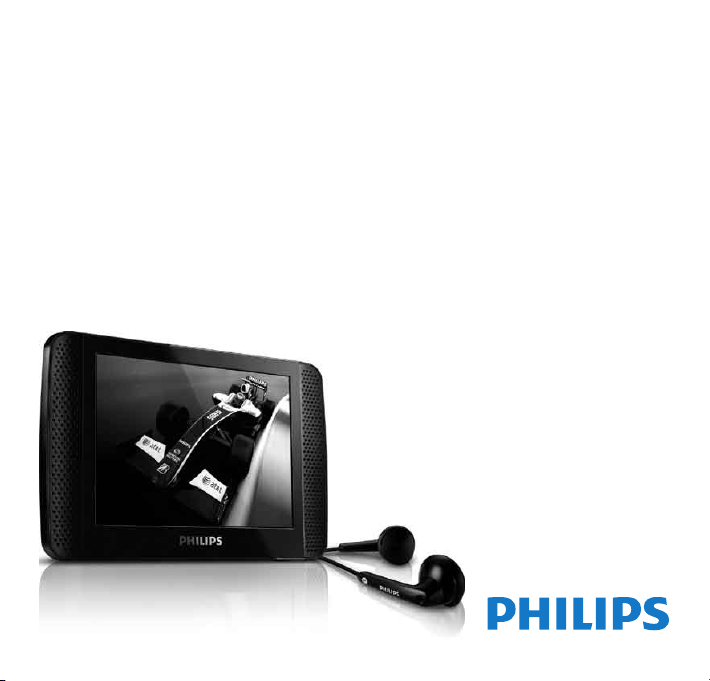
Philips GoGear audio video player
SA06510 4K
SA06510 4S
SA06510 8 K
SA06510 8 S
Quick start guide
Page 2

Need help?
Please visit
www.philips.com/welcome
where you can access to a full set of supporting materials such
as user manual, the latest software upgrades and answers to
frequently asked questions.
Page 3

Contents
EN
2 Register your product
3 What’s in the box
4 Overview of controls and
connections
5 Overview of the main menu
6 Overview of the main
touchscreen features
7 Connect SA065 to a
computer
8 Connect to install software
9 Install software
9 Turn SA065 on and off
10 Listen to music
10 Play videos
11 Access CMMB subscription
channels
12 Record CMMB audio
12 CMMB urgent messages
13 CMMB emergency news and
urgent messages
14 Listen to FM radio
14 Settings
15 Manually verify / update
firmware
15 Need help?
16 Disposal of your old product
and the integrated battery
1
Page 4

Register your product
Since it is possible for you to upgrade your product, we recommend that you register your
product on www.philips.com/welcome so we can inform you as soon as new free upgrades
become available.
2
Page 5
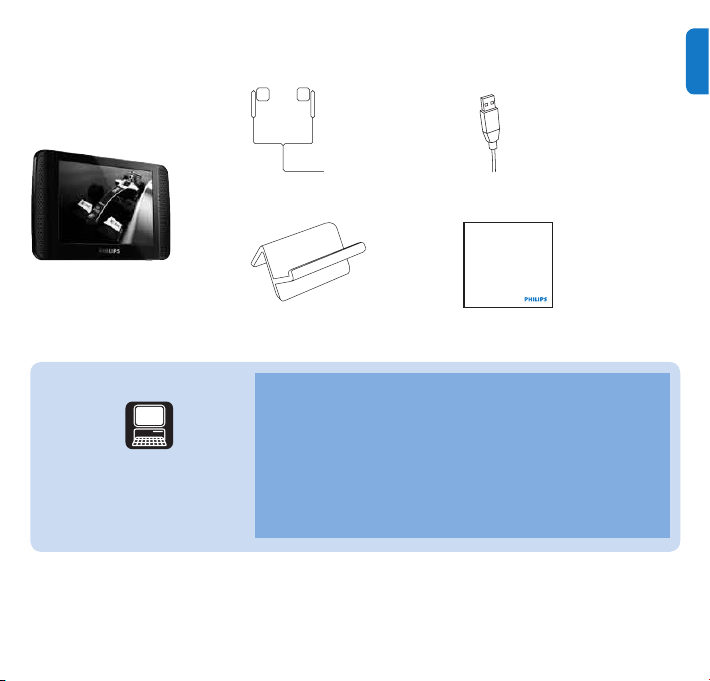
What’s in the box
Philips GoGear audio player
Quick start guide
Headphones USB cable
Stand Quick start guide
* The images serve as reference only. Philips reserves the right to change color/design without notice.
EN
What else you’ll need...
Computer
You need a computer with the following minimum
requirements:
Pentium III 800 MHz processor or higher
•
128 MB R AM
•
500 MB hard disk space
•
Internet connection
•
Windows® Internet Explorer 6.0 or later
•
USB Port
•
3
Page 6
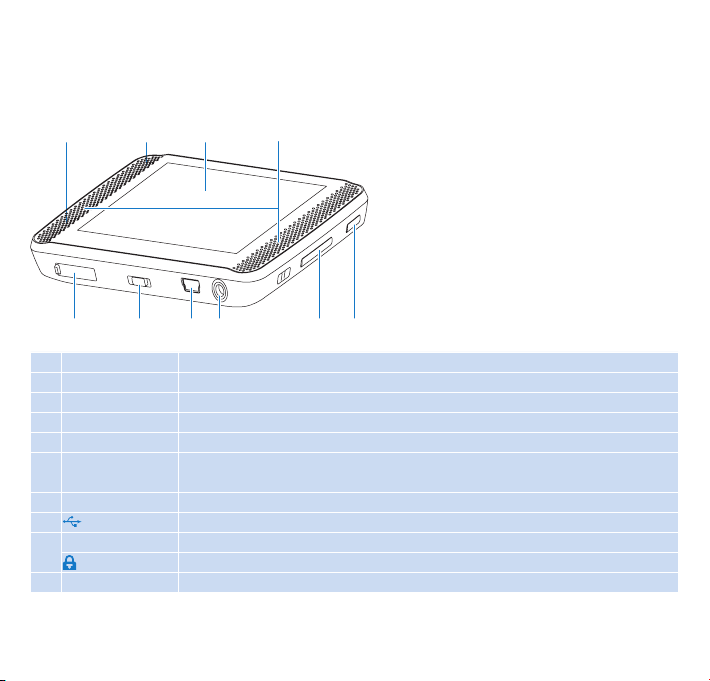
Overview of controls and connections
A
B C D
H
IJ G
A RESET press: reset SA065
B antenna
C touchscreen display
D loudspeakers
E HOME back to main menu
F - VOL + press: increase/decrease the volume
G
p
H USB connection jack
I
y
J MICRO SD micro SD card slot
4
press and hold: increase/decrease fast
headphone jack
slide and hold: turn SA065 on/off
slide: lock/unlock all buttons except - VOL +
F E
Page 7
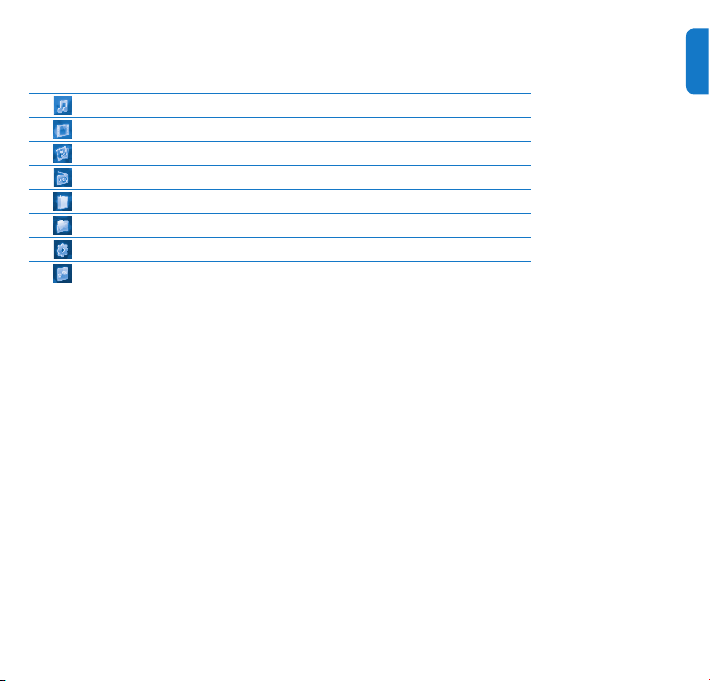
Overview of the main menu
Menu Mode To
Music play music tracks
Video play videos
Pictures view pictures
Radio listen to FM radio
Text Reader create or listen to recordings
Folder View view les in folders
Settings customize the settings of GoGear Vibe
CMMB view CMMB* TV channels
listen to CMMB* audio channels
EN
5
Page 8
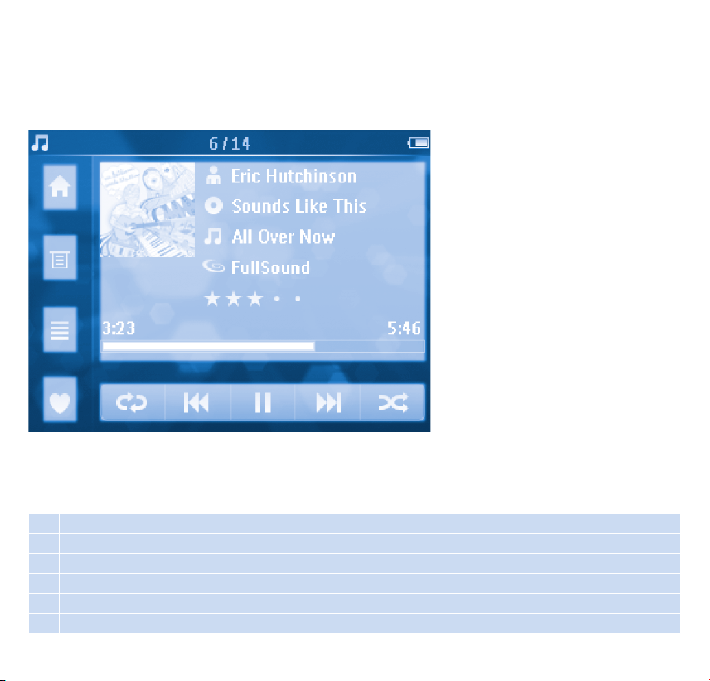
Overview of the main touchscreen features
1
5
2
3
4
The touchscreen allows navigation and control through direct touch (tap) on the relevant screen
area. There are many application-specic features and activities. This is an overview of the basic
features.
1 home
2 contextual options
3 main activities of the application
4 application-specic feature / back
5 content area
6 change / process content
6
6
Page 9
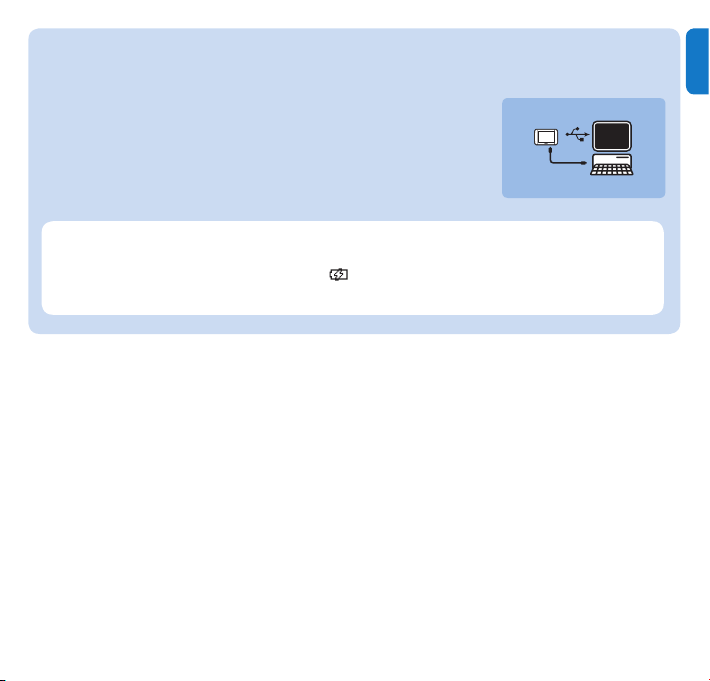
Connect SA065 to a computer
Connect the USB plug of the supplied USB cable to a spare USB 1
port on your computer.
Connect the small USB plug of the USB cable to the small USB 2
jack on SA065.
Turn on your computer.3
SA065 charges. >
Note
For rst-time use, allow SA065 to charge for 3 hours.
•
The charging animation stops and the • icon is displayed when the charging process
is completed.
EN
7
Page 10

Connect to install software
Connect the mini USB plug of the supplied cable to SA065.1
Connect the standard USB plug of the supplied cable to your computer.2
A pop-up window appears on the computer. >
From the pop-up window, select 3 Install Philips Device Manager.
Follow the on-screen instructions to complete the installation of the 4 Philips Device
Manager.
If the pop-up window fails to appear on the computer...
Select 1 My Computer (WindowsXP® / Windows2000®) / Computer (WindowsVista®).
Right click on 2 Philips GoGear SA065.
Select 3 Install Philips Device Manager.
Follow the on-screen instructions to complete the installation of the 4 Philips Device
Manager.
Cannot nd the le on SA065?
Ensure that your computer is connected to the Internet.1
Select 2 My Computer (WindowsXP® / Windows2000®) / Computer (WindowsVista®).
Right click on 3 Philips GoGear SA065.
Select 4 Install Philips Device Manager.
Follow the on-screen instructions to complete the installation of the 5 Philips Device
Manager.
8
Page 11
Install software
SA065 comes with the following software:
Philips Device Manager• (helps you get rmware updates for SA065)
Important
You can install the software while charging SA065 for the rst time.
•
Turn SA065 on and off
To toggle between modes on and off, slide and hold 1 z for approximately 4 seconds.
SA065 has a lock switch to prevent accidental operation.
To lock the buttons when you play, move the slider to position 1 .
All buttons except the volume keys are locked and the display shows a lock icon. >
To unlock the buttons again, move the slider to the center position.2
EN
9
Page 12
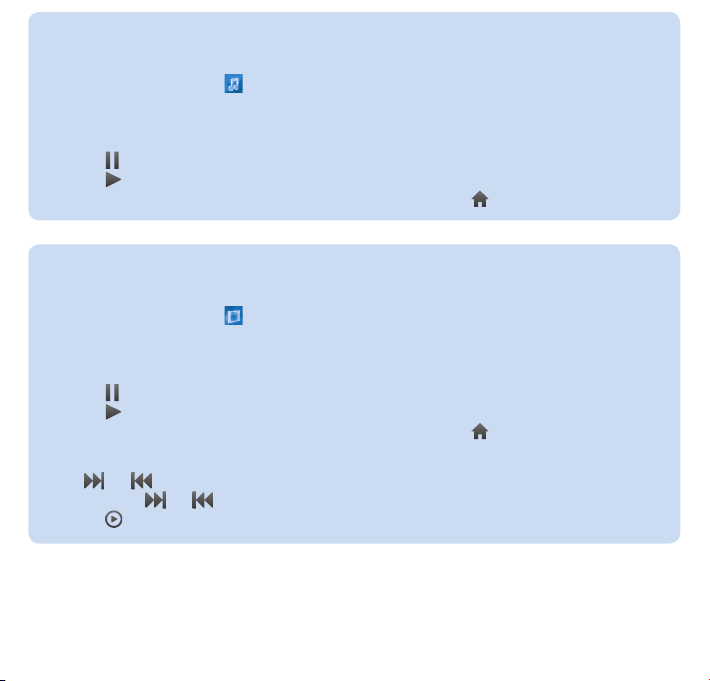
Listen to music
From the main menu, tap 1 to enter music mode.
Navigate the sub-menus to select your music.2
Tap music track to highlight.3
Tap music track again to play.4
Tap
•
to pause play.
Tap • to resume play.
To exit and return to the main menu, press • HOME or tap .
Play videos
From the main menu, tap 1 to enter video mode.
Navigate the sub-menus to select your video.2
Tap video to highlight.3
Tap video track again to play.4
Tap
•
During video play, navigate as follows:
Tap 1
Tap and hold 2 or to scan current video forward / backward.
•
to pause play.
Tap • to resume play.
To exit and return to the main menu, press • HOME or tap .
or to skip to next / previous video.
to resume play.
Tap
10
Page 13
Access CMMB subscription channels
You can
watch CMMB* TV channels
•
listen to CMMB* audio channels
•
From the main menu, tap 1
SA065 reminds you not watch the screen while driving. >
Extend the built-in telescopic antenna and align for best reception.2
Tap 3
or
to select a service from the list.
SA065 scans the frequencies for CMMB signals and displays all available channels.4
Tap on a channel to watch or listen.5
To exit and return to the main menu, press • HOME or tap
to enter CMMB channels.
.
EN
11
Page 14
Record CMMB audio
You can record the audio of CMMB* channels on SA065:
From the main menu, tap 1
SA065 reminds you not watch the screen while driving. >
Extend the built-in telescopic antenna and align for best reception.2
Tap 3
or
to select a service from the list.
SA065 scans the frequencies for CMMB signals and displays all available channels.4
Tap on a channel.5
Tap 6
Tap
•
Tap • (red dot) to resume recording.
Tap to save or delete.7
Tap to confirm. >
SA065 resumes CMMB service. >
To exit and return to the main menu, press • HOME or tap
to start recording the audio of the channel.
to pause recording.
to enter CMMB channels.
.
CMMB urgent messages
The CMMB* service includes urgent messages.
Incoming messages are indicated with the following icon at the top of the screen:
Tap 1 Emergency news to see the list of news messages.
Mesages are displayed as follows: * = urgent message, n = new message, i = message. >
Tap on a message to open it.2
or to scroll up or down.
Tap
•
•
•
Tap 3 Close to close window.
to see the options menu.
Tap
Select the option to delete the message.
The current CMMB broadcast continues after the message is closed. >
12
Page 15
CMMB emergency news and urgent messages
The CMMB* services include emergency news.
Emergency news interrupt the current broadcast with a pop up window.
Upon incoming emergency news...
Tap 1 More to read more (if message exceeds single screen size).
to see the options menu.
Tap
•
Select the option to delete the message.
•
Tap 2 Close to close window.
The current CMMB broadcast continues after the message is closed. >
EN
13
Page 16
Listen to FM radio
SA065 automatically searches for FM radio stations, then saves the rst 20 strongest
frequencies under the available presets.
From the main menu, tap 1
SA065 starts to play the last played preset. >
Tap to select any of the preset numbers in the list.
•
To exit and return to the main menu, press • HOME or tap
to enter radio mode.
.
Settings
This is how you customize SA065:
From the main menu, tap 1
Tap 2 or to navigate in a list.
Tap
•
Tap to conrm a selection and go to the next level (when available).3
to enter sub menu (when available).
To exit and return to the main menu, press • HOME or tap
to enter settings mode.
.
14
Page 17

Manually verify / update firmware
Ensure that your computer is connected to the Internet.1
Connect SA065 to the computer (see section 2 Connect SA065 to a computer for
instructions).
On your computer, click 3 Start > Programs > Philips Digital Audio Player > SA065
Device Manager to launch Philips Device Manager.
Click 4 Update.
Philips GoGear SA065 Device Manager > checks for updates and installs new firmware from
the Internet, if available.
When the display shows 5 Update completed, click OK.
Disconnect SA065 from the computer.6
The display of SA065 shows > Updating firmware.
SA065 restarts after the firmware is updated and is ready for use again. >
Need help?
User Manual
See the user manual on the CD-ROM that is supplied with this player.
On line
Go to www.philips.com/welcome
EN
15
Page 18
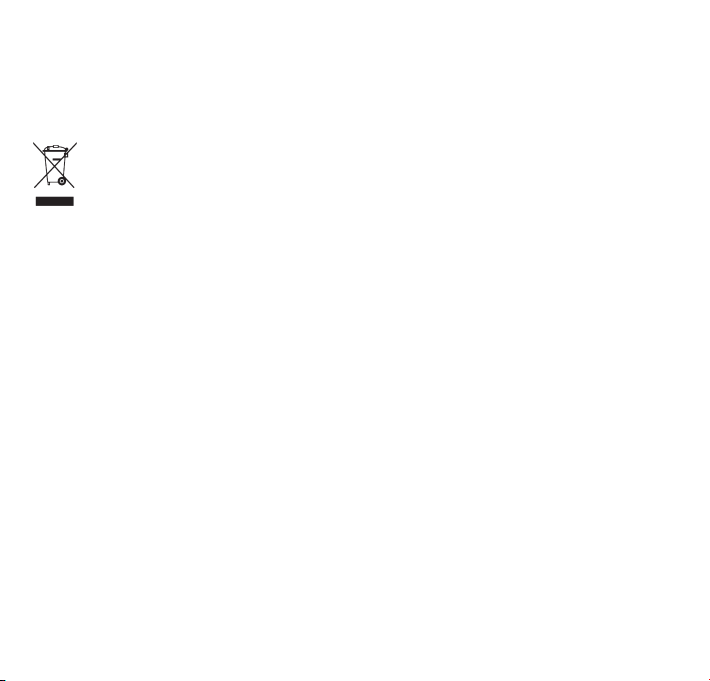
Disposal of your old product and the integrated battery
All ou r produc ts are designed and manufac tured with high quali ty materials and comp onents, whic h can be recycled and
reused.
The crossed- out whe el bin symbol on a prod uct means tha t the product is subjec t to th e Europe an Dire ctive
2002 /96/E C. This symbo l can al so be used in com bination with a chemi cal symbol, w hich me ans that the pr oduct
complies wit h the environme ntal d irecti ve for th at chemical.
Never dispose of your p roduct with ot her hou sehold waste. Inform yourself or ask your de aler ab out loc al
enviro nment ally sa fe recyc ling regulatio ns. The correc t disposal of yo ur old product h elps prevent potentia lly neg ative
consequences for the environ ment and human healt h.
Your produ ct cont ains a built- in rechargeab le batt ery covered by t he European Di rective 2006 /66/EC , whic h canno t be
dispo sed wit h norma l house hold wa ste.
To safegu ard the functionality and s afety of your p roduct , always bring your product to an of cial collection point or ser vice
centr e where a profes sional can rem ove / replace the batte ry as s hown in the user manua l.
Please infor m yourse lf abou t the local rules on separat e collection of batteries because the correct dis posal w ill hel p preven t
negat ive consequences for t he environment al and human health.
16
Page 19
Specifications are subject to change without notice.
Trademarks are the property of Koninklijke Philips Electronics N.V. or
their respective owners
© 2009 Koninklijke Philips Electronics N.V.
All rights reserved.
www.philips.com
Printed in China
wk9213
SA065_97_QSG_V0.2
 Loading...