

Page 1
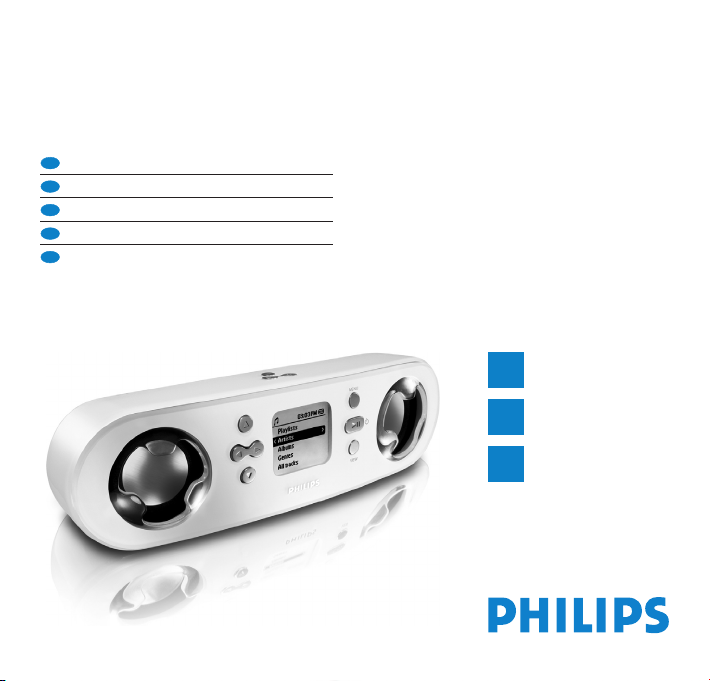
Philips GoGear ShoqBox
Quick start guide
EN
Quick start guide 1
FR
Guide de démarrage rapide 11
ES
Guía de inicio rápido 21
DE
Kurzanleitung 31
IT
Guida di riferimento rapido 41
Connect
1
2
Install
3
Enjoy
PSS231
Page 2

Need help?
Look up our Support Centre website
www.philips.com/support
or
Call our Customer Care helpline in your country
Besoin d’aide ?
Visitez la page Web de notre centre
d’assistance à l’adresse
www.philips.com/support
ou
Appelez le centre client de votre pays
Page 3

¿Necesita ayuda?
Consulte nuestra página Web de Soporte técnico,
www.philips.com/support
o
Llame a nuestra Línea de atención al cliente de su país
Support?
Besuchen Sie unser Support Center auf
www.philips.com/support
oder
wenden Sie sich einfach an den telefonischen Kundendienst
Ihres jeweiligen Landes
Page 4
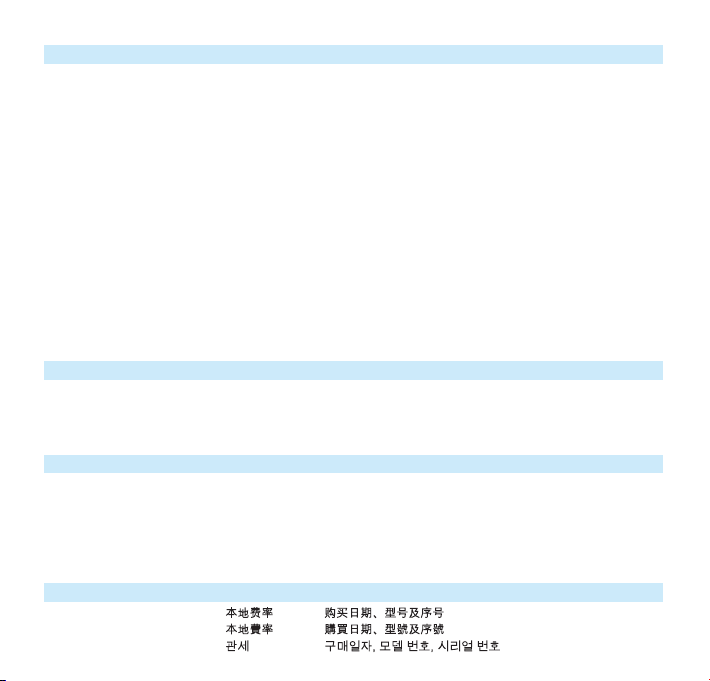
Country Helpdesk Tariff / min Keep ready
Europe
Belgium 070 253 010 €0.17 La date d’achat la référence et le numéro de série du produit
Denmark 3525 8761 Lokal tarif Indkøbsdato, type-, model- og serienummer
Germany 0180 5 007 532 €0,12 Das Kaufdatum. Modellnummer und Serial nummer
Das Kaufdatum. Modellnummer und Serial nummer
Das Kaufdatum. Modellnummer und Serial nummer
Spain 902 888 785 €0,15 Fecha de compra y número del modelo y número de serie
Fecha de compra y número del modelo y número de serie
Fecha de compra y número del modelo y número de serie
Fecha de compra y número del modelo y número de serie
Greek 0 0800 3122 1223 1
Ireland 01 601 1161 Local tariff Date of Purchase. Model number and Serial number
Italy 199 404 042 €0.25 La data di acquisto, numero di modello e numero di serie
Luxemburg 26 84 30 00 Tarification locale La date d’achat, la référence et le numéro de série du produit
Netherlands 0900 0400 063 €0.20 De datum van aankoop, modelnummer en serienummer
Norway
2270 8250 Lokal tariff Datoen da du kjøpte produktet & modellnummer & serienummeret
Portugal 2 1359 1440 Preço local A data de compra, número do modelo e número de série
A data de compra, número do modelo e número de série
Switzerland 02 2310 2116 Ortstarif
Sweden
France 08 9165 0006 €0.23 La date d’achat la référence et le numéro de série du produit
Finland 09 2290 1908 Paikallinen hinta Ostopäivä ja tarkka mallinumero ja sarjanumero
08 632 0016 Lokal kostnad Inköpsdatum, modellnummer och serienummer
UK 0906 1010 017 £0.15 Date of Purchase, Model number and Serial number
Austria 0820 901115 €0.20
North America
Canada 1-800-661-6162 Free
(Francophone)
1-888-744-5477
(English / Spanish)
USA 1-888-744-5477 Free Date of Purchase, Model number and Serial number
Date of Purchase, Model number and Serial number
South America
Argentina 11 4544 2047 Tarifa local
Brazil 0800 701 02 03
(Except Sao Paulo)
2121 0203
(Sao Paulo)
Grátis
Preço local
Chile 600 744 5477 Tarifa local
Mexico 01 800 504 6200 Gratis
Asia
China 4008 800 008
Hong Kong 2619 9663
Korea 02 709 1200
Country Helpdesk Tariff / min Keep ready
Page 5
Contents
2 Getting started with ShoqBox
2 Registration
3 Is there a manual?
3 Don't forget about upgrades
3 Accessories
4 Overview of controls and connections
6 Basic first steps
6 Connect
7 Install
9 Enjoy
10 Troubleshooting
10 Need Help?
10 Disposal of your old product
EN
1
Page 6

Getting started with ShoqBox
Please take some time to read this before using your ShoqBox.We hope you enjoy your
ShoqBox.
Press and hold 2; for 2 seconds to power
on/off ShoqBox.
Try out all the functions of your ShoqBox:
• Music playback. Remember to use Windows Media Player 10 to transfer your music from
your computer to ShoqBox (for details regarding music transfer, please refer to your user
manual on the by-packed CD-ROM)
• Line-in mode to play your favorite external audio sources, like music from your laptop or
other digital audio player.
• Alarm. Wake up your way to alarm buzzer or to your favorite music.
Remember to set your time and alarm using the MENU options.
Registration
Since it is possible for you to upgrade your product, we recommend that you register your
product on www.philips.com/register so we can inform you as soon as new free upgrades
become available.
2
Page 7

Is there a manual?
You have a detailed user manual and FAQ on the CD by-packed with your ShoqBox. Spend
some time with it to know all the features available.You can also download the same file from
this website: www.philips.com/support
Don't forget about upgrades
We know you will enjoy your product for a long time. For best performance, we recommend
that your regularly check in to www.philips.com/support for free upgrades of the latest software
and Device Manager for your product.These downloads will help you to optimize your
product's performance and to take advantage of our future support of new audio formats. Enjoy
your new music experience.
Accessories
1 x multi-voltage 5V AC/DC power adapter/charger
1 x travel case to protect your ShoqBox
1 x line-in cable to connect ShoqBox to any audio source, like your laptop
1 x USB cable to connect ShoqBox to your PC
1 x CD-ROM with Windows Media Player, Philips Device Manager and user manuals
EN
3
Page 8

Overview of controls and connections
USB
RESET
LINE IN
5V DC
USB
RESET
LINE IN
5V DC
Front panel view
Rear panel view
4
Page 9

1 Navigation
3
Scroll up / Previous / Fast rewind
4
Scroll down / Next / Fast forward
1
Back to previous level
2
Go to next level
2 Volume controls + Increase volume
- Decrease volume
3 Bass boost DBB Enables or disables Dynamic Bass Boost to enhance bass
tones
4 MENU MENU Access sub-menu of the current selection for more options
5 POWER / PLAY / 2; Press and hold for 2 seconds to power on / off ShoqBox,
PAUSE Play / Pause
6 VIEW VIEW Toggles between Root menu and music playback screen /
current navigation screen
7 Connections cover
8 5V DC Charger /adapter connection for power supply
9 Reset opening Press here using a pin if the ShoqBox "hangs" or "freezes".
Note: your music content will not disappear.
10 USB USB connector for USB2.0 transfers music files from the
PC to ShoqBox
11 Line in 3.5mm socket for line-in audio cable: connects to LINE
OUT / headphone socket of your laptop or auxiliary
equipment
12
Headphone socket p
/
b 3.5mm jack for headphones (not included) FM antenna
socket (Not applicable to PSS231)
EN
5
Page 10

Connect
1
Charging
1 Connect the supplied multi-voltage adaptor/charger to your ShoqBox by plugging it into the
5V DC connector at the back of your product under the ShoqBox back cover and then
plug the other end into a standard mains power outlet.
2 The battery will be fully charged in 4 hours when charging it for the first time and 70%
charged in 1 hour for quick charge.
Note: Rechargeable battery has a limited number of charge cycles and may eventually need to
be replaced by the Philips service center. Battery life and number of charge cycles var y by use
and settings.
When the battery is nearly empty, you will hear beep sounds and see the battery low screen.
If you do not charge your ShoqBox at this point, the player will automatically switch off.
It may take a few minutes for charging indication to appear if your battery has been fully
depleted.
6
Page 11

Install
2
A
Installing software
IMPORTANT!
Always install the software from the CD even if you may have Windows Media Player.
Any additional utility applications (for example to upgrade and repair your player) will
otherwise not be installed.
What you need before software installation:
- PC with Windows XP (SP1 or above)
- Internet connection with Microsoft Internet Explorer 6.0 or higher
- CD-ROM drive
- USB port
- 500 MB hard disk space recommended
1 Insert the CD supplied with your product into the CD ROM drive of your PC.
2 Follow the onscreen instructions to complete the installation of Windows Media Player
and Philips Device Manager.
3 You may need to restart your PC after software installation.
4 If the installation program does not start automatically, browse the CD contents via
Windows Explorer and run the program by double clicking on the file ending with .exe.
Lost your CD? Don't worry, you can download the CD contents from
www.philips.com/support or www.usasupport.philips.com (for U.S. residents).
EN
7
Page 12

B
Connecting your ShoqBox to the PC via the USB port
Open the connections cover at the back of your
ShoqBox. Connect the included adapter to your
ShoqBox and to the main power supply. Connect
the smaller end of your USB cable to your
ShoqBox and the bigger end to your computer's USB port.
Your ShoqBox will be recognized by your computer and is ready for music transfer.
Transferring music
C
Philips ShoqBox
Start Windows Media
Player. Select Sync tab.
In the pull down menu on
the right pane, select Philips
or Philips ShoqBox as the
destination.
8
Select Library tab. Click to
highlight the song you want
to copy. Drag and drop the
song into the Sync List on
the right pane.
Click Start Sync button at
the bottom of the screen to
start synchronization.
Page 13

Enjoy
3
A
Powering on / off
Power on:Press and hold 2; for 2 seconds to power on ShoqBox
Power off: Press and hold 2; again
Note:Your device automatically powers down if there is no operation and no
music played for 10 minutes.
B
Select a music track to play
Use the navigation keys to the left of the display to select a song for playback.
Play a song by pressing 2;. Press the same key to pause the music.
As with most digital audio players, there is no stop key.
Line-in mode: for playback of external sources
C
You can use your ShoqBox to act as a powerful mini speaker:
Connect the included audio cable between LINE IN on
1
ShoqBox to the LINE OUT / p
equipment.
2 On ShoqBox, press VIEW and select line-in to enter the
Line in mode.
3 Operate the controls on your auxiliary equipment to playback.
4 Adjust the volume on both ShoqBox and your device.
connection on your auxiliary
EN
audio player
VIEW
2
9
Page 14

Troubleshooting
Please refer to the FAQ on www.philips.com/support or the Troubleshooting section of the
ShoqBox user manual of the CD by-packed with your ShoqBox.
In rare cases, your player may "FREEZE". Don't panic, just insert a pencil or pin into the RESET
hole located on the back of ShoqBox and press and hold the pin until the device shuts down.
Then press power to restart.The available content on your player will not be erased.
If nothing happens, recharge the battery for at least 4 hours and try to switch on or reset again.
If this does not work, you might have to repair your player with Philips Device Manager.
It may take a few minutes for charging indication to appear if your battery has been fully
depleted.
Need Help?
User Manual
Refer to the User Manual on the CD.
Online Help
www.philips.com/support
Disposal of your old product
Your product is designed and manufactured with high quality materials and components, which
can be recycled and reused.
When this crossed-out wheeled bin symbol is attached to a product it means the
product is covered by the European Directive 2002/96/EC
Please inform yourself about the local separate collection system for electrical and
electronic products.
Please act according to your local rules and do not dispose of your old products with your
normal household waste. The correct disposal of your old product will help prevent potential
negative consequences for the environment and human health.
10
Page 15

Printed in China
Specifications are subject to change without notice.
Trademarks are the property of Koninklijke Philips Electronics N.V.
2005 © Koninklijke Philips Electronics N.V. All rights reserved.
or their respective owners
www.philips.com
wk6092
 Loading...