

Page 1
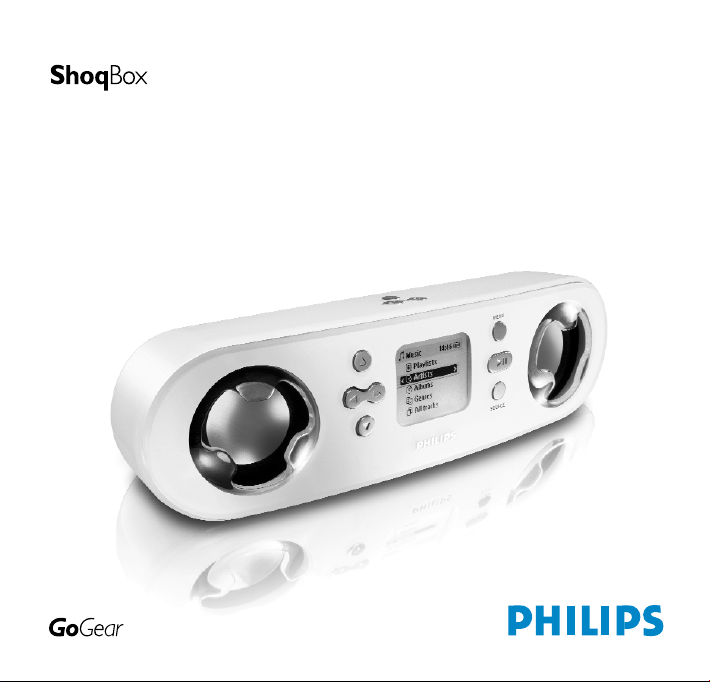
user manual
manuel d’utilisation | benutzerhandbuch | manual del usuario
gebruikershandleiding | manuale per l'utente | manual do usuário
användar-handbok
Page 2

1
We hope you enjoy your Philips ShoqBox
Please visit www.philips.com/support
and enter your model number to view:
· FAQ, Frequently Asked Questions
· Latest user manuals
· Latest computer software downloads
· Firmware upgrade files
Register
Since it is possible for you to upgrade your product,
we recommend that you register your product on
www.philips.com/register so we can inform you as
soon as new free upgrades become available.
The typeplate is located on the back of the connections cover. Open connections cover to see.
Page 3
2
Quick start
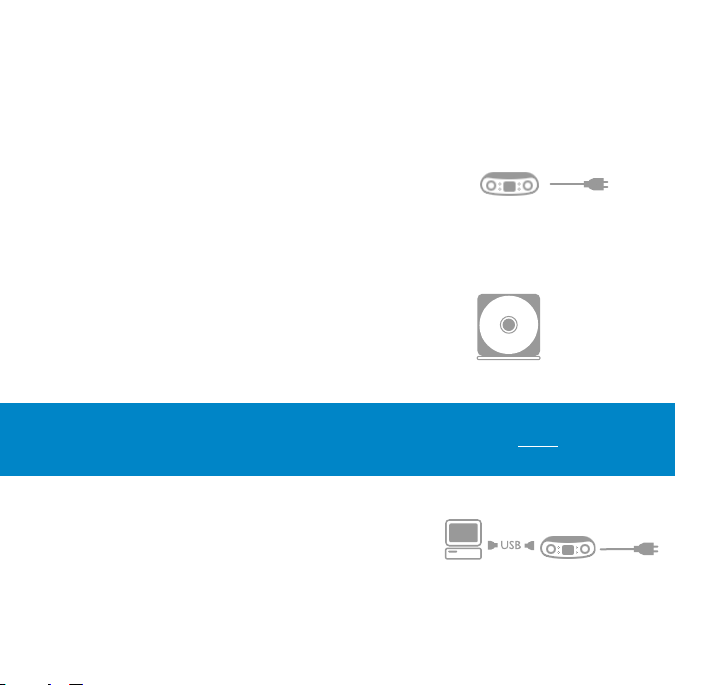
1 Charge
Open the connections cover at the back of your ShoqBox.
Connect the included multi-voltage adaptor / charger into the
jack marked 5V DC, and then plug the multi-voltage
adaptor / charger into a standard AC outlet.
Charge 1 hour for fast charge or 4 hours for 100% batter y power.
(Battery life may vary according to use.)
2 Install music software
Insert the included CD into your PC's CD-ROM drive.
Follow screen instructions to complete installation.
3 Connect
Connect your ShoqBox to your PC using the included
USB cable, with ShoqBox powered by included adapter.
The USB connection screen will automatically appear.
ATTENTION! WINDOWS 98SE USERS:
To avoid installation problems, DO NOT CONNECT ShoqBox to the PC until AFTER
installation completes.
Page 4
3
4 Organize and Transfer Music
Launch your music software from Windows desktop or
Start menu. Organize your music. Transfer files from
your PC to your ShoqBox.
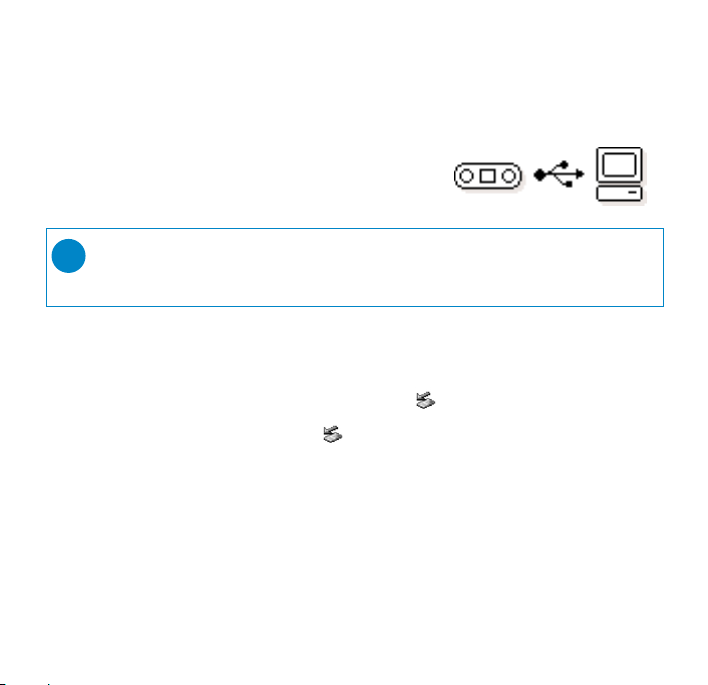
5 Unplug /Eject
Exit your music software.
Disconnect ShoqBox safely from your PC by clicking on the
task bar to avoid file error.
(WINDOWS 98SE users: there is no icon.
Simply disconnect ShoqBox after file transfer completes.)
6 Immerse in your music everywhere you go
Press and hold 2; to switch on ShoqBox.
Use scroll controls to browse and press 2; to enjoy music!
➯
TIP
Detailed information is given in selected music software’s Help.
Page 5
MENU
SOURCE
USB
RESET
LINE IN
5V DC
USB
RESET
LINE IN
5V DC
1
2
3
1010 1111
7
8
9
6
5
4
1212
y
4
Page 6

5
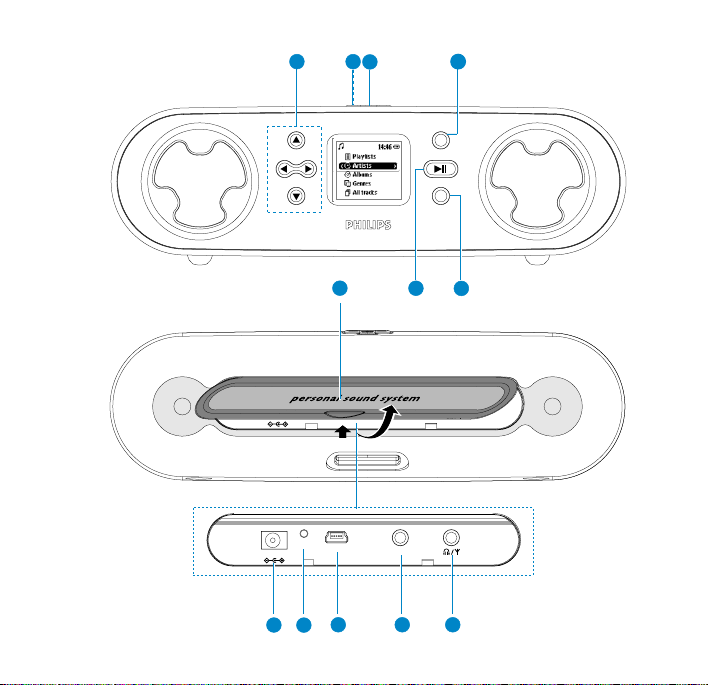
Overview of controls and connections
1 Navigation
3
Up / previous / fast search backwards
4
Down / next / fast search forwards
1
Left / return to previous menu or library levels
2
Right / confirm a menu setting
2 + / – Increases / decreases volume
3 DBB Enables or disables Dynamic Bass Boost to enhance bass tones
4 MENU For menu options
5 2; y On / off ; plays / pauses music; plays / stores a radio station
6 SOURCE Returns to root menu / displays playscreen or library options
7 Connections cover
8 5V DC
Charger /adapter connection for power supply
9 Reset opening Press here to reset if the device “hangs” or “freezes”
0 USB USB cable connector
! LINE IN 3.5mm socket for audio cable: connects to LINE OUT
of auxiliary equipment
@ p
/
b 3.5mm jack for headphones (not included) or for
FM antenna (included)- if listening via speakers
Page 7
Included Accessories
1 x multi-voltage 5V AC/DC power adapter/charger
1 x CD-ROM with user manual, drivers, FAQ, music management softwares
1 x USB cable
1 x audio cable
1 x travel case
1 x pigtail FM antenna
1 x Quick Start
Switching your ShoqBox on / off
Power on: Press 2; for 2 seconds.
➔ PHILIPS splash screen appears briefly.
Power off: Press
2; again for 2 seconds or more.
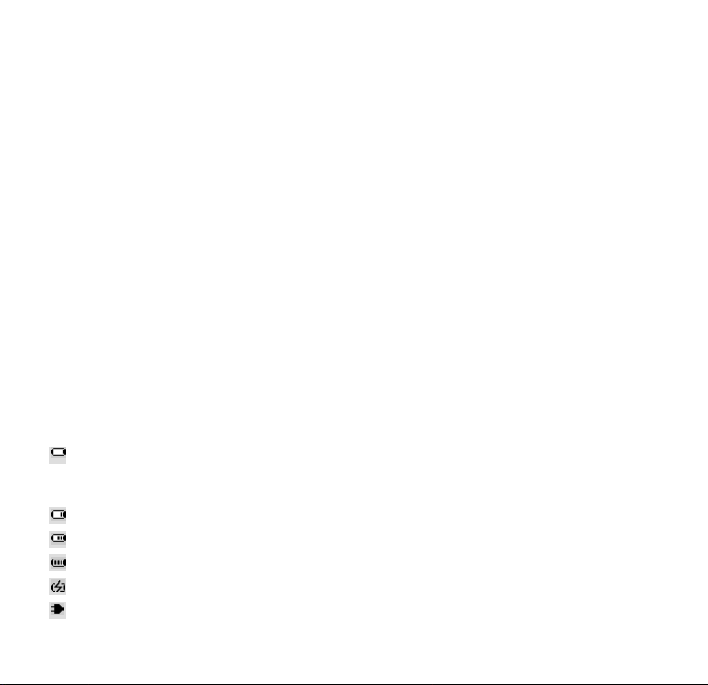
Indication of power level
Low battery warning: appears when battery power is very low.
Please use the 5V adapter to recharge/ operate your ShoqBox, otherwise
ShoqBox enters the power shutdown mode within a minute.
Battery one-third full
Battery two-thirds full
Battery full
appears when charging batter y
appears when operating on adapter fully charged
6
Page 8
7
Auto power down
Your ShoqBox automatically switches off:
- if the set is left idle for a while (you can adjust the Auto Shutdown period, see Settings).
- if sleep timer is activated and the end of the timer period is reached.
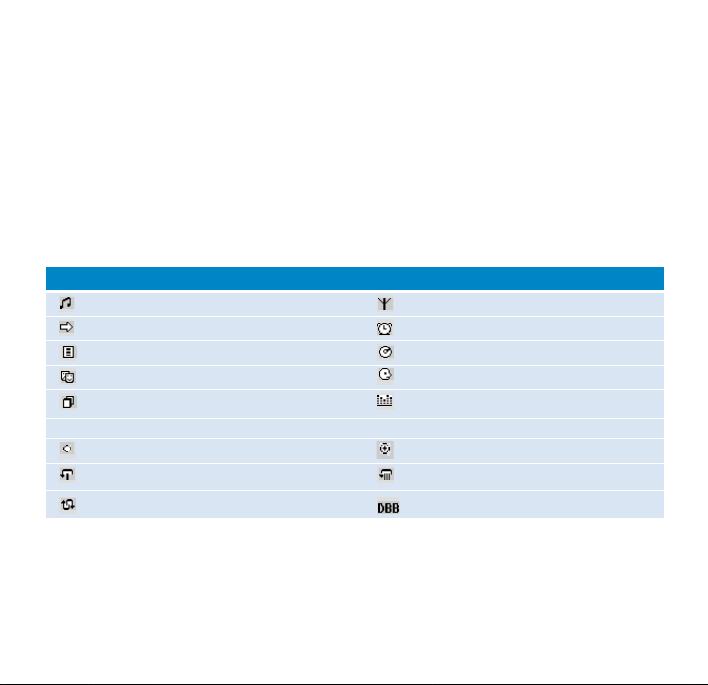
Understanding ShoqBox display
- Your ShoqBox shows a brief animation when an activity takes more than 2 seconds to perform.
- When you adjust volume, a brief volume adjustment screen is shown.
Music mode Tuner mode
Line-in mode Alarm clock
Playlists Albums
Genres Ar tists
All tracks Equalizer
< Previous menu / library level available > Next menu / library level available
Option available for selection Option selected
Repeat 1 Repeat all
Shuffle
Dynamic Bass Boost selected
ShoqBox has an intuitive display to show various information:
Page 9
8
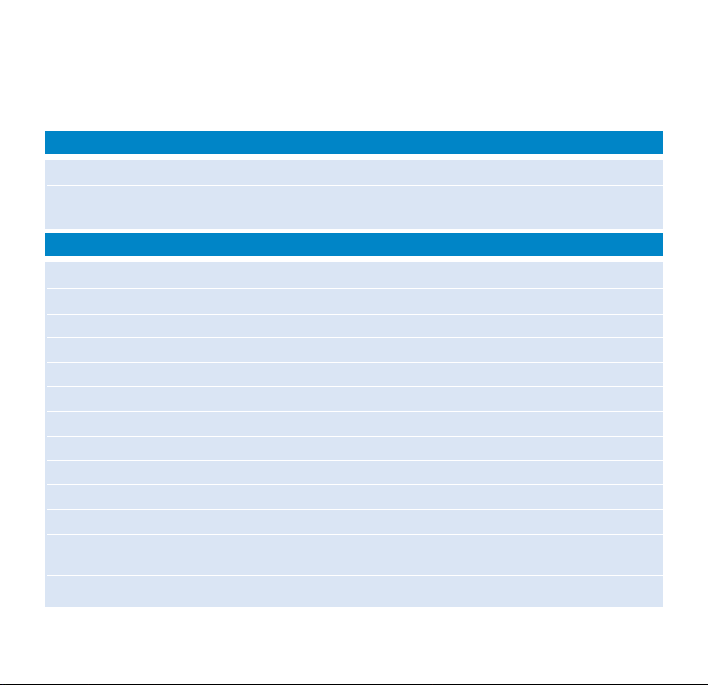
Using ShoqBox controls
Troubleshooting Controls to press
Reset ShoqBox Press RESET OPENING with a small object for 2 seconds
Restore shoqbox Factory Settings Press MENU; scroll to Settings > Restore settings
and select Yes.
Basic Operation Controls to press
Switch ShoqBox on / off Press and hold 2;
Select Music / Tuner / Line-in Press SOURCE to highlight and select
Enter/ exit the menu display Press MENU
Scrolling and browsing
3,4
, 1, 2 for up, down, left, right
Go to different levels of menu Press 2 for next and 1 for previous
Play music Highlight selection and press 2;
Pause music playback Press 2; during playback
Change volume Press VOLUME + / –
Fast forward in a track Press and hold
4
Rewind in a track Press and hold
3
Play next or previous track Press down 4for next and 3for previous
Tuning Press
MENU to select ManualTuning or AutoTune
in Radio mode
Play radio / preset a station Highlight selection and wait for 2 seconds
Page 10
9
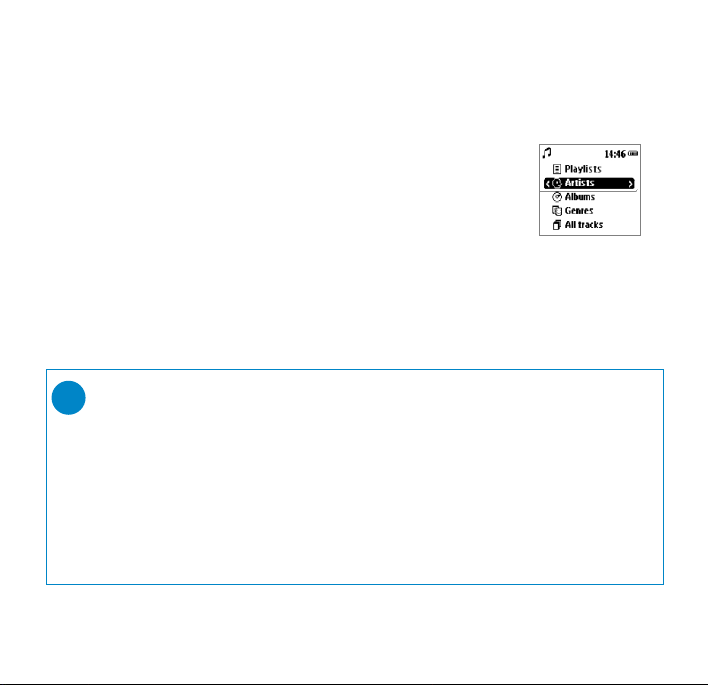
Music mode: playback
Once you have downloaded MP3/ WMA tracks from your computer
to the ShoqBox, you can access your music in 5 different ways on the
ShoqBox.
1 Press SOURCE and select MUSIC to enter the music mode.
2 Press
3
to scroll up or 4to scroll down for your option.
Press 2 for next or 1 for previous levels of library.
3 Press 2; to play or pause your selection.
➯
TIP
0 Please install the included software(s) and read the instructions.
0 During playback of Albums, tracks are sorted according to track number
sequence. Any tracks assigned with the same number will then be further
sorted alphabetically.
0 Select More Track Info in Settings ➔ [>] key shortcut. You can then press
2 from the playscreen to display track information e.g. track title, artist name,
codec (MP3 or WMA), bitrate, duration of track, album, genre.
Page 11
FM Radio mode
Insert the included pigtail antenna into the p / b jack, if you are listening via
the built-in speakers. Extend and position the antenna to improve reception.
Press SOURCE and select Radio to enter the radio mode.
Any recorded music playback will stop as you enter the radio mode.
Automatic tuning
1
Press MENU and select AutoTune to automatically select
the 10 strongest radio stations.
2 Press
3
to scroll up or 4to scroll down for your preset.
Manual tuning
1
Press 3to scroll up or 4to scroll down for your preset.
2 Press MENU and select ManualTuning.
Press and hold 4or 3to scan for the next / previous available station.
Press 4or 3to fine tune (tune step by step).
Press 2 to save your preset.
3 Press
3
to scroll up or 4to scroll down for your preset.
Let the cursor stay on your selection to play a preset station.
➯
TIP
0 Available stations are stored as presets in order of decreasing signal strength.
0 AutoTune will overwrite all previously stored stations.
10
Page 12

11
Line-in Mode: for playback of external sources
You can use your ShoqBox to act as a powerful mini speaker.
1 Connect the included audio cable between LINE IN on ShoqBox to the
LINE OUT /p connection on your auxiliary equipment.
2 On ShoqBox, press SOURCE and select Line-in to enter the Line in mode.
3 Operate the controls on your auxiliary equipment to playback.
4 Adjust the volume on both ShoqBox and your device.
Page 13
12
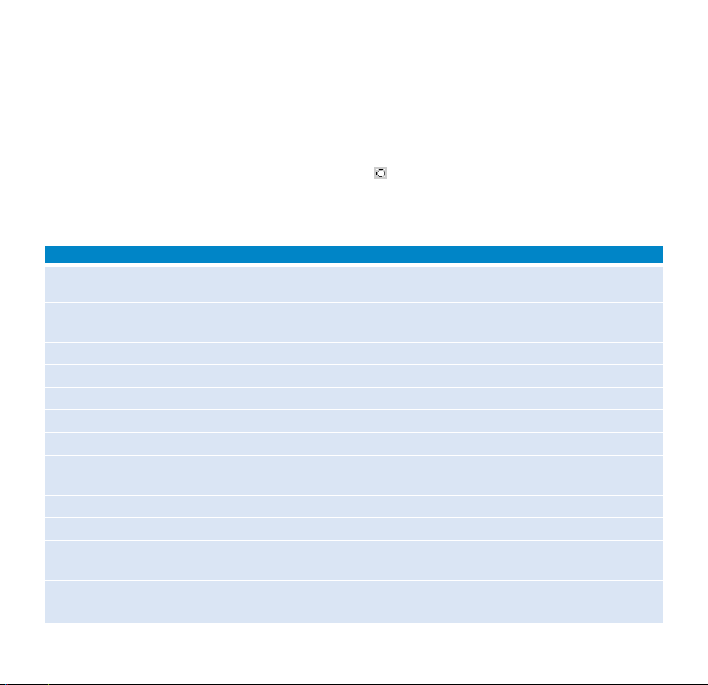
Customizing settings
1
Press MENU for menu options. Press 3to scroll up or 4to scroll down
for your option. Press 2 for next or 1 for previous levels of menu.
2 Press 2 to confirm your selection by checking .
3 Press MENU or 1 to exit the menu display.
Options for each setting are shown on ShoqBox's display.
Shuffle/Repeat Plays music tracks randomly (
Shuffle
) and / or repeatedly (
Repeat
) in
MUSIC mode
Sleep timer Set the timer period to switch off
ShoqBox
after 15, 30 or 60 minutes. (Default: off)
Equalizer Adjusts sound settings: Rock, HipHop, Jazz, Dance, Funk, Off.
Alarm clock Sets alarm clock (12-hour and 24-hour)
Settings Browse submenu options to further customize your settings
[>] key shortcut
Adjusts 2key actions during playback
Display Adjusts Backlight options (5/10/30 seconds /Off ), Contrast level (1-6)
Auto shutdown Sets time for switching off
ShoqBox
automatically to save battery power
(30 seconds; 2 /5/10 minutes)
Time & Day Sets day and time allows AM/PM display in standby mode
Language Sets display language options
Information Display
ShoqBox
device information. e.g. Device name, free memory space,
firmware version.
Restore settings Restore Factory Settings
Advanced settings and actions
Page 14
13
About the clock and alarm features
The time is displayed using the 12-hour and 24-hour clock. 12-hour clock is the default option
During the alarm call, the current ShoqBox mode (e.g. music / radio / Line-in) will be interrupted.
The alarm will sound for 10 minutes in your selected alarm source mode and then enter the
"snooze" mode. The "snooze" alarm remains active and repeats the call at 10-minute
intervals, until you choose to cancel the alarm.
Setting day & time
1
In any mode, enter the menu: Settings ➔ Day and Time ➔ ....
2 Highlight the menu option you want to adjust.
3 Press 3 / 4 to adjust the day / hours / minutes.
➯
TIP
0 For best results, we recommend you use the included adapter / charger to
operate ShoqBox. AC power will ensure adequate and steady power.
0 You will need to set both the clock time and date first, before you can
set the alarm options.
Page 15
14
Setting the alarm
1
Enter the menu: Alarm Clock ➔ ....
2 Use the 3 / 4 , 1 / 2 controls to browse, scroll through, highlight and
select the submenu options
3 Press 3 / 4 to adjust the day / hours / minutes.
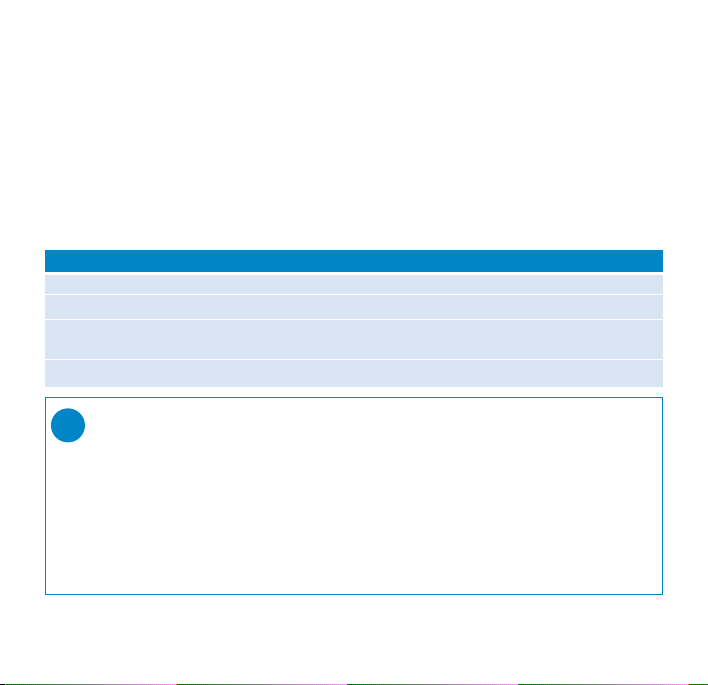
Alarm clock On / Off
Alarm time Adjusts the hours and minutes
Alarm Occurence Sets alarm activation according to sound once (default) / at the same
time every 24 hours / weekdays only / once a week.
Alarm Source Selects alarm source from Music, Tuner or Buzzer.
Submenu options
➯
TIP
You can select your favourite song or radio as wake-up sound. In order to do so,
FIRST CHECK:
0 you have disconnected the headphones.
0 Radio: you have tuned properly to a station
0 Radio / Music: the volume has not been turned down too low!
0 Artist / Album: the next ar tist / album stored is selected if it has been deleted
from your ShoqBox. Buzzer option is the default alarm source if no artists and
albums are available on your ShoqBox.
Page 16
15
Stopping the alarm
There are 2 ways to stop the alarm call:
"Snooze" (Repeat alarm)
0 During the 10-minute alarm call, press any button (on the top / front panels).
➔ Display shows: Cancel Alarm .
ShoqBox enters the "snooze" mode which repeats your alarm call every 10 minutes.
Disable "Snooze"
0 In the "snooze" mode, press any button again before the alarm call repeats.
➔ "Snooze” is disabled.
The alarm will sound again only according to the Alarm Occurrence setting.
➯
TIP
If you do not press any buttons to stop the alarm, ShoqBox by default enters the
"snooze" (repeat alarm) mode after 10 minutes.
Page 17
16
Using shoqbox as an external storage device
ShoqBox can be used as an external storage device for storage and transfer of any data files.
Note that music files transferred from the PC to ShoqBox via Windows Explorer will not
be able to play on shoqbox. Please always use included music software for music transfer.
1 Connect your ShoqBox to your PC using the included USB cable, with ShoqBox pow-
ered by included AC adapter. The USB connection screen will automatically appear.
2 On your PC, the ShoqBox is detected as a drive "Removable Disk" under "My
Computer" in Windows Explorer.
TIP
0 During USB connection, we recommend that you always use the included power
adapter to avoid loss of data.
0 Always remove USB connection safely (see Step 5, page 3).
➯
IMPORTANT!
PLEASE ENSURE THAT YOU RETAIN THE ORIGINAL FILES TRANSFERRED TO ShoqBox. PHILIPS IS
NOT RESPONSIBLE FOR ANY LOSS OF CONTENT IF THE PRODUCT BECOMES DAMAGED
OR THE MEMORY NOT READABLE.
Page 18
17
Q. My ShoqBox does not respond.
Should your ShoqBox "hang" or continues to display the busy icon indefinitely, use a pencil or
similar object to press the reset pinhole at the back of the set . File contents e.g. your songs
or downloaded files on your ShoqBox are not affected when resetting in this way.
Q. I can't play my music tracks.
ShoqBox can only play MP3 / WMA files transferred using the included software. ShoqBox
will not be able to play audio files that are not of these formats.
Q. ShoqBox switches off by itself.
This is a built-in safety measure to protect the unit from overheating, possibly caused by
overuse at too high volume, incorrect power voltage. Check voltage and use only the
included adapter/charger. Play at a sensible volume. Allow shoqBox to cool down before
using again. Alternatively, check the shutown menu setting. Change if necessary.
Q. My ShoqBox has short playback time.
Make sure ShoqBox battery is fully charged when you begin playback. Over time, the internal rechargeable battery will become weaker. It is replaceable. Please contact your nearest
Philips Service Center for a batter y replacement.
Q. No DBB during FM radio playback.
ShoqBox supports DBB only during music playback, but not during radio playback.
WARNING:
Do not open the set as there is a risk of electric shock! Under no circumstances should you
try to repair the set yourself, as this will invalidate the warranty.
Troubleshooting
If a fault occurs, first check the points listed in the following pages. For fur ther help and other
troubleshooting tips, please also check out ShoqBox FAQ at www
.philips.com/support.
If you are unable to find a solution by following these hints, consult your dealer or
service center.
Page 19
18
Q. Poor fm reception.
Weak signal. Adjust the headphone cable or antenna. Battery weak. Switch over to
AC power.
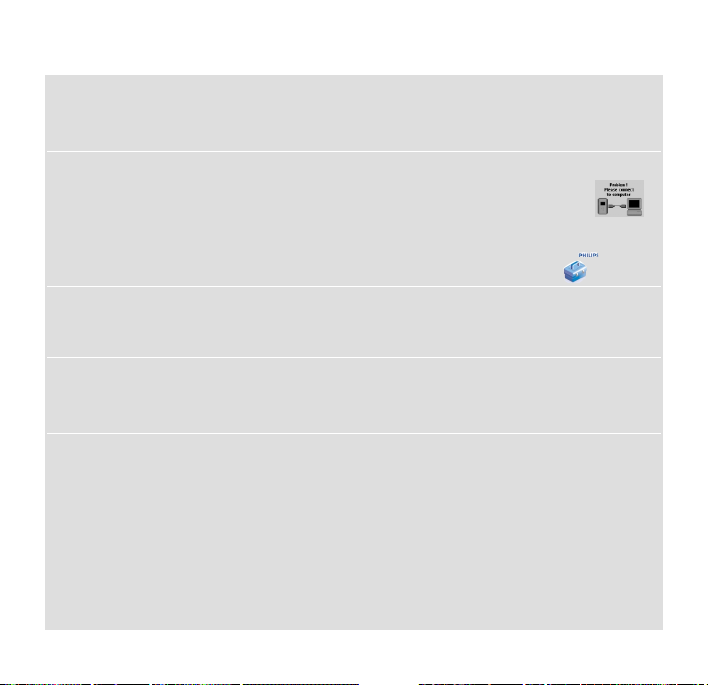
Q. My ShoqBox shows this [file error] icon.
You have a file error: system files may be missing or there is a format error on
ShoqBox.To remedy, please connect ShoqBox to your PC with the included USB cable and
to the main power supply with the included adapter. Start Device Manager .
Q. How do I know which firmware version I have?
On your ShoqBox, you can check your firmware version from the menu options.
Scroll for MENU ➔ Settings ➔ Information to display FW vers:.
Q. How do I know how much free space I have?
On your ShoqBox, you can check your ShoqBox free space from the menu options.
Scroll for MENU ➔ Settings ➔ Information to display Free:.
Q.The alarm does not function
Clock date and time incorrect.
Check you have correctly set both the clock and alarm settings.
Alarm source/ occurrence not selected.
Check you have activated all the necessary alarm settings.
Battery power low. Use the AC adapter/charger to operate ShoqBox.
Page 20
19
Environmental information
All redundant packaging has been omitted. We have done our utmost to make the packaging
easily separable into four materials: cardboard, polystyrene foam, PET and polyethylene.
Your set consists of materials which can be recycled if disassembled by a specialized company.
Please observe the local regulations regarding the disposal of packaging, exhausted batteries
and old equipment.
Copyright information
0 Unauthorized duplication and distribution of Internet/CD recordings violate
copyright law and international treaties. You should use ShoqBox and the included
software for personal use only.
0 In the U.K and cer tain countries, the copying of material protected by
copyright may require the permission of the copyright holders.
Disposal of your old product
Your product is designed and manufactured with high quality materials and components, which
can be recycled and reused.
When this crossed-out wheeled bin symbol is attached to a product it means the
product is covered by the European Directive 2002/96/EC
Please inform yourself about the local separate collection system for electrical and
electronic products.
Please act according to your local rules and do not dispose of your old products with
your normal household waste. The correct disposal of your old product will help
prevent potential negative consequences for the environment and human health.
Page 21

20
Safety and maintenance
To get the most from your product, please also refer to the Safety &
Warranty booklet included with this device for important safety instructions.
About operating and storage temperatures
0 Operate ShoqBox in a place where the temperature is always between 0 and 35º C
(32 to 95º F).
0 Store ShoqBox in a place where the temperature is always between -20 and 45º C
(-4 to 113º F).
0 Battery life of ShoqBox may shorten in low temperature conditions.
0 Do not expose to excessive heat caused by heating equipment or direct sunlight.
0 When you are using ShoqBox, connecting it to your PC or charging the battery, it is
normal for ShoqBox to become warm.
Avoiding damage or malfunction
0 Backup your files. Please ensure that you retain the original files that you have down
loaded to ShoqBox. Philips is not responsible for any loss of content if the product
becomes damaged or not readable / legible.
0 Manage (transfer, delete, etc.) your files only through included music software
to avoid problems!
0 Do not drop ShoqBox or allow objects to fall on ShoqBox.
0 Do not allow ShoqBox to be submersed in water. Do not expose connection jacks
to water as water entering the set may cause major damage.
0 Clean ShoqBox with a slightly damp cloth. Don't use any cleaning agents containing
alcohol, ammonia, benzene or abrasives as these may harm the finishing on ShoqBox.
0 Active mobile phones in the vicinity may cause interference to the device.
Page 22

Using the power adapter / charger
0 Use only the AY3197/05 power adapter that came with ShoqBox. Adapters for other
electronic devices may look similar, but they may damage ShoqBox.
0 The only way to shut off power completely to your power adapter/charger is to
disconnect it from the power source.
0 Always leave space around your power adapter. Do not use this equipment in a location
where airflow around the power adapter is confined, such as a bookcase.
0 When connecting or disconnecting your power adapter, always hold the power adapter
by its sides. Keep fingers away from the metal part of the plug.
0 The power adapter for ShoqBox is a high-voltage component and should not be opened
for any reason, even when ShoqBox is off.
Using your headphones
0 Hearing safety
Listen at a moderate volume. Using headphones at high volume can impair your hearing.
Important (for models with bypacked headphones):
Philips guarantees compliance with the maximum sound power of its audio players as
determined by relevant regulatory bodies only with the original model of provided
headphones. In case this one needs replacement, we recommend that you contact your
retailer to order a model identical to that of the original provided by Philips.
0 Traffic safety
Do not use while driving or cycling as you may cause an accident.
0 Optimizing playback performance
We recommend to only use PHILIPS headphones for ShoqBox. Music volume and / or
quality is not guaranteed for other non-PHILIPS headphones.
21
Page 23

22
Technical Specifications
System
Output power:
Speaker 2 x 2W (4 Ω)
Earphone 2 x 4mW (16 Ω)
Frequency response 20 Hz - 20 kHz
THD 0.01%- 0.1%
Equalizer 6-band
Display Black / White 128 x 96 pixels
Backlight
White LED
Connections Stereo headphone, Mini USB (B-type), 5V AC/DC adapter /
charger input, FM antenna / stereo headphone, LINE IN
Battery Replaceable (by Philips service) 1600mAh Li-Ion
Storage PSS120: 512MB NAND Flash memory *
PSS110: 256MB NAND Flash memory *
* Actual formatted capacity of ShoqBox will be less
Supported playback format
MP3 8- 320 Kbps and VBR
WMA 32- 192 Kbps
Sample rates 8, 11.025, 16, 22.050, 32, 44.1, 48
ID3-tag support Yes
Page 24

23
PC Connectivity USB
File Transfer via Windows Explorer for data in general
Music Transfer via Musicmatch Jukebox for music playback
Power supply
5V AC adapter/charger AY3197/05
Built-in 1600mAh Lithium Ion (Li-Ion) rechargeable battery,
replaceable by a Philips Service Center
Battery playtime
10 hours using built-in rechargeable battery (4 hours fully charged, fast charge: 1 hour)
Battery life may vary according to use.
General
Dimensions 182 (W) x 58 (L) x 53 (H) mm
27.3 (W) x 2.3 (L) x 2 1(H) inch
Weight 350g (12.3oz)
PHILIPS reserves the right to make design and specification changes for
product improvement without prior notice.
Modifications not authorized by the manufacturer may void users authority
to operate this device.
All trademarks and registered trademarks are the property of their respective owners.
All rights reserved.
Page 25
24
Philips
PSS110
Note:
This equipment has been tested and found to comply with the limits for a Class B digital device, pursuant to
part 15 of the FCC Rules.These limits are designed to provide reasonable protection against harmful
interference in a residential installation.This equipment generates, uses, and can radiate radio frequency
energy and, if not installed and used in accordance with the instruction manual, may cause harmful
interference to radio communications.
However, there is no guarantee that interference will not occur in a particular installation. If this equipment
does cause harmful interference to radio or television reception, which can be determined by turning the
equipment off and on, the user is encouraged to try to correct the interference by one or more of the
following measures:
0 Relocate the receiving antenna.
0 Increase the separation between the equipment and receiver.
0 Connect the equipment into an outlet on a circuit different from that to which the
receiver is connected.
0 Consult the dealer or an experienced radio/ TV technician for help.
Notice for Canada:
This Class B digital apparaatus complies with Canadian ICES-003.
The set complies with the FCC-Rules, Par t 15 and with 21 CFR 1040.10.
Operation is subject to the following two conditions:
1.This device may not cause harmful interference, and
2.This device must accept any interference received, including interference that may cause undesired
operation.
This product complies with the radio interference requirements of the European Union.
Notice for the USA
Philips
PSS120
Page 26
3104 205 33172
Printed in China
Specifications are subject to change without notice.
Trademarks are the property of Koninklijke Philips Electronics N.V. or their respective owners.
2005 © Koninklijke Philips Electronics N.V. All rights reserved.
www.philips.com
 Loading...