

Philips HDD084/05, 2GB-MICRO JUKEBOX HDD082, HDD082/17B, HDD082/17, micro jukebox HDD082 User Manual
...Page 1
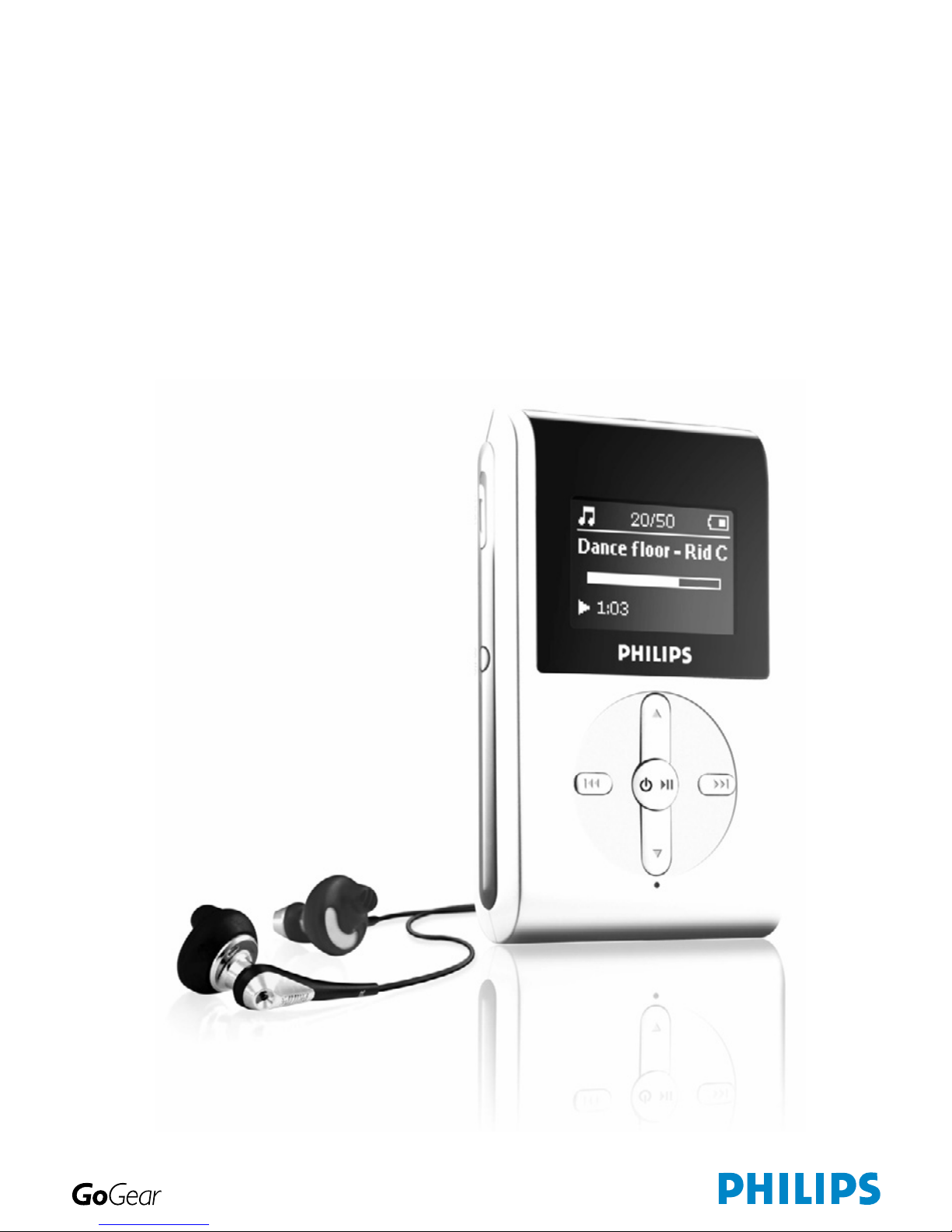
user manual
manuel d’utilisation | benutzerhandbuch | manual del usuario
gebruikershandleiding | manuale per l'utente | manual do usuário
användar-handbok
micro jukebox
Page 2

Contents
Welcome
About your new product ........................................................................................................................................................................................ 1
Accessories ...................................................................................................................................................................................................................... 1
Register your product ................................................................................................................................................................................................ 1
More information .......................................................................................................................................................................................................... 1
Connect and Charge
Battery level indication................................................................................................................................................................................................ 2
Enjoy
Powering on and off .................................................................................................................................................................................................... 2
Overview of controls and connections .......................................................................................................................................................... 3
Root menu ........................................................................................................................................................................................................................ 4
Navigation .......................................................................................................................................................................................................................... 4
Music mode ...................................................................................................................................................................................................................... 4
Searching for your desired music.......................................................................................................................................................................... 5
Getting digital music onto your device................................................................................................................................................................6
Playback ............................................................................................................................................................................................................................ 7
Playback features........................................................................................................................................................................................................ 8-9
Radio mode*** .......................................................................................................................................................................................................... 10
Making voice recordings ........................................................................................................................................................................................ 11
Playing recordings ...................................................................................................................................................................................................... 12
Customizing settings .............................................................................................................................................................................................. 13
Using your player to store and carry data files ................................................................................................................................14
About Philips Device Manager and Windows Media Player
About Philips Device Manager..............................................................................................................................................................................15
About Windows Media Player ..............................................................................................................................................................................15
Install Windows Media Player and Device Manager ................................................................................................................................15
Windows Media Player 9
Search and add tracks to the Librar y................................................................................................................................................................16
Transfer tracks to your device........................................................................................................................................................................17-18
Add Tracks to a Playlist on your PC using WMP ......................................................................................................................................19
Delete Tracks and Playlists........................................................................................................................................................................................20
Edit Track Information ................................................................................................................................................................................................21
Search for Tracks ............................................................................................................................................................................................................22
Windows Media Player 10
Search and add tracks to the Librar y ........................................................................................................................................................23-24
Transfer tracks to your device........................................................................................................................................................................25-26
Add Tracks to a Playlist on your PC using WMP ......................................................................................................................................27
Delete Tracks and Playlists........................................................................................................................................................................................28
Edit Track Information ................................................................................................................................................................................................29
Search for Tracks ............................................................................................................................................................................................................30
I
Page 3

Update and repair with Philips Device Manager
Upgrade ..............................................................................................................................................................................................................................31
Firmware Update ..........................................................................................................................................................................................................31
Device Repair ..................................................................................................................................................................................................................32
Troubleshooting ............................................................................................................................................................................................................33
Safety and Maintenance
General maintenance .......................................................................................................................................................................................... 34
About operating and storage temperatures
...................................................................................................................................... 34
Take care when using headphones ............................................................................................................................................................ 34
Copyright information ............................................................................................................................................................................................ 34
Data logging .................................................................................................................................................................................................................. 35
Environmental information .................................................................................................................................................................................. 35
Disposal of your old product .............................................................................................................................................................................. 35
Modifications ................................................................................................................................................................................................................ 35
Notice for the USA .................................................................................................................................................................................................. 36
Notice for the Canada and European Union .................................................................................................................................. 36
Technical data ................................................................................................................................................................................................................ 37
II
Page 4

Welcome
About your new product
With your newly purchased product, you can enjoy the following:
- MP3 and WMA playback (see MUSIC MODE section)
- FM radio*** (see RADIO MODE section)
- Voice recording (see MAKING RECORDINGS section)
***FM radio is available only to some regional versions. FM radio is currently not available in Europe.
Accessories
Headphones USB cable protective pouch
Neck-strap multi-voltage adaptor CD ROM with Windows Media Player
Note: HD082 has 2CDs, both need to be
installed
Register your product
Since it is possible for you to upgrade your product, we recommend that you register your product on
www.philips.com/register so we can inform you as soon as new free upgrades become available.
More information
Please visit www.philips.com/support or www.usasupport.philips.com (for US residents)
and enter your product name to view:
- Tutorials
- FAQ, Frequently Asked Questions
- Latest user manuals
- Latest PC software downloads
- Firmware upgrade files
The type number can be found at the back of the product.
The serial number can be found at the bottom of the product.
1
Page 5
Connect and Charge
Connect the included multi-voltage adaptor / charger into the jack marked 5V DC, and then plug the
multi-voltage adaptor / charger into a standard AC outlet.
Please charge for 4 hours for 100% battery power for first time use or fast charge 70% in 1 hour.
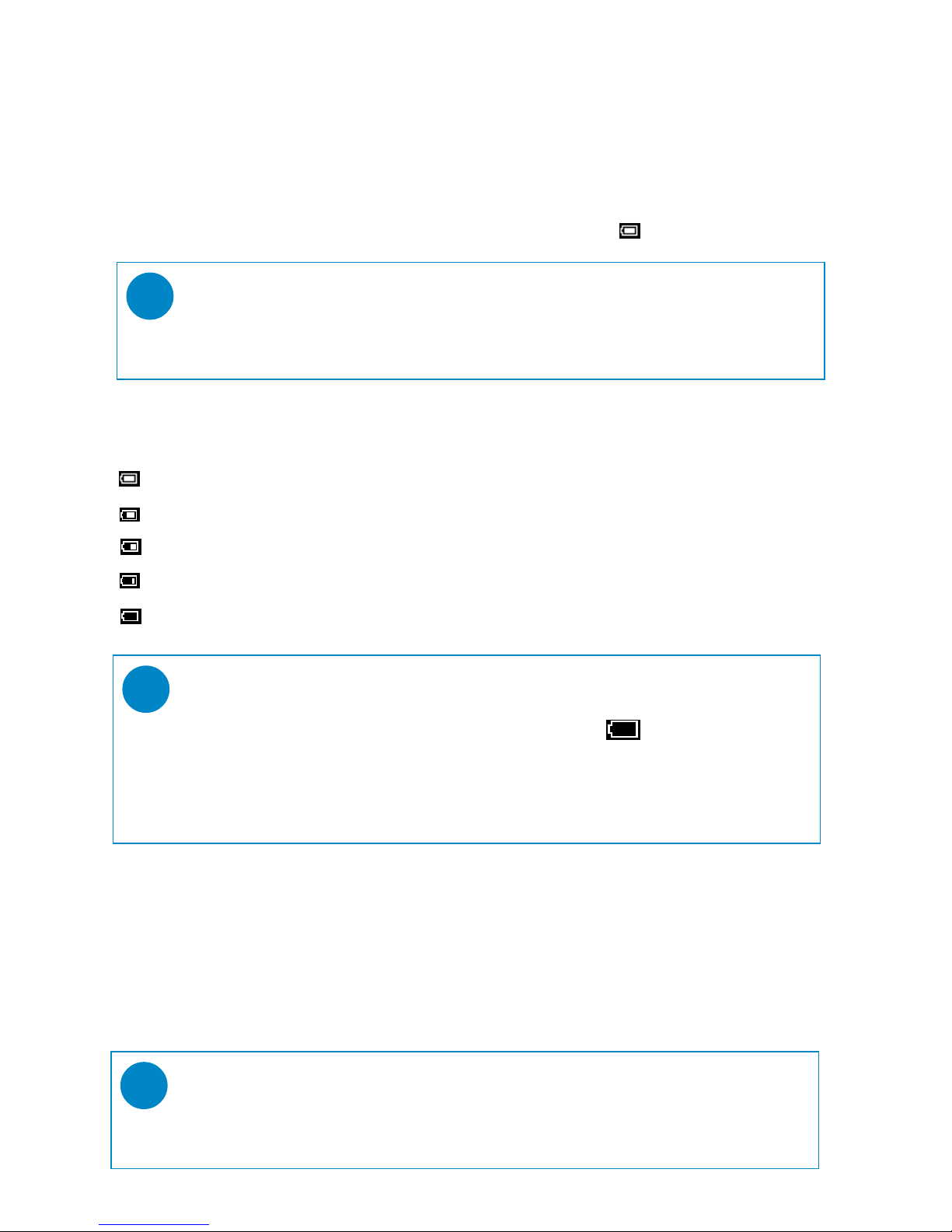
The device is fully charged when the charging animation stops and the icon shows.
✔
TIP
You can also charge your device during USB connection. Please connect your device to
your computer using the included USB cable.
Battery level indication
You can see the approximate power level of your batteries on the display.
Battery full
Battery two-thirds full
Battery half full
Battery low
Battery empty
✔
TIP
When the batteries are nearly empty, the battery low screen blinks.
Your device will save all settings and un-finished recordings before it powers down.
Enjoy
Powering on / off
Power on: Press and hold 2; until the splash screen lights up.
➔ PHILIPS splash screen appears briefly
Power off: Press and hold 2; again until the device shuts down.
✔
2
TIP
Your device automatically powers down if there is no operation and no music played for
10 minutes. Last playback status / screen will be resumed at next powering on.
Page 6
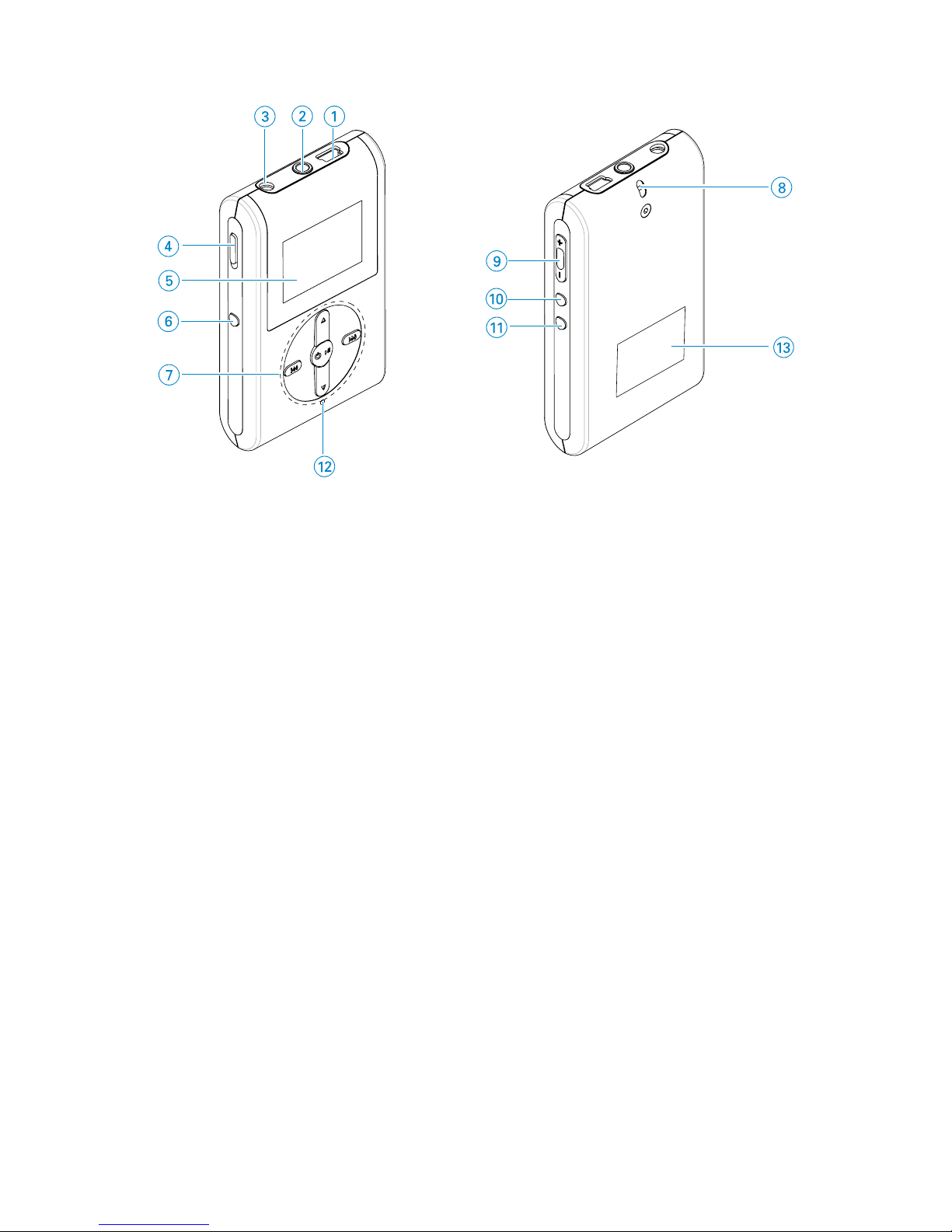
Overview of controls and connections
1 USB cable connector
2 p Headphones jack
3 5V DC Charging socket
4 HOLD slider To disable key press
5 LCD display Dynamically displays menu, options and track information
6 VIEW To switch between root menu, library and now playing screens
7 3 / 4 Scroll; SuperScroll; Playmode shortcut and 3 / 4
J( / § Rewind / Fast forward; Skip to previous / next; Up /
Down to 1 level
y 2; Power on / off and Play / Pause;
8 Neckstrap eyelet
9 Volume + / - Volume control
0 REC Start or Stop Voice recording
! PLAYLIST Add the current track to My Playlist
@ MIC Microphone
# Type number and serial number
3
Page 7

Root menu
When your device powers up, you will see the ROOT MENU.
Music select to play your digital music tracks
Radio*** select to listen to your radio presets
Settings select to customize settings for your device
Recordings select to play recordings
***FM radio is available only to some regional versions. FM radio is currently not available in Europe.
Navigation
Your device has an intuitive menu navigation system to guide you through various settings
and operations. Use 3, 4, J(, § to browse through menus. Press 2; to confirm your selection.
Music mode
We have put some music tracks on your device so that you can jump start your music experience.
You can also transfer your digital music collection from your computer to your device through the
included music management software. (see GETTING DIGITAL MUSIC ON YOUR DEVICE for
more information)
4
Page 8
Searching for your desired music
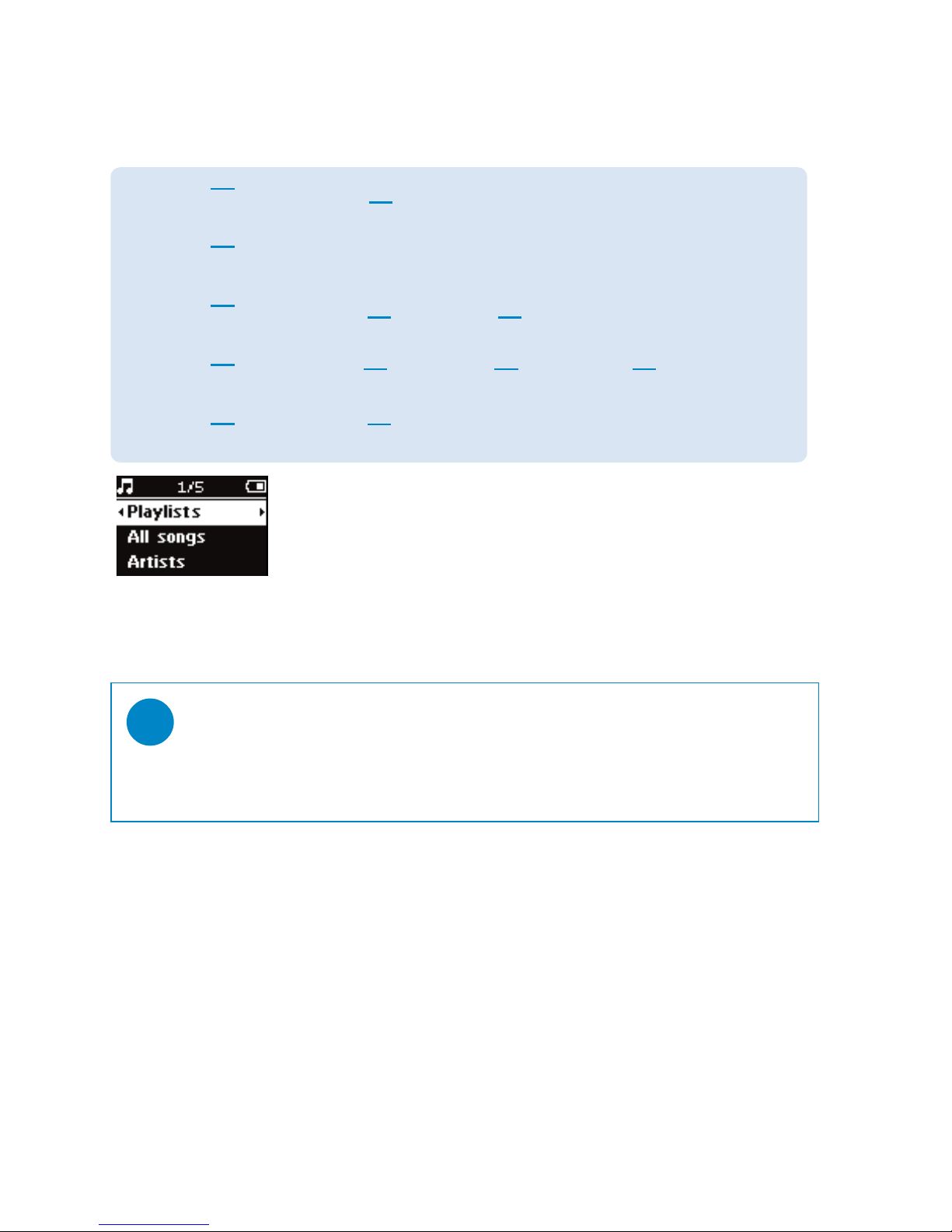
1 From the root menu, select MUSIC to enter the music mode. As you enter the music mode,
you can search from the following display options:
Playlists Playlists
collections
All songs Alphabetically
listed tracks
Artists Alphabetically
listed artists
Genres Alphabetically
listed genres
Albums Alphabetically
listed albums
2 Press 3 to scroll up or 4 to scroll down for your option.
Press § for next or J( for previous levels.
Tracks listed in chronologically saved or most played
order (see ADVANCED FEATURES IN PLAYBACK for
more information)
Alphabetically
listed albums
Alphabetically
listed artists
Tracks listed in
album order
Tracks listed in
album order
Alphabetically
listed albums
Tracks listed in
album order
3 Press 2; to play your selection.
✔
TIP
You can also press and hold 3 or 4 key to fast scroll lists of songs (SuperScroll).
An enlarged head letter will show as the tracks scroll quickly.
Stop pressing when you have arrived at your desired head letter.
5
Page 9
Getting digital music onto your device
Before you can play your MP3 or WMA collection on your device using Windows Media Player, you
need to have both Windows Media Player and Device Manager installed as follows:
Install Philips Device Manager and Windows Media Player
1 Insert the supplied CD into your computer's CD-ROM drive.
2 Follow screen instructions to complete installation of Philips
Device Manager and Windows Media Player.
✔
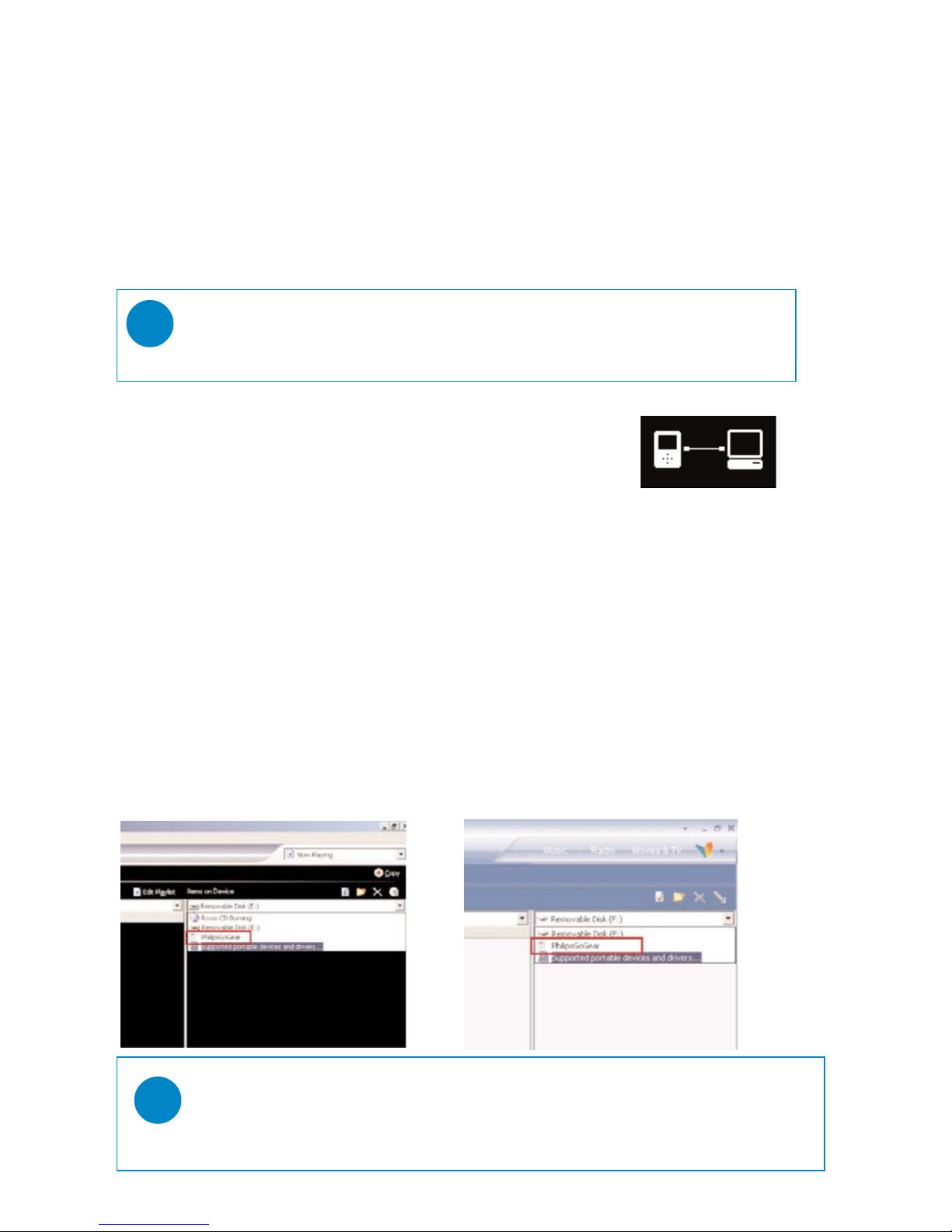
Connect your device to the computer
1 Connect your device to your computer using the supplied USB
2 You can organize files and transfer music to your device during
Organize and transfer your music using Windows Media Player 9 / 10
1 Launch Windows Media Player from Windows desktop or Start menu.
2 To transfer files from your computer to your device, click Copy to CD or Device (WMP 9) or
3 In the Items to Copy pane, in the drop-down list, click the playlist, category, or other item that
4 Clear the check boxes next to any files you do not want to copy.
5 In the Items on Device pane, in the drop-down list, click the device that you want to copy files
6 Click the Copy (WMP 9) or Start Sync (WMP 10) button.
TIP
HDD082 users: Install the Easy start CD first, followed by the “ GoGear Software and
user manuals” CD.
cable. A USB connection animation will be shown as soon as your
device is connected.
USB connection.
Sync (WMP 10) tab.
you want to copy.
to. i.e. Philips GoGear*.
*Windows Media Player 9 *Windows Media Player 10
✔
6
TIP
You can refer to the Help > Copying files to your por table device for WMP 9 or Help >
Synchronizing content to devices for WMP 10 for further details on music transfer.
Page 10

Playback (also applicable to playback of recordings)
The 2;, 3, 4, J(, § keys are multi-functional. They work according to how you press them:
press or press and hold. During music playback, you can do the following:
Operation Controls to press On screen indication
Pause music Press 2; during playback
Go to next track Press §
Go to previous track Press J( twice
Forward search Press and hold §
Backward search Press and hold J(
Volume control Volume + / −
Add to my playlist Playlist
Switch between Play and View
Library screens*
✔
TIP
You can also press Playlist on a highlighted track while you are scrolling from the MUSIC
library.
* View only functions when device is playing music or radio. Entering and Exiting menu is only possible
when device is playing a song/ recording/ radio.
7
Page 11

Playback features
PLAY MODES
You can set your device to play music tracks randomly (Shuffle ) and / or repeatedly (repeat ).
Changing play modes
1 From the root menu, select Settings.
2 Use scroll controls to select the following options. Press § to confirm
your selection. Press § to deslect a checked option.
Play mode Shuffle Repeat
Shuffle On Off
Repeat Off On
✔
TIP
You can go straight to the above play modes by pressing 3 or 4 key during music playback.
8
Page 12
9
Playback features
EQUALIZERS
You can set your device to play music tracks with different EQ (equalizers).
Changing equalizers
1 From the root menu, select Settings > Equalizers.
2 Use scroll controls to select Rock, RnB, Electronica, HipHop, Classical, Jazz or Off.
TIP
You can also adjust Equalizer settings by pressing the 4 key during music playback.
✔
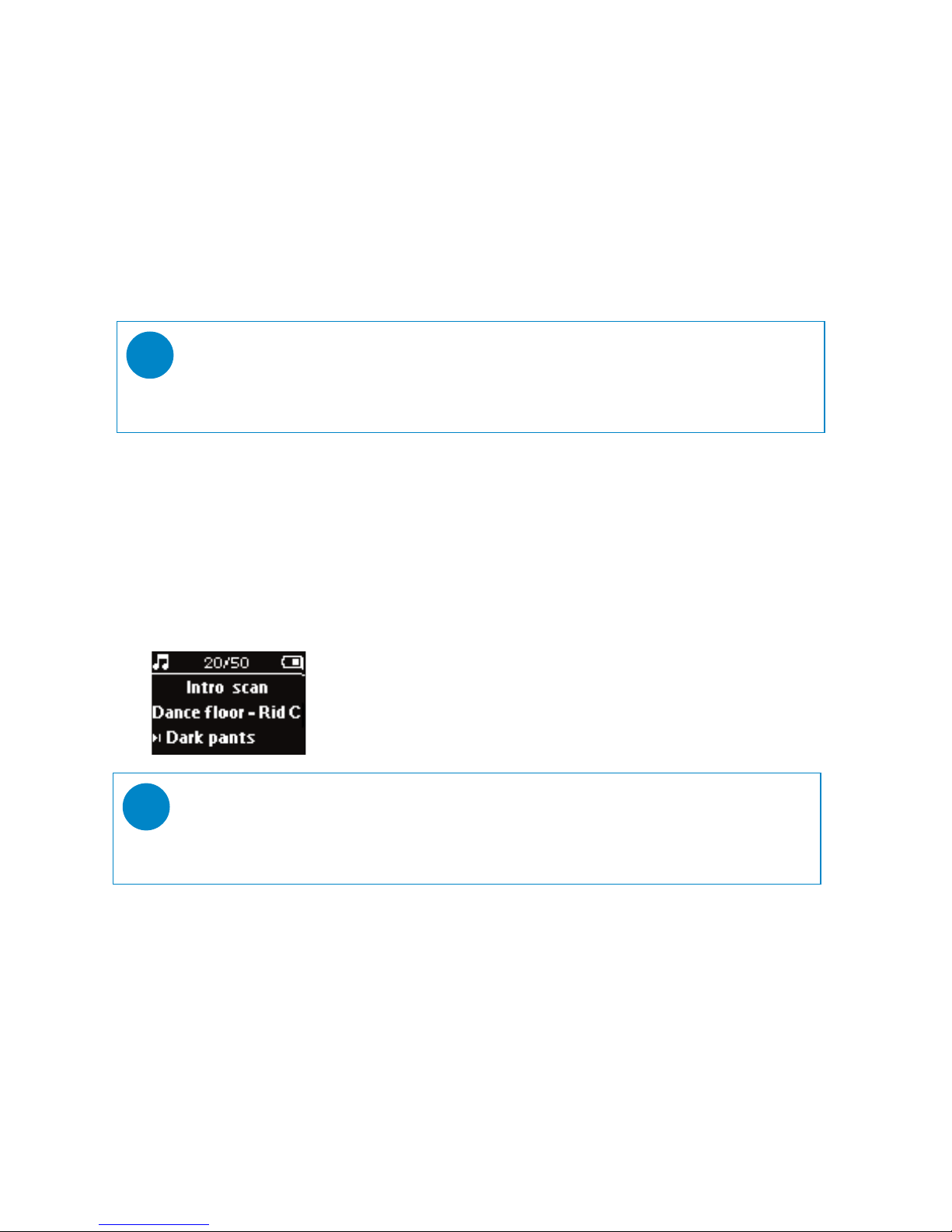
Introscan
You can preview the first 10 seconds of each track in your selection using introscan
1 Press 4 during music playback. Select Introscan.
2 The first 10 seconds of each track in your selection (where you entered the playscreen) will be played.
3 Press 4 again to exit Introscan.
MY PLAYLIST
You can add your favourite songs, albums, artists and genres to your playlist.
1 During music playback, press”PLAYLIST” to add music to MY PLAYLIST.
2 Clear songs in MY PLAYLIST by selecting MUSIC > Playlists > MY PLAYLIST > Clear MY PLAYLIST.
MY MOST PLAYED
You can play back your most played songs by selecting this playlist.
1 From the root menu, select MUSIC > Playlists > MY MOST PLAYED.
2 Use scroll controls to select songs in the most played order.
TIP
You can play the full song by pressing 2; once.
✔
Page 13

10
Radio mode***
Select your FM region***
1 Connect your headphones to your device. From the root menu, select SETTINGS to enter the
settings mode.
2 Select Radio > Radio settings. Use scroll controls to select your option.
Press § to confirm your selection. Press § to deslect a checked option.
***FM radio is available only to some regional versions. FM radio is currently not available in Europe.
USA 87.5 - 108 MHz 0.1 MHz
Europe & ROW 87.5 - 108 MHz 0.05 MHz
Region Frequency range Tuning steps
Auto tune
1 From the root menu, select RADIO to enter the radio mode.
2 To find the radio stations with the strongest signals
available in your area and store them as preset stations,
use the Auto tune function.
1. From the root menu select "Settings"
2. Select "radio" and choose "Auto tune"
Playing a saved radio station
1 From the root menu, select RADIO to enter the radio mode.
2 Press J( to scroll up or § to scroll down through your presets.
Manual tune
1 In the radio screen press 3 / 4 to tune step by step.
The screen will show a change in frequency.
2 Press and hold the 3 / 4 to search for the next / previous available station
3 Press 2; to save the newly tuned station as a preset.
Page 14

11
Making voice recordings
Preparing to make recordings
1 From the root menu, select SETTINGS to enter the settings mode.
2 Select SETTINGS > Advanced to make settings before recording. Press § to confirm
your selection.
Making voice recording
1 Make sure you are not in the radio mode.
2 Press and hold REC for 3 seconds to start voice recording.
➔ Device shows the recording state.
3 Press REC again to stop voice recording.
➔ Device shows the saving state. Your voice recording will be saved
on your device
(filename = recordings > mic > DDMM* MIC xxx.wav;
xxx = track number).
*D = Date, M = Month
TIP
You can record for a maximum of 200 tracks. Any recording made beyond this level will
overwrite those starting from the first track. Please remember to back up any previously
stored tracks to prevent the loss of data (see next page for further details).
✔
Page 15

12
Playing recordings
You can find your recordings in the RECORDINGS library.
Searching for your desired recording
1 From the root menu, select RECORDING to enter the recordings librar y. As you enter the
recording library, you can search from the following options:
2 Press 3 to scroll up or 4 to scroll down for your option.
Press § for next or J( for previous levels.
3 Press 2; to play your selection.
Back up your recordings
1 Connect to computer.
2 Go to Windows Explorer and select your device.
3 You can find your recordings in the Media / Recordings folder.
4 Drag and drop your files to any desired location.
Delete your recordings
1 From the root menu, go to Recordings > MIC recordings > Delete all.
2 Press 2; to delete.
Recordings MIC recordings Chronologically
listed recordings
TIP
Playback of recordings functions the same way as in the MUSIC library.
See MUSIC MODE: Playback for more information.
✔
Page 16

13
Customizing settings
1 From the root menu, select SETTINGS to enter the settings mode.
2 Use scroll controls to select your option. Press § to confirm
your selection. Press § to deslect a checked option.
3 You can adjust the following settings.
4 Press and hold J( to exit the menu display.
Shuffle On / Off
Repeat On / Off
Smart Save On / Off
DBB On / Off
Radio
Auto tune
Radio setting*** USA / Europe / Japan
Equalizer Rock, RnB, Electronica, HipHop, Classical, Jazz, Off.
Backlight 5 seconds / 10 seconds / 30 seconds / Off
Contrast Levels 1 - 6 (default value: 4)
Language English, French, Italian, German, Spanish, Dutch, Swedish, Portuguese,
Chinese (Simplified), Chinese (Traditional), Japanese, Korean
Sleep Timer Off / 15 minutes/ 30 minutes/ 60 minutes
Factory settings Restore Factory settings
Information Free space
Advanced
Smart Hide Off / 1 / 2 / 3 / 4
Setting Options (Default option in bold)
TIP
- Options for each setting are shown on the device display.
- Available settings vary with selected mode.
✔
TIP
- Smart Save is a battery power saving mode. It selects or deselects cer tain settings
for optimal battery performance.
- Smart Hide is a function to hide some library information.With Smart Hide, you can scroll
faster to the right content by hiding albums and artists which contain songs that are fewer
than a specified number.
Smart Hide 1 will hide all artists and albums that has only 1 track in the library.
Smart Hide 2 will hide all artists and albums that has only 2 or fewer trackc in the librar y.
Smart Hide 3 will hide all artists and albums that has only 3 or fewer tracks in the librar y.
Smart Hide 4 will hide all artists and albums that has only 4 or fewer tracks in the librar y.
✔
***FM radio is available only to some regional versions. FM radio is currently not available in Europe.
Page 17

14
Using your player to store and carry data files
You can use your player to store and carry data files by copying data files to your player via Window
Explorer. Windows XP users: make sure to copy the data files into the data folder of your player.
Page 18

15
About Philips Device Manager
With Philips Device Manager, you can update and repair your device with a few simple clicks.
About Windows Media Player
With Windows Media Player you can easily manage your digital music collection and transfer
music to your device.
M
Install Windows Media Player and Device Manager
u
1 Insert the supplied CD into your computer's CD-ROM drive. at has
2 Follow screen instructions to begin and complete installation.
3 For Windows 2000 users, install WMP 9. For Windows XP users, install WMP 10.a
4 Fill in necessary information when prompted to do so.at
Windows Media Player 9ha
1 Connect your device to your computer using the supplied USB cable.
The USB connection screen will automatically appear.at ha
2 Launch Windows Media Player.
at has not been transferr to
your
not been transferr to
your device using Windows Media
Player can not be played on your device.
Note:
Music that has not been transferred to your device using Windows Media Player can
not be played on your device.
TIP
HDD082 users: Install the Easy start CD first, followed by the Philips GoGear CD.
✔
TIP
Please refer to your computer’s manual for the exact position of your USB port.
Look for the USB symbol on the processing unit of your computer.
✔
Page 19

16
Search and add tracks to the Library
Go to the Media Library tab to enter the Media Library. Click Add.
1
From the menu, choose to add files from folder, playlist, URL or by searching your computer.You can
also choose to add playing tracks or playlists.
2
Files will be added to the Library.
3
* Actual display varies with use.
Page 20

17
Transfer tracks to your device
Click on Copy to CD or Device.
1
In the Items to Copy pane, show the playlist, category, or other items that you want to copy
that you want to copy. Clear the check boxes next to any files you do not want to copy.
.
2
Page 21

18
✔
TIP
For further details of music transfer on WMP 9, go to the help section of Windows
Media Player and click Help > Copying files to your portable device.
3 In the Items on Device pane, show the device that you want to copy files to, i.e.
Philips GoGear /Philips. Clear the check boxes next to any files you do not want to copy..t has
4 Click the Copy button.
Page 22

19
Add Tracks to a Playlist on your PC using WMP
Click to highlight an item.
1
Right click on the item and select Add to Playlist.
2
From the Add to Playlist pop-up window, select an existing playlist or add new one.
3
TIP
Press and hold <Ctrl> on your keyboard and click to select more than one item.
To select consecutive items, click the first item, press and hold <Shift> on your
keyboard, and then click the last item.
✔
The selection is added to playlist.
4
*Actual display varies with use.
Page 23

20
Click to highlight an item.
1
Right click and select Delete from Library to delete.
2
TIP
Press and hold <Ctrl> on your keyboard and click to select more than one item.
To select consecutive items, click the first item, press and hold <Shift> on your
keyboard, and then click the last item.
✔
Delete Tracks and Playlists
*Actual display varies with use.
Page 24

21
Edit Track Information
Click on a track.
1
Right click and select Edit.
2
Click on the text boxes to edit relevant information.
3
*Actual display varies with use.
Page 25

22
Search for Tracks
Type a search string in the Search for field.
1
Click on Find Now to start searching.
2
You will see tracks that contain the search string.
3
You can play, transfer, delete or add these tracks.
4
*Actual display varies with use.
Page 26

23
Windows Media Player 10
Connect your device to your computer using the supplied USB cable.
The USB connection screen will automatically appear.
1
Launch Windows Media Player.
2
TIP
Please refer to your computer’s manual for the exact position of your USB port.
Look for the USB symbol on the processing unit of your computer.
✔
Page 27

24
Search and add tracks to the Library
Go to File menu. Click Add to Library > By Searching Computer.
1
Click Browse in the dialog box to point to the folder you want to add to.
2
Complete the information in the dialog box, and then click Search.
3
Files will be added to the Library.
4
*Actual display varies with use.
Page 28

25
Transfer tracks to your device
Click on Sync.
1
In the Items to Copy pane, show the playlist, category, or other items that you want to copy
that you want to copy. Clear the check boxes next to any files you do not want to copy.
.
2
TIP
Simply connect your device to your computer, choose the synchronization
method you want, and you're ready to synchronize your library to your device.
Choose a synchronization method:
Automatic. With this option, the Player synchronizes content to the device when you connect
it to your computer or when you change synchronization settings.The Player synchronizes your
entire library if it can fit, or the Player synchronizes your favorite content first.
Manual.With this option, you pick specific files or playlists you want to synchronize each time
you want to make changes to the content on your device.
✔
Page 29

26
In the Items on Device pane, show the device that you want to copy files to, i.e. Philips GoGear
/Philips. Clear the check boxes next to any files you do not want to copy.
.
3
Click the Start Sync button
4
TIP
For further details of music transfer on WMP 10, go to the help section of Windows Media
Player and click Help > Synchronizing content to devices.
✔
Page 30

27
Add Tracks to a Playlist on your PC using WMP
Click to highlight an item.
1
Right click on the item and select Add to > Additional Playlist...
2
From the Add to Playlist pop-up window, select an existing playlist or add new one.
3
TIP
Press and hold <Ctrl> on your keyboard and click to select more than one item.
To select consecutive items, click the first item, press and hold <Shift> on your
keyboard, and then click the last item.
✔
The selection is added to playlist.
4
* Actual display varies with use.
Page 31

28
Click to highlight an item.
1
Right click and select Delete to delete.
2
TIP
Press and hold <Ctrl> on your keyboard and click to select more than one item.
To select consecutive items, click the first item, press and hold <Shift> on your
keyboard, and then click the last item.
✔
Delete Tracks and Playlists
* Actual display varies with use.
Page 32

29
Edit Track Information
Click on a track.
1
Right click and select Edit.
2
Click on the text boxes to edit relevant information.
3
*Actual display varies with use.
Page 33

30
Search for Tracks
Type a search string in the Search field.
1
Click on Search to start searching.
2
You will see tracks that contain the search string.
3
You can play, transfer, delete or add these tracks.
4
* Actual display varies with use.
Page 34

31
Upgrades
We know you will enjoy your product for a long time. For best performance, we recommend that
you regularly check in to www.philips.com for free upgrades of the latest software and firmware for
your product.
Firmware Update
Your device is controlled by an internal program called firmware. You can install the latest firmware from
the bypacked CD and download it from www.philips.com/suppor t to keep your device updated.
In case you have chosen “Cancel”, the firmware present on the PC will be loaded onto the device.
7
If your:
- internet connection is activated
- your Device Manager has been installed on your PC
- your device is connected and powered on
then your Device manager will pop-up a message if new firmware is available for your device
If a new firmware file is available for your device, you will be prompted to download the same.
You can choose “Ye s ” to download the latest firmware or choose “Cancel” to use the existing
firmware file on your PC.
5
The process is complete when the device restarts and displays the power up splash screen.
8
If you have chosen to download the latest firmware, after the download, the Device Manager will
prompt you for permission to load the firmware onto the device. On selecting “Ye s ” the latest
firmware will be loaded into the device.
6
Update and repair with Philips Device Manager
TIP
✔
Please charge your device fully before firmware update. This will ensure steady power
supply for completing the whole process.
1
Install Philips Device manager from the “GoGear digital audio player software and user
manual” CD.
2
Connect your device to your computer.
3
Launch Device Manager User Interface by right-clicking on this icon in the taskbar
and selecting “Launch Device Manager” or from the Desktop icons or by going to
Start ➔ Programs ➔ Philips Device Manager ➔ or from the desktop.
4
Select your device and click Update, Device Manager will check whether a new firmware is
available and install it on your device.
Page 35

32
Device Repair
Your device is controlled by an internal program called firmware. In case your device has a problem,
or you wish to format the device, you may need to repair it.
1 Connect your device to your computer (powered by the supplied AC/DC adapter).
2 Launch Device Manager User Interface by right-clicking on this icon in the
taskbar and selecting "Launch Device Manager" or by going to
Start ➔ Programs ➔ Philips Device Manager
3 In the main window, go to the repair tab and click Repair.
4 You will be prompted before repair begins.
TIP
Please charge your device fully before device repair. This will ensure
steady power supply for completing the whole process.
✔
5 Click OK to continue. Click Cancel to stop.
6 The Device Manager will repair your device. Once the repair is complete,
the device can be disconnected from the PC and is ready to be used again.
ATTENTION!
All media contents will be erased!
Page 36

33
Hang up Press and hold [VOLUME +] and 2; simultaneously.
Your device will reset.
Cannot power up Charge your device.
In case of device error, connect your device to the
computer. Use Device Manager to restore your device.
Player skips track The skipped track is protected. You may not have enough rights
to play the skipped track on your device. Check music rights with
song provider.
Short playback time Over time, the internal rechargeable battery will become weaker.
It is replaceable. Please contact your nearest Philips Service
Center for a battery replacement.
Symptom Solution
Troubleshooting
If a fault occurs, first check the points listed in the following pages. For further help and other
troubleshooting tips, please also check out FAQs at www.philips.com/support.
If you are unable to find a solution by following these hints, consult your dealer or service center.
WARNING:
Under no circumstances should you try to repair the set yourself, as this will invalidate
the warranty.
Page 37

34
Safety and Maintenance
General maintenance
To avoid damage or malfunction:
– Do not expose to excessive heat caused by heating equipment or direct sunlight.
– Do not drop your player or allow objects to fall on your player.
– Do not allow your player to be submersed in water. Do not expose earphone socket or
battery compartment to water as water entering the set may cause major damage.
– Do not use any cleaning agents containing alcohol, ammonia, benzene, or abrasives as
these may harm the set.
– Active mobile phones in the vicinity may cause interference.
– Backup your files. Please ensure that you retain the original files that you have downloaded to your
device. Philips is not responsible for any loss of content if the product becomes damaged or not
readable / legible.
– Manage (transfer, delete, etc.) your files only through included music software to avoid problems!
About operating and storage temperatures
– Operate in a place where the temperature is always between 0 and 35º C (32 to 95º F).
– Store in a place where the temperature is always between -20 and 45º C (-4 to 113º F).
– Battery life may shorten in low temperature conditions..
Take care when using headphones
Hearing safety
Listen at a moderate volume. Using headphones at high volume can impair your hearing.We recommend
headphone no. SHE775 for this product.
Important (for models with bypacked headphones):
Philips guarantees compliance with the maximum sound power of its audio players as determined by
relevant regulatory bodies only with the original model of provided headphones. In case this one
needs replacement, we recommend that you contact your retailer to order a model identical to that of
the original provided by Philips.
Traffic safety
Do not use headphones while driving or cycling as you may cause an accident.
Copyright information
– All other brand and product names are trademarks of their respective companies or organizations.
– Unauthorized duplication of any recordings downloaded from the internet or made from audio
CDs is a violation of copyright laws and international treaties.
– The making of unauthorized copies of copy-protected material, including computer programmes, files,
broadcasts and sound recordings, may be an infringement of copyrights and constitute a criminal
offence.This equipment should not be used for such purposes.
Important
This product is protected by certain intellectual property rights of Microsoft Corporation.
Use or distribution of such technology outside this product is prohibited without a license from
Microsoft or an authorized Microsoft subsidiary.
Content providers are using the digital rights management technology for Windows Media contained in this device
("WM-DRM") to protect the integrity of their content ("Secure Content") so that their intellectual property, inlcuding copyright, in such content is not misappropriated. This device uses WM-DRM software to play Secure Content
("WM-DRM Software"). If the security of the WM-DRM Software in this device has been compromised, owners of
Secure Content ("Secure Content Owners") may request that Microsoft revoke the WM-DRM Software's right to
acquire new licenses to copy, display and/or play Secure Content. Revocation does not alter the WM-DRM
Software's ability to play unprotected content. A list of revoked WM-DRM Software is sent to your device whenever you download a license for Secure Content from the Internet or from a PC. Microsoft may, in conjunction with
such licenses, also download revocations lists onto your device on behalf of Secure Content Owners.
Page 38

35
Data logging
Philips is committed to improving the quality of your product and enhancing the Philips user experience.
To understand the usage profile of this device, this device logs some info/data to the non volatile memory
region of the device.These data are used to identify and detect any failures or problems you as a user may
experience while using the device. The data stored, for example, will be the duration of playback in music
mode, duration of playback in tuner mode, how many times battery low was encountered, etc.The data
stored do not reveal the content or media used on the device or the source of downloads.The data
stored on the device are retrieved and used ONLY if the user returns the device to the Philips service
centre and ONLY to simplify error detection and prevention. The data stored shall be made available to
user on users' first request.
Environmental information
We have reduced the packaging to its minimum and made it easy to separate into materials: cardboard,
PS, PE, PET.
Your set consists of material which can be recycled if disassembled by a specialized company
Please observe the local regulations to dispose of packaging, exhausted batteries and old equipment.
Disposal of your old product
Your product is designed and manufactured with high quality materials and components,
which can be recycled and reused.
When this crossed-out wheeled bin symbol is attached to a product it means
the product is covered by the European Directive 2002/96/EC
Please inform yourself about the local separate collection system for electrical
and electronic products.
Please act according to your local rules and do not dispose of your old products with your
normal household waste. The correct disposal of your old product will help prevent potential
negative consequences for the environment and human health.
Modifications
Modifications not authorized by the manufacturer may void user authority to operate this device.
Page 39

36
Notice for the USA
Note:
This equipment has been tested and found to comply with the limits for a Class B digital device, pursuant
to part 15 of the FCC Rules.These limits are designed to provide reasonable protection against harmful
interference in a residential installation.This equipment generates, uses, and can radiate radio frequency
energy and, if not installed and used in accordance with the instruction manual, may cause harmful
interference to radio communications.
However, there is no guarantee that interference will not occur in a particular installation.
If this equipment does cause harmful interference to radio or television reception, which can be
determined by turning the equipment off and on, the user is encouraged to try to correct the interference
by one or more of the following measures:
- Relocate the receiving antenna.
- Increase the separation between the equipment and receiver.
- Connect the equipment into an outlet on a circuit different from that to which the receiver
is connected.
- Consult the dealer or an experienced radio/ TV technician for help.
Notice for Canada
This Class B digital apparaatus complies with Canadian ICES-003.
The set complies with the FCC-Rules, Part 15 and with 21 CFR 1040.10.
Operation is subject to the following two conditions:
1.This device may not cause harmful interference, and
2.This device must accept any interference received, including interference that may cause undesired
operation.
Notice for the European Union
This product complies with the radio interference requirements of the European Union.
Philips
HDD082
HDD084
HDD085
Page 40

Technical Data
Power supply 610 mAh Li-ion internal rechargeable battery
Multi-voltage charger / adaptor: 4 hours full charge; 1 hour fast charge
Dimensions 53 x 86 x 16.7 mm (2.1 x 3.4 x 0.7 inches)
Weight 78 g (3.3 oz)
Picture / Display White backlight LCD, 96 x 64 pixels
Sound Channel separation 50 dB
Equalizer settings Rock,RnB, Electronica, HipHop,
Classical, Jazz
Frequency response 30-18 000 Hz
Signal to noise ratio >80 dB
Output Power (RMS) 2 x 4 mW
Audio Playback
Play time 10 hours
Compression format MP3 (8-320 kbps and VBR; Sample rate: 8, 11.025, 16, 22.050, 24, 32, 44.1, 48 kHz)
WAV
WMA (32-192 kbps)
DRM PDRM
ID3-tag support Album title and artist name
Audio Capturing Built-in microphone Mono
Storage Media
Built-in memory capacity HDD082 2GB* micro hdd
HDD084 3GB* micro hdd
HDD085 4GB* micro hdd
Tuner / Reception / Transmission Auto store / Tuner band: FM***
***FM radio is available only to some regional versions. FM radio is currently not available in Europe.
Connectivity Headphone 3.5 mm, USB 2.0 (type B mini), 5V DC
Music transfer via Windows Media Player 9 or 10
Data transfer via Windows Explorer
System Requirements Windows®2000 (SP4) or XP(SP1 or above)
Pentium II or better
64 MB RAM
100 MB hard drive space
Internet connection
Microsoft Internet Explorer 5.5 or later
Video display card
Soundcard
USB port
PHILIPS reserves the right to make design and specification changes for product improvement
without prior notice.
*Note that some operating systems display capacity in units of “GB” where 1.0 GB = 230= 1,073,741,834
bytes.The resulting “GB” capacity displayed by the OS will be smaller because of using this base-2
defiinition for “Gigabyte”.
37
Page 41

Specifications are subject to change without notice.
Trademarks are the property of Koninklijke Philips Electronics N.V.
or their respective owners
2005 © Koninklijke Philips Electronics N.V. All rights reserved.
www.philips.com
 Loading...