

Page 1
QUICK START GUIDE
MDV460
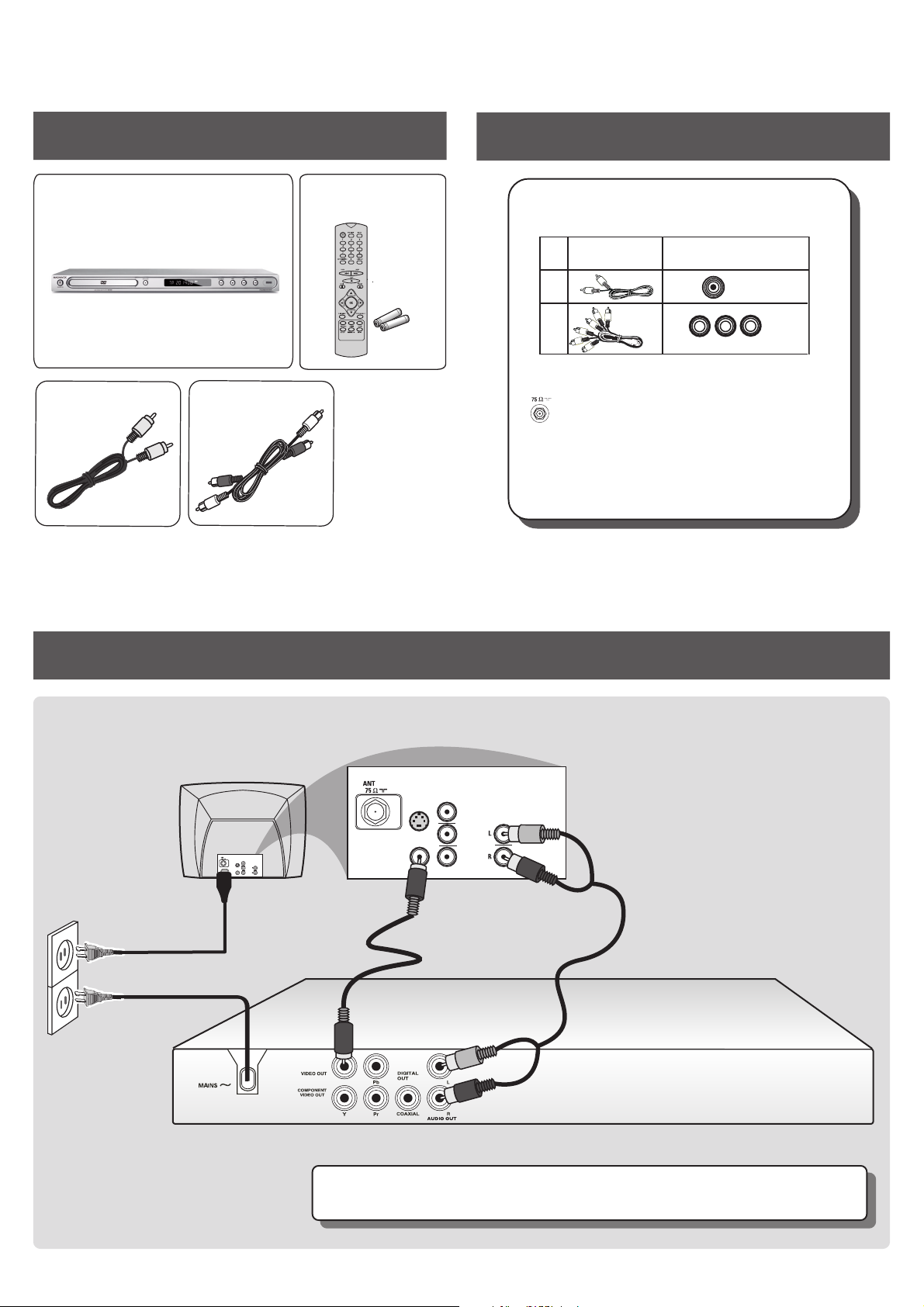
A what’s in the box
DVD Player
A
Video cable
C
(yellow)
Audio cable
D
(red/white)
B
Remote Control
includes 2x AAA batteries
helpful hints
You only need to make one video connection to your TV
in order to view DVD playback.
Use this
video cable(s)
1
2
If your TV has only a single Antenna In jack,
you will need an accessory RF modulator. The RF
ANTENNA IN
modulator converts the video from the DVD player
so it can play through the TV’s Antenna connector. Refer
to your owner’s manual for proper connection.
supplied
not supplied
If your TV has
this video input jack(s)
VIDEO
IN
Component Video
B connect TV
S-VIDEO
IN
3
Connect the mains
cord to the power
supply
VIDEO IN
COMPONENT
VIDEO IN
S-VIDEO
IN
V (Pr/Cr)
AUDIO
IN
COMPONENT
VIDEO IN
V (Pr/Cr)
AUDIO
OUT
U (Pb/Cb)
Y
VIDEO IN
U (Pb/Cb)
Y
1
Connect the DVD
Player VIDEO OUT to
VIDEO IN on the TV
2
Connect the DVD Player
AUDIO OUT to AUDIO
IN on the TV
Note: For connecting to a Progressive Scan TV, refer to the user manual for proper
connections and detailed set up.
Page 2
C play a disc
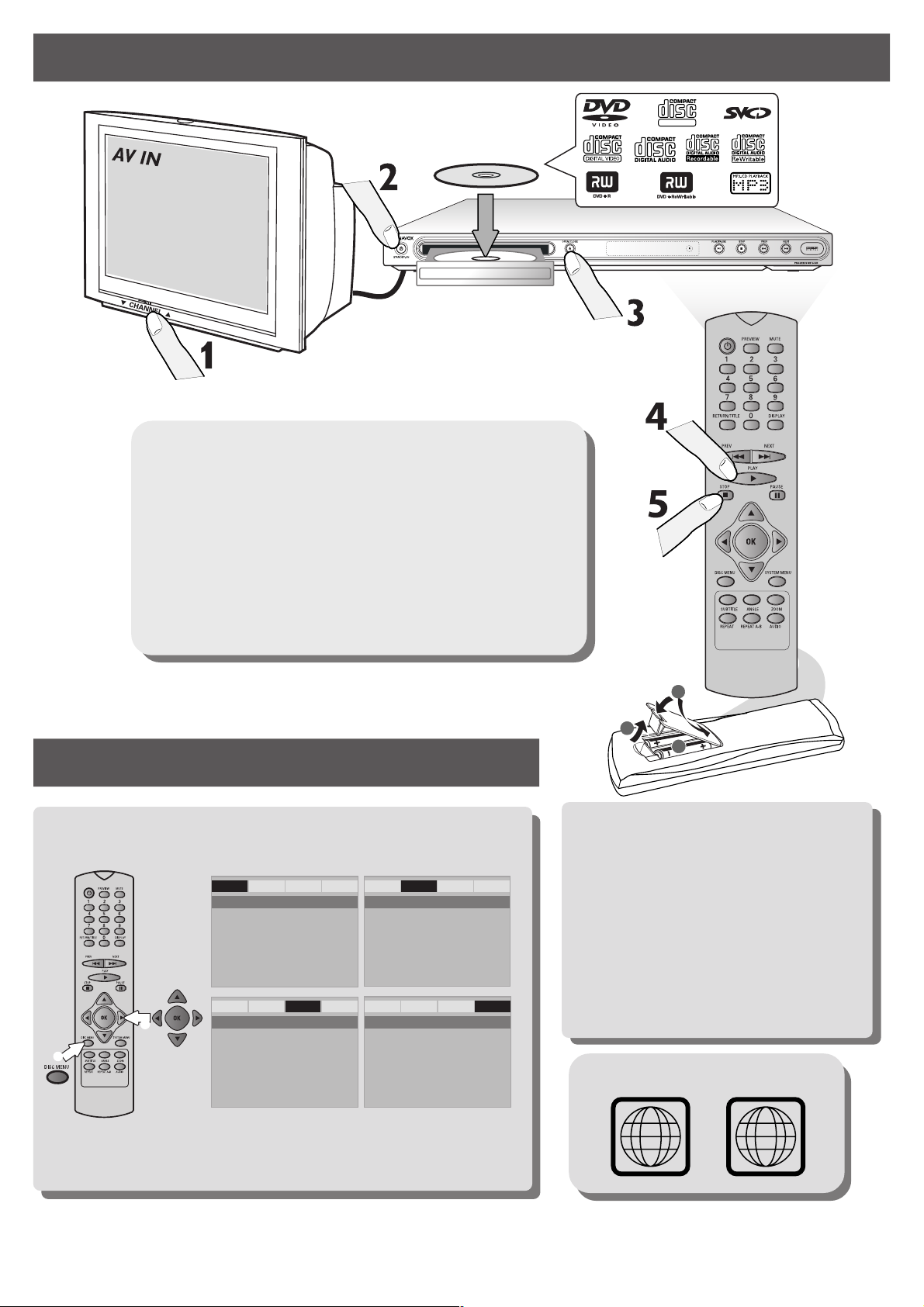
1 Turn on the TV and set it to the correct Video In channel.
2 Press STANDBY-ON on the DVD Player.
SUPER VIDEO
LABEL
3 Press OPEN/CLOSE / on the DVD Player and load a disc.
Press OPEN/CLOSE / again to close the disc tray.
4 Playback will start automatically. If not press PLAY B.
5 To stop playback, press STOP 9.
D DVD Setup Menu Options
More settings and features
General Audio Video Preference
- - General Setup Page - -
Display Dim
OSD Language
Sleep
Screen Saver
General Audio Video Preference
2
1
- - Video Setup Page - -
TY Type
TV Display
Progressive
Sharpness
Brightness
Contrast
Closed Caption
Black Level
General Audio Video Preference
- - Speaker Setup Page - -
Downmix
Digital Audio
General Audio Video Preference
- - Preference Page - -
Audio
Subtitle
Disc Menu
Parental
Password
Default
3
1
2
GET PICTURE
• Check the connection of the DVD system
to TV is in place (see 2 Connect TV).
• Check the AV mode on TV. It may be
called FRONT, A/V IN, or VIDEO. Choose
the different modes using TV remote
control.
• Or, use the TV remote control to select
Channel 1 on TV, then press Channel down
button until you get the picture.
• See your TV manual for more details.
REGION CODES
Refer to chapters “Getting Started” and “DVD Setup Menu Options” in
the user manual the detailed descriptions.
NEEDS HELP? Visit our website www.usasupport.magnavox.com
1
ALL
 Loading...