

Page 1
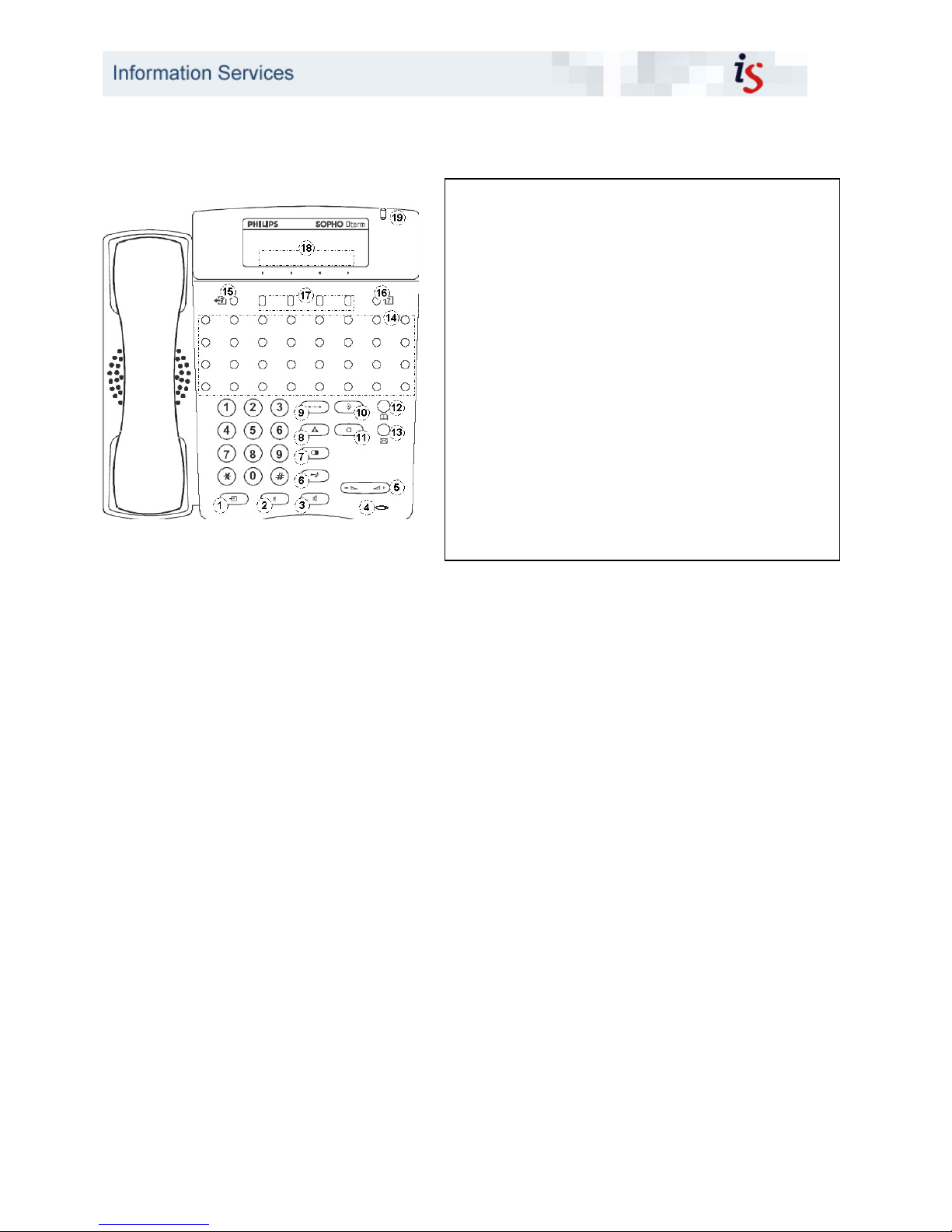
UoE Telephone Services – May 2010
ITI Telephone Services - Philips Dterm User Guide
Please note that the above picture illustrates a Philips SOPHO 32-key Dterm. The instructions in
this Quick guide will also work for 16, 8 and 4 key Dterm telephones; the only difference is the
number and position of the Features Keys (14 in the above illustration and key).
How do I answer a call?
• When you hear the phone ringing or see
the indicator light (19) flashing, lift the
handset or press the speaker key (3)
How do I make a call?
• Lift the handset or press the speaker key
(3)
• Dial the desired number (dial 9 for an
outside line if required)
How do I switch to handsfree?
• While engaged in a call, press and hold
the speaker key (3)
• Replace the handset
• Press the microphone key (11)
If you release the speaker key before
you replace the handset, you will break
the call
How do I switch to loudspeaking mode?
• While engaged in a call, press the
speaker key (3) to hear the conversation
both over the speaker and the handset
Press the speaker key again to end
loudspeaking
How do I make a consultation call?
• While engaged in a call, press the
transfer key (2)
• Dial the number of the party you wish to
consult and talk to this party
• Press the transfer key (2) again to return
to the original caller
How do I transfer a call?
• Ask the connected party to hold
• Press the transfer key (2)
• Dial the destination number
• Hang up or wait for an answer
If the destination party does not answer,
pres the transfer key to return to the
connected party
How do I use Call Back?
• You hear busy tone after dialling the
extension number
• Press the Call Back softkey (CB)
• Replace the handset
• When the busy extension becomes idle,
a ring and a flashing LED will alert you
1
Hold Key
2 Transfer Key
3 Speaker Key
4 Microphone
5 Volume Control
6 Answer Key
7 Redial Key
8 Conference Key
9 Recall Key
10 Feature Key
11 Microphone Key
12 Directory Key
13 Message Key
14 Feature Keys (vary in number)
15 Exit Help
16 Help Key
17 Context-sensitive Soft Keys
18 Menu options (selected using soft keys)
19 Call waiting (flashing light) or message
waiting (steady light)
Page 2

UoE Telephone Services – May 2010
How do I retrieve a missed call?
• iCall will flash on your display if you
missed a call
• Press the iCall softkey to display a list of
calls and use the arrow keys to scroll
through the list of calls
• Missed calls are indicated by 2
exclamation marks to the left of the
number
• To return a missed internal call, lift the
handset while the number is displayed in
the iCall list
• To return a missed external call, press
the right arrow soft key, then the Prfx soft
key, press 9, then OK and then lift the
handset
How do I repeat a number?
• Press the redial key (7)
• Press the SCROLL softkey to select the
desired number
• Press * or # to redial the displayed
number
How do I make a conference call?
• Establish the first call and ask the
connected party to hold
• Press the transfer key (2)
• Dial the destination number
• After the call is answered, press the
CONF softkey
• Three-way conference call is established
Please note that the university telephone
system will support up to three callers on
a single call – two internal and one
external. Larger conference calls can be
facilitated through the university
switchboard – please call 50 3300 or email [email protected] to arrange.
How do I save a number in my phonebook?
• Press the directory key (12)
• Press the UP or DOWN soft key to select
the entry to be programmed
• Press the ENTRY soft key
• Press the NAME soft key
• Enter the name, using the keypad
• Press the SET soft key
• Press the NUMBER soft key
• Enter the number, using the keypad
• Press the SET soft key
When entering a number outwith the
main university system you must include
the tie-line or area code prefixed by 9.
How do I use the phonebook?
• Press the directory key (12)
• Enter the first 4 characters of a name
• If more than one name matches, scroll
through the matches with the UP or
DOWN soft key
• Lift the handset to dial the selected name
How do I divert incoming calls?
To set:
• Lift handset
• Press FD-A (forward all), FD-B (forward
on busy) or FD-N (forward on no answer)
feature key
• Dial the extension number (517000 for
university voicemail service)
• Replace handset
To verify:
• Lift handset
• Press FD-A, FD-B or FD-N feature key
• Display shows the number to which calls
are forwarded
• Replace handset
To cancel:
• Lift handset
• Press FD-A, FD-B or FD-N feature key
• Press *
• Replace handset
If you divert your calls to voicemail then
the red light will be lit and ‘MW’ will show
on the display when you have messages
waiting.
How do I change the ringer tone and
volume?
To select another ringer tone:
• Press the feature key (10) and 3
• You will hear the ringer and the display
shows the selected tone number
• Each time you press 3, the next ringer
tone is selected
• Select the ringer tone you want and
press the feature key (10 ) to save it
To adjust the ringer volume:
• Press the feature key (10) and 0
• Ringer activates
• Press the +/- keys to adjust the ringer
volume
• Press the feature key (10) to stop ringing
 Loading...