

Page 1
Register your product and get support at
www.philips.com/support
Always there to help you
Question?
Contact
Philips
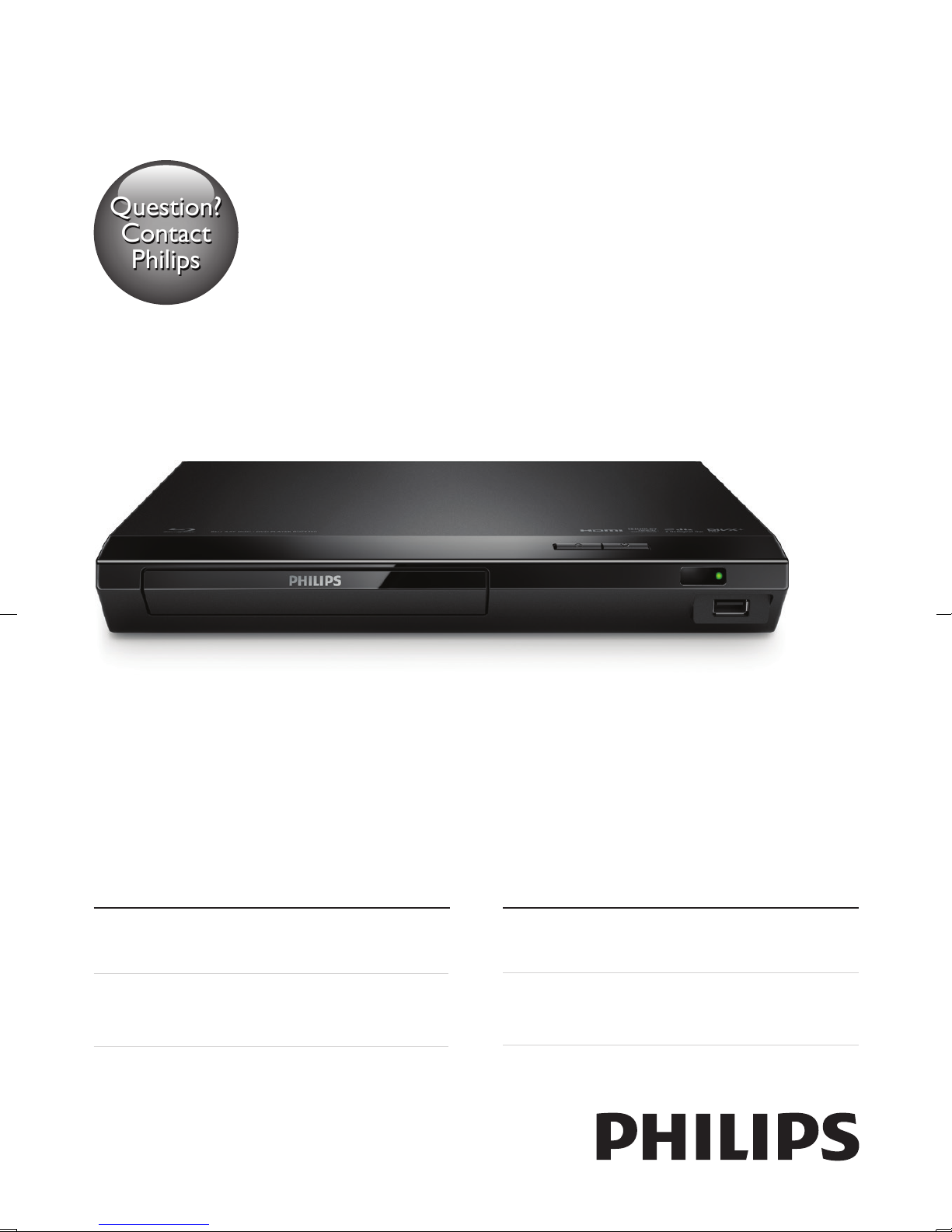
BDP1300
BDP1300W
User manual
使用手冊
Manual pengguna
คู่มือผู้ใช้
Page 2

English
Safety and important notice
Read and understand all instructions before you use this Blu-ray disc/ DVD player. If
damage is caused by failure to follow the instructions, the warranty does not apply.
Safety
Risk of electric shock or re!
• Before you make or change any connections, make sure that all devices are
disconnected from the power outlet.
• Never expose the product and accessories to rain or water. Never place
liquid containers, such as vases, near the product. If liquids are spilt on or into
the product, disconnect it from the power outlet immediately. Contact Philips
Consumer Care to have the product checked before use.
• Never place the product and accessories near naked ames or other heat sources,
including direct sunlight.
• Never insert objects into the ventilation slots or other openings on the product.
• Where the mains plug or an appliance coupler is used as the disconnect device,
the disconnect device shall remain readily operable.
• Batteries (battery pack or batteries installed) shall not be exposed to excessive
heat such as sunshine, re or the like.
• Disconnect the product from the power outlet before lightning storms.
• When you disconnect the power cord, always pull the plug, never the cable.
Risk of short circuit or re!
• For identication and supply ratings, see the type plate at the back or bottom of
the product.
• Before you connect the product to the power outlet, ensure that the power
voltage matches the value printed on the back or bottom of the product. Never
connect the product to the power outlet if the voltage is different.
Risk of injury or damage to the product!
• Visible and invisible laser radiation when open. Avoid exposure to beam.
• Do not touch the disc optical lens inside the disc compartment.
• Never place the product or any objects on power cords or on other electrical
equipment.
1
Page 3

• If the product is transported in temperatures below 5°C, unpack the product and
wait until its temperature matches room temperature before connecting it to the
power outlet.
Risk of overheating!
• Never install this product in a conned space. Always leave a space of at least four
inches around the product for ventilation. Make sure that curtains or other objects
never cover the ventilation slots on the product.
Risk of contamination!
• Do not mix batteries (old and new or carbon and alkaline, etc.).
• Danger of explosion if batteries are incorrectly replaced. Replace only with the
same or equivalent type.
• Remove batteries if they are exhausted or if the remote control is not to be used
for a long time.
• Batteries contain chemical substances, they should be disposed of properly.
Risk of swallowing batteries!
• The product/remote control may contain a coin/button type battery, which can be
swallowed. Keep the battery out of reach of children at all times! If swallowed, the
battery can cause serious injury or death. Severe internal burns can occur within
two hours of ingestion.
• If you suspect that a battery has been swallowed or placed inside any part of the
body, seek immediate medical attention.
• When you change the batteries, always keep all new and used batteries out of
reach of children. Ensure that the battery compartment is completely secure after
you replace the battery.
• If the battery compartment cannot be completely secured, discontinue use of the
product. Keep out of reach of children and contact the manufacturer.
This is CLASS II apparatus with double insulation, and no protective earth provided.
CLASS 1
LASER PRODUCT
2
Page 4
Care for your product
• Do not insert any objects other than discs into the disc compartment.
• Do not insert warped or cracked discs into the disc compartment.
• Remove discs from the disc compartment if you are not using the product for an
extended period of time.
• Only use microber cloth to clean the product.
Care of the environment
Disposal of your old product
Your product is designed and manufactured with high quality materials and components,
which can be recycled and reused.
Do not throw away the product with the normal household waste at the end of its
life, but hand it in at an ofcial collection point or recycling. By doing this, you help to
preserve the environment.
Copyright
This item incorporates copy protection technology that is protected by U.S. patents
and other intellectual property rights of Rovi Corporation. Reverse engineering and
disassembly are prohibited.
This product incorporates proprietary technology under license from Verance
Corporation and is protected by U.S. Patent 7,369,677 and other U.S. and worldwide
patents issued and pending as well as copyright and trade secret protection for certain
aspects of such technology. Cinavia is a trademark of Verance Corporation. Copyright
2004-2013 Verance Corporation. All rights reserved by Verance. Reverse engineering or
disassembly is prohibited.
Cinavia notice
This product uses Cinavia technology to limit the use of unauthorized copies of some
commercially-produced lm and videos and their soundtracks. When a prohibited use of
3
Page 5

an unauthorized copy is detected, a message will be displayed and playback or copying
will be interrupted.
More information about Cinavia technology is provided at the Cinavia Online Consumer
Information Center at http://www.cinavia.com. To request additional information about
Cinavia by mail, send a postcard with your mailing address to: Cinavia Consumer
Information Center, P.O. Box 86851, San Diego, CA, 92138, USA.
Open source software
Philips Electronics Singapore hereby offers to deliver, upon request, a copy of the
complete corresponding source code for the copyrighted open source software
packages used in this product for which such delivery is requested by the respective
licenses. This offer is valid up to three years after product purchase to anyone in receipt
of this information. To obtain source code, please send your request in English with
product type to [email protected]. If you prefer not to use email or if you do not
receive conrmation receipt within 2 weeks after mailing to this email address, please
write in English to “Open Source Team, Philips Intellectual Property & Standards, P.O. Box
220, 5600 AE Eindhoven, The Netherlands”. If you do not receive timely conrmation
of your letter, please email to the email address above. The texts of the licenses and
acknowledgements for open source software used in this product are included on a
separate leaet.
4
Page 6
C
OA
1
User manual
HDMI
HDMI
COAXIAL
16
I
Page 7
2
C
OA
HDMI
HDMI
COAXIAL
COAXIAL
17
Page 8
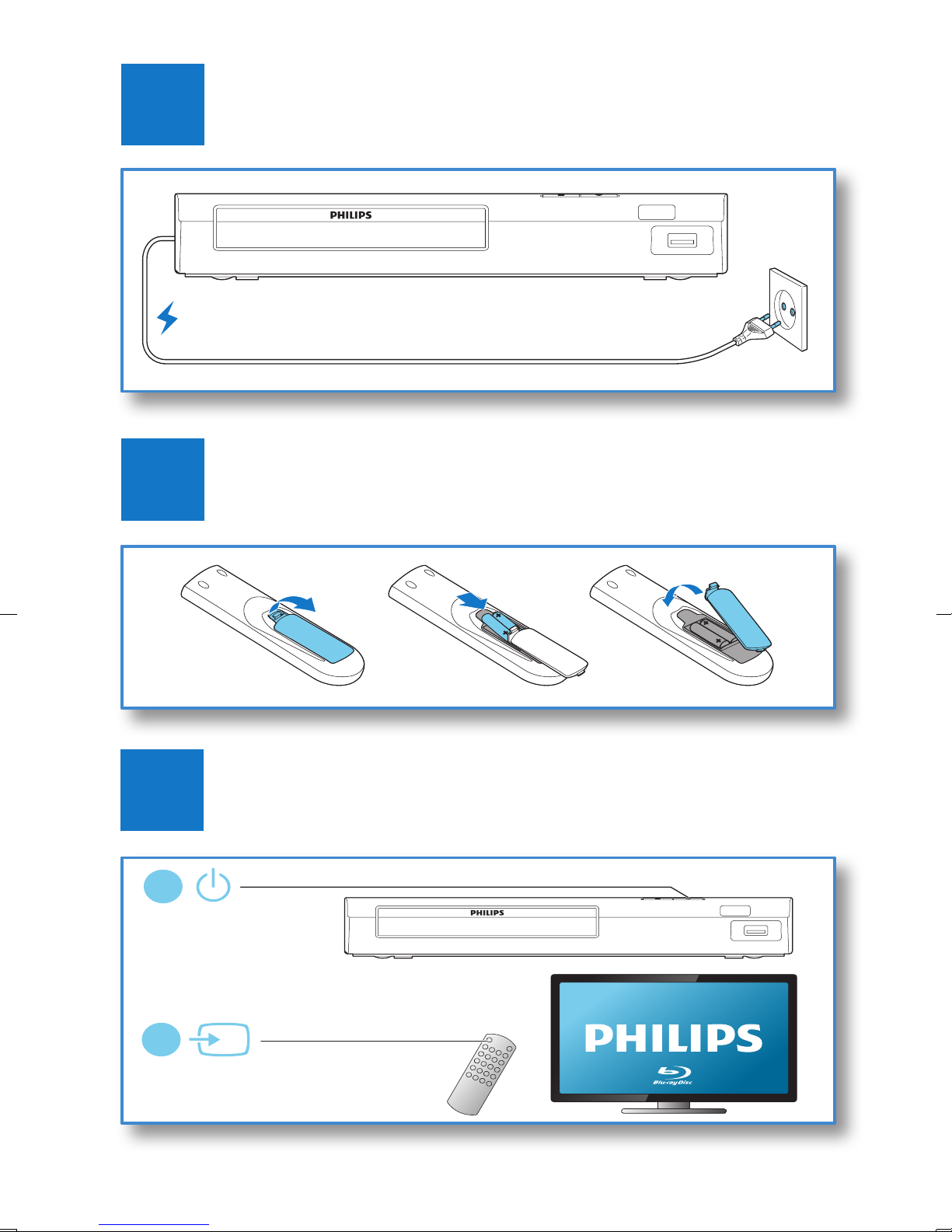
3
SOURCE
1
2
TV
4
2 x AAA
5
18
Page 9
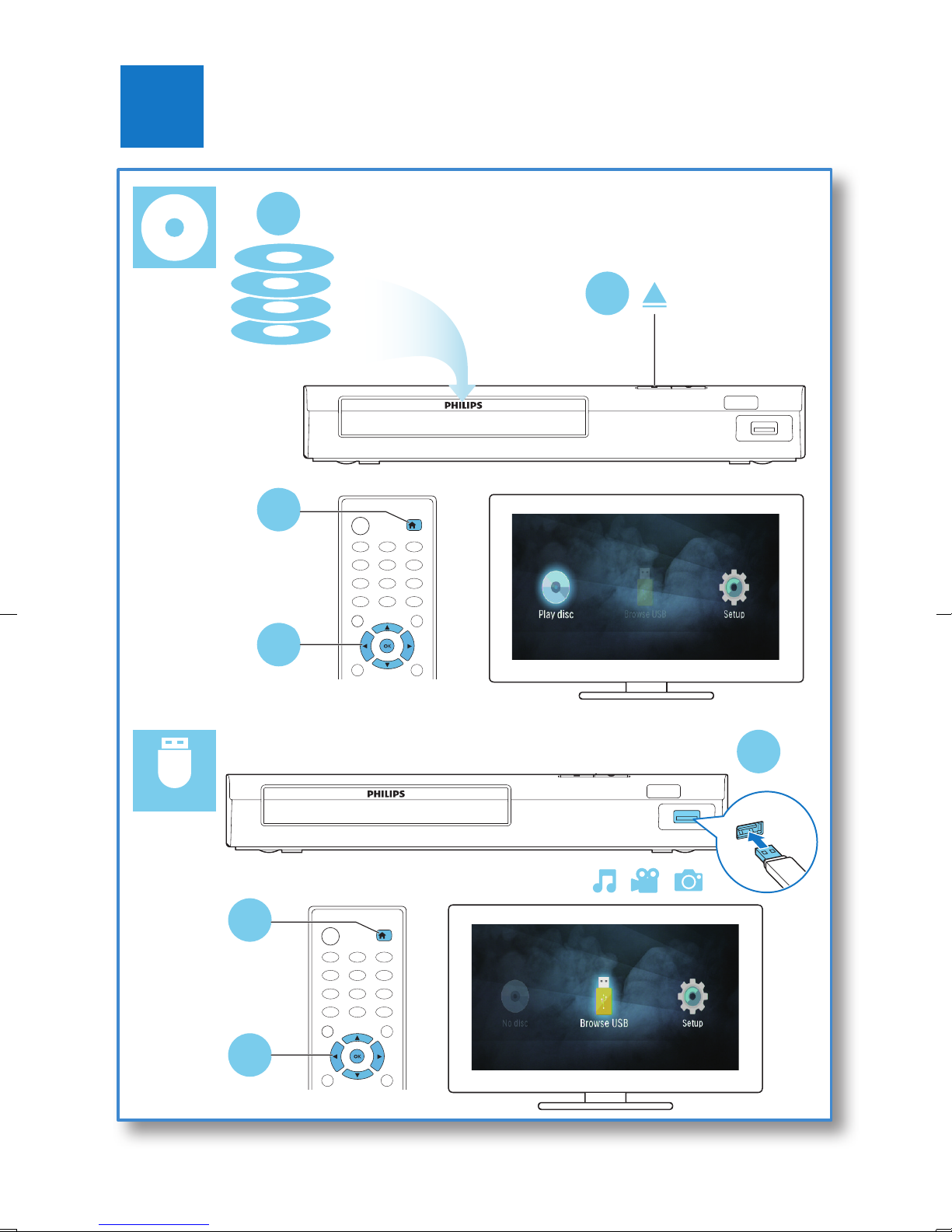
6
1
2
3
BD
DVD/VCD/CD
DivX Plus HD/MKV
MP3 / JPEG
1
4
USB
2
3
19
Page 10

Contents
English
1 Use your Blu-ray disc / DVD player 2
Basic play control 2
Video, audio and picture options 3
DivX videos 5
Play a musical slideshow 6
BonusView on Blu-ray 7
Use Philips EasyLink 7
2 Change settings 8
Picture 8
Sound 9
Preference (languages, parental control...) 9
Advanced options (clear memory...) 10
3 Update software 11
Update software via USB 11
4 Product specications 12
5 Troubleshooting 14
EN
1
Page 11
1 Use your Blu-ray disc / DVD player
Congratulations on your purchase, and welcome to Philips! To fully benet from the
support that Philips offers (e.g. product software upgrade), register your product at
www.philips.com/welcome.
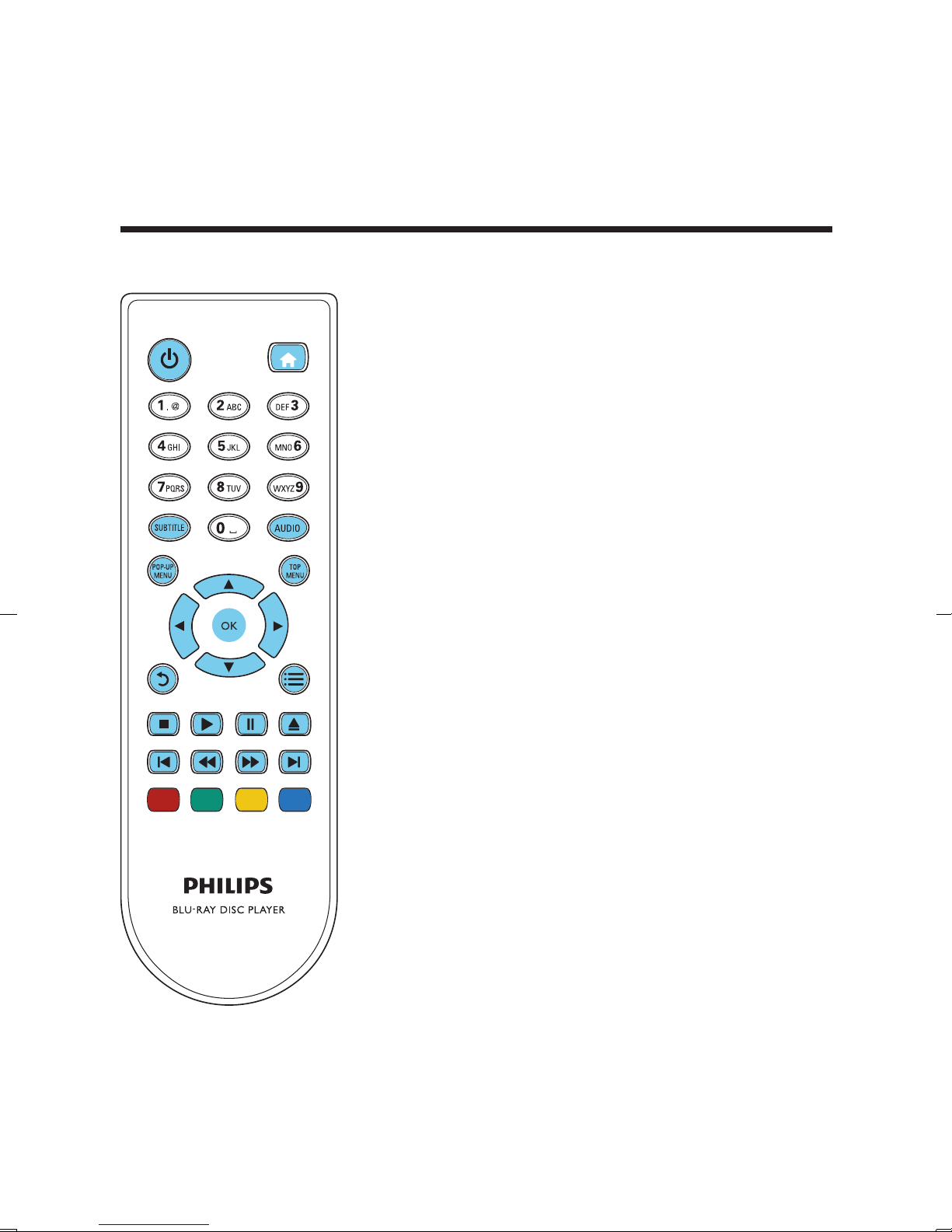
Basic play control
DISC MENU
During play, press the following buttons to control.
2 EN
Page 12
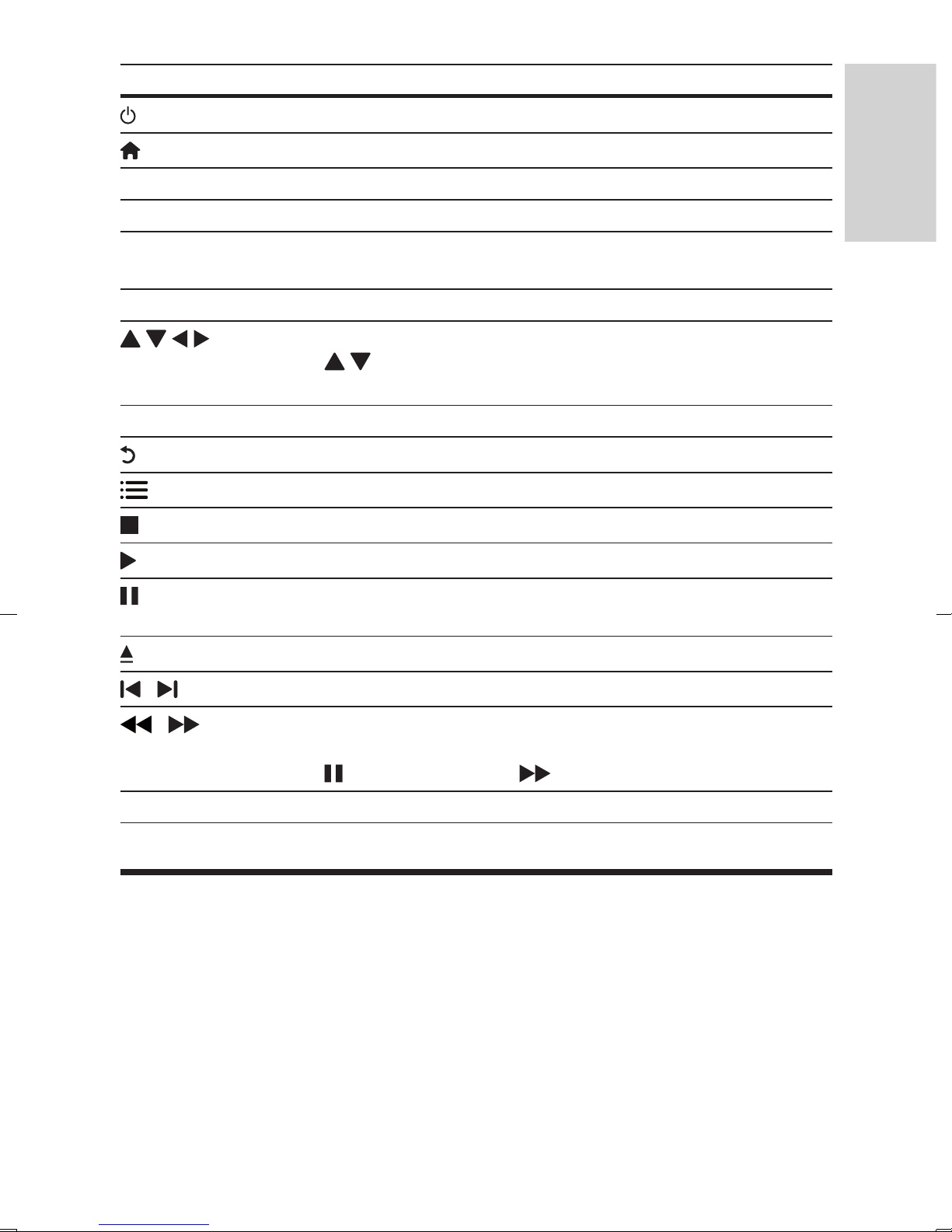
Button Action
English
Turn on the player, or switch to standby.
Access the home menu.
SUBTITLE Select a subtitle language.
AUDIO Select an audio language or channel.
DISC MENU /
POP-UP MENU
TOP MENU Access the main menu of a video disc.
OK Conrm a selection or entry.
Access or exit the disc menu.
Navigate the menus.
Press
during slideshow.
Return to a previous display menu.
Access more options during play.
Stop play.
Start or resume play.
Pause play.
Press repeatedly to slow forward frame by frame.
to rotate a picture clockwise or counter-clockwise
Open or close the disc compartment.
/
/
Color buttons Select tasks or options for Blu-ray discs.
Skip to the previous or next track, chapter or le.
Fast backward or forward.
Press repeatedly to change the search speed.
Press
once, and then press to slow forward.
Video, audio and picture options
More options are available for video or picture play from a disc or USB storage device.
3EN
Page 13
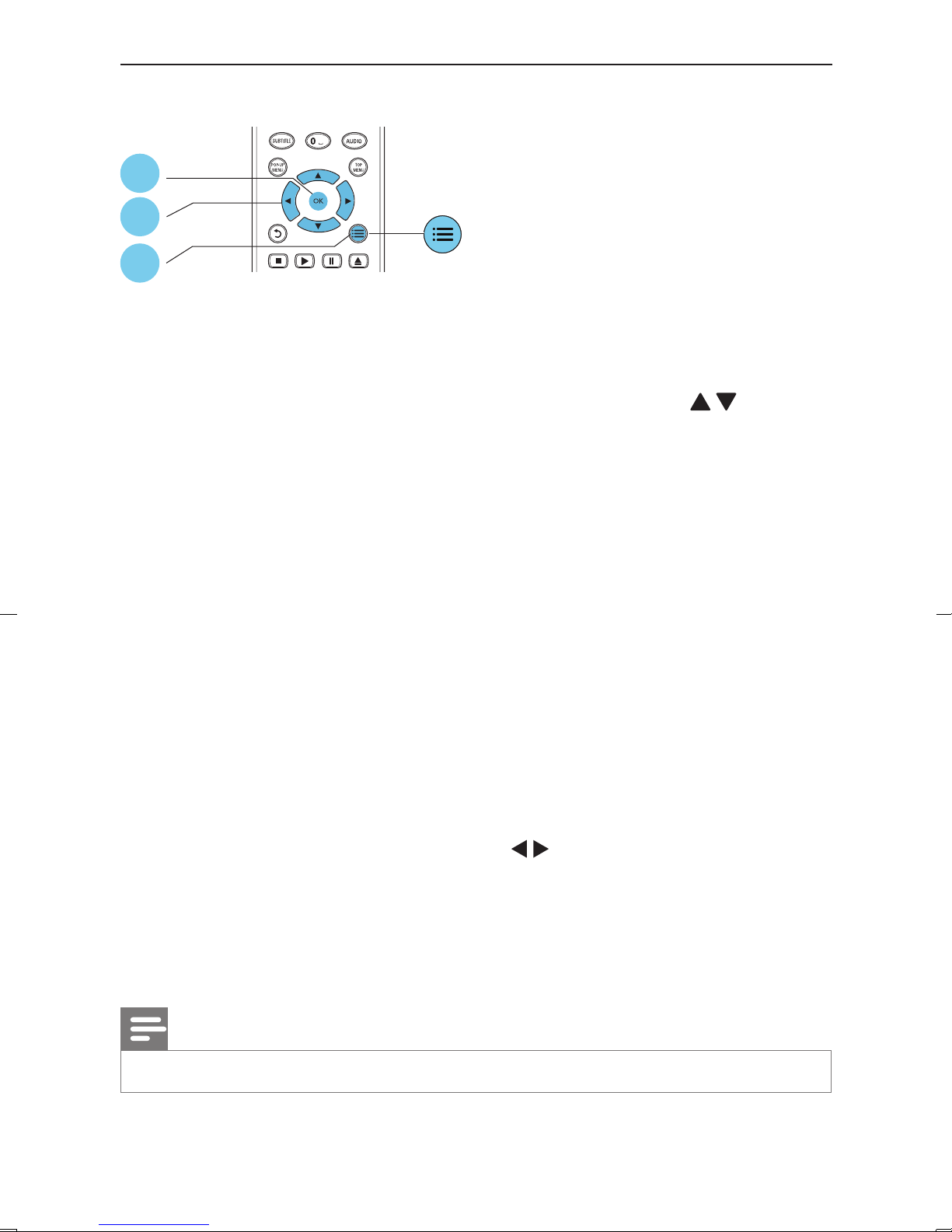
Video options
1
DISC MENU
3
2
Access more options during video play.
• [Audio language]: Select an audio language.
• [Subtitle language]: Select a subtitle language.
• [Subtitle shift]: Change the subtitle position on the screen. Press to change
the subtitle position.
• [Info]: Display play information.
• [Character set]: Select a character set that supports the DivX video subtitle (only
for DivX videos).
• [Time search]: Skip to a specic time via the numeric buttons on the remote
control.
• [2nd audio language]: Select the second audio language (only for Blu-ray discs that
support BonusView).
• [2nd subtitle language]: Select the second subtitle language (only for Blu-ray discs
that support BonusView).
• [Titles]: Select a title.
• [Chapters]: Select a chapter.
• [Angle list]: Select a camera angle.
• [Menus]: Display a disc menu.
• [PIP selection]: Display a picture-in-picture window (only for Blu-ray discs that
support BonusView).
• [Zoom]: Zoom into a video picture. Press to select a zoom factor.
• [Repeat]: Repeat a chapter or title.
• [Repeat A-B]: Mark two points within a chapter for repeat play, or turn off repeat
mode.
• [Picture settings]: Select a predened color setting.
Note
• Available video options depend on the video source.
4 EN
Page 14
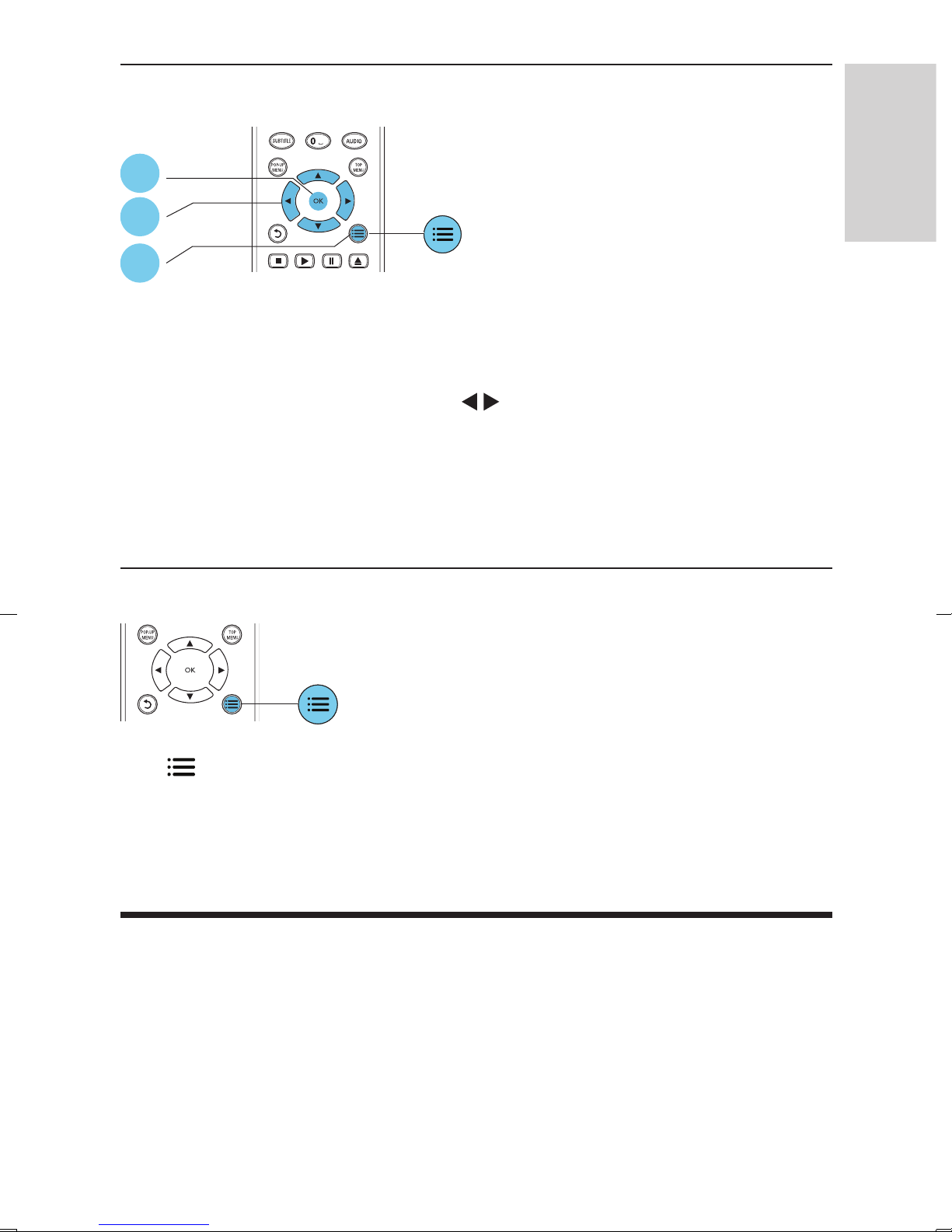
Picture options
1
English
DISC MENU
3
2
Access more options during slideshow.
• [Rotate +90]: Rotate a picture 90 degrees clockwise.
• [Rotate -90]: Rotate a picture 90 degrees counter-clockwise.
• [Zoom]: Zoom into a picture. Press to select a zoom factor.
• [Info]: Display picture information.
• [Duration per slide]: Set a display interval for a slideshow.
• [Slide animation]: Select a transition effect for a slideshow.
• [Picture settings]: Select a predened color setting.
• [Repeat]: Repeat a selected folder.
Audio options
Press repeatedly to cycle through the following options.
• Repeat the current track.
• Repeat all the tracks on the disc or folder.
• Play audio tracks in a random loop.
• Turn off a repeat mode.
DivX videos
You can play DivX videos from a disc or a USB storage device.
VOD code for DivX
• Before you purchase DivX videos and play them on this player, register this player
on www.divx.com using the DivX VOD code.
5EN
Page 15
• Display the DivX VOD code: press , and select [Setup] > [Advanced] > [DivX
VOD Code].
DivX subtitles
• Press SUBTITLE to select a language.
• If the subtitle is not displayed correctly, change the character set that supports the
DivX subtitle. Select a character set: press
Character set Languages
[Standard] English, Albanian, Danish, Dutch, Finnish, French, Gaelic, German, Italian,
Kurdish (Latin), Norwegian, Portuguese, Spanish, Swedish, and Turkish
, and select [Character set].
®
[Central
Europe]
[Cyrillic] Bulgarian, Belorussian, English, Macedonian, Moldavian, Russian, Serbian,
[Greek] Greek
[Baltic] Estonian, Latvian and Lithuanian
[Chinese] Simplied Chinese
[ChineseTraditional]
[Korean] English and Korean
Note
Albanian, Croat, Czech, Dutch, English, German, Hungarian, Irish, Polish,
Romanian, Slovak, Slovene, and Serbian
and Ukrainian
Traditional Chinese
• To use the subtitles, make sure that the subtitle le has the same name as the DivX video
le name. For example, if the DivX video le is named “movie.avi", save the subtitle le as
“movie.srt”, or “movie.sub”.
• This player can play subtitle les in the following formats: .sr t, .sub, .txt, .ssa, and .smi.
Play a musical slideshow
Play music and pictures simultaneously to create a musical slideshow.
1 From a disc or connected USB storage device, play a music le.
2 Press , and go to the picture folder.
3 Select a picture from the same disc or USB, and press OK to start slideshow.
4 Press to stop slideshow.
5 Press again to stop music play.
6 EN
Page 16
BonusView on Blu-ray
English
View special content (such as commentaries) in a small screen window.
This feature is only applicable to Blu-ray discs compatible with BonusView (also known
as picture in picture).
1 During play, press .
» The options menu is displayed.
2 Select [PIP selection] > [PIP], and press OK.
» PIP options [1]/[2] depend on the video contents.
» The secondary video window is displayed.
3 Select [2nd audio language] or [2nd subtitle language], and press OK.
Use Philips EasyLink
This player supports Philips EasyLink which uses the HDMI CEC (Consumer
Electronics Control) protocol. You can use a single remote control to control EasyLink
compliant devices that are connected through HDMI. Philips does not guarantee 100%
interoperability with all HDMI CEC devices.
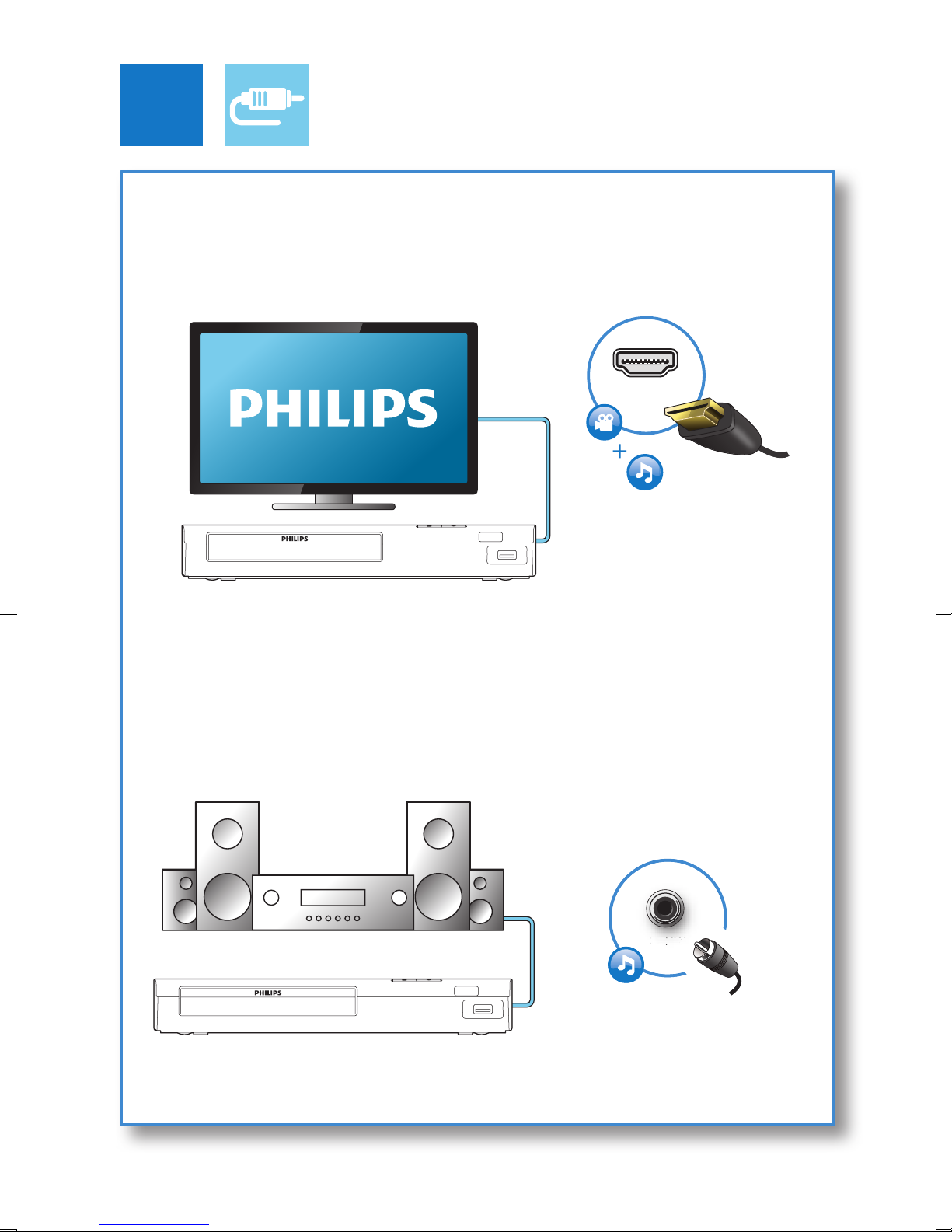
1 Connect the HDMI CEC compliant devices through HDMI, and turn on the HDMI
CEC operations on the TV and other connected devices (see the user manual of
the TV or other devices for details).
2 Press .
3 Select [Setup]> [EasyLink].
4 Select [On] under the options: [EasyLink], [One Touch Play] and [One Touch
Standby].
» EasyLink function is turned on.
One Touch Play
When a video disc is in the disc compartment, press
standby, and then play a disc.
One Touch Standby
When a connected device (for example TV) is put to standby with its own remote
control, this player is put to standby automatically.
to wake up the TV from
7EN
Page 17
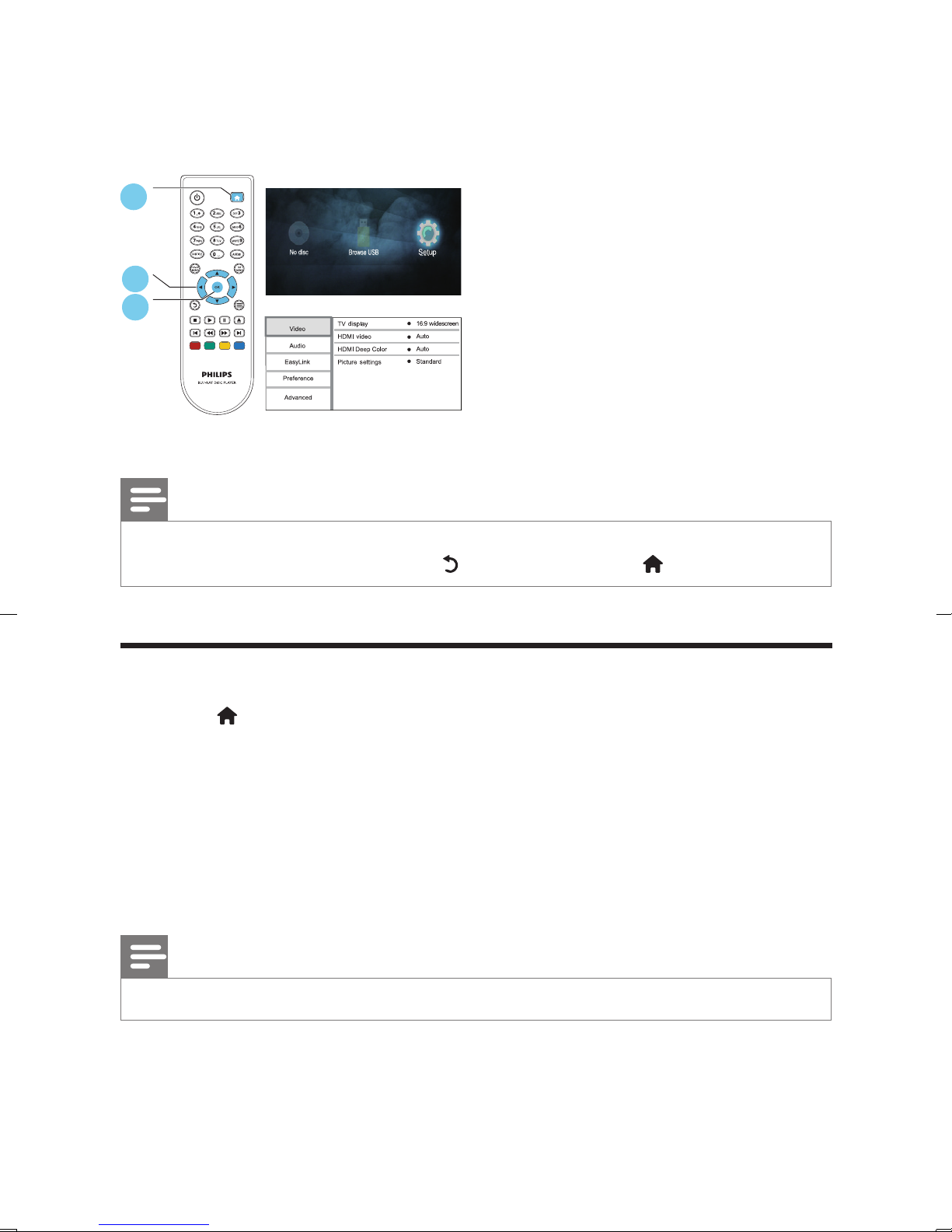
2 Change settings
This section helps you change the settings of this player.
1
DISC MENU
2
3
Note
• You cannot change a menu option that is grayed out.
• To return to the previous menu, press . To exit the menu, press .
Picture
1 Press .
2 Select [Setup] > [Video] to access the video setup options.
• [TV display]: Select a picture display format to t the TV screen.
• [HDMI video]: Select an HDMI video resolution.
• [HDMI Deep Color]: Display colors with more shades and hues when the video
content is recorded in Deep Color and the TV supports this feature.
• [Picture settings]: Select a predened color setting.
Note
• If you change a setting, make sure that the TV supports the new setting.
8 EN
Page 18
Sound
English
1 Press .
2 Select [Setup] > [Audio] to access the audio setup options.
• [Night mode]: Select quiet or full dynamic sound. Night mode decreases the
volume of loud sound and increases the volume of soft sound (such as speech).
• [HDMI audio]: Set an HDMI audio format when this player is connected through
HDMI.
• [Digital audio]: Select an audio format for the sound output when this player is
connected through a digital connector (coaxial).
• [PCM downsampling]: Set the sampling rate for PCM audio output when this
player is connected through a digital connector (coaxial).
Note
• For settings related to HDMI, the TV must be connected through HDMI.
• Night mode is only available for Dolby
Blu-ray discs.
®
TrueHD / Dolby® Digital Plus encoded DVD and
Preference (languages, parental control...)
1 Press .
2 Select [Setup] > [Preference] to access the preference setup options.
• [Menu language]: Select an onscreen display menu language.
• [Audio]: Select an audio language for video.
• [Subtitle]: Select a subtitle language for video.
• [Disc menu]: Select a menu language for a video disc.
• [Parental control]: Restrict access to discs that are encoded with ratings. Input
"0000" to access the restriction options. To play all discs irrespective of the rating,
select level "8".
• [Screen saver]: Enable or disable screen saver mode. If enabled, the screen enters
idle mode after 10 minutes of inactivity (for example, in pause or stop mode).
• [Auto subtitle shift]: Enable or disable subtitle shift. If enabled, the subtitle position
is changed automatically to t the TV screen (this feature works with some Philips
TVs only).
• [Change password]: Set or change a password to play a restricted disc. Input
"0000" if you do not have a password or if you have forgotten your password.
9EN
Page 19
• [Auto standby]: Enable or disable auto standby. If enabled, the player switches to
standby after 30 minutes of inactivity (for example, in pause or stop mode).
• [VCD PBC]: Display or skip the content menu for VCD and SVCD.
Note
• If your preferred language is not available for disc language, audio or subtitle, you can
select [Others] from the menu options and input 4-digit language code which can be
found at the back of this user manual.
• If you select a language which is not available on a disc, this player uses the default
language of the disc.
Advanced options (clear memory...)
1 Press .
2 Select [Setup] > [Advanced] to access the advanced setup options.
• [Downmix mode]: Control 2-channel stereo audio output.
• [Software update]: Select to update software from USB storage device.
• [Version information]: Display the software version of this player.
• [Restore default settings]: Reset this player to the default settings made at the
factory, except for password and parental control level.
• [Clear memory]: Remove some Blu-ray disc data (such as BonusView) that
are automatically copied on the connected USB device. A “BUDA” folder is
automatically created to store some necessary data from Blu-ray disc.
• [DivX
code for this player.
®
VOD Code]: Display the DivX® registration code or the deregistration
Note
• Before you purchase DivX videos and play them on this player, register this player on
www.divx.com with the DivX VOD code.
10 EN
Page 20
3 Update software
English
Before you update the software of this player, check the current software version:
• Press , and then select [Setup] > [Advanced] > [Version information], and
press OK.
Update software via USB
1 Check the latest software version on www.philips.com/support.
• Search for your model and click on "Software and drivers".
2 Download the software into a USB storage device.
a Unzip the download, and make sure that the unzipped folder is named
"UPG".
b Put the "UPG" folder in the root directory.
3 Connect the USB storage device to the USB connector on the back of this player.
4 Press , and select [Setup].
5 Select [Advanced] > [Software update]> [USB].
» If an upgrade media is detected, you are prompted to start the update.
6 Follow the instructions on the TV screen to update the software.
» When the update is complete, this player automatically turns off and on
again.
Caution
• Do not turn off the power or remove the USB storage device when the software update
is in progress because you might damage this player.
11EN
Page 21
4 Product specifications
Note
• Specications and design are subject to change without notice.
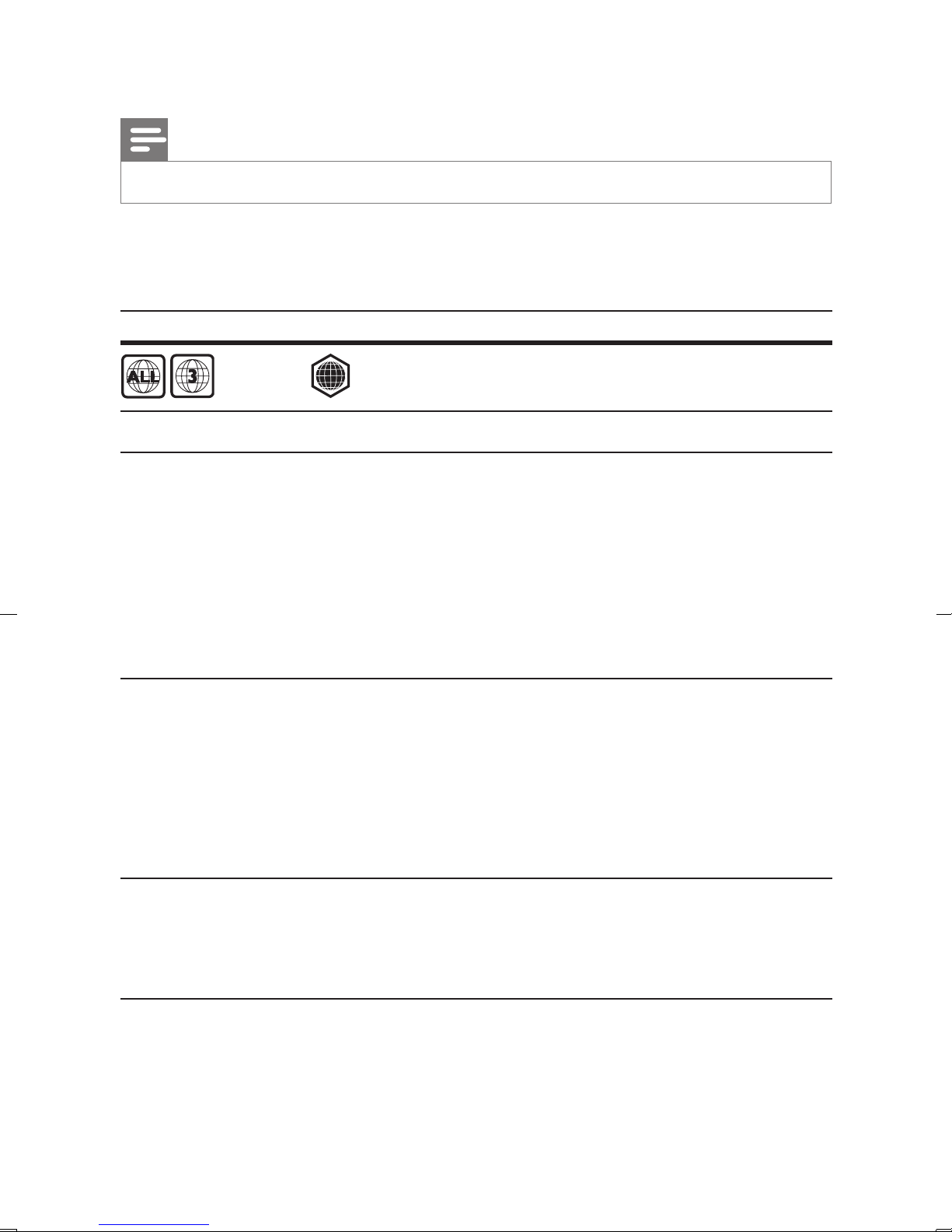
Region code
This player can play discs with the following region codes.
DVD Blu-ray Countries
Asia Pacic, Taiwan, Korea
A
Playable media
• BD-Video
• DVD-Video, DVD+R/+RW, DVD-R/-RW, DVD+R/-R DL (Dual Layer)
• VCD/SVCD
• Audio CD, CD-R/CD-RW, MP3 media, WMA media, JPEG les
• DivX (Ultra)/DivX Plus HD media, MKV media
• USB storage device
File formats
• Audio:
• .aac, .mka, .mp3, .wma, .wav, .m4a, .ac, .ogg
• Video:
• .avi, .divx, .mp4, .m4v, .ts, .mov, .mkv, .m2ts, .mpg, .mpeg, .3gp
• Picture: .jpg, .jpeg, .gif, .png
Video
• Signal system: PAL / NTSC
• HDMI output: 480i/576i, 480p/576p, 720p, 1080i, 1080p, 1080p/24Hz
Audio
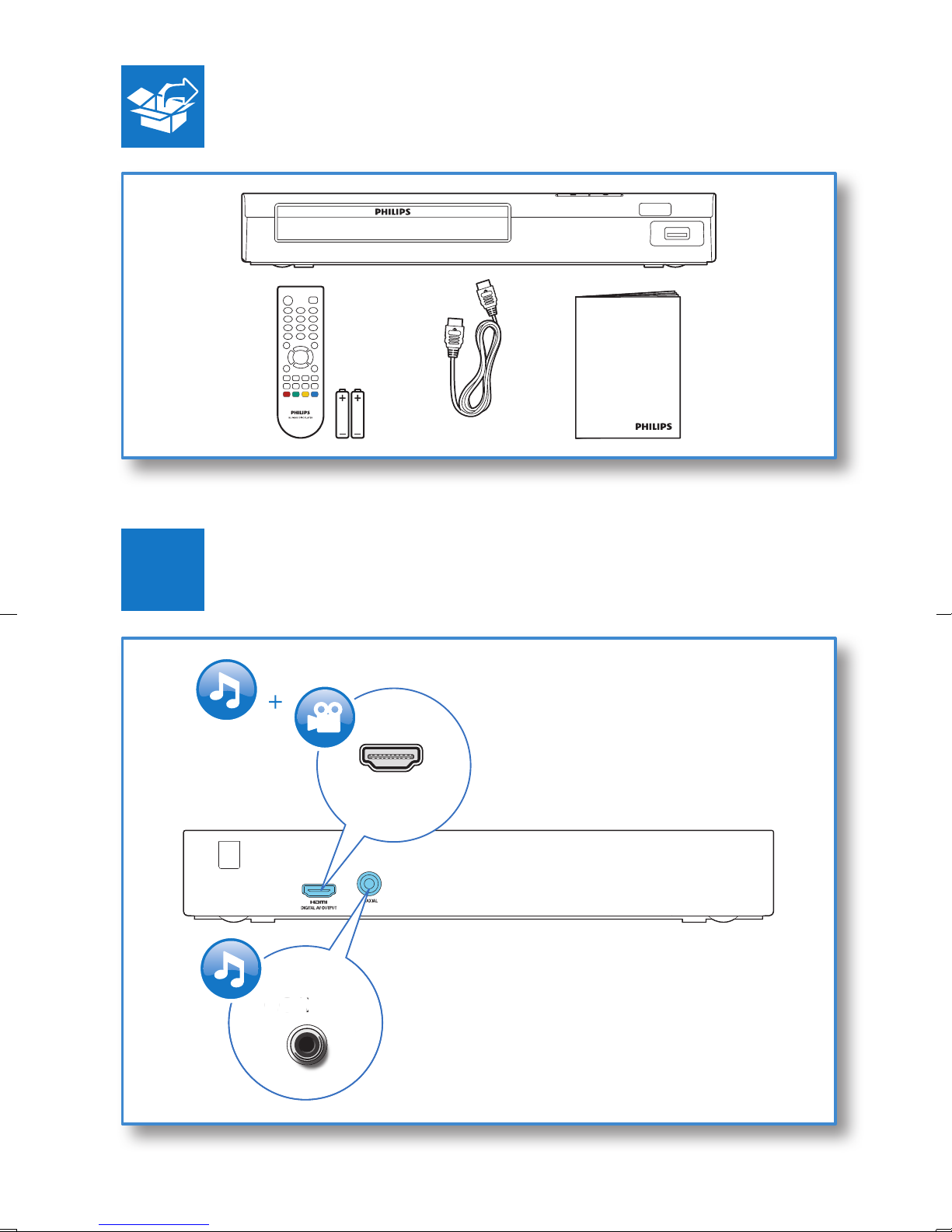
• HDMI output
• Digital output: 0.5 Vp-p (75 ohm)
• Coaxial
12 EN
Page 22

USB
English
• USB port: 5V , 500 mA
• Support software update and BonusView contents.
• Compatibility: Hi-Speed USB (2.0)
• Class support: USB Mass Storage Class
• File system: FAT16, FAT32
Main unit
• Power supply rating: AC 110-240 V~, 50/60 Hz
• Power consumption: 10.5 W
• Power consumption in standby mode: < 0.5 W
• Dimensions (w x h x d): 270 x 39 x 193 (mm)
• Net Weight: 1.03 kg
Accessories
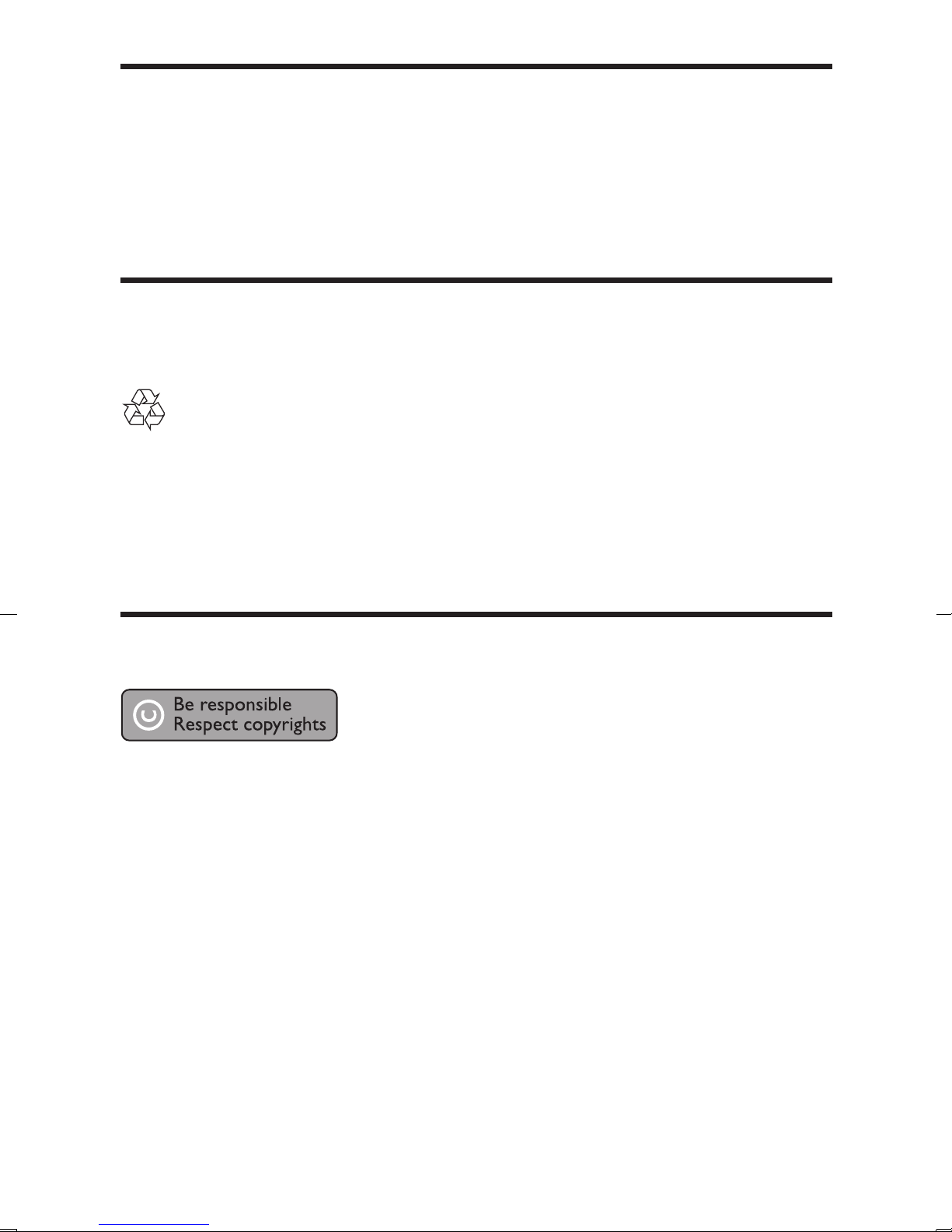
• Remote control and batteries
• User manual
• HDMI cable
Laser
• Laser type (Diode): AlGaInN (BD), AlGaInP (DVD/CD)
• Wave length: 400 to 410 nm (BD), 650 to 664 nm (DVD), 780 to 800 nm (CD)
• Output power (max.): 1.33 mW (BD), 0.21 mW (DVD), 0.34 mW (CD)
13EN
Page 23
5 Troubleshooting
Caution
• Risk of electric shock. Never remove the casing of the player.
To keep the warranty valid, never try to repair the player yourself.
If you have problems using this player, check the following points before you
request service. If you still have a problem, register your player and get support at
www.philips.com/support.
If you contact Philips, you will be asked for the model and serial number of this player.
The model number and serial number are on the back of this player. Write the numbers
here:
Model No. __________________________
Serial No. ___________________________
Main unit
The buttons on this player do not work.
• Disconnect this player from the power supply for a few minutes, and then
reconnect.
Picture
No picture.
• Make sure that the TV is switched to the correct source input for this player.
No picture on HDMI connection.
• Make sure that the HDMI cable is not faulty. If it is faulty, replace with a new HDMI
cable.
• On the remote control, press and then press “731” (numeric buttons) to
recover picture display. Or wait for 10 seconds for auto recovery.
• If this player is connected to an unauthorized display device with an HDMI cable,
the audio and video signals may not be output.
The disc does not play high-denition video.
• Make sure that the disc contains high-denition video.
Sound
No audio output from the TV.
• Make sure that the TV is switched to the correct source input for this player.
14 EN
Page 24

No audio output from the loudspeakers of the external audio device (home theater
English
or amplier).
• Switch the external audio device to the correct audio source input.
No sound on HDMI connection.
• You may not hear any sound from the HDMI output if the connected device is
non-HDCP compliant or only DVI-compatible.
No secondary audio output for Picture-in-Picture feature.
• When [Bitstream] under the [HDMI audio] or [Digital audio] menu is selected,
interactive sound like secondary sound for Picture-in-Picture feature is muted.
De-select [Bitstream].
Play
Cannot play a disc.
• Clean the disc.
• Make sure that the disc is correctly loaded.
• Make sure that this player supports the disc. See "Specications".
• Make sure that this player supports the region code of the DVD or BD.
• For DVD±RW or DVD±R, make sure that the disc is nalized.
Cannot play DivX video les.
• Make sure that the DivX video le is complete.
• Make sure that the video le name extension is correct.
DivX subtitles do not display correctly.
• Make sure that the subtitle le has the same name as the DivX video le.
• Make sure that the subtitle le has an extension name supported by this player
(.srt, .sub, .txt, .ssa, or .smi).
Cannot read the contents of a connected USB storage.
• Make sure that the format of the USB storage device is compatible with this player.
• Make sure that the le system on the USB storage device is supported by this
player.
• For a USB HDD (a portable hard disc drive), an external power source may be
needed.
'No entry' or 'x' sign is displayed on the TV.
• The operation is not possible.
EasyLink feature does not work.
• Make sure that this player is connected to the Philips brand EasyLink TV, and the
EasyLink option is turned on (see "Use your Blu-ray disc/ DVD player" > "Use
Philips EasyLink").
15EN
Page 25
‘Blu-ray Disc
‘ and ‘Blu-ray Disc ‘ logo are trademarks of Blu-ray Disc Association.
HDMI, and HDMI logo and High-Denition Multimedia Interface are trademarks or
registered trademarks of HDMI licensing LLC in the United States and other countries.
Manufactured under license from Dolby Laboratories. Dolby and the double-D symbol are
trademarks of Dolby Laboratories.
This DivX Certied® device has passed rigorous testing to ensure it plays DivX® video.
To play purchased DivX movies, rst register your device at vod.divx.com. Find your
registration code in the DivX VOD section of your device setup menu.
®
DivX Certied
HD, including premium content.
®
DivX
LLC and are used under license.
Covered by one or more of the following U.S. patents: 7,295,673; 7,460,668; 7,515,710;
8,301,793; 8,649,669; 8,656,183; 8,731,369; RE45,052.
, DivX Cer tied®, DivX Plus® HD and associated logos are trademarks of DivX,
to play DivX® and DivX Plus® HD (H.264/MKV) video up to 1080p
For DTS patents, see http://patents.dts.com. Manufactured under license from DTS Licensing
Limited. DTS, the Symbol, & DTS and the Symbol together are registered trademarks, and
DTS 2.0+Digital Out is a trademark of DTS, Inc. © DTS, Inc. All Rights Reserved.
16
Page 26

‘DVD Video’ is a trademark of DVD Format/Logo Licensing Corporation.
Oracle and Java are registered trademarks of Oracle and/or its afliates. Other names
may be trademarks of their respective owners.
17
Page 27
Language Code
Abkhazian 6566
Afar 6565
Afrikaans 6570
Amharic 6577
Arabic 6582
Armenian 7289
Assamese 6583
Avestan 6569
Aymara 6589
Azerhaijani 6590
Bahasa Melayu 7783
Bashkir 6665
Belarusian 6669
Bengali 6678
Bihari 6672
Bislama 6673
Bokmål, Norwegian 7866
Bosanski 6683
Brezhoneg 6682
Bulgarian 6671
Burmese 7789
Castellano, Español 6983
Catalán 6765
Chamorro 6772
Chechen 6769
Chewa; Chichewa; Nyanja
9072
Chuang; Zhuang 9065
Church Slavic; Slavonic 6785
Chuvash 6786
Corsican 6779
Česky 6783
Dansk 6865
Deutsch 6869
Dzongkha 6890
English 6978
Esperanto 6979
Estonian 6984
Euskara 6985
6976
Faroese 7079
Français 7082
Frysk 7089
Fijian 7074
Gaelic; Scottish Gaelic 7168
Gallegan 7176
Georgian 7565
Gikuyu; Kikuyu 7573
Guarani 7178
Gujarati 7185
Hausa 7265
Herero 7290
Hindi 7273
Hiri Motu 7279
Hrwatski 6779
Ido 7379
Interlingua (International)7365
Interlingue 7365
Inuktitut 7385
7889
Inupiaq 7375
Irish 7165
Íslenska 7383
Italiano 7384
Ivrit 7269
Japanese 7465
Javanese 7486
Kalaallisut 7576
Kannada 7578
Kashmiri 7583
Kazakh 7575
Kernewek 7587
Khmer 7577
Kinyarwanda 8287
Kirghiz 7589
Komi 7586
Korean 7579
Kuanyama; Kwanyama 7574
Kurdish 7585
Lao 7679
Latina 7665
Latvian 7686
Letzeburgesch; 7666
Limburgan; Limburger 7673
Lingala 7678
Lithuanian 7684
Luxembourgish; 7666
Macedonian 7775
Malagasy 7771
Magyar 7285
Malayalam 7776
Maltese 7784
Manx 7186
Maori 7773
Marathi 7782
Marshallese 7772
Moldavian 7779
Mongolian 7778
Nauru 7865
Navaho; Navajo 7886
Ndebele, North 7868
Ndebele, South 7882
Ndonga 7871
Nederlands 7876
Nepali 7869
Norsk 7879
Northern Sami 8369
North Ndebele 7868
Norwegian Nynorsk; 7878
Occitan; Provencal 7967
Old Bulgarian; Old Slavonic 6785
Oriya 7982
Oromo 7977
Ossetian; Ossetic 7983
Pali 8073
Panjabi 8065
Persian 7065
Polski 8076
Português 8084
Pushto 8083
Russian 8285
Quechua 8185
Raeto-Romance 8277
Romanian 8279
Rundi 8278
Samoan 8377
Sango 8371
Sanskrit 8365
Sardinian 8367
Serbian 8382
Shona 8378
Shqip 8381
Sindhi 8368
Sinhalese 8373
Slovensky 8373
Slovenian 8376
Somali 8379
Sotho; Southern 8384
South Ndebele 7882
Sundanese 8385
Suomi 7073
Swahili 8387
Swati 8383
Svenska 8386
Tagalog 8476
Tahitian 8489
Tajik 8471
Tamil 8465
Tatar 8484
Telugu 8469
Thai 8472
Tibetan 6679
Tigrinya 8473
To nga (Tonga Islands) 8479
Tsonga 8483
Tswana 8478
Türkçe 8482
Turkmen 8475
Tw i
Uighur 8571
Ukrainian 8575
Urdu 8582
Uzbek 8590
Vietnamese 8673
Volapuk 8679
Walloon 8765
Welsh 6789
Wolof 8779
Xhosa 8872
Yiddish 8973
Yoruba 8979
Zulu 9085
8487
18
Page 28
Specifications are subject to change without notice
© 2015 Koninklijke Philips N.V. All rights reserved.
Trademarks are the property of Koninklijke Philips N.V. or their
respective owners.
BDP1300/1300W_98_UM_V4.0
 Loading...