

Page 1

jf /hj
- A ^ /3
^ Vi 1^ T ^
PHILIPS
Page 2

Page 3
Installation
Installation
J
Follow the instructions very closely and step by step.
This circle in front of a sentence indicates that you have to do something.
This arrow in front of a sentence indicates the result of what you have done.
This bar in front of a sentence indicates heip information.
Place the TV on a solid base.
Leave at least 3 cm around each side of the TV for ventilation.
The TV can only operate at a mains voltage of 220/240 V~, 50 Hz; consult
your dealer if the mains supply is different.
o Connect the TV tightly to the mains supply socket.
o Connect the aerial (indoor or outdoor) plug to the "ir socket on the back of
the TV.
Make sure that the connection facilities to any TV installed in your house
are in good condition. Only use good quality aerial connectors and cables.
The aerial plugs should be tightly connected.
Small screen TV's are equipped with a high performance indoor aerial,
nevertheless in some circumstances (specific regions or if surrounded by
high buildings) reception problems could occur. Further improvement of
reception could be obtained by:
- Rotating or varying the angle of the aerial.
- Using other aerial executions.
- Connecting your TV to an outdoor aerial.
Remote control
Remove the battery cover.
Insert the batteries, as indicated on the remote control.
Replace the battery cover.
0
D
0
_]
D
y
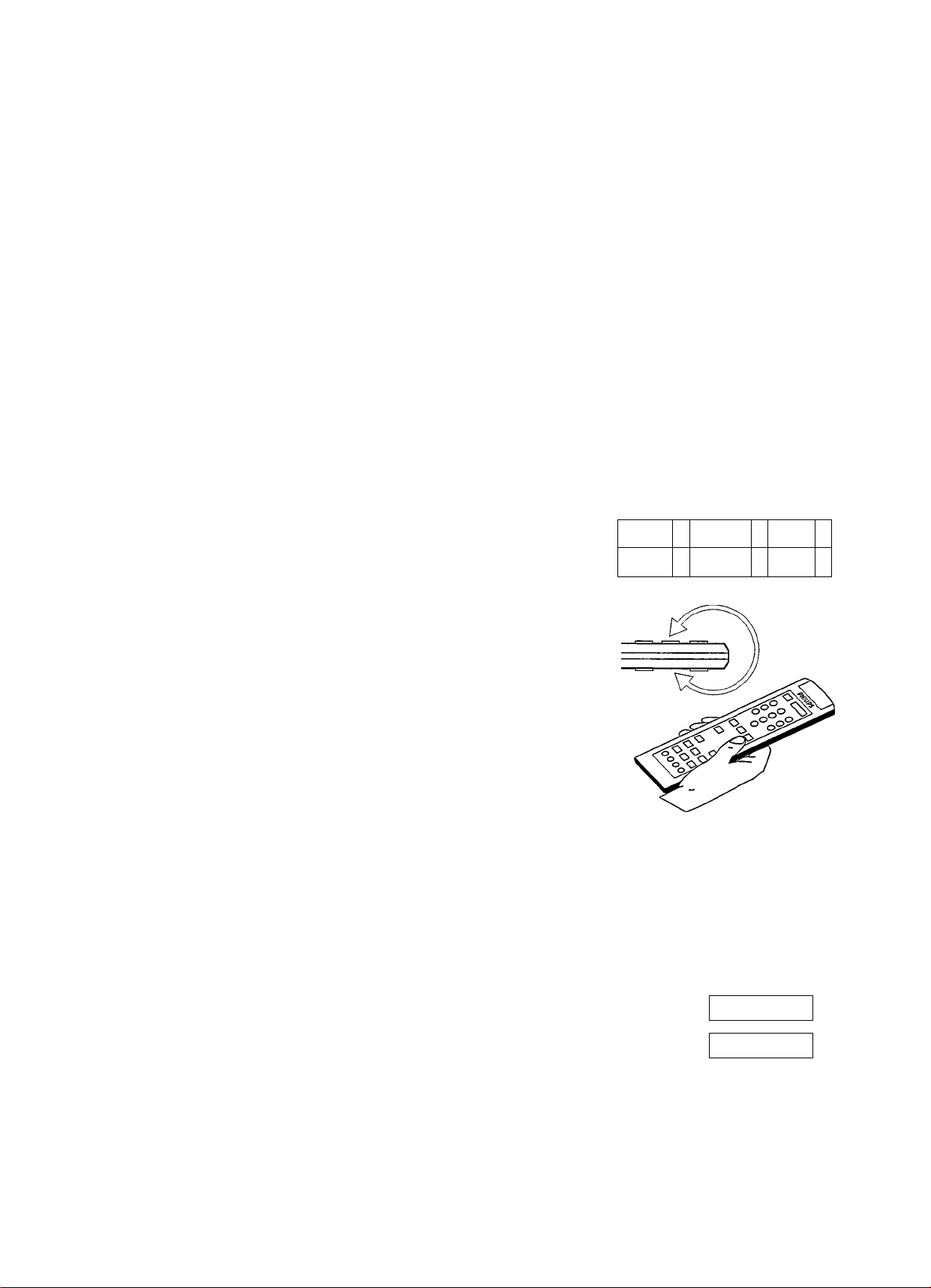
The remote control has a special switch inside. This switch provides that r
only one side of the remote control can be used at the same time (the top F
side). The switch prevents that buttons on the bottom part of the remote
control are inadvertantly used although they could be pressed. When
moving quickly the remote control, you can hear the switch.
To obtain the best remote control performance, use it in horizontal position.
Control panel
The control buttons needed for adjusting the TV are located behind the
control panel cover on the front of the TV.
To open, simply press on the middle of the panel cover.
Switching TV on
Press © on the front of the TV.
The TV is switched on.
Is the TV still switched off? Then the TV is on Stand-by.
Press P — or H- or a digit button on the remote control, or — or -1- on the
TV, to switch on the TV.
Stand-by
By pressing © on the remote control you can temporarily switch the TV off.
Press P — or -F or a digit button on the remote control, or — or -f- on the
TV, to switch on the TV again.
PHILIPS
n
-
-
(!)
+
+
P
Automatic switch off
If after a period of 15 minutes no aerial signal is received, the TV
automatically switches to Stand-by.
Switch off your TV overnight instead of leaving it on Stand-by. You save energy
and the picture tube is demagnetised which favours good picture quality.
CZl CZ]
Page 4
Storing TV channels
59 TV channels can be stored on program numbers. Write down the TV
channels and the assigned program numbers while storing.
Follow carefully steps a, b, C, d, 6.
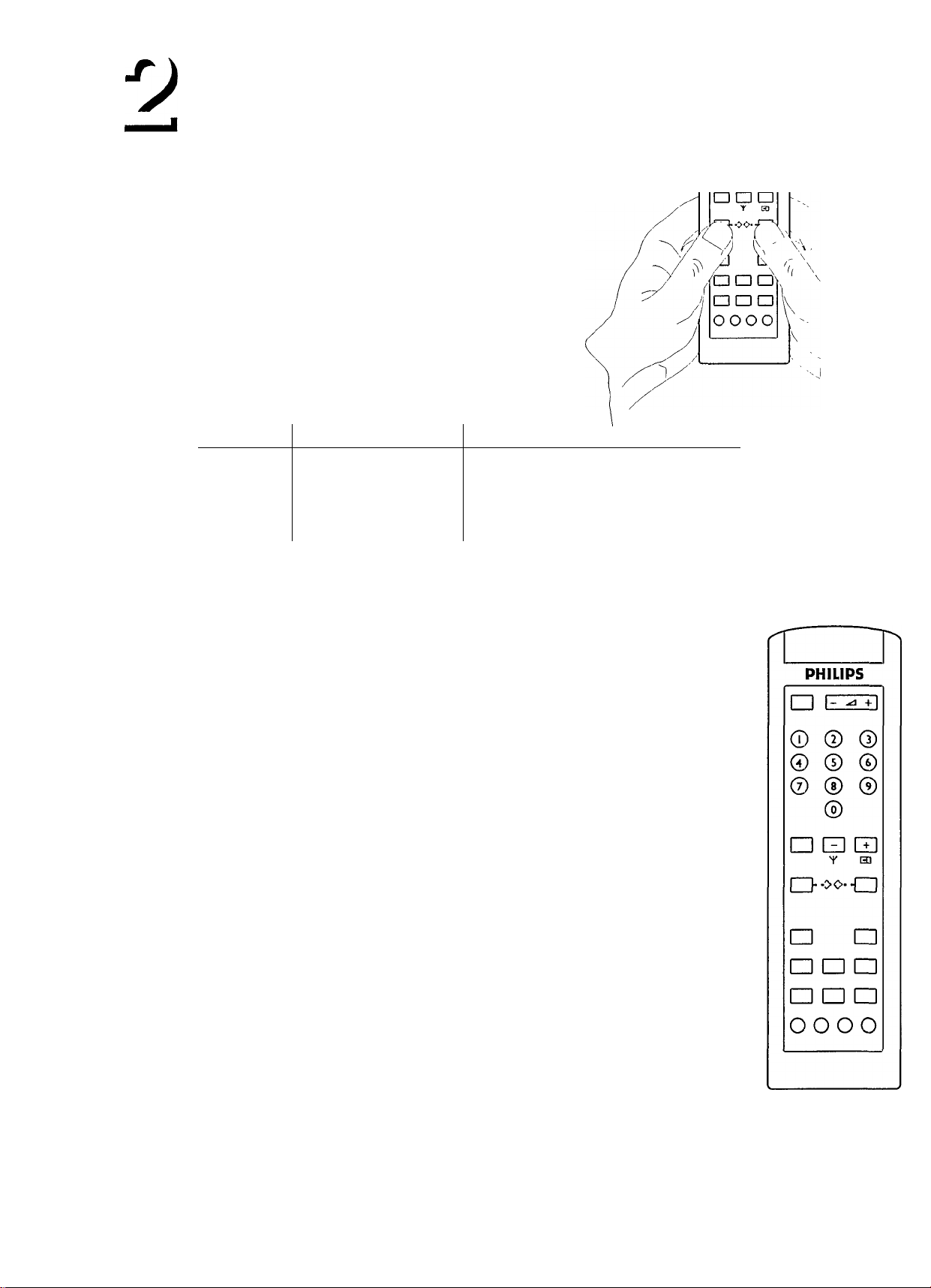
o Press simultaneously the two buttons.
Ü.
> The current program number and the TV-system are
displayed on the screen.
You can select a different TV-system for each separate
program number.
You can select among the following TV-systems:
PHILIPS
□ E
O ® ©
® © ©
© ® ©
©
Region
EUROPE
FRANCE
UK PALI
o Press Y one or more times to select the required TV-system.
j o Press 03 to start the search.
> The TV automatically searches until a TV channel is found,
o If you want to continue searching for a specific TV channel then press 03 again.
j o Press P — or or one or two digit buttons to select the program number
d
(1 to 59) where you want to store the TV channel.
> The selected program number is displayed on the screen.
TV-system Used in /
PAL BG - SECAM BG West European countries except France,
except United Kingdom and Ireland.
SECAM L L'
The sound-volume of some TV channels can be somewhat higher
or lower than normal. If neccessary, you can adjust the sound-
volume for this specific TV channel to normal sound-volume, by
pressing ^ — or +.
France.
United Kingdom and Ireland.
4 o Press simultaneously the two buttons to store this selection.
A'Tr' ^ channels you require have
U been stored on program numbers.
Storing TV channels can be stopped by pressing simultaneously the two
buttons.
Page 5
Auto Programming
Operation
The Auto Programming function can be used to find and store all
available channels quickly. Channels are stored on program numbers in
the same sequence as they are found.
After Auto Programming is started, the TV starts searching for a channel.
If a channel is found, it will be automatically stored on program number 1.
Searching will start again automatically. If another channel is found, it will
be stored on program 2, etc.
Your TV can receive different TV systems. With Auto Programming the
TV searches automatically through all TV systems and stores all TV
channels available.
The TV systems are automatically selected as in the following sequence and
channels in those TV systems are searched for automatically:
1 - TV system FRANCE (SECAM L L')
2 - TV system EUROPE {PAL/SECAM BG)
3 - TV system UK (PAL I)
At the end of the Auto Programming cycle the TV switches to program 1.
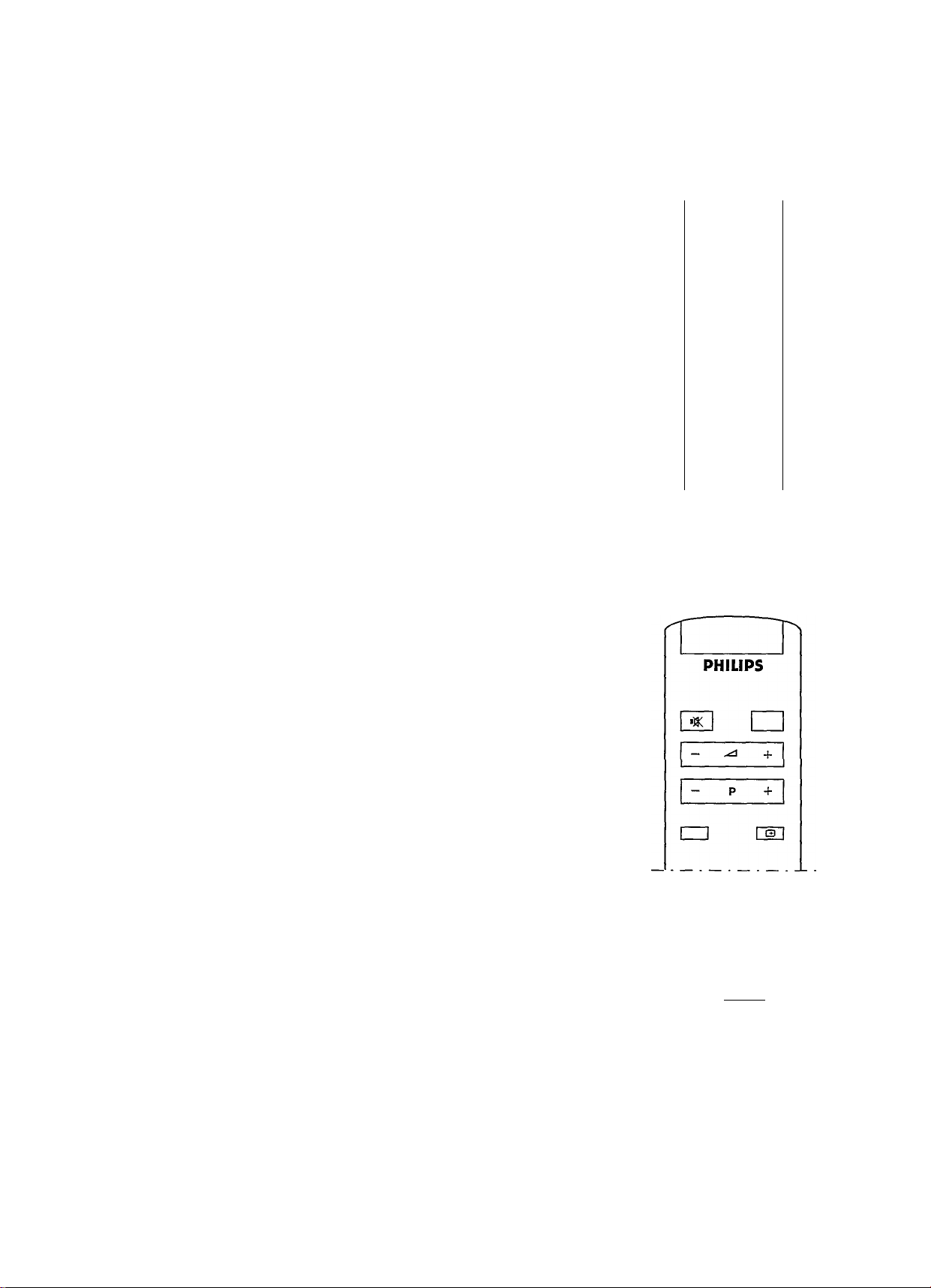
o Press simultaneously the two buttons longer than 4
seconds to start the Auto Programming.
The Auto programming is stopped by pressing simuitaneousiy
the two buttons.
PHILIPS
□
0
0 0
0
0 0
0 0 0
0
a □ □
Q
□
□ a □
□ □
oooo
a
□
□
Operation
On Screen Display
The On Screen Display information allows you to see the program
number on which a TV channel is stored, the timer status, and a
moving bar if the volume is adjusted.
o Press C±1 to display information on the screen,
o Press C±) again to switch off information.
Selecting TV channels
Press P — or + or press one or two digit buttons on the remote control.
To select a program number from 0 to 9 press one digit button.
To select a program number from 10 to 59 you must press two digit
buttons in less than 4 seconds.
or
o Press — or + on the TV.
o o o;
Volume control —
o Press ^ — or + on the remote control.
Interrupting the sound
o Press i]^ to switch off the sound,
o Press i)^ again or ^ + to switch on the sound.
+ I
PHILIPS
□ L- ^ +1
(D (D (3)
© © ©
© ® ©
©
□ □ □
Page 6

Menu on screen
With the menu on the screen you can change and store the picture and sound
settings. Also you can set the timer.
When you switch on your TV, the picture and sound settings have certain
values. These values are initially stored by the factory. Using the menu on
screen you can change these values. Also if you store these values (by
pressing simultaneously the two buttons after a change), the TV will
switch on with your stored picture and sound values.
The stored picture and sound values can also be recalled by pressing PP.
o Press MENU.
> VOLUME appears, adjust the volume by pressing — or +.
If you want to store this setting press simultaneously the two buttons.
o Press MENU again.
> BRIGHTNESS appears, adjust the brightness by pressing — or +.
If you want to store this setting press simultaneously the two buttons.
o Press MENU again.
> CONTRAST appears, adjust the contrast by pressing — or +.
If you want to store this setting press simultaneously the two buttons.
o Press MENU again.
> COLOUR appears, adjust the colour by pressing — or +.
If you want to store this setting press simultaneously the two buttons.
PHILIPS
o o
o o
o
o
o
o o
o
|m*nu|
cm
-o-o-
o
cm □
□ □ cm
□ □ cm
oooo
€□
o Press MENU again.
> TIMER appears.
The timer can be used to switch on or off the TV automatically after the time
you want. You can set the time after which the TV switches on or off in steps
of 10 minutes, to a maximum of 24.00 hours.
Switching off automatically:
o Press — or + to select the time after which the TV should switch off.
The count down starts immediately. You can see the remaining time by
pressing Q on the remote control.
During the final minute of the selected time period, the seconds
remaining are automatically shown on the screen.
At the end of this time period the TV switches to stand-by mode.
Switching on automatically:
o Press — or 4- to select the time after which the TV should switch on.
The count down starts immediately,
o Press c!) to switch the TV temporarily off.
> The TV will switch on after the time you have selected.
Note: If you switch on your TV again before the selected time has elapsed,
the timer will be switched off automatically.
If you do not press any button within 3 hours after the TV has switched on
automatically, the TV will switch automatically to Stand-by again.
If you want to stop the TIMER press — or + until the selected period on the
_ screen is 00.00.
□ E
MENU
PHILIPS
cm
"I
+ I
o Press MENU.
> The menu disappears.
If you want to leave the menu, for example after changing the contrast setting,
you can either wait approximately 15 seconds or continue to press the MENU
button untii the menu disappears from the screen.
Page 7
Teletext
A number of TV channels broadcast information via teletext. Teletext is an
information system which can be consulted the same way as a newspaper
or magazine.
Teletext Time
The time can only be called up if the TV channel you are watching is also
broadcasting teletext,
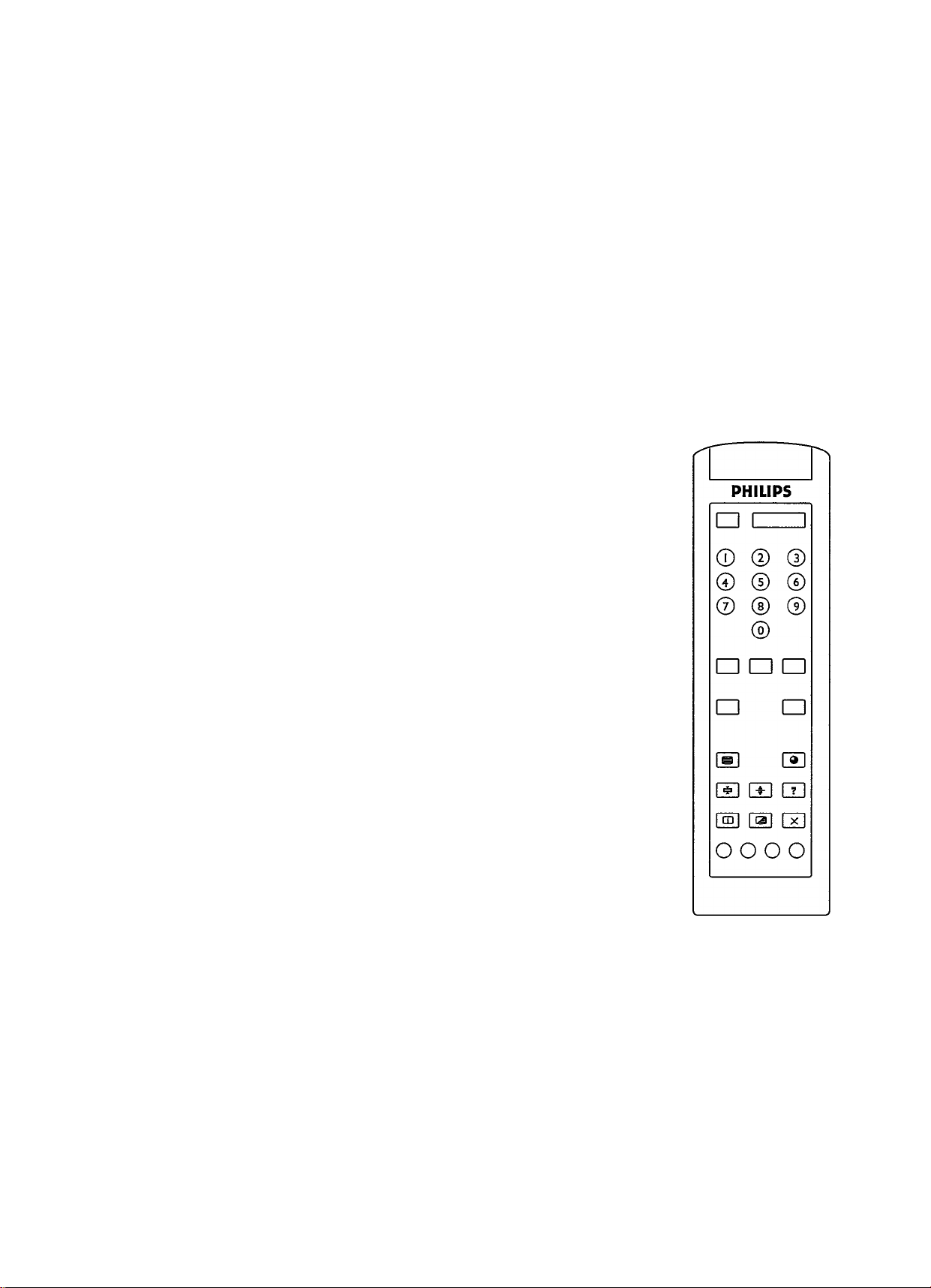
o Press 9.
> The time appears,
o Press 9 again to switch off the time.
Switching Teletext On and Off
o Select the TV channel for the desired teletext broadcast,
o Press IMI to switch on the teletext.
> The contents appear on the screen together with an information line at the top.
In the information line appears:
• the number of the page requested.
• the page counter.
• date and time.
Teletext
• only P. 100 if there is no teletext broadcast.
o Press again to switch off the teletext.
> The TV channel reappears.
Selecting a Teletext Page
Direct page selection
o Enter the desired page number with the digit buttons. The number of pages
always includes 3 digits.
> The page counter seeks the page.
> If the counter keeps searching, then the page is not available or does not
exist.
Does P ?... appear or have you entered an incorrect number?
First complete the number with random figures and then enter the correct page
number again.
Selection with the options line
Signs red — and blue + of the option line enable the direct selection of the
following or the previous page.
o Press the red button or the blue button on the remote control to select either
the previous or the following page.
or
Certain teletext systems allows a quicker access to the headings; in this case
the section names are displayed in the option line,
o Select the desired subject with the corresponding colour button on the remote control.
Page 8
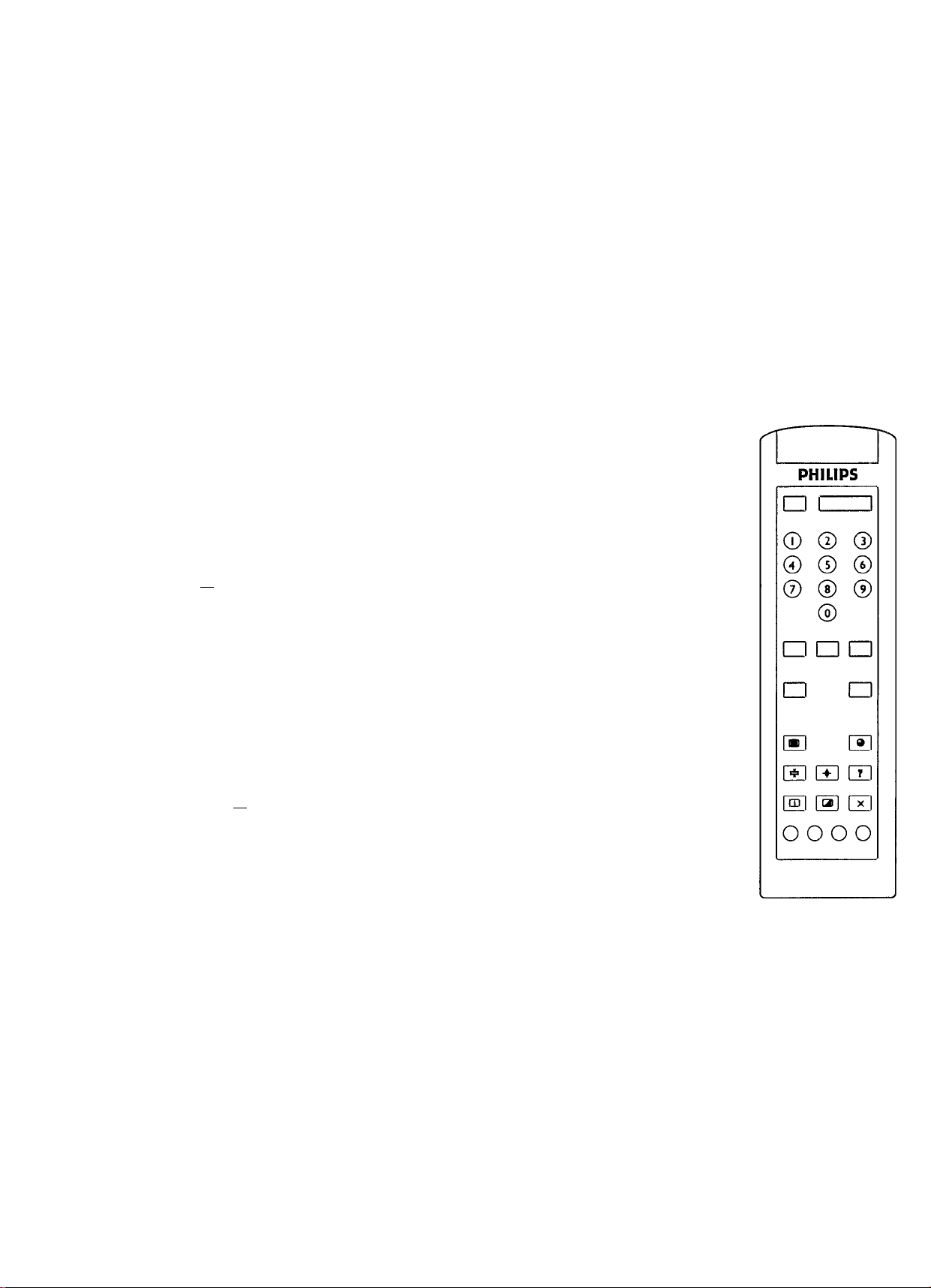
Special teletext functions
Return to the contents
Press (T).
The table of contents will appear.
Hold
Sometime an information includ several pages following each other. In this
case they are automatically displayed in rotation. The total number of
subpages and the subpage displayed are indicated on the screen. For
example: 1/4, meaning page 1 out of 4 is being displayed.
Press ip to hold a page.
="#1 appears in the information line.
The information in this subpage is not being updated anymore.
Press np again.
The page rotation starts again.
Reveal
Some pages contain concealed information, such as solutions to
riddles and puzzles.
Press ? to call up concealed information.
Press ? again to switch off the concealed information.
Temporary interrupt of the teletext display
The search for a page may sometimes be quite long. In the mean
time, you may return to the picture broadcasted from the TV channel.
Before interrupting teletext, you can select a page number.
Press XThe TV channel appears.
1^ indicates that you are still in the teletext mode. When the page
has been found, the information line appears briefly on your
screen.
Press X again.
Teletext reappears.
Enlarge
Press to enlarge the top half of the teletext page.
Press again to enlarge the bottom half of the teletext page.
Press once more to return to normal page size.
Overlay of the teletext on the TV image
o Press 1^.
> The teletext page is superimposed over the TV program on the screen,
o Press 13 again.
> Only the teletext page is displayed.
Selecting a specific subpage
Sometime an information includ several pages following each
other. By adding a subcode you can call up a subpage and hold it.
Enter the page number.
Press 9.
Enter the subpage with 4 digits: e.g. 0003 for subpage 3.
In the meantime, you may return to the picture broadcasted from the
TV channel.
Press XThe TV channel appears.
13 indicates that you are still in the teletext mode. When the page has been
found, the information line appears on your screen.
Press X again.
Teletext reappears.
o Press 9 to return to the normal teletext function.
Page 9
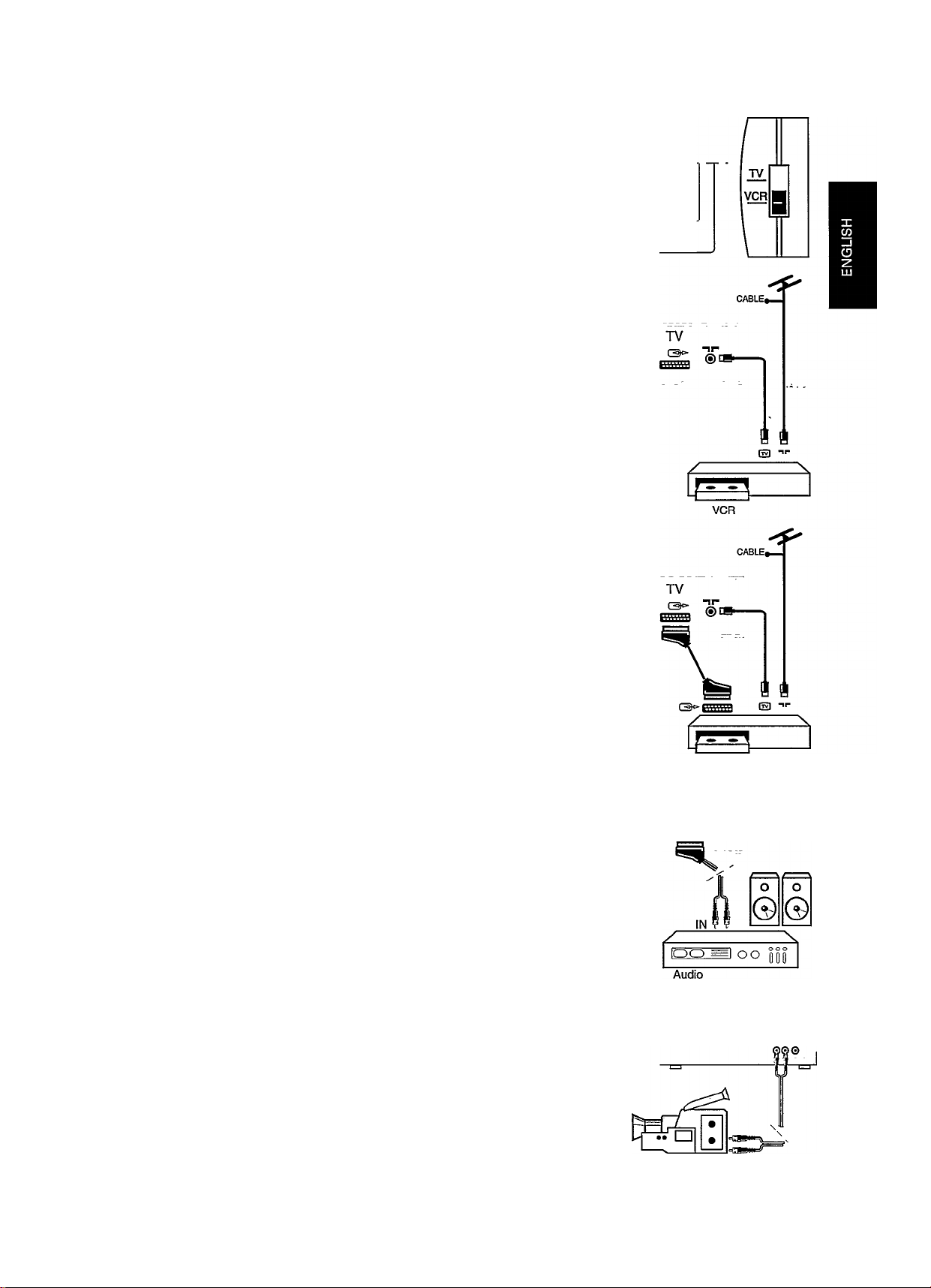
Peripheral connections
Using the TV remote control for the videorecorder
Peripheral
connections
You can use your TV remote control to operate most of the video
equipment of our range.
o Slide the TV/VCR switch to VCR position, then press the buttons you
need to operate your VCR. Refer to the VCR instruction for use to see
the relative buttons and function.
Aerial connection
You can connect your videorecorder or other equipment via the aerial
connection on the back of the TV.
o Unplug the aerial plug from your TV and insert it into the aerial input nr
of your equipment.
o Connect another aerial plug to the output ® of your equipment, connect
the other side to the aerial input ”ir of your TV.
o Switch on your equipment.
o Check in the handbook of the particular equipment to see what the test
signal looks like.
o Now, refer to the section Storing TV channels to search for and store this
signal on a programme number. After that, you can receive signals from
your equipment on this programme number.
Euroconnection (scart) for e.g. videorecorder
You can connect for example a videorecorder or satellite tuner to your
TV via the euroconnector socket on the back of the TV. Ask your dealer
for the appropriate cable.
□ □ □
oooo
o Connect the eurocable to the euroconnector socket of your videorecorder
or electronic equipment and to the euroconnector socket of your TV.
o Connect an aerial cable to the output ® of your video recorder and to
the aerial input ir of your TV.
o Normally if the electronic equipment is switched on, the picture will
automatically appear on the TV screen; if not select program number 0.
Euroconnection (scart) for audio amplifier
An external audio amplifier can be used to listen to your TV sound.
In this case you need a special euroconnector cable, provided with audio
out plugs. Ask your dealer for an appropriate cable.
o Connect the audio plugs into the audio input of your audio amplifier,
o Connect the euroconnector into the euroconnector socket of your TV.
Audio/Video in connection
You can connect audio-video equipment, like a camcorder, to the AUDIO
IN - VIDEO IN on the front of your TV. Ask your dealer for an appropriate
cable.
NOTE: Do not use the AudioA/ideo IN connection and the
Euroconnection at the same time.
o Connect your camcorder to the VIDEO IN and AUDIO IN of your TV.
o Press START or PLAY on your equipment,
o Select program number 0.
> The picture from your camcorder appears on the screen.
TV
O'-
VCR
nr
®
Page 10

Headphones
o Connect the headphones plug to the headphones socket on front of the TV.
> The internal loudspeakers of your TV are automatically switched off.
Tips
To clean the TV
Clean the TV using a slightly damp chamois leather.
Never use aggressive cleaning agents.
Poor or no picture:
Are the plugs tightly connected to the aerial socket and are the connection
facilities to any other installed TV in good condition?
Do you use good quality aerial connectors and cables?
If an indoor aerial is used, refer to the section "Installation" to improve the
reception.
TV switches automatically on or off.
Probably you have accidentally used the timer (see page 4).
Remote control is not working properly:
Probably the batteries are flat, replace the batteries.
Are you directing the remote control towards the TV?
Do you hear something from your remote control?
The remote control has a special switch inside. When moving the remote
control quickly you can hear the switch moving. The noise does not affect
the performance.
Are you using the remote control in a sufficient horizontal position?
Is the TVA/CR switch slided to TV position?
No picture from electronic equipment connected
via euroconnector or via Audio Video in:
Did you try selecting program 0?
Is the electronic equipment switched on and is START or PLAY pressed?
No solution:
Switch your TV off and on again with the © button.
Never attempt to repair a defective TV set yourself.
Switch off the TV and call your dealer orTV-technician when nothing helps
or when:
- A white horizontal stripe appears across the whole screen.
- The red lamp below the screen starts blinking when no buttons
are pressed on the remote control.
Page 11

Page 12

Printed in Italy by G.S.F. 94/12 11 10 987654321
15AA3537
17AA3547
21AA3557
21PT161B
21PT164B
RC 3119 105 2165.2
 Loading...