

Page 1
Mousr User Guide
Version 1.1 [Rev. 10/24/18]
Petronics, Inc.
60 Hazelwood Dr.
Champaign, IL 61820
www.petronics.io
Mousr User Guide i Version 1.1 [Rev. 10/24/18]
Page 2

IMPORTANT SAFETY INFORMATION
The information contained in this section is intended to highlight important safety, handling, and
usage information for Mousr and other Petronics products. It is not intended to represent a
complete agreement or list of legal rights. For more information, please review our Terms of Use,
Privacy Policy, and Returns and Limited Warranty Policy.
INTENDED USE FOR PRODUCTS
PETRONICS DOES NOT INTEND FOR ITS PRODUCTS TO BE USED BY CHILDREN OR
OUTDOORS. PRODUCTS SHOULD BE USED IN THE PRESENCE OF AN ADULT, EVEN
WHEN SET IN THE AUTOMATIC NAVIGATION MODE, AND ONLY WITH DOMESTIC
HOUSE CATS (DUE TO THE BITE STRENGTH OF OTHER ANIMALS). PETRONICS IS
NOT RESPONSIBLE FOR ANY LOSS OR DAMAGE CAUSED BY CHILD OPERATORS,
UNSUPERVISED USE, OUTDOOR USE, OR USE WITH PETS OTHER THAN DOMESTIC
HOUSE CATS, INCLUDING, WITHOUT LIMITATION, DOGS OF ANY SIZE.
LIPO BATTERY WARNING
•
Lithium-ion polymer (LiPo) batteries include hazardous materials that can cause serious
injuries to persons, pets, or property if used or disposed improperly. It is important for the
user of any Mousr robot (“User”) to read and follow the instructions below. By using the
Mousr robot, User accepts sole liability for the proper use and disposal of the Mousr robot’s
LiPo battery.
•
User should immediately discontinue use of the battery if, while using, charging, or storing
the battery, it emits an unusual smell, feels hot, changes color or shape, or appears otherwise
deformed in any other way.
•
In the event of battery leakage or puncture, User should avoid personal or pet contact with the
battery or battery liquid. In case of contact with the skin, thoroughly wash area with soap and
water and consult a doctor or veterinarian. In case of contact with the eyes, rinse thoroughly
with cold water and consult a doctor or veterinarian.
CHARGING
•
Never overcharge a LiPo battery. Never “trickle” charge a LiPo battery.
•
Do not use a charger with damage to the cord, plug, enclosure, or other parts. Use only the
supplied USB cable plugged into the USB port on your computer or a UL-certified USB wall
charger. Misuse can cause damage to the Mousr robot or cause electrical shock.
•
Do not use the Mousr robot’s charger to charge any battery other than the rechargeable battery
provided with the Mousr robot.
•
Do not charge the battery near flammable materials.
•
Do not leave the Mousr robot unattended during charging.
•
Do not charge the Mousr robot immediately after use while the battery is still hot. Allow
battery sufficient time to cool to an ambient temperature before charging.
•
Batteries are only to be charged under adult supervision.
•
Never store, use, or charge a battery pack inside your in extreme temperatures. Ensure battery
exposure is limited to temperatures between 0ºC - 40ºC (32ºF - 104ºF).
•
Do not cover the Mousr robot or its charger while the battery is charging.
USE, MAINTENANCE, AND STORAGE
Mousr User Guide Version 1.1 [Rev. 10/24/18]ii
Page 3

•
Keep pets away from an exposed battery.
•
Do not store the Mousr robot or battery in your pet’s crate or bedding.
•
Do not use the Mousr robot if its battery cover has been broken or the battery’s casing has
been damaged in any way.
•
Do not store the battery inside vehicles.
•
Do not expose the battery to excessive physical shock or impact.
•
Do not expose the Mousr robot or its battery to a heat source or dispose of it in a fire.
•
Do not expose the Mousr robot or its battery to water or salt water, or allow the battery to get
wet.
•
Do not put the battery in a microwave oven, inductive cookware, or in a pressurized container.
•
Do not attempt to modify, dismantle, pierce, distort, or cut the battery or charger and do not
attempt to repair a damaged battery or charger.
•
Do not place any heavy objects on the Mousr robot or its battery.
•
Disconnect the charger when you are not charging the battery.
PRODUCT DISPOSAL
At the end of the Mousr robot’s life, do not dispose of the Mousr robot’s LiPo battery with other
household waste. Dispose or recycle the battery separately in accordance with local laws and
regulations. Contact User’s local municipality for disposal or recycling information.
BATTERY DISPOSAL
Damaged or unusable batteries must be properly disposed of. When disposing of the battery,
follow appropriate local guidelines and regulations. For further information, contact User’s local
solid waste authority.!
Mousr User Guide Version 1.1 [Rev. 10/24/18]iii
Page 4

TABLE O F CONT E N T S
IMPORTANT SAFETY INFORMATION II .................................................................................
TABLE OF CONTENTS IV ..............................................................................................................
GETTING STARTED 1 .....................................................................................................................
Check what’s in the box 1
Download the Mousr app 1
Get to know your Mousr 2
Operating and power modes 2 ..................................................................................................
Pushbutton functions 3 ................................................................................................................
LED color and flashing indications 4 ........................................................................................
Connect your smartphone to Mousr 5
Power down and sleep modes 5
CHARGING MOUSR 6 ....................................................................................................................
Using the charging dock 6
Checking Mousr’s battery level 7
CHANGING TAILS 7 ........................................................................................................................
UPDATING FIRMWARE 8 .............................................................................................................
USING THE MOUSR APP 9 ...........................................................................................................
Home screen 9
Remote control 10
Getting started 10 ..........................................................................................................................
Menu 11 ..............................................................................................................................................
Settings 11 .........................................................................................................................................
Simple remote control 12 ............................................................................................................
Precise remote control 13 ...........................................................................................................
Auto play 13
Getting started 13 ..........................................................................................................................
Mousr’s brain 14 ..............................................................................................................................
All day play 14 ...................................................................................................................................
Auto game styles 14 .......................................................................................................................
User assistance 15 ..........................................................................................................................
DEVICE RECOVERY 15 ..................................................................................................................
Rebooting Mousr 15
Reloading firmware 16
TROUBLESHOOTING 16 ...............................................................................................................
CONTACT US 21...............................................................................................................................
Mousr User Guide Version 1.1 [Rev. 10/24/18]iv
Page 5
GETTING STARTED
Check what’s in the box
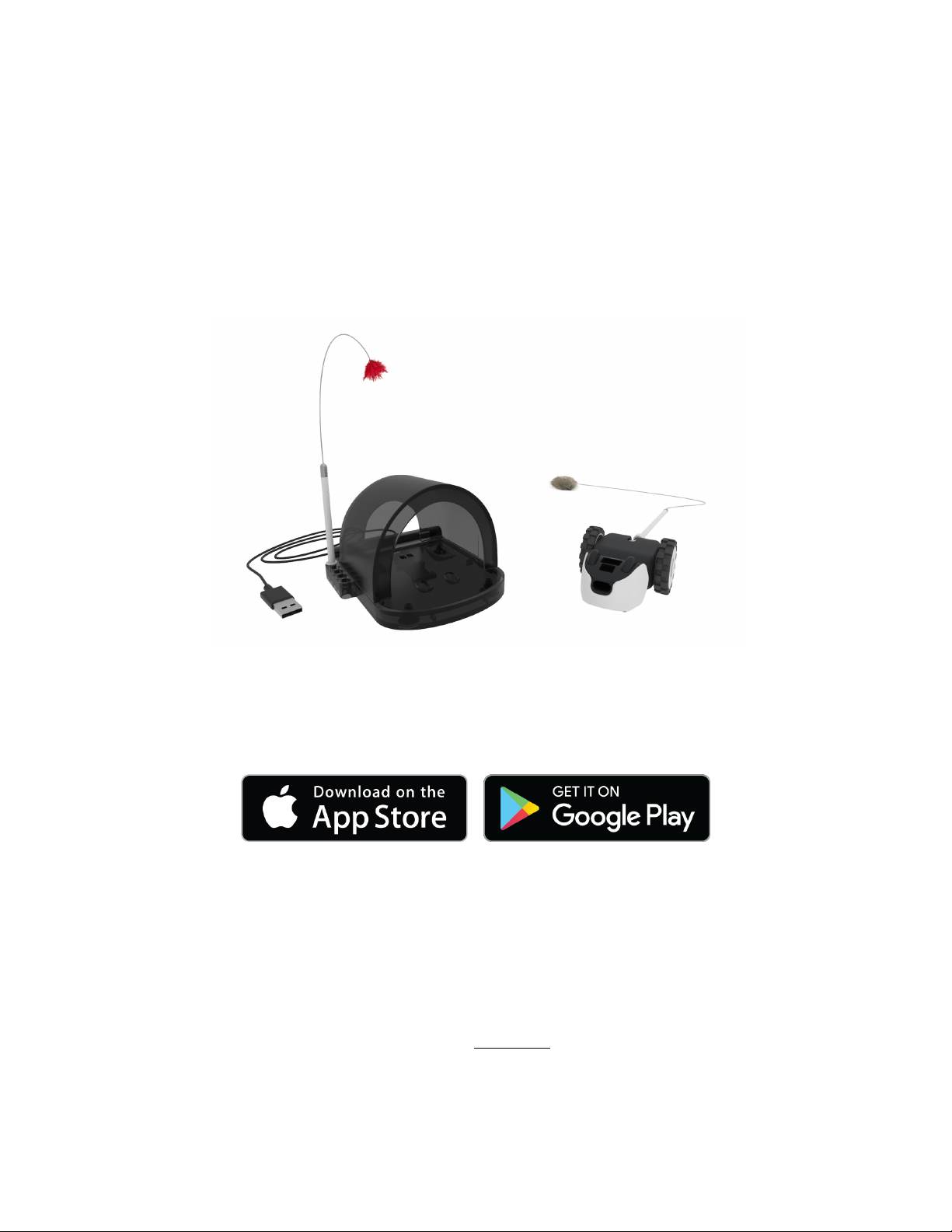
Your package should include one Mousr, its special charging dock home, a MicroUSB cable, and two tail attachments (colors of the tail attachments may vary from
those in the image below). If you didn’t receive all the items listed please get in
touch with us!
Download the Mousr app
Download our free Mousr companion app by clicking the button below that
matches the operating system on your smartphone.
In order to use the Mousr app, your smartphone must meet the following minimum
technical requirements:
•
iOS 8 or later
•
Android 4.4 (KitKat) or later
•
Hardware support for Bluetooth 4.0 or later and Bluetooth Low Energy
In rare cases, a smartphone device that satisfies these minimum requirements
many not work with Mousr, so we cannot guarantee full compatibility will all
smartphones . However, our experience is that these minimum requirements are a
good indicator of compatibility.
Mousr User Guide Version 1.1 [Rev. 10/24/18]1
##############
##############
##############
##############
Page 6
Get to know your Mousr
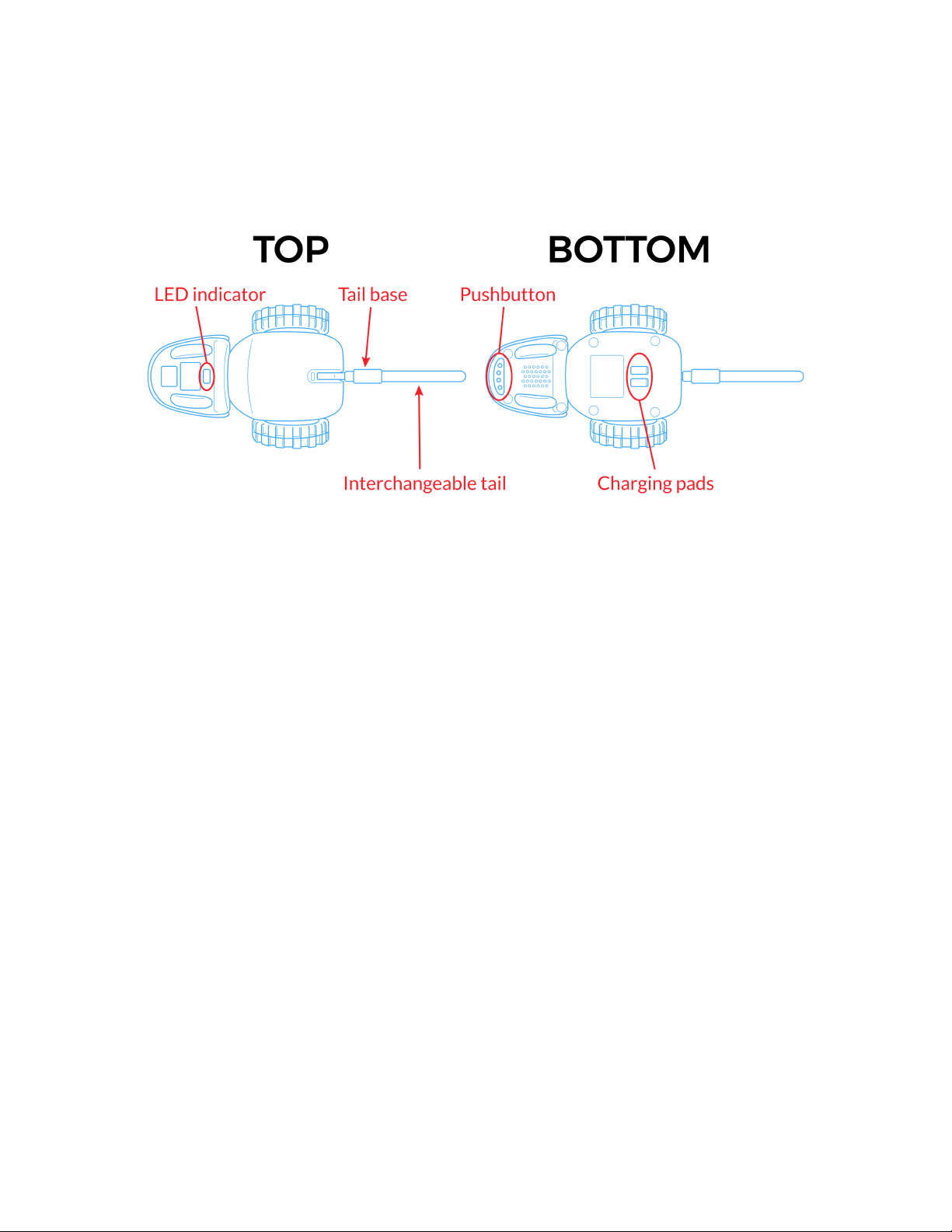
The figures below illustrate important Mousr features that will be referenced
throughout this document.
Operating and power modes
Listed below are Mousr’s operating modes and short description of each.
Power down
Power down is Mousr’s lowest power state. While in power down, Mousr is not
discoverable from the mobile app.
Sleep
Sleep mode is a low power state in which Mousr’s bluetooth remains on and
discoverable from the app, enabling you to connect without clicking Mousr’s
pushbutton.
Normal operation
Normal operation encompasses all of Mousr’s behaviors and functions under
regular use, including remote control and auto play modes.
Charging
Mousr charges inside his supplied charging dock. More detail can be found in the
section titled Charging Mousr.
Updating firmware
Mousr periodically receives free device updates over-the-air when connected to
the Mousr companion app. See the section titled Updating Firmware for more
details.
Mousr User Guide Version 1.1 [Rev. 10/24/18]2
Page 7

Device recovery
If something goes wrong with Mousr and it cannot be fixed by putting him into
sleep mode or restarting your smartphone, device recovery mode lets you reboot
Mousr or reinstall a fresh version of Mousr’s firmware. See the section titled
Device Recovery for more details.
Pushbutton functions
Listed below is the key to pushbutton functions in each of Mousr’s operating
modes:
Power down
Single click—Power into sleep mode and flash battery level as follows:
Green—Battery has good charge and can continue to be used
Yellow—Battery is low and will need to be charged soon
Red—Battery is critically low and Mousr needs to be charged (cannot pair)
Click and hold 15+ seconds—Enter device recovery mode
Sleep
Single click—Flash battery level as follows:
Green—Battery has good charge and can continue to be used
Yellow—Battery is low and will need to be charged soon
Red—Battery is critically low and Mousr needs to be charged (cannot pair)
Double click—Start auto mode with most recent settings
Long click (hold 2 seconds and release)—Power down
Click and hold 15+ seconds—Enter device recovery mode
Normal operation
Single click—Flash battery level as follows:
Green—Battery has good charge and can continue to be used
Yellow—Battery is low and will need to be charged soon
Red—Battery is critically low and Mousr needs to be charged (cannot pair)
Double click—Start auto mode with most recent settings
Long click (hold 2 seconds and release)—Power down
Click and hold 15+ seconds—Enter device recovery mode
Mousr User Guide Version 1.1 [Rev. 10/24/18]3
Page 8

Charging
The pushbutton is non-functional while Mousr is charging.
Updating firmware
The pushbutton is non-functional while Mousr is updating firmware.
Device recovery mode
Single click—Reboot Mousr into sleep mode.
LED color and flashing indications
Power down
When Mousr is in power down, the LED is turned off.
Sleep
When Mousr is in sleep mode, the LED will blink periodically (similar to a smoke
detector) to let you know it is not in power down:
Blink blue every 4 seconds—Waiting for bluetooth connection or pushbutton
interaction
Normal operating mode
When Mousr is in normal operation mode, the LED indicator communicates with
you using different colors and patterns of flashing as described below:
Breathing blue—Connected to phone and in remote control mode
Breathing green—In auto play mode
Blink green every 4 seconds—Waiting for cat interaction (All Day Play only)
Flashing yellow—Paused in auto play mode
Breathing / flashing pink
•
Auto play—High alert (e.g. caught by cat or stuck on clutter)
•
Remote control—Driver assist activated
Slow breathing multiple colors—In need of assistance
Charging
While Mousr is recharging, his LED indicates the battery charge status using the
following colors and flashing patterns:
Flashing red—Low charge
Flashing yellow—Mid charge
Flashing green—Mostly charged
Solid (unflashing) green—Fully charged; green light turns off after one minute
Mousr User Guide Version 1.1 [Rev. 10/24/18]4
Page 9
Updating firmware
During firmware updates, the LED indicator glows pale blue with no flashing.
Device recovery mode
When Mousr is in device recovery mode, the LED indicator glows purple with no
flashing.
Connect your smartphone to Mousr
After unboxing Mousr, press the pushbutton on his chin and open the Mousr app to
begin the Bluetooth pairing process. After pressing his pushbutton, Mousr’s LED
indicator will blink blue and your Mousr will appear in the device list inside the app.
Tap the icon associated with your device to connect. Once connected, you can
change your robot’s name by clicking the pencil icon on the Mousr info card. Note: if
you have more than one Mousr robot, it is recommended that you pair them one at a time
and give them each a unique name to help distinguish them in the device list. If you use
multiple smart devices to control Mousr, you will need to provide a name for Mousr
separately on each one.
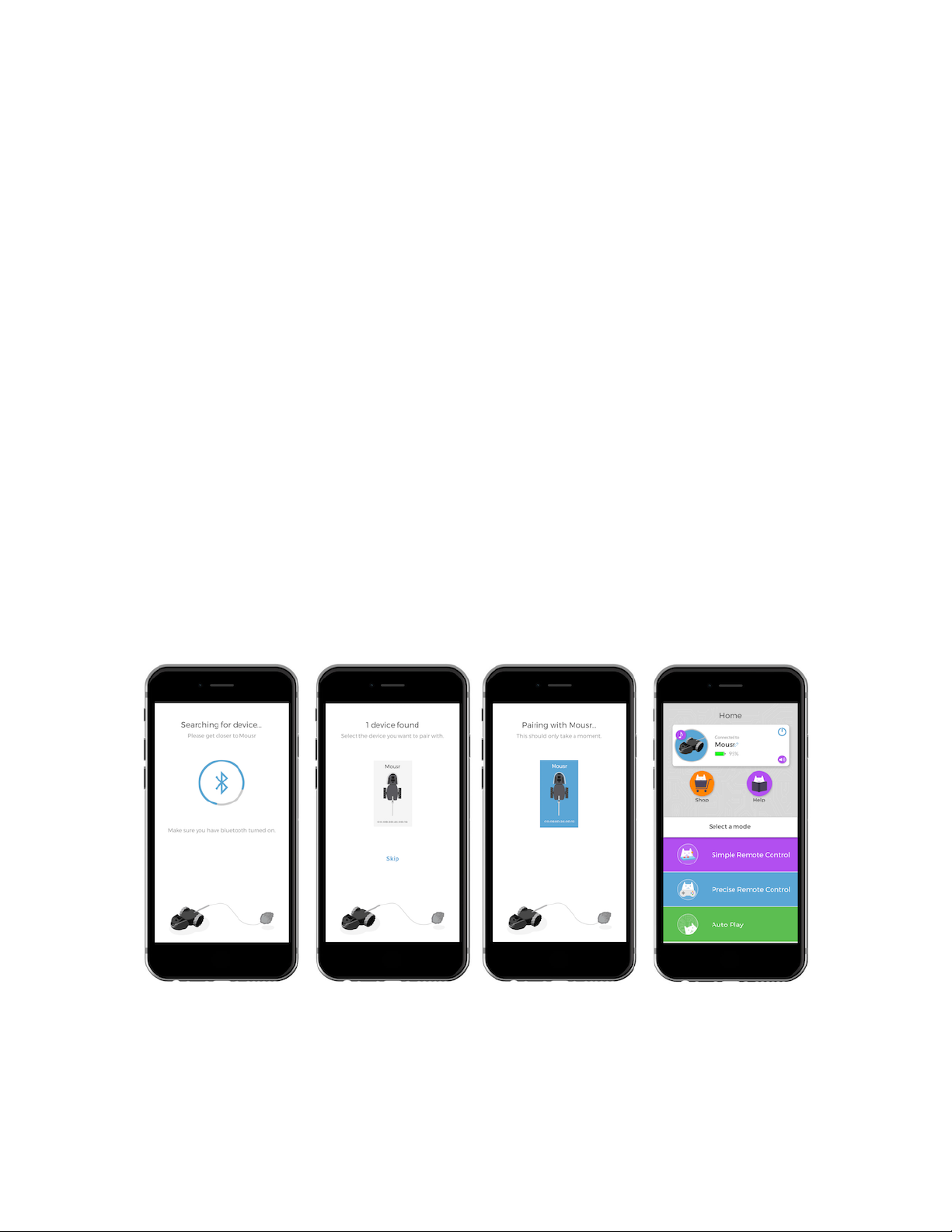
The images below show screenshots of the pairing process. When the app is
opened, it begins searching for nearby Mousr robots. Once found, each robot is
populated in the device list. Tapping a robot’s icon will turn it blue and initiate the
connection process (Note: if only one device is found, the app will auto connect to it).
Power down and sleep modes
When you are done playing, you can choose to put Mousr into one of two low
power modes.
Mousr User Guide Version 1.1 [Rev. 10/24/18]5
Page 10
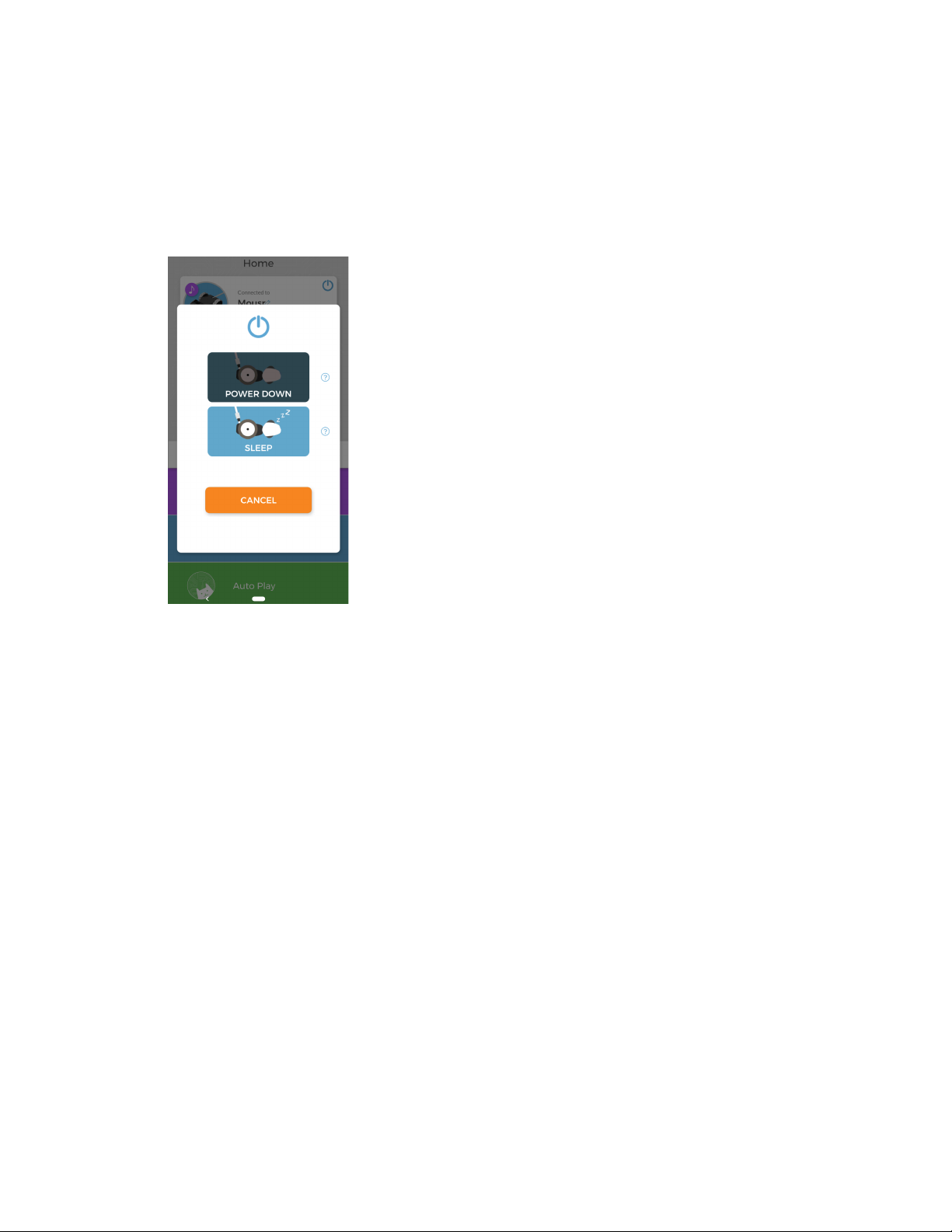
Power down mode will disable Mousr’s sensors and bluetooth in order to save the
most power, but requires using the pushbutton to turn Mousr on for the next play
session.
Sleep mode leaves Mousr’s bluetooth on so you can reconnect without clicking the
pushbutton, but uses a bit more power.
While connected to Mousr in the app, click the power
button to choose which low power mode you would like
Mousr to enter, as depicted in the image to the left.
In addition to using the app, you can press and hold
Mousr’s pushbutton for 2 seconds to put him into power
down. Mousr will also enter power down when he
finishes charging.
Whenever Mousr is left idle while not running in auto
mode, he will enter sleep mode. He also enters sleep
mode when you first remove him from the charger
(unless you are already connected via the app).
If Mousr is running in auto mode while connected in the
app, you have the option to disconnect without entering
a low power mode in order to continue playing without
disruption.
CHARGING MOUSR
Using the charging dock
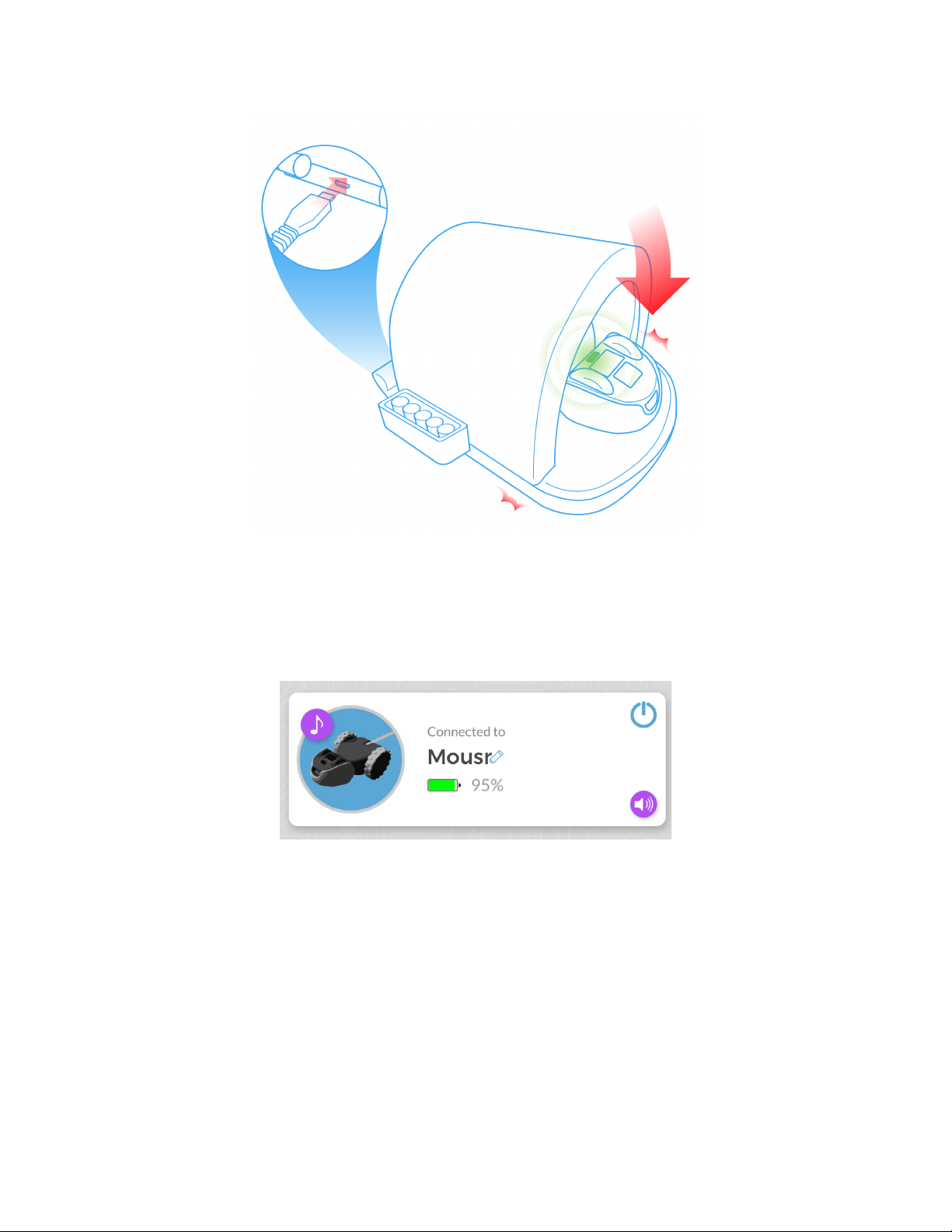
Before playing with Mousr for the first time, we recommend that you make sure he
is fully charged. To charge Mousr, do the following:
•
Plug the supplied Micro-USB cable into the back of Mousr’s charging dock.
•
Plug the other end of the cable into the USB!port on your computer or a ULcertified USB wall charger.
•
Lift the charging dock’s hinged lid
•
Place Mousr on the dock’s base so that his wheels are seated inside the rear
indents and his charging pads mate with the metal plates on the base.
•
Lower the hinged lid of the charger until it snaps into the base.
The picture below illustrates this procedure.
As described previously, the LED indicator will signal the battery charge status in
different colors by blinking during the charging phase and glowing solid green
when the charge is completed. Mousr charges from 0—100% in about 30 minutes.
Once Mousr has been fully charged, he will enter power down mode. Once
removed, he will enter sleep mode.
Mousr User Guide Version 1.1 [Rev. 10/24/18]6
Page 11
Checking Mousr’s battery level
When Mousr is not on the charger, you can single click his pushbutton to check his
current battery level on the LED indicator. Alternatively, while connected in the
app, the battery icon shows the percentage of charge remaining, as shown below.
CHANGING TAILS
Petronics makes a variety of interchangeable tail styles and lengths to fit all kinds
of feline play preferences.
Important: When installing or removing a tail attachment, always set Mousr down
on a stable surface. Grip Mousr’s tail base with one hand and the rigid end of the
tail attachment with the other.
How to Install a Tail
While gripping Mousr and the tail as described above, firmly push the tail
attachment into the slot until you hear it click into place.
Mousr User Guide Version 1.1 [Rev. 10/24/18]7
Page 12
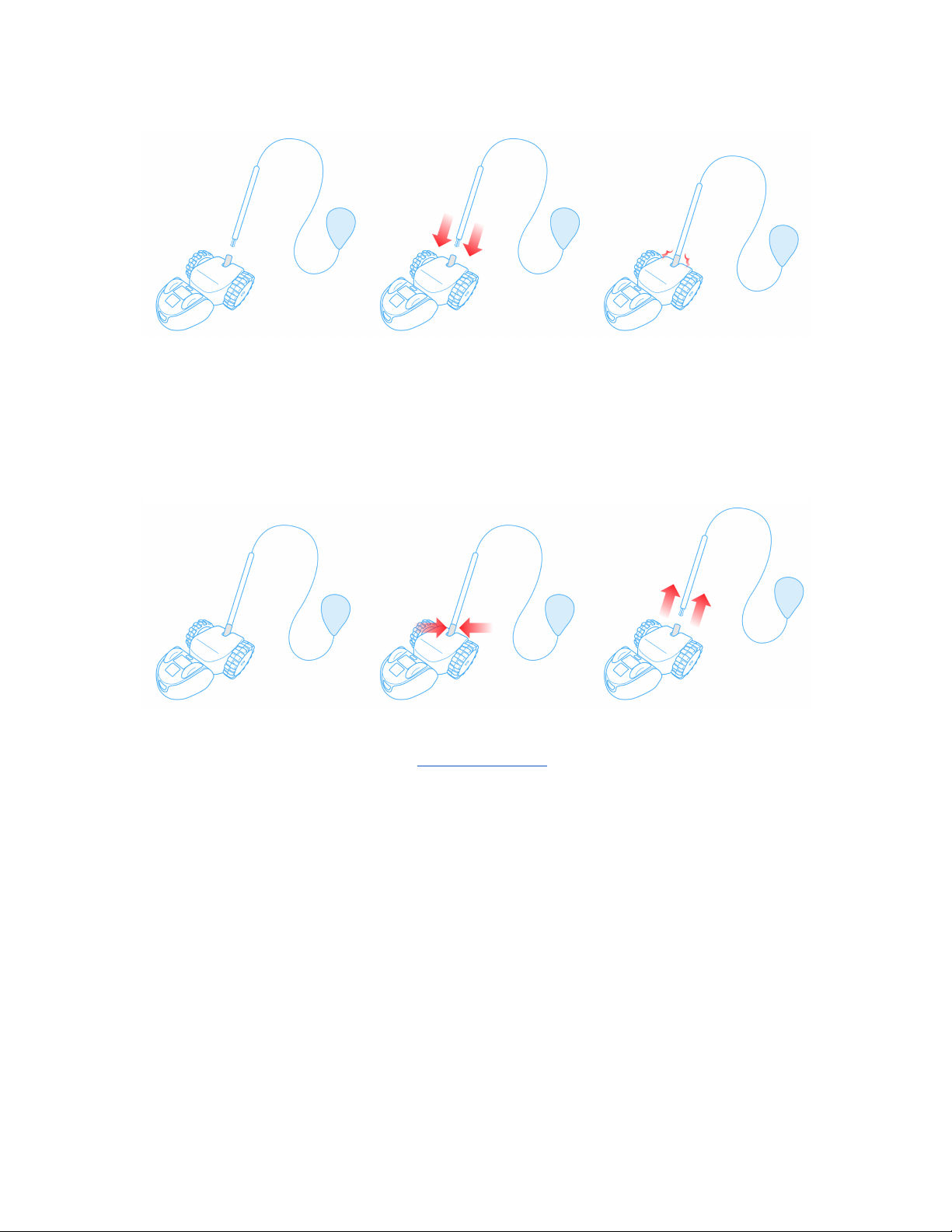
How to Remove a Tail
While gripping Mousr and the tail base as described above, pull the rigid end of the
tail attachment directly away from the tail base until the tail attachment pops out.
Make sure not to bend or twist the tail assembly when removing it from Mousr’s
tail base.
If your cat damages a tail or you’d like to experiment with different styles, you can
shop for tail accessory bundles at www.petronics.io.
UPDATING FIRMWARE
In order to keep Mousr up to date with latest features and bug fixes, make sure
your phone is connected to the internet. You can connect using either Wi-Fi or your
cellular service. If you prefer the convenience of cellular access to updates, don’t
worry about large data downloads: our firmware updates use less data than
downloading a picture.
Every time you use the app to connect with Mousr, it will check whether any
updates are available and begin installing them automatically (the process usually
takes about one minute). You will see a progress bar showing how far along the
firmware update is.
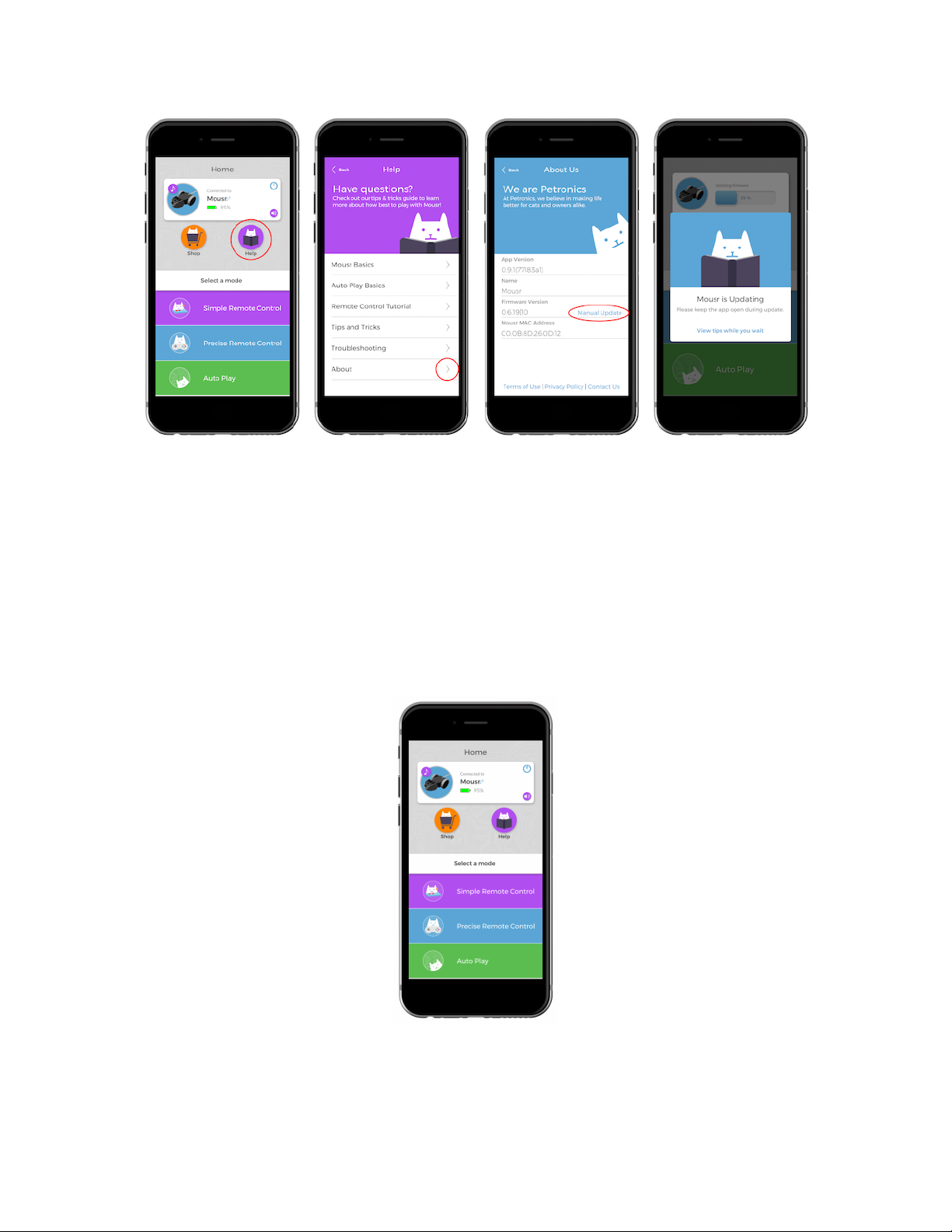
You can also check for updates manually by navigating to Help -> About ->
Firmware Version -> Manual Update, as shown below.
Mousr User Guide Version 1.1 [Rev. 10/24/18]8
Page 13
If you are running into difficulties updating firmware, please consult the
Troubleshooting section of this guide.
USING THE MOUSR APP
Home screen
After connecting to Mousr the home screen will appear. This is your point of access
to all the different ways to play and interact with Mousr.
Mousr info card: At the top of the home screen is the Mousr info card which gives
information about the name and battery level of the connected Mousr.
•
Locate Mousr—Click the purple music note icon to play a tone from Mousr in
case he is lost and you need help finding him.
Mousr User Guide Version 1.1 [Rev. 10/24/18]9
Page 14
•
Change name—Click the blue pencil icon to change Mousr’s name.
•
Power—Click the blue power icon to put Mousr into power down or sleep
mode.
•
Volume—Click the purple speaker icon to control the volume of Mousr’s
sounds.
Shop: Click on the shop button to go to the Petronics website where you can
purchase different tail attachments or another Mousr.
Help: The help screen lets you review the basics of using Mousr, auto play, and
remote control. Additionally, you can find troubleshooting help and an “About”
page that gives more information about your device and software.
Remote control
Remote control mode is best for high octane play. No robot could possibly be
better than you when it comes to driving your cat crazy. Here are a few tips to get
you going:
•
Start out slow until you know how your cat will respond to Mousr.
•
Give your cat something to chase - cats can get spooked if you drive directly
toward them.
•
Try playing hide and seek games around obstacles in your living room.
•
If your cat likes catnip, try starting with our blue catnip flick tail.
•
Remember to put some pauses in the action so your cat has a chance to catch
its prey.
Getting started
The first time you connect to Mousr and enter remote control mode, you will be
presented with a short driving tutorial. If you skip it or want to review it again later,
you can access it from the Help screen.
Mousr User Guide Version 1.1 [Rev. 10/24/18]10
Page 15
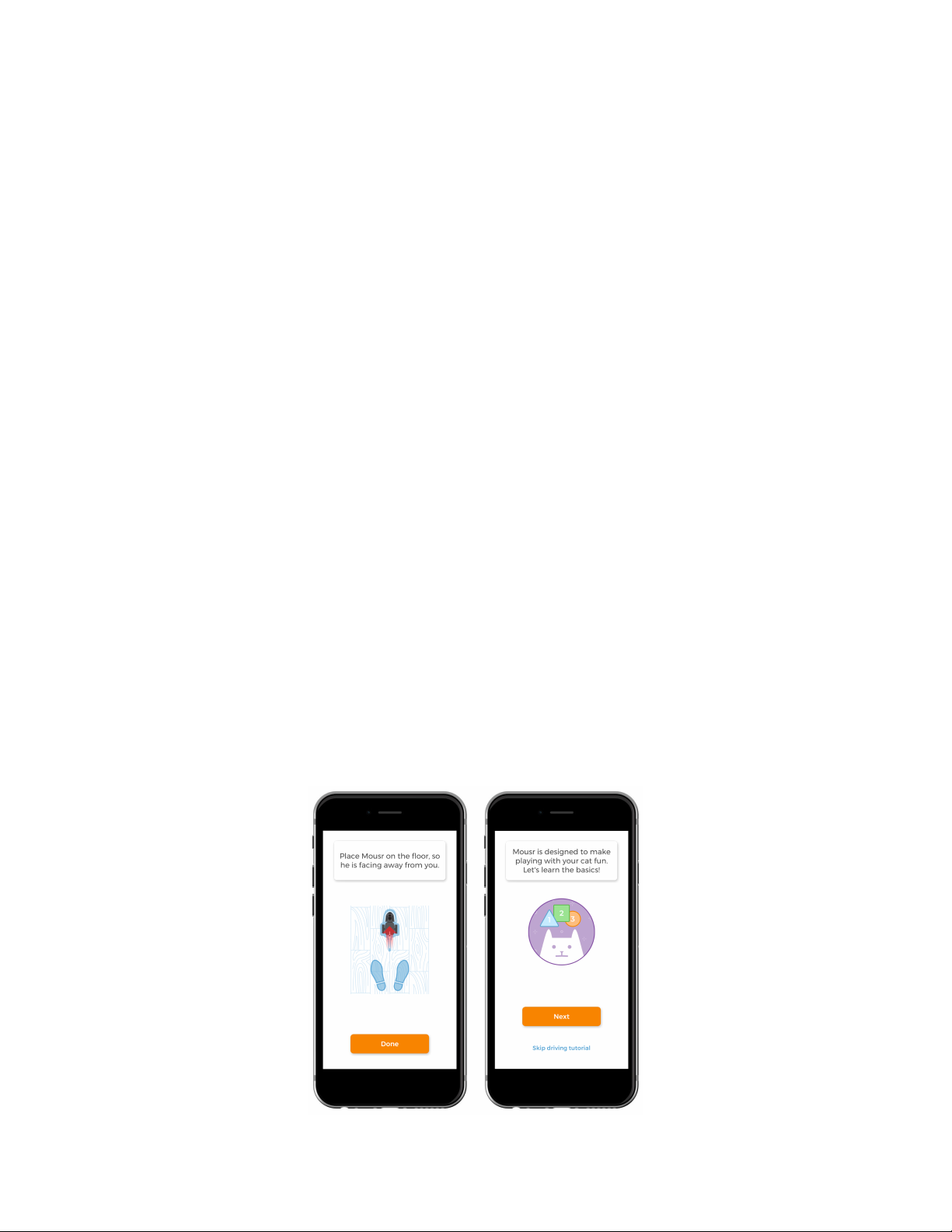
Each time you connect to a device, you will be asked to orient Mousr so he is facing
away from you before starting a remote control session. This process calibrates
Mousr’s internal sensors so that the driving experience is as intuitive as possible.
The orientation and tutorial screens are shown in the images above.
Mousr’s tail flicking, flipping, and bouncing behaviors require the app to run an
automatic calibration routine for the tail at the beginning of a play session. Make
sure that Mousr is right-side up on a flat surface and that there is nothing
obstructing the motion of the tail.
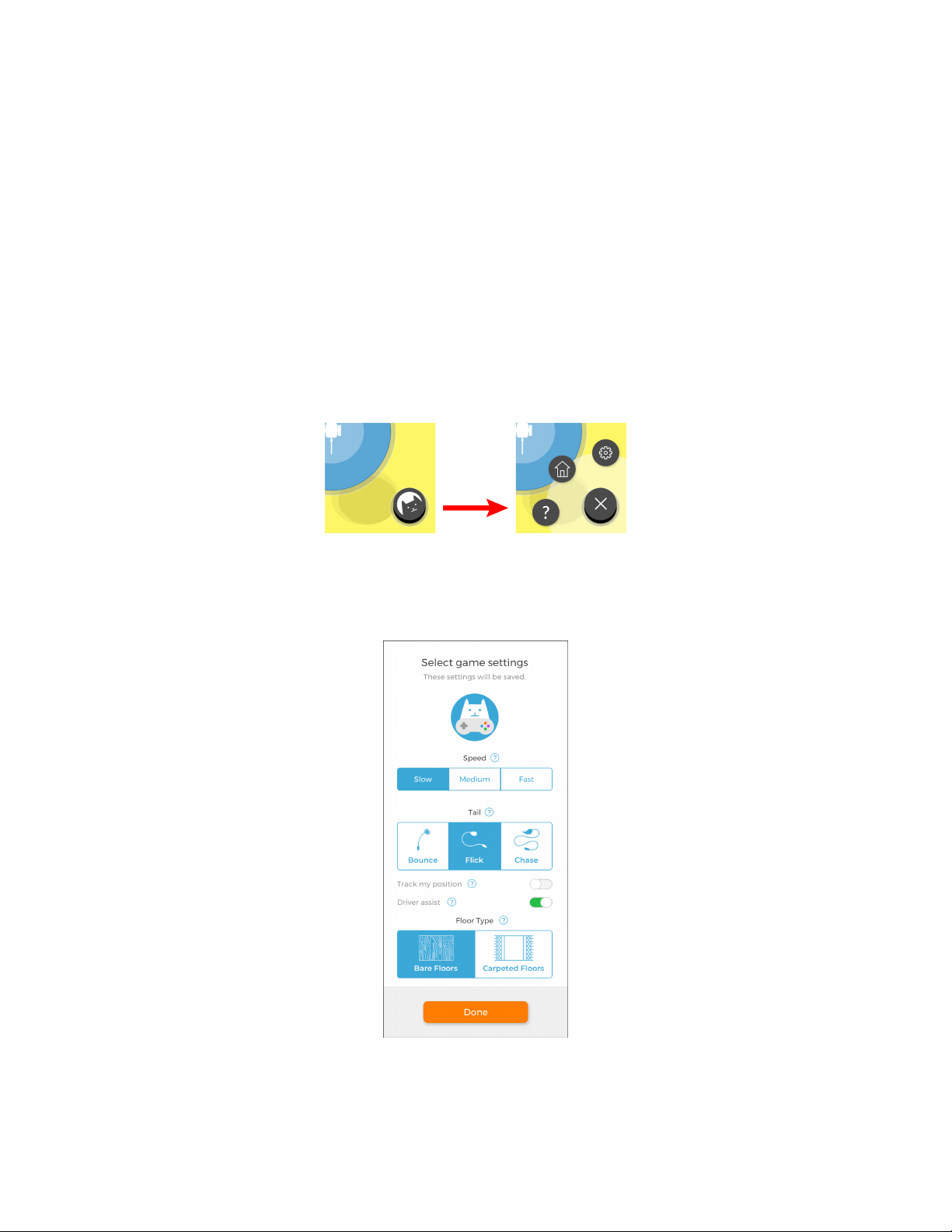
Menu
The black menu icon lets you access settings, help, or return to the home screen.
Settings
The image below shows the scrolling settings page for remote control mode.
Speed: Sets Mousr’s fixed (one-handed) or maximum (two-handed) speed. We
recommend starting with the slow speed and ramping up as you become more
comfortable with driving. Faster speeds in one-handed mode work best with driver
assist turned on (see below).
Mousr User Guide Version 1.1 [Rev. 10/24/18]11
Page 16
Tail: Mousr’s driving experience is optimized differently for each tail type. Be sure
to change this setting whenever you swap tail attachments!
Track my position (on compatible phones): This option will account for the phone’s
movement as you turn while controlling Mousr. This option is recommended for
people who like to move while they control Mousr. It may require recalibrating
more frequently.
Driver assist: This feature adds computer-aided control to make turning easier and
to help Mousr get free when his tail is stuck. Selecting the primary surface type
Mousr will drive on helps optimize the driver assist algorithms.
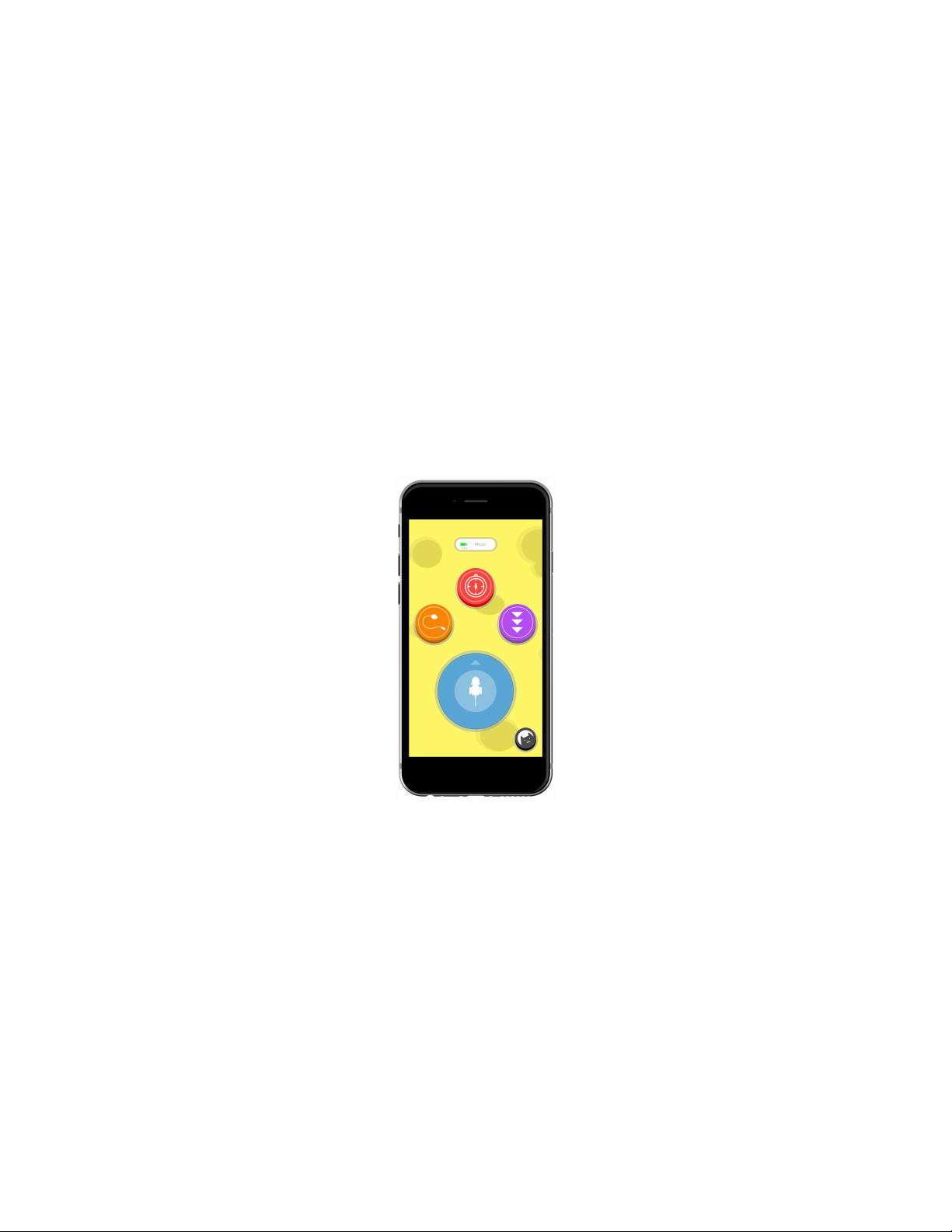
Simple remote control
Simple remote control mode is great for driving Mousr around in more casual way.
Hold the phone in either hand with your thumb on the screen, which is shown in the
picture below.
Driving: To drive, simply press down on the blue driving circle in the center and drag
in the direction you want Mousr to drive. The animation of Mousr in the center of
the driving circle shows which direction he is facing.
Reset orientation: To reset the orientation, turn Mousr so he is facing the same
direction as you and press the red compass icon.
Tail control: Depending the type of tail that is attached you can hit the orange tail
button on the screen to flick or bounce the tail. If Mousr gets flipped onto his back,
this button will flip Mousr back right-side up. You will notice that the tail button
switches to an icon with a set of arrows to indicate that Mousr is on his back.
Reverse: The purple reverse icon will drive Mousr backwards at a fixed speed. If
Mousr gets caught under the couch or in a corner, reversing is a great way to help
him get unstuck.
Mousr User Guide Version 1.1 [Rev. 10/24/18]12
Page 17
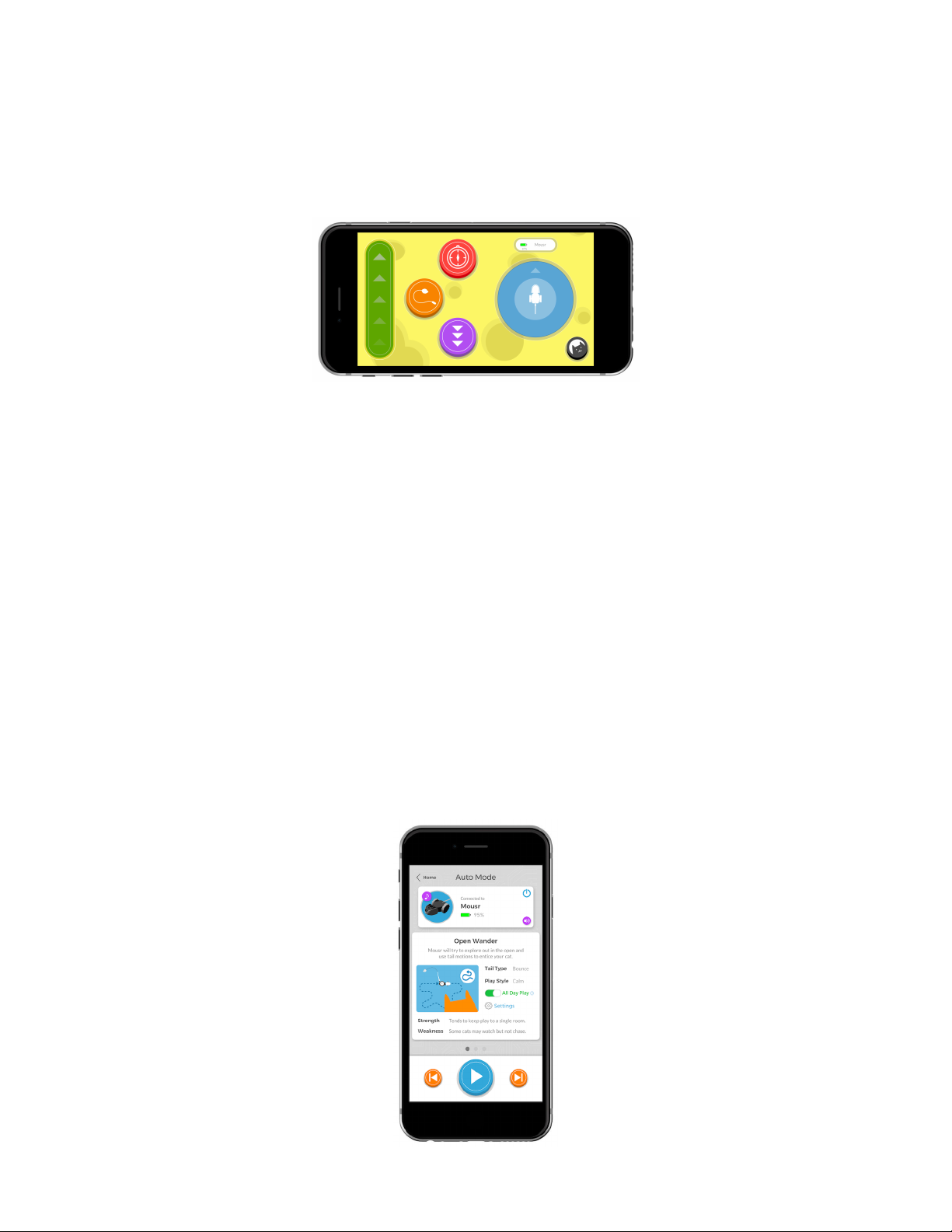
Precise remote control
Precise remote control mode enriches the Mousr remote control driving
experience. The picture below shows how the screen looks in this mode.
The primary difference from one-handed mode is the addition of the throttle that
allows you to ramp the driving speed up and down. Control Mousr’s speed by
moving the green throttle slider up and down with your left thumb and steer Mousr
by dragging your right thumb on the blue direction circle.
Auto play
Auto play is great for those times when you need a moment to yourself to work,
relax, or sleep a little longer. Sometimes cats don’t fully grasp the concept of “you
time,” so think of Mousr as your personal robotic cat-sitter.
In auto play mode, Mousr uses his sensors and artificial intelligence to play
interactive games with your cat all by himself. He can avoid obstacles, detect when
he’s in danger, and react when your cat catches him. He can even sense when
playtime is over and go to sleep to save power for the next play session!
Getting started
Auto play mode can be started two ways:
Mousr User Guide Version 1.1 [Rev. 10/24/18]13
Page 18

•
Click “Auto Play” on the home screen (when connected to a device), select your
preferred game and settings, then click the triangular Play button.
•
Quickly double click Mousr’s pushbutton while he is in sleep mode.
To stop auto play, either click the square “stop” button in the app or hold Mousr’s
pushbutton for 2 seconds until his LED turns pale blue and then release. While you
can start and stop auto play with or without connecting your device to the app, you
can only configure parameters inside the app.
Mousr’s brain
Mousr’s LED indicator gives you a glimpse into what he’s thinking.
•
Green means Mousr is feeling safe
•
Pink means he senses danger or something out of the ordinary
•
Yellow means Mousr is paused and giving your cat a chance to pounce
•
Pulsing multiple colors means he needs your help (see the subsection on user
assistance for more information)
All day play
Inside each game card on the auto screen there is a green toggle switch called “All
Day Play.” When enabled, Mousr will selectively stop playing when he predicts your
cat has stopped engaging. While stopped, Mousr’s LED will blink green every four
seconds to indicate he is still listening for cat engagement. If you cat interacts with
Mousr later in the day, he will wake up and start a new play session. Under normal
play conditions, “All Day Play” should extend Mousr’s battery life from about 40
minutes to around 8 hours.
Auto game styles
Because of the wide variety in home layouts and cat personalities, we have
developed 3 autonomous play strategies.
Open wander
Developed as our first open world exploration game, Mousr will try to stay out in
the open and avoid clutter while primarily using his tail to entice cats. This mode
works best with confident cats; timid cats may prefer to watch.
Wal l hug ger
This mode will attempt to explore near walls and obstacles. While this strategy is
better at hiding from cats and going places that encourage them to investigate, it is
also more likely to get stuck on cables and clutter near the edges of a room. It may
not work well in every environment.
Mousr User Guide Version 1.1 [Rev. 10/24/18]14
Page 19

Stationary
Mousr will spin his Bounce Tail in place and attempt to keep a fixed distance from
your cat. This mode is the least likely to get stuck in the environment, and is the
most likely to get a reaction out of timid or elderly cats.
Each game has a number of settings like speed, pause time, and caught behavior so
you can tune it for your cat’s personality. We also have presets that we have
determined to work well with calm and frenetic play styles. To make getting into
auto play as convenient as possible, once the automatic mode is configured how
you like, simply double-click the pushbutton under Mousr’s chin to start.
User assistance
If Mousr’s LED is pulsing multiple colors, it means he is either stuck somewhere
and can’t escape by himself, or his front sensor is dirty and he can no longer see
obstacles. If Mousr needs your help, pick him up and gently wipe the front sensor
on his nose with a lint-free glasses cloth until there are no visible dust particles or
smudges (be careful not to use your fingernail underneath the cloth, as the window
can scratch), then place him down in an open area and double click his pushbutton
to resume playing.
DEVICE RECOVERY
Under normal operation, Mousr should not enter device recovery mode.
Occasionally, however, Mousr’s software may get into an undesirable state and
require a total reboot – similar to how your laptop may stop responding and
require you to hold the power button for a period of time to force a restart.
Entering device recovery mode will clear out Mousr’s internal memory and give
him a fresh start.
When Mousr is in device recovery mode, his LED indicator will glow purple. If
Mousr is in device recovery mode, click his pushbutton to reboot him into normal
mode.
Rebooting Mousr
If you need to reboot Mousr, you can manually enter device recovery mode by
holding his pushbutton for 15 seconds. After holding the button for 15 seconds,
his LED will flash red, and once you release his pushbutton he will enter device
recovery mode. In device recovery mode, click his pushbutton once more to reboot
back into normal mode.
During normal operation, an unexpected system crash may cause Mousr to enter
device recovery mode without any user input. If this happens, simply click his
pushbutton to reboot into normal mode as described in the previous paragraph.
If Mousr is in device recovery mode and his LED continues to glow purple even
after you click his pushbutton, you can try reloading the latest firmware as detailed
in the next section.
Mousr User Guide Version 1.1 [Rev. 10/24/18]15
Page 20
Reloading firmware
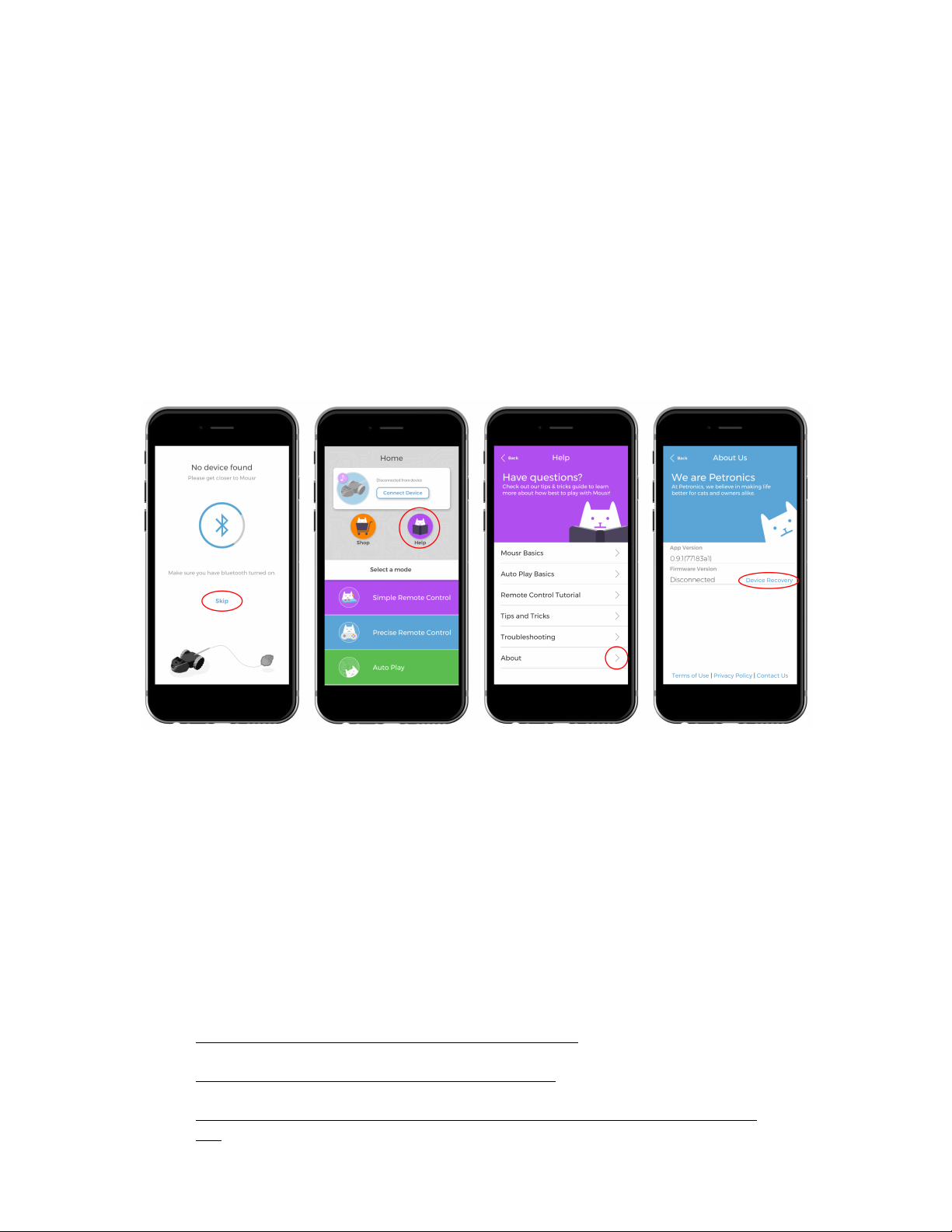
If Mousr is in device recovery mode, you can manually reinstall the latest firmware
from the mobile app by following these steps.
•
Open the app. (Any Mousr in device recovery mode should not show up in the
device list. If you are sure Mousr is in device recovery and it is showing up in the
device list, try completely closing the app and re-opening it.)
•
Click “Skip” on the device list to continue to the home page without connecting.
•
On the home page, click Help -> About -> Firmware Version -> Device
Recovery.
These steps are shown in the images below.
If you do not see the “Device Recovery” option under Firmware Version,
completely close the app, double check that Mousr is in device recovery mode and
his LED is glowing purple, and try the above steps once more.
After you click Device Recovery in the About page, the app will begin the recovery
process. Make sure you are connected to Wi-Fi or cellular data. You will see two
updates take place. The first should install fairly quickly, and then automatically
reconnect. Once reconnected, Mousr will begin installing the latest firmware
version, which will take a little bit longer. Once complete, it can take up to two minutes
for Mousr to reconnect while the new firmware initializes for the first time.
TROUBLESHOOTING
❖
Mousr won’t charge when connected to the charger
❖
Mousr doesn’t appear on the app device list page
❖
I can click my Mousr on the device list page, but the connection keeps timing
out
Mousr User Guide Version 1.1 [Rev. 10/24/18]16
Page 21
❖
The connection between the app and Mousr was lost during normal use and
now I can’t reconnect through the app
❖
Mousr’s LED is blue as if he is connected, but the app says “disconnected” and
he does not display in the device list when I try to search again
❖
Mousr’s progress stopped during a firmware update
❖
Mousr’s LED is solid purple and he doesn’t respond to pushbutton clicks
❖
Mousr’s LED is solid white and he doesn’t respond to pushbutton clicks
❖
Mousr is not moving and his LED is pulsing red
❖
One (or both) of Mousr’s wheels is not moving or has increased resistance
when rotating it by hand
Mousr won’t charge when connected to the charger
When Mousr is placed correctly inside the charging dock, he will make a sound to
indicate he has begun charging and his LED will continually blink an indication of
the charge level. Once fully charged, Mousr’s LED will glow solid green for one
minute and then shut off.
If you place Mousr in the charging dock as described in the Charging Mousr section
and his LED remains off, first make sure the charging dock is connected to a
powered USB outlet using the supplied Micro-USB cable. You can check whether or
not the USB outlet is drawing power by trying to use it to charge another device,
such as your smartphone.
If the charging dock is properly connected to a powered USB outlet and Mousr’s
LED remains off, try the following steps:
•
Remove Mousr from the charging dock
•
Using a dry cloth, wipe down the charging pads on the bottom of Mousr and the
metal contacts on the charging dock base
•
Make sure Mousr’s charging pads make contact with the metal contacts by
placing Mousr’s wheels inside the matching indents in the charging dock
•
Close the charging dock lid until it snaps into the base
If Mousr’s LED is still off, try improving the connection between his charging pads
and the charging dock’s metal contacts by pressing down on Mousr’s body while he
is in the charger. If pressing down causes Mousr to begin charging, try the
following:
•
Remove Mousr from the charging dock
•
Spin both his wheels a few degrees by hand
•
Reseating him inside the dock
•
Close the charging dock lid until it snaps into place
If you tried all the steps above and Mousr’s LED remains off when you place him in
the charging dock, please contact us.
Mousr User Guide Version 1.1 [Rev. 10/24/18]17
Page 22

Mousr doesn’t appear on the app device list page
First, ensure Mousr is fully charged and within five feet of your smart device.
Consult the Charging Mousr section for directions on how to charge Mousr. (If you
click Mousr’s pushbutton and his LED indicator blinks red, his battery is critically
low and needs to be charged.) Once charged, open the app and try searching for
Mousr again.
If Mousr still does not appear in the list, try the following steps:
•
Turn Bluetooth off on your smart device
•
Close the Mousr app so it is no longer running in the background
•
Turn Bluetooth back on
•
Reopen the Mousr app and search again
If Mousr is still not visible after completing the above steps, try rebooting Mousr by
doing the following:
•
Hold Mousr’s pushbutton for 15 seconds until it flashes red, then release
•
After release, Mousr’s LED should glow purple. If it isn’t, try the previous step
once again
•
When Mousr’s LED is glowing purple, click his pushbutton once more to reboot
•
Wait 20 seconds for Mousr’s reboot to complete
•
Open the Mousr app and search again
If Mousr still does not show up in the device list and you are sure he is fully charged
and within range, try powering down your smart device, waiting for 30 seconds,
powering it back on, and reopening the Mousr app. If the problem continues, please
contact us.
I can click my Mousr on the device list page, but the connection keeps
timing out
First, ensure Mousr is fully charged and within five feet of your smart device.
Consult the Charging Mousr section for directions on how to charge Mousr.
If Mousr is fully charged, completely close the app so it is not running in the
background then reopen the app and try again. If you are still unable to connect, or
Mousr no longer shows up in the device list, try the following steps:
•
Turn Bluetooth off on your smart device
•
Close the Mousr app so it is no longer running in the background
•
Turn Bluetooth back on
•
Reopen the Mousr app and search again
If the problem persists, try rebooting Mousr by doing the following:
•
Hold Mousr’s pushbutton for 15 seconds until it flashes red, then release
•
After release, Mousr’s LED should glow purple. If it isn’t, try the previous step
once again
•
When Mousr’s LED is glowing purple, click his pushbutton once more to reboot
Mousr User Guide Version 1.1 [Rev. 10/24/18]18
Page 23

•
Wait 20 seconds for Mousr’s reboot to complete
•
Open the Mousr app and search again
If you are still unable to initiate or maintain a connection with Mousr, try powering
down your smart device, waiting for 30 seconds, powering it back on, and
reopening the Mousr app. If the problem continues, please contact us.
The connection between the app and Mousr was lost during normal use
and now I can’t reconnect through the app
Mousr’s LED is purple
If Mousr’s LED is purple, try clicking his pushbutton to reboot into normal mode.
Once rebooted, Mousr should connect to the app as normal.
If Mousr’s LED remains purple after clicking his pushbutton, please follow the
instructions in the subsection titled “Reloading firmware” under Device Recovery.
Mousr’s LED is off
If Mousr’s LED is off but he is not appearing in the device list, first try clicking his
pushbutton to check his battery level. If Mousr’s LED indicator blinks red, his
battery is critically low and must be charged before he is able to connect in the app.
See the section on Charging Mousr for more information.
If Mousr is charged but still is not appearing in the device list, follow the
instructions under the heading, “Mousr doesn’t appear on the app device list page.”
If Mousr appears in the list but you are unable to establish and maintain a
connection, follow the instructions under the heading, “I can click my Mousr on the
device list page, but the connection keeps timing out.”
Mousr’s LED is blue as if he is connected, but the app says “disconnected”
and he does not display in the device list when I try to search again
First, try manually putting Mousr into power down by holding his pushbutton for
two seconds until it turns white, then releasing. Once in power down, click his
pushbutton once to turn him back on and verify his battery level is not critically
low, then try connecting inside the app once more.
If the problem persists, follow the instructions under the heading, “Mousr doesn’t
appear on the app device list page.”
Mousr’s progress stopped during a firmware update
In rare cases, the app may freeze during a firmware update. If the firmware
progress bar has not increased for longer than 1 minute, try the following steps:
•
Turn Bluetooth off on your smart device
•
Close the Mousr app so it is no longer running in the background
•
Turn Bluetooth back on
Mousr User Guide Version 1.1 [Rev. 10/24/18]19
Page 24

•
Reopen the app
If Mousr’s LED indicator is pale blue / green, please follow the instructions under
the heading, “Mousr’s LED is pale blue / green and he doesn’t respond to
pushbutton clicks.”
If Mousr’s LED indicator is purple, click Mousr’s pushbutton to reboot into normal
mode.
If Mousr reboots successfully or his LED was already off
Select your device from the device list – the firmware update should automatically
restart.
If Mousr’s LED continues to glow purple after clicking his pushbutton
Please follow the instructions in the subsection titled “Reloading firmware” under
Device Recovery.
If you continue to have problems with updating Mousr’s firmware, please contact
us.
Mousr’s LED is pale blue / green and he doesn’t respond to pushbutton
clicks
Mousr’s LED will glow pale blue / green during a firmware update. If Mousr’s LED is
glowing pale blue / green and a firmware update is not underway, or the update has
been frozen without progress for over one minute, please try the following steps:
•
Turn Bluetooth off on your smart device
•
Close the Mousr app so it is no longer running in the background
•
Turn Bluetooth back on
If after completing these steps Mousr’s LED indicator remains pale blue / green, try
the following:
•
Power down your smart device completely (if you regularly use more than one
device to connect to Mousr, power all of them down)
•
Wait one minute
•
Power your device back on
•
After your device powers up, make sure Bluetooth is turned on
If after completing the above steps Mousr’s LED indicator turned from pale blue /
green to purple, click Mousr’s pushbutton to reboot into normal mode and try
connecting in the app once more. If his LED turned purple but Mousr does not
reboot after clicking his pushbutton, please follow the instructions in the
subsection titled “Reloading firmware” under Device Recovery.
If Mousr’s LED remains pale blue / green after powering down your device(s),
please contact us.
Mousr User Guide Version 1.1 [Rev. 10/24/18]20
Page 25

Mousr’s LED is solid purple and he doesn’t respond to pushbutton clicks
Please follow the instructions in the subsection titled “Reloading firmware” under
Device Recovery.
Mousr is not moving and his LED is pulsing multiple colors
Mousr’s LED pulses red when he is set to auto play and needs some user assistance.
If Mousr’s LED is pulsing multiple colors, pick him up and gently wipe the front
sensor on his nose with a lint-free glasses cloth until there are no visible dust
particles or smudges (be careful not to use your fingernail underneath the cloth, as
the window can scratch), then place him down in an open area and double click his
pushbutton to resume playing.
If Mousr’s front sensor looks clean and he is not stuck on clutter but continues to
frequently enter user assistance mode (for example if he asks for help consistently
after less than three minutes of auto play), please contact us.
One (or both) of Mousr’s wheels is not moving or has increased resistance
when rotating it by hand
Mousr’s wheels were designed with cat and human hair in mind. A specialized collar
around the main drive shaft of each wheel prevents hair from wrapping around the
rotating shaft and impacting the internal gears’ movement. After many hours of
play, however, it is possible that hair and dust accumulation can begin to impact the
wheels’ movement.
To clean hair and dust from a wheel’s inner collar, simply remove the screw from
the center of the wheel’s outward facing surface and pull the wheel directly away
from the main body. Once removed, use your fingers or a pair of tweezers to
remove any accumulation on the wheel or shaft. Once cleaned, put the wheel back
on the shaft and screw it back into place. Make sure not to over-tighten the screw.
If Mousr’s wheel is still not moving normally after following the above steps, please
contact us.
CONTACT US
If you are having technical issues with Mousr or the mobile app that are not
covered in this guide, please send us an email at [email protected].
Mousr User Guide Version 1.1 [Rev. 10/24/18]21
 Loading...