

Page 1

Perle 594M Getting Started
95-2512-00
Page 2

Copyrights
Copyright 1999, Perle Systems Limited and it s suppliers.
IBM, AT, CA/400, and PC Support/400 are registered trade marks of International
Business Machines Corporation.
Microsoft, MS-DOS and Windows are registered trade marks of Microsoft
Corporation.
All other tra demark s menti oned in t his doc ument are the property of the ir respe ct ive
owners.
FCC/DOC Compliance
NOTE
FCC/DOC compliance requires that all I/O cables used with Perle products be
constructed using shielded cable, metal-shelled connectors and conductive backshells.
This equipment is approved in accordance with DIN IEC 380/VDE 0806/08.81. If
this unit is installe d as an o ffice machin e, the installatio n must comp ly with the
above standard.
Equipment must be use d with an appropriately appr oved power supply cordset.
CAUTION
This equipme nt has been test ed and found to compl y with the limit s for
a Class A Digital Device, pursuant to Part 15 of the FCC rules and to
DOC Radio Interference Regulations , C.R.C., c1374. The se limits are
designed to provide reasonable protec tion against harmfu l interference
when the equipment is operated in a commercial environment. This
equipment gen erates, uses , and can ra diate ra dio frequency e nergy and,
if not insta lled and used in ac cordance with th e instruction ma nual, may
cause harmful interfe rence to radio communic ation s. Operati on of thi s
equipment in a res idential area i s likely to caus e harmful i nterferen ce in
which case the user will be required to correct the interference at his
own expens e.
Changes or modific ations to a Perle prod uct not expressly app roved by
Perle Systems Limited may void the users auth ority to operate the
equipment.
Page 3
European Commun ity (EC) Ma rk of Conformity
This product is in conformity with the protection requirements of EC Council
Directive 89/336/EEC on the approximation of the laws of the Member States
relating to electromagnetic co mpatibility. Perle cannot accept responsibility for any
failure to satisfy the protection requirements resulting from non-recommended
modification of the production.
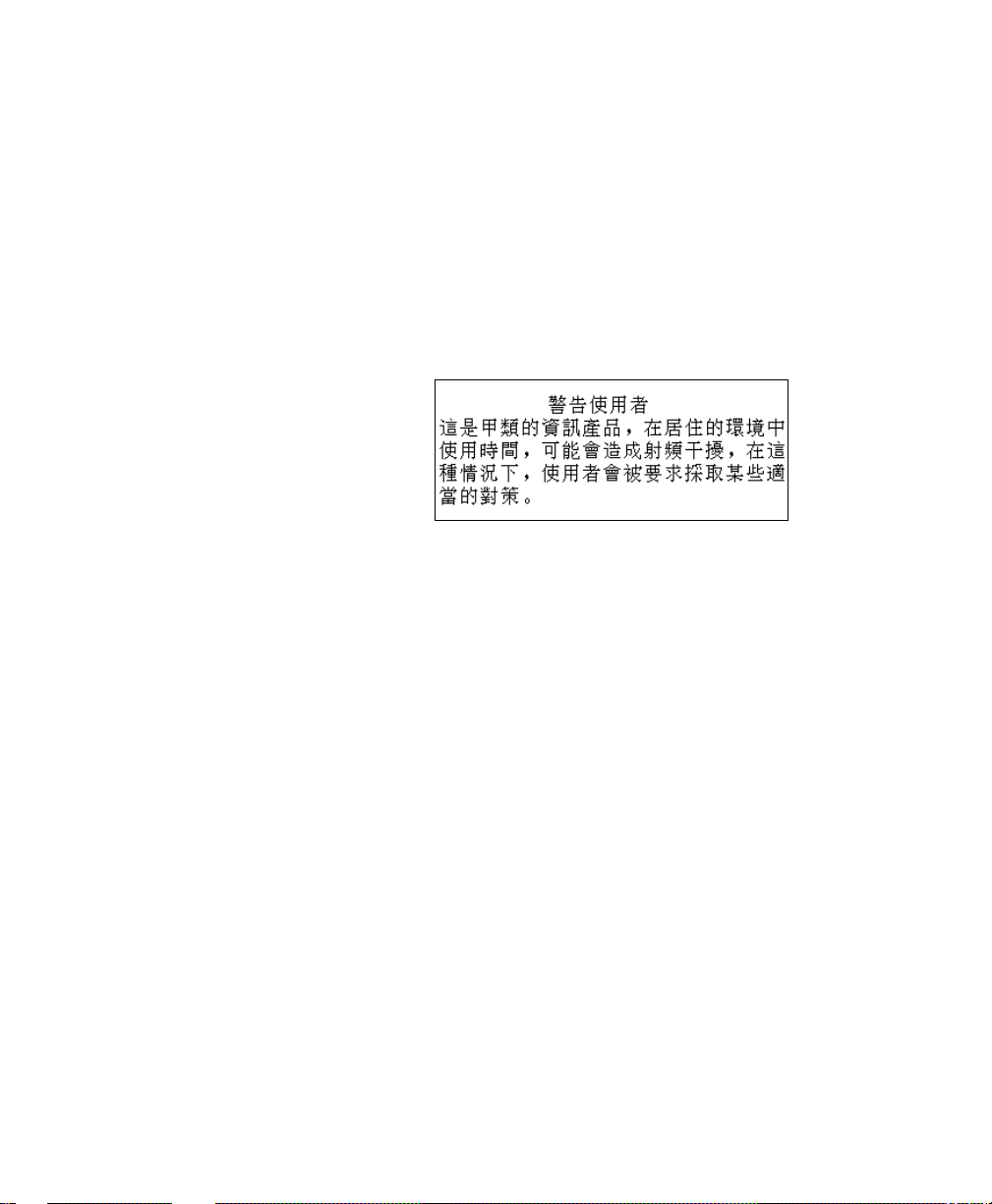
Taiwan
Page 4

Page 5

T able of Contents
Introduction . . . . . . . . . . . . . . . . . . . . . . . . . . . . . . . . . . . . . . . . . . . . 1
About This Guide . . . . . . . . . . . . . . . . . . . . . . . . . . . . . . . . . . . . . . . . . . . . . . . . . 1
System Requirements . . . . . . . . . . . . . . . . . . . . . . . . . . . . . . . . . . . . . . . . . . . . . . 1
Stand-alone mode . . . . . . . . . . . . . . . . . . . . . . . . . . . . . . . . . . . . . . . . . . . 1
Serial Connection . . . . . . . . . . . . . . . . . . . . . . . . . . . . . . . . . . . . . . . . . . . 2
APPC Connection. . . . . . . . . . . . . . . . . . . . . . . . . . . . . . . . . . . . . . . . . . . 2
Package Contents. . . . . . . . . . . . . . . . . . . . . . . . . . . . . . . . . . . . . . . . . . . . . . . . . . 2
Registration . . . . . . . . . . . . . . . . . . . . . . . . . . . . . . . . . . . . . . . . . . . . . . . . . . . . . . 2
Installing the Perle 594M Software . . . . . . . . . . . . . . . . . . . . . . . . .3
Installation Proc edure . . . . . . . . . . . . . . . . . . . . . . . . . . . . . . . . . . . . . . . . . . . . . . 3
Uninstalling 594M Utili ty . . . . . . . . . . . . . . . . . . . . . . . . . . . . . . . . . . . . . . . . . . . 5
Running 594M Utility . . . . . . . . . . . . . . . . . . . . . . . . . . . . . . . . . . . . . . . . . . . . . . 5
On-line Documentation . . . . . . . . . . . . . . . . . . . . . . . . . . . . . . . . . . . . . . . . . . . . . 6
Using Acrobat. . . . . . . . . . . . . . . . . . . . . . . . . . . . . . . . . . . . . . . . . . . . . . 6
Using a Web Browser. . . . . . . . . . . . . . . . . . . . . . . . . . . . . . . . . . . . . . . . 7
Appendix A: Serial Install System Changes . . . . . . . . . . . . . . . . . . 9
Windows 95/98 . . . . . . . . . . . . . . . . . . . . . . . . . . . . . . . . . . . . . . . . . . . . . . . . . . . 9
Windows NT . . . . . . . . . . . . . . . . . . . . . . . . . . . . . . . . . . . . . . . . . . . . . . . . . . . . . 9
Perle 594M Getting Started v
Page 6

Table of Contents
vi Perle 594M Getting Started
Page 7

Introduction
Welcome to the Perle 594M—the Remote Communications Controller that provides powerful
solutions for your AS/4 00 com mu nication needs! The Perl e 594M is an advanced workstation and
communicatio n remote controller for the IBM AS/400 environment that facilitates connection of
display stati ons, personal computers (P Cs), and printers to an AS/400.
About Th is Guide
This guide provides instructions for installing the 594M software and accessing the on-line
documentation. The on-line documentation provides details on the hardware installation,
configuration and use of the 594M Controller.
System Req uirement s
The 594M Utility program has 3 modes of installation. The require ments are different for each of
these modes .
Stand-alone mode
This mode allows you to run the 594M Utility without any connection to the 594M. The
requirements are:
• A computer with a 486, Pentium or higher processor
• Windows 95, Windows 98 or Windows NT 4.0
• 8 MB of RAM
•CD-ROM drive
• 11 MB Hard Drive space for 594M software
• Additional 20 MB Hard Drive space for on-line documentation
• Additional 30 MB Hard Drive space for Acrobat Reader.
Perle 594M Getting Started 1
Page 8

Introduction
Serial Connection
If you plan to connect to the 594M controller with the serial connection, then the following is also
required:
• An RS-232 serial port which s upports the 16550 UART mode.
APPC Connection
If you plan to connect to the 594M loc ally thr ough the Twinaxi al inte rface, or remotely thro ugh the
AS/400 APPN network, the n the following is also required:
• IBM Client Access/400 for DOS with Extended Memory
• Token-Ring, Ethernet or Twinaxial Interf ac e ca rd
• PC must be restarted in MS-DOS mode with at least 525 KB of conventiona l m em ory.
Package Contents
The Perle 594M shipping carton contains the following:
• Perle 594M Remote Communication Controller
•Power Cord
• Host Communication Cable (only included for Synchronous Host Connection)
•This 594M Getting Started booklet
• One CD-ROM containing the following software and on-line documents:
• 594M Controller Software
• 594M Utility Softwa re
• 594M User’s Guide
• 594 Reference Guide
• 594M Diagnostic Guide
• Registra ti o n C a r d
• Software License and Warranty Agreement
Registrati on
Please register your 594M Controller, so Perle can provide your warranty service, offer toll-free
technical assistance and software upgrades. To register, return the enclosed registration card.
2 Perle 594M Getting Started
Page 9

Installing the Perle 594M Software
This section explains how to install and uninstall the 594M Utility software and how to access the
on-line documentation.
Instal lation P rocedure
1. Start Windows an d make sure there are no other applications runni ng.
2. Insert the Perle 594M CD-ROM di sc into the CD-R OM drive.
3. Select Run from the Start menu.
4. Enter d:\setup in the Run dialog window (where d: is the CD-ROM d rive lett er) and cl ic k OK .
5. The Lang ua g e S el e c t io n dia lo g box should a ppear. The languag e selec ted will be used for the
installati on scre ens and will also det ermine the langua ge vers ion of the 594M Uti lit y program
and on-lin e documentation files that wil l be installe d. Select the d esired language and click Next.
6. Choose a destin ation ha rd drive and di rector y for the 594M software.
Note
: If you are goi ng to use the APPC conne ctio n opti on to con nect to th e 594M, the n do
NOT change t he default directory name. As well, the hard drive chose n should be the
same hard drive on which the Client Access/400 for DOS will be instal led.
Click Next.
7. Select which components you would like to install by setting the appropriate che ck boxes then
click Next. The ch oic es are :
Perle 594M software
This in cludes the 594M controller software, the extended di agnostics software, and the 594M
Utility program. T he 59 4M Utilit y is us ed to i ns tall t he sof tware on the 5 94M co ntrolle r, create
a configuration fil e for th e controlle r and monitor the statu s of the control ler.
On-line documentation files
These manuals are in both PDF and HTML format. See On-line Documentation be low to see how
to acce ss the s e fil es .
Acrobat Reader Installer
This is Adob e’ s Acrobat Reade r Installatio n program. The Ac robat Reader wil l allow you t o read
the PDF v ers ions of the on-line manuals.
Perle 594M Getting Started 3
Page 10

Installing the Perle 594M Software
8. Select how the 594M Uti li ty progr am should be instal led the n click Next. The choices are: Stand-alone
This mode allows you to run the 594M Uti lity witho ut any connection to the 594M. It is used to
create and revie w configura ti on files for the 594M whic h are stored on th e PC hard drive.
Serial Connection
This mode allo ws the 594M Uti lit y to communi cate wit h the 594M Controll er th rough a
connection between a seria l port on the PC and the Utilit y Seri al Port on the 594 M.
Note
: This connecti on is r equ ir e d when doing a fi r st time ins tal l of a 594M. It i s used to
download the syste m softwa r e (or fi rmwar e) to the flash memo ry on the cont r oll er.
Note
: The serial connec tion wil l opti onal ly modif y the sy stem or r eg istr y file s or y ou may
perform the changes manually. For details on thes e modifica tion see Ap pendix A:.
APPC Connection
The 594M Utility wi ll use the Client Acc es s/400 for DOS to communicate to the 594M locally
through the twina xial interface or remotel y through an AS/400 network usin g the APPC protocol.
The remote connect ion allows configuration changes or software updates to cont rollers at branch
offices to be adminis tere d from a centra l locat ion.
9. If the Serial Connection option was chosen, then ente r a COM Port number that the 594M
Utility program will us e. Valid entries are 1-4. Defaul t value is 1. Cli ck Next.
10. If the APPC Connection option was chosen, then an Interface dialog screen will appear. Select
which interface card on the PC will be used for communication and enter value s for the interface
parameters if the default values are incorrect
Twinaxial
Station Address - Station address of the PC. Default value is 5. Valid entries are 0-6.
T o ken-Ring or Ethernet
LAN Address - This is the LAN (or MAC) addres s of th e LAN inter fac e on the Adjace nt Link
Station (ALS) to which the PC will c ommunica te. T he LAN address is 12 dig its lo ng and vali d
entries ar e 0-9 and A-F. This is a required parameter and has no defaul t value .
SAP - This is the Service Access Point of the ALS LAN inte rface. Th e default va lue is 04. V a lid
entrie s ar e 04-F C (he xad ec imal ) in mul ti ples of 04.
11. Follow the remaining prompts to complete the installation.
4 Perle 594M Getting Started
Page 11

Uninstalling 594M Utility
1. Exit the 594M Util ity Program
Installing the Perle 594M Software
2. From the W indows Task Bar choose
double-clic k on Add/Rem ove Progr am
3. Select Perle 594M Utility from the program list
4. Click
If any configura tion fil es ha ve been creat ed and stor ed i n the 594M Uti li ty direc tor y, these files and
the director y will not be removed.
Add/Remove
removed.
Running 5 94M Utilit y
The 594M Utility runs differently depending on the mode in which it was instal led. Please refer to
the on-lin e manual 594M User’s Guide for details .
Start|Settings|Control Panel
and follow the on-screen ins truct ions unt il th e progr am files have been
and then
Perle 594M Getting Started 5
Page 12

Installing the Perle 594M Software
On-line Documentation
Using Acrobat
Perle 594M has thre e on-l ine doc uments t hat you ca n both vie w and pr int usi ng the Ac robat Re ader
program:
• 594M User’s Guide
• 594 Reference Guid e
• 594M Diagnostic Guide
If you do not have Acrobat Reader on your s ystem, you can ins tall it from the Perle 594M p r ogram
group.
To install Acrobat Reader:
1. From the W indows Task Bar choose
Reader Installer
2. Click
3. Select a new targe t direc tor y or accept the default directo ry and clic k
4. Follow the i nstructions in the r emaining prompts. A d ialog box will indicat e when the installa tion
Accept.
in complete .
Acrobat Reader I nstalle r will display the tar get di rector y dialog box.
. The Acrobat Reader Installer splash screen will display.
Start|Programs|Perle 594M|Acrobat
Insta ll.
To view an on-line document:
1. From the W indows Task Bar choose
594M|PDF|<document>
2. Click on the Table of Contents button in th e Acrobat Reader too lbar. The table of contents for
the on-lin e document i s disp layed.
3. Click o n a top ic i n the ta bl e of con ten ts to v iew the t opic .
4. Click on the brows e buttons in th e Acrob at Reader too lba r to browse from pag e to page, ret urn
to a previous page, or go to the beginning or end of the document.
Start|Programs|Perle
. Acrobat will di splay the s electe d document.
To print an on-line document:
1. From the W indows Task Bar choose
594M|PDF|<document>
2. From the Acrobat Reade r m enu bar, choose
Start|Programs|Perle
. Acrobat will di splay the s electe d document.
File|P ri nt
. The Print d ial og b ox is displ aye d.
3. Click OK to print the on-li ne document .
6 Perle 594M Getting Started
Page 13

Using a Web Browser
Perle 594M has thr ee on-line documents sto r ed in HTML format. These documents can be viewed
by using a Web browser such as Internet Explorer or Netscape Navigator. The documents are:
• 594M User’s Guide
• 594 Reference Guid e
• 594M Diagnostic Guide
To view an on-line document:
Installing the Perle 594M Software
1. From the W indows Task Bar choose
|HTML|<document>
document
2. Click on a topic in the Table of Contents. The browser will loa d the file cont aining the sel ecte d
topic and display it.
3. Use the browser’ s scroll ba r, Back and Forward buttons , and th e documents hyperte xt links to
navigate thr ough th e document.
. The browser will displa y the Table of Contents for the selected
Start|Programs|Perle 594M
To print an on-line document:
1. From the W indows Task Bar choose
594M|HTML|<document>
selected doc ument .
2. Click on a topic in the Table of Contents. The browser will loa d the file cont aining the sel ecte d
topic and display it.
3. From the web browser menu bar , ch oose
4. Click OK to print the section of doc ument that is load ed into the browser.
Start|Programs|Perle
. The browser will dis play the Table of Contents for the
File|Print
. The Print dialo g box is d isplayed.
Perle 594M Getting Started 7
Page 14

Installing the Perle 594M Software
8 Perle 594M Getting Started
Page 15

Appendix A: Serial Install System Changes
This appendix e xplains the changes that are made to sys tem files or regis tries during installation of
the 594M in serial mode. It als o explains how t o make the changes manually i f you chose no t to have
them made automatically during installation.
Window s 95/98
1. The file wcscdrv . 386 was co pied to s pecifi ed 594M directo ry durin g insta llati on. Example: c:\594up\wcsccdrv .386
2. Add the following li nes to the [386Enh ] sect ion of th e sy stem.ini.
WCSCMaxPorts = 4
WCSCInBufLen = 2048
WCSCOu tBu fLen = 20 48
WCSCIn Buf High = 17 92
WCSCInBufLow = 256
device=c:\594up\wcsccdrv.386
The above key words are expla ined in th e W indows NT section.
Window s NT
1. The file wcsccdrv.sys was co p ied to <Drive> :\<NT _DIR>\sys tem32\ driv ers during
installa tio n
Example: c:\winnt\system 32\drivers\w cs ccdrv.sys
2. Create the foll owing regist ry key:
HEKY_LOCAL_MACHINE\SYSTEM\CurrentControlSet\Services\wcsccdrv
Perle 594M Getting Started 9
Page 16

Appendix A: Serial Install System Changes
3. Add the registry key value s shown below.
Value0 Value1
Name:DisplayName Name: ErrorControl
Type:REG_SZ Type:REG_DWORD
Data: COMM-DRV/NT (wcsccdrv.sys) Data:0x1
Value2
Name:ImagePath
Type: REG_EXPAND_SZ
Data: \SystemRoot\S ystem32\drivers\wcsccdrv.sys
Value3
Value4
Name:Start Name: Type
Type:REG_DWORD Type:REG_DWORD
Data:0x2 Data:0x1
Value5
Value6
Name: WCSCMaxPorts Name: WCSCInBufL en
Type:REG_DWORD Type:REG_DWORD
Data:0x4 Data: 0x800
Value7
Value8
Name: WCSCOutBufLen Name: WCSCInBufHigh
Type:REG_DWORD Type:REG_DWORD
Data: 0x800 Data: 0x700
Value9
Name: WCSCInBufLow
Type:REG_DWORD
Data: 0x100
10 Perle 594M Getting Started
Page 17

Appendix A: Serial Install System Changes
The keys DisplayName, Er ror Contr ol, Imag ePath, St art , and Type, are spec if ic t o Windo ws N T
loading of kernel device drivers. The keys WCSCMaxPorts, WCSCInBufLen,
WCSCOutBufLen, WCSCInB ufHigh , and WCSCInBufLow are specific to w csccdrv.sys.
Complete infor mation on these keys can be found in the Windo ws NT Res ource Guide. We will
describe them here for completeness .
DisplayName This is the string that will appear for his device in the Service Control
Manager(the dialog box you get when you select Devices from the Control
Panel).
ErrorControl Specifies the behavior of the NT loader if an error occurs while loading the
device.
0x0 Log error and ignore. Boot process continues.
0x1 Log error and display a message box.
0x2 Log error and reboot with last known good conf iguration.
0x3 Log error and fail if alrea dy using last known good configurat ion.
ImagePath Specifies the fully qualified path of the driver's image file. If this value is not
Start Specif i es when to sta rt th e d river. One o f th e fo ll o w in g is sp ec if ied:
specifie d, the default path is NT_r oot\system32\Drivers\DriverName.sys ,
where DriverName is the name of the driver's Services key(e.g., wcsccdrv).
0x2 Indicates a driver star ted by the Service Control Manager during
system startup.
0x3 Indicates a driver starte d on demand, by the Service Control
Manager.
Type Specifies the type of driver. Wcsccdrv.sys must use 0x1 for kernel driver.
WCSCMaxPorts This is the maximum amount of serial ports that may be opened at the same
WCSCInB u fLen This is the size of the input serial communication buffer that will be used for
WCSCOutBufLen This is the size of the output seri al communicati on buf f er that will be used for
WCSCInBufHigh This is the character count at whic h the kernel driver will either lower RTS,
WCSCInBufLow This is the charac ter cou nt at which the kerne l driver will ei ther rai se RTS, r aise
time.
each opened port. If you loose characters during data reception this value may
be increased.
each open ed port. This value may be increased to e nhance transmiss ion speeds.
lower DTR, or send an XOFF to indicate that the remote should s top s ending
data. This value only has meaning if flow control is desired.
DTR, or send an XON to indicate that the remote should start sending data
again. This value only has meaning if flow control is desired.
Perle 594M Getting Started 11
Page 18

Appendix A: Serial Install System Changes
4. Create the fol lowing regi stry key:
HEKY_LOCAL_MACHINE\SYSTEM\CurrentControlSet\Services\Serial\Parameters/Serial1
or
HEKY_LOCAL_MACHINE\SYSTEM\CurrentControlSet\Services\Serial\Parameters/Serial2
or
HEKY_LOCAL_MACHINE\SYSTEM\CurrentControlSet\Services\Serial\Parameters/Serial3
or
HEKY_LOCAL_MACHINE\SYSTEM\CurrentControlSet\Services\Serial\Parameters/Serial4
5. Add the registry key value s shown below.
Value0
Name
:DisablePort
Type
:REG_DWORD
Data
:1
Value2
Name
: Interrupt
Type
:REG_DWORD
Data
:0x4
OR
Value0
Name
:DisablePort
Type
:REG_DWORD
Data
:1
Value2
Name
: Interrupt
Type
:REG_DWORD
Data
:0x3
Value1
Name
:DosServices
Type
:REG_SZ
Data
:COM1
Value3
Name
: PortAddress
Type
:REG_DWORD
Data
:0x3F8
Value1
Name
:DosServices
Type
:REG_SZ
Data
:COM2
Value3
Name
: PortAddress
Type
:REG_DWORD
Data
:0x2F8
12 Perle 594M Getting Started
Page 19
OR
Appendix A: Serial Install System Changes
Value0
Value1
Name: DisablePort Name:DosServices
Type:REG_DWORD Type:REG_SZ
Data:1 Data:COM3
Value2
Value3
Name: Interrupt Name: PortAddress
Type:REG_DWORD Type:REG_DWORD
Data: 0x4 Data: 0x3E8
OR
Value0
Value1
Name: DisablePort Name:DosServices
Type:REG_DWORD Type:REG_SZ
Data:1 Data:COM4
Value2
Value3
Name: Interrupt Name: PortAddress
Type:REG_DWORD Type:REG_DWORD
Data: 0x3 Data: 0x2E8
6. Reboot your computer.
7. Typ e net start wcsccdrv at the co mman d line to loa d th e k erne l dri v er i f yo u made th e St a r t
registry entry 0x3.
Perle 594M Getting Started 13
Page 20

Appendix A: Serial Install System Changes
14 Perle 594M Getting Started
 Loading...