

Page 1
prt sc
prt sc
prt sc
尺寸: 120X120 MM 裝釘方式: 騎馬丁
PERIBOARD-804i / 804
User Manual
PERIBOARD-804i
PERIBOARD-804
6.6
8.4
1.8
261.3
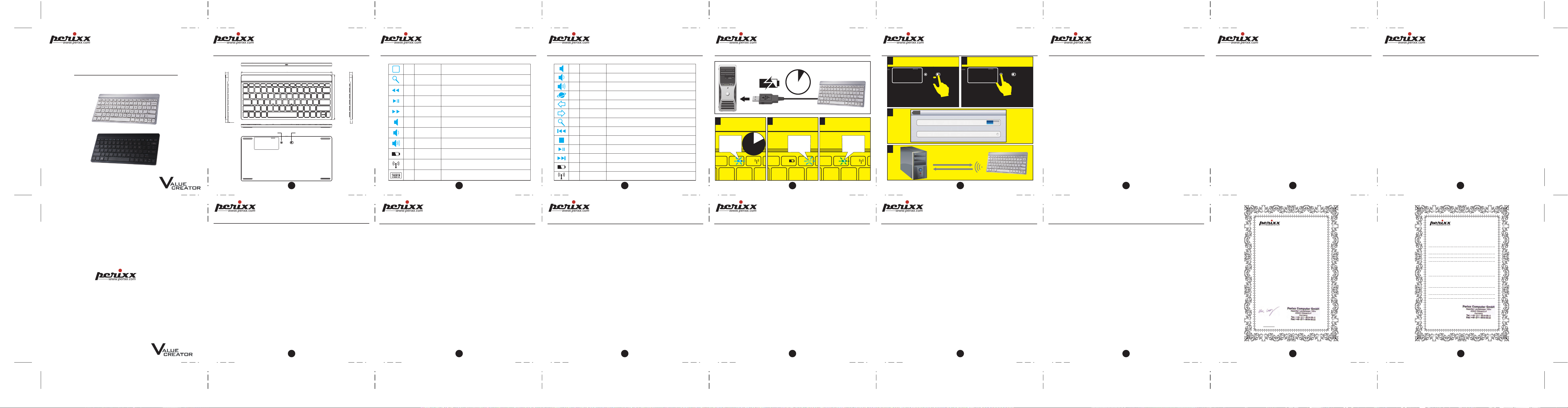
Connect Power
ON OFF
1
128.45
8.1
6.3
iOS Version Hot Keys
Home
F1
Search
F2
Previous
F3
Play/Pause
F4
Next Track
F5
Mute
F6
Decrease Volume
F7
Increase Volume
F8
Battery Indicator
F11
Connect Indicator
F12
Screen Keyboard
-
Go back to main windows on your desktop
Activate the OS default seach function
Use this key to skip to the forward title in the active player
Use this key to start or pause for a short time the playback of a title
just as you would do with a normal CD player
Use this key to skip to the next title in the active player
Use this key to switch on/off the connected loudspeaker
This key decreases the volume of the connected loudspeakers
This key increases the volume of the connected loudspeakers
It indicates battery status and will flash when no battery or during
charging
It indicates connect status when search device or during binding
When click on the button, screen keyboard will come up on IPAD.
During Mac system, CD will be ejected when push the button.
2
Windows Version Hot Keys
Mute
F2
Decrease Volume
F3
Increase Volume
F4
Internet
F5
Backward
F6
Forward
F7
Search
F8
Previous
F9
Stop
F10
Play/Pause
F11
Next Track
F12
Battery Indicator
F11
Connet Indicator
F12
Use this key to switch on/off the connected loudspeaker
This key decreases the volume of the connected loudspeakers
With this key you can start the standard browser for your system
Switch to the previous web page
Switch to the next web page
Active the OS default search function
Use this key to skip to the forward title in the active player
Use this key to end the playback of a title
Use this key to end the playback of a title
Use this key to start or pause for a short time the playback of a title
Use this key to skip to the next title in the active player
It indicates battery status and will flash when no battery or during
charging
It indicates connect status when search device or during binding
3
Before Use
1 32
sec
5
F11
F12
F11
2
4
HR
F12
F11
English(US/UK)
1 2
Power Connect
ON OFF
3
General
Bluetooth
Bluetooth
ON
ON OFF
Devices
Searching...
Now Discoverable
ChargePower On Connect
4
F12
Connect
Thank you for your purchase of PERIBOARD from Perixx. Before installing this product, please make sure your PC has Bluetooth
dongle or feature. If your computer is not Bluetooth ready, please contact with your local dealer for the purchase of Bluetooth
dongle.
Installation Procedure
1. Turn the On/Off Switch on
2. Select Settings
3. Open the Bluetooth program of your system.
4. Please use “Search New Device” function in the program
5. Press the “Connect” Button of the Keyboard
6. Your system should find the Bluetooth Wireless Keyboard on your Bluetooth dialog.
7. Then double click the Bluetooth Keyboard icon, the system will give you a set of pin-code.
8. Please enter this pin-code on your Bluetooth keyboard directly.
9. The program should show that the connection has been made, and the keyboard is ready to use
10. If the pairing process failed, please make sure your Bluetooth receiver is properly installed with driver. Please then repeat from
step 1
Hot Keys
F1: Home F2: Search F3: Previous F4: Play/Pause
F5: Next F6: Mute F7: Volume Down F8: Volume Up
F11: Battery Low F12: Connection - : Keyboard
Battery Low
Low Battery is indicated by the illumination of the keyboard lens. Please recharge the battery when the LED lights up.
Caution
• The manufacturer and re-resellers are not responsible for any malfunctions, damage, or personal injury incurred by:
A misuse of the product
Any attempt to dismantle, change or modify the product in any manner
• You are cautioned that changes or modifications not expressly approved by the party responsible for the compliance could void
your authority to operate the equipment.
• Mandatory repair charges are required for the following conditions, within the guarantee period:
Malfunction or damage is due to misuse or improper alteration or repair.
Malfunction or damage caused by the falling after the purchase.
Malfunction or damage is caused by a fire, salt, gas, earthquake, lighting, wind, water, or other natural calamities, or abnormal
voltage.
Malfunction or damage is caused by other devices connected to the keyboard.
• All brand names, trademarks and logos are the properties of their respective owners.
Vielen Dank für den Erwerb des PERIBOARD von PERIXX. Bevor Sie die Tastatur installieren seien Sie bitte sicher das Ihr PC
ein Bluetooth Anschluß oder Dongle hat. Sollte Ihr PC keins dieser haben, kontaktieren Sie bitte Ihren Händler. Dieser wird Ihnen
sicherlich weiterhelfen können.
Installationsvorgang
1.) Schalten Sie den Ein-/Ausschalter ein.
2.) Wählen Sie Einstellungen
3.) Starten Sie Ihre Bluetooth Anwendung am PC
4.) Suchen Sie nun nach einem neuen Gerät mit der Suchfunktion
5.) Drücken Sie den “Connect” Knopf an der Tastatur
6.) Ihr Computer sollte Ihre Bluetooth ohne weitere Probleme erkennen
7.) Dann doppelklicken Sie das Bluetooth Icon , und Ihnen werden eine Reihe von Pin Nummern angezeigt
8.) Bitte geben Sie diesen Pin Code direkt an der Tastatur ein
9.) Die Anwendung sollte anzeigen das die Verbindungsprozedur erfolgreich war und nun sollte das gerät betriebsbereit sein.
10.) Sollte die Verbindungsprozedur fehlgeschlagen sein, prüfen Sie den Treiber und wiederholen Sie den Installationsvorgang.
Multimedia-Tasten
F1: Anfang
F2: Suche
F3: Vorherige
F4: Play/Pause
F5: Nächste
F6: Stumm
F7: Lautstärke runter
F8: Lautstärke hoch
F11: Schwache Batterie
F12: Verbindung
- : Tastatur
Batterieanzeige
Eine schwache oder leere Batterie wird durch die Beleuchtung an der Batterieanzeige zu sehen sein. Bitte aufladen Sie dann die
Batterien aus die Funktionalität zu gewährleisten.
5 6 7
Deutsch (DE)
Français (FR)
Introduction
Merci d’avoir acheté PERIBOARD de Perixx. Avant d’installer ce produit, assurez-vous que votre PC dispose d’un dongle ou d’un
module Bluetooth. Si votre ordinateur n’est pas compatible avec Bluetooth, contactez votre revendeur local pour acheter un
dongle Bluetooth.
Procédure d’installation
1. Mettez I'interrupteur Marche/Arret sur la position Marche
2. Sélectionnez Règlages
3. Ouvrez le programme Bluetooth de votre système.
4. Utilisez la fonction « Rechercher nouvel appareil » du programme
5. Appuyez sur le bouton « Connecter » du clavier
6. Votre système devrait trouver le clavier sans fil Bluetooth sur votre boîte de dialogue Bluetooth.
7. Ensuite, double-cliquez sur l’icône du clavier Bluetooth ; le système vous donnera un code pin.
8. Entrez ce code pin directement sur votre clavier Bluetooth.
9. Le programme doit afficher la connexion effectuée et le clavier est prêt à l’emploi.
10. Si le processus d’appariement échoue, assurez-vous que votre récepteur Bluetooth a été installé correctement avec le driver.
Ensuite, recommencez le processus à partir de l’étape 1.
Touches de fonctions
F1: Debut
F2: Recherche
F3: Précédent
F4: Play/Pause
F5: Suivant
F6: Muet
F7: Augmenter volume
F8: Baisser volume
F11: Batterie faible
F12: Connexion
- : Clavier
Piles faibles
L’illumination des voyants du clavier indique que les piles sont faibles. Remplacez les piles lorsque les voyants s’allument.
8
Español (ES)
Gracias por comprar el teclado PERIBOARD de Perixx. Antes de instalar el producto, asegúrese de que su PC dispone de
adaptador Bluetooth o incorpora este tipo de conexión. Si su ordenador no dispone de Bluetooth, póngase en contacto con su
distribuidor local para adquirir un adaptador Bluetooth.
Procedimiento de instalación
1. Encienda el interruptor de encendido/apagado.
2. Seleccione Ajustes
3. Abra el programa Bluetooth de su sistema.
4. Utilice la función “Buscar dispositivo nuevo” del programa
5. Pulse el botón “Conectar” del teclado.
6. El sistema buscará el teclado inalámbrico Bluetooth en el cuadro de diálogo Bluetooth.
7. Haga doble clic en el icono del teclado Bluetooth, y el sistema le presentará un código PIN.
8. Introduzca el código PIN directamente en el teclado Bluetooth.
9. El programa le indicará que se ha establecido la conexión y que el teclado ya está listo para utilizarse.
10. Si falla el proceso de acoplamiento, compruebe que el receptor Bluetooth está correctamente instalado con el controlador.
Vuelva a realizar el proceso desde el paso 1.
Teclas de acceso rápido
F1: Inicio
F2: Buscar
F3: Previo
F4: Reproducir / Pausa
F5: Siguiente
F6: Silencio
F7: Bajar volumen
F8: Subir volumen
F11: Batería baja
F12: Conexión
- Teclado
Bajo nivel de carga de las baterías
El teclado indica cuando el nivel de carga de las baterías está bajo mediante un LED. Cambie las baterías cuando se ilumine el
LED:
9
Nederlands (NL)
Van harte bedankt voor de aankoop van het PERIBOARD van Perixx. Alvorens het product te installeren, zorg ervoor dat uw PC
een Bluetooth dongle of functie heeft. Indien uw computer niet gebruiksklaar is voor Bluetooth, gelieve een Bluetooth dongle aan
te schaffen bij uw lokale verdeler.
Installatieprocedure
1. Zet de aan-uit-schakelaar op Aan.
2. Selecteer Instellingen
3. Open het Bluetooth programma in uw systeem.
4. Gebruik de functie “Zoeken naar een Nieuw Toestel” in het programma.
5. Druk op de “Aansluiten” knop op het Toetsenbord.
6. Het systeem zal automatisch naar het Bluetooth Draadloos Toetsenbord in uw Bluetooth dialoog zoeken.
7. Dubbelklik op het Bluetooth Toetsenbordiccontje en het systeem zal u voorzien van een pincode.
8. Voer de pincode in op uw Bluetooth Toetsenbord.
9. Het programma zal weergeven dat de aansluiting voltooid is en dat het toetsenbord klaar is voor gebruik.
10. Als de aansluiting mislukt is, controleer of uw Bluetooth ontvanger correct geïnstalleerd is op de driver. Herhaal alle stappen.
Hot Keys
F1: Home
F2: Zoeken
F3: Vorige
F4: Play / Pause
F5: Volgende
F6: Mute
F7: Volume omlaag
F8: Volume omhoog
F11: Battery Low
F12: Aansluiting
-: Toetsenbord
Lege Batterij
Als de batterij bijna leeg is, zal het LED-lampje op het toetsenbord oplichten. Gelieve de batterij op te laden, als het LED-lampje
oplicht.
10
繁體中文 (TC)
簡介
感謝您購買佩銳PERIBOARD. 在安裝本產品前請確保您的電腦上有藍芽接收器或支援此功能。如果您的電腦沒有支援帶藍芽的,請向
當地的經銷商購買藍芽接收器。
安裝程式
1.開啟開/關按鈕
2.選擇設置
3.開啟系統中的藍芽程式。
4.請使用“尋找新裝置”功能的程式。
5.按下鍵盤上的“Connect”按鈕。
6.您的系統將會在藍芽對話方塊中找到藍芽無線鍵盤。
7.然後按兩下藍芽鍵盤圖示,系統會給您一組代碼。
8.請直接輸入藍芽鍵盤代碼。
9.該程式就會顯示連接完成,鍵盤即可使用
10.如果配對程式失敗,請檢查您的藍芽接收器與驅動程式是否安裝正確。請再從第一步開始重複。
多媒體鍵
F1鍵:首頁 F2鍵:搜索 F3鍵:上一 首 F4鍵:播放/暫停
F5鍵:下一首 F6鍵:靜音 F7鍵:降低音量 F8鍵:提高音量
F11鍵:低電量 F12鍵:連接 - :鍵盤
低電量提示
鍵盤的LED燈會預示電量過低。當LED燈亮起時,請立即充電。
11
簡体中文 (SC)
简介
感谢您购买佩锐PERIBOARD. 在安装本产品前请确保您的电脑上有蓝牙适配器或功能。如果您的电脑是不带蓝牙的,请向当地的经销
商购买蓝牙适配器。
安装程序
1.开启开/关按钮
2.选择设置
3.开启系统中的蓝牙程序。
4.请使用“搜索新设备”功能的程序。
5.按下键盘上的“Connect”按钮。
6.您的系统将会在蓝牙对话框中找到蓝牙无线键盘。
7.然后双击蓝牙键盘图标,系统会给您一组代码。
8.请直接按入蓝牙键盘代码。
9.该程序就会显示连接完成,键盘即可使用
10.如果配对程序失败,请检查您的蓝牙接收器与驱动是否安装正确。请再从第一步开始重复。
多媒体键
F1键:首页 F2键:搜索 F3键:上一 F4键:播放/暂停
F5键:下一首 F6键:静音 F7键:降低音量 F8键:提高音量
F11键:低电量 F12键:连接 - :键盘
低电量提示
键盘的照明透镜会预示电量过低。当LED灯亮起时,请立即充电。
12
日本語 (JP)
ご紹介
弊社PERIBOARD をお買い上げ下さいましてありがとうございます。製品をインストールされる前に、お手持ちのコンピューターがブルートゥ
ース対応機種またはドングルを装備していることをお確かめください。もし未装備の場合はお近くのディーラーにてドングルをお買い求めい
ただきますようお願い申し上げます。
インストール方法
1. オン/オフスイッチをオンにします
2. [設定]を選択します
3. コントロールパネルよりブルートゥースプログラムを開く
4. プログラム内の “新しいデバイスを探す”ファンクションを選択
5. キーボードの“接続” ボタンを押す
6. キーボードがPCに認識され、ブルートゥースメニュー上に表示されます
7. ブルートゥースキーボードアイコンをダブルクリックすると、パスワードが表示されます
8. パスワードをキーボードより直接入力してください
9. 接続が完了したとのメッセージが表示され、キーボードが使用可能になります
10. もしうまくいかない場合は、ブルートゥースレシーバーがドライバーを使用して適切にインストールされているか確認のうえ、1.よりやり
直してください。
ホットキー
F1キー:ホーム F2キー:検索 F3キー:前のトラック F4キー:再生/一時停止
F5キー:次のトラック F6キー:ミュート F7キー:ボリュームダウン F8キー:ボリュームアップ
F11キー:低バッテリ F12キー:接続 -:キーボード
電池残量
電池の残量が少なくなるとキーボード右下のライトが点滅しますので、充電してください。
13 14
Podręcznik użytkownika (PL)
Dziękujemy za zakupienie klawiatury PERIBOARD z firmy Perixx Przed instalacją tego produktu proszę sprawdzić czy PC ma
nadajnik Bluetooth. Jeśli komputer nie posiada nadajnika Bluetooth, to proszę się skontaktować z lokalnym przedstawicielem w
celu jego zakupu.
Procedura instalacji
1.Włącz zasilanie przełącznikiem zasilania
2.Wybierz Settings
3.Uruchomić program Bluetooth w systemie.
4.Proszę skorzystać z funkcji programu “Search New Device” - poszukiwanie nowego urządzenia
5.Nacisnąć na klawiaturze przycisk “Connect” - połącz
6.System powinien odnaleźć bezprzewodową klawiaturę Bluetooth w ramach dialogu z Bluetooth.
7.Kliknąć dwukrotnie ikonę Bluetooth Keyboard, system poda ustawienia kodu PIN.
8.Proszę wprowadzić ten kod PIN bezpośrednio poprzez klawiaturę Bluetooth.
9.Program powinien zakomunikować nawiązanie połączenia i że klawiatura jest gotowa do użycia
10.Jeśli proces dopasowania zawiedzie, to proszę sprawdzić, czy odbiornik Bluetooth ma właściwie zainstalowany sterownik.
Proszę powtórzyć czynności od kroku 1
Klawisze
F1: Strona główna
F2: Szukaj
F3: Poprzednia
F4: Play / Pause
F5: Następna
F6: Mute
F7: Ciszej
F8: Volume Up
F11: niskiego poziomu naładowania baterii
F12: Connection
-: Klawiatura
Niski stan baterii
Niski stan baterii jest wskazany podświetleniem soczewek klawiatury. Proszę doładować baterię gdy zaświeci się LED.
Perixx Computer GmbH
Heerdter Landstrasse 189e, 40549 Düsseldorf, Germany
Tel: +49 (0) 211-5694880 Fax: +49 (0) 211-56948822
Declaration of Conformity
Manufacturer’s Name: Perixx Computer GmbH
Manufacturer’s Address: Heerdter Landstrasse 189e,
40549 Düsseldorf, Germany
Declares that the product:
Product Name: Wireless Keyboard & Mouse
Model Name: PERIBOARD-804
Conforms to the following standards:
EN 300 328 V1.7.1 (2006-10),
EN 301 489-1 V1.8.1 (2008-04), EN 301 489-17 V2.1.1 (2009-05),
EN 55022: 2006, Class B,
EN 61000-4-2: 2009,
EN 61000-4-3: 2006+A1: 2008,
EN 61000-4-4: 2004, EN 61000-4-6: 2009, EN 50371: 2002
The product is in conformity with the requirements of the
Low-Voltage Directive (73 / 23 / EEC) and the EMC
Directive (89 / 336 / EEC)
Perixx Computer GmbH
Technical Director
Allen Liang
Date: Dec. 29 2010
15 16
Perixx Computer GmbH
Heerdter Landstrasse 189e, 40549 Düsseldorf, Germany
Tel: +49 (0) 211-5694880 Fax: +49 (0) 211-56948822
Declaration of Identity to Type
Hereb We
Perixx Computer GmbH
(Name of Manufacture)
Heerdter Landstrasse 189e, 40549 Düsseldorf, Germany
+49 (0) 211 5694880
+49 (0) 211 56948822
(Detail of address, telephone number and fax number)
Declares the equipment:
PERIBOARD-804
(New name / Model number of product)
Is structurally identical to the basic-model
KT-1063
Old name / Model number of product)
RE991210D07, RM991210D07, SE991210D07
(Reference no. of test report / BZT-type approval no.)
Düsseldorf, Germany 29 / 12 / 2010 (Legally valid signature)
(Place) (Date)
 Loading...