

Page 1

HyperMedia Center User Manual
Contents
V1.1
INTRODUCTION........................................................................................................................................................................1
PLAYER CONTROLS....................................................................................................................................................................1
NAVIGATION BAR ......................................................................................................................................................................2
TV..................................................................................................................................................................................................3
SOURCE INPUT ...........................................................................................................................................................................3
CHANNEL LIST ...........................................................................................................................................................................3
SCHEDULE..................................................................................................................................................................................3
SETTINGS ...................................................................................................................................................................................5
EPG ...........................................................................................................................................................................................5
TV CONTROL BAR .....................................................................................................................................................................6
VIDEOS ........................................................................................................................................................................................7
RECORDING VIDEOS:..................................................................................................................................................................7
MORE VIDEOS............................................................................................................................................................................7
SETTINGS ...................................................................................................................................................................................8
VIDEO CONTROL BAR.................................................................................................................................................................8
PICTURES....................................................................................................................................................................................9
SNAPSHOT PICTURES..................................................................................................................................................................9
MORE PICTURES.........................................................................................................................................................................9
SETTINGS ...................................................................................................................................................................................9
PICTURE CONTROL BAR............................................................................................................................................................10
SETTINGS..................................................................................................................................................................................11
TV............................................................................................................................................................................................11
VIDEOS.....................................................................................................................................................................................11
PICTURES .................................................................................................................................................................................11
GENERAL SETTINGS .................................................................................................................................................................12
Page 2
Introduction
Thank you for choosing PEAK product. Before you start using your system, please
read this manual carefully and follow the installation instructions.
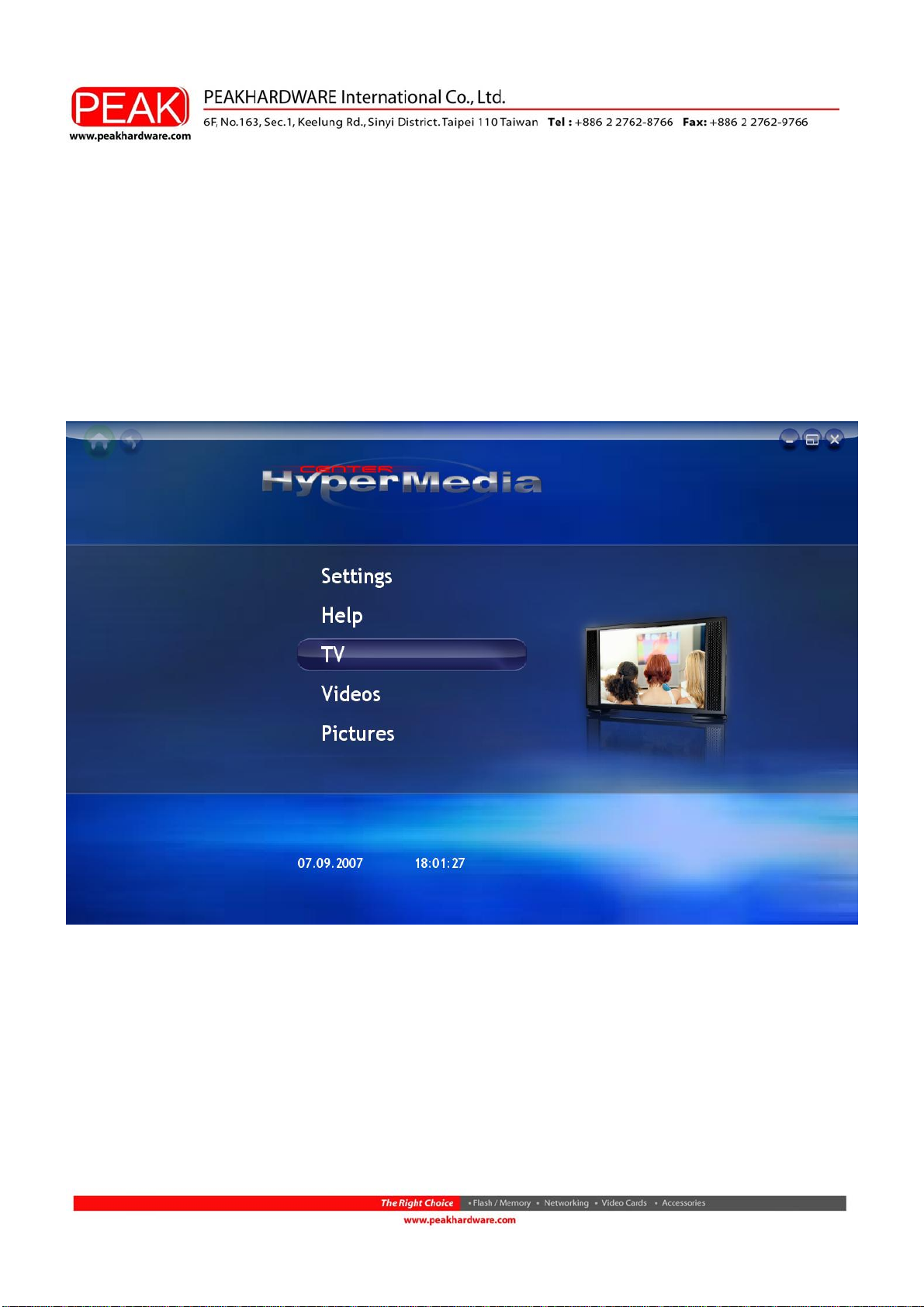
HyperMedia Center is an integrated multimedia application that allows you to enjoy all
of your digital entertainment - TV, home videos and photos. HyperMedia Center is
especially designed for turning your PC/Laptop into an entertainment solution.
Player Controls
There are several methods to control HyperMedia Center
• By Keyboard
Control the application by using the Arrow keys, ESC, and Enter keys.
1
Page 3
• By Mouse
Select items by left-click or scroll wheel.
• By Remote Control (optional: depends on the model)
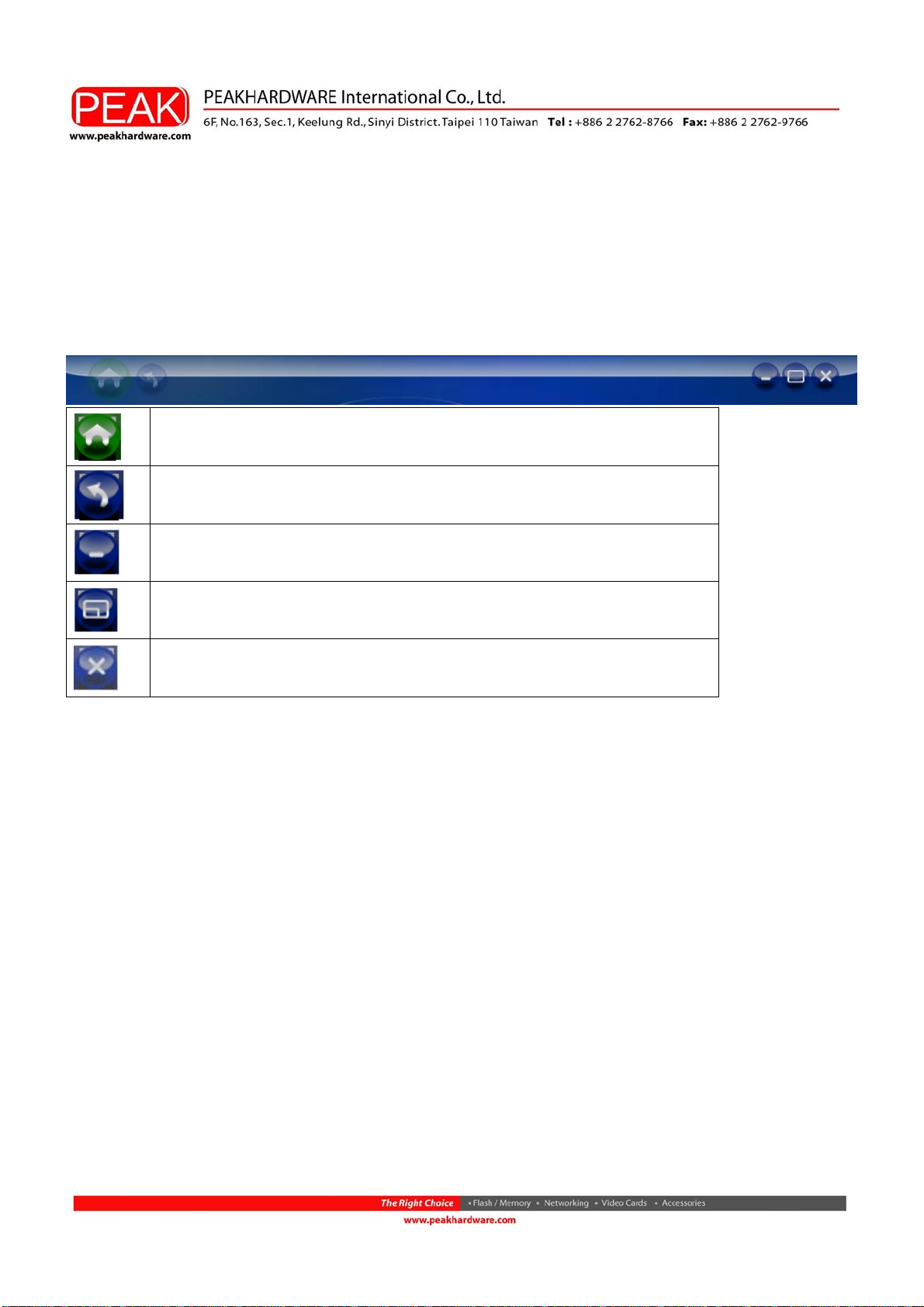
Navigation Bar
Return to Home page
Return to previous page
Minimize HyperMedia Center to the task bar.
Adjust the display size
Exit HyperMedia Center.
2
Page 4
TV
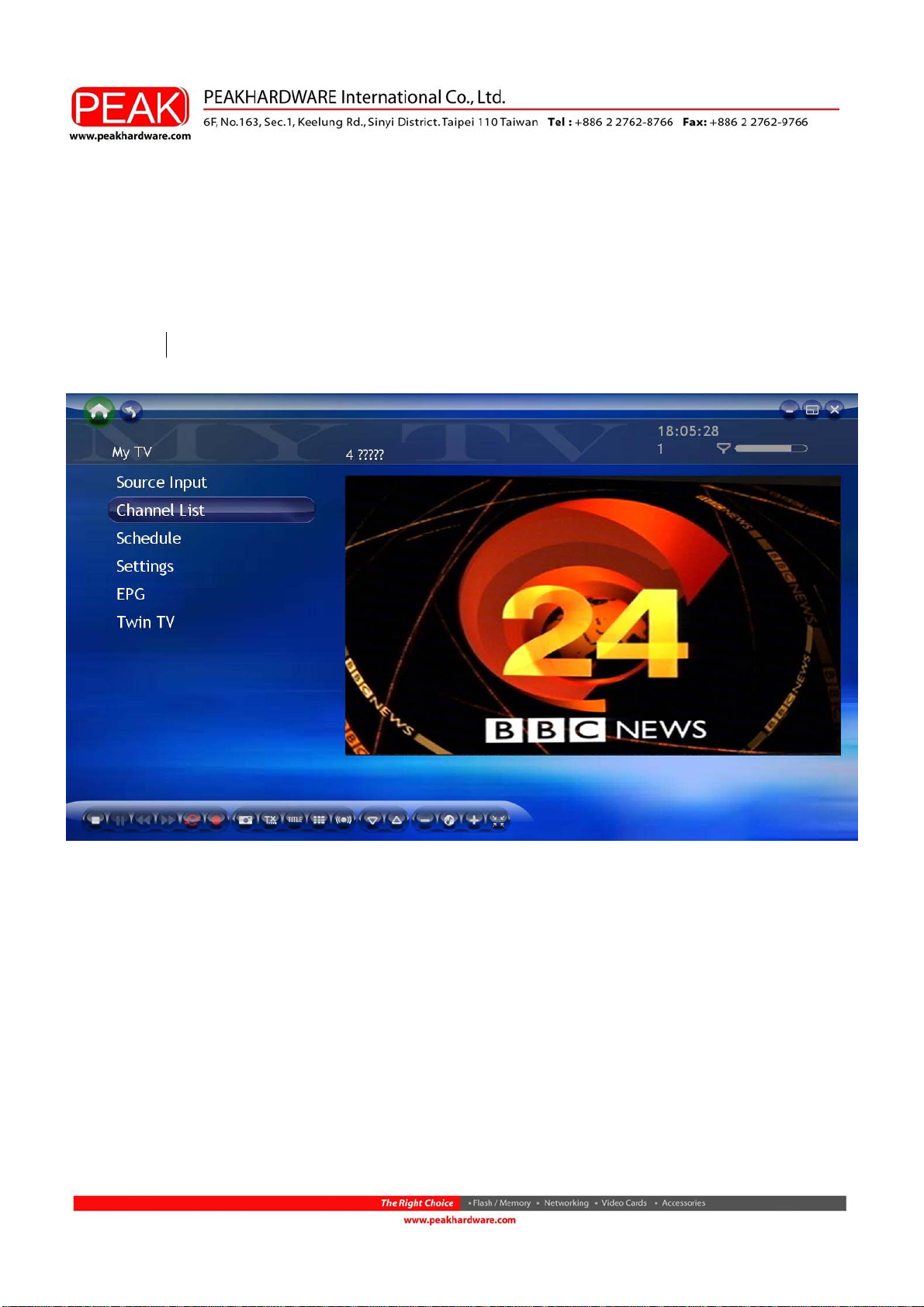
HyperMedia Center is an all-in-one entertainment solution for the modern life. Now
you can watch and record your favorite TV programs anytime you like. The first time
you run HyperMedia Center, the setup wizard will guide you to configure the TV
settings.
Source Input
Choose your TV signal source such as TV / Composite / S-Video.
Channel List
It will assist you to select TV channel.
Schedule
Schedule the recording of TV program. If you want to cancel a schedule, enter the
3
Page 5
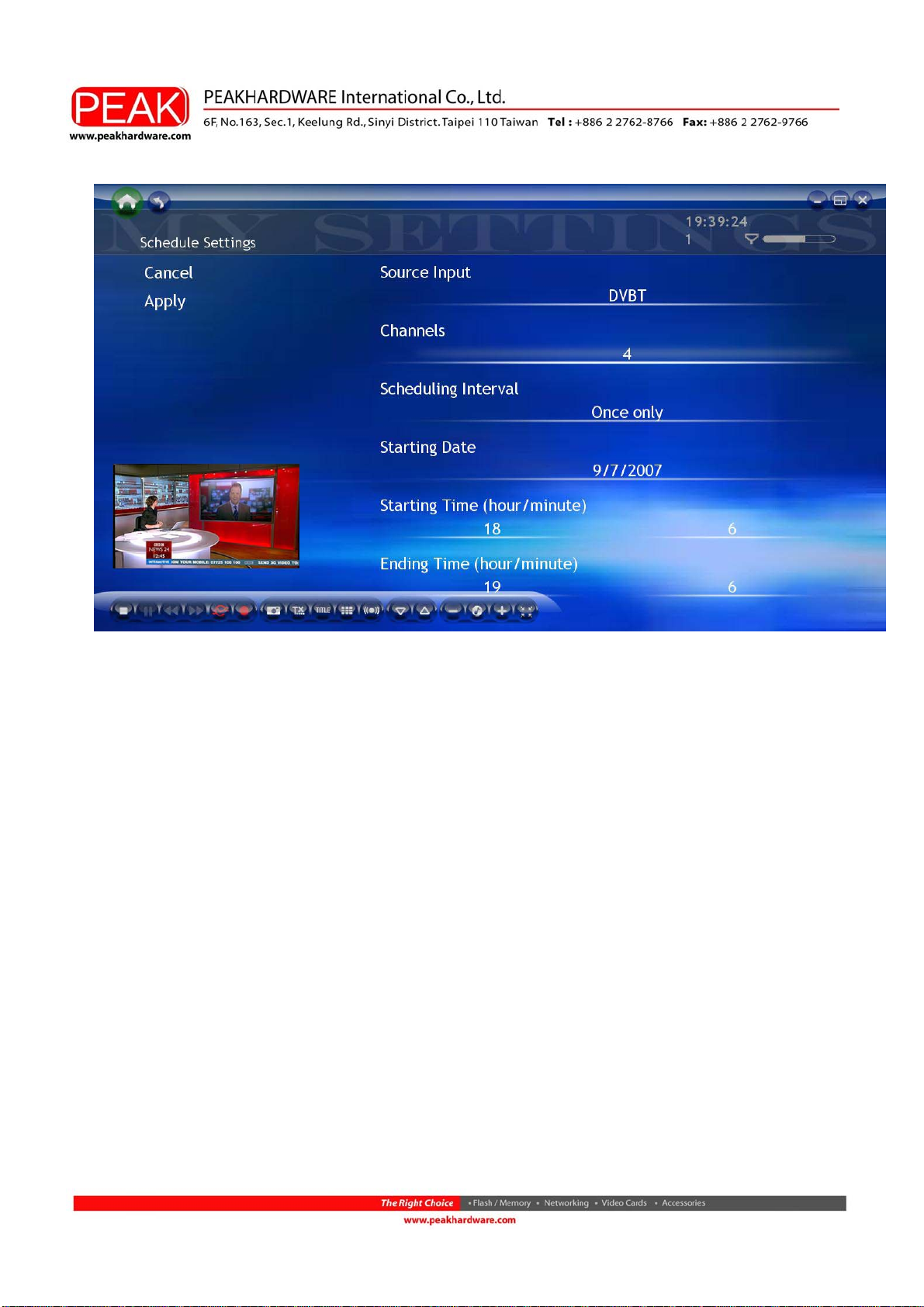
Schedule and choose Cancel.
Input Source: Select your TV signal source.
Channel: Choose the channel you want to record
Scheduling interval: Define the recording rules. The default value is "Once only".
Starting Date: Set the recording date.
Starting/Ending T ime: Set the Time to start/end recording (hour/minute).
4
Page 6
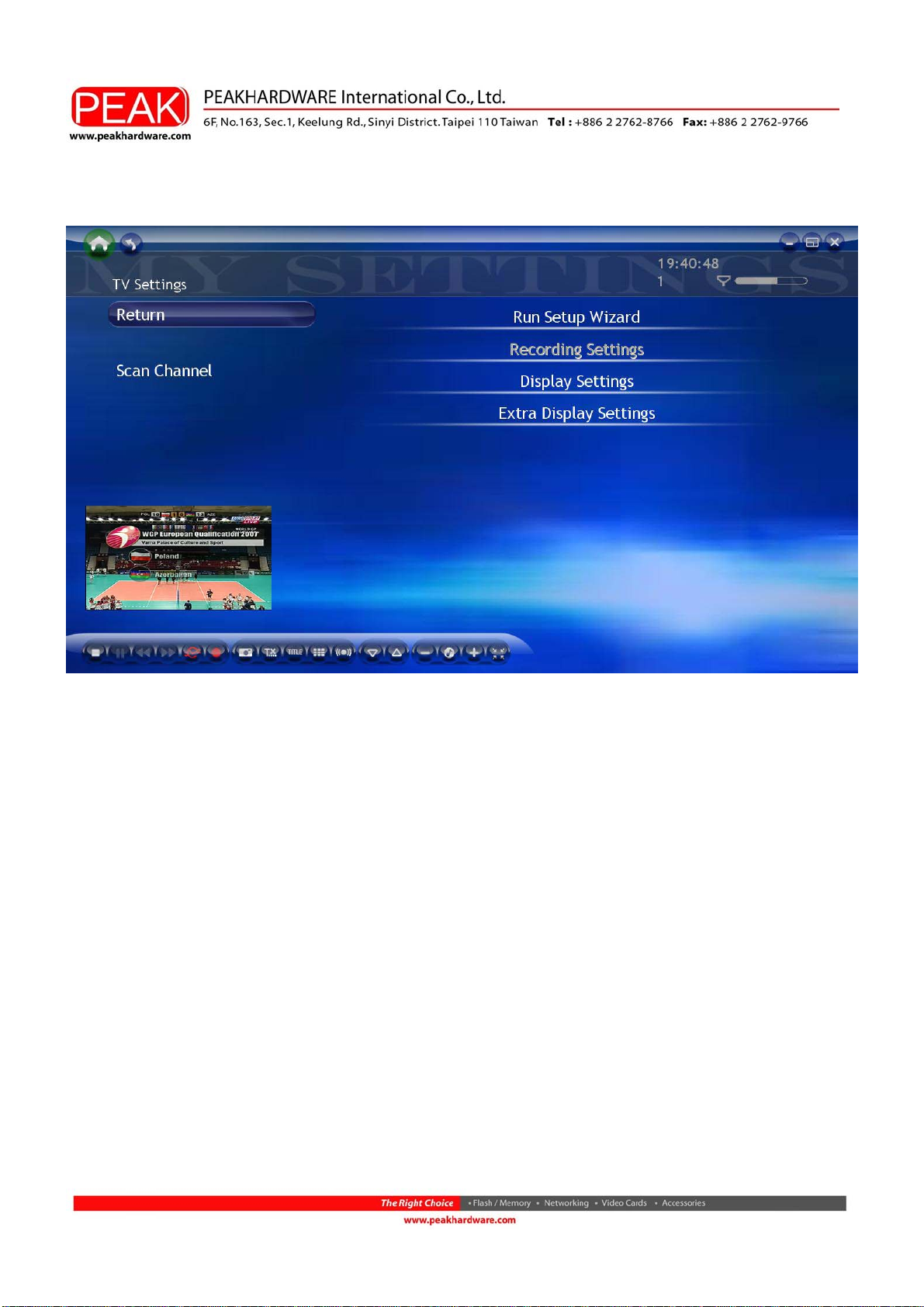
Settings
Adjust TV signal, recording and display settings here.
Run Setup Wizard: Run Setup Wizard is an easy setup function. It can help you to
complete the overall settings of TV function including TV tuner, region and automatic
scan of TV channels.
Recording Setting: Configure the recording format: low, medium and high.
Display Setting: Adjust the display settings (Brightness, Contrast, Saturation, Hue,
Sharpness or default setting)
Extra Display Settings: Adjust the display aspect ratio (4:3, 16:9, 16:10)
EPG
EPG (Electric Program Guide) allows you to receive the information for each channel.
5
Page 7
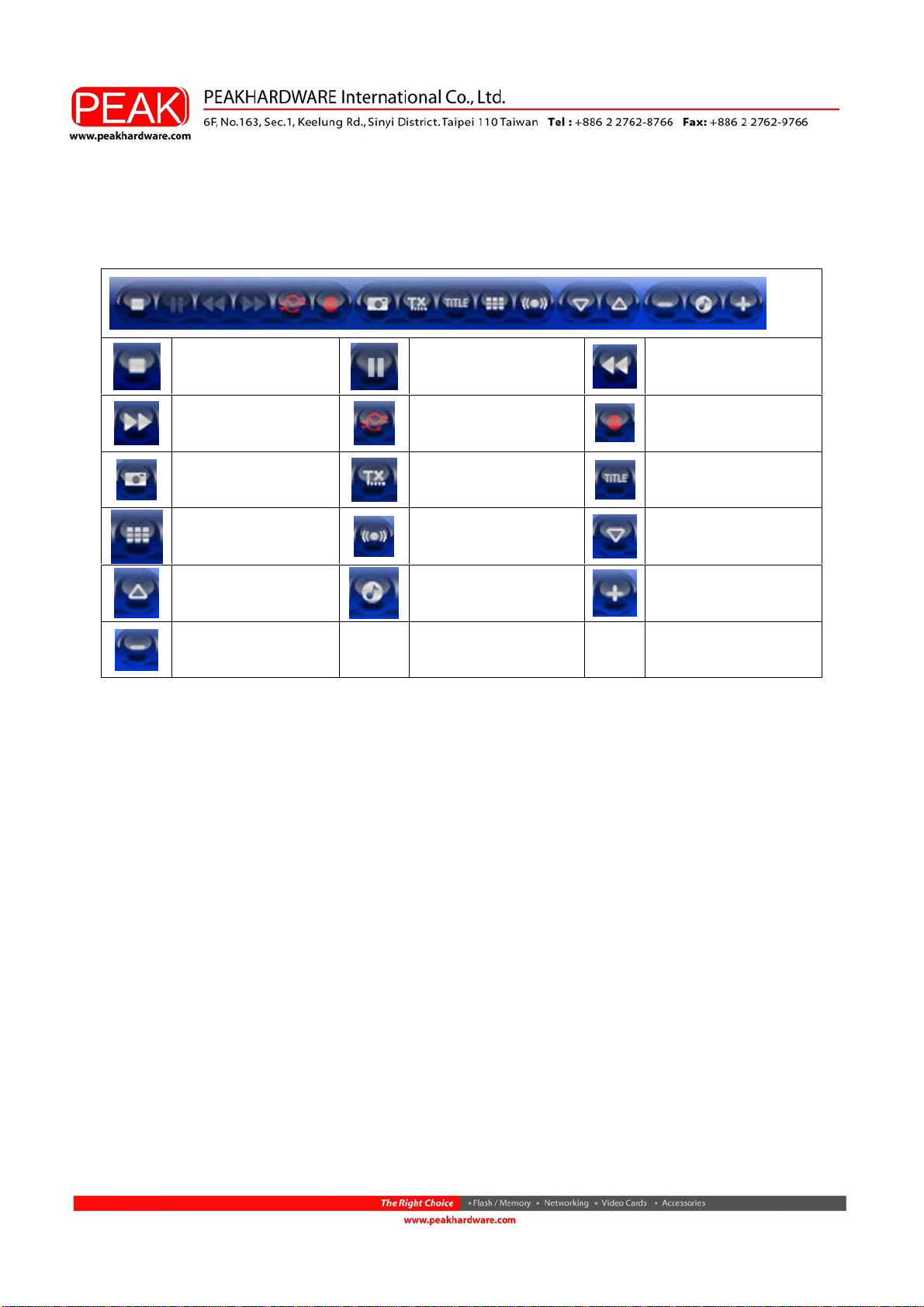
TV Control Bar
Stop
Pause Backward
Forward
Snapshot
Time-Shifting
Teletext Subtitle
Capture
Channel Preview
Next Channel
SAP
Mute Volume Up
Previous Channel
Volume Down
6
Page 8
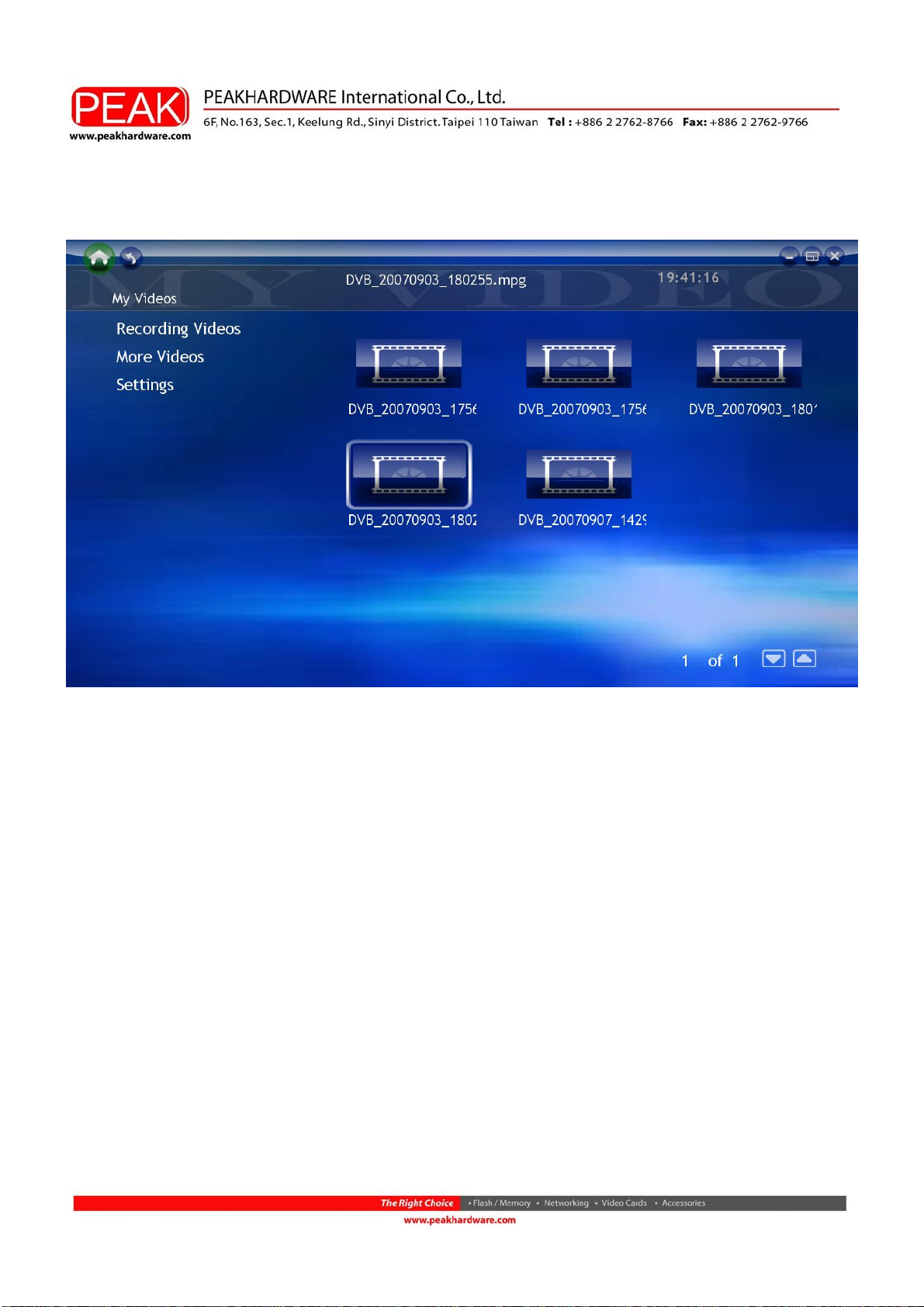
Videos
In the Videos page, you can play video files stored in your computer.
Recording Videos:
Play the video files in a specific folder.
More Videos
HyperMedia Center is also applicable for playing other video files.
7
Page 9
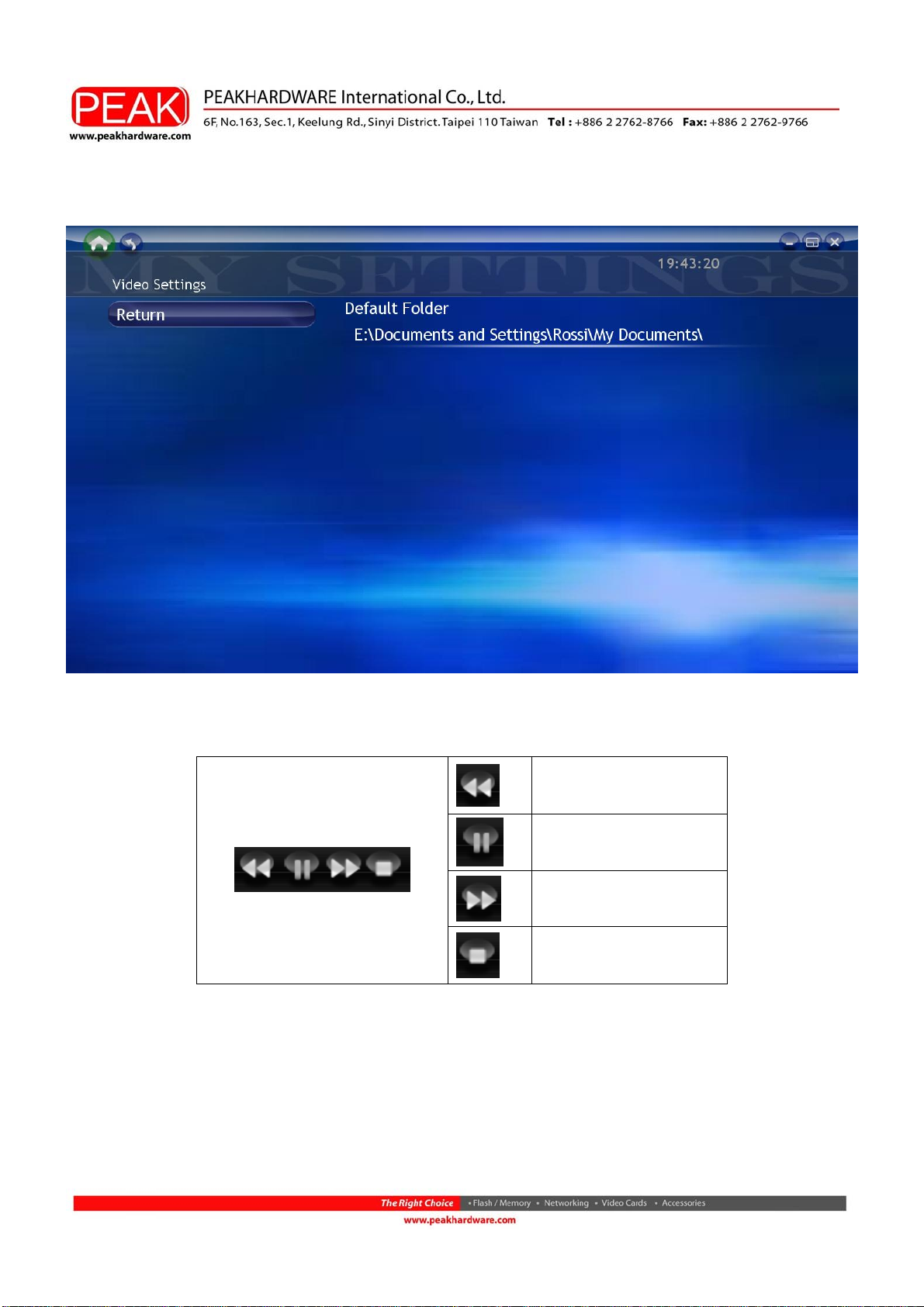
Settings
Create a specific folder to save recorded video files.
Video Control bar
Backward
Pause
Forward
Stop
8
Page 10
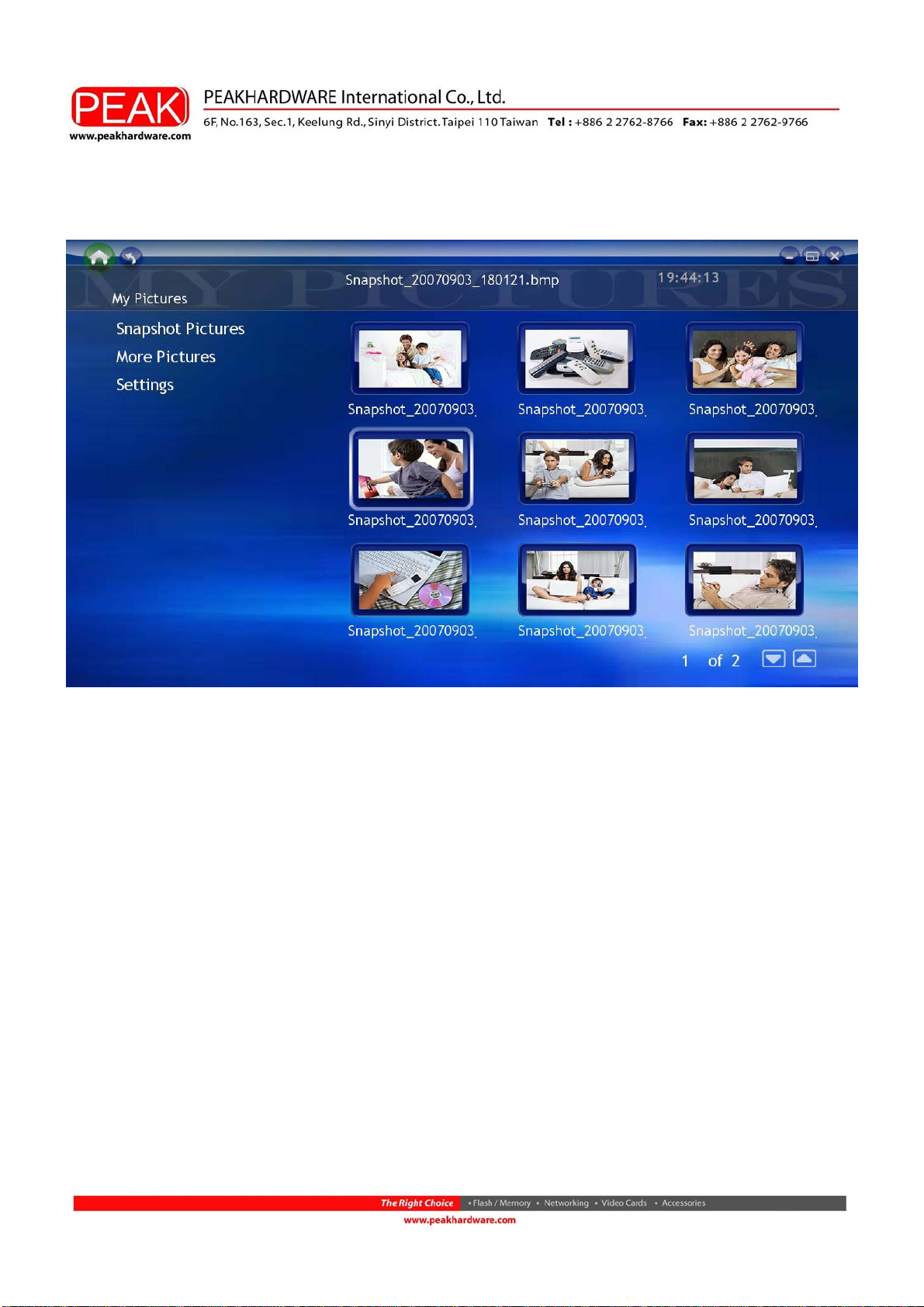
Pictures
In My Pictures page, you can view pictures stored in any folder.
Snapshot Pictures
Click Snapshot Pictures button to review the picture files you captured. In addition,
you can also check pictures in the slideshow mode.
More Pictures
Show other picture files in your computer.
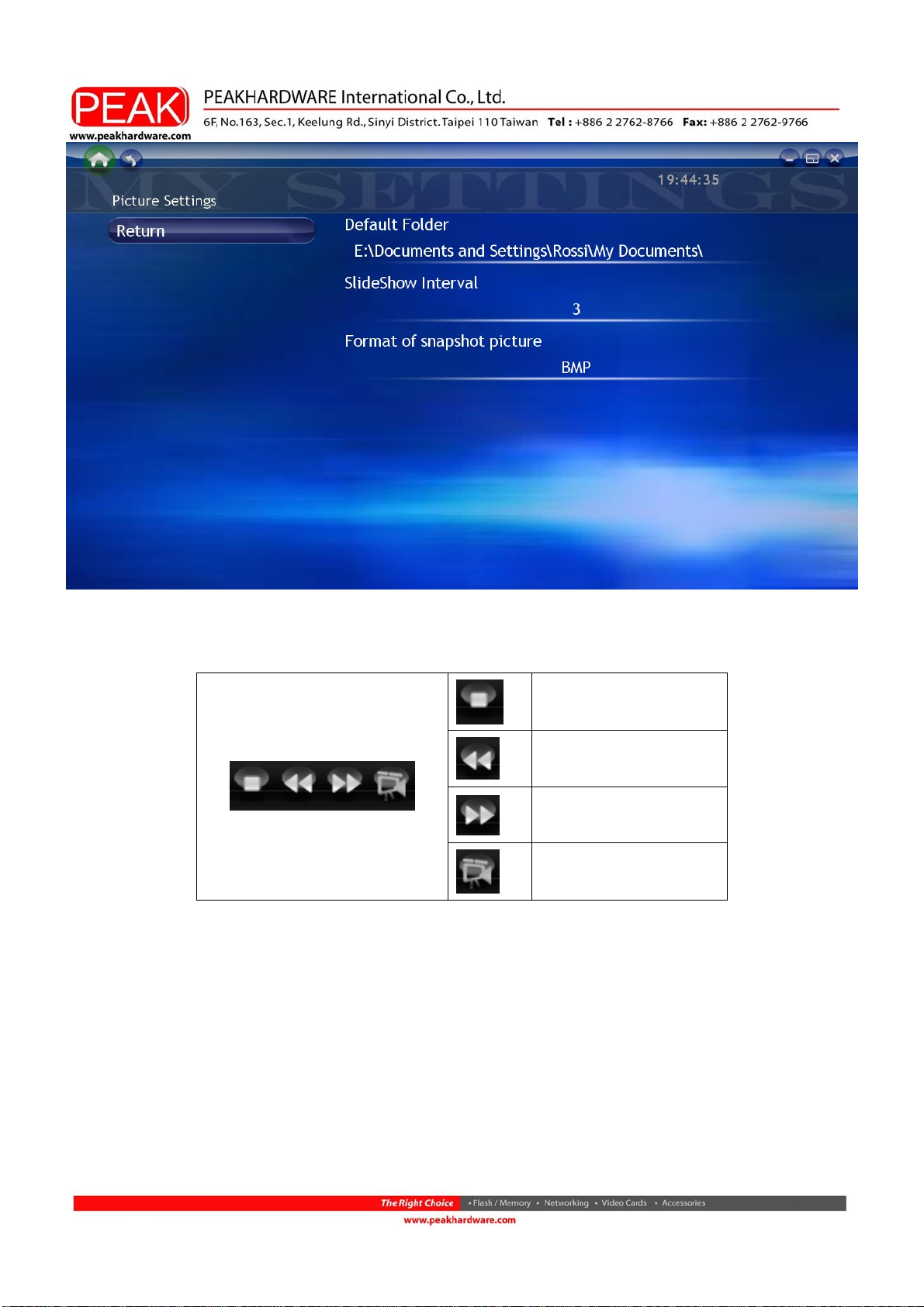
Settings
In Settings, you can create a specific folder to save pictures. Meanwhile, the timeframe
of Slideshow can also be set in this option.
9
Page 11
Picture Control bar
Stop
Backward
Forward
Slideshow
10
Page 12
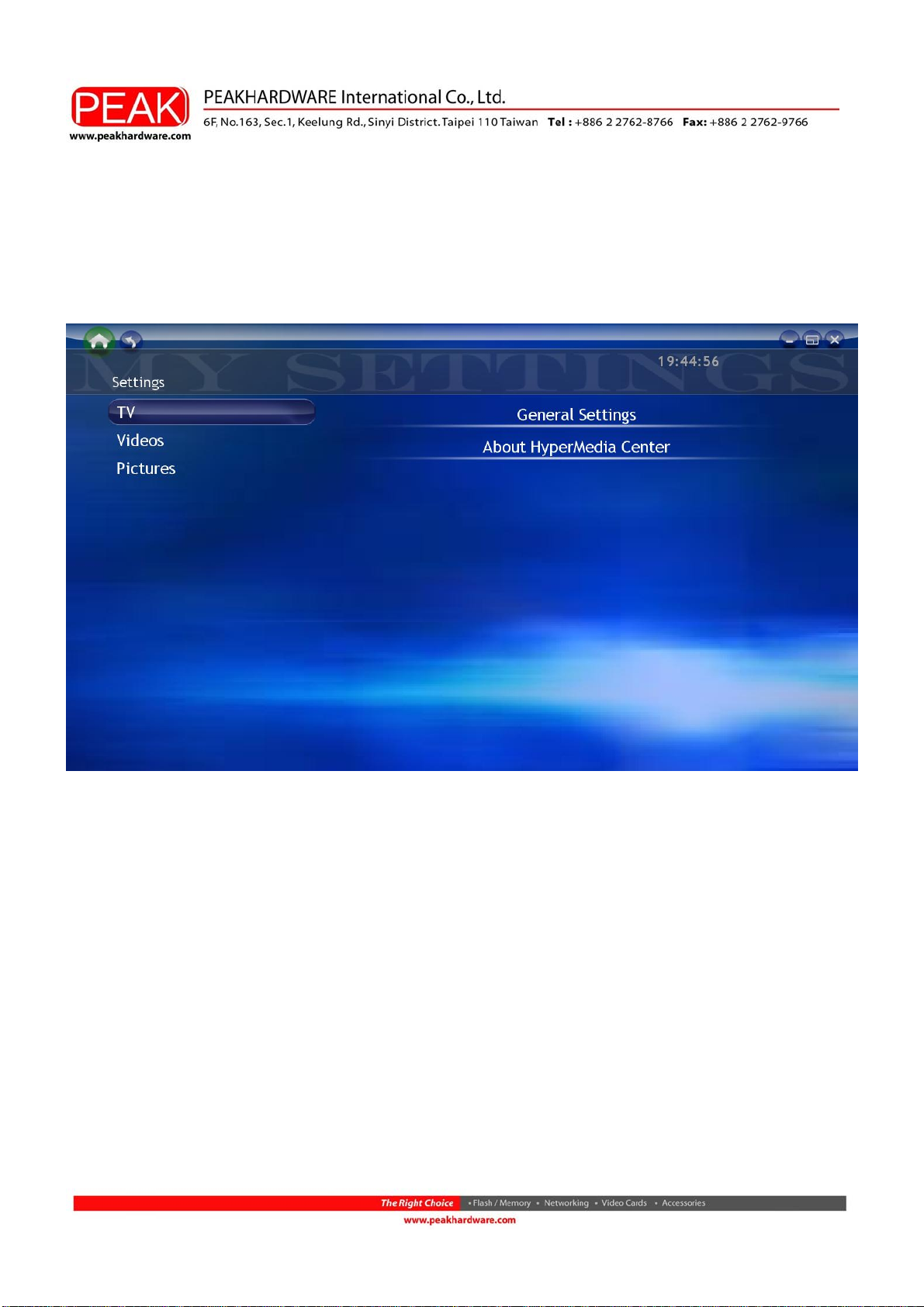
Settings
Click Home Page to open the HyperMedia Center Setting menu. Here you can find the
general settings for HyperMedia Center software, and duplicated control settings for
other options such as TV, Videos and Pictures.
TV
Please refer to the setting description in TV section
Videos
Please refer to the setting description in Video section
Pictures
Please refer to the setting description in Picture section
11
Page 13

General Settings
In General Settings, there are many options for you to choose:
Language: English, Chinese, French, German, Russian and Spanish, Multi-language to
meet your need.
Background Color: 10 vivid backgrounds for you to select . It is wonderful to freshen up
your vision by changing background colors every day.
12
 Loading...