

Page 1
Thank you for choosing
Panasonic
OmnlvlBlon
VOTS3441 (A)
MODEL PV-M2768
Easy laping.
Operating
Instructions
Please read these instructions carefully before attempting to connect,
operate or adjust this product. Please save this manual.
Spanish Quick Use Guide is included.
Guía para rápida consulta en español está incluida.
Page 2
Things You Should Know
Congratulations
on your purchase of one of the most sophisticated and reliable products
on the market today. Used properly, it will bring you and your family
years of enjoyment. Please fill in the information at right. The serial
number is on the tag located on the back of your Combination VCR.
Date of Purchase
Dealer Purchased From
Dealer Address
Dealer Phone No.
Model No.
Serial No.
_____
_____
____
_____
PV-M2768
Safety Precautions
Warning: To prevent fire or shock hazard, do not expose this equipment to rain or moisture.
This video recorder, equipped with the HQ ( High Quality) System, is compatible with existing VHS equipment.
Only use those tapes with the [fflB mark. It is recommended that only cassette tapes that have been tested and
inspected for use in 2, 4, 6, and 8 hour VCR machines be used.
This television receiver provides display of television closed captioning in accordance with §15.119 of the FCC rules.
This symbol warns the user that uninsulated voltage within the unit
/t\ p
CAkniON TO REOUCC THE RSK OF EL£CmC SHOCK,
DO NOT REMOVE COVER [OR BACkJ
NO USER-SCRVIC£AaiE PARTS W&SX
REFER SERVICING TO OJAUFtED SERVICE PERSONNEL
A
may have sufficient magnitude to cause electric shock. Therefore, it is
dangerous to make any kind of contact with any inside part of this unit.
This symbol alerts the user that important literature concerning the
operation and maintenance of this unit has been included.
Therefore, it should be read carefully in order to avoid any problems.
Table of Contents
Things You Should Know.................................................................................................................................2
Important Safeguards and Precautions............................................................................................................3
Unpacking Your Combination VCR • Product Features
...................................................................................
4
Antenna or Cable Connections (Outdoor Antenna, Cable Box, Scrambled/Unscrambled Channels) .................5
Location of Controls (Remote Control, Combination VCR)..........................................................................6, 7
One Time Setup (On-Screen Language, Channel Memory, Auto Clock Set)
On-Screen Displays (OSD) (Function, Channel, Menu, VCR Status/Clock, Warning, Instruction)
TV Operation (Main operation, Using the 100 key, Rapid Tune, Audio Mute, Phones, SELF-DEMO Mode).11
Audio/Picture Adjustment (Bass, Treble, Color, Tint, Brightness, Picture, Sharpness, Reset)
TV Timer Features (Alarm Timer, Sleep Timer).............................................................................................13
Closed Caption System (Main operation, Caption On Mute)
FM Radio...................................................................................................................................................... 15
Playback a Tape (Main Operation, special Effects, Quality Picture Features)...............................................16
Record On a Tape (Main Operation, One Touch Record, Input Select)
Timer Recording (Main operation, Cancel, Clear or Replace Program Contents)...................................18, 19
Copying Your Tapes (Dubbing) (Connection, Main Operation).....................................................................19
Special VCR Features (VCR Lock, warning Beeper, Speaker ON/OFF System)
Tape Operation (Repeat Play, One Minute Skip, Zero Search, Auto Functions)
MTS Broadcast A/HS Hi-Fi Stereo System (Stereo/SAP/Mono Broadcast, Select Audio Mode, Spatializer) .. 22, 23
VCR Plus+ Setup ....................................................................................................................................24, 25
VCR Plus+ Programming..............................................................................................................................26
Cable Box Universal Remote Control Operation (Main operation, Cable Box Brand Code List)
........................................................................
..............................................
...............
......................
........................................................
.........................................
.........................................
...................
8, 9
10
12
14
17
20
21
27
Unit and Cassette Information.......................................................................................................................28
Before Requesting Service (Self-check items) .............................................................................................29
Service Center List........................................................................................................................................30
Warranty.......................................................................................................................................................31
Spanish Quick Use Guide/Guia para rápida consulta..............................................................................32-35
2
Page 3
|yt\ Important Safeguards and Precautions
FOR YOUR SAFETY, READ AND RETAIN ALL
SAFETY AND OPERATING INSTRUCTIONS.
HEED ALL WARNINGS IN THE MANUAL AND
ON THE UNIT
INSTALLATION
1 POWER SOURCE CAUTION
Operate only from a power source indicated on the
unit or in this manual.
If necessary, have your Electric Utility Service
Company or Video Products Dealer verify the power
source in your home.
2 POLARIZED OR GROUNDING PLUG
As a safety feature, this Video product comes with
either a polarized power cord plug (one blade is
wider than the other), or a three-wire grounding type
plug.
POLARIZED PLUG CAUTION:
This plug will only fit into an outlet one way. If you
cannot fully insert the plug, try reversing it. If it still will
not fit, have an electrician install the proper wall outlet.
Do not defeat the safety feature by tampering with the
plug.
GROUNDING PLUG CAUTION:
This plug will only fit into a three-hole grounding outlet.
It necessary, have an electrician install the proper
outlet. Do not defeat the safety feature by tampering
with the plug..
3 POWER CORD
Make sure power cords are routed so that they are
not likely to have anything rest on them, roll over
them, or be in the way of walking traffic.
If an extension cord is used, make sure it also has
either a polarized or grounded plug and that the
cords can be securely connected.
Frayed cords, damaged plugs, and damaged or
cracked wire insulation are hazardous and should be
replaced by a qualified service technician.
Overloaded outlets and extension cords are fire
hazards and should be avoided.
4 DO NOT BLOCK VENTILATION HOLES
Ventilation openings in the cabinet release heat
generated during operation. If they are blocked, heat
build-up inside the unit can cause failures that may
result in a fire hazard or heat damage to cassettes.
For protection follow these rules:
a. Never cover ventilation slots or the unit while in
use, or operate the unit when placed on a bed,
sofa, rug, or other soft surface.
b. Avoid built-in installation, such as a book case or
rack, unless proper ventilation is provided.
5 AVOID EXTREMELY HOT LOCATIONS OR
SUDDEN TEMPERATURE CHANGES
Do not place the unit over or near any kind of heater
or regulator, in direct sunlight, inside a closed
vehicle, etc.. Do not move the unit suddenly between
areas of extreme temperature variation. If the unit is
suddenly moved from a cold place to a warm place,
moisture may condense in the unit and on the tape.
6 TO AVOID PERSONAL INJURY
• Do not place unsecured equipment on a sloping
surface.
• Do not place this unit on any support that is not
firm, level and adequately strong. The unit could fall
causing serious injury to child or
adult and damage to the unit.
• An appliance and cart combination
should be moved with care. Quick
stops, excessive force, and
uneven surfaces may cause the
appliance and cart combination to
overturn,
• Carefully follow all operating
instnjctions and use the manufacturer's
recommended accessories when operating this unit
or connecting it to any other equipment.
OUTDOOR ANTENNA INSTALLATION
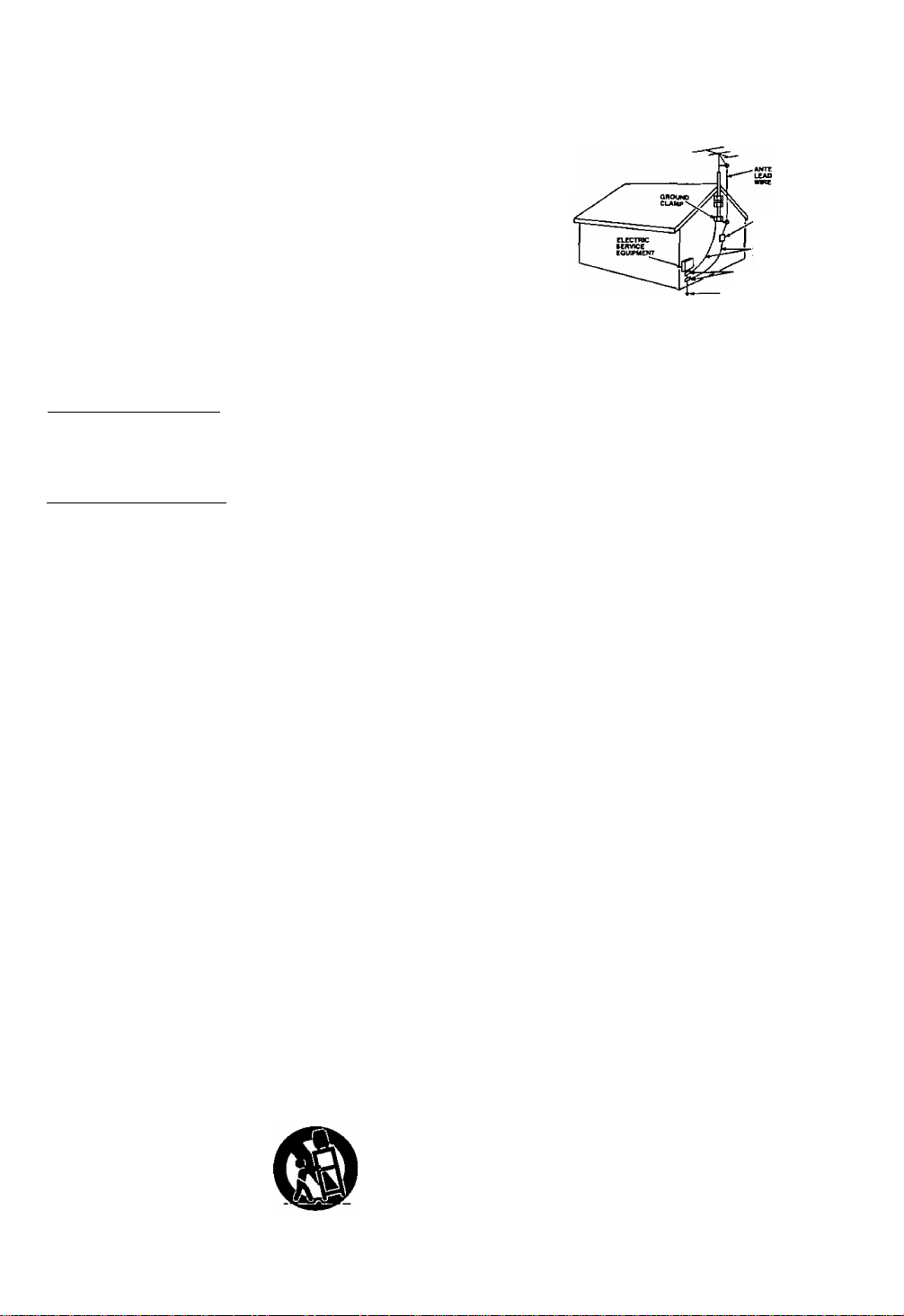
1 SAFE ANTENNA AND CABLE CONNECTION
If an outside antenna or cable
system is connected to the
equipment, be sure the
antenna or cable system is
grounded so as to provide
some protection against
built up static charges and
voltage surges. Section 810
of the National Electrical
Code, ANSl/NFPA 70 (in
Canada, part 1 of the
Canadian Electrical Code)
provides information with respect to proper grounding of the mast and
supporting structure, grounding of the lead-in wire to an antenna discharge
unit, size of grounding conductors, location of antenna discharge unit,
connection to grounding electrodes and requirements for the grounding
electrode.
KEEP ANTENNA CLEAR OF HIGH VOLTAGE POWER LINES
OR CIRCUITS
An outside antenna system should be located well away from power lines,
electric light or power circuits and where it will never come into contact with
these power sources if it should happen to fall. When installing an outside
antenna, extrema care should be taken to avoid touching power lines,
circuits or other power sources as this could be fatal. Because of the
hazards involved, antenna installation should be left to a professional.
NEC - NATIONAL ELECTRICAL CODE
ANTENNA
DI9CNAME UNTT
{NEC iCCtlON CIR.»)
GROUND CLAMP«
POWER CERVICE OROUNDMQ
CLECTROOE «YÌTEM
(NEC ART 29«. PART N}
USING THE VIDEO UNIT
If the unit has been in storage or moved to a new location, refer first to the
INSTALLATION section of these safeguards.
1 KEEP THIS VIDEO UNIT AWAY FROM WATER OR MOISTURE
OF ANY KINO.
2 IF EQUIPMENT IS EXPOSED TO RAIN, MOISTURE, OR
' STRONG IMPACT, unplug the unit and have it inspected by a qualified
service technician before use.
3 DURING AN ELECTRICAL STORM
During a lightning storm, whether indoors or outdoors, or before leaving the
unit unused for extended periods of time, disconnect all equipment from the
power source as well as the antenna and cable system.
4 WHEN THE UNIT IS PLUGGED IN
• Never expose the unit to rain or water. DO NOT OPERATE if liquid has
been spilled into the unit. Immediately unplug the unit, and have it
inspected by a service technician. Fire and shock hazards can result from
electrical shorts caused by liquid contact inside.
• Never drop or press any object through openings in the unit. Some internal
parts carry hazardous voltages and contact can cause electric shock or fire
hazard.
• Avoid placing the unit directly above or below your TV set as this may
cause electrical interference. Keep all magnets away from electronic
equipment.
5 USING ACCESSORIES
Use only accessories recommended by the manufacturer to avoid risk of fire,
shock, or other hazards,
6 CLEANING THE UNIT
Unplug the unit. Then, use a clean, dry, chemically untreated cloth to gently
remove dust or debris. DO NOT USE cleaning fluids, aerosols, or forced air
that could over-spray, or seep into the unit and cause electrical shock. Any
substance such as wax, adhesive tape, etc. may mar the cabinet surface.
Exposure to greasy, humid, or dusty areas may adversely affect internal parts.
SERVICE
DO NOT SERVICE THIS PRODUCT YOURSELF
If, after carefully following the detailed operating instructions, this Video
product does not operate properly, do not attempt to open or remove covers,
or make any adjustments not described in the manual. Unplug the unit and
contact a qualified service technician.
IF REPLACEMENT PARTS ARE REQUIRED
Make sure the service technician uses only parts specified by the manufacturer,
or those having the same safety characteristics as the original parts. The use of
unauthorized substitutes may result in fire, electric shock, or other hazards,
HAVE THE SERVICE TECHNICIAN PERFORM A SAFETY CHECK
After any service or repairs to the unit, request the service technician to
conduct a thorough safety check as described in the manufacture's service
literature to insure that the video unit is in safe operating condition.
Page 4
Unpacking Your Combination VCR • Product Features
Unpacking Your
Combination VCR
The accessories shown below are provided to
help you use or set up your Combination VCR.
Accessories
Remote Control
VSQS1483
G © ©
© 0 ©
© ®
0 0
cB
B IS
iSTS" a
ffiBt
i
___
^____
2 “AA” Batteries
jl
)
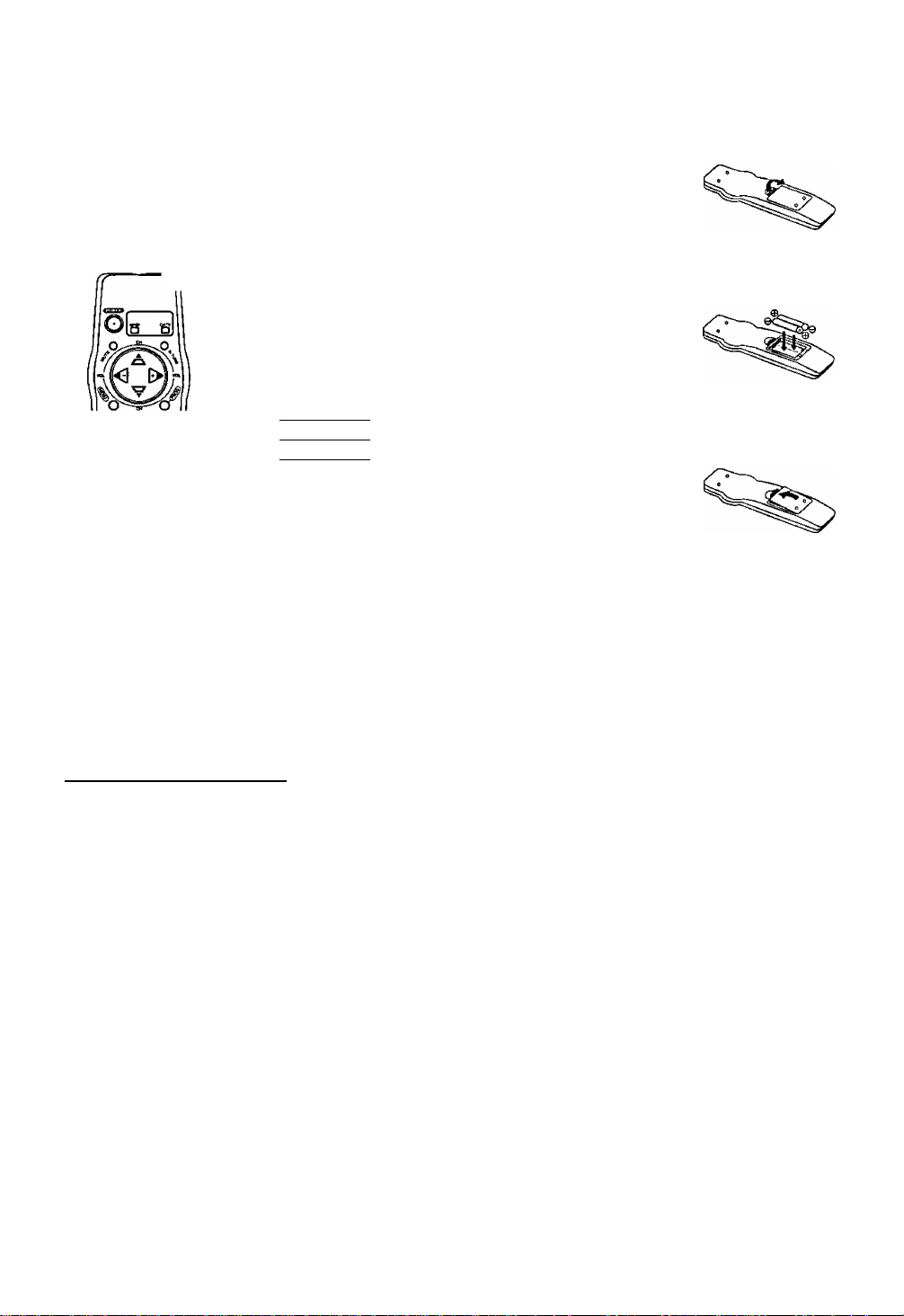
)
Load the batteries
Press in and up on
the latch with your
thumb naii and lift
off the lid.
install two batteries,
as indicated, inside
the Battery
Compartment.
Fit the lid’s hinge
piece into the indent
on the case, and
snap the lid into
place.
Battery replacement caution
• Do not mix old and new batteries.
• Do not mix alkaline with manganese batteries.
To order accessories,
call toll free 1-800-211-PANA(7262).
Product Features
Alarm Timer......................................................................................................................................13
All Channel Auto Set/181-CH TV/CATV Tuner
Auto Clock Set................................................................................................................................8, 9
Auto Daylight Saving Time ............................................................................................................. 28
Auto Operation Functions (Auto Shut Oft, Auto Playback, Rewind, Tape Eject, Power Off)
Auto Repeat Function......................................................................................................................21
Cable Box Universal Remote Control Feature
Closed Caption System...................................................................................................................14
Easy-to-Read English/Spanish/French On-Screen Displays.............................................8, 9, 18, 19
FM Radio ........................................................................................................................................ 15
Front-mounted AA/ In Terminals ...............................................................................................19, 24
MTS Broadcast System...................................................................................................................22
One Minute Skip..............................................................................................................................21
One Month, 8 Program Auto Timer Recording...........................................................................18,19
One Touch Recording (OTR) ..........................................................................................................17
PanaBiack'^'^ Picture Tube ............................................................................................................16
Quick Play Mechanism....................................................................................................................29
Rapid Tune ......................................................................................................................................11
Spatializer........................................................................................................................................23
Speaker ON/OFF System................................................................................................................20
Special Effects Playback ................................................................................................................16
Special VCR Features (VCR Lock, Warning Beeper).......................................................................20
VCR Plus-i- Recording.....................................................................................................................26
VMS Hi-Fi Stereo System................................................................................................................23
Zero Search.....................................................................................................................................21
_________________________________
................................................................................
.........
21
...............................................................................
27
8
4
Page 5
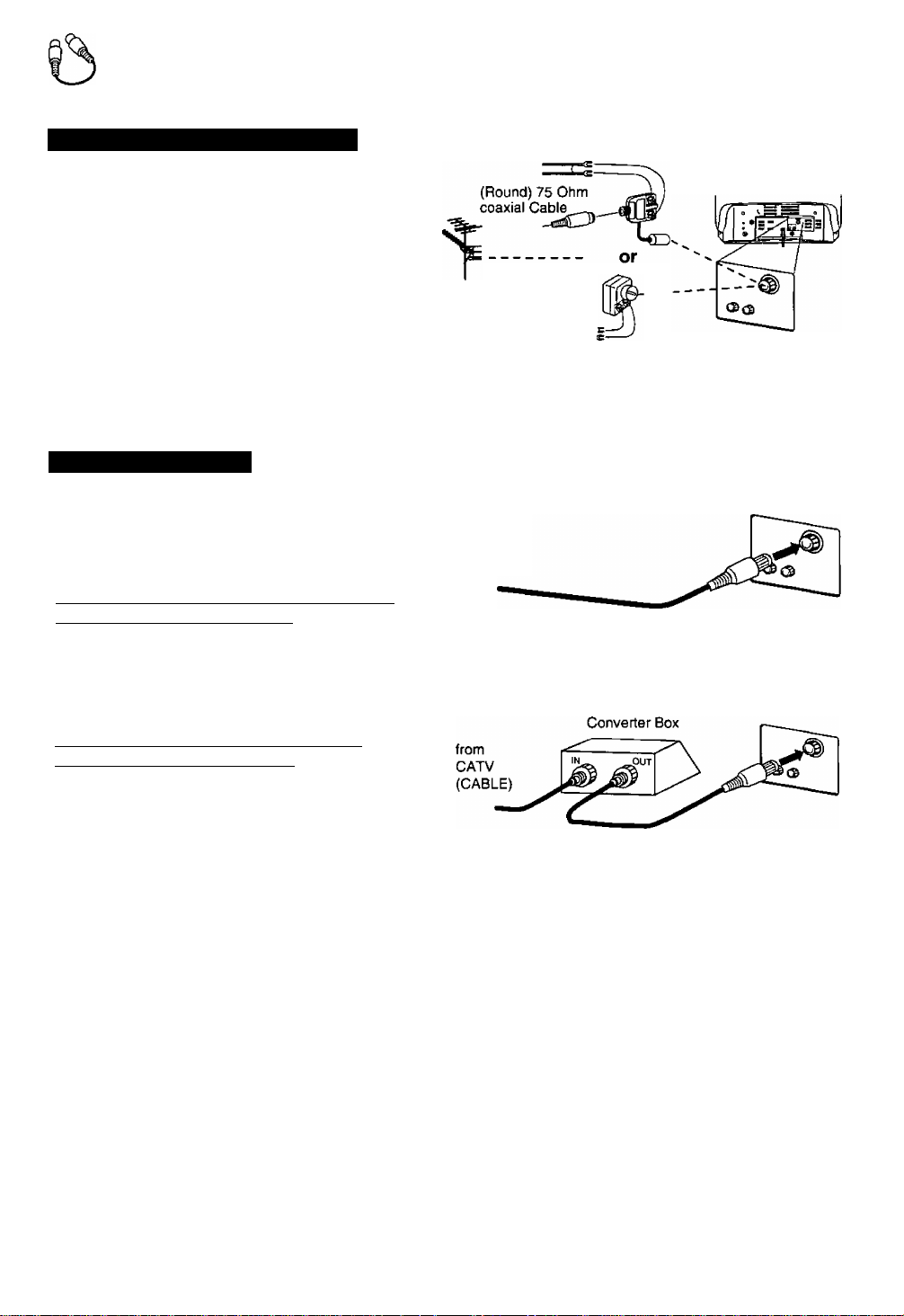
Antenna or Cable Connections
Outdoor Antenna Connection
Unhook the antenna from your previous TV
or VCR and connect it to the back of the
Combination VCR as shown in the diagram.
If your antenna system has separate UHF
and VHF lead-ins, you need a UHFA/HF
Band Mixer (not supplied).
Cable Connections
(A) Without a Converter/Descrambler Box
With this connection, you can use your
Combination VCR remote control to select
channels for viewing and select
unscrambled channels for timer recording.
Scrambled channels mav not be viewed or
recorded with this connection.
(B) With a Converter/Descrambier Box
With this connection, you may record and
view any channel including scrambled
channels. Please note, however that
channel selection must be made at the
cable company converter box. Timer
recording is limited to one channel at a time,
and you can only view the channel you are
recording.
(Flat)Twin Lead
300 Ohm Cable
300-75 ohm
Transformer
from (not supplied)
Antenna _
(Flat)Twin Lead
300 Ohm Cable
(A)
from CATV
(CABLE)
(B)
UHFA/HF Band
Mixer (not supplied)
Back of
Combination VCR
Back of Combination VCR
Cable TV
To Watch and Record Scrambled/
Unscrambled Channels
Set the Combination VCR to the output
channel of the cable converter box (e.g. CH3).
Now, select channels to be viewed or
recorded at the cable converter box.
FCC WARNING: Any unauthorized changes or
modifications to this equipment would void the
user’s authority to operate.
Note to CATV System Installer
This reminder is provided to call the CATV (Cable
TV) System installers attention to Article 820-40 of
the NEC that provides guidelines for proper
grounding and, in particular, specifies that the cable
ground shall be connected to the grounding system
of the building, as close to the point of cable entry as
practical.
Page 6
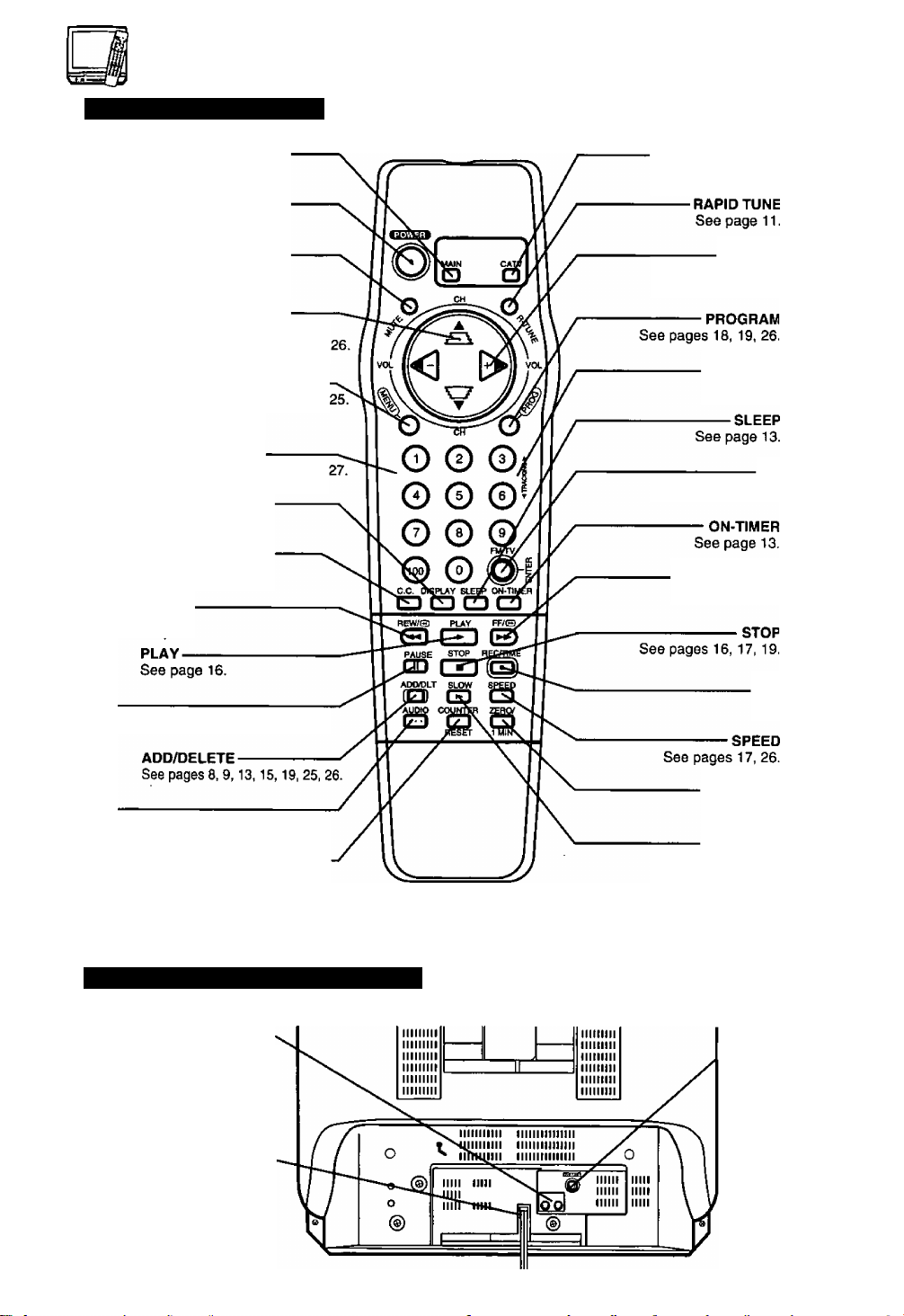
Location of Controls
Remote Control Buttons
MAIN
See page 27.
POWER
See pages 8,11,27.
MUTE
See pages 11, 14,
CHANNEL UP/DOWN
SELECT UP/DOWN
See pages 8-15, 17-21,23-
MENU
Seepages 8-10,12,14,17,20,21,23-
NUMBERED KEY
See pages 9,11,15, 17, 26
DISPLAY
See pages 10, 13,15, 21,22.
CLOSED CAPTION
See page 14.
REWIND/SEARCH
See page 16.
CATV
See page 27.
VOLUME UP/DOWN
SET/BACKSPACE
See pages 8-14,17-21,23-26.
TRACKING UP/DOWN
See page 16.
FM/TV ENTER
See pages 15, 27.
FAST FORWARD/SEARCH
See page 16.
PAUSE
See pages 16,17.
AUDIO
See pages 15, 22, 23.
COUNTER RESET
See page 21.
Rear View of the Combination VCR
Audio Output Connector (I7R)
For connection to the audio input
connector of a stereo TV,
another (Combination) VCR or
an audio stereo amp.
AC Power Plug
When plugged into an AC
outlet, the Combination VCR
consumes 7 W of electric
power in OFF condition.
RECORD/TIME
See page 17.
ZERO/1 MINUTE SKIP
See page 21.
SLOW
See page 16.
^ VHFAJHF Antenna
Input Terminal
In from your
Antenna or Cabie.
See page 5.
Page 7
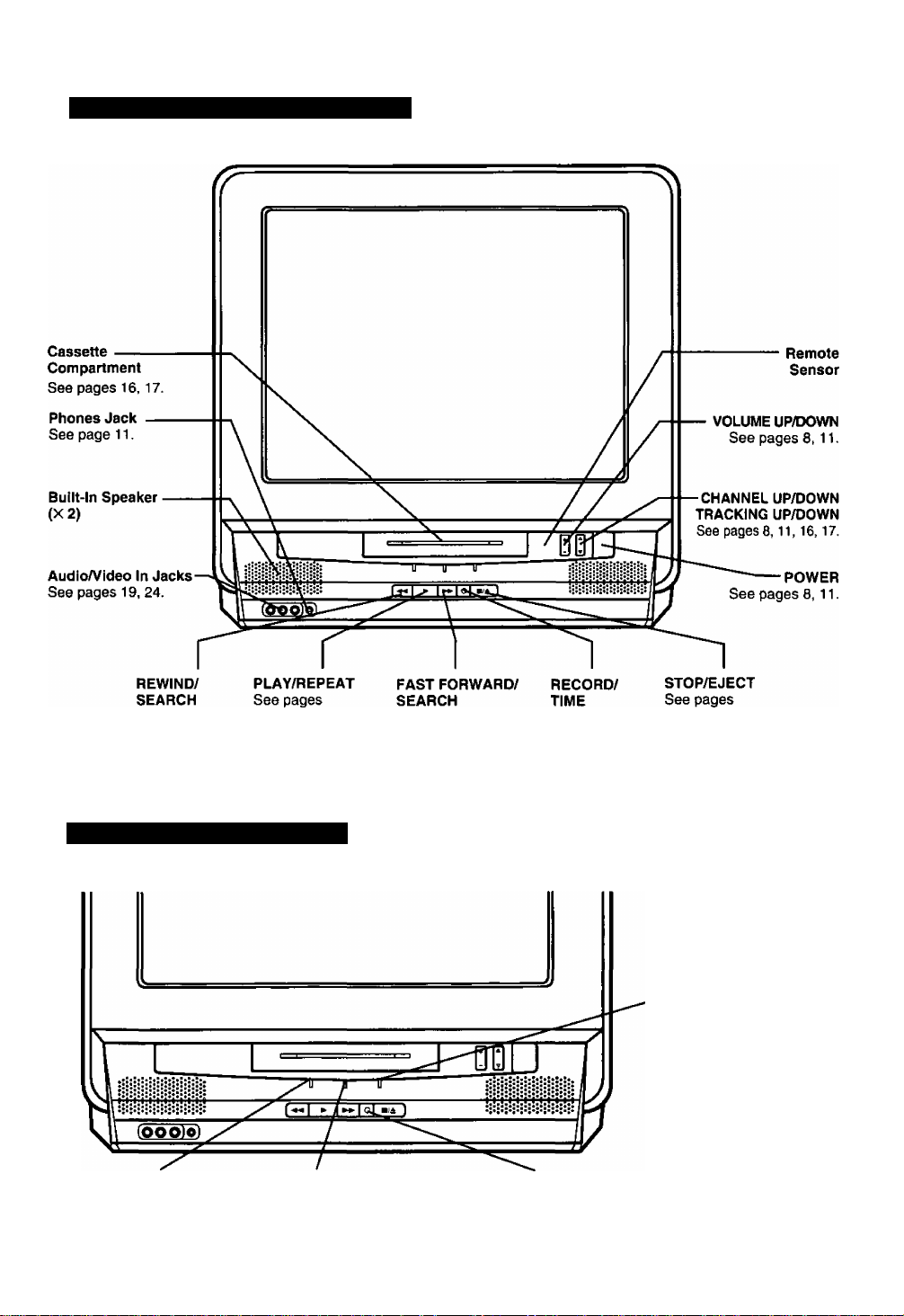
Front View of the Combination VCR
See page 16. 11, 16, 21.
Indicators on the Front Panel
REPEAT Indicator
Lights when “REPEAT PLAY:
ON” is selected and playback
is in progress.
See page 21.
ON TIMER Indicator
Lights when the On
Timer is set.
See page 13.
See pages 16.
RECORD Indicator
Lights during recording. In
Rec Pause or OTR Pause
mode, the indicator fiashes.
See page 17.
See page 17. 16,17,19, 20.
PROGRAM TIMER
Indicator
Lights when the
Combination VCR is set for
Timer Recording. It flashes
when a Timer Recording
has been set with no tape
inserted, the clock is not set,
or the tape is in motion.
See pages 17-19, 26.
Page 8
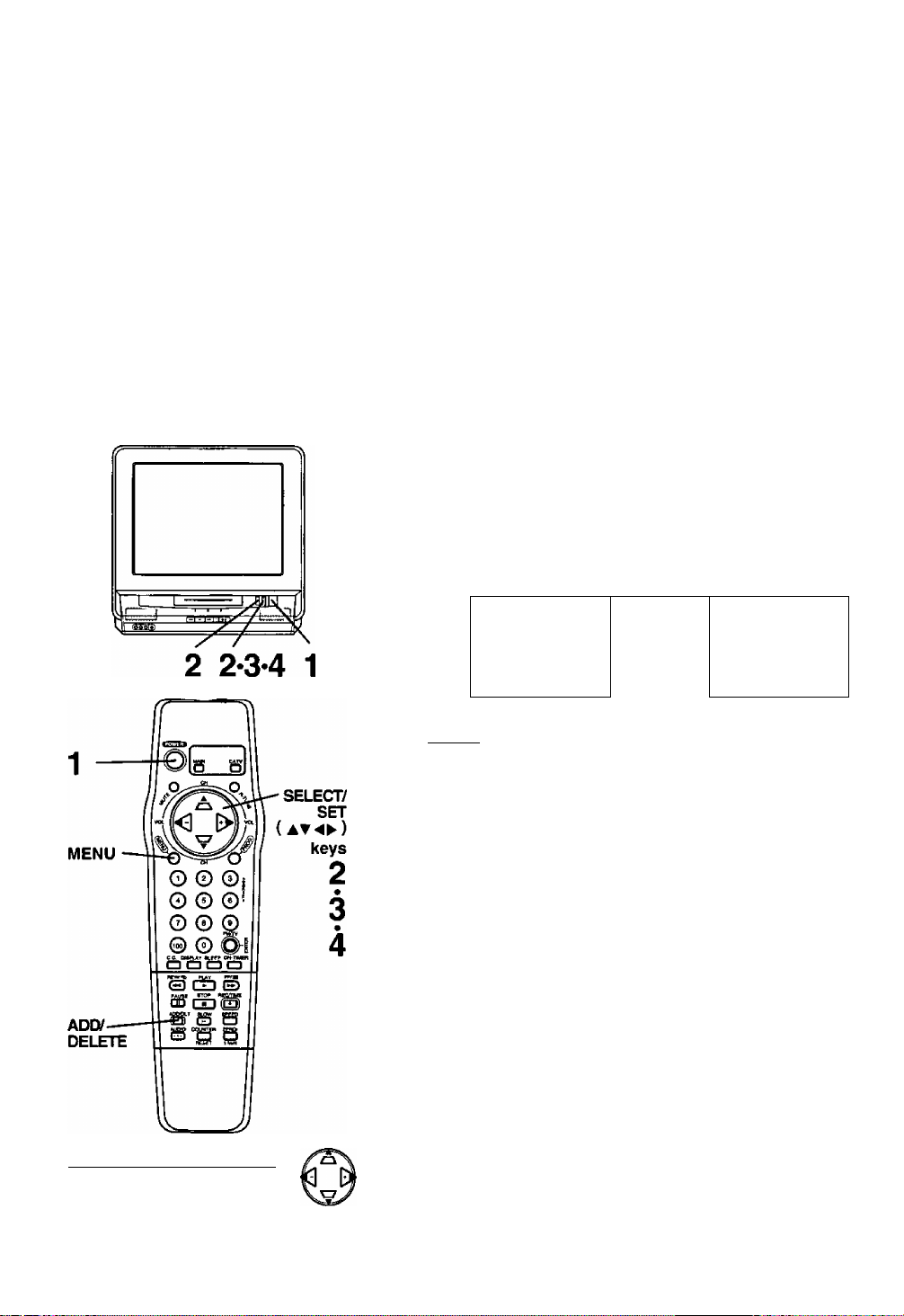
One Time Setup
*lmportant;
If the remote control POWER, CH at , MENU,
PROG, ON-TIMER, R-TUNE, FM/TV and
ADD/DLT button does not work when pressed,
press the MAIN button on the remote control
and try the button again.
When the Combination VCR is turned on for
the first time, it automatically enters the setup
mode. Setup includes the following:
• Choose the language for on-screen menus
and messages.
• Tell the Combination VCR how your
equipment is hooked up (page 5) so the
Combination VCR can correctly place
channels into memory.
• Get the Combination VCR ready for clock set.
Check list before you begin.
Q Your Combination VCR is connected to an
Antenna or Cable system (see page 5).
To Set Language, Channels, and Clock
1 Press POWER* to turn the Combination VCR on.
& Press CH AT , or VOL^ for on
screen displays in English,
Spanish or French.
• If you choose the wrong language,
please see the "Reset all Combination
VCR Memory Functions" section on
page 28.
• If you use a cable box, the cable box must be left on for auto
channel set.
Important: If you use a cable box, turn it on and select
the PBS station in your time zone.
3 Press CH A to start Channel
Auto Set and Clock Auto Set.
These on-screen displays will
appear in sequence.
• CH AUTO SET PROCEEDING
• CH AUTO SET COMPLETED
• AUTO CLOCK SET PROCEEDING
or
--------------
(case
7/28/1998 TUE 12;00PH
END ; PUSH CH UP KEY
DST: ON
SFTTING : CH 10
AUTO CLOCK SET
completed
(case 2^
SELECT UNGUAGE
PUSH CH A :Eng1 Isn
PULSE CH T lEspanol
APP. VOL + ;Fratigais
CHAfJNEL/CLOCK AUTO SET
CONNECT ANTENNA CABLE
AND IF YOU USE A CABLE
BOX, TUNE IT TO YOUR
LOCAL PBS CH THEN. , .
PLEASE PUSH CH UP KEY
auto clock set
IS INCOMPLETE
PUSH MENU TO SET CLOCK
Using the keys
Whenever a menu or program
screen is displayed, CHANNEL UP/
DOWN and VOLUME UP/DOWN
on the remote control function as
only. For VOLUME UP/DOWN functions,
use the buttons on the Combination VCR.
8
4 (case i) If the displayed time is correct, press CH A to
exit.
• This concludes one time Combination VCR setup.
• See important note at the bottom of this page.
If the displayed time and DST. are not correct...
If you happen to live close to two time zones, the Combination VCR may
have recognized the PBS channel (setting channel) in the wrong time
zone. Please do the following to correct the situation.
a. Make a note of the SETTING: CH number shown on-screen and
press CH A to exit.
b. Delete the setting channel from the Combination VCR channel memory.
(See the Add or Delete a Channel section on the next page.)
C. Press MENU to display the MAIN MENU.
d. Press AT to select “CLOCK," and then press MENU to display
the SET CLOCK screen.
• If you use a cable box and have multiple PBS stations, tune the
cable box to a different PBS station and try auto clock set again
using the menu.
e. Press AT to select “AUTO SET,” and then press ► to set and CH a
to start Auto Clock set.
IMPORTANT NOTE FOR AUTO CLOCK SET WHEN USING CABLE BOX
• Auto clock set will be performed when the Combination VCR is turned
off the first time each day. If you use a cable box and you want auto
clock set to be performed, the cable box must be left on and tuned to
the PBS channel at the time the Combination VCR power is turned off.
• If you use Audio/Video Jack connection between the Combination VCR
and Cable Box, you must also connect the RF coaxial cable in order to
use the auto clock set and channel auto set features.
• If for any reason the time is changed manually, automatic time
correction will not occur.
Page 9
If AUTO CLOCK SET IS INCOMPLETE
^ appears, please set the clock manually.
a. Press MENU to display the SET
CLOCK screen.
SET CLOCK
...................
b. Press AT to select and ► to
enter the month, date, year, time,
and DST. (Daylight Saving Time).
To Make Corrections,
press repeatedly to move the
cursor to the incorrect entry and
make the correction.
C. Press MENU twice to start the
clock and exit the MAIN MENU.
ÈiBCTÎBniâ"
SELECT : * ▼ KEY
SET :► KEY
END :MENU KEY
“DST:ON" automatically
adjusts for daylight
saving time. (See page 28.)
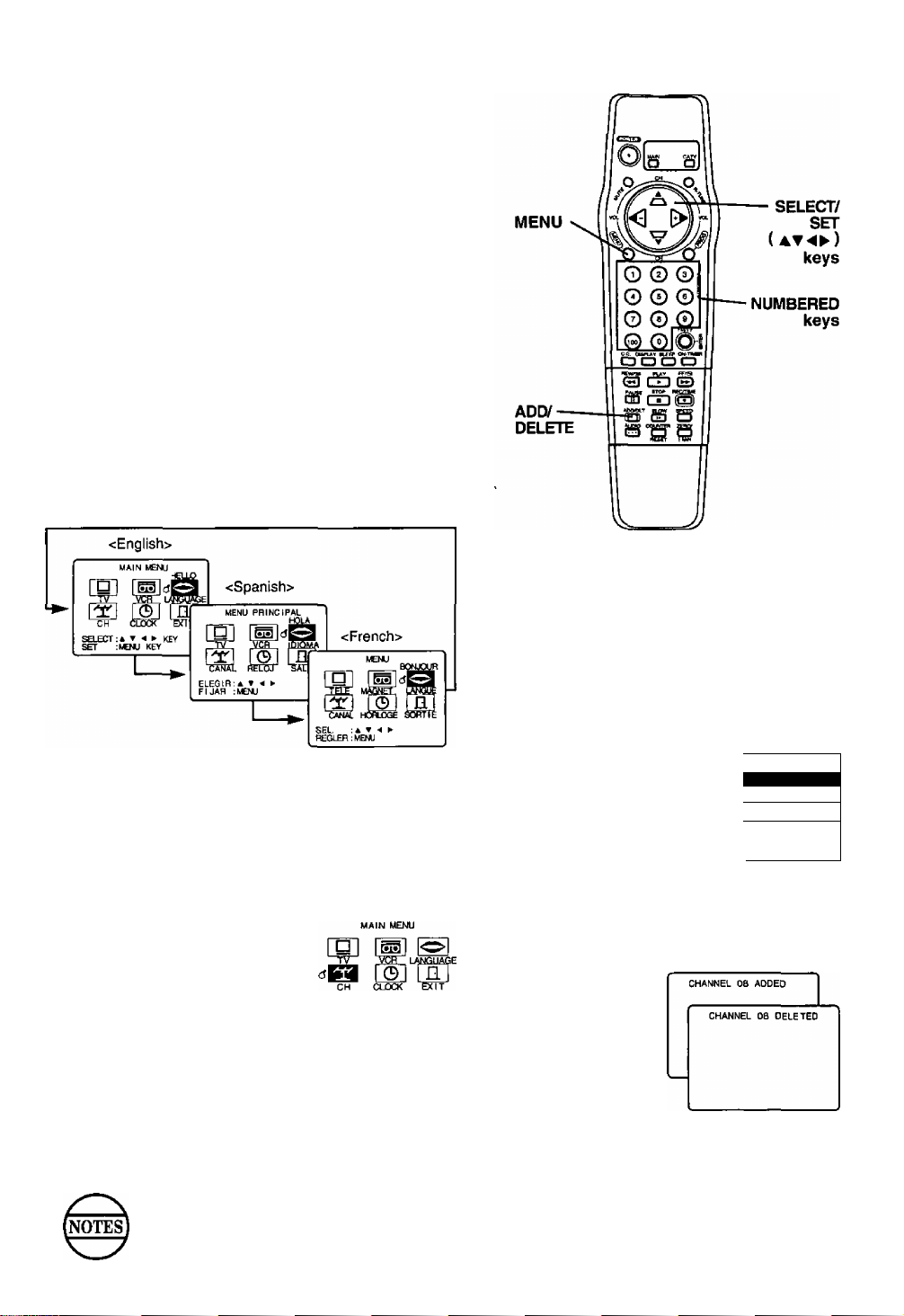
To Change the OSD Language
1 Press MENU to display the MAIN MENU.
2 Press AT 4^ to select the language selection
icon.
3 Press MENU repeatedly to change the language as
shown.
4 Press to select “EXIT.” and then press
MENU to exit the MAIN MENU.
To Replace Channels in Memory
In case, you have cable installed, etc.
1 Press MENU to display the MAIN MENU.
2 Press AT^^ to select “CH,"
and then press MENU to
display the SET UP CHANNEL
screen.
3 Press AT repeatedly to select
“ANTENNA,” and then press
► to select your antenna
system ("TV” or “CATV”).
4 Press AT to select “AUTO
SET," and then press
► to start.
• To exit the SET UP CHANNEL
screen, press MENU twice.
SELECT : * T ► KEY
SET :MENU KEY
--- SET UP CHANNEL ---
AUTO SET
CABLE BOX SET UP
VCR PIU8+ CH SET UP
SELECT:* T KEY
SET :► KEY
END ;MENU KEY
To Set or Reset the Clock
In case the clock is wrong, or a power failure occurred.
1 Press MENU to
display the MAIN
MENU.
...........
SET CLOCK
AUTO SET
....................
2 Press AT-4^ to
select “CLOCK.”
Then, press MENU
to display the SET
CLOCK screen.
3 Press AT to select
“MANUAL SET,” and
then ► to display
the SET CLOCK
screen.
SELECT:* » KEY
SET :► KEY
END :MENU KEY
SET CLOCK..................... 1
■ 1/--
SQECT:* T KEY
SET ;► KEY
1 END :MENU KEY j
DST:ON
4 Please do steps b
and c at the top of this page.
To Add or Delete a Channel
1 Select a channel
using the
NUMBERED keys
to add or CH AT
to delete.
2 Press ADD/DLT
to add or delete
the channel.
• To select a channel once it's deleted, use the
NUMBERED keys.
• This Combination VCR will accurately maintain its calendar up to Dec. 31,2089,11:59PM.
• Normal TV or Cable channels are automatically selected and placed in memory depending on how/
your Combination VCR is hooked up.
Page 10
On-Screen Displays (OSD)
*lmportant:
If the remote control POWER, CH at , MENU, PROG,
ON-TIMER, R-TUNE, FM/TV and ADD/DLT button does
not work when pressed, press the MAIN button on the
remote control and try the button again.
Channel & Function Display
Whenever the channel is
changed, the channel
number will appear for a
few seconds on-screen.
(Some station names may
also appear.)
When a function button is
Combination VCR mode wiil be
displayed.
• When a recording is started, both REC and
the channel number will appear together.
08
Menu Screen
1 Press MENU* to
display the MAIN
MENU.
2 Press and
MENU to make your
SELECT ; A ¥ -< ► KEY
SET ;MO*J KEY
selection (see page 8).
• To get the most from each feature, please read
the Operation Manual before attempting any
operation.
VCR Status & Clock Display
Press DISPLAY to display and remove the
overlay shown below.
LffBbAGE
EXIT
WNET
Warning and Instruction Displays
These displays will alert you of a missed operation or
provide further instructions.
If no active channels are
found for CHANNEL
MEMORY...
(see page 5.)
If you attempt to set or
review a Timer Recording or
set the On-Timer and the
Clock is not set...
(see pages 8, 9.)
If you press REC on the
remote control or the
Combination VCR, and a
cassette is inserted with no
record tab...
(see page 17.)
If you press STOP
during a Timer
Recording...
(see page 19.)
If you press PLAY, FF,
REW, or REC on the
remote control or the
Combination VCR without
a cassette inserted...
(see pages 16, 17.)
NO CH FOUND
PLEASE CHECK ANTENNA
CABLE CONNECTION THEN
PUSH CH UP KEY AGAIN
PLEASE SET CLOCK
BEFORE PROGRAMMING
CHECK CASSETTE
RECORD TAB
TO CANCEL TIMER REC
HOLD DOWN STOP KEY
FOR APPROK 3 SEC
NO CASSETTE
PLEASE INSERT A CASSETTE
Function
Status
Rec Time
Remaining
(OTR mode
only see
page 17.)
Receivable
Broadcast Types
(See page 22.)
X
REC 12:00AM WNET
OSTEREO <- 1 SLP
»SAP
Current
Time
__
L
0;25 0:00:00
MONO
Tape Counter
Channel &
Cali Letter
^Tape Speed
Blank Tape/ No Video Signal Indication
When a blank section of tape comes up in Play
mode, or the selected channel has no
broadcast signal, the TV screen will turn a solid
blue.
10
If the Combination VCR is
not in Stop mode or a
cassette with record tab is
not inserted two minutes
before a Timer Recording
is about to begin...
(see pages 18,19.)
If head cleaning becomes
necessary while playing
back a tape...
(see page 28.)
If you press a function
button other than
STOP/EJECTor POWER
while the Combination VCR
is in VCR Lock mode...
(See page 20.)
PLEASE PREPARE
FOR TIMER REC
VIDEO HEADS MAY
NEED cleaning
PLEASE INSERT HEAD
CLEANING CASSETTE
OR REFER TO MANUAL
END 1 PLAY KEY
VCR LOCK ACTIVATED
Page 11
TV Operation
Check list before you begin.
D
All connections are made {see page 5).
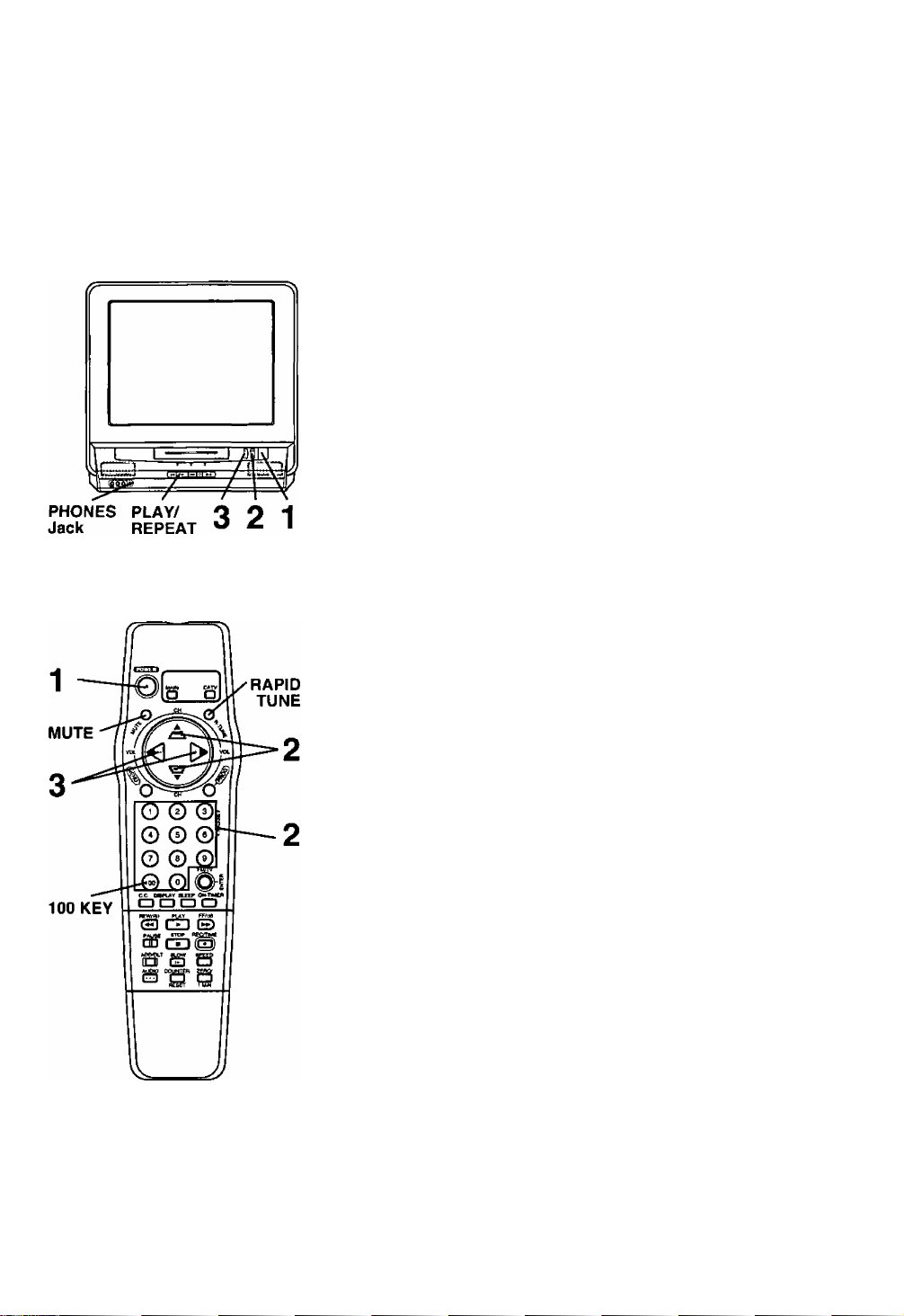
0 Your Combination VCR is plugged in.
Press POWER to turn the Combination VCR on.
2 Seiect a channel using CH AT or the
NUMBERED keys.
3 Press VOL^^ to adjust the volume level.
Using the 100 key
When selecting CATV channels 100 to 125 with the NUMBERED
keys, first press the 100 key, and then enter the remaining two
digits.
For example, for channel 125: Press NUMBERED keys 100-2-5.
Rapid Tune
Press R-TUNE to display the last
channel you were watching.
• When selecting channels with CH ,
the channels must be displayed for at
least 4 seconds in order for the Combination
VCR to recognize them as a new selection.
Previous
channel
CH08-
Present
channel
OHIO
Audio Mute
Press MUTE to instantly mute the sound.
Press again, to restore the previous sound level.
Phones
Connect an earphone (not supplied) or headphones (not supplied)
to the Phones Jack.
SELF-DEMO Mode
In Power ON condition, hold down PLAY/REPEAT on the
Combination VCR, with no tape inserted, for 5 seconds. The demo
screen appears.
To cancel: Repeat the above operation. The demo screen
disappears.
11
Page 12

Audio/Picture Adjustment
|\^Check list before you begin.
[~l Alt connections are made (see page 5).
Q Your Combination VCR is plugged in.
2
3
4
‘Important:
If the remote control POWER, CH at , MENU, PROG, ON-TIMER,
R-TUNE, FM/TV and ADD/DLT button does not work when pressed,
press the MAIN button on the remote control and try the button again.
1 Press MENU* to display the
MAIN MENU.
2 Press to select “TV,”
and then press MENU to
display the SET UP TV screen.
3 Press AT to select “AUDIO
ADJUST’ or “VIDEO ADJUST’
and then press ^ to display
the AUDIO ADJUST or VIDEO
ADJUST screen.
SELECT:* ▼ * ► KEY
SET ;№NU KEY
..............
SET UP TV
-------------------
CAPTION ON MUTE:CAP C1
INPLTT SELECT ; TUNER
SPEAKER :ON
SPATIALIZER :ON
SELECT : * ▼ KEY
SET :► KEY
END :MENU KEY
SI
or
..............
SET UP TV ......................
CAPTION ON MUTEiCAP Cl
INPUT SELECT ;TUNER
VIDEO ADJUST
AUU I U AUJU^ I
SPEAKER :ON
SPATIALIZER :ON
SELECT:* ▼ KEY
SET : *■ KEY
END :MENU KEY
Audio Adjustment
BASS Control
To adjust the intensity of low
frequency sound.
TREBLE Control
To adjust the intensity of high
frequency sound.
• The levels set here do not affect other
audio equipment when connected to the
Audio Output L/R Connector.
Picture Adjustment
COLOR Control
To adjust the intensity of the color.
TINT Control
To adjust for the most natural
fleshtones.
BRIGHT Control
To adjust the brightness of the picture.
PICTURE Control
To adjust the intensity of the picture
by adjusting contrast and color level at
the same time and in the proper
balance.
SHARPNESS Control
To adjust the sharpness of the picture.
4 Press AT repeatedly to select
the desired adjust item, and
TREBLE
NORbtAL
.......
then press to adjust. (See
description below left.)
SELECT:* V KEY
ADJUST:-* ► KEY
END :MENU KEY
or
TINT
BRIGHT
PICTURE
SHARPNESS
NORMAL
SELECT:* ▼
ADJUST;-« ►
END :MENU
..................
KEY
KEY
KEY
To Reset Audio/Picture Controls
to the Factory Setting
Press AT and ► to select
___________
BASS
TREBLE
and set “NORMAL.”
SET
END
COLOR
TINT
BRIGHT
PICTURE
SHARPNESS
SELECT;* ▼ KEY
SET :► KEY
END :MENU KEY
All controls return to their
factory settings. ^^^e
5 Press MENU three times to return to the normal
screen.
• If no button is pressed within 5 minutes, the video adjust overlay
disappears.
I.......
-1
12
Page 13

TV Timer Features
|\^Check list before you begin.
Q All connections are made (see page 5).
Q Your Combination VCR is plugged in.
On-Timer with Alarm Feature
The Combination VCR can be set to automatically power on in one of 3
modes (TV, Playback, or FM radio). You can also combine the On-Timer
with a one minute alarm that gradually increases in volume.
1
Press ON-TIMER to display the ON
TIMER screen.
Press A V to select and ► to fix
the On-Timer time and also to
choose the On-Timer mode {TV,
PLAY, or FM radio). See the AV
selection order shown below.
• Make sure a tape is inserted if Playback
mode is selected.
• See “FM Radio Feature” on page 15 for
instructions on how to preset FM stations.
CH02—CH03
r
CHOI
Wm9—FM8
.....
CHI 25
■FM1
O Press AV to select alarm “ON” or
“OFF.”
When “ON” is selected,
an alarm will gradually increase in
volume for one minute or until cancelled
by pressing any button on the remote or
Combination VCR (including Volume
UP/DOWN). When the alarm sound stops, the sound of the
mode you selected will ensue.
To Make Corrections,
use AT and to move back and correct as necessary.
----
xt/OrifT/IMER
6:-AM CH-
/|^
/|\
SELECT :* ▼ KEY
SET :► KEY
END :ON-TIMER KEY
..............
ON TiuEia 1-7
6:00AM CH125
SELECT;A ▼ KEY
SET ;•« ► KEY
END :ON-TIMER KEY
..............
ON TIMER
6:00AM CH08
...........
CANCEL:ADO/OLT KEY
SELECT:* ▼ KEY
SET ► KEY
END :ON-TIMEH KEY
________
........
----------------
ai!arm>on
.......................
4 Press ON-TIMER to set the On
ON TIMER SET
Timer. This screen will appear for
about 5 seconds.
• The ON TIMER indicator lights on the front
panel.
To cancel,
press ON-TIMER to redisplay the screen in step 3. Then, press
ADD/DLT to clear the time (“6" is flashing). Now, press ON-TIMER
to end. “ON TIMER END" appears on-screen for a few seconds.
If no button on the remote or Combination VCR (including
NOTE
a button used to turn off the alarm) is pressed within 60
minutes after the Combination VCR turns itself on, it will
turn itself back off.
Set the Sleep Timer
The Combination VCR can be set for auto power off.
Press SLEEP repeatedly to set the sleep sleep timer so
• Each press will change the time in the order shown -f
alright. SLEEP^TIMERSO
• If you press DISPLAY with the SLEEP TIMER set, SLEEP TIMER oo
the remaining time will appear on-screen, *
To Cancel, press SLEEP repeatedly until “SLEEP TIMER 00" appears.
SLEEP TIMER 60
---------------
13
Page 14

ICCi Closed Caption System
‘Important:
|\X Check list before you begin.
Q All connections are made (see page 5).
□ Your Combination VCR is plugged in.
If the remote control POWER, CH AT , MENU, PROG, ON-TIMER, RTUNE, FM/TV and ADD/DLT button does not work when pressed,
press the MAIN button on the remote control and try the button again.
Closed Caption Mode Feature
This multi-use system not only allows the hearing impaired to enjoy
selected programs, but also makes useful information from TV stations
available to everyone. At first, read through the different closed caption
options below left.
Press C.C. repeatedly to select the desired caption
mode. (See “Caption Mode description” below left).
• Selected mode is displayed on screen.
• Each press C.C. will change
the display as shown at right.
Caption On Mute Feature
This feature allows you to turn off the sound and, at the same time,
display Closed Caption narration. Perfect for when you need silence,
but would like to continue watching the program.
CAPTION OFF—►CAPTION Cl-
C
TEXT C2- ■ CAPTION C2-
TEXT Cl
which to Choose
Caption Mode: CAPTION C1 or C2
A narration of selected TV programs
will be displayed on the screen.
Check your TV program listings for
C.C. (Closed Caption) broadcasts.
Caption Mode: TEXT C1 or C2
The lower half of the screen will be
blocked out. When the TV station
broadcasts text, such as program
listings, special information, etc., it will
appear in this space.
Caption Mode: OFF
Narration will not appear on the screen
even if a closed caption or text
broadcast is received.
Note: The closed caption or text signal may
be broadcast over Cl, C2, or both.
Also, text contents can vary so you
may wish to try different settings.
Recording and Playing Back a Closed Caption/Text Program
Record: Your Combination VCR will
automatically record the Closed
Caption/Text signal. Just follow normal
recording operation.
Playback: To display the Closed
Caption narration or Text during
playback, simply press C.C. until the
desired caption mode is displayed.
1 Press C.C. until CAPTION OFF
CAPTION OFF
is displayed on screen.
2 Press MENU* to display the
MAIN MENU.
3 Press AV ◄ ► to select “TV,”
and then press MENU to display
the SET UP TV screen.
Press ► repeatedly to select
the desired caption on mute
mode.
• Each press of ► will change the
display as shown at right.
• The caption may be broadcast over
CAP C1 or C2.
Press MENU twice to return to the normal screen.
Press MUTE to mute the sound. The closed caption
narration (if available) is displayed on the screen.
• Press MUTE again to resume normal sound and picture.
• Not all programs have Closed Caption information, therefore,
narration may not be displayed.
SELECT:a t ^ ► key
SET :MENU KEY
CAPTION ON MUTE:CAP 01
INPUT »cLtOT :TUN
VIDEO ADJUST
AUDIO ADJUST
SPEAKER :0N
SPATIALIZER :0N
SELECT
► KEY
SET
END
MENU KEY
NO—►CAPC1-V
C
— CAP C2m--y
l№№e
KEY
14
Page 15

r FM Radio
The Combination VCR has an FM
radio with built-in antenna, 9 station
preset, and a band range of
87.5-108.1 MHz. You can even set the
On-Timer {page 13) to wake up to your
favorite radio station.
Check list before you begin.
□ All connections are made (see page 5).
□ Your Combination VCR is plugged in.
FM Radio Feature Setup
a Press FM/TV on the rennote control
to select FM Radio mode.
b In FM Radio mode, press a
NUMBERED key (1-9).
c Press AT to select the desired
radio station. (Each press changes
the frequency by 200 KHz.)
d Press ADD/DLT to memorize the
desired station.
• To preset other stations, repeat steps b~d.
To Make Corrections,
press the NUMBERED key to select the
memorized number, and then repeat steps b~d
to change the memorized station.
Using the FM Radio
1 Press FM/TV on the remote control
to select FM Radio mode.
►STEREO «-
Mom
FM 1 07. 5MHi
FM 1 07. 7MHz
MEMORY:PUSH AOO/DtT KEY
FM 1 87. 7MHi
MEMORIZED
►STEREO <-
MONO
FM 1 87. SMHi
2 Press a NUMBERED key (1-9) to
select a preset station
(see steps a~d above).
To cancel FM Radio mode, press FM/TV
again to return to the normal screen.
To Select Audio Mode for FM Radio
Press AUDIO in FM Radio mode to select “STEREO" or “MONO.
An arrow points to the current mode.
< Example >
Press
AUDIO
• You can not record FM radio stations onto a Video
cassette tape.
• You may get improved FM reception for some stations
by repositioning the Combination VCR.
• You can not select the FM Radio mode during playback
or record, or while a blue back screen (MENU, PROG,
and ON-TIMER) is displayed.
15
Page 16

^ Playback a Tape
*lmportant:
If the remote control POWER, CH at ,
MENU, PROG, ON-TIMER, R-TUNE,
FM/TV and ADD/DLT button does not
work when pressed, press the MAIN
button on the remote control and try
the button again.
|\^Check list before you begin.
□ All connections are made {see page 5).
Q Your Combination VCR is plugged in.
1 Insert a cassette.
• The Combination VCR power comes on automatically.
2 Press PLAY on the remote control or Combination VCR
to start playback.
• Playback begins automatically if cassette has no record tab (see
page 21).
3 Press STOP on the remote control or Combination VCR
to stop Playback.
• To rewind the tape, press REW,
4 Press STOP/EJECT on the Combination VCR to eject
the cassette.
• You may eject a cassette with power on or off.
To Find a Particular Scene During Playback
Press REW or FF on the remote control or Combination
VCR to quickly locate a scene.
• Search speed for SP mode tapes is 7 times and SLP mode tapes 21
times the normal speed.
• Some noise bars will appear during search.
Special Effects During Playback
These features work best in SP or SLP mode. The sound will be muted.
Slow Motion Playback
Press SLOW to start slow motion playback. Press PLAY or SLOW to
release.
Still (Freeze) Frame Picture
Press PAUSE to freeze and release the picture.
• To reduce picture noise, first press SLOW. Next, use the 3 or 6
NUMBERED key on the remote control or CH AT * on the Combination
VCR to clear up the picture. Now, press PAUSE.
Frame by Frame Advance
While in Still mode, press SLOW repeatedly or hold down to advance the
still picture one frame at a time. Press PAUSE or PLAY to release.
(After the Combination VCR is in Still or Slow mode for 3 minutes, it will
switch to the Stop mode automatically to protect the tape and the video
head.)
Features for a Quality Picture
Digital Auto Tracking
This feature continuously analyzes the signal and adjusts for optimum
picture quality.
Manual Tracking Control
Use during Playback and Slow Motion mode to reduce picture noise.
Press the 3 or 6 NUMBERED key on the remote control or CH at on the
Combination VCR until the picture clears up.
To return to Auto Tracking, press POWER off and then on again.
V-Lock Control
In Still mode, the 3 or 6 NUMBERED key on the remote control or CH AT
on the Combination VCR operate as a V-Lock control to reduce jitter. Press
one of these keys until the picture is stabilized.
PanaBlack™ Picture Tube
This Combination VCR uses a PanaBlack™ picture tube for better color
reproduction and picture contrast.
16
Page 17

Record On a Tape
|\X Check list before you begin.
Q All Connections are made (see page 5).
Q Your Combination VCR is plugged in.
2
4
3
1 Insert a cassette with record tab.
The Combination VCR power
comes on automatically.
Press CH AT, or
NUMBERED keys on the
remote control to select a
channel.
• Or, press CH AT on the
Combination VCR.
• To record from an outside
source, press CH at to select
LINE input (see bottom of this page).
Press SPEED repeatedly
until the desired tape
speed is displayed (see
page 28).
SP = Standard Play
LP = Long Play
SLP = Super Long Play
Press REC/TIME on the
remote control to start
recording.
• Or, press REC/TIME on the
Combination VCR.
• To edit out unwanted portions,
press PAUSE to pause the
recording in progress. To
release, press PAUSE again.
• You can not view another channel during recording.
One Touch Timer Recording (OTR)
The Combination VCR stops recording at a preset time.
In step 4, press REC/TIME repeatedly to set the
length of the recording. Each press will change the
time as shown.
Normal Ree—►0:30—►1:00
c
4:00-^3:00 •«—2:00 1:30-«-^
(k STEREO <-
SAP
MONO
REC
TO SET SPECIFIC REC TIME
PLEASE PUSH REC KEY
CH 02
02
Selecting the Input Mode
You can select the Input Mode in either of the
following ways.
■ Press CH AT . The display will change in
the order below.
(CATV)
— I ir
LINE^<------125 or 69
a Press MENU to display the MAIN MENU,
b Press AT to select ‘TV.” and then
press MENU to display the SET UP TV
screen.
c Press AT to select “INPUT SELECT.”
and then press ► repeatedly to select
‘TUNER" or “LINE.”
D
The PROGRAM TIMER indicator lights on the front panel.
5 Press STOP on the remote control to stop
recording.
• Or, press STOP/EJECT on the Combination VCR.
• While it is possible to change the tape
speed when you are recording, there will
be some distortion on the tape where the
change occurred.
• The remaining recording time of an OTR
can be displayed by pressing DISPLAY.
• After the Combination VCR has been in
Rec Pause mode for 5 minutes, it will
stop automatically to protect the tape and
video head.
17
Page 18

Timer Recording
Your Combination VCR can be set up to do
a recording while you are away or
otherwise occupied. Up to 8 programs can
be placed in memory. You can choose to
record one time, daily, or weekly.
|\^Check list before you begin.
Q All connections are made (see page 5).
□ Your Combination VCR is plugged in.
Q The clock is set.
Q The tape is long enough.
Q The record tab is in place.
TIMER Indicator
important:
If the remote control POWER. CH at , MENU, PROG, ONTIMER,
R-TUNE, FM/TV and ADD/DLT button does not work when pressed,
press the MAIN button on the remote control and try the button again.
1 Press PROG* to display the
SET PROGRAM screen.
---SET PROGRAM
VCR Plus-i- PFOGRAM
TIMER PROGRAM
2 Press AT to select “TIMER
PROGRAM” and then press
► to display the program
screen.
• If a program is already in memory,
press AT repeatedly, and then ► to
select an unused program number.
SELECT START DATE
SELECT:* T KEY
SET :► KEY
END :PHOG KEY
START STOP CH
3 Press AT and ► to select and set one of the
following as the DATE:
1 ~31 = One day of the month
DAILY = Same time MON ~ FRI
WEEKLY SUN-SAT = Same time once a week
Example
Today’s
Date
^8—9..............^3^— 1—2
7 SELECTA / T Selection Order
WEEKLY........WEEKLY
(SAT)
(MON)
............
___
WEEKLY _J
6
DAILY
(SUN)
4 Press AT and ► to select and set each of the
remaining items as follows.
Remaining Items:
• START time
• STOP time
• CH(annel) number, or LINE for outside source recording
• Speed (SP, LP, SLP)
SLP
18
To Make Corrections
Repeatedly press ► or to move the cursor to the right or
left, and then make the correction.
5 Press PROG to end the program.
• This screen appears for confirmation.
To Enter More Programs
Press AT and ► to select and set a
blank program number, and then repeat
steps 3 and 4.
P DT START STOP
IliklMilliliElE
2
-------
:
3
------------
—
CANCEL:ADD/DLT KEY
SELECT 1-8:A ▼ KEY
ENTER :► KEY
END ;PHOQ KEY
D Press PROG twice to exit this mode and return to
the normal screen.
• The PROGRAM TIMER indicator lights on the front panel.
• If you’re using a cable box, make sure that it is tuned to the
desired channel and the power is left on for timer recording.
Two minutes before the Timer Recording starts, ‘TIMER REC
WILL START SOON” will appear on-screen.
If “PLEASE PREPARE FOR TIMER REC" appears and/or the PROGRAM TIMER indicator flashes,
check that a cassette with record tab is loaded and the Combination VCR is in Stop mode.
If the start times of two programs overlap, the lower numbered program will have priority.
If the start time for a timer recording comes up during a normal recording or One Touch Recording
(page 17), the timer recording will not be performed.
if there is a power interruption of more than one minute, the recording may not be performed or continue.
If “INCOMPLETE” appears after all items have been set, check all entries and make necessary
corrections.
Page 19

Cancel a Timer Recording:
(Recording is in progress)
Hold down STOP for a few seconds to
cancel the Tinner Recording.
• Any future daily or weekly recordings will be
performed as programmed.
3 Copying Your Tapes (Dubbing)
L
Connections you’ll need to make.
• Use this same connection for your video
camera, laser disc player, video , . .
games, etc. Recording (Editing)
Combination VCR
( Video In ) (T
( Audio Out R )
Replace Program Contents:
(Recording is not in progress)
1 Do steps 1 and 2 on previous page.
All currently set programs will be
displayed on-screen.
Press AT
repeatedly to
select the
desired
program, and
then press ► to
display the
P DT START STOP CH SPD
OOp 12
OOp 9
OOp 10
OOp 125 SLP
OOp 10 SP
OOp L SLP
2 8 10
3 10 8
4 SU g
SELECT 1-8:A ▼ KEY
BÍTER :► KEY
END :PHOG KEY
settings.
(See page 18.)
3 Press AT
repeatedly to
select, and then
press ► to
enter
replacement
START STOP CH
8 SAT 10:OOP11:OOP125
ÜBÜÓBiánimB
SELECT:* ▼ KEY
SET ► KEY
END :PHOG KEY
information,
4 Press PROG three times to exit this mode
and return to the normal TV screen.
( Audio Out L
Playing
(Source) VCR
( Video Out )
Audio In L )
Audio In ^
1 Insert a pre-recorded tape into
the Playing (source) VCR.
2 Insert a blank tape with record
tab into the Recording (editing)
Combination VCR.
3 Select “LINE” as the input on the Combination VCR.
• See “Selecting the Input Mode” section on page 17.
Review or Clear Program
Contents:
(Recording is not in progress)
a Do steps 1 and
2 on previous
page. All
currently set
programs will be
displayed on
screen.
Press AT
repeatedly to
select the
desired program
number.
Press the
ADD/DLT if you
want to clear the program.
P DT START STOP CH SPD
2 8 10:00pl2:00p125 SLP
3 10 8:00 p 9:00p 10 SP
4 SU 9:00p10:00p L SLP
CANCEL:ADD/DLT KEY
SELECT 1-8:* ▼ KEY
ENTER :► KEY
END : PROG KEY
P DT START
a —
2 8 10
3 10 8
4 SU 9
SELECT 1-B:* ▼ I
ENTER :► KEY
END :PROG KEY
STOP CH SPD
OOp 12:00p 125 SLP
OOp 9:00p 10 SP
00p10:00p L SLP
d Press PROG twice to exit this mode
and return to the normal TV screen.
4 Press PLAY on the VCR.
Then, press PAUSE when the tape reaches the
point at which you want to start copying.
5 Press REC on the Combination VCR, and then
immediately press PAUSE on the remote control.
B Press PAUSE on both units at the same time to
begin copying.
You can edit out unwanted parts of the original recording by
using PAUSE {on the Recording unit) while copying is in progress.
7 Press STOP on both units to stop copying.
Caution:
Unauthorized exchanging and/or copying of copyrighted
recordings may be copyright infringement.
19
Page 20

iSPECI^
VCR Features
*lmpor1ant:
If the remote control POWER, CH at ,
MENU, PROG, ON-TIMER, R-TUNE,
FM/TV and ADD/DLT button does not
work when pressed, press the MAIN
button on the remote control and try the
button again.
|\^Check list before you begin.
Q All connections are made {see page 5).
Q Your Combination VCR is plugged in.
VCR Lock Feature
When activated, this feature prohibits all operations except for timer
recording and tape eject. This feature maybe used to keep young children
from operating the Combination VCR.
Hold down STOP/EJECT on the
Combination VCR for 7 seconds
during Stop or Power OFF mode.
To Cancel the VCR Lock feature,
Hold down STOP/EJECT on the
Combination VCR for 7 seconds again
during Stop or Power OFF mode.
• VCR Lock mode is cancelled automatically after
24 hours as long as the clock is set.
• This feature cannot be activated or cancelled
when a timer or one touch recording is in progress.
NOTE: The on screen message will only be displayed on your TV screen if
the VCR Lock feature is activated in the Power ON mode.
VCR LOCK ACTIVATED
VCR LOCK OFF
Warning Beeper Feature
When you select BEEPER ON, a short warning will sound each time an
invalid entry or incomplete operation is made.
1 Press MENU* to display’the MAIN
MENU.
2 Press to select “VCR,”
and then press MENU to display
the SET UP VCR screen.
CH CLOCK EXIT
............ SET UP VCR ---
REPEAT PLAY : OFF
VCR LWGUAG
m [$] [E
20
2
3
b
c
3 Press AT to select
“BEEPER,” and then press
► to select “ON” or “OFF.”
Press MENU twice to exit this screen.
Speaker ON/OFF System
Allows you to turn off the speaker of the Combination VCR when it is
connected to external audio equipment.
3 Press MENU to display the MAIN
MENU.
b Press AT ◄ ► to select ‘TV,” and
then press MENU to display the
SET UP TV screen.
C Press AT to select
“SPEAKER,” and then press
► to select “ON” or “OFF.”
Press MENU twice to exit this
screen.
• In SPEAKER OFF condition, the mute and
volume Up/Down buttons do not function.
The screen at right appears if these buttons
are pressed in SPEAKER OFF mode.
SELECT:A ▼ KEY
SET :► KEY
END :MENU KEY
Page 21

/'<> v\ Tape Operation
Your Combination VCR is equipped with
several time saving features as well as
convenient automatic functions which
make tape operation easier than ever.
Repeat Play
You can set your Combination VCR up to play a recording over and over.
1 Press MENU to display the MAIN
MENU.
2 Press to select “VCR,”
and then press MENU to display
the SET UP VCR screen.
3 Press AV to select “REPEAT
PLAY,” and then press ►
repeatedly to select “ON” or “OFF.”
• When REPEAT PLAY : ON is selected
(the REPEAT indicator lights on the front panel), the Combination
VCR will playback the tape to its end, or until a blank portion of 30
seconds or more is reached. (Erased portions of tape are not
considered blank.) The tape is then automatically rewound and
played again. This operation is repeated until you cancel Repeat Play.
• All function buttons (REW, FF, etc.) are operational during Repeat
Play.
MAIN MENU
SELECT:A » A ► KEY
SET :MENU KEY
............
^Msasn^ass
BEEPER ; ON
SELECT:A T KEY
SET :► KEY
END :MENU KEY
CLOCK EXIT
SET UP VCR ----------------
language
4 Press MENU twice to return to the normal screen.
You may also turn the repeat play feature on and off at the
Combination VCR. During playback, press PLAY/REPEAT
on the Combination VCR once or twice until the REPEAT
indicator lights up (ON), or goes out (OFF).
Auto Shut Off
In TV mode, when a broadcast signal is
not received for 5 minutes, the
Combination VCR will automatically
power off (except when LINE INPUT is
selected).
In Playback mode, when a Video signal
is not detected for 5 minutes, the
Combination VCR will automatically
power off and the tape will be rewound.
• This feature is deactivated when any
button on the unit or remote control is
pressed even if there is no signal
present.
Auto Playback
When a tape is inserted, the power turns
on (Auto). If the record tab* is removed,
playback begins (Auto).
Auto Rewind
When a tape reaches its end during
playback or fast forward the Combination
VCR will rewind the tape and go into
Stop mode.
Playback Auto Eject
(Repeat Play Is “OFF.”)
When a tape without a record tab* is
played to its end, the Combination VCR
will rewind and then eject the tape.
Memory Rewind Off
When POWER is pressed during tape
rewind, rewinding will be completed even
though the Combination VCR turns off.
* For record tab information, see page 28.
One Minute Skip
With this feature, you can skip over commercials recorded on a tape.
A Press ZERO/1 MIN in Play mode.
• The Combination VCR will go into FF search mode and skip over 60
seconds of recorded time. Then, normal playback will resume.
Zero Search
You can reset the Time Counter to zero and then return to that point.
3 Press DISPLAY to display the Time
Counter overlay during playback.
STOP 12: 00AM WNET
b Press COUNTER RESET to reset
the Time Counter to “0:00:00” at the
desired position.
C Continue playback, rewind, or
fast forward.
d Press ZERO/1 MIN in Stop mode
when you want to return to
“0:00:00.”
The Combination VCR will go into FF or REW mode and stop at the
last point the Time Counter was set to 0:00:00.
STOP 12;00AM WNET
0:00:30
SLP
0:00:00
SLP
21
Page 22

Jllgl MTS BroadcastA^HS Hi-Fi Stereo System
|\^Check list before you begin.
D
All connections are made {see page 5).
03 Your Ckjmbination VCR is plugged in.
Receivable Broadcast Types
The following are possible broadcast types with their accompanying on
screen displays. The signal being received is indicated with an “ ((t" mark
while the selected audio mode is indicated with an arrow. To change the
audio mode tor these broadcasts, follow the “Select Audio Mode for TV
Viewing” section (below).
Press DISPLAY to display the broadcast signal currently
being received and the selected audio mode.
MTS stereo and SAP broadcast
Multi-channel Television Sound Stereo
(main language) and Secondary Audio
Program (sub language) broadcasts are
being received simultaneously. Select the
STEREO or SAP audio mode as desired.
MTS stereo broadcast
Multi-channel Television Sound Stereo
broadcast is being received. Select the
STEREO audio mode.
• If a stereo broadcast is weak and the
display flickers, you may want to select the
MONO audio mode for better results.
SAP broadcast
Secondary Audio Program (sub language)
broadcast is being received. Select SAP
audio mode for the sub language.
STOP 12:00AM WNET
►STEREO <r SLP
►SAP
MONO
►STEREO ^ SLP
SAP
MONO
STOP 12:00AM WNET
STEREO SLP
►SAP <-
MONO
0:00:00
STOP 12:00AM WNET
0:00:00
0:00:00
Equipped withdbx*-TV Noise
Reduction for true MTS
reproduction.
dbx* -TV Noise Reduction is
required for good stereo
separation and audio fidelity,
dbx* is a registered trademark,
and is licensed by dbx*
Technology Licensing.
22
MONO broadcast
Normal monaural sound broadcast is being
received.
STOP 12:00AM WNET
STEREO SLP
SAP
MONO
0:00:00
Select Audio Mode for TV Viewing
Press AUDIO to select the desired audio mode as described
above. (Arrow shows selection.)
• Each press of AUDIO will change the audio mode as shown below.
< Example >
Press
AUDIO
STOP 12:00AM WNET
► STEREO k-
SAP
MONO
Press
r
AUDIO
0:00:00
STOP 12:00AM WNET
►STEREO
SAP 4r
MONO
I Press
AUDIO
0:00:00
STOP 12:00AM WNET
► STEREO
SAP
MONO
:00:00
SLP
Page 23

With the proper audio mode setting,
your Combination VCR can:
• record and playback an MTS stereo
broadcast (main language) in stereo Hi-Fi.
Stereo sound is recorded on the left and
right audio tracks and on the video portion
of a tape.
• record and playback a monaural broadcast
(main language) or an SAP (Sound Audio
Program, usually in a second language)
on the Hi-Fi tracks for better quality
monaural sound.
• playback non-Hi-Fi tapes in monaural.
b
c
important:
If the remote control POWER, CH at , MENU, PROG, ON-TIMER,
R-TUNE, FM/TV and ADD/DLT button does not work when pressed,
press the MAIN button on the remote control and try the button again.
Select Audio Mode for Playback
Select the type of sound track you desire for playback.
1 Press AUDIO repeatedly (each push within 5 seconds)
to select the desired audio mode (HIFI/NORMAL).
• Please select HIFI to listen to your stereo recordings with stereo sound
or NORMAL for monaural sound.
< Example > j"
Press
AUDIO
• This screen appears when you press AUDIO during playback.
HIFl «NORMAL
1 Press ^
AUDIO
HIFI
NORMAL K-
2 Playback the tape.
See the “Playback a Tape” section on page 16.
-
Select Audio Mode
for Recording
Select the type of broadcast and sound
track you wish to record.
A Do the operation of “Select
Audio Mode for TV Viewing”
section on previous page.
• Your recording is always performed
according to the audio mode you
selected in the “Select Audio Mode
for TV Viewing" section on previous
page.
B Do a recording. See the
“Record On a Tape” section on
page 17.
Spatializer Feature
This feature allows you to enhance the stereo sound so that it seems to
completely surround you.
NOTE: For playback, tapes must be recorded in Hi-Fi stereo. For TV
viewing, programs must be broadcast in stereo.
3 Press MENU* to display the
MAIN MENU.
b Press AV to select “TV,”
and then press MENU to display
the SET UP TV screen.
C Press AT to select
“SPATIALIZER,” and then press
► to select “ON” or “OFF.”
d Press MENU twice to exit this
screen.
Portions of this product manufactured under a license from Desper
Products, Inc. SPATIALIZER, and the circle-in-square device are
trademarks owned by Desper Products, Inc.
When purchasing or renting prerecorded tapes,
remember that only those recorded in Hi-Fi
stereo will play back with true stereo sound.
Standard stereo tapes will play back with
monaural sound.
In order to listen to Hi-Fi stereo playback, the
Combination VCR AUDIO (L/R) jacks must be
connected to a stereo amp and speakers.
There may be a difference in audio level
between Hi-Fi and normal audio playback.
SELECT:A T -< ► KEY
SET :MENU KEY
..............
SET UP TV
........................
CAPTION ON MUTE;CAP Cl
INPUT SELECT :TUNER
VIDEO ADJUST
AUD m ^UST ^
SELECT:* ▼ KEY
SET :► KEY
END :MENU KEY
23
Page 24

VCR Plus+ Setup
Eosy Toping.
*lmportant:
If the remote control POWER, CH at , MENU, PROG, ON-TIMER, R-TUNE, FM/TV and ADD/DLT button does not work
when pressed, press the MAIN button on the remote control and try the button again.
VCR Plus-i- programming allows you to set most items of a timer recording by simply entering a special code (PlusCode)
found in TV GUIDE magazine as well as the TV listings in selected newspapers. In order for your Combination VCR to do a
VCR Ptus+ recording, or a timer recording of cable stations, some setup is required.
At first, choose your Connection
туре.
(Then, follow the instructions under the diagram.)
Connection Type A
<CABLE BOX COMBINATION VCR>
Back of
Combination VCR
Cabie Box
RF Coaxial Cabla
^*BfO @*ioo
__
Front of
Combination VCR
(not aupplied)
If your system looks like this, do the
following.
1. Complete the “Cable Box Setup”
section at right.
2. Skip page 25 and go directly to page
26 for VCR Plus+ Programming.
Connection Type В
<CABLE or ANTENNA ^ COMBINATION VCR>
Back of
Combination VCR
From Antenna
or Cable
RF Coaxial Cable
(not supplied)
If your system looks like this, do the
following.
1. Skip the “Cable Box Setup”
section at right and turn to page 25.
2. Complete the “VCR PIus-f Channel
Setup” section on page 25.
3. Turn to page 26 for VCR Plus+
Programming.
VCR Plus+ and PlusCode are
trademarks of Gemsfar Development
Corporation,
The VCR Plus+ system is manufactured
under license from Gemstar Development
Corporation.
Cable/
Antenna
VIDEO IN L-AUDIOIN-R
Cable/
Antenna
Cable Box Setup
For Connection Type A (see left) only
1 Press MENU* to display the
MAIN MENU.
2 Press to select
“CH,” and then press MENU
to display the SET UP
CHANNEL screen.
3 Press AT to select “CABLE
BOX SET UP,” and then
► to set.
^ Press AT and to select
“YES” or “NO," and then
press ► to set.
Select YES if all channels are
received via the cable box
(connection “A” at left). Then, go
to step 5.
Select NO if your cable connection resembles “B” at
left. Press MENU to exit and turn to page 25.
Press AT to select Cable
box output channel number,
and then press ► to enter.
• If necessary, refer to your cable
box manual.
• If you are using AudioA/ideo jack
connection for your cable box,
select and sot “VIDEO OUT' as
the output channel.
S Press MENU twice to end the setup and return to
the normal screen.
Go directly to VCR Plus+ Programming on page 26.
SELECT rA T ► KEY
SET :MENU KEY
[ --- SET UP CHANNEL --- 1
ANTENNA SYSTEM :
1 AUTO SET
■CABLE BOX SET UP
VCR PÌUS+ CH SET
SELECT ;a ¥ KEY
SET :► KEY
END :MENU KEY
ARE YOU USING
A CABLE BOX?
SELECT ;a ¥ KEY
SET :► KEY
END :MENU KEY
ENTER CABLE BOX OUTPUT
CHANNEL
ЕШ
SELECT :a ¥ KEY
YOUR TV IS RECEIVING
THE OUTPUT OF CABLE BOX
CH 01
This display appears for
5 seconds. (Channel
shown is example only)
CATV
UP
YES
24
Page 25

In order for the Combination VCR to read the VCR Plus+ code, some setup is required. A Guide (VCR Plus+) channel
number is assigned to each local broadcast and cable station. Because this number sometimes differs from the channel
your TV receives the station on, it is necessary to program the Combination VCR with local channel information.
VCR Plus+ Channel Setup
For Connection Type B (page 24) only
• Before you begin, complete the Channel Setup
Preparations below left.
Important Note:
2
If your Combination VCR Connection type changes, from
Type A to B, repeat step 4 of previous page, select “NO.”
3
3 Press MENU to display
4
the MAIN MENU.
5
b
C
d
Channel Setup Preparations
NOTE:
Complete the steps on this page if your Combination
VCR hook-up resembles “B” on page 24.
Prepare a list like the example below.
This list will help you smoothly enter the information
needed in step “d” at right.
You will need the following to complete the list:
• A line up of normal and/or cable stations you
receive along with the channel numbers your TV
receives them on. A cable channel line-up chart is
supplied by your cable company.
• A list of Guide (VCR Plus-r) channel numbers
assigned to the stations you receive. This list is
available in TV Guide and the TV listings found in
selected newspapers.
1 Make a chart with 3 columns like the example
below. In the left column, fill in the name or call
letters of the stations you receive.
2 In the middle column, fill in each station's
assigned Guide (VCR Plus-i-) number found in TV
Guide, newspapers, etc.
3 In the right column, fill in the channel number that
your TV receives the station on from your channel
line-up.
< EXAMPLE ONLY >
Broadcast or
Cable Station
Name
HBO
Nickelodeon
CBS 34 04
FOX 11
Assigned Guide
(VCR Plus+)
Channel No.
33
38
Channel No. your
TV receives the
station on
15
20
b Press AW ◄►to
select “CH,” and then
press MENU to display
the SET UP CHANNEL
SELECT; * ▼ ► KEY
SET :MENU KEY
screen.
C Press AT to select
“VCR P\us+ CH SET
UP," and then press
► to display the VCR
P\us+ CH SET UP
screen.
--- SET UP CHANNEL --ANTENNA SYSTEM : CATV
AUTO SET
CABLE BOX SET UP
LV«i:ajiiL«* *i!igawi3
SELECT:A t KEY
SET :► KEY
END :MENU KEY
IMPORTANT NOTE:
For step “d”, use the list you prepared at left.
You may leave lines blank if you don’t receive
that station, or if the GUIDE CH number and the
CATV (or TV) CH numbers are the same.
d Press ► to move the
shaded area to the right
side.
GUIDE CH CATV CH
SELECT:* ▼
SET :► KEY
END .MENU
VCR PIUB+
-4 QQ
02
CH SET UP
__
KEY
KEY
Then, press AT to change
the CATV {or TV) CH number.
Next, press ◄ to set the CATV (or TV) CH number.
Now, press AT to continue. Repeat this operation
until the list is complete.
To Make Corrections
Press AT and ► to select the incorrect CATV or TV
CH number.
Then, press AT to change, or ADD/DLT to delete the
channel.
© Press MENU three times to exit the VCR Plus-i-
CH SET UP mode.
• Make each entry within 5 minutes or the
Combination VCR will leave this mode.
* Once local channels have been
programmed, they will stay in memory, even
in the case of a power failure.
25
Page 26

VCR Plus+ Programming
Eosy Taping.
|\j^Before you begin, make sure.
D The clock is set.
Q VCR Plus+ Setup is complete
(See pages 24, 25).
‘Important;
If the remote control POWER, CH , MENU, PROG, ON-TIMER, R-TUNE,
FM/TV and ADD/DLT button does not work when pressed, press the MAIN
button on the remote control and try the button again.
............
1 Press PROG* to display the SET
SET PROGRAM
.....................
PROGRAM screen.
TIMER PROGRAM
PROGRAM TIMER Indicator
2 Press AV to select “VCR
Plus-i- PROGRAM” and then
press ► to display the Plus
Code screen.
«5 Press NUMBERED keys to enter
the PlusCode number from your
local TV listings.
To Make Corrections
Press M repeatedly to delete the PlusCode
number. Then, enter the correct number.
4 Press PROG to lock in your program.
5 Press the 1,2, or 3 key to select
the program type. i once
To Change the Recording Speed
Press SPEED for SP. LP, SLP.
To Chancel Program Contents
Press ADD/DLT.
• If you use connection type "A" on page 24, the
channel shown in this on-screen display will
always be the cable box output channel number.
ENTER PLUSCODE NUMBER
USING 0-9 KEYS
ENTER PLUSCODE NUMBER
123456
USING 0-9 KEYS
BACKSPACE:4 KEY
ENTER ;PFIOG KEY
2 DAILY(MON-FRI)
3 WEEKLY
TO SELECT PUSH 1. 2 OR 3
DATE START STOP CH
8SAT10:00P12:0OP125
TO CHANGE RECORD SPEED
PUSH SPEED KEY
CANCEL:ADD/OLT KEY
ACCEPT; PROG KEY
Use normal Timer Recording steps if:
• the PlusCode for a program is
not listed.
• you anticipate the program, such
as a sporting event, to run over
the scheduled stop time.
See page 19 to:
• cancel a timer recording in
progress.
• replace program contents.
• review or clear program contents
once set.
26
B Press PROG to end the program.
• This screen appears for confirmation.
7 Press PROG twice to exit this
mode and return to the normal
screen.
• The PROGRAM TIMER indicator lights on
the front panel.
• If you're using a cable box, make sure that
it is tuned to the desired channel and the
power is left on for timer recording.
• You can obtain unlisted PlusCode numbers by calling
1-900-454-7587. Call costs approximately $.95 per minute.
• Avoid overlapping program times.
• An on-screen display will indicate if an invalid PlusCode
number has been entered or when all timer programs
are full.
P OT START STOP CH SPD
1 day 9;00a 12:00a 08 SP
3
------------:-----------
CANCEL:ADD/DLT KEY
SELECT 1-e:A ▼ KEY
ENTER :► KEY
END :PROG KEY
LEAVE CABLE BOX POWER ON
FOR TIMER RECORDING
This display appears if
you use a cable box.
__
Page 27

Cable Box Universal Remote Control Operation
The Remote Control may be set up to
control some of the functions on your
Cable box.
Universal Remote Control Setup
1 Find your Cable box brand code number from the
chart at the bottom of this page.
2 While holding down CATV, use the NUMBERED
keys to enter your Cable box brand code number.
• For code numbers 100 or greater, first press the 100 key, and then enter
the remaining digit. E.g., for 102, press 100, then press 2.
3 To confirm that the correct code was entered, press
POWER to turn your Cable box on/off.
4 Try each of the functions listed under Set to CATV :
in the following section.
• Due to changes in infra-red commands used by some manufactures,
more than one code may be listed for some Cable box brands. If your
Cable box does not respond to the first code, please try entering the
next code.
Using the Universal Remote Control
Once the remote control has been properly setup, you can select MAIN or
CATV mode depending on which functions you wish to control. {See
below.)
Press MAIN or CATV on the remote control to select the
desired mode. (See below for a list of controllable functions
for each mode.)
The remote control is
designed to control the
brands listed. However,
it will not operate all
Cable boxes made by
these manufactures. If
you get no results, your
particular product brand
cannot be controlled by
this remote.
Cable Box Brand Code Numbers
Archer......................... 01,29,44,88, 91
Cableview..04, 30, 42, 44, 52, 63, 85, 86
Citizen ....04, 30, 42, 44, 52, 63, 85, 88
Curtis..................08, 09, 56, 61,87, 90
Diamond...................01,29, 44, 80, 91
Drake....................................37, 67, 71
Eagle
......
Eastern
GC Brand...04, 30, 42, 44, 52, 63, 85, 88
Gemini
General Electric
General Instruments.............................
.01, 02, 03, 04, 34, 55, 83, 85, 91, 93. 95
Hamlin
Jerrold...................................................
01, 02, 03, 04, 34, 55, 83. 85, 91,93, 95
Macom........................................31, 79
Magnavox...................................25, 26
Matsushita
13, 20, 22, 26, 40, 58, 62, 98
...........................................
........................................
......
..............................
14, 15, 28, 41,97, 100, 102
..........................
16,17,101
04, 85
Movietime ..29, 32, 38, 39, 40, 42, 44, 88
NSC
Oak
Panasonic...........................16,17,101
Philips.......................13.20, 23, 24, 96
Pioneer
Pulsar
28
Radio Shack
RCA....................................16, 17. 101
Realistic
57
Regal...............................................14, 41
Regency..........................................28
Rembran
Salora.........................................68,72
Samsung.................32, 40, 42, 78, 94
Scientific Atlanta....08, 09, 56, 61, 87, 90
Sheritech.........................................27
SL Marx
Sprucer
Set to MAIN:
• All TV and VCR functions
Set to CATV:
• Power
• ENTER
NOTES:
• In CATV mode, it may be necessary to press ENTER after pressing the
NUMBERED keys for channel selection.
• In CATV mode, ADD/DLT, MENU, PROG, ON-TIMER, R-TUNE and
FM/TV are not available. Press MAIN to use these functions.
• Depending on your Cable box brand, some of the functions listed may not
be remote controllable.
............................................
.................................
................................
.....
04, 30, 42, 44, 52, 63, 85, 88
...................................
...............................
............
............................
...............................
• Numbered keys • Channel Up/Down
• Basic VCR functions, e.g. PLAY, REC, etc.
Stargate
32,30, 40
10, 11,46, 99
05, 06, 78
44
44, 51, 88
29, 32, 39. 42, 44, 88
32,40,42,78, 94
16,17,101
Telecaption
Teleview....................32, 40, 42, 78, 94
Texscan..............................18,19
Tocom
Toshiba............................................36
Viewstar..13, 20, 22. 26, 40, 58, 62, 98
Videoway...............................07, 23, 50
Vid Tech
Vidter
Zenith
................................................
04, 30, 32, 40, 42, 44, 52, 63, 78, 85, 88, 94
Sylvania...........................................19
Teknika............................................74
Uniden Satellite
Unika
Universal
.................................
..........
01,33, 34, 42, 48, 49, 91
........................
...............................................
....................................
..........................
............
42, 43, 44, 52, 63, 08
..........................................
77, 92
65, 69
01,29, 44, 88, 91
07, 23, 50
64
64
27
Page 28

Unit and Cassette Information
[ Maximum Record/Playback Time ] [ Erase Protection (Record Tab)
Only use tapes with the IVHSi mark in this unit.
Tape Speed
Setting
SP
(Standard Play)
LP
(Long Play)
SLP
(Super Long Play)
Type of Video Cassette
T60 T120
1 Hour
2 Hours
3 Hours
2 Hours
4 Hours
6 Hours 0 Hours
T160
2 Hours
40 minutes
5 Hours
20 minutes
[ DST. (Daylight Saving Time) ' ]
Your Combination VCR can be set to
automatically adjust the clock for Daylight Saving
Time, (page 9.)
Spring (First Sunday in April)
When set to DST:ON, the Combination VCR will
automatically set the clock ahead one hour.
Autumn (Last Sunday in October)
When set to DSTiON, the Combination VCR will
automatically set the clock back one hour.
• If your area does not observe Daylight Saving Time,
select DST: OFF.
• Keep these time changes in mind when programming
the Combination VCR for timer recordings.
C
Head Cleaning
Your Combination VCR will not normally require
head cleaning, however, the heads may become
clogged when playing an old or damaged tape.
Head Clog Sensor
If head cleaning becomes
necessary, the
Combination VCR will
display the screen shown
to the right during
playback of a recorded
signal. To exit this screen,
VIDEO HEADS MAY
NEED CLEANING
PLEASE INSERT HEAD
CLEANING CASSETTE
OF REFER TO MANUAL
END:PLAY KEY
press PLAY on the remote control or
Combination VCR.
• Use “dry” type head cleaning cassette* only.
• Be sure to follow the cleaning cassette instructions
carefully. Excessive use of a cleaning cassette can
shorten head life.
• If using a head cleaning cassette does not solve the
problem, contact your nearest Factory Service Center
or authorized Service Center. (See page 30.)
• Cleaning cassette part No. NV-TCL30PT is
recommended.
28
Cassettes have a record tab to ensure that recordings
are not accidentally erased.
To prevent accidental
erasure, break off the tab (-1,—
with a screwdriver7T~
_________
To record again, cover the
hoie with cellophane tape.
( Reset all Combination VCR Memory Functions^
Use when moving the Combination VCR to a new
location, or if a mistake was made in the One Time
Setup section.
• Make sure a tape is not inserted in the Combination VCR.
1) Press POWER to turn the Combination VCR on.
2) Hold down both the PLAY and REWIND buttons
on the Combination VCR for more than 5
seconds.
• The power will shut off.
3) Turn the power back on and perform the One
Time Setup section on page 8.
Product Specifications
Display
Picture Tube:
VCR
Video Recording System:
Audio Track:
Tuner
Broadcast Channels:
CATV Channels:
FM Radio
Band range:
General
Power Source:
Power Consumption:
Television System:
Speaker:
Operating Temperature:
Operating Humidity:
Weight:
Dimensions:
Note: Designs and specifications are subject to change
without notice.
27 inch measured diagonal 100“
deflection Picture Tube
4 rotary heads helical scanning
system
1 track (Normal)
2 channel (Hi-Fi Audio Sound)
VHF2-13, UHF 14-69
Midband A through I (14-22)
Superband J through W (23-36)
Hyperband AA-EEE (37-64)
Lowband A-5-A-1 (95-99)
Special CATV channel 5A (01)
Ultraband 65-94, 100-125
87.5-108.1 MHz
120V AC, 60 Hz
Approx. 157 watts (Power on)
Approx. 7 watts (Power off)
EIA Standard NTSC color
2 pieces
41“F-104T (5“C-40“C)
10%~75%
86 lbs. (39 Kg)
27-1/16” (W) X 27-15/16" (H) X
21-5/16” (D)
688 (W) X 659 (H) X 542 (D) mm
D
Page 29

Before Requesting Service
Check the following points once again if you are having trouble with your Combination VCR.
Power
No power...
Monitor
No picture or sound...
Poor picture with normal sound...
Poor sound with normal picture... • Adjust the VOLUME control. (P H)
Poor TV reception...
No color or poor color...
Ghost (multiple) images...
TV programs cannot be watched...
Channel can not be selected...
VCR
TV program cannot be recorded...
Timer recording cannot be
performed...
No playback picture, or the playback
picture is noisy or contains streaks...
VCR cannot be controiled...
Remote Control
Combination VCR cannot be
controlled...
The MENU, PROG, ON-TIMER
and FM/TV cannot be used...
Miscellaneous
Video cassette cannot be inserted...
Video cassette cannot be removed...
Eject does not function or insertion
cannot be done...
Video cassette ejects when a
recording is started, or the power is
turned off for timer recording...
In stop mode, the VCR motor
(CYLINDER) continues to rotate...
VCR cannot be controlled... • Make sure that VCR LOCK is set to off. (P. 20)
Correction
• Completely insert the Power Plug into an AC wall outlet.
• Set the POWER button to ON.
Correction
• Make sure your antenna or cable system is connected to the Combination
VCR. (P. 5)
• Check that the power plug is completely plugged into an AC outlet.
• Check that the POWER button is set to on.
• Adjust the BRIGHT, SHARPNESS, and PICTURE controls in the SET UP TV
menu. (P.12)
• Adjust the SHARPNESS and PICTURE controls in the SET UP TV menu.
(P.12)
• Adjust the TINT and COLOR controls in the SET UP TV menu. (P.12)
• Install a directional antenna.
• Make sure that the channel being received is in the Combination VCR's
memory. (P. 8)
• The design of this unit is such that only the channel being recorded can be
viewed.
Correction
• Make sure your antenna or cable system is connected to the Combination
VCR. (P. 5)
• Make sure that the record tab is intact on the cassette. (P. 28)
• Set the recording Start/Stop time correctly. (P.18-19)
• Timer recording may not be performed or continued if a power interruption of
more than 1 minute occurs before or during a Timer Recording, after power is
restored.
• Adjust the TRACKING control in either direction. (P.16)
• Make sure that VCR LOCK is set to off. (P. 20)
Correction
• Aim the Remote Control directly at the remote sensor on the Combination
VCR. (P. 7)
• Avoid all obstacles which may interfere with the signal path.
• Inspect the remote batteries for possible replacement. (P. 4)
• Make sure that VCR LOCK is set to off. (P. 20)
• Exposing the Combination VCR remote sensor to direct fluorescent or outdoor
light may cause signal interference.
• Press the MAIN button to select MAIN mode. (P. 27)
Correction
• Insert the cassette window side up; record tab facing you.
• Check that the power plug is completely plugged into an AC outlet.
• Turn the POWER off and then on, and try ejecting or inserting the tape again.
• Make sure the record tab is intact on the cassette. (P. 28)
• To enable the quick play mechanism, the VCR cylinder will rotate for about 5
minutes. This reduces response time from Stop to Play mode and from Play to
Rewind Search mode.
If you cannot resolve the problem, please call the Customer Satisfaction Center for product
assistance at 201-348-9090.
To locate an authorized servlcenter call toll free 1-600-211-PANA{7262).
29
Page 30

Service Center List
Panasonic Quasar Technics
For Product Information, Operating Assistance, Literature Request, Dealer
Locations, and all Customer Service inquiries please contact:
800-211-PAN A(7262), Monday-friday 9am-9pm Saturday-Sunday 9am-7pm, EST.
Web Site: http://WWW.Panasonic.com
You can purchase parts, accessories
or locate your nearest servicenter by
visiting our Web Site.
Factory Servicenters Locations
CALIFORNIA
6550 Katella Avenue
Cypress, CA 90630
800 Dubuque Avenue
S. San Francisco,
CA 94080
20201 Sherman Way
Suite 102
Canoga Park, CA
91306
3878 Ruffin Road
Suite A
San Diego, CA 92123
COLORADO
1640 South Abilene
Street
Suite D
Aurora, CO 80012
FLORIDA
3700 North 29*^ Avenue
Suite 102
Hollywood, FL 33020
GEORGIA MICHIGAN
8655 Roswell Road
Suite 100
Atlanta, GA 30350
ILLINOIS
1703 North Randall
Road
Elgin, IL 60123
(Pick-up / Drop-off only)
9060 Golf Road
Niles, IL 60714
MARYLAND
62 Mountain Road
Glen Burnie, MD21061
MASSACHUSETTS
60 Glacier Drive,
Suite G
Westwood, MA 02090 Chartiers Valley
37048 Van Dyke
Avenue
Sterling Heights,
Ml 48312
MINNESOTA
7850-12“' Avenue South
Airport Business Center
Bloomington, MN 55425
OHIO
2236 Waycross Road
Civic Center Plaza
Forest Park, OH 45240
PENNSYLVANIA
2221 Cabot Blvd West
Suite B
Langhorne, PA 19047
Shopping Center
1025 Washington Pike
Bridgeville, PA 15017
TENNESSEE
919-8“’ Avenue South
Nashville, TN 37203
TEXAS
7482 Harwin Drive
Houston, TX 77036
13615 Welch Road
Suite #101
Farmers Branch,
TX 75244
WASHINGTON
20425-84“’ Avenue
South
Kent, WA 98032
HAWAII
99-859 Iwaiwa Street
Aiea, Hawaii 96701
Phone (808) 488-1996
Fax (808) 486-4369
Service in Puerto Rico
Matsushita Electric of Puerto Rico, Inc. Panasonic Sales Company/ Factory Servicenter:
Ave, 65 de Infanteria, Km. 9.5. San Gabriel Industrial Park, Carolina, Puerto Rico 00985
Phone(787)750-4300 Fax (787)768-2910
Accessory Purchases:
Customer Orders Only 800-211-PANA(7262)
30
As of October '97
Page 31

Warranty
Panasonic Consumer Electronics Company,
Division of Matsushita Electric Corporation
of America,
One Panasonic Way
Secaucus, New Jersey 07094
Panasonic Sales Company,
Division of Matsushita Electric of Puerto Rico, Inc.
AVE. 65 de Infanteria, Km. 9.5
San Gabriel Industrial Park
Carolina, Puerto Rico 00985
Panasonic Video Products
Limited Warranty
Panasonic Consumer Electronics Company or Panasonic Sales Company (collectively referred to as “the Warrantor”)
will repair this product with new or refurbished parts, free of charge, in the USA or Puerto Rico, in the event of a defect
in materials or workmanship as follows (all time periods commence from the date of the original purchase):
PRODUCT PARTS
CAMCORDER
VCR
АЛ' MIXER
MONITOR-VCR
ONE (I) YEAR, EXCEPT CCD IMAGE SENSOR
CCD IMAGE SENSOR - SIX (6)MONTHS
ONE(l) YEAR
ONE (1) YEAR
ONE (1) YEAR, EXCEPT CRT
CRT - TWO (2) YEARS
Monitor-VCR In-home or carry-in Service: 22” (diagonal) CRT / LCD and Larger
Monitor-VCR Carry-in Service: 21” (diagonal) CRT / LCD and smaller
Batteries (if included) * New rechargeable batteries in exchange for defective rechargeable batteries for ten (10) days. Non-rechargeable
batteries are not warranted.
Tape (if included) - New video cassette tape in exchange for a defective video cassette tape for five (5) days.
I.ABOR
NINETY (90) DAYS
NINETY (90) DAYS
NINETY (90) DAYS
NINETY (90) DAYS
NINETY (90) DAYS
CRT - NINETY (90) DAYS
CUSTOMER PAYS ALL LABOR
CHARGES AFTER 90 DAYS
In-home, carry-in or mail-in service, as applicable, in the USA can be obtained during the warranty period by contacting a Panasonic
Services Company (PASC) Factory Servicenter li.sted in the Service Directory. Or call toll free 1-800-211-PANA(7262), lu locate an
authorized PASC Servicenter. Carry-in or mail-in service in Puerto Rico can be obtained during the warranty period by calling the
Panasonic Sales Company telephone number listed in the Servicenter Directory,
This warranty is extended only to the original purchaser. A purchase receipt or other proof of the date of the original purchase is
requires before warranty service is rendered.
This warranty only covers failures due to defects in materials and workmanship which occur during normal use and does not cover
normal maintenance, including, but not limited to, video and audio head cleaning. The warranty does not cover damage which occurs in
shipment, or failures which are caused products not supplied by the warrantor, or failures which result from accident, misuse, abuse,
neglect, mishandling, misapplication, alteration, modification, faulty installation, set-up adjustments, improper antenna, inadequate
signal pickup, maladjustment of consumer controls, improper operation, power line surge, improper voltage supply, lightning damage,
commercial use such as hotel, office, restaurant, or other business or rental use of the product, or service by anyone other than a PASC
Factory Servicenter or a PASC authorized Servicenter, or damage that is attributable to acts of God,
LIMITS AND EXCLUSIONS
There are no express warranties except as listed above.
THE WARRANTOR SHALL NOT BE LIABLE FOR INCIDENTAL OR CONSEQUENTIAL DAMAGES (INCLUDING, WITHOUT
LIMITATION, DAMAGE TO TAPES) RESULTING FROM THE USE OF THIS PRODUCTS. OR ARISING OUT OF ANY BREACH
OF THE WARRANTY. ALL EXPRESS AND IMPLIED WARRANTIES, INCLUDING THE WARRANTIES OF MERCHANTABILfTY
AND FITNESS FOR PARTICULAR PURPOSE. ARE LIMITED TO THE APPLICABLE WARRANTY PERIOD SET FORTH ABOVE.
Some states do not allow the exclusion or limitation of incidental or consequential damages, or limitations on how long an implied
warranty lasts, so the above exclusions or limitations may not apply to you.
This warranty gives you specific legal rights and you may also have other rights which vary from state to state.
If a problem with this product develops during or after the warranty period, you may contact your dealer or Servicenter. If the problem is not
handled to your satisfaction, then write to the Customer Satisfaction Center at the Panasonic Consumer Electronics Company address above.
SERVICE CALLS WHICH DO NOT INVOLVE DEFECTIVE MATERIALS OR WORKMANSHIP AS DETERMINED BY THE
WARRANTOR, IN ITS SOLE DISCRETION, ARE NOT COVERED. COSTS OF SUCH SERVICE CALLS ARE THE
RESPONSIBILITY OF THE PURCHASER.
warvid 10/20/'97
31
Page 32

Spanish Quick Use Guide/Guia para rápida consulta
Conexión de la antena externa
Desenganche la antena del televisor o de
la videograbadora que tuviera
anteriormente y conéctela a la parte
trasera del registrador Combinación de
VCR/TV, como se muestra en el diagrama.
Si el sistema de su antena tiene
conductores UHF y VHF separados, usted
necesita un mezclador de banda UHFA/HF
(no viene con el equipo).
Conexiones de TV por cable
(A) Sin la caja convertidora/
decodificadora
Con esta conexión usted podrá utilizar
su control remoto de la combinación de
VCFl/TV para seleccionar los canales
que desea ver y seleccionar canales no
codificados para su grabación
programada. Esta conexión no
permite ver ni qrabar canales
codificados.
(Plano) Cable bifubular de
300 ohmios
(Redondo) Cable coaxial
de 75 ohmios
T ransformador
desde
la
antena
de 300-75
ohmios
(no está
incluido) t i
(Plano) Cable
bifubular de 300
ohmios
Mezclador de banda
UHF/VHF
(no está incluido)
combinación de
VCR/TV
Parte trasera de la
combinación de VCR/TV
(B) Con una caja convertidora/
decodificadora
Con esta conexión, usted podrá grabar y
ver cualquier canal, incluyendo los
canales codificados. Sin embargo, la
selección de canales se debe efectuar
en la caja convertidora de TV por cable
que suministra esta empresa. La
grabación programada está limitada a un
canal cada vez, y sólo se podrá ver el
canal que esté grabando.
Para ver y grabar un canal
codificado/ no codificado
Sintonice el canal del Registrador de la
combinación de VCRЯV en el canal de
salida de la caja convertidora de televisión
por cable (por ejemple el canal 3).
Después, seleccione en la caja convertidora
de TV por cable el canal que se quiera ver o
grabar.
(B) Caja convertidora
32
Page 33

Para fijar el idioma, canal y reloj
Al encender la combinación de VCR/TV por primera vez, aparecerán
las pantaiias para fijar automáticamente los canales y el reloj.
Oprimir POWER para encender el aparato.
1
2 Oprimir CHAT, oVOL^ para
la exhibición de la pantalla en
inglés, español o francés.
SELECT LANGUAGE
PUSH СН * rEngl iefi
PULSE CH w lEspanoJ
APP. VOL + :F rancale
Importante; sí está usando una caja de TV por cable, encienda la caja y sintonice al canal PBS de su zona.
fcaso 2) aparece FIJACION
^^ AUTOMATICA DEL RELOJ
ES INCOMPLETO, por favor
fije el reloj manualmente.
a. Oprimir MENU para que aparezca la
pantalla de la fijación det reloj
b. Oprimir AT para elegir y oprimir ►
para fijar el mes, la fecha, el año, la
hora y la hora veraniega.
Para hacer correcciones.
Oprimir repetidamente para
retroceder o avanzar hasta el paso que
desea corregir.
C. Oprimir MENU para iniciar a funcionar
el reloj. Luego oprimir ato para
elegir “SALIR" y oprimir MENU para
salir de la pantalla del MENU
PRINCIPAL.
3 oprimir CHA para iniciar la
fijación de los canales y el reloj.
Las siguientes informaciones
aparecerán seguidamente:
• AUTOPROGRAMACION EN PROCESO
• AUTOPROGRAMACION COMPLETO
• FIJACION AUTOMATICA DEL RELOJ EN PROCESO
^Caso 1^
FIJACION AUTO. [CA/RELOJ)
CONECTE EL CABLE DE LA
ANTENA y SI ESTA USANDO
UNA CAJA DE TV POR CABLE
SINTONICE AL CANAL PBS
DE SU LOCAL LUEGO...
POR FAVOR OPRIMIR CH UP
4 (caso i) Si la hora demostrada es correcta, oprima
CHA para salir.
Si la hora y la hora veraniega es incorrecta,
Raras veces, en caso de que ud. vive cerca de dos zonas con hora
diferente, el aparato puede elegir un canal PBS con diferente hora de
su zona. En este caso, haga los siguientes pasos:
a. Tome nota del canal que está fijado en la pantalla y salga desde
este modo oprimiendo el botón a .
b. Anule este canal desde los canales memorizados en la
combinación de VCR/TV.
c. Oprima el botón MENU para que aparezca la pantalla del MENU.
d. Oprima ATO' para elegir “RELOJ" y luego oprima MENU para
que aparezca la pantalla de FIJACION RELOJ.
• Si ud. esta usando una caja de TV por cable y tiene muchos
canales PBS, sintonice la caja de TV por cable a un canal PBS
diferente e intente la fijación automática otravez usando el menú,
e. Oprima at para elegir “FIJACION AUTOMATICA”, luego oprimir
► para fijar y oprimir A' para iniciar.
Para fijar o fijar de
^
____________________________________________
En caso de que el reloj es incorrecto o ha
ocurrido un corte eléctrico.
nuevo el reloj
1 Oprima MENU para que parezca
el MENU PRINCIPAL
2 Oprima para elegir
“RELOJ”. Luego, oprima MENU
para que aparezca la pantalla de
la FIJACION RELOJ.
Oprima AV
para elegir
“MANUAL”, y
luego ► para
que aparezca
la pantalla de
la FIJACION RELOJ.
Por favor continue con los pasos
b. y c. de la instrucción anterior
(Caso 2).
FIJAR RELOJ
aiaiüÉÉ
ELEGIR:A т
FIJAR :►
TERMINAR: MENU
------------
Operaciones para ver la TV
1 Oprimir POWER para
encender la combinación de
VCR/TV.
2 Elegir el canal usando CH AT ,
o usando la teclas numéricas.
3 Oprimir VOL para ajustar
el nivel del volumen.
_
33
Page 34

Spanish Quick Use Guide/Guia para rápida consulta
Encendedor automático con alarma
La combianción de VCR/TV se puede fijar para que se
encienda automáticamente en uno de los tres modos {TV,
reproducción o radio FM). Ud. también puede combinar con
un aiarma despertador de un minuto.
1 Oprimir ONTIMER
para que aparezca la
pantalla del
encendedor
automático.
oprimir AT para
elegir y oprimir
► para fijar la hora del
encendedor automático
y luego para elegir el
modo {TV,
- ENCfiNDlDp- AUTOMATICO -
6:-AM CA-
/I'
ш
EŒGIR : A ▼
FUAR : ►
TERMINAR :ON-TIMER
- ENCENDIDO AUTOMMICO •
máim i
^J>híÍA:\CT
ELEGIR : A ▼
FUAR ; < ►
TERMINAR :ON-TIMEH
reproducción o radio FM).
Vea el orden para elegir a la derecha.
• Asegúrese de que una cinta de vídeo esté introducido
en la combinación de VCFl/TV, si ha elegido la
reproducción de la videograbadora.
^CA02—CA03-
CAOl
FM9—FM8
.......
■CA125
FMI
Fijación dei temporizador
para dormir
La combinación de VCR/TV se puede fijar para que se
apague automáticamente.
Oprimir SLEEP para que
aparezca el tiempo de la
fijación.
• Si ud. oprime el botón DISPLAY
con el temporizador para dormir
fijado, aparecerá en la pantalla el
tiempo que sobra para apagarse
Рага cancelar,
oprimir SLEEP sucesivamente hasta que aparezca
•TEMPORIZADOR PARA DORMIR 00".
Operaciones básicas para la reproducción
1
Introducir una cinta.
• La combinación de VCRTV se enciende
automáticamente.
TEMPORIZADOR
PARA DORMIR 30
TEMPORIZADOR
PARA DORMIR 60
TEMPORIZADOR
PARA DORMIR 90
*
TEMPORIZADOR
PARA DORMIR 00
I
__________
^
Oprimir A para
elegir la fijación del
alarma.
Si ha elegido “ACT”, sonará
un alarma por un minuto o
hasta cancelar oprimiendo
- ENCENDIDO AUTOMATICO -
6:00AM CA125
............................alarma
CANCELAR :ADD/DLT
ELEGIR:* ▼
FUAR : •« >
TERMINAR :0N-TIMER
cualquiera de las teclas del control remoto. Cuando
se apaga el alarma, sonará el sonido del modo que
ha elegido.
Para hacer correcciones,
use AT y para retrocedere avanzar como se necesita.
^ Oprimir ON TIMER
para fijar la función del
ENCENDIDO AUTOMATICO
FIJADO
encendedorautomático.
Esta pantalla aparecerá
cerca de 5 segundos.
• El indicador de ON TIMER
(encendedor automático) se
encenderá en el panel delantero.
Para cancelar,
oprima ON-TIMER para que aparezca de nuevo la pantalla
del paso 3. Luego, oprima ADD/DLT para anular la hora (“6'
destellará). Ahora, oprima ON-TIMER para terminar.
“ENCENDIDO AUTOMATICO ANULADO” aparecerá unos
segundos en la pantalla.
60 minutos luego de que la combinación de VCR/TV se
ha encendido automáticamente, éste se apagará por sí
mismo si no se ha oprimido ningún botón del control
remoto o del aparato.
Oprimir PLAY en el control remote o
combinación de VCR/TV para comenzar
a reproducir.
• Si la cinta no tiene la lengüeta para evitar el
borrado, la combinación de VCR/TV comienza a
reproducir automáticamente.
Oprimir STOP en el control remote o
combinación de VCRЯV para parar la
reproducción.
• Para rebobinar la cinta, oprimir REW.
Oprimir STOP/EJECT en la combinación
de VCR/TV para expulsar la cinta.
• Usted puede expulsar la cinta cuando el aparato
está encendido o apagado.
Para buscar una escena en prticular durante la reproducción
Oprimir REW o FF durante la reproducción
para buscar una escena.
• La velocidad de la búsqueda es a 7 veces más
rápida en el modo SP y 21 veces más rápida en el
modo SLP.
34
Page 35

Operaciones básicas para la
grabación
Introducir una cinta de
1
video que tenga la
Iftnaüeta para evitar el
borrado. I
• La combinación de VCRATV
se enciende automáticamente.
Oprimir AW o las
teclas numéricas para
elegir un canal.
• U oprimir de la
combinación de VCR/TV.
• Para grabar desde una
fuente externa, oprimir
AT y elija LINEA.
»ESTEREO «-
SAP
MOtW
3 oprimir SPEED hasta
que aparezca la
velocidad deseada.
SP = reproducción normal
LP = reproducción larga
SLP = reproducción super
larga
4 Oprimir RECyTIME
del control remoto
GRAB
para empezar a
grabar.
• U oprimir REC/TIME de
la combinación de
VCR/TV.
• Oprimir PAUSE para hacer una pausa en la
grabación de un toque.
POR FAVOR PULSE REC
PARA FIJAR UN TIEMPO
DE GRABACION ESPECIFICO
Garabación de un toque (OTR)
La combinación de VCR/TV se puede fijar para parar
la grabación a una hora fijada anteriormente.
En el paso 4, oprimir repetidamente REC/TIME
para fijar el tiempo de grabación.
Grabación normal-^OiSO-^TOO'
C'
4:00A—3:00-^2:00-
La luz indicador de la grabación programada
(TIMER) se enciende en el panel delantero.
-►1:00^
■1:30-«-^
5 Oprimir STOP para parar la grabación.
• и oprimir STOP/EJECT de la combinación de
VCRm/.
02
Grabación con temporizador
1 oprimir PROG para que
aparezca la pantalla
“FIJAR
PROGRAMACION.”
Oprimir AW para elegir
“TEMPORIZADOR” y
-- FIJAR PROGRAMACION --
VCR PIJS+
ELEGIR:* T
FIJAR
TERMINAR: PROG
РЕСЦАу1МСЮ PARADA CA
7 VE
-- - - -- - - --:-- - - - -
luego oprimir ► para
exhibir la pantalla de la
programación.
• Si ya existe una
programación memorizada, oprima at y ► para
elegir un número sin programación.
Et£GlR:á »
FIJAR
TERMINARiPROG
_____________
Oprimir AT y ► para elegir y fijar uno de
los siguientes:
1~31 = Grabación de una sola vez
DIARIO = A una misma hora LUN ~VIE
SEMANAL DOM-SAB= Una vez a la semana a una
Ejemplo
Fecha de hoy — 7 A/ ▼ Orden para elegir DIARIO
misma hora
^8—9
........
'31— 1 — 2 6
l SEMANAL SEMANAL SEMANALJ
'*♦ /esn\
.....................
{SAB)
-------------------- /nniji —'
(LUN) (DOM)
----------
^
4 Oprimir AT y^ para elegir y fijar las
siguientes fijaciones.
Fijaciones:
• Hora de inicio
• Hora de parada
• Canal o LINEA para una fuente externa
• Velecidad de la cinta (SP, LP, SLP)
Para hacer correcciones
Oprimir ► sucesivamente para avanzar u < para retroceder
hasta el paso que desea corregir.
O oprimir PROG para
terminar la
programación.
Para hacer más programaciones
Oprimir AT y ► para elegir y fijar
un número de programacieón en
blanco y luego repita los pasos 3 y 4.
O oprimir PROG dos veces para salir desde
este modo y volver a la pantalla normal.
• La luz indicador de la grabación programada (TIMER)
se enciende en el panel delantero.
• Si ud. está usando una caja de TV por cable, asegúrese
de que esté sintonizado el canal deseado y que esté
encendido para la grabación con temporizador.
Dos minutos antes de empezar la grabación,
“GRABACION PROGRAMADA INICIARA
ENSEGUIDA” aparecerá en la pantalla.
P FE INIC PARADA CA VEL
CANCELAR :ADCVDLT
ELEGIR 1-8:* ▼
ENTRAR:►
TERMINAR: PROG
35
Page 36

Panasonic Consumer Electronics
Company, Division of Matsushita
Electric Corporation of America
One Panasonic way Secaucus,
New Jersey 07094
Printed in U.S.A.
VQTS3441 (A)
Panasonic Sales Company,
Division of Matsushita Electric of
Puerto Rico, Inc. (“PSC”)
Ave. 65 de Infantería. Km. 9.5
San Gabriel Industrial Park, Carolina,
Puerto Rico 00985
 Loading...