

Page 1

AT&T
Page Pac®Plus Paging
Controller
Programming and Operation Guide
Page 2

Copyright 1993 AT&T
All Rights Reserved
Written/Printed in U.S.A.
AT&T 463-248-204
0II722580-002
Issue 3, May 1993
Notice
Every effort was made to ensure that the information in this guide was complete and accurate at the time of printing.
However, information is subject to change.
Federal Communications Commission (FCC) Interference Notice
This equipment has been tested and found to comply with the limits for a Class A digital digital device, pursuant to Part 15
of the FCC rules. these limits are designed to provide reasonable protection against harmful interference when the
equipment is operated in a commercial environment. This equipment generates, uses, and can radiate radio
frequency energy and, if not installed and used in accordance with the insruction guide, may cause harmful
nterference to radio communications. Operation of this equipment in a residential area is likely to cause harmful
interference, in which case the user will have to correct the interference at his or her own expense. For additional
FCC interference, registration, and repair information, see the Installation Guide.
Trademarks
PAGEPAC PLUS and AMPLICENTER are trademarks of Harris-Draccon. Centrex is a registered trademark of
AT&T.
Warranty
AT&T provides a limited warranty for this product. Refer to "AT&T Limited Warranty and Limitation of
Liability" in the Installation Guide.
Ordering Information
The order number for this book is 463-248-204. To order copies of this book, call 1-800-432-6600 in the U.S. and
1-800-255-1242 in Canada. For more information on how to order this and other system reference materials, see
"Reference Materials," in "About this Guide." For information on ordering replacement parts, accessories, and
other compatible equipment, refer to "Product Ordering information," under "About This Guide".
Support Telephone Numbers
AT&T provides a toll-free customer helpline 24 hours a day.
In the U.S., call the AT&T NTSC Group at 1-800-552-3293 or the AT&T Helpline at 1-800-628-2888 if you need
assistance when installing, programming, or using your system. For service or technical assistance in Canada, call
one of the following Technical Assistance Centers:
Eastern Canada and Ottawa:
Ontario:
Central and Western Canada:
1-800-363-1882
1-800-387-4268
1-800-663-9817
ii
VG—5/93—2.5M
Page 3

Contents
About This Guide
■
How to Use This Guide
■
Getting Started
■
How to Comment on This Guide
■
Product Ordering Information
■
Reference Materials
1.
Overview
■
About PagePac Plus
■
Managing the System
■
Features and Capabilities
■
Hardware Configuration
■
Indicators and Connectors
■
Power
■
Interface Considerations
■
Zone Map
■
Zone Configuration Tables
vii
vii
viii
viii
viii
viii
1-1
1-3
1-6
1-7
1-10
1-11
1-14
1-15
1-16
1-22
2.
Programming The Controller
■ Introduction
■
Software Configuration—Overview
■ Programming Options and Instructions
■
Error Tones
Programming Quick Reference Chart
■
2-1
2-3
2-4
2-5
2-36
2-37
Page 4

3.
Operation
3-1
A.
IN.
Power Up
■
■
System Administrator
■
End User
■
User Quick Reference Card
Application Notes
Index
3-2
3-2
3-2
3-4
A-1
IN-1
iv
Page 5

About This Guide
READ THIS GUIDE FIRST, before using the Installation Guide to install
PagePac Pius equipment. You will need to complete the Zone Map (table
1-2) and Zone Configuration Tables (tables 1-3 and 1-4) to lay out your
paging system zones before setting switches on the equipment and before
programming the controller unit.
After programming the unit, fill out the User Quick Reference Card, at the
end of section 3, and distribute to all system users.
NOTE TO INSTALLER
Leave this guide with the System Administrator or other person
responsible for managing/modifying the PagePac Plus system.
This guide explains features, and their application, to program the
PagePac Plus Control Unit to provide the paging functions that your facility
requires.
It also gives complete instructions for operating the PagePac Plus system
from your phone, once it’s installed and configured.
The pronoun "he," as used herein to refer to the user, is intended to
encompass users of either gender.
How to Use This Guide
Overview and Features. For a thorough description of PagePac Pius
■
capabilities and features, refer to section 1.
Programming Instructions. Section 2 provides step-by-step
■
instructions for programming the configuration of your PagePac Plus
paging system, using a Touchtone telephone keypad. For
programming instructions using a PC computer, see the separate
instructions accompanying the software diskette. Section 2 describes
in detail the various configuration options that are to be selected. You
can change your system’s settings easily to accommodate new or
expanding needs.
■
Operations Instructions. Section 3 gives step-by-step instructions for
using your PagePac Plus-controlled paging system, once its
configuration has been set. A User Quick Reference Card is included
at the end of section 3.
■
Equipment Installation. For detailed instructions about installing the
PagePac Plus Control Unit, Zone Expansion Unit(s), Amplicenter(s),
and interconnect cabling, refer to the Installation Guide.]
vii
Page 6

■
Solving Problems. Should any problem arise that requires technical
assistance beyond the information provided in this guide, call:
AT&T Technical Support, 1-800-552-3293.
AT&T National Technical Marketing, 1-800-222-1313.
AT&T National Service Assistance Center, 1-800-628-2888.
Getting Started
1.
Fill out the Zone Map (table 1-2) and Zone Configuration Tables (1-3
and 1-4) at the end of section 1.
2.
Go to the Programming Quick Reference Chart at the end of
section 2 and program the system.
3.
Fill out the User Quick Reference Card, at the end of section 3, to
distribute to all system users.
How to Comment on This Guide
A feedback form is located at the end of this guide. If the feedback form is
missing, send your comments and recommendations for changes to:
J. Dean
AT&T
99 Jefferson Road (Room 2A-25)
Parsippany, NJ 07054
FAX: (201) 887-6898
Product Ordering Information
Refer to PagePac Plus Controller Installation and Use Guide for product
ordering information.
Reference Materials
■
PagePac Plus Controller Installation and Use 463-248-201
■
PagePac Plus Amplicenter Service Manual 463-248-202
■
PagePac Plus Zone Expansion Unit Service Manual 463-248-203
viii
Page 7

Overview
Contents
1
About PagePac Plus
Managing the System
■
Installing System Hardware
■
Changing System Settings
Training Co-Workers
■
■
Solving Problems
■
Daily Operation
■
Application Notes
Features and Capabilities
■
Factory-Set Default Inputs
■
Eight Primary Paging Zones
■
48 Expansion Zones
■
PagePac Plus Amplicenter Interface
■
Music Input
■
Three Output Types
1-3
1-6
1-6
1-6
1-6
1-6
1-7
1-7
1-7
1-8
1-9
1-9
1-9
1-9
1-10
■
Talk-Back Amplifier
■
Tone Generator
■
Programming Memory
1-10
1-10
1-10
Overview 1-1
Page 8

Hardware Configuration
Indicators and Connectors
■ LED Indicators
1-10
1-11
1-11
■ Back Panel Nomenclature
■ Connectors on Rear
Power
Interface Considerations
Zone Map
Zone Configuration Tables
1-11
1-14
1-14
1-15
1-16
1-22
1-2 Overview
Page 9

About PagePac Plus
Telephone Access and Talk-back
Security Door Control and Night Bell
Automatic Message Logging
PagePac Plus Amplicenter
The PagePac Plus Controller is a paging system controller that
incorporates into one unit many paging system features previously
obtainable only by purchasing multiple separate units. It is bi-directional,
enabling two-way (talk-back) conversation via the paging system.
PagePac Plus supports numerous modes of Telephone Access to the
paging system, which allows you to access the system by simply dialing its
extension, in-facility or off-premises. All access to the paging system can
be password protected.
The PagePac Plus Controller is set up to accommodate security door or
gate control, enabling you to speak with whomever has rung the door bell,
and to signal the door lock to open, permitting entry. PagePac Plus also
features Night Bell circuitry, which enables the paging system to alert
personnel to incoming phone calls in unoccupied areas, after hours.
The PagePac Plus Controller may optionally be connected to a PC
computer for automatic logging of all important paging activity, for security
and insurance purposes.
The PagePac Plus Controller requires connection to a PagePac Plus
Amplicenter, which amplifies and distributes sound to paging
loudspeakers, and to which the music source for background music is
connected. The PagePac Pius Amplicenter is also the power source for
the controller. The Amplicenter is available in 20, 100, and 300 watt
models.
Zone Expansion Units
Easy to Program
The PagePac Plus Controller may be connected to Zone Expansion Units,
which enlarge the paging controller’s capacity to a maximum of 56 paging
zones. See figure 1-1, PagePac Plus System Components, for a typical
example of a PagePac Plus system hardware layout.
PagePac Plus is user-programmable, with simple step-by-step
programming instructions that permit the system administrator or other
responsible person to alter the system configuration, using either a
standard Touchtone telephone keypad or a PC computer. As your paging
needs change, you can alter the makeup of paging zones, and the nature
of inputs and outputs. You can expand the controller’s program to add
additional paging zones, all within a few minutes time and without the
need for a paging system technician to come in to do the job.
Overview
1-3
Page 10

Security Protection
An Access Password and a Programming Password can easily be
established for the PagePac Plus system. Both passwords are operative
for both on- and off-premises access, and the Programming password is
effective for both telephone keypad and PC programming access.
1-4 Overview
Page 11
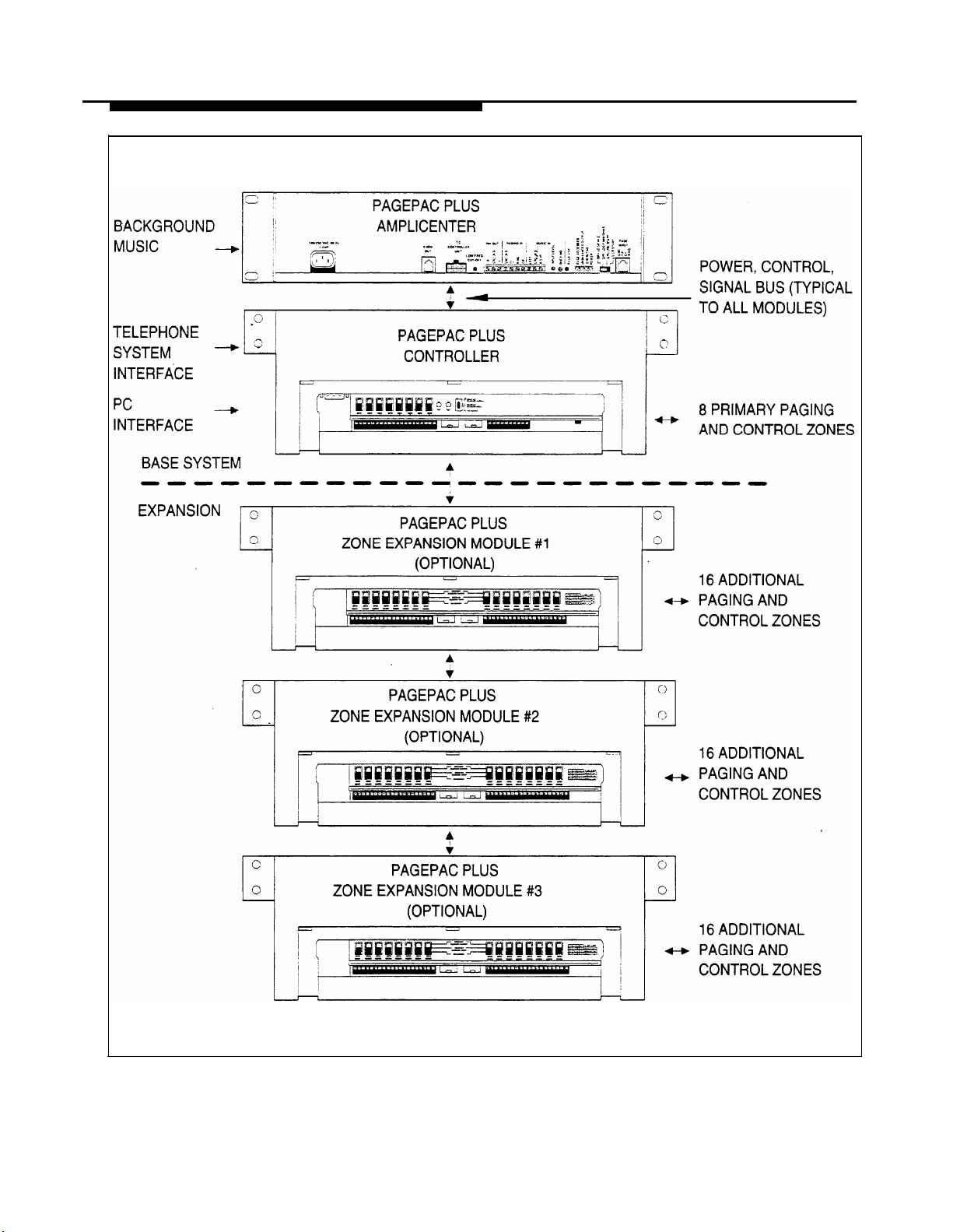
Figure 1-1. PagePac Plus System Components
Overview 1-5
Page 12

Managing the System
Installing System Hardware
Please refer to the Installation Guide for complete instructions for installing
the PagePac Plus Unit, Amplicenter, and Zone Expansion Units, to form a
fully integrated functional paging controller system in your facility.
Changing System Settings
You can change the Control Unit’s settings easily to accommodate new or
changing needs. Section 2 gives instructions for making whatever
changes are needed – by using your telephone keypad or a PC computer
to re-configure parameters stored in the PagePac Plus’s memory. You
can change the manner in which paging zones are laid out, or you can
re-define the nature of the inputs and outputs of the system.
Training Co-Workers
Solving Problems
Section 3, "Using the PagePac Plus Paging System," explains how to use
your telephone set to access the paging system, how to select paging
zones, how to answer a door bell and unlock the door, and other features.
To help with this task, give each telephone user a copy of the User Quick
Reference Card, found at the end of section 3.
The Installation Guide gives information on solving installation problems
and ordering additional accessories and equipment. If your system
malfunctions, you may be able to solve the problem by following the steps
provided in the "Maintenance and Troubleshooting" section of the
Installation Guide. If you receive error tones or error messages from the
system, refer to "Error Tones" at the end of section 2. If you still need
help, call the 24-hour AT&T National Service Assistance Center:
1-800-628-2888.
1-6 Overview
Page 13

Daily Operation
Depending on how your system is set up, you may need to oversee some
of the system’s daily operation. For example, if your system is
programmed to use the Night Bell feature, you will need to activate Night
Bell service at the end of each day before leaving the office.
Application Notes
Application Notes are located at the end of this guide, after section 3.
They provide technical tips and graphic examples of some common
applications.
Features and Capabilities
The following list provides an overview of the basic features of the
PagePac Plus system, along with the additional capabilities that you can
get by customizing the system:
■
Connects up to 8 paging zones, or up to 56 if Zone Expansion Unit(s)
are attached.
■
Enables access to the paging system via any telephone.
■
Combines simplicity of use with a wide range of paging system
features, including:
Attendant (microphone) Access
Night Bell
Talk-back (2-way paging)
Door Phone / Door Control
Remote Amplifier Control
Alarm System Interface
Contact closure outputs to turn on (for example) the
exterior lighting
Background Music
Automatic logging of paging activity
■ Can be re-programmed easily from any telephone in the system, or by
using a PC with the software program provided. A Programming
password (if optioned) protects the system from unauthorized
programming access.
Overview 1-7
Page 14

Factory-Set Default Inputs
The PagePac Plus Control Unit has five factory-set default inputs that are
active on a priority basis. These five, in order of priority, are Attendant
Access, Input #1, Telephone Access, Input #2, and Night Bell.
Attendant Access
Input #1
Telephone Access
Attendant Access is the highest priority paging mode of the PagePac Plus
system. The attendant simply dials his exclusive paging extension to
make an announcement. Also, by using a microphone directly connected
to the PagePac Plus Controller, the Attendant activates paging access
when the microphone "TALK" switch is pressed. Any other paging activity
(or background music) that may be currently active will be muted or
overridden, to permit the direct voice page to be broadcast.
Input #1 is the second highest priority, and is intended for inputs such as a
security alarm or fire alarm, though it is user-definable and can be used for
any input.
The Telephone Access is made by dialing the general access extension
number of the PagePac Plus unit. The PagePac Plus telephone interface
is switch selectable (set to accommodate your telephone system) and has
the third highest paging priority. See the Installation Guide for details of
the four different telephone system modes.
Input #2 Input #2 is the fourth priority, and is intended for routine inputs such as a
security door bell. It is user-definable and can be used for any designated
input. Input #1 can only be assigned to zones 1 - 8.
Night Bell Circuit When the Night Bell is activated and no other higher priorities are active,
then a distinctive tone will be sent to all zones programmed to send Night
Bell. The Night Bell circuit is activated by a ring voltage from a PBX
station or a zone input contact closure. The default priority is the lowest.
1-8 Overview
Page 15

Eight Primary Paging Zones
NOTE: The Zone Option The PagePac Plus Control Unit has eight onboard zones. All eight zones
switches, both on the PagePac
Plus Controller and on any
attached Zone Expansion
Units, MUST be set before the
PagePac Plus system is
powered up, and therefore
before programming
commences.
can be optioned via zone option switches (on the rear of the controller) to
be either 70V audio output zones, input contact-closure zones, or
contact-closure output zones to drive additional remote amplifiers or other
devices such as security door locks, Each zone may be configured
individually. If a zone is optioned as an input, its priority will be set by
identifying it as an Input #1 or Input #2 zone.
48 Expansion Zones
NOTE: Each Zone Expansion
Unit has a dip switch that must
be set (addressed) properly
during installation, and before
power up of the system. See
Installation Guide.
The PagePac Plus Control Unit has the ability via Zone Expansion Units to
access up to 48 external paging zones. it communicates with these
expansion zones by using up to three optional Zone Expansion Units (16
zones per module).
PagePac Plus Amplicenter Interface
The PagePac Plus Controller connects to and controls a PagePac Plus
Amplicenter. The controller draws its internal power from the amplifier and
routes the amplifier’s audio power to the proper zone(s).
Music Input
The background music source is connected to the PagePac Plus
Amplicenter, then its audio signal is passed on to the PagePac Plus
Controller for distribution to zones. The music input will always have the
lowest paging priority. Since the amplifier has a music input volume
adjustment, it can accommodate various input signal levels, such as tape,
CD, or radio.
Overview
1-9
Page 16

Three Output Types
The PagePac Plus Control Unit has three audio outputs, with the level
controlled by an automatic gain control (AGC) to ensure excellent voice
clarity. The first is the audio output signal to the PagePac Plus
Amplicenter, in a Constant-Voltage Distribution System (see "Hardware
Configuration," below.)
The second audio output is intended to drive (for example) an additional
PagePac Plus Control Unit. Only one external device may be connected
to this output if talk-back is required.
The third output is intended to drive up to 56 remote amplifiers, via Zone
Expansion Units.
See the Installation Guide for details of connections.
Talk-Back Amplifier
The talk-back amplifier has automatic gain control to ensure excellent
voice clarity from audio received from paging zone speakers.
Tone Generator
The PagePac Plus Controller has the ability to generate several distinctive
tones such as siren, chime, dial tone, beeps, and night bell. These tones
may be sent to either the paging amplifier or to the telephone interface,
depending on the situation. For a description of the tones, see "Tone
Selection" in section 2, under Telephone Keypad Programming.
Programming Memory
The PagePac Plus Control Unit has the ability to retain all programming
options in non-volatile (EEPROM) memory.
Hardware Configuration
The PagePac Plus system can be configured to operate in several
different ways, as a constant-voltage distribution system, a controller
system, or a hybrid system. In any of the configurations, a PagePac Plus
Amplicenter is required and the interconnection between the Control Unit
and the Amplicenter must be made.
1-10 Overview
Page 17

Whether the PagePac Plus system is configured as a constant-voltage
distribution system, a controller system, or as a hybrid system, has no
bearing on programming and using the system.
For full information about connecting hardware, see the Installation Guide.
Constant-Voltage
Distribution System
This is the "traditional" paging system configuration. When the system is
configured as a constant-voltage distribution system, the 70V Amplicenter
audio output is routed via the controller to any zone that is optioned for
audio.
Controller System In this configuration, the required PagePac Plus Amplicenter’s audio will
only be sent to a specific selected zone. Both remote audio amplifiers and
amplified speakers can be controlled in this mode as well as other
ancillary equipment requiring an audio output or a contact closure, or both.
Hybrid System In this configuration the features of the constant-voltage distribution system
and the features of the controller system will be combined. The controller
will route the 70V audio to the proper audio zone and also have the ability
to control remote amplifiers with zones selected as control closures.
Indicators and Connectors
LED Indicators
The PagePac Plus Controller has three LED indicators that are useful for
installation and troubleshooting purposes.
Front panel
Rear panel
A single LED indicates the unit’s power status: solid green indicates the
unit has power, and blinking green indicates that the unit is in reset mode.
A blinking power LED may indicate the need to power down and power up
again, or that there is not enough AC power to the Amplicenter or DC
power from the Amplicenter to the controller.
Two LEDs are adjacent to the eight zone option switches (see figure 1-2).
The green LED lights to indicate that the Telephone Access interface has
successfully been accessed by the telephone equipment. The yellow LED
lights to indicate that Attendant Access interface has been successfully
accessed.
Back Panel Nomenclature
The following items describe all back panel functions illustrated in figure 1-2:
Overview 1-11
Page 18

Amplicenter:
AC Power in; 110VAC at 60 Hz or 220VAC at 50 Hz
OdBm out, control and audio for remote amplifier
DC Power and 70V audio out to controller
Bass (low frequency) control adjustment
70V out; paging in (redundant to item #9); music in
Level adjustments: Music level, Music "ducking" (mute level), VOX
audio level
LEDs: green - page accessed, red – unbalanced output, red –
overload, green – power on
Telephone system mode switch: Dry loop 600 ohms, Dry Loop Hi Z,
ground start, and loop start
From controller item #16 RJ11 connector (in constant voltage
distribution system) audio and control
Controller Unit:
Zone Expansion Unit:
DB9 connector for the RS2232 port, which is used to connect a PC
computer for programming (optional) or PC monitoring
Zone option 3-position zone slide switches: set to 70V audio out,
contact closure input, or contact closure output
Zone connector for zones 1-8, plus, minus, and ground terminals
LEDs: Yellow - attendant access active, Green – tele. access active
DC Power and 70V audio from D-series amplicenter
DC Power, control, and audio 70V output to next expansion Unit
10 position connector (pins 1/2) 0dB 600 ohm, (pins 3/4) 0dB out
for additional controller and remote amplicenters, (pins 5/6) night bell
input, (pins 7/8) control closure for attendant access input, (9/10)
audio source (mic) attendant access input
Audio And Control to amplicenter RJ11 jack, item #9
Telephone mode switch: Dry Loop, station access, ground start, and
loop start
Telephone system interface for PBX, KTS, or Centrex; standard RJ
11 connector
Zone connector for expansion zones: plus, minus, and ground
terminals
1-12 Overview
Zone option 3-position zone slide switches: set to 70V audio out,
control closure in, or control closure out
From controller: power, control, and audio or previous expansion unit
To Additional expansion unit: power, control, and audio
Selection and DIP switch when zone expansion units are used
Page 19
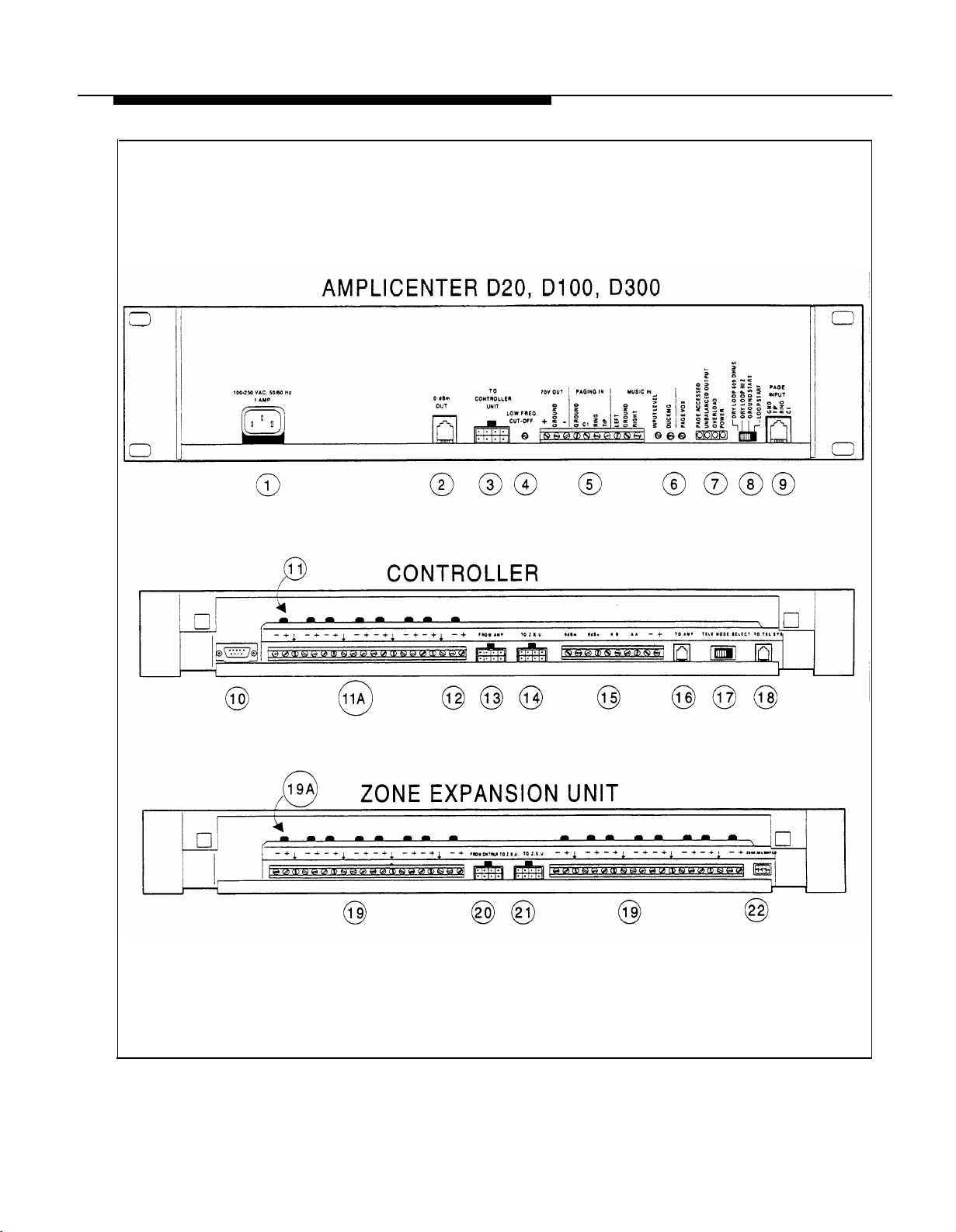
Figure 1-2. Amplicenter, Controller, and Zone Expansion Unit Back Panels
Overview 1-13
Page 20

Connectors on Rear
You have access to controls and connections on the back panel, which is
covered with a removable lid (see figure 1-2). For instructions on installing
the PagePac Plus system and making correct interconnects, see the
Installation Guide.
■
■
■
■
■
■
■
The rear panel of the PagePac Plus Control Unit contains:
Two RJ11 telephone-type jacks, one for your PBX telephone system to
connect to the PagePac Plus (Telephone Access) and one for the
interconnect from the PagePac Plus to the PagePac Plus Amplicenter.
A telephone interface mode selection switch (set during installation) to
match your telephone system.
A connector for the RS-232 port, which is used to connect a PC
computer.
A 10 position connector for Attendant Access inputs (from microphone
or master telephone console), the Night Bell ringer input, and two audio
outputs.
A 20 position connector for zone connections and shields.
Two 8-position connectors, one for the interconnect to the PagePac
Plus Amplicenter, which supplies power and 70V audio to the
controller, and one for an interconnect to Zone Expansion Units (if
used).
Power
■
Eight 3-position zone switches, to manually configure a zone to be
contact closure (switch), input, or audio output.
Two DC voltages derived from the PagePac Plus Amplicenter (D-20,
D-100, or D-300) via the interconnect cable are the source for all power
required by the PagePac Plus Control Unit and any attached Zone
Expansion Units.
See discussion of the front panel Power On LED, above under "LED
Indicators."
1-14 Overview
Page 21

Interface Considerations
The hardware installation configuration may have these impacts on
programming and use of the PagePac Plus system:
Setting correct addresses for Zone Expansion Unit(s)
Telephone Mode
Zone Option Switches on Control Unit
See the important explanation about setting the internal dip switches to
address each Zone Expansion Unit, in the Installation Guide.
Be sure the telephone interface mode switch on the rear of the PagePac
Plus unit has been set correctly, matching the telephone system of your
facility (see Installation Guide). However, whichever mode is selected
has no bearing on programming or using the PagePac Plus Controller.
The default priority for telephone access is 3. The telephone input can
access any zone or zone group to output audio paging or to trigger an
output contact-closure action. Programming can also be accomplished via
telephone access.
The eight Zone Option switches on the rear of the PagePac Plus
Controller MUST be set to match the zone option to be programmed.
The slide switch for each zone must be manually set to Contact Closure
(to switch on/off a device, such as a door security lock, remote amplifier,
etc.), Input (such as doorbell or security alarm), or Audio Output,
depending on the programmed mode selected for each zone. See Zone
Map (table 1-2) and Zone Configuration Tables (1-3 and 1-4), below (both
to be filled out).
Zone Expansion Unit
Option Switches
Other Interfaces
The Zone Option switches must be set before the PagePac Plus
system is powered up, and therefore before programming
commences.
The 16 Zone Option switches on the Zone Expansion Unit must also be
configured to match the intended zone mode. It is recommended that the
paging zone decisions be made prior to beginning programming. See
Zone Map (table 1-2) and Zone Configuration Tables (1-3 and 1-4), below
(both to be filled out).
The Zone Option switches and dip switches on Zone Expansion
Unit(s) must be set prior to system power-up.
Night Bell, Music Input, Computer Monitor Logging, Alarm System, and
Door Control interfaces are illustrated in the Application Notes, at the end
of this guide.
Overview
1-15
Page 22

Zone Map
The Zone Map is to be filled out by your system administrator or the
person responsible for programming your PagePac Plus system. It assists
in identifying the zones, both inputs and outputs, of your particular system.
Make photocopies of the blank Zone Map to use in laying out your system.
Refer to the example Zone Map for an idea how to proceed.
Description of Zone
Physical Zone Number
Physical Zone Code
NOTE: If an ALIAS number is
assigned to any zone, ALIAS
numbers must be assigned to
ALL zones.
ALIAS Zone Number
Write a brief description of each zone in your facility.
Preprinted on the form, this number identifies the zones and groups.
Preprinted on the form, these are the physical addresses (default dial
codes) of the different zones. You would dial this code for a zone if no
ALlAS number has been assigned.
Using ALlAS zone numbers is optional. An ALlAS number for zone is the
extension number you intend to dial to reach this zone. All ALlAS
numbers must have the same number of digits (all 3-digit, or all 4-digit
codes). When assigning ALlAS zone numbers, consider assigning
consecutive numbers to similar zones. Choose numbers that are relatively
easy to remember and easy to enter into the telephone keypad. If you
choose not to use ALlAS numbers, you will use the Physical Zone Codes,
above, to dial the zones.
Input or Output
NOTE: Attendant Access,
Telephone Access, Night Bell,
and Music input are default
inputs to the PagePac Plus, and
are not to be identified as zones.
Computer Monitor is an optional
output device connected to the
PagePac Plus, and is also not to
be identified as a zone.
1-16 Overview
Write an I-1, I-2, or an O to indicate the type of zone. I-1 means input
priority level 1; I-2 means input priority 2. "Input" and "output" here mean
inputs to or outputs from the controller.
After completing your Zone Map, you are ready to set System Options
(beginning with table 2-1 in section 2) and then do Zone Map programming
(table 2-12).
Page 23
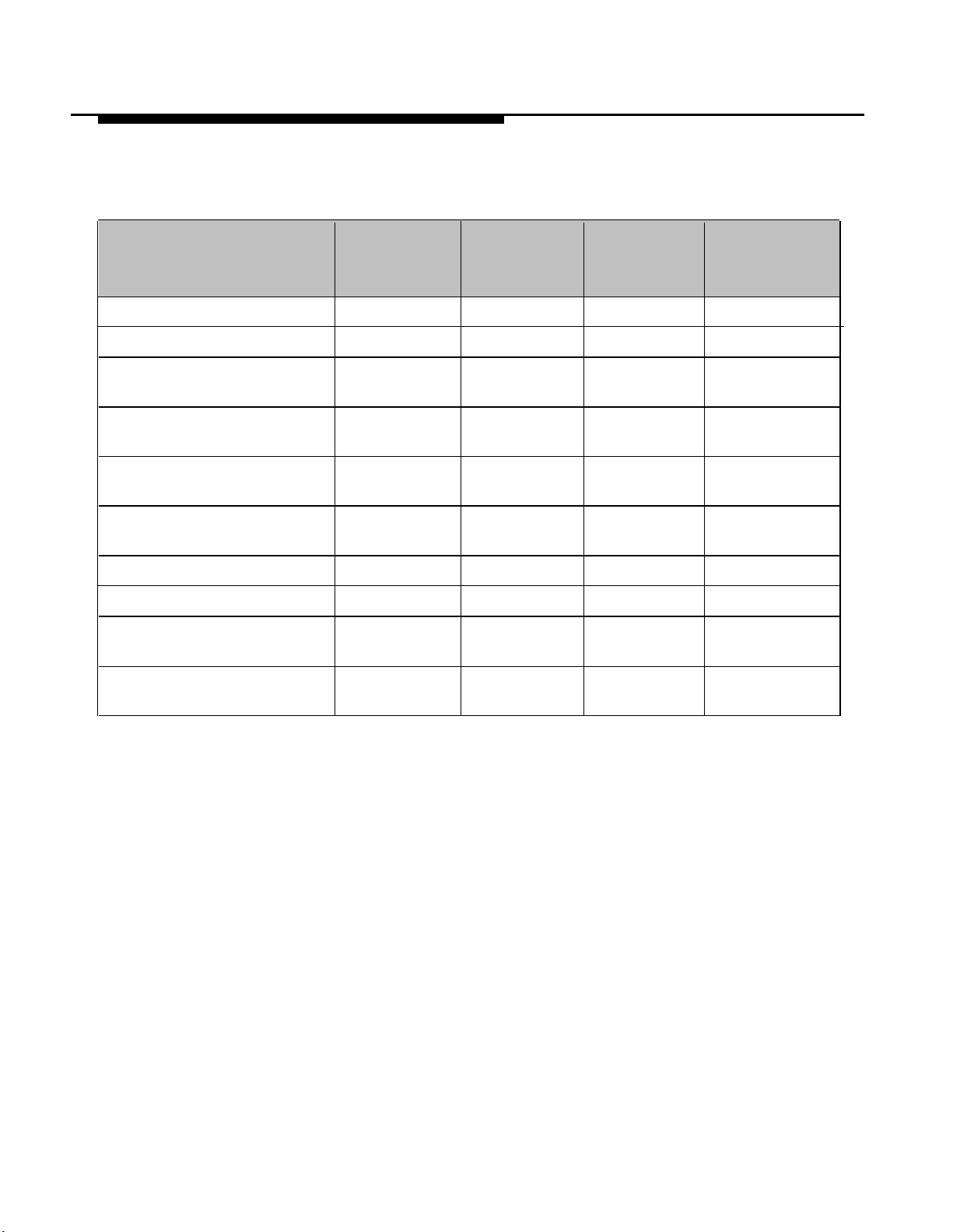
Table 1-1. Zone Map Example
Description of Zone
Warehouse Area Paging
Shipping/Receiving Area
Paging
Doorbell: Security Door,
S/R Dock
Speaker-phone: Security
Door, S/R Dock
Door Lock: Security Door,
S/R Dock
Garage Area Paging
Security Alarm System input
All Call: Group all paging
(for audio): zones 1,2,3, & 7
Group warehouse / shipping
area paging zones: 2 & 3
Physical
Zone
Number
Zone 2
Zone 3
Zone 4
Zone 5
Zone 6 06
Zone 7
Zone 8
Group 1 80
Group 2
Physical
Zone
Code
02
03
04
05
07
08
81
ALIAS*
Zone
Number
212
213
223
221
222
214
231
241
242
Input (1 or 2) or
Output
0
0
I-2
0
0
0
I-1
0
0
* Optional
Overview
1-17
Page 24
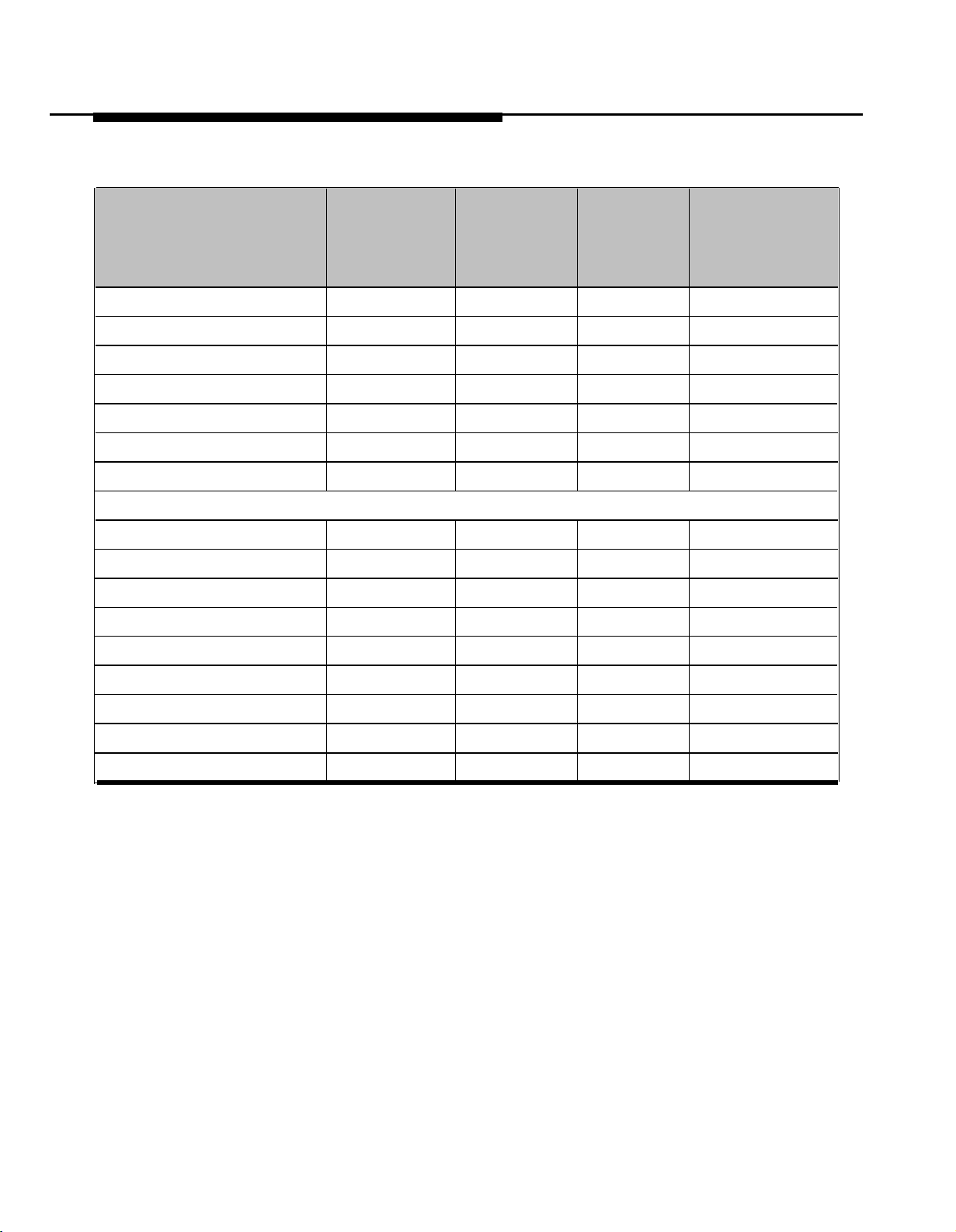
Table 1-2. Zone Map
Description of Zone
Physical
Zone
Number
Zone 2
Zone 3
Zone 4
Zone 5
Zone 6
Zone 7
Zone 8
For Zones 9 thru 56, see Zone Map Continuation Pages.
All Call
Group 1
Group 2
Group 3
Group 4
Physical
Zone
Code
02
03
04
05
06
07
80
81
82
83
84
ALIAS*
Zone
Number
Input (1 or 2) or
Output
* Optional
Group 5
Group 6
Group 7
Group 8
85
86
87
88
1-18 Overview
Page 25
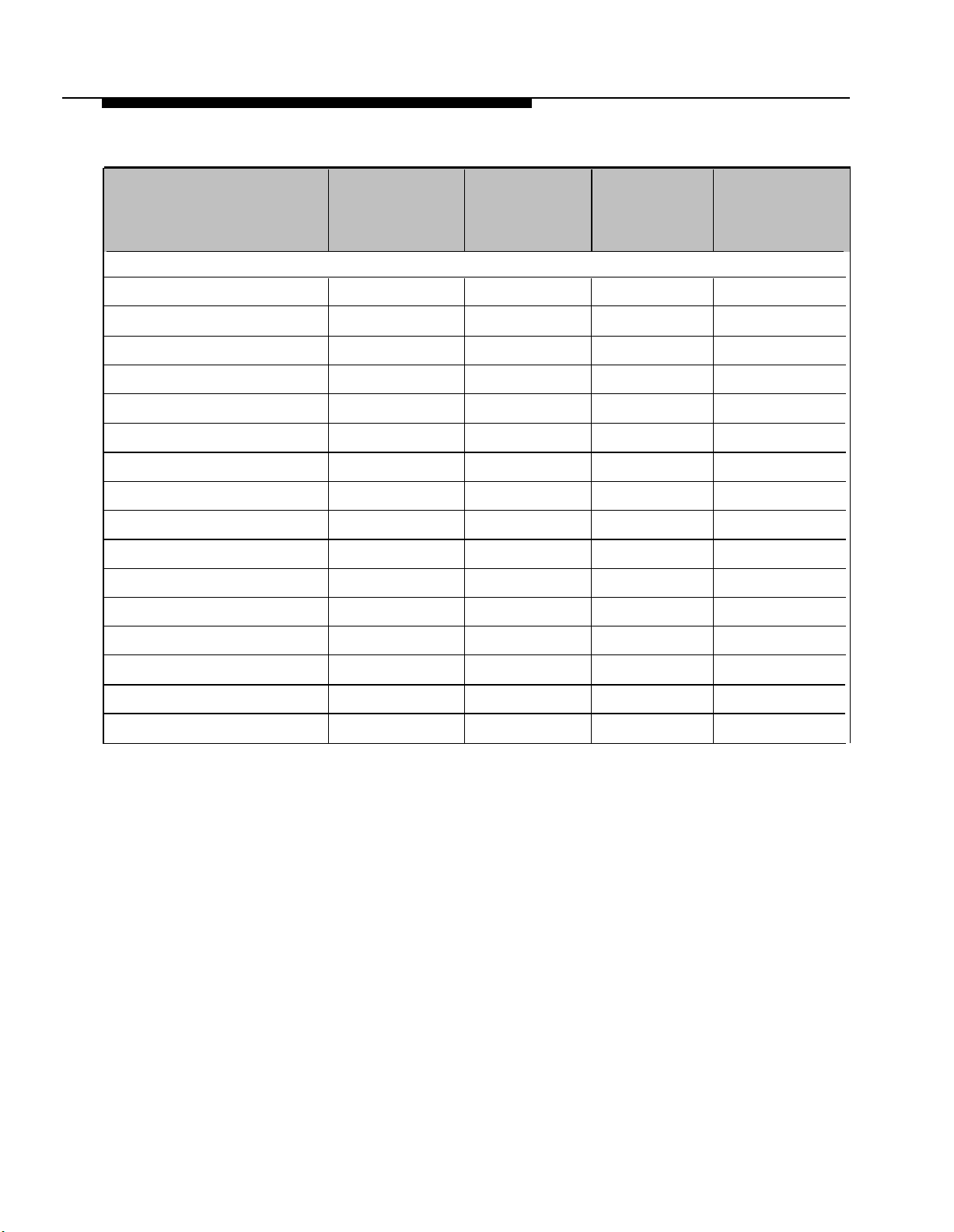
Table 1-2. Zone Map (Continuation Page 1)
Description of Zone
Zones 9 thru 24 are located on the first Zone Expansion Unit.
Physical
Zone
Number
Zone 09
Zone 10
Zone 11
Zone 12
Zone 13
Zone 14
Zone 15
Zone 16
Zone 17
Zone 18
Zone 19
Zone 20
Physical
Zone
Number
09
10
11
12
13
14
15
16
17
18
19
20
ALIAS*
Zone
Number
Input (1 or 2) or
Output
* Optional
Zone 21
Zone 22
Zone 23
Zone 24
21
22
23
24
Overview
1-19
Page 26
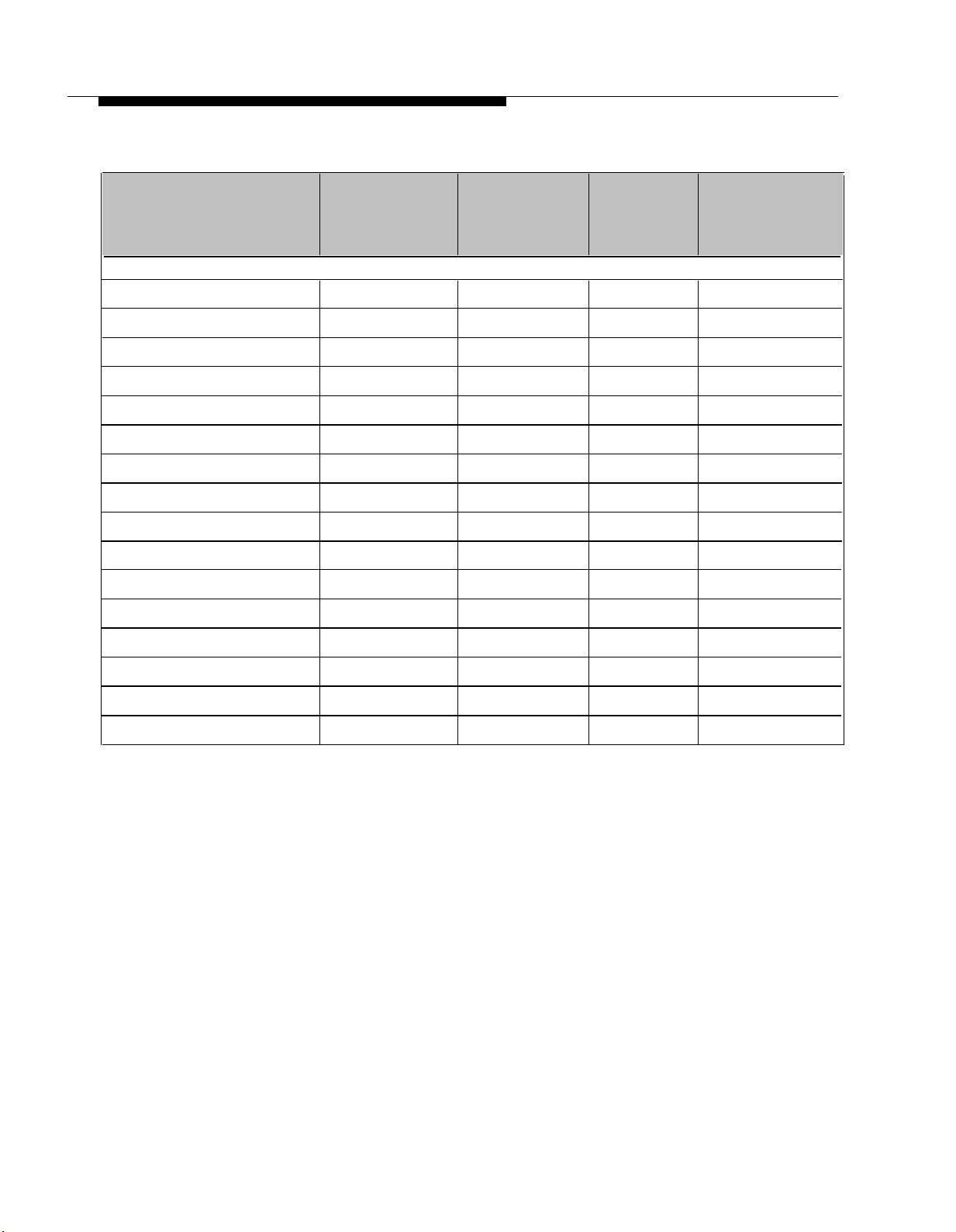
Table 1-2. Zone Map (Continuation Page 2)
Description of Zone
Zones 25 thru 40 are located on the second Zone Expansion Unit.
Physical
zone
number
Zone 25
Zone 26
Zone 27
Zone 28
Zone 29
Zone 30
Zone 31
Zone 32
Zone 33
Zone 34
Zone 35
Zone 36
Physical
Zone
Code
25
26
27
28
29
30
31
32
33
34
35
36
ALIAS*
Zone
Number
Input (1 or 2) or
Output
* Optional
Zone 37
Zone 38
Zone 39
Zone 40
37
38
39
40
1-20 Overview
Page 27
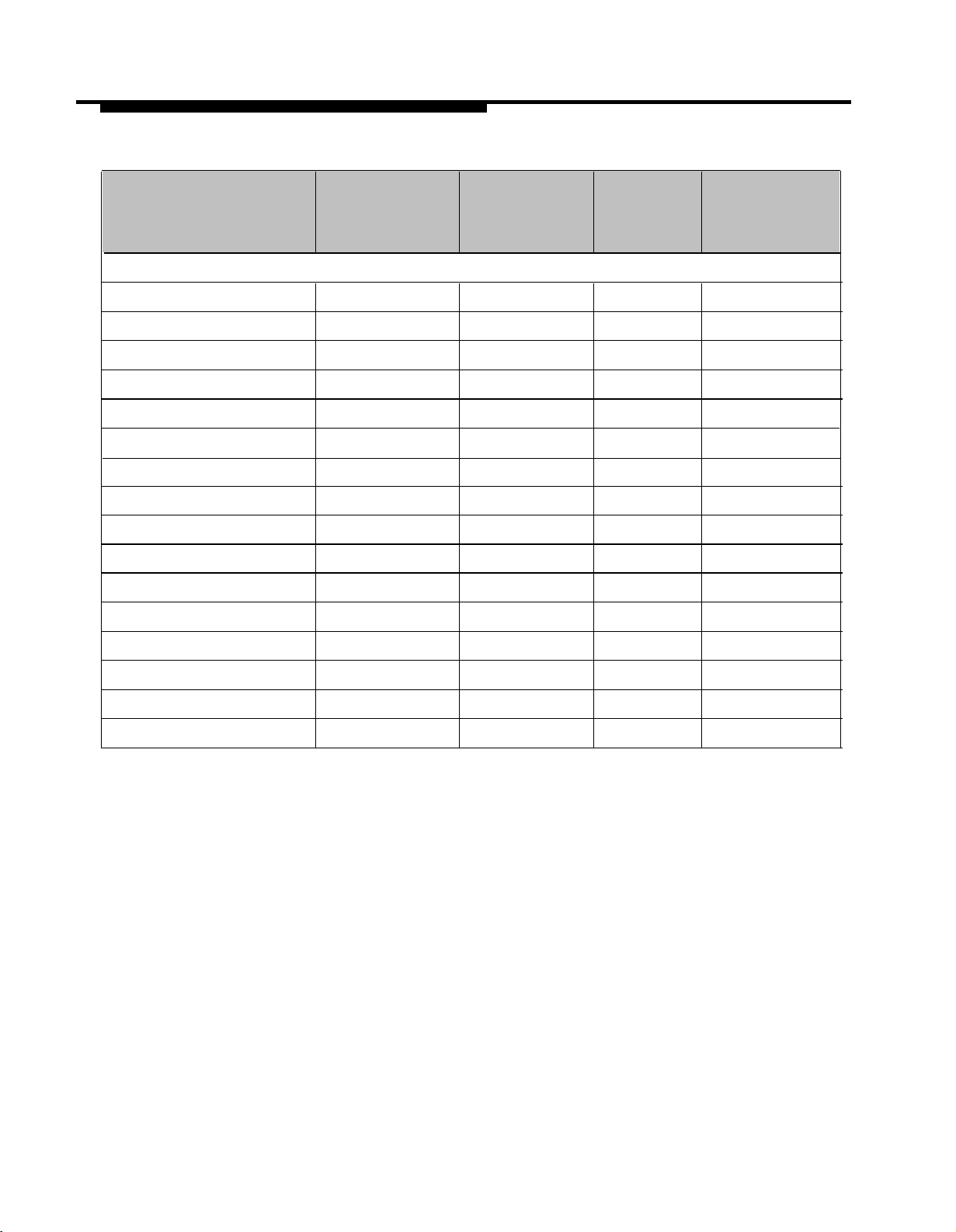
Table 1-2. Zone Map (Continuation Page 3)
Description of Zone
Zones 41 thru 56 are located on the third Zone Expansion Unit.
Physical
Zone
Number
Zone 41
Zone 42
Zone 43
Zone 44 44
Zone 45
Zone 46
Zone 47
Zone 48
Zone 49
Zone 50
Zone 51
Zone 52
Physical
Zone
Code
41
42
43
45
46
47
48
49
50
51
52
ALIAS*
Zone
Number
Input (1 or 2) or
Output
* Optional
Zone 53
Zone 54
Zone 55
Zone 56
53
54
55
56
Overview
1-21
Page 28
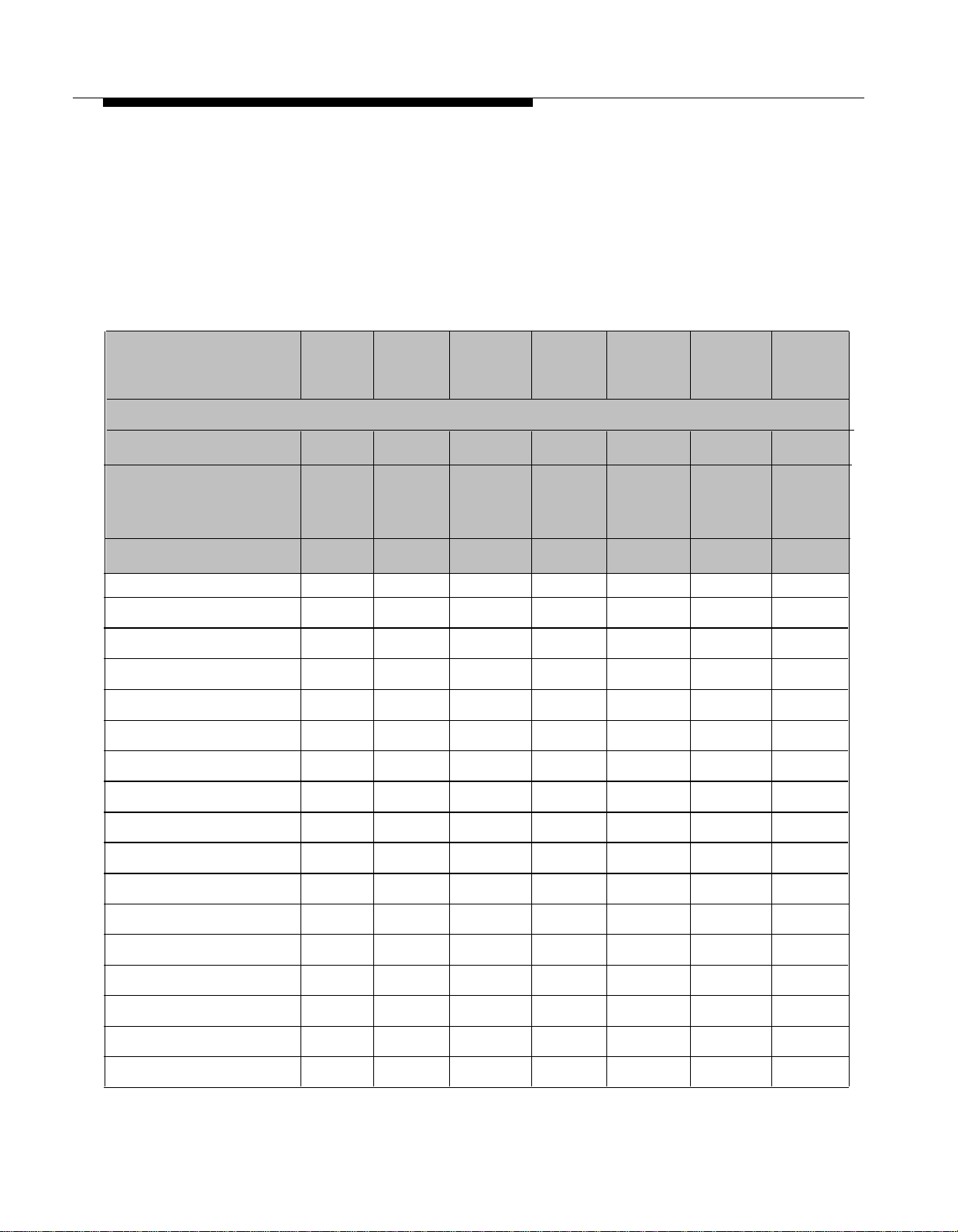
Zone Configuration Tables
The Zone Configuration Table consists of two parts, one for input zones
and another for output zones. The table is to be filled out by your system
administrator, or the person responsible for programming your PagePac
Plus system.
The top two lines of each table have been filled as an example. The items
in the examples are taken from the Example Zone Map.
Table 1-3. Zone Configuration Table
Output Zones
Description of Output
Zone
Office Loudspeakers
Security Door
Speaker-Phone
Security Door Lock
Phys.
Zone
Code
01
05
06
Type of
Output
Audio
Audio
M.O.
Page
Enable
Y/N
Examples
Y
Y
N
Music
Enable
Y/N
Y
N
N
Talk-back
Enable
Y/N
N
Y
N
Night
Bell
Enable
Y/N
Y
N
N
DTMF
Pass
thru Y/N
N
N
N
1-22 Overview
Page 29

Table 1-4. Zone Configuration Table
Input Zones
Description of Input
Zone
Security Doorbell
Alarm System
Priority
Level 1
or 2
2
1
Physical
Zone
Code
Examples
04
08
Select
Tone 1-7
1 81
5
Route
Tone to
Zone
80
Audio
Enable
0-2
2
0
Audio
Route to
Zone
05
-
Overview
1-23
Page 30

Programming The Controller
Contents
2
Introduction
■
Programming by Touchtone Telephone
Programming by PC
■
Software Configuration—Overview
■
Zone Group versus Individual Zones
At Power Up
■
Programming Options and Instructions
■
Enter Programming Mode
■
System Configuration Options Overview
■
Reset to Factory Defaults
■
Define Length of ALIAS Numbers
■
Connect Password
■
Programming Password
Forgot the Password?
■
Confirmation Tone ON/OFF
■
2-3
2-3
2-3
2-4
2-4
2-4
2-5
2-5
2-5
2-6
2-7
2-8
2-10
2-11
2-11
Pre-Announcement Tone ON/OFF
■
Talk-Back Warning Tone
■
VOX Disconnect Timing
■
2-12
2-13
2-14
Programming The Controller
2-1
Page 31

■
Computer Monitor
■
Input Computer Monitor
2-15
2-16
■
General Zone / Group Configurations Overview
■
COPY Command
■
Zone Map Option—Assigning ALlAS Numbers
■
Type of Zone: Input or Output
■
lnput Priority Arrangement
■
Zone Monitor
■
Zone Grouping
■
Output Zone/Group Configurations Overview
■
Type of Output
■
Page Enable
■
Music Enable
■
Talk-Back Enable
■
Night Bell Enable
■
Pass DTMF to the Output
■
Input Zone / Group Options Overview
2-16
2-17
2-18
2-19
2-20
2-21
2-22
2-23
2-23
2-25
2-26
2-27
2-28
2-29
2-31
■
Tone Selection
■
Tone Routing
■
Audio Source Enable
■
Audio Routing
Error Tones
Programming Quick Reference Chart
2-31
2-33
2-34
2-35
2-36
2-37
2-2 Programming The Controller
Page 32

Introduction
The operation of the PagePac Plus Controller can be customized to meet
the requirements of your business. It can be programmed in either of two
ways, using a telephone keypad or a PC, and nearly all features
programmed by either method.
The zone option switches on the controller and on any attached Zone
Expansion Unit(s) MUST be set before the PagePac system is
powered up.
Programming by Touchtone Telephone
This section details the programming the PagePac Plus Controller by
using the telephone keypad to enter your selections. This programming
method works via the Telephone Access port, which accepts only
Touchtone telephone keypad inputs (DTMF). The PagePac Plus
Controller itself has the ability to retain the programming options
indefinitely, in its onboard memory.
See the Programming Quick Reference Chart at the end of this section for
a summary of programming steps.
1
can be
Programming by PC
The second means of programming is using an lBM-compatible PC
(personal computer), which connects to an RS-232 port on the back of the
controller by means of a crossover cable (also called a null-modem cable).
NOTE: The PagePac Plus unit
can be configured remotely via
the RS-232 port using a modem.
1
Only the International Timing option requires programming via the PC.
The default setting for this option is USA/Canada.
An advantage of using a PC to configure the PagePac Plus unit is that
screens can be viewed on the monitor to aid in selecting the zones for
various options. Using a PC to program the PagePac Plus Controller,
you can view the system as a diagram, see your options, and observe the
changes being made. Your programming can be saved to a computer file
on a diskette and recalled in the future.
In either case, the controller itself has the ability to retain the programming
options indefinitely.
Programming The Controller 2-3
Page 33

Software Configuration—Overview
The PagePac Plus Controller is pre-programmed with certain default
values when shipped, However, not all paging systems will have the
same requirements, and therefore you (or the installation technician) may
want or need to change the options on the system.
Some of the various programming configurations, which are presented in
detail later in this section, include:
■
The ability to option a zone as an audio output zone, as either of two
levels of input zone, or as an output contact-closure zone.
■
If a zone is optioned as a paging zone or a switch-closure zone, then
other options are available, such as zone grouping.
■
Zone groups and individual zones can be configured to perform a
variety of functions such as page enabled/ disabled or talk-back
enabled/disabled.
■
If a zone is selected to be input, then options may be selected such as
energizing an output switch-closure zone(s), whenever the input is
active, or a selected tone can be sent out to selected zones whenever
the input is active.
■
If multiple zones are configured as inputs with the same priority (for
example, two zones coded l-l ), access will be granted on a first-come,
first-sewed basis.
■
Zone mapping is also permitted.
Zone Group versus Individual Zones
The PagePac Plus Controller can be optioned at two different levels, Zone
Group and Individual Zone programming. Zone group configurations will
override individual zone configurations whenever a zone group is selected.
At Power Up
When the PagePac Plus Controller is first powered up, it polls the zones to
determine how many (if any) zone expansion units are present. The
PagePac Pius has the capacity to serially access up to 48 external zones.
The Zone Option switches, both on the controller and on any attached
Zone Expansion Units, must be set before the PagePac Plus system is
powered up, and therefore before programming commences.
2-4 Programming The Controller
Page 34

Programming Options and Instructions
CAUTION:
The Zone Option switches must be set before the PagePac Plus system is
powered up, and therefore before programming commences.
The 8 Zone Option switches on the rear of the PagePac Plus unit MUST
be set to match the zone option selected via programming. The slide
switch for each zone must be manually set to Contact Closure (to switch
on/off a device, such as a door security lock, remote amplifier, etc.), Input,
or Audio Output, depending on the mode selected for each zone.
The 16 Zone Option switches on the Zone Expansion Unit MUST also be
configured to match the zone modes you intend to program.
It is recommended that the paging zone decisions be made and
diagramed prior setting these switches. See Zone Configuration Tables
(1-3 and 1-4 in section 1, to be filled out) and programming instructions,
below.
Enter Programming Mode
To enter the programming mode:
Access the PagePac Plus system via the telephone interface (dial the
1.
paging access extension).
2.
Dial the Connect password (if optioned). (See Connect Password,
below.)
Hear the PagePac Plus dial tone.
* ] [ * ]. Hear confirmation tone and then dial tone again.
Dial [
3.
4.
Dial the Programming password (if optioned). (See Programming
Password, below.)
5.
Program the system options (go on to the next paragraphs). You
may exit the programming mode by dialing [ # ] .
System Configuration Options Overview
System Configuration Options are options that effect the entire system,
and are not specific or unique to any one zone or zone group. See the
Programming Quick Reference Chart at the end of this section for a listing
of these. The paragraphs below provide instructions for programming
these system options (from a telephone keypad), if you wish to change
them.
Programming The Controller
2-5
Page 35

Reset to Factory Defaults
This system option allows you to "undo" all system changes you have
made, in order to "start over." This Reset option takes all programmed
options and restores them to their factory default settings.
First access the PagePac Plus system and enter the programming mode
by pressing [
You may exit the programming mode by dialing [
Dial [ 1 ] [ 0 ] to select this option.
1.
Hear a DOUBLE beep.
2.
Enter [ 2 ] [ 5 ] [ 3 ] [ 2 ] [ 7 ] to reset. (Enter any invalid number string to
escape.)
Hear TRIPLE beeps.
Note that the factory default condition for Connect password is NO
password, and for Programming password the default is [
These actions are summarized in table 2-1.
Table 2-1. Reset to Factory Defaults
* ] [ * ] and entering your Programming password (if optioned).
# ].
* ] [ * ].
Feature
Reset to Factory
Defaults
Mode Option/
Verify
To Select
Dial
10
Listen
For
Double
Beep
Choose Option
Enter 25327 to reset.
Enter any invalid number
string to escape.
Listen
For
Triple
Beeps
Default
25327
(CLEAR)
2-6 Programming The Controller
Page 36

Define Length of ALIAS Numbers
This system option allows you to set the length (2, 3, or 4 digits) of the
ALlAS number field. The default is 2 digits. If you wish to assign ALlAS
numbers to the paging zones, you must set the length parameter. The
ALIAS number is the dialing extension for the zone. If no ALlAS numbers
are used, the Physical Zone Code is the dialing extension for a zone.
This MUST be done before "Zone Map Option – Assigning ALlAS
Numbers", later in this section. (see table 2-12)
Programming Steps
First access the PagePac Plus system and enter the programming mode
by pressing [
optioned). You may exit the programming mode by dialing [
1.
Dial [ 2 ] [ 0 ] to select this option.
Hear a DOUBLE beep.
2.
Enter [
digits).
Hear TRIPLE beeps.
To verify the setting, dial [
These actions are summarized in table 2-2.
* ] [ * ] and then entering your Programming password (if
2 ] [ 3 ] or [ 4 ], to set length of ALlAS number filed (number of
Table 2-2. Defining Length of ALIAS Numbers
Feature
Number of Zone
Map Digits
Mode Option/
Verify
To Select
To Verify
Dial
20
21
Listen
For
Double
Beep
2 (digits)
3 (digits)
4 (digits)
2 ] [ 1 ] and repeat step 2 above.
Choose Option
Listen
For
Triple
Beeps
# ].
Default
2
Programming The Controller
2-7
Page 37

Connect Password
This feature will not become active until the first time you enter a
password, via the programming mode. The factory default is NO
password.
The Connect password operates as a security block into the paging
system, restricting paging access to authorized users.
You may want to use a short Connect password (2 or 3 digits only) for
ease of use.
When a user accesses the PagePac Plus unit via Telephone Access, a
dial tone will be returned to the user. At this time the user will have
unlimited chances to enter the correct password. If the correct password
is entered, the user will receive the confirmation tone, then a new dial tone
from the PagePac Plus unit, and then can either select a zone, zone
group, or enter the programming mode.
If the wrong password is entered, the user will not receive any confirmation
tone or new dial tone. He can continue to enter digit strings (without
hanging up) until the correct password is entered, or he can hang up and
try again by re-accessing the paging system.
In the event that the user forgets the password, see "Forgot the
Password?"
2-8 Programming The Controller
Page 38

Programming Steps
First access the PagePac Plus system and enter the programming mode
by pressing [
You may exit the programming mode by dialing [
3 ] [ 0 ] select this option.
Dial [
1.
Hear a DOUBLE beep.
2.
Enter the Password you wish to use (up to 6 digits). If the password
has fewer than 6 digits, enter the [
For example, [ 1 ] [ 2 ] [ 3 ] [ 4 ] [ 5 ] [ 6 ] is a valid password entry. [ 1 ] [ 2 ]
[ 3 ] [ # ] is also a valid password entry, resulting in the password
[ 1 ] [ 2 ] [ 3 ].
If you already have entered a password and want to remove it (to
have NO password), just enter the [
Hear TRIPLE beeps.
To verify that the new Connect password has been established, dial
3 ] [ 1 ] and repeat step 2 above.
[
These actions are summarized in table 2-3.
Table 2-3. Selecting a Connect Password
* ] [ * ] and entering your Programming password (if optioned).
# ].
# ] to terminate the string.
# ] alone.
Feature
Mode Option/
Dial
Listen
Verify
Connect
To Select
30 Double Enter Password, enter #
Password To Verify 31 Beep
For
Choose Option
to terminate the string
Listen
For
Triple
Beeps
Default
None
Programming The Controller 2-9
Page 39

Programming Password
Establishing a Programming password will restrict access to the
programming mode of the PagePac Plus paging system. It is
recommended that access to programming be restricted to the System
Administrator, Telecommunications Manager, or other selected users.
This feature will become active once any programming password has been
entered via the programming mode. You are not required to establish
such a password. The factory-set default programming password is
* ] [ * ]. Your Connect and Programming passwords should not be the
[
same.
If this feature is active and the system has been accessed via the
telephone interface, then after the first digit of your Programming password
is pressed, the dial tone will stop and will not be returned until the correct
password is entered or until the user hangs up and re-enters the system.
Programming Steps
First access the PagePac Plus system and enter the programming mode
by pressing [
optioned). You may exit the programming mode by dialing [
1.2.Dial [ 3 ] [ 2 ] to select this option.
Hear a DOUBLE beep.
Enter the Password you wish to use (up to 6 digits). If the password
has fewer than 6 digits, enter the [
For example, [ 2 ] [ 3 ] [ 4 ] [ 5 ] [ 6 ] [ 7 ] is a valid password entry. [ 2 ] [ 3 ]
[ 4 ] [ # ] is also a valid password entry, resulting in the password
[ 2 ] [ 3 ] [ 4 ].
If you already have entered a password and now want to remove it
(to have NO password), just enter the [ # ] alone.
Hear TRIPLE beeps.
To verify that the new Programming password has been established, dial
3
] [ 3 ] and repeat step 2 above.
[
These actions are summarized in table 2-4.
* ] [ * ] and entering your Programming password (if previously
Table 2-4. Selecting a Programming Password
Feature
Mode Option/
Verify
Dial
Listen
For
# ] to terminate the string.
Choose Option
Listen
For
# ].
Default
Programming To Select
Password
To Verify
2-10 Programming The Controller
32 Double
33 Beep
Enter Password,
enter # to terminate the
string
Triple
Beeps
**
Page 40

Forgot the Password?
In the event that either or both the connect password and programming
password are forgotten, it will be necessary to call the Harris-Dracon
Technical Help line (1-800-437-2266) for instructions how to erase the two
passwords and be able to enter new ones.
Confirmation Tone ON/OFF
Your choice for this selection is ON or OFF, with the default setting as ON.
When the option is ON, a tone will be sent to the telephone interface after
a zone has been selected and before a page can be made.
Programming Steps
First access the PagePac Plus system and enter the programming mode
by pressing [
You may exit the programming mode by dialing [
Dial [ 4 ] [ 0 ] to select this option.
1.
Hear a DOUBLE beep.
2.
Dial [ 0 ] to turn OFF. Dial [ 1 ] to turn ON.
Hear TRIPLE beeps.
To verify the condition (OFF or ON) of the Confirmation tone, dial [
and repeat step 2 above.
These actions are summarized in table 2-5.
Table 2-5. Confirmation Tone ON/OFF
Feature
Confirmation
Tone
Mode Option/
Verify
To Select 40 Double
To Verify
Dial
41
* ] [ * ] and entering your Programming password (if optioned).
# ].
4 ] [ 1 ]
Listen
For
Beep
Choose Option
0 — Off
1—On
Listen
For
Triple
Beeps
Default
On
Programming The Controller 2-11
Page 41

Pre-Announcement Tone ON/OFF
The choice for this parameter is ON/OFF, with the default setting ON.
This tone is very similar to the initial talk-back warning tone, in the sense
that it is sent to a zone when the zone is accessed. This tone will be sent
out to both the zone selected and to the telephone interface. After this
tone is sent, you may begin your page message.
Programming Steps First access the PagePac Plus system and enter the programming mode
by pressing [
You may exit the programming mode by dialing [
1.
Dial [ 4 ] [ 2 ] to select this option.
Hear a DOUBLE beep.
* ] [ * ] and entering your Programming password (if optioned).
# ].
2.
To verify the condition (OFF or ON) of the Pre-Announcement tone, dial
4 ] [ 3 ] and repeat step 2 above.
[
These actions are summarized in table 2-6.
0 ] to turn OFF. Dial [ 1 ] to turn ON.
Dial [
Hear TRIPLE beeps.
Table 2-6. Pre-Announcement Tone ON/OFF
Feature
Pre-Announcement
Tone To Verify
Mode Option/
Verify
To Select
Dial
Listen
For
42
43 Beep
Double
Choose Option
0-Off
1–On
Listen
For
Triple
Beeps
Default
On
2-12 Programming The Controller
Page 42

Talk-Back Warning Tone
This tone is intended to alert a person that their conversation is being
monitored through the paging system loudspeaker. If Talk-back is
optioned for YES, then the choices will be INITIAL, 30 SECOND
REPETITION, or OFF. The default setting for this parameter is INITIAL
and 30 SECOND REPETITION.
Programming Steps
First access the PagePac Plus system and enter the programming mode
by pressing [
You may exit the programming mode by dialing [
1.
Dial [
Hear a DOUBLE beep.
2.
Dial [
select INITIAL and 30 SECOND repeat.
Hear TRIPLE beeps.
To verify the condition of the Talk-Back Warning tone, dial [
repeat step 2 above.
These actions are summarized in table 2-7.
Table 2-7. Talk-Back Warning Tone
Feature
Talk-back Warning
Tones
Mode Option/
Verify
To Select
To Verify
* ] [ * ] and entering your Programming password (if optioned).
# ].
4
] [ 4 ] to select this option.
0 ] to turn OFF. Dial [ 1 ] to select INITIAL tone only. Dial [ 2 ] to
4 ] [ 5 ] and
Dial
44
45 Beep
Listen
For
Double
Choose Option
0 – Off
1 – Initial
2 – Initial and 30 sec.
Listen
For
Triple
Beeps
Default
Initial and
30 sec.
Programming The Controller
2-13
Page 43

VOX Disconnect Timing
This is a loop supervision parameter for the station mode of the Telephone
Interface. The PagePac Plus unit will return to an ON HOOK condition
after no audio is detected in the page mode for the programmed amount of
time. The default time is 30 seconds, but can be varied from 10 seconds
to 60 seconds, in 10 second increments, or can be disabled completely.
Programming Steps
To alter the duration of the VOX Disconnect Timing, first access the
PagePac Plus system and enter the programming mode by pressing [ * ] [ * ]
and entering your Programming password (if optioned). You may exit the
programming mode by dialing [
# ].
1.2.Dial [ 5 ] [ 0 ] to select this option.
Hear a DOUBLE beep.
Dial the code to select a duration for the VOX Disconnect Timing:
[ 0 ] to turn OFF
[ 1 ] to select 10 seconds
2
] to select 20 seconds
[
3
] to select 30 seconds
[
4
] to select 40 seconds
[
5
] to select 50 seconds
[
6
] to select 60 seconds
[
Hear TRIPLE beeps.
To verify the duration of the VOX Disconnect Timing, dial [
5 ] [ 1 ] and
repeat step 2 above.
These actions are summarized in table 2-8.
Table 2-8. VOX Disconnect Timing
Feature
VOX Timer
Disconnect
Mode Option/
Verify
To Select
To Verify
2-14 Programming The Controller
Dial
Listen
For
5051Double
Beep
Choose Option
Enter Duration
0 – Off
1 – 10 sec.
2 – 20 sec.
3 – 30 sec.
4 – 40 sec.
5 – 50 sec.
6 – 60 sec.
Listen
For
Triple
Beeps
Default
30 Sec.
Page 44

Computer Monitor
This option selects a device to be connected to the RS-232 port, a
computer monitor for logging of all paging activity. The default setting is
Computer Monitor.
Computer Monitor Mode
NOTE: Since the default option
is the ONLY option, there is no
need to program this.
Programming Steps
NOTE: For Zone or group zone
level monitoring see the Zone
Monitor section.
By selecting Computer Monitor (the default option), the PagePac Plus is
enabled to monitor activity on Attendant Access, Telephone Interface, and
Night Bell inputs. This feature requires that a PC computer be connected
to the RS-232 port of the PagePac Plus Controller. Whenever the input
becomes active, ASCII characters will be sent out the RS-232 port (DB9
pin connector) to the computer. The ASCII characters will be intercepted
by a special software package in the computer that logs the time, date,
input zone, type of activity, zone that was paged, and duration of the
activity. All such input activity to the paging system can then be viewed
(and recorded) on the computer.
First access the PagePac Plus system and enter the programming mode
by pressing [
You may exit the programming mode by dialing [
* ] [ * ] and entering your Programming password (if optioned).
# ]. The default setting for
this option is Computer Monitor.
1.
Dial [ 5 ] [ 2 ] to select this option.
Hear a DOUBLE beep.
2.
Dial the code to activate this option:
0 ] to select Computer Monitor
[
Hear TRIPLE beeps.
NOTE: If Computer Monitor has
been connected and PagePac
Plus software loaded, you will
need to select the types of
paging inputs to be displayed or
recorded. See next
programming option "Input
Computer Monitor."
To verify the status of this option, dial [
These actions are summarized in table 2-9.
Table 2-9. Computer Monitor Option
Feature
Computer Monitor
Mode Option/
Verify
To Select
To Verify
5 ] [ 3 ] and repeat step 2 above.
Dial
52
Listen
For
Double
Choose Option
0 – Computer Monitor
Listen
For
Triple
53 Beeps
Programming The Controller
Default
Computer
Monitor
2-15
Page 45

Input Computer Monitor
This option turns ON or OFF the inputs of Attendant Access, Telephone
Access, and Night Bell to be recorded and displayed by the Computer
Monitor if you have activated it in the preceding programming option.
The factory default is OFF for all three.
Programming Steps
First access the PagePac Plus system and enter the programming mode
by pressing [
You may exit the programming mode by dialing [
You will repeat this procedure 3 times in order to reset all three inputs.
1.2.Dial [ 5 ] [ 4 ] to select this option.
Hear a DOUBLE beep.
Dial the code to select an option for one of the three inputs:
[ 0 ] to turn OFF the Attendant Access
[ 1 ] to turn ON the Attendant Access
[ 2 ] to turn OFF the Telephone Access
3 ] to turn ON the Telephone Access
[
[ 4 ] to turn OFF the Night Bell
[ 5 ] to turn ON the Night Bell
Hear TRIPLE beeps.
To verify the status of this option, dial [
These actions are summarized in table 2-10.
Table 2-10. Inputs to Computer Monitor
Feature
Mode Option/
Verify
Dial
* ] [ * ] and entering your Programming password (if optioned).
# ].
5 ] [ 5 ] and repeat step 2 above.
Listen
For
Choose Option
Listen
For
Default
Input Computer
Monitor
To Select
To Verify
54
55
Double
Beep
0 – AA Off
1 – AA On
2 – T/R Off
3 – T/R On
4 – N.B. Off
5 – N.B. On
General Zone Group Configurations Overview
General Zone and Zone Group Configurations are options that apply to
selected zones or groups, not to the entire system. Refer to the
Programming Quick Reference Chart for a summary of these options. The
paragraphs following "Copy Command," describe each option and give
programming instructions.
2-16 Programming The Controller
Triple
Beeps
AA – Off
T/R – Off
N.B. – Off
Page 46

COPY Command
The COPY command can be used to copy the configuration of a zone that
has already been optioned, to one or more additional zones. This saves
recentering the same parameters over again, to duplicate the parameters
of an existing zone. The digits [
First access the PagePac Plus system and enter the programming mode
by pressing [
You may exit the programming mode by dialing [
1.
Dial [ 1 ] [ 2 ] to activate COPY command.
Hear a DOUBLE beep tone.
2.
Enter the zone number that you wish to copy (for example, 01).
Hear DOUBLE beep tone.
3.
Enter the zone number of the beginning of the range of zones you
wish to copy to. To copy the parameters of zone 01 to ALL other
zones, the range zone 02 to 56 would be entered in this step and the
next. To copy to a single zone (for example, 02) enter that zone
number as both the beginning and the end of the range (02 to 02).
in this step, enter only the beginning zone of the zone range.
* ] [ * ] and entering your Programming password (if optioned).
1 ] [ 2 ] are used as the COPY command.
# ].
Hear a DOUBLE beep tone.
4.
Enter the zone number of the END of the zone range to be copied to.
(See explanation in step 3.)
Hear a TRIPLE beep tone.
See table 2-11 for a summary of these actions.
Table 2-11. Copy Command
Copy
Command
NOTES:
Program the PagePac Plus using the physical zone number
Exit the programming mode by dialing #
Dial 12
Double
Beeps
Enter zone
number that is
to be copied.
Double
Beeps
Enter the
beginning of
the range.
Double
Beeps
Enter end of Triple
the range.
Beeps
Programming The Controller 2-17
Page 47

Zone Map Option—Assigning ALIAS Numbers
NOTE: Before doing this
option, you MUST do "Define
Length of ALIAS Numbers"
above. (see table 2-2)
NOTE: If ALIAS numbers are
enabled, you MUST use them
for programming from now on.
Programming Steps
Zone Map permits you to assign the dialing code, called the ALIAS zone
code, that you will dial to access a particular zone by telephone. The
factory default is NONE: no ALIAS numbers are pre-programmed. The
zones are identified by their 2-digit Physical Zone Codes – 01 thru 88- as
the default condition.
Digit string length for an ALIAS code can be 2, 3 or 4 digits, but all ALIAS
codes must have the same number of digits (see table 2-2 to set length).
* ] and [ # ] digits are not applicable digits for zone ALIAS numbers.
The [
Refer to your own Zone Map (table 1-2) and the Example Zone Map (table
1-1), in section 1.
First access the PagePac Plus system and enter the programming mode
by pressing [
You may exit the programming mode by dialing [
Dial [ 6 ] [ 0 ] to select this option.
1.
* ] [ * ] and entering your Programming password (if optioned).
# ].
Hear a DOUBLE beep.
Enter the 2-digit physical zone/group code, of the zone to be given an
2.
ALIAS number.
Hear a DOUBLE beep.
Enter the ALIAS zone/group number you have chosen. (Refer to
3.
your filled-in Zone Map, table 1-2.)
Hear TRIPLE beeps.
To verify the assignment of an ALIAS to a selected zone or group, dial
6 ] [ 1 ] and repeat steps 2 and 3 above.
[
These actions are summarized in table 2-12.
Table 2-12. Zone Map Option: ALIAS Number Assignment
Feature
Mode Option/
Verify
Zone Map To Select
To Verify
Listen
Dial
For
60 Double
61
Beep zone/group
Zone/Group
Selection
Enter physical
number.
Listen
For
Double
Beep
Choose Option
Enter alias
zone/group
number.
NOTES:
All zones/zone groups ALlAS codes must have the same number of digits. See table 2-2 to set length of ALIAS
codes.
When an ALlAS number for a zone is changed, all the previous zone options for that zone will be transferred to the
new zone number.
Listen
For
Default
Triple None
Beeps
2-18 Programming The Controller
Page 48

Type of Zone: Input or Output
The choices here are INPUT #1, INPUT #2, and OUTPUT. Be sure the
manually selectable Zone Option switch on the rear of the PagePac Plus
NOTE: The INPUT #l option
must only be assigned to
physical zones 1 through 8. alarm system. Input #2 would be a lower priority, say a doorbell input.
Controller is set to match the type of zone selected (input or output).
Input #1 would be used for an emergency alert, say a connection to your
The factory default is OUTPUT (i.e., all zones are output type, by default).
Programming Steps
Table 2-13. Type of Zone
First access the PagePac Plus system and enter the programming mode
by pressing [
You may exit the programming mode by dialing [
1.
Dial [ 6 ] [ 2 ] to select this option.
* ] [ * ] and entering your Programming password (if optioned).
# ].
Hear a DOUBLE beep.
Enter the number of the zone or zone group to be optioned. Use
2.
ALIAS numbers, if optioned. Otherwise, use Physical zone/group
numbers.
Hear a DOUBLE beep.
3.
Enter [
Enter [
Enter [
0 ] to designate the zone as OUTPUT
1 ] to designate it as INPUT #1
2 ] to designate it as INPUT #2
Hear TRIPLE beeps.
To verify the zone type assignment, dial [
6 ] [ 3 ] and repeat steps 2 and 3
above.
These actions are summarized in table 2-13.
Feature
Mode Option/
Verify
Type of To Select
Zone
To Verify
Dial
62
63
Listen
For
Double
Beep
Zone/Group
Selection
Enter
zone/group
number.
Listen
For
Double
Beep
Choose Option
0 – Output
1 – Input 1
Listen
For
Triple Output
Beeps
Default
2 – Input 2
Programming The Controller
2-19
Page 49

Input Priority Arrangement
The input priorities are pre-set at the factory. You may only assign a
priority level to inputs such as doorbell or security alarm, by assigning
them to Input #1 or Input #2, which differ in priority.
NOTE: These priorities cannot
be rearranged.
Also, if you select more than one
zone to be inputs of the same
level (Input 1, for example), such
inputs will be handled on a first
in, first served basis. See Type
of Zone option, under General
Zone / Group Configurations
programming, later in this section.
The default setting is:
1 – Attendant Access
2 – Input #1
3 – Telephone Access
4 – Input #2
5 – Night Bell
Music (always lowest priority)
2-20 Programming The Controller
Page 50

Zone Monitor
This option selects a device to be connected to the RS-232 port, a
computer monitor for logging of all zone or group zone paging activity.
The default setting is off.
Computer Monitor Mode
By selecting Zone Monitor, the PagePac Plus is enabled to monitor activity
on specific zone or group zone. This feature requires that a PC computer
be connected to the RS-232 port of the PagePac Plus Controller.
Whenever the input becomes active, ASCII characters will be sent out the
RS-232 port to the monitor. The ASCII characters will be intercepted by a
special software package in the computer that logs the time, date, input
zone, type of activity, zone that was paged, and duration of the activity.
All such input activity to the paging system can then be viewed (and
recorded) on the computer.
Programming Steps First access the PagePac Plus system and enter the programming mode
* ] [ * ] and entering your Programming password (if optioned).
# ]. The default setting for
NOTE: For Zone or group zone
level monitoring see the Zone
Monitor section.
by pressing [
You may exit the programming mode by dialing [
this option is Computer Monitor.
Dial [ 6 ] [ 6 ] to select this option.
1.
Hear a DOUBLE beep.
Dial the code to activate this option:
2.
0 ] to select OFF
[
[ 0 ] to select ON.
Hear TRIPLE beeps.
To verify the status of this option, dial [
These actions are summarized in table 2-14.
Table 2-14. Computer Monitor Option
Feature
Computer
Monitor
Mode Option/
Verify
To Select
To Verify
Dial
66
67
Listen
For
Double
Beep
Zone/Group
Selection
Enter zone or
group number
6 ] [ 7 ] and repeat step 2 above.
Choose Option
0 - OFF
1 - ON
Programming The Controller
Listen
For
Triple
Beeps
Default
OFF
2-21
Page 51

Zone Grouping
This option allows you to select a group of zones to be paged at the same
time, The number of zone groups that can be formulated is eight; the
maximum number of zones per group is 56 zones.
The factory default is NONE (there are no default zone groups).
Programming Steps
First access the PagePac Plus system and enter the programming mode
by pressing [
You may exit the programming mode by dialing [
* ] [ * ] and entering your Programming password (if optioned).
# ].
You will need to repeat this procedure for each zone group you wish to
set up.
1.
Dial [ 6 ] [ 4 ] to select this option.
Hear a DOUBLE beep.
2.
Enter the zone code, of the zone group to be defined. For example,
8 ] [ 0 ] for group 80. Use ALIAS numbers, if optioned. Otherwise
[
use Physical zone/group numbers.
Hear a DOUBLE beep.
3.
Enter zone codes of zones to be included in the group. A # will
terminate the string. For example, [
[ 1 ] [ 3 ] [
(tone)
], [ 1 ] [ 4 ] [
(tone)
], [ # ] indicates zones 1, 2, 13, and 14 are
0 ] [ 1 ] [ (tone) ], [ 0 ] [ 2 ] [ (tone) ],
included in this group. Enter the codes consecutively, with no digit or
character between them. Use ALlAS numbers, if optioned.
Othervise, use Physical zone/group numbers.
After entering a valid zone code, you will hear a confirmation tone,
then a dial tone, and then you enter the next valid zone code or [
# ]
to end the string.
To verify the zone group assignment, dial [
above.
These actions are summarized in table 2-15.
Table 2-15. Zone Grouping
Feature
Zone
Grouping
Mode Option/
Verify
To Select
To Verify
Dial
6465Double
2-22 Programming The Controller
Hear TRIPLE beeps.
For
Zone/Group
Selection
Listen
Enter
Beep
group
number.
Listen
For
Double
Beep
6 ] [ 5 ] and repeat steps 2 and 3
Choose Option
Enter zone
numbers. A # will
terminate the string.
Listen
For
Triple
Beeps
Default
NONE
Page 52

Output Zone/Group Confimations Overview
These options apply to zones or groups already configured as outputs (see
"Type of Zone," above). All these parameters can be individually optioned
per zone. For a summary of these options, see the Programming Quick
Reference Chart at the end of this section.
Type of Output
This option selects the type of output for an individual output zone. The
choices here are AUDIO/NORMALLY OPEN, NORMALLY CLOSED,
SYSTEM HANDSHAKE, MOMENTARY OPEN, and TOGGLE. The
AUDIO/NORMALLY OPEN option is the default. The primary use for the
NORMALLY CLOSED or SYSTEM HANDSHAKE is to determine how the
switch closure is to function.
When the SYSTEM HANDSHAKE option is chosen, the closure will
energize when a valid OFF HOOK condition has been detected. (System
Handshake is a feature required by certain PBX systems: when they
access the PagePac Plus, they require a return acknowledgment signal –
the "handshake" – from the PagePac Plus.)
The MOMENTARY OPEN and TOGGLE options are intended to be used
for controlling door striker plates, for instance, to permit a security door to
be unlocked. The MOMENTARY OPEN will stay energized for as long as
the zone is selected. The TOGGLE will stay energized until the zone is
selected again. Neither of these modes will respond to an Attendant
Access page or an All-Call page.
Programming The Controller
2-23
Page 53

Programming Steps
First access the PagePac Plus system and enter the programming mode
by pressing [
You may exit the programming mode by dialing [
* ] [ * ] and entering your Programming password (if optioned).
# ].
You will need to repeat this procedure for each output zone.
Dial [ 7 ] [ 0 ] to select this option.
1.
Hear a DOUBLE beep.
Enter the zone number, of the zone you wish to configure. Refer to
2.
your Zone Map (table 1-2). Use ALlAS numbers, if optioned.
Otherwise, use Physical zone/group numbers.
Hear a DOUBLE beep.
3.
Enter the code for the type of output you wish to select:
0 ] selects AUDIO/N.O. (Normally Open)
[
1 ] selects Momentary Open
[
2 ] selects N/C (Normally Closed)
[
3 ] selects Sys HS (System Handshake)
[
4 ] selects Toggle
[
Hear TRIPLE beeps.
To verify the Type of Output assignment, dial [
and 3 above.
These actions are summarized in table 2-16.
Table 2-16. Type of Output
Feature
Type of
Output
Mode Option/
Verify
To Select
To Verify
Dial
70
71
Listen
For
Double
Beep
Zone/Group
Selection
(Z)
Listen
For
Double
Beep
7 ] [ 1 ] and repeat steps 2
Choose Option
0 – Audio/N.O.
1 – Mom.Open
2 – N-C
3 – Sys HS
4 – Toggle
Listen
For
Triple
beeps
Default
Audio/
N.O.
2-24 Programming The Controller
Page 54

Page Enable
This output zone parameter enables paging for a selected output zone or
zone group. The choice for this selection is YES/NO, with the default
being YES. If you make an all-call page and this option is selected NO in
either a Zone Group or Individual Zones, then an all-call page will be made
to all other zones except the ones specified. If the decision is NO for the
All-Call zone and an all-call page is made, then an error tone will be
returned to you.
Programming Steps
Table 2-17. Page Enable
First access the PagePac Plus system and enter the programming mode
by pressing [
You may exit the programming mode by dialing [
You will need to repeat this procedure for each output zone or zone group.
1.
Dial [ 7 ] [ 4 ] to select this option.
Hear a DOUBLE beep.
Enter the zone number, of the zone or group you wish to configure.
2.
Use ALlAS numbers, if optioned. Otherwise, use Physical
zone/group numbers.
Hear a DOUBLE beep.
Enter [ 0 ] for NO (Page Not Enabled) or enter [ 1 ] for YES (Page
3.
enabled)
Hear TRIPLE beeps.
To verify the status of Page Enable for a given zone, dial [
repeat steps 2 and 3 above.
These actions are summarized in table 2-17.
* ] [ * ] and entering your Programming password (if optioned).
# ].
7 ] [ 3 ] and
Feature
Page
Enable To Verify
Mode Option/
Verify
To Select
Listen
Dial
72 Double
73
For
Beep
Zone/Group
Selection
(Z,G) Double
Listen
For
Beep
Choose Option
0–No
1 – Yes
Programming The Controller 2-25
Listen
For
Triple
Beeps
Default
Yes
Page 55

Music Enable
This is an individual zone output parameter, that enables background
music to be broadcast to a selected output zone (in the absence of a
higher priority paging output). The choice is YES/NO, with the default
being NO.
Programming Steps
First access the PagePac Plus system and enter the programming mode
by pressing [
You may exit the programming mode by dialing [
You will need to repeat this procedure for each output zone that you wish
to have background music.
1.
Dial [ 7 ] [ 4 ] to select this option.
Hear a DOUBLE beep.
2.
Enter the zone number, of the zone you wish to configure. Use
ALlAS numbers, if optioned. Otherwise, use Physical zone/group
numbers.
Hear a DOUBLE beep.
3.
Enter [
enabled)
Hear TRIPLE beeps.
To verify the status of Music Enable for a given zone, dial [
repeat steps 2 and 3 above.
These actions are summarized in table 2-18.
* ] [ * ] and entering your Programming password (if optioned).
# ].
0 ] for NO (Music Not Enabled) or enter [ 1 ] for YES (Music
7 ] [ 5 ] and
Table 2-18. Music Enable
Feature
Music
Enable To Verify
Mode Option/
Verify
To Select
Dial
74
75
2-26 ogramming The Controller
Listen
For
DoubIe (Z)
Beep
Zone/Group
Selection
Listen
For
Double
Beep
Choose Option
0–No
1 – Yes
Listen
For
Triple
Beeps
Default
No
Page 56

Talk-Back Enable
This is a zone output parameter that enables talk-back capability for a
selected output zone or group. The choice is YES/NO, with the default
being set to NO.
All speakers in a zone or group will be active 2-way speakers if talk-back
has been enabled for a zone. See discussion of talk-back in the
Application Notes, at the end of this guide.
Programming Steps
that you wish to have talk-back.
3.
To verify the status of Talk-Back Enable for a given zone, dial [
These actions are summarized in table 2-19.
Table 2-19. Talk-Back Enable
Feature
Mode Option/
Verify
Dial
First access the PagePac Plus system and enter the programming mode
by pressing [
You will need to repeat this procedure for each output zone or zone group
1.
Dial [ 7 ] [ 6 ] to select this option.
Hear a DOUBLE beep.
Enter the zone number, of the zone or group you wish to configure.
2.
Use ALlAS numbers, if optioned. Otherwise, use Physical
zone/group numbers.
Hear a DOUBLE beep.
Enter [
Hear TRIPLE beeps.
repeat steps 2 and 3 above.
Listen
For
* ] [ * ] and entering your Programming password (if optioned).
0 ] for NO (Not Enabled) or enter [ 1 ] for YES (Enabled)
7 ] [ 7 ] and
Zone/Group
Selection
Listen
For
Choose Option
Listen
For
Default
Talk-Back To Select
Enable To Verify
76
77
Double
Beep
(Z,G)
Double
Beep
0 – No
1 – Yes
Programming The Controller 2-27
Triple
Beeps
No
Page 57

Night Bell Enable
This is an individual zone output parameter. The choice is YES/NO with
the default being NO. With this parameter set to YES, night bell will be
sent to selected outputs whenever ring voltage is present on the night bell
input (from the PBX to the controller).
If a closure is required to trigger the night bell, then a zone will need to be
configured as an input to send night bell to designated zones when a
closure is present. This is discussed in Tone Selection and Tone Routing,
below.
Programming Steps
Table 2-20. Night Bell Enable
First access the PagePac Plus system and enter the programming mode
by pressing [
You may exit the programming mode by dialing [
You will need to repeat this procedure for each output zone that you wish
to receive the night bell signal.
Dial [ 7 ] [ 8 ] to select this option.
1.
Hear a DOUBLE beep.
Enter the zone number, of the zone you wish to configure. Use
2.
ALlAS numbers, if optioned. Otherwise, use Physical zone/group
numbers.
Hear a DOUBLE beep.
Enter [
3.
Hear TRIPLE beeps.
to verify the status of Might Bell Enable for a given zone, dial [
repeat steps 2 and 3 above.
These actions are summarized in table 2-20.
* ] [ * ] and entering your Programming password (if optioned).
# ].
0 ] for NO (Not Enabled) or enter [ 1 ] for YES (Enabled)
7 ] [ 9 ] and
Feature
Night-Bell To Select
Enable
Mode Option/
Verify
To Verify
Dial
78 Double
79
2-28 Programming The Controller
Listen
For
Beep
Zone/Group
Selection
(Z)
Listen
For
Double
Beep
Choose Option
0–No
1 – Yes
Listen
For
Triple
Beeps
Default
NO
Page 58

Pass DTMF to the Output
This zone output option enables the Touchtone telephone keypad tones
(DTMF) to be passed through the PagePac Pius Controller and output to a
second controller or other ancillary device.
NO Option
NOTE: If you leave NO in option
mode, you may page zone to
zone without exiting system.
System is locked up while you
roam zone to zone.
YES Option
NOTE: If you access a zone that
is enabled for passing DTMF,
you will not be able to switch to
another zone (on the same
controller) except by hanging up
and re-initializing access to the
PagePac Plus system.
The choice is YES/NO, with the default being NO. Operating the unit in
the default mode, you may switch from zone to zone (within the same
PagePac Plus Controller) without hanging up, simply by dialing the zone
number of the zone you wish to switch to. The DTMF tones you dial will
be muted (not sent out as audio) as soon as they are detected by the
controller.
Access to the first zone will be disconnected and you will hear a
pre-announcement tone when the zone switch has been accomplished
(if pre-announcement tone has been enabled).
When you have accessed a zone with this parameter set to YES, DTMF
will be sent out as un-muted audio but the PagePac Plus Controller will
not respond to the DTMF tones (and will not switch zones).
This YES option, with DTMF tones enabled to the output, is useful when
you have more than one PagePac Plus Controller daisy-chained in a
system. The un-muted DTMF tone is passed through the first controller
(not triggering a zone change) to the second controller (or other ancillary
device), where it DOES activate a zone.
Programming The Controller
2-29
Page 59

Programming Steps
First access the PagePac Plus system and enter the programming mode
by pressing [
You may exit the programming mode by dialing [
* ] [ * ] and entering your Programming password (if optioned).
# ].
You will need to repeat this procedure for each output zone or zone group
that you wish to receive the DTMF tones.
Dial [ 9 ] [ 0 ] to select this option.
1.
Hear a DOUBLE beep.
Enter the zone number, of the zone or group you wish to configure to
2.
receive the DTMF. Use ALlAS numbers, if optioned. Otherwise, use
Physical zone/group numbers.
Hear a DOUBLE beep.
Enter [
3.
Hear TRIPLE beeps.
To verify the status of DTMF Pass for a given zone, dial [
steps 2 and 3 above.
These actions are summarized in table 2-21.
Table 2-21. Pass DTMF to the Output
Feature
Pass
DTMF to
the
Output
Mode Option/
Verify
To Select
To Verify
Dial
90
91
Listen
For
Double
Beep
0 ] or NO (Not pass DTMF) or enter [ 1 ] for YES (Pass DTMF)
9 ] [ 1 ] and repeat
Zone/Group
Selection
(Z,G)
Listen
For
Double
Beep
Choose Option
0 – No
1 – Yes
Listen
For
Triple
Beeps
Default
No
2-30 Programming The Controller
Page 60

Input Zone / Group Options Overview
These options apply to zones or groups already configured as inputs (see
"Type of Zone," above). These options are summarized in the
Programming Quick Reference Chart, at the end of this section.
Tone Selection
This is called "Activate Tone via an Input Closure," on the Quick
Reference Chart.
If a zone is configured to be an input and is activated, then a tone may be
selected to be directed to whatever zone(s) are selected in "Tone
Routing," below. The tone may be either Night Bell, Chime, Double
Chime, Siren, or Gong.
For example, you wish to have a doorbell pushbutton input cause a chime
to be heard in certain zones. You have already configured the zone of the
doorbell as an input zone (table 2-12). You need to select the tone
(chime) you wish to be heard in the output zones, when the doorbell is
pressed.
Programming Steps
The default setting for this option is NONE (not activated).
First access the PagePac Plus system and enter the programming mode
by pressing [
You may exit the programming mode by dialing [
1.
Dial [ 9 ] [ 2 ] to select this mode option.
Hear a DOUBLE beep.
2.
Enter the number of the input zone (the zone containing the doorbell
pushbutton). Use ALlAS numbers, if optioned. Otherwise, use
Physical zone/group numbers.
Hear a DOUBLE beep.
3.
Enter the tone option, 0 through 7.
0 ] None
[
1 ] Chime
[
[ 2 ] Siren
[ 3 ] Warble Siren
4 ] Night Bell
[
5 ] Fast Ring
[
6 ] Steady Tone
[
7 ] Door Bell
[
* ] [ * ] and entering your Programming password (if optioned).
# ].
Hear TRIPLE beeps.
Programming The Controller
2-31
Page 61

Table 2-22. Tone Selecting
To verify the tone option for a given input zone, dial [ 9 ] [ 3 ] and repeat
steps 2 and 3 above.
These actions are summarized in table 2-22. The different tones are
described below.
Feature
Activate To Select
Tone via
an Input
Closure
Mode Option/
Verify
To Verify
Description of Tones
For
Zone/Group
Selection
Enter the input
zone number.
Listen
Dial
Double
92
93
Beep
Dial tone: continuous, like the dial tone of a telephone system
Confirmation tone: three beeps
Pre-Announcement tone: 1.5 second duration, 440 Hz
Talk-back Warning tone: 1.5 second duration, 440 Hz
Programming Ready tone: same as dial tone
Programming/Access Confirmation tone: two beeps
Programming/Access Error tone: beep-hoop, beep-hoop, repeating
Listen
For
Double
Beep
Choose Option
0 – None
1 – Chime
2 – Siren
3 – Warble Siren
4 – Night Bell
5 – Fast Ring
6 – Steady Tone
7 – Door Bell
Listen
Default
For
Override tone: similar to a "busy signal" on a telephone
Night Bell tone: fast ding-a-ling
Chime: constant period with a sweeping duty cycle
Warble Siren: sweep frequencies up and down
Fast Ring: fast electronic ringer
Steady Tone: steady tone
Door Bell: ding-dong
2-32 Programming The Controller
Page 62

Tone Routing
Whatever zones are selected here will receive the tone selected in the
previous option, "Tone Selection."
For example, you have optioned an input zone to receive a doorbell
pushbutton input. And you have selected a tone (in the previous step) to
be output when the doorbell input is received. Now you must select the
output zone or zone group which will receive the tone.
Programming Steps
First access the PagePac Plus system and enter the programming mode
by pressing [
You may exit the programming mode by dialing [
1.
2.
3.
To verify Tone Routing, dial [
Table 2-23 summarizes these actions.
Table 2-23. Tone Routing
Feature
Tone
Routing
Mode Option/
Verify
To Select
To Verify
Dial
94
95
* ] [ * ] and entering your Programming password (if optioned).
# ].
Dial [ 9 ] [ 4 ] to activate Tone Routing.
Hear a DOUBLE beep.
Enter the input zone number. Use ALlAS numbers, if optioned.
Otherwise, use Physical zone/group numbers.
Hear a DOUBLE beep.
Enter the output zone/group ALlAS number.
Hear TRIPLE beeps.
9 ] [ 5 ] and repeat steps 2 and 3 above.
Listen
For
Double
Beep
Zone/Group
Selection
Enter the input
zone number
Listen
For
Double
Beep
Choose Option
Output
zone/group
number
Listen
For
Triple
Beeps
Default
None
Programming The Controller
2-33
Page 63

Audio Source Enable
The primary use for this feature is to allow the PagePac Plus to be used
for door service. If optioned, whenever a selected zone is active (i.e., the
doorbell pushbutton), an audio source (either Telephone Access or
Attendant Access) will be routed automatically to a zone (the door
speaker-phone) selected in "Audio Routing," below. The default for this
option is NONE.
Programming Steps
First access the PagePac Plus system and enter the programming mode
by pressing [
You may exit the programming mode by dialing [
1.
Dial [ 9 ] [ 6 ] to select Audio Source Enable.
Hear a DOUBLE beep.
2.
Enter the input zone number. Use ALlAS numbers, if optioned.
Otherwise, use Physical zone/group numbers.
Hear a DOUBLE beep.
Enter [
3.
Telephone Access) to select the audio source (or none) to be
enabled when this zone is activated.
Hear TRIPLE beeps.
To verify your selection, Dial [
Table 2-24 summarizes the Audio Source Enable options.
Table 2-24. Audio Source Enable
Feature
Mode Option/
Verify
Dial
Listen
For
* ] [ * ] and entering your Programming password (if optioned).
# ].
0 ] (NONE), [ 1 ] (AA, Attendant Access), or [ 2 ] (T/R,
9 ] [ 7 ] and repeat steps 2 and 3, above.
Zone/Group
Selection
Listen
For
Choose Option
Listen
For
Default
Audio
Source
Enabled
To Select
To Verify
96
97
Double
Beeps
2-34 Programming The Controller
Enter the input
zone number
Double
Beeps
0 - None
1 - AA
2 - T/R
Triple
Beeps
None
Page 64

Audio Routing
If optioned, whenever a selected input zone with "Audio Source Enabled"
is active, the audio source (either Telephone Access or Attendant Access)
will be routed to the selected zone or group. The default for this
parameter is NO ZONES.
Door Service
Programming Steps
The primary use for this feature is to allow the PagePac Plus to be used
for door service. For example, you have optioned the doorbell input zone
to enable Telephone Access, and you wish now to select the door speaker
to be the output zone for this Telephone Access audio.
The audio path will remain routed for 10 seconds. If the user accesses
the controller during the 10 second period, they will automatically be
routed to the zone specified in this procedure. If the user accesses the
controller after the time expires, the user will receive a dial tone.
If a Connect password has been installed in your system, you will have to
access the PagePac Plus and enter your password, before being
automatically routed to the zone..
If the doorbell input has a higher priority than the telephone access and is
activated while telephone access paging is underway, then you will receive
the tone specified in the option "Tone Selection," above, and then will be
automatically routed to the proper zone.
First access the PagePac Plus system and enter the programming mode
by pressing [
You may exit the programming mode by dialing [ # ].
Dial [ 9 ] [ 8 ] to select Audio Routing.
1.
* ] [ * ] and entering your Programming password (if optioned).
Table 2-25. Audio Routing
Feature
Audio
Routing
Mode Option/
Verify
To Select
To Verify
Hear DOUBLE beeps.
Enter the input zone number. Use ALIAS numbers, if optioned.
2.
Otherwise, use Physical zone/group numbers.
Hear DOUBLE beeps.
Enter the output zone / group ALIAS number.
3.
Hear TRIPLE beeps.
To verify your selection, dial [
Table 2-25 summarizes the Audio Routing actions.
Dial
98
99
Listen
For
Double
Beep
Zone/Group
Selection
Enter the input
zone number.
9 ] [ 9 ] and repeat steps 2 and 3 above.
Listen
For
Double
Beep
Choose Option
Output zone/
group number.
Programming The Controller
Listen
For
Triple
Beeps
Default
None
2-35
Page 65

Error Tones
The Error Tone is heard over the phone receiver when an incorrect zone
number has been dialed or contradictory programming input has been
attempted.
Hear error tone when dialing a zone ALIAS number
Error tone received when programming a zone or group
When a zone is selected by Touchtone telephone keypad input (DTMF),
the PagePac Plus searches for the zone in numerical order of the physical
zones; the value dialed (the ALIAS number) is then compared to the digits
stored in memory for each physical zone. If not found, then an error tone
will be returned to the user. Refer to your Zone Map (table 1-2) to review
your ALlAS number assignments, and see table 2-12 to review of the Zone
Map Option programming steps.
If ever there is a conflict in the programming options between a zone and
a group to which it is assigned (i.e., zone 1 is optioned as an input as an
individual zone, but is optioned as an audio output as part of a zone
group), then an error tone will be returned to the user’s receiver.
Zone group configurations will override individual zone configurations
whenever a zone group is selected. Refer to your filled-in Zone Map
(table 1-2) and Zone Configuration Tables (1-3 and 1-4) to identify any
conflict, and refer to table 2-13 for programming steps to reprogram the
erroneous zone.
2-36 Programming The Controller
Page 66

Programming Quick Reference Chart
To Enter the Programming Mode
(1) dial the PagePac Plus system access extension
(2) enter the connect password (if any)
(3) press [
Chart 1. System Configuration Options
Feature
Reset to Factory
Defaults
Number of Zone
Map Digits
Connect
Password
Programming
Password
Confirmation Tone
Mode Option/
Verify
To Select
To Select
To Verify
To Select
To Verify
To Select
To Verify
To Select
To Verify
Dial
10
20
21
30
31
32
33
40
41
* ] [ * ] and enter your programming password (if optioned)
Listen
For
Double
Beep
Double
Beep
Double
Beep
Double
Beep
Double
Beep
Choose Option
Enter 25327 to reset.
Enter any invalid number
string to escape.
2 (digits)
3 (digits)
4 (digits)
Enter Password, enter # to
terminate the string.
Enter Password, enter # to
terminate the string.
0 – Off
1 – On
Listen
For
Triple
Beeps
Triple
Beeps
Triple
Beeps
Triple
Beeps
Triple
Beeps
(CLEAR)
Default
25327
2
None
**
On
Pre-Announcement
Tone
Talk-back
Warning Tones
VOX Timer
Disconnect
Computer Monitor
Input Computer
Monitor
To Select
To Verify
To Select
To Verify
To Select
To Verify
To Select
To Verify
To Select
To Verify
42
Double
Beep
43
44
Double
45
Beep
Double
50
Beep
51
5253Double
Beep
Double
54
Beep
55
0 – Off
1 – On
0–Off
1 – Initial
2 – Initial and 30 sec.
Enter Duration
0 – Off
1 – 10 sec.
2 – 20 sec.
3 – 30 sec.
4 – 40 sec.
5 – 50 sec.
6 – 60 sec.
0 – Computer Monitor
0 – AA Off
1 – AA On
2 – T/R Off
3 – T/R On
4 – N.B. Off
5 – N.B. On
Triple
Beeps
Triple
Beeps
Triple
Beeps
Triple
Beeps
Triple
Beeps
On
Initial and
30 sec.
30 Sec.
Computer
Monitor
AA – Off
T/R – Off
N.B. – Off
NOTES:
Exit the programming mode by dialing #
The # key will terminate a digit string (i.e., Password string)
Programming The Controller 2-37
Page 67

Chart 2. General Zone / Group Configurations
Feature
Zone Map
Type of Zone
Zone To Select
Grouping
Computer To Select
Monitor To Verify 67
NOTES:
When a Zone Map number (ALIAS) is changed, all of the previous options for that zone will be transferred to the
new zone number
Program the PagePac Plus using ALlAS numbers, if optioned. Otherwise, use Physical zone/group numbers
Exit the programming mode by dialing #
The # key will terminate a digit string (i.e. Zone Numbers string)
Mode Option/
Verify
To Select
To Verify
To Select
To Verify
To Verify
Dial
Listen
60
Double
61
Beep
62
Double
63
Beep
64
Double Enter group
65
Beep
Double
66
Beep
Zone/Group
For
zone/group
zone/group
Enter zone or
group number
Selection
Enter
physical
number.
Enter
number.
number.
Listen
For
Double
Beep
Double
Beep
Double
Beep
Double
Beep
Choose Option
Enter alias
zone/group
number.
0 - Output
1 - Input 1
2 - Input 2
Enter zone
numbers. A #
will terminate
the string.
0 – OFF
1 – ON
Listen
For
Triple
Beeps
Triple
Beeps
Triple
Beeps
Triple
Beeps
Default
None
Output
None
OFF
2-38 Programming The Controller
Page 68

Chart 3. Output Zone / Group Configurations
Feature
Mode Option/
Verify
Dial
Listen
Zone/Group
For
Selection
Listen
For
Choose Option
Listen
For
Default
Type of
Output
Page Enable
Music Enable
Talk-Back
Enable
Night-Bell To Select
Enable To Verify
Pass DTMF
to the Output/
NOTES:
Z = select Individual Zone
G = select Zone Group (including All Call group)
Program the PagePac Plus using ALIAS numbers, if optioned. Otherwise, use Physical zone/group numbers
Exit the programming mode by dialing #
To Select
To Verify
To Select
To Verify
To Select
To Verify
To Select
To Verify
To Select
To Verify
70 Double
71 Beep
72 Double (Z,G)
73 Beep
74 Double
75 Beep
76 Double (Z,G) Double
77 Beep
78 Double
79 Beep
90 Double
91 Beep
(Z)
(Z)
(Z)
(Z,G)
Double
Beep 1 – Mom. Open
Double
Beep
Double
Beep
Beep
Double
Beep
Double
Beep
0 – Audio/N.O.
2 – N/C
3 – Sys HS
4 – Toggle
0 – No
1 – Yes
0 – No
1 – Yes
0 – No
1 – Yes
0 – No
1 – Yes
0 – No
1 – Yes
Triple Audio/
Beeps
Triple
Beeps
Triple
Beeps
Triple
Beeps
Triple
Beeps
Triple
Beeps
N.O
Yes
No
No
No
No
Programming The Controller 2-39
Page 69

Chart 4. Input Zone / Group Configurations
Listen
Feature
Activate
Tone via an
Input
Closure
Tone
Routing
Audio
Source
Enabled
Audio
Routing
NOTES:
Program the PagePac PIus using the ALlAS numbers, if optioned. Otherwise, use Physical zone/group numbers
Exit the programming mode by dialing #
The # key will terminate a digit string (i.e. Zone Numbers string)
Mode Option/
Verify
To Select
To Verify
To Select
To Verify
To Select
To Verify
To Select
To Verify
Dial
92
Double Enter the
93
Beep
94
Double Enter the
95
Beep
96
Double Enter the
97 Beep input zone
Double
98
99 Beep input zone
Zone/Group
For
input zone
Selection
number.
input zone
number. number
number.
Enter the
number.
Listen
Double
Beep
Double
Beep
Double
Beep
Double
Beep zone/group Beeps
Choose Option
For
0 – None
1 – Chime
2 – Siren
3 – Warble Siren
4 – Night Bell
5 – Fast Ring
6 – Steady Tone
7 – Door Bell
Output Triple None
zone/group
0 – None Triple None
1 – AA
2 – T/R
Output Triple None
number
Listen
For
Triple
Beeps
Beeps
Beeps
Default
None
The Copy Command
Copy
Command
Dial 12
Double
Beeps
Enter zone
number that is
to be copied. the range.
2-40 Programming The Controller
Double
Beeps
Enter the
beginning of
Double
Beeps
Enter end of Triple
the range.
Beeps
Page 70

Operation
Contents
3
Power Up
System Administrator
End User
■ Using Telephone to Make a Voice Page
■ Using Telephone to Respond to Doorbell Tone
User Quick Reference Card
3-2
3-2
3-2
3-2
3-3
3-4
Operation
3-1
Page 71

Power UP
When the PagePal Plus Controller is first powered up, it polls the zones to
determine how many (if any) zone expansion modules are present. (The
Controller has the ability to serially access Up to 48 external zones.)
System Administrator
Enter Programming To enter the programming mode, first access the paging system by dialing
Mode
its proper extension or trunk, then dial the Connect password (if one has
been activated), then dial the Programming password (if one has been
vated) and always dial [
the programming details (section 2) or to the Programming Quick
Reference Chart for instructions to program the PagePac Plus Controller.
* ] [ * ] to enter programming mode. Refer to
Connect Password
Programming Password
To institute a Connect password, refer to programming steps for "Connect
Password" in section 2.
To institute a Programming password, refer to programming steps for
"Programming Password" in section 2.
For specific examples of PagePac Plus applications, see the Application
Notes, following this section.
End User
Using Telephone to Make a Voice Page
1.
Dial the paging system extension or trunk. Hear system dial tone.
NOTE: If the wrong password is
entered, you will lose the dial
tone. Hang up and start again.
NOTE: The pound sign (#) takes
you back one step (to the dial
tone, in this case) so that if you
entered the wrong zone code,
you can back out of it and
reenter the correct code.
2.
Enter the Connect password (if one has been established). Hear
confirmation tone.
Dial the zone code. (Refer to the Quick Reference Card.) Hear
3.
confirmation tone.
4.
Speak your paging message.
5.
(Optional) If you wish to transfer to a different paging zone (while
you are already active in a zone), simply dial the extension of the
other zone, without hanging up. You will hear a tone confirming you
have accessed the other zone.
3-2 Operation
Page 72

Using Telephone to Respond to Doorbell Tone
Within 10 Seconds
After 10 Seconds
Unlock the Door
If you pick up your telephone and access the paging system within 10
seconds of the sounding of the doorbell tone, the paging system will
automatically route your voice to the door speaker at the door. You need
not dial a zone code. However, if a Connect password has been installed
in your system, you will need to access the PagePac Plus and enter the
password before being routed to the door speaker.
If 10 seconds has elapsed before you access the paging system, you will
hear a dial tone, and need to enter a zone code to reach the door
speaker, in order to talk to the person who rang the doorbell.
If you have more than one security door equipped with doorbell and/or
door speaker, you will want to configure a group zone for audio output
(with talk-back) to the door speakers, so that you can page all of them at
once, in order to ask the visitor to identify the door he is at. Then you can
dial the code for the speaker phone at that door, in order to speak further
to him, or dial the door control code to unlock that door.
If the door is equipped with a locking device that has been connected to
the PagePac Plus system, you can use your telephone to unlock it and
permit the door to open.
If you are still talking to the person at the door via the telephone paging
system:
Dial the zone code of the door lock mechanism, to send the unlock
■
signal.
If you are NOT currently engaging the paging system via your telephone:
Dial the paging extension or trunk.
■
Hear dial tone.
■
Enter the Connect password (if any). Hear Confirmation tone.
■
Enter the zone code for triggering the door to unlock.
Operation
3-3
Page 73

User Quick Reference Card
Remove the blank User Quick Reference Card (opposite page) and fill it
out o reflect your paging system. Make copies and distribute to all users.
This page provides an example of a filled-out card.
PAGING SYSTEM QUICK REFERENCE CARD (Example)
Paging System Access by
Telephone
Description of Zone
Front Office Area
Warehouse Area
Shipping/Receiving Area
Door, S/R Dock, Speaker
(1) Dial the PagePac Plus system access extension.
(2) Enter the Connect password (if any).
(3) Dial the code for the zone or zone group to be paged (see table
below).
(4) To leave one zone and go directly to another, just dial the code for
the other zone (don’t hang up).
Paging Zones
Zone
Dial
Code
201
202
203
305
Notes
Voice Paging
Voice Paging with Talk-back
Voice Paging with Talk-back
Intercom
Door Lock: Security Door, S/R Dock
Garage Area
All Call: All paging areas
Combined Warehouse / Shipping Areas
3-4 Operation
306
401
555
557
Unlocks door until you hang up
Voice Paging
Voice Paging to All Areas
Voice Paging to Warehouse,
Shipping
Page 74

PAGING SYSTEM QUICK REFERENCE CARD
Paging System Access by
Telephone
Description of Zone
(1) Dial the PagePac Plus system access extension.
(2) Enter the Connect password (if any).
(3) Dial the code for the zone or zone group to be paged (see table
below).
(4) To leave one zone and go directly to another, just dial the code for
the other zone (don’t hang up).
Paging Zones
Zone
Dial
Code
Notes
Operation 3-5
Page 75

Application Notes
Night Bell
A
There are two different Night Bell connections possible with the PagePac
Pius Controller. These are illustrated in figure A-1.
From an EKTS
Telephone System
From a PBX or Centrex System
A programmer needs to know what type of Night Bell connection exists
between the telephone system and the PagePac Plus. In one case,
typically with an EKTS telephone system, where Night Bell input is wired
to one of the eight PagePac Plus onboard zones (one of the eight onboard
zones corresponding to the eight switches on the rear of the controller),
then you will need to configure it as an input zone, just as any other (door
bell, alarm system, door ajar, etc.). See tables 2-13, 2-21, and 2-22 in
section 2 for programming instructions.
In the other case, typically with a PBX system that produces a ring voltage
output, the Night Bell connection is not wired to one of the eight input
zones, but to another connector on the rear of the PagePac Plus (see
Installation Guide).
You will want to enable the Night Bell tone, whenever this input is
received, and route it to selected zones. Refer to table 2-19 in section 2
for programming instructions.
Application Notes
A-1
Page 76

Figure A-l. Night Bell Interfaces
A-2 Application Notes
Page 77

Background Music
Is a music source connected to your PagePac Plus Ampiicenter? Which
zones do you wish background music to be heard in? You can adjust the
music volume level, ducking level, bass level, and voice volume level (for
voice paging) on the PagePac Plus Amplicenter.
Figure A-2 illustrates typical music interfaces to the PagePac Plus system.
For programming information to enable music, see table 2-17 in section 2.
Application Notes
A-3
Page 78

Figure A-2. Music Interfaces
A-4 Application Notes
Page 79

Door Control
Visitor Presses Doorbell
Answering the Doorbell
Figure A-3 illustrates door control interfaces.
When a visitor presses the doorbell of a security door, a contact-closure
input to the controller signals an output tone (i.e., a door chime) to
selected paging zone(s).
Programming information is provided in section 2, table 2-13 to interface
the doorbell as an input zone, 2-21 to select a tone to be sounded when
the doorbell input is activated, 2-22 to route the tone to in-facility paging
zones.
It should also be optioned for "Audio Enable" so that it automatically
opens an audio channel between the door speaker and your telephone
access (or attendant access). Refer to table 2-23 to enable audio when
the doorbell is pressed.
The person inside the building, having heard the door chime, can simply
dial the PagePac Plus extension and establish two-way communications
with the door speaker.
If the input zone (door bell) has been optioned for Audio Enable, then the
user’s telephone access (or attendant access, depending on the option
chosen in Audio Enable) connects via the paging system to the door
speaker, for a period of 10 seconds. If the user doesn’t pick up the phone
until after the 10 seconds has passed, he must dial the Door Speaker
zone code to talk.
Door Unlock
NOTE: The door ajar switch, if
any, should be programmed
similarly to a doorbell as an input
zone, resulting in a tone.
If the doorbell input has a higher priority than T/A (i.e., is Input #1), and is
activated while T/A paging is in progress, or during a dial tone, then the
user will hear the door chime tone and be automatically routed to the door
speaker for two-way communication.
Programming information is provided in section 2, table 2-13 to interface
the door speaker-phone as an output zone, table 2-15 to configure the ,
type of output for the door speaker-phone, table 2-16 to enable page for
the door speaker, table 2-18 to enable talk-back for the door speaker, and
table 2-24 to route the telephone access audio to the door speaker-phone.
The person inside the building can also remotely unlock the door, by
entering a numeric code (Door Code) on the telephone’s keypad.
Programming information is provided in section 2, table 2-13 to interface
the door lock device as an output zone (momentary normally-open switch),
and table 2-15 to configure the type of output for the door lock device
output.
Application Notes A-5
Page 80

Figure A-3. Door Control Interfaces
A-6 Application Notes
Page 81

Alarm System Input
Figure A-4 illustrates a typical alarm system interface.
Program the alarm system input as a contact-closure input, resulting in a
warning tone output to all zones (or selected zones only).
Refer to section 2 for programming steps, in table 2-13 to set the alarm
system interface as an input zone, table 2-21 to select a tone to be
triggered, and table 2-22 to route the warning tone to paging zones.
Application Notes
A-7
Page 82

Figure A-4. Alarm System Interface
A-8 Application Notes
Page 83

Talkback
All speakers in a zone will be two-way speakers, if talkback has been
enabled for a zone. Therefore all speakers in the talkback zone will pick
up ambient noise, as well as the voices of persons addressing the paging
speakers.
It is not recommended to have more than two speakers in a zone that is
designated for talkback. However, there are situations where it is
desirable to have more talkback speakers in a zone. For example, a
security guard may want to listen to sounds throughout a restricted area
containing several dozen talkback speakers, which would be configured as
a single zone. See the Installation Guide for details about speaker
connections.
See table 2-18 in section 2 for programming details. Figure A-5 illustrates
talk-back in the PagePac Plus system.
Application Notes
A-9
Page 84

Figure A-5. System with Talk-Back
A-10 Application Notes
Page 85

Computer Monitor Paging Log
Is a PC computer connected to the RS-232 port of the PagePac Plus
Controller for the purpose of logging paging activities? If so, you will want
to program the controller to send signals to it, and turn ON/OFF the
Attendant Access, Telephone Access, and Night Bell signals that would
trigger the monitor to log the event.
Figure A-6 shows a typical computer monitor interface for logging purposes.
For programming information, see section 2 table 2-9 to select the
computer monitor option, and table 2-10 to select default inputs to the
monitor.
Application Notes A-11
Page 86

Figure A-6. Computer Monitor Logging Interface
A-12 Application Notes
Page 87

Connecting Additional PagePac Plus Controllers or Remote Amplifiers
When additional PagePac Plus Controller(s) or other ancillary devices are
daisy-chained with the first PagePac Plus Controller, you will want to
ensure that the programming option DTMF Enabled to the Output has
been selected for a YES condition for output zones. This permits you,
when engaged in paging by telephone in one zone, to dial another zone
number (residing on the remote PagePac Plus unit) and automatically
reach that zone. Your DTMF dial input tones are passed through the first
(main) PagePac Plus Controller, to the second one, where a switch of
zones occurs in response to the dialed tones.
See table 2-20 in section 2, for programming steps to enable DTMF
pass-through.
Figure A-7 illustrates a PagePac Plus system with an additional controller
unit and remote amplifier.
Application Notes
A-13
Page 88

Figure A-7. System with Additional Controller / Remote Amplifier
A-14 Application Notes
Page 89

Index
A
About this guide
Activate tone via an input closure
Additional controller
Diagram
Alarm system input
Alarm system interface
Diagram A-8
ALlAS zone numbers
ALlAS number
Amplicenter
Amplicenter interface
Answering the doorbell
Application notes
Attendant access
Audio routing 2-34, 2-40
Audio source
Audio source enabled
1-3, 1-12, 1-14
i-vii
2-40
A-14
A-7
1-16
2-7
1-9
A-5
1-7, A-1
1-8
2-34
2-40
B
Back panel
Diagram
Background music
1-13
A-3
C
Centrex system
Comment on this guide
Computer monitor
Input
Computer monitor logging interface
Diagram
Computer monitor paging log
Configuration tables
Confirmation tone
Confirmation tone on/off
Connect password
Connectors
2-15, 2-37
A-1
viii
2-16
A-12
A-1 1
1-22
2-37
2-11
2-37, 3-2
1-11, 1-14
Controller
Back panel nomenclature
Front panel
Rear panel
Controller unit
Copy command
D
Default inputs
Door control
Door control interfaces
Diagram
Door service
Door speaker
Door unlock
Doorbell
Doorbell tone
DTMF
E
EKTS
Enter programming mode
Error tones
Expansion zones
F
Factory defaults
Reset to
FCC
Interference notice
Features and capabilities
Feedback form
G
General zone group configurations
Getting started
1-11
1-11
1-11
1-12
2-17
1-8
A-5
A-6
2-34, 2-35
3-3
A-5
2-34
3-3
2-3, 2-29
A-1
3-2
2-36
1-9
2-6
ii
1-7
B-1, viii
2-16
viii
Index IN-1
Page 90

H
O
Hardware
Configuration
Installation
How to use this guide
I
Indicators
Input #1
Input #2
Input computer monitor
Input priority
Installation
Interface considerations
Interfaces
L
LED indicators
M
Make a voice page
Managing the system
Monitor
Computer
Mode
Music
Background
Music enable
Music input
Music interfaces
Diagram
N
Night bell
Night bell circuit
Night bell enable
Night bell interfaces
Diagram
Notice
Number of zone map digits
1-10
1-6
vii
1-11
1-8
1-8
2-16, 2-37
2-20
vii
1-15
1-15
1-11
3-2
1-6
2-15, 2-21
2-15, 2-21
A-3
2-26, 2-39,
1-9
A-4
1-3, 2-28, A-1
1-8
2-39
A-2
2-37
Operation
Ordering information
Output types
Output zone
Overview and features
vii, 1-7, 3-1 - 3-5
P
Page enable
PagePac Plus
Constant voltage distribution system
Controller system
Features
Hybrid system
System components diagram
Paging system quick reference card
Paging zones
Addresses
Pass DTMF to the output
Password
Forgot?
Programming
Selecting
PBX
Power
Power up
Pre-announcement tone
Product ordering
Programming
ALlAS numbers
Audio routing
Audio Source
By PC
Default values
DTMF to output
Enter
Entering mode
Input or output zones
Input zones
Introduction
Music enable
Night bell
Options and instructions
Output zones
Page enable
Password
1-3, vii, 2-1 - 2-40
1-11
1-10
2-23
vii
2-25, 2-39
1-11
1-11
1-3
1-11
1-5
3-5
1-9
1-15
2-29, 2-39
2-8
2-11
2-10
2-9
8-1
1-14
2-4, 3-2
2-12, 2-37
viii
2-18
2-35
2-34
2-3
2-4
2-30
2-37
2-5
2-19
2-3
2-26
2-28
2-5
2-24
2-25
2-10, 2-37
IN-2 Index
Page 91

Quick reference chart
Talkback
Tone muting
Touchtone telephone
Zone grouping
Programming memory
Programming password
2-37
2-27
2-33
2-3
2-22
1-10
3-2
Tones
Description of
Error
Trademarks
Training
Type of output
Type of zone
2-32
2-36
ii
1-6
2-39
2-38
Q
Quick reference chart
R
Reference materials
Remote amplifier
Diagram
Remote amplifiers
Reset to factory defaults
RS-232
S
Security door control
Security Protection
Software configuration
Solving problems
Support telephone numbers
System administrator
System configuration options
System handshake
System settings
T
Talkback
Talkback enable
Talkback warning tones
Telephone access
Telephone mode
Telephone numbers
support
Tone generator
Tone routing
Tone selection
2-3, 2-37
viii
A-14
A-1 3
2-37
1-14, 2-3
1-3
1-4
2-4
1-6
3-2
2-5
2-23
1-6
1-3, 1-10, 2-27, A-9
2-39
2-13, 2-37
1-3, 1-8
1-15
1-10
2-33, 2-40
2-31
U
Unlock the door
User quick reference card
Using telephone to make a voice page
V
VOX timer disconnect
W
Warranty
Wrong password entered
Z
Zone
ALIAS zone number
ii
ii
Assigning ALIAS numbers
Group
Group configurations
Grouping
Individual zones
Input
Input or output
output
Physical zone code
Physical zone number
Zone configuration tables
input zones
Zone expansion unit
Zone grouping
Zone map
Zone map example
Zone map option
Zone monitor
Zone option switches
Caution
Zone switches
3-3
3-4
3-2
2-37
ii
3-2
1-16
2-18
2-4
2-23
2-22
2-4
2-31
2-19
2-23
1-16
1-16
1-23
1-3, 1-12
2-38
1-16, 1-18, 2-38
1-17
2-18
2-21
1-15, 2-3
2-5
1-14
Index IN-3
Page 92

©1993 AT&T
All rights reserved
Printed in U.S.A
AT&T 463-248-204
0II722580-002
Issue 3, May 1993
Graphics © AT&T 1988
 Loading...