

Page 1
RADIO-CONTROLLED ALARM
CLOCK WITH WORLD TIME
MODEL NO.: RM932/RM932U
USER’S MANUAL
INTRODUCTION
Congratulations on purchasing the RM932/RM932U
Radio-controlled Clock with World Time.
This Clock is a compact device for both home-users as well as
travellers. The RM932 --- the Central Europe model --- is designed
to automatically synchronize its current time and date when brought
within an approximate 1500km radius of the radio signal generated
from Frankfurt, Germany (DCF77). The RM932U --- the UK
model --- will do the same when brought within range of the MSF-
60 radio signal from Rugby, UK.
In addition to the local time and calendar display, the user can also
select to display the corresponding time of 130 major world cities.
This Clock also comes with favourable features including key-lock
function, multilingual day-of-the-week display, EL back-light,
hourly chime and dual alarm with 8-minute snooze function.
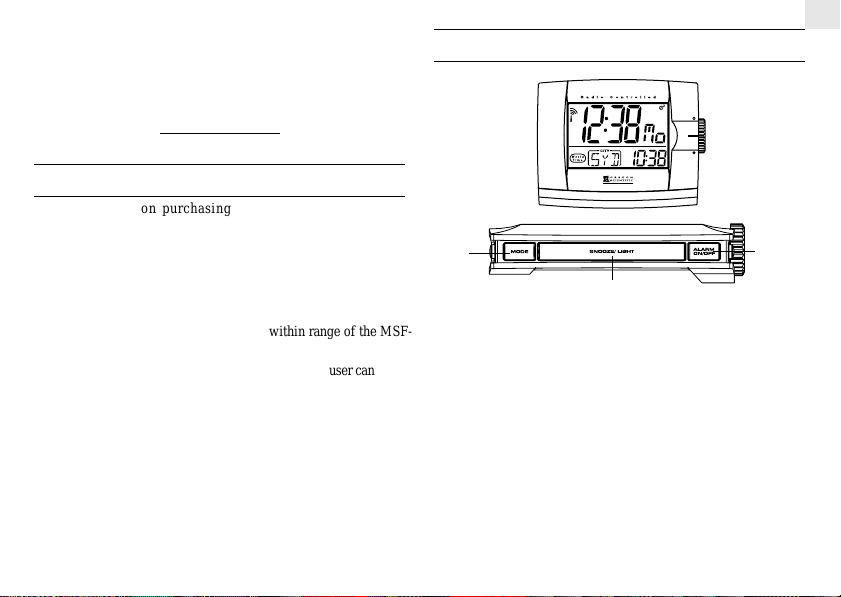
CONTROL BUTTONS:TOP PANEL
1
2
1. MODE BUTTON
- Press to change between the clock and calendar display modes
- Press and hold for 2 seconds to enter the clock and calendar
setting mode
2. [SNOOZE/LIGHT] BUTTON
- Press to turn on the back-light for 5 seconds
- Press to activate the Snooze function when the alarm goes
off
- Press and hold for 3 seconds to turn off the alarm when the
alarm goes off
3. [ALARM ON/OFF] BUTTON
- Press to activate/deactivate the corresponding alarm in display
1
GB
3
Page 2
GB
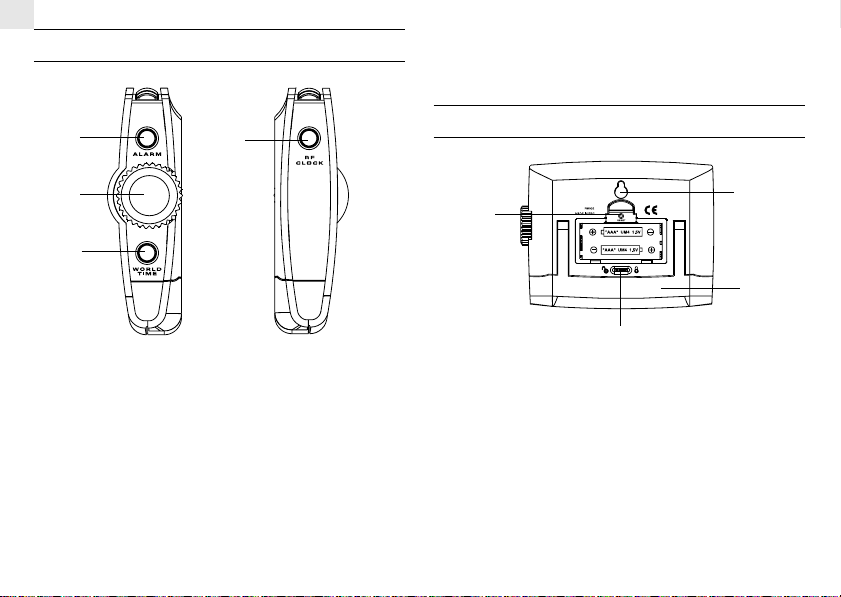
CONTROL BUTTONS:SIDE PANEL
4. [RF CLOCK] BUTTON
- Press and hold for 3 seconds to activate/deactivate the auto reception of RF clock signal
1
2
3
1. [ALARM] BUTTON
- Press to toggle among the calendar, weekday alarm and single
alarm modes
- Press and hold for 2 seconds to enter the setting modes of the
corresponding alarm in display
2. ROTARY KNOB [UP] AND [DOWN] BUTTONS
- Scroll up or down to increase/ decrease the value of a setting
3. [WORLD TIME] BUTTON
- Press to enter the world time setting mode
4
CONTROL BUTTONS:REAR PANEL
3
1
4
2
1. [RESET] BUTTON (inside battery compartment)
- Press to return all settings to default values
2. [KEY-LOCK] SLIDE SWITCH
- Slide to lock the key-functions
3. WALL-MOUNT HOLDER
4. FOLDABLE TABLE STAND
2
Page 3
BEFORE YOU BEGIN
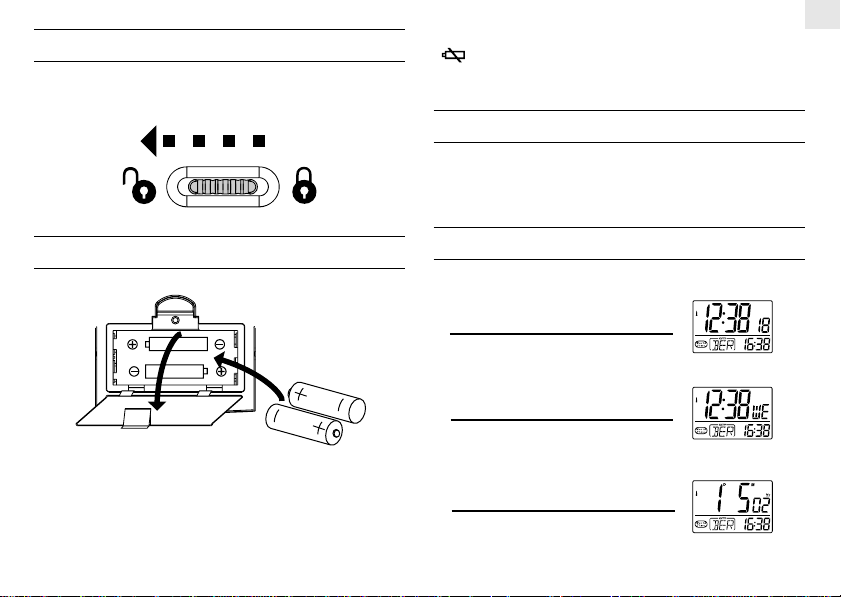
Before operation, remember to slide the key-lock switch to the left
to release all key operations.
When the battery power level is low, the low battery indicator
[
] will light up. Replace the batteries accordingly.
ACTIVA TING THE BACK-LIGHT
Press [SNOOZE/LIGHT] button to turn on the back-light for 5
seconds.
GB
BATTERY INSTALLATION
"AAA" UM4 1.5V
"AAA" UM4 1.5V
1. Remove the battery compartment door.
2. Insert two (2) pieces of “AAA” 1.5V batteries as shown.
3. Press RESET.
4. Replace the battery compartment door.
DISPLAY MODES
Press [MODE] button to display the following in sequence:
1 Current Time with Seconds
World City Name Abbreviation & Time
2) Current Time with Weekday
World City Name Abbreviation & Time
3) Calendar
World City Name Abbreviation & Time
To display the dual alarm times, press [ALARM] button.
3
Page 4
GB
ABOUT RADIO RECEPTION
This clock is designed to automatically synchronize its calendar
clock once it is brought within range of the radio signal. When the
unit is within range, its radio-control mechanism will override all
manual settings unless auto-reception of radio signal has been manually deactivated.
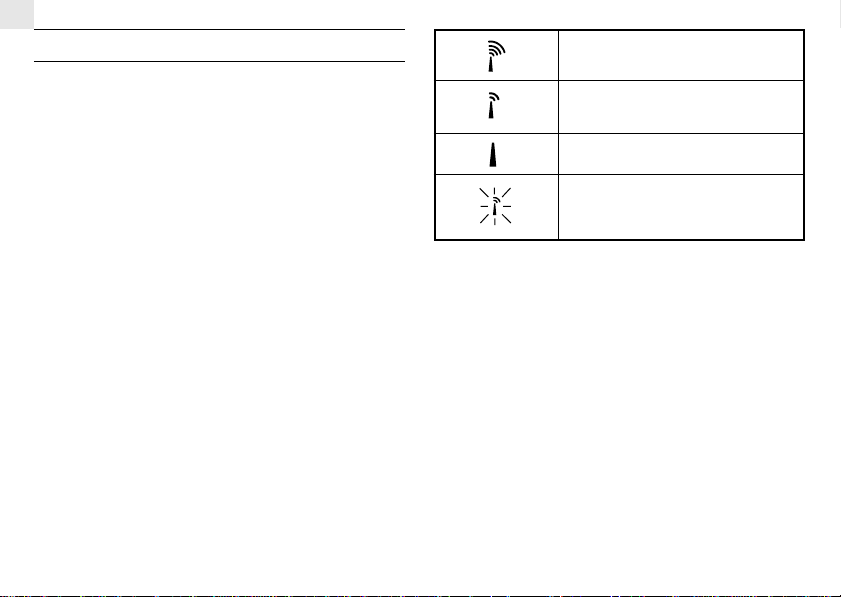
When the clock is receiving radio signal, the radio reception icon
will start to blink. A complete reception generally takes about 2 to
10 minutes, depending on the strength of the radio signal. When
the reception is complete, the radio reception icon will stop blinking.
The strength of the reception for the last full hour will be indicated.
For better reception, place the unit away from metal objects and
electrical appliances to minimize interference.
Should you wish to deactivate the RF controlled function, press and
hold [RF CLOCK] button for 3 seconds. The radio reception icon
will disappear. To reactivate the RF controlled function, press and
hold [RF CLOCK] button for 3 seconds again and the radio reception icon will be re-displayed.
- Strong
- Weak
- No Reception
- Receiving
4
Page 5
SETTING THE CLOCK AND CALENDAR
CLOCK MANUALLY
1. Press and hold [MODE] button for 2 seconds.
2. Select the local city by using the rotary knob [UP]/[DOWN]
button (for city names abbreviation, please refer to the section
“Selecting the World Time”). Press [MODE] to confirm.
3. Repeat the same procedures to set the hours, minutes, year, month,
day, language of day-of-week and hourly-chime on/off by using
[UP]/[DOWN] button.
4. Press [MODE] button to save the changes and exit.
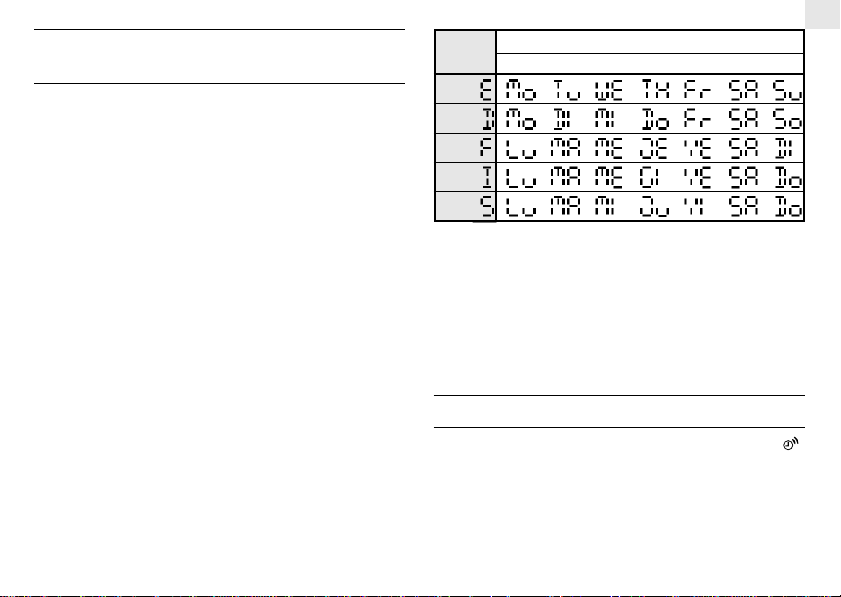
5. For the language for day-of-week, you can select “E” for English,
“D” for German, “F” for French, “I” for Italian or “S” for Spanish.
The day-of-week can be expressed as an abbreviation in five
different languages. The languages and their selected
abbreviations for each day of the week are shown in the language
chart below.
Language
English
German
French
Italian
Spanish
Day-of-the-week
Monday Tuesday Wed. Thursday Friday Saturday Sunday
Note: When changes are made to the minute, the seconds will start
from zero. The unit will also save all changes and return to normal
display automatically after the unit has been left idle for a minute.
ABOUT THE HOURLY-CHIME FUNCTION
When the Hourly-Chime is set to the on-mode, the indicator [ ]
will light up and a beep sound will be given out at the beginning of
each hour.
5
GB
Page 6
GB
SETTING THE ALARM
This clock is equipped with 2 alarms: Weekday Alarm and Single
Alarm. For the Weekday Alarm, alarm will only sound out at the
preset times during weekday (i.e., from Monday to Friday) and will
be automatically disabled during the weekend (i.e., Saturday and
Sunday). For the Single Alarm, alarm will sound out once at the
preset time.
To set the alarm:
1. Press [ALARM] to change to the respective alarm-time display
mode.
2. Press and hold [ALARM] for 2 seconds.
ALARM AND SNOOZE FUNCTION
An alarm will go off for 2 minutes in two-step crescendo patterns if
undisturbed. The Alarm-On indicator will flash and the back-light
will be activated for 5 seconds. To mute the alarm, press any key.
Pressing [SNOOZE/LIGHT] button will activate the snooze function.
When the snooze function is activated, the alarm will be muted temporarily and set off again after 8 minutes. To disable the snooze
function when the alarm goes off, you can press and hold the
[SNOOZE/LIGHT] button for 3 seconds. Alternatively press
[ALARM] or [ALARM ON/OFF] button.
3. Use [UP]/[DOWN] button to enter the hours. Press [ALARM]
button to confirm.
4. Use [UP]/[DOWN] to enter the minutes. Press [ALARM] to
exit.
The alarm will be automatically activated after setting. The corresponding Alarm-On indicator [
tivate the alarm, press the [ALARM ON/OFF] button when the
corresponding alarm time is displayed. [ -: -- ] will be displayed to
indicate such deactivation.
] or [ ]will appear. To deac-
SETTING THE WORLD TIME
This clock features a World-time display function so that you can
check the corresponding time of different places in the world instantly with DST [Daylight Saving Time] automatically adjusted.
The names of the world cities are shown in an abbreviated 3-letter
format (e.g., “FRA” for Frankfurt, Germany).
To set the world time:
1. Press [WORLD TIME] button once. The W orld-T ime icon will
be flashing.
2. Use the [UP]/[DOWN] button to select the world city.
3. Press the [WORLD TIME] button to confirm.
6
Page 7
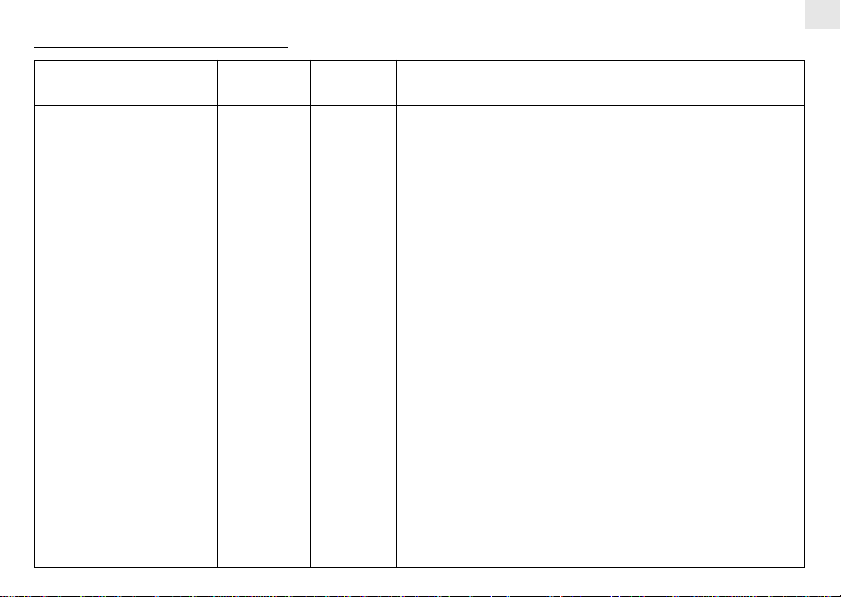
World City Abbreviations Reference Table
Country Name City code
Addis Ababa, Ethiopia ADD 3 No DST
Adelaide, Australia ADL 9.5 From Last Sunday in October to Last Sunday in March
Auckland, New Zealand AKL 12 From 1st Sunday in October to 3rd Sunday in March
Ankara, Turkey AKR 2 From Last Sunday in March to Last Sunday in October
Algiers, Algeria ALG 1 No DST
Amsterdam, Netherlands AMS 1 From Last Sunday in March to Last Sunday in October
Anchorage AK, USA ANC -9 From 1st Sunday in April to Last Sunday in October
Antananarivo, Madagascar ANT 3 No DST
Asuncion, Paraguay ASU -4 From 1st Sunday in September to 1st Sunday in April
Athen, Greece ATH 2 From Last Sunday in March to Last Sunday in October
Atlanta GA, USA ATL -5 From 1st Sunday in April to Last Sunday in October
Abu Dhabi, U.A.E AUH 4 No DST
Bucharest, Romania BBU 2 From Last Sunday in March to Last Sunday in October
Barcelona, Spain BCN 1 From Last Sunday in March to Last Sunday in October
Baghdad, Iraq BDD 3 From 1st April to 1st October
Belgrade, Yugoslavia BEG 1 From Last Sunday in March to Last Sunday in October
Beijing, China BEJ 8 No DST
Berlin, Germany BER 1 From Last Sunday in March to Last Sunday in October
Beirut, Lebanon BEY 2 From Last Sunday in March to Last Sunday in October
Bangkok, Thailand BKK 7 No DST
Brisbane, Australia BNE 10 No DST
Bogota, Colombia BOG -5 No DST
Boston MA, USA BOS -5 From 1st Sunday in April to Last Sunday in October
Bern, Switzerland BRN 1 From Last Sunday in March to Last Sunday in October
Time Offset
(GMT = 0)
DST Period
7
GB
Page 8
GB
Brussels, Belgium BRU 1 From Last Sunday in March to Last Sunday in October
Brasilia, Brazil BSB -3 From 2nd Sunday of October to 3rd Sunday of February
Buenos Aires, Argentina BUA -3 No DST
Budapest, Hungary BUD 1 From Last Sunday in March to Last Sunday in October
Cairo, Egypt CAI 2 From Last Friday in April to Last Friday in September
Casablanca, Marocco CAS 0 No DST
Canberra, Australia CBR 10 From Last Sunday in October to Last Sunday in March
Caracas, V enezuela CCS -4 No DST
Calcutta, India CCU 5.5 No DST
Chicago IL, USA CGX -6 From 1st Sunday in April to Last Sunday in October
Colombo, Sri Lanka CMB 6 No DST
Copenhagen, Denmark CPH 1 From Last Sunday in March to Last Sunday in October
Cape Town, South Africa CPT 2 No DST
Dhaka, Bangladesh DAC 6 No DST
Damascus, Syria DAM 2 From 1st April to 1st October
New Delhi, India DEL 5.5 No DST
Detroit MI, USA DTW -5 From 1st Sunday in April to Last Sunday in October
Dublin, Ireland DUB 0 From Last Sunday in March to Last Sunday in October
Frankfurt, Germany FRA 1 From Last Sunday in March to Last Sunday in October
Guatemala City, Guatemala GUA -6 No DST
Geneva, Switzerland GVA 1 From Last Sunday in March to Last Sunday in October
Hamburg, Germany HAM 1 From Last Sunday in March to Last Sunday in October
Hanoi, Vietnam HAN 7 No DST
Havana, Cuba HAV -5 From 1st Sunday in April to Last Sunday in October
Ho Chi Minh City, Vietnam HCM 7 No DST
Helsinki, Finland HEL 2 From Last Sunday in March to Last Sunday in October
Hong Kong, China HKG 8 No DST
Honolulu HI, USA HNL -10 No DST
8
Page 9
Houston TX, USA HOU -6 From 1st Sunday in April to Last Sunday in October
Indianapolis, IN, USA IND -5 No DST
Istanbul, Turkey IST 2 From Last Sunday in March to Last Sunday in October
Jakarta, Indonesia JKT 7 No DST
Johannesburg, South Africa JNB 2 No DST
Kabul, Afghanistan KBL 4.5 No DST
Khartoum, Sudan KHA 3 No DST
Kiev, Ukraine KIE 2 From Last Sunday in March to Last Sunday in October
Kingston, Jamaica KIN -5 No DST
Kathmandu, Nepal KTM 5.75 No DST
Kuala Lumpur, Malaysia KUL 8 No DST
Kuwait City, Kuwait KWI 3 No DST
Las Vegas NV, USA LAS -8 From 1st Sunday in April to Last Sunday in October
Los Angeles CA, USA LAX -8 From 1st Sunday in April to Last Sunday in October
Lima, Peru LIM -5 No DST
Lisbon, Portugal LIS 0 From Last Sunday in March to Last Sunday in October
London, UK LON 0 From Last Sunday in March to Last Sunday in October
Lagos, Nigeria LOS 1 No DST
La Paz, Bolivia LPB -4 No DST
Luxembourg, Luxembourg LUX 1 From Last Sunday in March to Last Sunday in October
Madrid, Spain MAD 1 From Last Sunday in March to Last Sunday in October
Melbourne, Australia MEL 10 From Last Sunday in October to Last Sunday in March
Mexico City, Mexico MEX -6 From 1st Sunday in April to Last Sunday in October
Managua, Nicaragua MGA -6 No DST
Miami FL, USA MIA -5 From 1st Sunday in April to Last Sunday in October
Milan, Italy MIL 1 From Last Sunday in March to Last Sunday in October
Manama, Bahrain MNA 3 No DST
Manila, Philippines MNL 8 No DST
9
GB
Page 10
GB
Montreal, Canada MON -5 From 1st Sunday in April to Last Sunday in October
Moscow, Russia MOW 3 From Last Sunday in March to Last Sunday in October
Montevideo, Uruguay MVD -3 No DST
Nassau, Bahamas NAS -5 From 1st Sunday in April to Last Sunday in October
Nairobi, Kenya NRB 3 No DST
New York NY, USA NYC -5 From 1st Sunday in April to Last Sunday in October
Oslo, Norway OSL 1 From Last Sunday in March to Last Sunday in October
Ottawa, Canada OTW -5 From 1st Sunday in April to Last Sunday in October
Port-au-Prince, Haiti PAP -5 No DST
Paris, France PAR 1 From Last Sunday in March to Last Sunday in October
Perth, Australia PER 8 No DST
Pheonix, AZ, USA PHE -7 No DST
Phnom Penh, Cambodia PNH 7 No DST
Port-Of-Spain, Trinidad & Tobago
Papeete, French Polynesia PPT -10 No DST
Prague, Czech Republic PRG 1 From Last Sunday in March to Last Sunday in October
Portland OR, USA PTL -8 From 1st Sunday in April to Last Sunday in October
Pretoria, South Africa PTR 2 No DST
Panama City, Panama PTY -5 No DST
Yangon, Myanmar RGN 6.5 No DST
Rio de Janeiro, Brazil RIO -3 From 2nd Sunday of October to 3rd Sunday of February
Reykjavik, Iceland RKV 0 No DST
Rome, Italy ROM 1 From Last Sunday in March to Last Sunday in October
Riyadh, Saudi Arabia RUH 3 No DST
San Salvador, El Salvador SAL -6 No DST
Santiago, Chile SCL -4
Seattle WA, USA SEA -8 From 1st Sunday in April to Last Sunday in October
Seoul, South Korea SEL 9 No DST
POS -4 No DST
From 1st Sunday on or after 9th October to 1st Sunday on or after 9th March
10
Page 11
San Francisco CA, USA SFO -8 From 1st Sunday in April to Last Sunday in October
Shanghai, China SHA 8 No DST
Singapore, Singapore SIN 8 No DST
San Jose, Costa Rica SJO -6 No DST
San Juan, Puerto Rico SJU -4 No DST
Salt Lake City UT, USA SLC -7 From 1st Sunday in April to Last Sunday in October
Sofia, Bulgaria SOF 2 From Last Sunday in March to Last Sunday in October
Sao Paulo, Brazil SPL -3 From 2nd Sunday of October to 3rd Sunday of February
Stockholm, Sweden STH 1 From Last Sunday in March to Last Sunday in October
Sydney, Australia SYD 10 From Last Sunday in October to Last Sunday in March
Tashkent, Uzbekistan TAS 5 No DST
Tokyo, Japan TKY 9 No DST
Taipei, Taiwan TPE 8 No DST
Tripoli, Libya TRP 2 No DST
Toronto, Canada TRT -5 From 1st Sunday in April to Last Sunday in October
Quito, Ecuador UIO -5 No DST
Vancouver, Canada VAC -8 From 1st Sunday in April to Last Sunday in October
Vienna, Austria VIE 1 From Last Sunday in March to Last Sunday in October
Warsaw, Poland WAW 1 From Last Sunday in March to Last Sunday in October
Washington DC, USA WDC -5 From 1st Sunday in April to Last Sunday in October
Wellington, New Zealand WLG 12 From 1st Sunday in October to 3rd Sunday in March
Zurich, Switzerland ZRH 1 From Last Sunday in March to Last Sunday in October
11
GB
Page 12
GB
THE RESET BUTTON
The [RESET] button is used to enhance synchronization of signals
after battery replacement or when the unit is operating in an
unfavourable way or malfunctioning. Use a blunt stylus to hold
down the button. All settings will return to their default values.
KEY-LOCK FUNCTION
To lock all key-operation when carrying this clock with you, slide
the [KEY -LOCK] switch to the right. To operate this clock again,
slide the switch to the opposite direction.
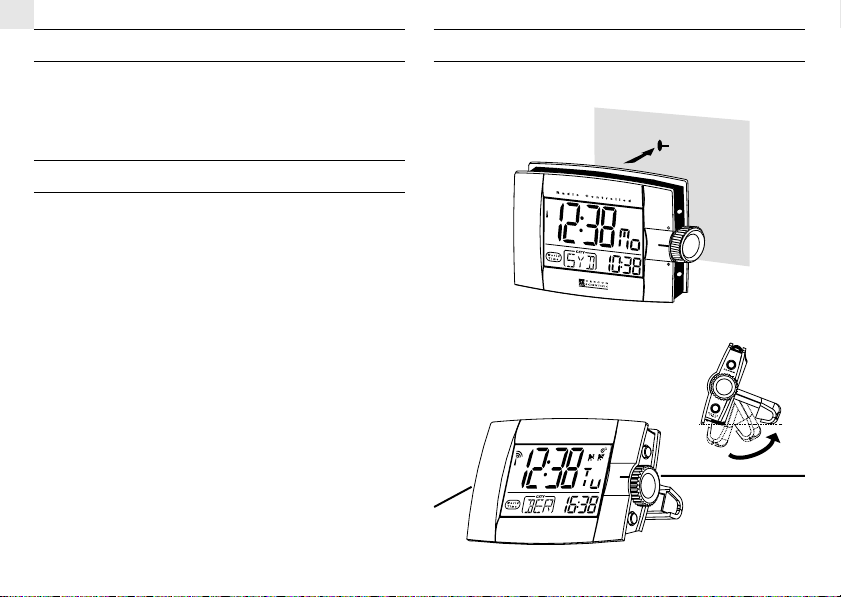
WALL-MOUNT OR TABLE-STANDING
This unit is designed specially to facilitate table-standing or wallmounting.
Wall-Mount:
Table-Stand:
12
Page 13

MAINTENANCE
When handled properly, this unit is engineered to give you years of
satisfactory service. Here are a few product care instructions:
1. Do not immerse the unit in water. If the unit comes in contact
with water, dry it immediately with a soft lint-free cloth.
2. Do not clean the unit with alcohol containing detergent, abrasive
or corrosive materials. Abrasive cleaning agents may scratch
the plastic parts and corrode the electronic circuit.
3. Do not subject the unit to excessive: force, shock, dust,
temperature, or humidity. Such treatment may result in
malfunction, a shorter electronic life span, damaged batteries, or
distorted parts.
4. Do not tamper with the unit’s internal components. Doing so
will terminate the unit’s warranty and may cause damage. The
unit contains no user-serviceable parts.
5. Only use new batteries as specified in this instruction manual.
Do not mix new and old batteries as the old batteries may leak.
6. Read this instruction manual thoroughly before operating the unit.
GB
SPECIFICATIONS
Proposed operating range : -5.0°C to +50.0°C
(23.0°F to 122.0°F)
Radio Control : Auto synchronize current time
and date by Radio signal form
Frankfurt, Germany DCF-77
(the UK Version from Rugby,
England MSF - 60)
Clock format : 24-hour format
(hh:mm:ss)
12-hour format for UK V ersion
Calendar format : Day-Month-Year
Alarm : Single and Weekday 2-minute
crescendo Alarm with
8-minute snooze function
Power : Uses two (42) UM-4 or
“AAA” 1.5V batteries
Weight : 150.63gm
(without battery)
Dimensions : (L)112.5x(W)86x(T)25.8mm
With Carrying Pouch
13
Page 14

GB
EC-DECLARATION OF CONFORMITY
This product complies with the essential requirements of Article 3
of the R&TTE 1999/5/EC Directives, if used for its intended use
and that the following standard(s) has/have been applied:
Efficient use of radio frequency spectrum
(Article 3.2 of the R&TTE Directive)
applied standard(s) N / A
Electromagnetic compatibility
(Article 3.1.b of the R&TTE Directive)
applied standard(s) ETS 300 683:1997
Safety of information technology equipment
(Article 3.1.a of the R&TTE directive)
applied standard(s) EN 60950:1997
14
Page 15
Additional information:
The product therefore conforms with the Low Voltage Directive 73/
23/EC, the EMC Directive 89/336/EC and R&TTE Directive 1999/
5/EC (appendix II) and carries the respective CE marking.
VS-Villingen / Germany August 2001
Gerhard Preis
R&TTE representative of manufacturer
RTTE Compliant Countries :
All EC countries, Switzerland CH
And Norway N
- The contents of this manual and technical
CAUTION
specifications are subject to change without further
notice.
- Due to printing limitation, the displays shown in this
manual may differ from the actual display.
- The contents of this manual may not be reproduced
without the permission of the manufacturer.
15
GB
Page 16
GB
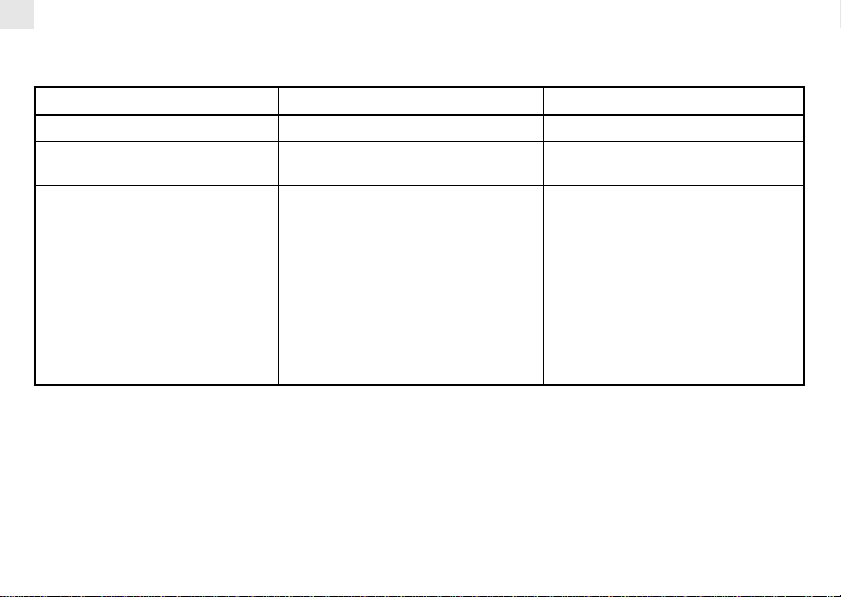
TROUBLESHOOTING GUIDE --- RM932/RM932U
Trouble
All function keys are disabled
Reception icon "Antenna" is not shown
- Clock time is not correctly set; and/or
- Reception icon "Antenna" displays as
"No reception"
Warning:
- For other cases not listed in the above, feel free to contact our help line
- Do not dissemble the unit. This will void the warranty
Rear slide switch is locked
Auto-reception of clock radio signal has been
disabled
The clock radio signal is not received because:
- Electromagnetic interference exists, or the
Main Unit is located within reinforced concrete walls or shadowed area location
- Orientation of placement is not at optimum
position for reception of clock radio signal
Possible Cause
16
Remedy
Unlock the rear switch
Enable this function by following the instruc-
tions in the User’s Manual
- Locate the Main Unit far from PC, mobile
phone etc and re-locate it near the window
sill. Wait at least 24 hours (note: during
night-time signal is stronger, particularly
after rain)
- The clock radio signal is searched at 1:00,
2:00, 3:00, 9:00, 15:00, 21:00 every day
automatically
- To force the signal reception please refer
to instructions in the User’s manual
 Loading...