

Page 1

1
quick start guide
MF60
Mobile WiFi Modem
Page 2
32
your device LED indicators
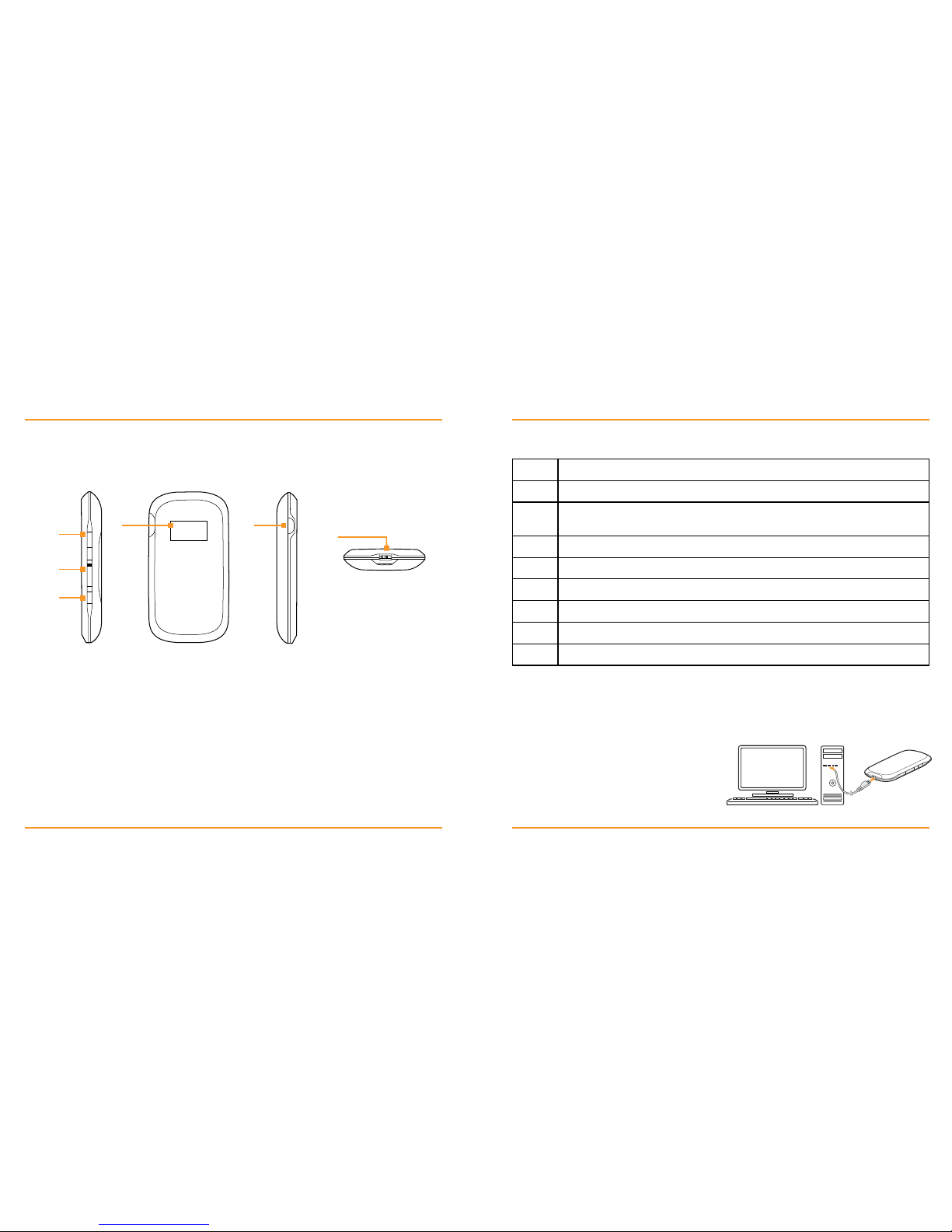
Mobile WiFi Modem is a 3G/2G mobile hotspot device, working in GSM/GPRS/EDGE/
WCDMA/HSPA/ HSPA+ network. This device enables USB or Wi-Fi conection and
supports data and SMS services, enabling you to communicate anytime and anywhere.
1
4 5
6
2
3
1 Power - Hold the Powe r button to switch on/off the device
2 Memory card slot (mi croSD c ard)
3 WPS - This button is used to star t/end Wi-Fi Protected Setup authentication process
and enable/disable the Wi-Fi function.
Hold it for 3 seconds to activate the WPS function. When the WPS function is available,
press i t to deactivate the WPS function. Press it to enable/disable Wi-Fi function.
4 LED Screen Indicator
5 External Antenna Connector - Connect external antenna to enhance the signal strength.
6 Charger/USB port - Charg e your device.
Connect the client to your device via the USB cable.
Icon Indication
Network signal strength.
Network type. 2G or 3G icon will appear on the LED screen according
to the network being connected.
Connect to the Internet automatically.
Connect to the Internet manually.
Roaming network indication.
New message received.
Wi-Fi Status and number of the connecting users.
Battery power indication.
When th e device is powe red on, the following icons will appear on th e LED screen:
Note
You can only us e USB cable
or Wi-Fi to connect this devic e.
If you want to use Wi-Fi, make sure
the client supports the Wi-Fi function.
Connection Scenario
The following picture is the application example. All of the
client devices can surf on the Internet at the same time.
Page 3
54
getting started
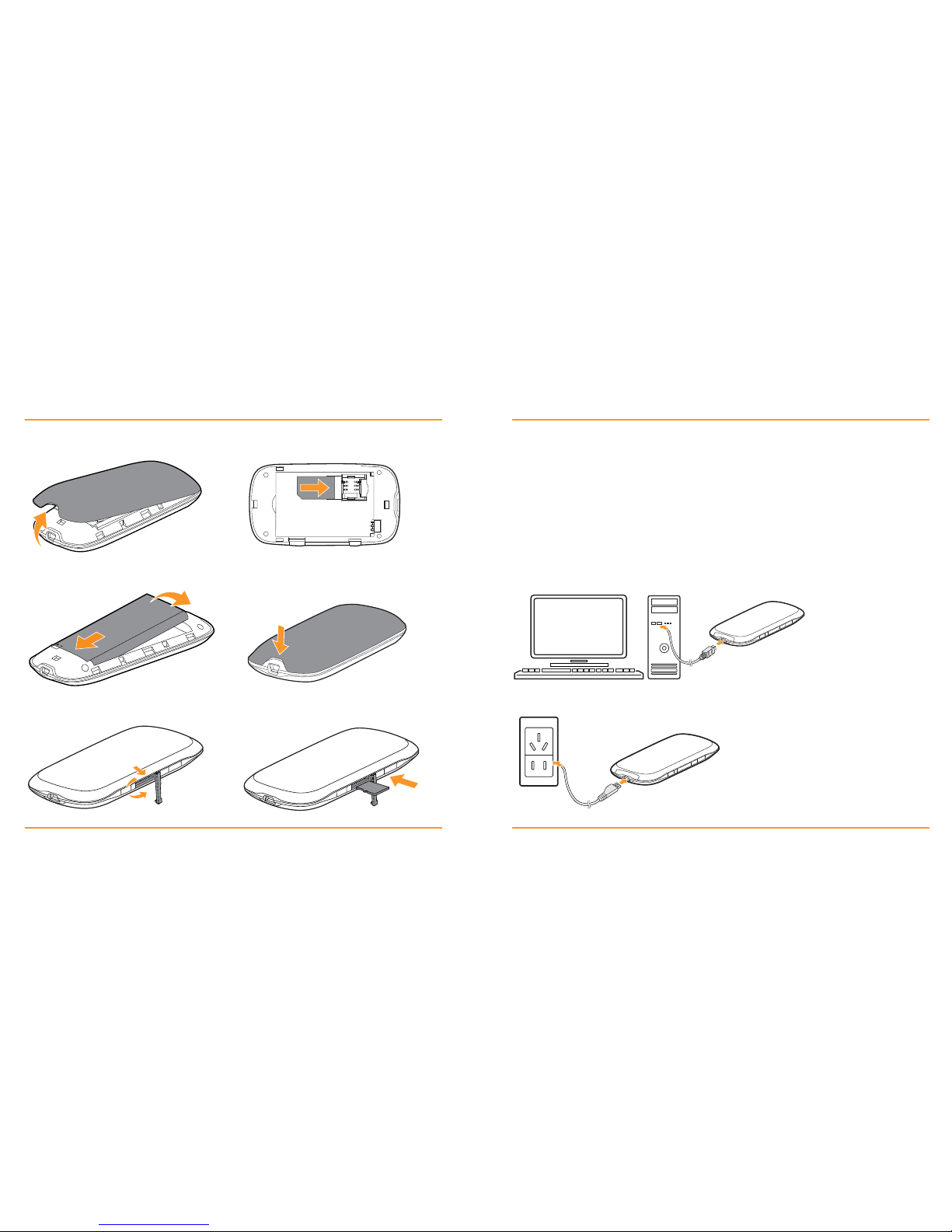
1 Remove the back c over.
5 Inser t the microSD card.
4 Close the back cover.
3 Inser t the batter y.
2 Inser t the SIM card.
powering on/off your device
Press the Power button to sw itch on /off the device.
Notes
Hold the WPS and Powe r buttons simultaneous ly unti l the LED screen turns of f,
and then release the buttons. The device will res tart automatically and restore to
the factory default settings.
Please use the original external antenna if necessary.
Charging Your Device
You can charge your device by using the USB cable or adapter
Use the USB cabl e to connect your device and PC directly.
Use the ad apter and USB cable to connect the wall outlet and your devic e.
Note
The plug only fits one way to connect
your dev ice. Do not use excessi ve force
to inser t the plug.
Page 4
76
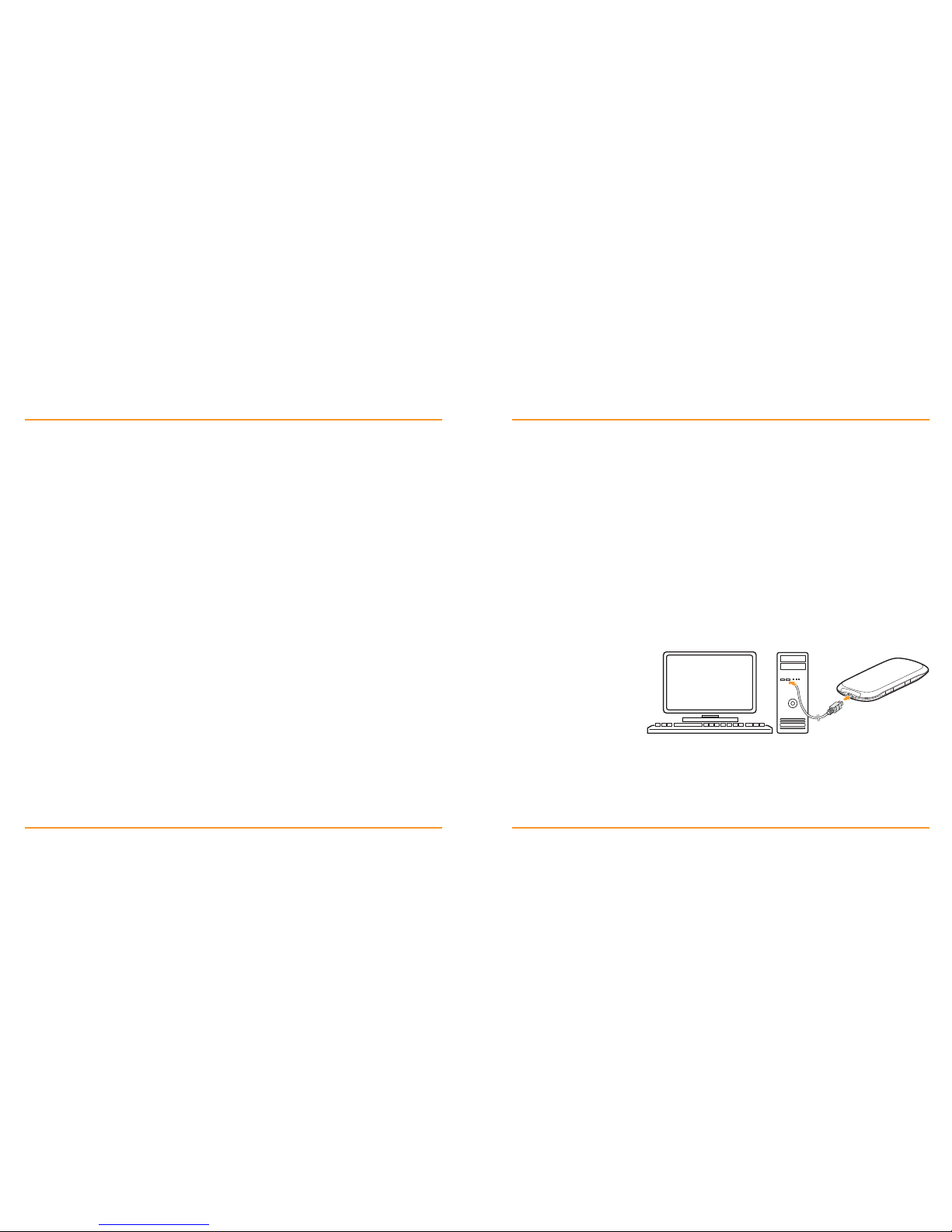
connecting to your device via Wi-Fi
1 Power on your device directly.
It will take 1~2 minutes to initialize.
Via USB Cable
1 Connect to the device.
2 Power on your device.
3 Follow the system
prompts to complete the
software installation.
4 Wait a mom ent,
and then the client
will connect to your
device successfully.
3 Select the SSID of your device,
and then click Connect.
4 Input the password, and then
click Connect.
5 Wait a mom ent, and then the client will
connect to your device successfully.
2 Use your normal Wi-Fi application on
the client to search the
available wireless network.
Note
There may require the password for Wi-Fi
connection, please check the label on
your dev ice to get the default.
Note
Please set the client to obtain an IP addre ss
automatically, and the client will get a n IP
address like “192.168.1.100”.default.
Page 5

98
Using the WPS (Optional)
If your client device s upports WPS, you need not to input the password manually af ter
WPS has been available. Please do the following:
1 Power on your device, and enable the Wi-Fi function on your device.
2 Press the WPS button on yo ur device to start Wi-Fi Protected Setup
authentication process.
3 Enable the WPS function on your client to respond this authentication process.
4 Follow the system prompts on your client to finish the connection.
After succe ssfu lly connecting to your device, you can access the Internet in the Automatic
or Manual mode. The default mode is Automatic.
Note
If the current security mode of the dev ice is OPEN
or SHARE, the WPS function is useless.
For the detailed operations about the client,
please refer to the client’s instruction.
Note
If you want to modif y the det ailed parameters of your dev ice,
please login the webGUI configuration page by visiting ht tp://19 2.16 8 .1.1
or http://wifimodem.orange. The default password is “admin”.
accessing the Internet
Icon Indication
Automatic Your device will connect to the Internet
automatically, and your clients can surf
on the Internet directly.
Manual Login the webGUI configuration page,
the default password is “admin”, and
select Settings > 3G Settings > WAN
Connection Mode > Manual, click Connect
or Disconnect.
Page 6

1110
accessing the configuration page
Note
It is recommended that you use IE (7.0 or later), Firefox (2.0 or later),
Opera (10.0 or later), Safa ri (4.0 or late r), Chrom e (5.0 or late r).
Note
It is recommended that you use IE ( 7.0 or later), Firefox (2.0 or later),
Opera (10.0 or later), Safa ri (4.0 or late r), Chrom e (5.0 or late r).
1 Make sure the connection between your device and the client is correct.
2 Launch the Internet b rowser and enter h t t p://19 2.16 8 .1.1
or http://wifimodem.orange in the address bar.
3 The lo gin page appe ars as follows. The following figu re is only for your reference.
View the information of SMS, MyAccount and Settings. Input the case-sensitive
default password “admin”, and then click Log in to access the WebGUI
Configuration page.
If you want to modif y the PIN Status, please select Set tings > Advanced > PIN Manage to
do the actions.
Verifying the PIN Code
If the PIN code of you r SIM card is enabled, you will need to input the PIN code when you
login at the fir st time.
Page 7

1312
Configuring the Quick Settings
After logging in, select Quick Setups, and then the Quick Setups wiza rd appears.
Settings
After logging in, select Settings, and you can do the following operations.
The Quick Set tings wizard guides you how to s et the basic parameters for your device in
the safe st way. Afte r this procedure, you can use your Inter net service.
Note
The para meter settin gs may have been p reset by your service provider,
and you will enj oy your Internet service directly. Please contact your service provider
for details if yo u want to do some modification.
Note
Make sure that you can reme mber the new password if you change the login
password by selecting Settings > Advance d > Manageme nt. Please restore the
device to the factory default settings in case you fo rget the new pas sword.
Select Settings > 3G Settings View the Wireless Information, select Band
Selection Mode and change APN Setting.
Select Settings > Wi-Fi Settings View the current station list, change the
basic wireless network settings, choose
security mode and WPA type, and perform
the WPS configuration.
Select Settings > Advanced View the current status of your device,
change the Administrator Settings, restore
factory defaults, manage PIN or set the LAN
interface configuration.
Select Settings > Firewall Set the Mac/IP/Port Filtering, Port
Forwarding or the System Security
configuration.
Page 8

1514
SMS
This function allows you to view, send and receive short messages.
After logging in, select SMS, and you can do the following operations.
Follow the following steps and figures for Windows X P to conf igure the Internet Protocol
for your Wi-Fi connection.
PhoneBook
This function allows you to store contacts to your device or SIM card.
After logging in, select Ph oneB ook, and you can add a new contact in Add New tab,
and perform operations to the contact in th e Device or SIM Card tab.
Select SMS > Device Operate the SMS in your device.
Select SMS > SIM Card Operate the SMS in your SIM card.
Select SMS > New Message Send or save SMS.
Select SMS > SMS Settings Set the SMS configuration.
configuring your PC
1 Right-click My Network Places,
and then select Properties.
3 Select Internet Protocol(TCP/IP),
and then click Properties.
2 Right-click Wireless Network
Connection, and then select Properties.
4 Select Obtain an IP address automatically
and Obtain DNS server address automatically,
and then click Ok to finish the configurati on.
Page 9

1716
troubleshooting tips
Problem Suggested Solution
Can not establish
the USB connection
between your device
and PC
You need to install the software. Run the installation
program in path of My Computer > Orange Hotspot.
If the driver of your device is abnormal, please
reinstall the software. You need uninstall the
soft ware f irst.
Can not establish
the Wi-Fi connection
between your device
and client
Refresh network list and select the correct SSID
Check the IP address to make sure your client can
obtain an IP address automatically in the Internet
protocol (TCP/IP) properties.
Type the correct network key ( Wi-Fi password)
when you connect to the device.
The client connected
to the device can not
access the Internet
Refresh network list and select the correct SSID
Check the IP address to make sure your client can
obtain an IP address automatically in the Internet
protocol (TCP/IP) properties.
Type the correct network key ( Wi-Fi password)
when you connect to the device.
Can not visit
the webGUI
configuration page
Enter the correct address. The default address
is http://192.168.1.1 or http://wifimodem.orange
Only use one network adapter in your PC.
Do not use any proxy server.
About the password
For the Wi-Fi connection password, please check
the label on the device.
The default password of the webGUI configuration
page is “admin”.
If you changed the password and forgot the new
password, you need to restore the device to the
factory default settings.
Page 10

1918
warning and notice
To the Owner
Some electronic devices are susceptible to electromagnetic interference sent by
your dev ice if inadequatel y shielded, such as th e elec tronic system of vehicles.
Please consult the manufacturer of your device before using if necessary.
Operating your device may interfere with medical devices like hearing aids and
pacem akers. Please always keep them more than 20 centimeters away from such
medical devices when they are tur ned on. Turn your device off if necessa ry. Consult
a physician or the manufacturer of the medical device before using your device.
Be aware of the usage limitation when using your device at plac es suc h as oil
warehouses or chemical factories, where there are explosive gases or explosive
products being processed. Turn off your device if required.
The use of electronic transmitting devices is forbidden in aircraf ts, at petrol stations
and in hospitals. Please obser ve and ob ey all wa rning signs and switch off your
device in these conditions.
Do not touch the inner antenna are a if not necessary. Otherwise it will af fect your
device’s performance.
Store your d evice out of the reach of little child ren. Your dev ice may cause injur y
if used as a toy.
Do not touch the metallic parts of your device so a s to avoid a burn, when your
device is work ing.
Using Your Device
Please use original accessories or accessories that are authorized. Using any
unauthorized accessories may affect your device’s performance, and violate related
national regulations about telecom terminals.
Avoid using your device near or inside metallic structures or establishments that
can emit electromagnetic waves. Otherwise it may influence signal reception.
Your device is not water proof. Please keep it dr y and store in a shady and
cool place.
Do not use your device immediately af ter a sud den tem perature change. In such
case, it will produce d ew inside and outsid e your device, so don’t use i t until it
becomes dry.
Handle your device carefully. Do not drop, bend or strike it. Other wise your device
will be damaged.
No dismantling by non-professionals and only qualified technicians can undertake
repair work.
Operating temperature range of 0ºc ~ +35ºc and humidity range
of 5% ~ 95% are recommended.
Page 11

2120
Using Battery
Do not short-circuit the batte ry, as this can cause exce ssive heat and fire.
Do not store batter y in hot areas or dispose of it in a fire to avoid explosion.
Do not disassemble or m odif y the batter y.
When not using the battery for a long pe riod, remove it from you r device and sto re
it in a coo l dry p lace.
Never use any charger o r batte ry da maged or worn out.
Return th e wear-ou t batte ry to the provid er or put it in the a ppointed recycle place.
Do not put it in fam ilial rubbish.
Limited Warranty
i Power on your device, a nd ena ble the Wi-Fi function on you r device.
ii Pres s the WPS button o n your device to start W i-Fi Protected S etup
authentication process.
iii Enable the WPS function on your client to respond this authentication process.
iv Follow the system prompts on your client to finish the connection.
v Power failures, surges, fire, flo od, accidents, actions of third par ties or other events
outside ZTE’s reasonable control.
Limitation of Liability
ZTE sh all not b e liable for any loss of profits o r indirect, special, incidenta l or consequential
damages resulting from or arising out of or in connection with using of this product,
whether or not Z TE had b een ad vised, knew or should have known of the p ossibilit y
of such damage s, including, but not limited to lost profits, interruption of business,
cost of capital, cost of substitute facilities or product, or any downtime cost.
vi Usage of third-party products, or usage in conjunction with third-party products
provid ed that such defects are due to the combi ned usage.
vii Any other cause beyond the range of normal usag e intended for the Product.
End User shall have no right to reject or return th e Product, or rec eive a refund for the
Product from ZTE under the above-mentioned situations.
This warranty is End User’s sole remedy and ZTE’s sole liability for defective
or nonc onfor ming items, and is in lieu of all other warranties, expressed, implied
or statutory, including but not limited to the implied warranties of merchantability
and fitness for a par ticular pur pose, unless other wise required und er the mandatory
provisions of the law.
WARNING!
If the battery is broken, keep away from it. If it taints your skin, wash your skin with
abundant fresh water and ask doctor help if necessary.
Page 12
2322
When this cross ed-out wheeled bin symb ol is attached to
a product, it means the product is covered by the European
Directive 2002/96/EC.
All electrical and electronic products should be disposed
of separately f rom the municipal waste stream via designated
collection facilities appointed by the government or the
local authorities.
The correct disposal of your old appliance will h elp
prevent potential negative consequences for the environme nt
and human health.
Disposal of Your Old Appliance
Using Battery
Do not short-circuit the batte ry, as this can cause exce ssive heat and fire.
Do not store batter y in hot areas or dispose of it in a fire to avoid explosion.
Do not disassemble or m odif y the batter y.
1588
The highest SAR valu e for the model device w hen worn on the body is 0.827 W/kg @ 10g.
The info rmatio n on the pac kage is o nly for yo ur refere nce. Ima ges are fo r your refe rence only. Pleas e check t he
product model before purchasing.
ZTE res erve s the rig hts to chan ge spec ifica tions an d param eters of th e produc ts witho ut fur ther not ice.
Note
Do not use th e device in an enclosed environment or where heat diss ipation is poor.
Prolonged work in suc h space may cause excessive heat and raise ambient
temperature, w hich may lead to automatic shutd own of the device for your safety.
In the case of such event, cool the device i n a well-ventilated place before turning
on for normal use.
Legal
Copyright © 2012 ZTE CORPORATION.
All rights reserved.
No part of this publication may be excerpted, reproduced, translated or utilized in any
form or by any means, electronic or mechanical, including photocopying and microfilm,
without the prior written permission of ZTE Corporation.
The manual is published by ZTE Corporation. We reserve the right to make modifications
on print errors or update specifications without prior notice.
Version No.: R1.0
Page 13

24
 Loading...