

Page 1

1
Internet Everywhere 3G+ modem
Quick Guide
USB Modem
MF192
Page 2
2
Introduction
The Orange USB modem is a multi-mode USB modem, working in HSUPA/HSDPA/WCDMA/EDGE/GPRS/
GSM networks. With USB interface connecting to a laptop or a desktop PC, it integrates the functionality
of a modem and a mobile phone (SMS), and combines mobile communication with Internet perfectly.
It supports data and SMS services through the mobile phone network, enabling you to communicate
anytime and anywhere.
Specification
The following table shows the specification of your device.
Interface Type USB 2.0 HIGH SPEED
Systems supported Supports most types of laptop and desktop PC.
Operating systems
supported
Windows XP, Vista, Windows 7
MAC 10.4 or later
Page 3
3
Functions SMS service, Data service, Applications management, support microSD card, etc.
Network Standards HSUPA/HSDPA/WCDMA/EDGE/GPRS/GSM
Transmission speed
(Max)
HSUPA: 5.76Mbps UL
HSPA+: 21.0Mbps DL
Temperature
Storage: -40°C ~ +80°C
Operation:-10°C ~ +55°C
Dimension 87.9mm×27.2mm×13.4mm
Weight About 26g
microSD capability Support up to 32GB microSD card
Notes:
MicroSD is a trademark of SD Card Association.
Page 4
4
Getting to know your device
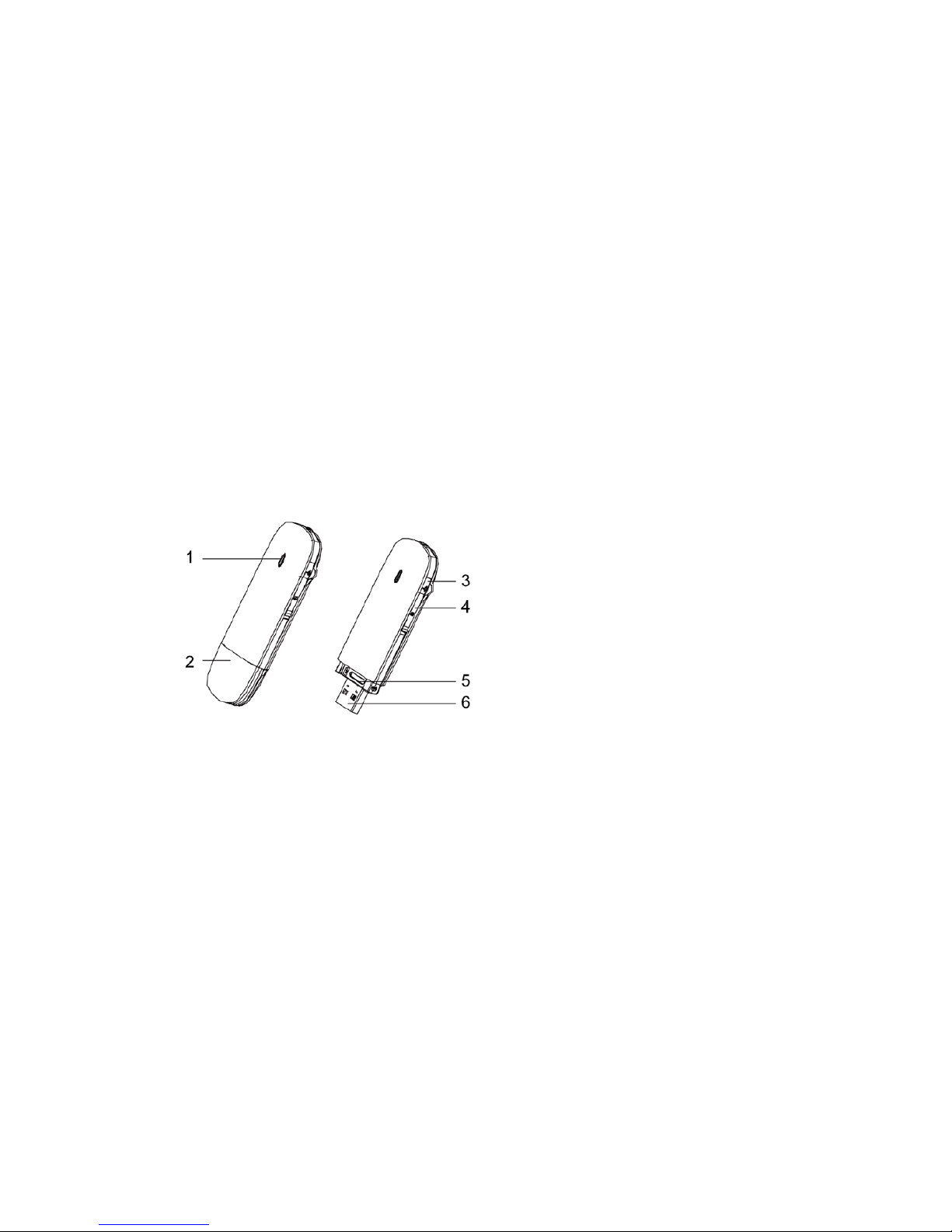
The following figure shows the appearance of the MF192. It is only for your reference. The actual product
may be different.
1. Indicator
2. Modem Cap
3. External antenna port
4. MicroSD card slot
5. SIM/USIM card slot
6. USB connector
Page 5
5
Hardware Installation
1. Insert the SIM/USIM card into the USB modem
To install SIM/USIM card
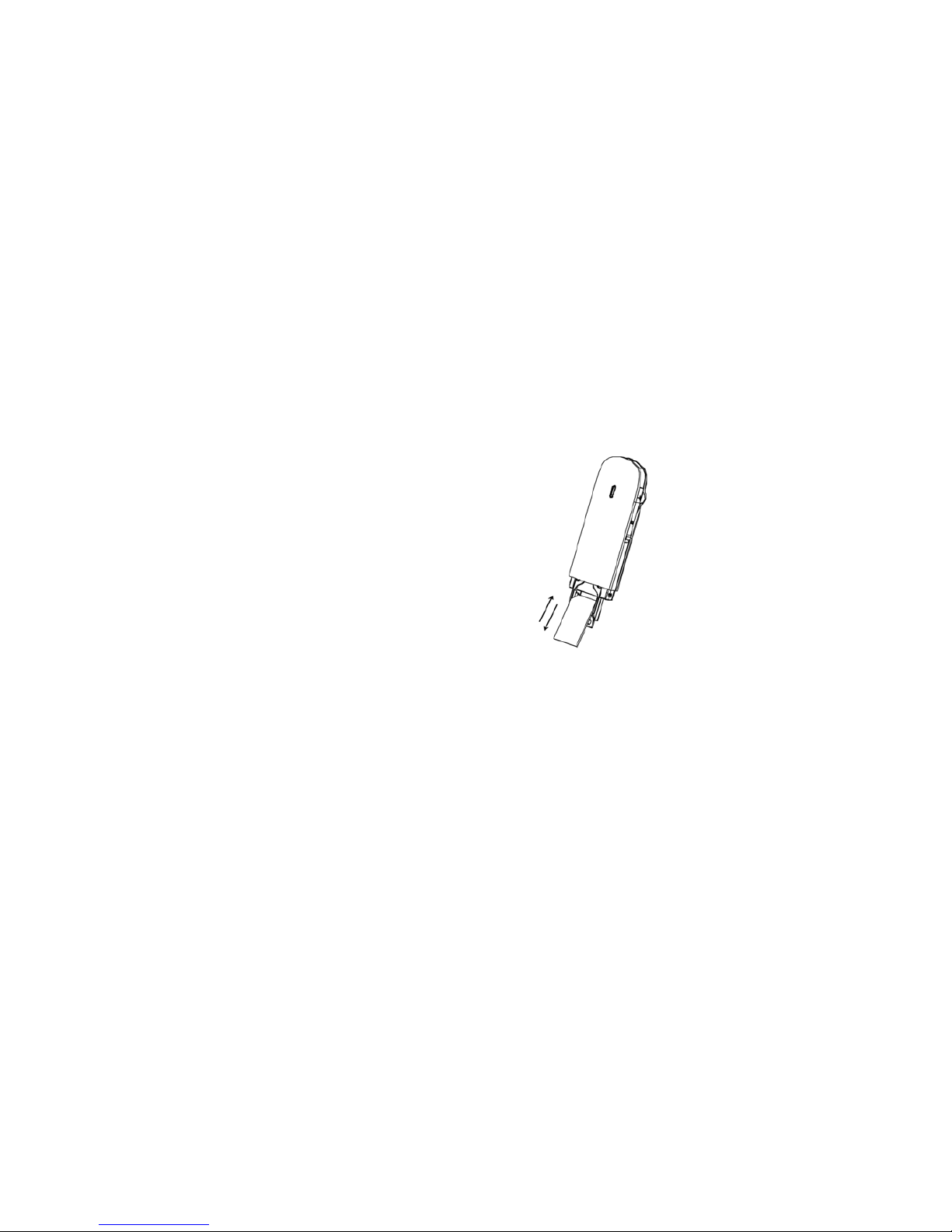
i. Take down the modem cap, and then the USB connector is visible.
ii. Pull the plastic socket above the USB connector out.
Notes:
Do not pull the socket rudely for the socket is fixed with the modem. Otherwise the socket will get
damaged.
Page 6

6
iii. Insert the SIM/USIM card into the socket. Make sure that metal contact area is facing to the modem.
iv. Insert the plastic socket into the modem. You can hear a click when the SIM/USIM card locks in place.
To Remove the SIM/USIM card from the USB modem
i. Take down the modem cap.
ii. Pull the plastic socket gently, and you can hear a click when the SIM/USIM card gets unlocked.
iii. Take off the SIM/USIM card.
2. Install the microSD card into the USB modem
Install microSD card in the USB modem, if you want to use it.
i. Open the cover of the microSD card slot.
Notes:
Do not pull the cover rudely for it is connected with the modem.
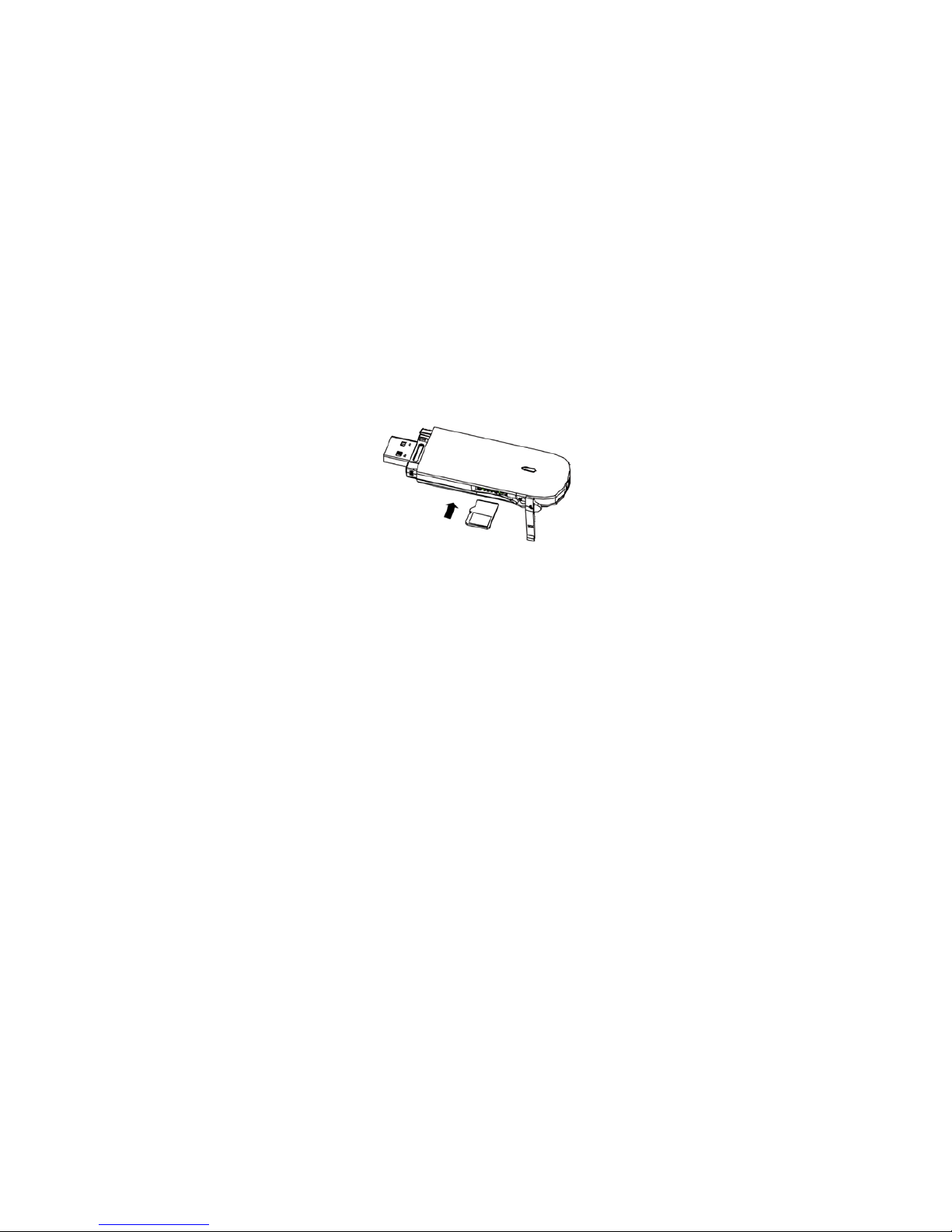
ii. Insert your microSD card into the microSD card slot, shown as the following picture.
Page 7
7
iii. Close the cover of microSD card slot and then you can use the microSD card freely.
3. Connect the USB modem to your PC
Plug the USB modem into your computer’s USB port and make sure that it is tightly inserted.
The OS automatically detects and recognizes new hardware and starts the installation wizard.
Software Installation Guide
On different operating systems, the installation procedures may be difference. Follow the system prompts
during operation.
For Windows OS
Your system will start the software setup process automatically when you connect the modem to your
Page 8
8
computer correctly. Follow the system prompts to complete the software installation.
Notes:
If the system does not launch installation automatically, you can run the installation program in path of My
Computer > double click on the .exe file
For Mac OS
The system will automatically display a CD-ROM icon on the desktop, when you connect the modem to
your computer correctly. Double click the installation software package in the CD-ROM, and follow the
system prompts to complete the software installation.
Safe removal from your system
Please close the application software, and then you can pull out the USB Modem safely.
How to use your modem
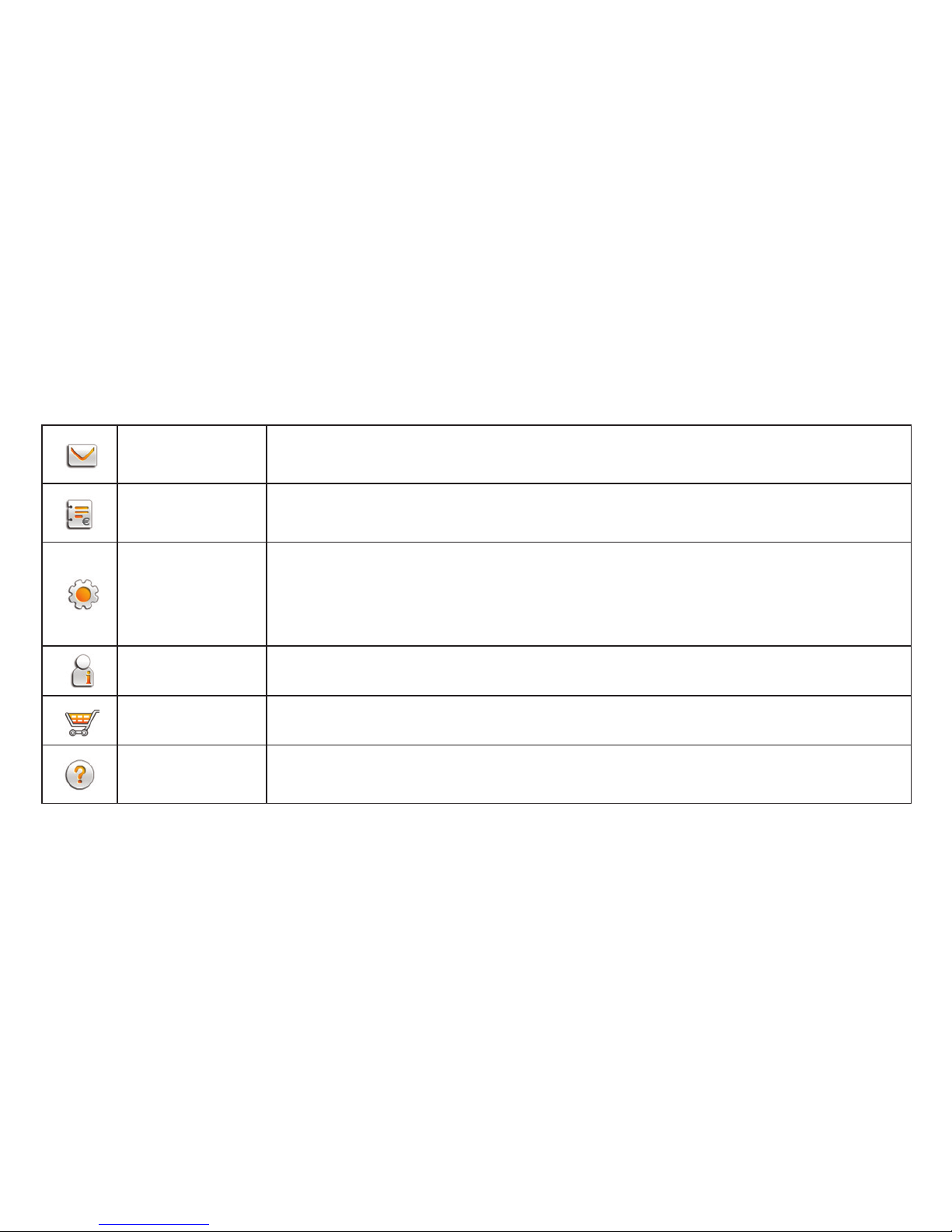
Various icons are presented to enable quick operation of the following functions:
connect Connect to the Internet
Page 9
9
short message
Click New Message button, enter recipient’s number and content, and then
click Send to send new message.
top up
Click top up icon to enter the 12 digit card number and recharge your internet
everywhere account
advance option
Access the settings, statistics and the phone book of your modem.
Settings - Set the configuration for the USB modem.
Phone book – allow you to enter the list of your contacts
Statistics – allows you to check your current and historical usage
check balance Click to query your account balance
buy data bundle Click to access the list of available data bundle
help
Show the help information and also give you a link to quick tips, visit Orange
website and access the device manual
Page 10
10
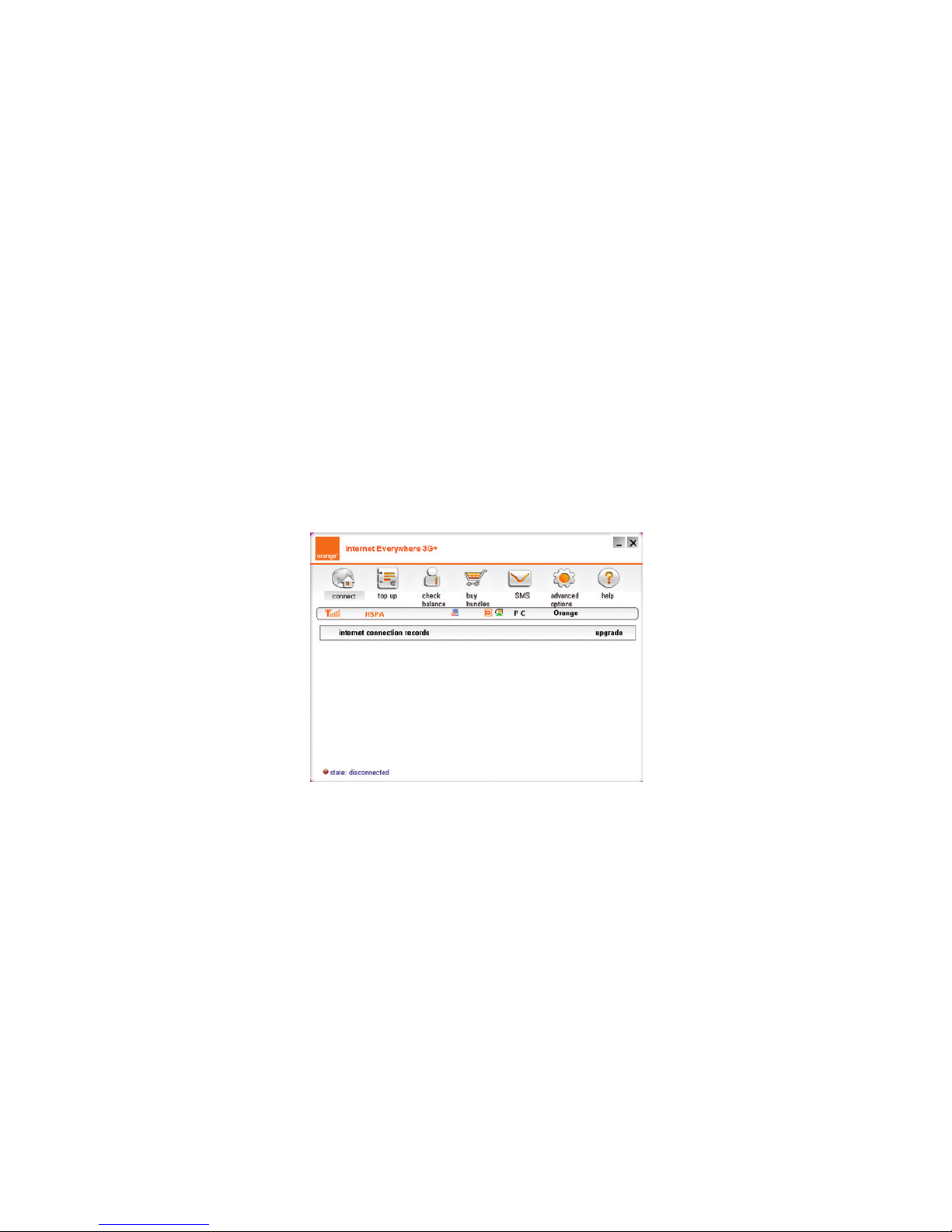
Installed user interface
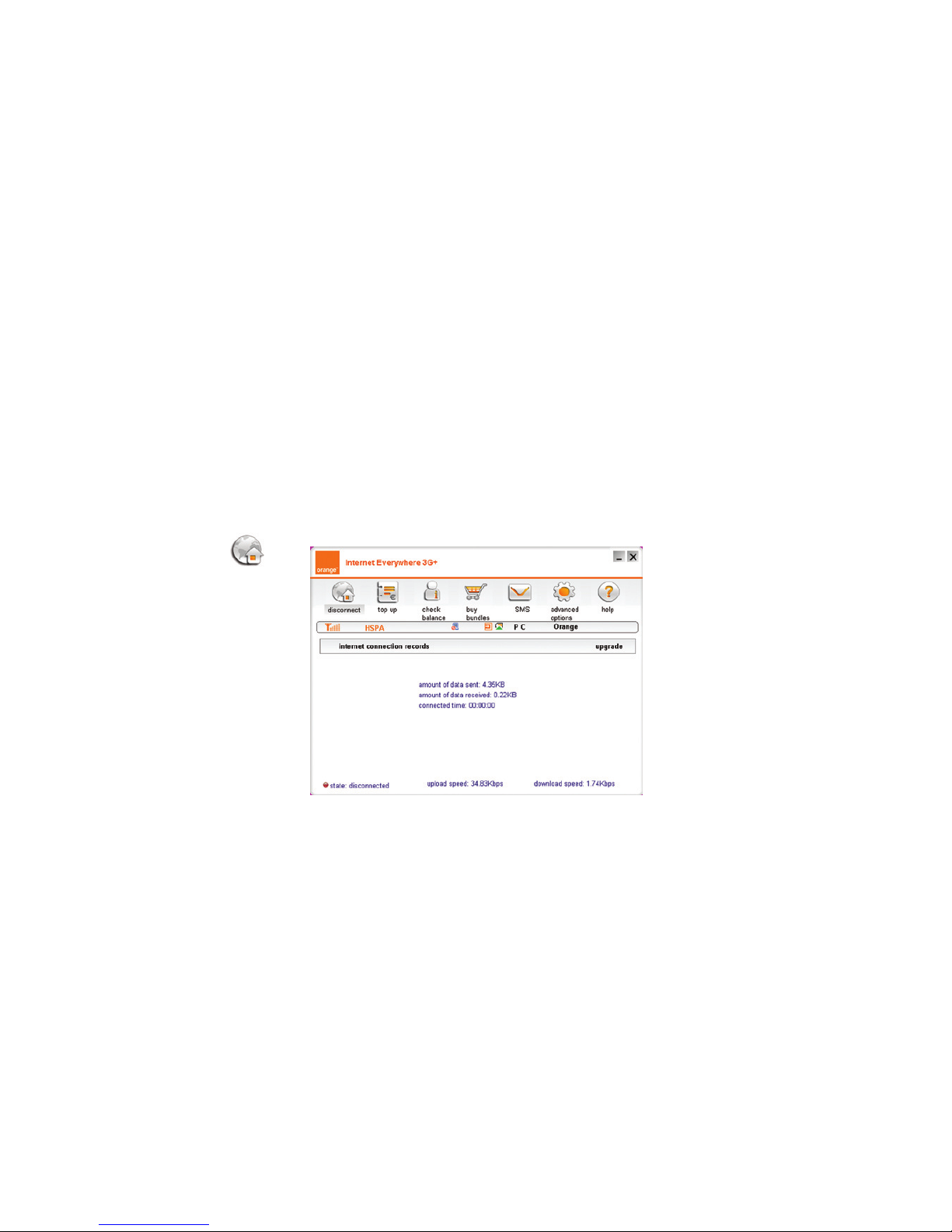
After installation the window shown below will pop up in your desktop,
If it fails to appear double click on the Orange icon installed on your laptop or PC to start the
application
Page 11
11
Top up
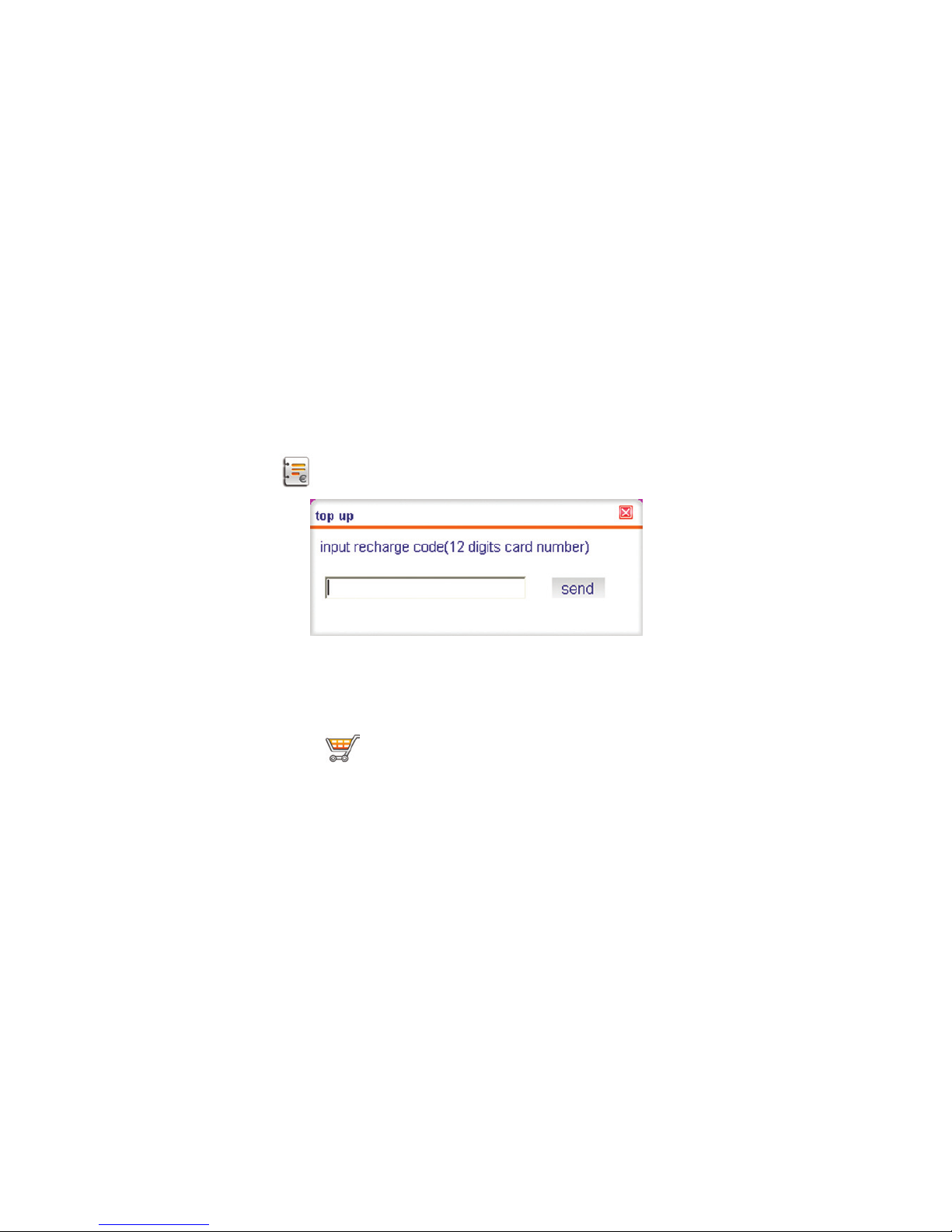
Click on the top up icon input the 12 digit card number and click send
You will receive a notification indicating the success of the top up
To buy data bundles
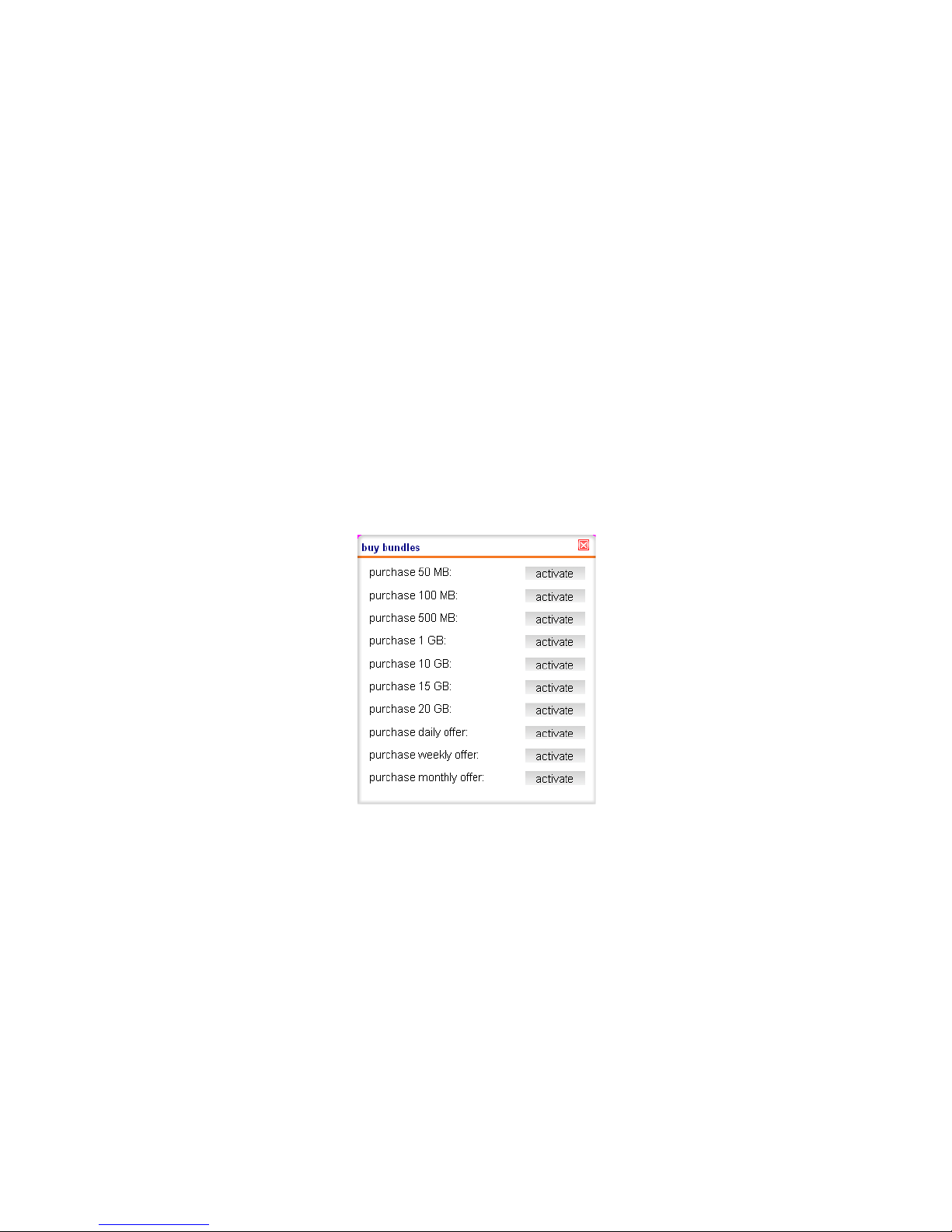
Click on the buy bundles icon
Select the data bundle of your choice
Page 12
12
Ensure that the amount topped up is more or equal to the cost of the data bundle (visit www.Orange.
co.ke or call customer care on 121 to know the cost of the bundle)
Choose your preferred data bundle
Click activate once to buy the chosen data bundle
Page 13
13
You will receive a confirmation sms on successful purchase of the data bundle
A failure message will also be send if the operation is unsuccessful
Operation can fail if the chosen bundle cost more than the account balance
To connect to the internet
Click connect icon
Page 14
14
Click disconnect once done surfing the net
To check your account balance
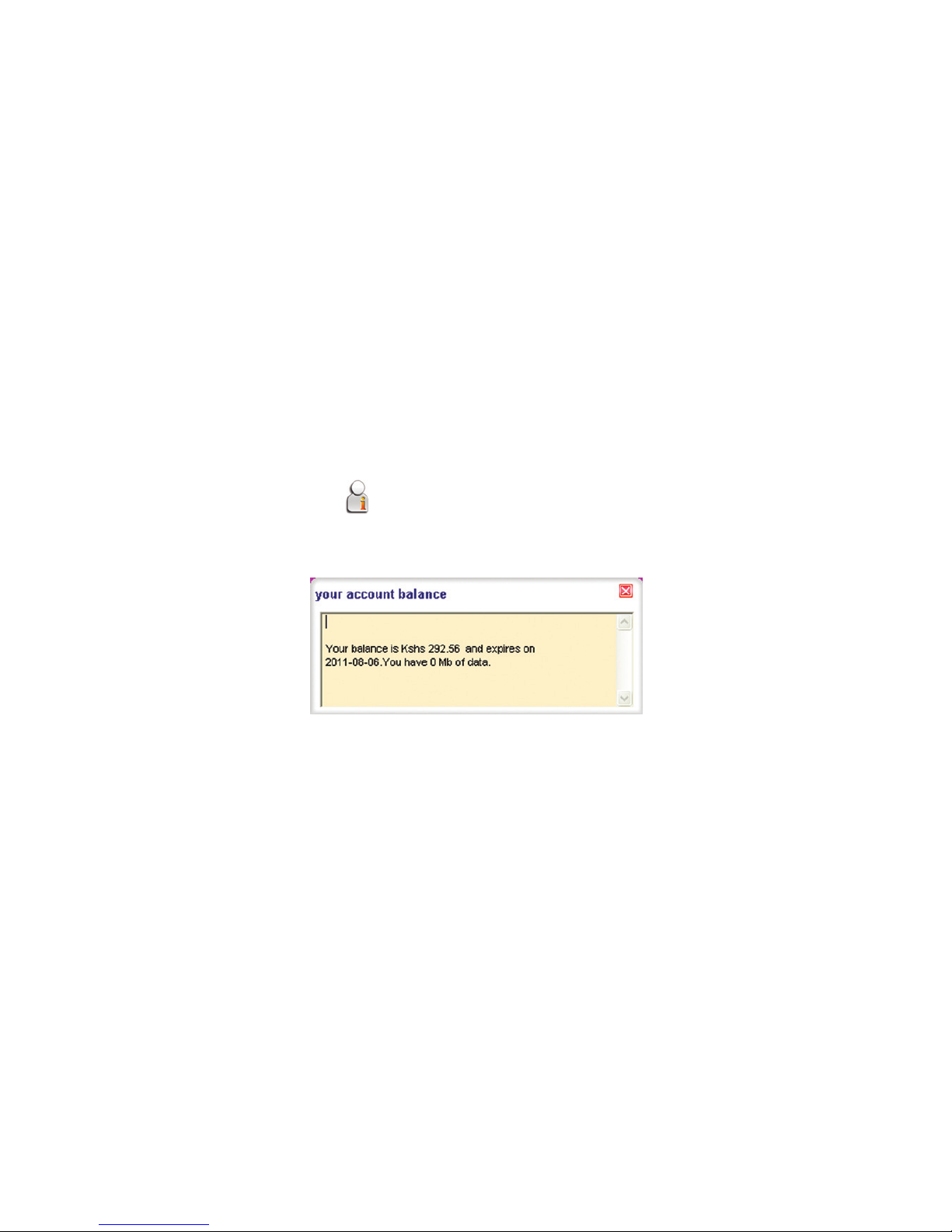
Click on the check balance Icon
The account balance will be displayed in less than 5 seconds
The message content is as below
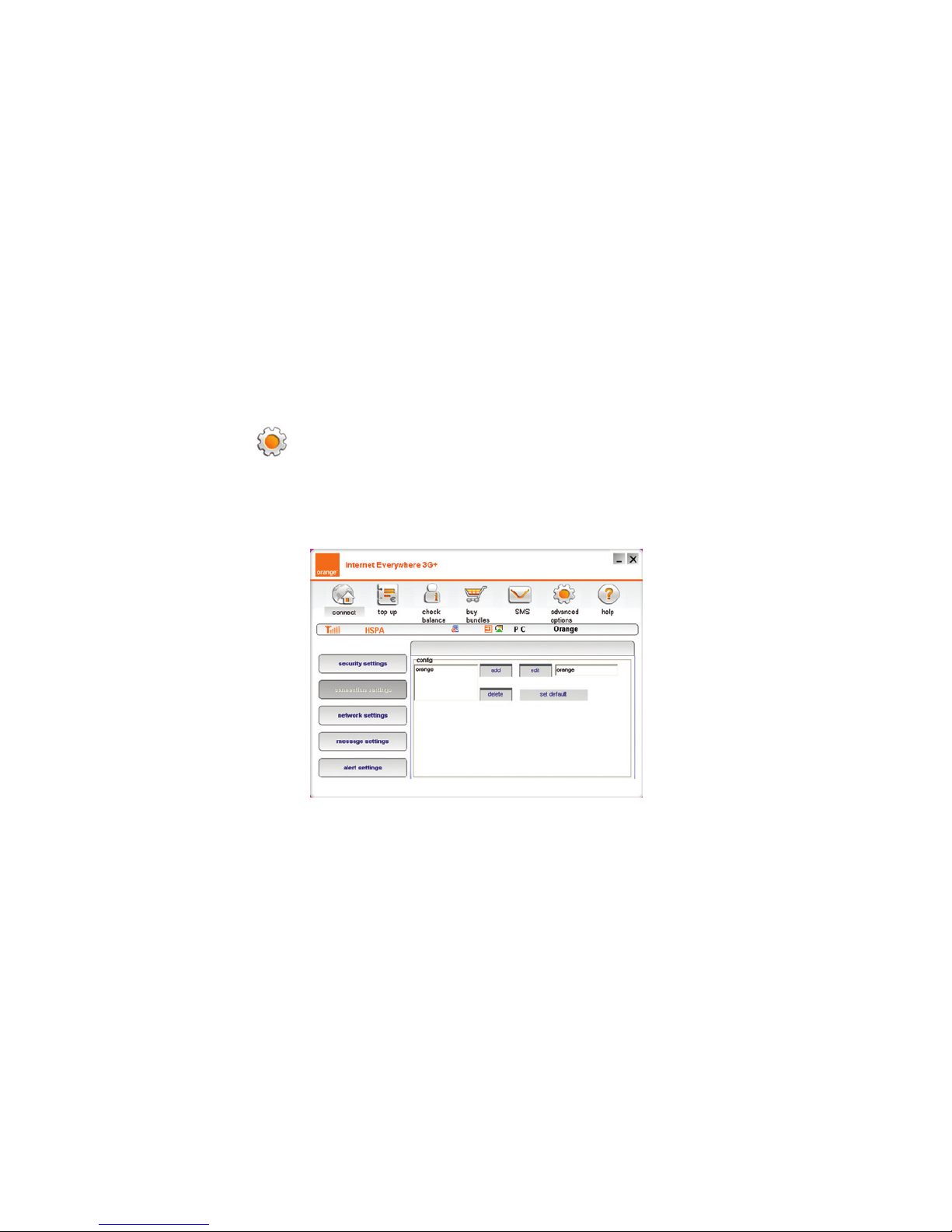
To know your usage, access phonebook and settings
Go to advance option
Page 15
15
o Click on the icon to access the advance options
o Click on statistics, to check usage
o Click phonebook , to view your contact list
o Click settings, to check on the network parameters
Page 16
16
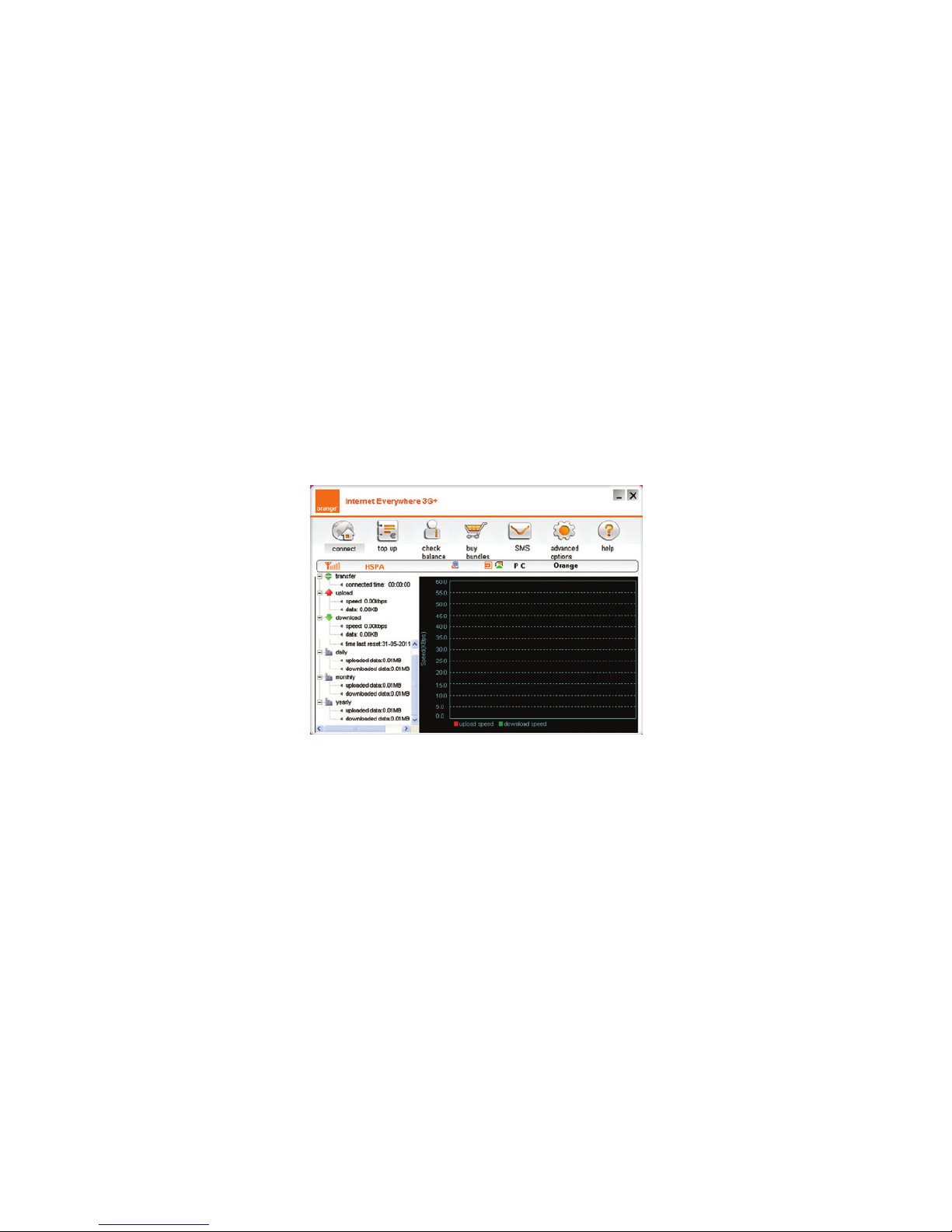
You will see the screen below and indicates the connection speed, upload, download on daily, monthly
and annual
Page 17
17
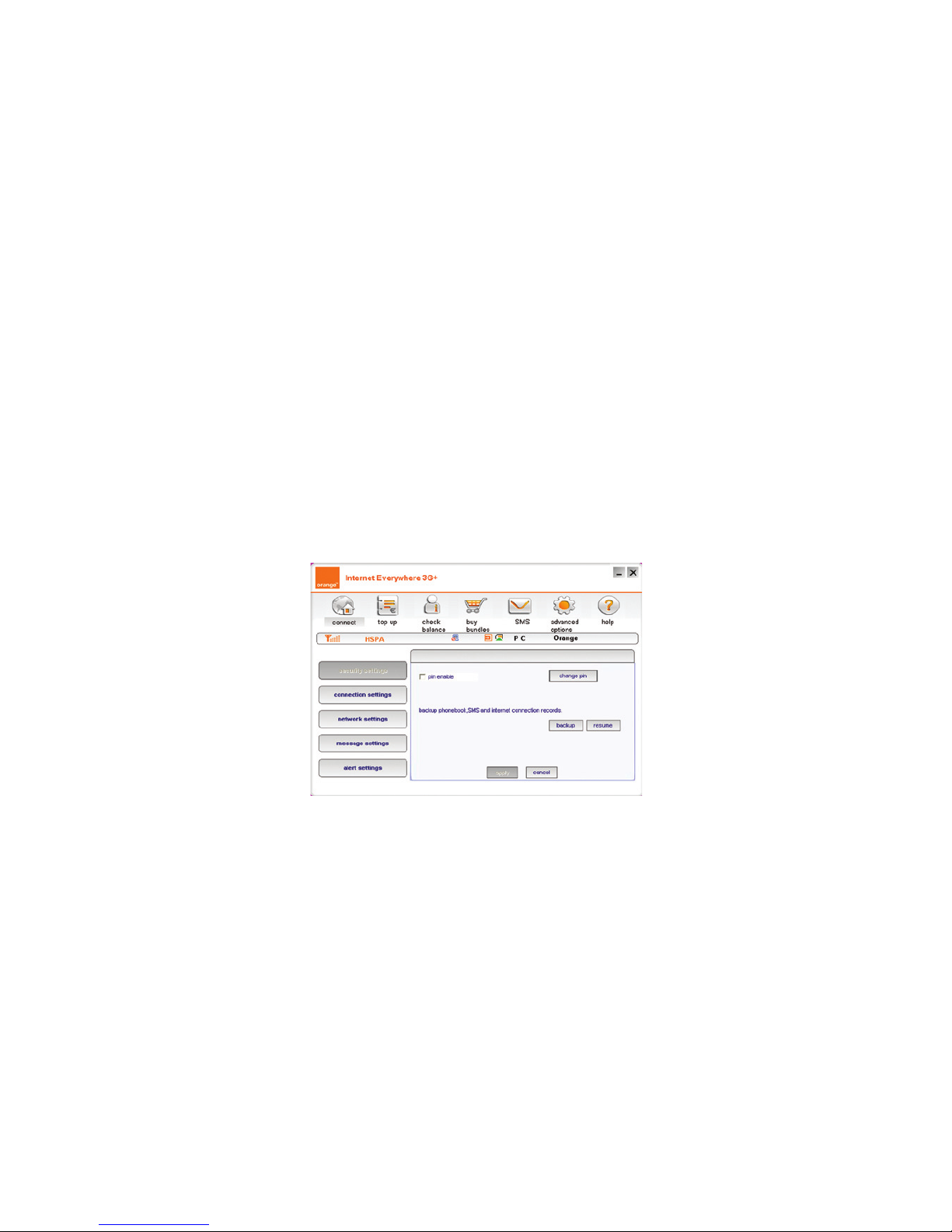
Advanced options
Allows you to check the following settings
Security settings
Connection settings
Network settings and
Alert settings
Click on any of the tab shown in the screen shot below to confirm the default parameters
Page 18

18
Warning and Notice
To the owner
• Some electronic devices are susceptible to electromagnetic interference sent by modem if inadequately
shielded, such as the electronic system of vehicles. Please consult the manufacturer of the device
before using the modem if necessary.
• Operating of laptop and desktop PCs and the modem may interfere with medical devices like hearing
aids and pacemakers. Please always keep them more than 20 centimeters away from such medical
devices when they are turned on. Turn the modem off if necessary. Consult a physician or the
manufacturer of the medical device before using the modem.
• Be aware of the usage limitation when using a modem at places such as oil warehouses or chemical
factories, where there are explosive gases or explosive products being processed. Turn off your
modem if required.
• The use of electronic transmitting devices is forbidden in aircrafts, at petrol stations and in hospitals.
Please observe and obey all warning signs and switch off your modem in these conditions.
Page 19

19
• Do not touch the inner antenna area if not necessary. Otherwise it will affect your modem’s
performance.
• Store the modem out of the reach of little children. The modem may cause injury if used as a toy.
• Do not touch the metallic parts of the modem so as to avoid a burn, when the modem is working.
Using your USB Modem
• Please use original accessories or accessories that are authorized. Using any unauthorized accessories
may affect your modem’s performance, and violate related national regulations about telecom
terminals.
• Avoid using the modem near or inside metallic structures or establishments that can emit
electromagnetic waves. Otherwise it may influence signal reception.
• The modem is not waterproof. Please keep it dry and store in a shady and cool place.
• Do not use the modem immediately after a sudden temperature change. In such case, it will produce
dew inside and outside the modem, so don’t use it until it becomes dry.
• Handle the modem carefully. Do not drop, bend or strike it. Otherwise the modem will be damaged.
Page 20

20
• No dismantling by non-professionals and only qualied technicians can undertake repair work.
• Operating temperature range of -10°C ~ +55°C and humidity range of 5% ~ 95% are recommended.
Limited Warranty
• This warranty does not apply to defects or errors in the Product caused by:
i. Reasonable abrasion.
ii. End User’s failure to follow Telkom Kenya Ltd ’s installation, operation or maintenance instructions or
procedures.
iii. End User’s mishandling, misuse, negligence, or improper installation, disassembly, storage, servicing
or operation of the Product.
iv. Modifications or repairs not made by Telkom Kenya Ltd or a Telkom Kenya Ltd -certified individual.
v. Power failures, surges, fire, flood, accidents, and actions of third parties or other events outside Telkom
Kenya Ltd’s reasonable control.
vi. Usage of third-party products, or usage in conjunction with third-party products provided that such
defects are due to the combined usage
Page 21

21
vii. Any other cause beyond the range of normal usage intended for the Product.
End User shall have no right to reject or return the Product, or receive a refund for the Product from Telkom
Kenya Ltd under the above-mentioned situations.
• This warranty is End User’s sole remedy and Telkom Kenya Ltd’s sole liability for defective or
nonconforming items, and is in lieu of all other warranties, expressed, implied or statutory, including
but not limited to the implied warranties of merchantability and fitness for a particular purpose, unless
otherwise required under the mandatory provisions of the law.
Limitation of Liability
Telkom Kenya Ltd shall not be liable for any loss of profits or indirect, special, incidental or consequential
damages resulting from or arising out of or in connection with using of this product, whether or not Telkom
Kenya Ltd had been advised, knew or should have known of the possibility of such damages, including,
but not limited to lost profits, interruption of business, cost of capital, cost of substitute facilities or product,
or any downtime cost.
Page 22

22
How to get help
You can get help by:
• Clicking help on the software
• Sending E-mail to [email protected]
• Visiting http://www.orange.co.ke
• Calling customer care on 121 or 020 2222121 from other networks
 Loading...