

Page 1
Quickguide
Navi 950
Opel OnStar
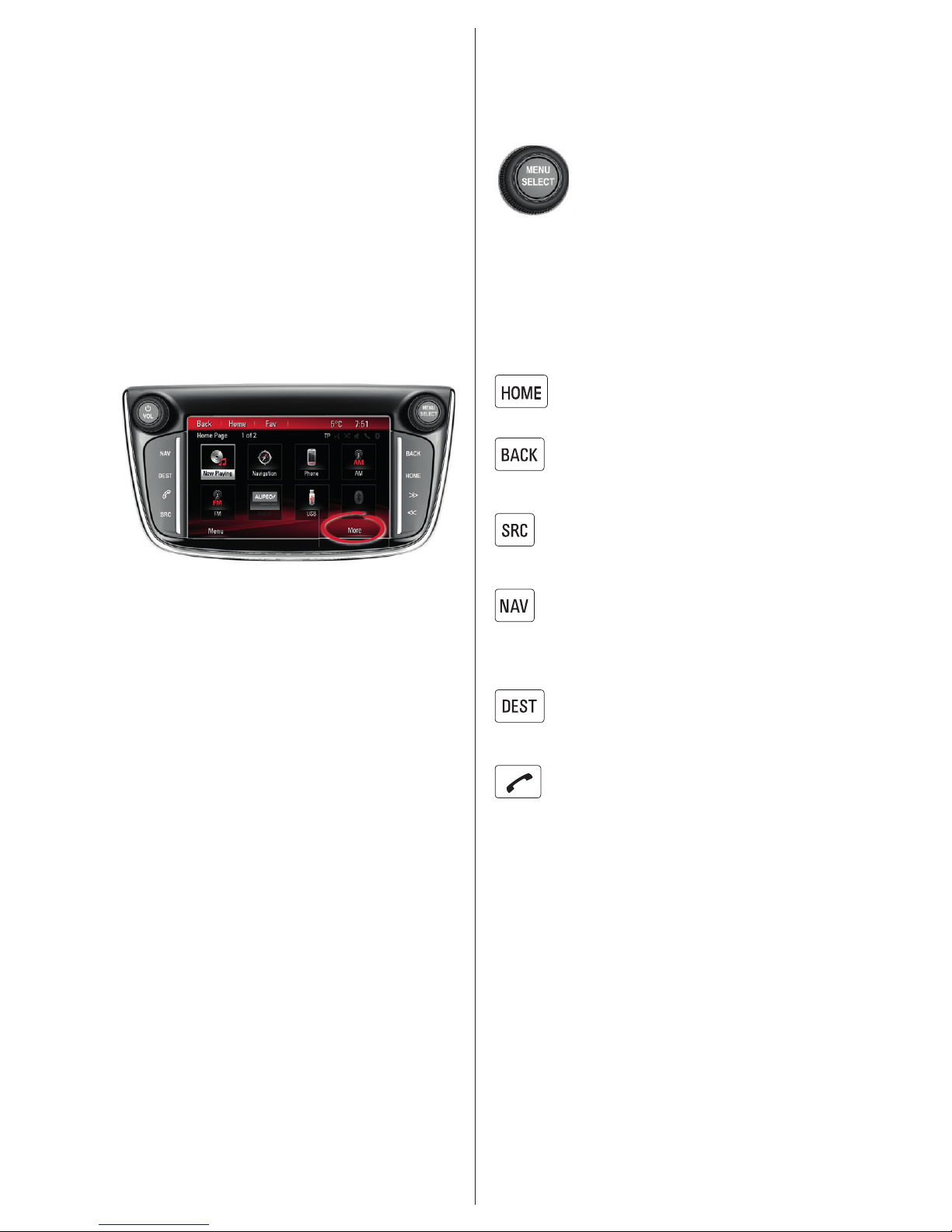
The home screen contains
applications including audio,
telephone and navigation.
Additional applications
might be accessible on
previous or next pages.
The infotainment system is
controlled via the touch screen and
the control elements beside it:
: Turn the Menu knob to
select an element from the screen
or zoom in/out on the navigation
map. Press the Menu knob to
select a marked element from the
screen.
: Return to the home screen.
: Return back to the previous
menu.
: Toggle through different
audio sources.
: Open navigation map. Press
repeatedly to toggle through
different map views.
: Open navigation destination
menu.
: Take incoming phone call or
mute/unmute audio.
1
Page 2
Home screen
personalisation
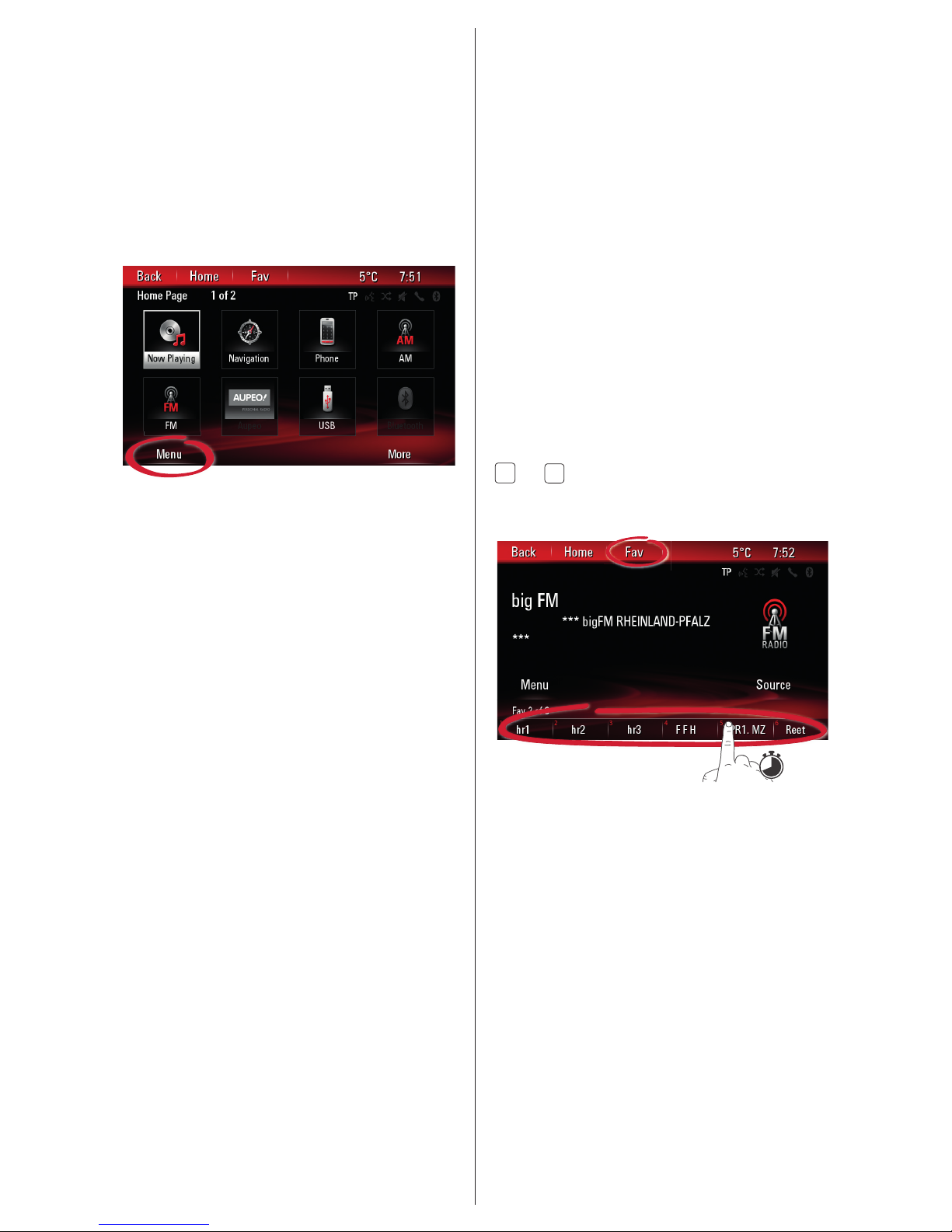
A personalised home screen can
be created by selecting Menu from
the home screen. You can choose
up to eight applications and then
rearrange them in any order.
Search song or radio
station
Media songs or radio stations can
be searched and selected from
the station list or media list. From
the audio main screen you can
enter the list from the menu or by
turning the multifunction knob.
Radio favourites
Radio stations (AM/FM/DAB) can
be stored as favourites by
longpressing any favourite button
1
to 6. To toggle favourite lists,
press Fav repeatedly.
2
Page 3

Navigation
To start or cancel a route guidance,
press or select Destination
from the home screen.
The destination menu differs,
depending on whether a route
guidance is active or not.
Voice recognition
Press q/w on the steering wheel
to start voice recognition. Wait
for the signal to talk. Longpress
q/w to start the voice recognition
of your Bluetooth
®
-connected
smartphone (e.g. Siri
®
).
To interrupt an ongoing system
voice prompt, press q/w again.
To cancel voice recognition,
press x/n on the
steering wheel control.
Phone
To call a phone contact e.g.,
say ‘Call Anna Smith’. If you
set the phone book to be
sorted by last name, you have
to say the last name first.
To read incoming text messages,
say ‘Read SMS’. Make sure to
enable access to your contacts and
messages in your phone‘s settings.
Audio
To play music from a media
source, e.g., say ‘Play Artist
Mozart’ or ‘Play Song Imagine ’.
To tune to a radio station,
e.g., say: ‘Tune FM YouFM’.
Navigation
First say ‘Navigation’. Then say the
destination type, e.g., ‘Address’ or
‘Point of Interest’ or ‘Go home’.
For addresses, use the order
indicated on the screen.
For, e.g., Germany, Austria:
<city> <street> <house number>.
For, e.g., UK, France:
<house number> <street> <city>.
Other helpful commands
Say ‘Help’ to get information
on valid voice commands.
Say ‘Set Verbose On’ or
‘Set Verbose Off’ to enable/
disable detailed voice
recognition help prompts.
3Bluetooth is a registered tr ademark of Blueto oth SIG, Inc. Siri is a trademark of A pple Inc.
Page 4

Note: Only applicable if your
vehicle is equipped with
Opel OnStar. 4G LTE Wi-Fi
hotspot might not be available
in certain countries.
OnStar is your personal
connectivity and mobility assistant.
To sign up for OnStar,
please contact your Opel
dealership or press .
OnStar buttons
Three OnStar buttons are located
in the overhead console (or
interior mirror) in the vehicle.
• Access OnStar Wi-Fi
settings menu.
• Accept incoming/end current
OnStar advisor call.
• Activate location masking.
Press and hold until you hear
a voice prompt to enable/
disable location masking. While
enabled, the vehicle location
is only transferred to OnStar
in case of an emergency.
Location masking setting will
be kept until changed back.
• Connect to an OnStar
advisor (e.g. for a remote
diagnostics check, or to
download a destination to
your navigation unit).
• Place an emergency call that
connects you with an OnStar
advisor (e.g. in any case of an
accident or medical emergency).
OnStar Wi-Fi hotspot
To connect a mobile device with
the OnStar Wi-Fi vehicle hotspot:
1. Start a Wi-Fi network search
on your mobile device.
2. Select your vehicle
hotspot when listed.
3. Enter the password on your
mobile device when prompted.
Press to access the OnStar
Wi-Fi settings to find out the
vehicle hotspot name (SSID) and
password.
For more information on OnStar
and your infotainment system refer
to the owner manual, press or
visit us online.
Copyright by ADAM OPEL AG, Rüsselsheim, Germany
Edition: August 2016
ID-OZACCCCE1608-en
*ID-OZACCCCE1608-EN*
4
 Loading...