

Page 1
e
OLYMPUS
DIGITAL CAMERA
FE-360/X-S7S/C-S70
FE-20/X-IS/C-2S
Instruction Manual
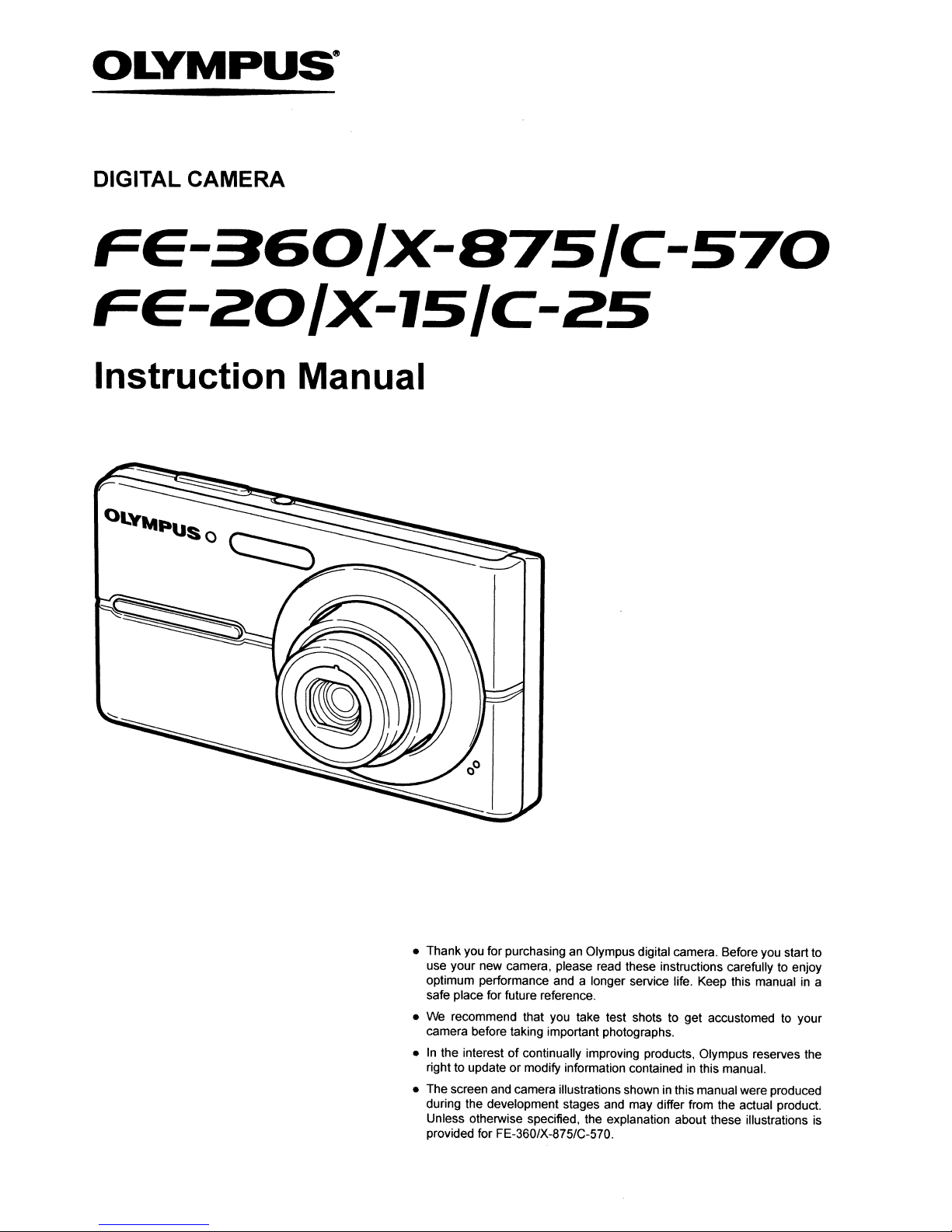
• Thank you for purchasing an Olympus digital camera. Before you start to
use your new camera. please read these instructions carefully to enjoy
optimum performance and a longer service life. Keep this manualina
safe place for future reference.
• We recommend that you take test shots to get accustomed to your
camera before taking important photographs.
•Inthe interestofcontinually improving products. Olympus reserves the
right to updateormodify information containedinthis manual.
• The screen and camera illustrations shown in thismanualwere produced
during the development stages and may differ from the actual product.
Unless otherwise specified. the explanation about these illustrations is
provided for FE-360/X-875/C-570.
Page 2
Step
!
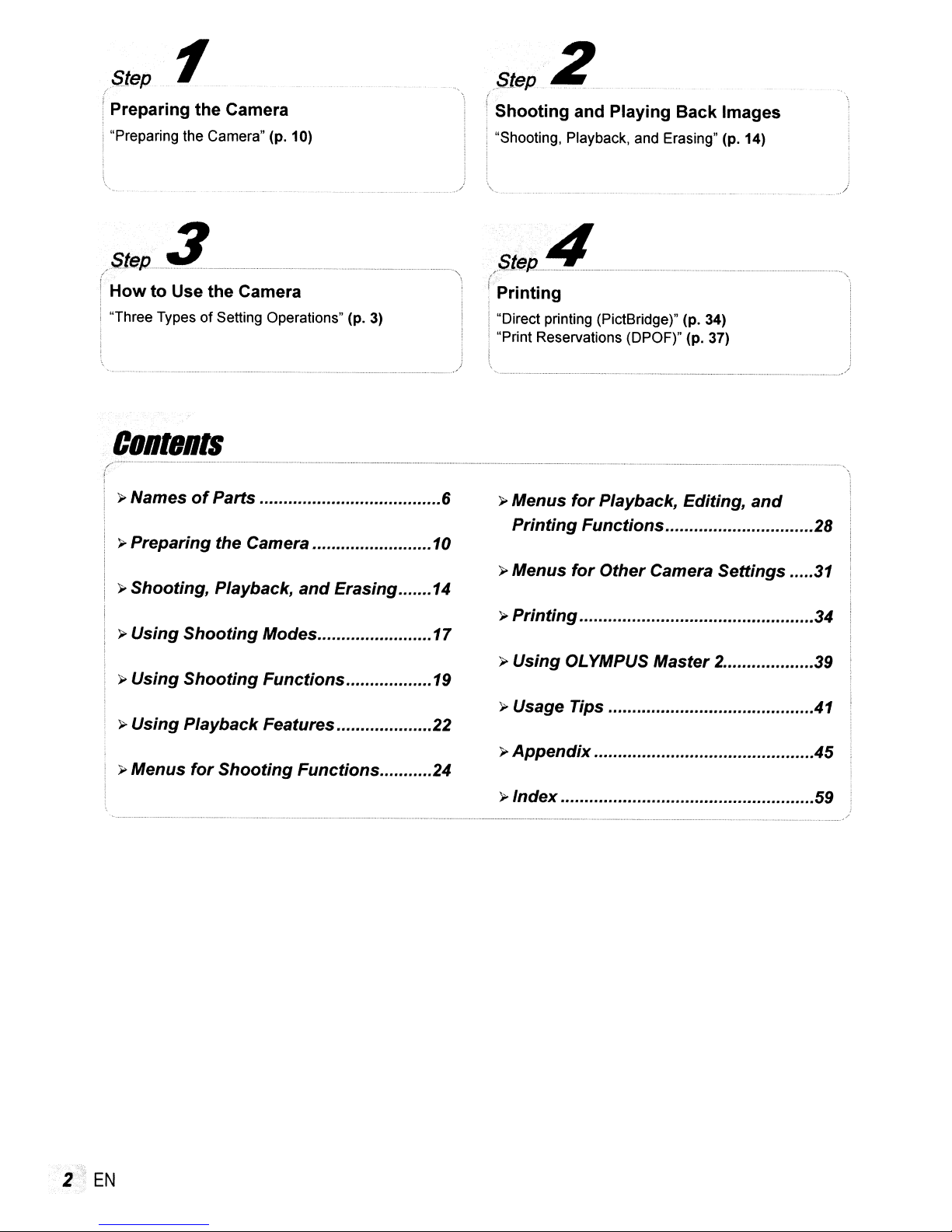
I Preparing the Camera
: "Preparing the Camera" (p. 10)
1
Slep 2
Shooting and Playing
"Shooting, Playback, and Erasing" (p. 14)
Back
Images
/Step
r
HowtoUse the Camera
I"Three Types
3
of
Setting Operations" (p. 3)
.................
-..--
-
..
-.- - )
CORteR"
? Names
? Preparing the Camera
»Shooting, Playback,
»Using
? Using
? Using Playback Features 22
? Menus
of
Parts 6
and
Erasing 14
Shooting
Shooting
for
Modes 17
Functions
Shooting
Functions
10
19
24
_S1ep-4-----------
~-'
"-
\
; Printing ,
,
I"Direct printing (PictBridge)" (p. 34)
1 "Print Reservations (DPOF)" (p. 37)
...............................-
? Menus
Printing
»Menus
?
Printing
? Using OLYMPUS Master 2
? Usage Tips
?
Appendix
?lndex
for
Playback, Editing,
Functions
for
OtherCamera Settings .....
and
..
__
....
"...",
/'
28
31
34
39
41
45
59
2
EN
Page 3

_ Please read "Menu Settin
s"
. 24 to 33 while referrin to this a e.
Three
/ There may be unavailable menus depending on other
related settings
This example describes
[POWER SAVE].
\'T
SETUP (shooting mode/playback mode
::.,::.~O~B§·~:Ed~~~~?1~\l\bl1~·~~,f§:\!~P:l~m~3L
1 Press the
/ Press the
2 Use
menu, and press the
Types
or
the
howtouse the menustoset
MENU
button to return to
the previous screen
in any Step after
2.
Step
'\E7
~8
button.
MENU
~
to select the desired
of
SCENE
mode (p. 17).
Shoaling
~
,.--------...,
Setting
top
menu)
mode
top
button.
Operations
MENU
button
~MENUr
• button
&
GEJ]
3 Use
~
..
::~.;;:::::~~::
menu
'\E7
~
Submenu
1
To
press
use
return to the submenu.
/ Some menus include submenus that appear
by pressing the
1,
quickly move to the desired submenu,
8to highlight the page tab, and then
~~
ButtonsInuse
Arrow
1m
button
--:::=======:1/
to select the desired
and press the~button.
Submenu
to move the page. Press~to
~
button.
2
I Pressing and
holding
button displays
an explanation
(menu guide)
selected option.
the.
4 Use
'\E7
~
to select the Submenu
and press the~button.
of
the
Submenu 1
• Once a setting is made. the display returns to
the previous screen.
/ There may
be additional
operations.
Settings" (p.24to
33)
"Menu
SETUP
1
2
----I
pad
2,
I
3
EN
5 Press the
setting.
MENU
button to complete the
Page 4
( -
I
~;~
,5
.<::6.
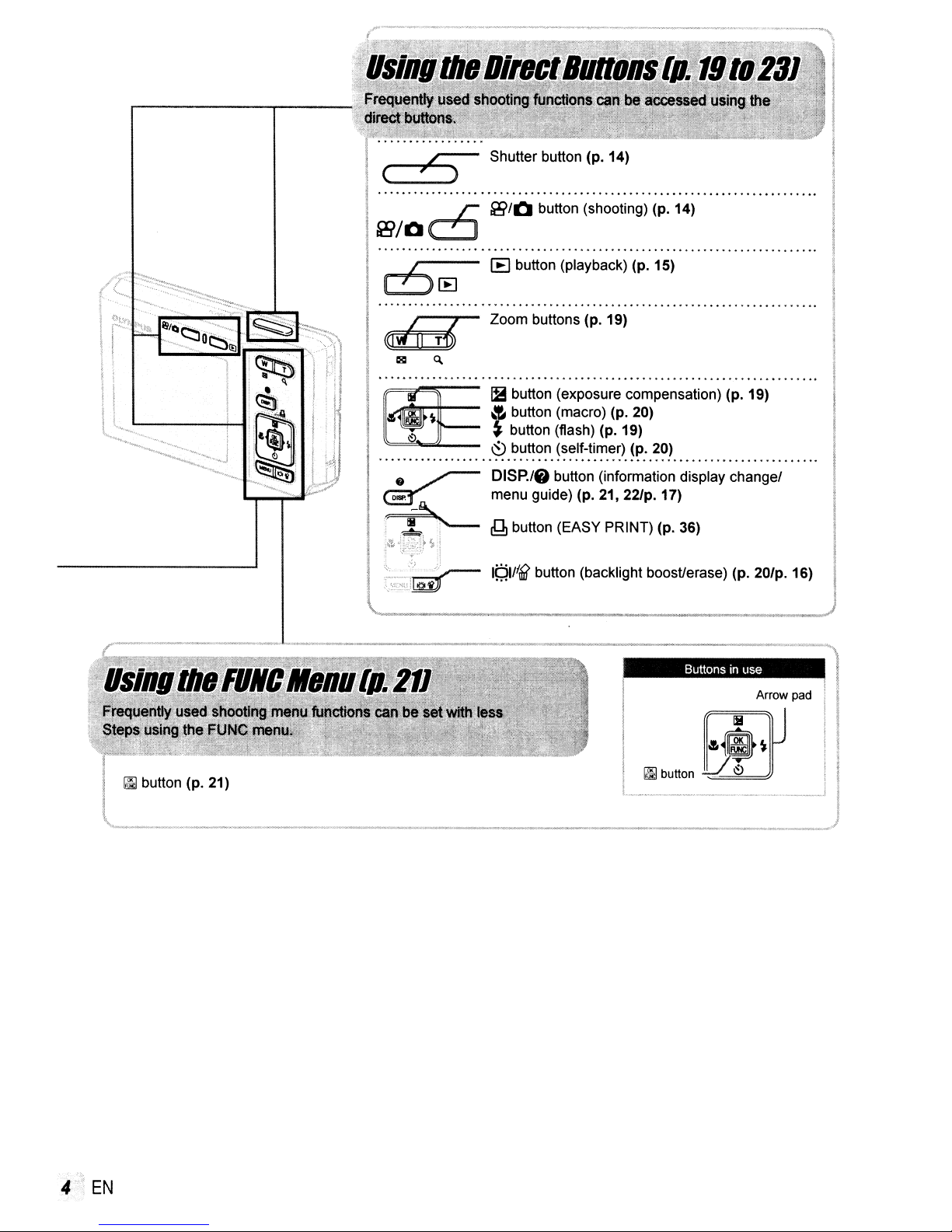
Shutter
i;910
·b~;;b~
button
(p. 14)
·i~h~bti~~I·
(~:;~i
I .
I
~
IB
button
(playback) (p. 15)
.
j.~.~
I
©"~I
I·
f1B"
I
I .
'II
~
,
I:
l~~~
J Zoom buttons (p. 19) I
....
,~~:~~
~
8
~
~r...,
DISP./&
menu guide) (p. 21, 22/p. 17)
~
IQlJIlI( button (backlight boosVernse) (p.
~~~~i;~I~~~~~~;~ii~~i
button
(self-timer) (p. 20)
button
(information display changel
button
(EASY PRINT) (p. 36)
.(~:
19)·
201p.
Buttonsinlise
.. .....
1~
Arrow pad
1
·
4
EN
I
__
~~·o:~l
Page 5
Menu Index
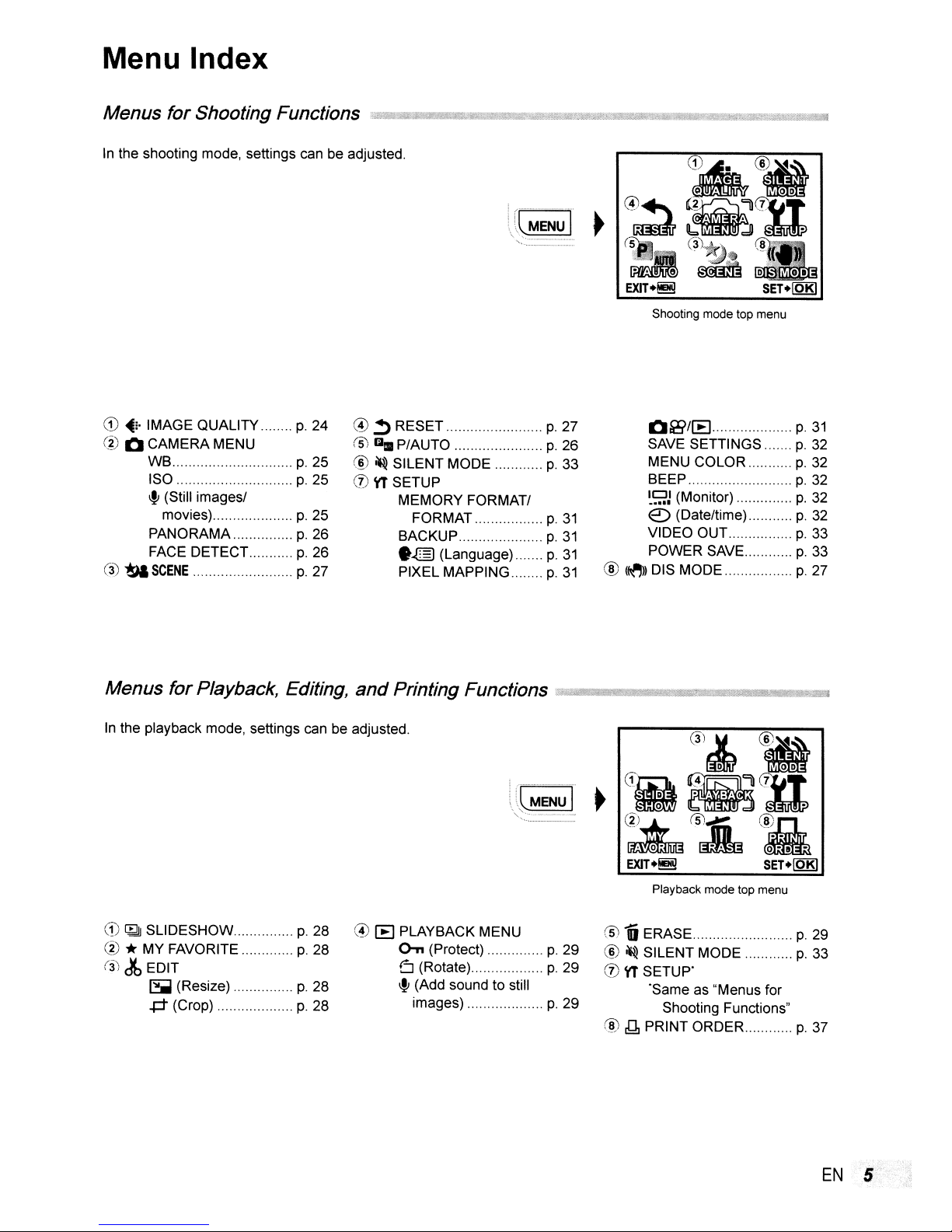
In
the shooting mode, settings can be adjusted.
Shooting mode top menu
o
CD
.i
IMAGE QUALITY
@ 0 CAMERA MENU
WB
ISO
\fJ
(Still imagesl
movies)
PANORAMA
FACE DETECT..
(3)
~
SCENE
Menus forPlayback, Editing,
In
the playback mode, settings can be adjusted.
p.
24
@
!5J
p.
25
®
p.
25
0\1'
p.
25
p.
26
p.
26
p.
27
and
~
RESET
~
P/AUTO
~
SILENT MODE
SETUP
MEMORY FORMAT/
FORMAT
BACKUP
• ..@) (Language)
PIXEL MAPPiNG
Printing Functions
p.
27
p.
26
p.
33
p.
31
p.
31
p.
31
p.
31
~~~il!ill'!!@I-~.
\(~
."
" '
...
-
~
O~/IEI
SAVE SETTINGS
MENU COLOR
BEEP
~S'J
(Monitor)
e::>
(Date/time)
VIDEO OUT
POWER SAVE
®
(~))
DIS MODE
!!ffi""'iiII$
.•~•.
D
(filt~·
o •
(2)
~
~&~
EXIT.!!!!!
Playback mode top menu
·
"w,~~~.
~··1t@iiijf"'1L~_%Stil
(3)jt
~
..:
•
c:::nU
!5J~
p.
31
p.
32
p.
32
p.
32
p.
32
p.
32
p.
33
p.
33
p.
27
•
OD
7
CF';;.CL
SET.[QK)
CD
I4lJJ
SLiDESHOW.
(2)
*MY FAVORITE
(31dbEDIT
~
(Resize)
+t
(Crop)
p.
28
p.
28
p.
28
p.
28
@
lEI
PLAYBACK MENU
o-n
o (Rotate)
\fJ
(Add sound to still
images)
(Protect)
(5)
1ii
ERASE
p.
29
®
~
p.
29
p.
29
SILENT MODE
0\1'
SETUP'
'Same as "Menus for
Shooting Functions"
®
~
PRINT ORDER
p.
29
p.
33
p.
37
EN
5
Page 6
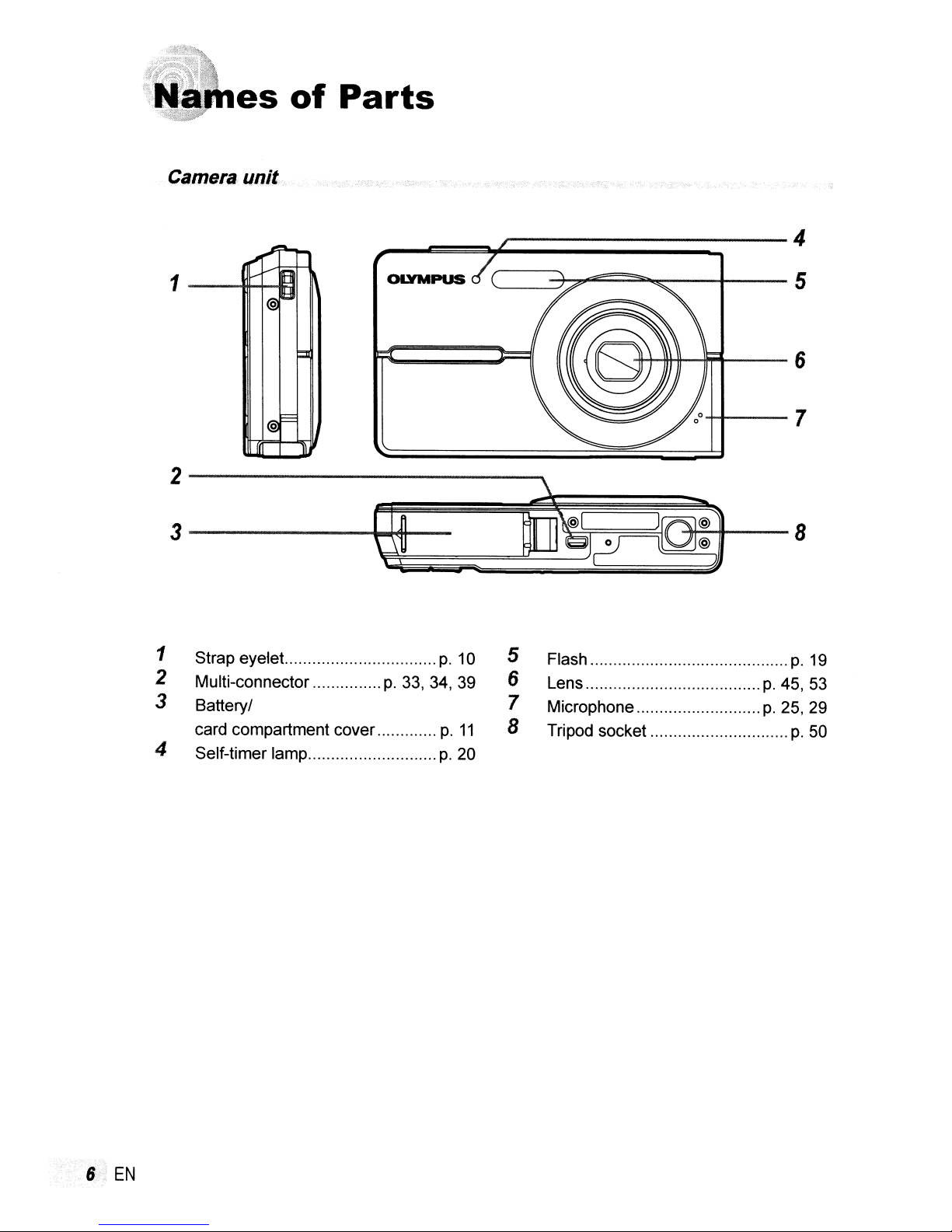
,
es
Camera unit
of
Parts
~
~
,,"
,/
1
J[
I@
I@J
Eii-
l/;;lI
::::I
l==
JL
OlYMPUS
2-------------~
3
-------..~--
1 Strap eyelet..,.
2 Multi-connector
,.
,
,.,.,."""",p,33, 34, 39
p,
10
3 Batteryl
card compartment cover
4 Self-timer
lamp""
".".".""",.
p.
p.
20
_---------4
c=3?~~=__~-
5 Flash ,
6 Lens
11
7 Microphone
8 Tripod socket
,.
+r--7
)
p.
p.
5
p.
19
45,
53
25, 29
p.
50
Page 7
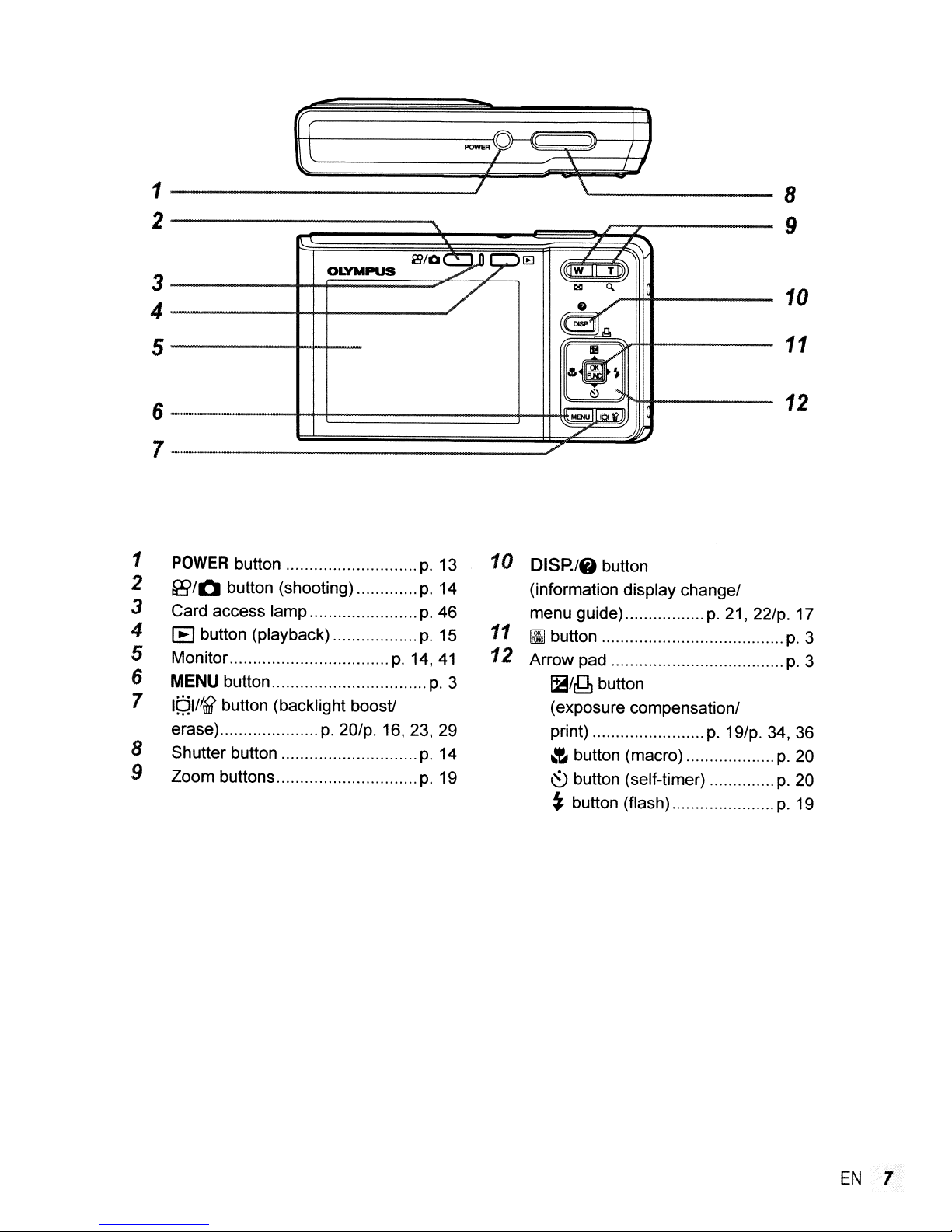
1
(
l
-fi--11'(
POWERy
-'1
~
f
\ I ,
\'--------
I
8
2
3
4
5
6
7
1
POWER
2
~/O
3 Card access lamp
4
[B
5 Monitor
6
MENU
7
IQII'B
erase)
8 Shutter button
9 Zoom buttons
button
button (shooting)
button (playback)
button
button (backlight boost!
OLYMPUS
p.
20/p.
"
2i>/Q~;;:>
/'
p.
13
p.
14
p.
46
p.
15
p.
14,41
p.
16,23,29
p.
14
p.
19
10
11
12 Arrow pad
3
"
[EJ
{([W
"
TIJl
llll
~
~
«.
~
~
"
'.
"ENUllo~JJ
/'
./
DISP./O button
(information display changel
menu guide)
~
button
1it/&!J
(exposure compensationl
print)
~
~
button
button (macro)
button (self-timer)
~
button (flash)
p.
p.
9
10
11
12
21, 22/p.
19/p. 34, 36
p.
p.
p.
17
p.
p.
20
20
19
3
3
EN
7
Page 8
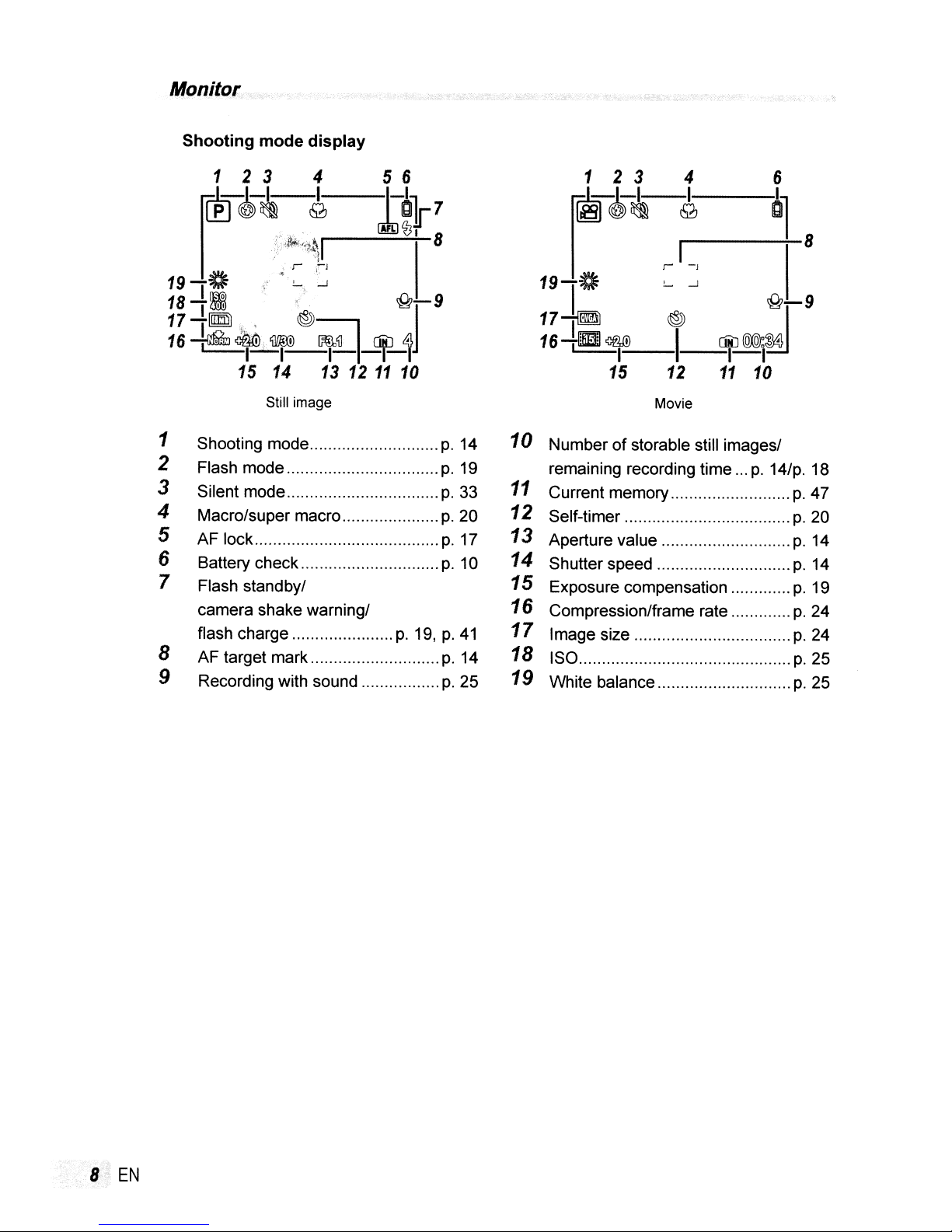
Monitor
Shooting
1 2 3 4
mode
display
r~~,~~
191~
18
111
1
17-~"
16
~
1 Shooting mode
2 Flash mode " "
3 Silent mode
4 Macro/super macro
5 AF lock
6 Battery check
7 Flash standby/
camera shake warning/
flash charge
8 AF target mark
9 Recording with sound
,,~
!-.
-..l
"
~
iOO,
~
1-1-1---1---1'
15
Still image
14
..
"
~~
13 12
I
diJ
11
~j-9
~
10
".p.14
""
p.
19
p.
33
p.
20
p.
17
p.
10
p.
19,p.41
p.
14
p.
25
1 2 3 4 6
~~~-J,
1---
r
~
19-~
-J
!-
-..l
I
17~
16
-+m
~
1
15 12
10 Number
remaining recording time
11
Current memory "
12 Self-timer
13 Aperture value
14 Shutter speed
15 Exposure compensation
16 Compression/frame rate
17
Image size
18 ISO
19 White balance "
of
~
I [iiiJ
--1-1
Movie
storable still images/
~l
8
.....
~-9
~
(QXQfo~
11
10
p.
14/p. 18
p.
47
p.
20
p.
14
p.
14
p.
19
p.
24
p.
24
p.25
""
p.
25
8
EN
Page 9
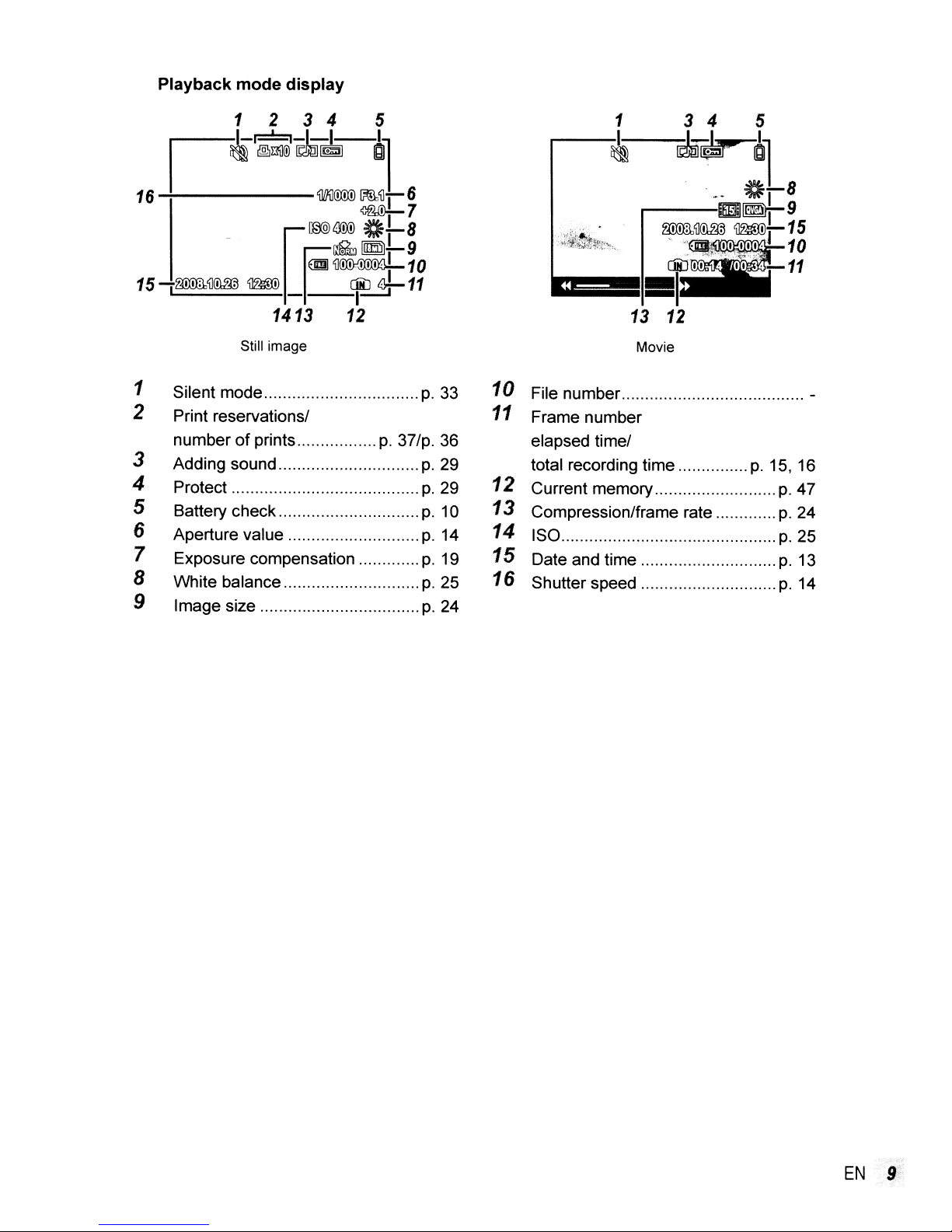
Playback mode display
1
234
~I-r=!=l-I--I--I~
I
~
@l!lll
IOOI!\!!!
5
III
1
~
16
- U
151~'IJ~~
....
-----
Still image
'lIIJi](iX!X!)
[~iOOX!J
£J~-9
Em'IJ~10
_ --I::;:...;:J
E
1413
1 Silent mode
2 Print reservations/
of
number
prints
3 Adding sound
4 Protect
5 Battery check
6 Aperture value
7 Exposure compensation
8 White balance
9 Image size
~'IJ-I
~7
c:-:
6
8
diJ~11
12
p.
33
p.
37/p. 36
p.
29
p.
29
p.
10
p.
14
p.
19
p.
25
p.
24
Movie
10 File number -
11
Frame number
elapsed time/
p.
total recording time
12 Current memory
13
Compression/frame rate
14 ISO
15 Date and time
16
Shutter speed
15, 16
p.
47
p.
24
p.
25
p.
13
p.
14
EN
9
Page 10
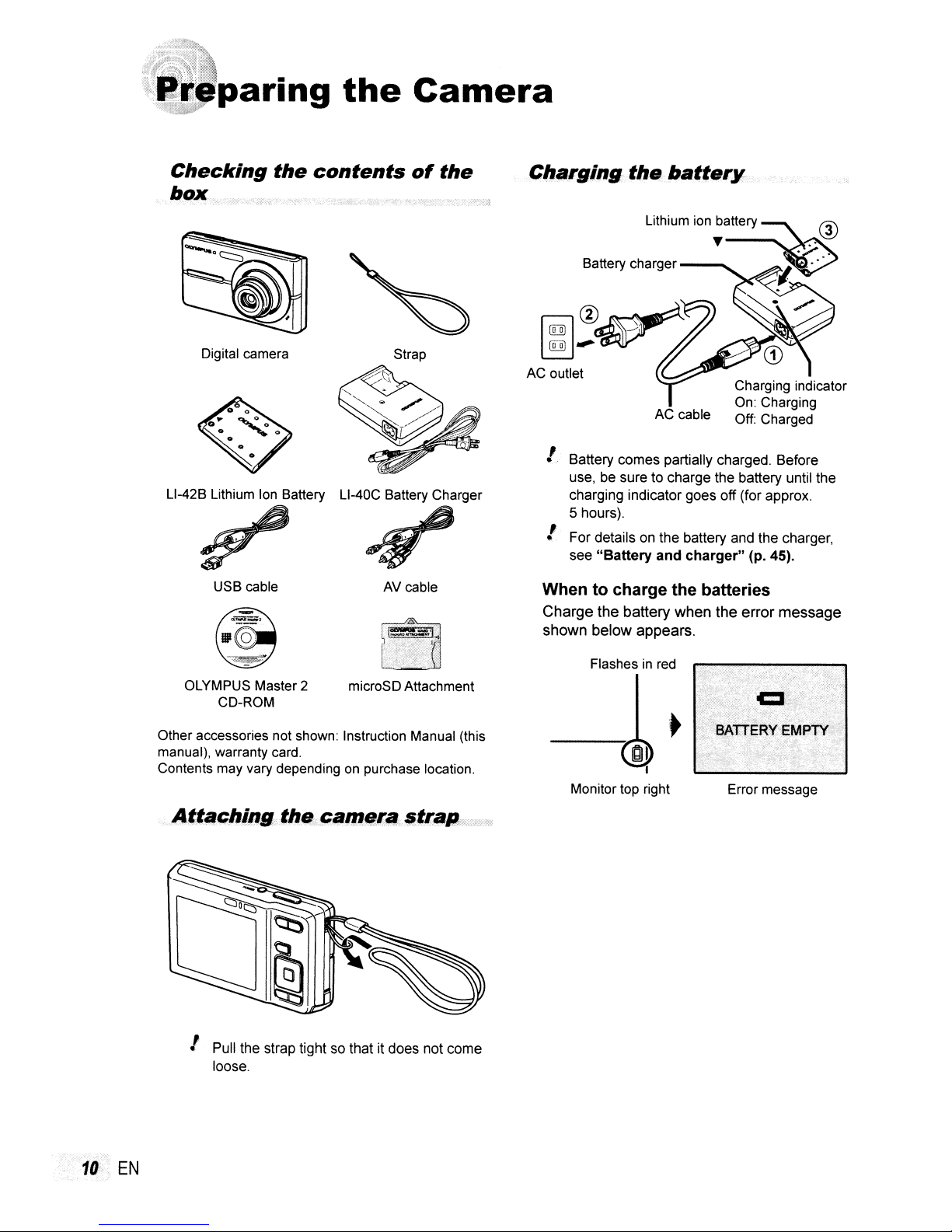
paring
the
Camera
Checking
box
Digital camera
L1-42B
Lithium Ion Battery
USB cable
the
contents
L1-40C
Battery Charger
,f/
AV cable
of
Strap
the
Charging
the
battery
AC cable
Charging indicator
On:
Charging
Off:
Charged
I Battery comes partially charged. Before
use, be sure to charge the battery until the
charging indicator goes
5 hours).
off (for approx.
I For details on the battery and the charger,
"Battery and charger" (p. 45).
see
Whentocharge the batteries
Charge the battery when the error message
shown below appears.
OLYMPUS Master 2
CD-ROM
Other accessories not shown: Instruction Manual (this
manual), warranty card.
Contents may vary depending
Attllching
the
microSD Attachment
on
purchase location.
camfll;lIc$trap
.
I Pull the strap tight so that it does not come
loose.
Flashes
in
red
-~.
I
Monitor top right
Error message
10
EN
Page 11
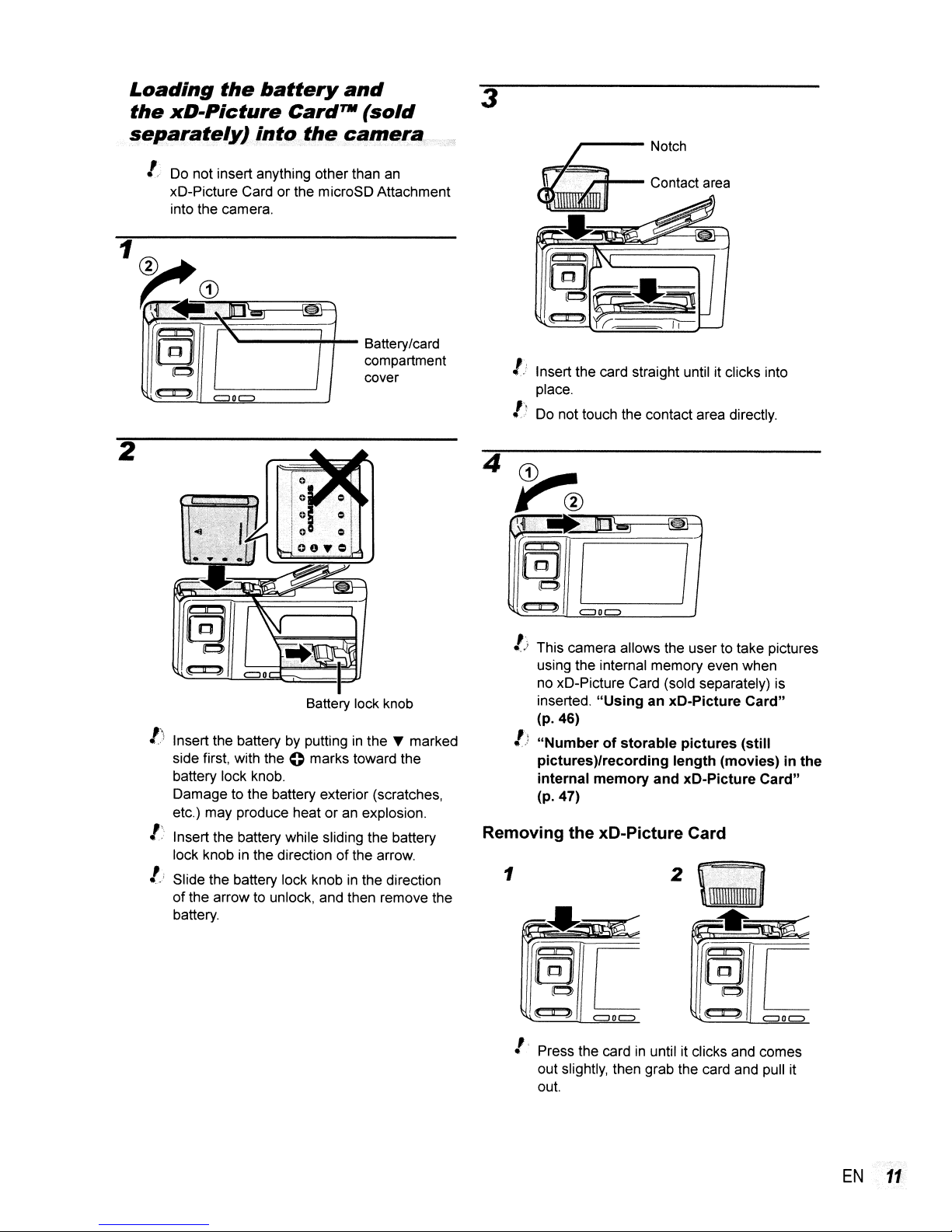
Loading
the
xD-Picture
separately)
the
battery
Card7W(sold
;ntt;lthe
! Do not insert anything other than
xD-Picture Card or the microSD Attachment
into the camera.
2
and
ca",er~c
an
3
~Notch
~
~=.
t Insertthe card straight until it clicks into
place.
tt
Do not touch the contact area directly.
Contact area
~"""""-~"---\'~H
Battery lock knob
1')
Insert the batterybyputtinginthe~marked
side first, with the
battery lock knob.
Damage to the battery exterior (scratches,
etc.) may produce heat or
/:.
Insert the battery while sliding the battery
lock knob in the directionofthe arrow.
lj Slide the battery lock knob
of
the arrow to unlock, and then remove the
battery.
e marks toward the
an
explosion.
in
the direction
/)
This camera allows the user to take pictures
using the internal memory even when
no xD-Picture Card (sold separately) is
inserted. "Using an xD-Picture Card"
(p.46)
1)
"Number of storable pictures (still
pictures)/recording length (movies)inthe
internal memory and xD-Picture Card"
(p.47)
Removing the xD-Picture Card
1
!.
Press the cardinuntil it clicks and comes
out slightly, then grab the card and
out.
2
pUll
it
EN
11"
Page 12
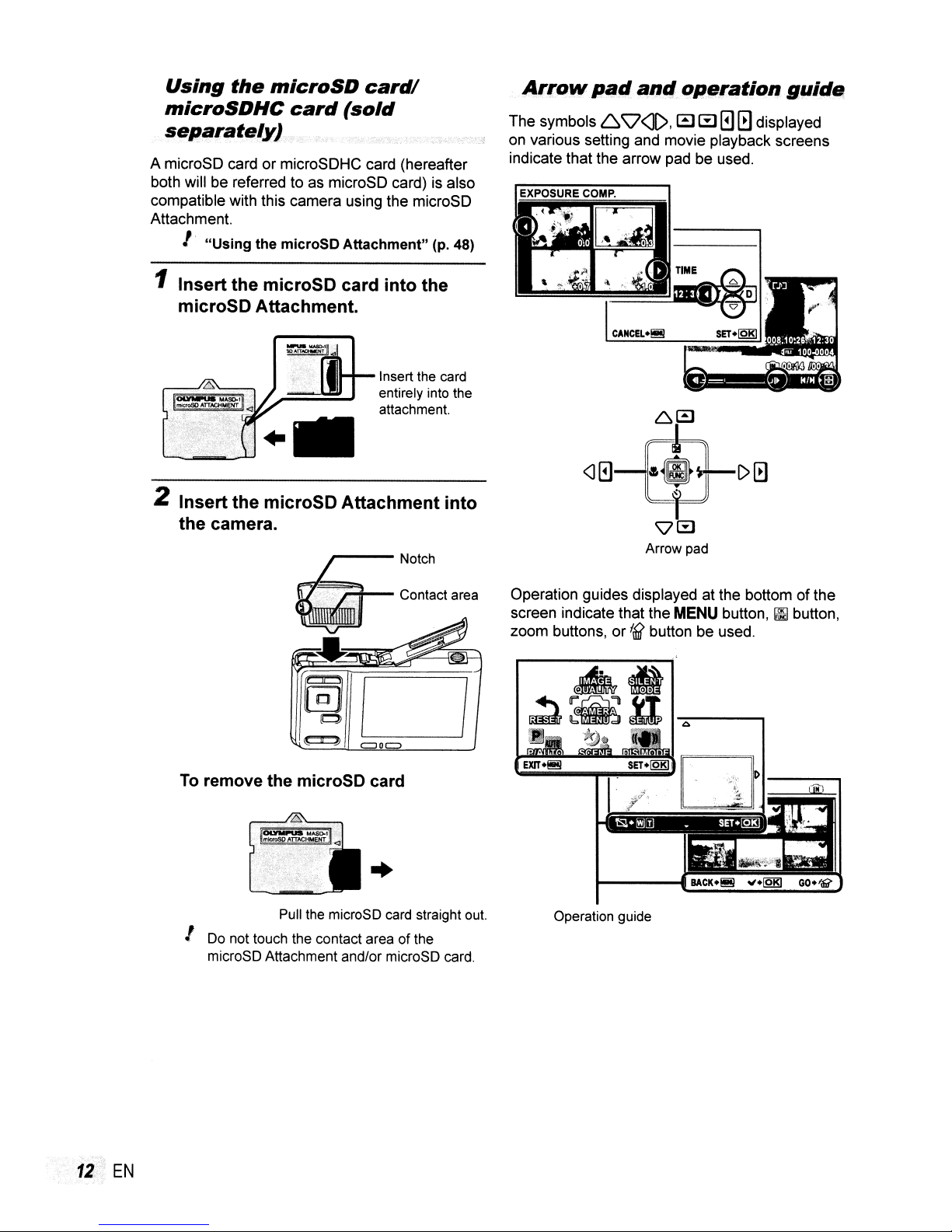
Using
microSDHC
the
microSD
card
(sold
card/
separately)
A microSD cardormicroSDHC card (hereafter
both will be referred to as microSD card) is also
compatible with this camera using the microSD
Attachment.
I
"Using
the microSD
Attachment"
(p. 48)
Arrow
The symbols 6
on
various setting and movie playback screens
indicate that the arrow pad be used.
pad
and
Q<J(>,
operation
a
~
0Gdisplayed
guide
1 Insert the microSD card
microSD Attachment.
2
Insert
the camera.
the microSD
Attachment
into
the
Insert the card
entirely into the
attachment.
into
Arrow pad
Operation guides displayed at the bottom of the
screen indicate that the
zoom buttons, or
MENU
f6]?
button be used.
button,~button,
To
remove the microSD card
Pull the microSD card straight out.
I Do not touch the contact area
microSD Attachment and/or microSD card.
12
EN
..
of
Operation guide
the
Page 13
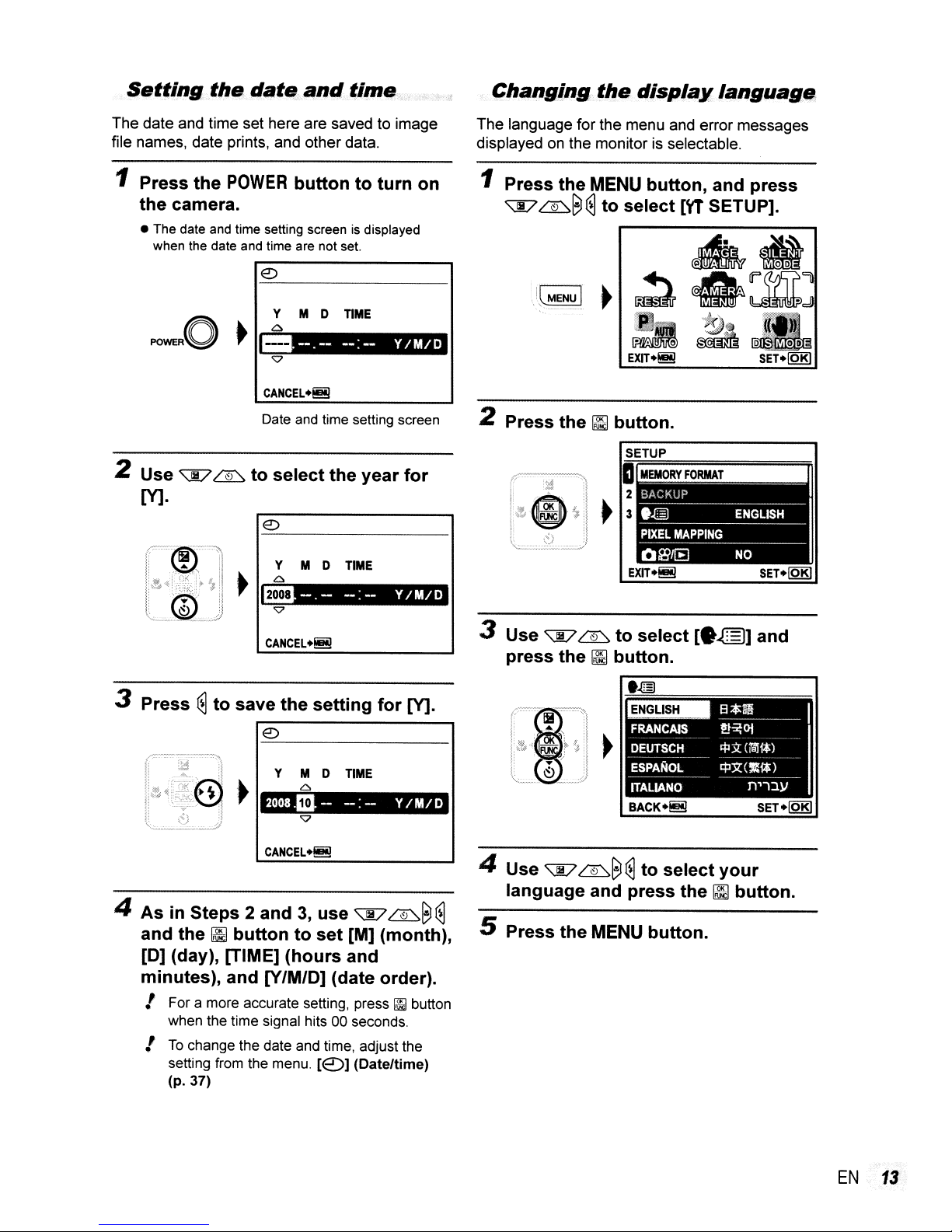
Setting
the
date
and
time
Changing
the
display
language
The date and time set here are saved to image
file names, date prints, and other data.
1 Press
the
• The date and time selling screenisdisplayed
2 Use
the
POWER
camera .
when the date and time are not set.
"E7
~
buttontoturn
Y M 0
Co
•.
Date and time selting screen
to
select
--.--
TIME
--:-
the
year
on
Y/M/O
for
M·
Y
MD
Co
miI-.-
TIME
--:--
Y/M/O
The language for the menu and error messages
displayed
1 Press
2 Press the
~
on
the monitorisselectable.
the
MENU
~8~
~
to
select
button.
button,
and
press
[\'1 SETUP].
3 Press
4
As
and
[0]
minutes), and
/ For a more accurate selting, press~button
/
~
to
save
the
setting
€)
Y
MD
TIME
Co
2008.IIJ--
in Steps 2 and3,use
the~buttontoset
(day), [TIME]
(hours
[V/M/D]
when the time signal hits 00 seconds.
To
change the date and time, adjust the
setting from the menu.
(p.37)
-:-
"E7
[M] (month),
and
(date order).
[<2)] (Date/time)
for
Y/M/O
~8
M.
3 Use
4 Use
"E7
~
press
~:
..r:
1.
i.¥r
t
language and press the~button.
the~button.
4.
.•....
:--.
··<-1.··.
i8=
•.....
.'
~\
-.!
..
~~
..
"E7
l
·····..·1
•.
'j
'r
J
~~
..
~
5 Press the MENU button.
to
~
select
to
select
[•
.@]
your
and
EN
13
Page 14
j
oting,
Playback,
and
Erasing
Shooting
settings
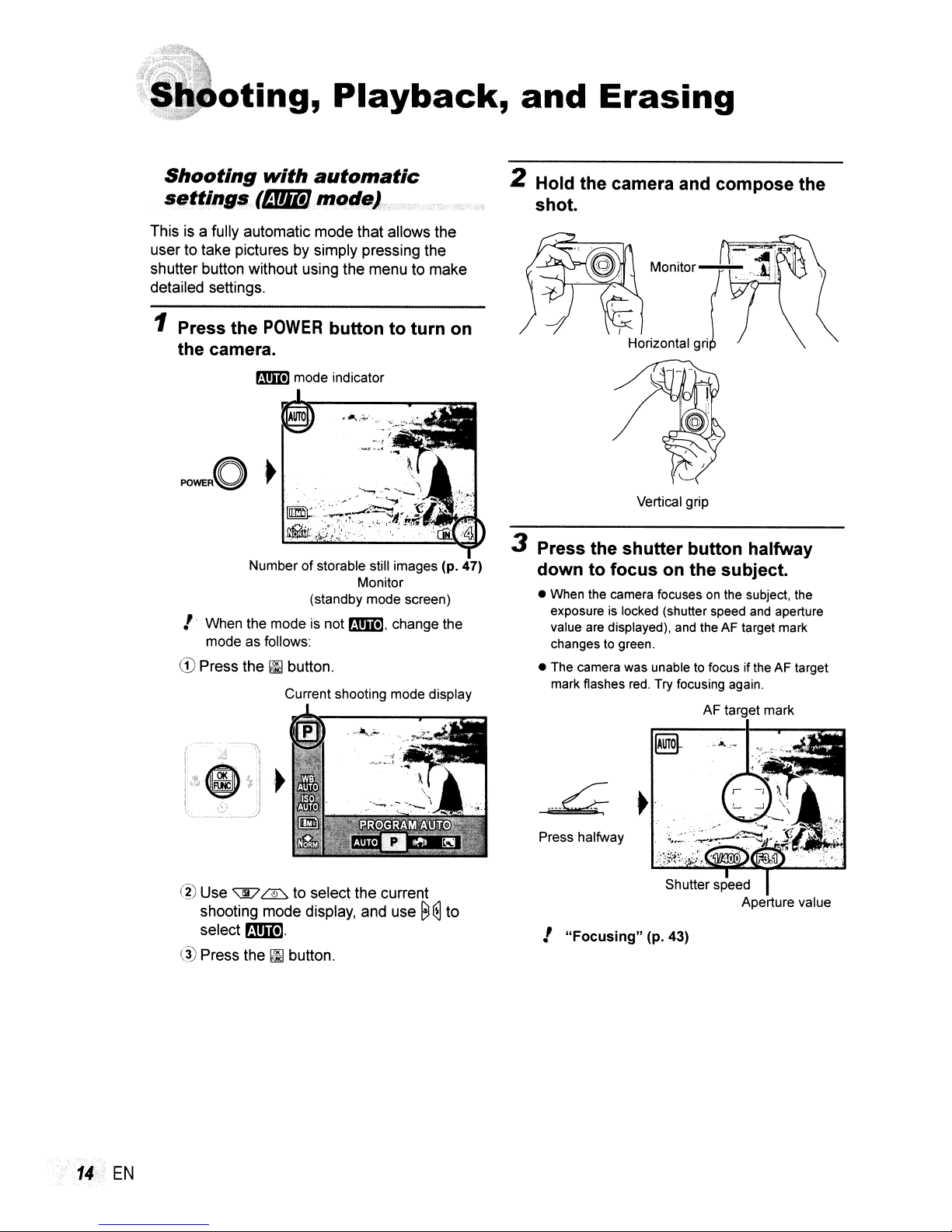
This is a fully automatic mode that allows the
user to take pictures by simply pressing the
shutter button without using the menu to make
detailed settings.
1 Press the
with
automatic
(f4!II!) mode).
POWER
button to turn on
the camera.
r!§I!l mode indicator
of
Number
!.
When
the
mode
mode
as follows:
CD
Press the~button.
storable still images
Monitor
(standby mode screen)
is not
mi),
change
Current shooting mode display
(po
the
47)
2 Hold the camera and compose the
shot.
Vertical grip
3 Press the shutter button halfway
down to focus on the subject.
• When the camera focusesonthe sUbject, the
exposure
value are displayed), and the AF target mark
changes
• The camera was unable
mark flashes
is
locked (shutter speed
to
green.
to
red.
Try
focusing again.
and
aperture
focus if the AF target
AF
target mark
(2) Use
- shooting mode display, and use
@ Press the
.
14'
EN
select
'\JD
B!mJ.
~
to select the current
~
button.
8@
.---~
Press halfway
to
!
"Focusing"
~.
Shutter speed
Aperture value
(p. 43)
Page 15

4 To
the
while
camera.
Press fully
take
the
shutter
being
picture,
button
careful
gently
all
nottoshake
the
press
way
down
the
Viewing..image$,
1
Press
the
[E
button.
.
....
:....
Image review screen
To
view images during shooting
Pressing the [E] button enables playback
images.Toreturn to shooting, either press
the
~/O
halfway down.
To
shoot
"Shooting movies
When shooting is finished
Press the
camera.
buttonorpress the shutter button
movies
POWER
(~mode)"
button to turn offthe
(p.
18)
of
2 Use
t~~
Displays pcevlous
image
Number of frames
Playback image
~
~8
~~~:::~~~
! The display size
changed.
(p.22)
To
play back movies
Select a movie, and press the~button.
~
to
(~
~~
""'~
of
the images can be
"Index
view
select
and
an image.
~::ys
Displays
10 frames after
the current
image
closeup
ne~
view"
Movie
! The sound when recorded
be played back with this camera.
To
listen to the sound, connect to aTVor
PC.
in
movie can not
EN
15
Page 16
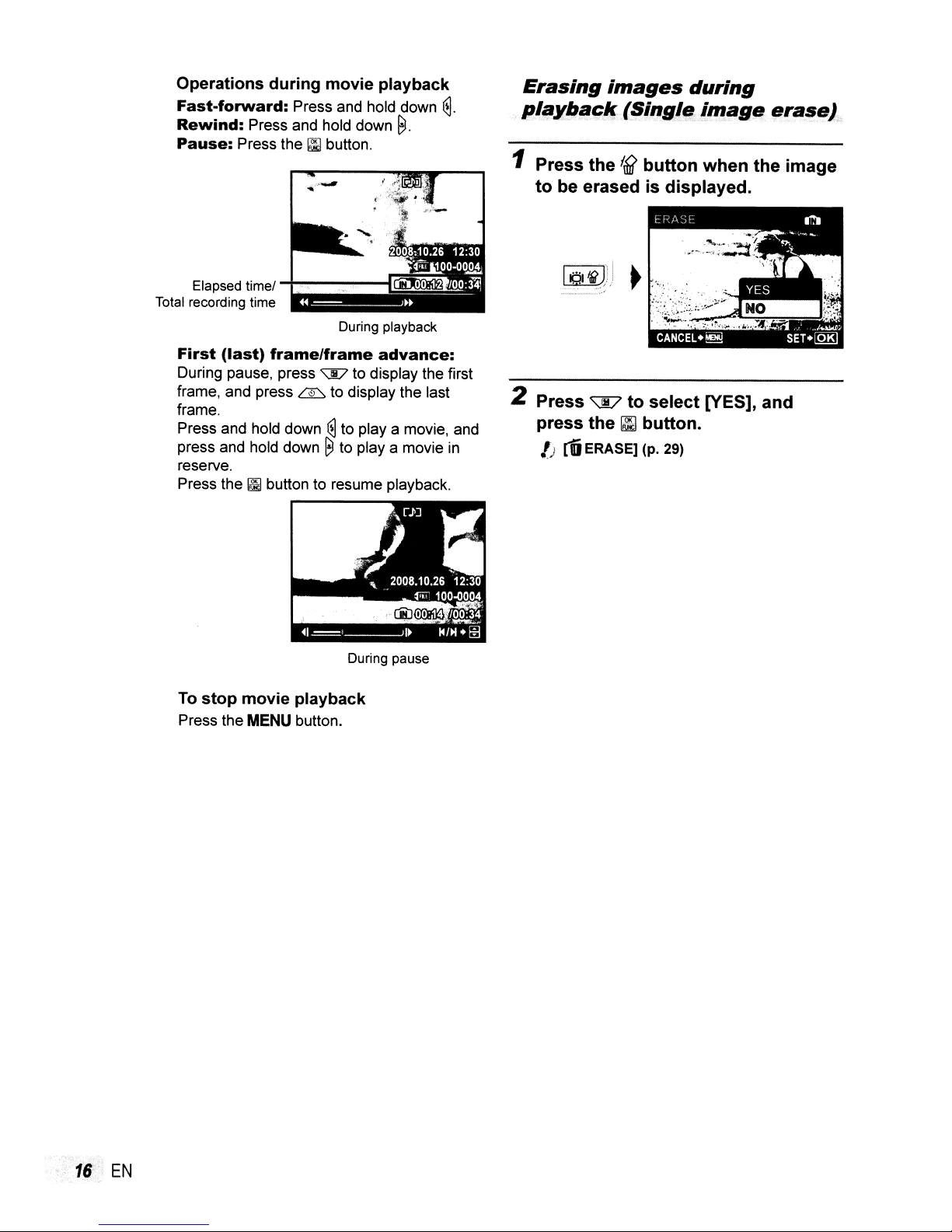
Operations during movie playback
Fast-forward:
Rewind:
Pause:
Press the~button.
Press and hold down
Press and hold down
~.
~.
Erasing
plaxbaclf:
1 Press the
images
during
(~j"g!f#clmag,.
ffj
button when the image
to be erased is displayed.
erllse),
Elapsed timel
Total recording time
First
(last)
During pause, press
frame, and press
frame.
Press and hold down
press and hold down
reserve.
Press the
To
Press the
~
stop movie playback
MENU
During playback
framelframe
~
LJi:J to display the last
@to
~
button to resume playback.
button.
advance:
to display the first
playa
movie, and
to
playa
movie
During pause
1P.lf~Jj)
......................
2 Press
press the
,)
in
rfi
~
J
~
to select [yES], and
~
button.
ERASE] (p. 29)
16'
EN
Page 17
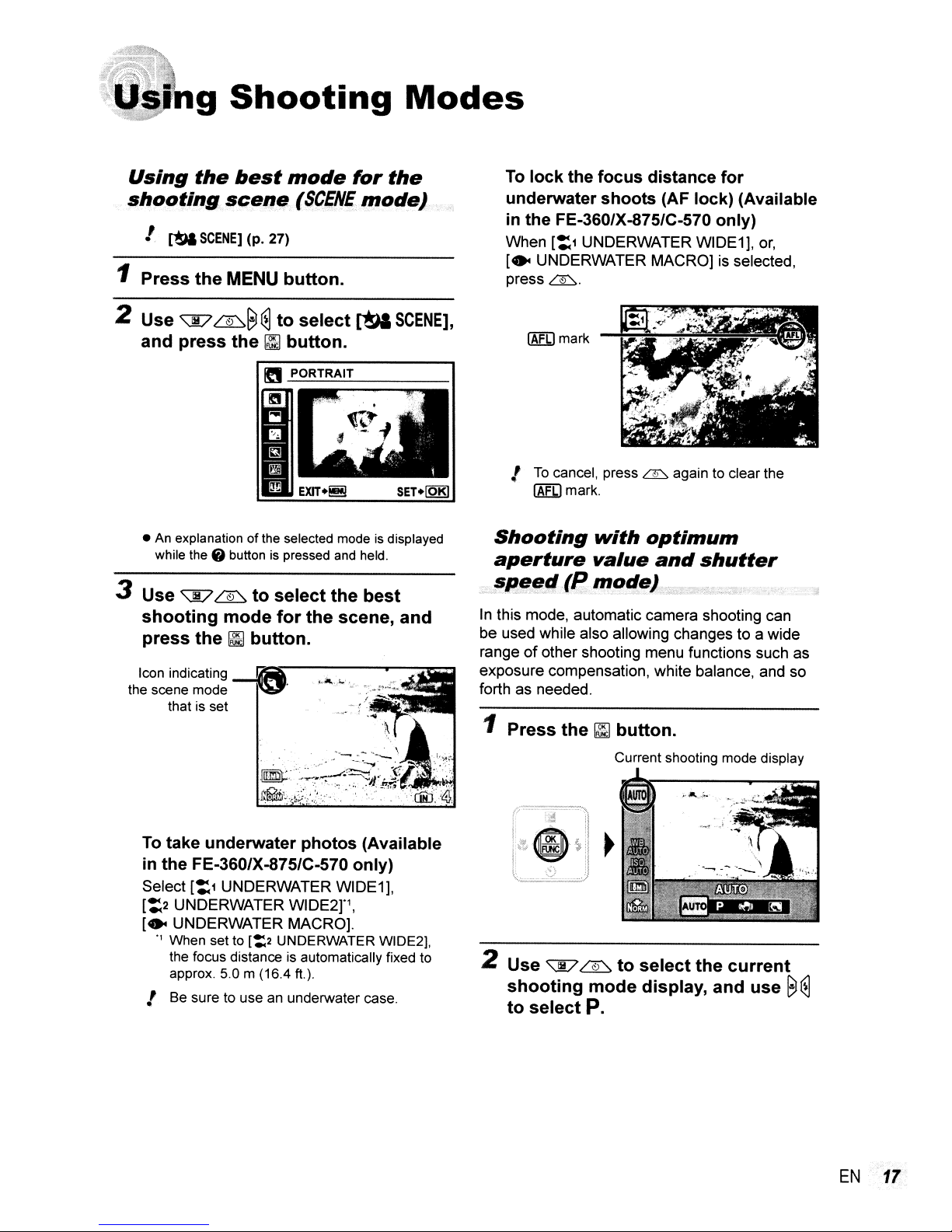
•'ng
Using
shooting
! M
1
Press
Shooting
the
see",.
SCENE]
the
MENU
best
mode
(SCENE
(p. 27)
button.
for
the
mode)
Modes
To
underwater shoots (AF lock) (Available
When
[.
lock the focus distance
in the FE-360/X-875/C-570 only)
[:1
UNDERWATER WIDE1],
UNDERWATER MACRO]isselected,
press~.
for
or,
2 Use
3 Use
the scene mode
~
~~
and
press
•Anexplanation of the selected modeisdisplayed
while the
f)
~
shooting
press
Icon indicating
the~button.
that is set
~
to
select
the~button.
buttonispressed
~
to
select
mode
for
_.:IIr-'_
the
~
and
held.
the
best
scene,
SCENE],
and
IAFL!
mark
!
To
cancel, press
lAEO
mark.
Shooting
aperture
..
speetl
In
this mode, automatic camera shooting can
be used white also allowing changes to a wide
range
of
other shooting menu functions such as
exposure compensation, white balance, and so
forth as needed.
1
Press
with
value
(Rmotle)
the~button.
~
again to clear
the
optimum
and
shutter
.
Current shooting mode display
To
take underwater photos (Available
in the FE-360/X-875/C-570 only)
Select
[:2
[.
[:1
UNDERWATER WIDE1],
UNDERWATER WIDE2P,
UNDERWATER MACRO].
·1 When set to [::'2 UNDERWATER WIDE2),
is
the focus distance
approx. 5.0 m (16.4
automatically fixed to
ft.).
! Be sure to use an underwater case.
('"~:~:l
ileGJ~il
\.
...
'')
2 Use
~
shooting
to
select
J
~
mode
P.
~
to
select
display,
the
current
and
use
~ ~
EN
17
Page 18
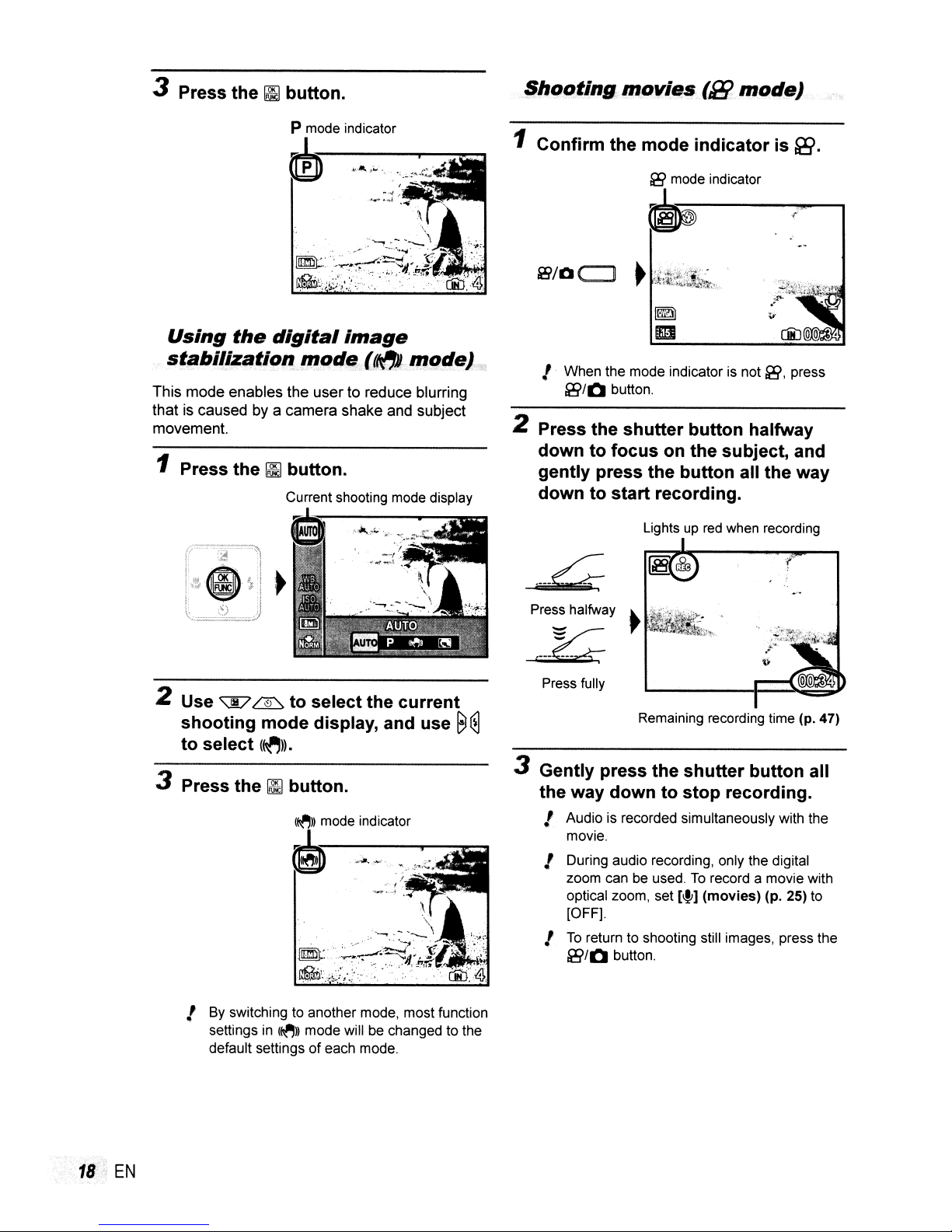
3 Press the Ii] button.
P mode indicator
m
Shooting
1 Confirm the mode
~~'"''
~
movies
&!?
mode indicator
{S!J
mot/e}
indicator
is
~.
~
Using
st;lbil!zationmod~((Oc.model.<
This mode enables the user to reduce blurring
thatiscaused by a camera shake and subject
movement.
1 Press the
the
digital
~
button.
Current shooting mode display
image
I
When
the mode indicator is not [B, press
[BIOI
2 Press the
downtofocus
gently press the button all the way
downtostart
Press halfway
button.
shutter
Lightsupred
...
,.
on the subject, and
recording.
~
....
._--~
.~~
button halfway
when recording
,
2 Use
3 Press the
~
shooting
to
select
~
to
select the
mode display, and use
(~)).
~
button.
(~))
mode indicator
~
current
......
•
! By switching to another mode, most function
settings in
default settings
(~»
mode will be changed to the
of
each mode.
~
Press fully
~
3 Gently press the
the way
! Audio is recorded simultaneously with the
movie.
! During audio recording, only the digital
zoom can be used.
optical zoom, set
[OFF).
!
To
[BIOI
Remaining recording time (p. 47)
shutter
downtostop
To
[Ifi)
(movies)
return to shooting still images, press the
button.
button all
recording.
record a movie with
(p. 25) to
18'"
EN
Page 19
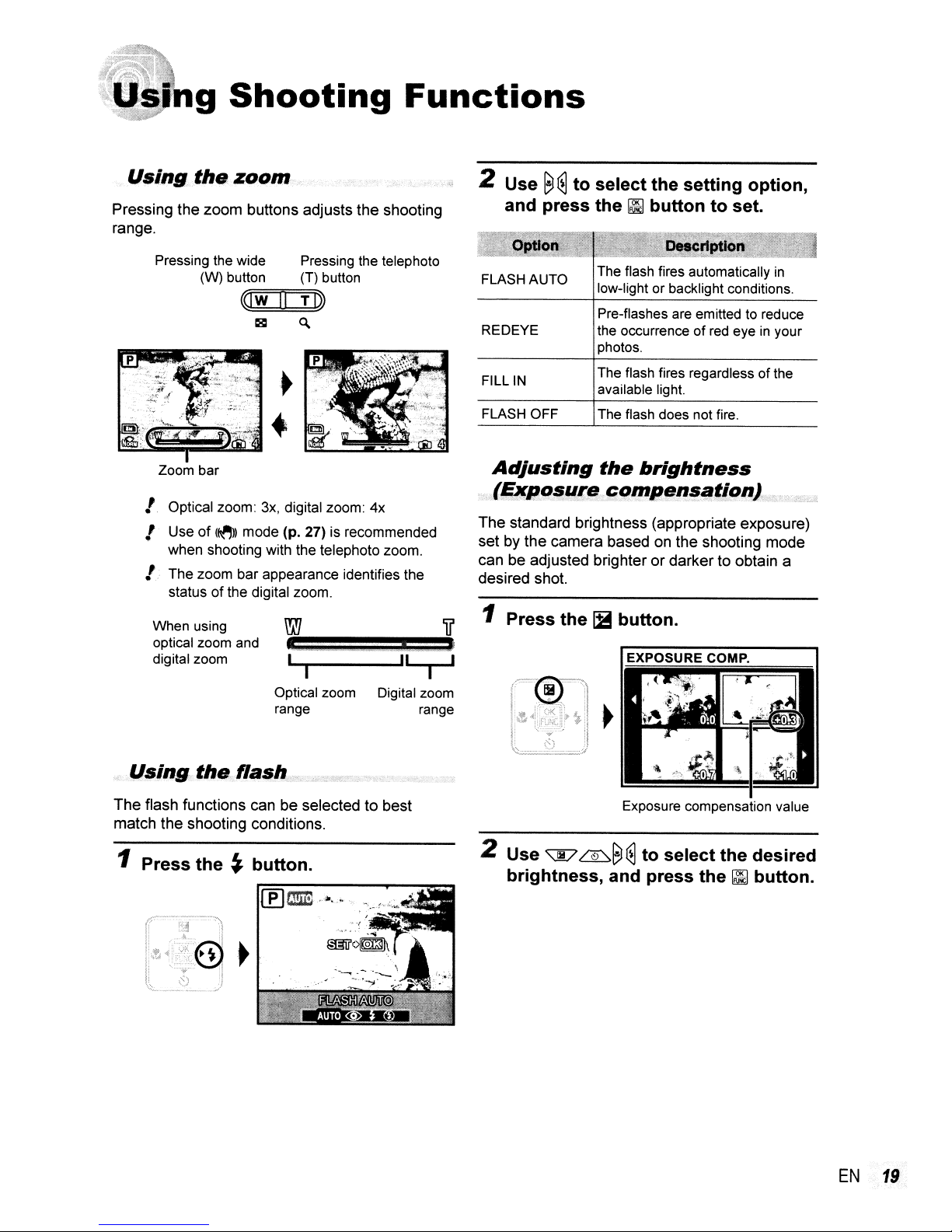
g
Shooting
Functions
Using.
Pressing
range.
the·
zoom
the
zoom
buttons adjusts
Pressing the wide Pressing
(W) button
«::;:::1
Zoom
bar
! Optical zoom:
! Use of
when shooting with the telephoto zoom.
!
..
The zoom bar appearance identifies the
status ofthe digital zoom.
When using
optical
digital
zoom
zoom
(~))
mode (p. 27) is recommended
and
(T)
w~[1
==T:;::;:::I»
18
~
3x,
digital zoom: 4x
....1
...._------IIL-..J
I I
Optical
range
button
zoom
the
shooting
the
telephoto
Digital zoom
range
2 Use
FLASH
REDEYE
FILLIN
FLASH
Adjusting
(Exposure.
The
set by
can be adjusted brighterordarkertoobtain a
desired shot.
1 Press the
~ ~
to select the setting option,
and press the
AUTO
OFF
~
button to set.
The
flash fires automatically
low-light or backlight conditions.
Pre-flashes
the
occurrence of
photos.
The flash fires regardless of
available light.
The
the
are
emittedtoreduce
flash
does
not
brightness
red
fire.
in
eyeinyour
the
compensation)
standard brightness (appropriate exposure)
the
camera
based on
~
button.
the
shooting
mode
Using.
The
flash functions canbeselected to
match
1 Press the
thaRasb,
the
shooting conditions.
~
button.
.
best
Exposure compensation value
2 Use
'\E?
~~
~
to select the desired
brightness, and press the~button.
EN
19
Page 20

Shooting
(Macro
This function enables the camera to focus and
shoot subjects at close distances.
1 Press the
(,:0.'"':3'"::0.:0.")
closeups
shooting)
~
button.
rn~if,
-~~.
iJ!ijn~-.
,
-I
Using
After the shutter button is pressed all the way
down, the picture is taken after a time delay.
1 Press the
the
self-timer
~
button.
~)i/~clt
'.
''.
2 Use
and press the
OFF Macro mode is deactivated.
MACRO
SUPER MACRO'3 This enables shooting.as close as
0'
When the zoom is at the widest (W) position.
°2
When the zoomisat the most telephoto (T) position.
°3
The zoom is automatically fixed.
I The flash (p. 19) and zoom
11
, !
()-j
&~
be set during super macro shooting.
•
to select the setting option,
~
button to set.
This enables shooting as close as
10
cm/3.g
in."
(60 cm/23.6
the subject.
5 cm/2.0
In.
to
the subject.
(po
19) cannot
in.0
2
) to
2 Use
"Jf7
~
to select the setting
option, and press the
~
set.
OFF
ON
I:
Self-timer shooting is automatically canceled
after one shot.
To
cancel the self-timer after it starts
Press the~button again.
Increasing
~!!@:m~IJI~~':
This cancels the self-timer.
The self-timer lamp turns on for
approx. 10 seconds, then blinks
for approx. 2 seconds, and then
the picture is taken.
the
brightness
(BII:r:l!lill!!:~Il~~st):
button to
of
Yo
20"·
EN
Press
101
in
shooting mode. The monitor
becomes brighter. If thereisno operation for 10
seconds, the previous brightness resumes.
."
Page 21

Changing
in~ormation
The displayofthe screen information can be
changed to best match the situation, such as
for the needofclear viewofthe screen or for
making a precise composition by using the grid
display.
1 Press
• The displayed shooting information changes
the order shown below each time the button
pressed.
the
the
DISR
"Shooling
shooting
display
button.
mode display" (p.
in
is
B)
Using
The shooting mode can be changed to
((~))/SCENE.
/ The
• [WB] (p. 25) •
• [ISO]
the
FUNC
SCENE
is changed to the scene mode
which was selected
the shooting mode in top menu. And, the
FUNC menu provides the following menu
functions that can be quickly accessed,
adjusted and set.
[~:·IMAGE
(p. 25)
menu
[$I
SCENE]
QUALITY] (p. 24)
~/PI
(p.
27)
in
Normal
0
IJ
"
~
~<:OO
@)
..
No information
.g,
ciiJ41
1 Press the
Grid
~
[f)@
0
..
IJ
,.
~
~<:OO
2 Use
function
setting
[;I]
~
buttontoset.
g
~
button.
~
to
and
option,
select
~ ~
to
the
select
menu
the
and then press the
EN
21
Page 22

9
Playback
Features
Index
Index view enables quick selection of a target
image. Closeup view (up to 10x magnification)
allows checking
view
and
of
image details.
closeup
view
1 Press the zoom buttons.
«Iw
0 T
I»
~
<\
Single-image
view
Closeup
view
w
+
T
•
w....
Index
"T
view
~
T
.....
~
W
Changing
infor",ation.
Shooting information settings displayed on the
screen can be changed.
the
displa¥
image
1 Press the DISP. button.
• The displayed image information changes
the order shown below each time the button is
pressed.
Normal
~~
,.
No information
ffiro
ffiro
(II~
ciU4l
~fi§J
D
~~
<:fl0
~iJ1liJO
~~
ED~
ciU
4l
~
~
Detailed
ffil!OOW
in
To
selectanimageinindex view
Use
~
~~
~
to select an image, and
~
press the
image
To scroll an image in closeup view
Use
~
22
EN
button to display the selected
in
single-image view.
~~
~
to move the viewing area.
Page 23

Playing
images
My
Favorite images
internal
1
2
3
4
memory.(9images maximum)
t.
Registered images won't be erased even if
the internal memory is formatted.
Register
images.
t..
"Registering
memory
FAVORITE]" (p. 28)
Press
playback.
Use
~
FAVORITE],
Use
~~
FAVORITE],
back
images
the
~~
My
canberegisteredtothe
as
imagestothe internal
as My Favorite images
MENU
~
and
to
and
button
to
select
press
select
press
Favorite
My
Favorite
during
[MY
the
iii
[VIEW
the~button.
£*
MY
button.
To
register
images
CD
Press
back
Use
@
and
@
Use
and
erase
To
images
CD
Use
image,
@
Use
the
/)
Erasing a picture fromMyFavorite does not
erase the original picture recorded
internal memory or to the card.
To
returntonormal
CD
Press the
back
@
Use
additional
the
MENU
My
Favorite images.
~~
press the~button.
8
~
to
press the~button.
registered
~
~8
and
~
~
~
button.
MENU
My
Favorite images.
~
~
button while playing
to select [ADD
selectanimage to
My
~
to select
press
theIBbutton.
to select [YES],
playback
button while playing
to [EXIT], press~button.
My
Favorite
Favorite
My
FAVORITE],
register,
Favorite
and
mode
press
in
the
5
Use
Favorite
To
play
automatically
CD
Press the
back
®
Use
and
~
~~
back
My
~
press the~button.
~
to
image.
My
Favorite
(Slideshow)
MENU
Favorite images.
~
button while playing
MY FAVORITE
to select [SLIDESHOWj,
select
My
images
EN
23
Page 24

Menus
In
shooting mode, settings can be adjusted.
for
Shooting
Functions
I &;>/Q «
1:.
The default settingsofthe function are highlighted in
Selecting the appropriate image quality
.!.
IMAGE
QUALITY
I]
indicates mode in which the function can be set.
for
your
application[4:·
&;>/Q «
~:
Still images
l\ JPEG (compression) images can be viewed and printed directly with a personal computer
device.
(11x17
in.).
x
11
in.).
(8.5x11
7 in.).
or
in.).
using picturesonemails and
TV.
IMAGE SIZE
COMPRESSION
Suitable for printing pictures over A3
5M
(2560x1920)
3M
(2048x1536)
2M (1600
1M
VGA (640
16:9 (1920x1080) Suitable for playing pictures on wide screen
FINE Shooting at high quality.
1--------1-----=----=-----.:.--=------------------
NORMJi:L Shooting at normal quality.
x
1200)
(1280x960)
x
480)
Suitable for printing pictures at A4 (8.5
Suitable for printing pictures
Suitable for printing pictures at A5 (5
Suitable for printing pictures at postcard size.
Suitable for viewing pictures on a TV
web sites.
up
toA4
x
IMAGE
r.mm
P
QUALITY]
SCENE
&;>
(~))
or
other
24
Movies
IMAGE SIZE VGA (640x480) 1
_____
FRAME RATE
.,
frames per second
--f_Q_V_G_A---'<'---32_0_x'---2'---40....:l_·
00
rnJ15fps'1
EN
30fps'11
---jSelect the image quality basedonthe image size and frame rate.
Higher frame rate provides smoother video images.
Page 25

..
Make the
settings
for
the
functions
while
referringto"Using
the
Menu"
(p.
3).
Adjusting to a natural colorscheme
[WBJ
o CAMERA MENU
AUTO
~
WB
~/Q
«
I]:
P
SCENE
~
p~"
The camera automatically adjusts
the white balance according to the
shooting scene.
For shooting outdoors under a
clear sky
For shooting outdoors under a
cloudy sky
For shooting under tungsten
lighting
For shooting under daylight
fluorescent lighting (household
lighting, etc.)
For shooting under neutral
fluorescent lighting (desk lamps,
etc.)
For shooting under white
fluorescent lighting (offices, etc.)
(~)
Recording
images
l#J
sound
when shooting still
o CAMERA MENU
~/Q
OFF;
ON
/:
When recording, aim the microphone (p. 6)
at the source
record.
!j
The sound when recorded in still REC can
not be played back with this camera.
To
PC
Selecting
Q;.~t\MFBA
No sound is recorded.
The camera automatically starts
recording for approx. 4 seconds
after taking the picture. This is
useful for recording notes or
comments about the picture.
of
listen to the sound, connect to aTVor
sound
setting
fv1~NU
~
'"
«
II:
P
SCENE
the sound you want to
for
movies
...'"..
,.'
(~)
l#J
Selecting the ISO sensitivity llSOJ
Q CAMERA
I,
In the ISO setting, although smaller values
result in less sensitivity, sharp images
can be taken under fully lit conditions.
Larger values result in higher sensitivity,
and images can be taken at fast shutter
speeds even under dimly lit conditions.
High sensitivity introduces noise into the
resulting picture, which may give it a grainy
appearance.
AUTO the sensitivity according to the
64/100/200/400/ The value
800/1000 is fixed.
M§~~"'lSQ~~_2'.
~/Q
«
The camera automatically adjusts
shooting scene.
of
the ISO sensitivity
I):
~/Q
«
~:
&9
OFF
P
ON
I)
When set to [ON], only the digital zoom can
be used during movie recording.
the movie with the optical zoom, set
(movies) to [OFF].
No
sound is recorded.
Sound is recorded.
To
record
[1fI]
I The sound when recorded in movie REC
cannot be played back with this camera.
To
listen to the sound, connect to aTVor
PC.
EN
25
Page 26

Creating
Q
CAMERA
panoramic
MENU~PANORAMA
images [PANORAMA}
&'9/0 c:::J: P
SCENE
Panorama shooting lets you create a panoramic picture, using the OLYMPUS Master 2
software on the provided CD-ROM.
I.·
An Olympus xD-Picture Card is required for panoramic shooting. Cards by other manufacturers do
not support panoramic shooting.
/)
Panoramic shooting is not available using a microSD cardinthe microSD Attachment.
/)
The focus, exposure (p. 19), zoom position (p. 19), and
I!
The flash (p. 19) is fixed to @ (FLASH OFF) mode.
CD
Use
'\]V
~8
~
to
select
the
direction
@
Press
the
shutter
The
partofthe
•
havetoremember
@
Repeat
when
I, When the
- possible for up to
!J
Refer to the OLYMPUS Master 2 help guide for detailsonhow to make panorama images.
Step
done.
~
buttontotake
previous picture
what
@ until
mark is displayed, you cannot continue shooting any further. Panorama shooting is
the
whereitwillbejoinedtothe
the
partinthe
numberofrequired
10 frames.
the
first frame,
frame
that
the
looked
framesistaken,
frames
and
then
like
and
[WB]
(p. 25) are locked at the first frame.
are
combined.
compose
next
picture
take
the
does
next
and
the
second
not
remaininthe
picturesoit
then
press
overlaps.
the~button
shot.
frame.
(~))
You
Selecting the
focusing
on
a face
[FACE DETECT}
Q
CAMERA
OFI1
ON'l
'1 For some subjects, the frame may not appear or
may take some time to appear.
MENU~FACE
&'9/0 «
The camera does not focus
a face.
This is used for taking pictures of
people. The camera automatically
detects and focuses
DETECT.
II:
P
SCENE
on
a face.
on
(~»
Shooting
.
IlIsP/AUTO.
If
you
select
SCENE
mode
toPormmJ.
withPor
[Ills
PIAUTOl
has
been
l4!IIiJ
&'910
when
set,
the
~
((
(~)
mode
PIAUTO)
I]:
SCENE
(~))
mode
or
will
change
Page 27

_ Make the settings
for
the
functions
while referringto"Using the Menu" (p.
3).
Selectingascene
the
shooting
~:
SCENE
!/ In
SCENE
settings are pre-programmed for specific
shooting scenes. For this reason, settings
may not be changed in some modes.
n
~ORT8AI"'/"
~t
NIGHT+PORTRAIPI
~
SPORTI~INDOORI
ijJ. CANDLEI
mode
situation
modes, the optimum shooting
LANDSCAPEI
according
~
SCENE]
&9/0
«
~:
to
SCENE
A SELF PORTRAITI The camera takes
iiIi
SUNSEP/B
tD
BEHIND
!ItDOCUMENTSI
:'1UNDERWATER WIDE1'
:'2UNDERWATER WIDE2'
..
UNDERWATER MACRO'2
'1
When the subject is dark, noise reduction is
automatically activated. This approximately doubles
the shooting time, during which no other pictures
can be taken.
'2
Availableinthe FE-360/X-875/C-570 only.
FIREWORKS'11 a pictureInthe
GLAsstr
1CUISINEI mode. for the
~AUCTIONI
2
1
2
1
shooting scene.
Restoring
default
settings
~RESET
&9/0
YES
Nq
the
shooting
~
«
Restores the following menu
functions to the default settings.
• Flash (p. 19)
• Exposure compensation
• Macro
• Self-timer (p. 20)
•
[~:'IMAGE
•
[$&
• Shooting information display
(p. 21)
• Menu functions
MENU] (p.24to
The current settings are not
changed.
functionstothe
RESE7]
II:
amP
(p. 20)
QUALITY) (p.
SCENE]
(p.
27)
in
27)
SCENE
[0
CAMERA
&9
(p. 19)
24)
(~»
To
selectamode
"Using
scene
Shooting
[trfP)
{~~
If
you select
~
mode will change to
When the mode is set to
mode cannot be changed by selecting
[(~))
DIS MODE].
the
best
(SCENE
with
DIS MODE
mode)"
DIS MODE]
DIS
MODr=
[(~))
DIS MODEl when P mode,
mode,orSCENE
mode
for
the
shooting
(p. 17)
&9/0
«
II:
amP
mode has been set, the
(~))
mode.
(~)
mode, the
SCENE
EN
27
Page 28

Menus
for
Playback,
Editing,
and
Printing
Settings canbeadjusted during image playback.
Playing
l'JJb
~SLlDESHOW
back
SLiDESHOW]
To
start
a slides
After pressing the~button, the slideshow
starts.
To
stop the slideshow, press the
button or the
I,;
The
sound when recorded in slideshow can
not
be played back with this camera.
To
listen to the sound,
PC.
Functions
pictures
MENU
automatically
how
button.
connect
~
to aTVor
Registering imagestothe internal
memoryasMy
f*
MY
FAVORITE)
*
MY
FAVORITEM.
Favorite images
Changing the image size If!iJ)
dbEDIT~
-------1
~
320 x 240 and other applications.
~
This saves a high-resolution image
as a separate image with a smaller
size for useine-mail attachments
Cropping image fP-)
db
~D!r
~
+t
.
"c..
.•.•.
Ci)
Use
~~
to select an image, and press the
~
button.
@ Use the zoom buttons to select the size of
the cropping frame, and use
to move the frame.
'\]V
~~
~
I,
Up
to 9 images can be registered.
/;
"Playing
(p.23)
back My Favorite
images"
To register images as My Favorite
images
Ci)
Use
'\]V
~
to select
the
~
button.
@ Use
I.
!
~
~
to selectanimage to register,
and press the
• The selected imageisregisteredtothe
internal memory
image.
Registered pictures cannot be erased even
by formatting the internal memory.
The
following is
My
Favorite images: Editing, printing,
backup to a card, transferring to a computer,
and playback on a computer.
~
[SEll.
button.
as
a separate My Favorite
not
available for registered
and press
Cropping frame
@Press
• The edited image willbesavedasa separate
image.
+-......;::~
the~button.
.......
~
28
EN
Page 29

_ Make
the
settings
for
the
functions
while
referringto"Using
the
Menu"
(p.
3).
Protecting
[E
PLAYBACK MENU
images [D-rrJ
~
On
1 Protected images cannot be erased by
[ERASE]
ERASE]
by
OFF,
ON
CD
Use
Ci)
Use
@ If necessary, repeat Steps
to protect other images, and press the
~
button.
Rotating
[E)
PLAYBACKMJ='~U
0
'Ct
+90
~_90°
(p. 16), [SEL. IMAGE], or
(p. 29), but all images are erased
[MEMORY
~@
'\JD
images
FORMAT]/[FORMAT] (p. 31).
Images can be erased.
Images are protected so that
they cannot be erased except
by formatting of the internal
memory/card.
to selectanimage.
~
to select [ON].
[oj
~
6~.,
The image is rotated 90
clockwise.
The image
The image is rotated 90
counter-clockwise.
is
not rotated.
CD
[ALL
and @
0
0
Adding
[E
YES
NO
soundtostill
PLAYBACK MENU
The camera adds (records) sound
for approx.
playing back the image. This
is useful for recording notes or
comments about the image.
No soundisrecorded.
CD
Use
~@
to selectanimage, and press the
~
button.
images
~
\fl.
4 seconds while
@ Aim the microphone towards the sound
source.
@ Use
Erasing
."...
.
\1J
'\JD
~
the
~
button.
• Recording starts.
images
Ef3A§E
"'
to select [YES], and press
l1ii
ERASEJ
[#J
Microphone
CD
Use
~
@ Use
@to select
'\JD
~
an
image.
to select the rotation
direction.
@ If necessary, repeat Steps
CD
and @ to
make settings for other images, and press
the
~
button.
/.
The new picture orientations will be saved
even after the power is turned off.
S~!f
IMAG~
ALL ERASE
t:
When erasing pictures in the internal
memory,
camera.
I:
When erasing pictures from the card, insert
a card into the camera in advance.
Images are individually selected
and erased.
in
All images
or card will
do
not insert the card into the
the internal memory
be
erased.
EN.29
Page 30

To individually select and erase
images [SEL. IMAGE]
CD
Use
~
~
to select [SEL. IMAGE], and
press the
@ Use
erased, and press the~button to add a
~
~
~8
button.
~
to select the image to
V mark to the image.
V
mark
be
BACK.!!!!l
v.lQKJ
@ Repeat Step @ to select the images to be
'B
erased, and then press the
erase the selected images.
(4)
Use
~
~
to select [YES], and press
~
button.
the
• The images with a V mark are erased.
To erase all images [ALL ERASE]
CD
Use
'\E7
~
to select [ALL ERASEj, and
press the
@ Use
the
Saving
lr!J
~
print
PRINT
P~INI()RDER
r
"Print
1.
Print reservation can be set only for still
images that are recorded to a card.
~
button.
~
~
to select [YES], and press
~
button.
senings to the image data
ORDER]
reservations (DPOF)" (p. 37)
button to
GO./~
30
EN
Page 31

_ Make the
settings
for
the
functions
while
referringto"Using
the
Menu"
(p.
3).
Menus
Erasing data
for
Other
completely
[MEMORYFORMA1]/[FORMA1]
VT
SETUP..MEMORY FORMAT/FORMAT
/'
Before formatting, check that no important
data is left in the internal memory
/)
Non-Olympus cards and cards that have
been formatted by a computer must be
formatted with this camera before use,
Completely erases the image data
in
YES
NO
'I
Be
sure to remove the card before formatting the
internal memory,
Copying
to
the
imagesinthe
card
the internal memory'l or card
(including protected images),
Cancels formatting,
[BACKUP}
, , ,
internal
Camera
or
card,
memory
Settings
Adjusting
processing
VT
SETUP"
/;
/)
To
image
Press the~button when [START]
(Submenu
•
The
the CCD
function
PIXEL MAPPING
This function has already been adjusted
at factory shipping, and no adjustment is
needed right after purchase, Approximately
once a year is recommended,
For best results, wait at least one minute
after taking or viewing pictures before
performing pixel mapping, If the camera is
turned off during pixel mapping, be sure to
perform it again,
adjust
image
the
processing
2)isdisplayed,
camera
checks
processing function at
and
[PIXEL MAPPING}
CCO andtoadjust
function
and
adjusts
the image
the
CCO
the
same
time,
the
and
the
VT
SET~P..8J\CK~g
YES
NO
/>
It takes some time to back up data, Check
that the battery has sufficient power before
starting the backup,
Changing the
ytSETUP~
I,
"Changing
Languages'l error messages displayed
'I
The available languages vary dependingonthe
country and/or region where the camera was
purchased,
Backs up image datainthe
internal memory to the card,
Cancels the backup,
display
language
.,@
the
display
The language for the menus and
monitor is selected,
language" (p. 13)
[.~}
on
the
Turning on the camera with the
or!B
YES
NO
button
VTSE}~UP~.Q~/IE
[OS!?/!B}
Pressing
camera and starts the camera
the shooting mode,
Pressing[Bturnsonthe camera
and starts the camera
playback mode,
The power
on
button,
~/O
turns on the
is
not turned
the camera, press the
S!?IO
in
the
on,Toturn
POWER
in
EN
31
Page 32

Saving the
turned
'(f
SETUP~SAVE SETTINGS.
mode
off
[SAVE SETTINGS]
when the camera
is
Adjusting
l!9/]
'(f
SETUP..., !9J .
the brightnessofthe
monitor
in
ISO
ml!l
in
the mode
NO
YES
/.,. When set to [YES], the following settings will
be saved.
• Flash • Macro
• Exposure compensation
• White balance •
• Still
The camera starts
The camera starts
effect when turned off.
REC
• Face detect
t All shooting settings, except for P mode,
[IMAGE QUALITY), and the selected scene
mode, return to default settings when the
camera is turned off.
Selecting the menu screen
background
'(f
S~TYP
NORMAtJ
COLOR 1!
COLOR 2!
COLOR 3
[MENU COLOR]
~
..
MENU COL0'3:.
Selects the menu screen color or
background image according to
your preference.
color
mode.
and
BRIGHT!
in
NORMAIil
Setting the date
n:35"ILJP
1)
"Setting
To
select
CD
Press~after
~~
Date order _ .....
Selects the monitor brightness
depending
brightness.
~
(2:).
the date and
the date
to
select
and
time [f2:)]
display
setting
the
CANCEL
on
the surrounding
time"
Minute,
date
display
M D
TIME
+!!!!l
(p. 13)
order
and
use
order.
.....1
Selecting the operation
'(f
SETUP
OFF/ON
32
EN
...,.
BEEP
Selects the operating sound!
warning sound of the camera
buttons.
sound
[BEEP]
Page 33

_ Make the settings
for
the
functions
while referringto"Using the Menu" (p.
3).
Selectinga video
VI'
SETUP~VIDEO OUT
t The
I,
To play
CD
TV
video signal system varies depending on the countries and regions. Before viewing camera
images on your
Connecting the camera to a TV
Connecting the camera to a TVinEuropean countries, China, andsoon.
The factory default settings differ according to the region where the camera is sold.
back
camera imagesona TV
Connect the TV and camera.
Connect to the TV video
input jack (yellow) and
audio input jack (white).
signal
TV,
systemtomatch
select the video output according to your TV's video signal type.
your
TV[VIDEO OUT]
in
North America, Taiwan, Korea, Japan,
Multi-connector
--
........
andsoon.
AV
cable (supplied)
@ Use the camera to select the same video signal system as the one of connected TV ([NTSC]/
[PAL]).
@ Turn on the
t For details on changing the input source
(1)
Press the
/:
Depending on the TV's settings, the displayed images and information may become cropped.
Saving
[POWER SAVEl
VI'
OFF
ON
battery
SETUP
To resume
Press any button.
TV,
and change "INPUT" to "VIDEO (an inputjack connected to the camera)."
[B
button, and use
power
~.POWER
Cancels [POWER SAVE].
When the camera is not being
used for approx.
monitor automatically turns off to
save battery power.
standby
between
SAVE",
mode
10
seconds, the
~
shots
of
~~@
the
TV,
refer to the TV's instruction manual.
to select the image for playback.
Turning
[~
~SILENT
ON
off
the camera
SILENTMODEl
MODE
Button operation sound/shutter
sound/warning sound/sound
image playbackofpictures are
not muted.
The electronic sounds (operation
sound, shutter sound, warning
sound) and playback sounds are
muted.
t
[BEEP]
(p. 32)
sounds
of
EN
33
Page 34

ting
1
Direct
By connecting the camera to a PictBridgecompatible printer, you can print images directly
without using a computer.
To
find out if your printer supports PictBridge,
refer to the printer's instruction manual.
.,
printing
PictBridge is a standard for connecting digital
cameras and printers of different makers and
printing out pictures directly.
(PictBridge'
I The printing modes, paper sizes, and other
parameters that can be set with the camera
on
vary depending
For details, refer to the printer's instruction
manual.
the printer that is used.
! For details on the available paper types,
loading paper, and installing ink cassettes,
refer to the printer's instruction manual.
)
2 Turn on the printer, and then
connect the printer and camera.
USB cable (supplied)
I~~J==::=-;;::::;-
Printing
printer's
[EASY
images
standard
PRINT)
at
the
settings
1 Display the image to be printed on
the monitor.
I "Viewing images" (p. 15)
I Printing can also
camera is turned off. After performing Step
2,
use
~
press the
image, and proceed to Step
~
be
started when the
L:£L::,
to select lEASY PRINT],
button. Use~~to select an
3.
3 Press the
4
To
print another image, use
to select an image, and press the
J:h
button.
To
exit printing
After a selected image is displayed on the
screen, disconnect the USB cable from the
camera and printer.
J:h
button to start printing.
~@
34
EN
Page 35

Changing
for
printing[CU!!7:Q,M
-",.'
1
Follow
the
printer's
-
'.
->
•
Steps 1 and 2
[EASY PRINT] (p. 34), and
~
button.
USB
2 Use
~
~
to
select
[CUSTOM PRINT], and
~
button.
for
press
settings
PIlINT)
press
the
the
5 Use
.
OFF/ON"
(The number
images per sheet ([PIGS/SHEET]) is selectable only
varies depending when [MULTI PRINTj is selected
on
" The available settings for [BORDERLESSj vary
depending
~
~
to
select
the
[BORDERLESS]or[PICS/SHEET]
settings,
the printer.)
/..
If [STANDARDj is selectedinSteps 4 and
the image is printed at the printer's standard
settings.
and press the~button.
The image is printed with a border
around
The image is printed to fill the
entire paper ([ON]).
of
The numberofimages per sheet
in
on
the printer.
Step
it
([OFF]).
3.
5,
3 Use
PRINT
ALL PRINT
MULTI PRINT
ALL INDEX
PRINT ORDER'!
" [PRINT ORDER] is available only when print
reservations have been made.
(DPOF)"
4 Use
~
~
to
select
mode, and
(p, 37)
~~
press
This prints the image selected
Step 6
This prints all images storedinthe
internal memory or card.
This prints one image
layout format.
This prints
stored
in
or card.
This prints images based
print reservation data
to
select
(Submenu 3), and
/"
If the [PRINTPAPERj screen is not
displayed, the [SIZE], [BORDERLESSj,
and [PIGS/SHEET] are set to the printer's
standard.
PRINTPAPER
the
print
the~button.
an
index of
the internal memory
"Print
Reservations
[SIZE]
press
SIZE
~.
in
a multiple
all
on
BORDERLESS
in
images
on
the
the card.
6 Use
7 Press
reservation
Press
printer
image.
To
make
cD
Use
press the~button.
~ ~
to
select
an image.
thegbuttontomake a
for
the
current
~
to
settings
the
~
~~@
make
detailed
the
detailed
for
the
current
printer
to select the setting, and
!Iiiii
••
• •
.
EXIT+~
print
image.
settings
•
STANDARD
I
"7
BACK+-
-
SET+lQKJ
EN
35
Page 36

Oto 10
DATE
FILE NAME
To
CD
WITH!
WITHOU'l;
WITH!
WtTHOUl!
(Proceeds
to the
setting
screen.)
cropanimage
Use the zoom buttons to select the size
of the cropping frame, use
to move the frame, and then press the
~
button.
This selects the number
of prints.
Selecting [WITH] prints the
images with the date.
Selecting [WITHOUT]
prints the images without
the date.
Selecting [WITH] prints the
file name on the image.
Selecting [WITHOUT] does
not print any file name on
the image.
This selects a portion
the image for printing.
U:::t]
~
~8@
10Use
of
'\:V
~
to
select
press
• Printing starts.
• When [OPTION SET]
• When printing
To
CD
the~button.
mode, [PRINT INFO) screen
is
finished, the [PRINT MODE
SELECT] screen
is
displayed.
EXJT.~
cancel printing
When [TRANSFERRING] is displayed,
press the~button, use
[CANCEL). and then press the~button
again.
[PRINT],
is
selectedin[ALL PRINT]
is
displayed.
~~
and
SET.[QK)
to select
Cropping
,-\
\...2
j Use
~
the~button.
8
If
necessary, repeat Steps 6to7
to
select
make
the
4l~";:""';;':"""1
frame
~
to select [OK], and press
the imagetobe printed,
detailed
settings,
[SINGLEPRINT].
9 Press the
~
button.
PRINT
BACK.~
and
set
SET.[QK)
TRANSFERRING
11
Press
12When
the
the message [REMOVE USB
CABLE]
the USB cable
printer.
CANCEL.~
MENU
is
displayed,
from
A
e!i!~
CANCEL
SET.[QK)
button.
disconnect
the camera and
36.
EN
Page 37

Print
In
print reservations, the numberofprints and
date imprint option are savedinthe image on
the card. This enables easy printing at a printer
or
print shop supporting DPOF by using only the
print reservations on the card without a computer
or a camera.
Reservatio"s{DPOF1)
'1
DPOFisa standard for storing automatic printout
information
/i
Print reservations can be set only for the
images stored on the card. Insert a card
with recorded images before making print
reservations.
[:
DPOF reservations set by another DPOF
device cannot be changed by this camera.
Make changes using the original device.
Making new DPOF reservations with this
camera will erase the reservations made by
the other device.
!.i
DPOF print reservations can be made for up
to 999 images per card.
from
digital cameras.
4 Use 8
reservation. Use
the
To
Make the cropping settings before pressing
the~buttoninStep4."To
[P)"
5 Use
print)
~
~
to
select
quantity. Press
crop an image
(p. 36)
~
~
to
screen
option,
button.
the
~
the
for
printing
select
image
~
to
[i]
button.
cropanimage
the
[(2)]
and
press
for
print
select
(date
the
Single-frame
re~ervations
1 Press
the
the
MENU
print
IlJJ
[E]
button,
buttontodisplay
menu.
2 Use
3 Use
~
~~
ORDER], and
~
~
press
the~button.
~
to
press
PRINT
to
select
select
and then
the
[J1PRINT
the~button.
ORDER
SET+lQKJ
[J1], and
press
top
NO
DATE
TIME
6 Use
press
~
This prints the image only.
This prints the image with the
shooting date.
This prints the image with the
shooting time.
~
to
select
the
[i]
button.
[SET], and
EN
37
Page 38

Reserving
images
1
Follow
2 Use
3
~
press
Follow
I;
Cropping is not available
one
print
on,
the
card
Steps 1 and 2 in [J1] (p. 37).
I2J:::::,
to
select
the~button.
Steps 5to6 in [J1].
each
of
Irl31
[~],
in
[~].
and
all
Resetting
dat~
1
Follow
all
print
2 Use
3 Use
~
press the
~
press the
the
print
,"or
~electe~
Steps 1 and 2of"Resetting
reservation
I2J:::::,
to
select
~
button.
I2J:::::,
to
select
~
button.
reservation
images
data"
(p. 38).
[J1], and
[KEEP] and
Resetting
all
print
dlftlf.
1 Press
the
menu.
2 Use
ORDER], and press the
3 Select
the~button.
4 Use
press
the
IE button, and then press
MENU
~
buttontodisplay
12J:::::,8
either
~
I2J:::::,
the~button.
~
[J1]
PRINT ORDER SETTING
PRINT ORDERED
BACK.!!!!l
to
reservation
to
select
or
[~],
~
select
the
top
[J1PRINT
~
button.
and press
SEHIQK)
[RESET], and
4 Use
5
6 Use
7 Use
~ ~
to
select
the
print
reservation
cancel. Use
quantityto"0".
If
necessary, repeat Step4,and then
press the
print) screen option, and press the
~
button.
• The settings are applied to the remaining images
with the print reservation data.
press
~
~
I2J:::::,
~
I2J:::::,
the~button.
~
I2J:::::,
button
to
select
to
select
the
to
when
image
you
want
set
the
finished.
the
[<2)] (date
[SET], and
with
to
print
'38
EN
Page 39

ng
OLYMPUS
Master
2
System
installation
Master
Install the OLYMPUS Master 2 software
referring to the included installation guide.
Connecting
requirements
of
OLYMPUS
2
the
camera
and
computer
1 Make
• The monitorisoff.
• The lensisretracted.
2
Connect
•
Multi-connector
USB cable (supplied)
sure
the cameraisturned
the
cameratoa computer.
The
camera automatically turns
--=:::::;~~:::~
on.
to
a
by
off.
Windows
After the computer detects the camera, a
message indicating the completion
setting appears. Confirm the message and
click "OK". The camera is recognized as a
removable disk.
Macintosh
When iPhoto has started, exit iPhoto and start
OLYMPUS Master
I;
While the camera is connected to the
computer, shooting functions are disabled.
li
Connecting the camera to a computer via a
USB hub may cause unstable operation.
[;
When [MTPj is set for the submenu that
appears by pressing
in
Step3,images cannot be transferred to a
computer using OLYMPUS Master
Starting,
1
Double-click
OLY/IIPU$If4CJster
2.
~
after selecting [PC]
the OLYMPUS Master 2
icon.
Windows
~
appearsonthe desk top.
of
the
2.
2.
,.
" .
•.
"' Locate the positionofthe USB port by
referring to your computer's instructions
manual.
3 Use
~~
press the~button
• The computer automatically detects the camera
a
new
deviceonthe
to
select
first connection.
[PC],
.
and
as
Macintosh
..
appearsinthe OLYMPUS Master 2 folder.
• Browse window appears after starting
software.
t:
When
you start OLYMPUS Master 2 for the
first time after installation, "Default Settings"
and "Registration" screen appear. Follow the
instructions on the screen.
the
EN
39
Page 40

When OLYMPUS Master 2 is started, Quick
Start Guide appears
on
the screen that
helps you to handle the camera without any
question. When the Quick Start Guide
displayed, click
in
the tool bar to show
is
not
the Guide.
'"
..
0
......
,<.,
-,.
Wi';;;;f~-,:-:-;';;f£bl
,.
_~
For details on the operation, refer to the help
guide
of
the software.
Transferring
images
without
,.,9.~,r'ltl!,~lf!I!!:fi,t"',~I,
This camera is compatible with the USB Mass
Storage Class.
image data
and the computer are connected.
and
saving
using
8c",>c "
Y?>/'/U!"}'IS
You
can transfer and save the
on
your computer while the camera
System requirements
Windows Windows 2000 Professional/
XP Home Edition/
XP ProfessionalNista
Macintosh:
I·
On
[MTPj is set for the submenu that appears
by pressing
Step 3of"Connecting
computer"
will become available,
Mac OS X
a computer running Windows Vista, if
~
after selecting [PC]
(p. 39), Windows Photo Gallery
v1
0.3 or later
the
cameratoa
in
t Even ifa computer has USB ports, proper
operation is not guaranteed
cases.
• computers with USB ports installed using an
expansion card, etc,
• computers without a factory-installed OS and
home-built computers
in
the following
4IJ
EN
Page 41

ge
Tips
Ifthe camera does not work as intended, or if
an
error message is displayed on the screen,
and you are unsure of what to do, refer to the
information below to fix the problem(s).
TrDuble~hoDting
Battery
"The
camera
batteries are
• Insert recharged batteriesinthe correct direction.
"Charging
battery
(sold
separately)
• Battery performance may have been reduced
temporarily due to low temperature. Take the
batteries out of the camera, and warm them by
putting them
Cardllnternal
"An
error
"Error
Shutter
button
"No
pictureistaken
buttonispressed".
• Cancel sleep mode.
To
save battery power, the camera automatically
goes into sleep mode and the monitor
if
there is no operation for 3 minutes when'the
camera
the shutter button is fully pressed
Operate the zoom buttons or other buttons to
restore the camera from sleep mode before taking
a picture. Ifthe camera is left for another 12
minutes, it automatically turns off. Press
turn the camera on.
• Press
• Wait until
taking pictures.
does
not
work
even
installed".
the
battery"
(supplied)
in
your pocket for a while.
and
into
(p. 10),
the
the
camera"
"Loading
xD-Picture
memory
message
message"
is
turned on. No picture is taken
&;>/0
button to set a shooting mode.
~
(flash charge) stops blinking before
is
display~d".
(p. 42)
~.~'<
when
the shutt'e,
in
when
Card™
(p. 11)
tur~s
this
the
.
' \
ev~n
mod·e.
POWER
off
;"-l
...,;
........
if
;
"'-
to
Monitor
"Difficulttosee".
• Condensation" may have occurred. Turn off the
power, and wait for the camera body to become
acclimated to the surrounding temperature and dry
out before taking pictures.
.,
Dew drops can forminthe camera when it is
suddenly taken from a cold location into a warm,
humid room.
"Vertical lines appear on
• This condition may occur when the camera is
pointed at an extremely bright subject under a
clear sky and so on. The lines do not appear,
in
however,
"The
• Shooting with flashindark situations results in
an
image with many flash reflections on dust
the
air.
Date
and
"Date
default
•Ifthe batteries are removed and left outofthe
camera for about a
settings return to the default setting, and must
be reset.
'2
The time until the date and time settings return
to the default setting varies depending
long the batteries have been loaded.
"Setting
the final image.
lightiscaughtinthe
time
function·;·h."."
and
time
settings
setting".
day"2,
the
date
and
the
screen".
picture".
returntothe
the date and time
time"
(p. 13)
on
in
how
EN
41
Page 42

Error
~~;~~
CARD ERROR
MEMORY
CARD
CARD SETUP
'CLEAN
&-'8"
MEMORY SETUP
'P<Mo£R
$iUS-ii'
NO PICTURE
message
! c
When
oneofthe messages below is
displayed on the monitor, check the
corrective action.
~~«s.;,;,c~m"~}~'~~4,1~
if"
Jii
.
t.;J(',;!
Card
ill
ill
WRITE
PROTECT
ill
FULL
ill
FULL
CARD
m~
OFF
l-W·'
serolilKJ
, ,
, ,
[IJ
PICTURE
ERROR
[IJ
THE IMAGE
CANNOT
BE EDITED
I
@
I
problem
Insert a new card.
Card
problem
Use a computer to cancel the
read-only setting.
Internal
• Insert a card.
• Erase unwanted images.·
Card
problem
• Replace the card.
• Erase unwanted images.·
Card
problem
• Use
~~
[CLEAN CARD], and press the
~
button. Take out the card,
wipe the contact area (p. 46)
with a soft, dry cloth, and then
load the card again.
• Use
~~
[FORMAT], and press the
~
button. Next, use
to select [YES], and press the
~
button."2
Internal
Use
~~
[MEMORY FORMAT], and press
the~button. Next, use
to select [YES], and press the
~
button."2
Internal
Take pictures before viewing
them.
Problem
Use photo retouch software,
etc. to view the image on a
computer.
cannot
is corrupted.
Problem
Use photo retouch software, etc.
to edit the image on a computer.
c.
'c,
...".
. < 'iilk;.?',' ,
memory
memory
memory/Card
with
be
with
problem
to select
to select
~~
problem
to select
problem
selected
If
the image still
viewed, the image file
selected
1
1
":i7
image
image
Operation
CiJ
CARD-COVER compartment cover.
OPEN
c::J
BATIERY
EMPTY
®K
NO
CONNECTION
,..L,
NO PAPER
·0
~
INK
NO
8~
JAMMED
SETIINGS
CHANGED'3
JIb
PRINT ERROR
[IJ
~
CANNOT
'1 Before erasing important images, download them to
a computer.
'2
All data will be erased.
'3
This is displayed, for instance, when the printer's
paper tray has been removed.
the printer while making the print settings
camera.
'4
This camera may be unable to print images taken
other cameras.
PRINP
Close the battery/card
Battery
Charge the battery.
Connection
Connect the camera and
computer or printer correctly.
Printer
Load paper into the printer.
Printer
Refill the inkinthe printer.
Printer
Remove the jammed paper.
Printer
Return to the status where the
printer can be used.
Printer
Turn offthe camera and printer,
check the printer for any
problems, and then turn the
power on again.
Problem
Use a computer to print.
problem
problem
problem
problem
problem
problem
problem
problem
with
Do
selected
not operate
image
on
the
by
42··
EN
Page 43

Shooting
tips
When you are unsureofhow to take a picture
that you envision, refer to the information below.
.....,
Focusing
"Focusingonthe
• Taking a
of
After focusingonan
as the subject, compose the shot, and take the
picture.
Pressing
AF
Takingapictureofsubjects
•
is
In
(by pressing the shutter button halfway down) with
high contrast at the same distance as the subject,
compose the shot, and take the picture.
Subject'
When extremely bright objects
appearInthe
Object with no vertical lines"
.,Itis
also effective to compose the shot by holding the
camera vertically to focus, and then returning
horizontal position
pictureofa
the
screen
the
lock
(p. 17)
difficult
the following cases, after focusingonan
wOh
subject"
sUbject
object at the same distance
shutter
low cont
button
..
notinthe
halfway
where
" IC
~
cen,e~~;:~
to
take the picture.
~
b~
center
(p. 14)
autofocus
object
(J
to
the
The
subject is not in the center
Camera shake
"Taking pictures
• Taking
•
•
pictures
Select~(SPORT)
The~(SPORT) mode uses a fast shutter speed
and can reduce the blur incurred
SUbject
.
Taking
picturesata
If a high ISO sensitivity is selected, pictures can
be
taken at a high shutter speed even at locations
where a flash cannot
[ISO] (p. 25)
Exposure (brightness)
I
"Taking
brightness"
• Taking
Appropriate exposure is obtained for a face
against backlight, and the face
•
Taking
A subject against backlightisbrightened.
• Taking
(p.19)
Adjust the brightness while viewing the screen
for taking the picture. Normally, taking pictures
white subjects (such as snow) resultsinimages
that are darker than the actual subject. Use the
IB
express whites as they appear. When taking
pictures
effective
pictures
pictures
pictures
pictures
buttontoadjustinthe positive direction
of
black subjects,onthe other hand, it is
to
adjustinthe negative direction.
of
the frame
using
using
using
using
~
~
without
in
be
with
camera
(~)
mode
(p. 18).
SCENE
mode
by
a moving
high
ISO
sensitivity.
used.
the
right
[FACE DETECT] (p. 26)
is
brightened.
[FILL
IN] (p. 19)
exposure
compensation
shake"
(p. 27)
flash
of
to
When
objects are at different
distances
Fast-moving object
EN
43
Page 44

Colorhue
elaxbacklEtJitinll
tips.
"Taking pictures with colors at the same
shade as they appear"
• Taking pictures by selecting [WB] (p.
Best resultsinmost environments
be
obtained with the AUTO setting, but for some
subjects,
different settings. (This is especially true for
sunshade under a clear
artificial light settings,
• Taking pictures
Use of the flash
fluorescent
you
should try experimenting with
sky,
andsoon.)
using
[FILL IN] (p. 19) flash
is
also effective for shooting under
and
other artificial lighting.
can
normally
mixed natural
Image quality
Taking sharper pictures
• Taking pictures
Avoid using digital zoom (p. 19) to take pictures.
• Taking pictures at a
Ifthe picture
noise (small colored spots
that were not
the image
is
grainier than with low
[ISO] (p. 25)
with
the optical zoom
low
ISO sensitivity
is
taken with a
in
the original image) can occur,
can
appear grainy. The resulting image
high
ISO sensitivity,
and
color unevenness
ISO
sensitivityaswell.
25)
and
and
Playback
"Playing images in the internal memory
and card"
"Loading
(sold separately)
"Using
(sold separately)" (p. 12)
the
battery and the xD-Picture card™
into
the camera" (p.
the microSD card/microSDHC card
Editing
"Erasing the sound recorded to a
image"
• Record
playing back the image
"Adding
over
the
sound
soundtostill
with
images
silence when
[~]"
(p.
11)
still
29)
Batteries
"Making batteries last longer"
• Avoid anyofthe
actually taking pictures because they deplete
the battery power.
• Repeatedly pressing the shutter button
halfway
• Repeatedly using the zoom
• Set [POWER SAVE] (p.
following
33)to[ON].
operations when
not
44
EN
Page 45

,
endix
Camera
Exterior
• Wipe gently with a soft cloth,Ifthe camera is
very dirty, soak the clothinmild soapy water
and wring well. Wipe the camera with the
damp cloth and then dry it with a dry cloth,
you have used the camera at the beach, use a
cloth soakedinclean water and wrung well.
Monitor
• Wipe gently with a soft cloth,
Lens
• Blow dust off the lens with a commercial
blower, then wipe gently with a lens cleaner.
Battery/Charger
• Wipe gently with a soft, dry cloth,
/"
I;
care.
Do
not
use
strong
solvents
or
alcohol, or chemically treated cloth,
Mold
may
formonthe
lensisleft
dirty,
suchasbenzene
lens
surface if
If
the
Storage
• When storing the camera for extended periods,
remove the battery and card, and keepina
cool, dry place that is well ventilated,
• Periodically insert the battery and test the
camera functions,
t:
Avoid leaving the camerainplaces where
chemical products
may
resultincorrosion,
are
handled since this
Battery
• This camera uses one Olympus lithium ion
battery (L1-42B/L1-40B), No other type
batteries can be used,
• Powerconsumption by the camera varies
depending on which functions are used.
• During the conditions described below, power
is consumed continuously and the battery
becomes exhausted quickly,
• The zoomisused repeatedly,
• The shutter button is pressed halfway
repeatedlyinshooting mode, activating the
auto focus.
• A picture is displayed on the monitor for an
extended periodoftime,
• The camera is connected to a computer or
printer,
• Using an exhausted battery may cause the
camera to turn off without displaying the
battery level warning.
• The rechargeable battery is not fully charged
at the timeofpurchase. Charge the battery
fully with the
• The provided rechargeable battery usually
takes approximately 5 hours to charge (varies
on usage).
• The supplied
only for L1-42B/L1-40B batteries, Do not charge
any other typeofbattery with the supplied
battery charger. It might cause explosion,
leaking, overheating or fire.
• This power unit is intended to be correctly
orientatedina vertical or floor mount position.
and
L1-40C
L1-40C
charger,
of
charger before use,
battery charger is used
EN
45
Page 46

Using
• The charger can be usedinmost home
electrical sources within the range of 100 V
to 240 V AC (SO/60Hz) around the world.
However, depending on the country or area
you are
differently and the charger may require a plug
adapter to match the wall outlet. For details,
ask at your local electrical shop or travel agent.
• Do not use travel voltage converters as they
could damage your charger.
A card (and internal memory) also corresponds
to the film that records imagesina film camera.
Otherwise, the recorded images (data) can be
erased, and retouching is also available with
the useofa computer. Cards can be removed
from the camera and exchanged, but this is
not possible with the internal memory. Use of
larger capacity cards enables you to take more
pictures.
your
in,
(Notes can
(Contact section of the
card with the internal
camera terminal)
charger
theAC wall outlet may be shaped
Index area
be
filled
here)
Contact area
abroad
A.
OLYMPUS
~
in
xD-Plcture
-
CRrd
.-
Checking the image saving location
The memory indicator shows whether the
internal memory or cardisbeing used during
shooting and playback.
Current memory indicator
cAl:
Internal memory is being used
None: Card is being used
Current memory
indicator
Playback mode
1 Even if [MEMORY FORMAT]/[FORMAT],
[ERASE], [SEL. IMAGE], or [ALL ERASE]
in
is performed, the data
completely erased. When disposing
the card, damage the card to prevent the
of
disclosure
Readout/recording processofthe card
Never open the battery/card compartment
cover while the camerai~reading or writing
data, which is indicated by blinkingofthe
card access lamp. This can not only damage
the image data but also render the internal
memoryorcard unusable.
personal data.
the card is not
of
! Do not touch the contact area directly.
Cards compatible with this camera
xD-Picture Card (16MB to 2GB) (TypeH/M/
M+, Standard)
Using a newcard
Before using a non-Olympus cardora card
that was used for another purposeina
computerorother device, use [MEMORY
FORMAT]/[FORMAT]
card.
46
EN
(p. 31) to format the
Card access lamp
-~ii~~IE~®!@:!!~!
;~~I~
•
~Q~
Page 47

Numberofstorable pictures (still pictures)/recording length (movies) in the internal
memory and xD-Picture Card
Still images
Ui)
[]M)
11M)
lli)
D:M)
~
GUl
Movies
3264x2448
2560x1920
2048x1536
1600x1200
1280x960
640x480
1920x1080
F:E
N~M
FitE
N~M
F:E
N~M
F:E
N~M
FitE
N~M
FitE
N~M
F:E
N~M
4 4
8 8
7 7 353
13
14
11 11
22
18
23
19
35 38 1,728
221
429
223
438
359
673
566
695
576
1,102 1,142
913 940
1,881
28 29 1,390 1,453
52
93
59
118
2,558
4,568 5,814
2,907
163 217 7,995 10,660
17
33
17
35
841
876
1,640 1,728
I: The maximum file size of a single movie is 2 GB, regardless
* The maximum continuous recording length
of
a single movie will be 10 seconds.
of
the capacityofthe card.
Increasing the numberofpictures that can be taken
Either erase unwanted images, or connect the camera to a computer or other device to save the
images, and then erase the imagesinthe internal memory or card.
[ERASE] (p. 16), [SEL. IMAGE] (p. 29), [ALL ERASE] (p. 29), [MEMORY FORMAT]/[FORMAT]
(p.31)
EN
47
Page 48

Using
the
microSD
Attachmen(
!: Do not use the attachment with Olympus
digital cameras that do not support this
microSD Attachment, as well as with other
brands of digital cameras, computers,
printers, and other devices that support
xD-Picture Card. Doing so not only may
damage the pictures taken, but may also
result
in
the malfunction of the device.
t If the microSD card cannot
do not use force. Contact authorized
distributors/service centers.
Cards compatible
microSD card/microSDHC card
I.
For a listoftested microSD cards, please
visit our website (http://www.olympus.com/).
Sending images
You
can send images to a computer or
printer by using the USB cable provided with
the camera.
To
send data to other devices, remove
the attachment from the camera and use
a commercially available microSD card
adapter.
with
this
be
removed,
camera
SAFETY
CAUTION TO REDUCE THE RISK OF ELECTRICAL
SHOCK, DO NOT REMOVE COVER (OR BACK).
REFER SERVICING TO QUALIFIED OLYMPUS
Lh
DANGER
Lh
WARNING
Lh
CAUTION
WARNING!
TO
AVOID THE RISK OF FIRE OR ELECTRICAL SHOCK,
NEVER DISASSEMBLE, EXPOSE THIS PRODUCT TO
WATER OR OPERATE INA HIGH HUMIDITY ENVIRONMENT.
PRECAUTIONS
NO
USER-SERVICEABLE PARTS INSIDE.
SERVICE PERSONNEL.
An exclamation mark enclosed in a
triangle alerts you to important operating
and maintenance instructions in the
documentation provided with the product.
If
the product is used without observing
the information given under this symbol,
or
serious injury
If
the product is used without observing the
information given under this symbol. injury
or
death may result.
If the product is used without observing the
information given under this symbol, minor
personal injury, damage to the equipment,
or
lossofvaluable data may result.
death may result.
Handling precautions
Do not touch the contact area of the
attachmentormicroSD card. Doing so
may cause failureinreading the images.
When fingerprints or stains are found
the contact area, wipe the area with a soft
dry cloth.
on
General
Read
All
product, read all operating instructions. Save all
manuals and documentation for future reference.
Cleaning - Always unplug this product from the
wall outlet before cleaning. Use only a damp
cloth for cleaning. Never use any type
aerosol cleaner, or any type of organic solvent to
clean this product.
Attachments - For your safety, and to avoid
damaging the product, use only accessories
recommended
Water and Moisture - For precautions
products with weatherproof designs, read the
weatherproofing sections.
Location -
the product securely on a stable tripod, stand,
or bracket.
Power Source - Connect this product only to the
power source described
Foreign Objects -
insert a metal object into the product.
Heat- Never use or store this product near any
heat source such as a radiator, heat register,
stove, or any type
generates heat, including stereo amplifiers.
Precautions
Instructions
To
- Before you use the
by
Olympus.
avoid damage to the product, mount
on
the product label.
To
avoid personal
of
equipment or appliance that
of
on
injUry,
liquid or
never
48:
EN
Page 49

Handling
the
Camera
LtWARNING
• Do
not
use
the
camera near flammable
explosive
• Do
(infants, small children, etc.)
• You
faces
to the subject's eyes could cause a momentary
loss
• Keep
gases.
not
use the flash and LEDonpeople
at
must
be at least 1 m (3 ft.) away from the
of
your
subjects. Firing the flash too close
of
vision.
young
children
and
infants
close
the camera.
• Always use and store the camera outofthe
of
reach
the following dangerous situations which could
cause serious injury:
• Becoming entangled in the camera strap,
• Accidentally swallowing the battery, cards or
• Accidentally firing the flash into their own eyes
• Accidentally being injured by the moving parts
• Do
young children and infants to prevent
causing strangulation.
other small parts.
of
or those
of
the camera.
not
lookatthe
another child.
sunorstrong
camera.
• Do
not
useorstore
humid
places.
• Do
not
cover
• Do
not
insert
attachment
Other typesofcards cannot be inserted into
microSD Attachment.
• Do
not
Card
insert
or
the
other
microSD
the
the flash
anything
than the
anything
cameraindusty
with
a hand
into
the
microSD
microSD
other
than an xD-Picture
Attachment
camera.
If you insert a card by mistake, such as a microSD
do
card,
distributors/service centers. Damages such as
scratches on the microSD Attachment or card
could result in the camera overheating and/or
malfunctioning.
not use force. Contact authorized
away
lights
while
card.
into
or
range.
from
with
the
the
or
firing.
LtCAUTION
• Stop
• Never
• Do
• Handle
• Be careful
using
the
camera immediatelyifyou
notice any unusual odors, noise,orsmoke
around it.
• Never remove the batteries with bare hands
which may cause a fire or burn your hands. '
holdoroperate the camera
with
hands.
not
leave the camera in places whereitmay
be
subjecttoextremely
• Doing so may cause parts to deteriorate and
some circumstances, cause the camera to catch
fire. Do not use the charger
as a blanket). This could cause overheating,
resulting in fire.
the
camera
high
with
caretoavoid
temperatures.
if
it is covered (such
low-temperature burn.
• When the camera contains metal parts,
overheating can result in a low-temperature
burn. Pay attention to the following:
When
•
• In places subject to extremely cold
• Be careful with the strap when you carry the
camera. It could easily catch on stray objects
and cause serious damage.
used for a long period, the camera will
get
hot.Ifyou hold on to the camera in this
state, a low-temperature burn may be caused.
of
temperatures. the temperature
body may be lower than the environmental
temperature. If possible, wear gloves when
handling the camera in cold temperatures.
with
the
strap.
the camera's
wet
getting
in
a
EN
49
Page 50

Battery Handling Precautions
Follow these important guidelines to
prevent batteries from leaking, overheating,
burning, exploding,
shocks
or
burns.
LhOANGER
• The camera uses a lithium ion battery specified
by Olympus. Charge the battery with the specified
charger. Do not use any other chargers.
• Never heat or incinerate batteries.
• Take precautions when carrying or storing
batteries to prevent them from coming into contact
with any metal objects such as jewelry, pins,
fasteners, etc.
• Never store batteries where they will be
exposed to direct sunlight, or subjected to high
temperatures
etc.
•
To
prevent causing battery leaks or damaging their
terminals, carefully follow all instructions regarding
the use
a battery or modify it in any
• If battery fluid gets into your eyes, flush your eyes
immediately with clear, cold running water and
seek medical attention immediately.
• Always store batteries out
children. If a child accidentally swallows a battery,
seek medical attention immediately.
in
of
batteries. Never attempt to disassemble
LhWARNING
• Keep batteries dry at all times.
•
To
prevent batteries from leaking, overheating,
or causing a fire or explosion, use only batteries
recommended for use with this product.
• Insert the battery carefully as described
operating instructions.
• If rechargeable batteries have not been recharged
within the specified time, stop charging them and
do not use them.
• Do not use a battery if it is cracked or broken.
• If a battery leaks, becomes discolored or
deformed, or becomes abnormal
during operation, stop using the camera.
• If a battery leaks fluid onto your clothing or skin,
remove the clothing and flush the affected area
with clean, running cold water immediately. If
the fluid burns your skin, seek medical attention
immediately.
• Never subject batteries to strong shocks or
continuous vibration.
or
causing electrical
a hot vehicle, near a heat source,
way,
solder, etc.
of
the reachofsmall
in
the
in
any other way
LhCAUTION
• Before loading, always inspect the battery carefully
for leaks, discoloration, warping, or any other
abnormality.
• The battery may become hot during prolonged
use.
To
avoid minor burns, do not remove it
immediately after using the camera.
• Always unload the battery from the camera before
storing the camera for a long period.
Caution for Usage Environment
•Toprotect the high-precision technology contained
in
this product, never leave the camerainthe
places listed below, no matter if in use or storage:
• Places where temperatures and/or humidity
are high or go through extreme changes.
Direct sunlight, beaches, locked cars, or near
other heat sources (stove, radiator, etc.) or
humidifiers.
In
sandy or dusty environments.
•
• Near flammable items or explosives.
•
In
wet places, such as bathrooms or in the rain.
When using products with weatherproof designs,
read their manuals as well.
•Inplaces prone to strong vibrations.
• Never drop the camera or subject it to severe
shocks or vibrations.
• When mounted on a tripod, adjust the position of
Do
the camera with the tripod head.
camera.
• Do not touch electric contacts on cameras.
• Do not leave the camera pointed directly at the
sun. This may cause lens or shutter curtain
damage, color failure, ghosting on the CCD, or
may possibly cause fires.
• Do not push or pull severely on the lens.
• Before storing the camera for a long period,
remove the batteries. Select a cool, dry location
for storage to prevent condensation or mold from
forming inside the camera. After storage, test the
by
camera
button to make sure that it is operating normally.
• Always observe the operating environment
restrictions described
turning it on and pressing the shutter
in
the camera's manual.
not twist the
SO'
EN
Page 51

Battery Handling Precautions
LCD Monitor
• This camera uses a lithium ion battery specified
Olympus. Do not use any other type of battery.
•
If
the battery's terminals get wet or greasy, camera
contact failure may result Wipe the battery well
with a dry cloth before use.
• Always charge a battery when using it for the first
time, or ifit has not been used for a long period.
• When operating the camera with battery power
at low temperatures, try to keep the camera and
spare battery as warm as possible. A battery that
has run down at low temperatures may be restored
after it is warmed at room temperature.
• The number of pictures you can take may vary
depending on the shooting conditions or battery.
• Before going on a long trip, and especially before
traveling abroad, purchase extra batteries. A
recommended battery may be difficult to obtain
while traveling.
• Please recycle batteries to help save our planet's
resources. When you
be sure to cover their terminals and always
observe local laws and regulations.
throwaway
dead batteries,
by
• Do not push the monitor forcibly; otherwise the
image may become vague, resulting
mode failure or damage to the monitor.
• A strip of light may appear
monitor, but this is not a malfunction.
• When a subject is viewed diagonally
camera, the edges may appear zigzagged on the
monitor. Thisisnot a malfunction; it will be less
noticeableinplayback mode.
In
places subject to low temperatures, the LCD
•
monitor may take a long time to turn on or its
color may change temporarily. When using the
in
camera
to occasionally place it
monitor exhibiting poor performance due to low
temperatures will recoverinnormal temperatures.
• The LCD used for the monitor is made with
high-precision technology. However, black spots
or bright spots of light may appear constantly on
the LCD Monitor. Due to its characteristics or the
angle at which you are viewing the monitor, the
spot may not be uniform
Thisisnot a malfunction.
extremely cold places, it is a good idea
on
the top/bottom of the
in
a warm place. An LCD
in
color and brightness.
Legal and Other Notices
• Olympus makesnorepresentations or warranties
regarding any damages, or benefit expected
using this unit lawfully, or any request from a third
by
person, which are caused
of this product
• Olympus makes no representations or warranties
regarding any damages or any benefit expected
by using this unit lawfully which are caused
erasing picture data.
the inappropriate use
in
a playback
in
the
by
by
EN
51
Page 52

DisclaimerofWarranty
FCC Notice
• Olympus makesnorepresentations or warranties,
by
either expressed or implied,
content of these written materials or software, and
innoevent shallbeliable for any implied warranty
of merchantability or fitness for any particular
purpose or for any consequential, incidental or
indirect damages (including but not limited
damages for loss of business profits, business
interruption and loss of business information)
arising
from
the use or inability to use these
written materials or software or equipment. Some
countries do not allow the exclusion or limitation of
liability for consequential or incidental damages,
so
the above limitations may not apply to you.
• Olympus reserves
all
rights to this manual.
or concerning any
to
Warning
Unauthorized photographingoruse
copyrighted material
copyright laws.
responsibility for unauthorized photographing,
or
other acts that infringe upon the rights
use
copyright owners.
may
Olympus
violate applicable
assumes no
of
of
Copyright Notice
All rights reserved.Nopartofthese written
materials
or
used in any formorby
or
mechanical, including photocopying and
recording
storage and retrieval system, without
written permission
is assumed with respect to the use
information contained in these written materials
or
software,orfor
the use
Olympus
and contents
without obligation
or
this software
or
the
useofany typeofinformation
of
damages
of
the
information contained therein.
reserves the right to alter the features
of
this publicationorsoftware
or
maybereproduced
any means, electronic
the
Olympus.Noliability
of
the
resulting from
advance
notice.
prior
• Radio and Television Interference
• Changes or modifications not expressly approved
by
the manufacturer may void the user's authority
to operate this equipment. This equipment has
been tested and found to comply with the limits for
a Class B digital
FCC
Rules. These limits are designed to provide
reasonable protection against harmful interference
in
a residential installation.
• This equipment generates, uses, and can radiate
radio frequency energy and, if not installed
and used
may cause harmful interference to radio
communications.
• However, there
will not occur
equipment does cause harmful interference
to radio or television reception, which can
determinedbyturning the equipment off and
on,
the user is encouraged to try to correct the
interference
measures:
• Adjust or relocate the receiving antenna.
• Increase the distance between the camera and
receiver.
• Connect the equipment to
different
connected.
• Consult your dealer or
technician for help. Only the OLYMPUS-supplied
USB cable should
camera to
(PC).
Any
unauthorized changesormodifications to
this equipment would void the user's authority
to operate it.
deVice,
in
accordance with the instructions,
isnoguarantee that interference
in
a particular installation. If this
by
one or more of the following
from
that to which the receiver
USB
pursuant to Part15of the
an
outletona circuit
an
experienced radio/TV
be
used to connect the
enabled personal computers
be
is
52
EN
Page 53

Representative plugofpower supply cordofcountries/regions around the
world
A
Type
(American
The representative supply voltage and plug type are described in this chart.
Depending on the area, different types
Attention: Power cord meeting demands from each country shall be used.
- For only the United States
Use a
125V 7 A, with a non-polarized
Type)
UL
Listed, 1.8 - 3 m (6 - 10 ft), Type SPT-2orNISPT-2, AWG no. 18 power supply cord, rated for
B Type
(British Type)
BF Type
(British Type)
of
plugs and supply voltages are used.
NEMA
1-15P plug rated for 125 V 15
B3 Type
(British Type)
GType
(GEE Type)
A".
SE Type
(GEE Type)
(Oceania Type)
o
oType
Europe
Countries/Regions
Austria
Belgium
Czech
Denmark
Finland
France
Germany
Greece
Hungary
Iceland
Ireland
Italy
Luxemburg
Netherlands
Norway
Poland
Portugal
Romania
Russia
Slovak
Spain
Sweden
Switzerland
UK
Asia
Countries/Regions
China
Hong Kong
India
Indonesia
Japan
Korea (rep)
Malaysia
Philippines
Singapore
Taiwan
Thailand
Vietnam
Oceania
Countries/Regions
Australia
New
Zealand
Voltage
230
230
220
230
230
230
230
220
220
230
230
220
230
230
230
220
230
220
220
220
127/230
230
230
240
Voltage
220
200/220
230/240
127/230
100
220
240
220/230
230
110
220
220
Voltage
240
230/240
Frequency
50
50
50
50
50
50
50
50
50
50
50
50
50
50
50
50
50
50
50
50
50
50
50
50
Frequency
50
50
50
50
50/60
60
50
60
50
60
50
50
Frequency
50
50
(Hz)
(Hz)
(Hz)
Plug type
C
C
C
C
C
C
C
C
G
C
C/BF
C
C
C
C
C
C
C
C
C
C
C
C
BF
Plug type
A
BF
C
C
A
C
BF
AlC
BF
A
C/BF
AlC
Plug type
0
0
North America
Cou ntries/Regions
Canada
USA
Central America
Cou ntries/Regions
Bahamas
Costa Rica
Cuba
Dominican (rep)
EI
Salvador
Guatemala
Honduras
Jamaica
Mexico
Nicaragua
Panama
South America
Countries/Regions
Argentina
Brazil
Chile
Colombia
Peru
Venezuela
Middle East
Countries/Regions
Iran
Iraq
Israel
Saudi Arabia
Turkey
UAE
Africa
Countries/Regions
Algeria
Congo (dem)
Egypt
Ethiopia
Kenya
Nigeria
South Africa
Tanzania
Tunisia
Voltage
120
120
Voltage
120/240
110
110/220
110
110
120
110
110
120/127
120/240
110/220
Voltage
220
127/220
220
120
220
120
Voltage
220
220
230
127/220
220
240
Voltage
127/220
220
220
220
240
230
220/230
230
220
Frequency
(Hz)
60 A
60
Frequency
60
60
60
60
60
60
60
50
60
60
60
Frequency
50
60
50
60
60
60
Frequency
50
50
50
50
50
50
F
requency
50
50
50
50
50
50
50
50
50
(Hz)
(Hz)
(Hz)
(Hz)
Plug type
A
Plug type
A
A
AlC
A
A
A
A
A
A
A
A
Plug type
C/BF/O
AlC
C
A
A/C
A
Plug type
C/BF
C/BF
C
AlC/BF
C
C/BF
Plug type
C
C
C
C
C/BF
C/BF
C/BF
C/BF
C
EN
53
Page 54

For customersinNorth and South
America
For customersinUSA
Declaration of Conformity
Model Number :FE-370/X-880/C-575
Trade Name :OLYMPUS
Responsible Party :
OLYMPUS
Address :3500 Corporate
Telephone Number :484-896-5000
Tested
FOR HOME OR OFFICE USE
This device complies with Part 15 ofthe FCC
rules. Operation is subject to the following two
conditions:
(1)
(2)
To
Comply With FCC Standards
This
device
This
device
received,
undesired operation.
may
must
including interference that
For customers in Canada
This Class B digital apparatus meets all
requirements of the Canadian InterferenceCausing Equipment Regulations.
Use Only Dedicated Rechargeable Battery
and Battery Charger
We strongly recommend that you use only
the genuine Olympus dedicated rechargeable
battery and battery charger with this camera.
Using a non-genuine rechargeable battery
and/or battery charger may result
personal injury due to leakage, heating, ignition
or damage to the battery. Olympus does not
assume any liability for accidents or damage
that may result from the use
battery charger that are not genuine Olympus
accessories.
IMAGING
Parkway,
610, Center Valley,
18034-0610, U.S.A.
not
cause
harmful interference.
accept
any
AMERICA INC.
PO.
Box
interference
may
in
fire or
of
a battery and/or
PA
cause
OLYMPUS WORLDWIDE LIMITED
WARRANTY - IMAGING PRODUCTS
Olympus warrants that the enclosed Olympus®
imaging product(s) and related Olympus®
accessories (individually a "Product" and
collectively the "Products") will be free from
defects
normal use and service for a period
year from the date
If any Product proves to be defective within the
one-year warranty period, the customer must
return the defective Product to any of Olympus
Service Centers, following the procedure
set forth below (See "WHAT TO DO WHEN
SERVICE IS NEEDED").
Olympus, at its sole discretion, will repair,
replace, or adjust the defective Product,
provided that Olympus investigation and
factory inspection disclose that (a) such defect
developed under normal and proper use and
(b) the Product is covered under this limited
warranty.
Repair, replacement,
Products shall be Olympus's sole obligation and
the customer's sole remedy hereunder.
The customer is liable and shall pay for shipment
of
Olympus shall not be obligated to perform
preventive maintenance, installation,
deinstallation,
Olympus reserves the right to (i) use
reconditioned, refurbished, and/or serviceable
used parts (that meet Olympus's quality
assurance standards) for warranty or any other
repairs and (ii) make any internal or external
design and/or feature changes on or to its
products without any liability to incorporate such
changes on or to the Products.
in
materials and workmanship under
of
one (1)
of
purchase.
or
adjustmentofdefective
the Products to the Olympus Service Center.
or
maintenance.
54'
EN
Page 55

WHAT IS NOT COVERED BYTHIS
LIMITED WARRANTY
Excluded from this limited warranty and not
warranted by Olympus in any fashion, either
express, implied, or by statute, are:
(a)
products
Olympus and/or not bearing the
brand
and
which
responsibility of the manufacturers of such
products
the terms
warranties);
(b)
any
repaired, tampered with, altered, changed, or
modified
authorized service personnel unless repair
by
Olympus;
(c)
defects or damagetothe Products resulting
from
sand,
nonperformance of scheduled operator
maintenance items, battery leakage, use of non"OLYMPUS"
supplies, or
with
(d)
software programs;
(e)
supplies
limited
cables
(f) Products which
and
are
and
EXCEPT FOR THE LIMITED WARRANTY
SET FORTH ABOVE, OLYMPUS MAKES
NO AND DISCLAIMS
REPRESENTATIONS, GUARANTIES,
CONDITIONS, AND WARRANTIES
CONCERNING THE PRODUCTS, WHETHER
DIRECT
IMPLIED, OR ARISING
ORDINANCE, COMMERCIAL USAGE OR '
OTHERWISE, INCLUDING BUT
TO ANY WARRANTY OR REPRESENTATION
AS TO THE SUITABILITY, DURABILITY,
DESIGN, OPERATION,
THE PRODUCTS (OR ANY PART THEREOF)
OR THE MERCHANTABILITY OF THE
PRODUCTS OR THEIR FITNESS FOR A
PARTICULAR PURPOSE,
TO THE INFRINGEMENT OF ANY PATENT
COPYRIGHT, OR OTHER
RIGHT
and
accessories not manufactured
"OLYMPUS"
label (the warranty coverage for products
accessories of other manufacturers,
maybedistributedbyOlympus,isthe
and
accessoriesinaccordance
and
duration of such manufacturers'
Product which
by
othersismade
wear,
tear,
liquids, impact, improper storage,
non-compatible devices;
and
to
lamps,
and
recorded Olympus serial
a modelonwhich Olympus does not place
record serial numbers.
OR
INDIRECT, EXPRESS OR
USED
has
been disassembled,
persons other than Olympus's
with
the written consent of
misuse, abuse, negligence,
brand accessories, consumables, or
use
of the Productsincombination
consumables (including but not
ink,
paper,
film,
prints, negatives,
batteries); and/or
do
not contain a validly placed
number,
ALL
OTHER
UNDER
OR
OR
INCLUDED THEREIN.
ANY STATUTE
NOT
CONDITON OF
OR
RELATING
PROPRIETARY'
with
and
unless they
LIMITED
by
own
IF
ANY
IMPLIED WARRANTIES APPLY AS
A MATTER OF LAW, THEY ARE LIMITED
IN DURATION TO THE LENGTH OF THIS
LIMITED WARRANTY.
SOME STATES MAY
A DISCLAIMER OR LIMITATION OF
WARRANTIES AND/OR LIMITATION OF
LIABILITY SO THE ABOVE DISCLAIMERSAND
EXCLUSIONS MAY NOTAPPLY.
THE CUSTOMER MAY ALSO HAVE
DIFFERENTAND/OR ADDITIONAL RIGHTS
AND REMEDIES THAT VARY FROM STATE
TO STATE.
THE CUSTOMERACKNOWLEDGES AND
AGREES THAT OLYMPUS SHALL
BE RESPONSIBLE FORANY DAMAGES
THAT THE CUSTOMER MAY INCUR FROM
DELAYED SHIPMENT, PRODUCT FAILURE
PRODUCT DESIGN, SELECTION, OR '
PRODUCTION, IMAGE OR DATA LOSS OR
IMPAIRMENT OR FROM
WHETHER LIABILITY IS ASSERTED IN
CONTRACT, TORT (INCLUDING NEGLIGENCE
AND STRICT PRODUCT LIABILITY) OR
OTHERWISE. IN NO EVENTSHALL OLYMPUS
BE LIABLE FOR ANY INDIRECT, INCIDENTAL,
CONSEQUENTIAL OR SPECIAL DAMAGES
ANY KIND (INCLUDING WITHOUT LIMITATION
LOSS OF PROFITS OR LOSS OF USE),
WHETHER
SHOULD BE AWARE OF THE POSSIBILITY OF
SUCH POTENTIAL LOSS OR DAMAGE.
Representations and warranties made by any
person, including but not limited to dealers,
representatives, salespersons,
Olympus, which are inconsistentorin conflict
with
or
warranty, shall not be binding upon Olympus
unless reduced to writing and approved by an
expressly authorized officer
This limited warranty is the complete and
exclusive statement
Olympus agrees to provide with respect to the
Products and it shall supersede all prior and
contemporaneous oral
understandings, proposals, and communications
pertaining to the subject matter hereof.
This limited warranty is exclusively for the
benefit
transferred
OR
in addition to the terms of this limited
of
the original customer and cannot be
or
NOT
NOT
OLYMPUS SHALL BE OR
of
assigned.
RECOGNIZE
NOT
ANY
OTHER CAUSE,
or
agents
of
Olympus.
warranty which
or
written agreements,
OF
of
EN
55'
Page 56

WHAT TO DO WHEN SERVICE IS NEEDED
The customer must transfer any image or other
data saved on a Product to another image or
data storage medium and/or remove any film
from the Product prior to sending the Product to
Olympus for service.
IN
NO EVENT SHALL OLYMPUS BE
RESPONSIBLE FOR SAVING, KEEPING OR
MAINTAINING ANY IMAGE OR DATA SAVED
ON A PRODUCT RECEIVED BY IT FOR
SERVICE, OR ON ANY FILM CONTAINED
WITHIN A PRODUCT RECEIVED BY IT
FOR SERVICE, NOR SHALL OLYMPUS BE
RESPONSIBLE FOR ANY DAMAGES IN
THE EVENTANY IMAGE OR DATA IS LOST
OR IMPAIRED WHILE SERVICE IS BEING
PERFORMED (INCLUDING, WITHOUT
LIMITATION, DIRECT, INDIRECT, INCIDENTAL,
CONSEQUENTIAL OR SPECIAL DAMAGES,
LOSS OF PROFITS OR LOSS OF USE),
WHETHER OR NOT OLYMPUS SHALL BE OR
SHOULD BE AWARE OF THE POSSIBILITY OF
SUCH POTENTIAL LOSS OR IMPAIRMENT.
Trademarks
• IBM is a registered trademarkofInternational
Business Machines Corporation.
• Microsoft and Windows are registered trademarks
of
Microsoft Corporation.
• Macintosh is a trademark
• xD-Picture
• microSD is a trademark
•
All
other company and product names are
registered trademarks and/or trademarks
respective owners.
• The standards for camera file systems referred to
in
this manual are the "Design rule for Camera File
systemlDCF" standards stipulated by the Japan
Electronics and Information Technology Industries
Association (JEITA).
Card™
of
Apple Inc.
is a trademark.
of
theSDAssociation.
of
their
Package the Product carefully using ample
padding material to prevent damage in transit
and either deliver it to the Authorized Olympus
Dealer that sold you the Product or ship it
postage prepaid and insured to any ofour
Olympus Service Centers.
When returning Products for service, your
package should include the following:
1 Sales receipt showing date and place of
purchase.
2 Copy of this limited warranty
Product
serial
model
record serial numbers).
3 A detailed description
4 Sample prints, negatives. digital prints (or files
disk) if available and related to the problem.
serial
number
numberonthe
on
which Olympus does not place and
bearing
correspondingtothe
Product
of
the problem.
the
(unless it is a
When service is completed, the Product will be
returned to you postage prepaid.
WHERE TO SEND PRODUCT FOR
SERVICE
See "WORLDWIDE WARRANTY" for the
nearest service center.
on
INTERNATIONAL WARRANTY SERVICE
International warranty service is available under
this warranty.
56
EN
Page 57

Lithium ion battery (L1-42B)
Product type
Standard voltage
Standard capacity
Battery life
Lithium ion rechargeable battery
DC 3.7 V
740 mAh
Approx. 300 full charges (varies on usage)
Operating environment
O°C
Temperature
to 40°C (32°F to 104°F) (charging) /
-10°C to 60°C (14°F to 140°F) (operation) /
-20°C to 35°C (-4
Dimensions
Weight
mm
__
-
(W) x 39.5
.-
31.5
.....
-.
__
Approx. 15 g (0.5 oz)
Battery charger (L1-40C)
Power requirements :
Output : DC 4.2
.........................................................- - _
Charging time Approx. 5 hours
........... _ _ _ .
Operating environment
Temperature
Dimensions
Weight
AC
100 to 240 V (50 to 60 Hz)
V,
..
- _ _ _ _
o°C to
200
40°C
-20°Cto60°C
62.0 mm (W)
Approx. 65 g (2.5 oz)
of
to 95°F) (storage)
mm
(H) x 6.0
mA
..
(32OFto 104
(-4ofto 140
x
230
mm (H) x 90.0 mm (D) (2.4 x 0.9 x 3.5 in.)
OF)
(operation) /
OF)
(storage)
mm
(D) (1.2 x 1.5 x 0.2 in.)
_-_ _ .
microSD Attachment
Product type
Operating Environment
Temperature
Humidity
Dimensions
Weight
Design and specifications subject to change without notice.
Attachment for microSD card
40°C
-10 to
-20 to
(14OFto 104
65
°C (-4OFto 149
OF)
95 % and below (operation)
25.0 mm (W) x 20.3 mm (H) x 1.7 mm (D) (1.0
(0.09 in.)
(003
Approx. 0.9 g
oz)
OF)
(operation) /
(storage)
/85
% and below (storage)
x 0.8 x 0.07 in.) (Handle:2.2 mm
EN
57
Page 58

SPECIFICATIONS
Camera
Product type
Recording system
Still pictures
Applicable standards
Sound with still pictures
Movie
Memory
No.
of
effective pixels
Image pickup device
Lens
Photometric system
Shutter speed
Shooting range
Monitor
Connector
Automatic calendar system
.........._ _ .
Operating environment
Temperature
Humidity
Power supply
Dimensions
Weight
Digital camera (for shooting and displaying)
Digital recording, JPEG (in accordance with Design rule for Camera File
system (DCF))
Exif 2.2, Digital Print Order Format (DPOF), PRINT Image Matching III,
PictBridge
.................
-
Wave format
AVI
Motion JPEG
Internal memory
xD-Picture Card (16 MB to 2 GB) (TypeH/M/M+, Standard)
microSD card/microSDHC card (when the supplied microSD Attachment
is used.)
...~. _....
._
....
8,000,000 pixels
......................................._ _ _ _ -
1/2.35" CCD (primary color filter), 8,500,000 pixels (gross)
Olympus lens 6.3 to 18.9 mm,
(equivalent to 36 to 108 mm on a 35 mm camera)
-
f3.1
to 5.9
-_.
Digital ESP metering system
1/2000 sec.
4 to
00
0.6 m (2.0 ft.) to
0.1
m (0.3 ft.) to00(W), 0.6 m (2.0 ft.) to00(T) (macro mode)
0.05 m (0.16
2.5" TFT color LCD display, 154,000 dots
......
_.
.
(W), 1.0 m (3.3 ft.) to00(T) (normal)
ft)
(super macro mode)
._
...
_.
_
..
Multi-connector (USB connector,ANOUTjack)
2000 up to 2099
o°C to
40°C
(32OFto 104
-20°Cto60°C
30
% to 90 % (operation)/10 % to 90 % (storage)
One Olympus lithium ion battery (L1-42B
..
-,,~
-_
(-4OFto 140
.
FE-360/X-875/C-570: 93.9 mm (W)
2.2)(
(3.7)(
0.8 in.) (excluding protrusions)
FE-20/X-15/C-25: 95.9 mm
(3.8)( 2.3
)(
0.8 in.) (excluding protrusions)
OF)
(operation) 1
OF)
(storage)
)(
55.6 mm (H))(20.3 mm (D)
(W»(
57.2 mm (H})( 21.5 mm (D)
FE-360/X-875/C-570: 99 g (3.5 oz) (excluding battery and card)
FE-20/X-15/C-25: 88 g
(3.1
oz) (excluding battery and card)
1L1-40B)
58
EN
Page 59

A
F
Arrow pad 12
B!ii!1
mode 14
AV cable 33
B
Backlight boost 20
BACKUP
Battery charger 10,
Beep
Brightness
Backlight boost 20
Exposure compensation 19
Monitor brightness
~9J.
c
Card
microSD Card 12,
xD-Picture Card
Compression
Connecting
PC 39
Printer 34
TV
CUSTOM
PRINT
D
Date and time <2) 13, 32
DIS
MODE
Display
(~»
language.~
11,
13,
FACE
Flash
FORMAT
Frame rate
31
FUNC menu
45
DETECT
FILL
IN
FLASH AUTO 19
REDEYE 19
32/
IMAGE QUALITY
Image size 24
Information display 21, 22
32
ISO sensitivity
48
Lithium
46
24
M
Macro~
Maintenance
33
35
MEMORY
MENU COLOR 32
microSD Attachment. 12,
MY
27
3~N,
ion
Camera care
PIXEL MAPPING
FORMAT
FAVORITE *
~:'"''''
Battery 10, 11,
26
19
31
24
21
24
25
45
20
45
31
31
48
28
E
EASY PRINT 34 0
Edit
(still
images)
Cropping
Resize
ERASEj
ALL ERASE 29
SEL. IMAGE 29
Single image erase 16
Error message
+=t
~
Natural color 25
28 OLYMPUS Master 2 39
28
Operation guide 12
42
EN
59
Page 60

p
W
P/AUTOms
PANORAMA.
PictBridge
Playback
Closeup
I
ndex
Movies
My
On
Viewing
image
view
view
Favorite
TV 33
images 15
~
P mode 17
POWER
Print
Print
Protecting
R
RESET
Rotating
SAVE
Reservations
images
~
images
(DPOF) 37
o-n
6 29
26
26
34
22
22
15
23
33
34
29
27
WB 25
z'
Zoom 19
SCENE
Self-timer 20
Shooting 14
Shooting
SILENT MODE
SLiDESHOW~
Sound
Strap
SUPER MACRO s!, 20
mode
movies
recording
17,
~
~
Ifi
r:
Turningonthe
Q~/~
camera 13
u
USB
Using
cable
the
Menu 3
34,
v
27
18
33
28
25
10
31
39
VIDEO OUT
60
EN
33
Page 61

MEMO
EN
61
Page 62

OLYMPUS~
htlp://www.olympusamerica.com/
.------
3500
Corporate Parkway,
Technical
24/7 online automated help: http://www.olympusamerica.com/support
Phone customer support: Tel. 1-888-553-4448 (Toll-free)
Our phone customer support is available from 8
http://olympusamerica.com/contactus
Olympus software updates can
To find the nearest Service Centers, please visit: http://www.olympusamerica.com/digital.
and click
Support
on
the Worldwide Warranty icon at the bottom of the page.
OLYMPUS
P.O.
Box 610, Center Valley,PA18034-0610, U.S.A. Tel. 484-896-5000
(USA)
be
IMAGING
obtained at: http://www.olympusamerica.com/digital
AMERICA
am
to 10pm(Monday to Friday)
INC.
.-----
Service Centers
California
New
York
Canada:
Mexico:
Argentina:
Olympus Imaging
10805
Holder
Cypress,CA90630-5145
Tel:
(888)
553-4448
Street
America
Suite
Inc.
170
Olympus Imaging America Inc.
400
Rabro
(888)
Drive
553-4448
Canada
Inc.
Hauppauge,NY11788-4258
Tel:
Olympus
Consumer Products Group
151
Telson
Road
Markham,
Tel.
Olympus
WTC
Montecito
Col.
Tel.
E-mail:
Ontario
(888)553-4448
Canada
ImagingdeMexico
Mexico,
No.38-Lobby-Office
Napoles,
(01800)800-2128
Mexico
oimx@olympus.com
D.F.
L3R1E7
SA.
03810
Jesus Labrador
Paraguay
Tel:
E-Mail:
755
PB,
(011)
olympus@jesuslabrador.com.ar
C1057AAI-
4313-3174
Fax:
Buenos
(011)
4312-5239
Jesus Labrador
Bartolome
C1036AAP-Buenos
Tel:
E-mail:
Mitrte
860
(011)4331-1227
service@basr.com.ar
Aires
Fax:
(011)4331-1247
de
3
C.V.
Aires
Brazil:U.S.A.:
Chile:
Colombia:
Panama:
Peru:
Uruguay:
Venezuela:
Olympus
RuadoR6cio
CEP
Tel:
Fax:
E-mail:
OpticaldoBrasil
430-2andar-Vila
04552-906-Sao
+55113046-6427
+55113046-6412
obl-cameras@olympus.com
REIFSCHNEIDER
CaminoEIConquistador
Huechuraba,
Tel:
56-2-6781200
E-mail:
serviciotecnico@reitschneider.cl
CV
Tronica L
Calle68No
Tel:
Fax:
E-mail:
CV
Tronica L
era9No
Tel:
CV
Troniea L
Av,
Cra15No
Tel:
Santiago
olympus@reifschneider.cl.
TDA
12-57,
(0571)235-7260/348-1573
(0571)
348-1574
servicio@cvtronica.com
TDA
2349
Local
(0571
)284-4365
TDA
105A-22
(0571
)637-3540
FOTOSER
Edit.EIPaical,
Urb.
Herbruger,
(Detras
TeVFax:
E-mail:
Electr6nlca
Av.
OscarR.Benavides
(Ex-Av.
Tel:452-1333
Nex1el:9816-5578
E-mail:Olympus@elausi.com.pe
Fotocamara
Rondeau
Tel:
(02)
E-mail:
Micron
4ta.
transversal
Edificio
Tel:
(0212)
E-mail:
Oficina
del
SIM
(507)
261-0436
rearanda@rocketmail.com
Lau
Colonial)
Fax:451-6403
S.R.L.
1470
900-2004
FOTOCAM@ADINET.COM.UY
CA.
America,
238-3526
serviciotecnico@micron.com.ve
ET
Paulo-Brasil
SA.
del
Fax:
56-2-6781202
Bogota
215
e.e
Intercentro,
Piso
2
Local
N03,
Transistmica
Riba
Smith),
Si
4707
Lima,
Peru
Montevideo
Fax:
(02)
Urb.
Horizonte,
Mezanine,
Fax:
Caracas
(0212)
Ltda.
Ollmpia
Monte
5,
P.A.
Callao
900-8430
239-8598
...
5024
Bogota
Bogota
1070-A
© 2008
PrintedinChina
OLYMPUS
IMAGING
CORP.
VS865901
Page 63

OLYMPUS
Master
2
OLYMPUS
http://www.olympus.com/
System
Requirements
Windows
Macintosh
Operating
Windows 2000 Professional/XP Home Edition/ Mac OS X v10.3
-10.5
System
XP ProfessionalNista
Processor
Pentium III 500MHz or faster
Power PC G3 500MHz or faster
Intel Core Solo/Duo 1.5GHz or faster
RAM
256MB or more
256MB or more
Free Hard Drive 500MB or more
500MB or more
Space
Monitor Settings 1024
x 768 pixels or more
1024
x 768 pixels or more
Minimum 65,536 colors (Minimum 16,770,000
Minimum 32,000 colors (Minimum 16,770,000
colors recommended) colors recommended)
Others USB port or IEEE 1394 port
USB port or IEEE 1394 (FireWire) port
Internet Explorer 6 or later
Safari 1.0 or later (1.3 or later recommended)
Quicklime
7 or later recommended
Quicklime
6 or later
DirectX 9 or later recommended
.{:/:A
I'-JlJjj'.{
~
Software
Installation
Guide
Guide
d'installation
du
logiciel
Software-Installationsanleitun"--=-::g~
Guia de instalaci6n del
programa
Guia
de
Instala~ao
de
Software
Guia
de
Instala~ao
de
Software
~
li
E
~~I~~
xl
J
~
aI
c:
$x
1*
~~1~
i¥J
~~~~~f~r¥J
Guida all'installazione del software
Vejledning
til
softwareinstallation
Software-installatiehandleiding
en
handleiding
PyKOBOAcTBOnoyCTaHoBKe
nporpaMMbl
Pruvodce
instalaci
softwaru
Instrukcja
instalacji
programu
1
Windows
Turnonyour
computer
and
insert
the
CD-ROM (OLYMPUS
Master
2).
The
OLYMPUS
Master2setup
screen
appears.
Macintosh
Turnonyour
computer
and
insert
the
CD-ROM (OLYMPUS
Master
2).
When
the
CO-
ROM
icon
appearsonyour
desktop,
double-click
it.
Double-clickonthe
Setup
icon
that
appears.
5e
u
• Windows® is a registered trademarkofMicrosoft Corporationinthe USAand other countries.
• QuickTime and the QuickTime logo are trademarks
of
Apple
Computer
Inc., and Macintosh is a registerd
trademark
of
the same companyinthe USA and other countries.
• Other company and product names appearing
in
this manual are trademarks or registered trademarksoftheir
respective owners.
CD
contents
Windows
• OLYMPUS Master 2 (Including Online User Resistration)
• QuickTime 7
• OLYMPUS muvee theaterPack Trial Version
Macintosh
• OLYMPUS Master 2 (Including Online User Resistration)
©2008
OLYMPUS
IMAGING
CORR
PrintedinChina VS721701
2
Selectadisplay
language
and
click
[OLYMPUS
Master
2].
OLYMPUS
muvee
theaterPackisan
add-
on
software
that
allows
youtocreate
a
slideshow
withavarietyofeffects
and
transitions
addedtoimages
and
movies
with
BGM,
and
burn
onto
a CDorDVD.
Trytouse
OLYMPUS
muvee
theaterPack.
.
Follow
the
displayed
directions
.
•
After
installing
OLYMPUS
Master2,updateitfirst
before
using
it.
Page 64

OLYMPUS
*:
WindowS®only
**:WindowS®only &
English help only
Software
for
Editing &
OLYMPUS
Windows®,
Macintosh
Managing
Images
Master
Compatible
2
Quicklime
.q~ml
S"
~
";:;;toProducer
..........................................................
© 2008
Windows®isa
registered
QuickTime
and
Jvee.
OLYMPUS
trademark of Microsoft Corporationinthe
and
the
Macintoshisa
in
ill]o§rn
DIGITAL
IMAGING
QuickTime
registered
the
U.S.A.
MadeinChina
CORP.
Logo
and
DATA
All rights reserved.
are
trademarks of
trademark of
other
countries.
U.S.A.
Apple
VS699601 1205/2061
and
other
countries.
Apple
Inc.
Inc.
Page 65

OLVMPUS~
WORLDWIDE
This worldwide warranty
Cette
identificationdegarantie doit
Esta tarjeta de garantia debe ser presentada
Serial
No.
I N'de
Num.deSerie.
serie
WARRANTY
must
be presented atanOlympus authorized repair service station before any repair can be made under conditions of the warranty.
~tre
Model:
Modele:
Modelo:
Name:
Nom:
Nombre:
Address:
Adresse:
Direcci6n:
-------------
GARANTIE
presentee a
un
centredereparation
en
un servicio tecnico Olympus autorizado
FE-360
Customer / Acheteur / Comprador
agree
(U)SLV
INTERNATIONALE
Olympus
avant
que
para
Date of Purchase:
Date dachat:
Fecha de compra:
Name and address:
Nom et adresse:
Nombre y direcci6n:
toute reparation puisse
efectuar cualquier reparacion cubierta por esta garantia.
GARANTIA
~tre
faitesous
Dealer / Revendeur / Vendedor
MUNDIAL
les
conditionsdela
garantie.
The provisions
is
recommended that the customer first call Olympus's Consumer Support
It
Department at 1-800-622-6372,
problem.
IF YOU HAVE QUESTIONS OR NEED HELP
If you have questions about the use or performance of your Products or if you
have any questions or comments regarding service performed in the United
States which have not been resolved
Olympus Imaging America Inc.
3500 Corporate Parkway P.O. Box 610
Center
Attn: Customer
Do not send products to this address.
Valley,
are
showninthe instruction.
PA
18034-0610 U.S.A.
Care
to
attempttodetermine
to
your satisfaction,
the nature of the
write
directly to:
Les dispositions sont indiquees dans les instructions.
II
est
recommandeauclient de contacter d'abord
au
d'Olympus
probleme.
SI
VOUS
Si
vous avez des questions apropos de I'utilisation
vos Produits
des services effectues aux
veuillez ecrire directement
Olympus Imaging America Inc.
3500 Corporate Parkway P.O. Box 610
Center
Attn: Customer Care
Ne
pas envoyer de produits acette adresse.
numero 1-800-622-6372 pour essayer d'identifierlanature du
AVEZ DES
QUESTIONSOUBESOIN D'AIDE
ou
si vous avez des questions ou des commentaires concernant
~tats-Unis
qui n'ont pas atteint votre satisfaction,
a:
Valley,
PA
18034-0610 U.S.A.
VS517401
Ie
Service a
ou
des performances de
la
clientele
PrintedinChina
Page 66

Las condiciones aparecen indicadasenlas instrucciones.
recomiendaalcliente
Se
ConsumidordeOlympusal1-800-622-6372
naturaleza del problema.
lIamar
primeroatDepartamentodeAtenci6n
para
intentar
determinar
al
la
SI TIENE
Si
algunas
Estados
directamente
Olympus
3500
Center Valley,
Attn:
No
ALGUNAS
tiene preguntas acerca del
preguntas0comentariosenrelaci6n al
Unidos,
Imaging America Inc.
Corporate Parkway P.O. Box 610
Customer
envie productos a esta direcci6n.
PREGUNTAS 0 NECESITA
quenohan
a:
PA
18034-0610 U.S.A.
Care/Servicioalcliente
usc0rendimiento
sido
resueltos
AYUDA
de sus Productos 0 si tiene
servicio
a su
realizadoenlos
satisfacci6n,
escriba
*Please
SERVICE CENTERS
WHERE
Olympus Imaging America Inc.
400 Rabro Drive
Hauppauge,
NY
11788-4258
1-800"O"CAMERA(622-6372)
Olympus Imaging America Inc.
10805 Holder Street, Suite 170
Cypress, CA 90630-5145
1-800"O"CAMERA(622-6372)
Olympus Canada Inc.
Consumer Products Group
151
Telson
Road
Markham, Ontario Canada L3R 1
1-866-267-3039
refertothe appended list for the authorized international Olympus service network.
TO
SEND PRODUCT FOR SERVICE.
Olympus Imaging de Mexico S.A. de C.V.
WTC Mexico,
NO.38
Col. Napoles, Mexico
(01800) 800-2128
E7
Montecito
- Lobby - Office 3
D.F.
03810
 Loading...